
2026 Release Notes – Route4Me Product Updates & Release Notes
Discover what’s new in Route4Me’s Release Notes 2026 and stay up-to-date with the latest releases, improvements, and product updates. This page provides a comprehensive overview of our completed product update releases for 2026.
NOTE: If a feature described on this page isn’t available on your account, please Contact Route4Me Support.
October 2026
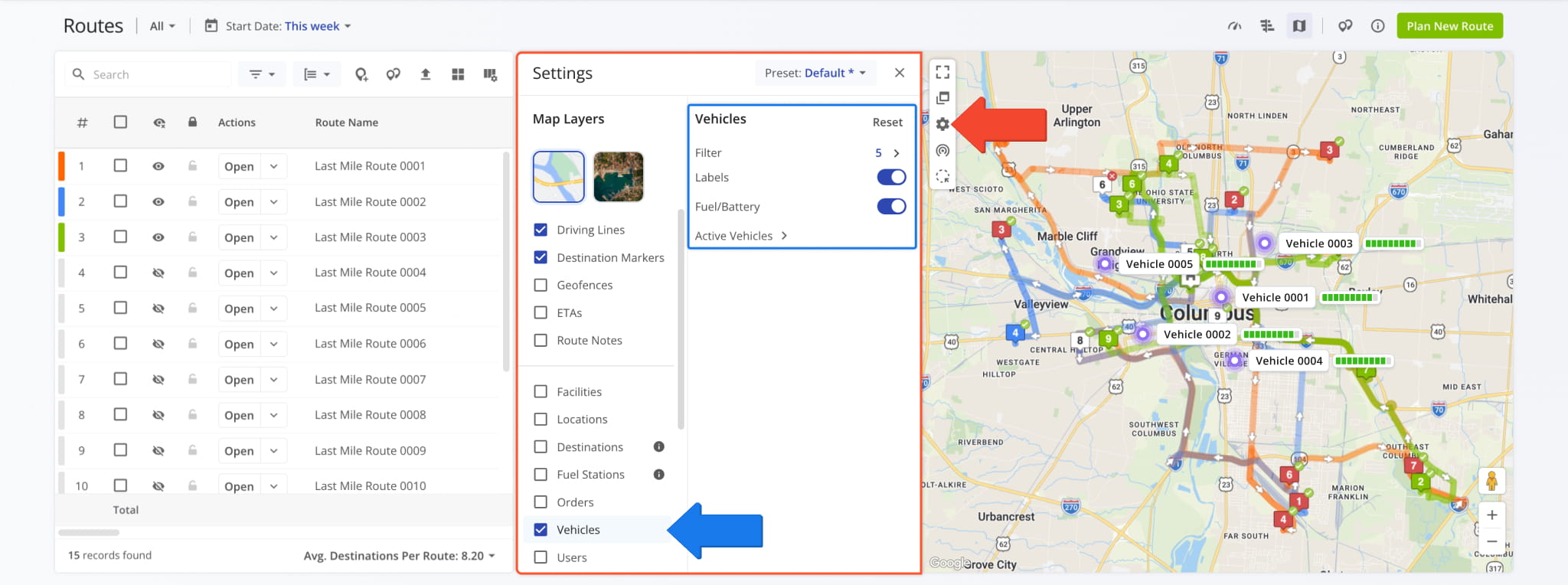
9Map settings on the Routes Map and Route Editor were redesigned. Now, the Gear Icon on the map opens a full “Settings” panel instead of a pop-out menu. You can enable Map Layers as usual.
To customize an enabled Map Layer, click its name to see its settings on the right.
You can also save your map layer setup as a preset. Click “Preset” at the top of the panel to switch presets, save changes, or save your setup as a new preset. An asterisk (*) next to the preset name means it has unsaved changes.
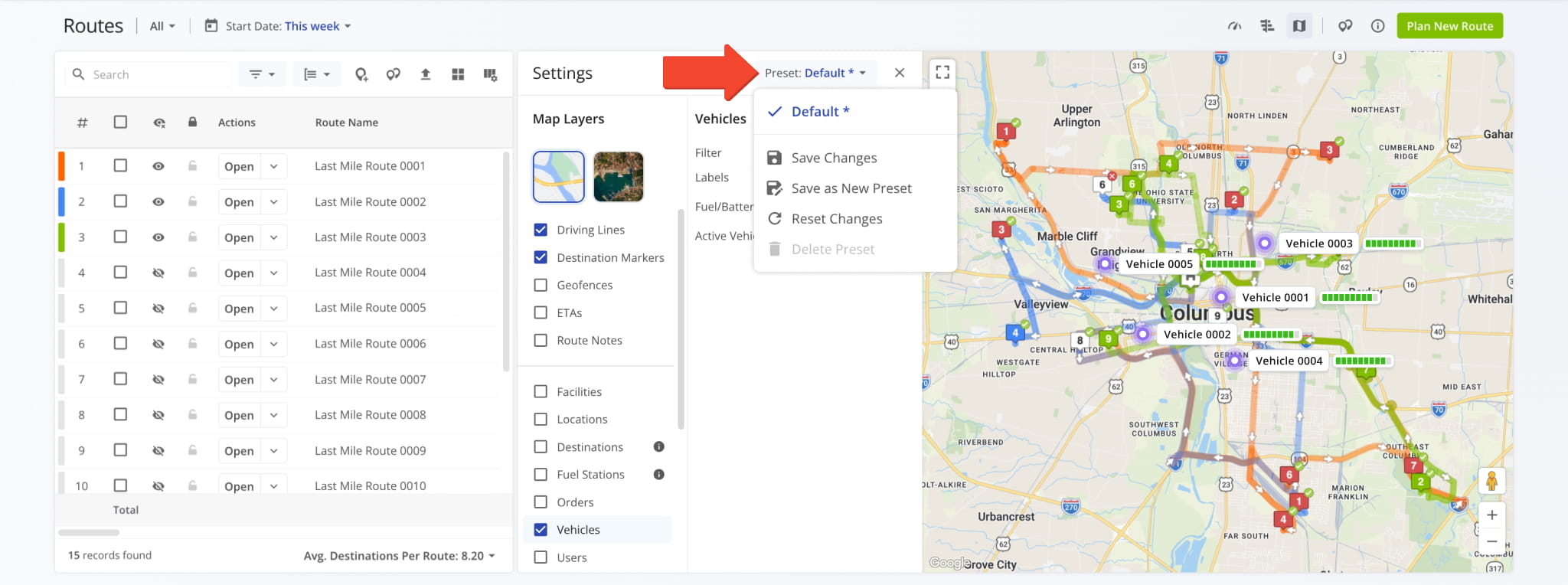
NOTE: Presets save Map Layers but not the Map Type or layer filters. The “Default” preset can’t be deleted.
Columns listing Route Members and assigned Assets were redesigned to now show names. Previously, the “Members” column on the Routes Page only showed how many Members a route had. Now, it shows names up to the column’s width followed by the number of Members that didn’t fit.
To see all Members, click the Three-dot Icon. You can also view Member History and edit Members from the same list.
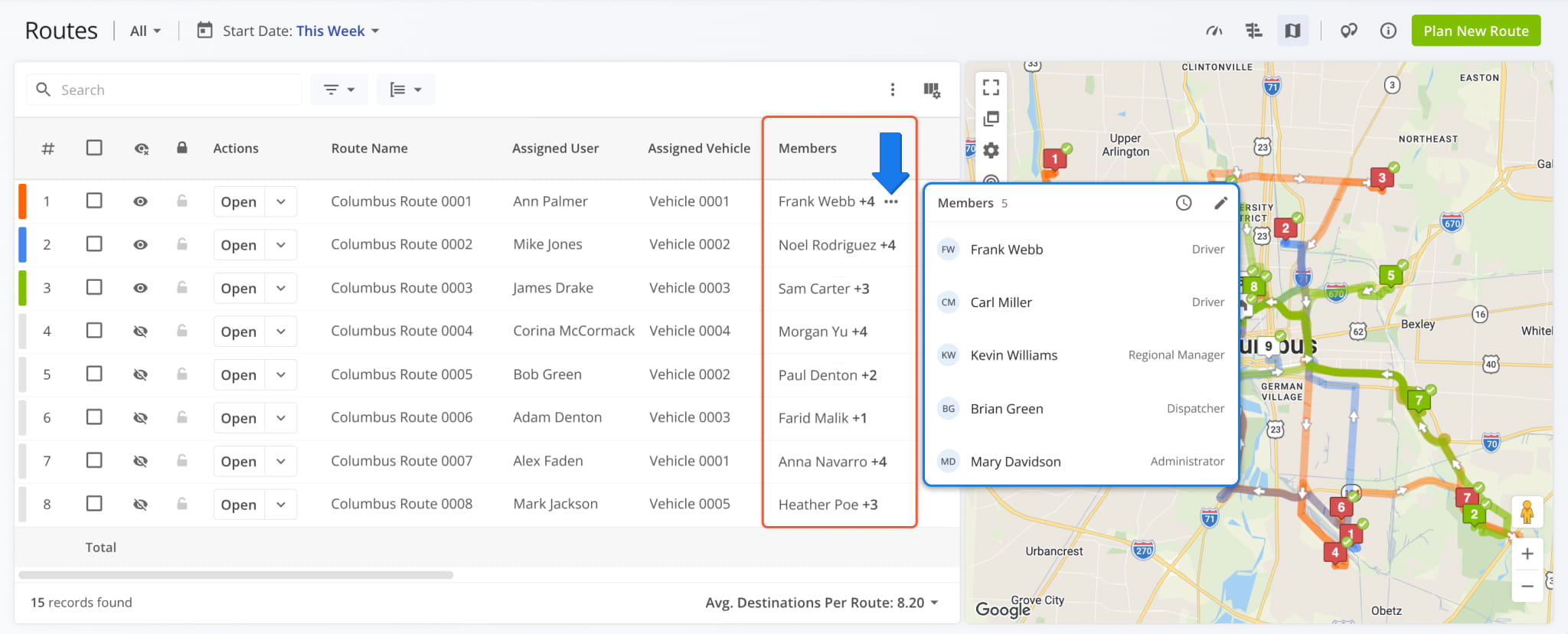
NOTE: The new column design is also used for “Members” and “Assets” in the “Routes” tab of Snapshots.
The Recurring Routes Page was renamed to Route Templates.
Templates are the reusable route plans from which recurring routes are generated. Previously, they were called Master Routes. Related actions were also renamed, such as “Create Route Template”.
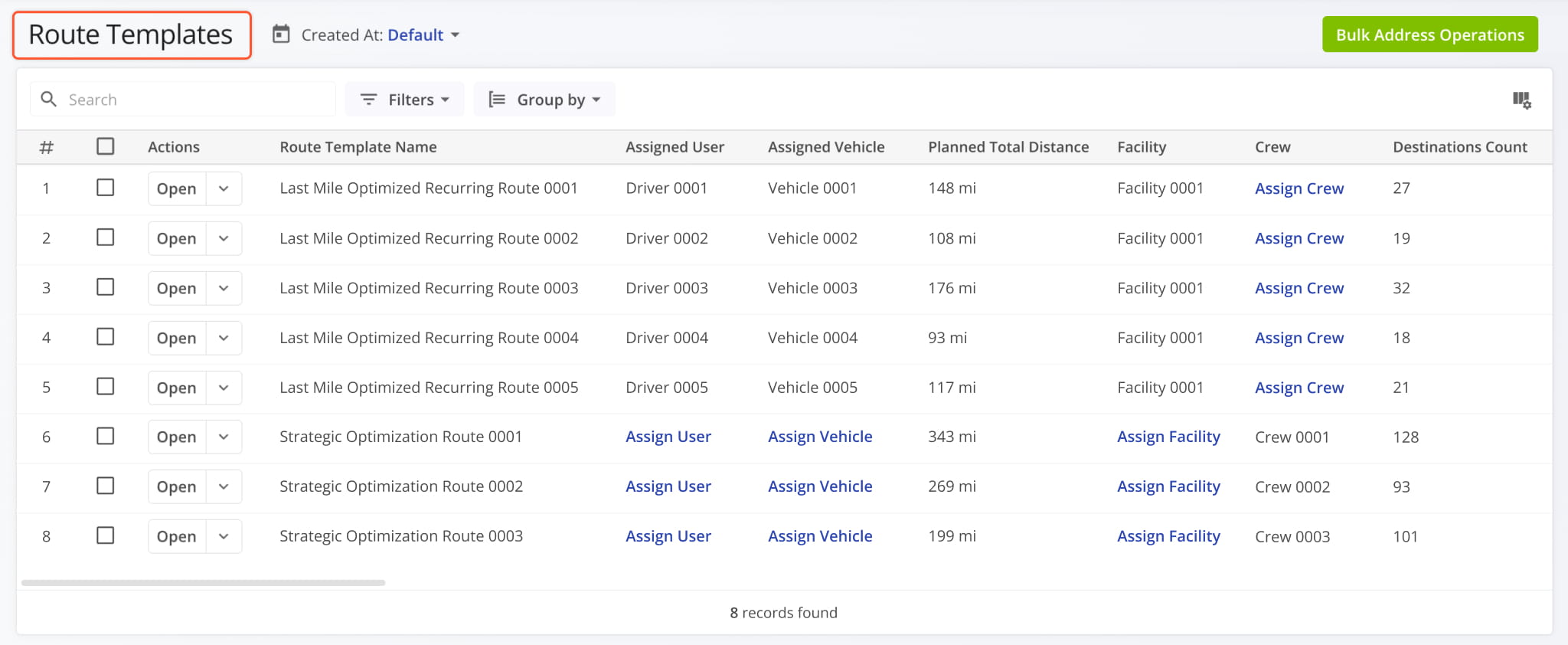
NOTE: Existing Templates, schedules, and integrations are not affected, and no data was changed.
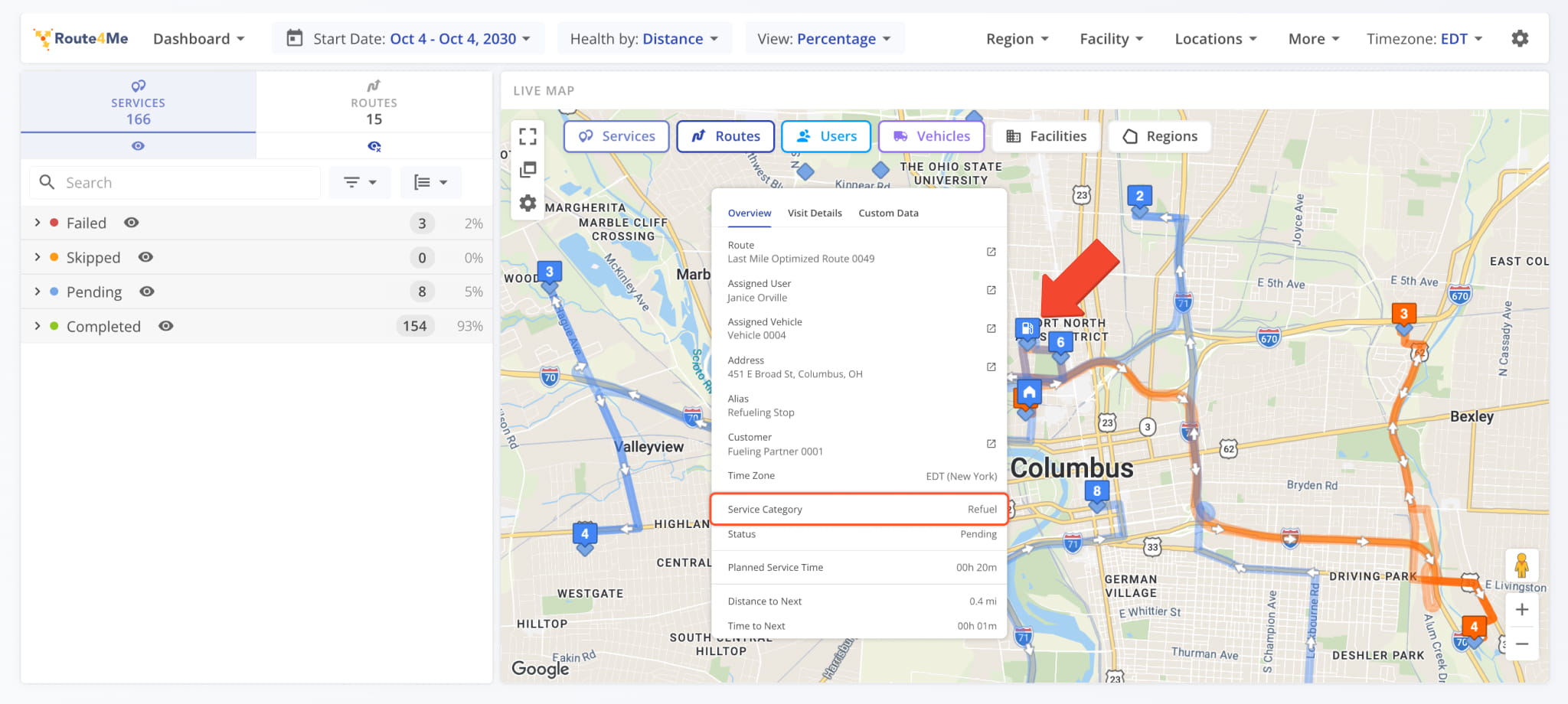
Refuel Destinations are now more visible on the Operations Dashboard Live Map. Destinations with the “Refuel” Service Category show a fuel pump icon on the map.
You can hover over Destinations to see their details, including Service Category.
Open Your Operations Dashboard
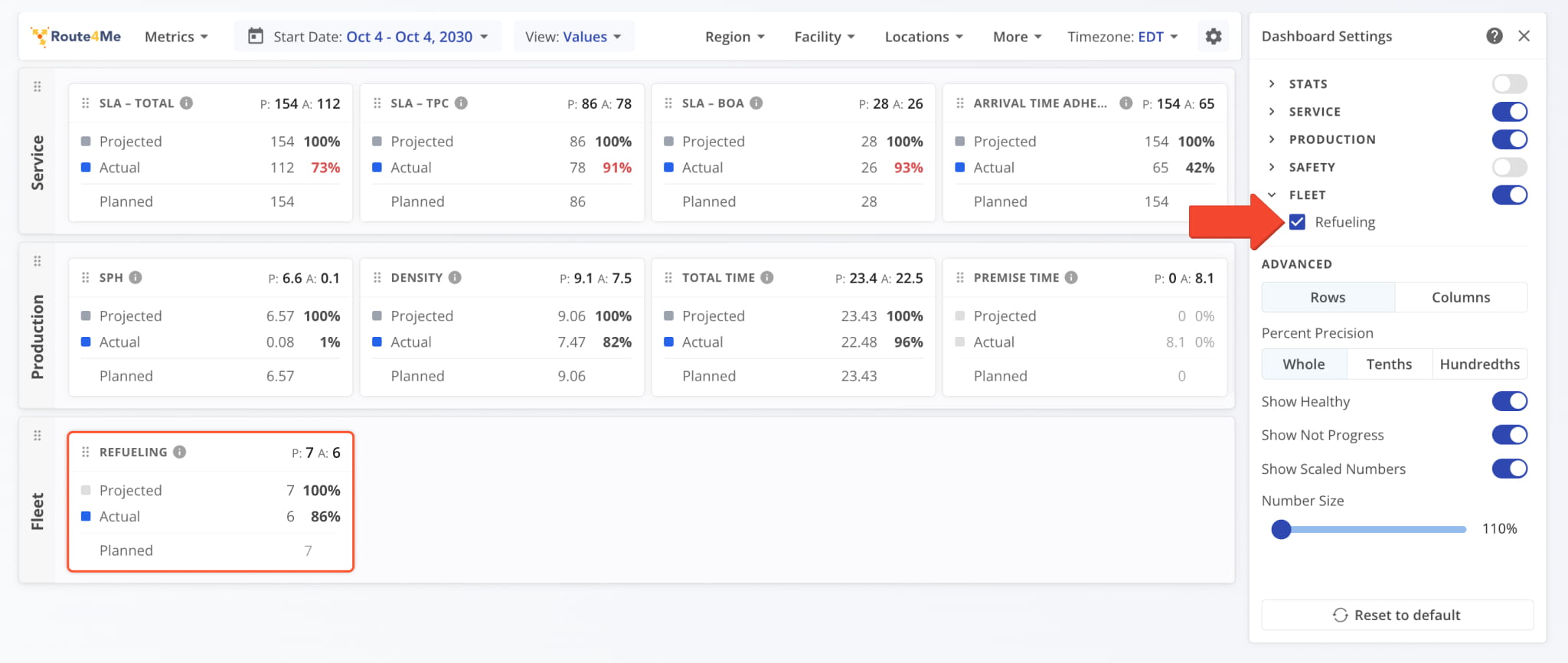
You can also track refueling metrics with the new “Refueling” tile. To add it, open “Dashboard Settings”, enable “Fleet”, and check the “Refueling” box. The tile shows refuel Destinations that are due by now (“Projected”), completed (“Actual”), and planned for the selected period (“Planned”).
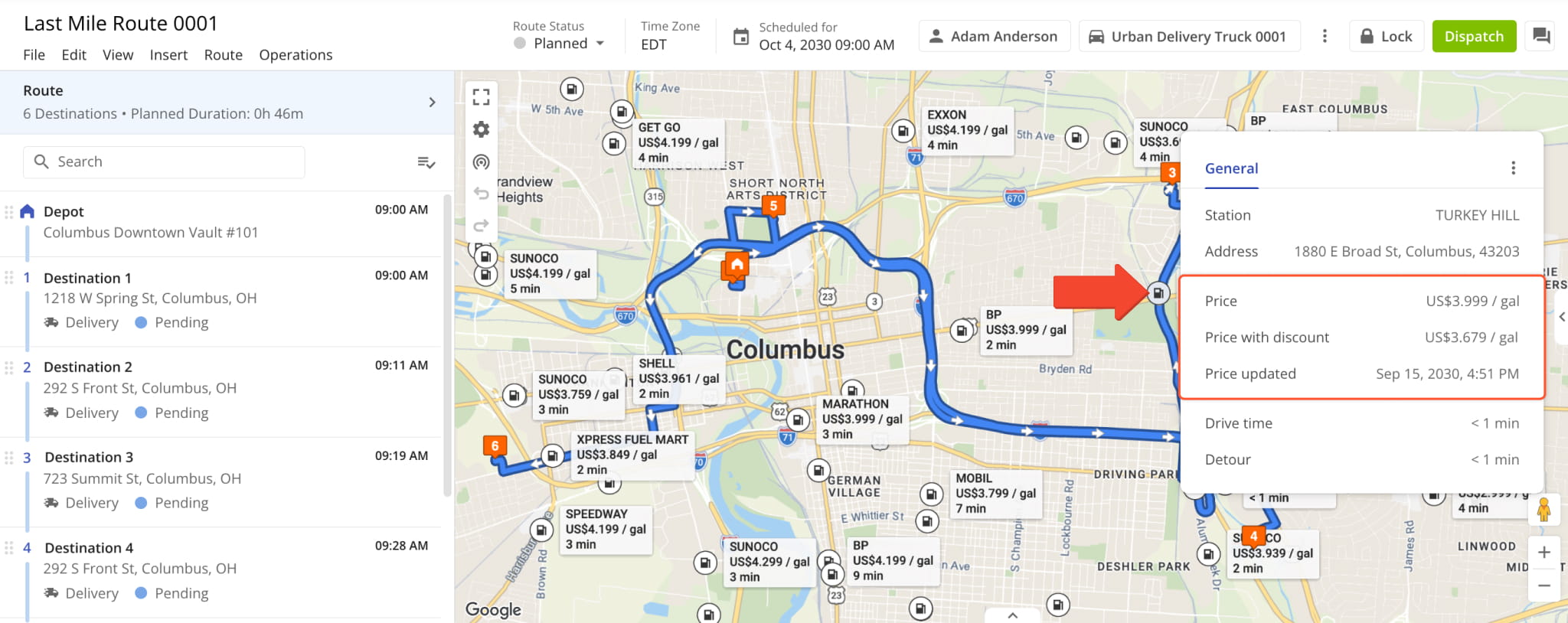
You can now add fuel discounts to Route4Me via API and see discounted fuel prices in Fueling Station details.
Once your fuel provider’s list of discounted stations is added to your account, matching Fueling Stations show both the regular price and your discounted price. To see a station’s fuel price details, hover over it on the map.
NOTE: Fuel card discount data can currently be added and updated only through the Route4Me API.
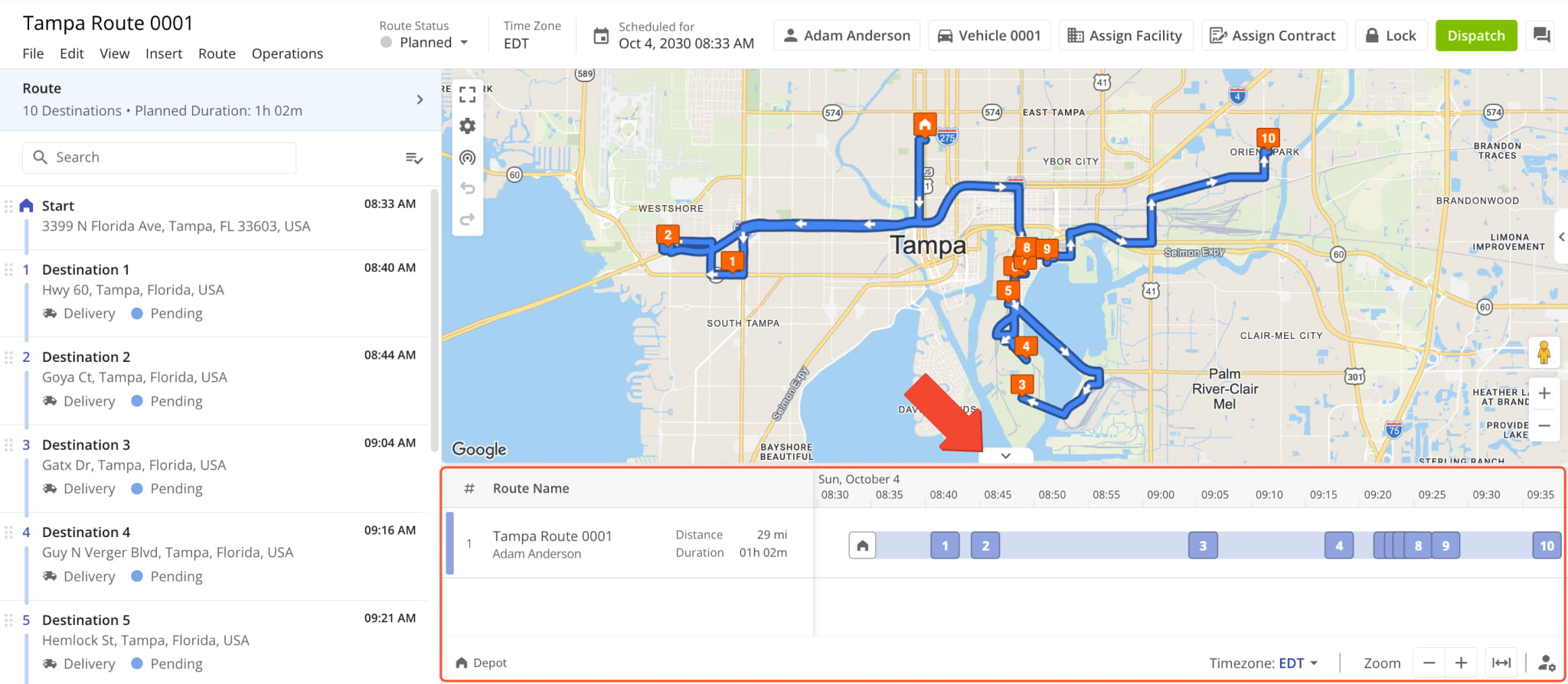
The Routes Timeline is now available in the Route Editor. To open the Timeline, click the Arrow Button below the map.
All the Routes Timeline functions and tools for individual routes are available in the editor. You can zoom, scroll, fit all Destinations into view, and choose which route data and labels are shown using Timeline Settings. Additionally, you can drag and drop Destinations on the Timeline to easily resequence a route.
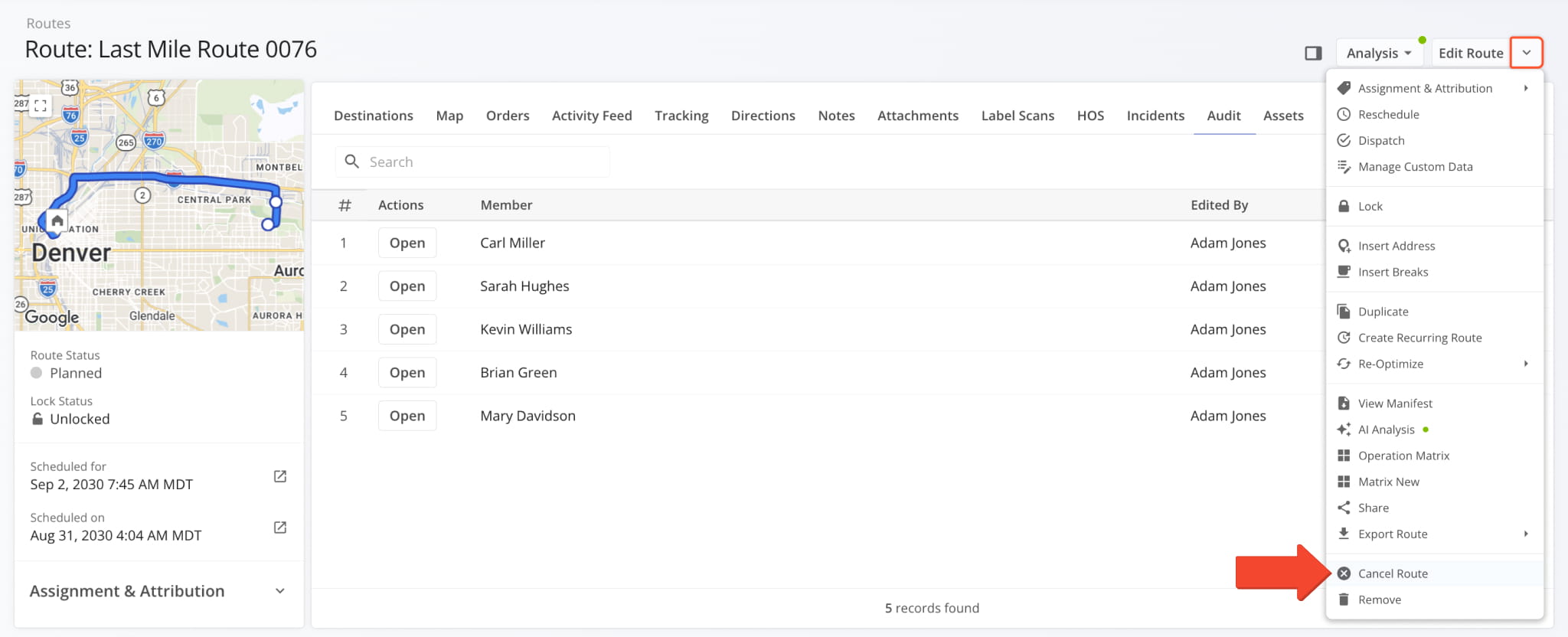
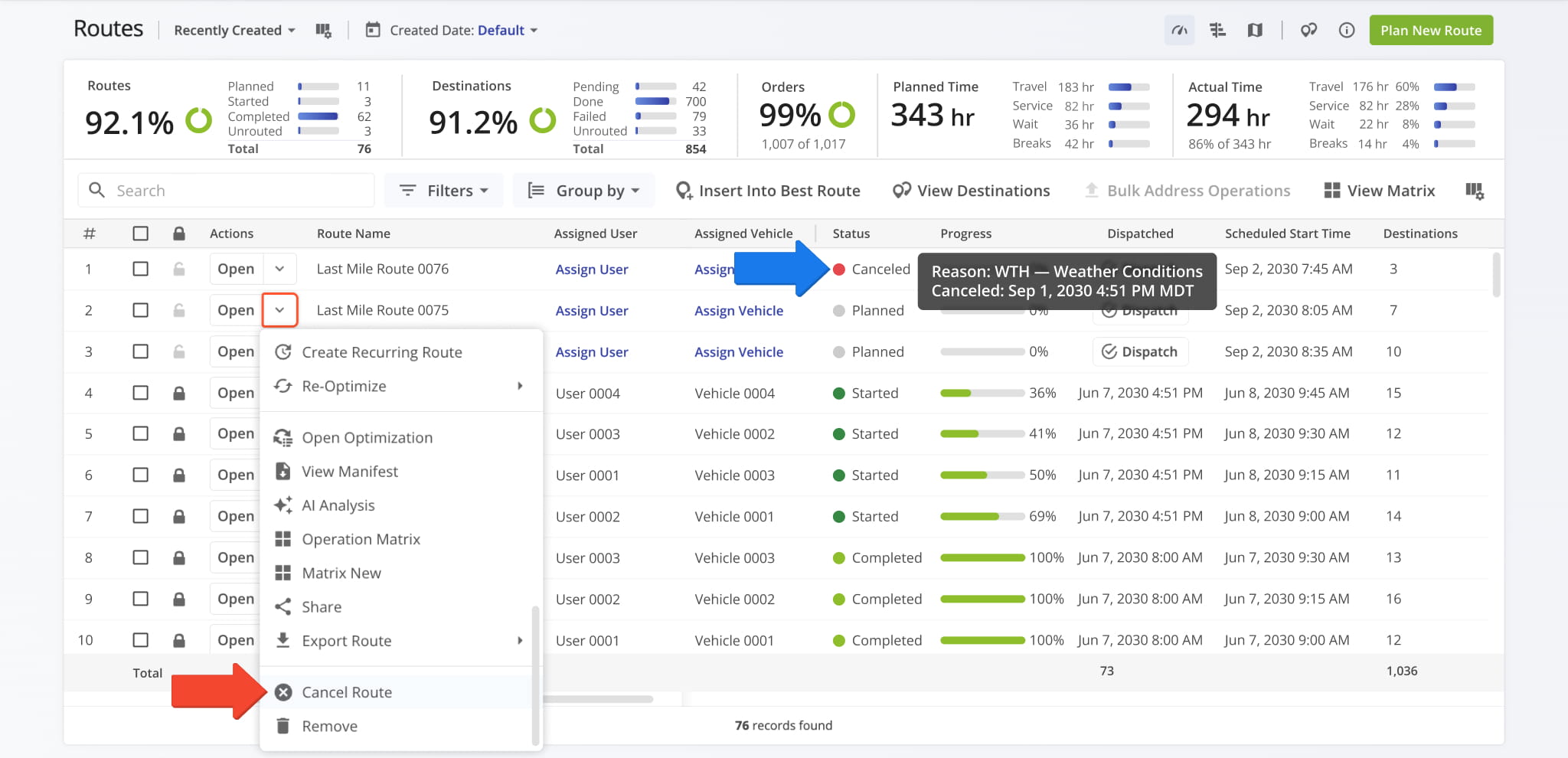
Users with route management access can now cancel routes. To cancel a route from its Route Snapshot, click the Down Arrow next to “Edit Route” and select “Cancel Route”.
You can cancel planned, started, paused, and resumed routes, but not completed ones.
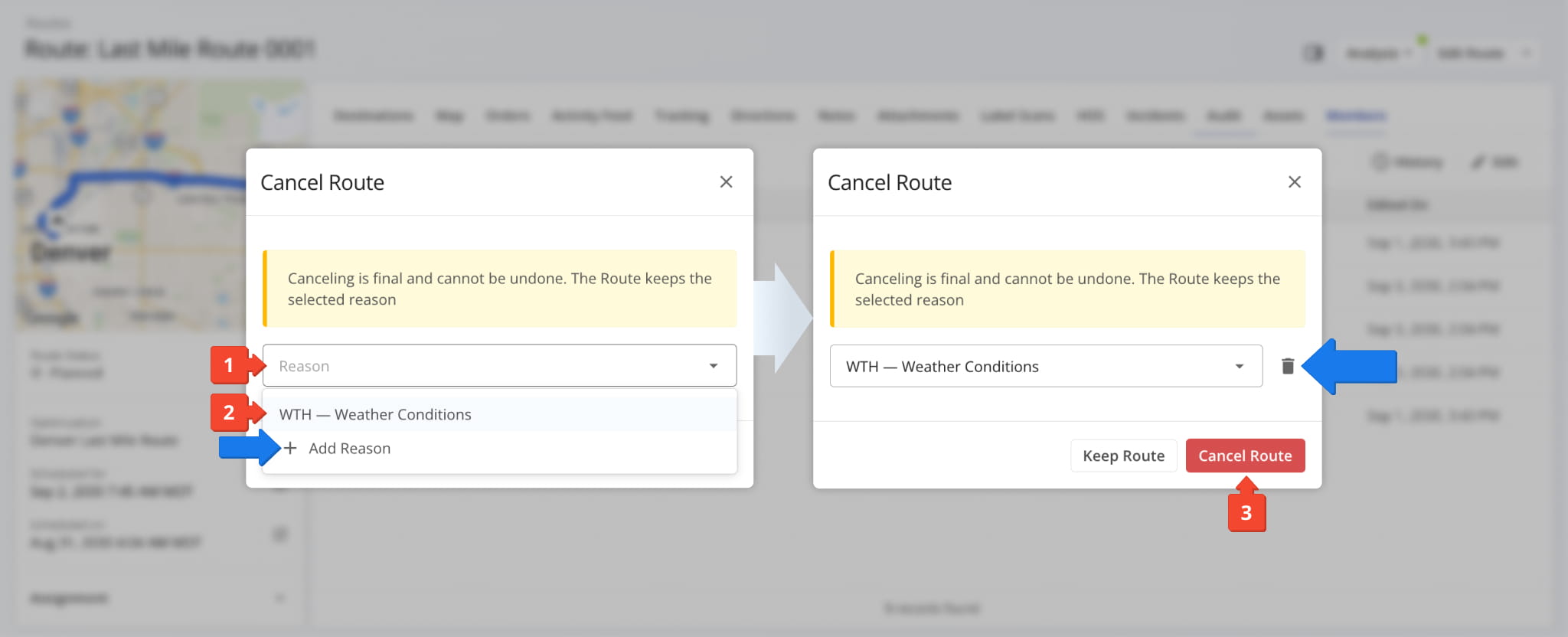
Canceling routes requires a cancellation reason. To select a cancellation reason and cancel a route:
- Click the “Reason” field in the “Cancel Route” popover.
- Select a reason from those saved on the main Route4Me account.
- Click “Cancel Route” to cancel the route or “Keep Route” to back out.
To create a new reason, click “Add Reason” and enter a 3-character code and a description. To delete a reason from your account, select it and click the Delete Icon.
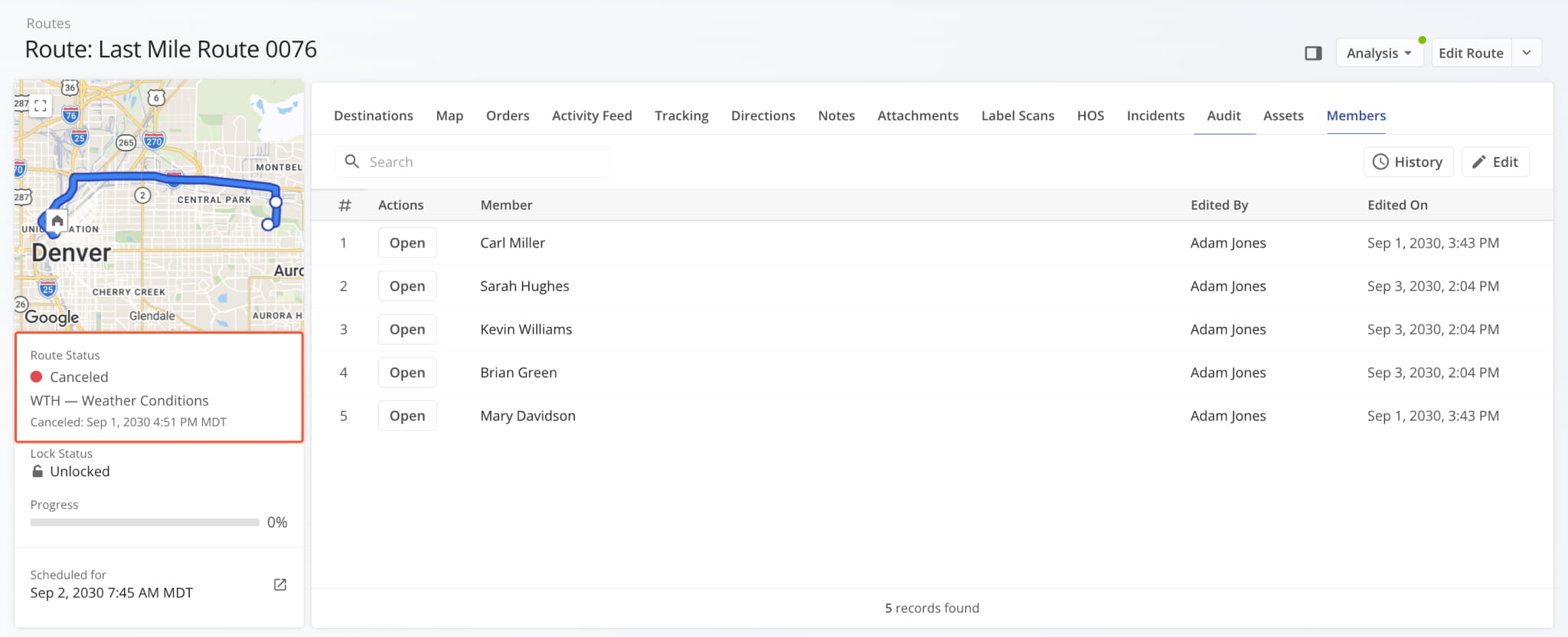
Canceled routes show a red “Canceled” status, along with the cancellation reason and timestamp.
On the Routes Page, you can cancel a route from the Down Arrow menu next to “Open”.
To see why a route was canceled, hover over its “Canceled” status.
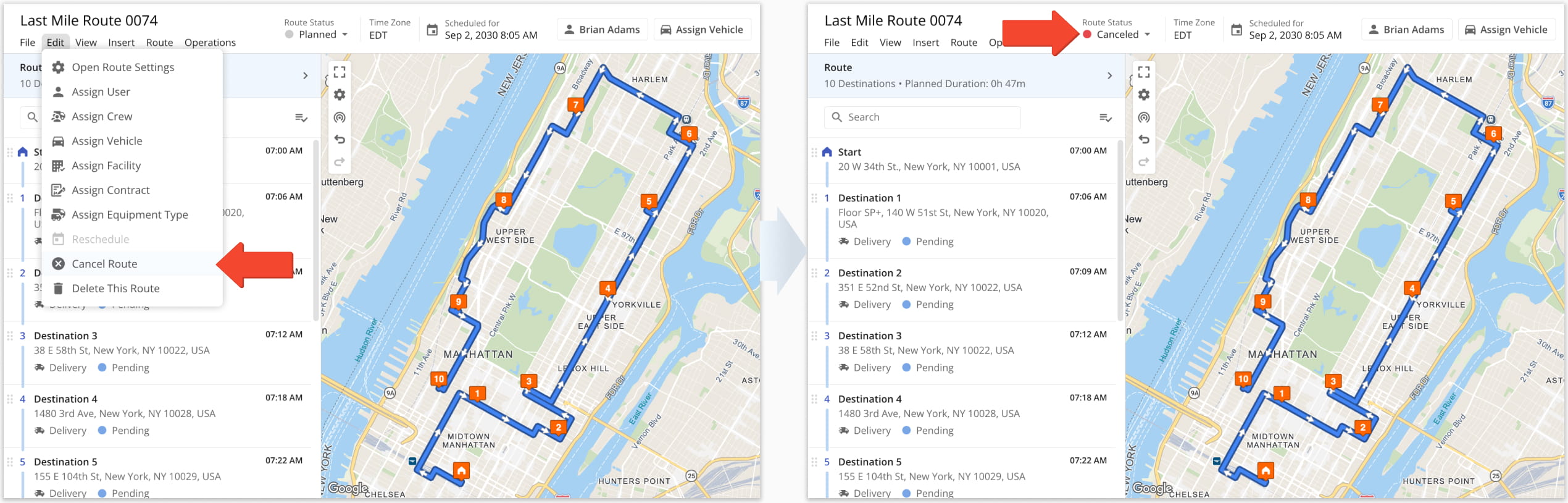
In the Route Editor, go to “Edit” and select “Cancel Route”.
The route status in the header then changes to “Canceled”.
You can now select multiple Destinations on the Routes Map simply by clicking. Then, you can move them to a specific route, even if they belong to different routes. Left-click a Destination to select it, then use:
- Ctrl/Cmd + Left-Click: Add or remove individual Destinations to your selection.
- Shift + Left-Click: Select a range of Destinations. For example, click #2 then Shift + Click #5 to select Destinations #2–#5.
Once your Destinations are selected, you can drag any one of them to move the whole selection.
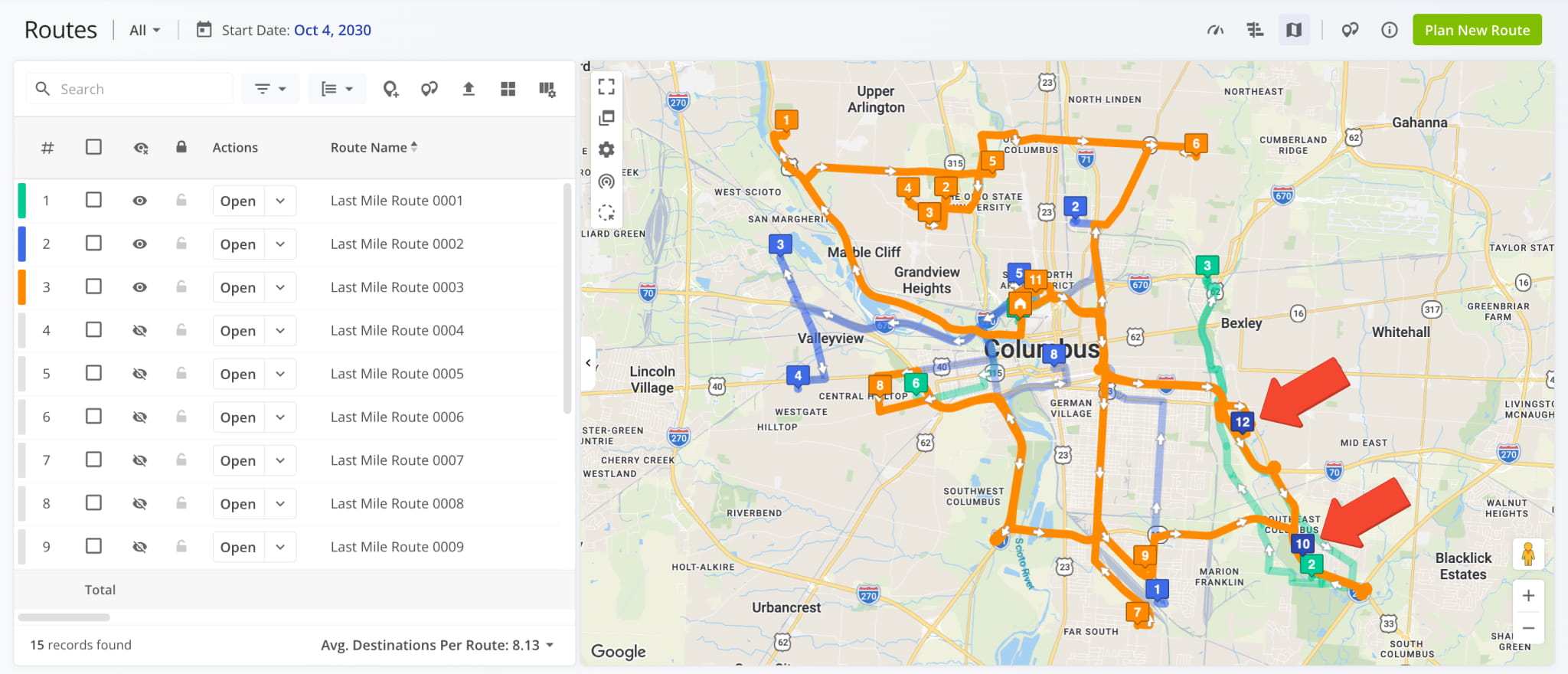
NOTE: Depots, visited Destinations, and Destinations on locked routes are skipped when selecting.
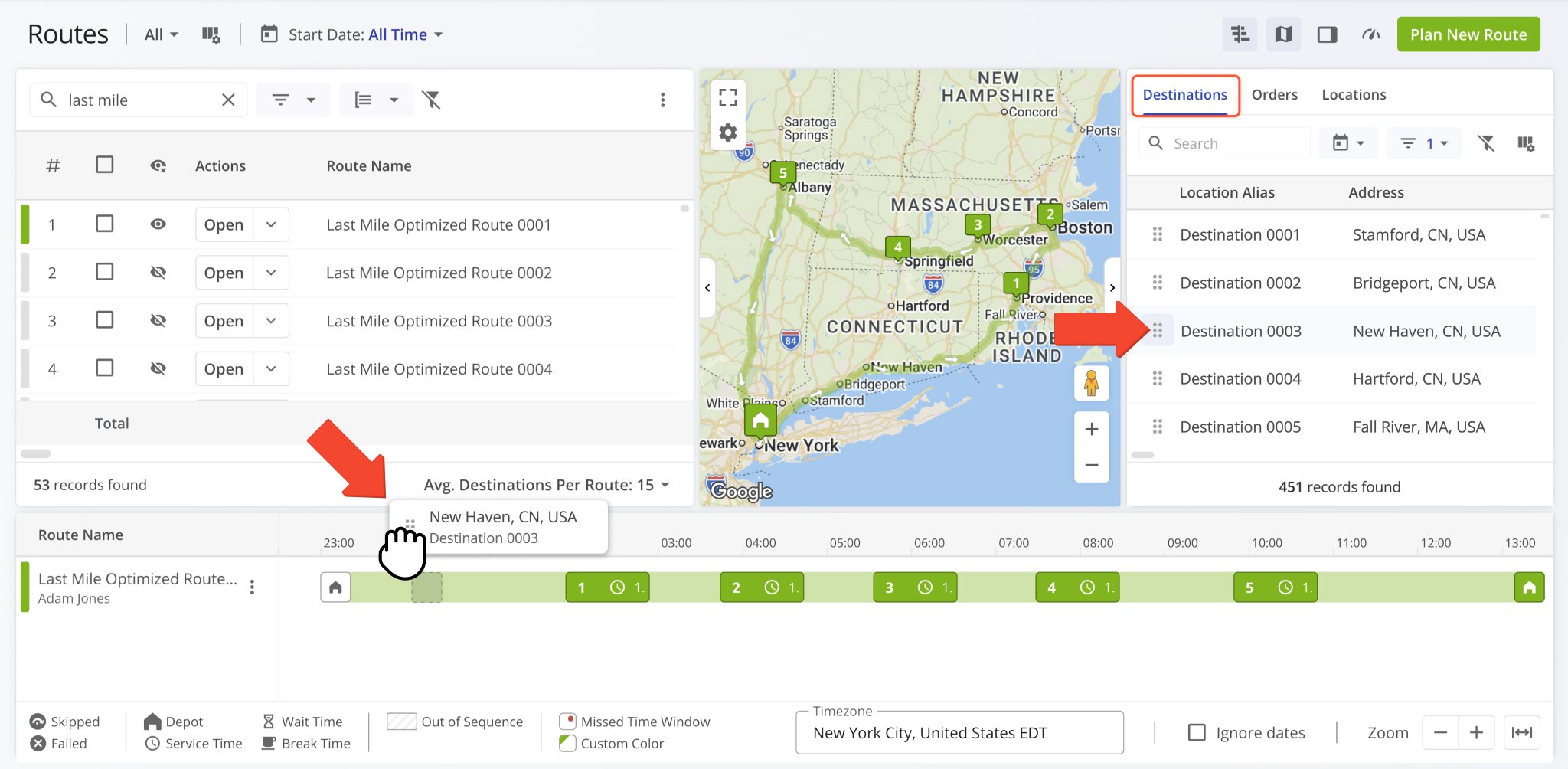
Drag the selected Destinations onto another route’s line on the map, a new position on the same route, or use the Routes Timeline. While you drag, a placeholder marks where each Destination was.
When you drop them, a review panel opens and shows which routes the Destinations come from, where they land, and how the move affects each route. Click “Move” to confirm, or “Cancel” to back out.
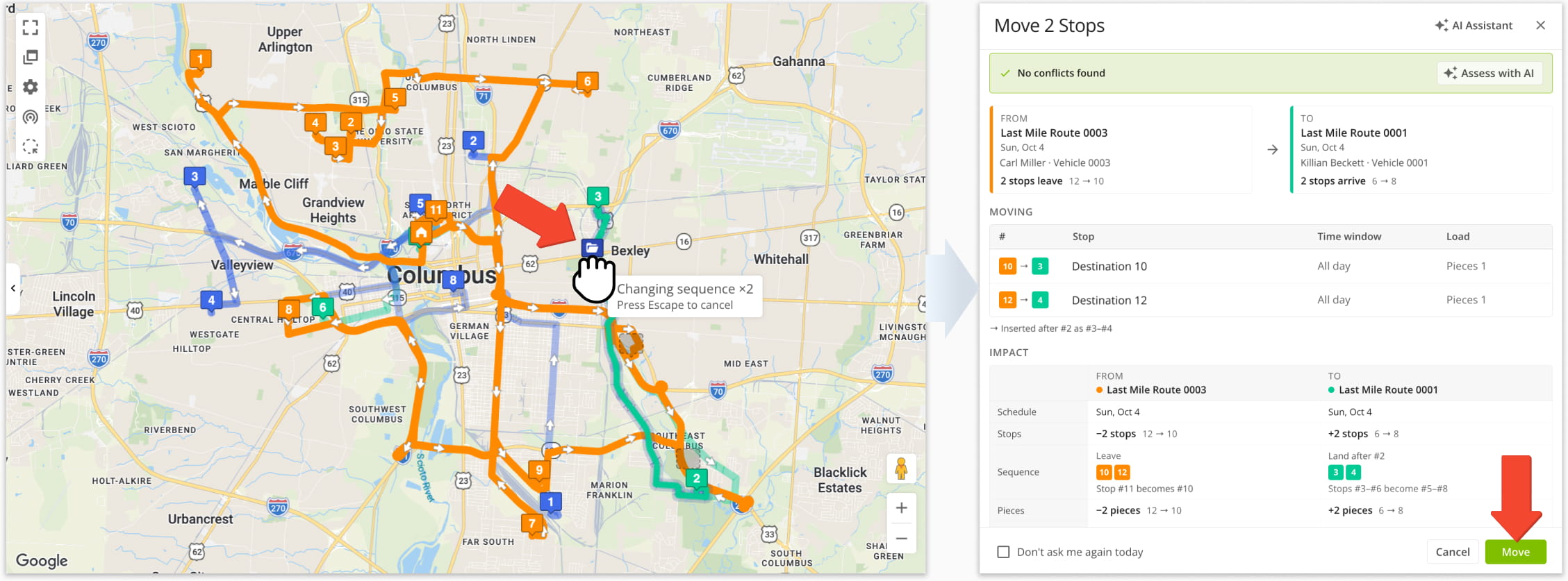
NOTE: You can’t drop Destinations onto locked routes.
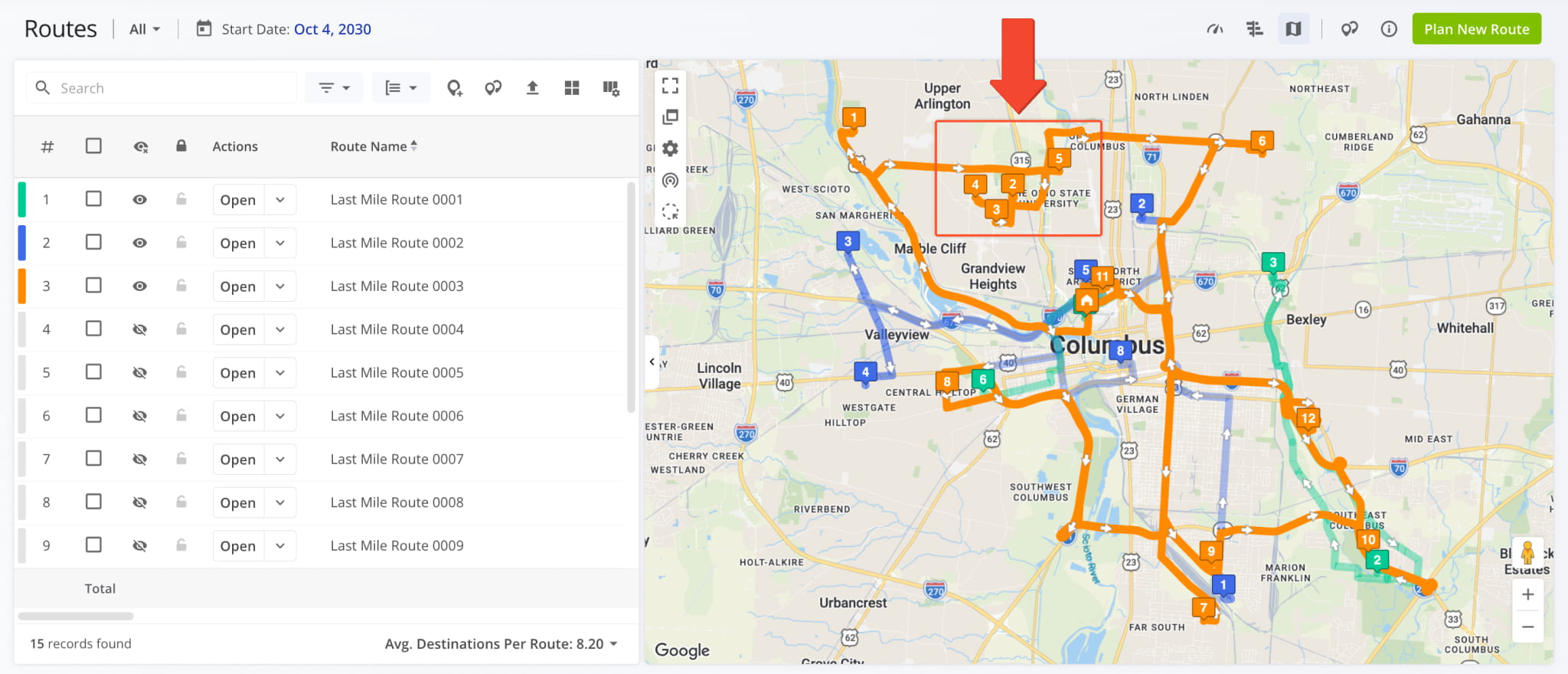
The selected Destinations are moved together, and routes update automatically. Both routes are renumbered, and their travel time and distance are recalculated. Learn more about moving Destinations between routes.
NOTE: Moving Destinations this way changes their route and sequence, never their address or map location.
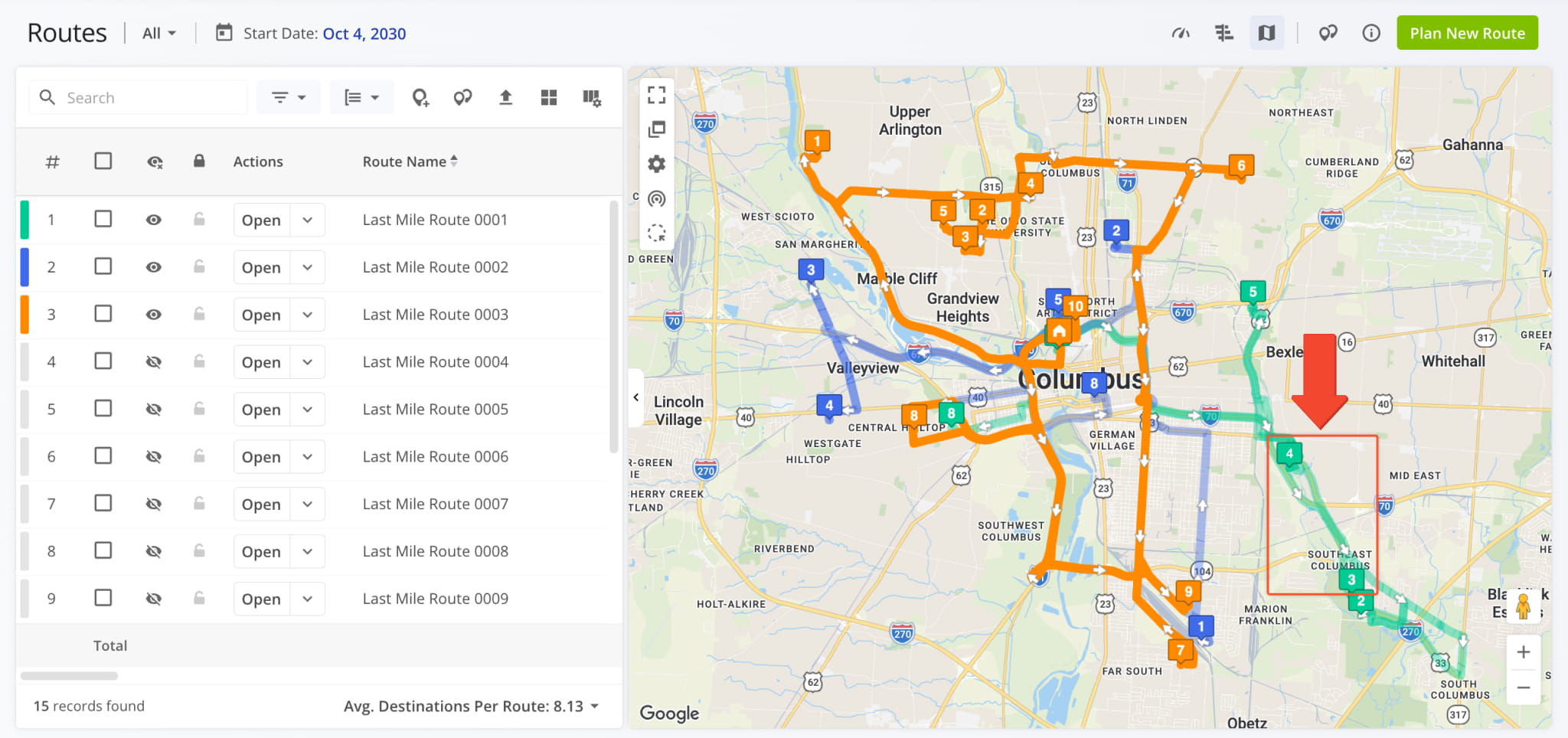
You can now select a group of Destinations on the Routes Map and easily move them to another route. This enables you to reassign Destinations that are close together on the map, even when their sequence numbers are far apart. To select Destinations on the Routes Map:
- Click the Lasso Select Icon in the map controls.
- Draw around the Destinations you want to select.
All Destinations inside the shape are selected, even if they belong to different routes.
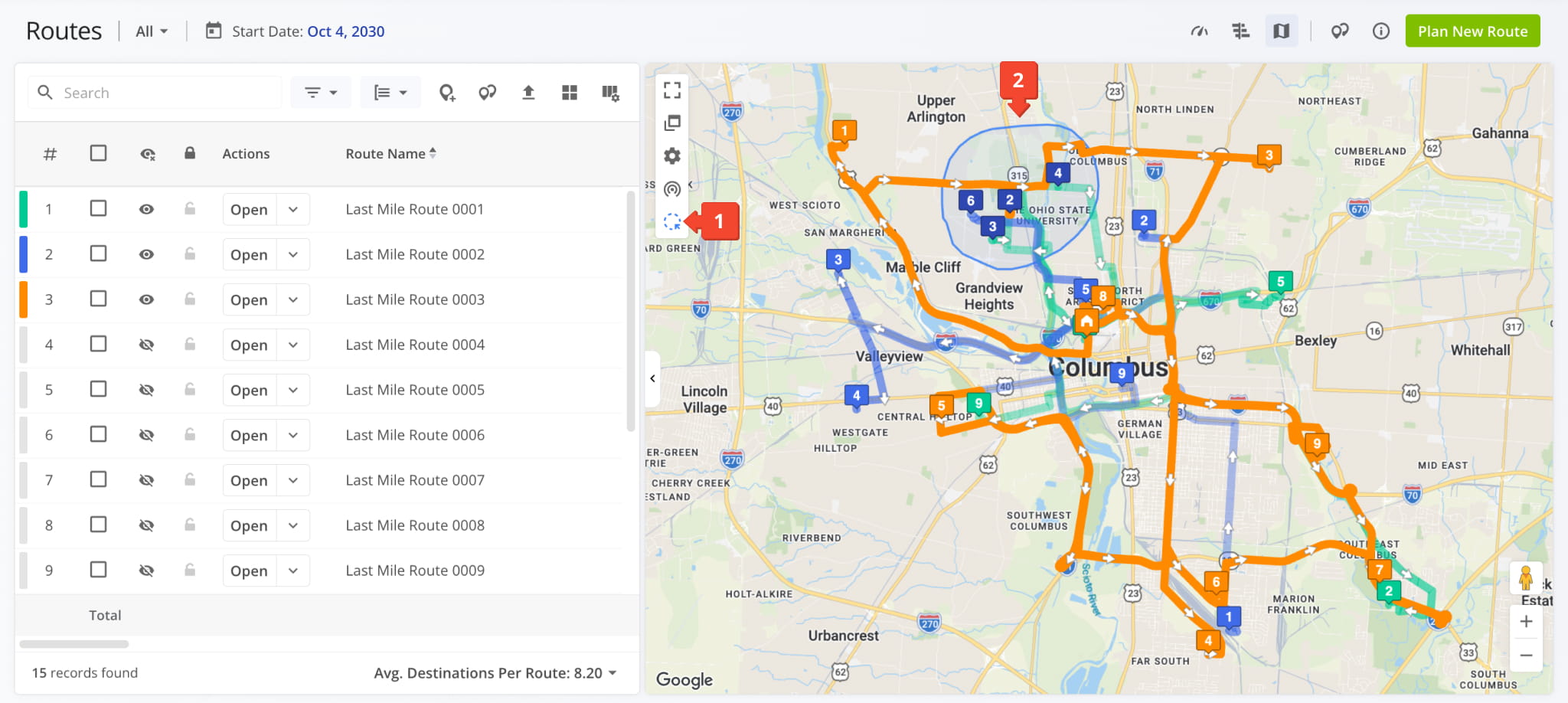
NOTE: Depots, visited Destinations, and Destinations on locked routes are skipped when selecting.
Next, simply click and drag any of the selected Destinations onto another route’s line on the map or onto a route’s row in the Routes Timeline. This will move all of them as a group. Once you drop them, a review panel opens.
The review panel shows which routes the Destinations come from, where they land in the target route, and how the move affects each route. Click “Move” to confirm or “Cancel” to keep routes unchanged.
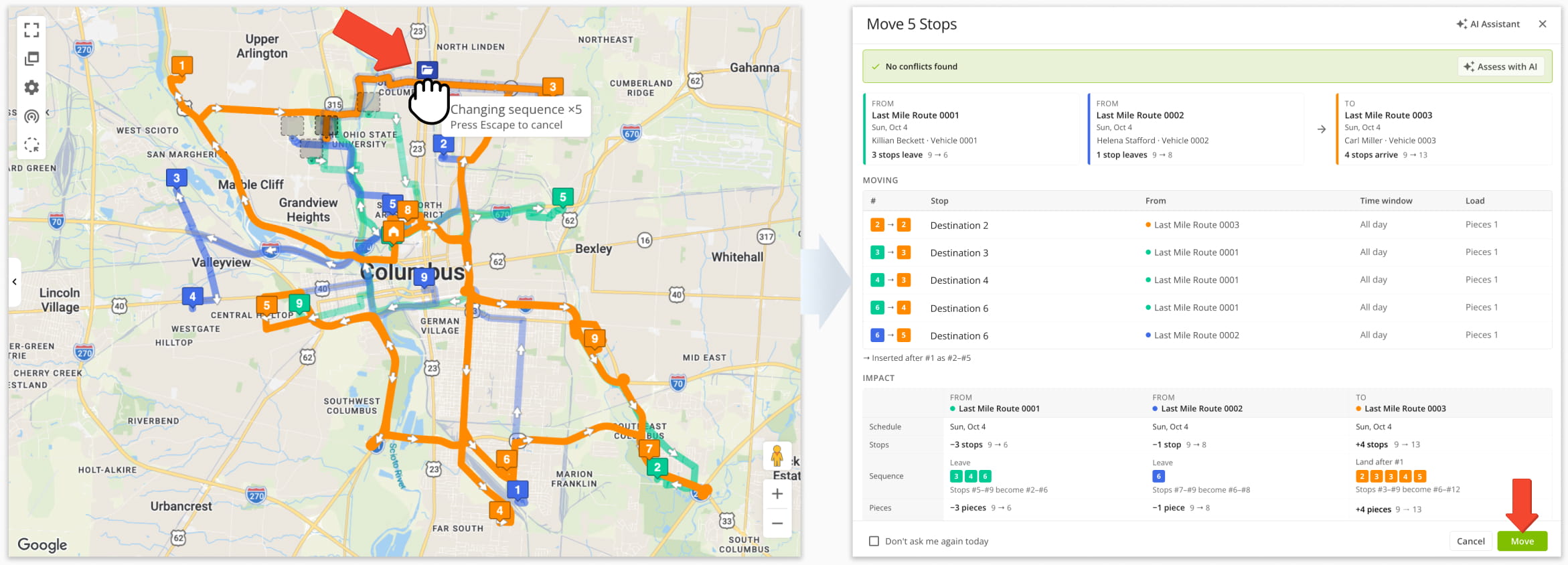
NOTE: You can’t drop Destinations onto locked routes.
All selected Destinations are moved together; travel time and distance are recalculated for every affected route automatically. Learn more about moving Destinations between routes.
NOTE: Moving Destinations this way changes their route and sequence, never their address or map location.
September 2026
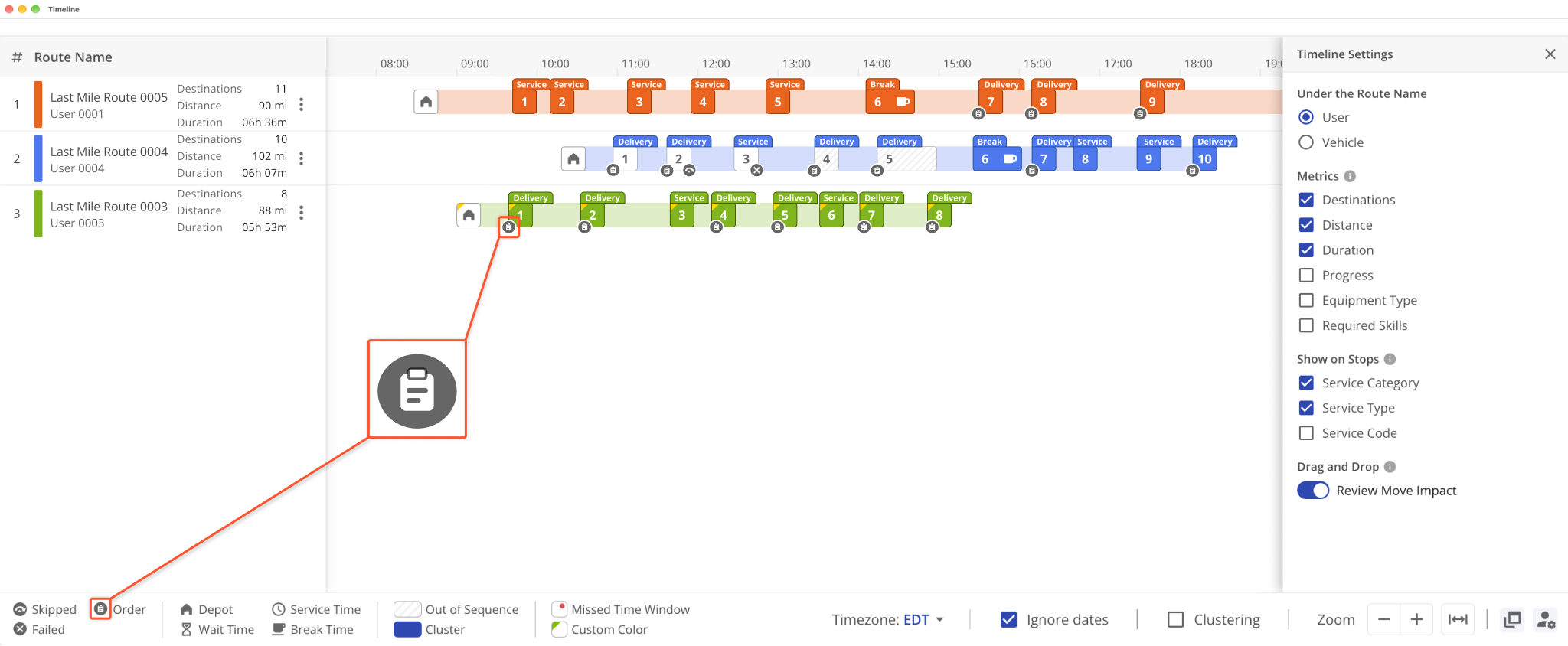
28A new Order Icon was added to the Routes Timeline. It indicates a Destination has an associated Customer Order. Additionally, when you hover over an Order Destination, you can check the corresponding Order’s details.
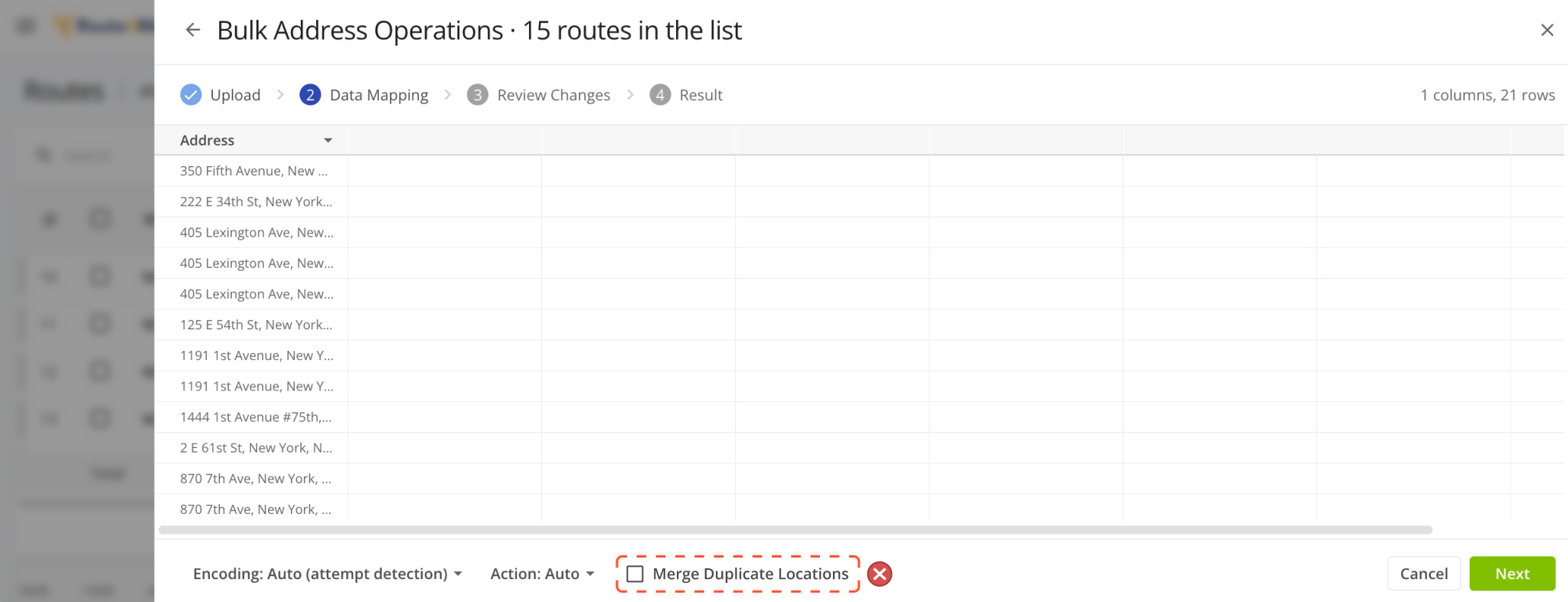
The “Merge Duplicate Locations” option when performing Bulk Address Operations was removed. This change streamlines the address import workflow by removing the automatic duplicate merging option.
All imported addresses and orders are now preserved exactly as uploaded, ensuring separate deliveries, tasks, or stops at the same address are never unintentionally combined.
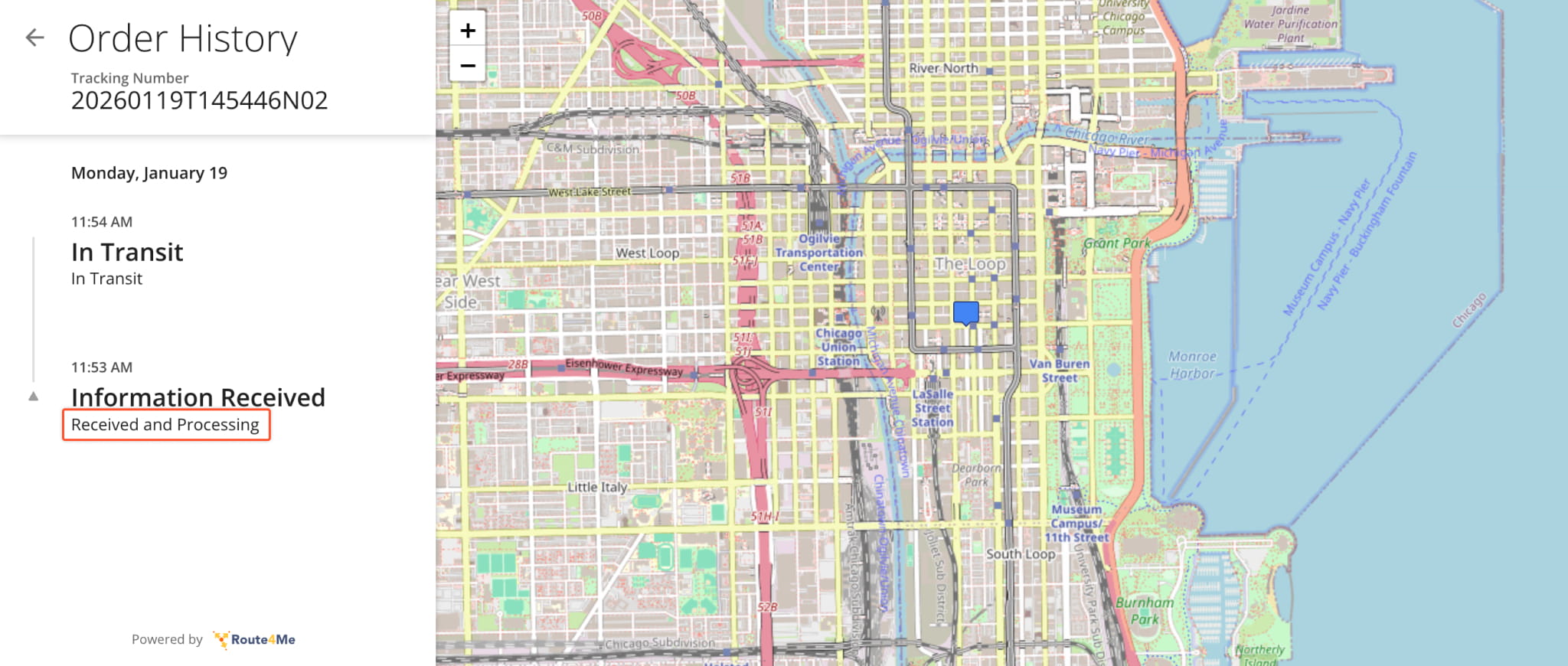
When an Order’s Status changes to “Inbound Scan“, the Order Tracking Portal now shows “Received and Processing” instead of “Package Received“. The new wording fits all order types, including pallets, documents, food, service, etc.
NOTE: If you’ve customized this status description for your account, your wording is unchanged.
NOTE: This update is retroactive. Orders scanned before this change now show “Received and Processing“.
Route4Me now records a “Vehicle Refueled” event in your Activity Feed and in the Route Editor. Following on-route refueling and when a vehicle’s telematics fuel level rises during a route, the event logs the fuel level before and after the refill, so you can easily see when and how much each vehicle was refueled.
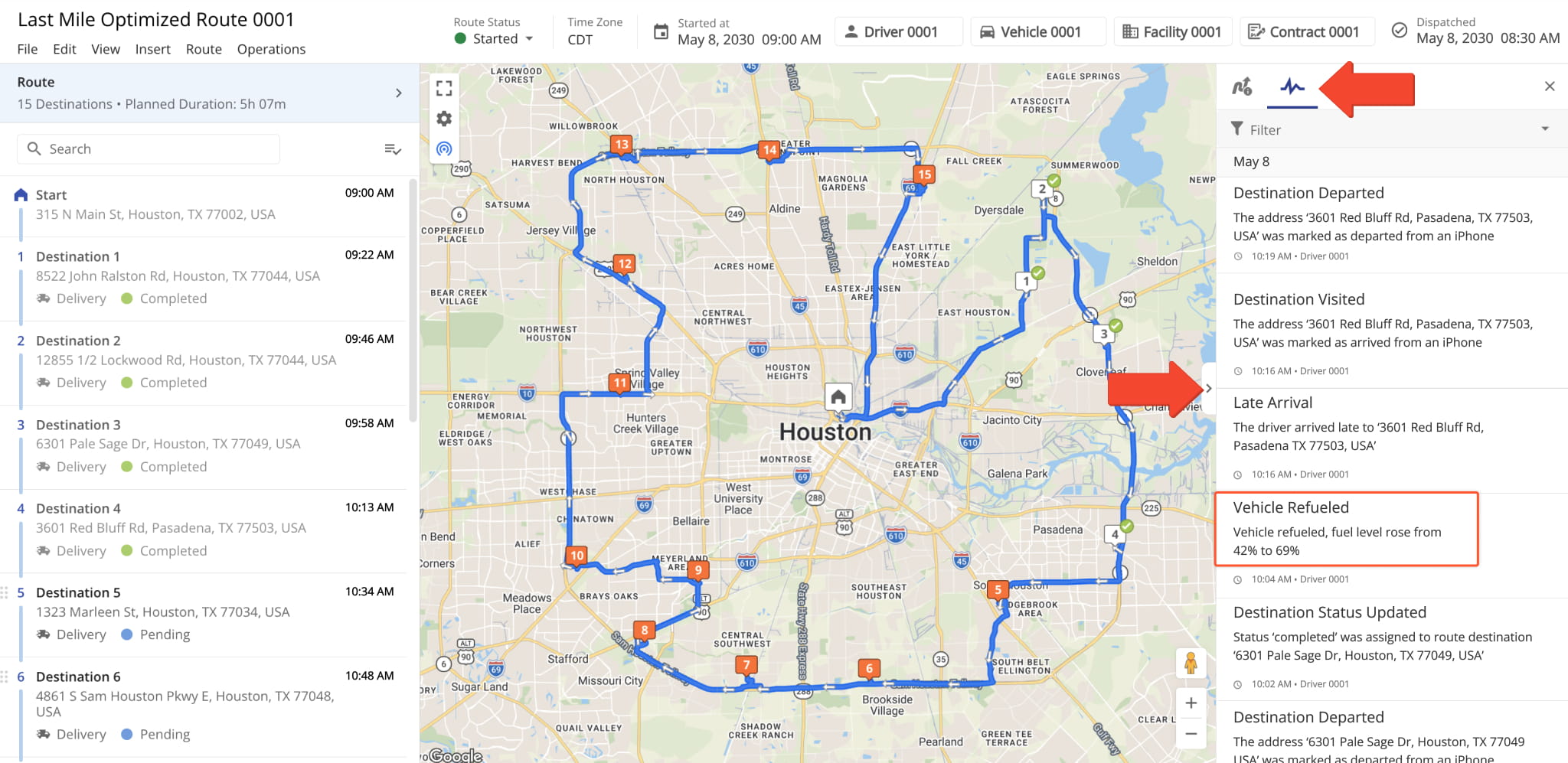
NOTE: Vehicle Refueled events require a Telematics Connection that reports the vehicle’s fuel level.
The Routes Timeline was updated with the following new features and functionality:
- Route Numbers: The list of enabled Timeline Routes has a new route number column.
- Route Action Menu: A Three-dot Icon was added to Timeline Routes to show management actions. Previously, the same actions were accessible only when right-clicking.
- Cluster Destinations: A “Clustering” checkbox was added to group destinations when looking at high-density routes.
- Fit All Destinations: A new button was added to the zoom controls. It automatically fits all Destinations into a single view.
- Open In Separate Window: A new button to open the Timeline in its own window like the image below.
- Timeline Settings: A new button to open Timeline Settings where you can customize the displayed route data values and functionality of the Timeline.
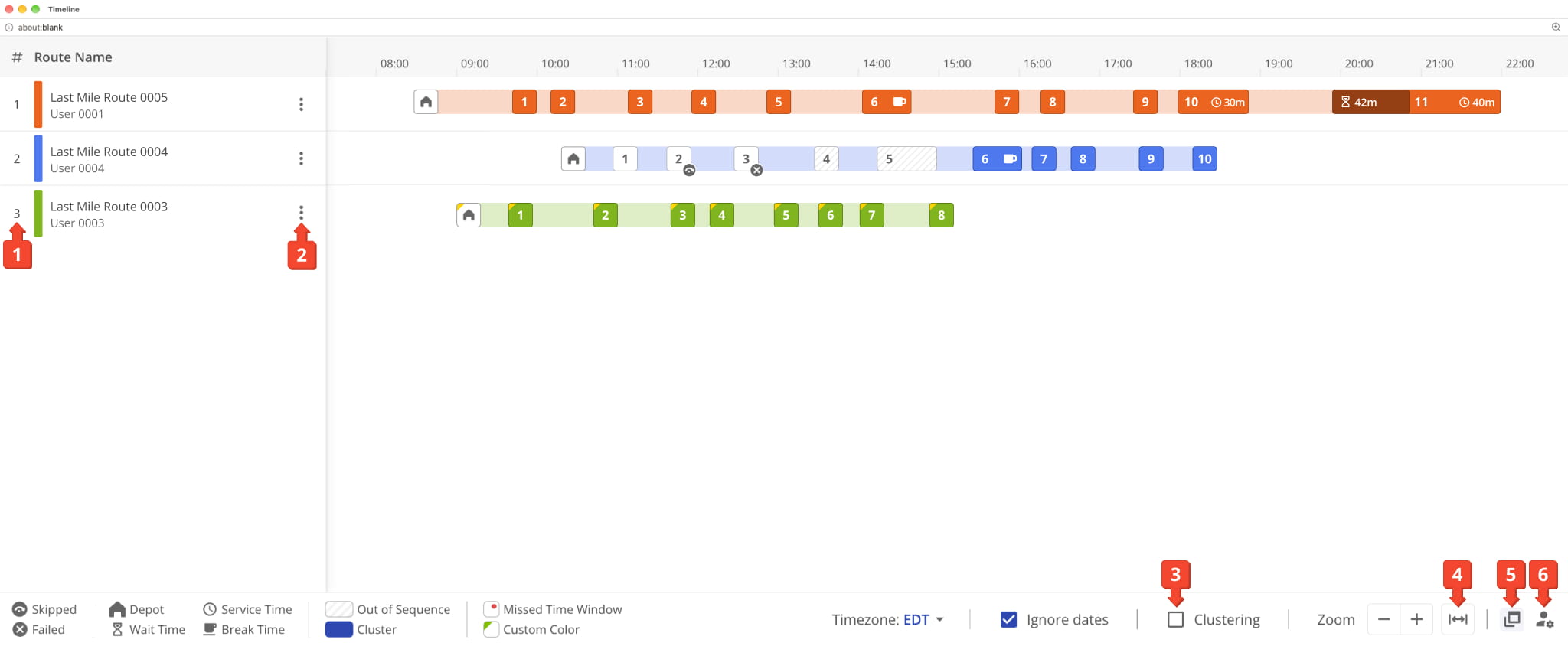
Click the Settings Button in the bottom right to access the following settings and options:
- Under the Route Name: Pick which entities or resources associated with routes are shown under route names.
- Metrics: Enable up to three metrics to be displayed next to route names in a dedicated metrics column.
- Show on Stops: Enable Destination Details to show as labels above Destinations in the Timeline.
NOTE: Labels are hidden for visibility when many Destinations are visible. You may have to zoom in to see labels. - Drag and Drop (Review Move Impact): Enable a confirmation window when moving Destinations on the Timeline.
See the table below for a full list of options available in the “Timeline Settings” panel.
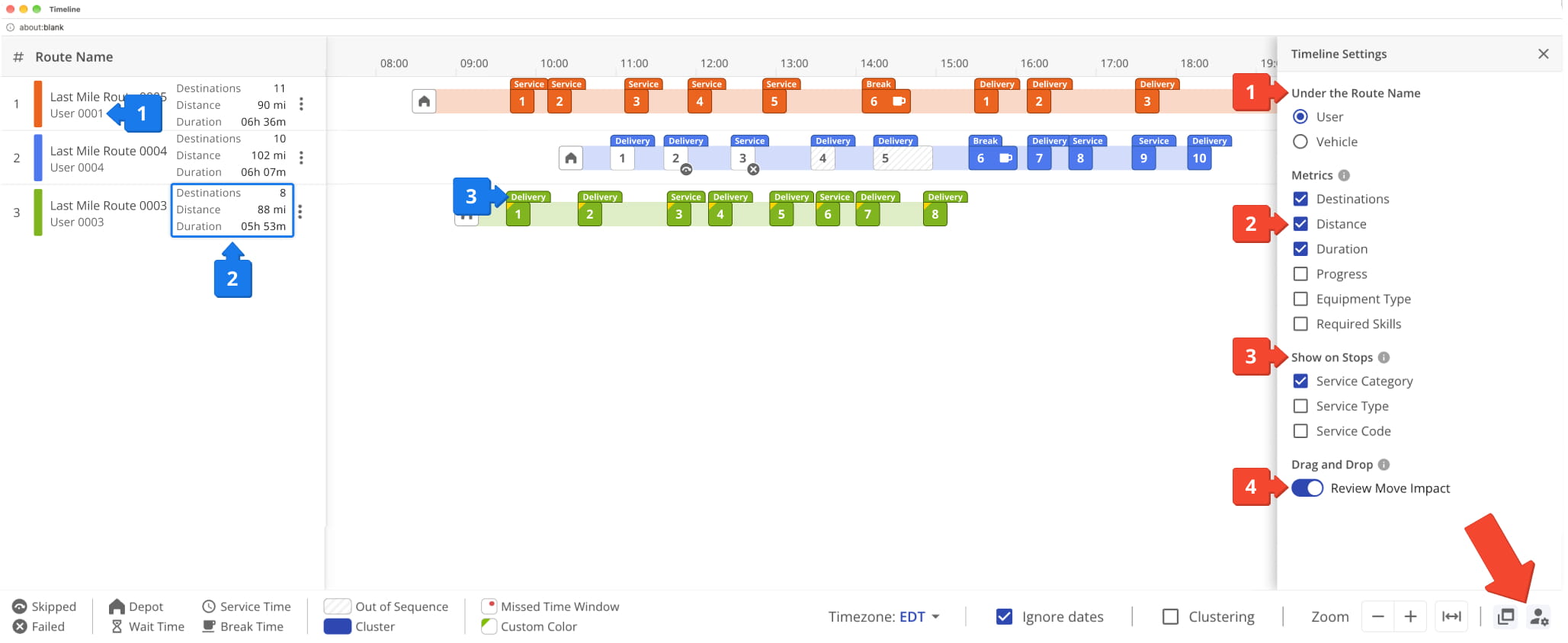
Routes Timeline Settings
A new “Source” field was added to the “Route Metrics” Panel in Route Snapshots. It enables you to select the tracking data source used to calculate values in Route Metrics. You can select:
- User Reported: Tracking based on manual route actions from the assigned User on the Driver Mobile App.
- Mobile App Detected: Automatically detected route actions by Driver Mobile App using Destination Geofencing.
- Telematics Detected: Tracking data automatically detected by a Telematics Vehicle’s installed telematics device.
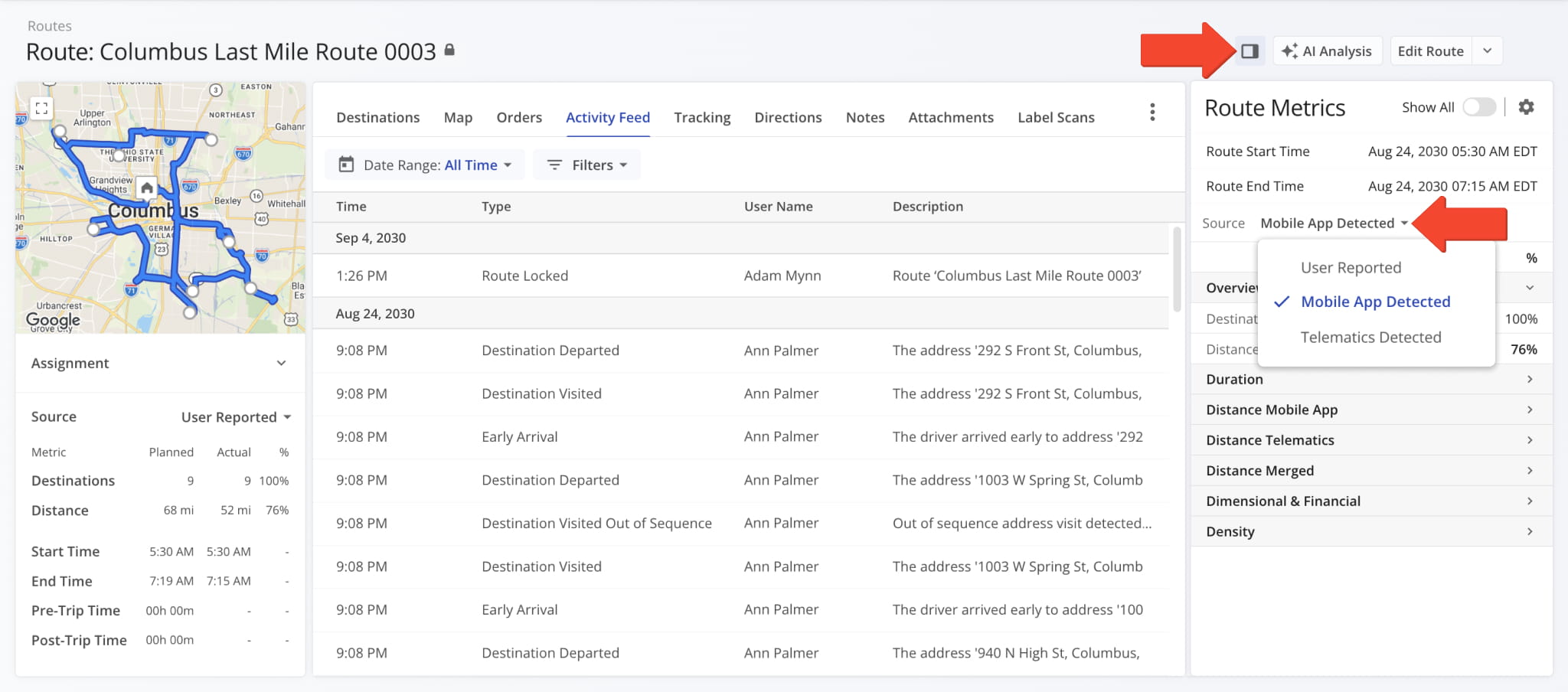
A new, structured Route Settings panel was introduced to provide an improved experience when planning routes. The updated layout makes it easier to navigate, adjust, and understand optimization parameters in a unified interface.
This change improves consistency and readability across the UI by bringing Route4Me’s modern visual language to the Route Settings interface. You can find a full list of all available settings in the reference table below.
NOTE: This is a gradual release, and the update will be rolled out to all accounts over time.

Route Settings Reference Table
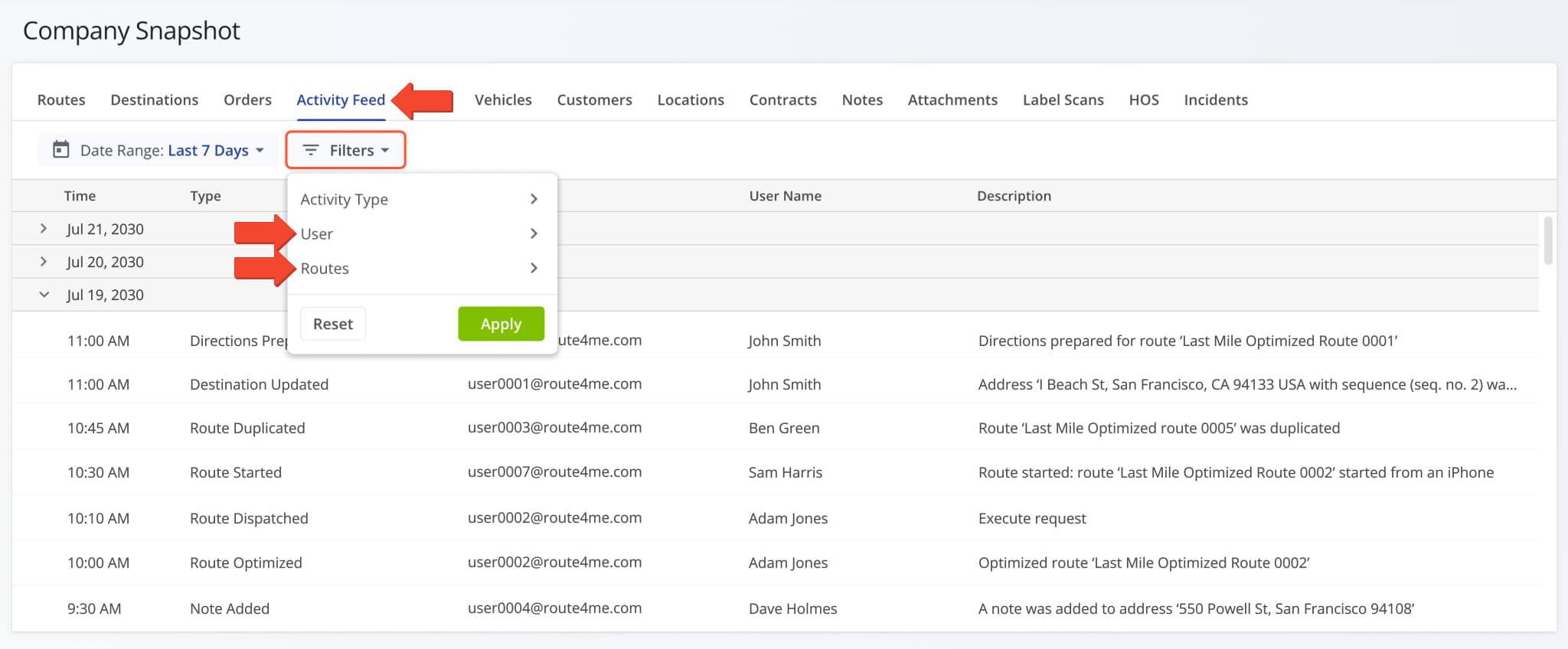
The “Filters” menu on the Company Snapshot Activity Feed tab now includes the “User” and “Routes” filters alongside “Activity Type“. Previously only “Activity Type” was available, so narrowing the company-wide feed to one User or one route meant leaving the Snapshot for the main Activity Feed. Both now offer the same filters.
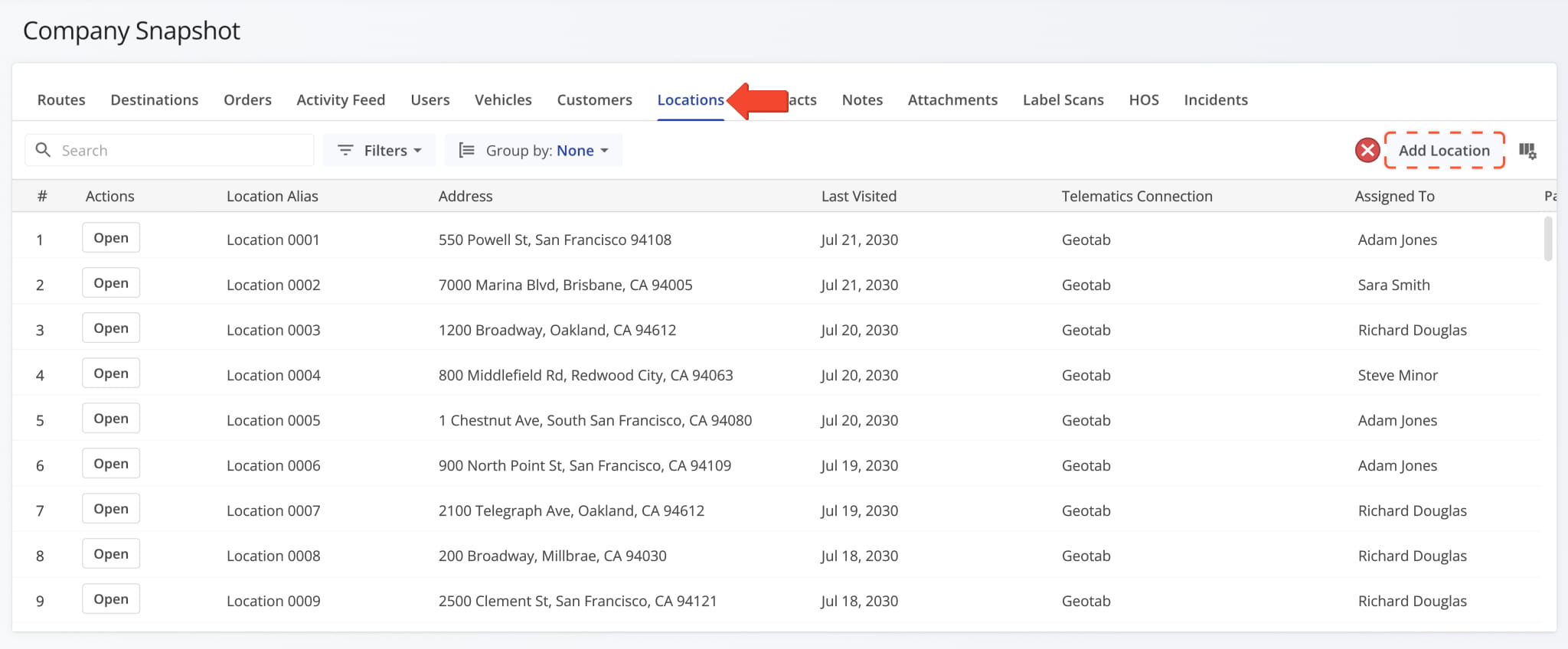
The “Add Location” button was removed from the “Locations” tab. Snapshots are best for reviewing and managing existing records, while creating and managing Locations is done on the Locations Page with its own dedicated tools.
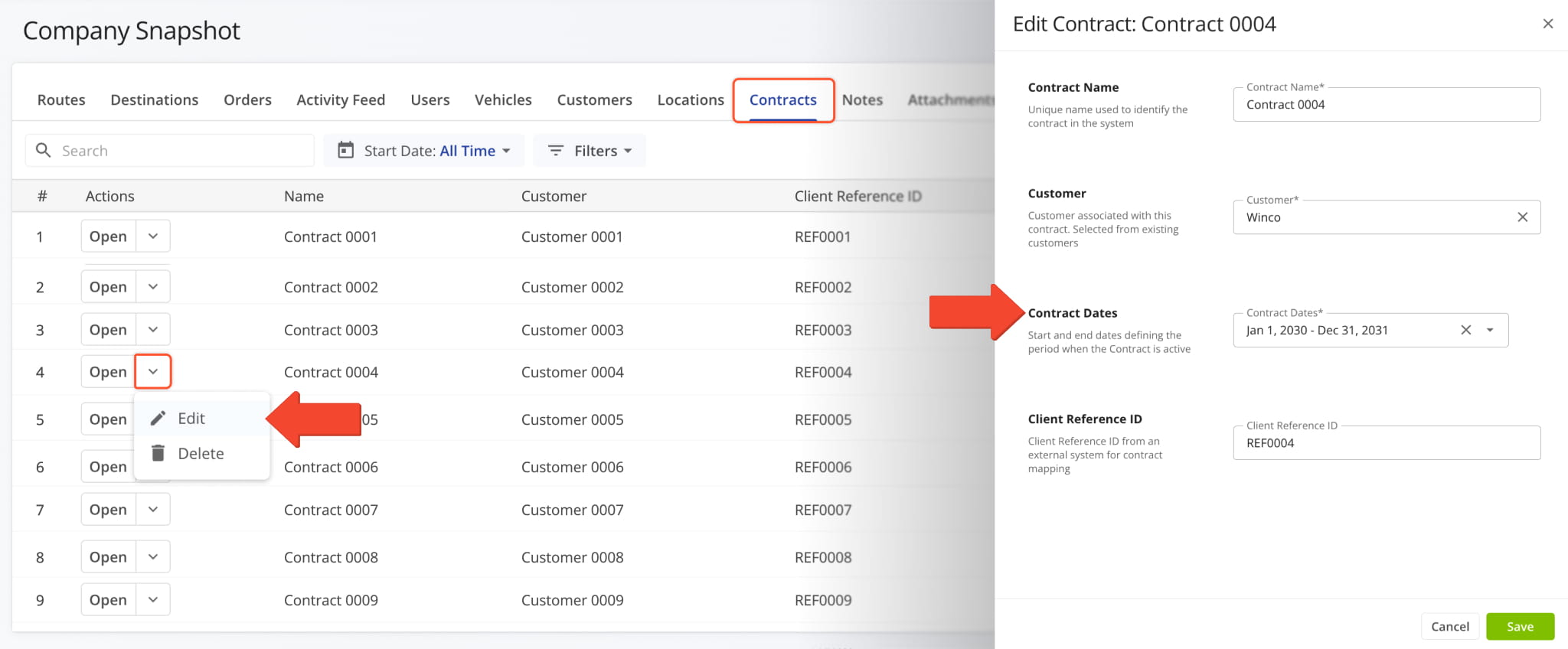
Furthermore, in the “Edit Contract” panel on the “Contracts” tab, the “Effective Dates” field is now labeled “Contract Dates“. Functionality is unchanged, the field still sets the start and end dates defining the period when the Contract is active. The new label matches the standalone Contracts Page.
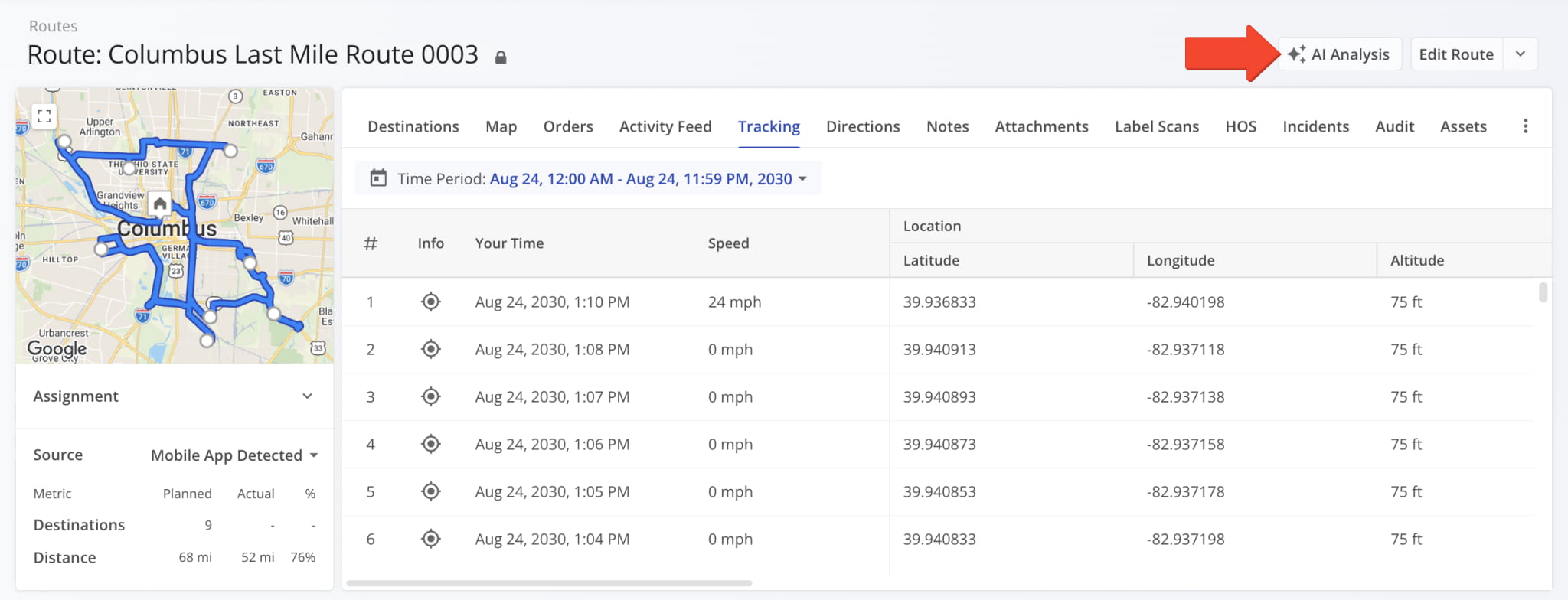
You can now generate an AI Analysis report for a route from its Route Snapshot. Click “AI Analysis” to open the report. If you’re opening it for the first time, the system will generate a fresh Route Snapshot AI Analysis.
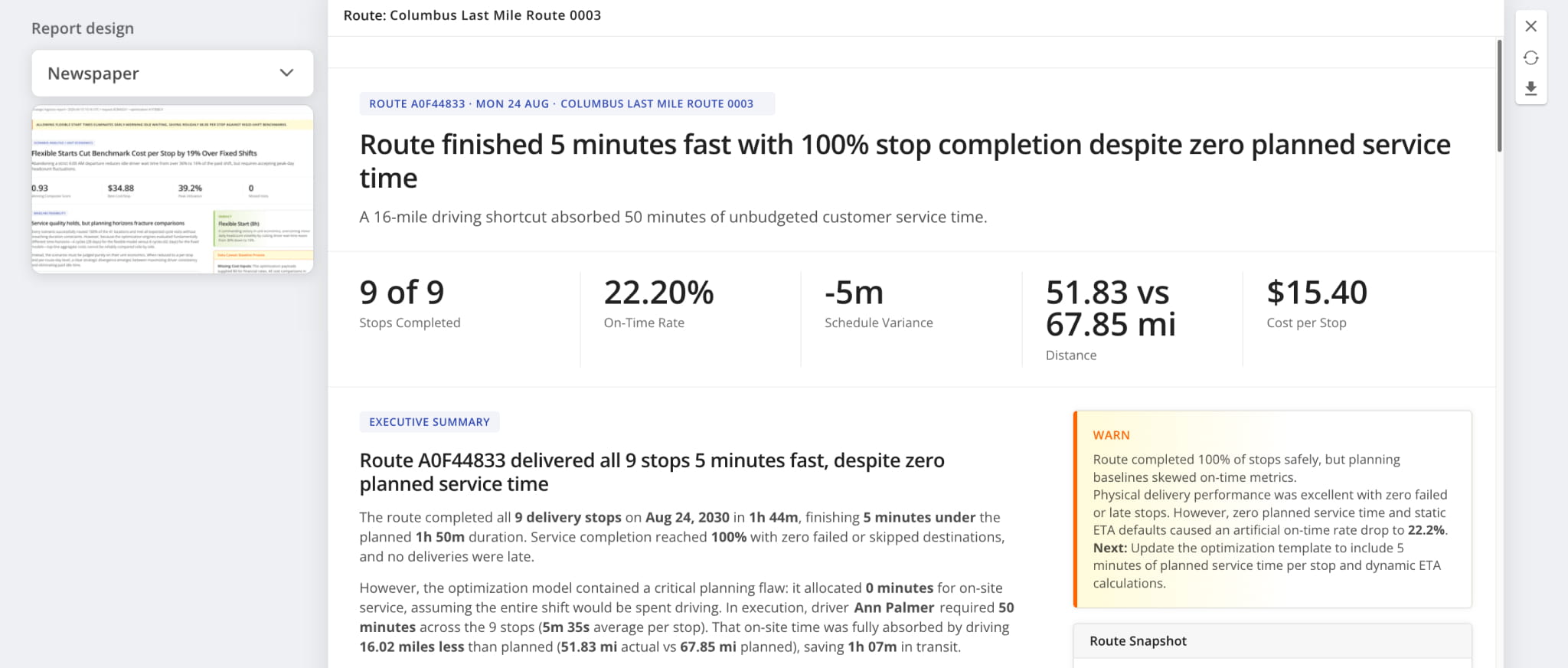
Each report leads with the headline finding and the key metrics behind it, followed by an executive summary explaining what drove the result and flagging the planning issues worth fixing.
You can select a report design to change how the report is laid out, regenerate it at any time to rebuild it with the latest data, or download it as a PDF to share outside Route4Me.
You can now generate an AI Analysis report for an Optimization from its snapshot. Open an Optimization Snapshot, click “Analysis“, and select “AI Analysis” to open the report. If you’re opening it for the first time, the system will generate a fresh Optimization Snapshot AI Analysis.
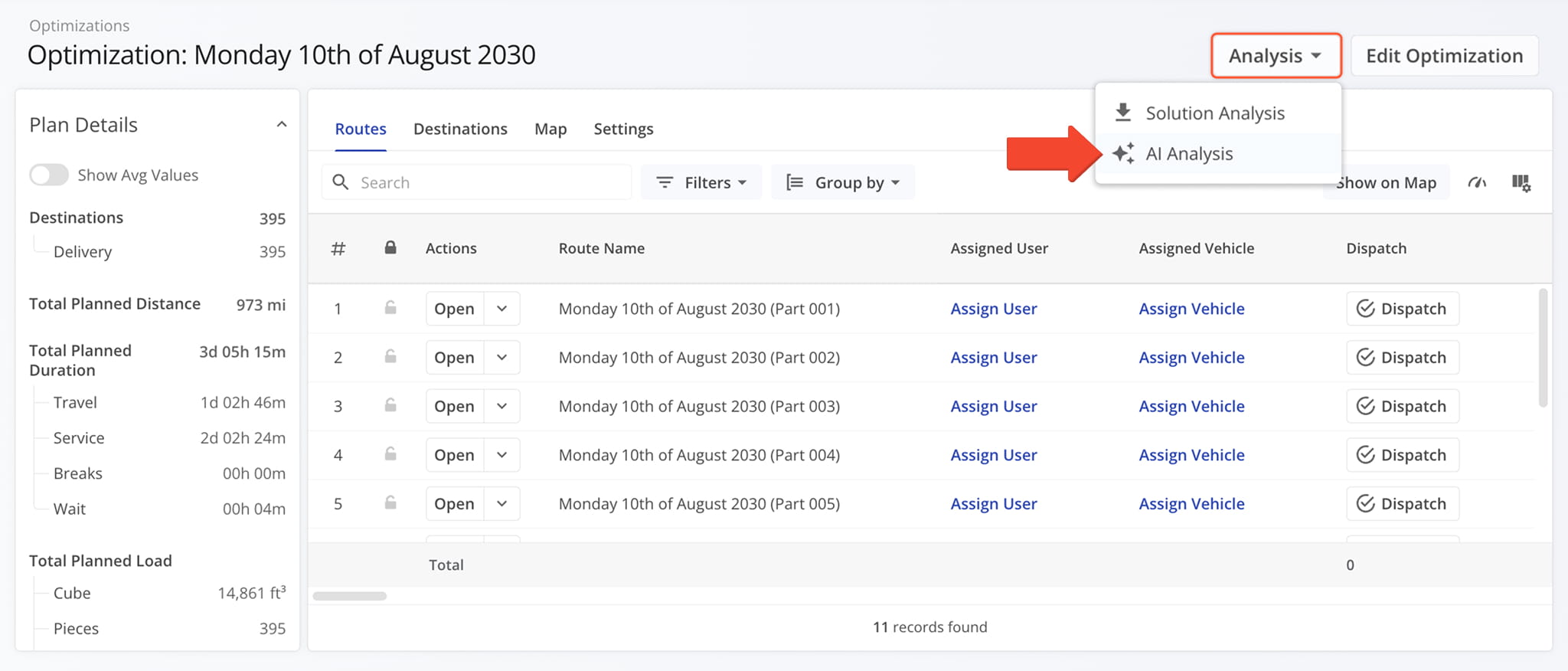
Each report opens with a verdict on the Optimization run, followed by the headline finding, the key metrics behind it, and an executive summary explaining what drove the result and what to change next.
Use the “Report design” menu to change how the report is laid out, click the Regenerate Icon to rebuild the report with the latest data, or click the Download Icon to save it as a PDF.
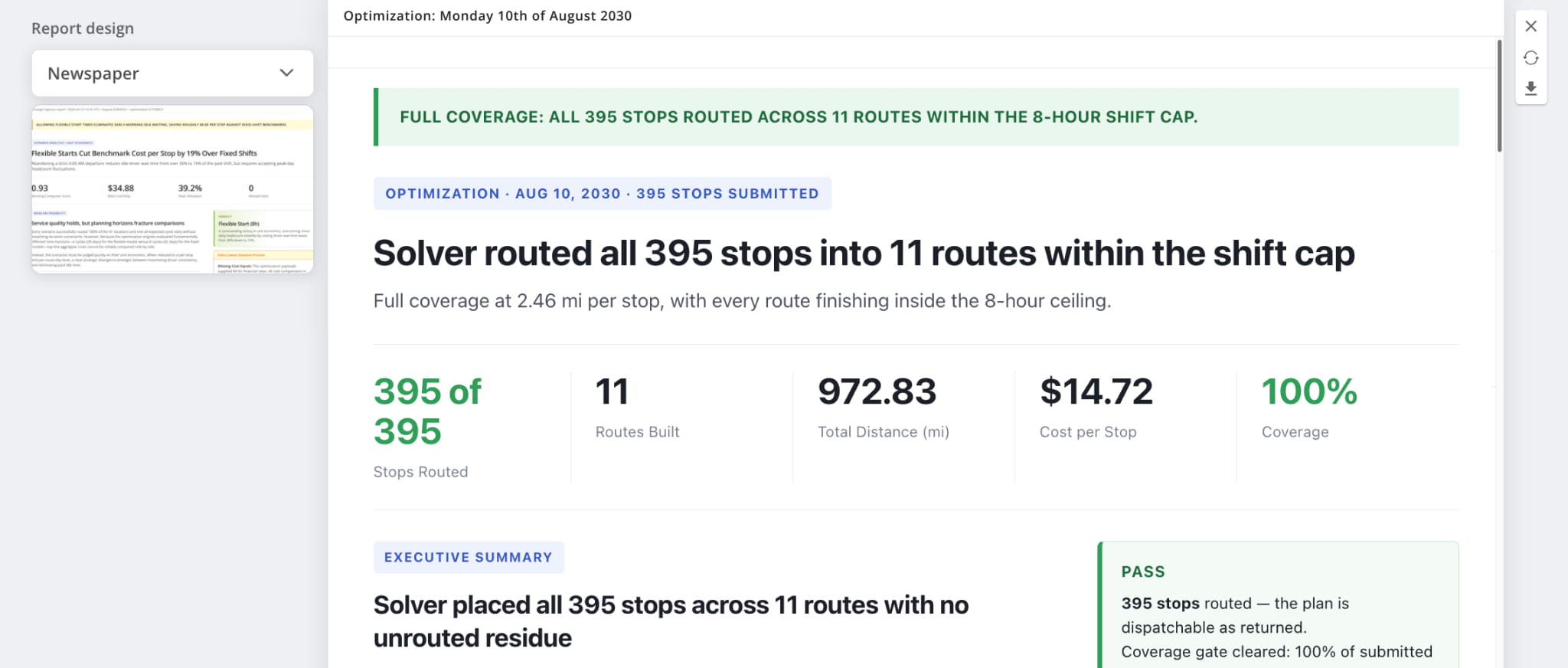
Filter options for Orders and Locations in the insert Destinations, Orders, and Locations interface on the Routes Page are now the same as their respective primary interfaces. Specifically, the “Orders” tab now has the same filters as the Orders Page, and the “Locations” tab has the same filters as the Locations Page.
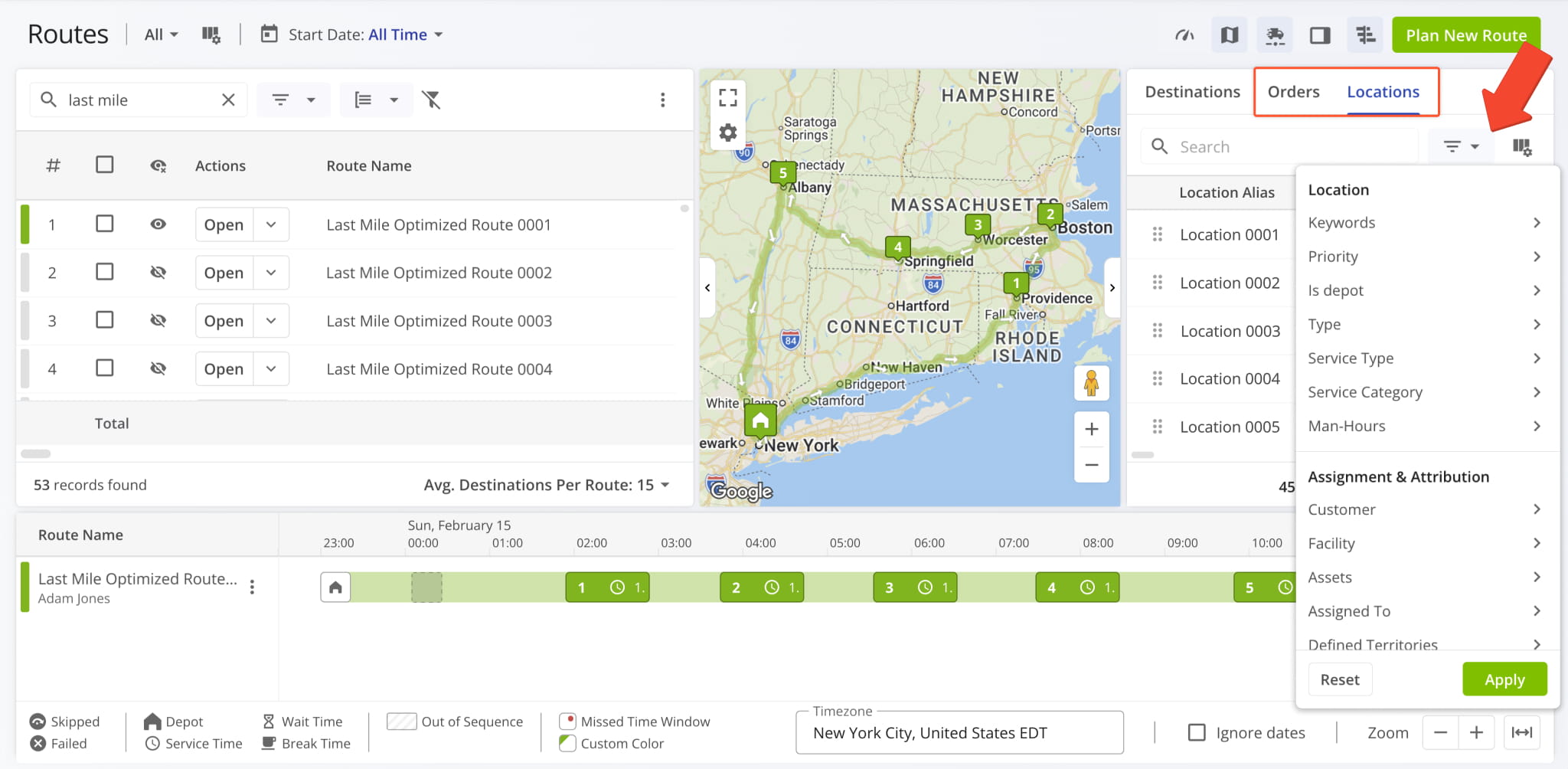
You can now insert Company Facilities into routes as Destinations from the Routes Map. To access the “Insert Facility into Route” button, you can:
- Right-click a Facility marker on the Routes Map
- Hover over a Facility marker on the Routes Map and click the Three-dot Icon
From there, the steps for inserting a Facility into a route are the same as inserting route Destinations.
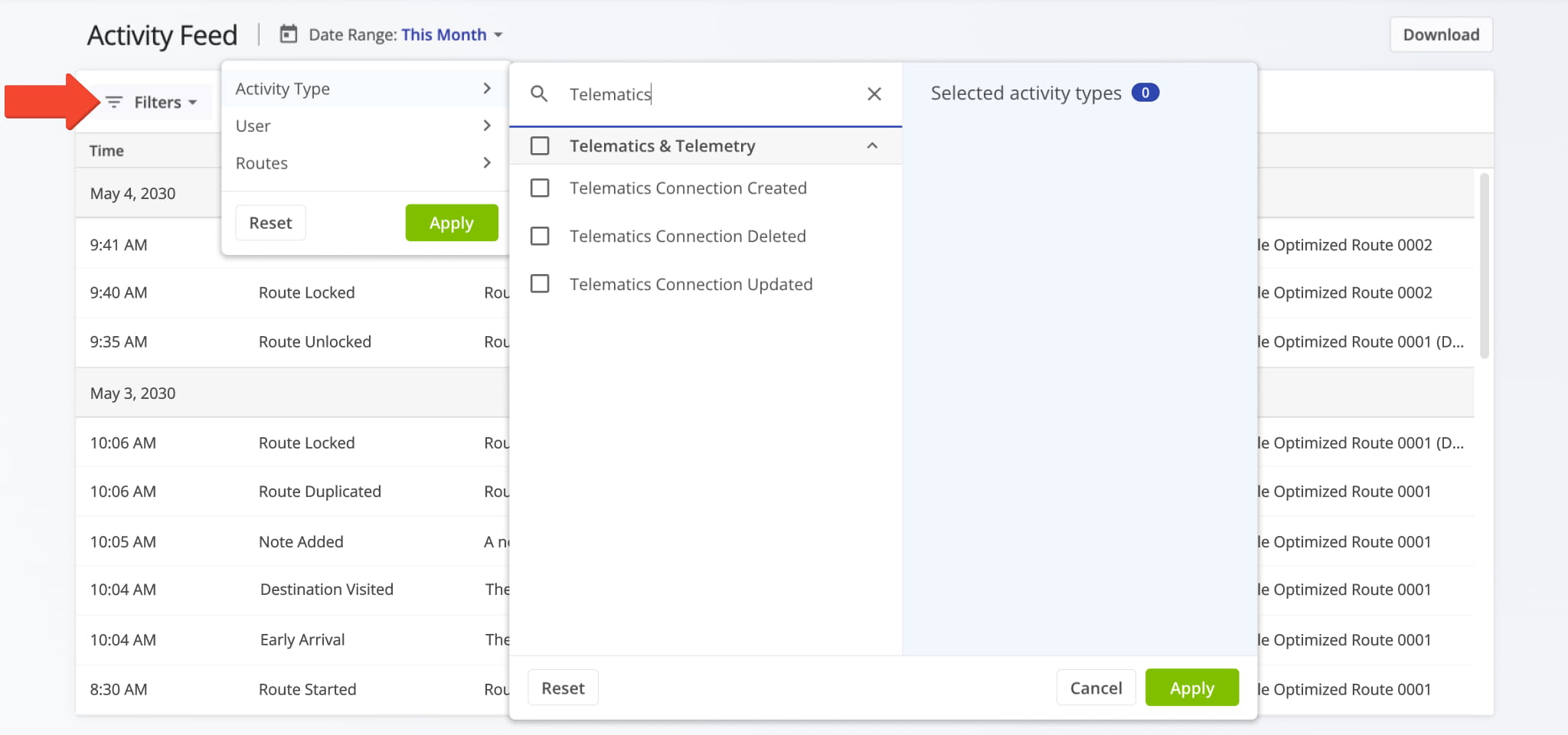
New filters were added to the Activity Feed page. The following Activity Types were added as filters:
- “Telematics Connection Created“
- “Telematics Connection Deleted“
- “Telematics Connection Updated“
This update enables you to easily find events related to Telematics Integrations on your company Activity Feed.
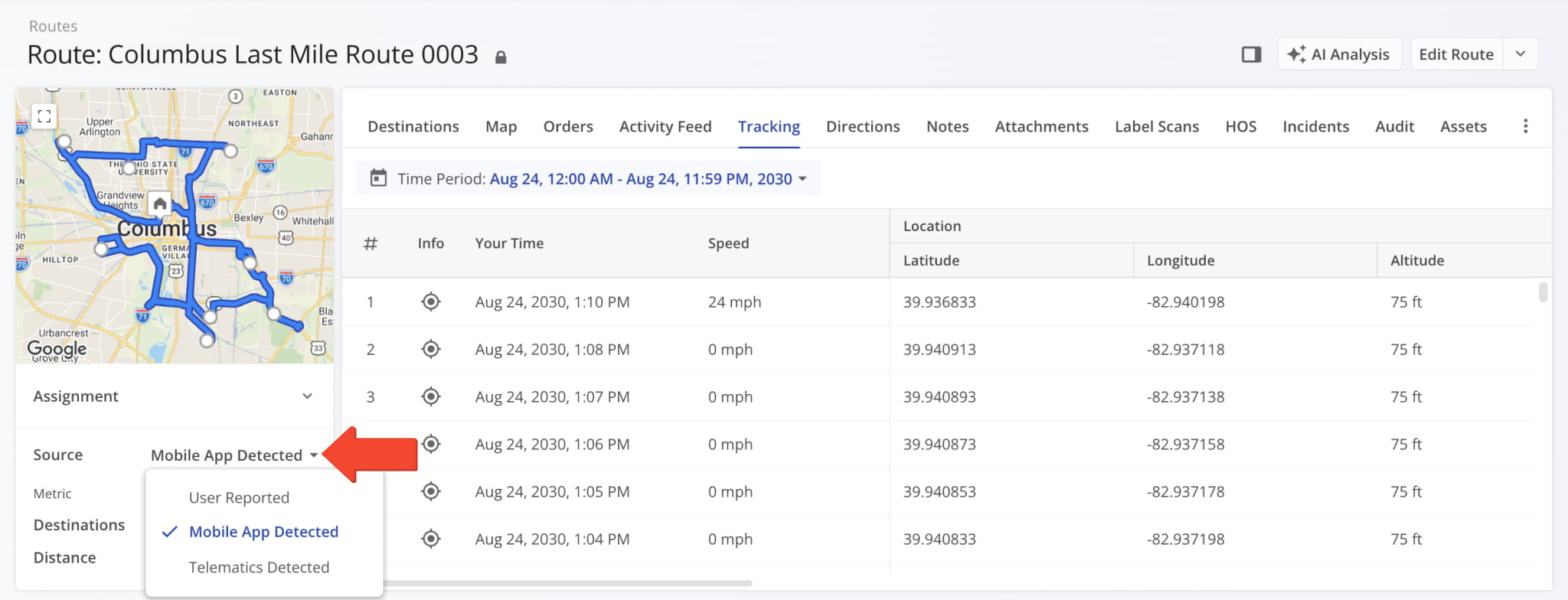
A new “Source” field was added to the Summary Panel in Route Snapshots. It enables you to select the tracking data source used to show tracking updates and values on the snapshot page. You can select:
- User Reported: Tracking based on manual route actions from the assigned User on the Driver Mobile App.
- Mobile App Detected: Automatically detected route actions by Driver Mobile App using Destination Geofencing.
- Telematics Detected: Tracking data automatically detected by a Telematics Vehicle’s installed telematics device.
Filter options on the Orders Page were organized into four new categories (Order, Routing, Assignment & Attribution, and Dimensional & Financial) and a new “Search” field was added to the Filters menu.
New filter options were added for Customer, Service Type, SLA Policy, and No. of Routes. See the table below for a full list of Filters available on the Orders Page. Learn more about Order management and filters.
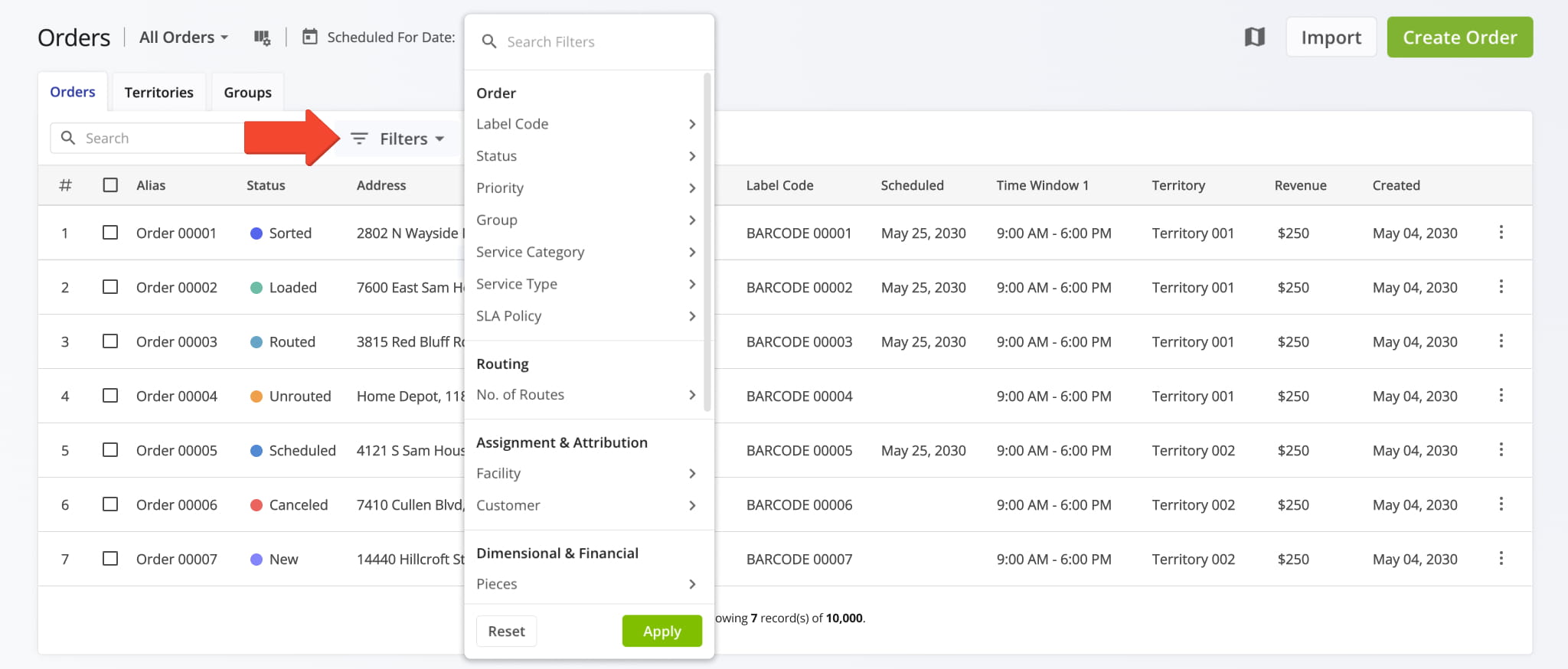
Orders List - Filter Options
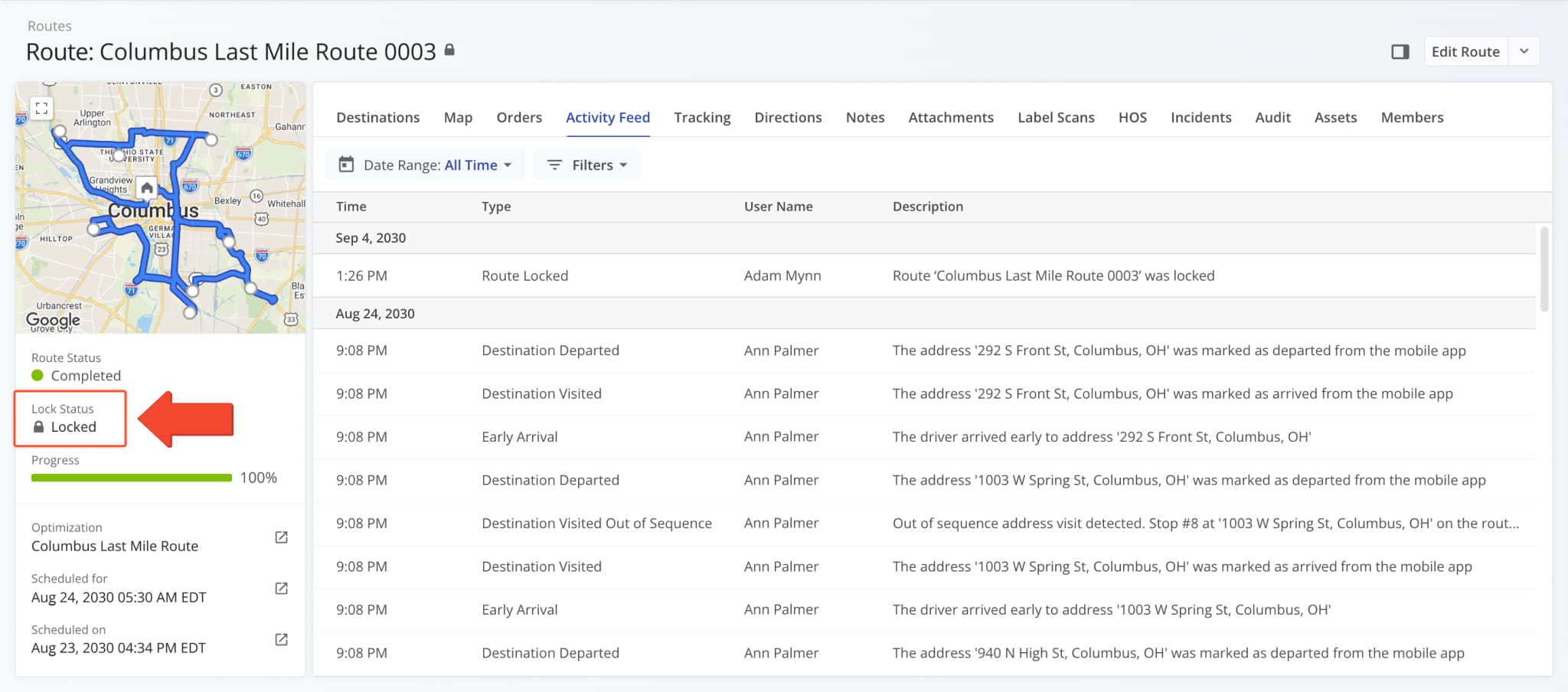
A new “Lock Status” field was added to the Summary Panel in Route Snapshots. It shows whether the corresponding route is locked or unlocked. Learn more about locking and unlocking routes.
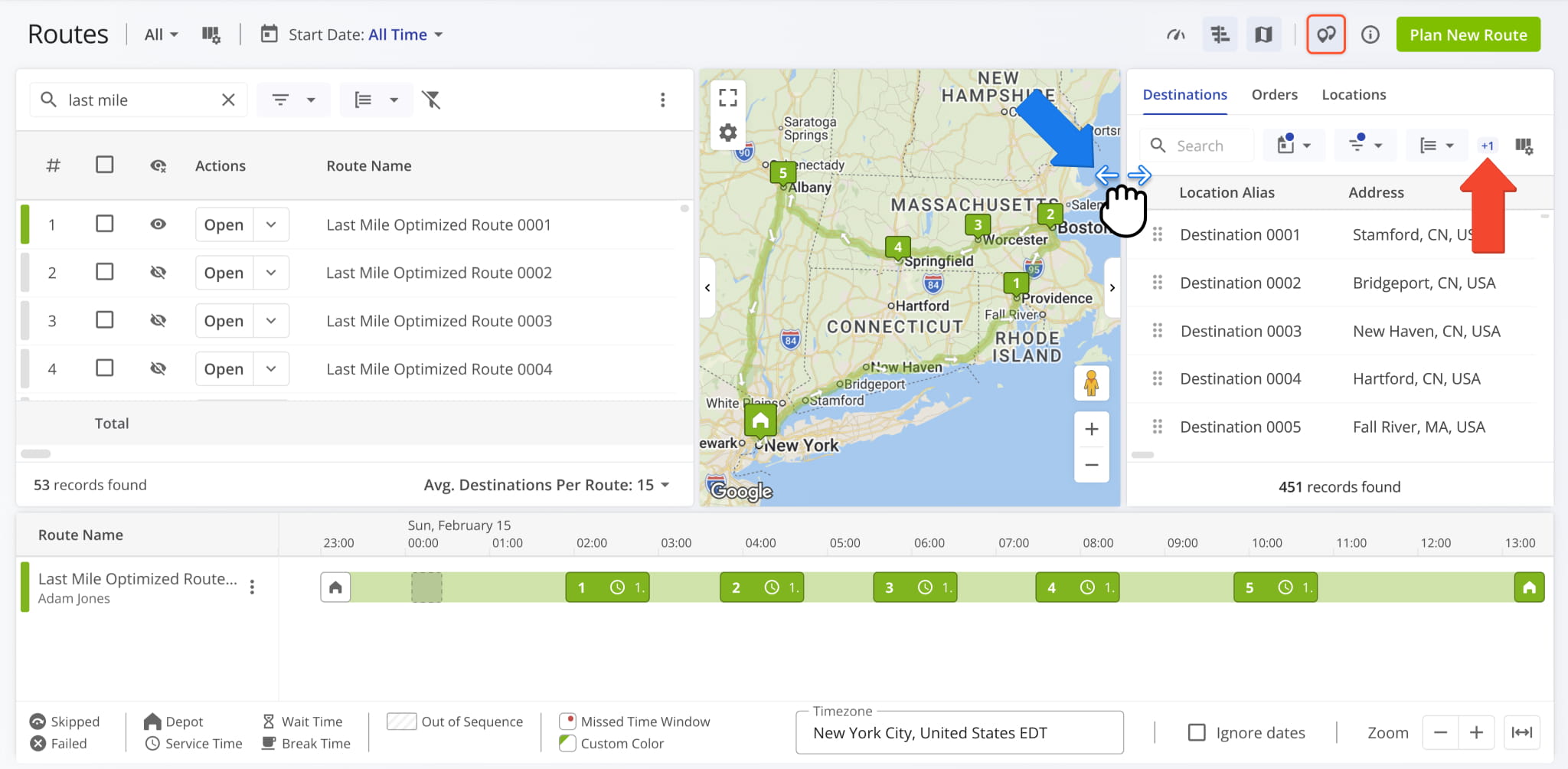
The Routes Page’s assignable work panel from which you can drag-and-drop Destinations, Orders, and Locations into routes was updated. Now, when the panel isn’t wide enough to display all available toolbar actions, you’ll see a new overflow indicator showing the number of additional available actions. To see all actions, expand the width of the panel.
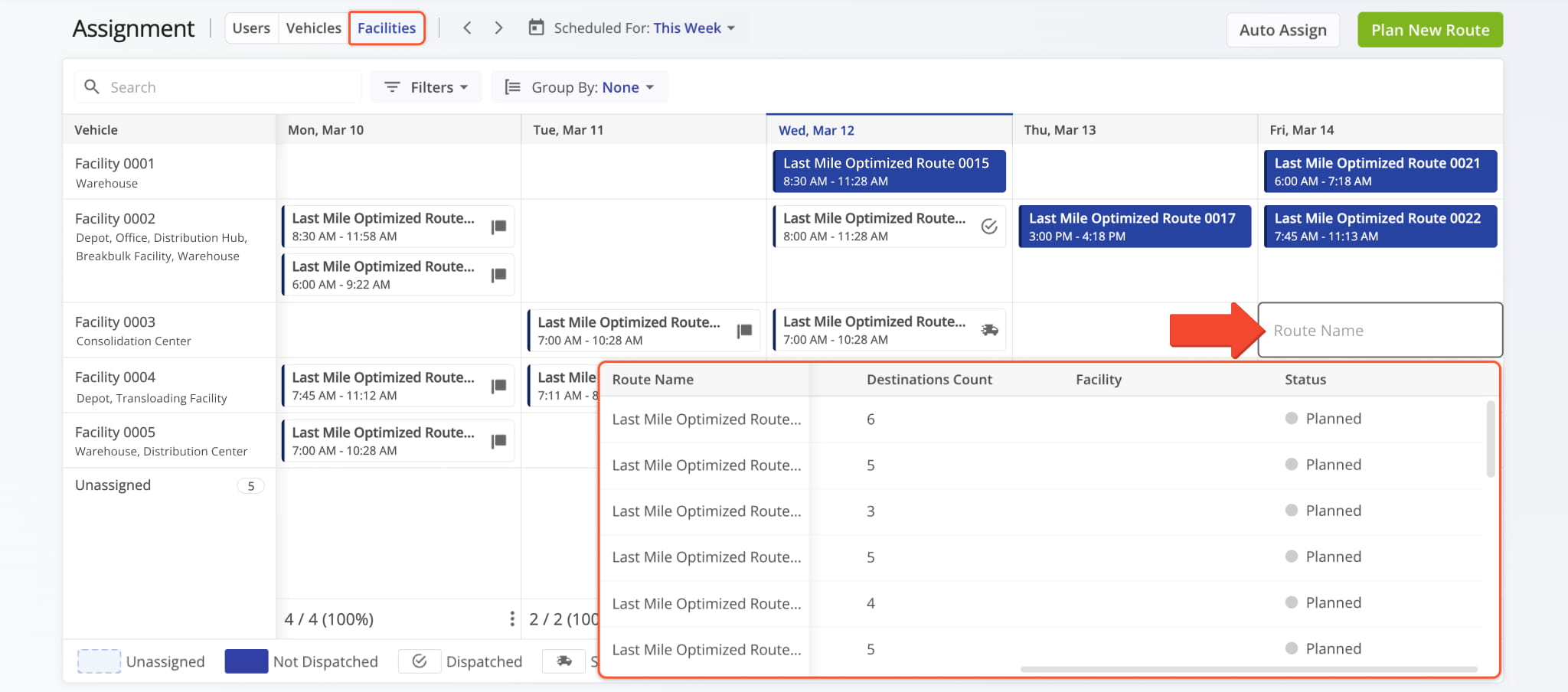
The Assignment Dashboard was updated to enable association between routes and Company Facilities in the “Facilities” tab. Click a date in a specific Facility’s row, and you can select or find routes scheduled for that date to associate with the Facility. Previously, you could only see but not change Facility association on the dashboard.
Open Your Assignment Dashboard
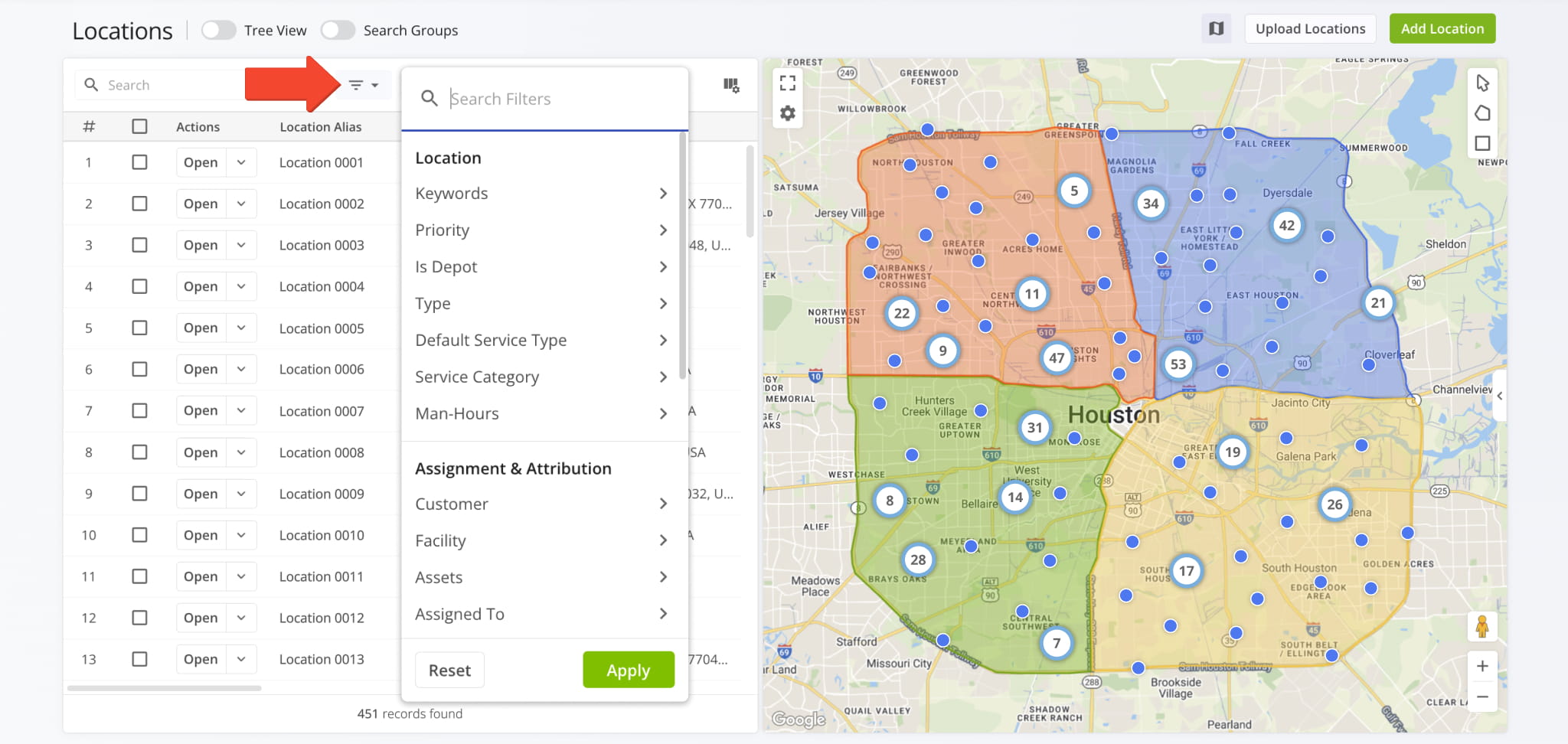
Filter options on the Locations Page were organized into five new categories (Location, Assignment & Attribution, Routing, Dimensional & Financial, and Connections) and a new “Search” field was added.
New filter options were added for Priority, Is Depot, Man-Hours, Assets, Pieces, Weight, Cube (volume), and Revenue Planned. See the table below for a full list of available Filters available on the Locations Page.
Filter Options
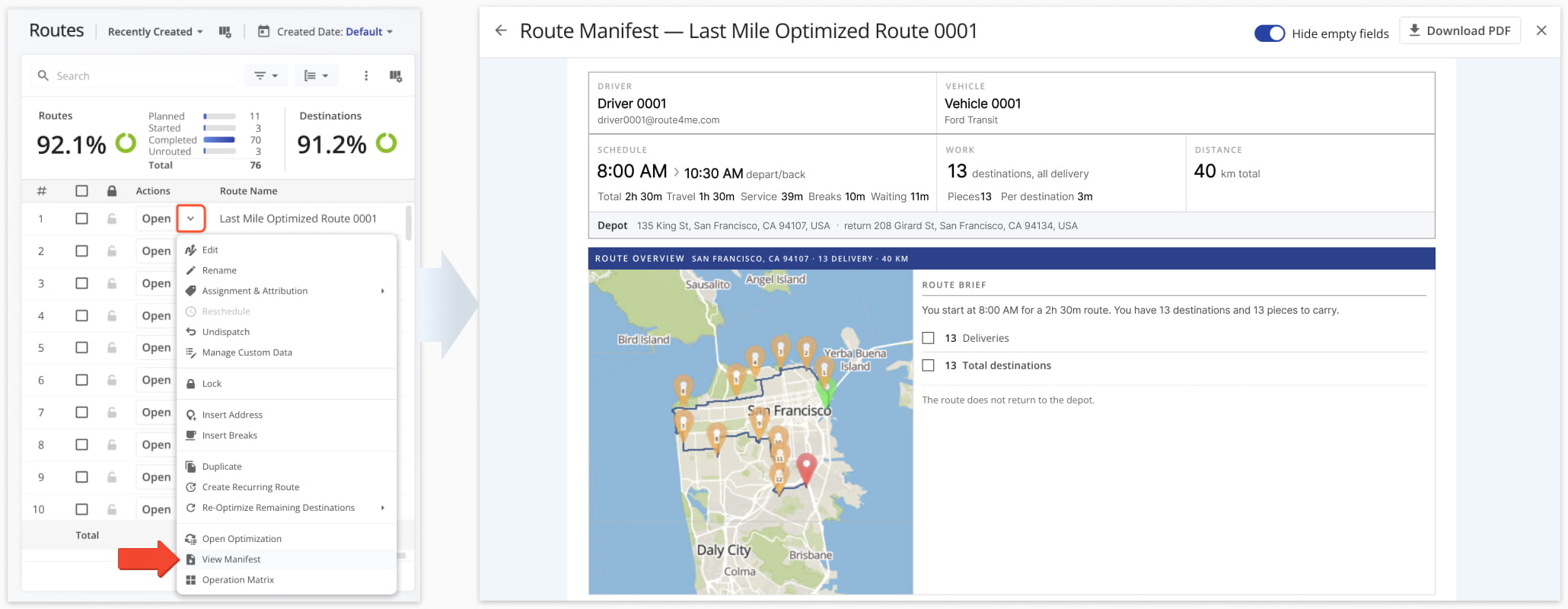
You can once again open a Route Manifest for any route from your Routes Page and the Route Editor.
NOTE: If you need Route Manifest access and it’s not available on your account, contact Route4Me Support.
A new “Route Schedule Changed” Event Type was added to the Activity Feed. It’s triggered when you Reschedule Routes and shows the affected route and the User who made the change.
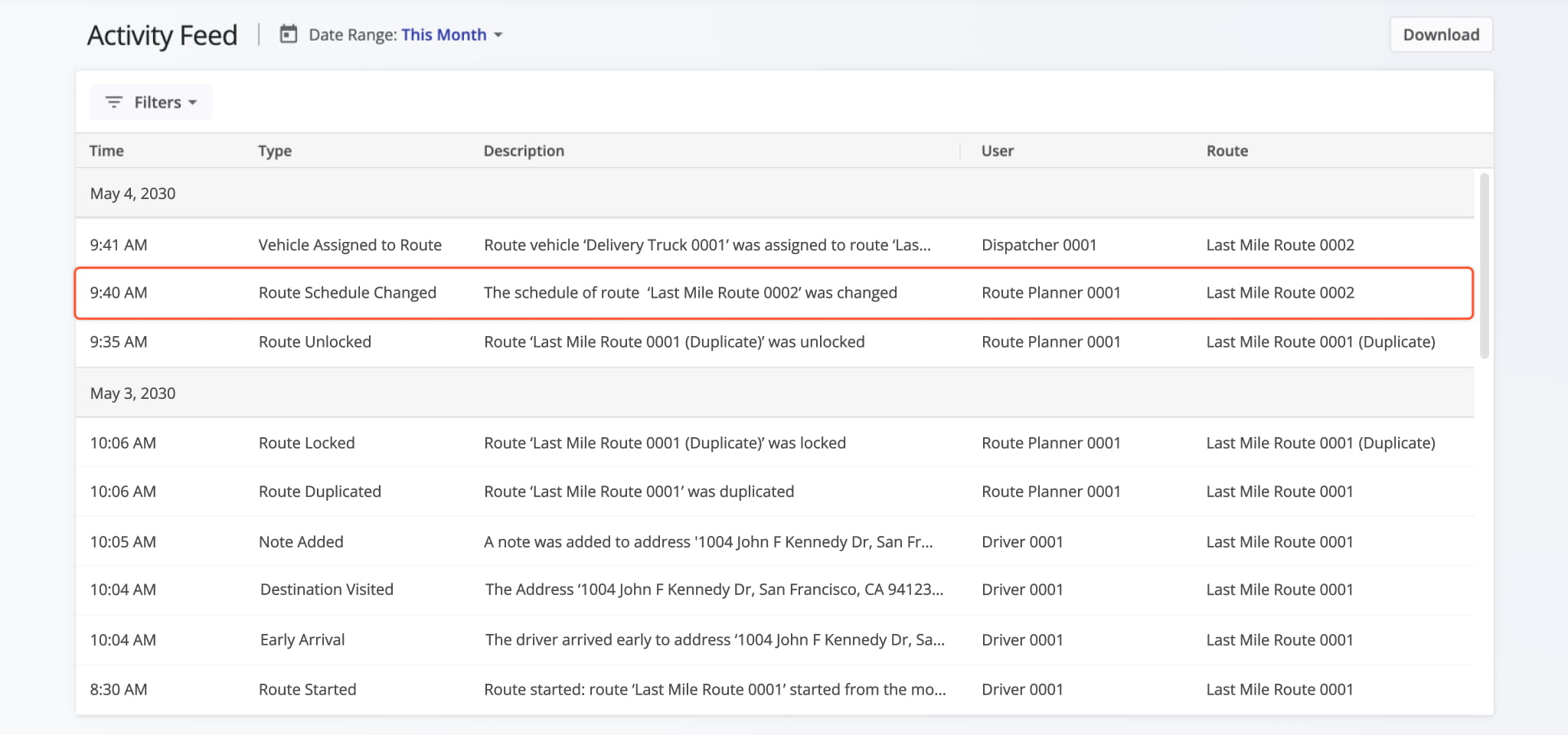
You can now lock routes to protect finalized plans from further changes. Locking a route blocks changes to its destination sequence and route settings, while everything assigned Users do in the field is unaffected, so a locked route can still be dispatched, started, completed, etc.
You can lock and unlock routes from the Routes Page and Route Editor. A new Locked column shows lock status icons, and every lock and unlock event is recorded in your Activity Feed.
Learn more about Route Locking and see the table below for the full list of actions locking a route prohibits and allows.
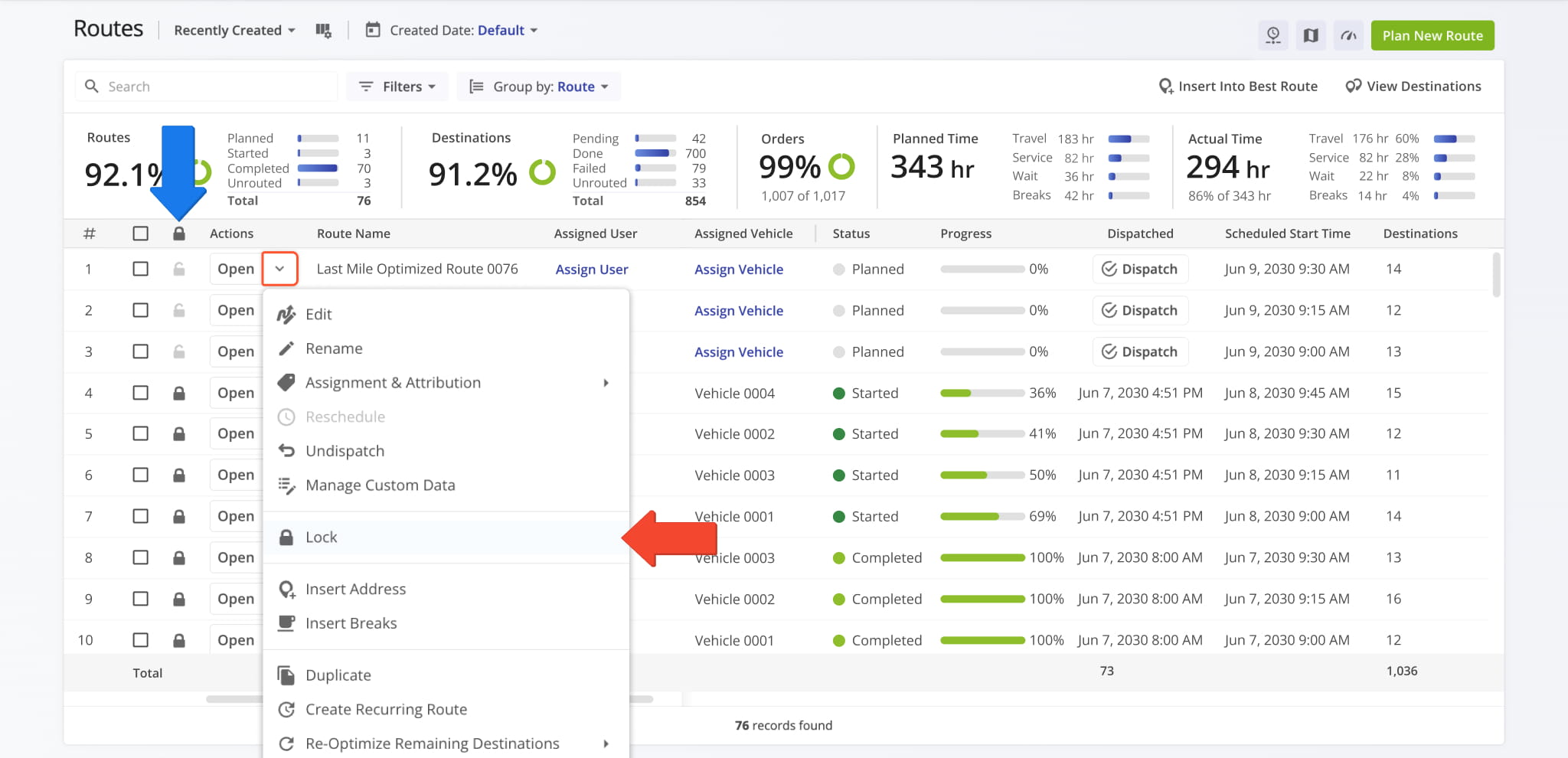
Locked Routes - Prohibited & Allowed Actions
When you open a Route Snapshot, you’ll see a new “Members” tab. It lists the Team Members who have access to the route in addition to the route’s Assigned User. Click the “Open” button next to a Member to go to their User Snapshot.

Click the “Edit” button in the “Members” tab to:
- Add new Members to the route by clicking the “+ Add Member” button.
- Remove Members from the route by clicking the Delete Icon.
Route4Me marks your changes as “To Add” or “To Remove” but doesn’t apply them until you click “Save Members“. Click the Revert Icon to undo a change before saving, or “Cancel” to discard all of them.

Click the “History” button to see when Members were added to or removed from the route. You can also filter the Member History panel to show only additions or removals.

When adding and editing Locations, you can now select a new “Refuel” option for a Location’s Service Category. This enables you to easily specify which Locations are refuel points for your last mile fleet.

Correspondingly, “Refuel” was also added to the “Service Category” section of Location Filters and will also be shown in the “Service Category” Display Column.

A new “Download Audit” button was added to Optimization Snapshots. It downloads an HTML file that documents what the Optimization produced, including all planned routes, served Orders, and Unrouted Destinations.
You can use audits to check plans before dispatch, to see which Orders the Optimization couldn’t fit and what constraints applied to them, or to keep a record of what a given Optimization produced.

The downloaded file opens in your browser and doesn’t require a login, so you can share it with customers, carriers, or colleagues outside your account. As an offline file, it records the Optimization at the moment you download it and doesn’t update automatically. The audit has three tabs:
- Route Explorer: Optimization breakdown by route with an interactive map, a Gantt schedule for each Vehicle, and clicking any route or stop opens their associated details.
- Orders: See every routed and unrouted Order in the plan in one searchable table. Sort or search on any column to follow a single address through the Optimization based on its route, sequence position, ETA, etc.
- Fleet: Headline numbers for the whole Optimization, from routes built and Orders served to road distance and hours behind the wheel, alongside how hard your fleet had to work to deliver it, broken down by depot and Equipment Type.

To improve data management and readability, you can now collapse grouped fields in Snapshot sidebars.
Currently, the “Assignment” group can be collapsed in:

You can now manage Vehicles directly from your Company Snapshot page. A management action menu was added when you click the Down Arrow next to a Vehicle in the “Vehicles” tab of your Company Snapshot.

Bulk Address Operations match uploaded addresses against the Destinations on your routes, then you can review the results before performing operations. You can now select more than one “Action” for matches:
- Insert + Update: Adds addresses that aren’t on any route yet and updates the ones that are.
- Insert + Remove: Adds addresses that aren’t on any route yet and removes the ones that are.
You can also enable “Merge Duplicate Locations” to combine repeated rows for the same location in your file into a single destination, so a location listed more than once isn’t added or updated several times.
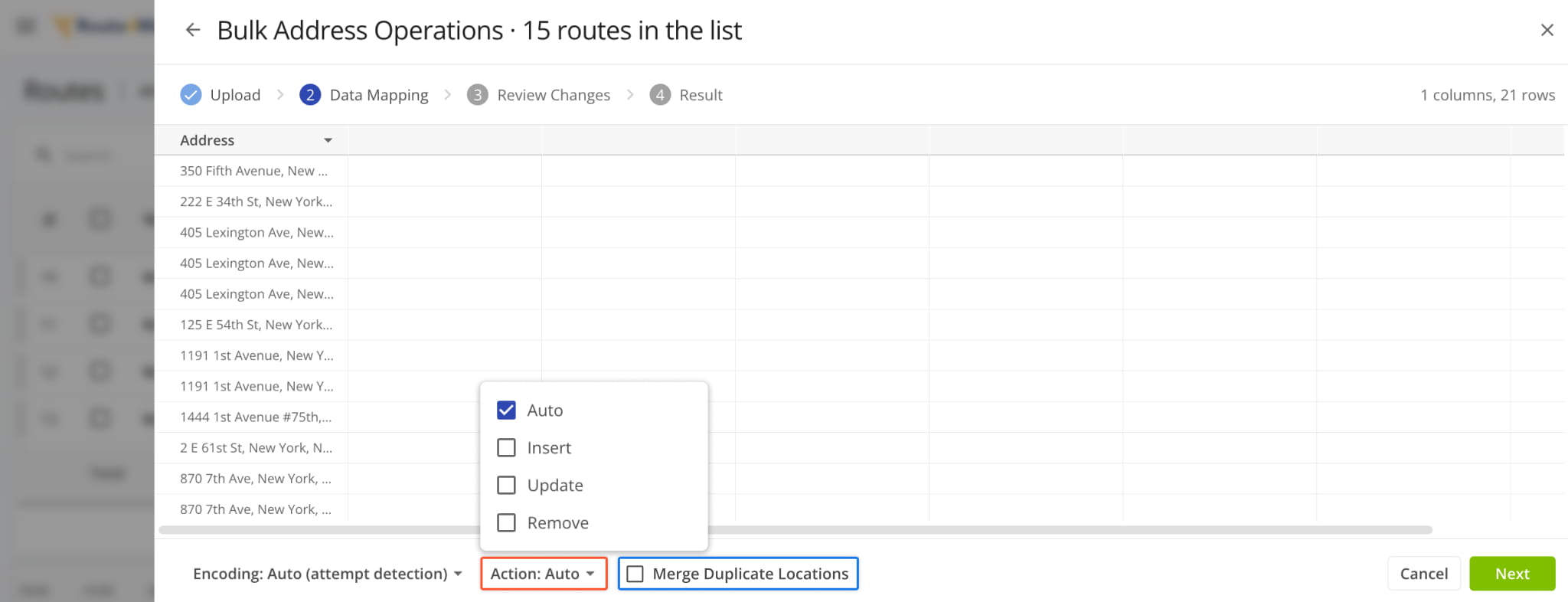
NOTE: “Update” and “Remove” can’t be combined; “Auto” can’t be combined with other actions.
August 2026
22You can now open the “Edit Destinations” panel directly from the Routes Map by right-clicking a Destination and selecting the new “Modify Destination” option.

Additionally, you can now right-click route start locations (depots) on the map to access the same management actions menu as the Routes Timeline. Learn more about last mile route management.

You can now draw circle shapes directly on the Locations Map to define an area by radius to create a new Locations Territory, Avoidance Zone, or select every Location inside it in a single action.
Circles are the fastest way to map an area where coverage is limited by distance from a fixed point like a drone’s maximum flight range, an EV’s round-trip range from a depot, or a technician’s service radius from a branch.

You can now filter routes by their associated GPS Tracking source like a telematics system. Selecting “Route4Me” will filter routes with tracking data synced from our last mile driver app.

A new Regions Map Layer was added to the Locations Page Map Settings. You can now visualize Regions on the map and toggle Region Labels.

Route Optimization Profiles and manual Optimization Settings will now show Pre-Trip Time and Post-Trip Time values from any associated Equipment Types. The values from Equipment Types will be used by default when planning routes with the corresponding profile or settings.
Open Your Optimization Profiles

Additionally, a new “Extra Time” section was added to the Equipment Type details pop-over in the “Resources” > “Equipment” section when customizing optimization settings.

You can now right-click shapes on the Locations Map to access an action menu with options for the selected shapes and the locations within the shape. See the table below for a full list of management actions.

Locations Map Shape Actions
New “Pre-Trip Time” and “Post-Trip Time” fields were added to a new “Extra Time” section in Equipment Type Settings. These fields add time to the start and end destinations of a route planned with the respective Equipment Type.
This lets the system automatically account for additional tasks and equipment needs on either side of the run, like pre-cooling a refrigerated trailer, running an inspection on a heavy vehicle, or washing out a tanker after the last stop.
Open Your Equipment Types Page

The Optimizations Page was updated with new filter and customization options. This update brings the Optimizations Page to parity with other Route4Me TMS tools by adding the following fields and options:
- Created At: Select a date range to filter Optimizations by their creation dates.
- Search: Quickly find Optimizations by name or other specific details.
- Filters: Use various customizable filters to narrow down Optimizations by their attributes.
- Display Columns: Customize the data columns shown in the Optimizations List.
- Sort by column: Click a column header to sort Optimizations by the data in that column.

You can now assign multiple Assets to Locations with a new “Assign Assets” action on the Locations Page.
In the “Assign Assets“ panel, select Assets to assign to a Location by checking the boxes next to them and clicking “OK“.

We’ve updated the cookie consent and disclosure system across the Route4Me Web Platform, Last Mile Routing Blog, and our TMS Support Portal. The previous cookie bar was replaced with an improved consent management platform to improve compliance and a provide a more consistent user experience.
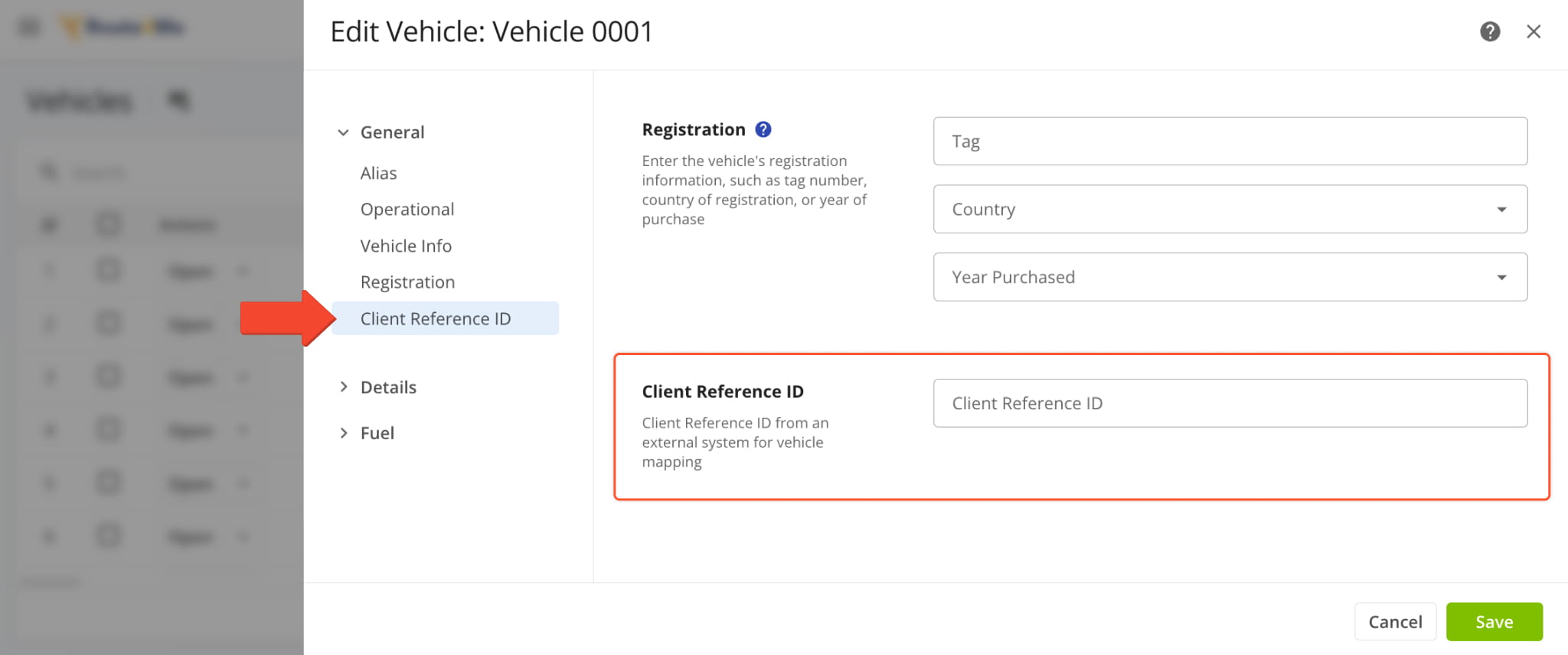
A new “Client Reference ID” field was added to the supported fields when adding and editing Fleet Vehicles. This new field enables you to add external reference IDs from vendor integrations to your Vehicles.
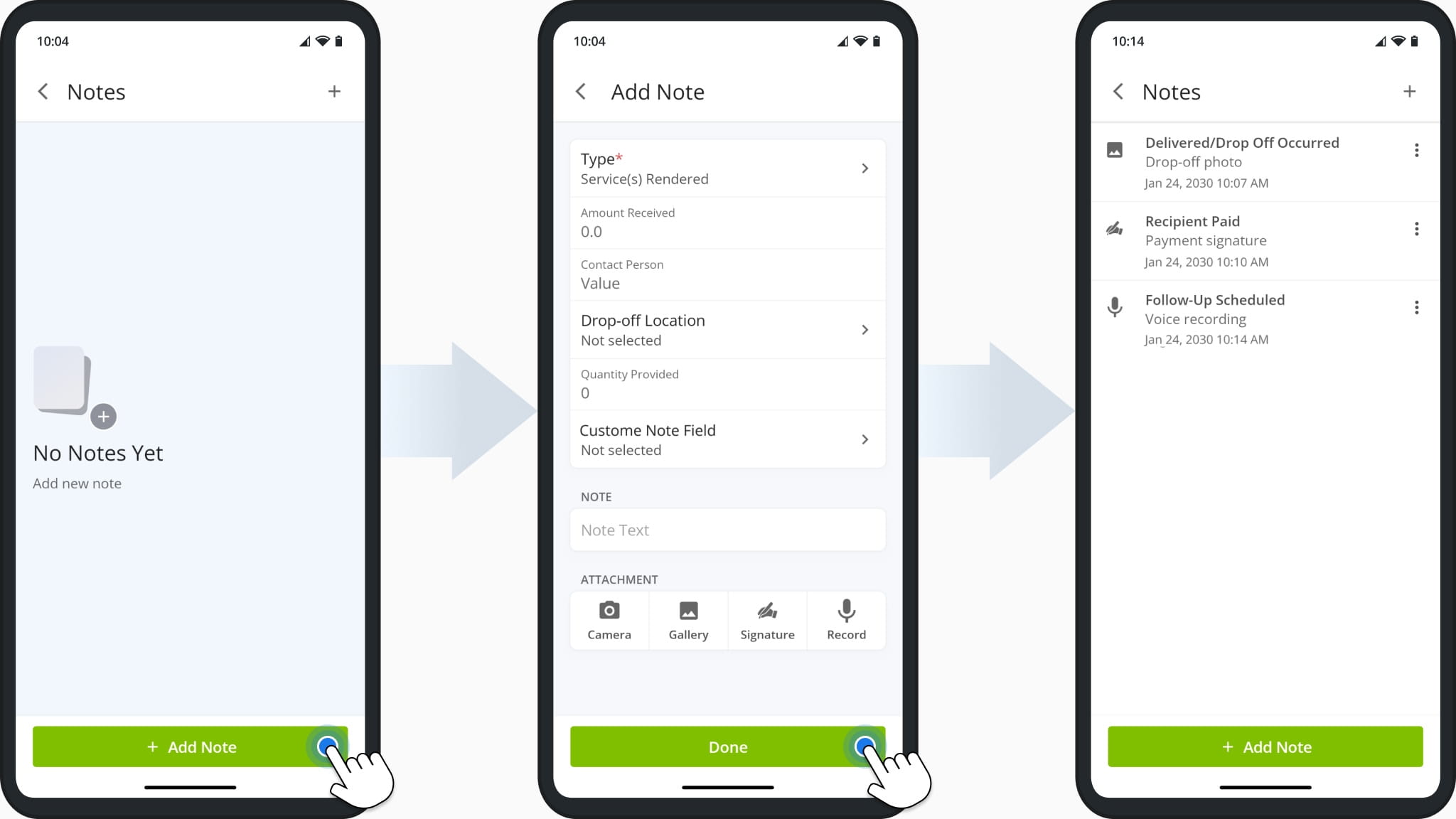
The user interface (UI) for Destination Notes on the Route4Me app for route drivers was redesigned. Now, when users add and manage Notes, the Notes UI will be consistent with the rest of the app’s visual style.
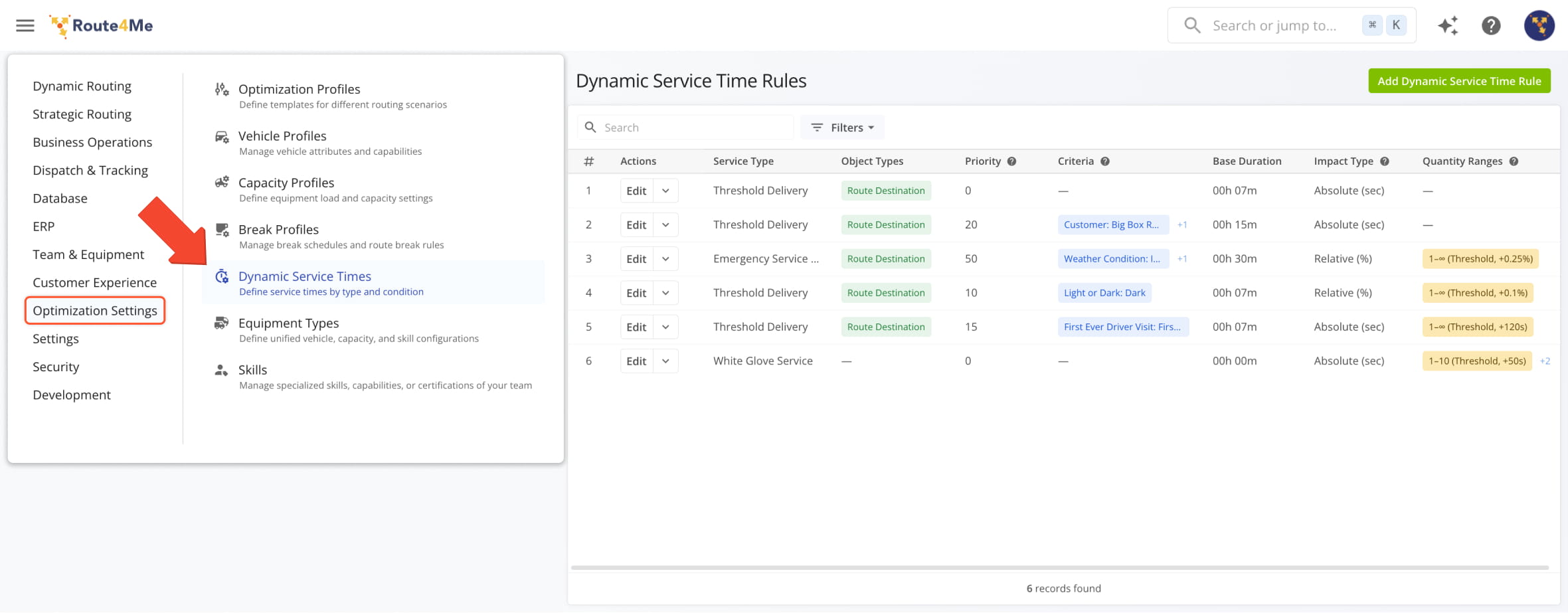
A new feature was added to Route4Me’s Transportation Management Software. It enables you to define custom, dynamically calculated Service Times based on Dynamic Service Time Rules.
Go to “Optimization Settings” > “Dynamic Service Times” in the Navigation Menu.
Open Your Dynamic Service Time Rules
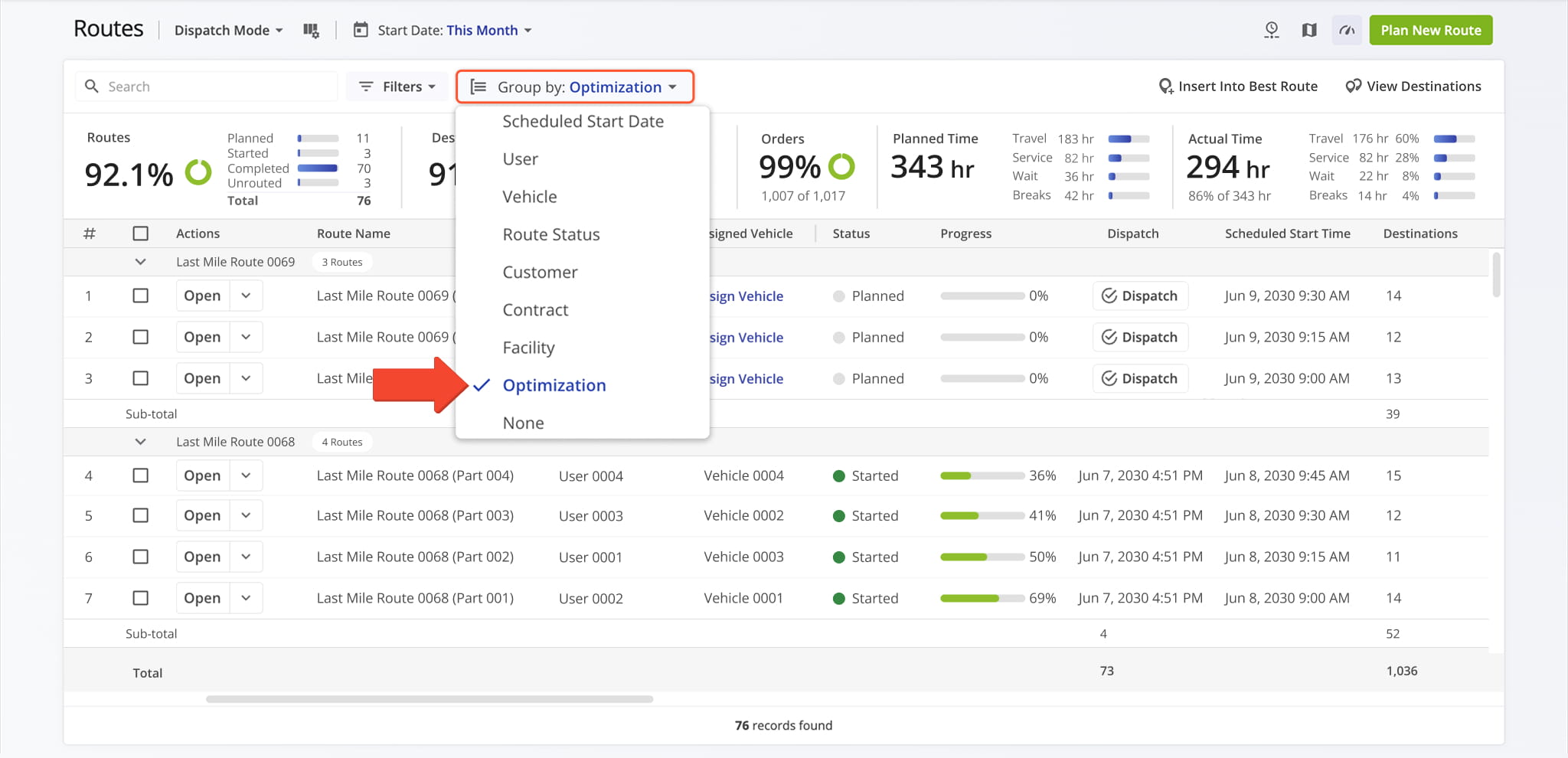
A new “Optimization” option was added to the “Group by” menu on the Routes Page. Selecting this option will group routes by the Optimization they’re associated with.
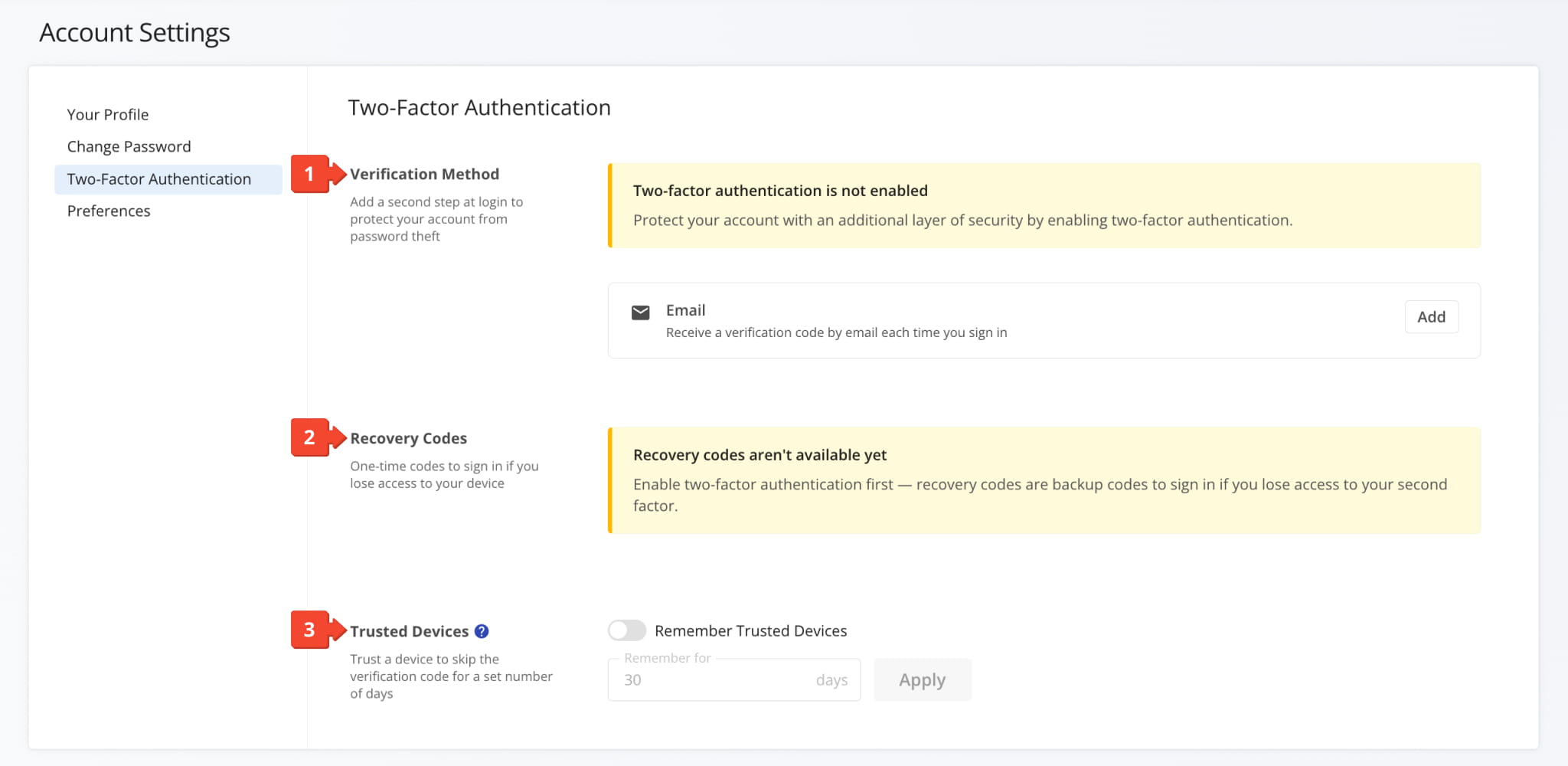
A new “Two-Factor Authentication” (2FA) section was added to Account Settings with the following options:
- Verification Method: Here, you can enable 2FA by clicking “Add” in the “Email” field.
- Recovery Codes: When 2FA is enabled, you can generate backup recovery codes which can be used to sign in to your account if you’ve lost access to your second factor email or device.
- Trusted Devices: Use the “Remember Trusted Devices” toggle to skip 2FA on trusted devices for a customizable period.
You can now edit multiple Recurring Routes at the same time by clicking the new “Bulk Address Operations” button.
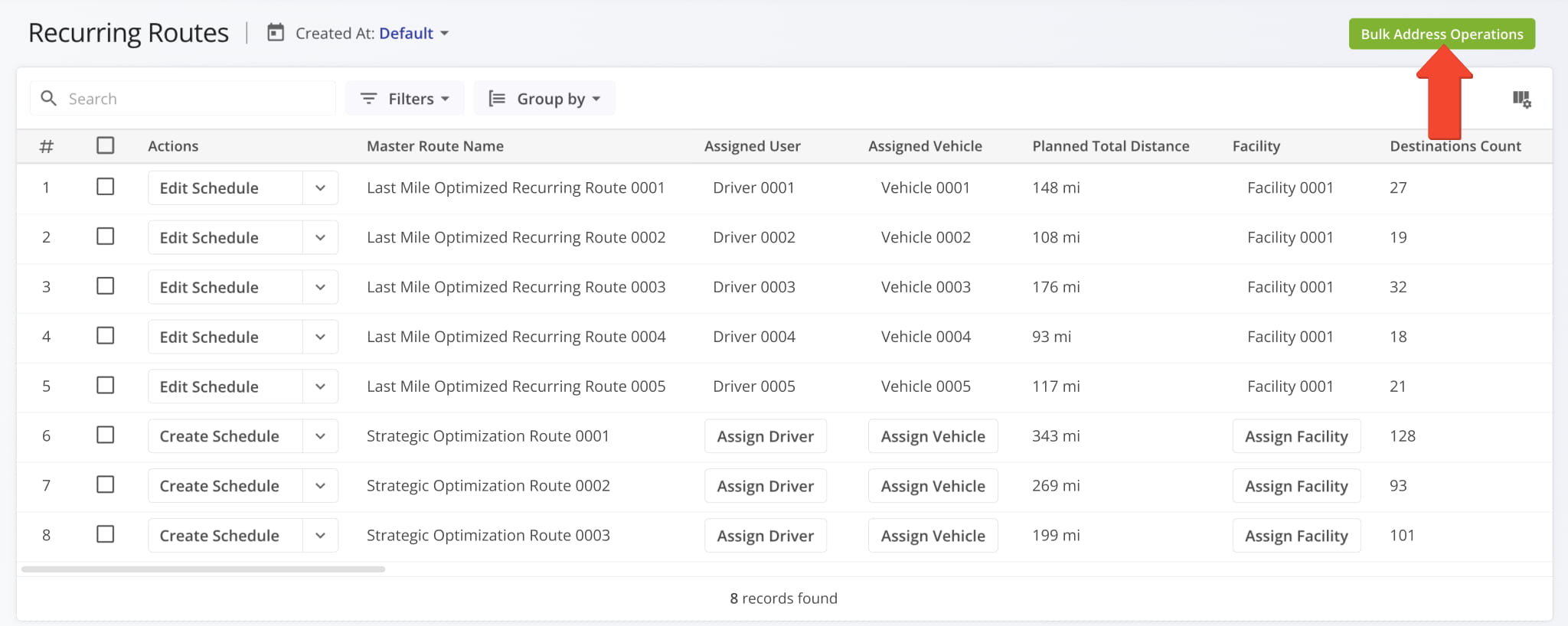
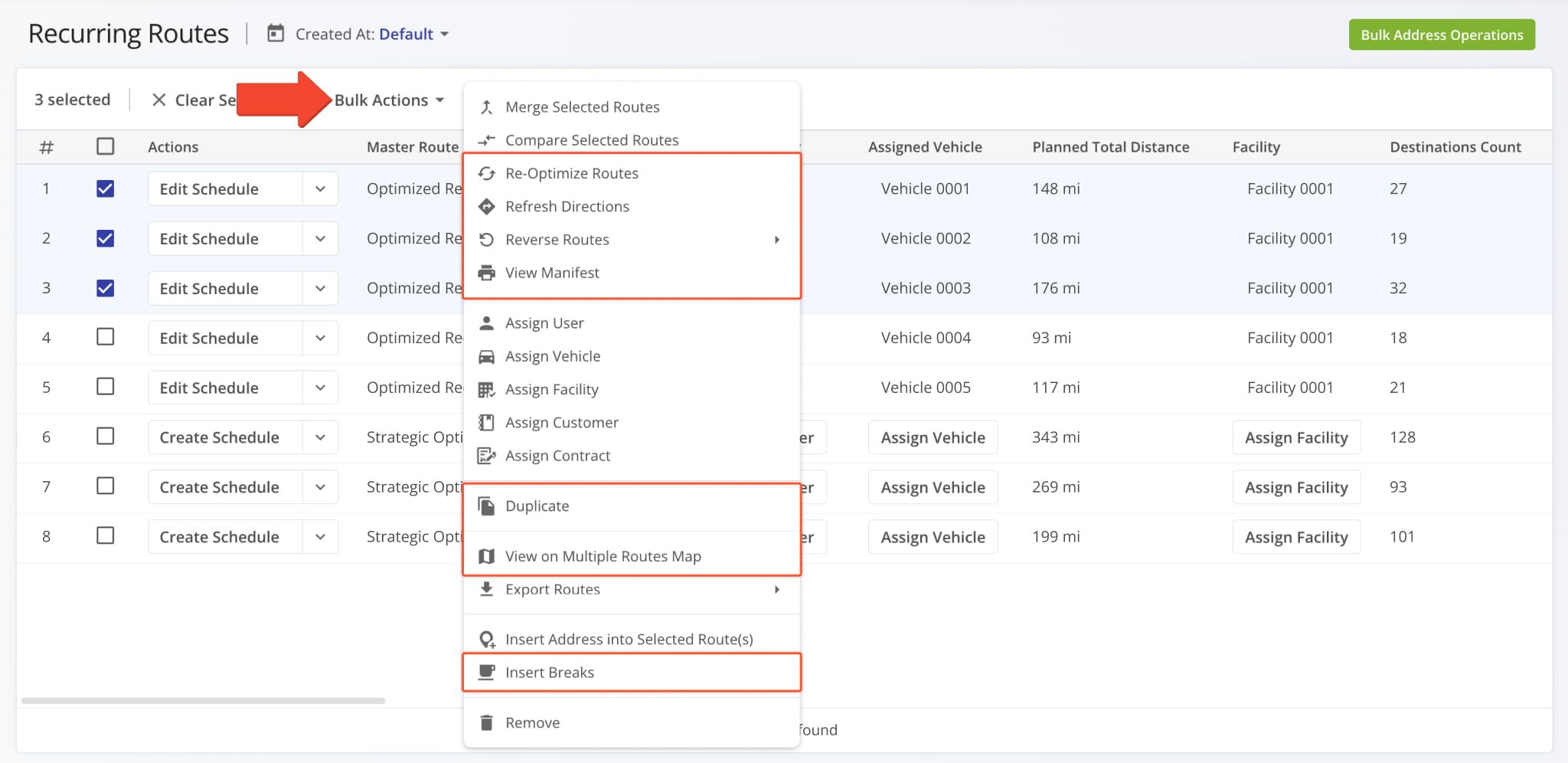
Additionally, the following new management actions were added to the “Bulk Actions” menu:
- Re-Optimize Routes: Recalculate optimal destination sequences after making changes.
- Refresh Directions: Recalculate the best directions between route destinations
- View Manifest: Open the selected routes to view a dynamic route manifest.
- Duplicate: Create copies of the selected routes.
- View on Multiple Routes Map: Open the selected routes on the Routes Map.
- Insert Breaks: Add customizable Driver Breaks to the selected routes.
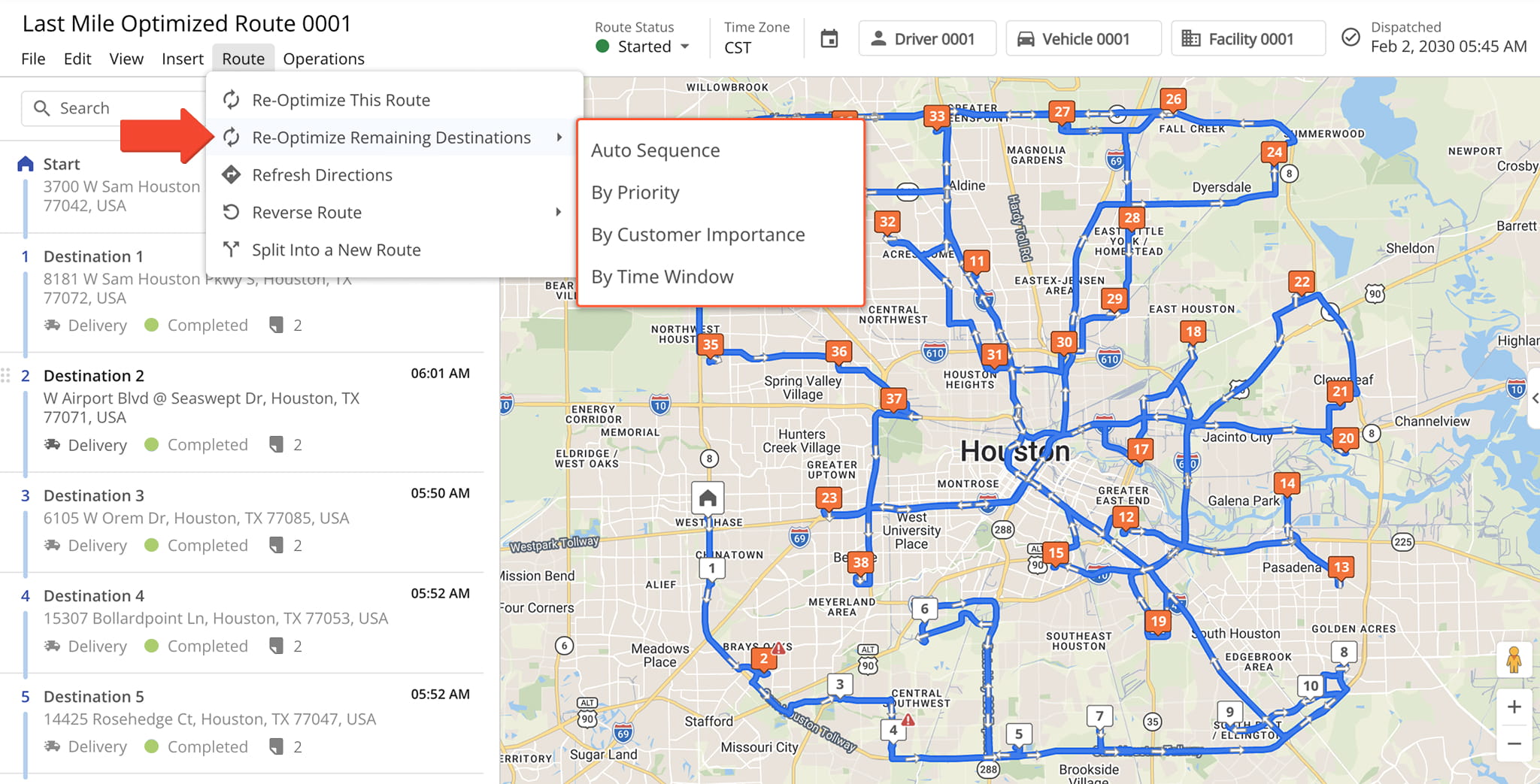
A new sub-menu was added when selecting “Re-Optimize Remaining Destinations” in the Route Editor. This addition enables you to customize how remaining route Destinations will be optimized with the following options:
- Auto Sequence: Prioritize route efficiency when re-optimizing remaining Destinations.
- By Priority: Sequence remaining destinations based on their Destination Priority.
- By Customer Importance: Sequence based on Destination Customer Importance.
- By Time Window: Sequence Destinations for optimal Time Window visit efficiency.
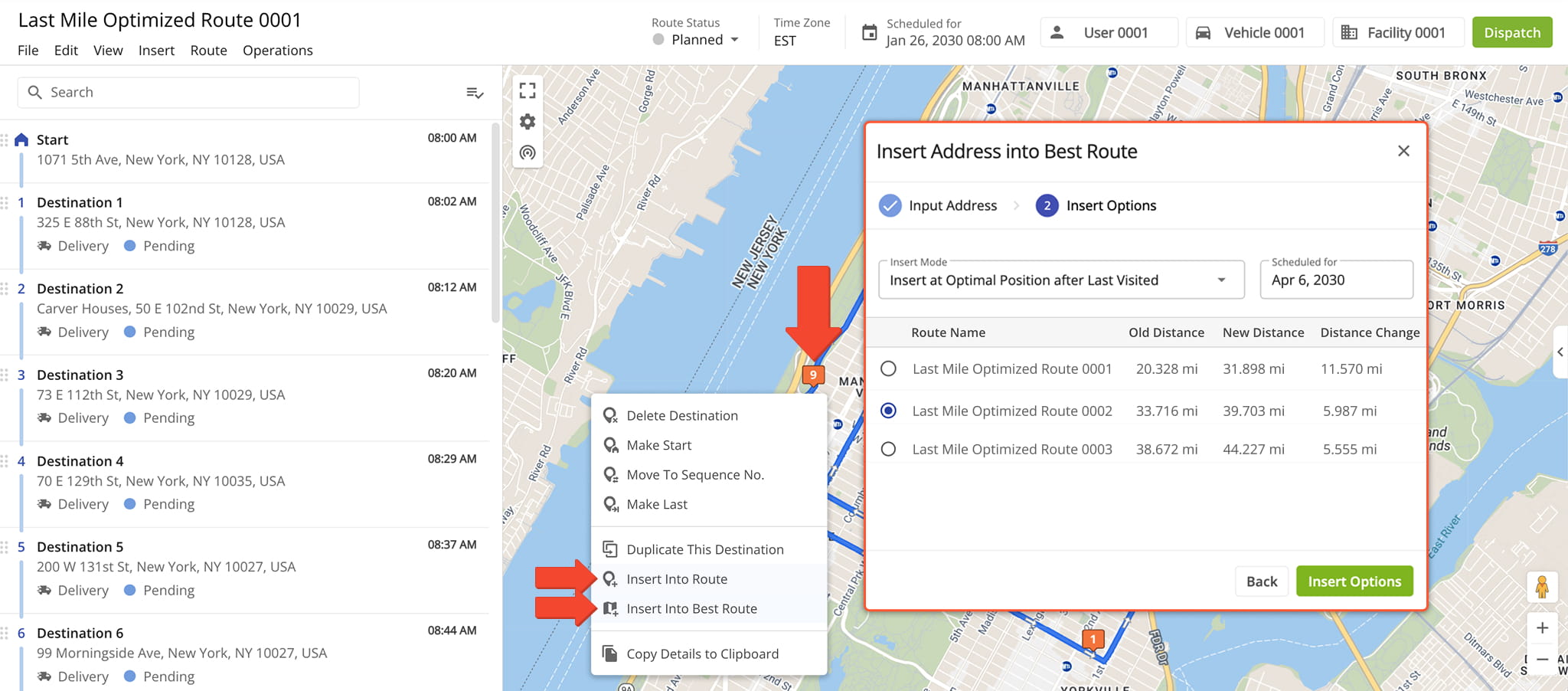
It’s now possible to insert route Destinations from one planned route into another or into the best possible route with minimal distance and time impact. To do so, open a route in the Route Editor, right-click a Destination and select one of the following options:
- Insert Into Route: Select a planned route in which to insert the Destination.
- Insert Into Best Route: See and select the best possible routes in which to insert the Destination.
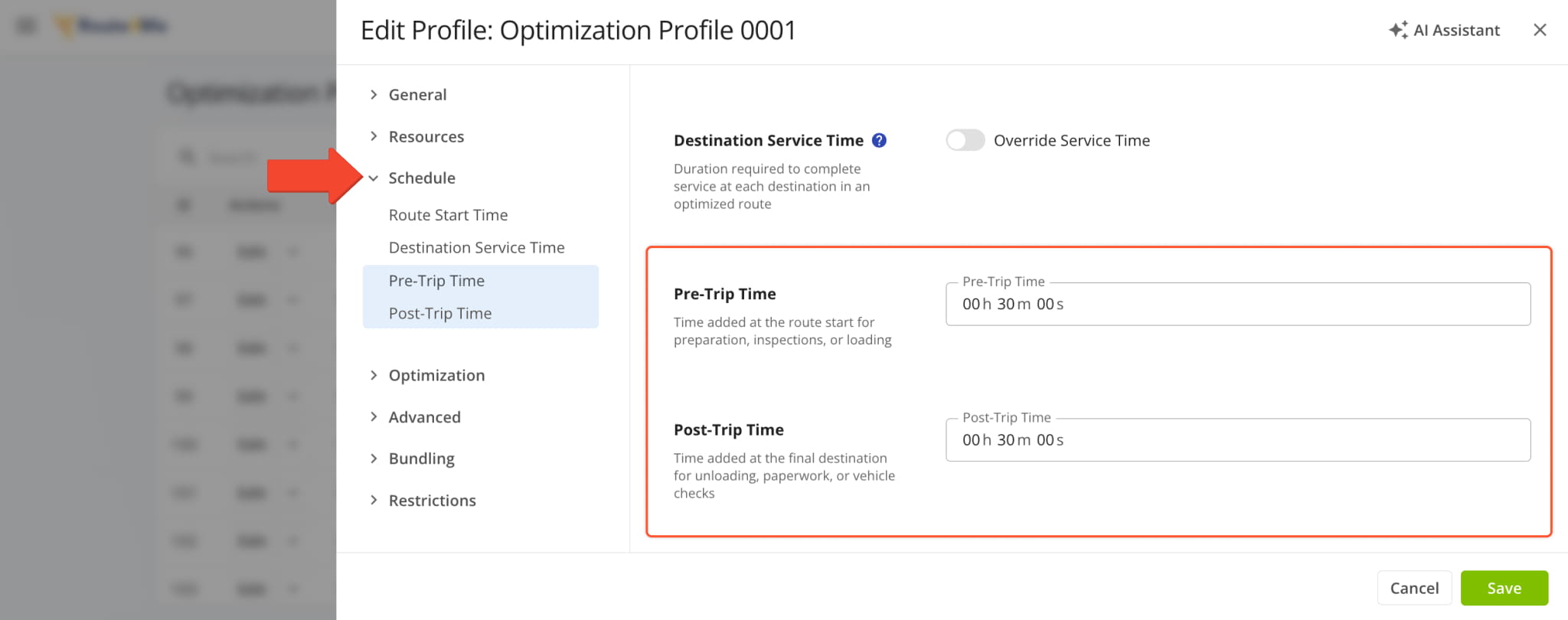
New “Pre-Trip Time” and “Post-Trip Time” fields were added to “Schedule” section of Optimization Profile Settings. These new fields enable you to add time before a route’s scheduled start and after its scheduled end to account for additional steps, tasks, or requirements.
Open Your Optimization Profiles
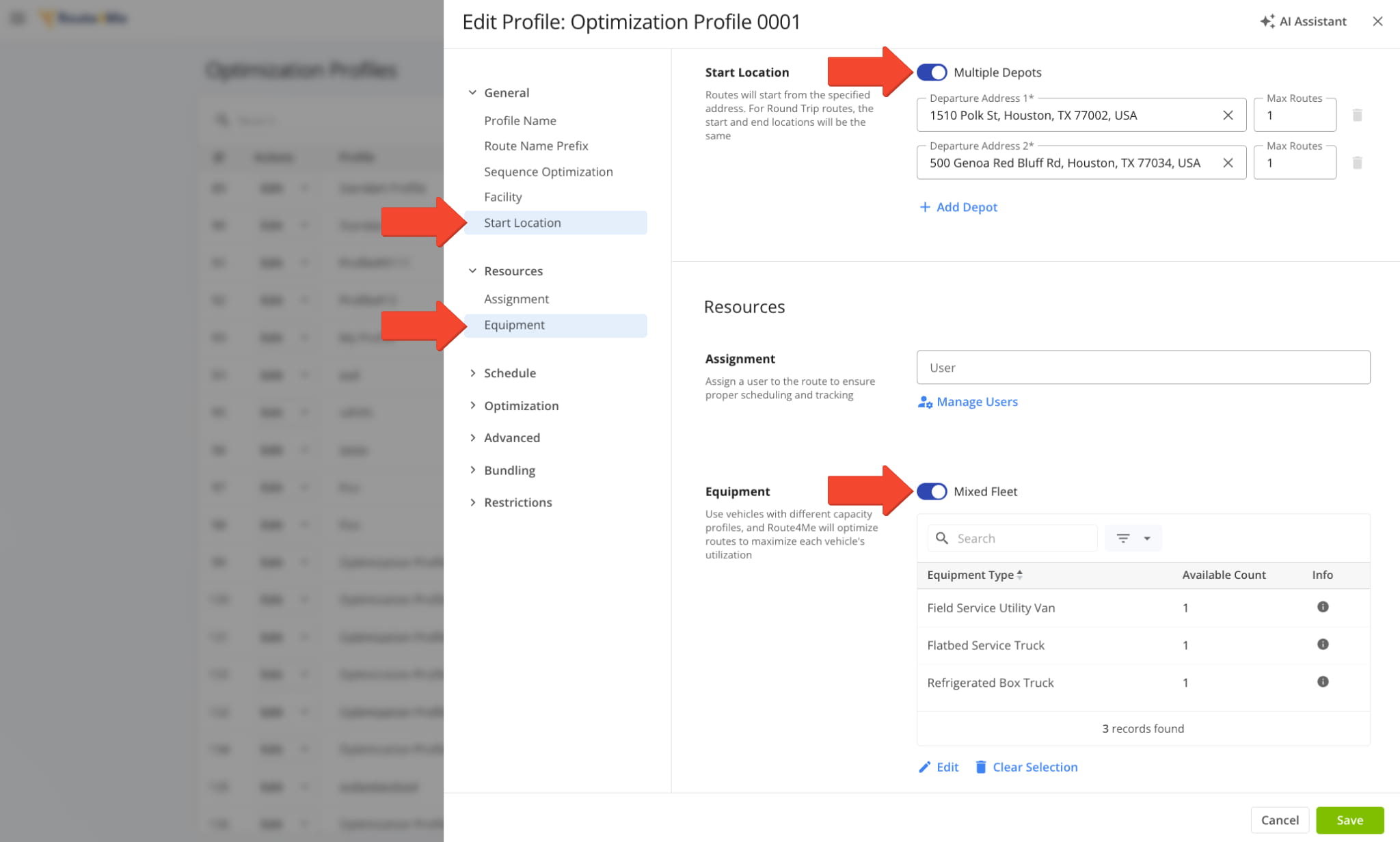
It’s now possible to enable “Multiple Depots” and “Mixed Fleet” in the same Optimization Profile. Previously, these options were mutually exclusive. Now, you’re able to select multiple Departure Addresses and Vehicles or Equipment Types to optimize routes with.
Open Your Optimization Profiles
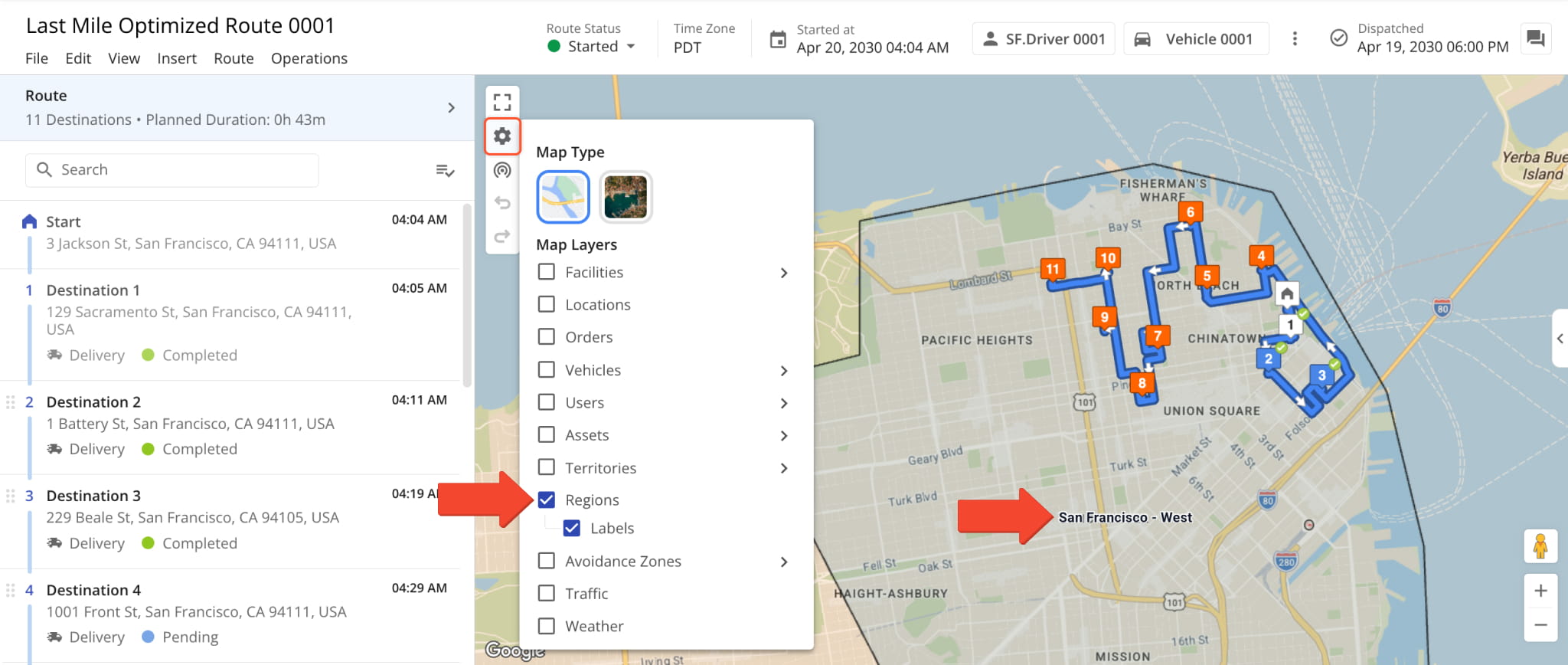
You can now enable Regions and Region Labels on the Route Editor Map as a new Map Layer.
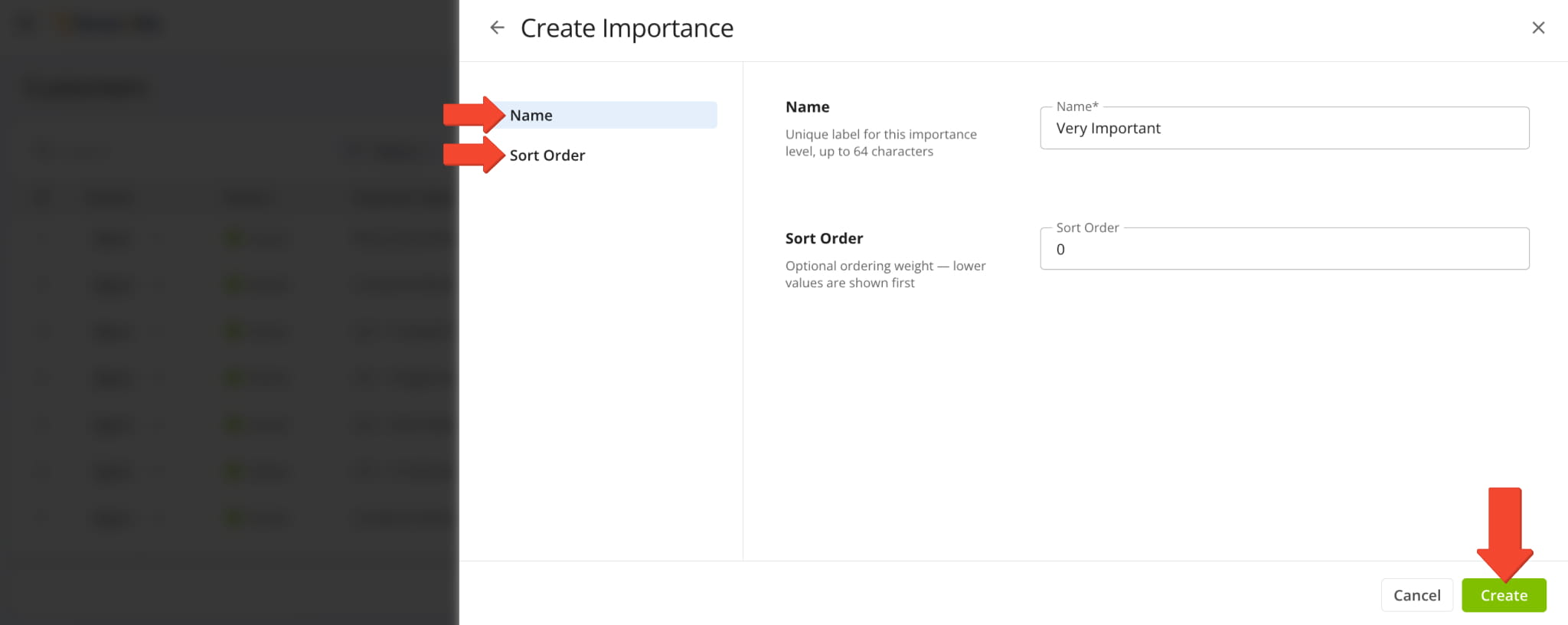
When you add and edit Customers, you’ll find a new “Manage Importance” button. Previously, you could only select Customer Importance. When you click “Manage Importance“, you’ll see a new customization interface where you can edit or delete existing Importance values or click “Add Importance” to create new ones.
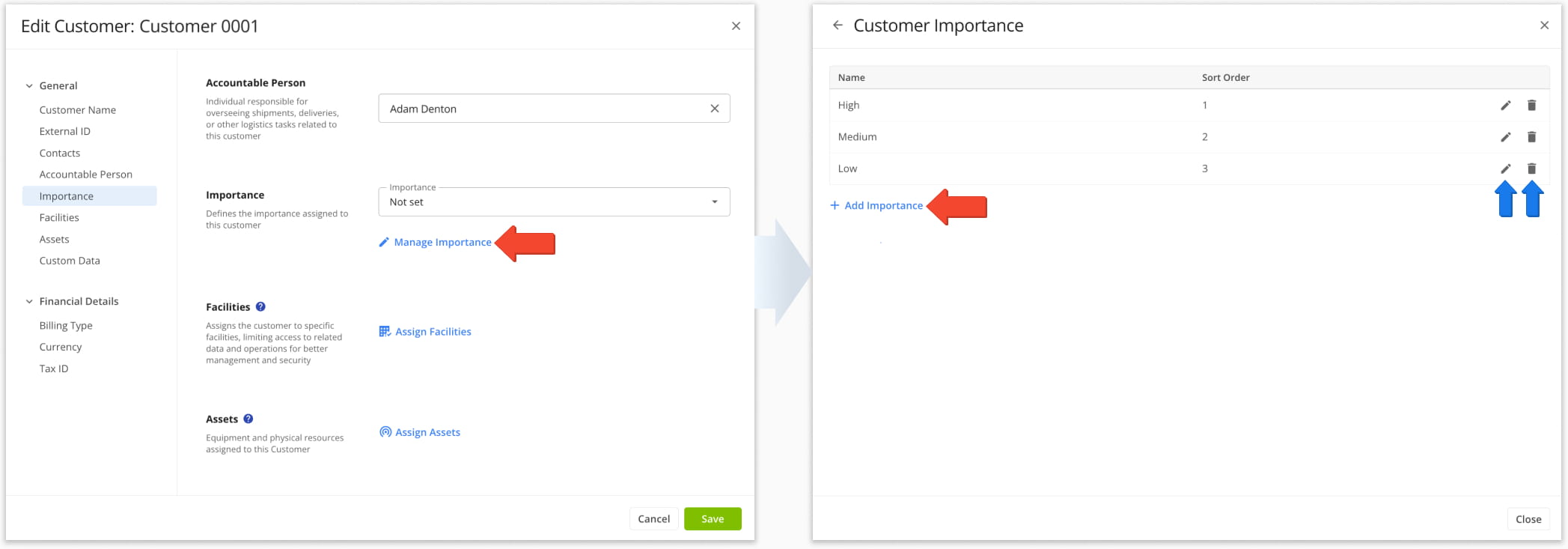
When creating Importance values, you can set their “Name” and “Sort Order” in the respective fields. Importance values with a lower sort order number are shown first. Click “Create” to save your new Customer Importance level.
July 2026
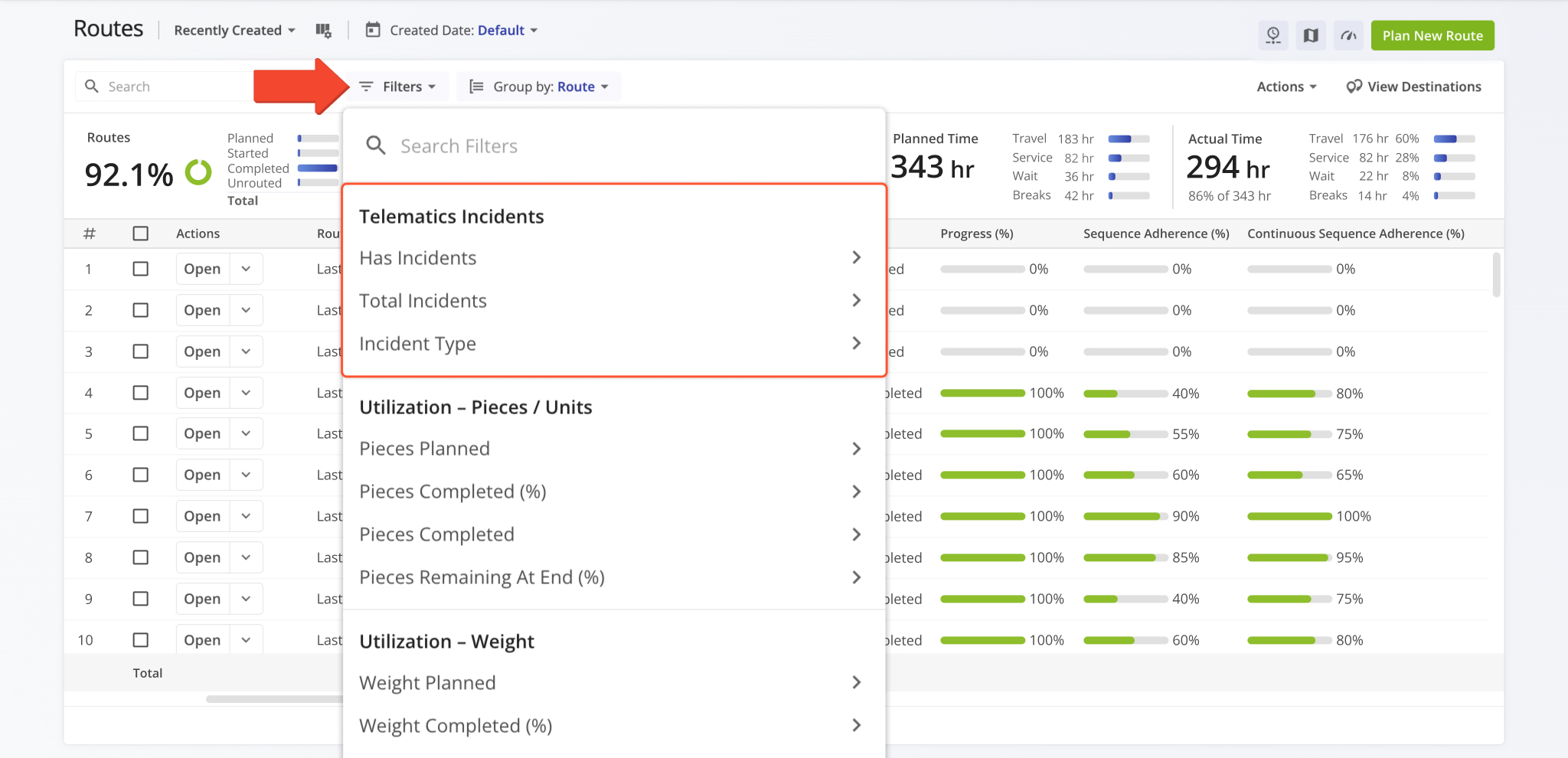
27Route Safety Incidents were added to the Routes Page as new Filters, Display Columns, and Export Columns. When you open your Routes Page Filters, you’ll find a new “Telematics Incidents” section with the following filter options:
- Has Incidents: Yes/No field that filters routes based on whether they have recorded Incidents.
- Total Incidents: Minimum/Maximum field that filters routes based on the number of Incidents.
- Incident Type: Multi-choice menu that filters routes based on the selected Safety Incident Types.
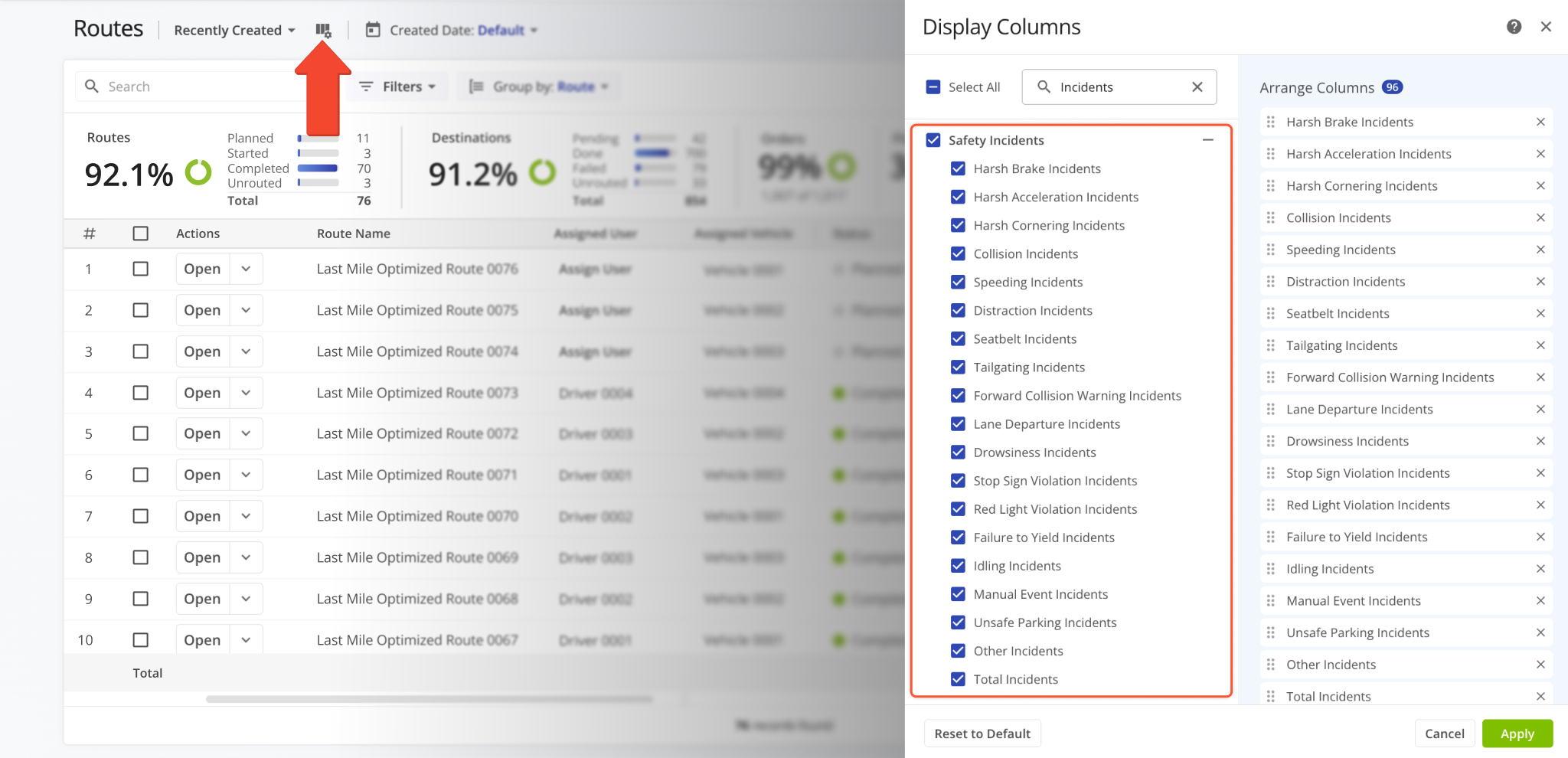
To enable the new Safety Incidents Display Columns on the Routes Page, simply click the Display Columns icon and select Safety Incident types from the new “Safety Incidents” category to show as Display Columns in the Routes List.
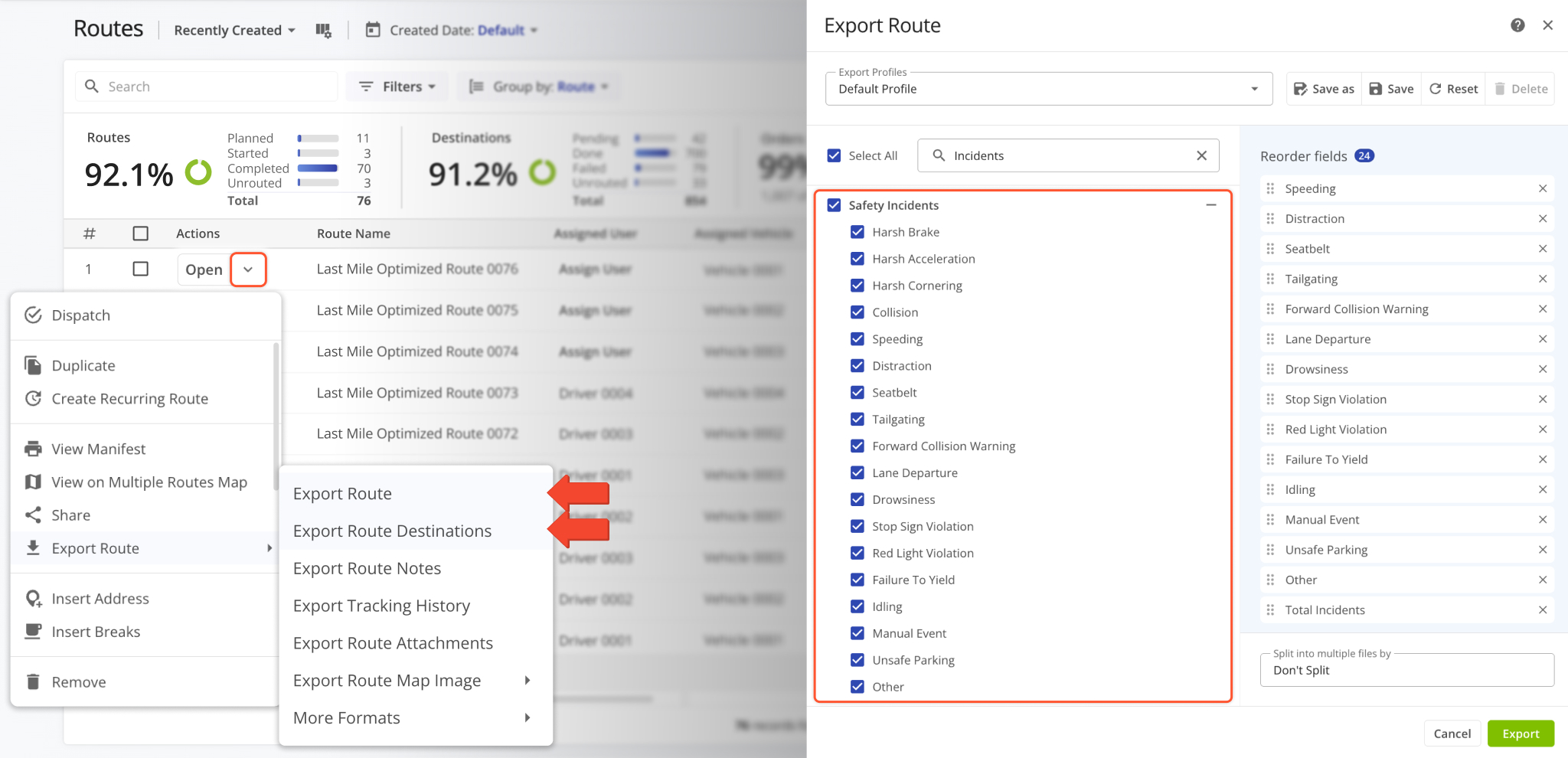
When exporting routes and destinations, you’ll find the same new “Safety Incidents” category as was added to your Display Columns. Simply select any incident types you want to export and proceed as usual.
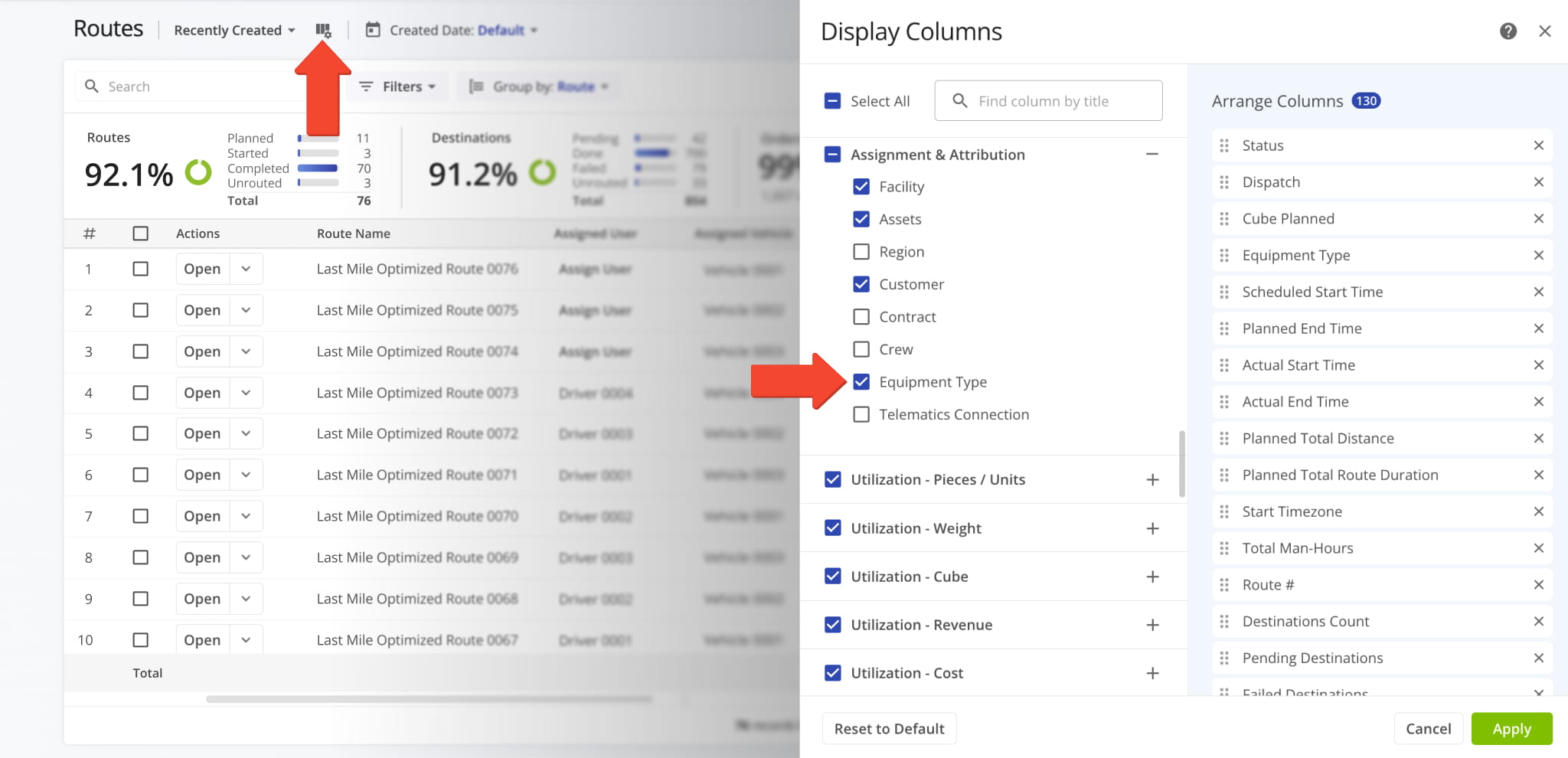
You can now see which Equipment Types are assigned to a route using a new “Equipment Type” Display Column in the “Assignment & Attribution” section on the Routes Page.
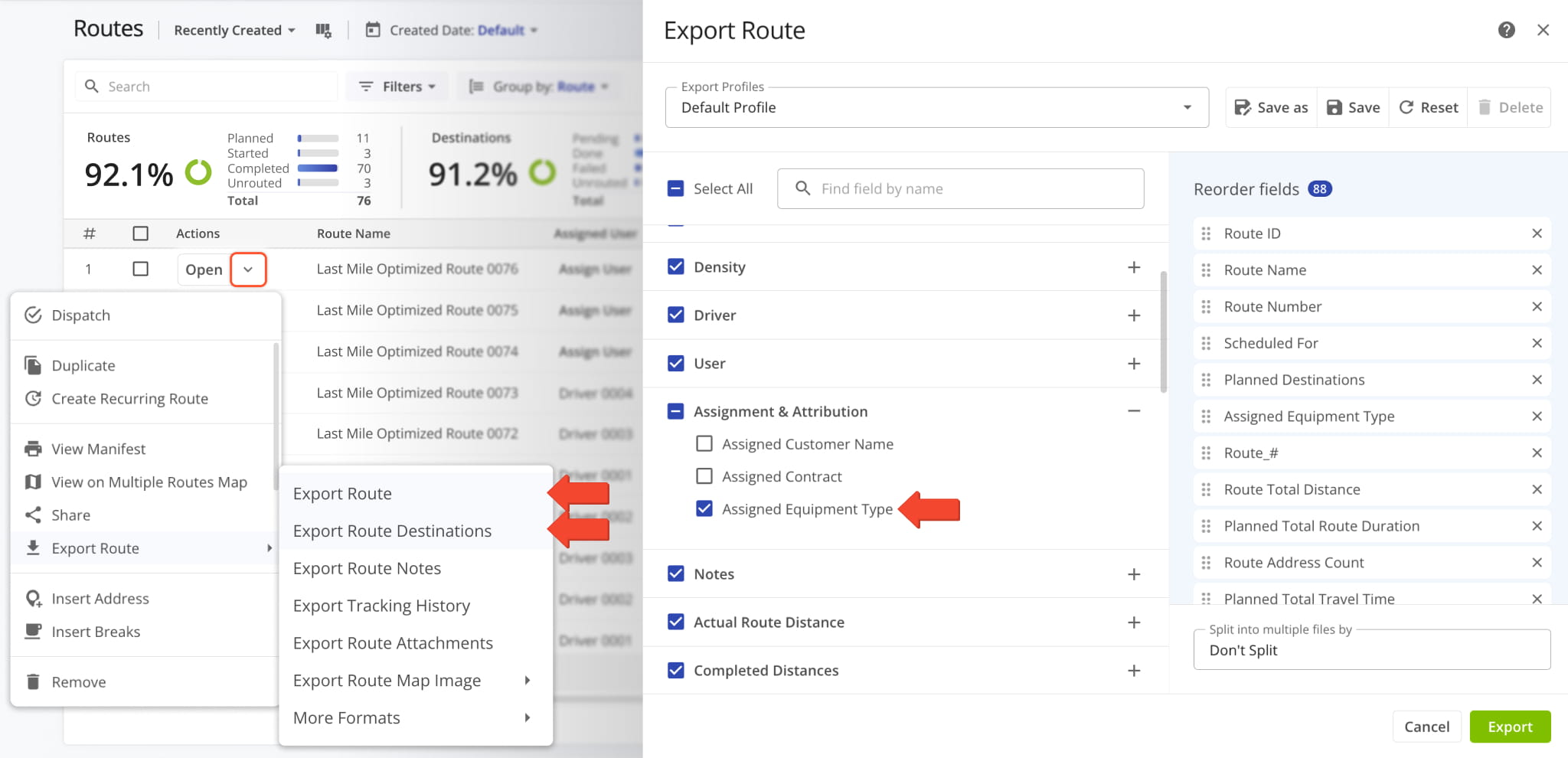
Additionally, a route’s “Assigned Equipment Type” is now an export option you can select when exporting routes and destinations. You can find it in the “Assignment & Attribution” section.
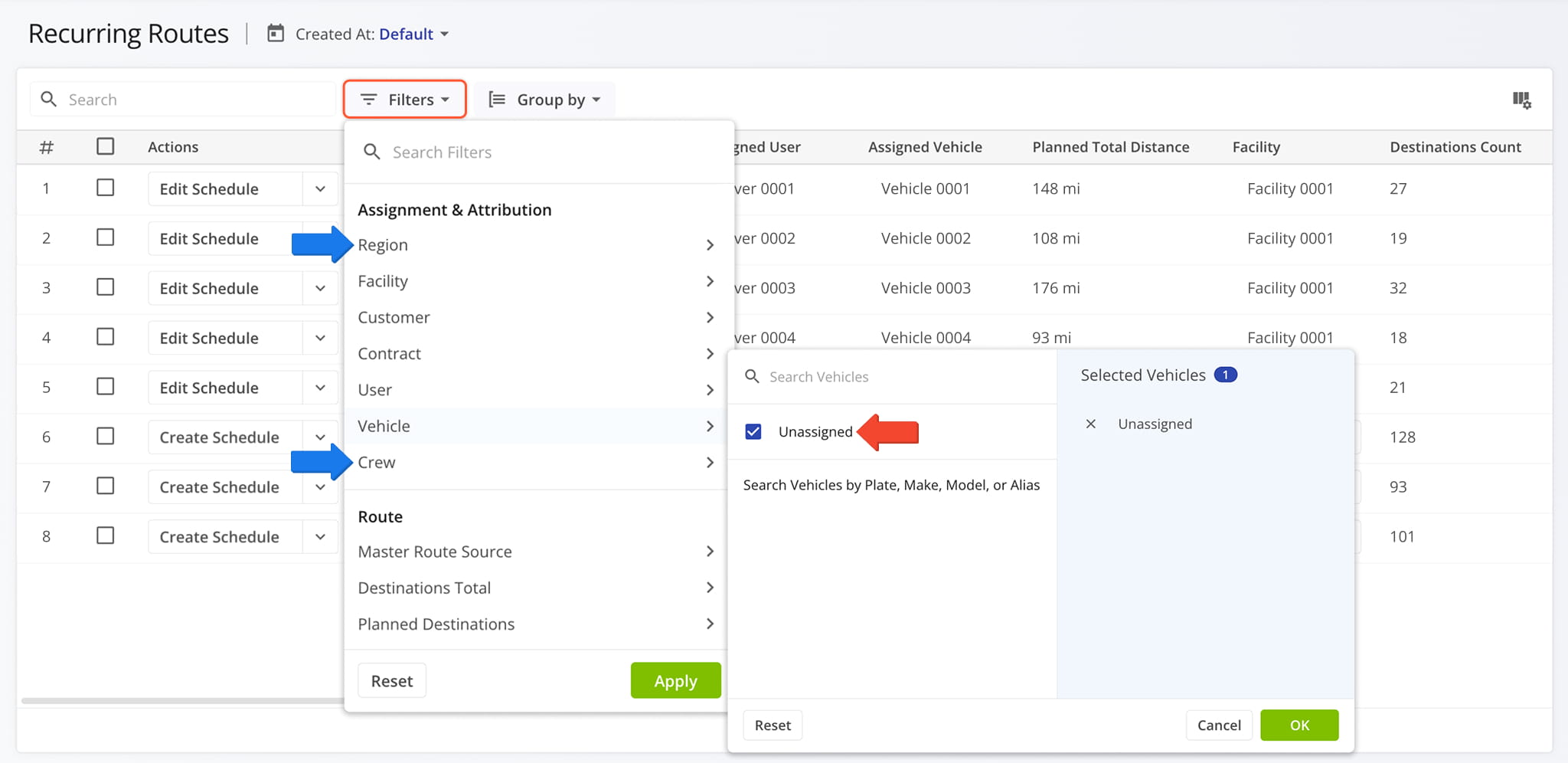
Filters on the Recurring Routes page received several updates, bringing them to parity with filters on the Routes Page. The following new filters were added:
- Region: Filter Recurring Routes by their assigned Crews.
- Crew: Filter Recurring Routes by their assigned Regions.
Additionally, you can now select “Unassigned” for every filter in the “Assignment & Attribution” section.
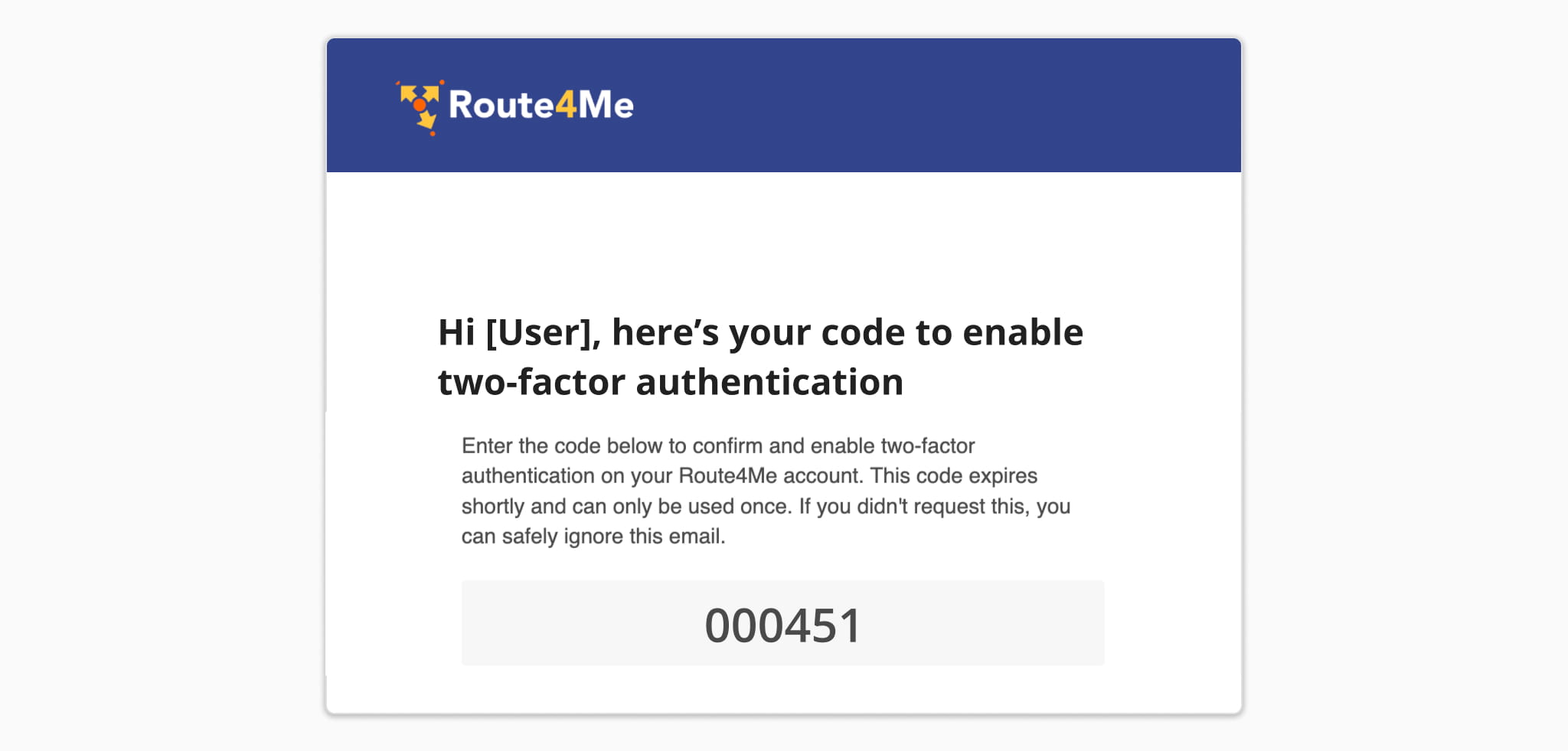
Route4Me Account Authentication was updated with new 2FA functionality. You can now generate one-time backup codes for Users to enable 2FA and sign-in to their accounts. You can also set a limit on unsuccessful sign-in attempts, after which a User’s account can be locked for security. Please contact your routing expert to learn more.
To streamline Two-Factor Account Authentication, Users can now add trusted devices to their accounts. This enables Users to select a new “Remember this device” option and bypass 2FA challenges for a specific customizable period. This service issues, validates, and revokes secure account access and provides a list of trusted devices to account managers. Contact your routing expert to learn more.
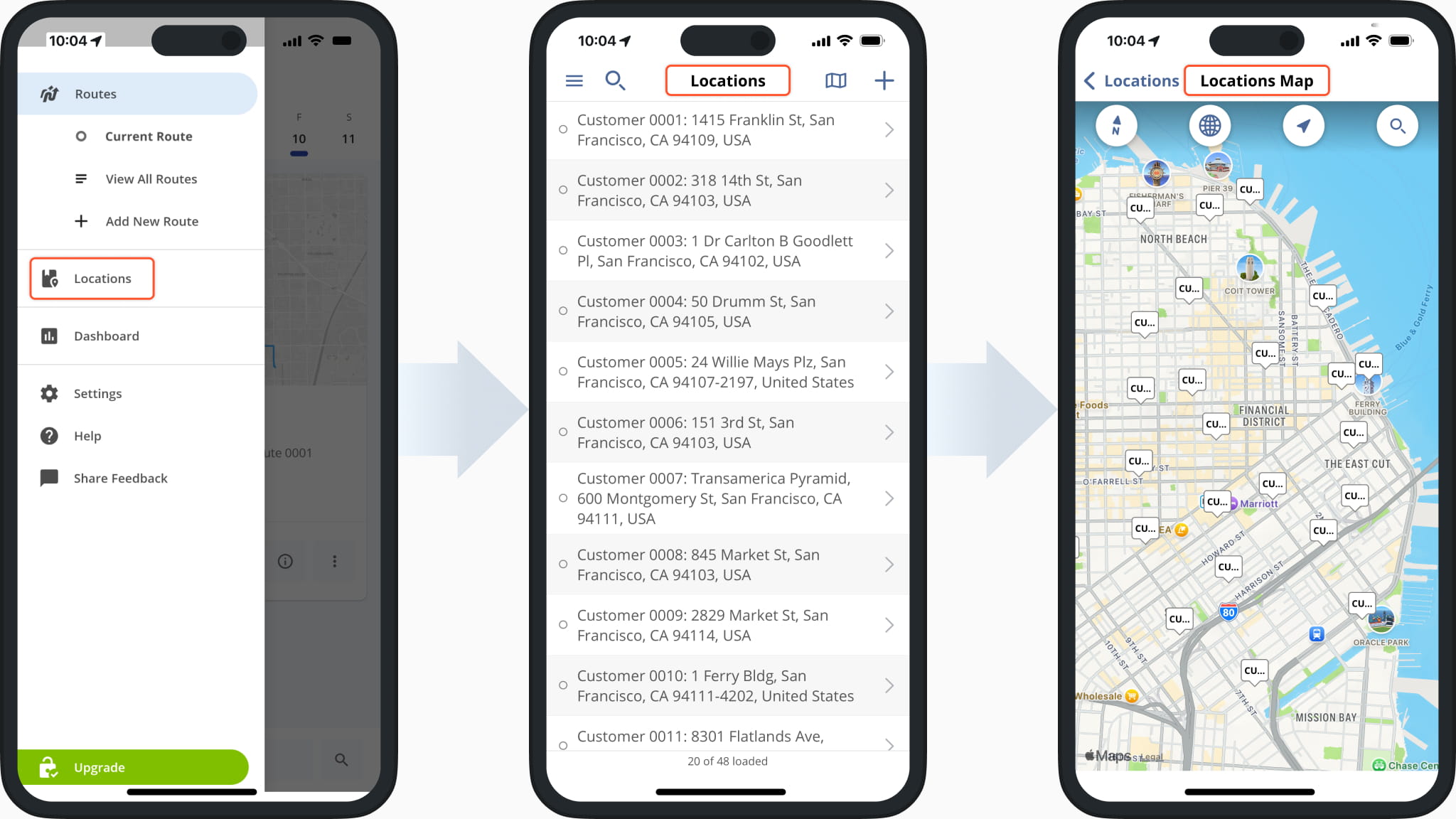
The Address Book and Address Book Map in the Route4Me iPhone Route App were renamed to “Locations” and “Locations Map” respectively. Learn more about Route4Me App Customer Locations.
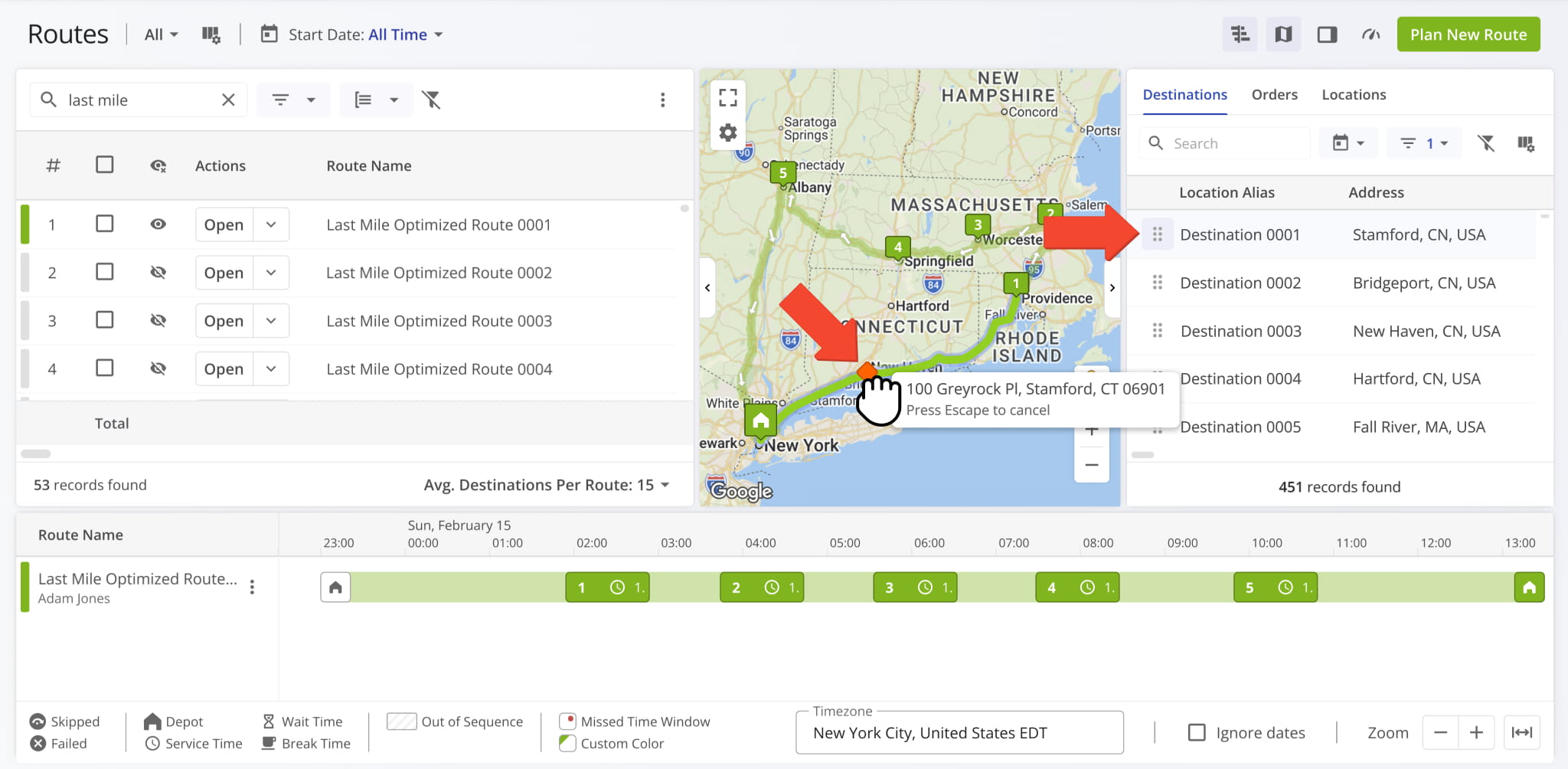
The existing drag-and-drop functionality available for Destinations, Orders, and Locations using the Routes Map and Routes Timeline was extended to allow dragging items directly onto a route on the map.
This automatically adds the new item to the route at the selected sequence position between existing Destinations and calculates a new optimal route path.
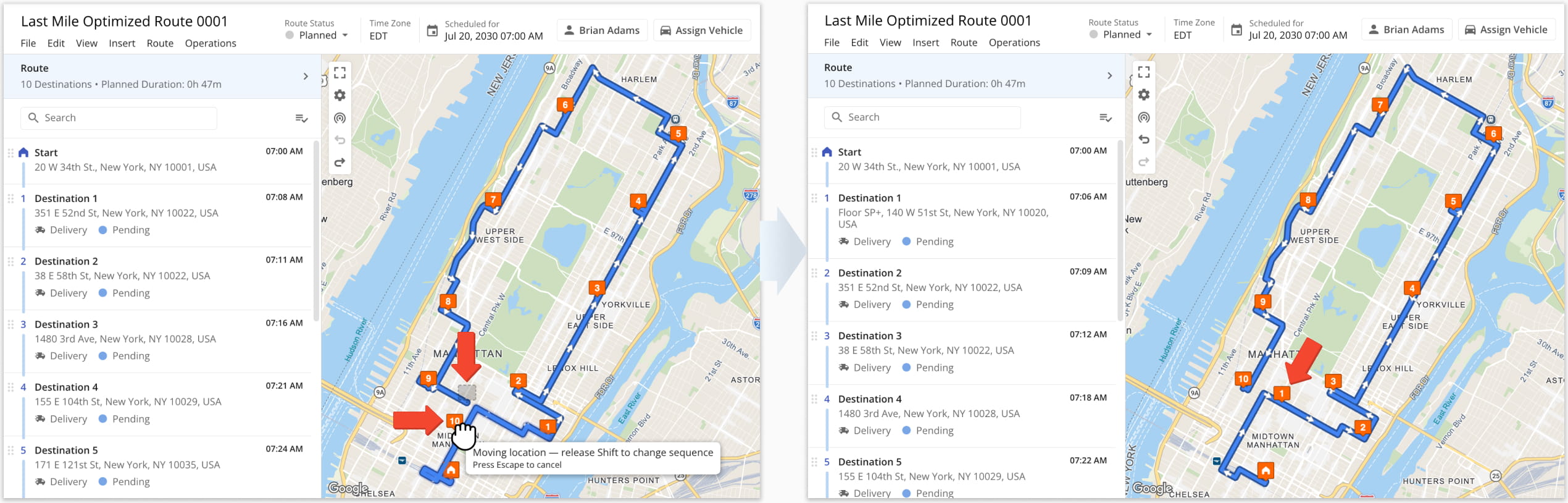
It’s now possible to re-sequence routes directly from the Route Editor Map. To do so, click and drag a Destination to a new sequence position along the route. The route will update automatically as shown in the image below.
NOTE: If you want to keep the Destination’s sequence position but change its address instead, simply hold the Shift key on the keyboard while dragging and dropping.
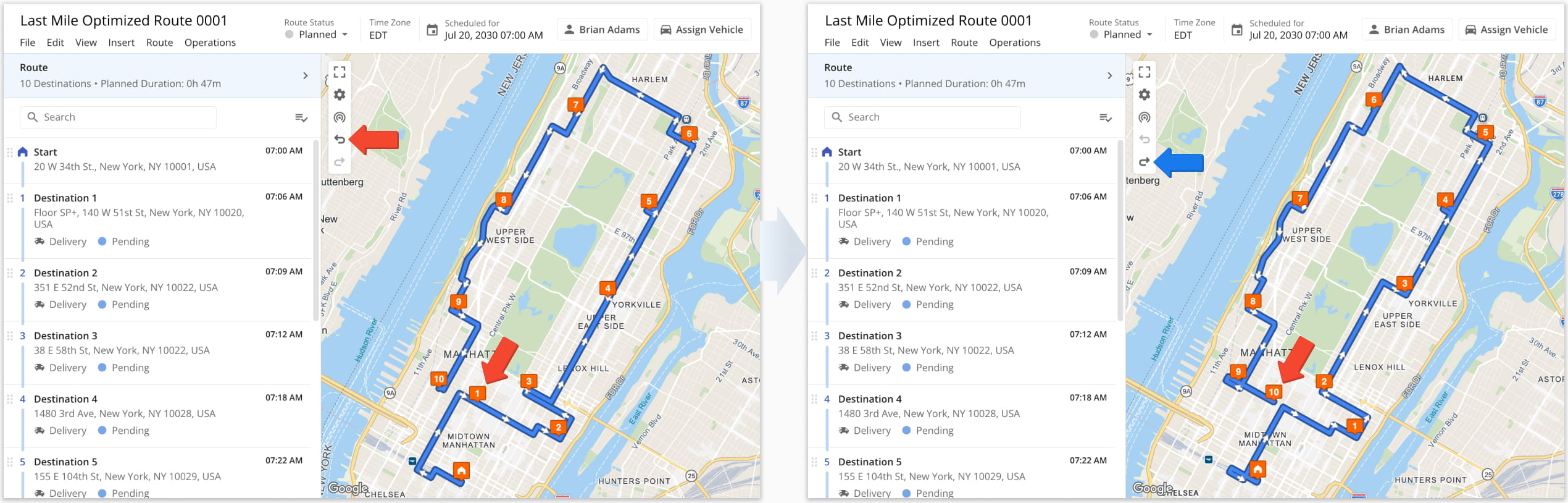
To revert a change you’ve made, simply click the Undo Icon in the Actions Menu at the upper-left of the map. Similarly, you can click the Redo Icon to repeat a change you’ve undone previously.
Undo history is cleared when the tab is closed or refreshed, so once you leave the page, changes can no longer be undone. For this reason, we recommend duplicating a route as a backup before making changes.
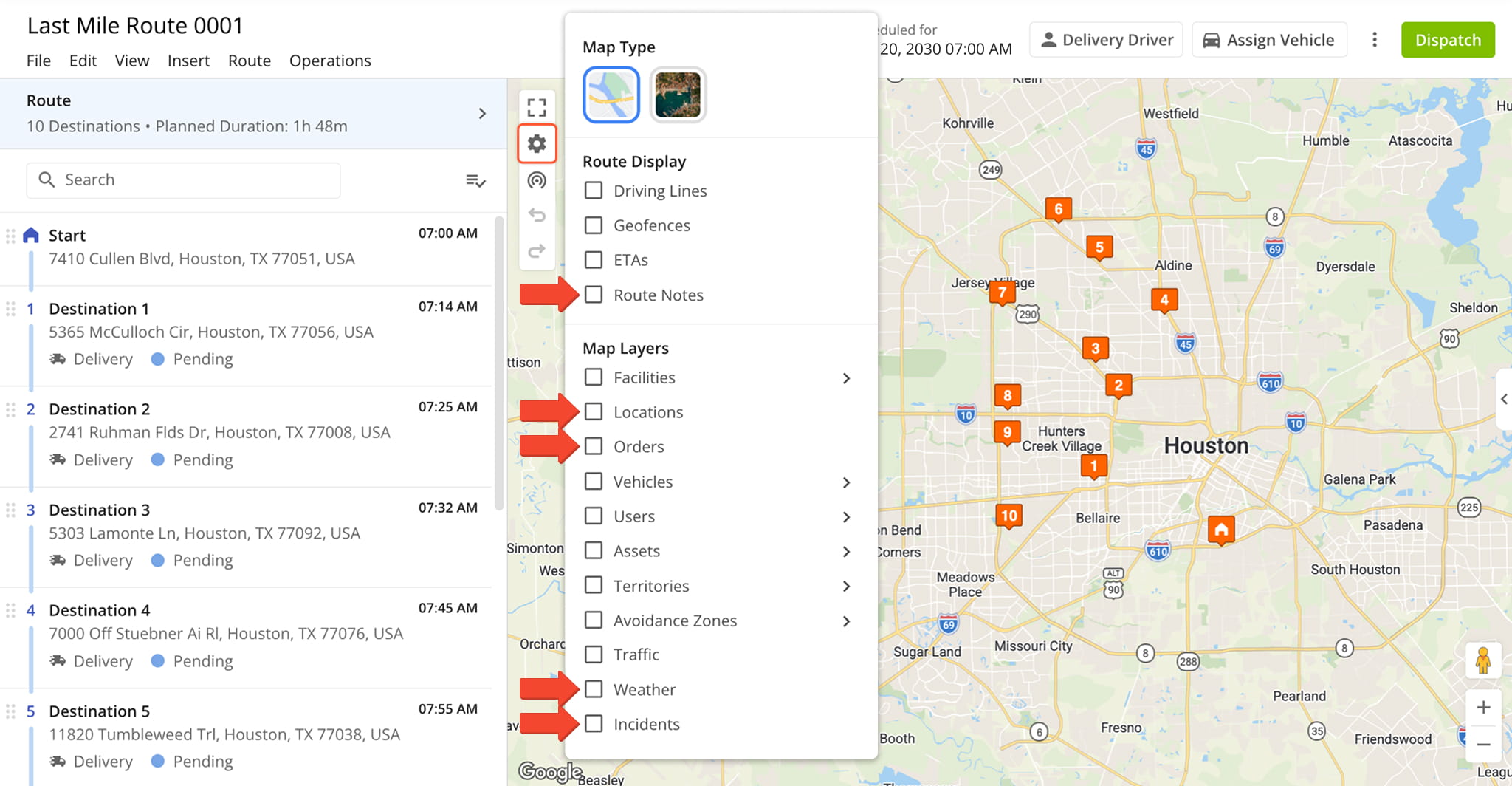
The Route Editor Map now supports the same Route Display and Map Layers options available on the Routes Map. The following new Map Settings were added to the Route Editor Map:
- Route Notes: Show Note icons next to the Destinations with added Route Notes.
- Locations: Show Customer Location indicators on the Route Editor Map.
- Orders: Show markers for scheduled Customer Orders on the Route Editor Map.
- Weather: Enable predictive Weather Map Layers on the Route Editor Map.
- Incidents: Show the locations of recorded Incident Reports on the Route Editor Map.
A new Company Snapshot feature was released. Your Company Snapshot is a centralized dashboard where you can easily access and manage data, assets, analytics, metrics, and more across your entire organization.
Instead of navigating between separate pages, you can work with fully functional sections for routing, business operations, teams and equipment, and more. See the table below to learn about Company Snapshot sections.
To open your Company Snapshot, go to “Business Operation” > “Company Snapshot” from the Navigation Menu.
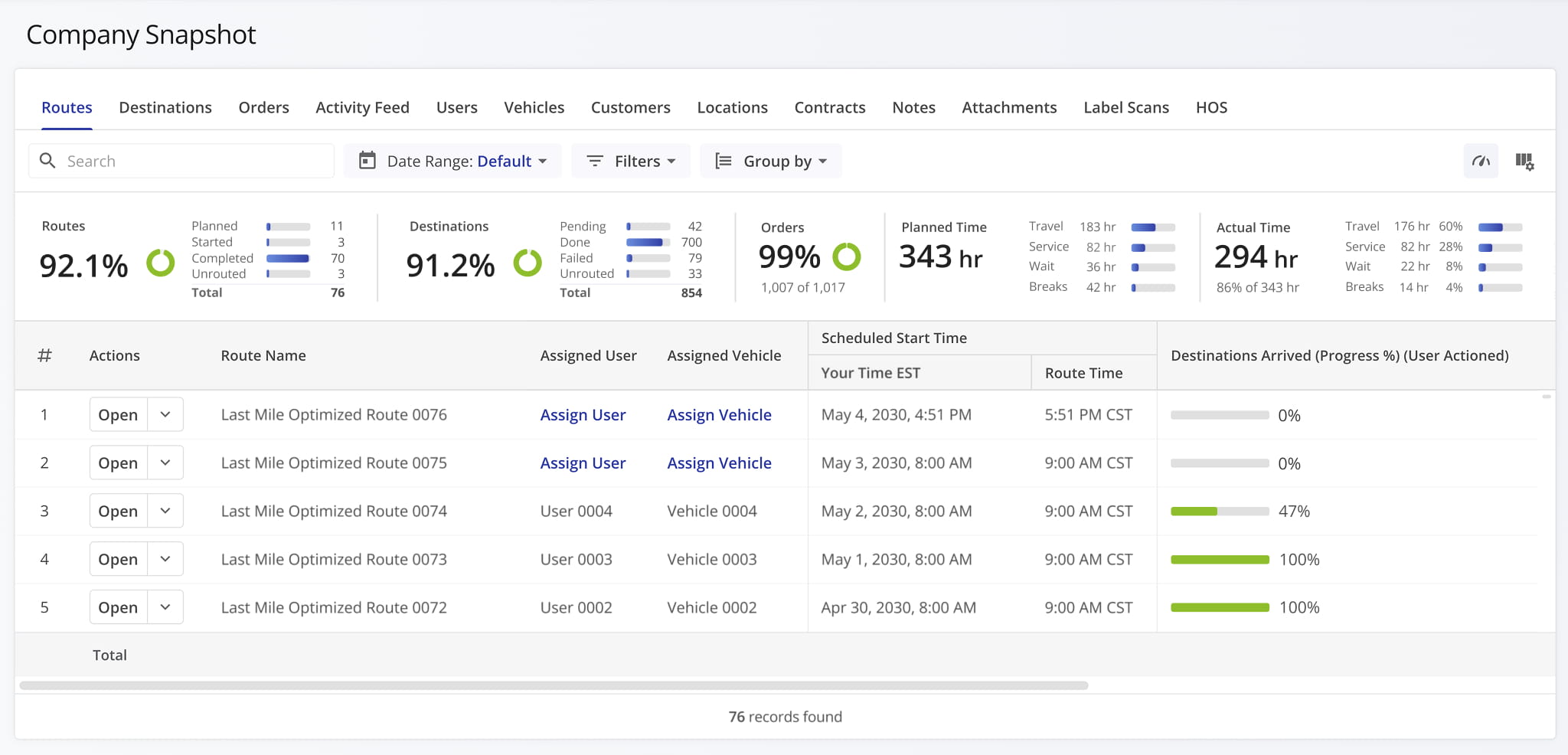
Company Snapshot > Company Tabs
View and manage all routes, including planning, optimization, and performance details.
Access and manage all route destinations with associated details such as addresses, Service Types, and statuses.
View, create, and manage Orders, including tracking status and linking them to routes and locations.
Monitor real-time updates and actions across the platform, including route changes and user activity.
Manage user accounts, roles, and user permissions across your organization.
View and manage fleet information, including vehicle details, capacity profiles, and more.
Access and manage customer profiles and associated data across your operations.
View and manage all locations, including addresses and attribution.
Manage service agreements, terms, and pricing associated with customers or operations.
Notes
View and manage notes added to destinations across routes as part of proof of visit workflows.
Attachments
Access files and documents associated with route notes, orders, and other records.
Label Scans
View and manage barcode or label scan data for tracking and verification purposes.
HOS (Hours of Service)
Monitor driver hours of service events to ensure transparency and compliance with regulatory requirements.
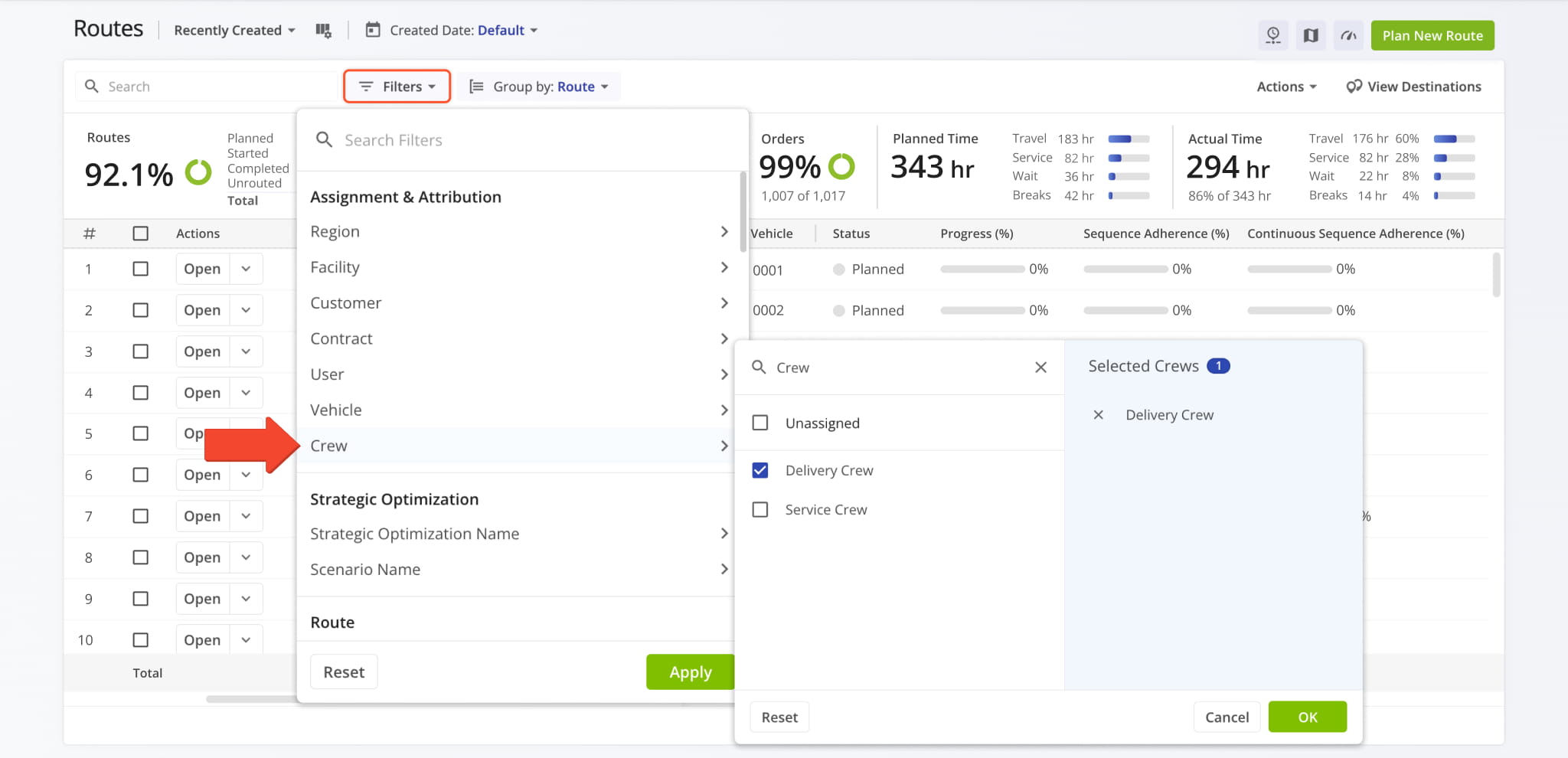
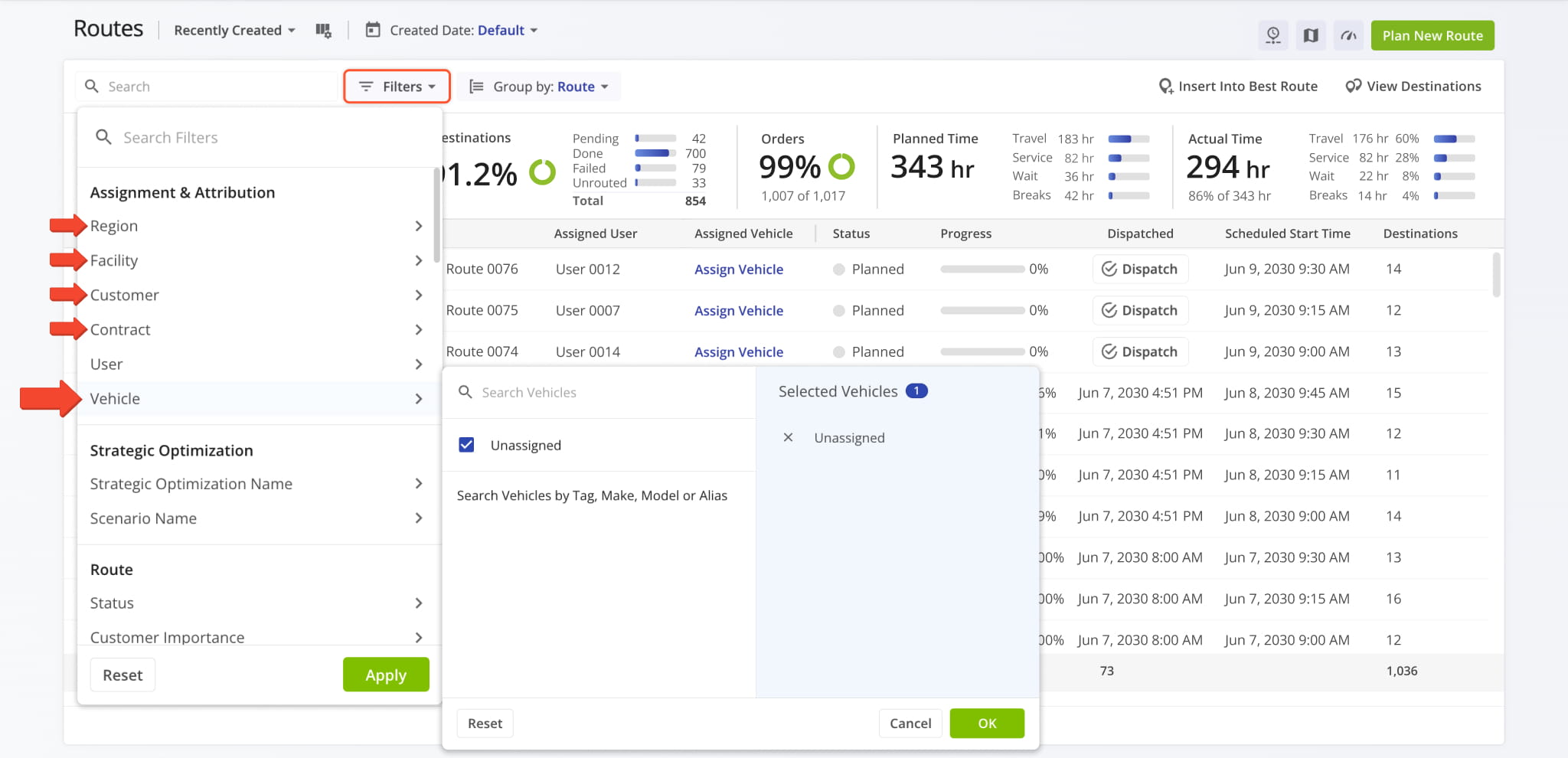
A new “Unassigned” option was added to Routes Page Filters in the “Assignment & Attribution” section. It enables you to filter routes with no corresponding assignment. The image below shows an example of using the new “Unassigned” filter for Vehicles to see only routes with no Vehicles assigned to them.
This change applies to Regions, Facilities, Customers, Contracts, and Vehicles.
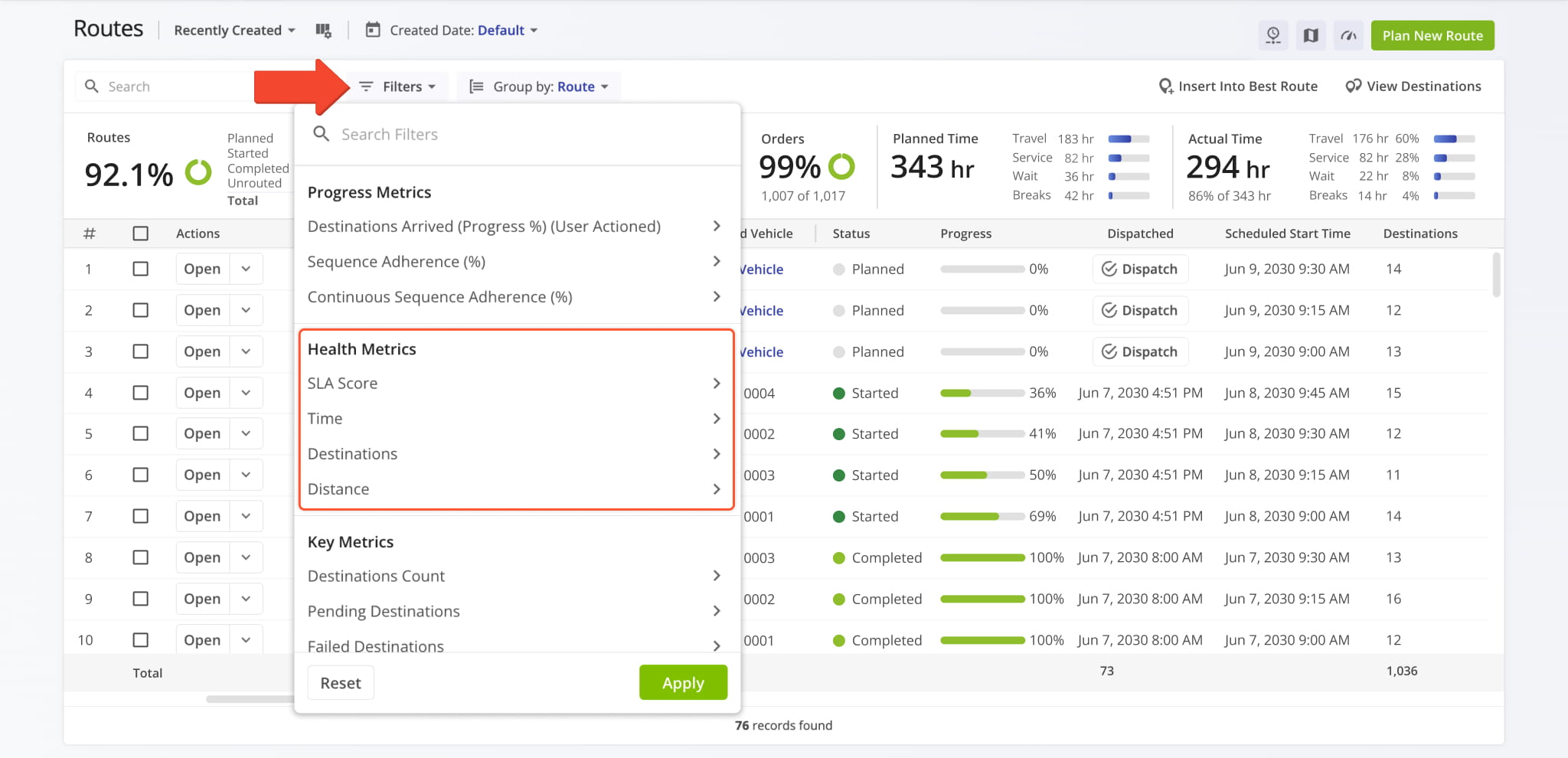
New “Health Metrics” filters were added to the Routes Page. You can now filter routes by:
- SLA Score: Overall operations health of routes as seen on the Operations Dashboard.
- Time: Route health defined by destination arrival times compared to the original schedule.
- Destinations: Route health by relative destination completion metrics.
- Distance: Route health by actual travel distance compared to the original route plan.
A new high-performance map engine is being rolled out, dramatically improving map speed when viewing very large datasets. Additionally, the Users Map and Vehicles Map now use the new unified Route4Me map system.
Previously, different pages supported different map settings. Now, your Users Map and Vehicles Map have a unified selection of map layers and options. Other pages will also receive the same updates as part of the ongoing rollout.
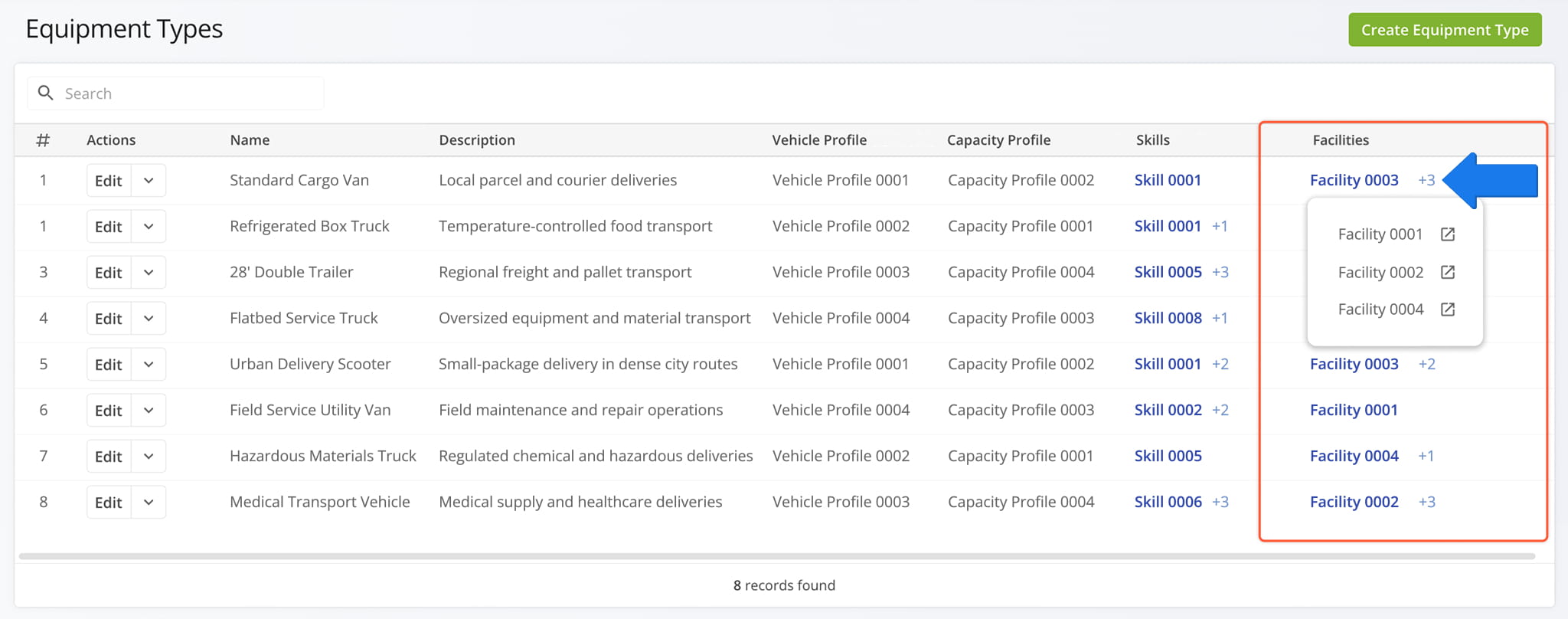
A new “Facilities” default column was added to the Equipment Types Page. When you assign an Equipment Type to one or more Company Facilities on your account, you can see all corresponding Facilities in the new column. Simply hover over the field to see the full list.
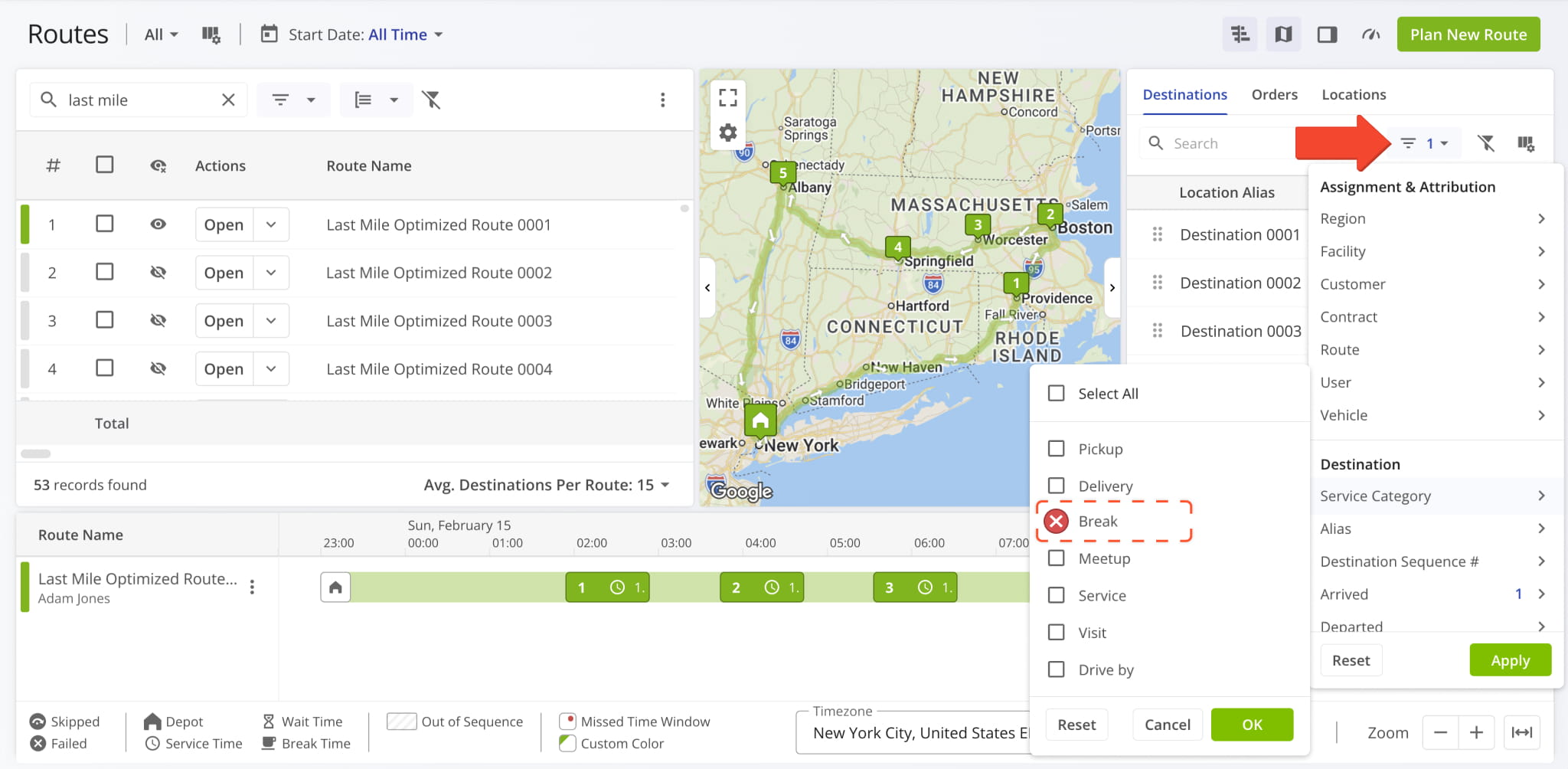
Destinations with the “Break” Service Category are no longer shown in the Routes Map Sidebar. This ensures you only see unvisited customer Destinations that need to be serviced instead of skipped break stops.
Instead, you can use route optimization settings to configure and automatically insert Hours of Service Breaks into routes after a specific elapsed time, number of Destinations, travel distance, etc.
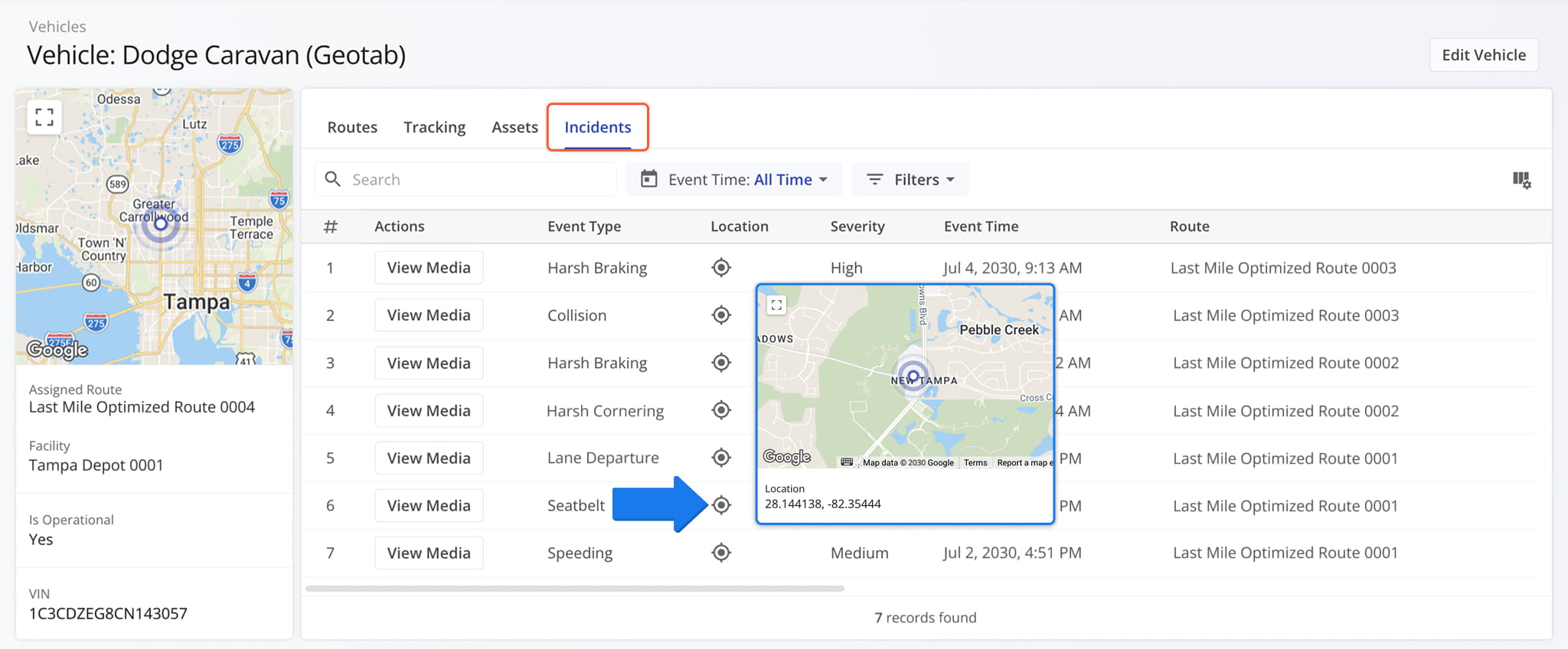
A new Safety Incident section was added to Vehicle Snapshots, Route Snapshots, and Connection Snapshots. When you open a Vehicle Snapshot, you’ll find a new “Incidents” tab that shows all recorded Safety Incidents and their details.
You can also hover over the icon in the “Location” column to see a map showing where an incident was recorded.
When a Vehicle is equipped with a dash cam or other media capture devices, incident recordings are automatically saved and attached to the corresponding incident in the system.
You can click the “View Media” button to inspect incident media and recordings if they’re available.
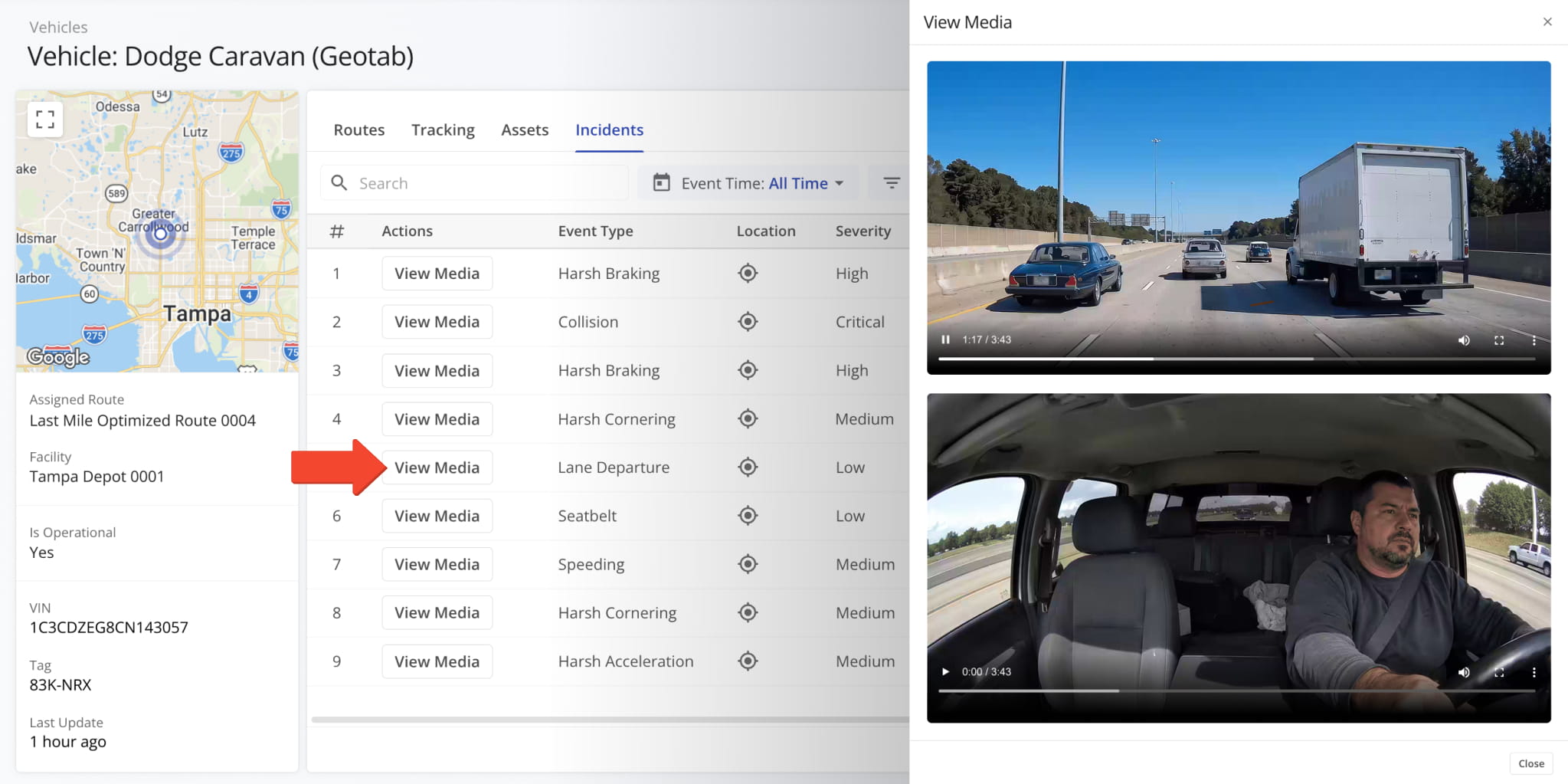
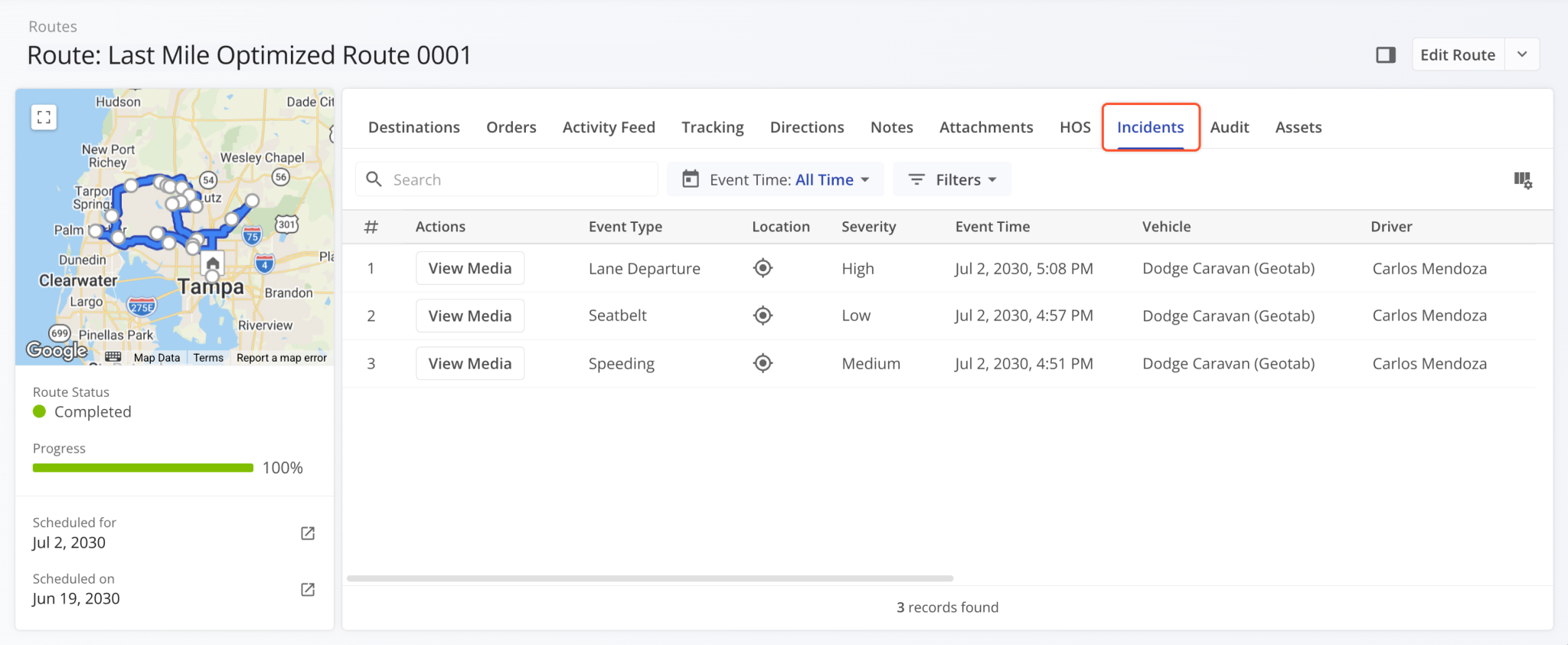
The “Incidents” tab is also available in Route Snapshots and shows all Safety Incidents associated with a route.
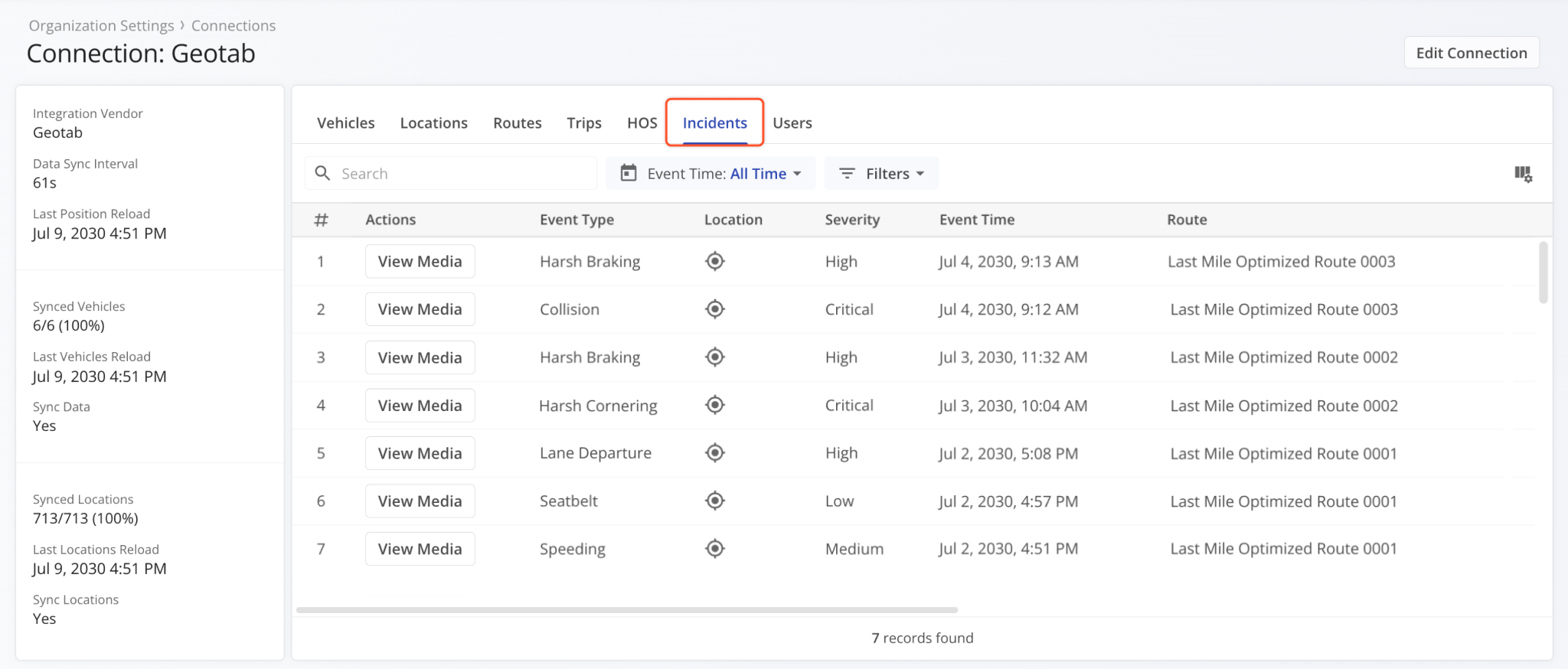
To account for Safety Incidents associated with Telematics Vehicles, the “Incidents” tab is also available in Telematics Snapshots. It shows recorded incidents associated with a Telematics Connection and Vehicles imported from it.
Open Your Telematics Connections
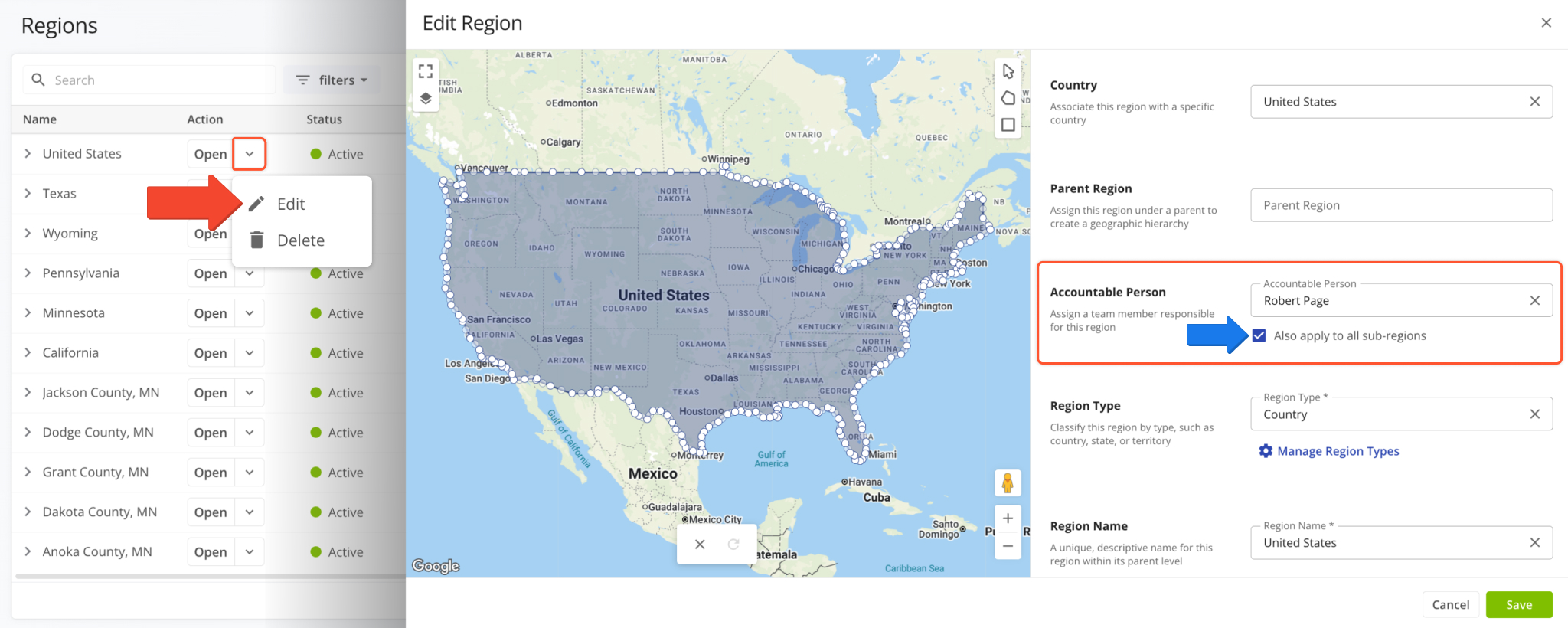
A new “Accountable Person” field was added when creating and editing Operation Regions on your account. It enables you to select one of your Team Members as the person responsible for a specific region. You can also enable the “Also apply to all sub-regions” option to set the same User as the accountable person for all associated sub-regions.
A new “Destinations” tab was added to the Routes Map Sidebar. Previously, you could only drag and drop Orders and Locations into planned routes. The new “Destinations” tab shows unvisited Destinations by default and supports the same drag-and-drop functionality available for Orders and Locations when using the Routes Map and Routes Timeline.
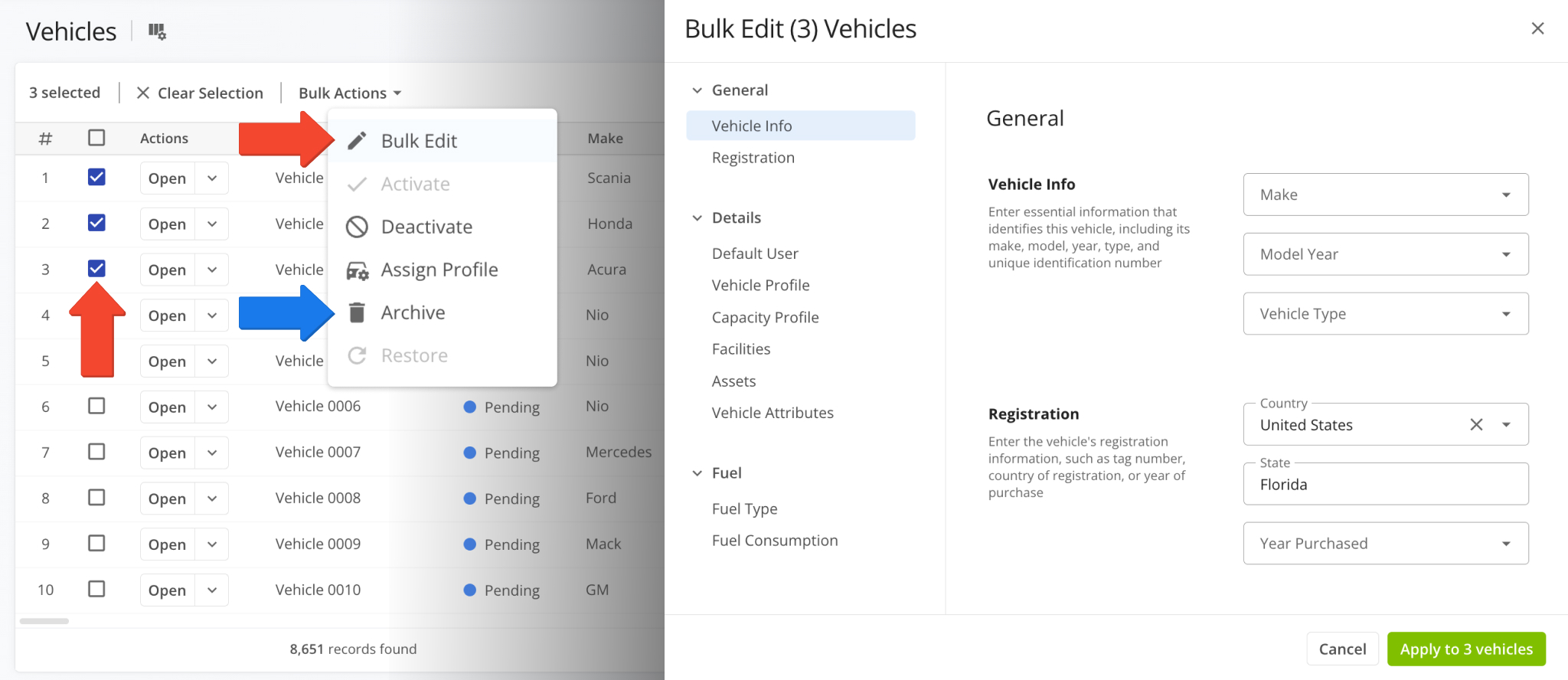
It’s now possible to edit and archive multiple Vehicles using the newly added “Bulk Edit” and “Archive” Bulk Actions. To access the new actions, go to the Vehicles Page, select multiple Vehicles, and open the “Bulk Actions” menu.
From there, you can select “Bulk Edit” to change Vehicle details or “Archive” multiple Vehicles at the same time.
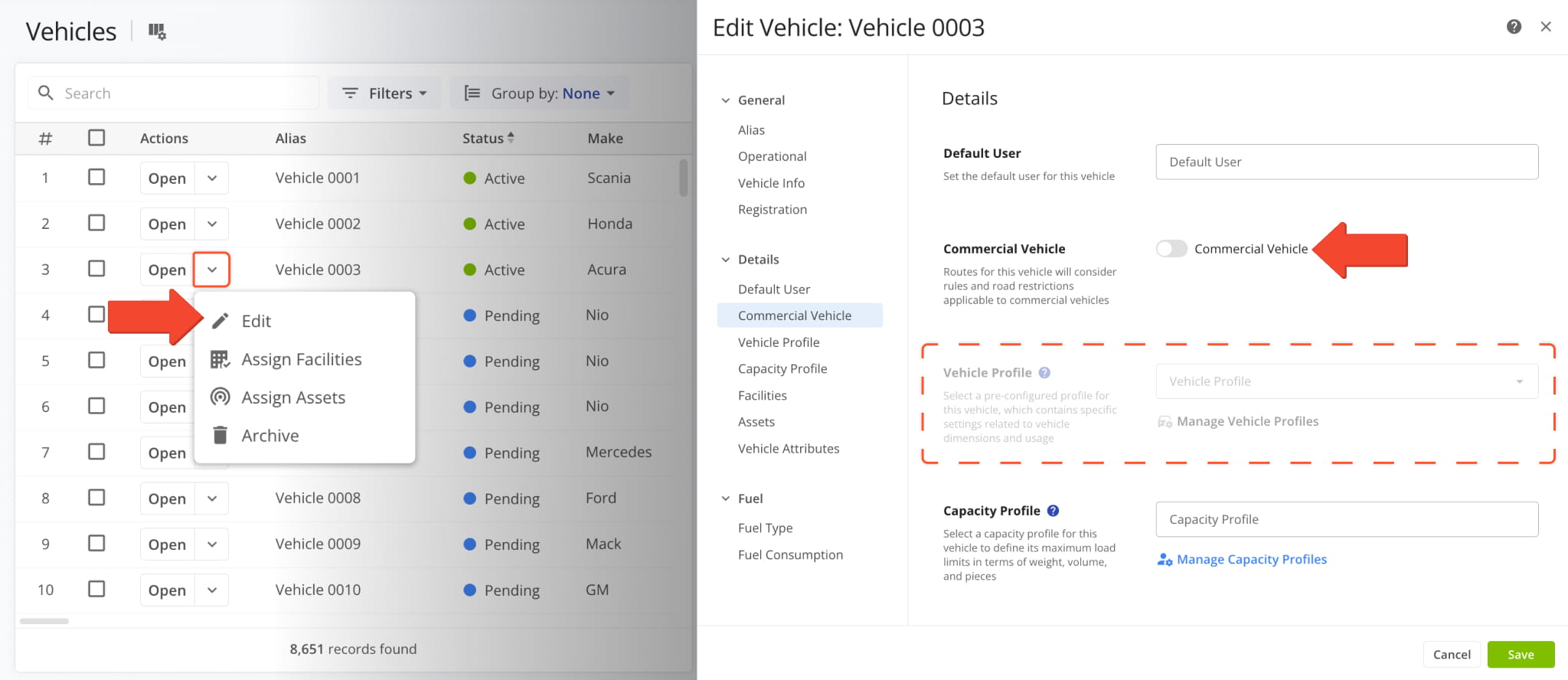
Commercial Vehicle settings were updated to improve logic and consistency when adding and editing Vehicles. The “Vehicle Profile” field is now grayed out unless the “Commercial Vehicle” toggle is enabled – you must enable it before selecting a Commercial Vehicle Profile.
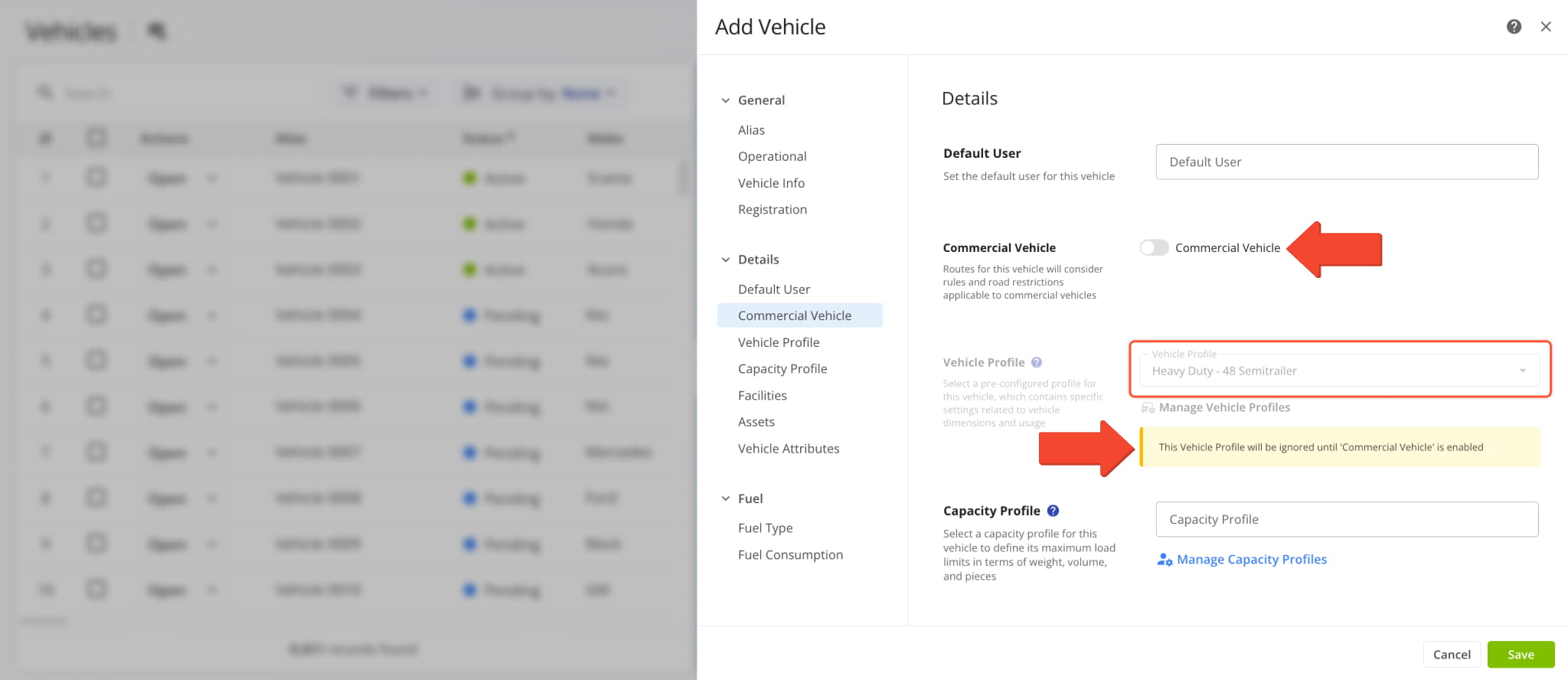
If you disable “Commercial Vehicle” after selecting a Vehicle Profile, you’ll see a warning indicating that the selected profile will be ignored until the toggle is re-enabled.
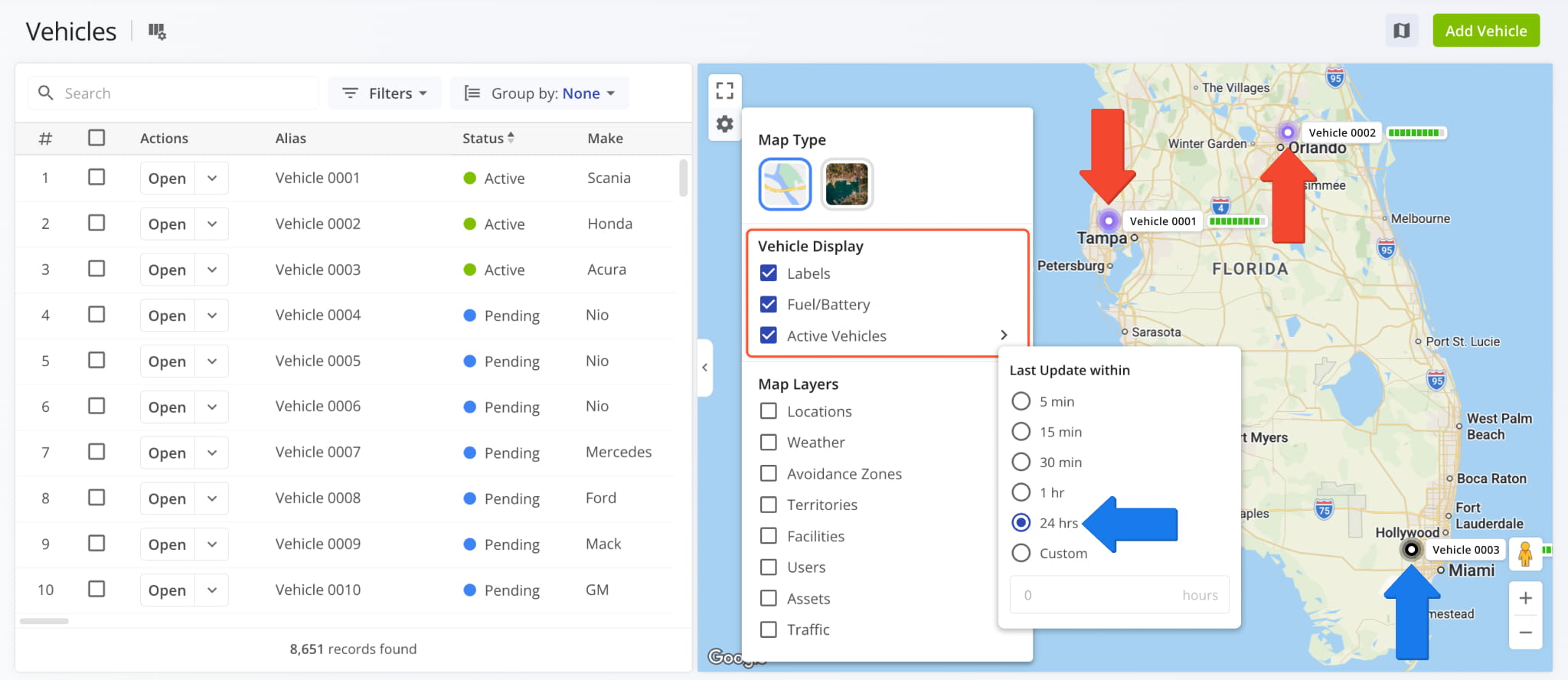
A new “Vehicle Display” section was added to the Vehicles Page Map with the following new options:
- Labels: Show Vehicle Name labels next to location indicators on the map.
- Fuel/Battery: Show a dynamic fuel or battery level meter next to Vehicles on the map.
- Active Vehicles: Select a time frame for Vehicles to be considered active on the map.
- Vehicles with last updates older than the defined period will be shown as black on the map.
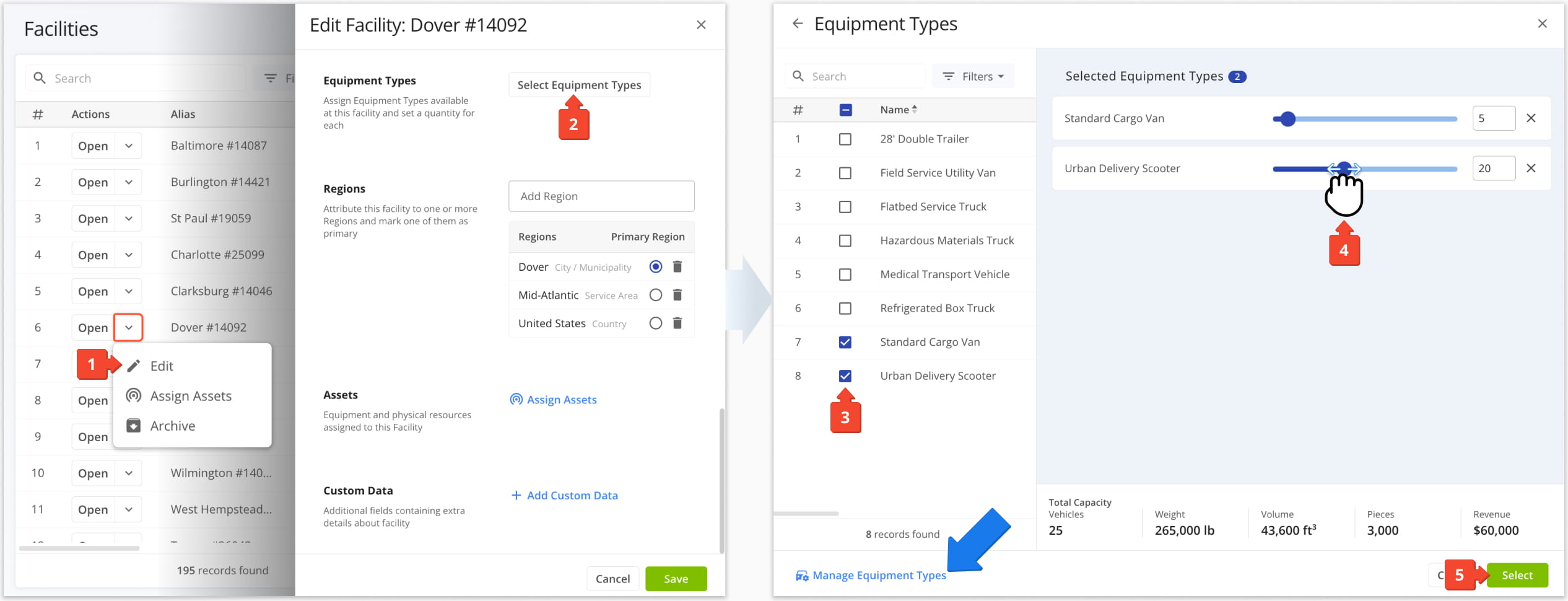
A new Equipment Types selection interface was added to the Route4Me Web Software. Currently, you can access the new interface when adding and editing Facilities. To assign equipment to existing Facilities, follow these steps:
- Click the Down Arrow and select “Edit“.
- Go to “Equipment Types” and click the “Select Equipment Types” button.
- Enable your preferred Equipment Types by checking the boxes next to them.
- Select the number of each Equipment Type you want to assign to the Facility.
You can use the “Search” field and “Filters” button to find specific Equipment Types. - Click “Select” to save your Equipment Type settings for the Facility.
You can also click “Manage Equipment Types” in the new interface to open your Equipment Types Page.
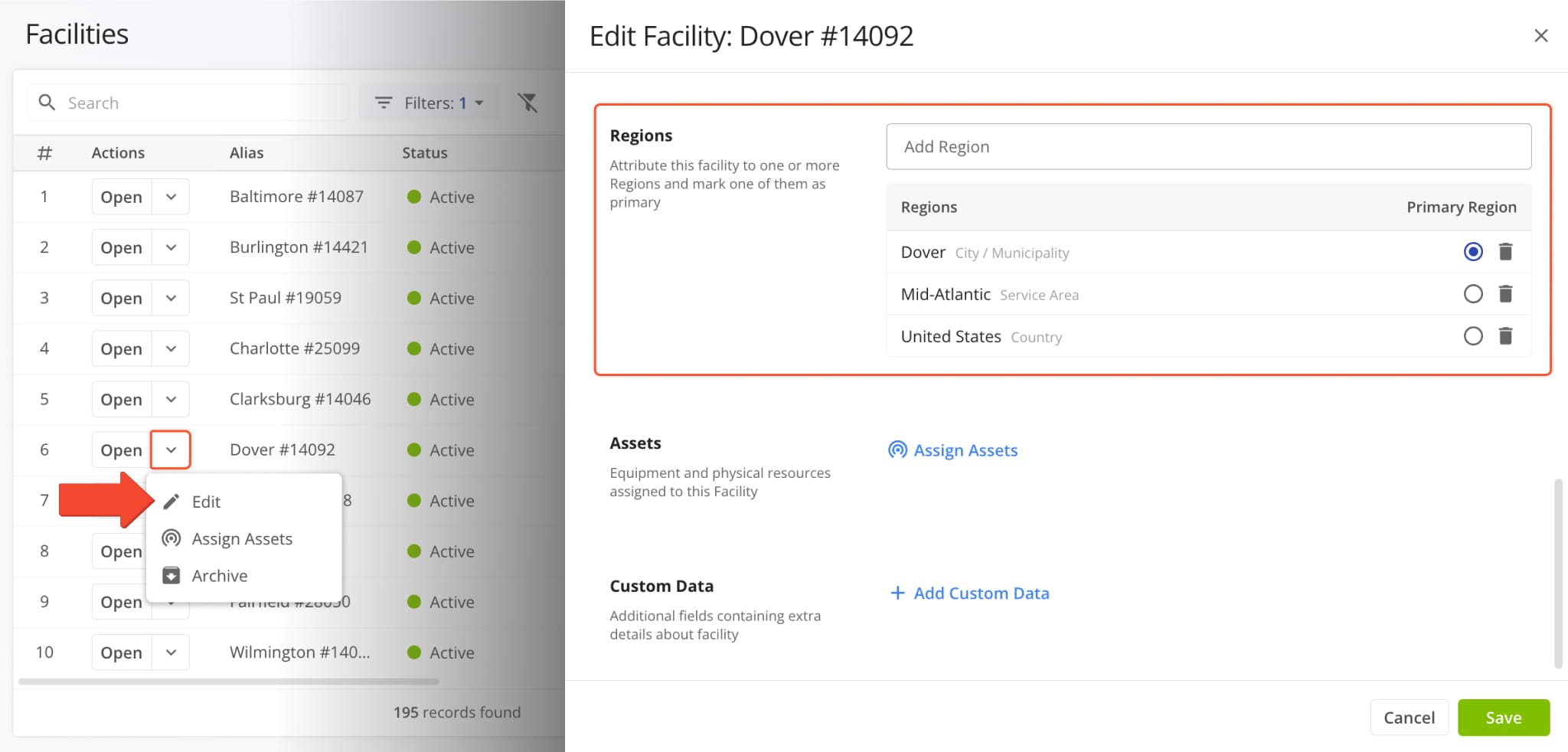
You can now assign Operation Regions when adding and editing Facilities. To do so for existing Facilities, click the Down Arrow and select “Edit“. Then, in the “Edit Facility” panel, go to the “Regions Section“. From here, you can:
- Use the “Add Region” field to attribute the Facility to one or more Regions.
- Select a Primary Region for the Facility by clicking the Radio Button.
- Remove Regions from the selection by clicking the Delete Icon.
A new “Importance” value is now available when you add and edit Customers on your Route4Me account. It enables you to define the priority or importance of individual Customers as shown in the image below.
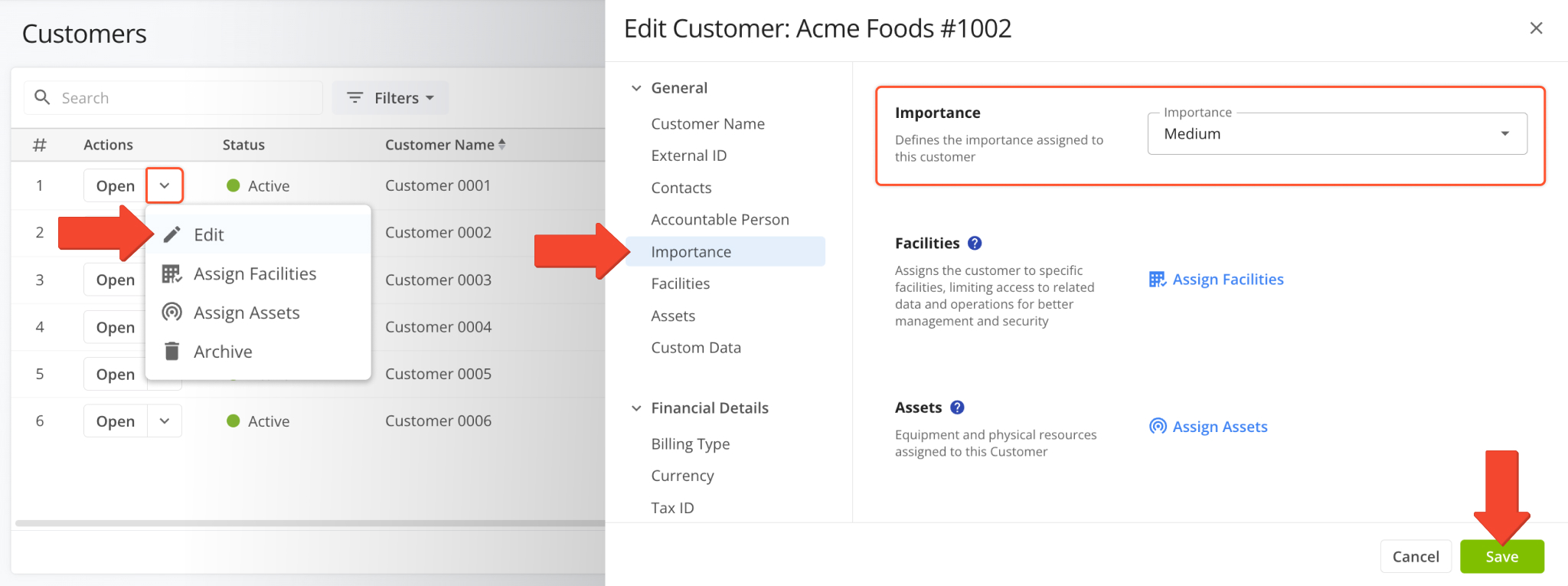
Additionally, the new “Importance” value is also available as a filter and display column option on the Customers Page and other Route4Me interfaces. See the table below to learn where you can access Customer Importance.
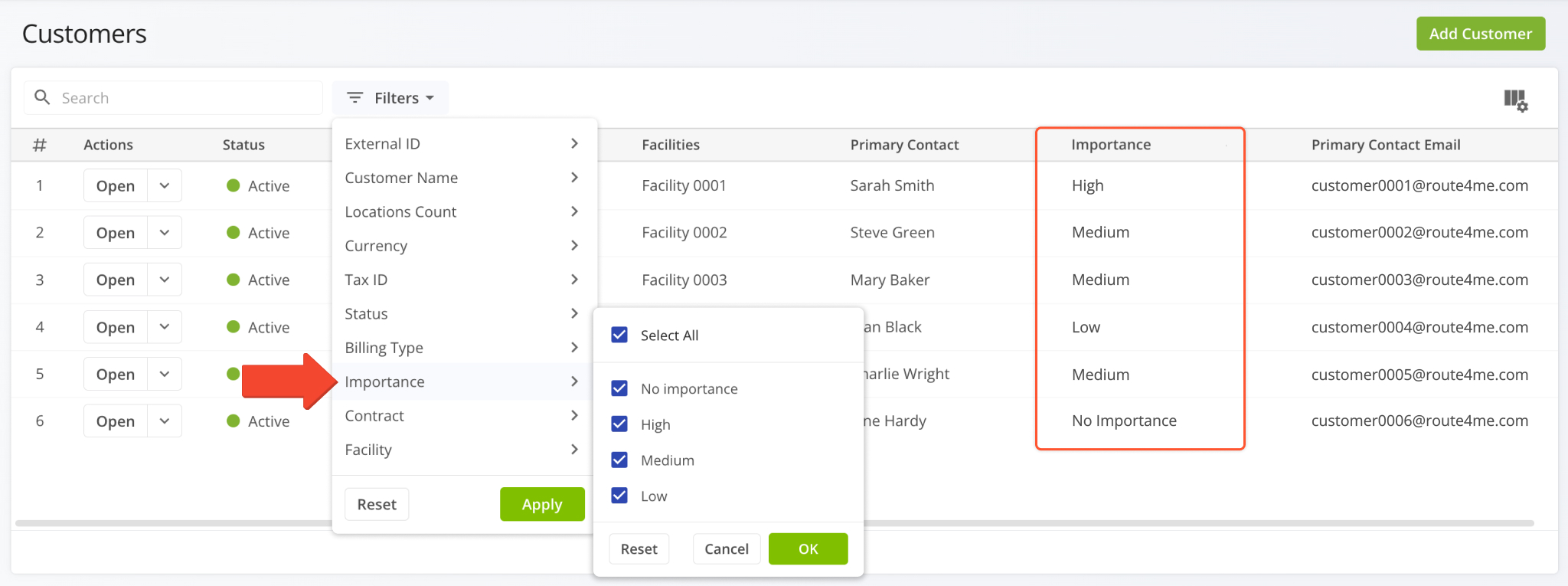
RN > Customer Importance (Jul26)
- Customer Settings
- Filter Options
- Display Columns
- Filter Options
- Display Columns
- "Group By" Options
- Export Column
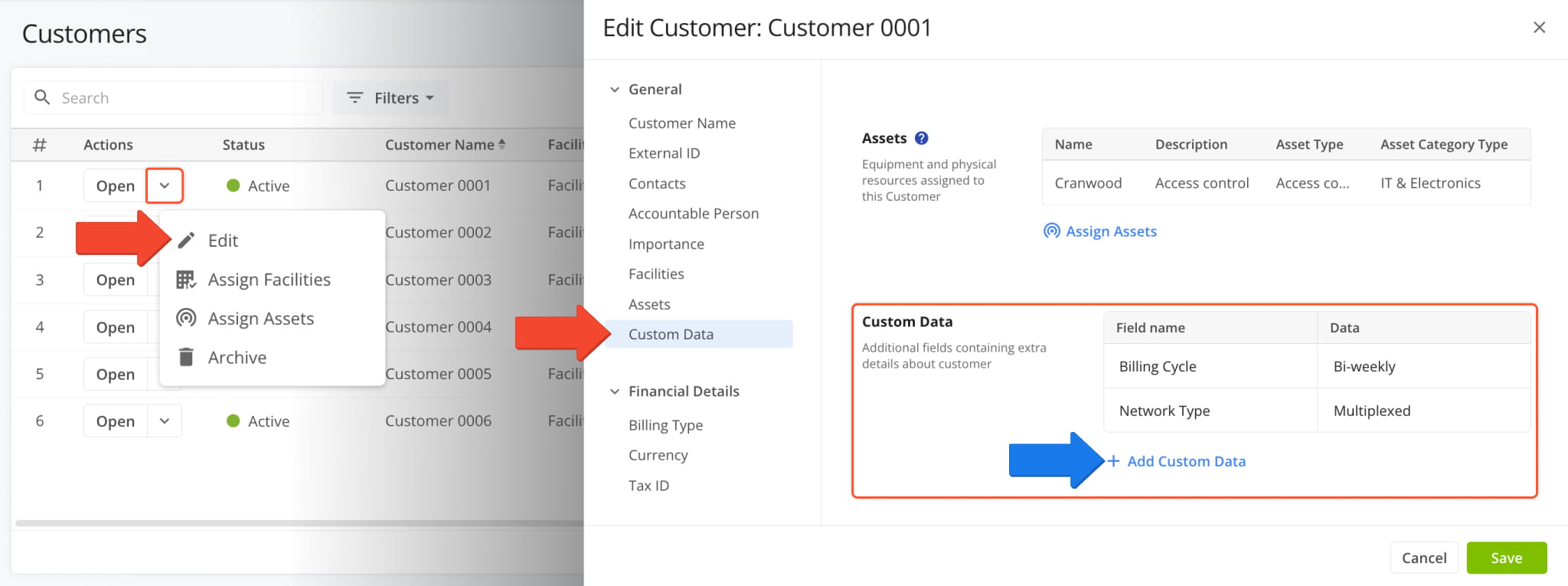
You can now set Custom Data values when adding and editing Customers. You’ll find a new “Custom Data” section in the Customer Settings panel where you can click “Add Custom Data” and set field names and values.
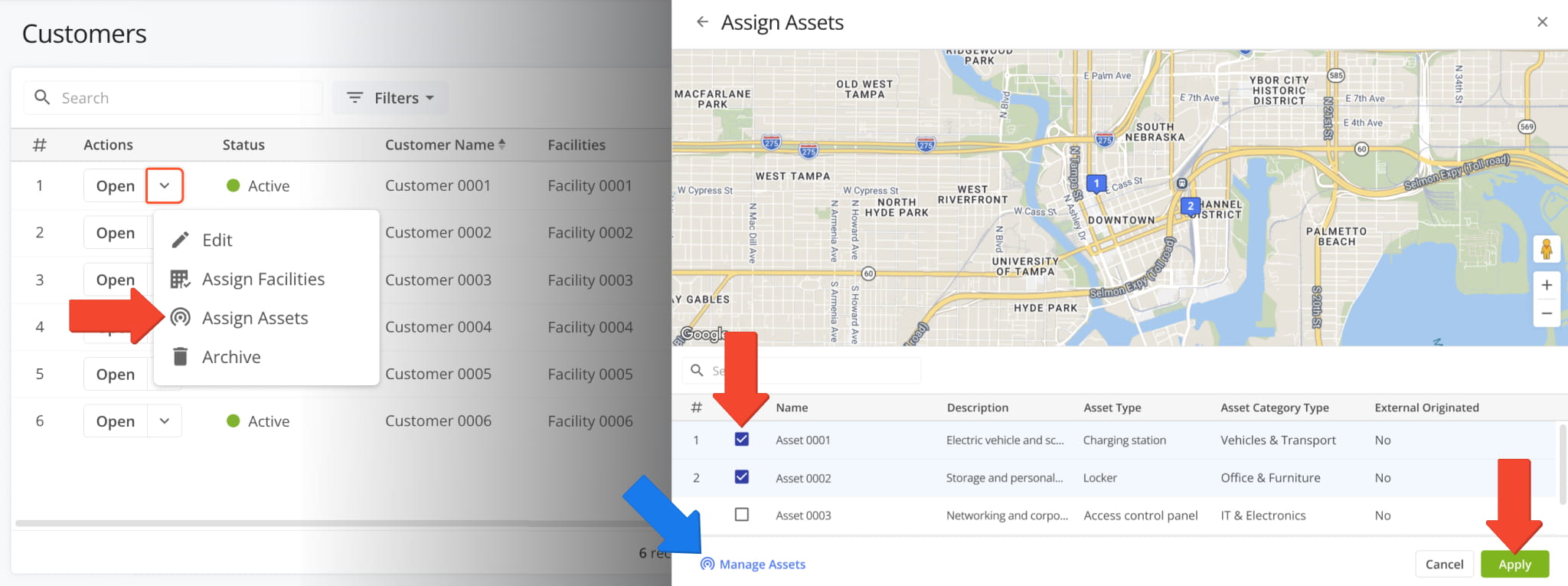
You can now assign multiple Assets to Customers with a new “Assign Assets” action available on the Customers Page.
In the “Assign Assets” panel, you can select Assets to assign to the Customer by checking the boxes next to them and clicking “Apply“. You can also go directly to the Assets Page by clicking “Manage Assets“.
June 2026
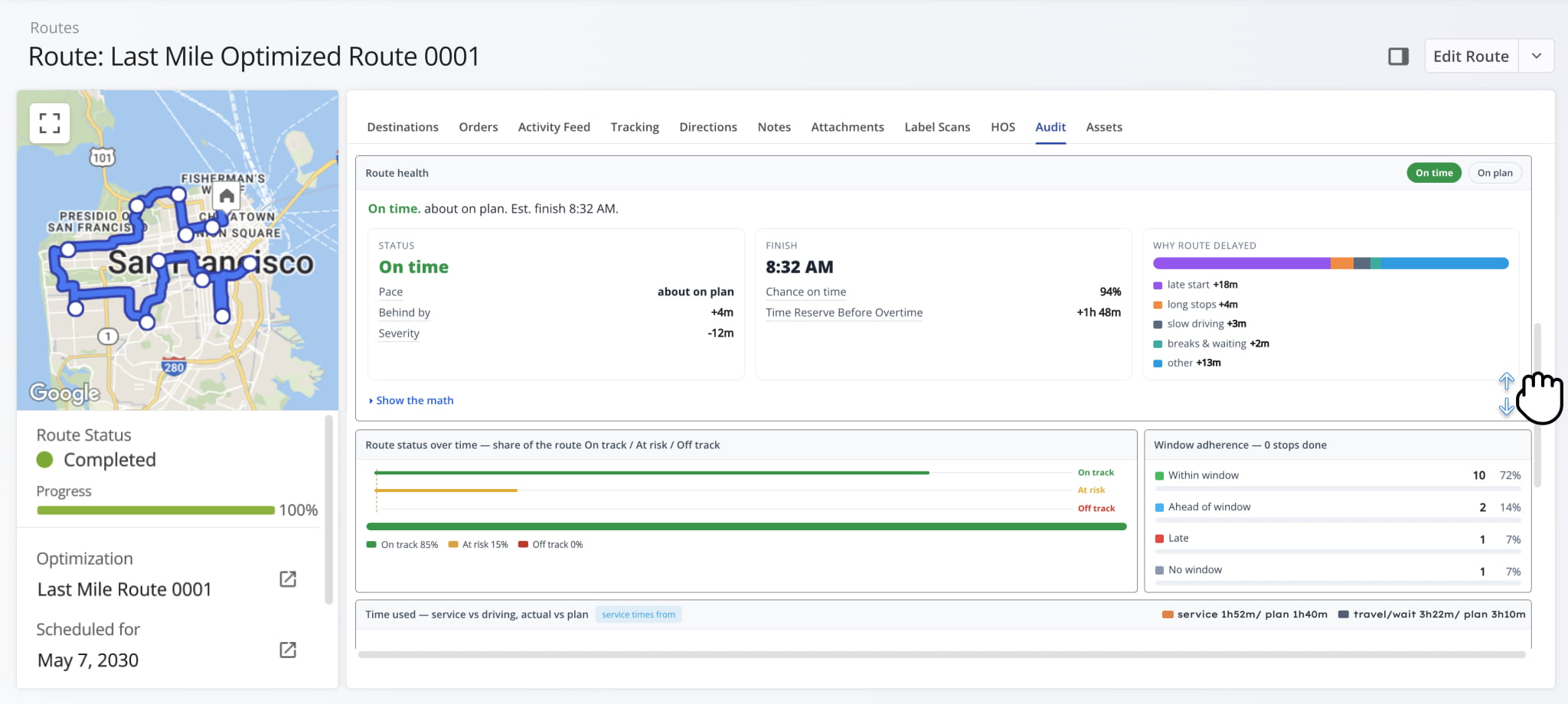
29A new “Audit” tab was added to Route Snapshots. You can use it to compare planned performance against actual route progress by analyzing performance from different perspectives. Playback controls enable you to replay routes on a progress tracker map next to a “Progress” chart for comparing actual completion to the planned route.
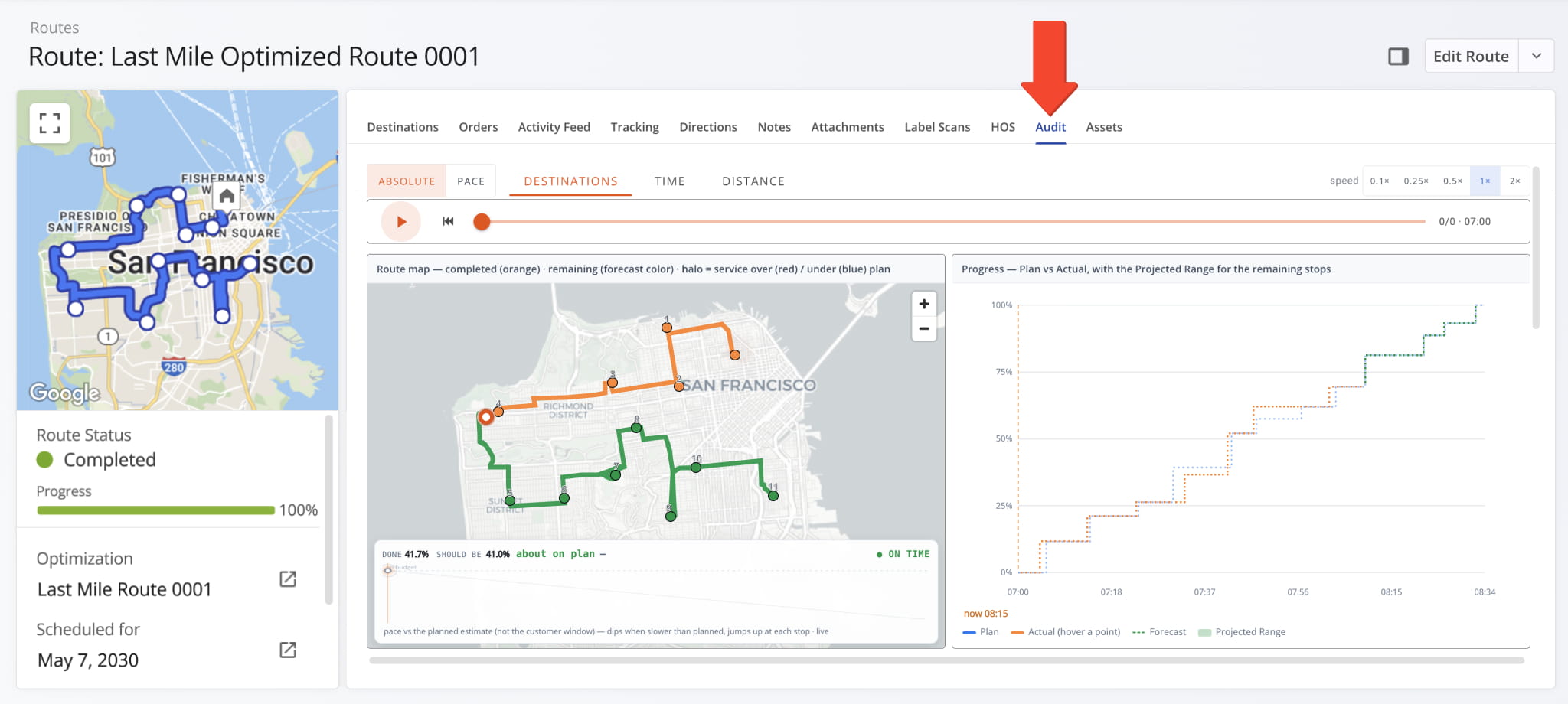
Scroll down to review additional route performance panels, including route health based on schedule details, route time compliance status over time, Time Window adherence metrics, and more.
Two new Advanced Configurations were added for automatically starting routes status based on GPS tracking events:
- AUTO_START_ROUTE_ON_GEOFENCE_VISIT:
A route is automatically started when its assigned User enters a Destination Geofence for the first time. - AUTO_START_ROUTE_ON_TRACKING_EVENT:
A route is automatically started when its assigned User’s GPS location matches any point along the planned route.
These new configurations enable the system to automatically start routes regardless of whether an assigned User departed from the route start location (depot) or started navigating from a different location.
NOTE: The above configurations are enabled on request. Contact your routing expert to learn more.
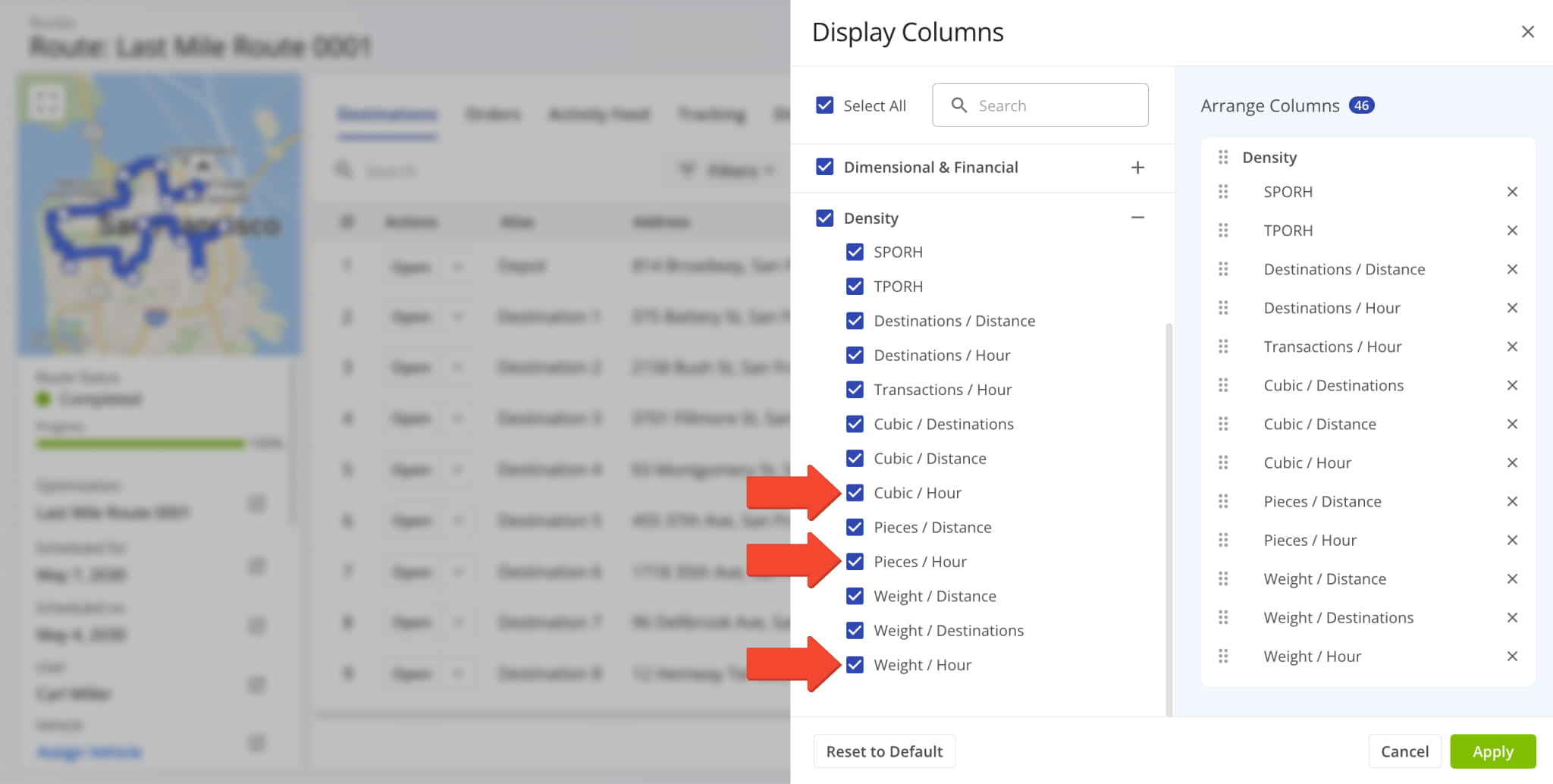
New values were added to Route Snapshot Metrics. Now, in the “Density” section, you’ll find the following:
- Cubic/Hour: Average hourly value of delivered order cubic volume.
- Pieces/Hour: Average hourly value of delivered order units.
- Weight/Hour: Average hourly value of delivered order weight.
Previously, you could only track density values for these metrics relative to route distance and destinations.
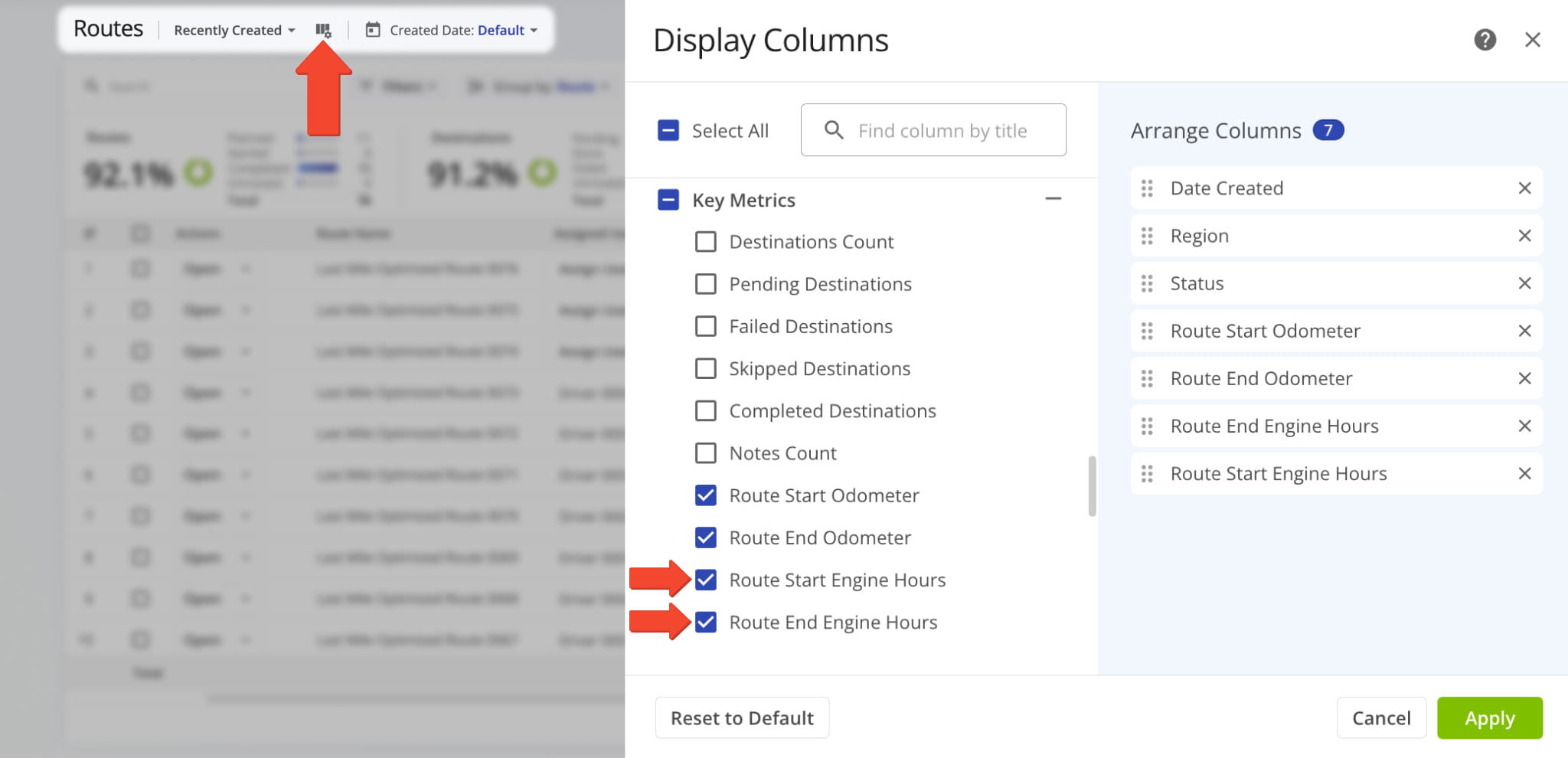
New Engine Hours values were added as Display Columns and export items at all relevant levels. Specifically, you can enable Engine Hours columns and export data for Routes, Destinations, and Vehicles.
See the table below for a full list of new Engine Hours values and where you can find them.
Engine Hours Availability
Route Start Engine Hours
- Routes > Columns
- Route Snapshots > Columns
- Vehicle Snapshots > Columns
- Routes > Export Routes
- Routes > Export Destinations
Vehicle engine hours at the start of a given route.
Route End Engine Hours
- Routes > Columns
- Route Snapshots > Columns
- Vehicle Snapshots > Columns
- Routes > Export Routes
- Routes > Export Destinations
Vehicle engine hours at the end of a given route.
Actual Engine Hours
Vehicle engine hours accumulated during a given route.
Entry Engine Hours (Geofence Detected)
- Destinations > Columns
- Routes > Export Destinations
Vehicle engine hours value recorded when an assigned Vehicle entered a geofence around a given Destination.
Exit Engine Hours (Geofence Detected)
- Destinations > Columns
- Routes > Export Destinations
Vehicle engine hours value recorded when an assigned Vehicle left a geofence around a given Destination.
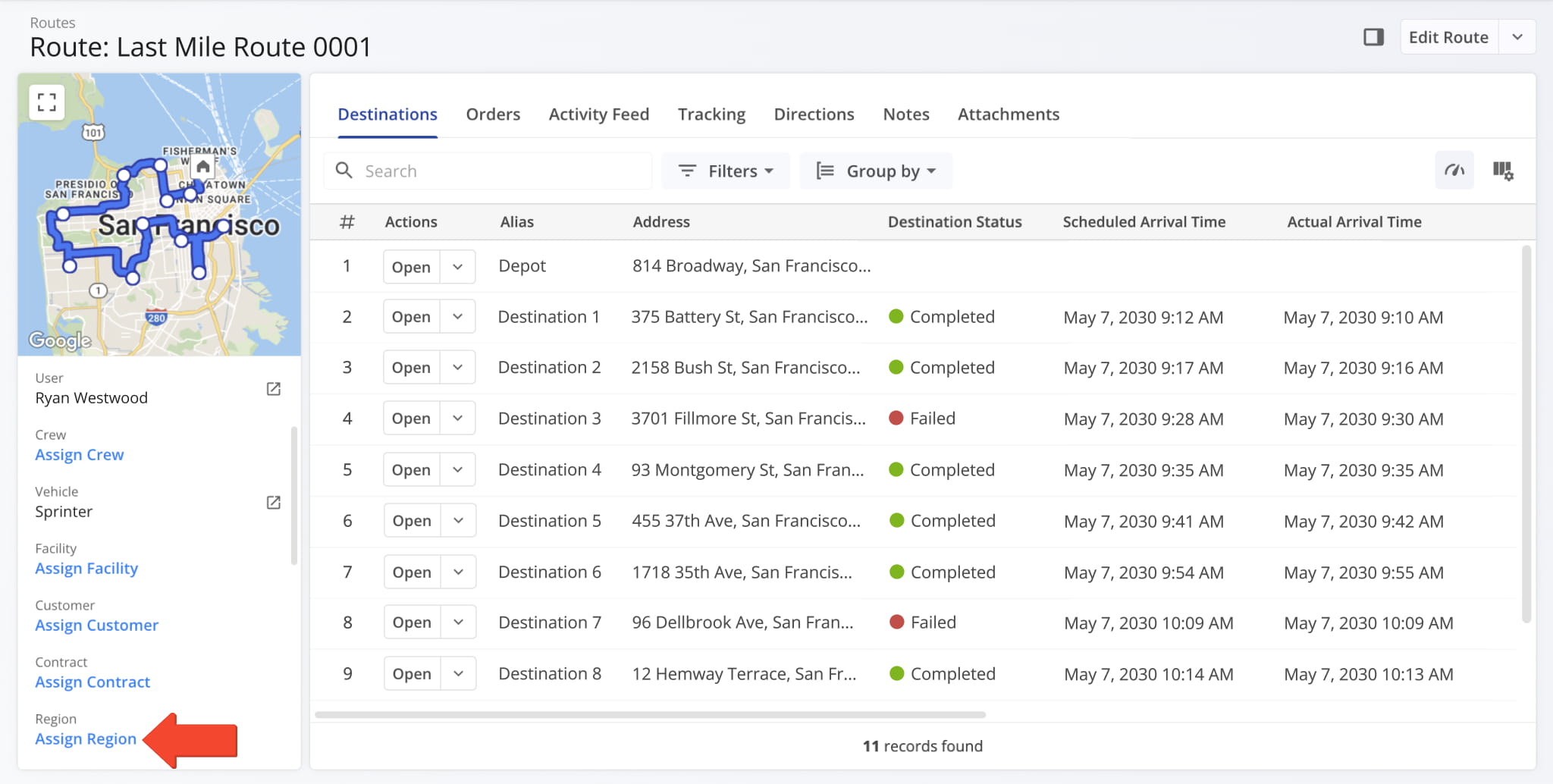
You can now assign Operation Regions to routes by clicking “Assign Region” in the Route Snapshot summary panel.
You can now assign Operation Regions to routes
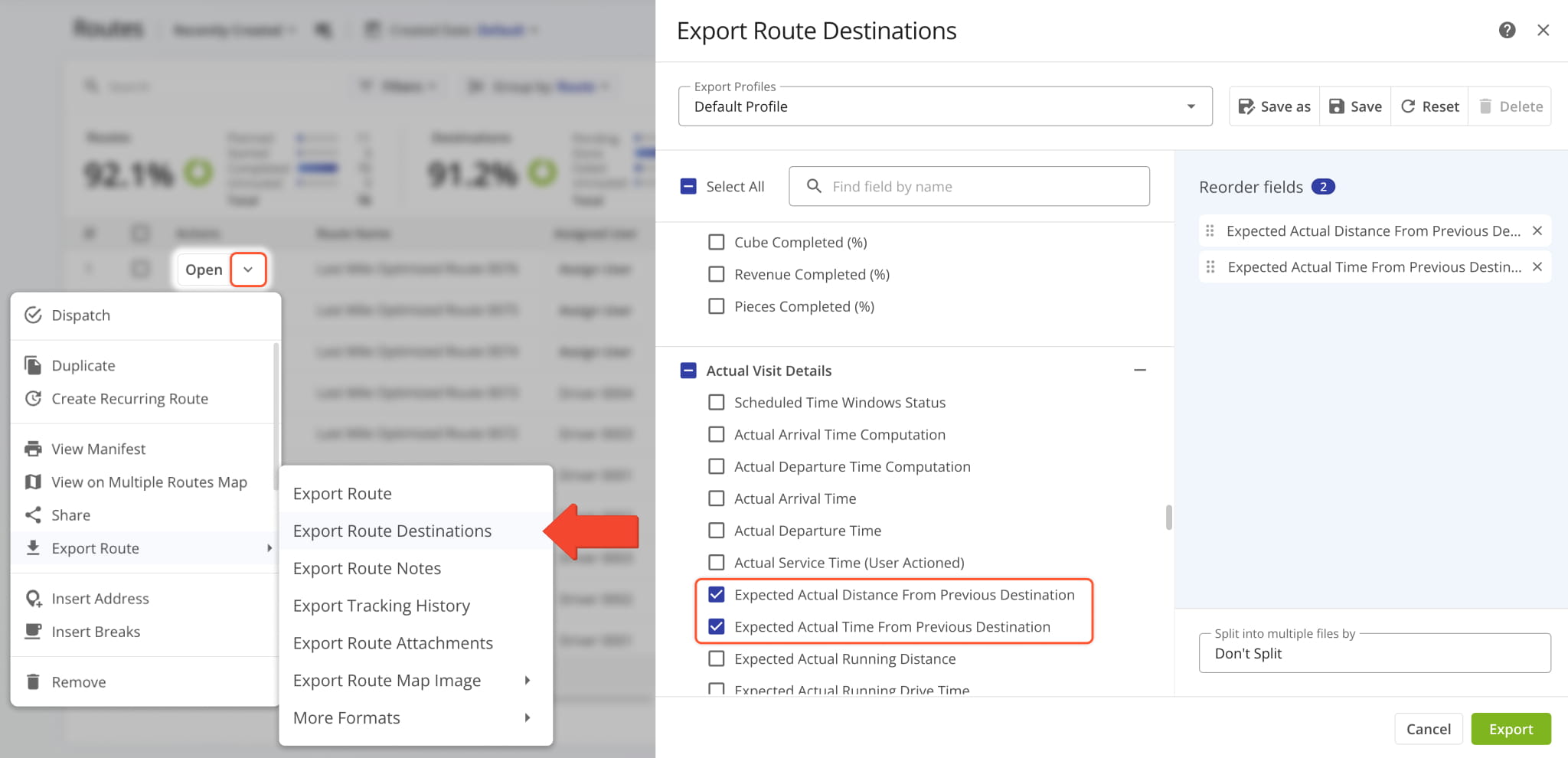
Users can now select the following new values when exporting route destinations from the Routes Page:
- Expected Actual Distance From Previous Destination:
Predicted travel distance to a Destination measured from the previous Destination on the same route. - Expected Actual Time From Previous Destination:
Predicted time needed to arrive at a Destination after arriving at the previous Destination on the same route.
Both new values are calculated based on GPS tracking data from the Mobile App and Telematics device, if applicable. To export destination data associated with a specific route, click the Down Arrow next to a route and select “Export Route” > “Export Route Destinations“. This option is also available as a Bulk Action when selecting multiple routes.
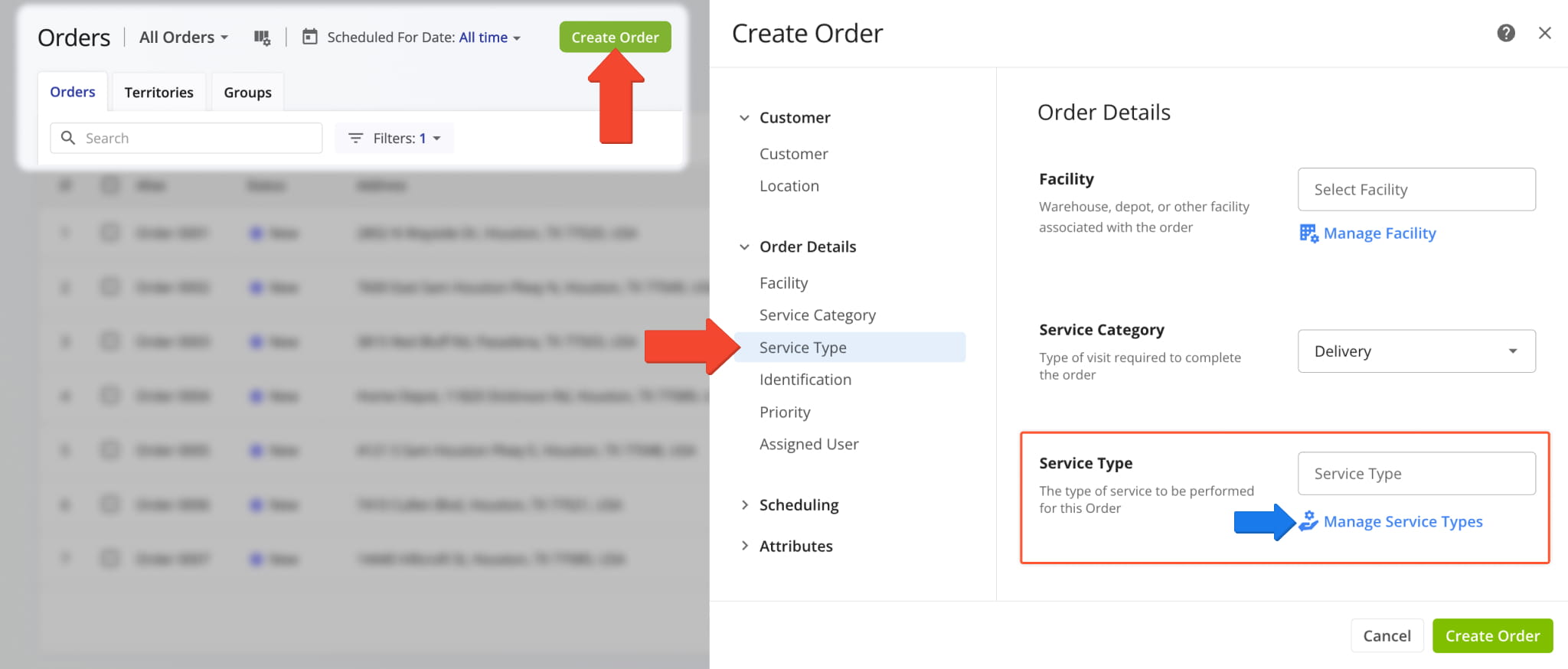
A new “Service Type” field was added when creating and editing Orders. It enables you to associate an existing pre-defined Service Type with an Order. Additionally, you can click the “Manage Service Types” link to directly go to your Service Types Page.
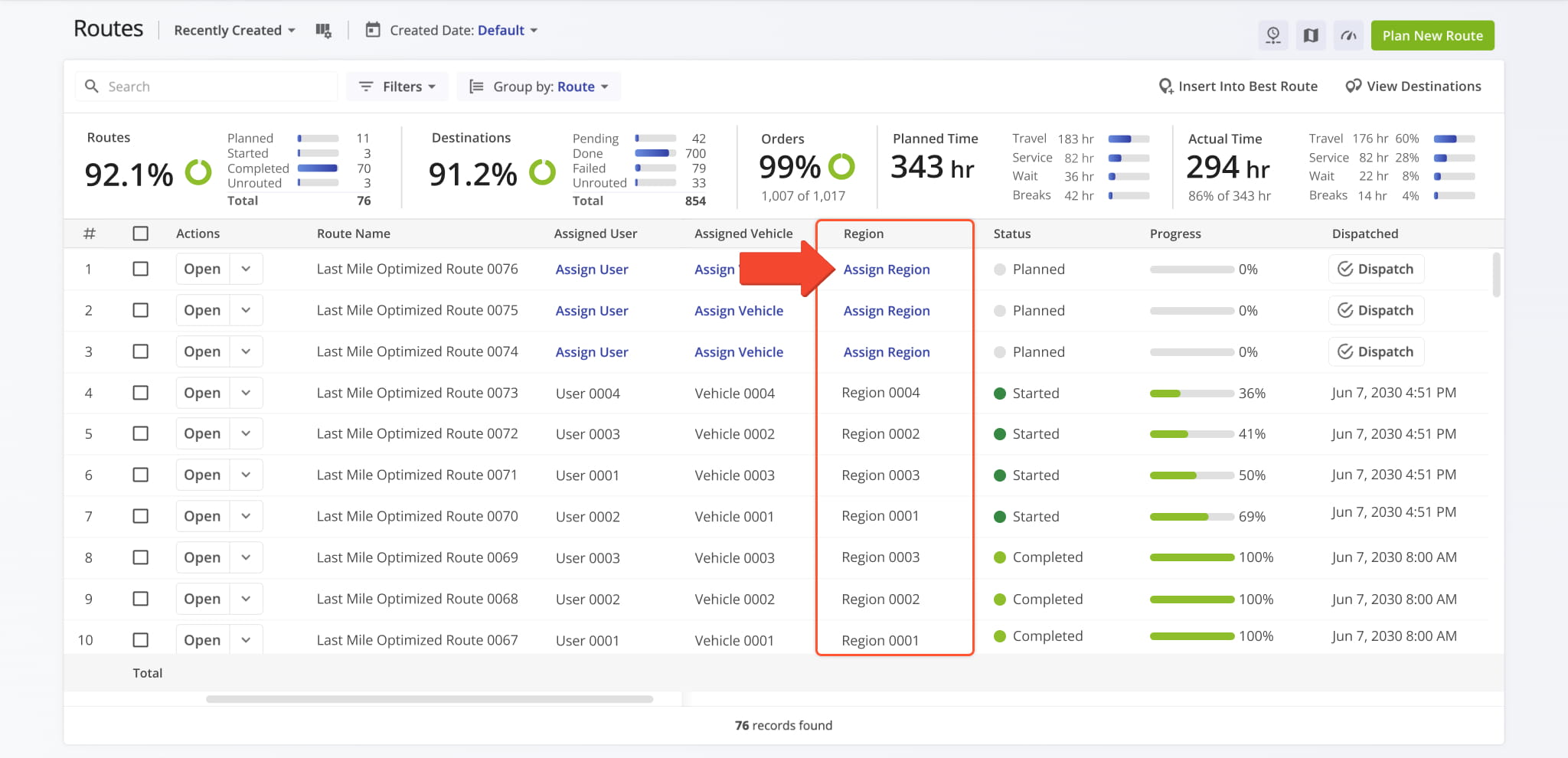
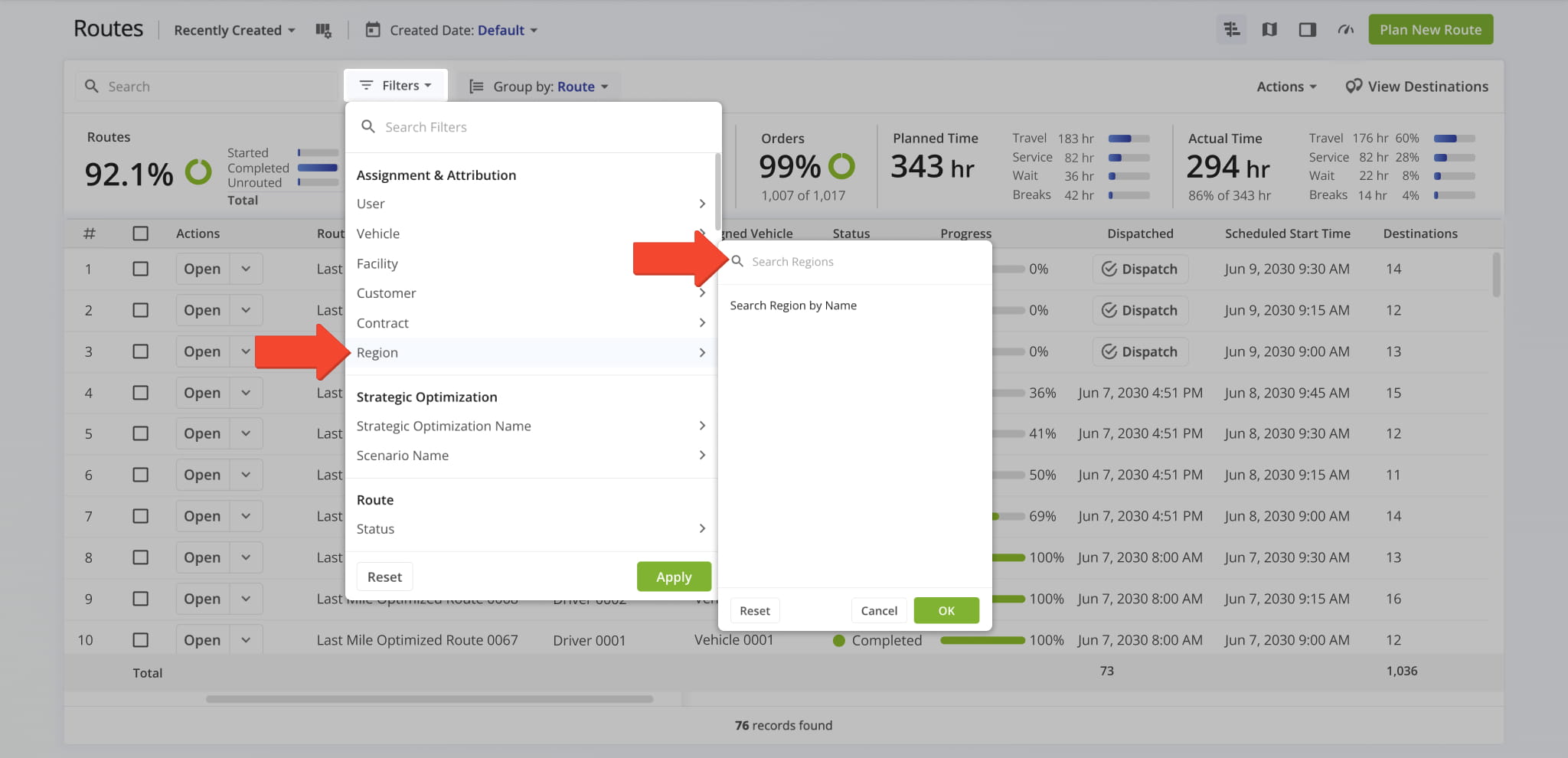
The Routes List now includes a Region filter, allowing you to quickly narrow down routes by geographic Region.
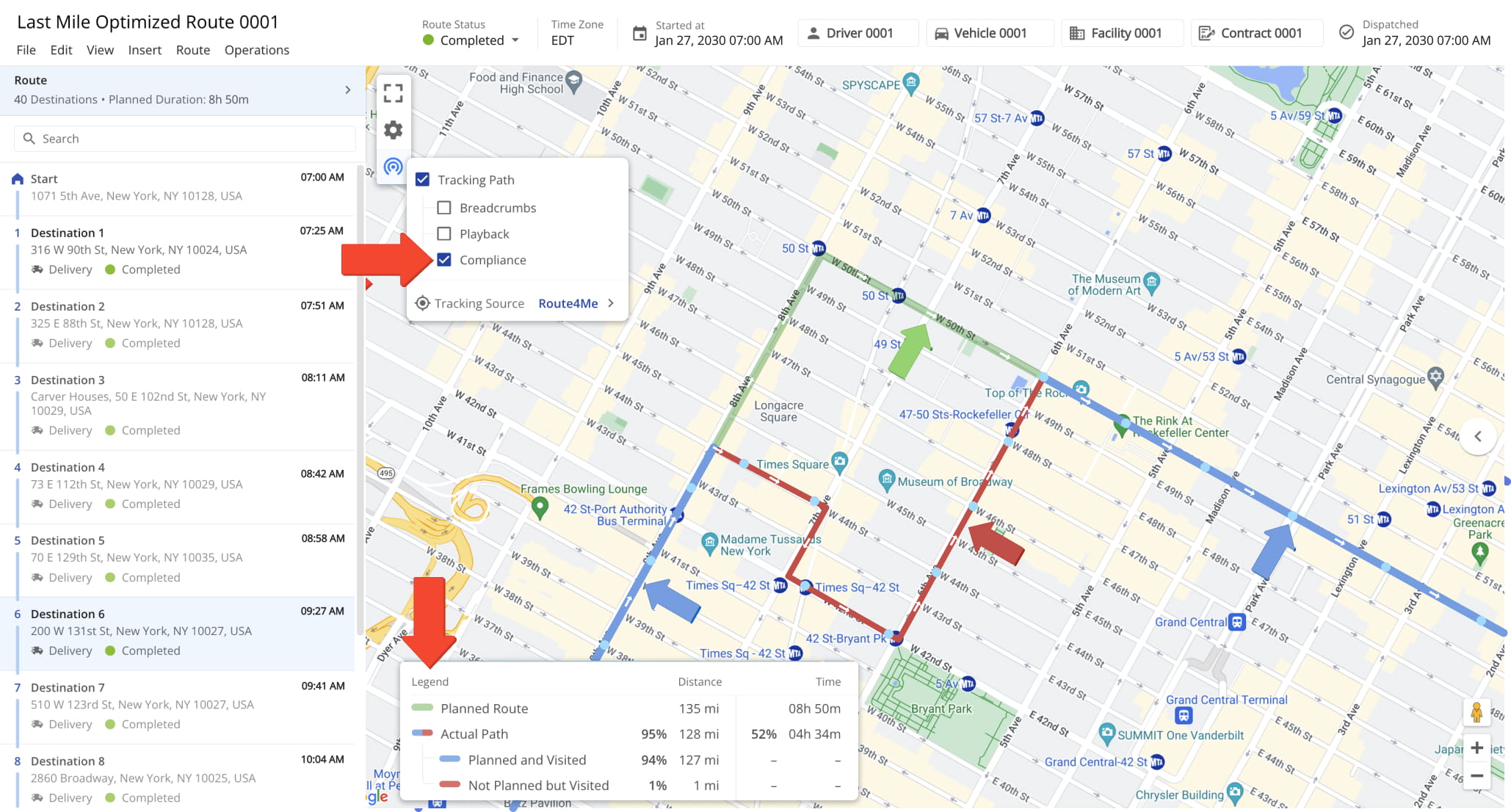
The Route Compliance GPS Tracking Polyline overlays your Planned Route and Actual Path on the map, helping you identify deviations and missed stops at a glance. The included legend provides distance and time metrics, with distance reported at both the route and segment levels and time at the route level only.
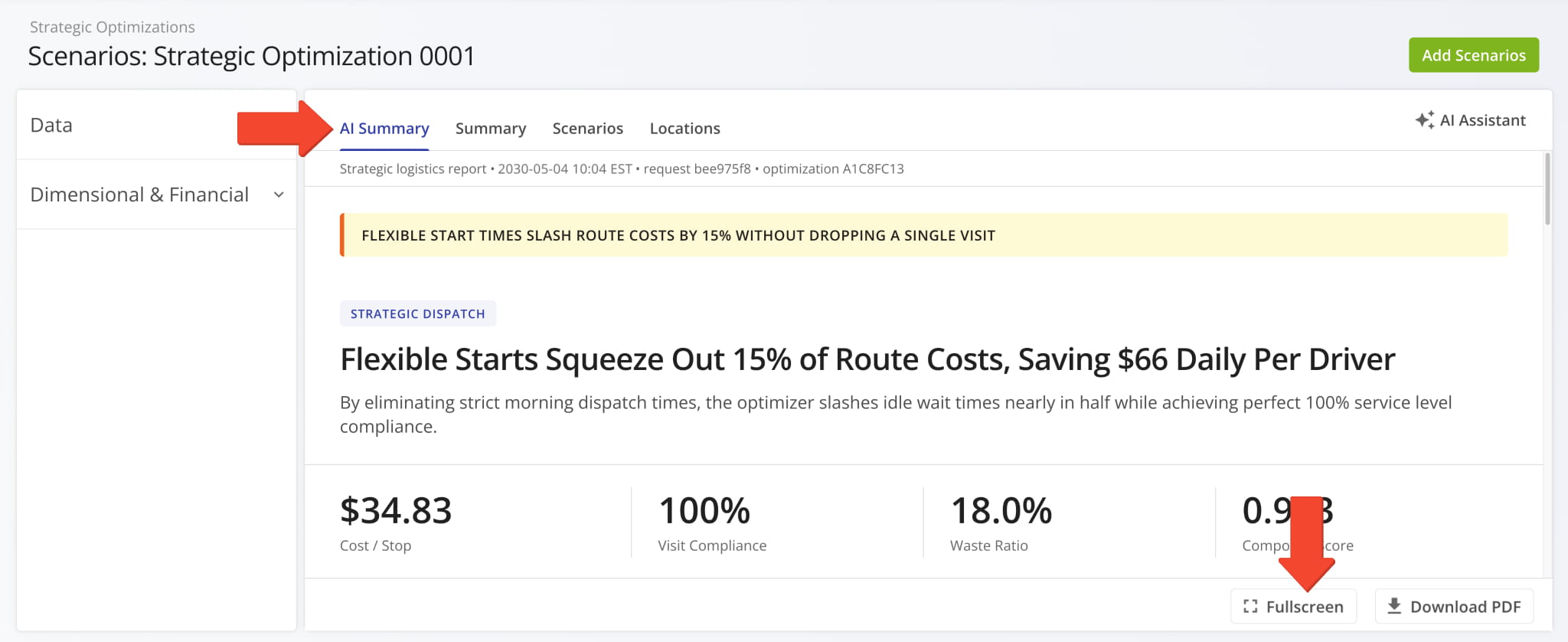
The AI Summary in the Strategic Routes Snapshot now features a full screen display button for an expanded view, along with a loading indicator that displays while the summary is being generated.
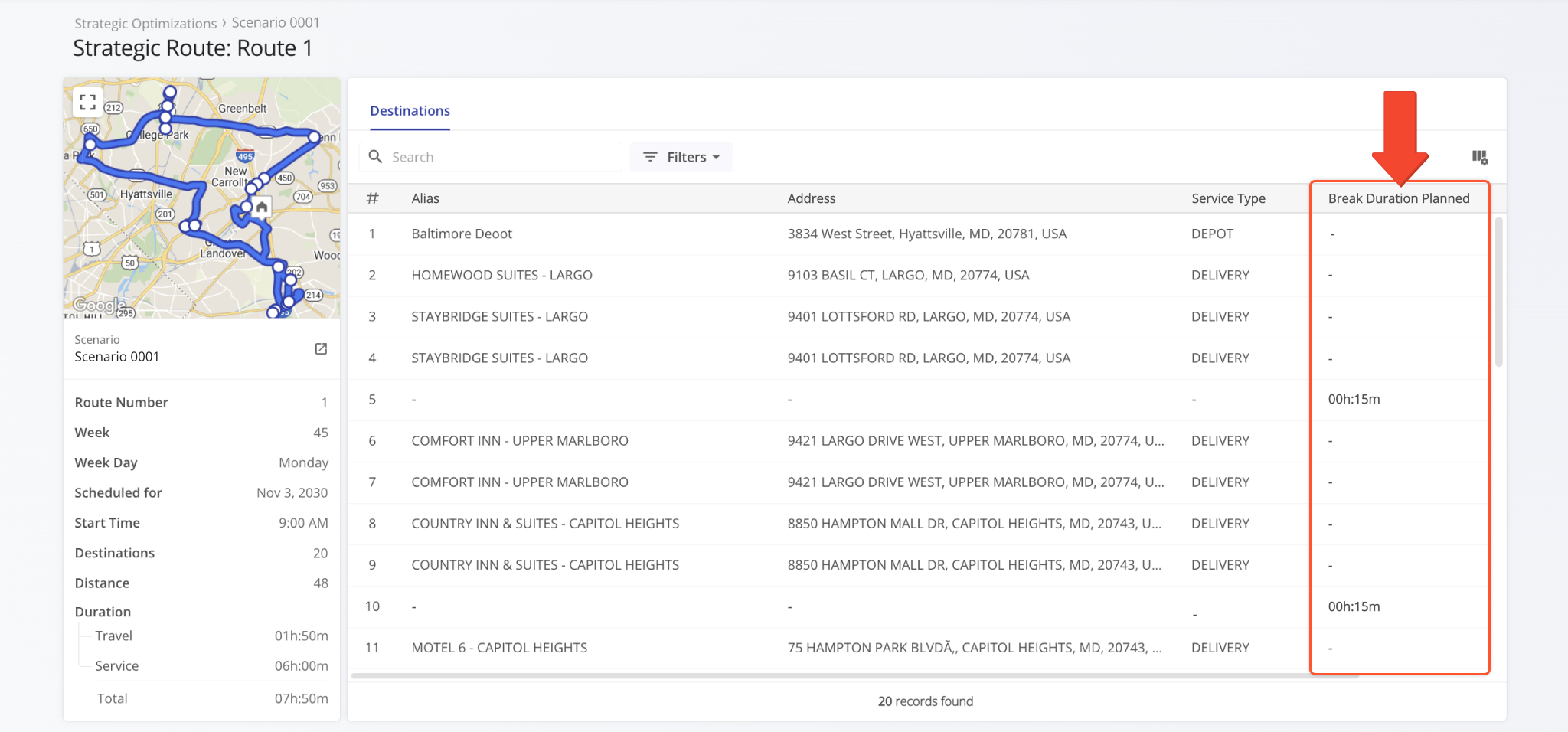
The Strategic Routes Snapshot now includes a Break Duration Planned data column, giving you visibility into planned break time.
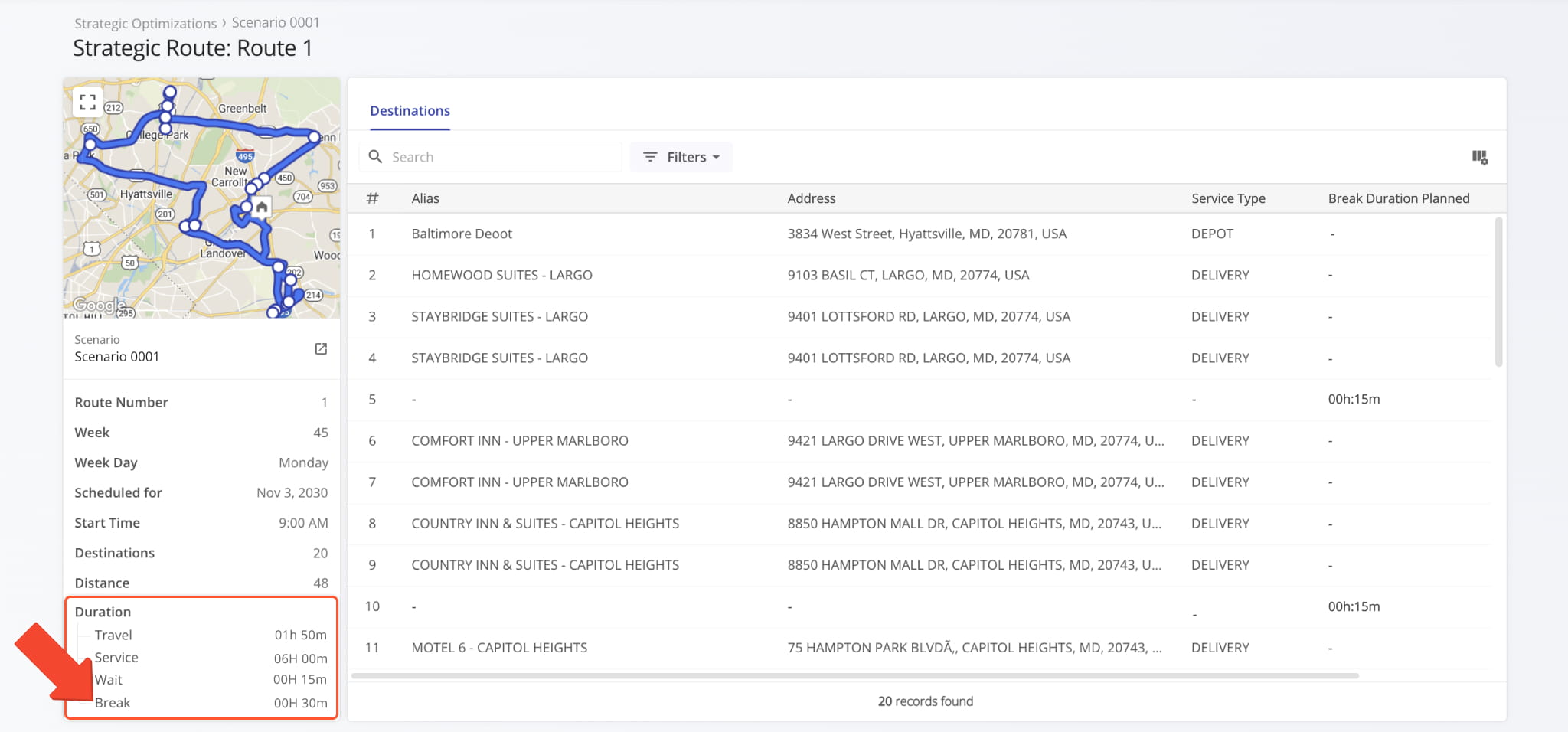
Break duration details are now also visible in the Summary Panel.
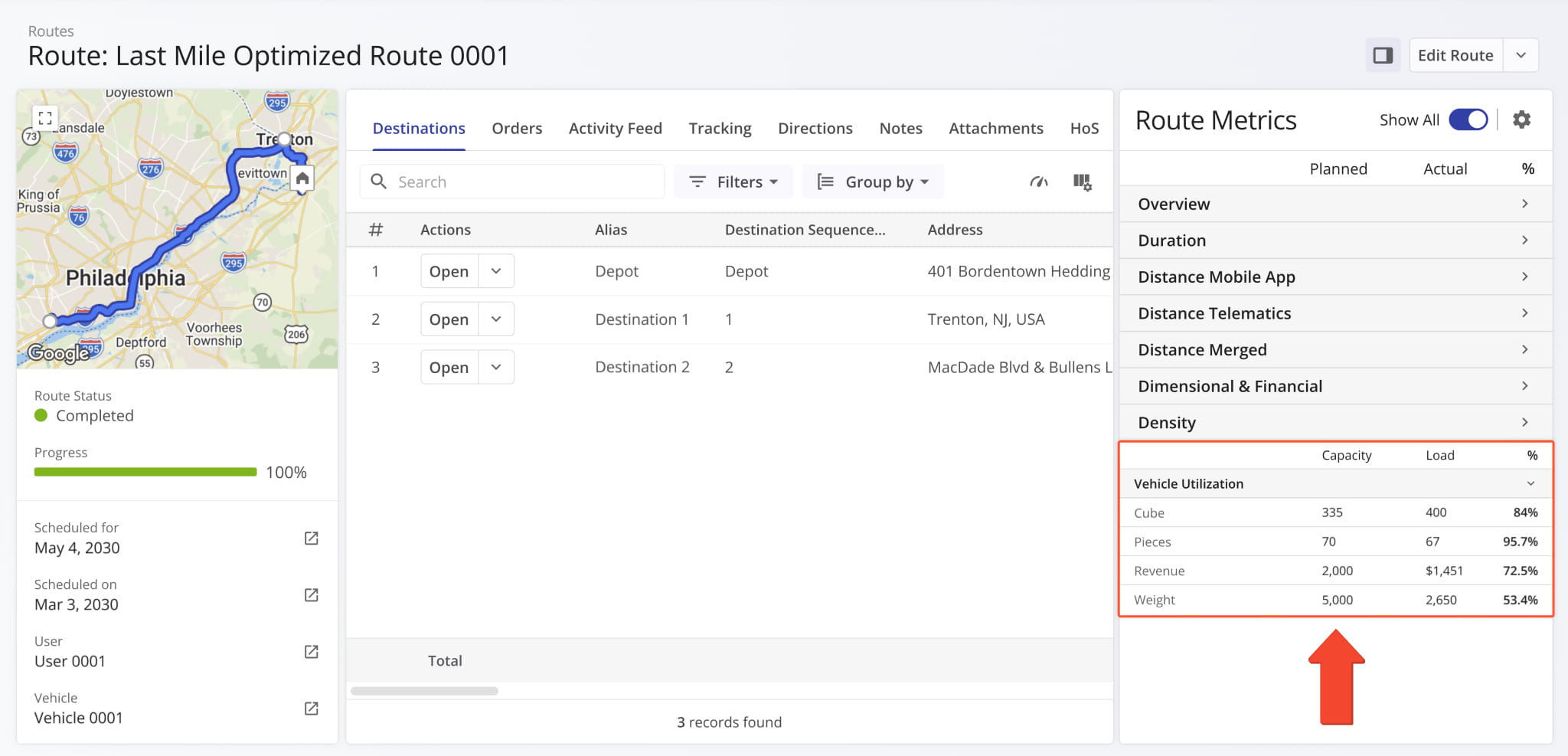
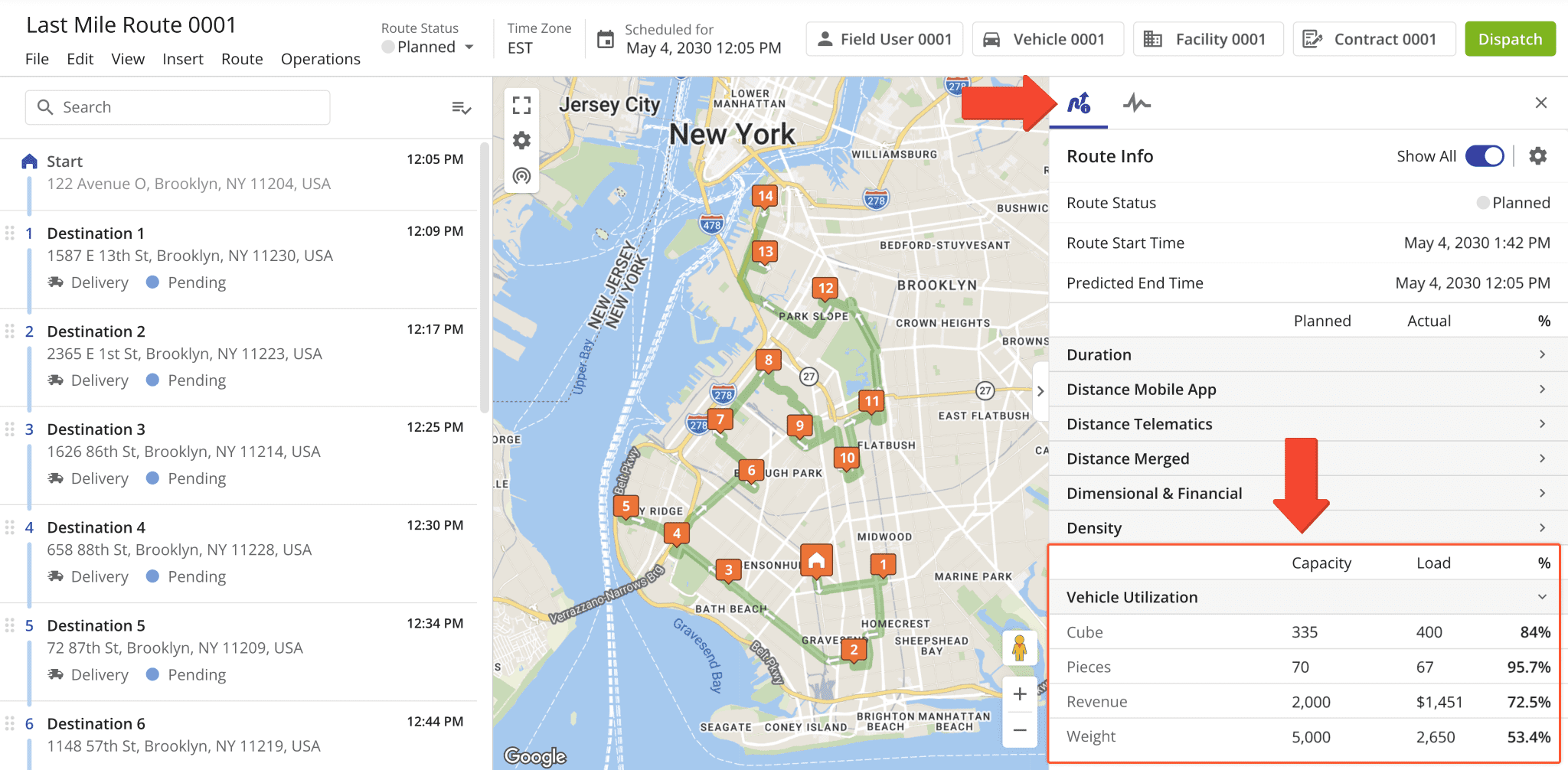
The Route Metrics Panel in Route Snapshots was updated with a new “Vehicle Utilization” section. It shows the capacity utilization of the route’s assigned vehicle across cubic volume, number of units, revenue, and weight metrics.
The “Capacity” column shows the vehicle’s maximum capacity according to its Capacity Profile. The “Load” column shows how much is actually loaded onto the vehicle, while the percentage column tracks capacity utilization.
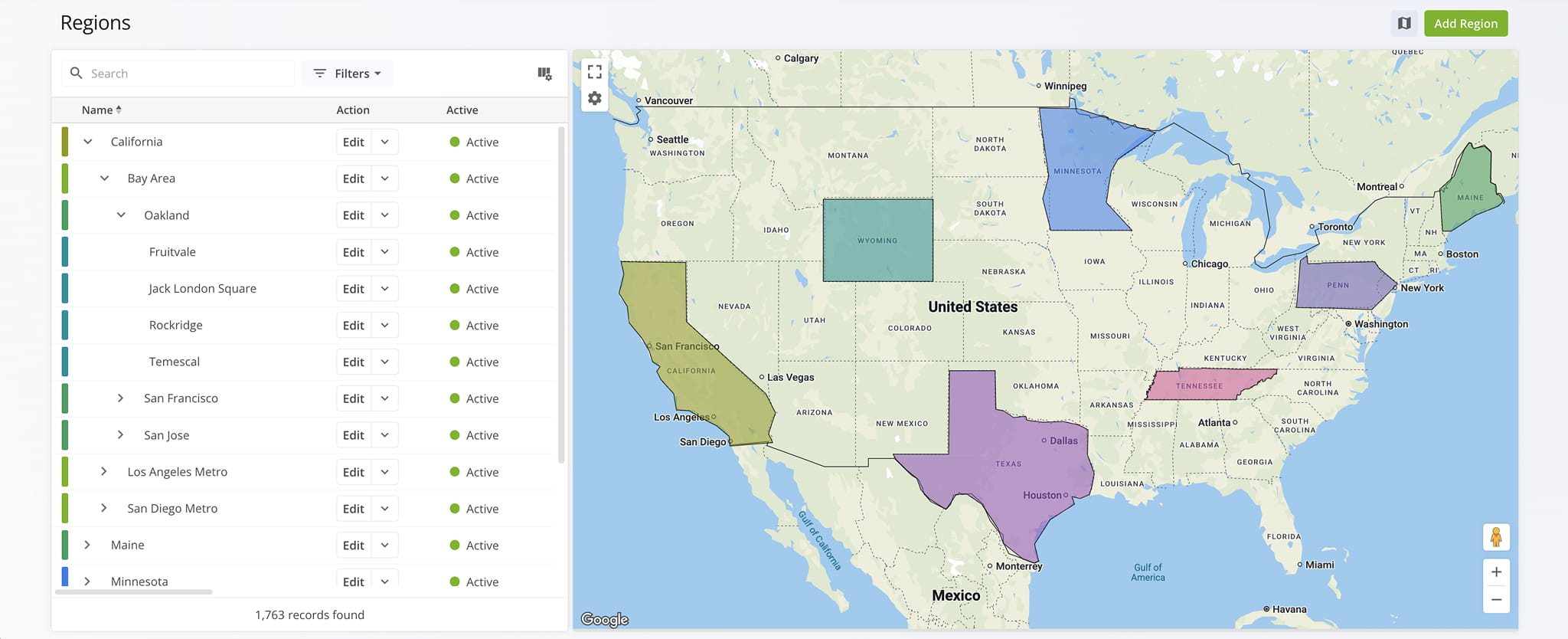
A new Regions Page was added to Route4Me’s Web Platform. On this page, you can create and manage a multi-level regional hierarchy to organize your service territories, assign region types and parent regions, and visualize your regions on an interactive map.
To access your Regions Page, go to “Database” > “Regions” in the Navigation Menu.
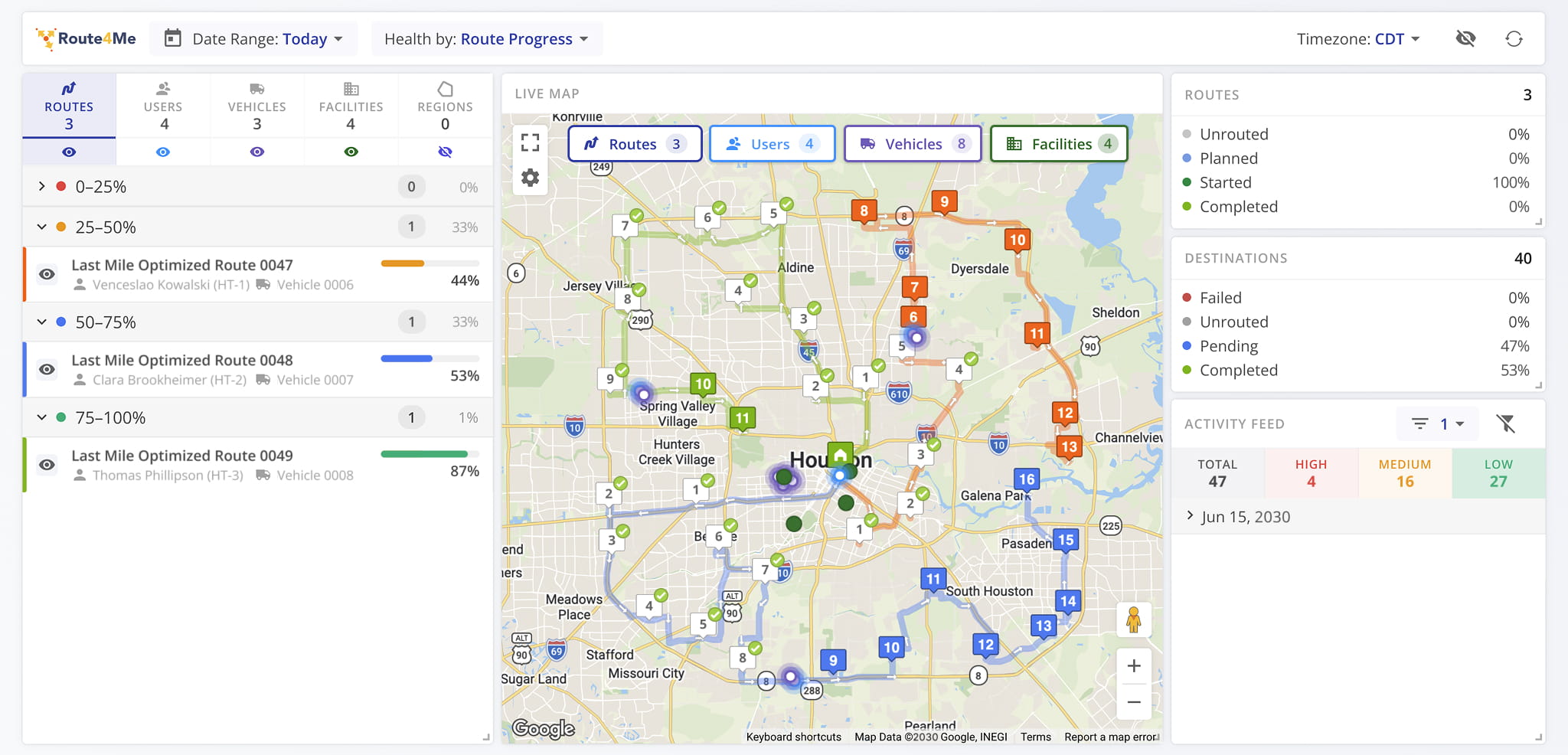
A new Operations Dashboard was added to Route4Me’s Enterprise Transportation Management Software. You can track live driver and vehicle locations on the Live Map, monitor route and destination completion metrics, and stay on top of operational events with a prioritized Activity Feed – all from a single configurable dashboard.
Open Your Operations Dashboard
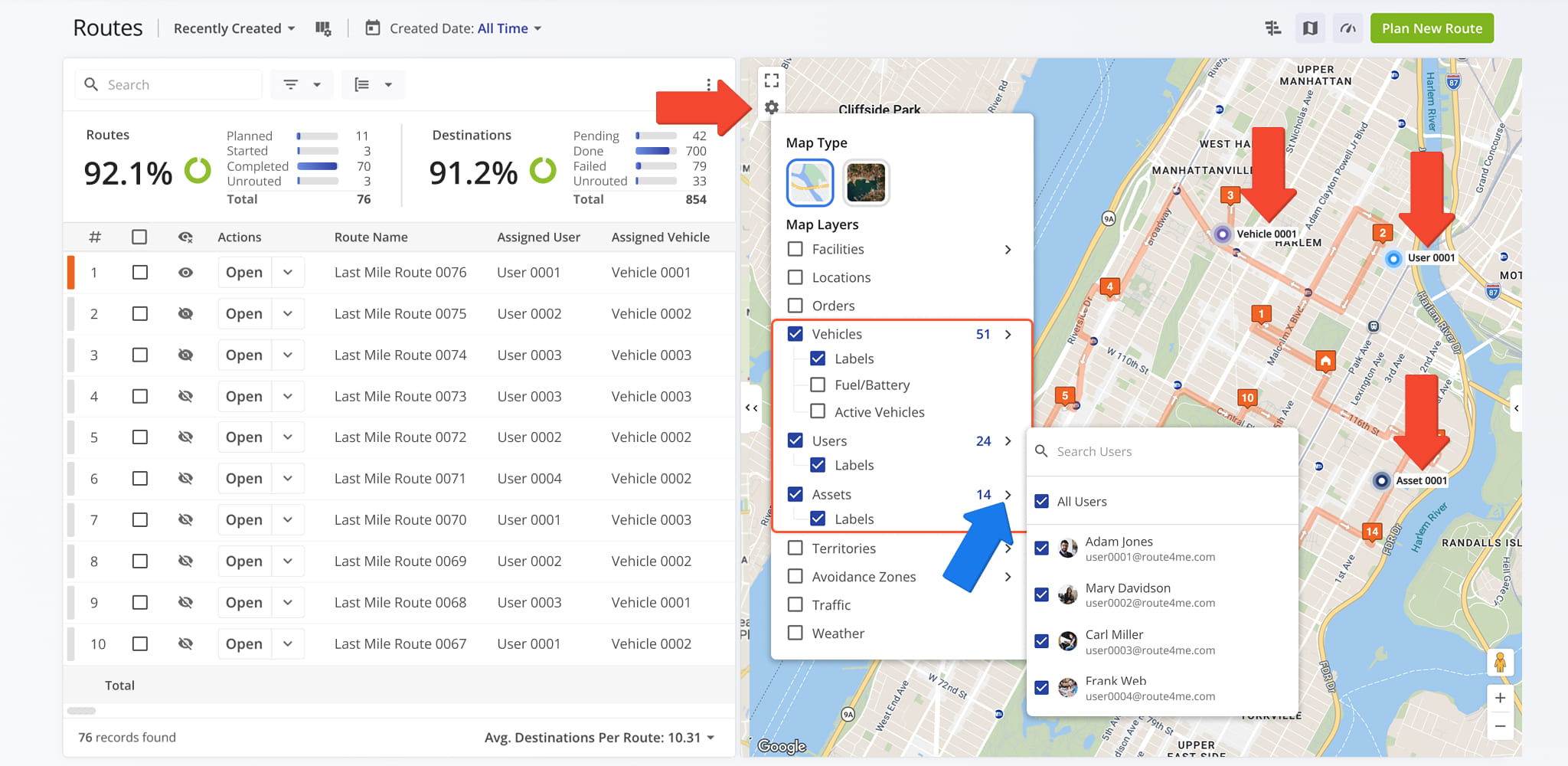
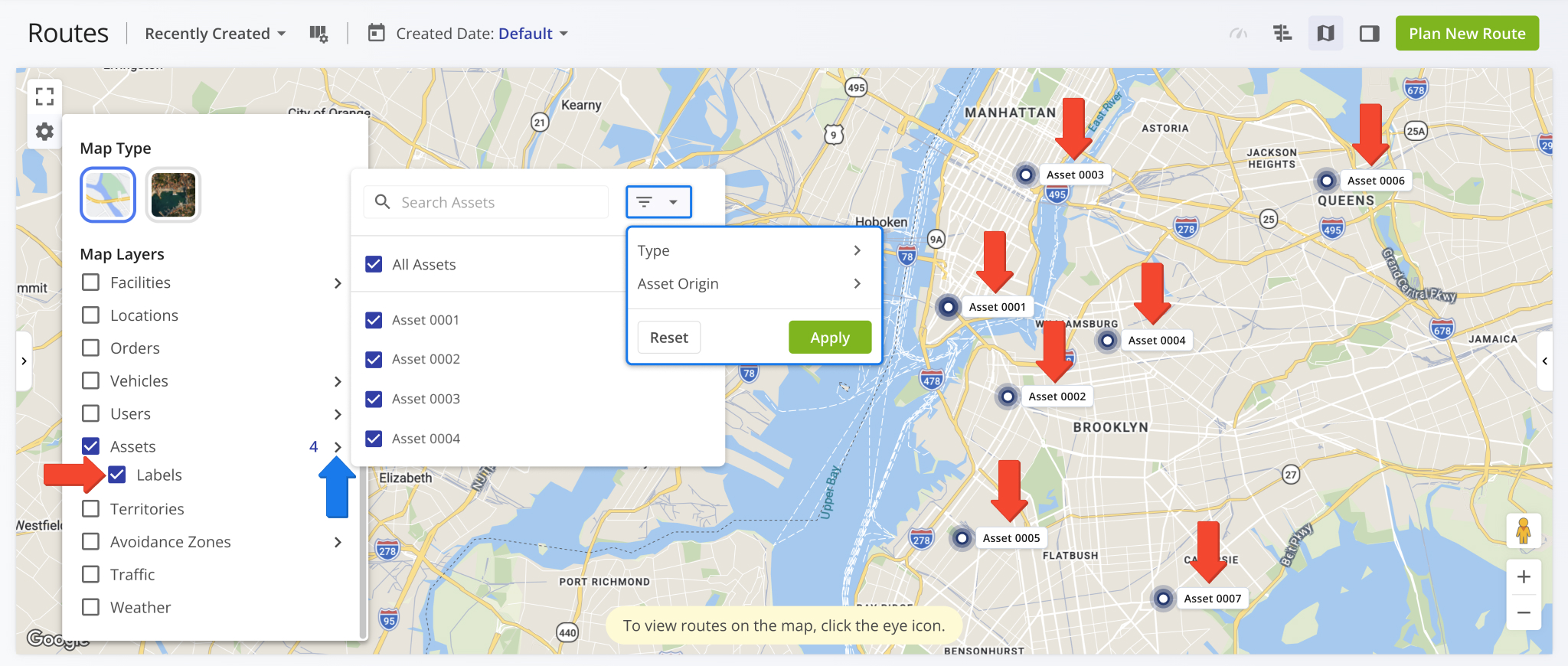
The Routes Page map was updated with optional labels for the Users, Assets, and Vehicles layers. Open the Map Settings, enable any of these layers, and check the “Labels” box to display names directly on the map.
Additionally, once a layer is enabled, you can filter each layer independently to focus on the specific Users, Assets, or Vehicles most relevant to your operations.
The Route Editor map was updated with new overlay layers for Vehicles, Users, Assets, and Facilities. Open the Map Settings to enable each layer and optionally show labels for any of these resources directly on the map.
Additionally, once enabled, each layer includes its own filter options so you can focus on the information most relevant to your operations.
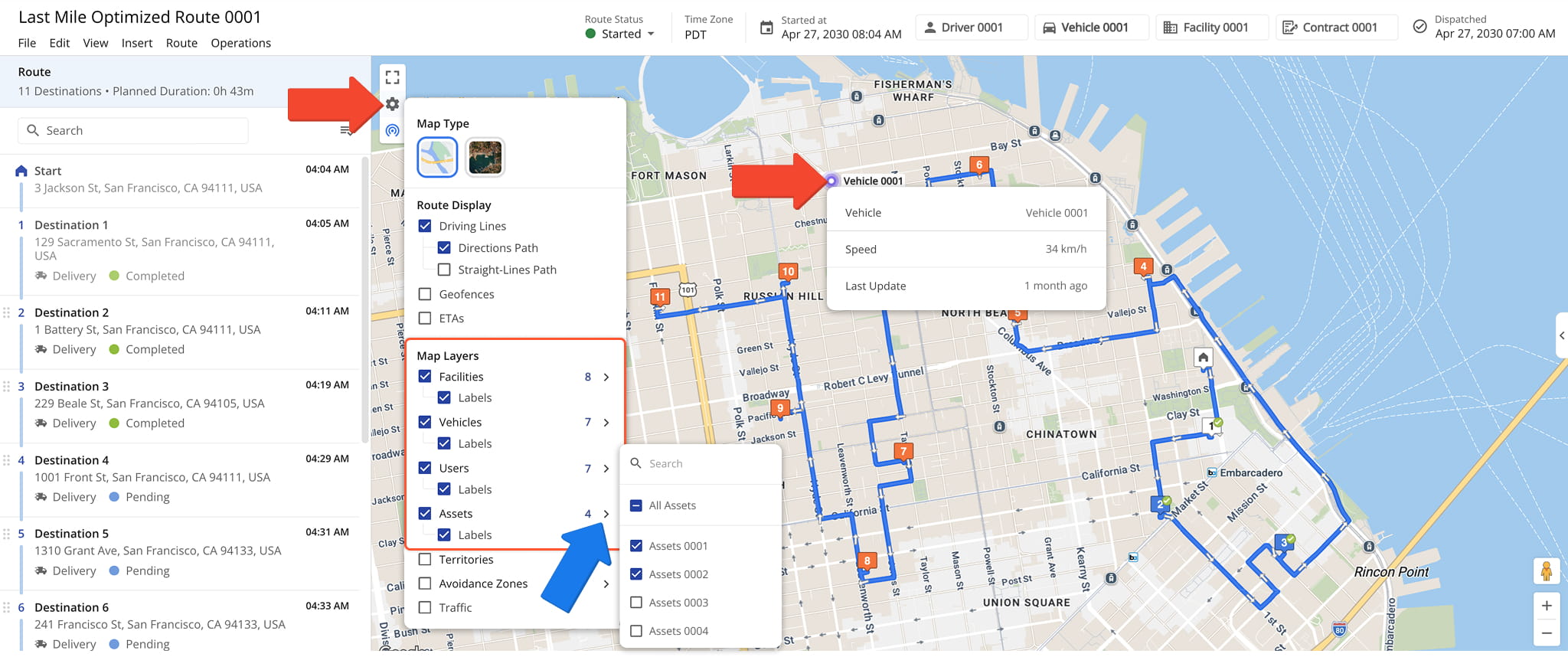
The Facilities map layer in the Routes List was updated with an optional, color-coded progress bar on Facility pins, reflecting key performance metrics at a glance. The progress bar scales from red to green based on the metric value, giving you an immediate visual indicator of Facility performance directly on the map.
You can filter the progress bar display by metric type, including completed routes, visited destinations, out of sequence visits, and completed orders.
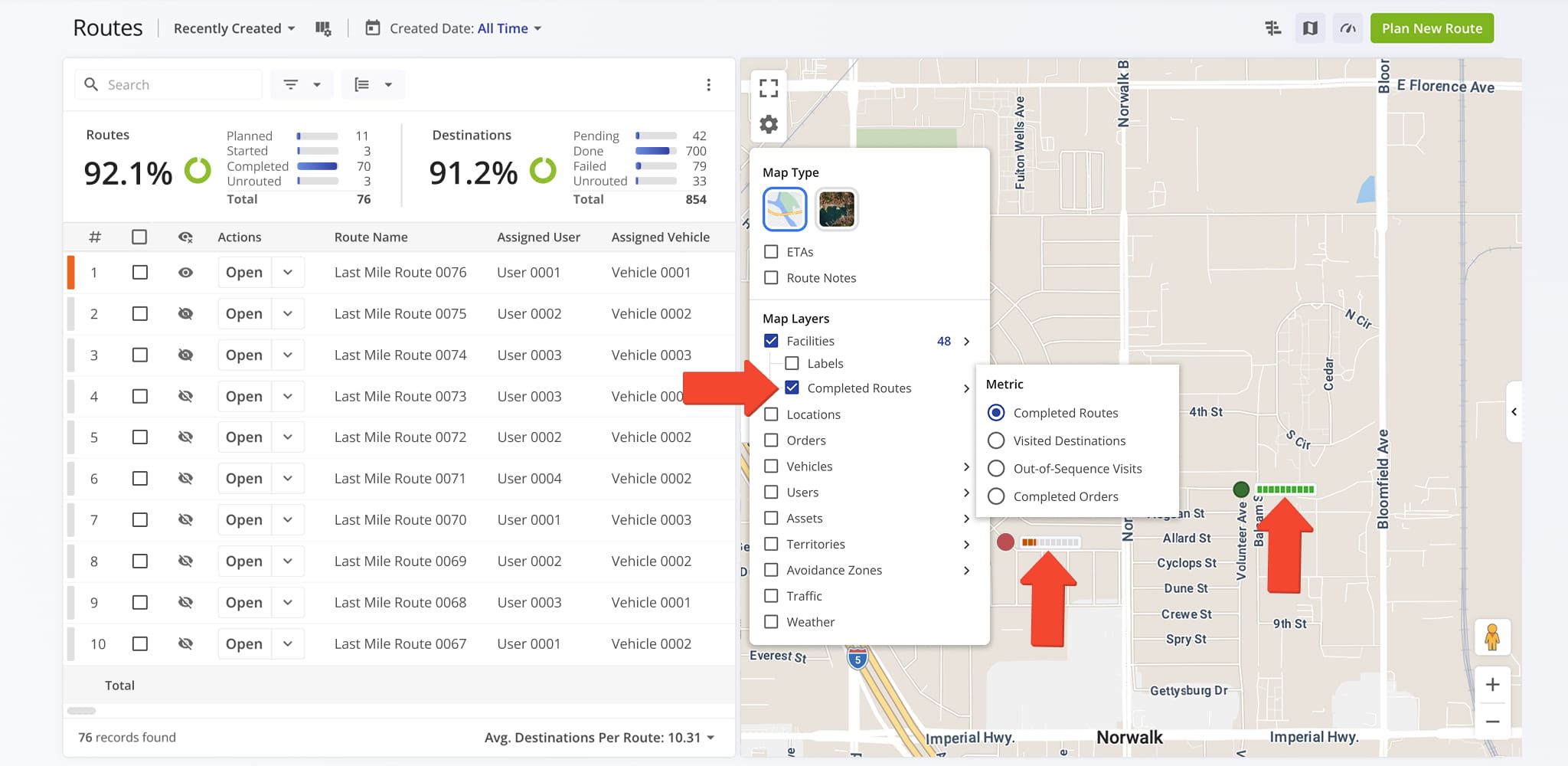
The URL for the Location Snapshot page was updated.
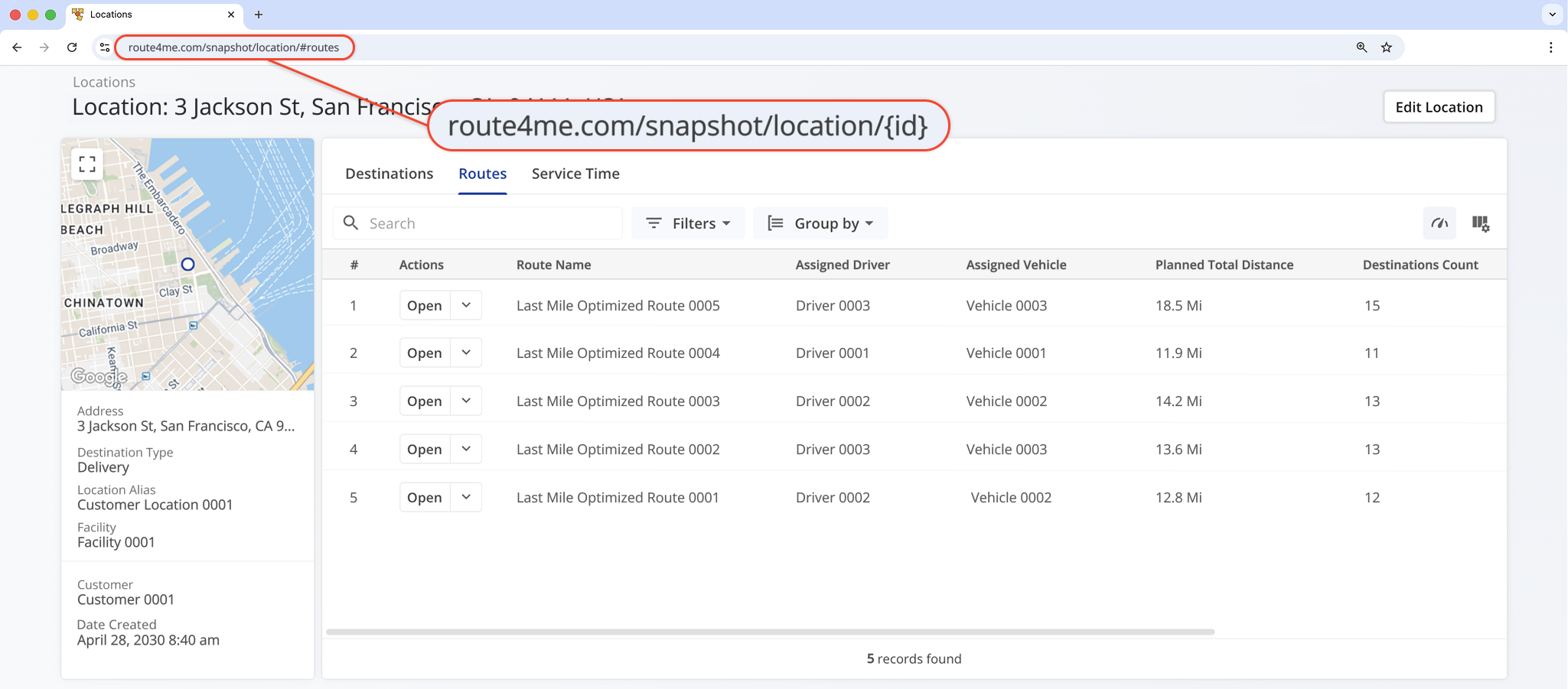
It’s now possible to assign Company Assets to Locations from the Locations Page. When adding or editing a Location, go to the “Assets” section and click “Assign Assets“.
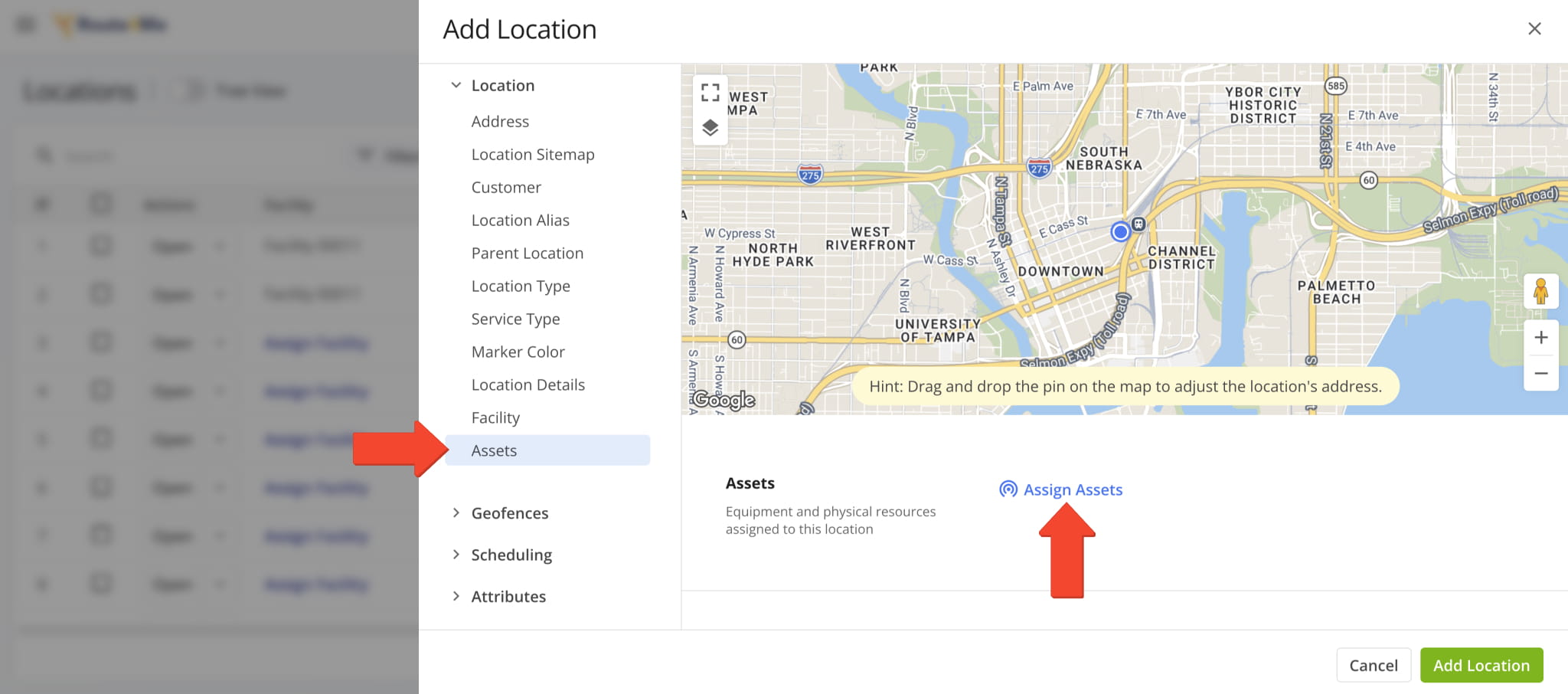
You’ll see the “Assign Assets” panel. Here, you can select Assets to assign to the Location by checking the boxes next to them and clicking “Apply“. You can also go directly to the Assets Page by clicking “Manage Assets“.
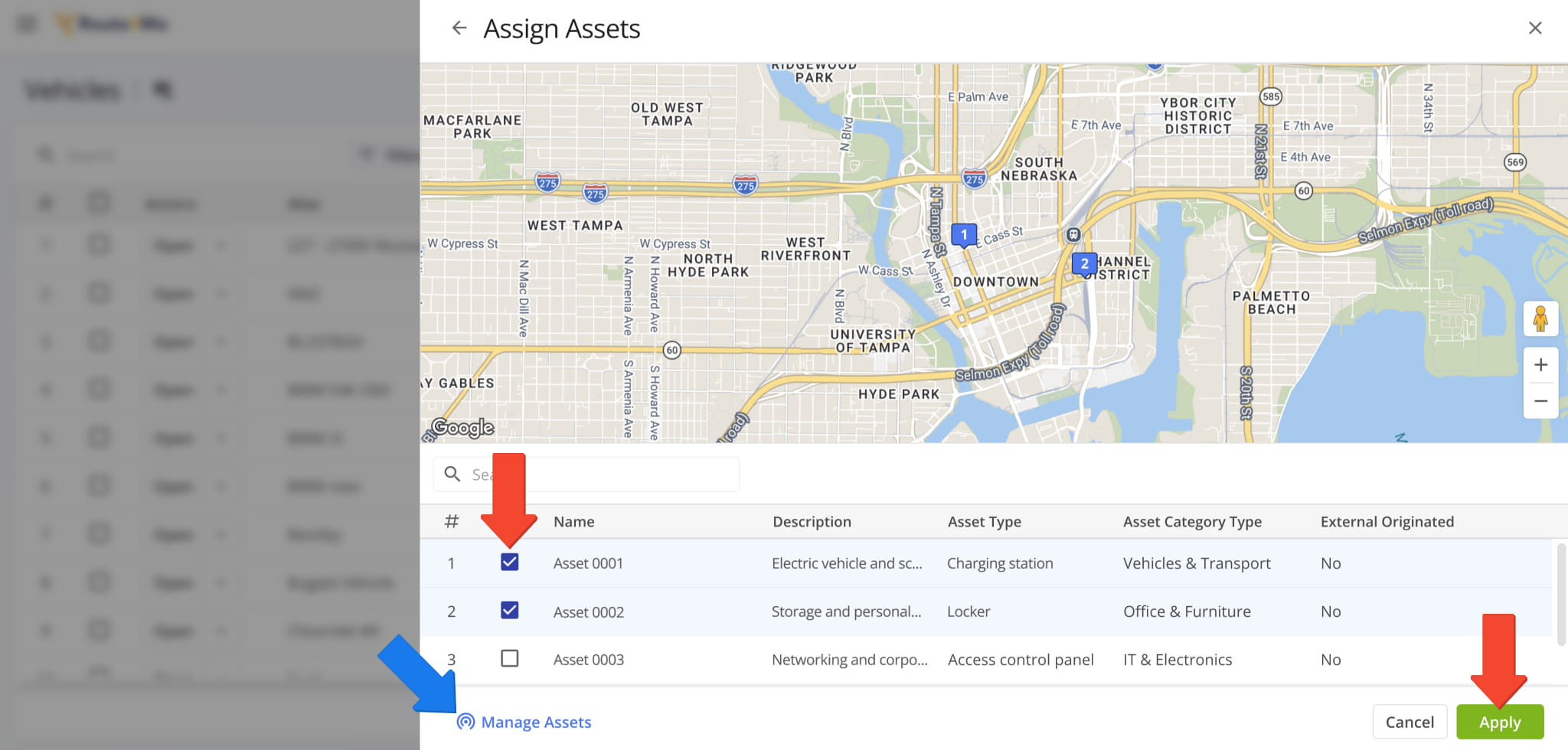
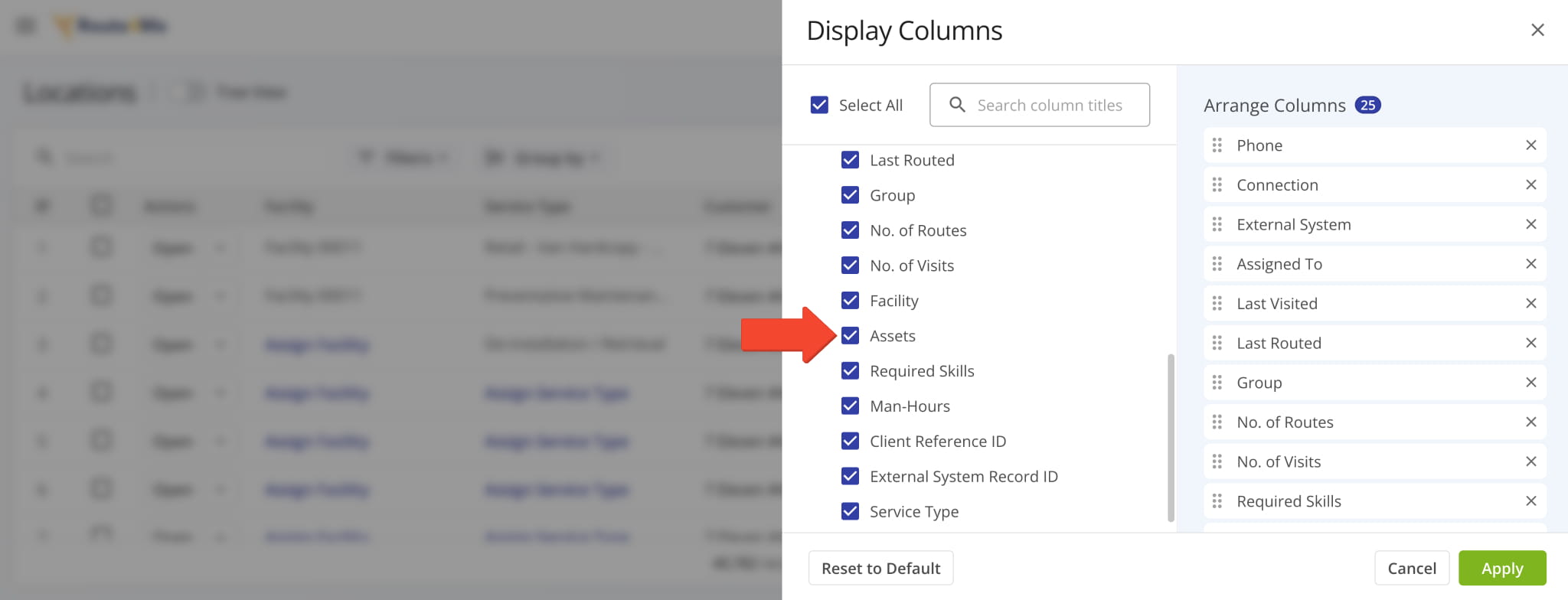
Additionally, a new “Assets” Display Column was added, showing the Assets assigned to Customer Locations.
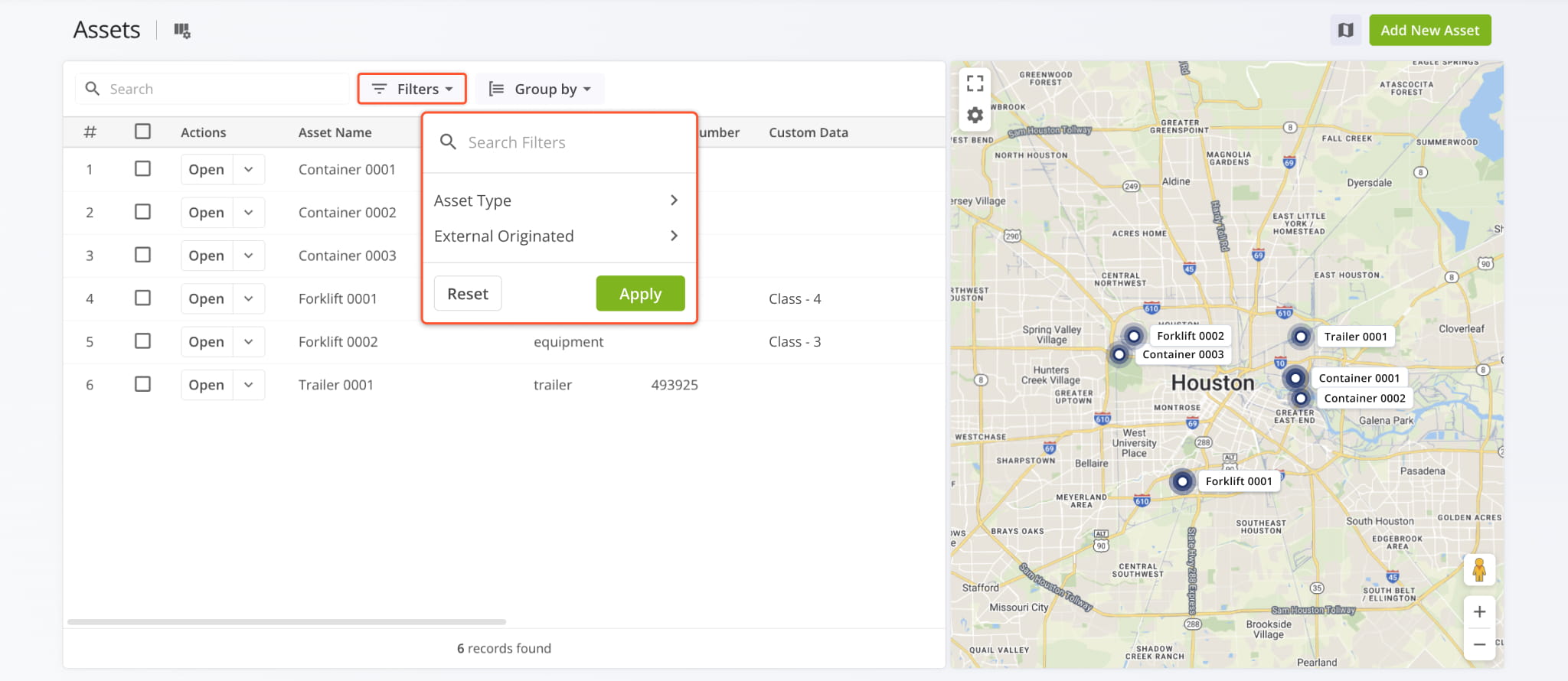
The Company Assets page now supports filters, helping users narrow down Assets by their attributes.
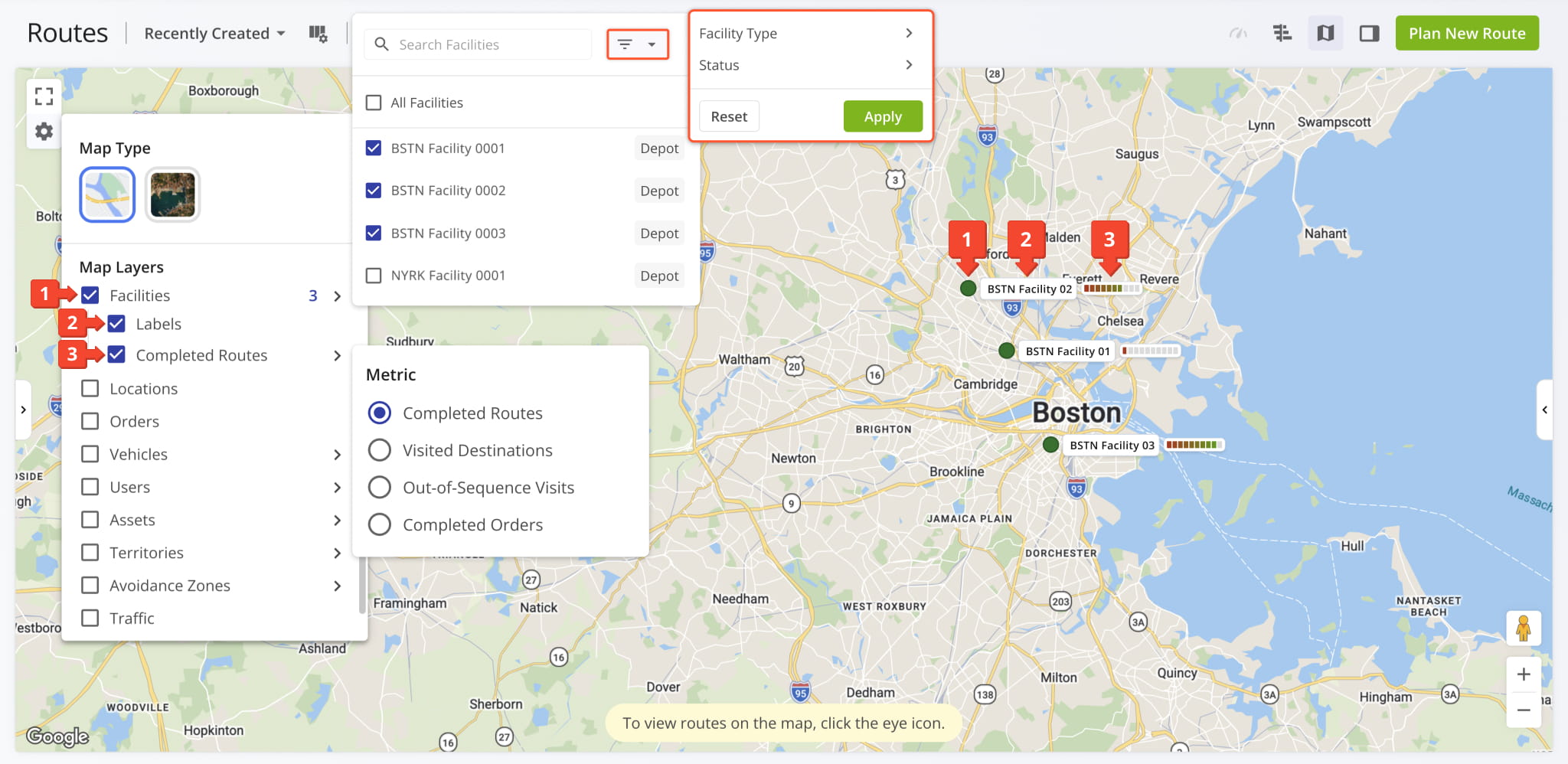
Map Layers for Facilities on the Routes Map were updated. Open the Map Settings to toggle:
- Facilities: Select Facilities to show as markers on the map as usual.
You can use the new Filters Menu to filter by “Facility Type” and “Status“. - Labels: Show Facility names next to their map markers.
Previously, you could only hover over map markers to see Facility names. - Metric: Enable a new dynamic tracker showing completion rates for associated routes, destinations, and orders or track Out-of-Sequence Visits on routes associated with Facilities.
Map Layers for Company Assets on the Routes Map were updated with new filters and labels. Open the Map Settings and check the “Labels” box under “Assets” to show Asset names on the map.
Additionally, when you enable Assets on the map, you can use a new Filters Menu to filter them by type and origin.
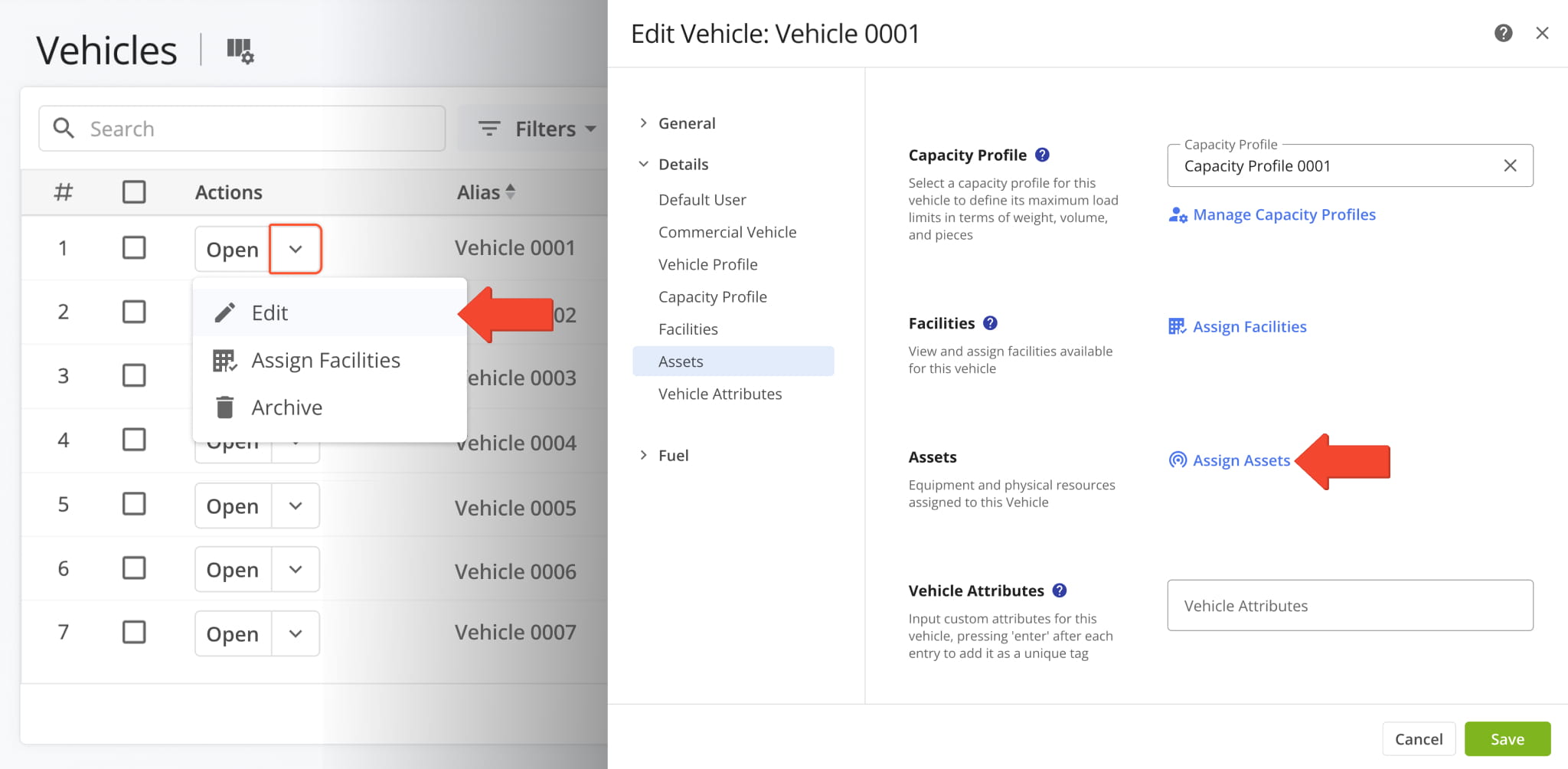
It’s now possible to assign Company Assets to Vehicles from the Vehicles Page. To do so, click the Down Arrow next to a Vehicle, go to the “Assets” section, and click “Assign Assets“.
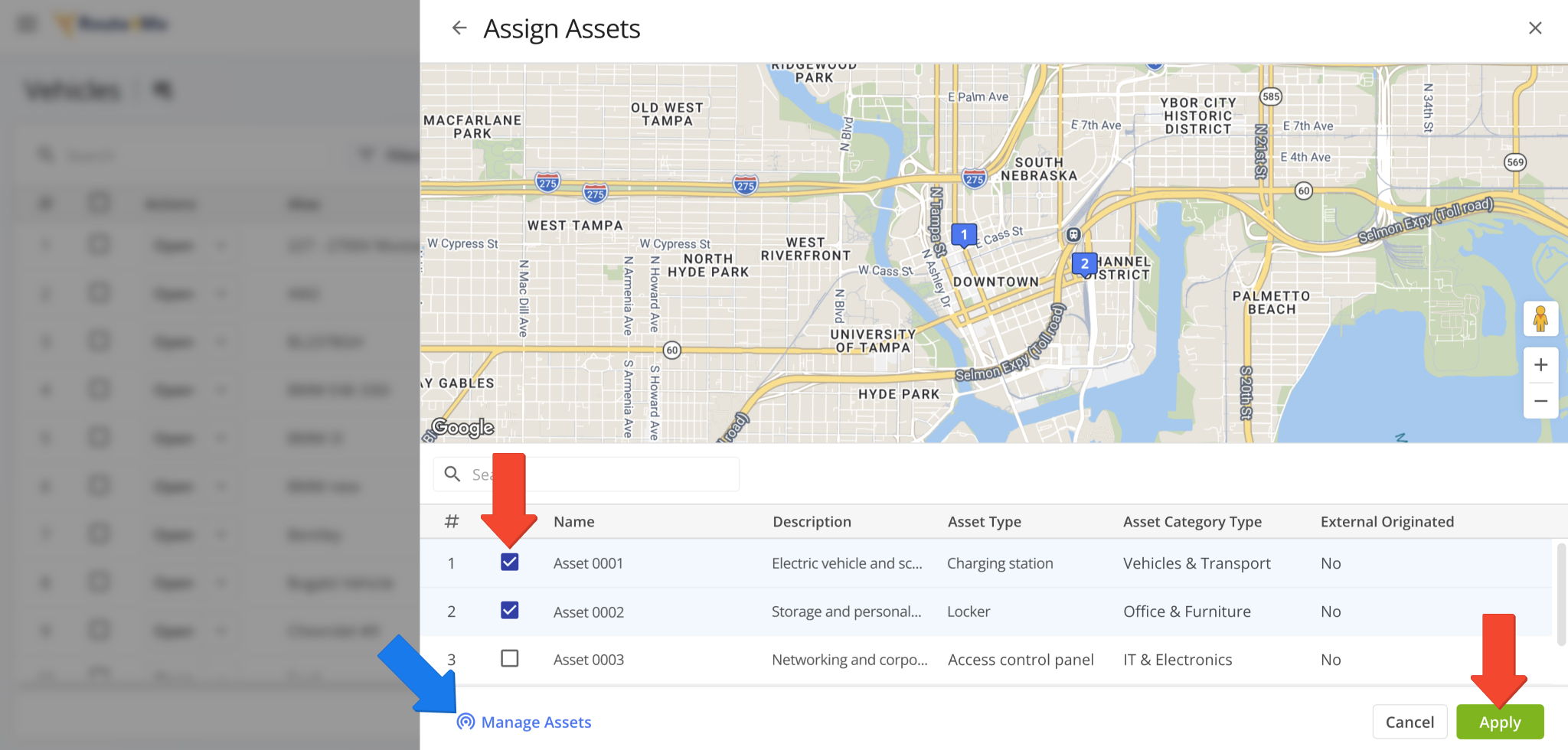
You’ll see the “Assign Assets” panel. Here, you can select Assets to assign to the Vehicle by checking the boxes next to them and clicking “Apply” to save your changes. You can also go directly to the Assets Page by clicking “Manage Assets“.
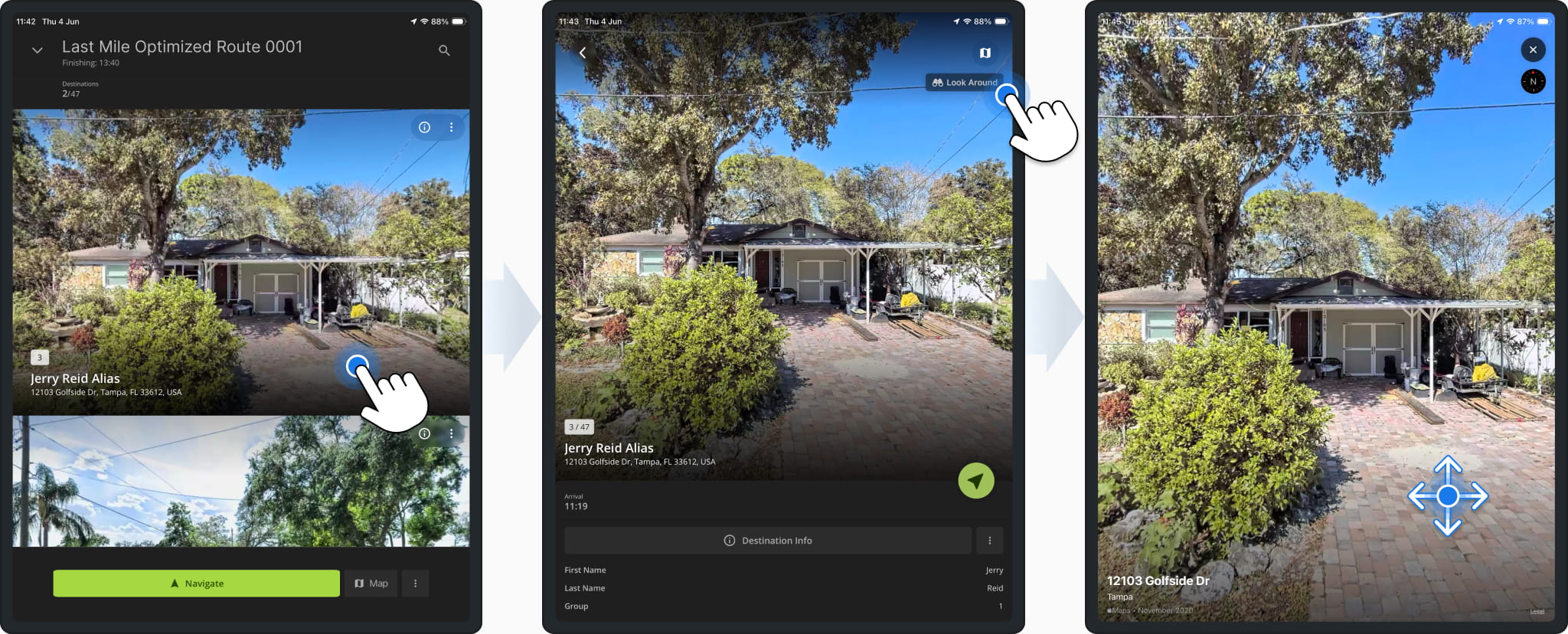
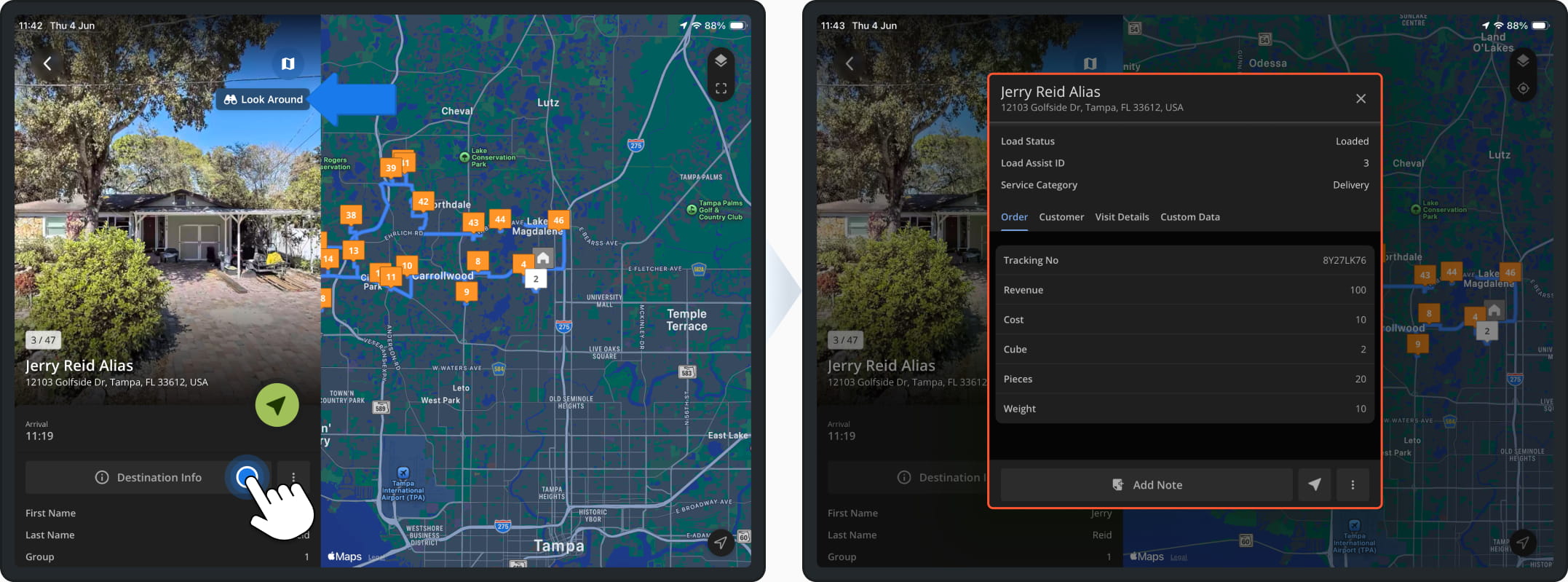
Route4Me’s Last Mile Route App for iPad was updated with additional Immersive Mode features. When you select a destination from a route’s Destinations List, you can now tap the new “Look Around” button to access an immersive 360-degree Street View. This allows users to get accurate context for the layout and conditions at a route destination.
Additionally, the iPad app will now show the updated 2026 Destination Info screen when you tap “Destination Info“. The changes in this update are available in both landscape and portrait orientation.
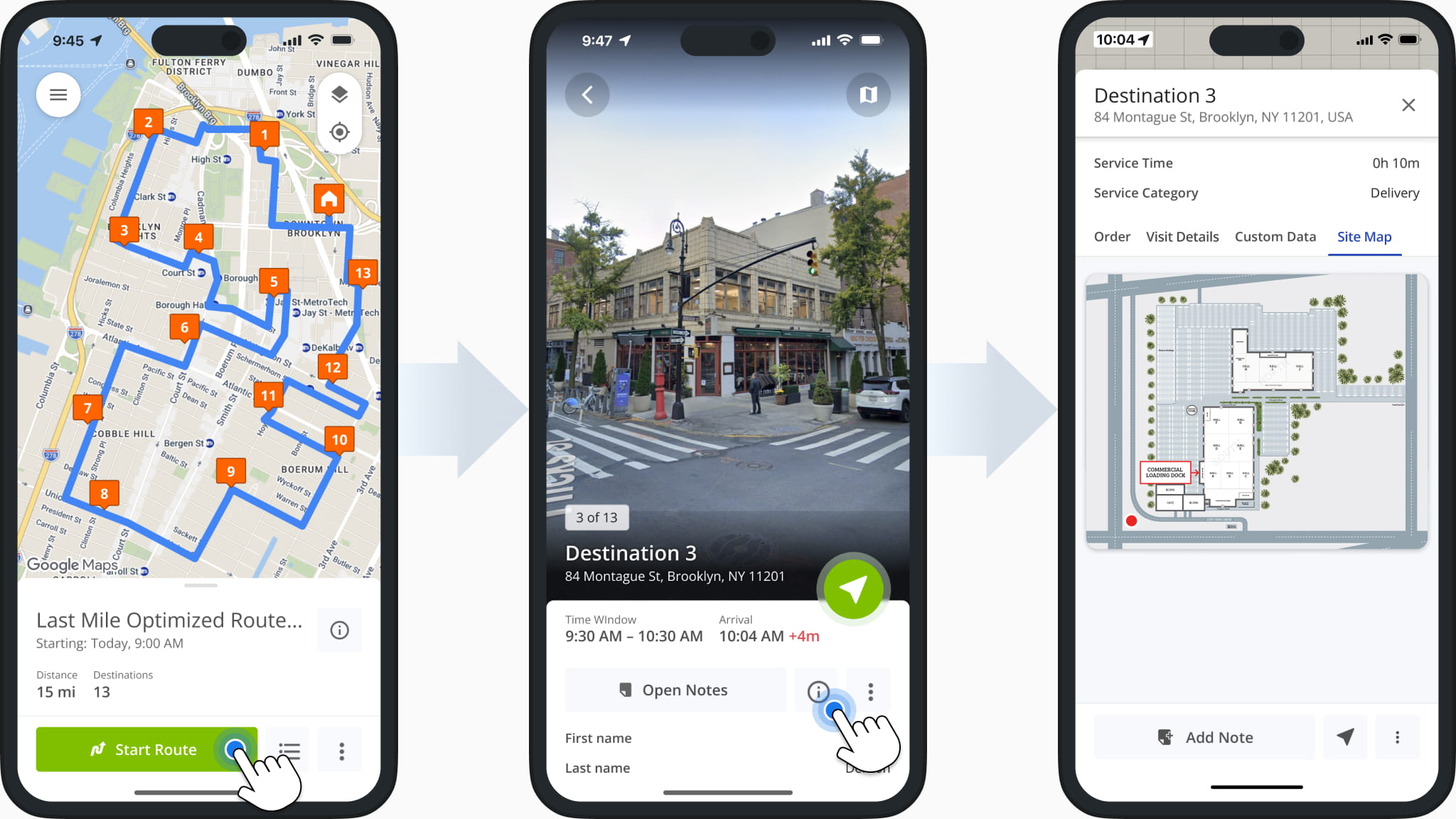
Location Site Maps are now available in Route4Me’s iPhone Route App. When users open the Destination Info screen, they’ll now find a new “Site Map” tab which shows the uploaded site map image associated with the Destination. The Site Map image can be tapped to zoom in and see the Destination’s layout in more detail.
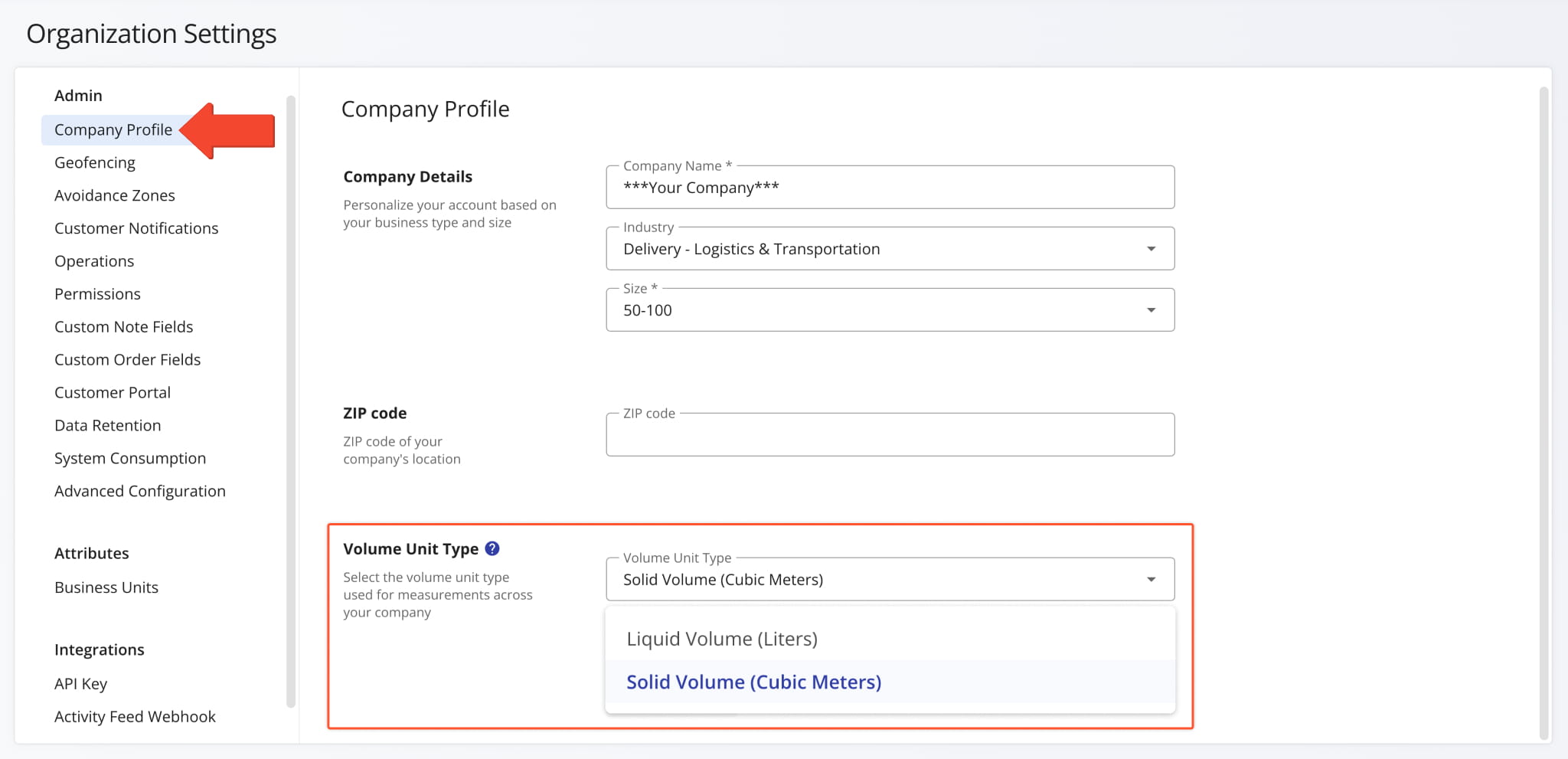
A new Volume Unit Type was added to the Organization Settings page in the “Company Profile” section. This new field enables you to define whether volume units will be used to measure liquid or solid volume using the following options:
- Liquid Volume: calculated in Gallons (Imperial) or Liters (Metrics)
- Solid Volume: calculated in Cubic Feet (Imperial) or Cubic Meters (Metric)
Open Your Organization Settings
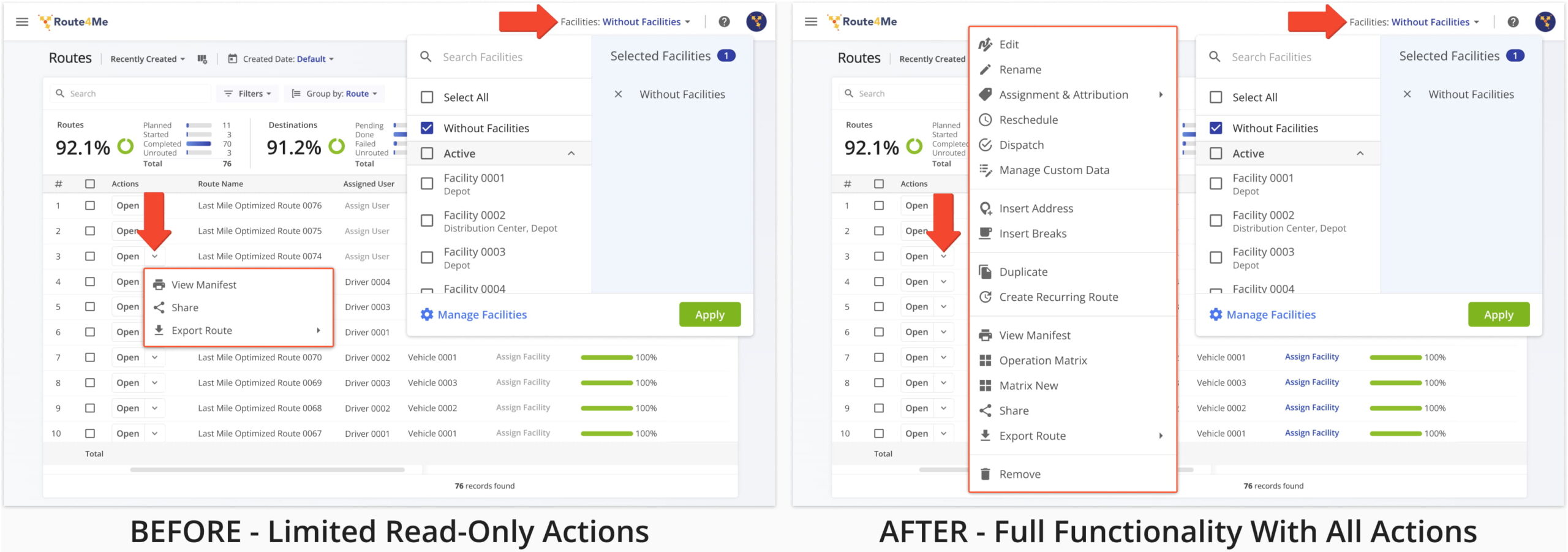
Previously, when using the Global Facilities Filter on the Routes Page, route management actions were limited to read-only options. This update enables all route management regardless of whether the Global Facilities Filter is active.
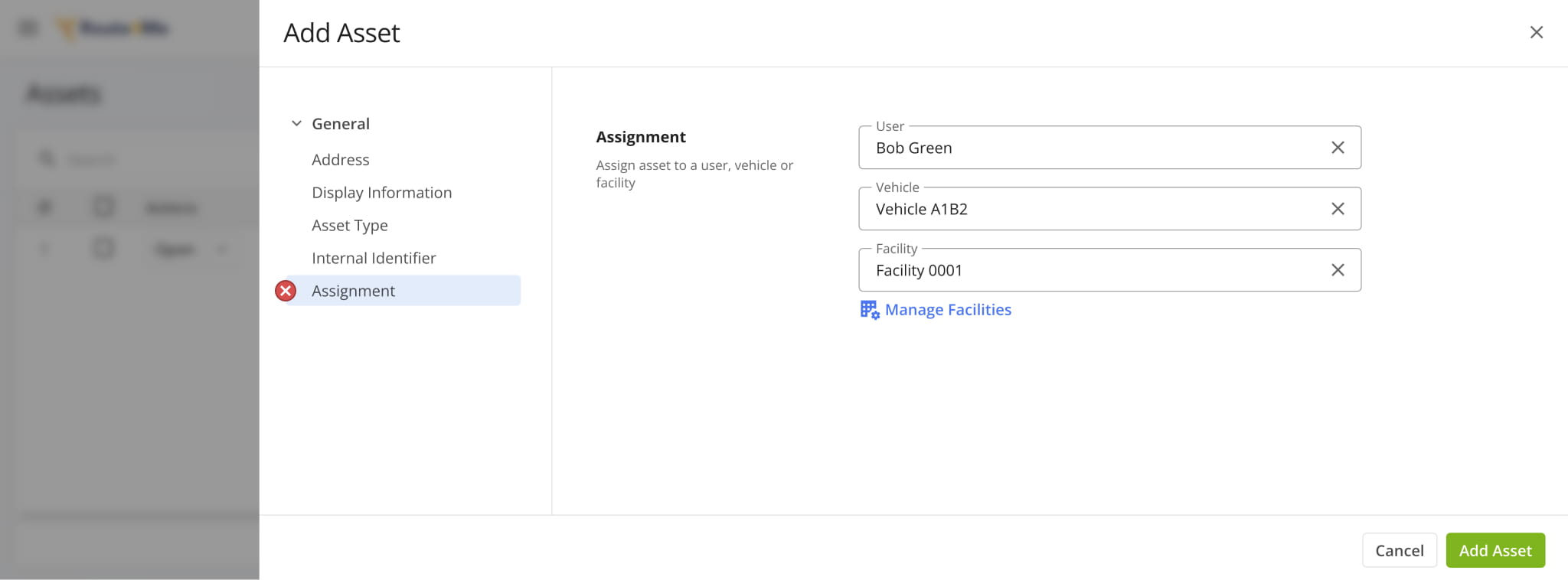
The “Assignments” section was removed from Asset Settings. Instead of assigning Assets to entities like Users, Vehicle, Facilities, etc. from the Assets Page, you can now assign Assets from each entity’s respective page or snapshot.
For example, you can assign Assets to Users from the Users Page and User Snapshots. This change ensures consistent assignment functionality across Route4Me’s Enterprise Transportation Management Software.
May 2026
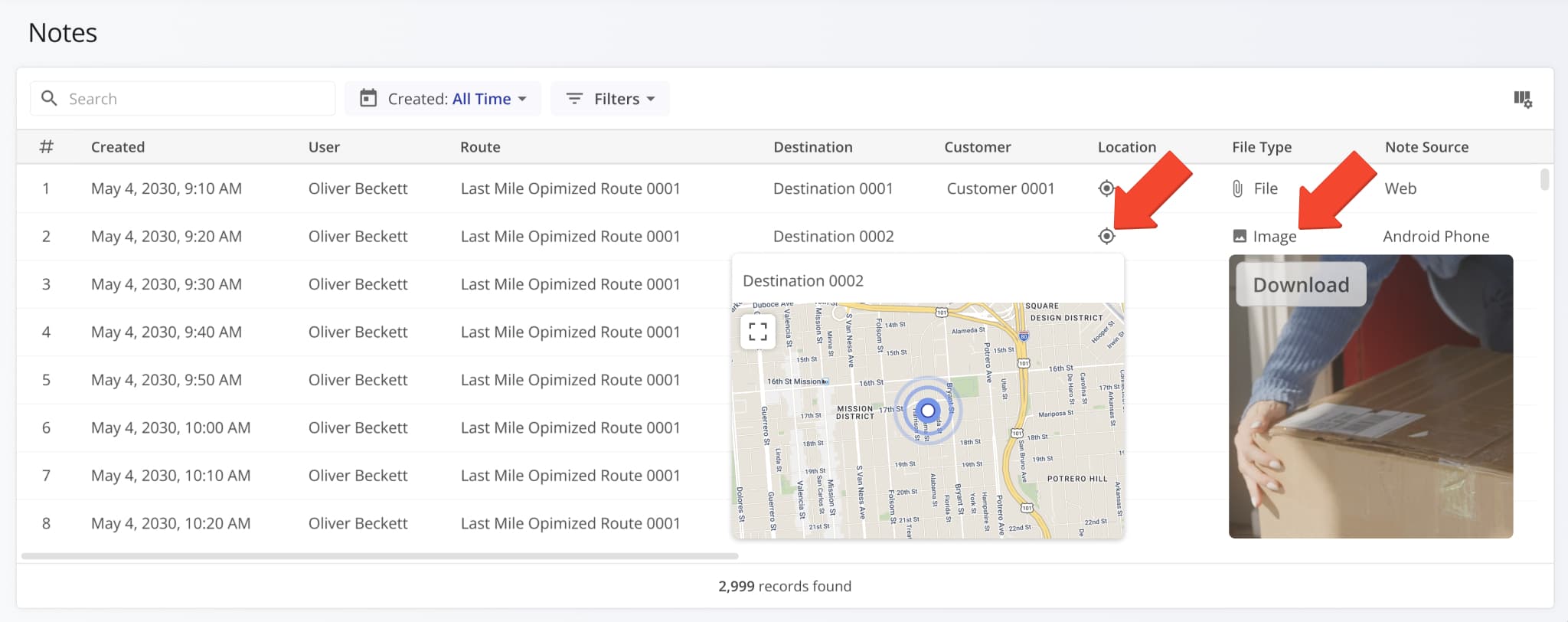
21A new Notes Page was added to Route4Me’s Web Platform. On this page, you can find and filter Notes generated when field employees complete Workflows, customize the data displayed for your Notes, preview attachments, and more.
To access your Notes Page, go to “Business Operations” > “Notes” in the Navigation Menu.
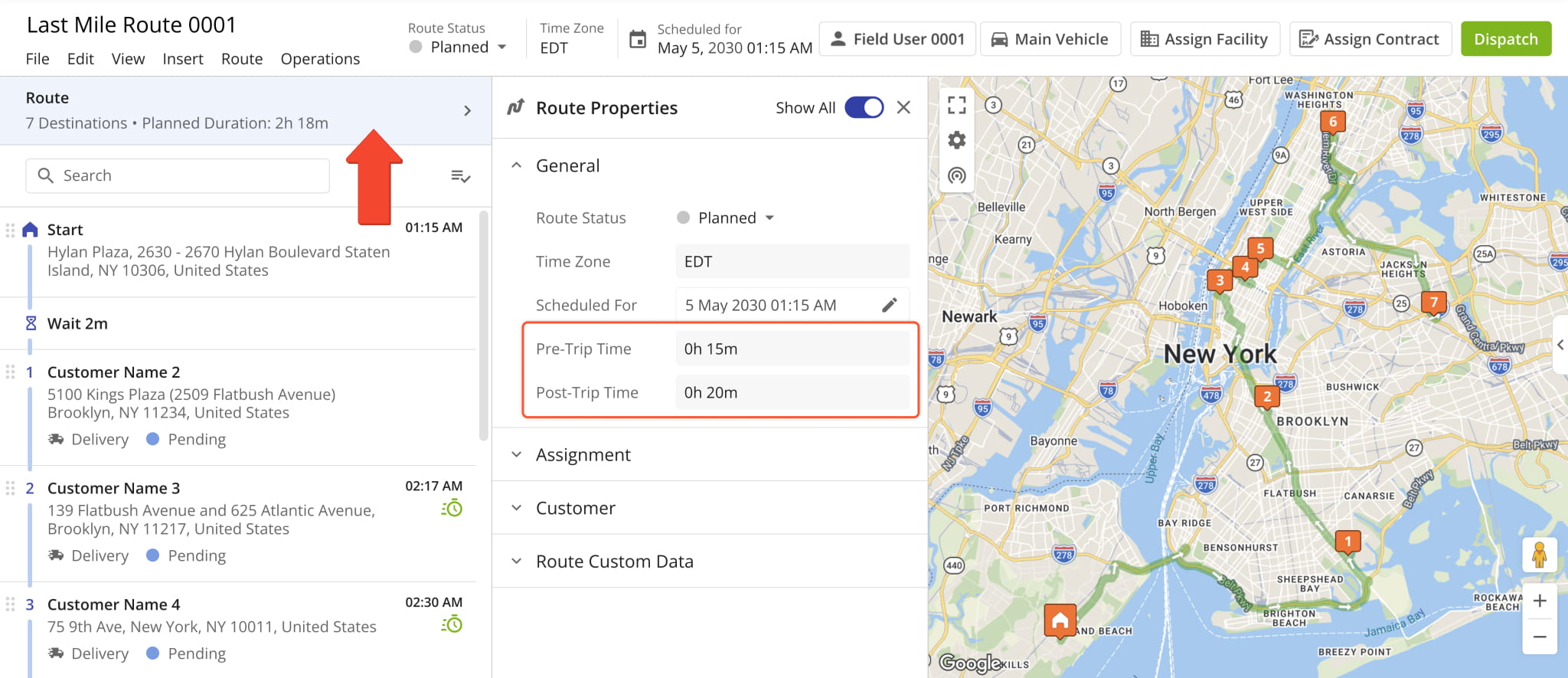
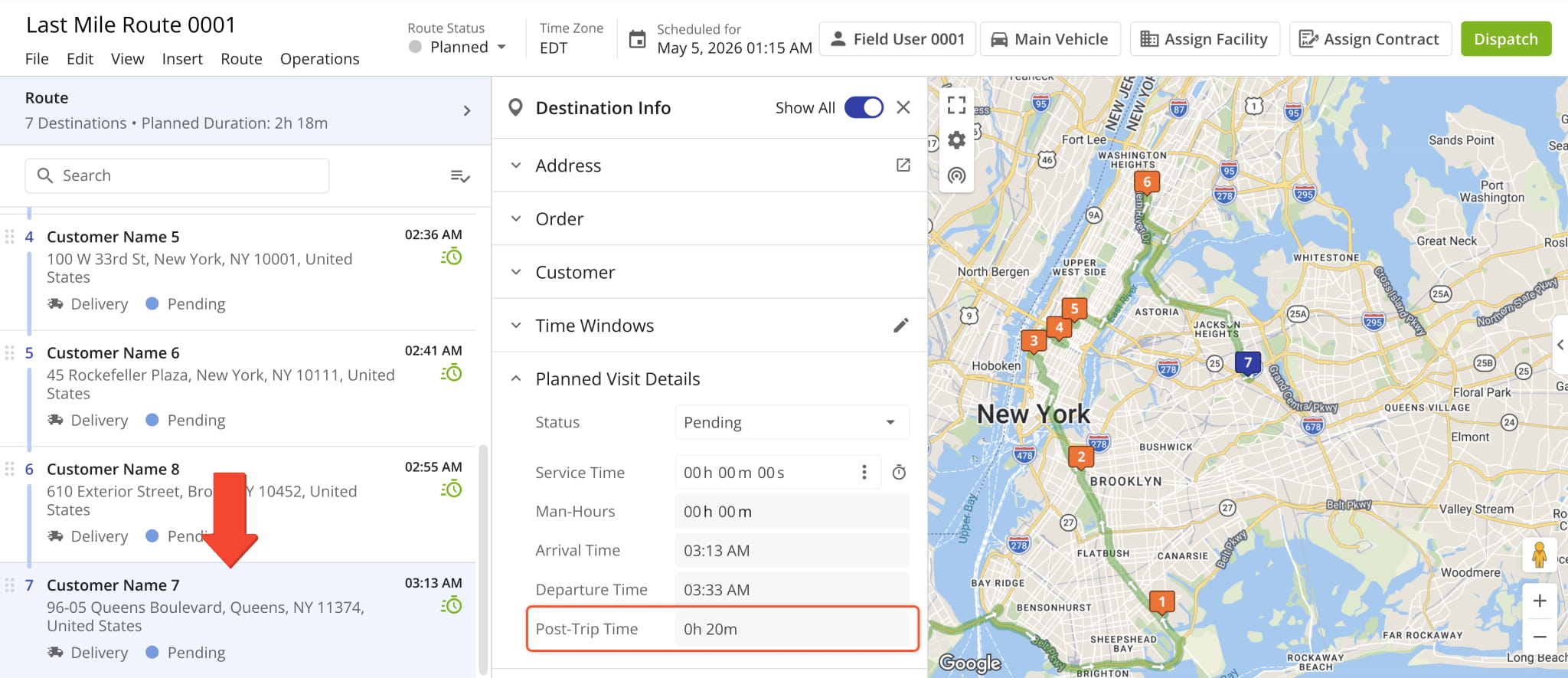
New “Pre-Trip Time” and “Post-Trip Time” fields were added to the Route Editor. These new fields make it easy to see when additional time is required before and after a route’s travel time, respectively.
You can see both values in the Route Properties Panel.
For convenience, the “Pre-Trip Time” field is also visible in the route start location’s Destination Info.
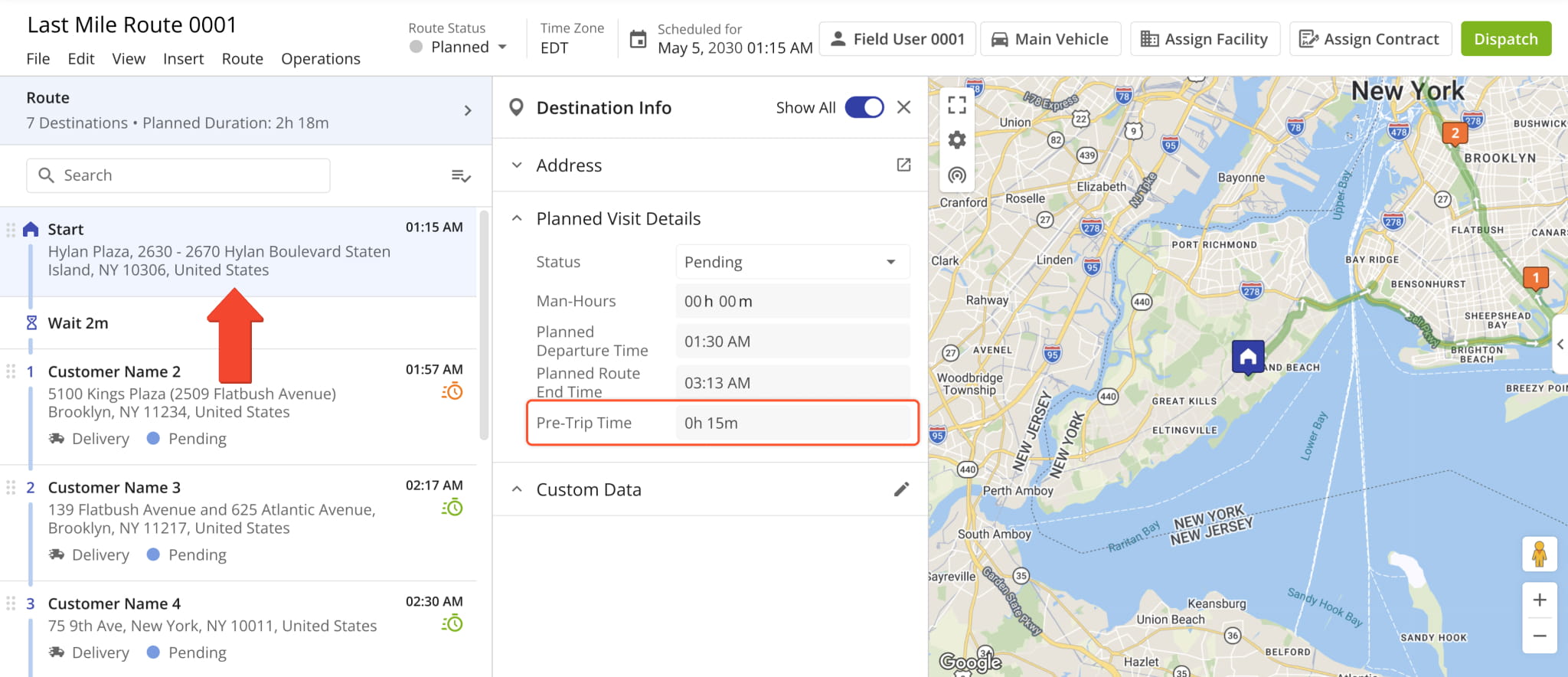
Correspondingly, the “Post-Trip Time” field is available in the last stop’s Destination Info.
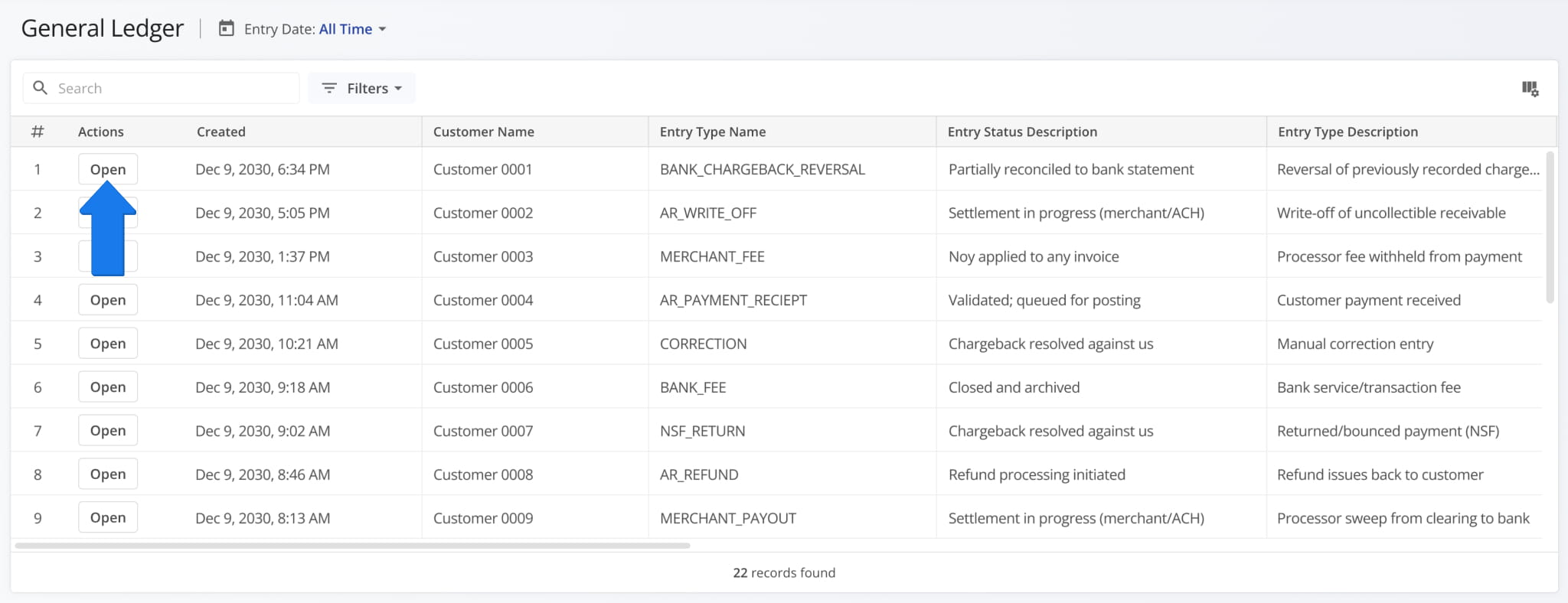
A new General Ledger was added to Route4Me’s Last Mile ERP Software. You can review journal entries, line item details, and related financial information in a customizable read-only table. NOTE: The General Ledger is currently available by request only. Please contact your Route4Me Routing Expert to get set up.
To see detailed information for specific general ledger entries, click the “Open” button.
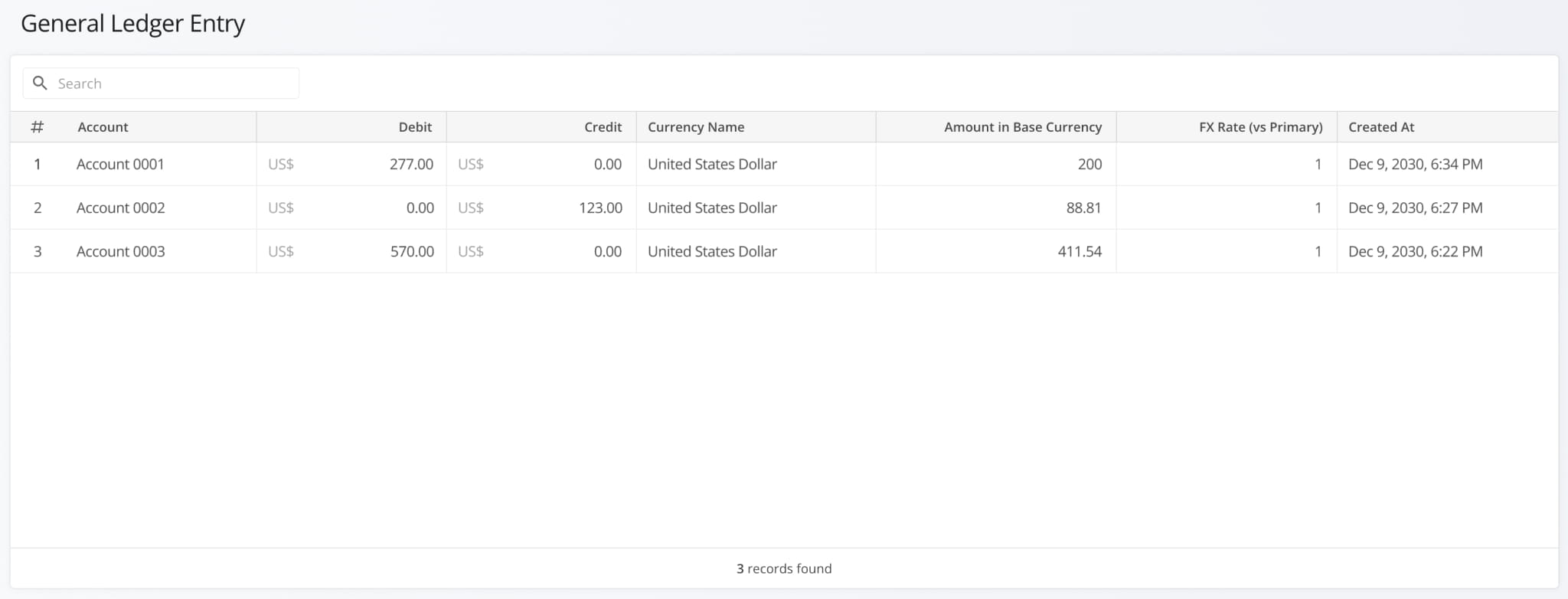
Each entry displays transaction-level financial details such as debit and credit amounts, currency information, and key timestamps, allowing you to review the full accounting structure behind a single ledger entry.
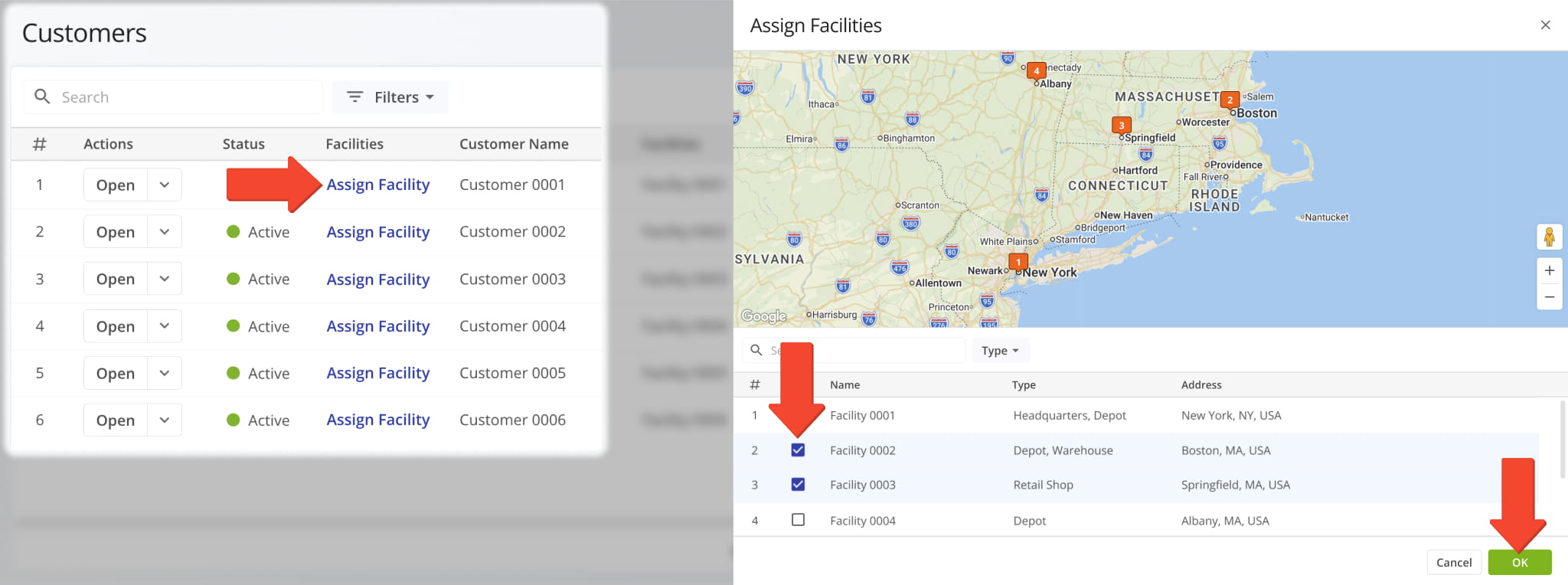
The “Assign Facility” button in the Customers Page now opens a new dynamic panel where you can assign multiple Facilities to a Customer and see where those Facilities are located on the map.
The Route Metrics Panel in the Route Editor was updated with a new “Vehicle Utilization” section. It shows the capacity utilization of the route’s assigned vehicle across cubic volume, number of units, revenue, and weight metrics.
The “Capacity” column shows the vehicle’s maximum capacity according to its Capacity Profile. The “Load” column shows how much is actually loaded onto the vehicle, while the percentage column tracks capacity utilization.
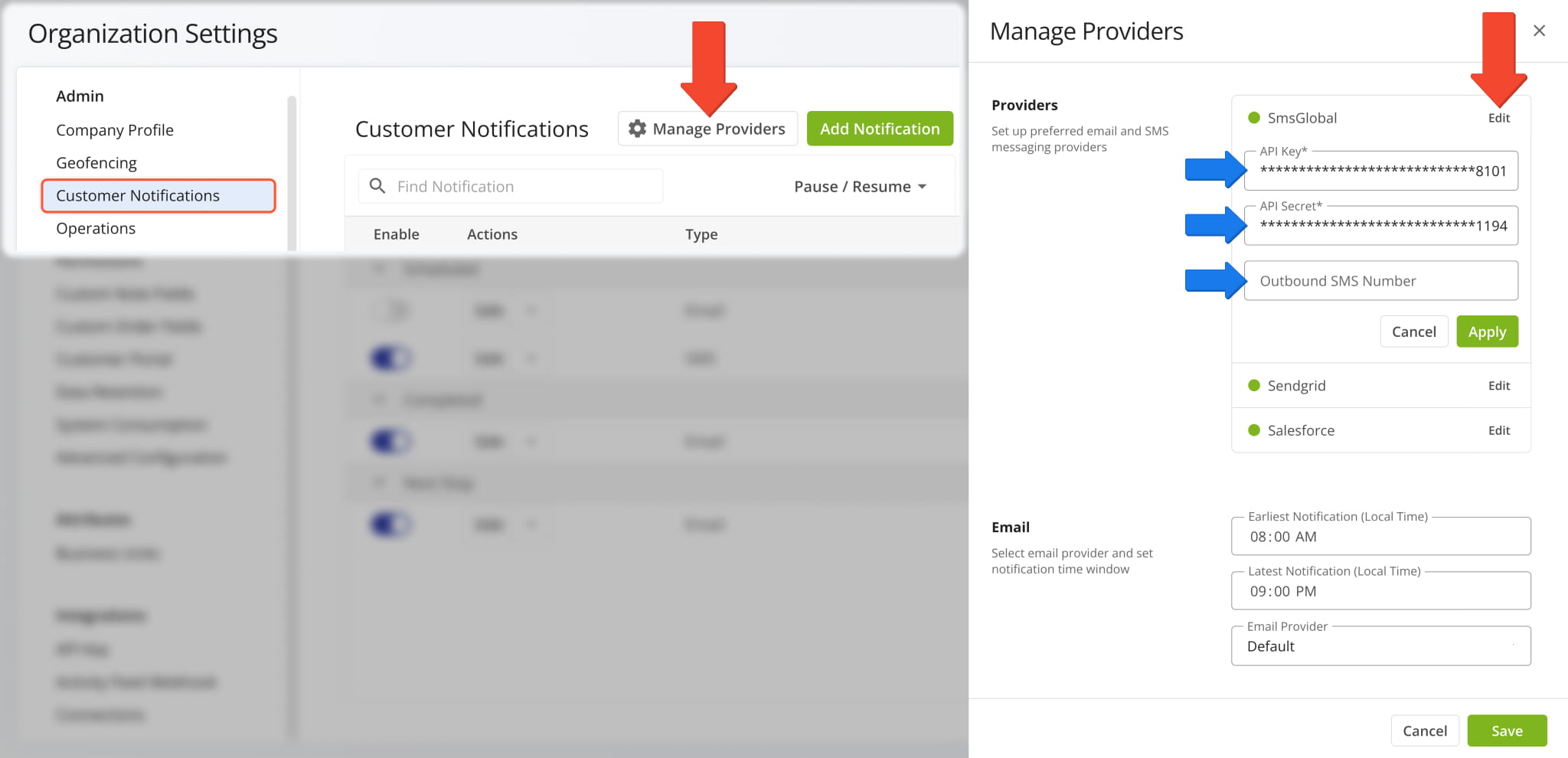
SMSGlobal was added as a new Customer Notifications provider for SMS notifications. First, go to “Organization Settings” > “Customer Notifications” from the Navigation Menu.
Next, click “Manage Providers” and click “Edit” next to “SMSGlobal“. From here, you can configure your API key, API secret, and outbound SMS number in the respective fields.
NOTE: To enable SMSGlobal as a notification provider on your account, contact Route4Me Support.
Open Your Notification Settings
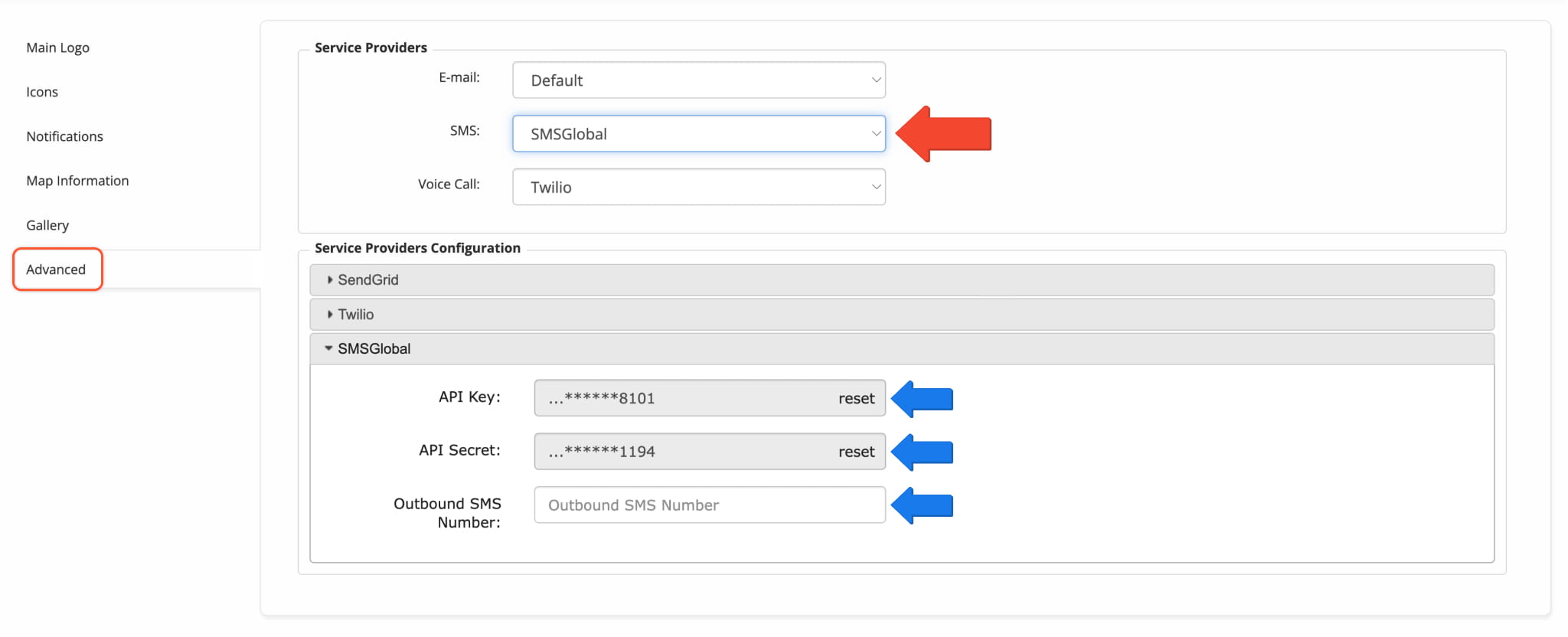
SMSGlobal is also available in Notification Settings (Classic). Go to “Customer Experience” > “Customer Notifications” > “Advanced“. Under “Service Providers“, use the “SMS” field to select “SMSGlobal“.
You can configure your API key, API secret, and outbound number in the “Service Providers Configuration” section.
Open Notification Settings (Classic)
The “Facilities” column was renamed to “Facility” on the Locations Page to accurately reflect that a Location can only have a single assigned Facility.
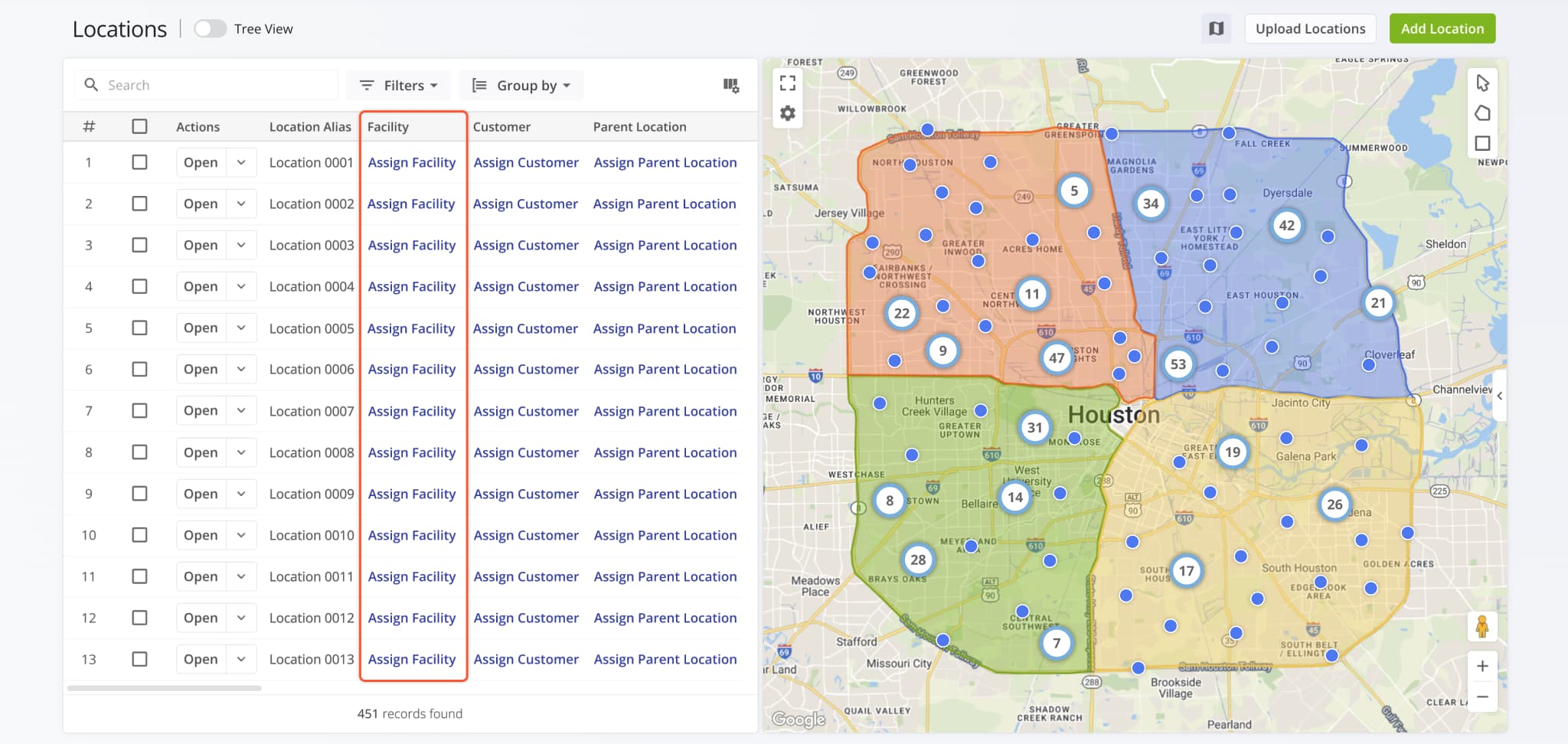
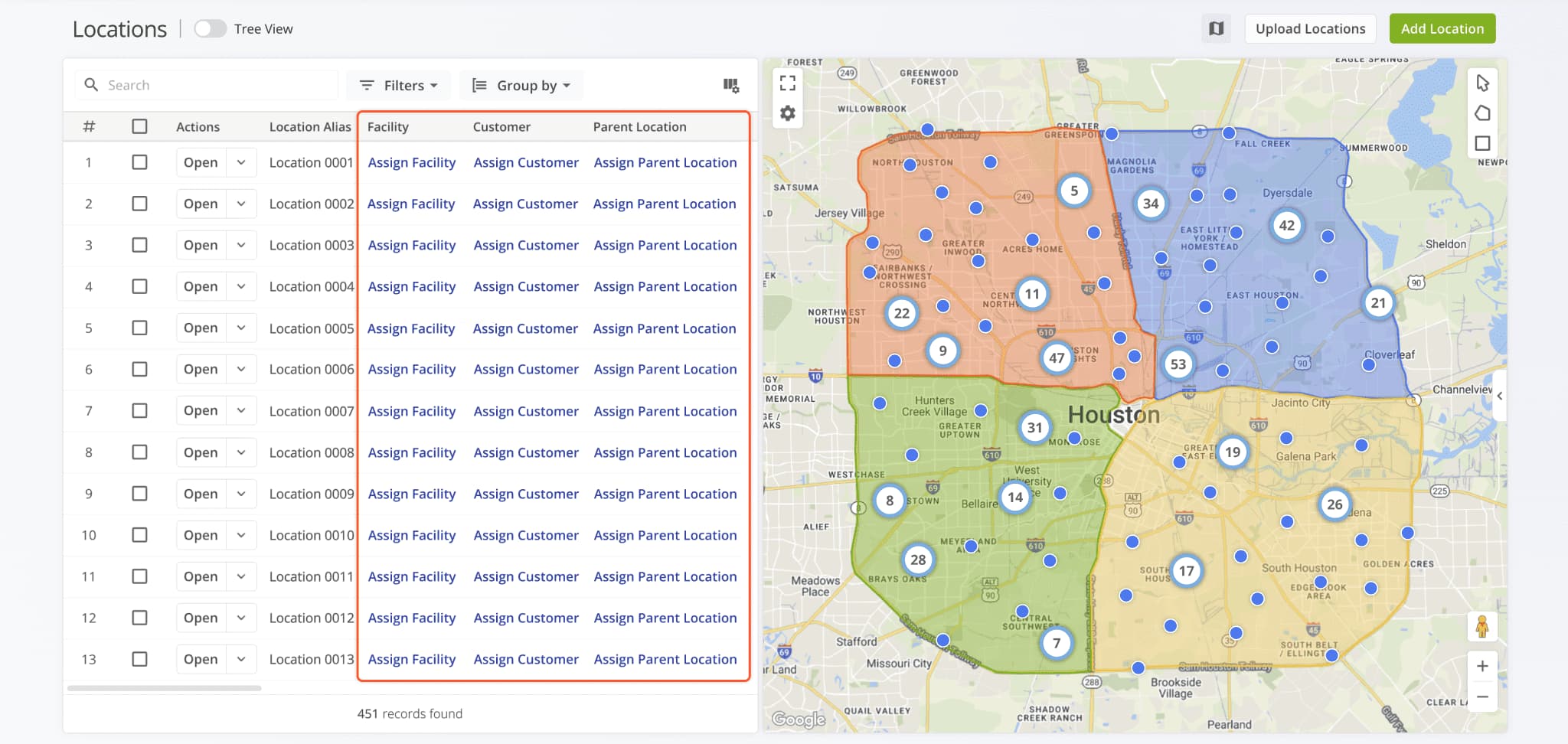
Assignment buttons for Facilities, Customers, and Parent Locations on the Locations Page were redesigned to match the assignment buttons in other Route4Me interfaces. This change improves consistency and readability across the UI.
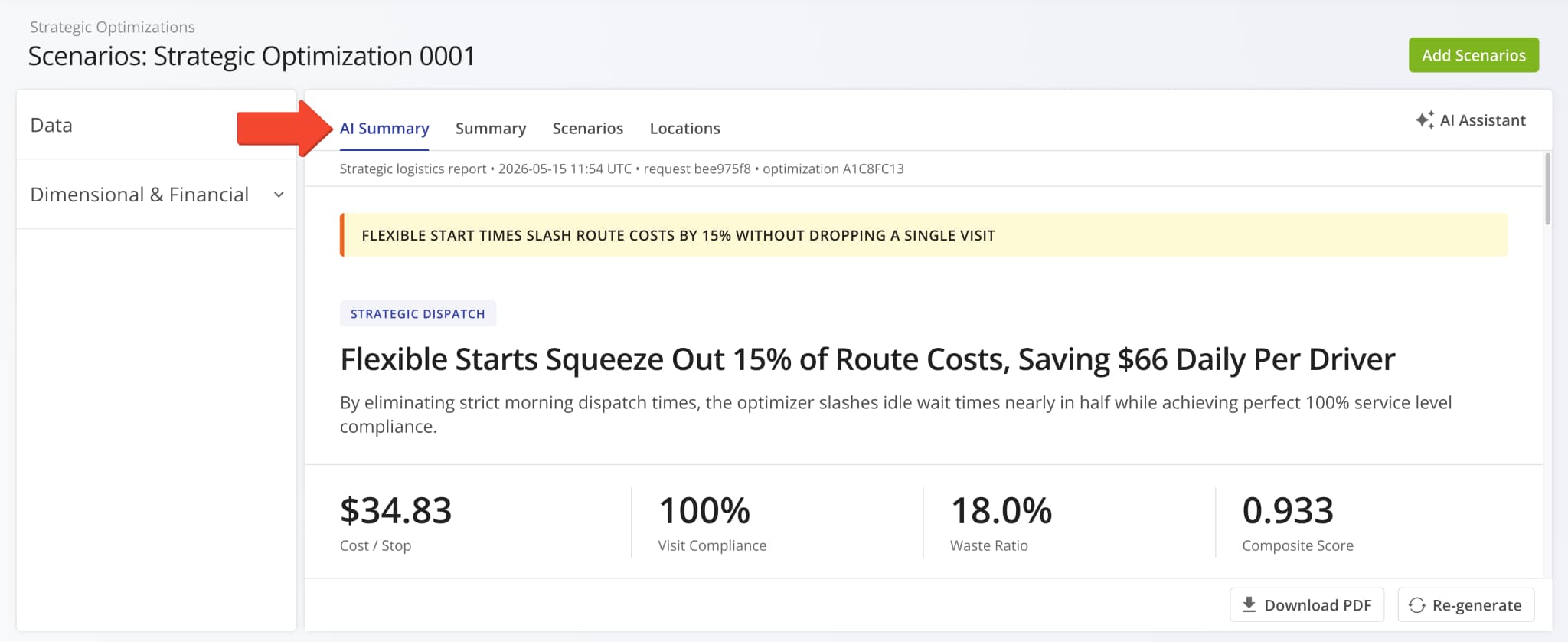
A new “AI Summary” was added to Strategic Optimizations. This feature automatically generates high-level executive reports that distill complex multi-scenario data into clear executive summaries and actionable insights. Simply open a Strategic Optimization to see the Strategic Routing AI Summary and speed up data analysis and decision-making.
Open Your Strategic Optimizations
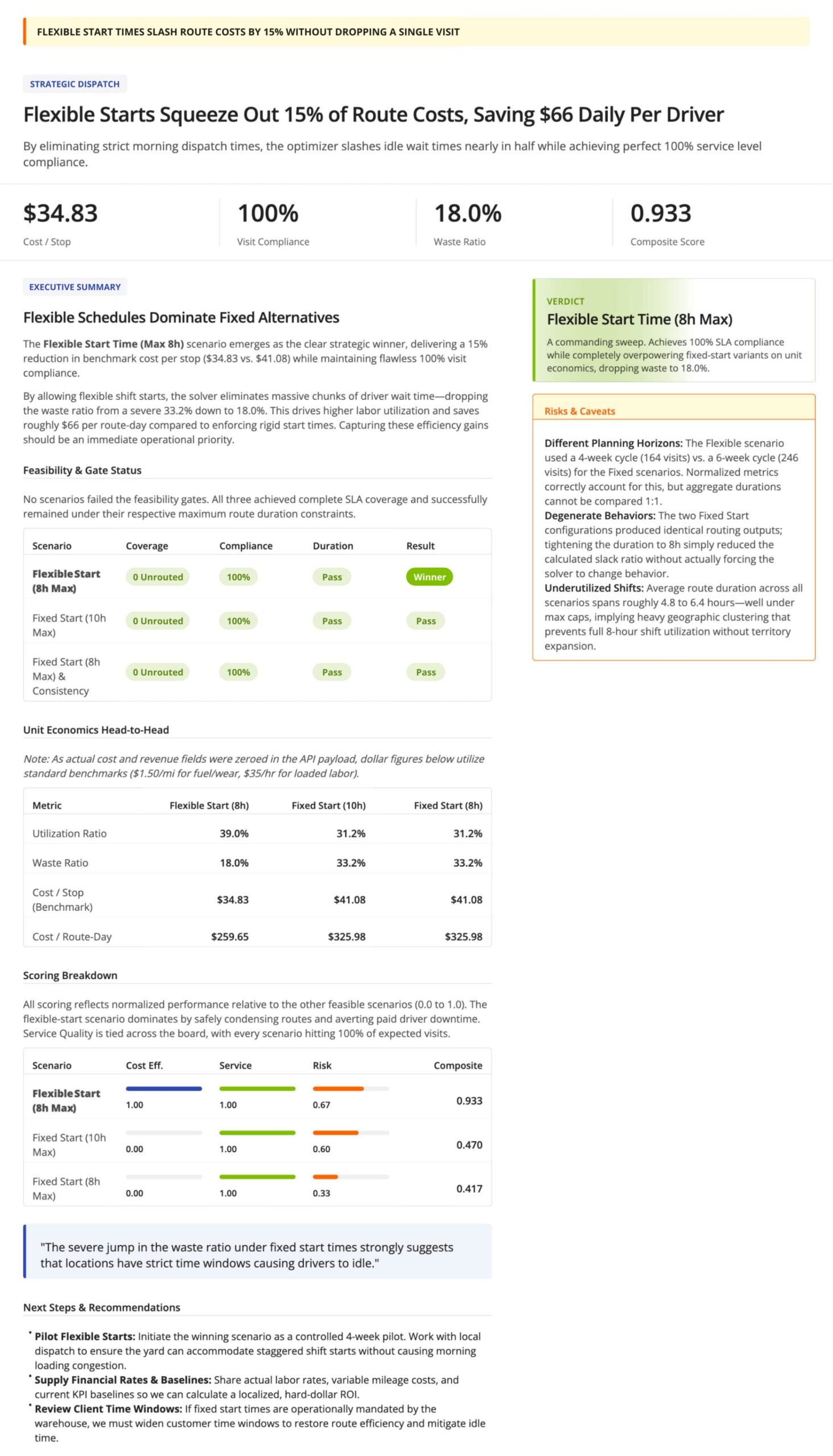
The image below is an example summary report generated from Route4Me’s Strategic Optimization data template.
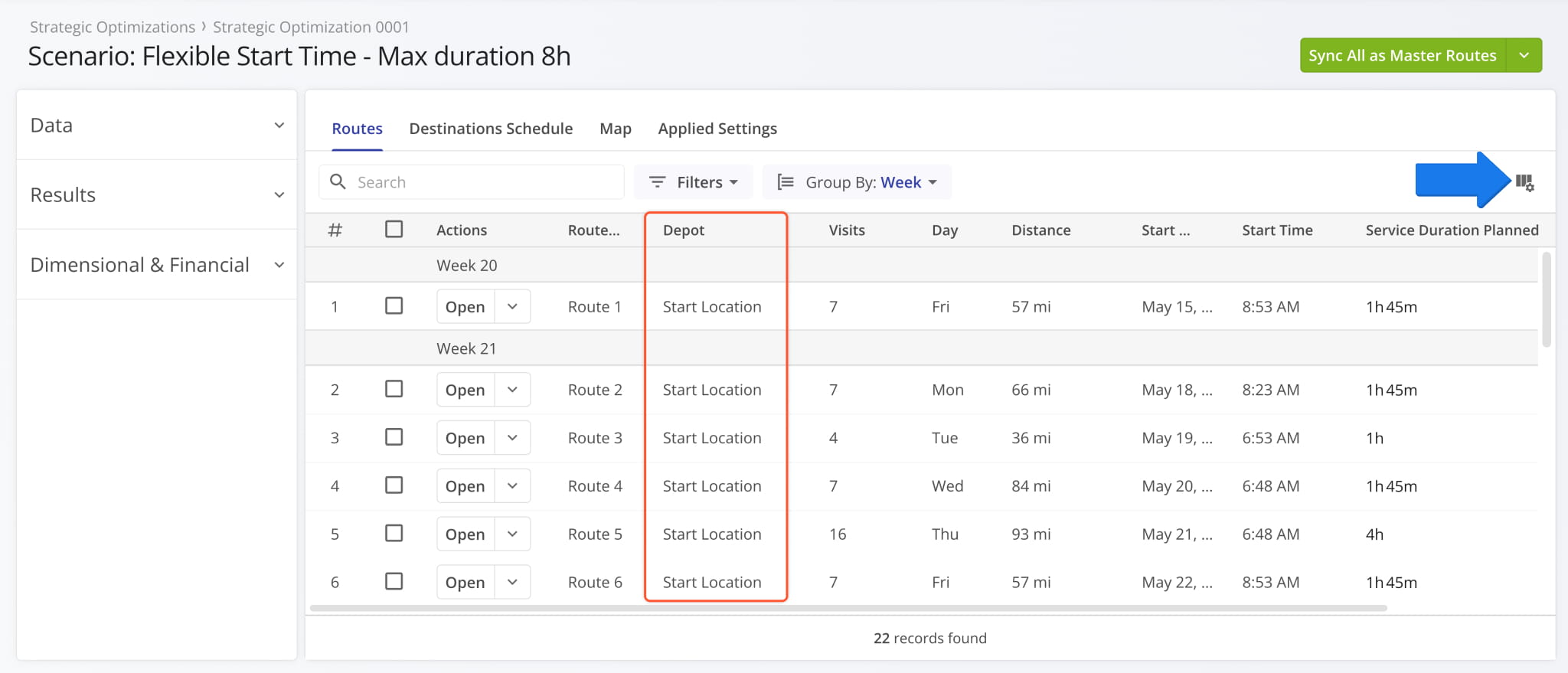
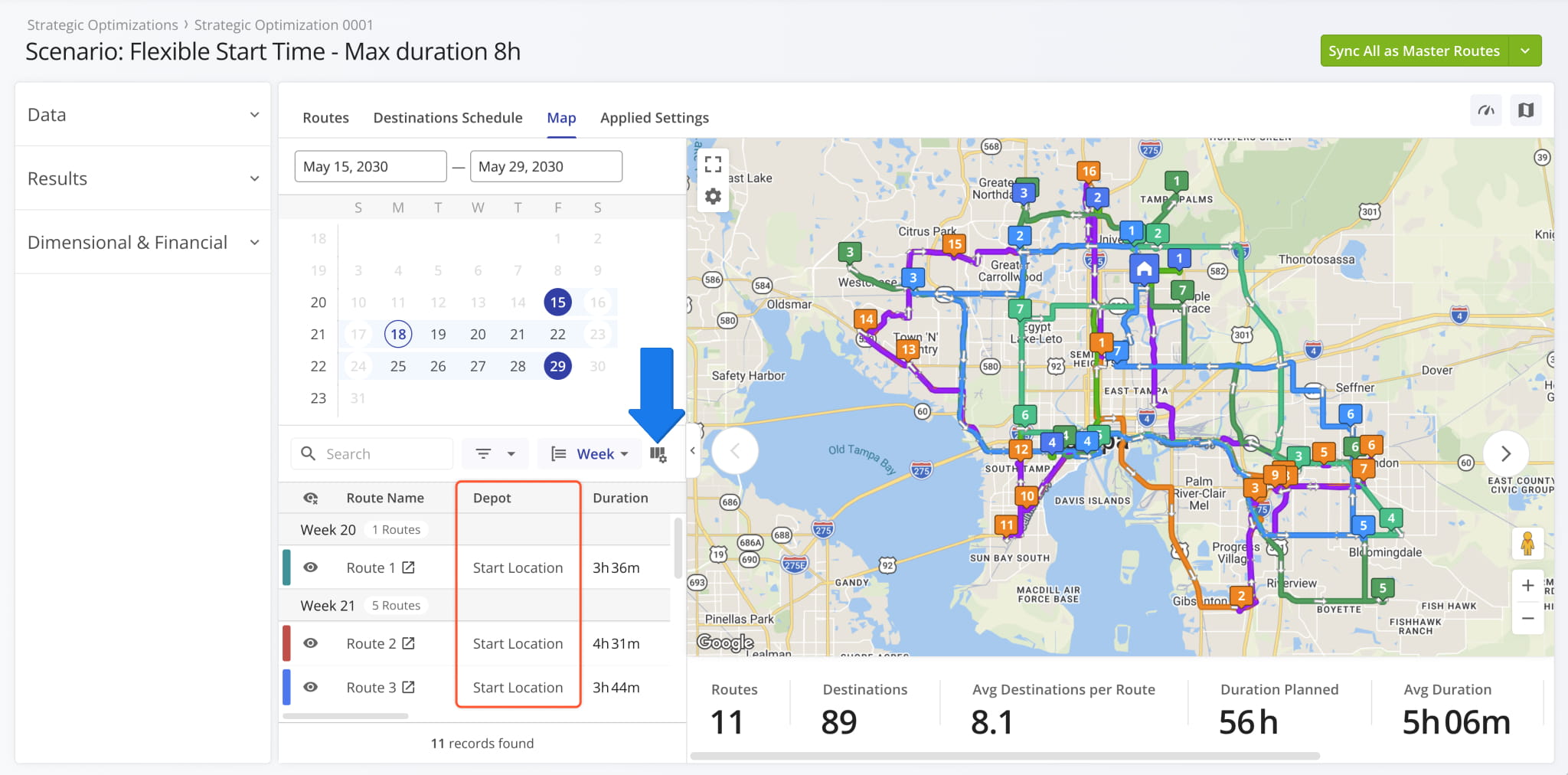
A new “Depot” column was added to Strategic Optimization Scenarios in the “Routes” and “Map” sections. The column shows the alias of the corresponding route’s start location. Click the Column Settings icon to open the Display Columns panel and enable the new column.
Open Your Strategic Optimizations
The data tables in the “Routes” and “Map” sections support the same route data values. You can learn more about supported data columns in the Strategic Routing Data Catalog.
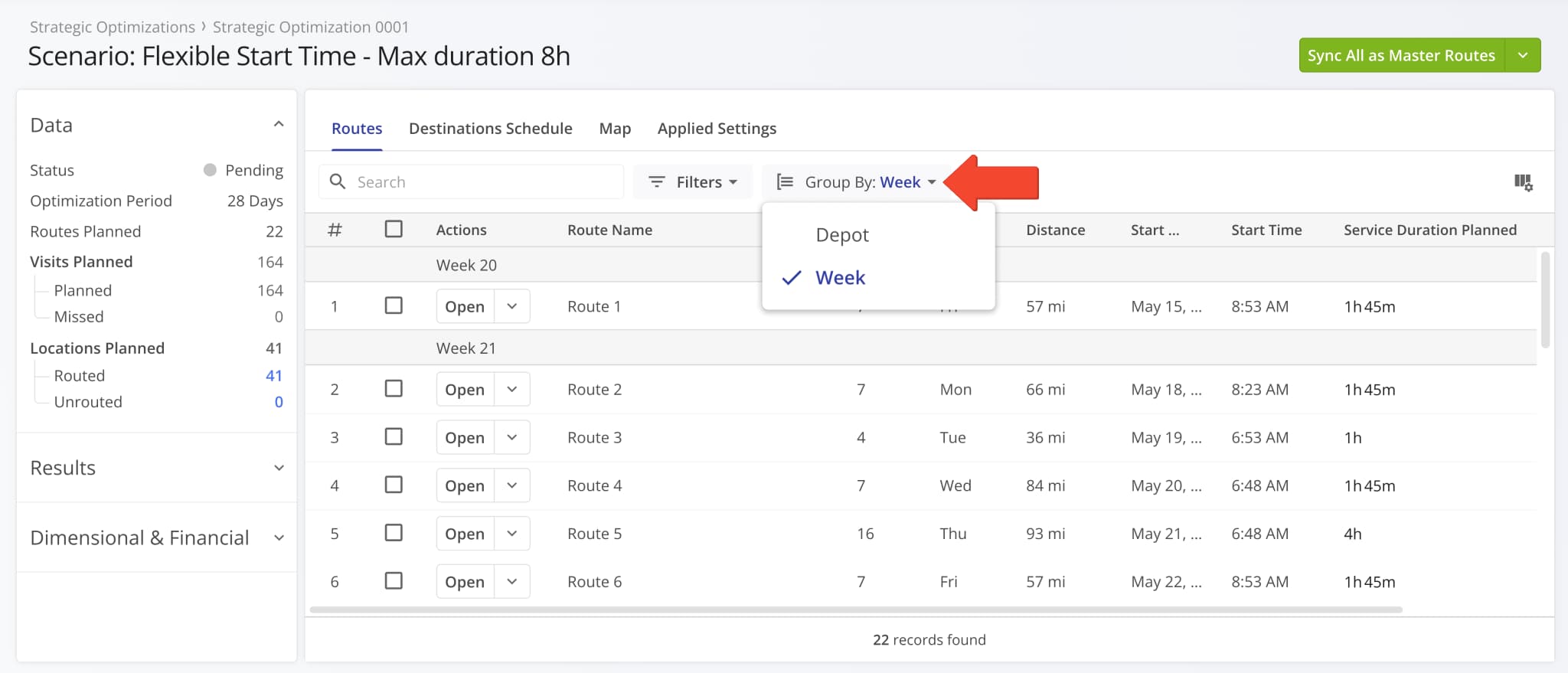
A new “Group by” field was added to the “Routes” section of Strategic Optimization Scenarios. You can use it to group strategic routes by their associated depot (route start location) or the calendar week they’re scheduled for.
Open Your Strategic Optimizations
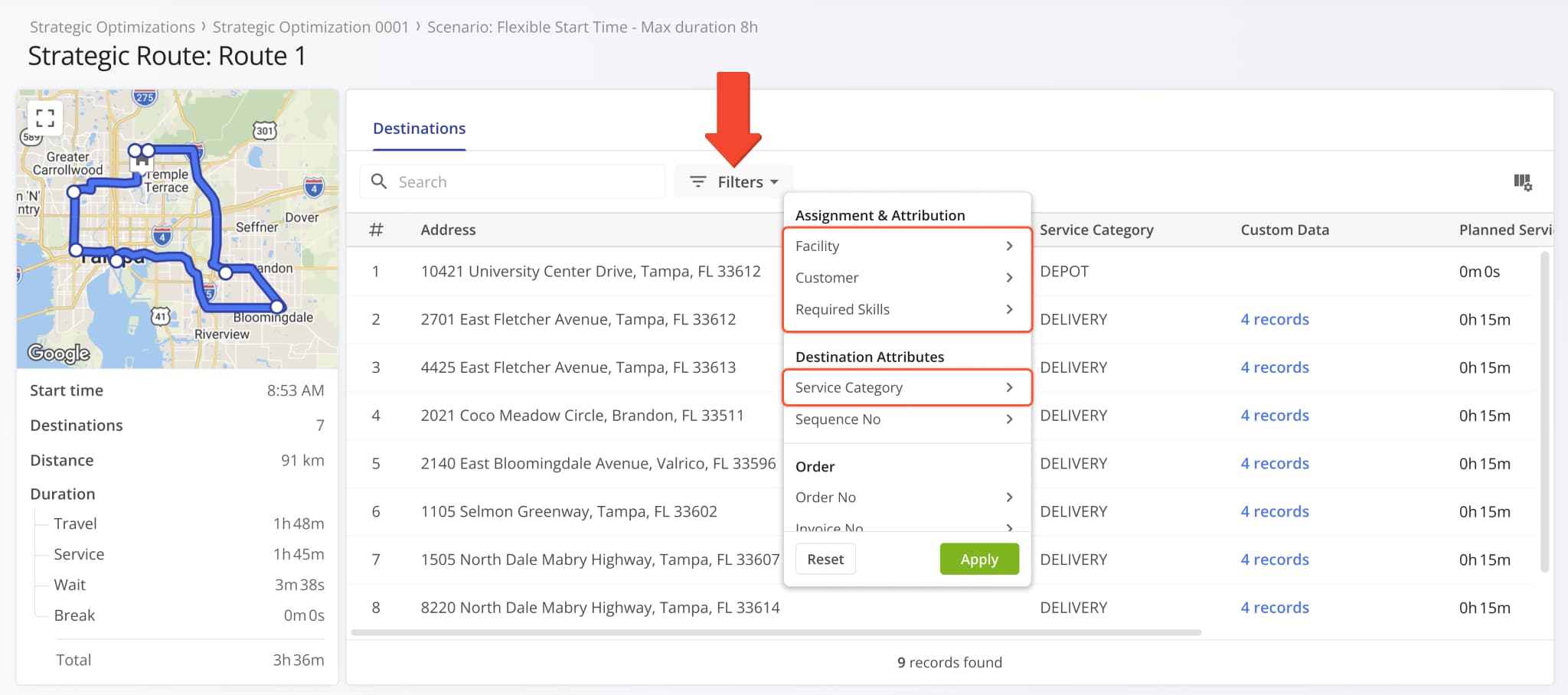
The filter options available in Strategic Route Snapshots have been expanded with the following new options:
- Facility: Filter destinations by their associated Facility.
- Customer: Filter destinations by their associated Customer.
- Required Skills: Filter destinations by their Required Skills.
- Service Category: Filter destinations by their respective Service Category.
Open Your Strategic Optimizations
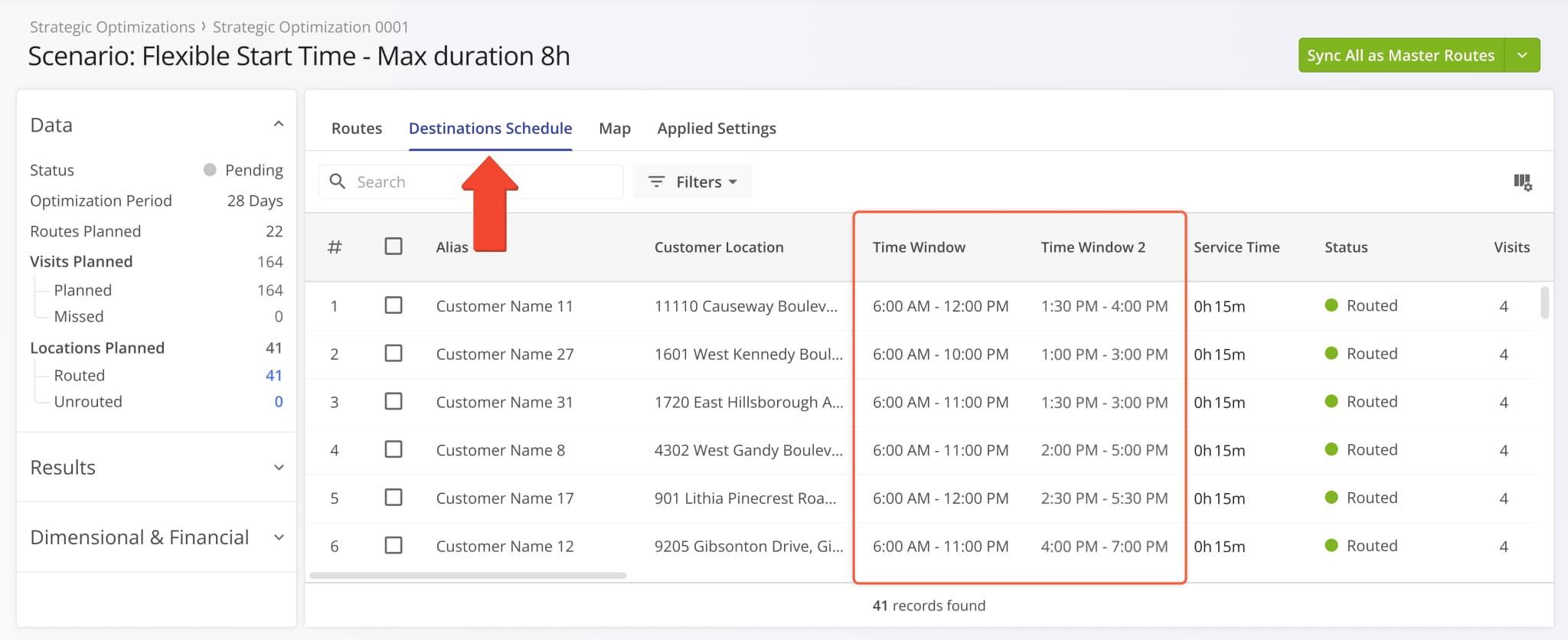
You can now see the Time Windows associated with Strategic Scenario Destinations in the “Destination Schedule” section. Two new data columns were added, “Time Window” and “Time Window 2“.
Open Your Strategic Optimizations
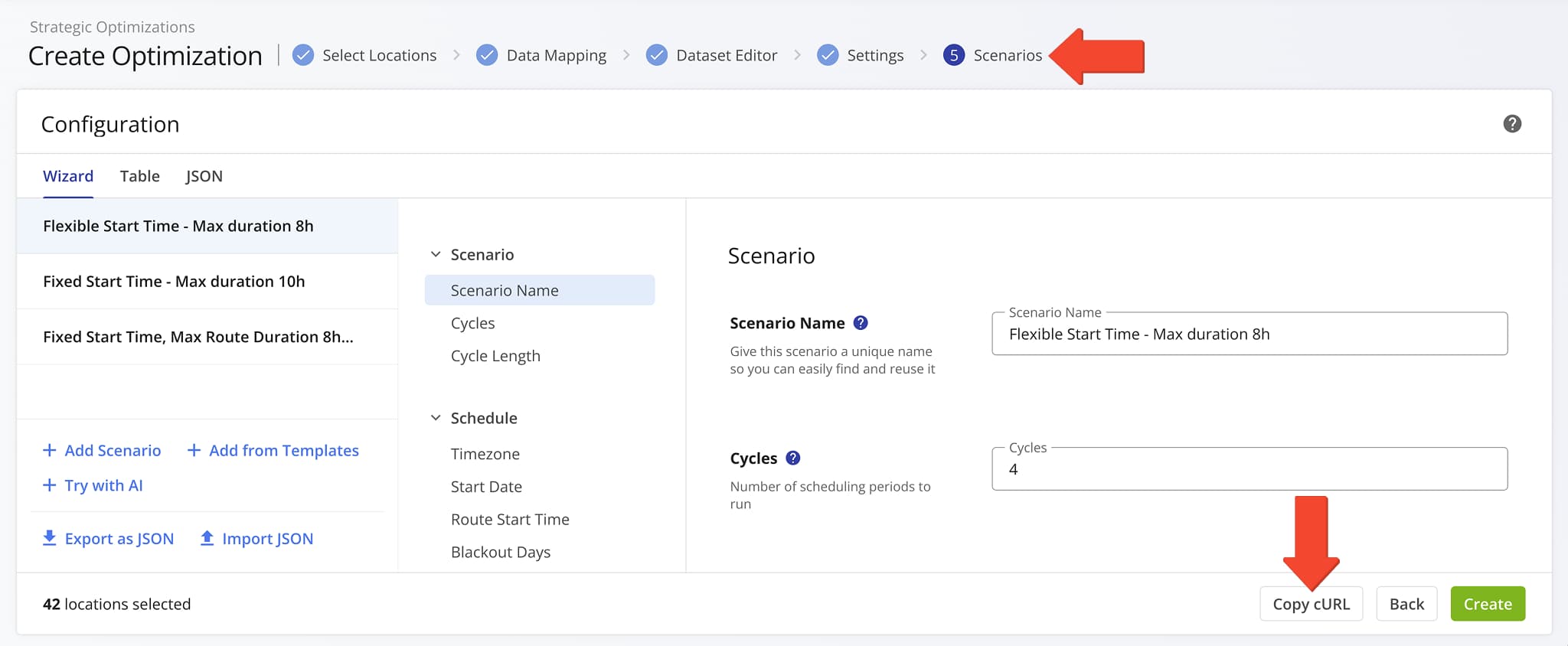
A new “Copy cURL” button was added to the Strategic Planner. It enables you to copy a pre-formatted, executable request string with your strategic optimization setup, including all schedules, scenario settings, and address data.
Once you’ve configured your scenario settings, simply click the “Copy cURL” button.
Open Your Strategic Optimizations
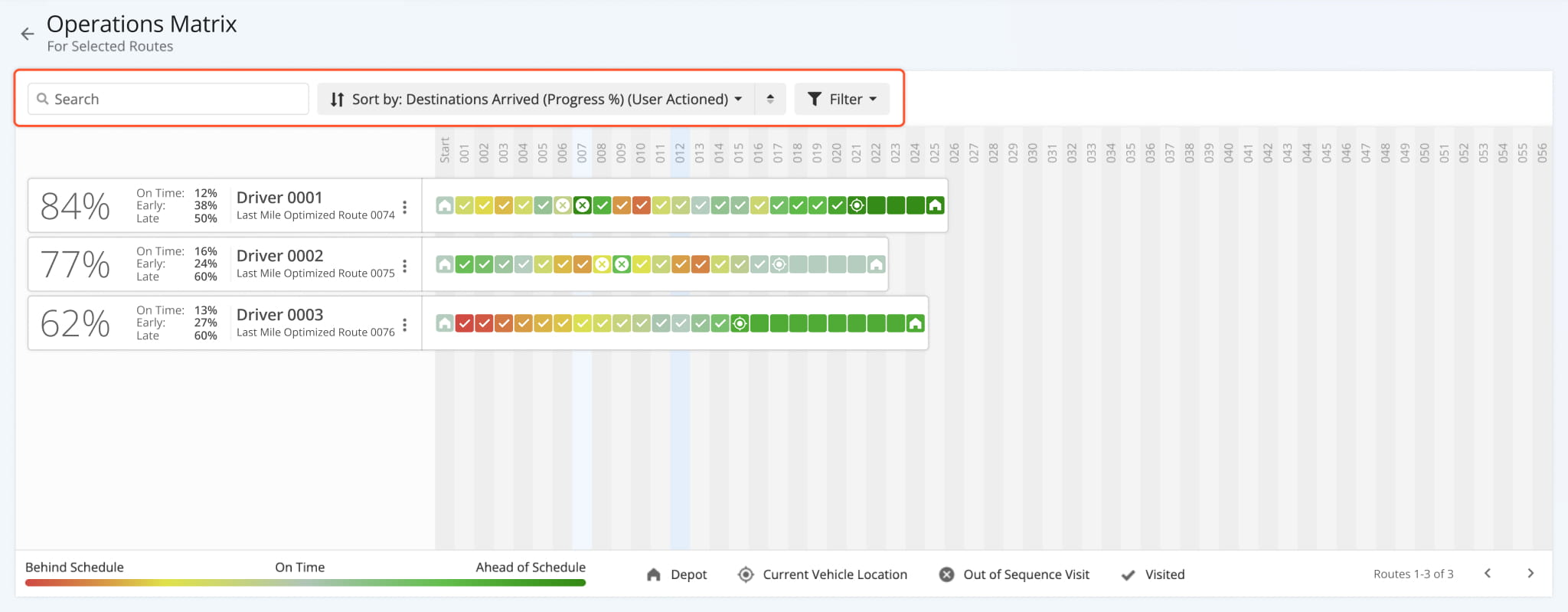
The Operations Matrix was updated with a new top bar. It adds a search field to quickly find routes, sorting options to organize routes according to your needs, and a filter field to help you refine which routes are displayed.
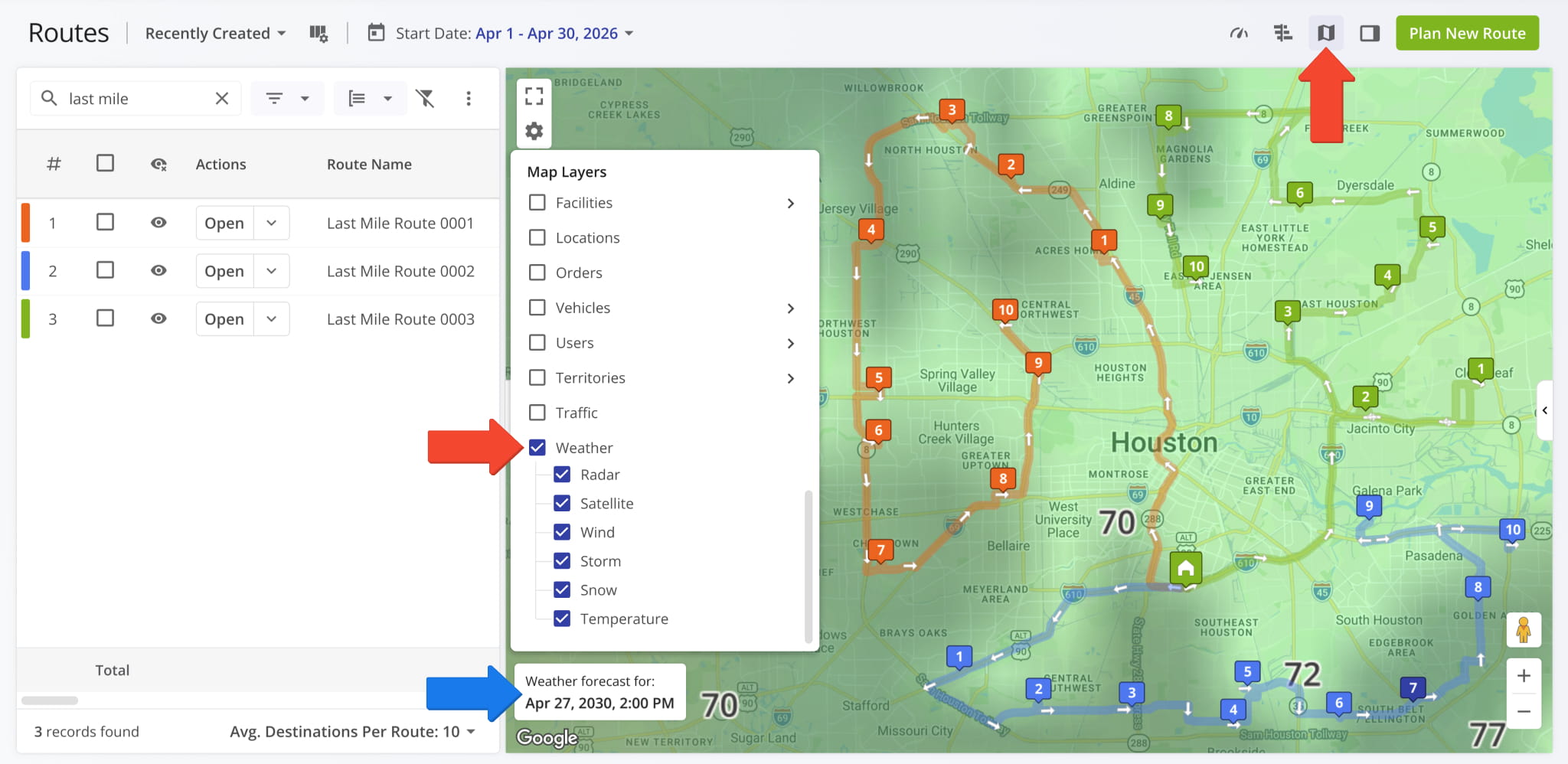
A new Weather Map Layers section was added to the Routes Map. You can enable overlays for rain levels, cloud cover, wind speed heatmaps, storm locations and intensity, snowfall and accumulation, and temperature values. When routes are enabled on the map, only weather data for their scheduled date will be shown.
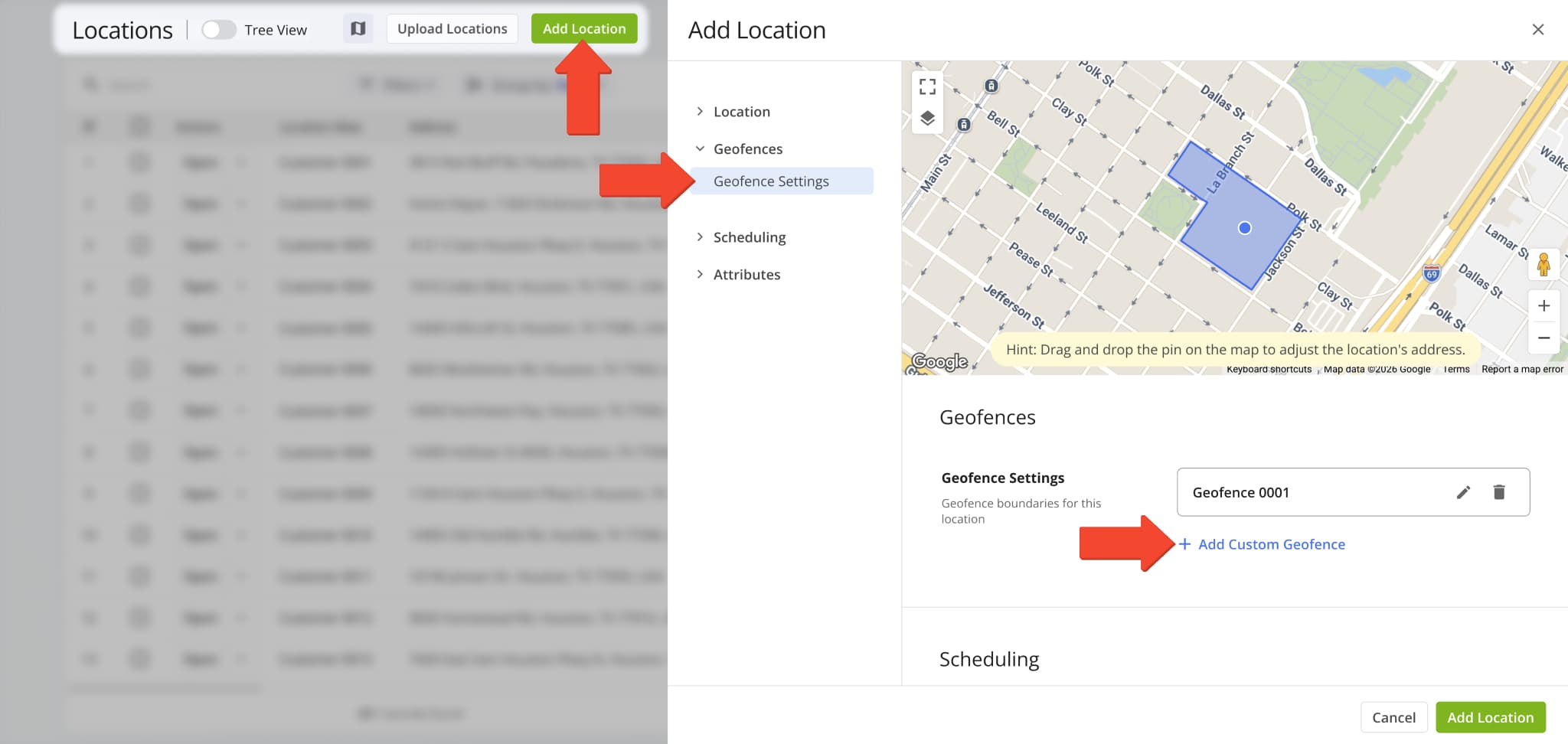
Route4Me’s existing Geozones functionality is now available as Custom Geofences. When you add Locations, go to the “Geofence Settings” section and click “Add Custom Geofence” to specify a custom geofence area for the Location.
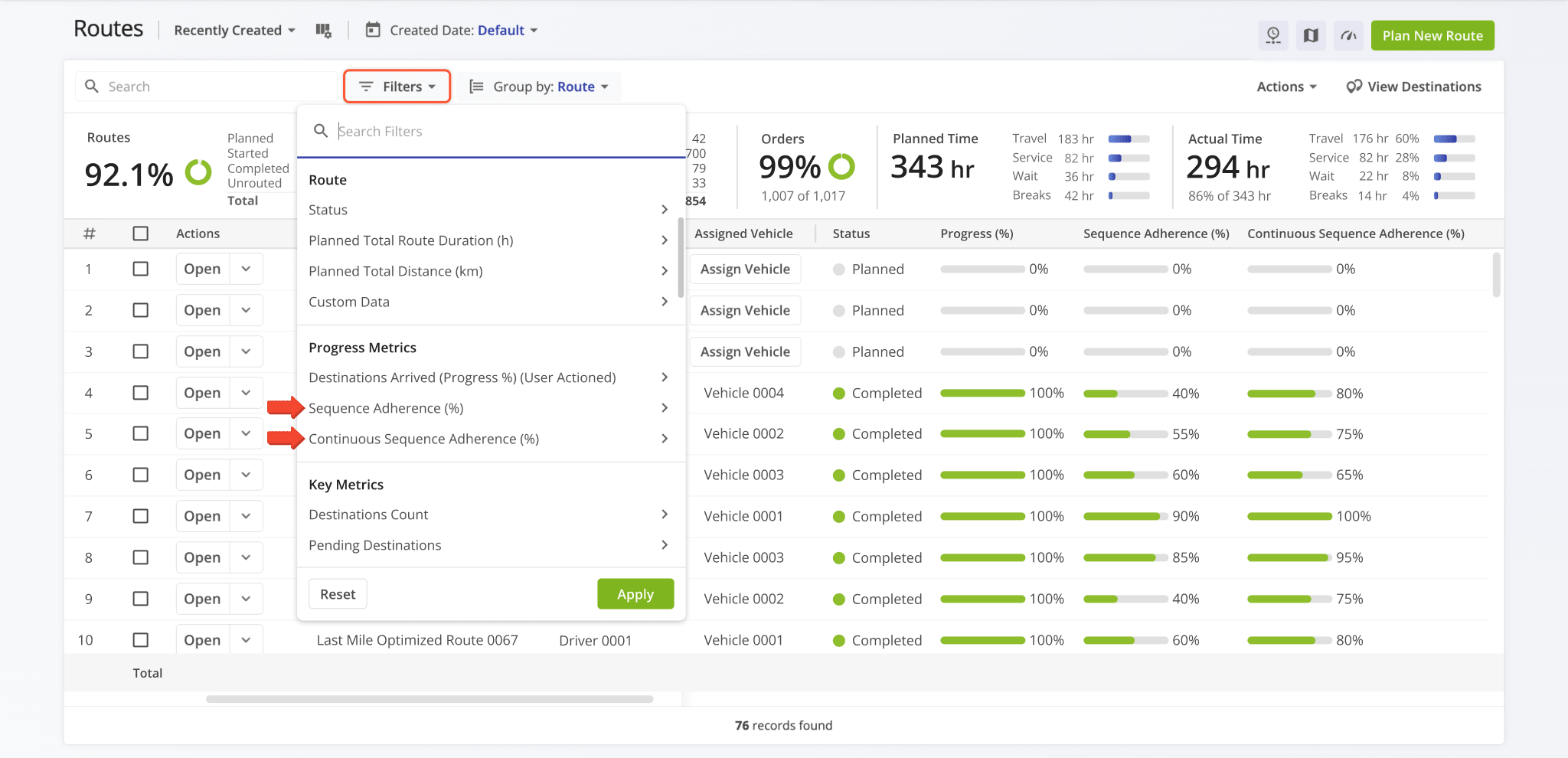
The Routes Page now supports “Sequence Adherence (%)” and “Continuous Sequence Adherence (%)” values when filtering routes. Learn more about Route Sequence Adherence and Routes Page Filters.
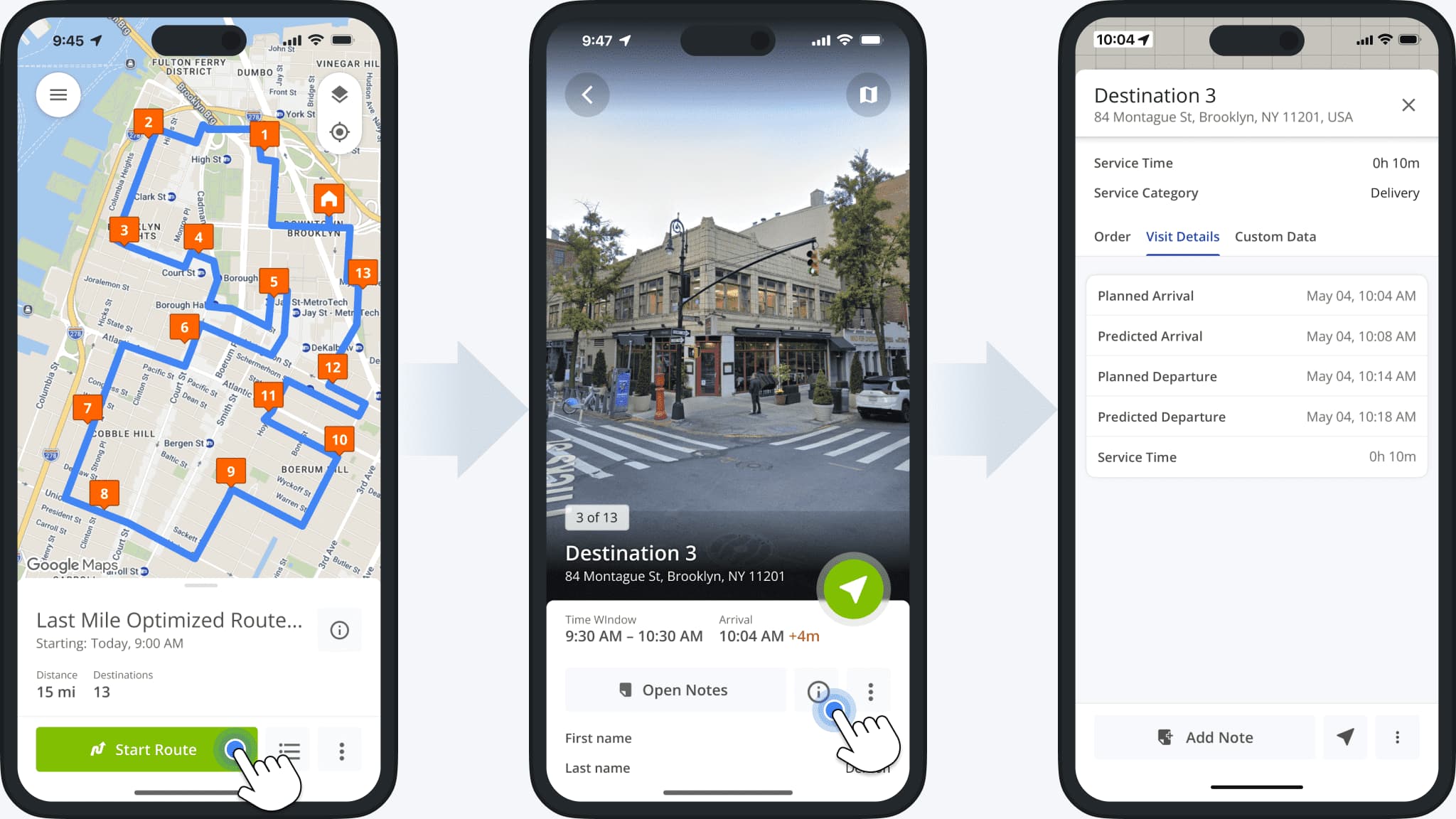
Route4Me’s iPhone route app was updated to show the new Destination Info screen as part of the Immersive View Mode update. Learn more about using the Route4Me Mobile App to manage routes and destinations.
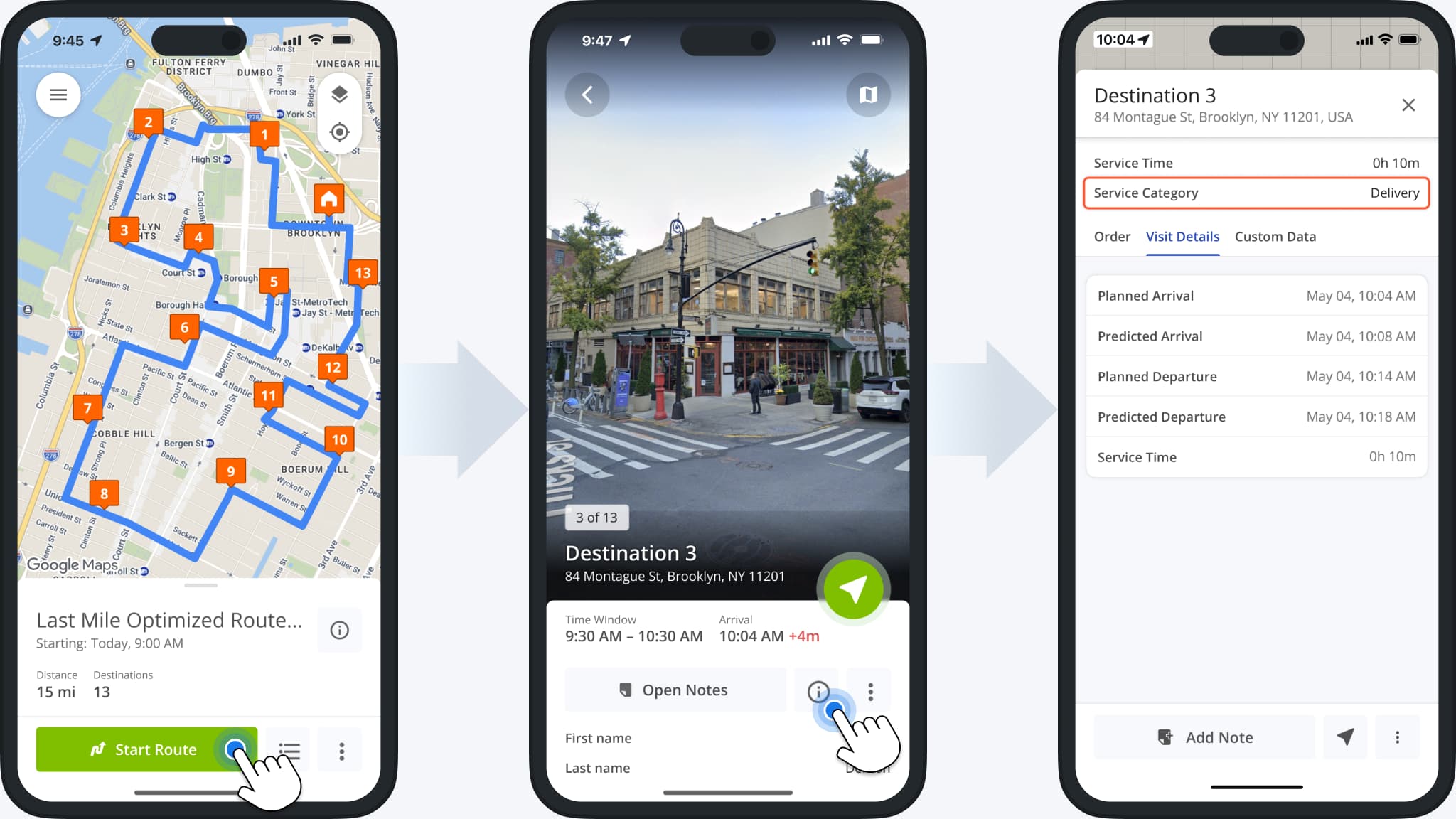
As part of the ongoing terminology standardization across Route4Me, the following fields have been renamed to “Service Category” on Route4Me’s mobile app for Android and iOS:
- Service Type
- Destination Type
- Order Type
Learn more about Route4Me Service Category Management.
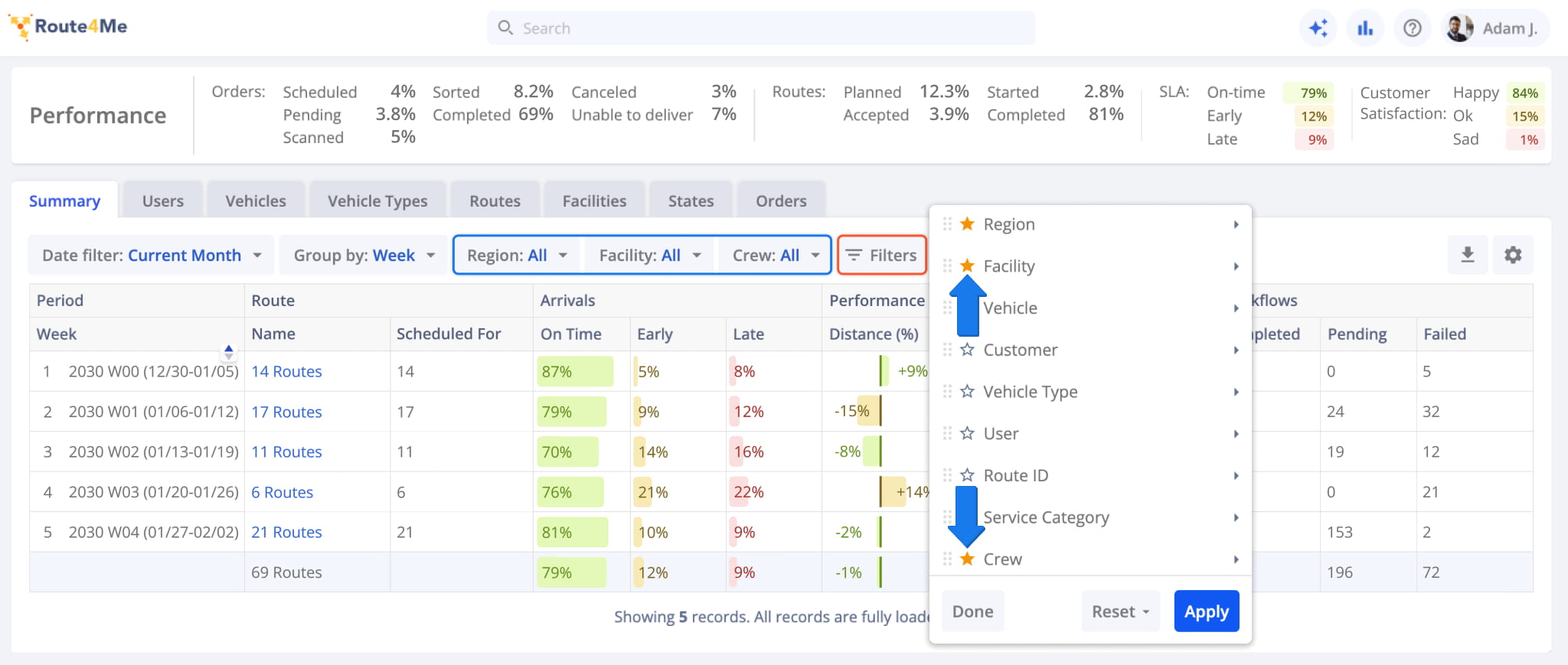
You can now mark Business Insights Filters as favorites by clicking the new Star Icon in the “Filters” menu. Any filters you’ve marked will show up in the toolbar for easy access.
April 2026
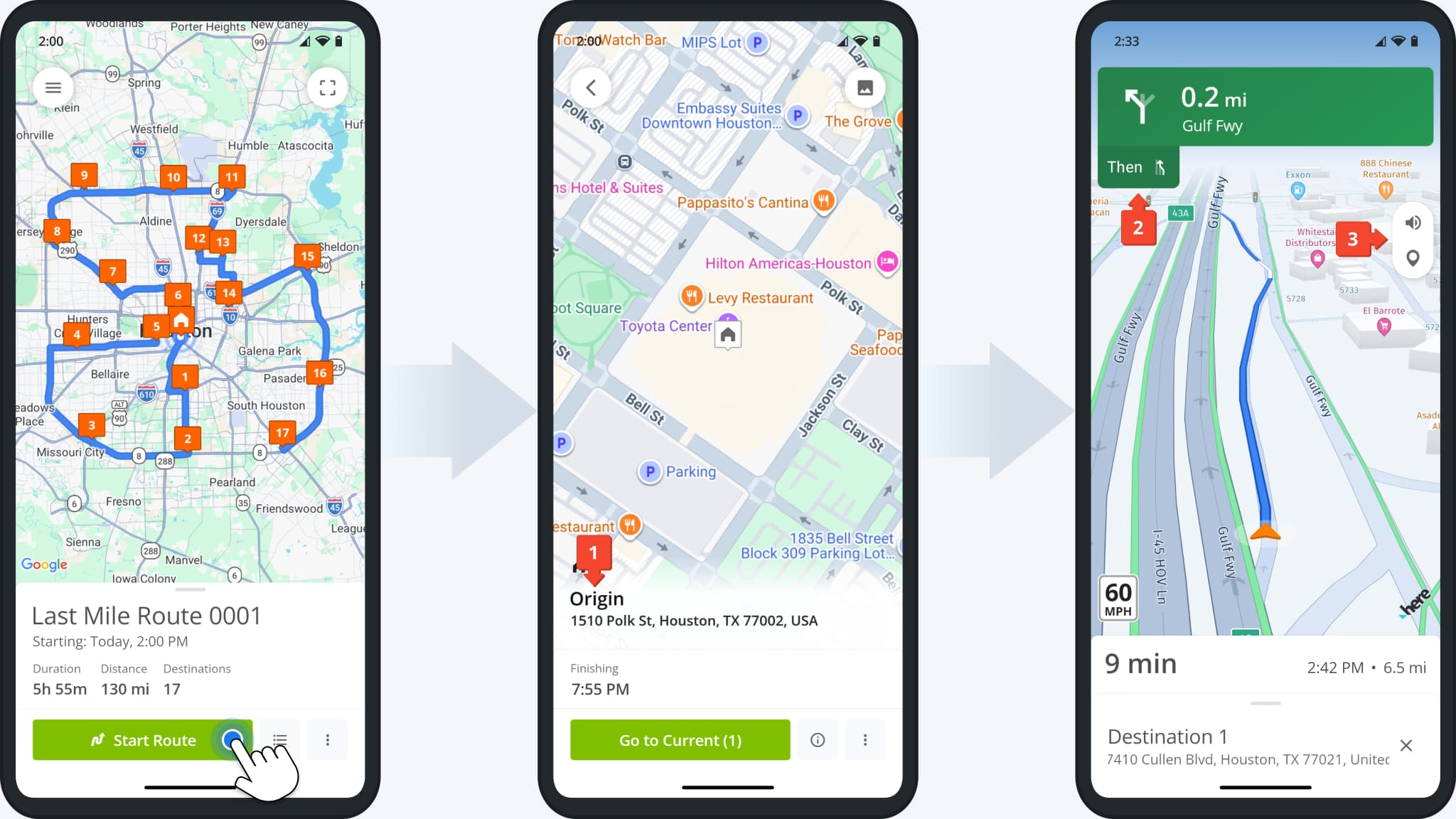
29The Mobile App GPS Navigation interface received the following improvements:
- Route start locations were renamed from “Depot” to “Origin“.
- More navigation symbols for turns, intersections, lanes, etc. were added, and existing symbols improved.
- The navigation screen buttons were grouped and moved closer to the top of the screen.
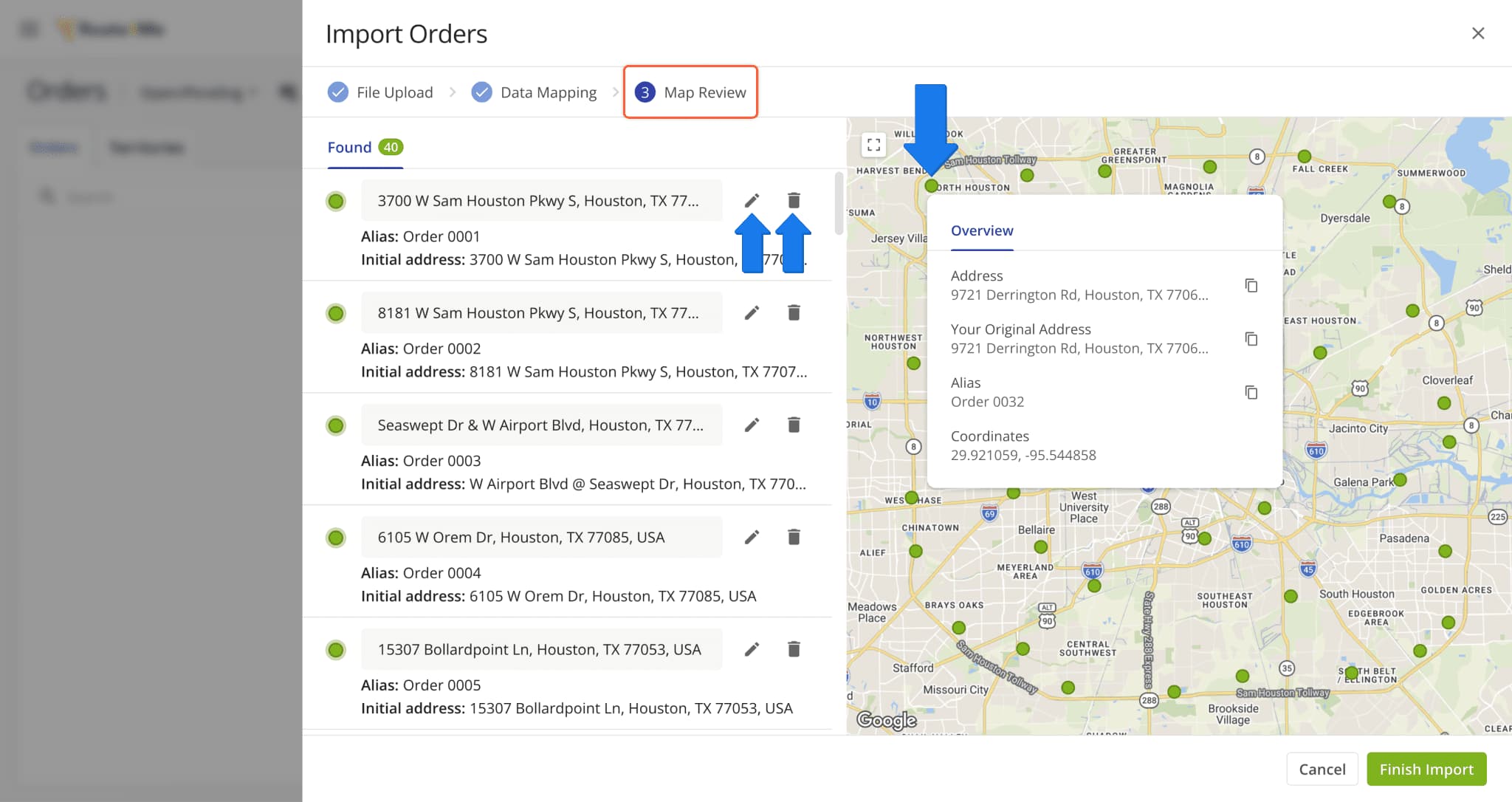
A new “Map Review” step was added when you import orders. You’ll see all your uploaded orders on the map and you can hover over orders to see an overview of their details. On this screen, you can also edit addresses by clicking the Pencil Icon or remove orders from the import batch with the Delete Icon.
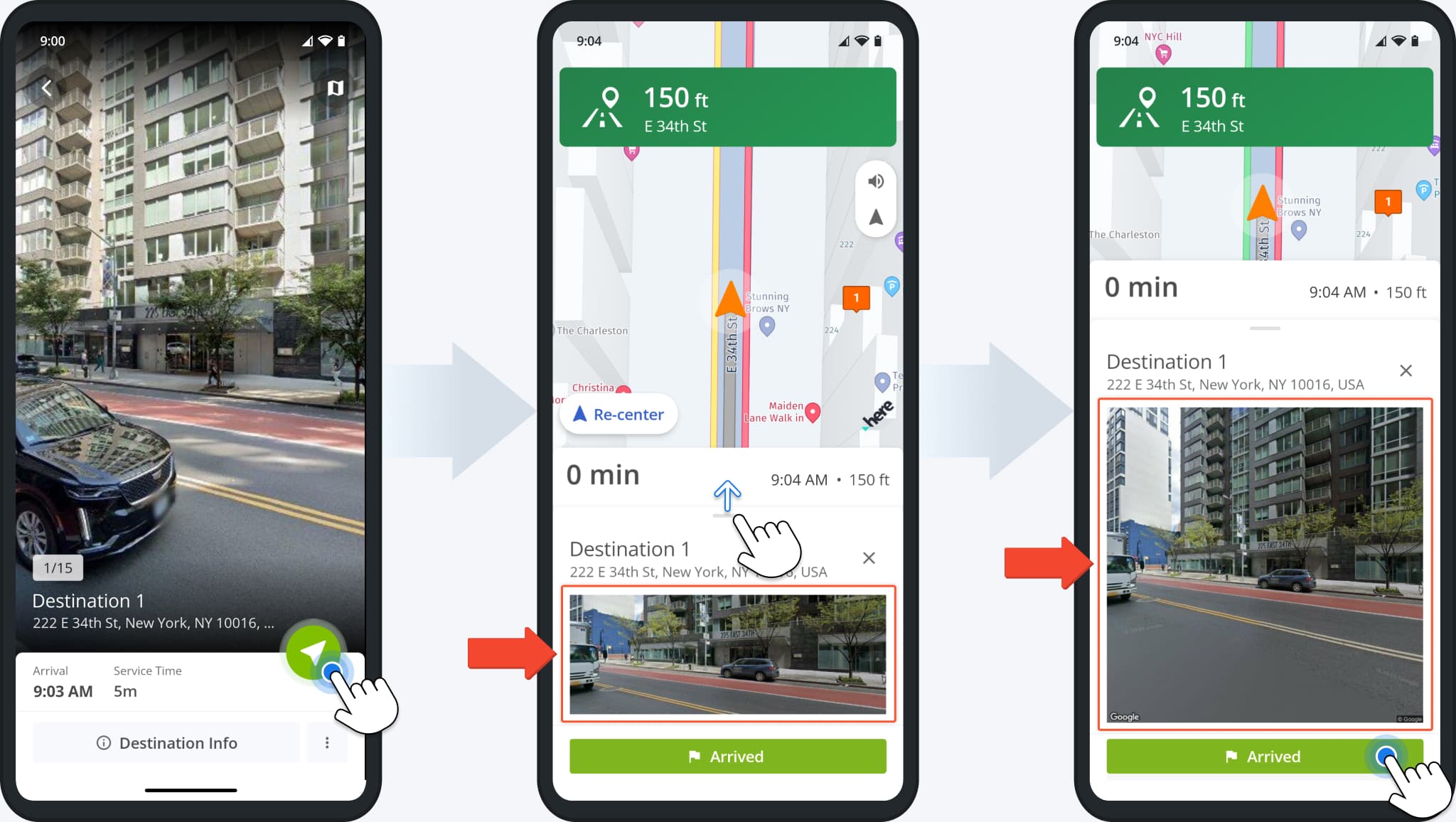
Route4Me’s In-App Voice-Guided GPS Navigation interface was updated to automatically show a Google Street preview when arriving at destinations. Additionally, you can now swipe up to expand the preview and get better context at destinations. Previously, you could only see the regular preview by swiping up during navigation.
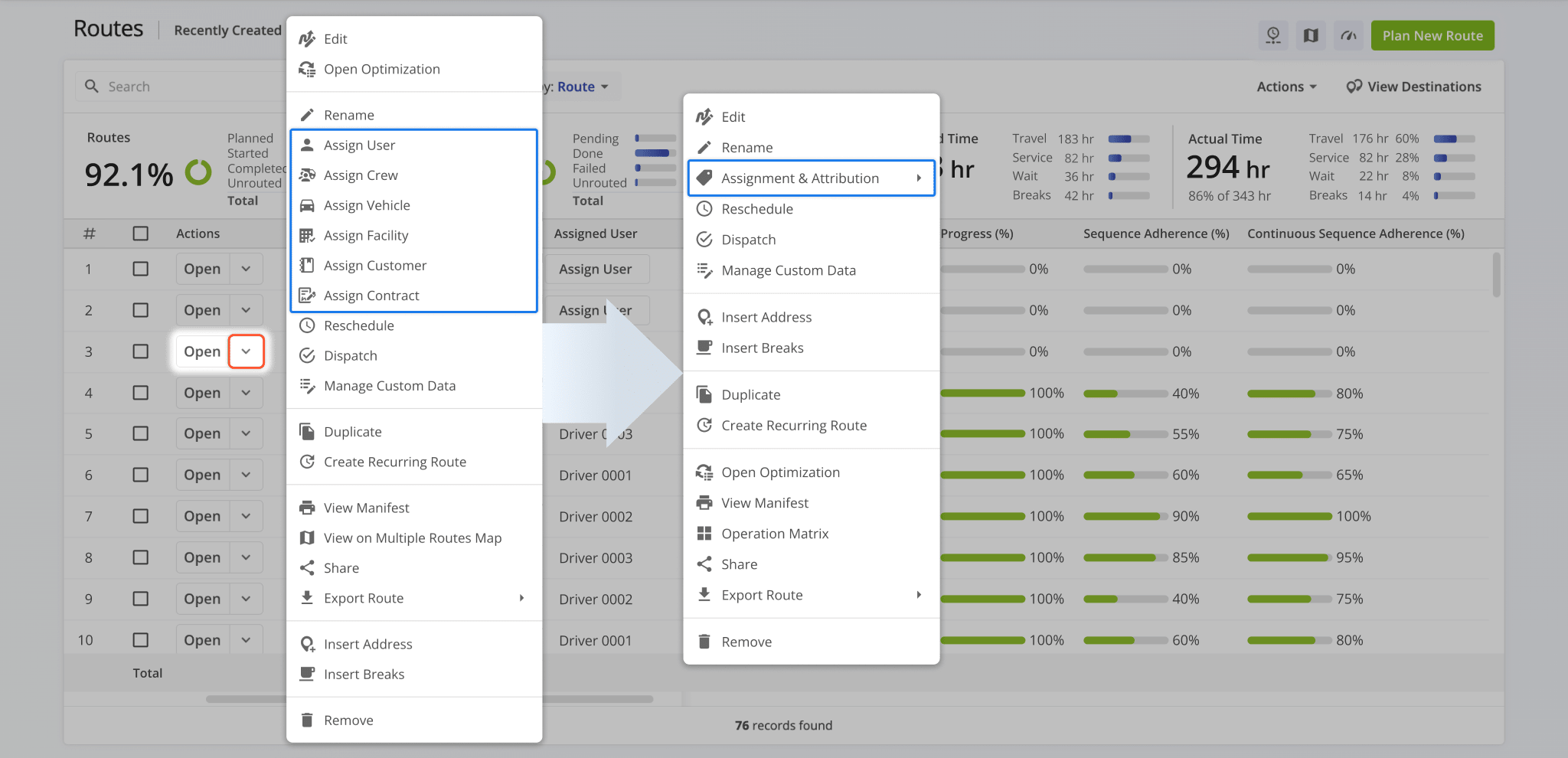
As part of the ongoing deprecation of the Routes Map (Original), the “View on Multiple Routes Map” option was removed from the route management actions available on the Routes Page.
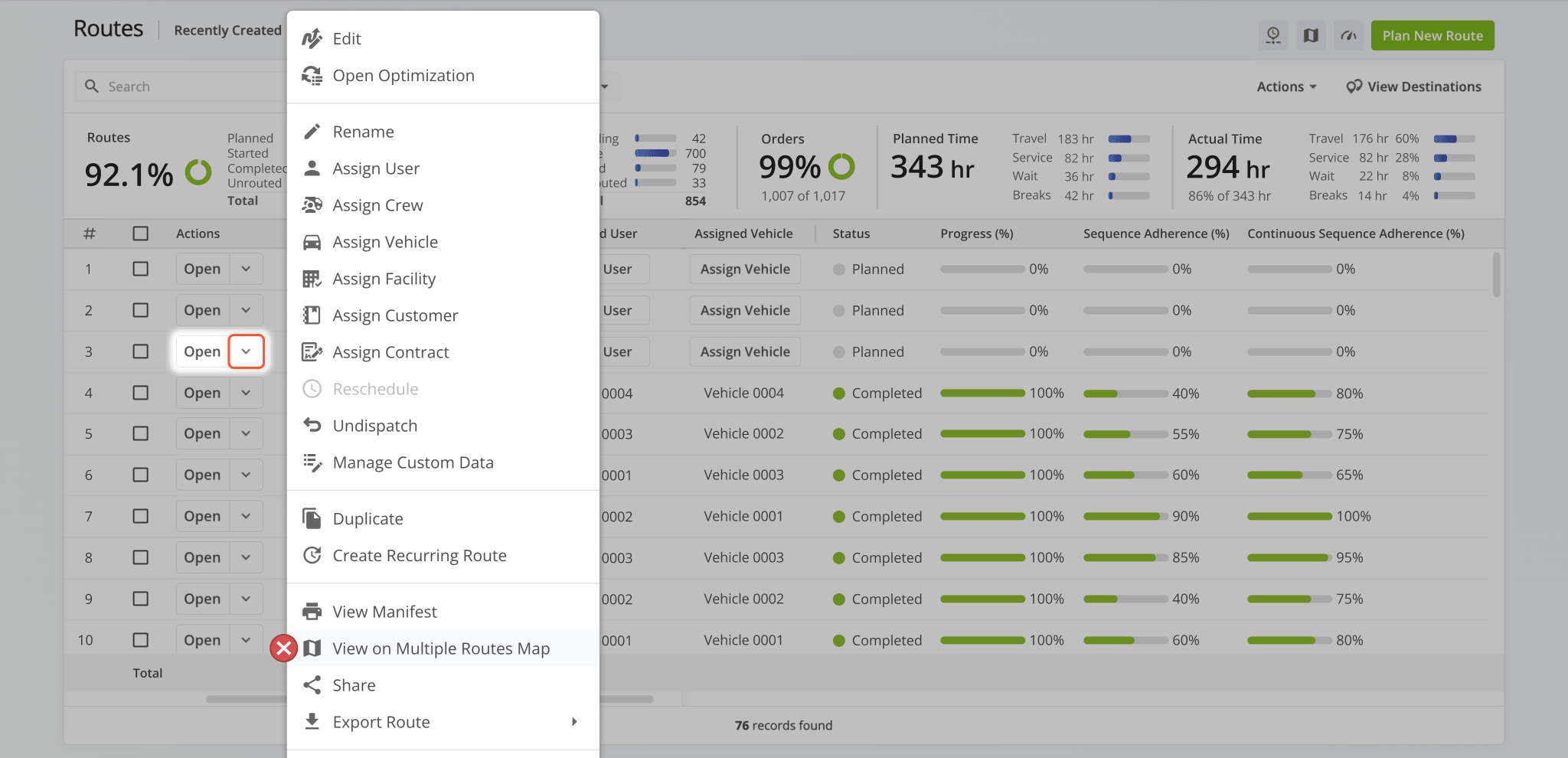
The menu was also reorganized to group actions more logically and condense assignment and attribution items into a new submenu. These changes make the menu easier to use regardless of screen size or resolution.
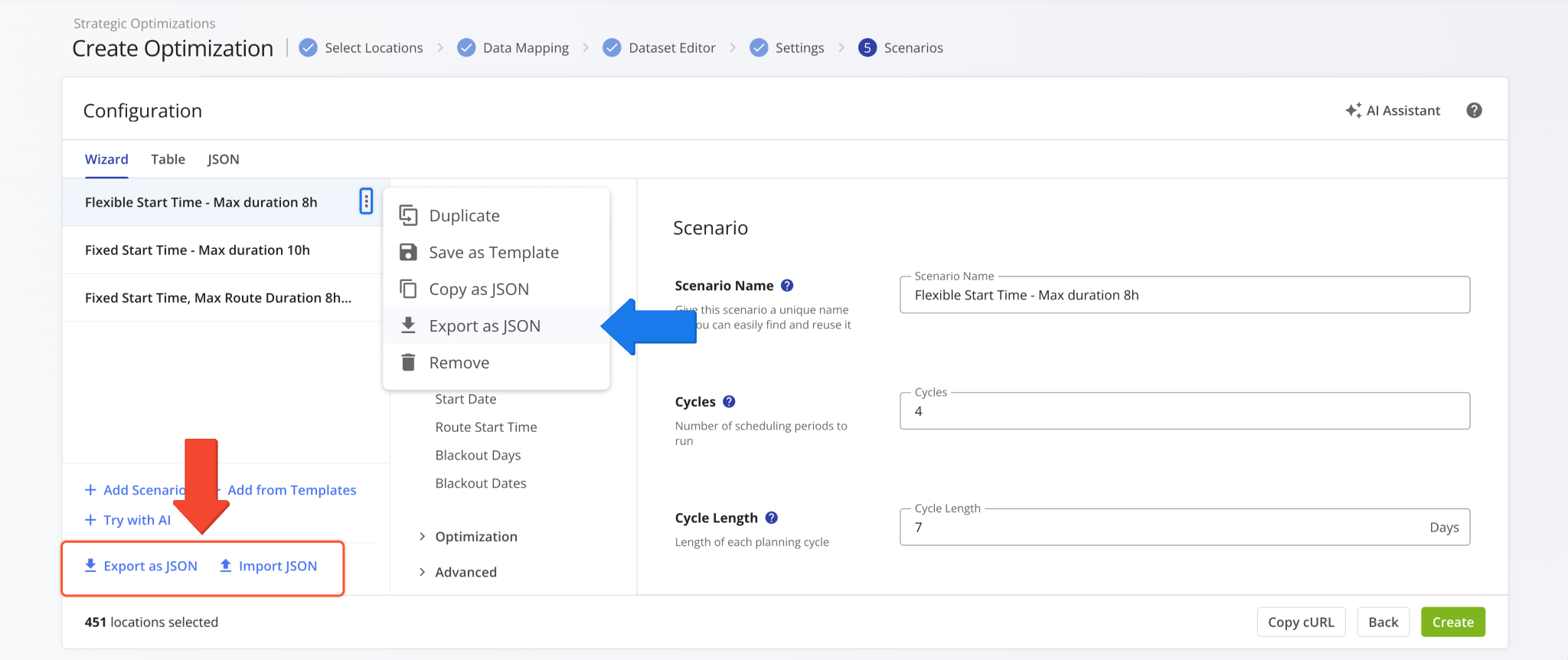
You can now export and import Strategic Scenario Templates as JSON files when Creating Strategic Optimizations using the new buttons at the bottom of the scenario configuration interface.
You can also export individual templates by clicking the Three-dot Icon and selecting “Export as JSON“.
Open Your Strategic Optimizations
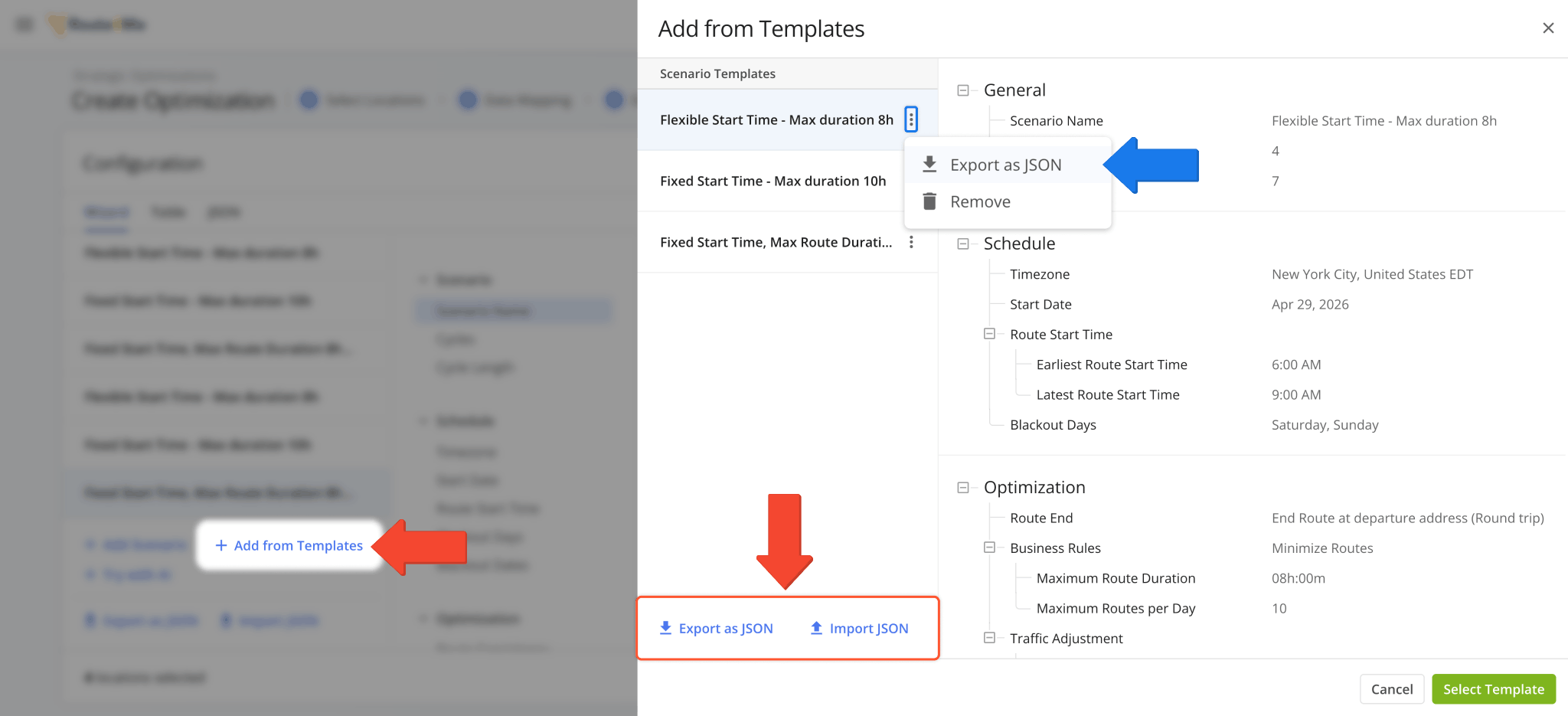
Alongside importing all templates from an exported JSON file, you can click “Add from Templates” and select which scenario templates to keep and remove. From here, you can export a new JSON file or import additional JSON templates. Individual scenarios can be exported by clicking the Three-dot Icon and selecting Export as JSON.
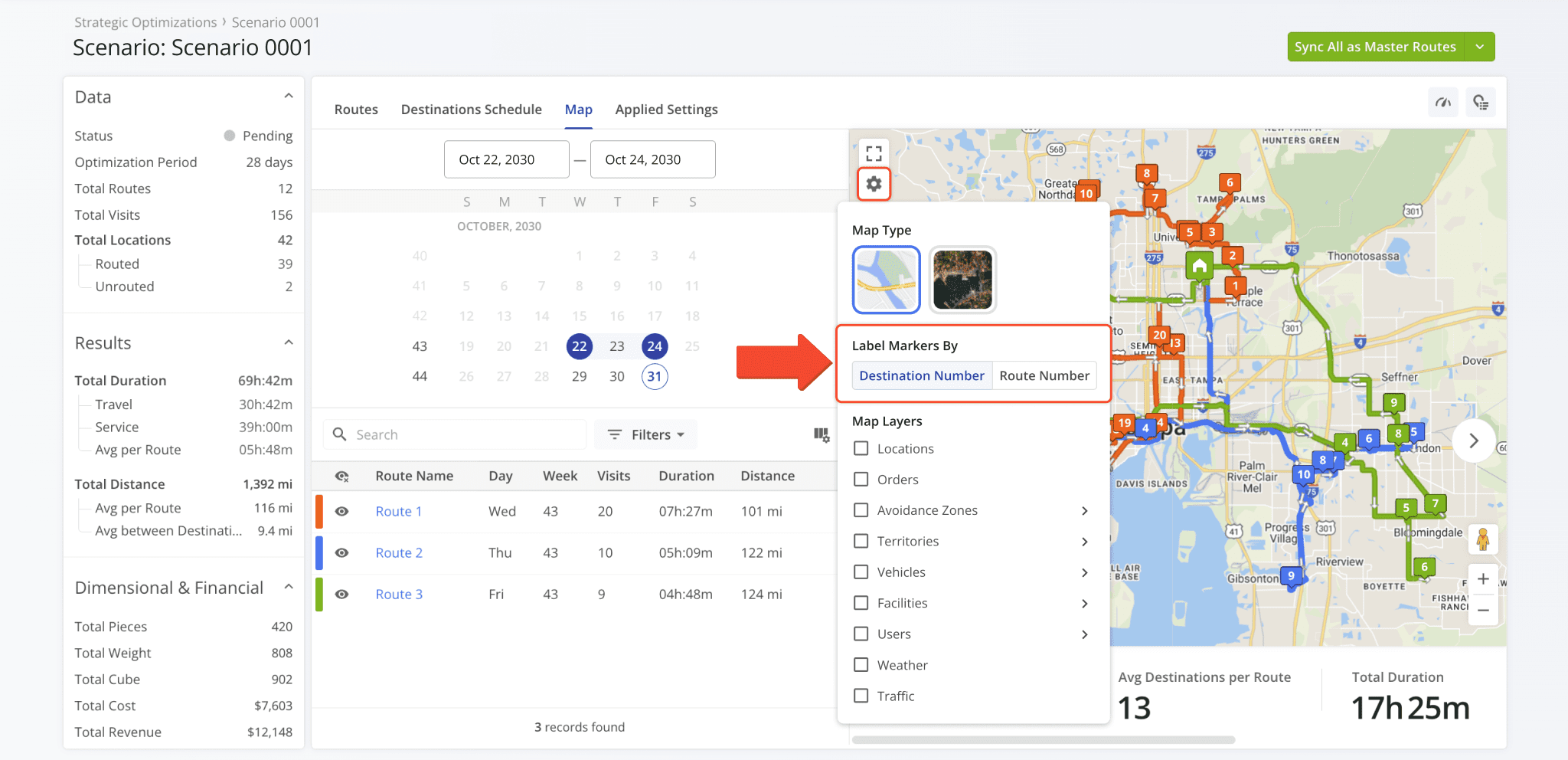
A new map settings option was added to Strategic Optimization Scenarios. You can now select the map marker type for scenario route destinations with the following options:
- Destination Number: Stops are labeled according to their destination number in their respective routes.
- Route Number: Stops inherit the number of their route (stops on the same route show the same number).
Open Your Strategic Optimizations
A new snapshot feature was added for Crews. To open a Crew Snapshot, go to the Crews Page and click “Open“.
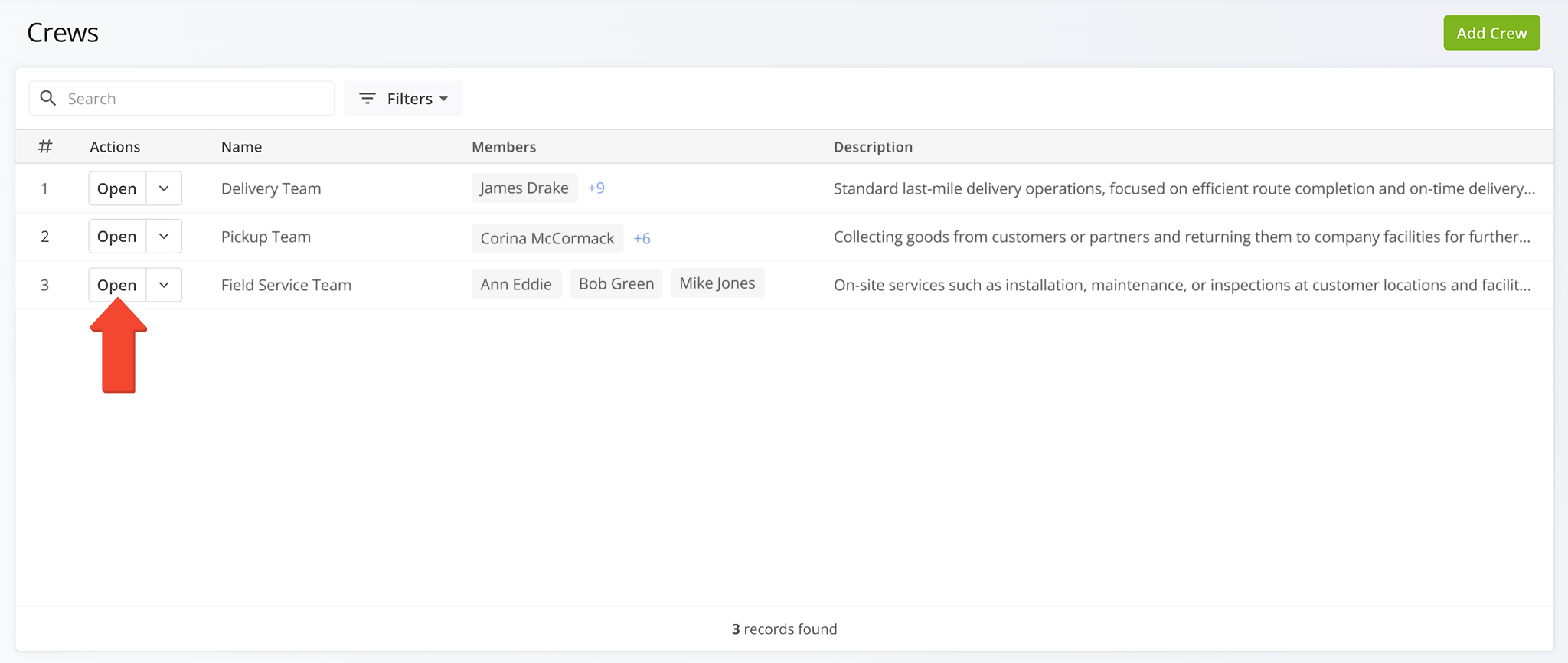
Crew Snapshots are a quick and easy way to see the routes and data associated with a Crew.
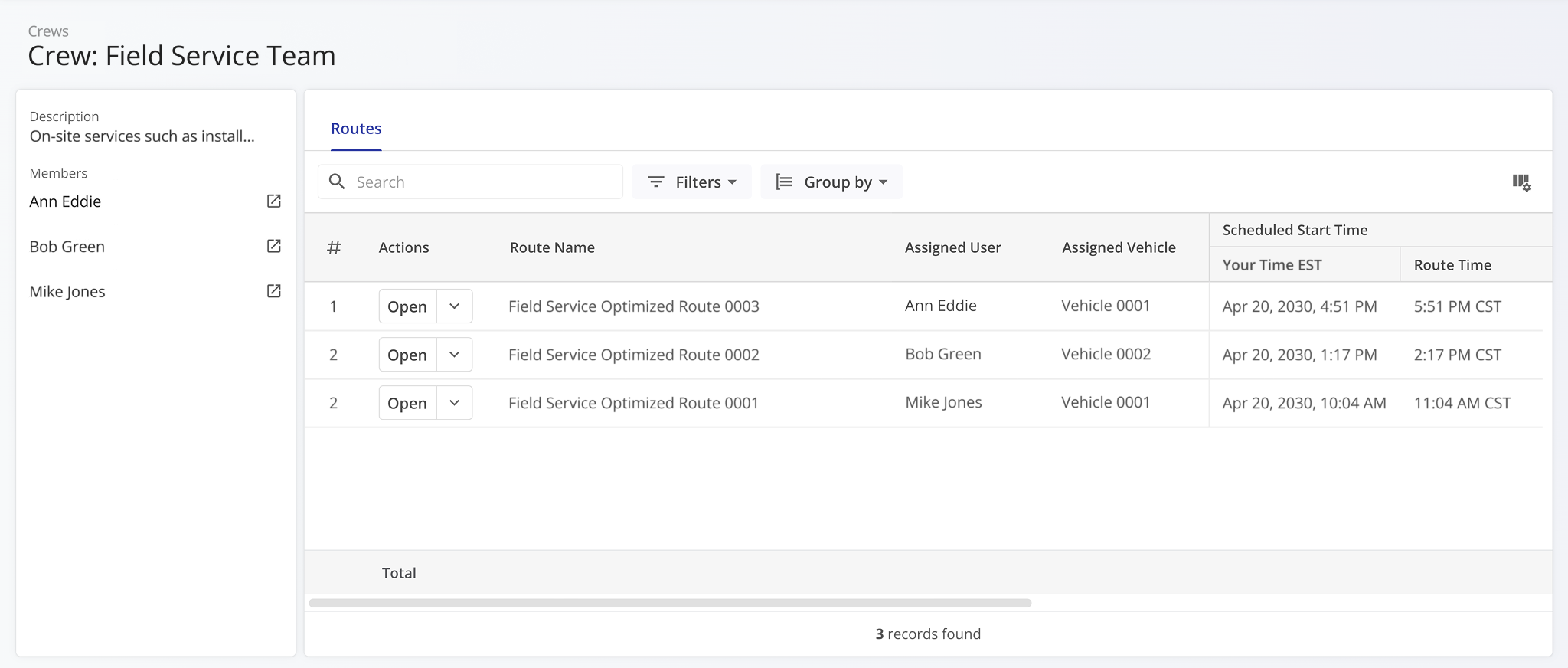
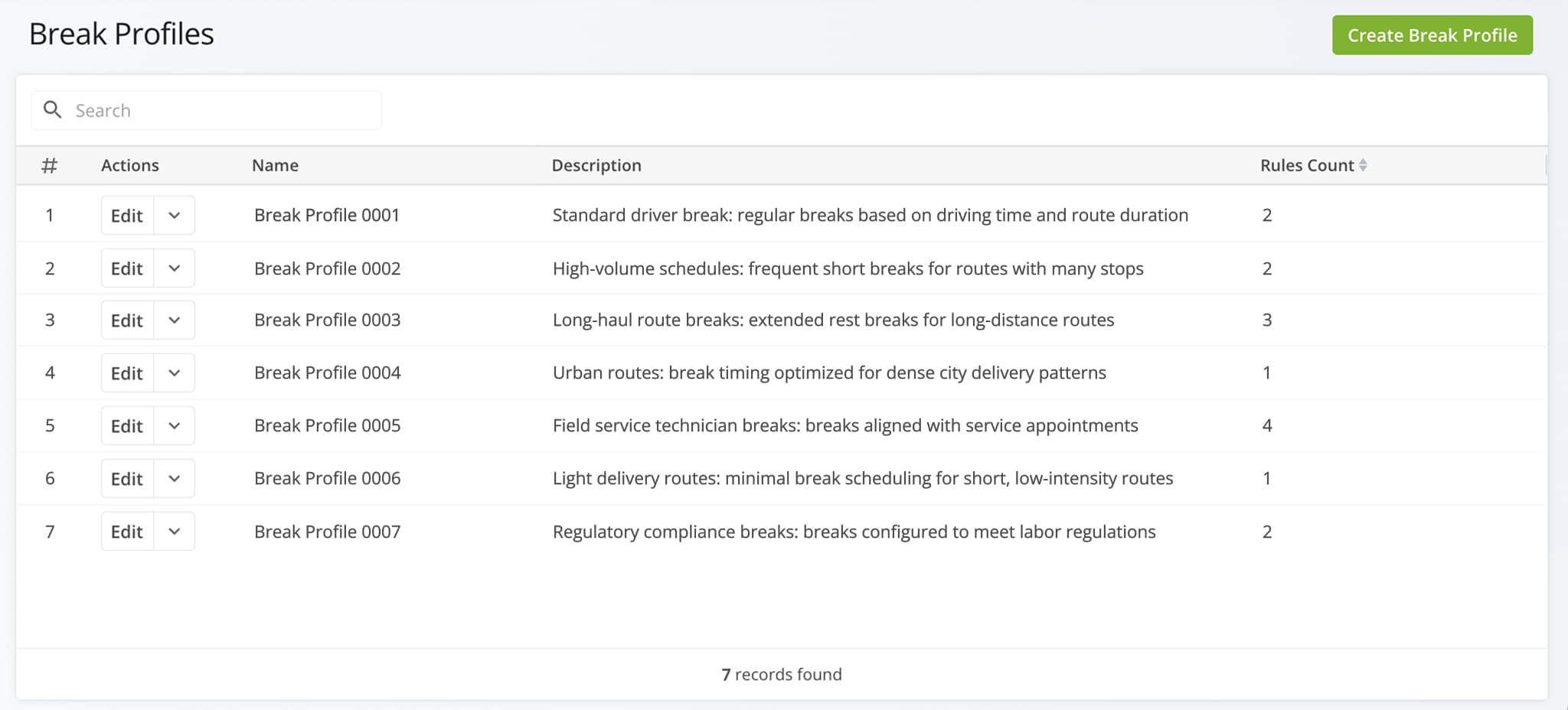
A new Break Profiles page was released. It enables you to create and manage reusable break schedules for route drivers and field service teams.
The Route Performance Insights panel on the Routes Page was moved above the search and filter toolbar. This change ensures consistent interface positions for the Routes List and its filtering and grouping controls.
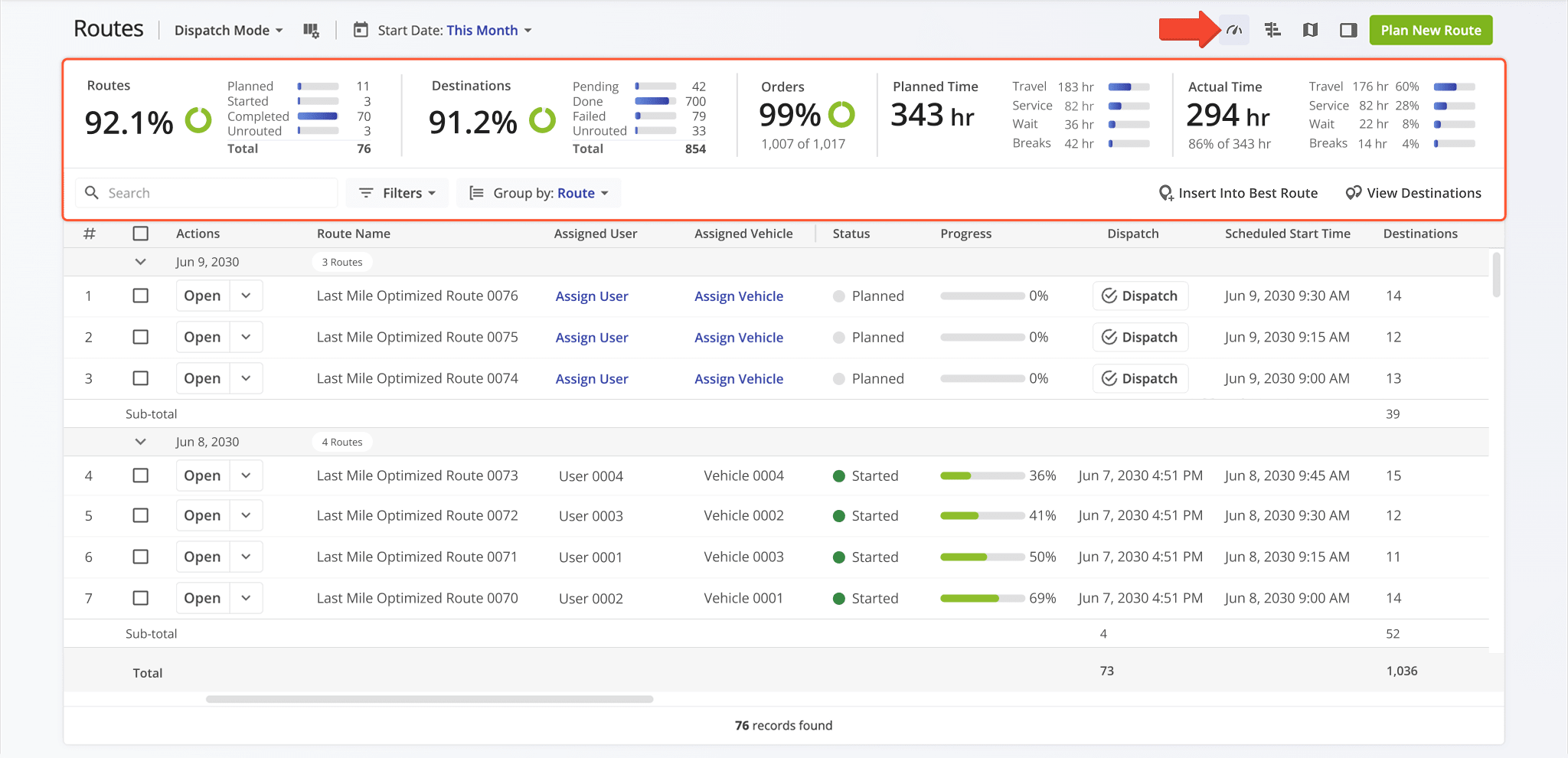
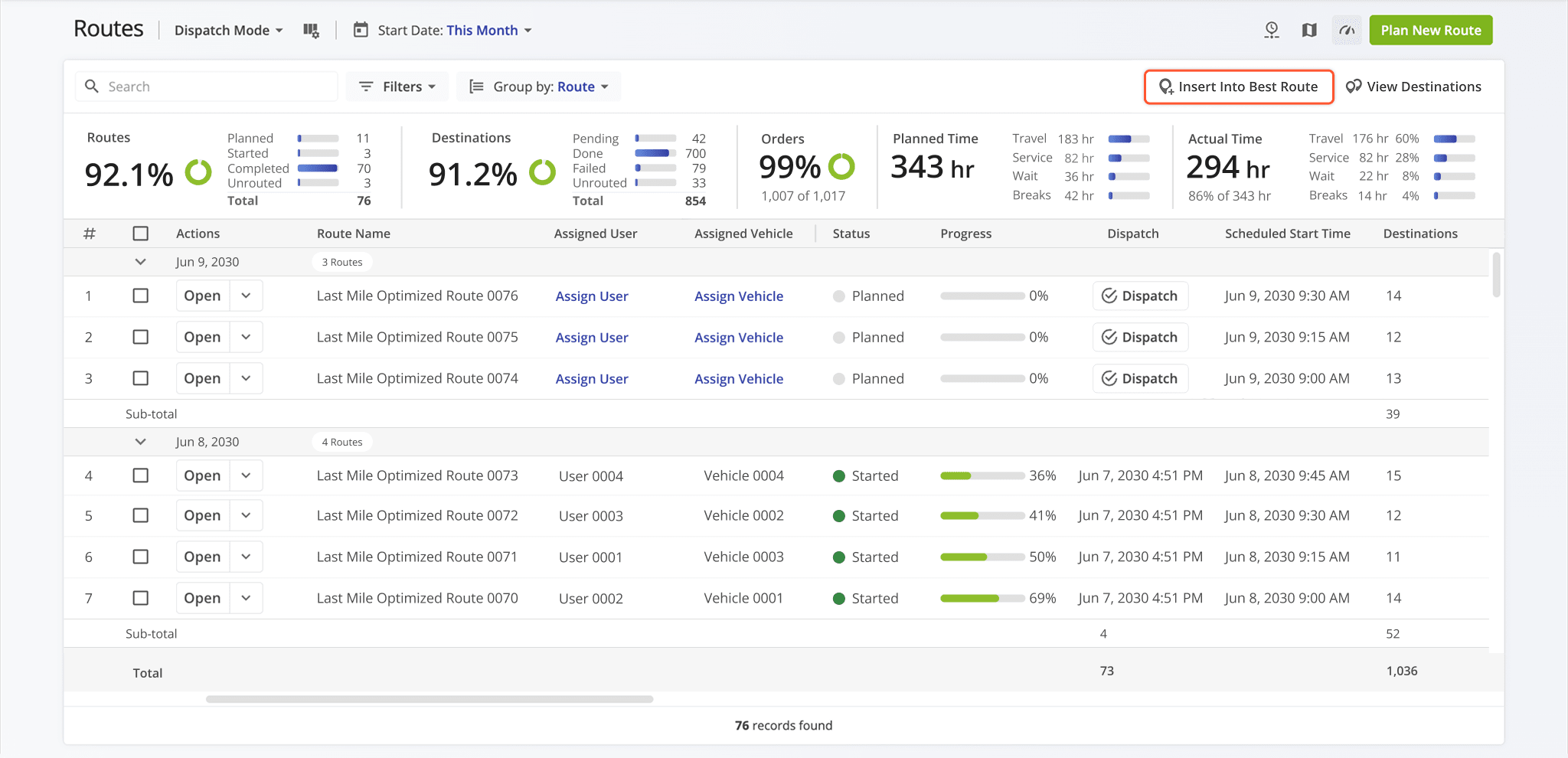
A new “Insert Into Best Route” button was added to the Routes Page. This enables you to easily start adding stops to routes without having to look through action menus.
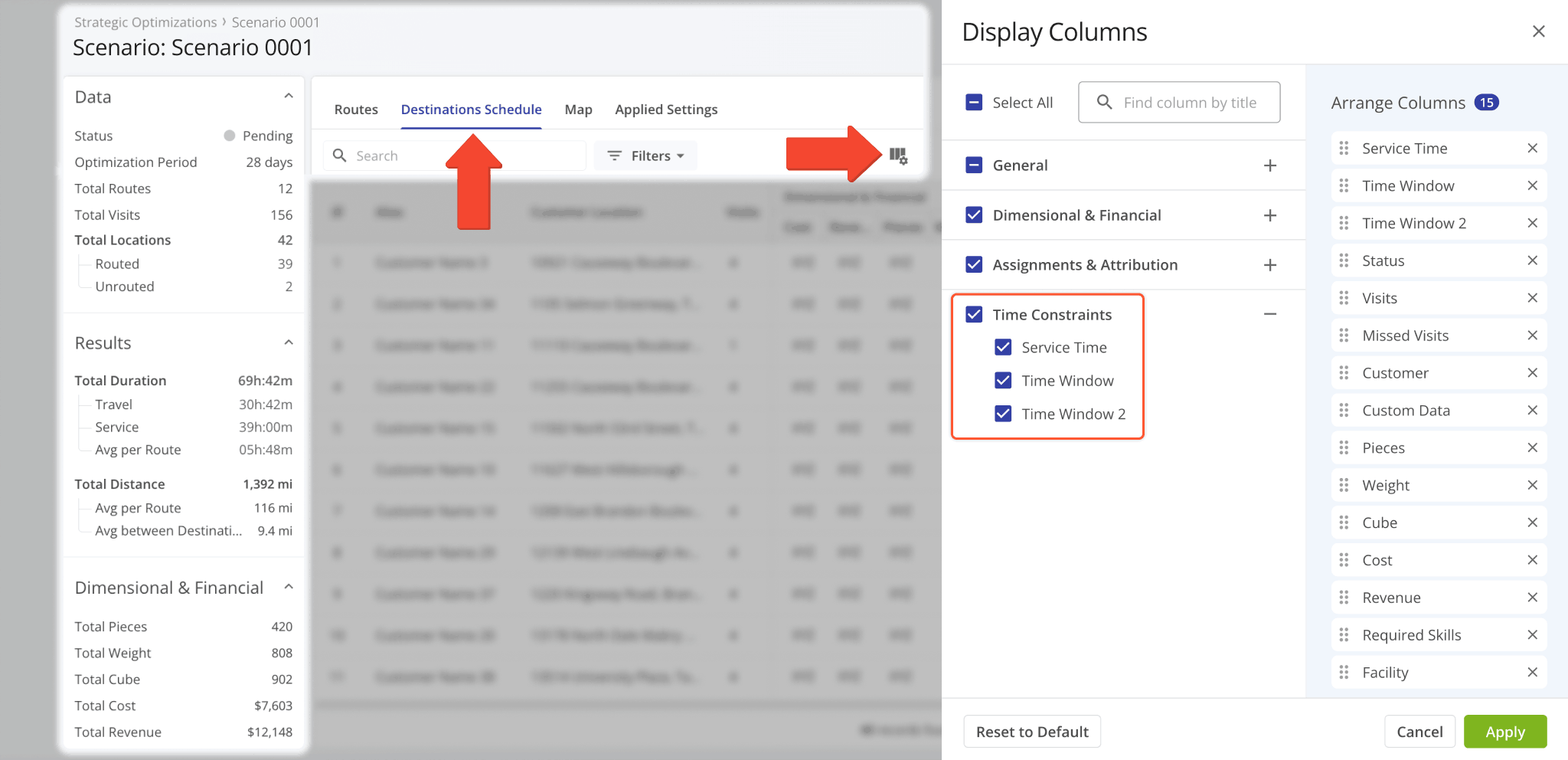
The “Destination Schedule” tab in Strategic Scenarios was updated with new “Time Constraints” columns for:
- Service Time: Planned service duration at a destination necessary to complete it
- Time Windows: Available hours for a destination during which it can be visited
Open a scenario, go to the “Destinations Schedule” tab, and click the Columns Icon to access the new display columns.
Open Your Strategic Optimizations
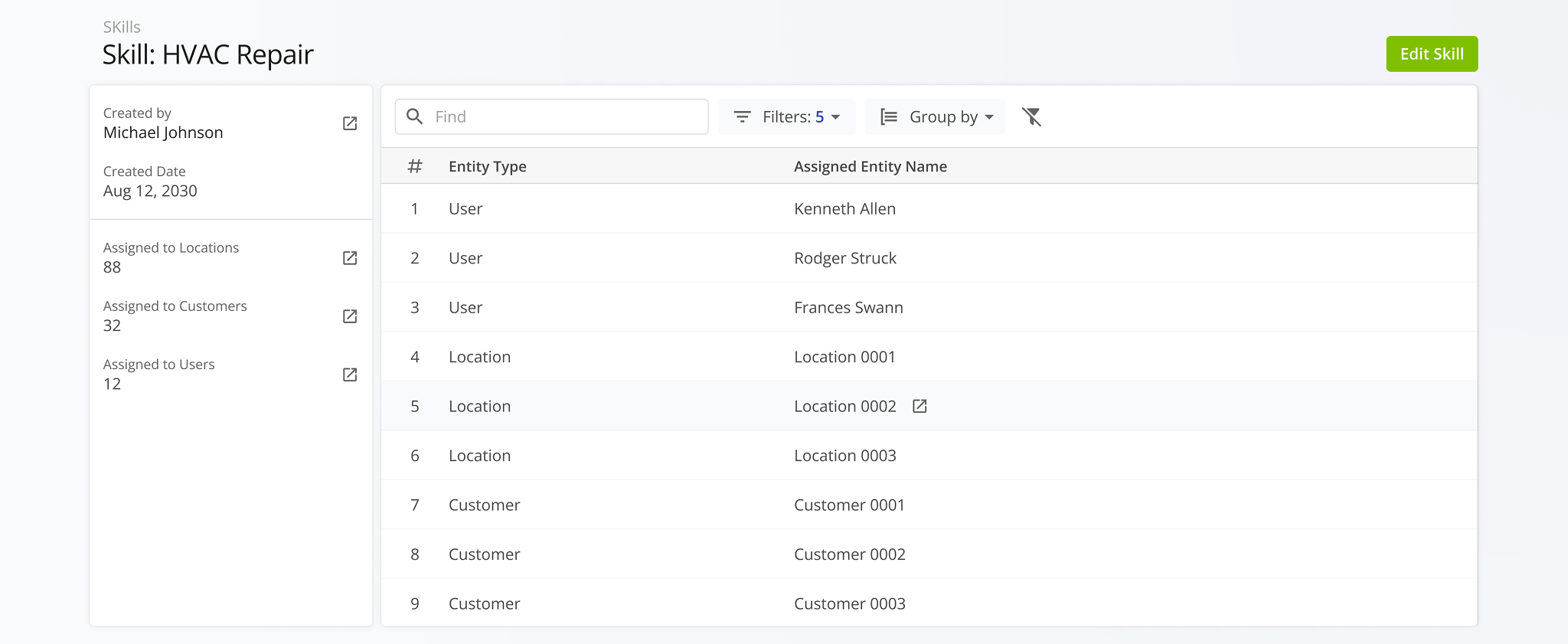
A new Skill Snapshot page was released. It provides a centralized view of all entities associated with specific User Skills, offering better visibility into how Skills are applied across your operations. This includes linked users, routes, orders, and other relevant data points, helping to understand the distribution and utilization of skills within an organization.
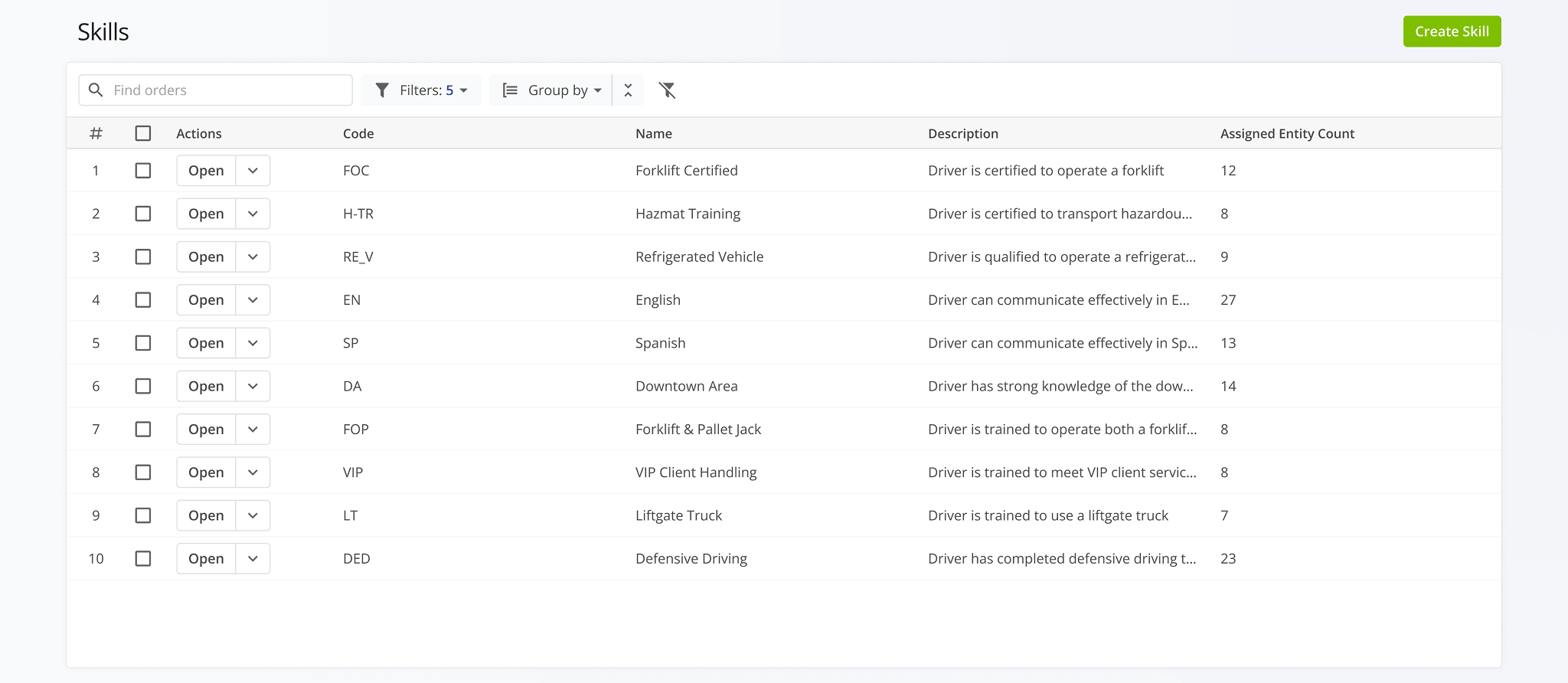
A dedicated Skills Management page was released, enabling you to create, view, and manage skills as a centralized entity within your organization. This provides a structured way to define and maintain skills such as certifications, capabilities, and operational qualifications across your workforce.
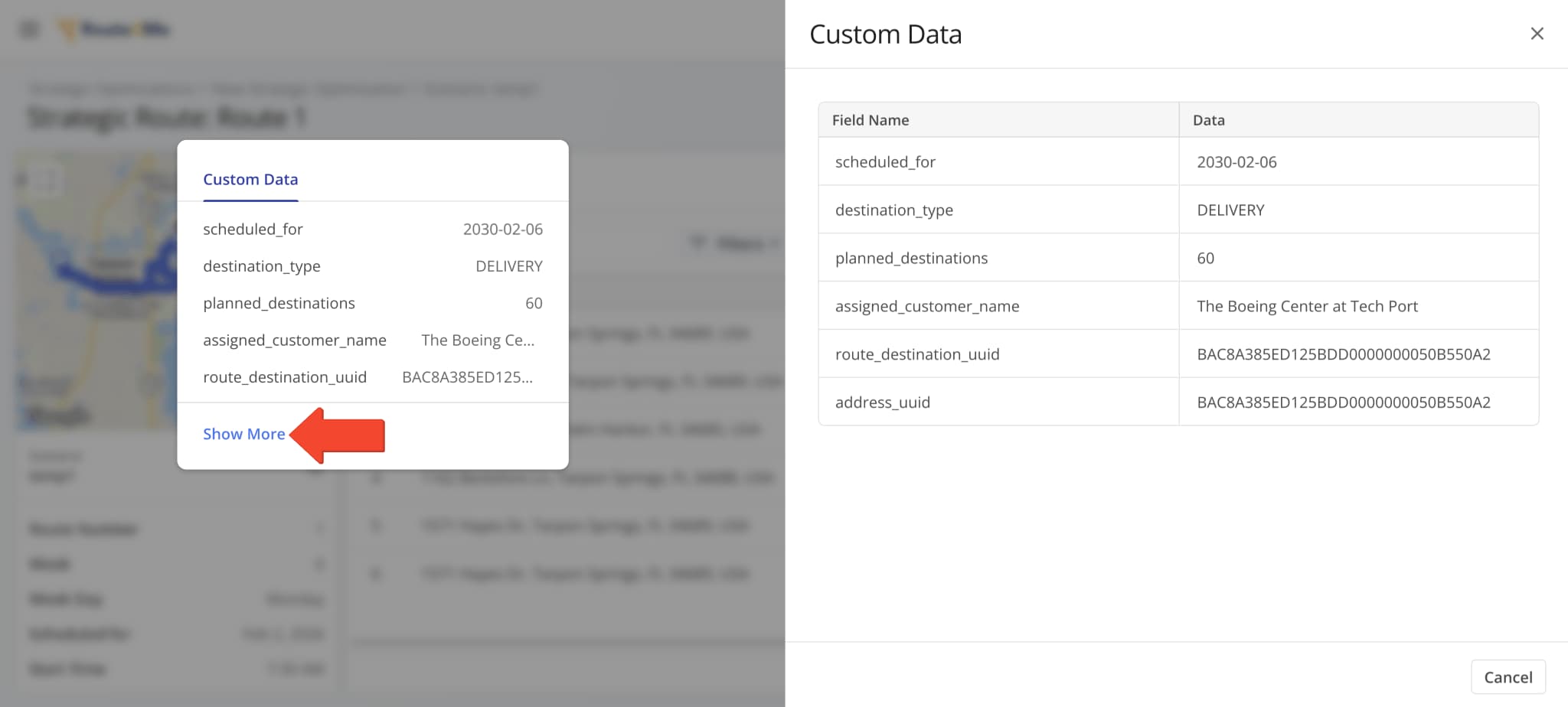
The “Custom Data” column in Strategic Route Snapshots was updated to show a new dynamic popover showing the Custom Data values associated with the respective destination. Learn more about Route4Me Custom Data.
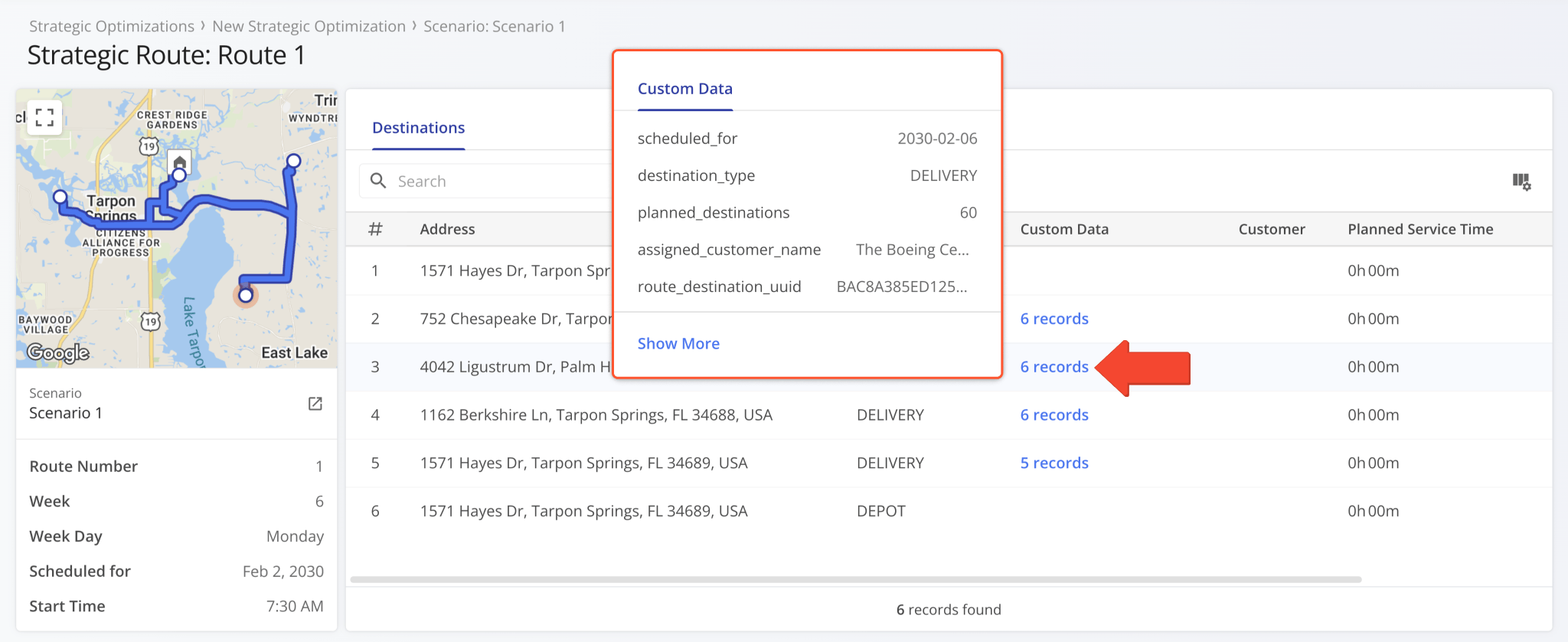
You can click “Show More” to open the “Custom Data” panel, which shows all of a destination’s associated Custom Data
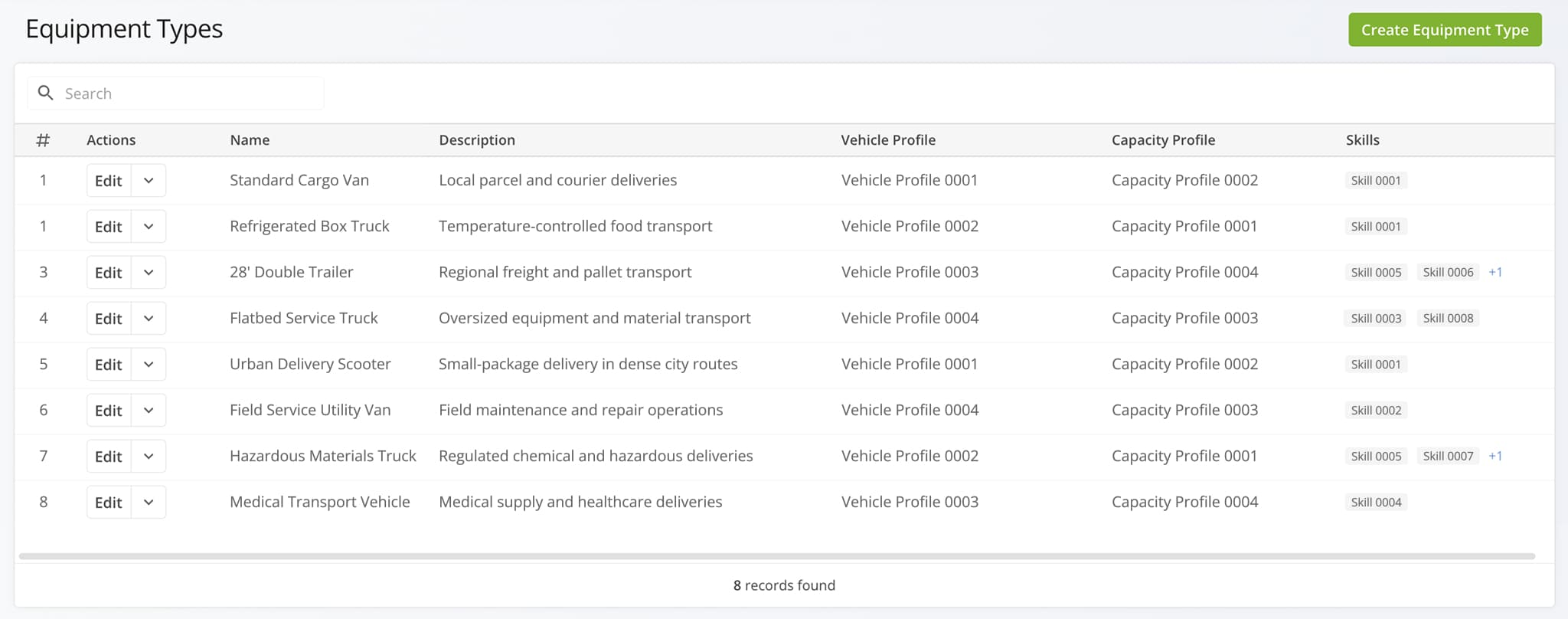
A new Equipment Types page was added. Go to “Optimization Settings” > “Equipment Types” to create and manage reusable equipment profiles that define how vehicles, capacity limits, and required skills are applied to routing.
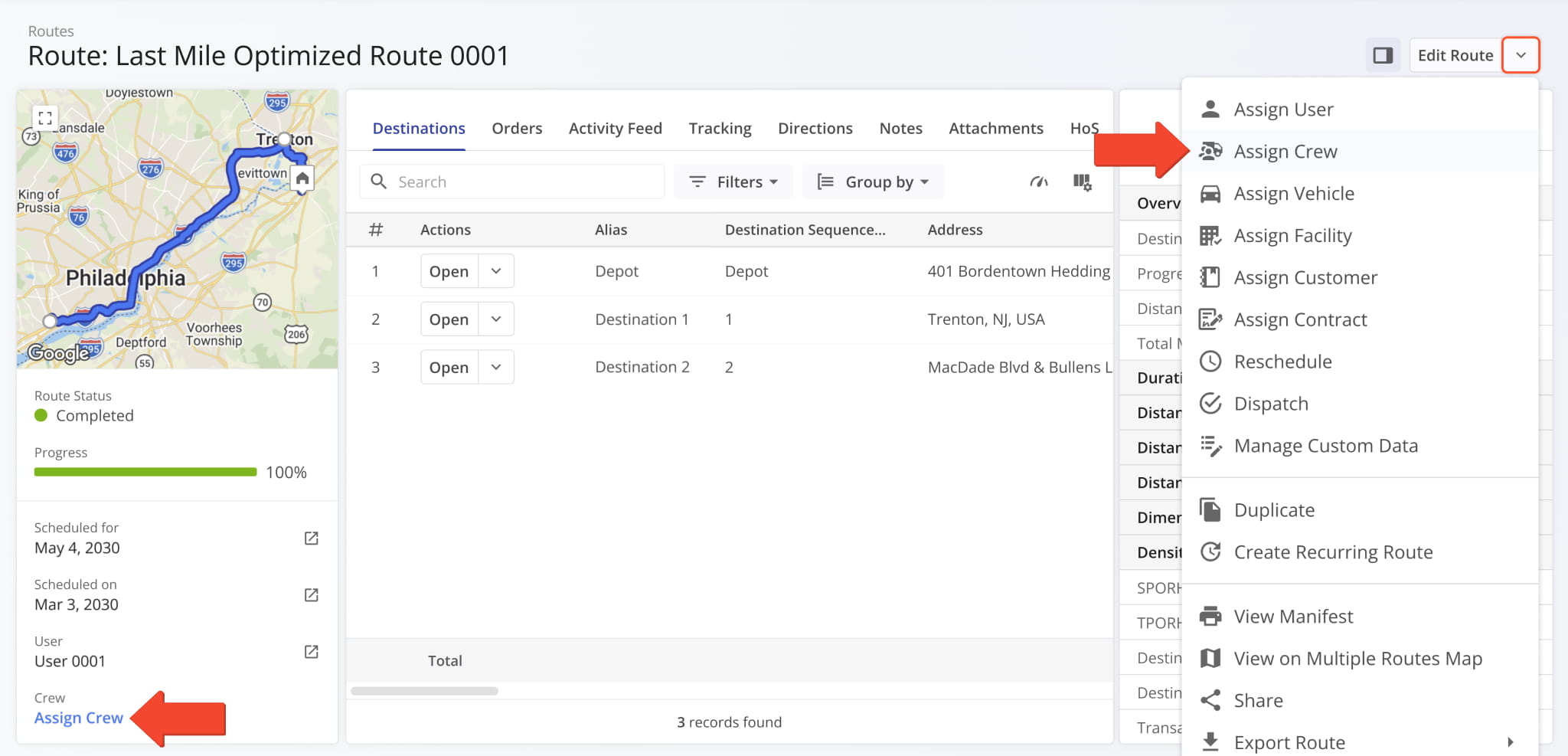
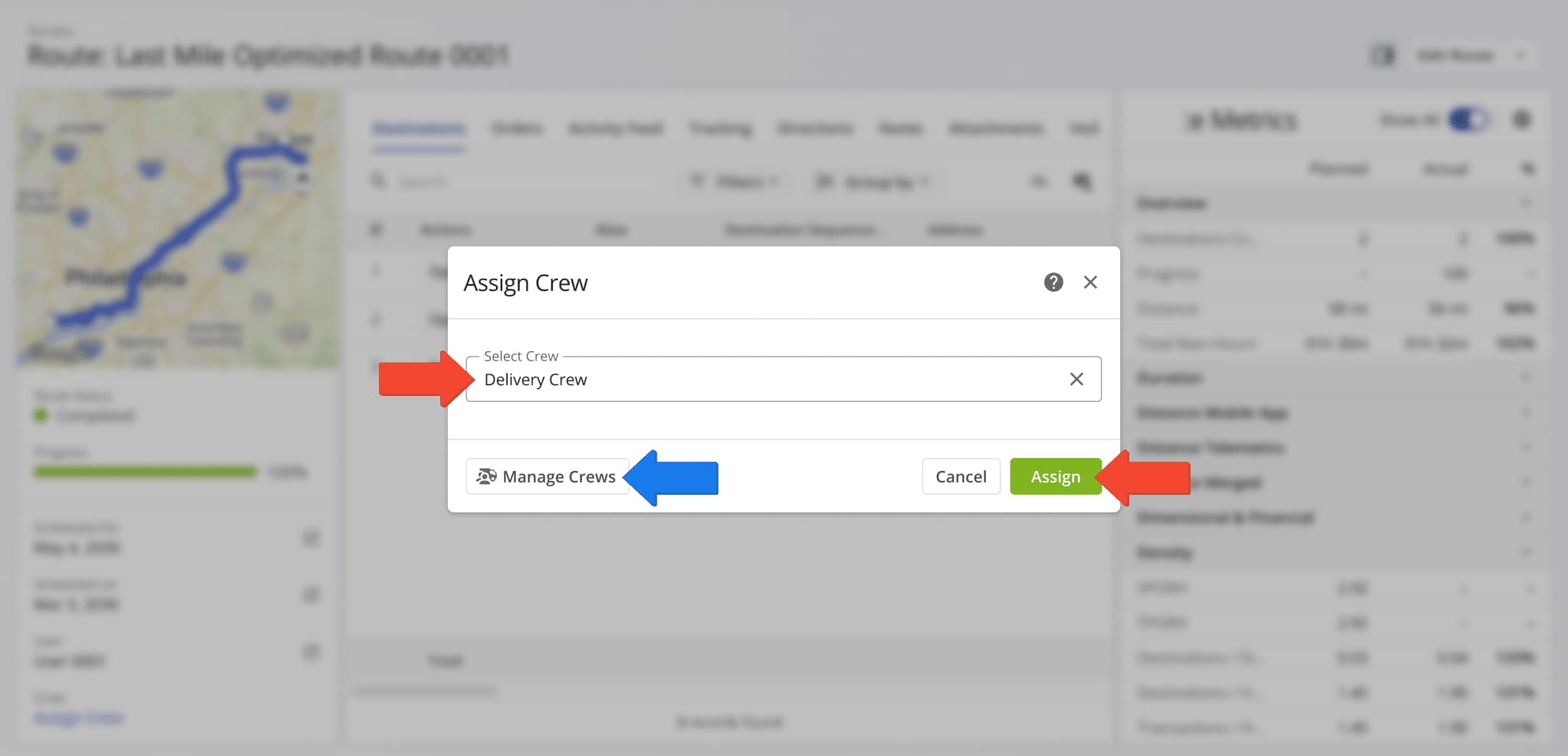
You can now assign Crews to routes from Route Snapshots. You’ll find the “Assign Crew” option in the Route Summary on the left and in the route management actions when you click the Down Arrow next to “Edit Route“.
Next, use the “Select Crew” field to find a Crew and select it and click “Assign” to finalize. Additionally, you can click “Manage Crews” to go directly to the Crews Page to make changes if needed.
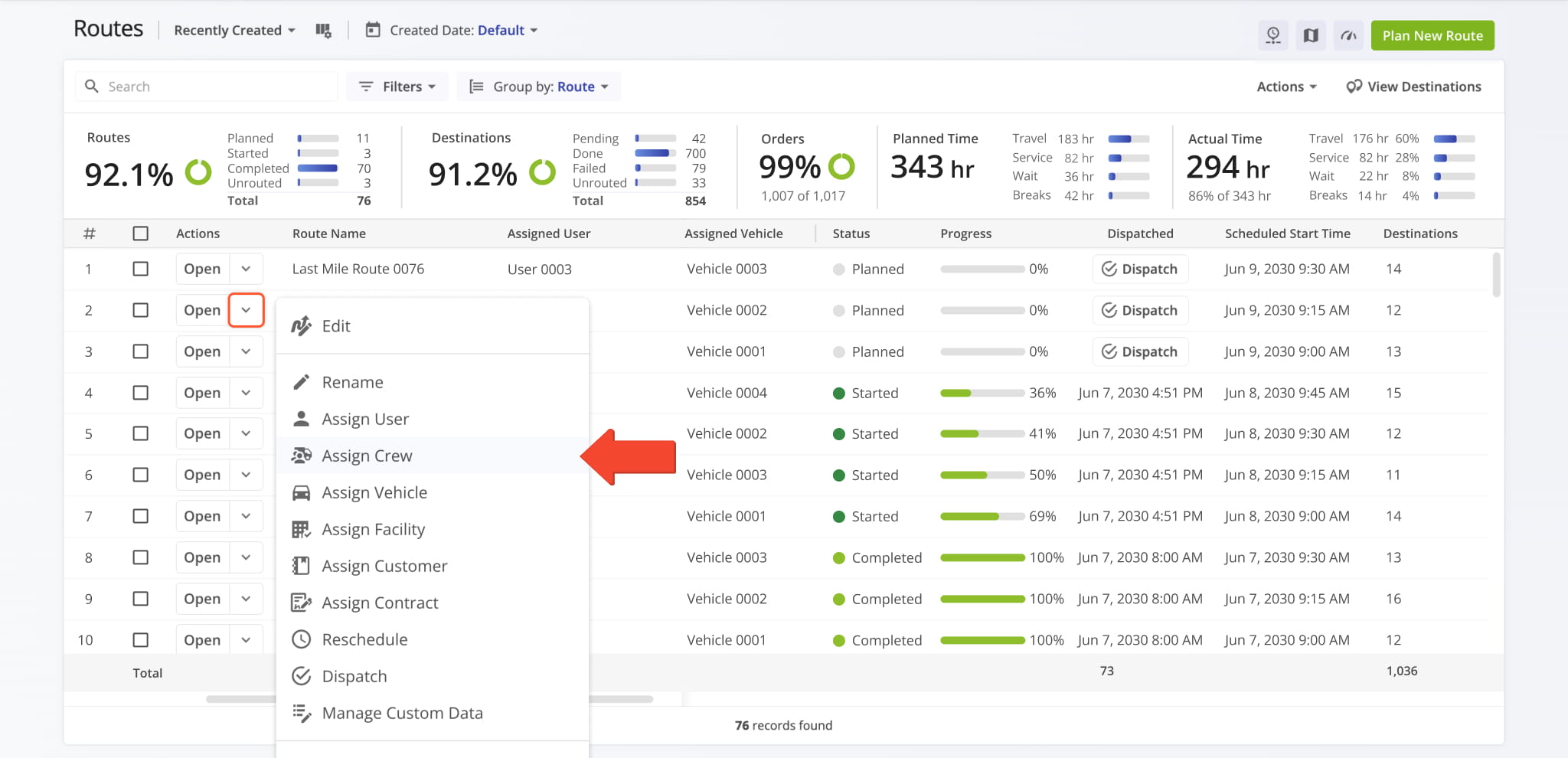
You can now assign Crews to planned and optimized routes. To assign a Crew to a planned route, go to the Routes Page, click the Down Arrow next to a route, and select “Assign Crew“.
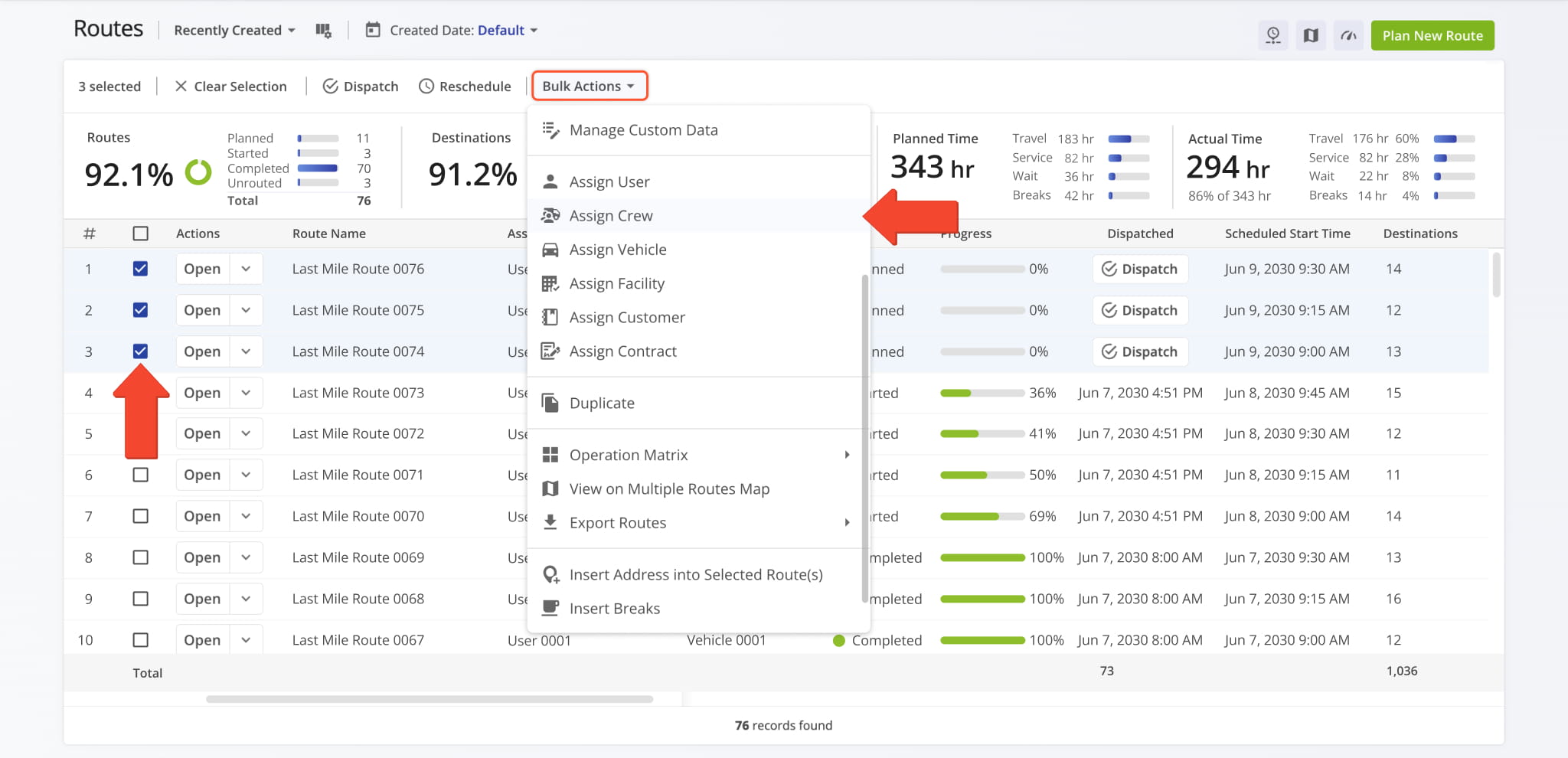
You can also assign a Crew to multiple routes simultaneously. To do so, first select routes by checking the boxes next to them. Then, click “Bulk Actions” and select “Assign Crew“.
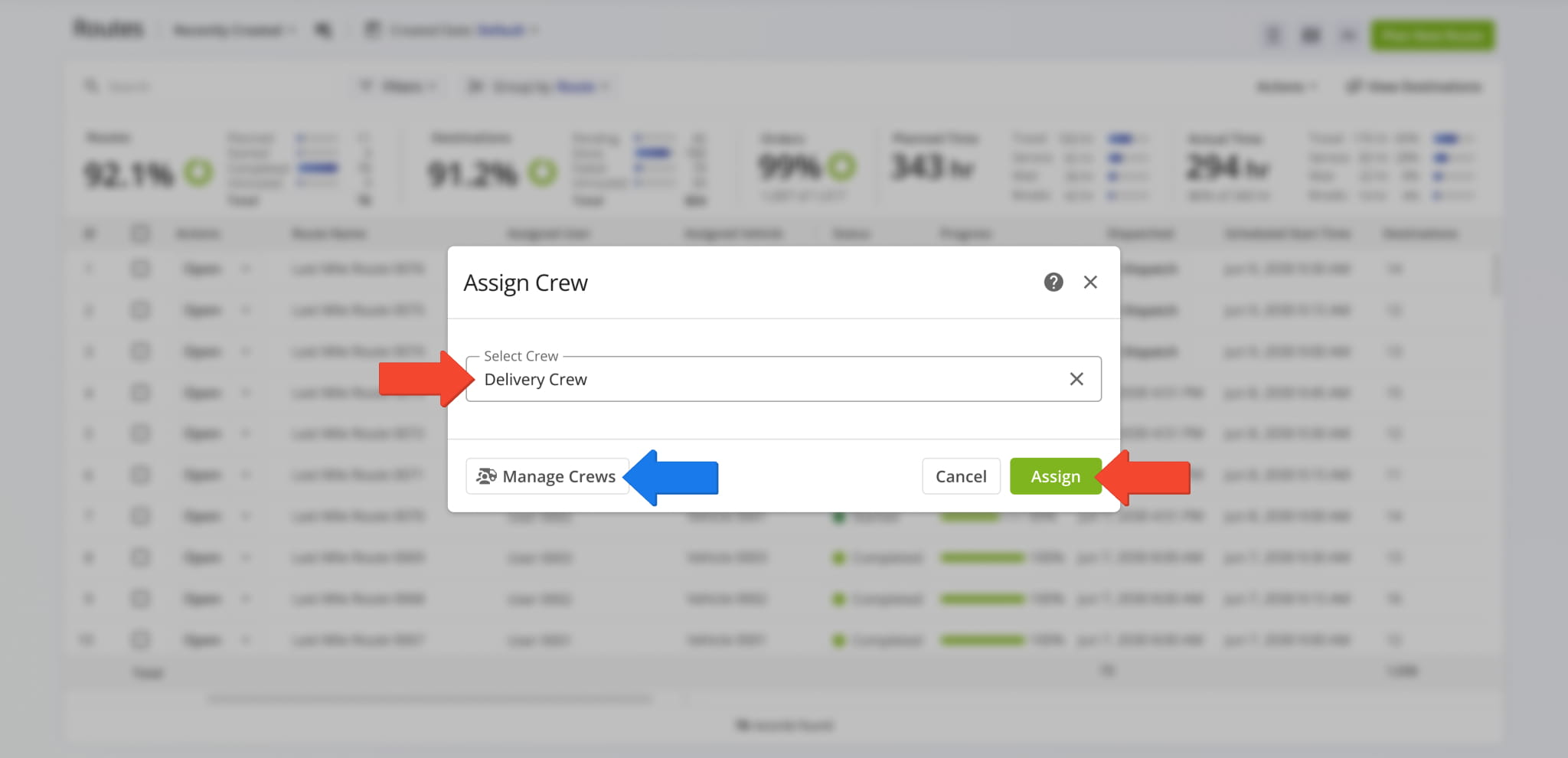
Next, use the “Select Crew” field to find a Crew and select it and click “Assign” to finalize. Additionally, you can click “Manage Crews” to go directly to the Crews Page to make changes if needed.
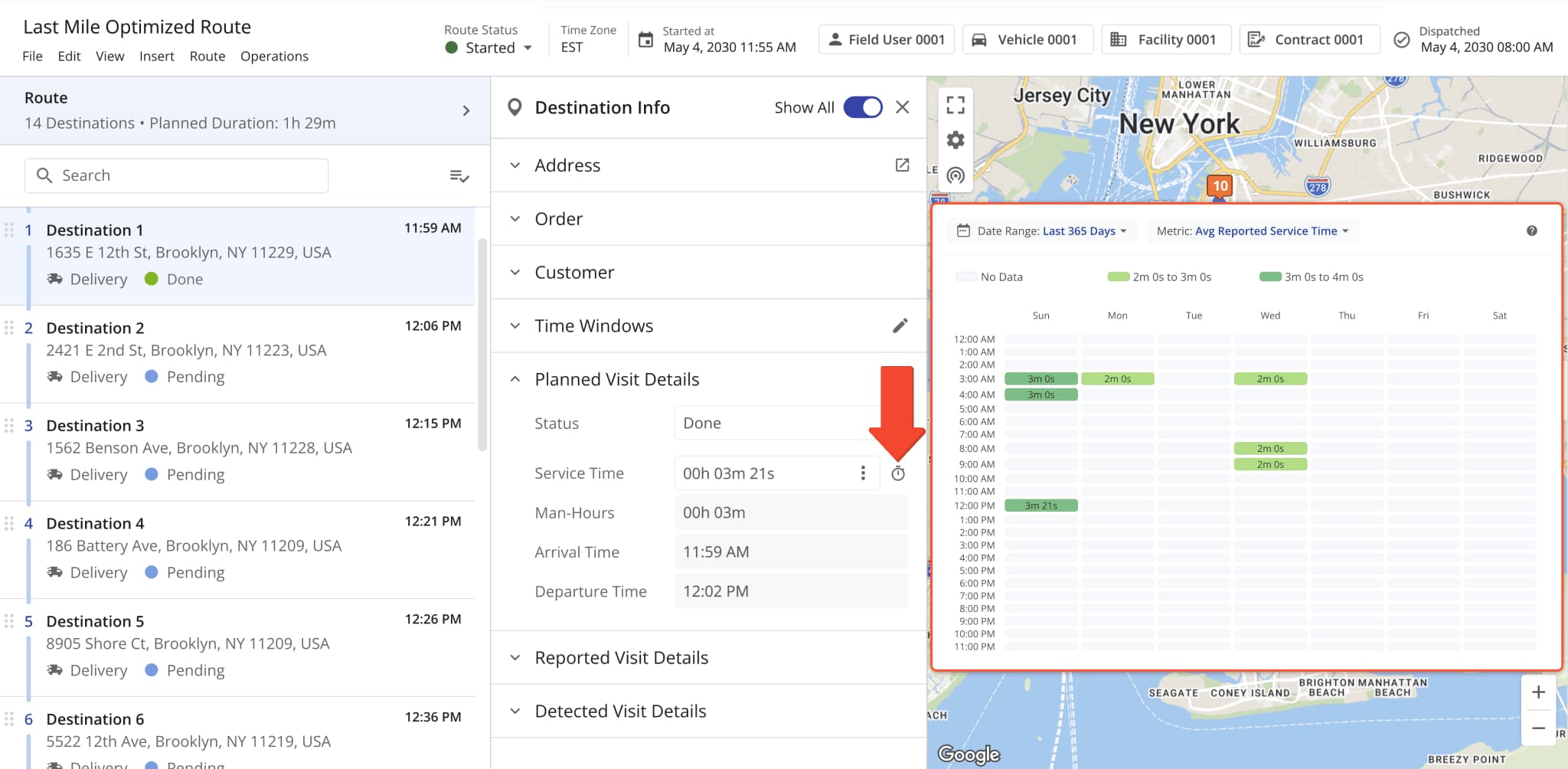
Destination Service Time Heatmaps were added to the Route Editor. Simply open a route in the editor, click a destination to open its Destination Info, and click the Time Icon next to the “Service Time” field. This new functionality enables you to easily see historical Service Time insights for destinations directly in the Route Editor.
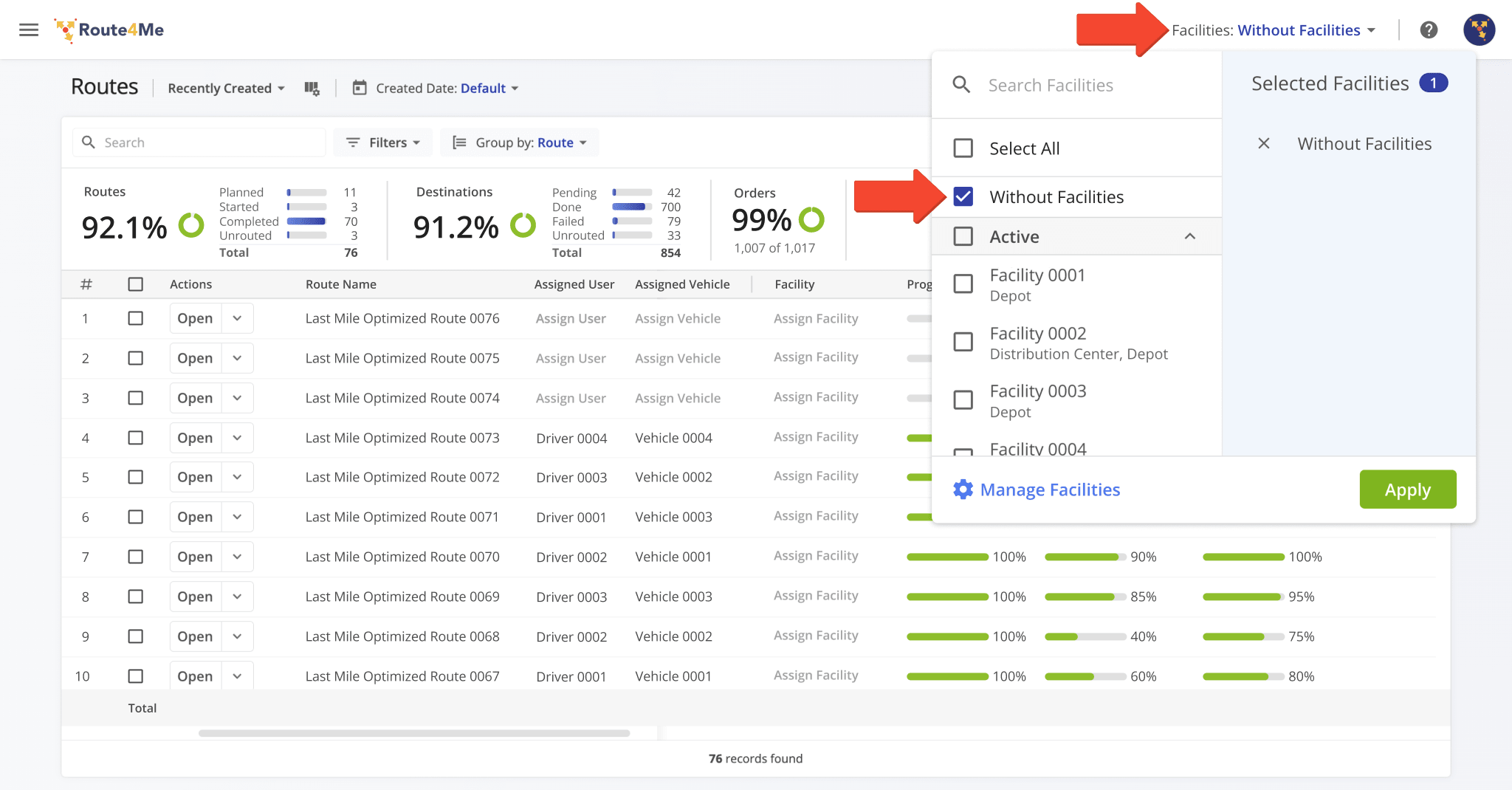
The “Facilities” filter in Route4Me’s global header was updated with a new “Without Facilities” option. When you select this option, you can only see entities without any associated Facilities. Learn more about Route4Me Facility Management.
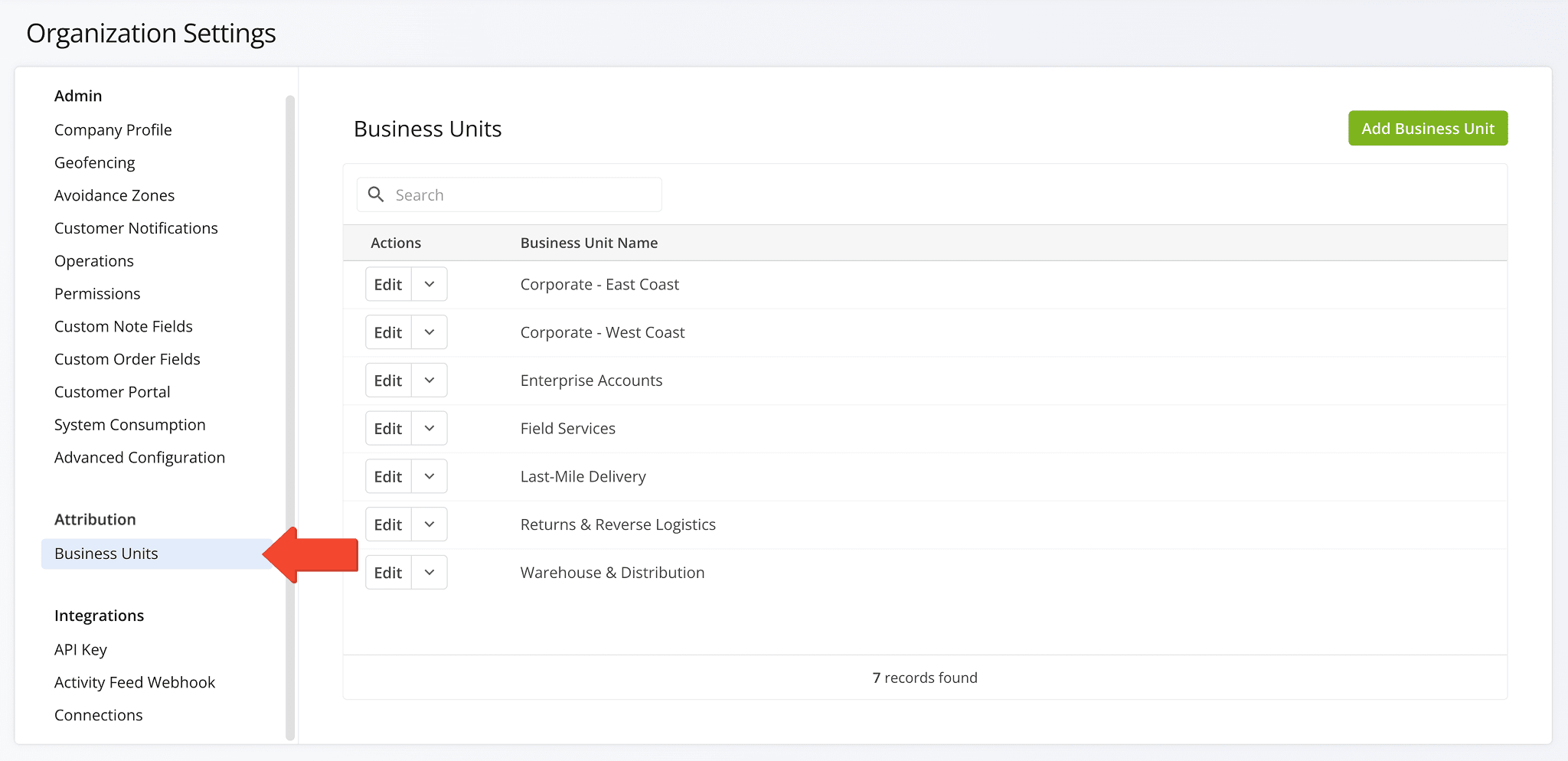
A new Business Units feature was introduced, allowing you to create and manage organizational units in a structured way to better reflect your real-world operations. Go to “Settings” > “Organization Settings” > “Business Units” to add and manage Business Units on your account. NOTE: Contact Route4Me Support or your routing expert for more information.
Open Your Organization Settings
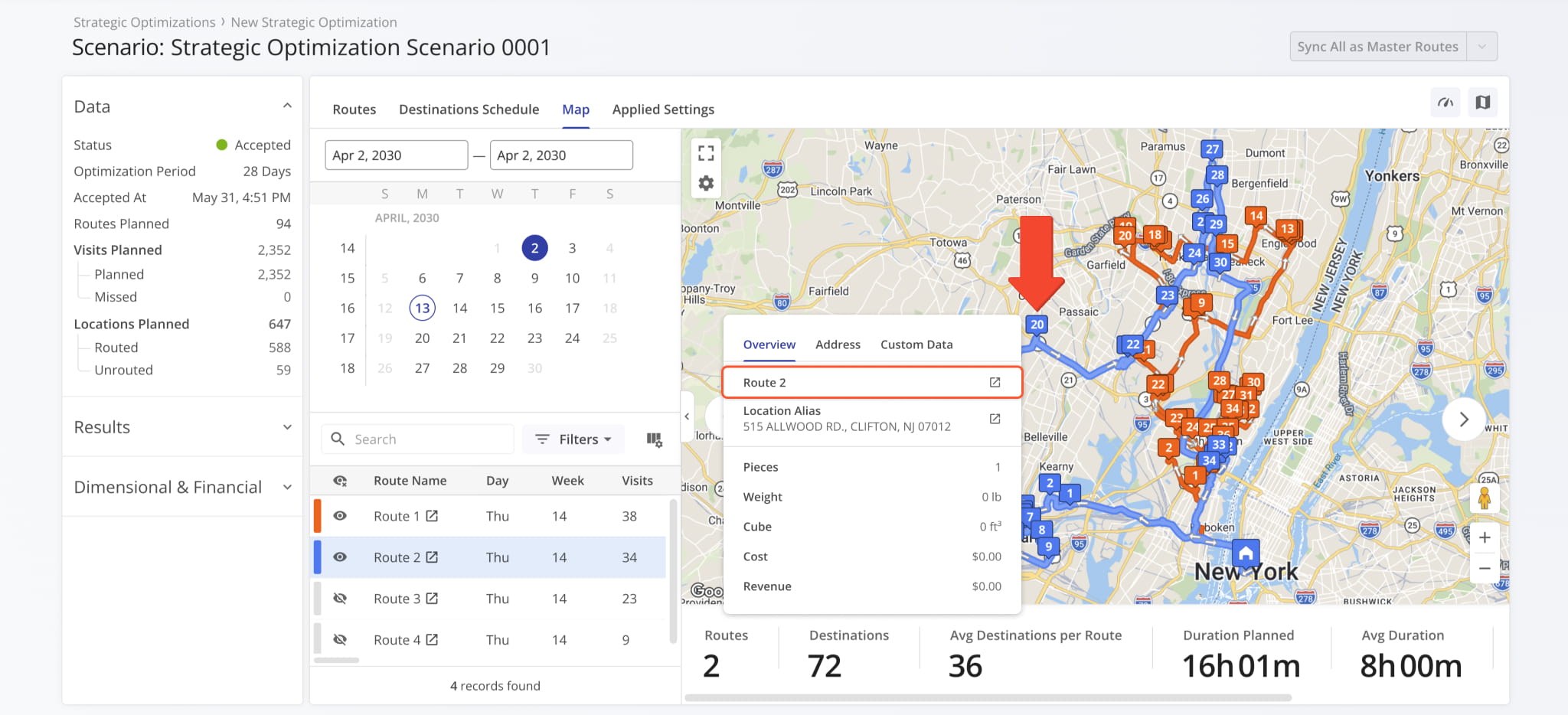
The Strategic Scenario Map was updated to improve Scenario Route visibility. Now, when you hover over a route in the Scenario Routes List or on the map, the route will be highlighted in the list and on the map.
Open Your Strategic Optimizations
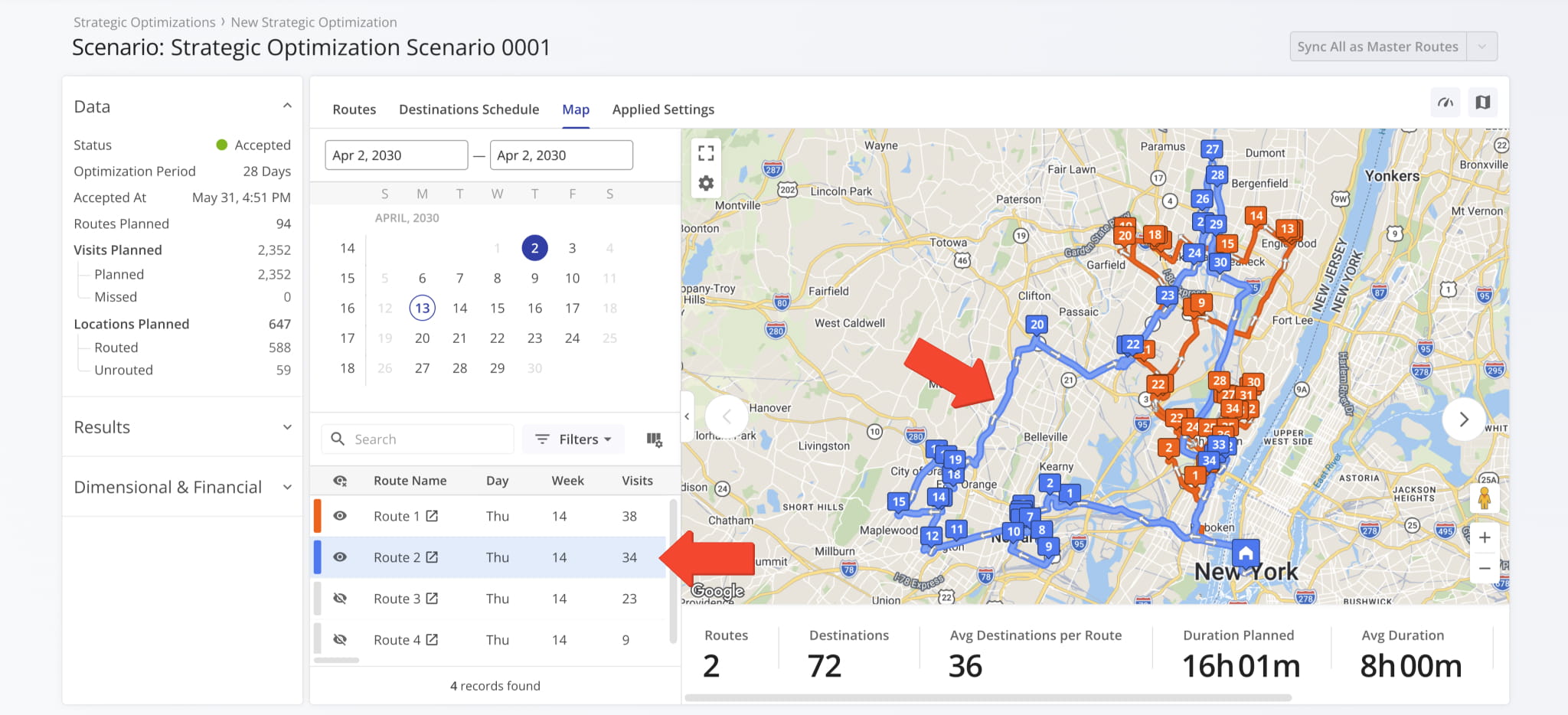
Additionally, when you hover over a destination on the map, you’ll now see a new field showing which Scenario Route it’s associated with, including a link to open its corresponding Strategic Route Snapshot.
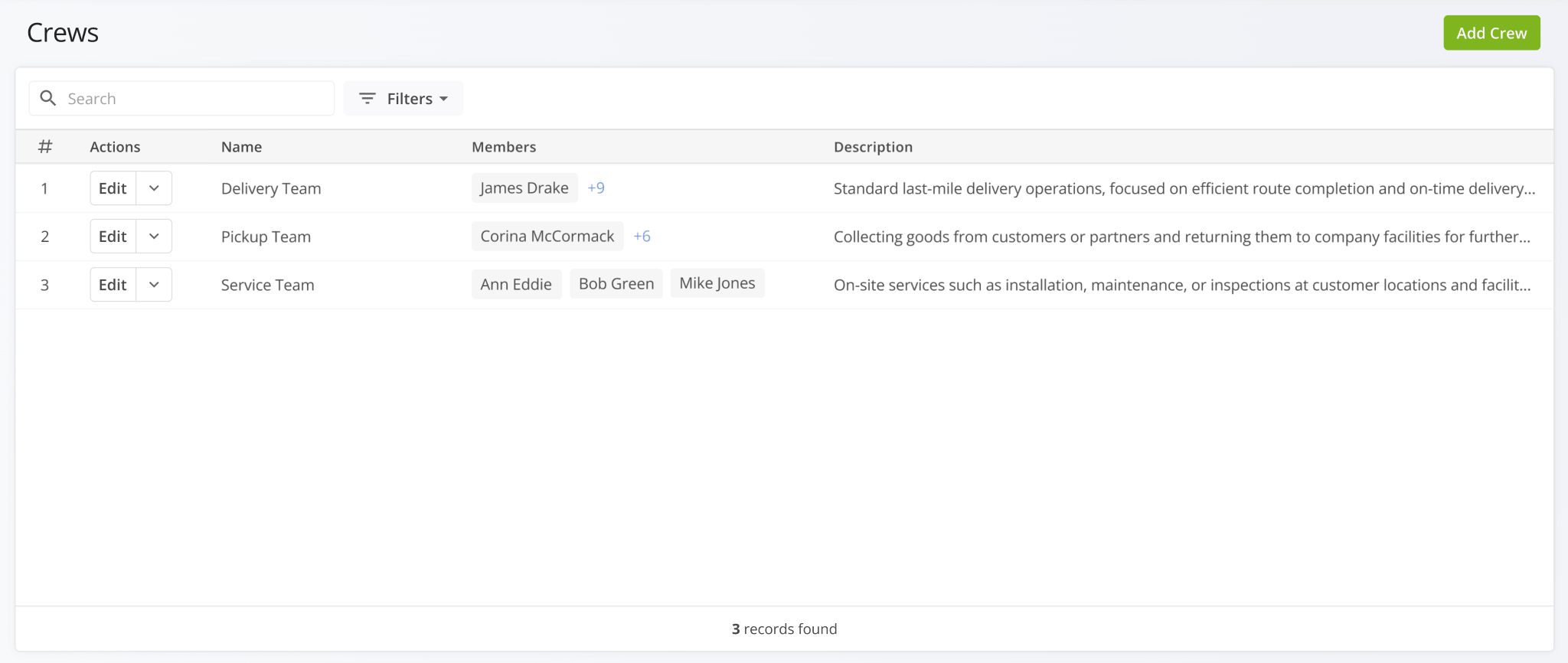
A new Crews Page was added. Crews enable you to organize your workforce by grouping Route4Me Users into delivery teams, field crews, and other groups based on their roles and responsibilities. You can create crews that reflect your real-world operations, improving coordination, accountability, and scalability as your operations grow.
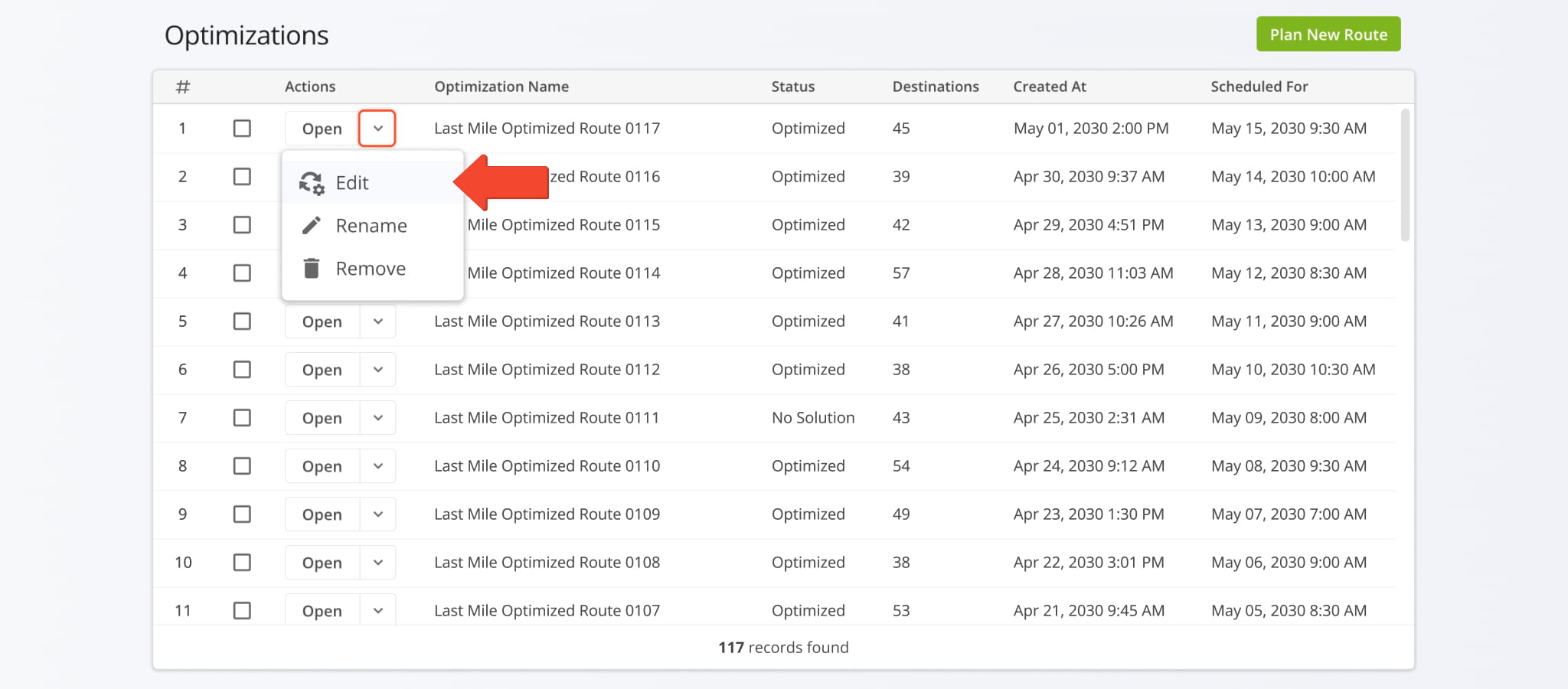
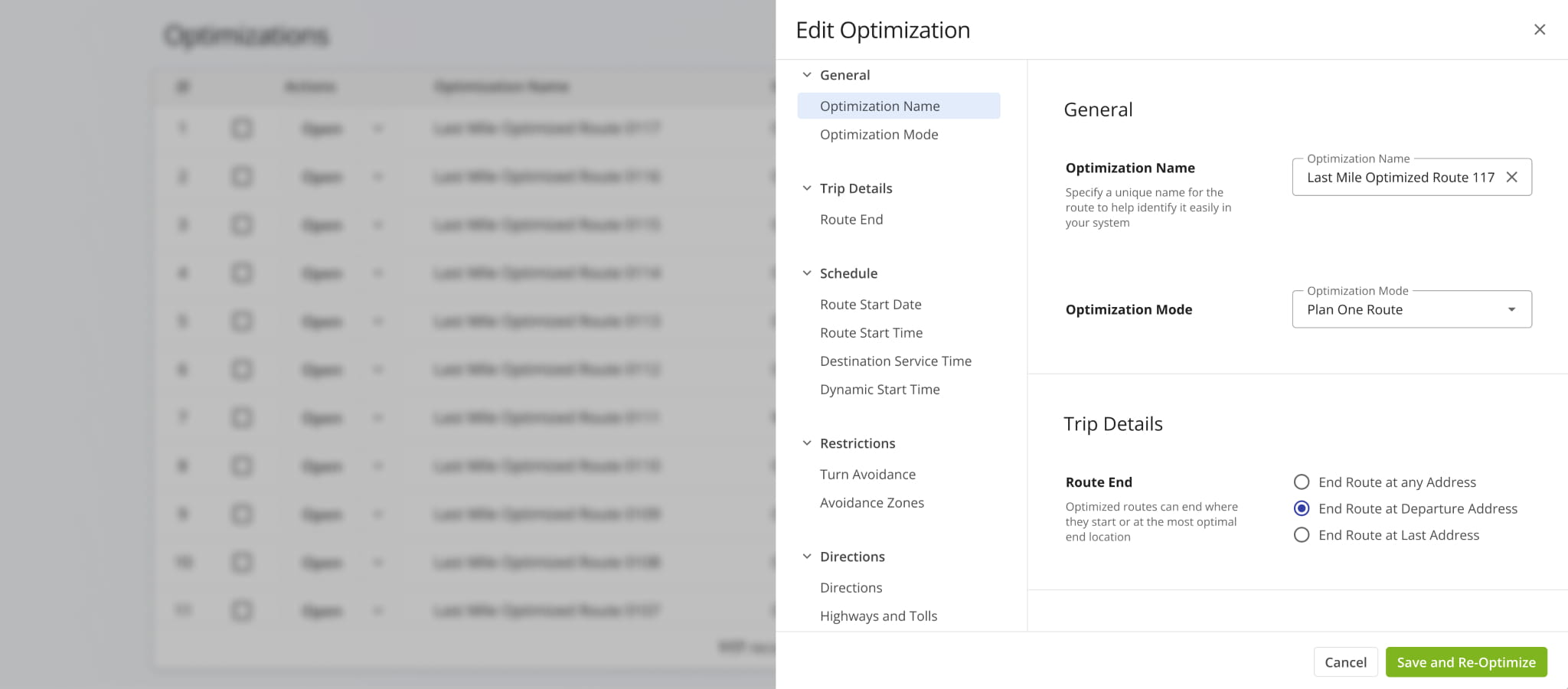
A new “Edit” option was added to the action menu on the Optimizations Page. Click the Down Arrow next to an Optimization and select “Edit” to change its associated route optimization settings.
You’ll see the “Edit Optimization” panel with the same settings available as when you plan new routes.
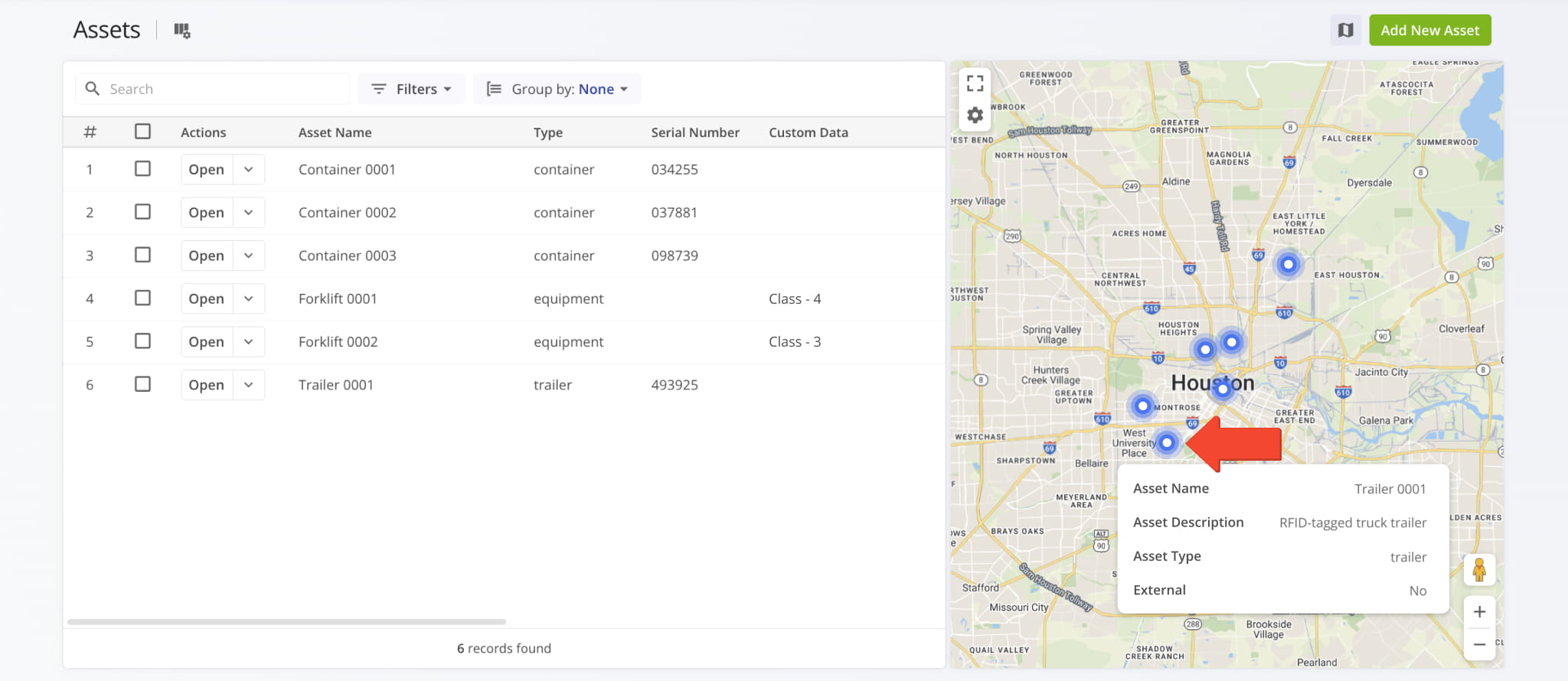
You can now hover over Assets on the Assets Page Map and see tooltips that show Asset names, descriptions, types, and whether an Asset was imported from an external system.
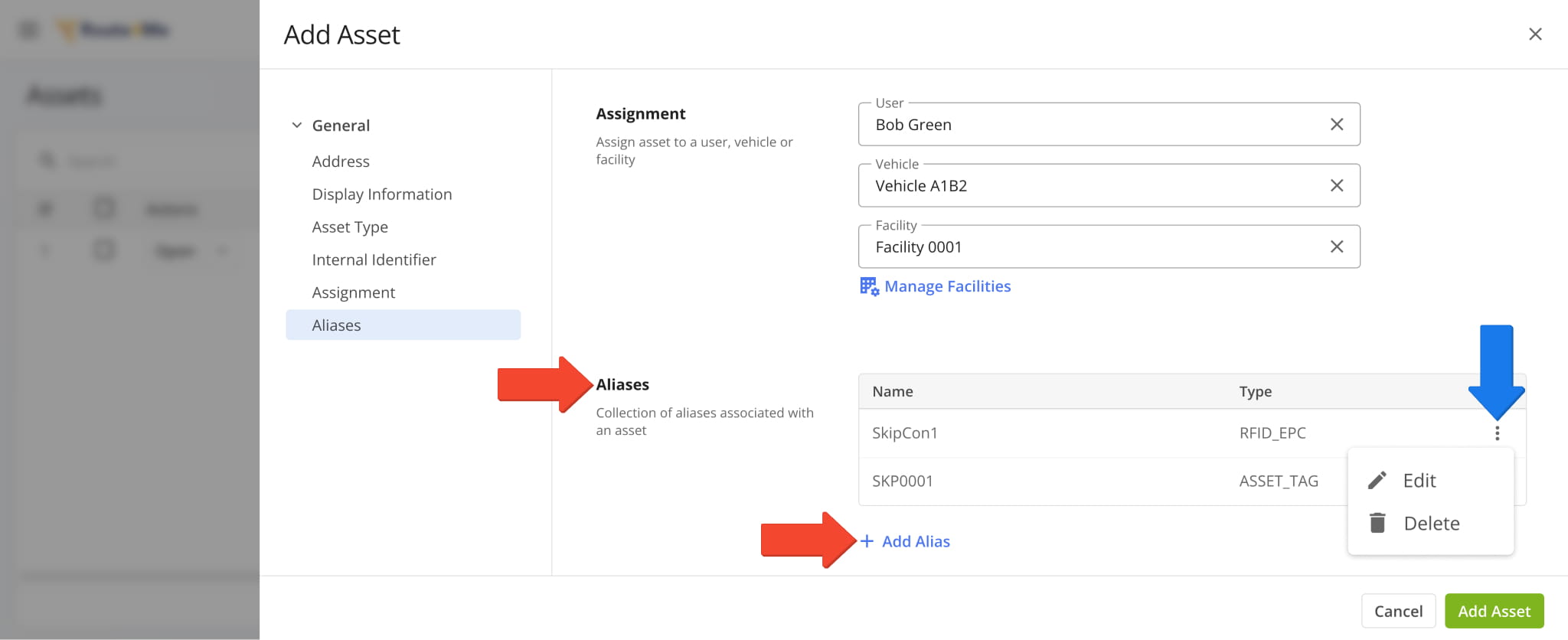
You can now add aliases to Assets. An Asset can have multiple aliases, and each alias has an associated name and type.
When you add or edit Assets, you can adjust alias settings in the new “Aliases” section. Click “Add Alias” to and set an alias name and type. You can also edit and delete Asset Aliases by clicking the Three-dot Icon.
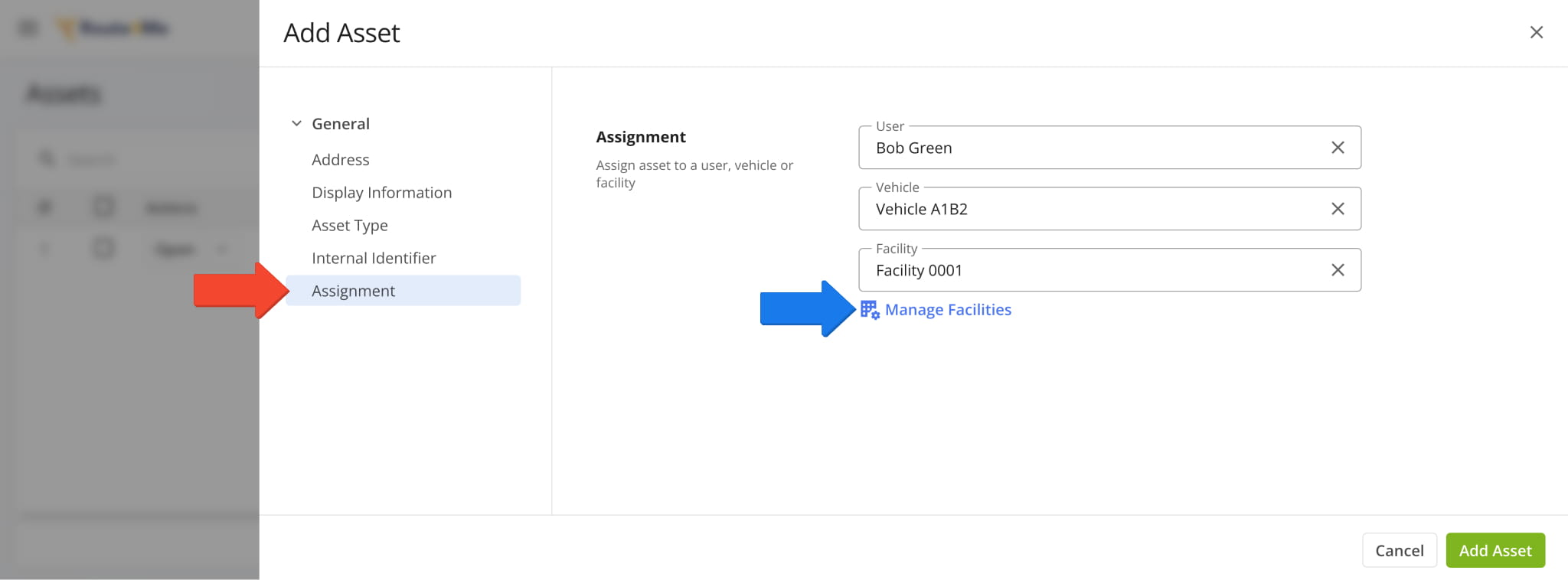
You can now assign Users, Vehicles, and Facilities when Adding Assets to your account. The new attribution fields are available in the “Assignment” section of the Asset settings panel.
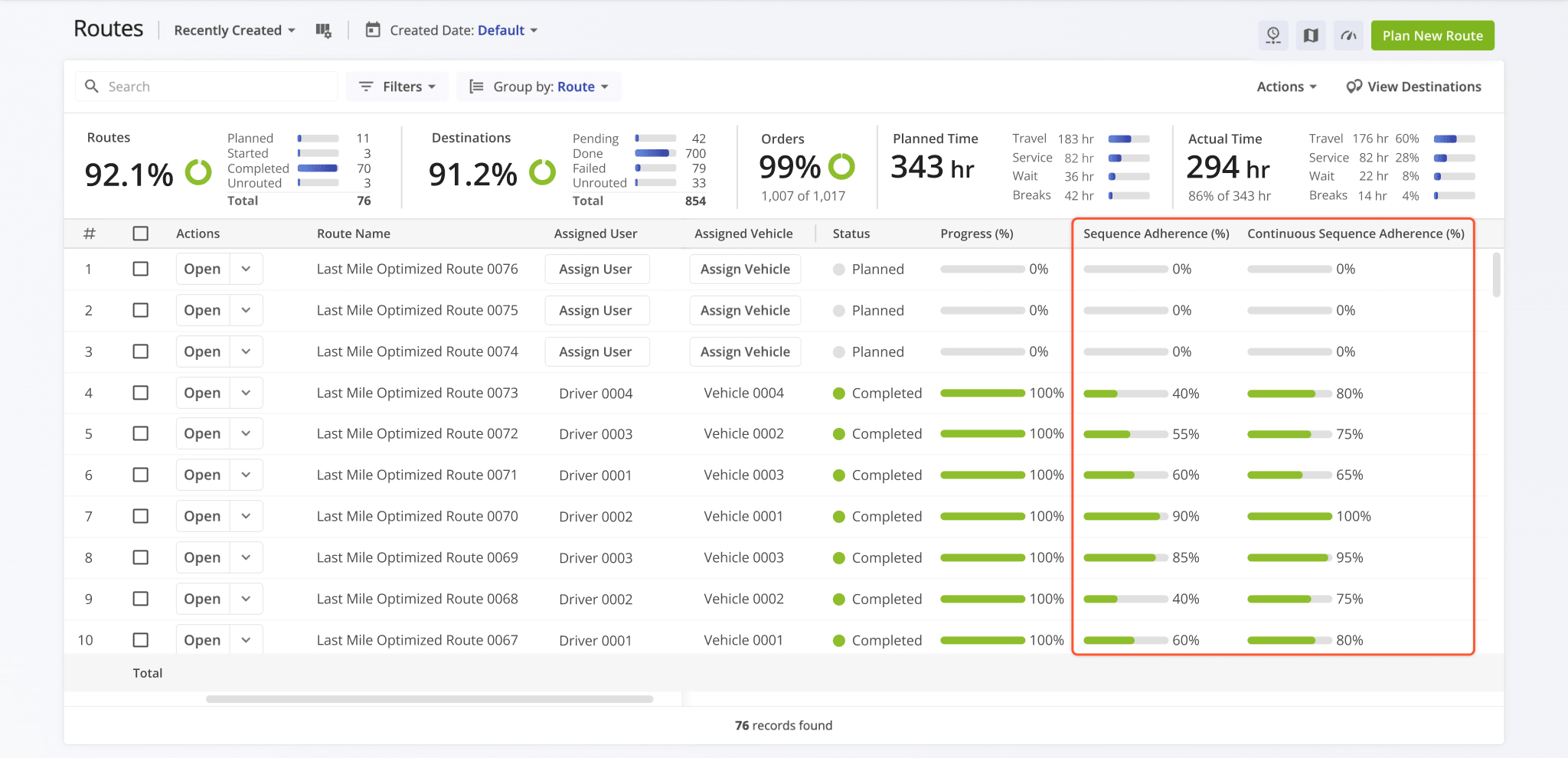
Two following new route sequence adherence data fields were added to the Routes Page:
- Sequence Adherence (%): Shows the percentage of destinations that were visited in the planned order.
- Continuous Route Sequence Adherence (%): Shows the percentage of destinations that were visited in the correct sequence relative to each other, even if earlier stops were skipped or visited out of order.
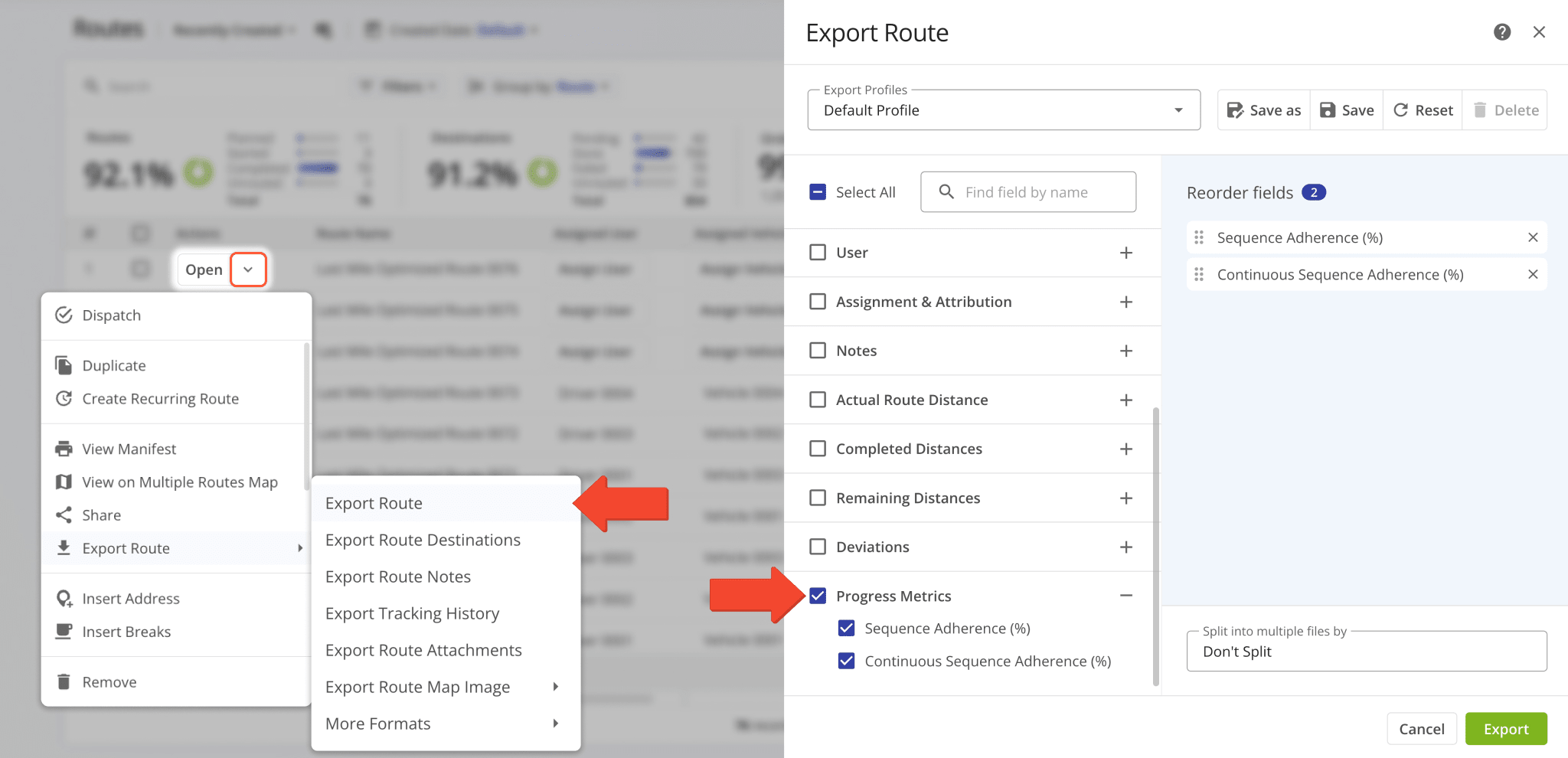
For example, if a user visits Destinations 1 → 4 → 5, then 4 and 5 will count toward Continuous Adherence because they follow the correct sequence. Continuous Route Sequence Adherence will typically be higher than Sequence Adherence.
Both of the new data fields are also available in the “Progress Metrics” section when you Export Routes.
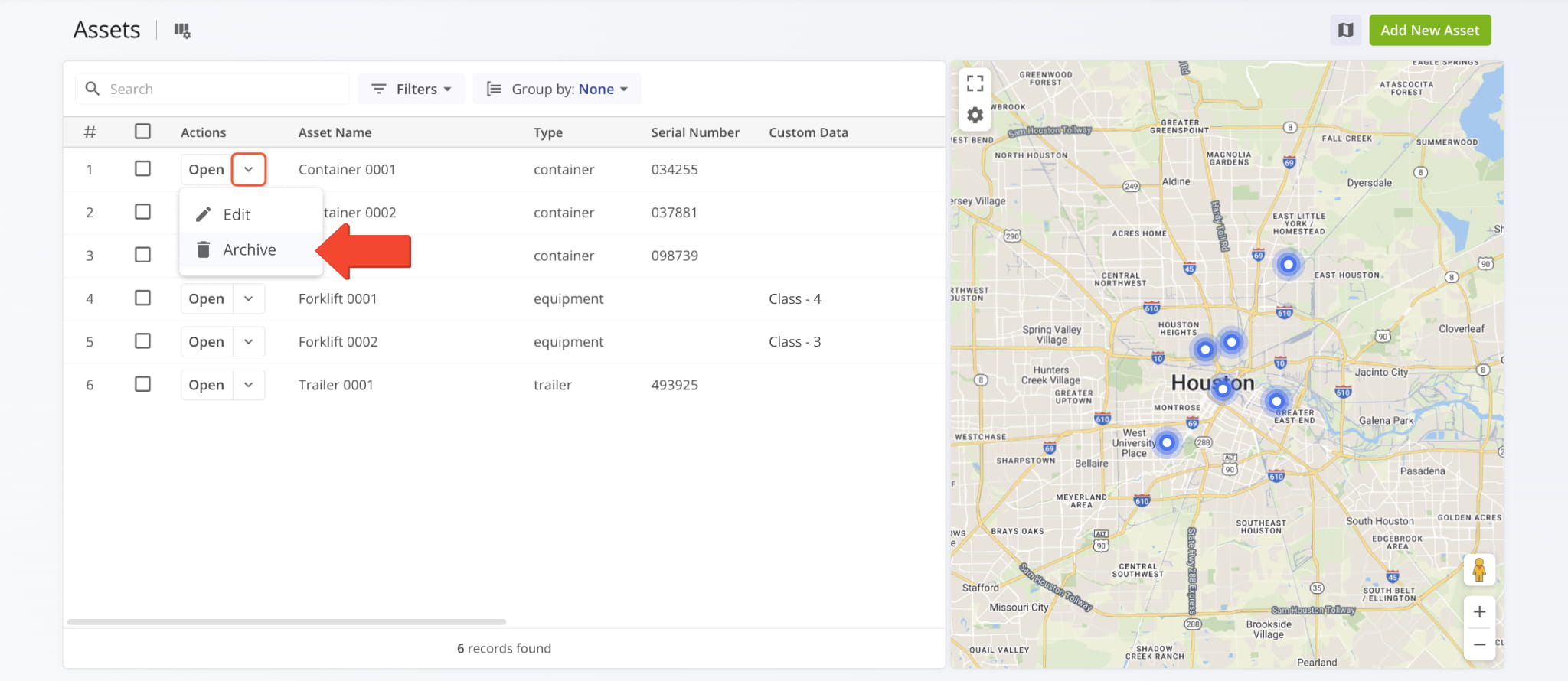
A new option to archive Assets was added to the Assets Page. Click the Down Arrow next to an Asset in the list and select “Archive“. Previously, you could only archive Assets using Bulk Actions.
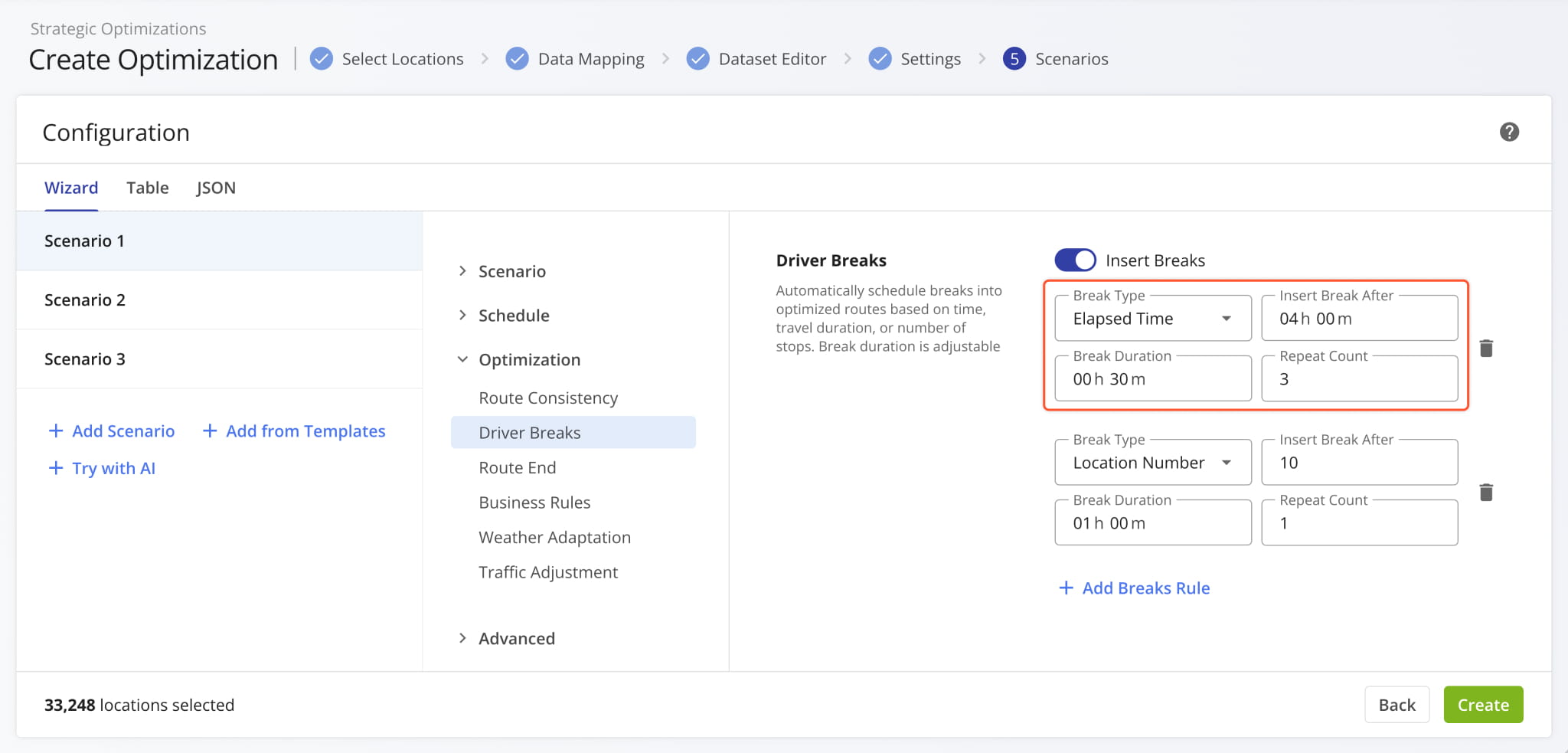
The “Driver Breaks” interface when Creating Strategic Optimizations was redesigned. Now, the four available fields are grouped in two rows instead of four. This update enables you to see more HoS Driver Break rules at the same time.
Open Your Strategic Optimizations
March 2026
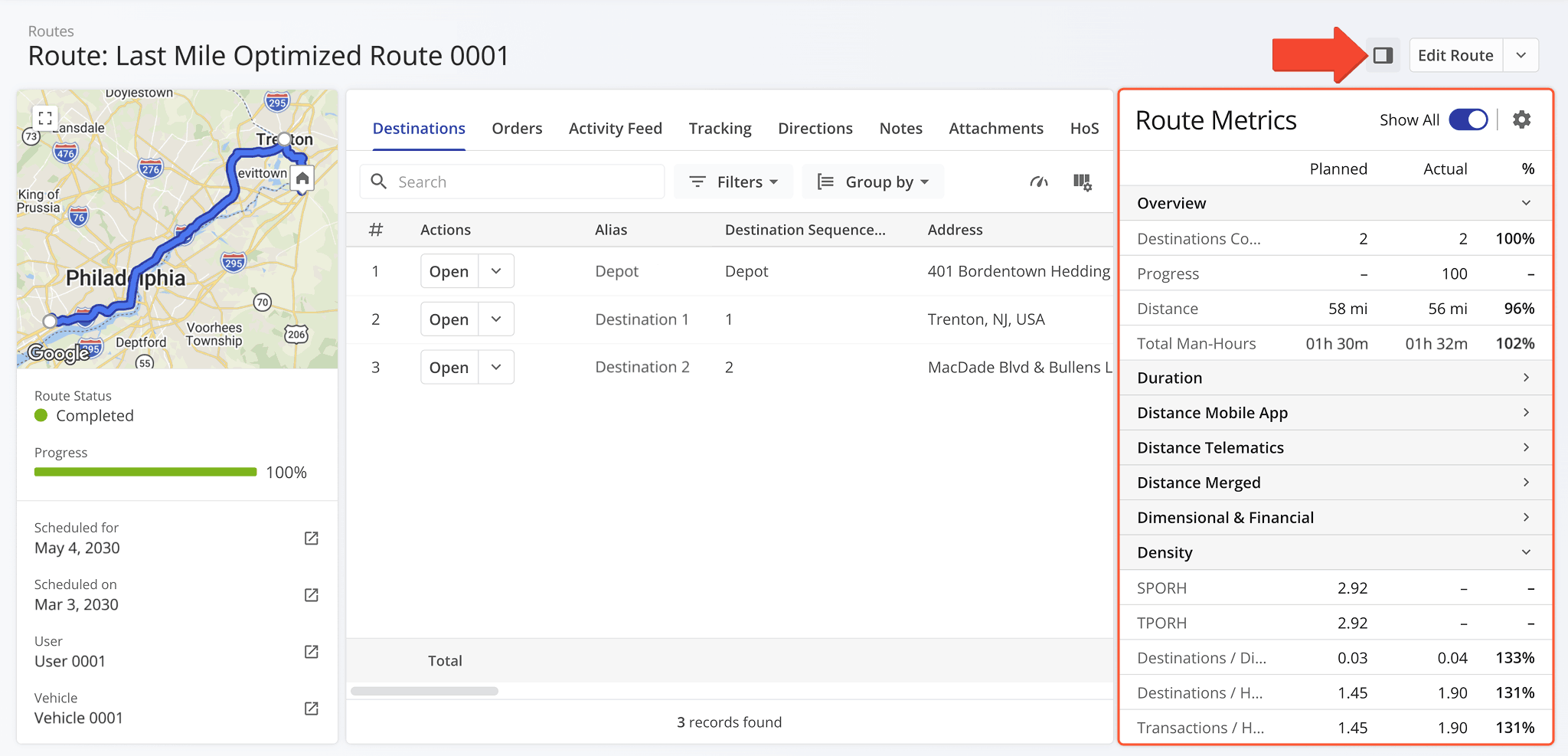
51The Route Metrics panel is now available in Routes Snapshots. It shows planned and actual route data and percentages.
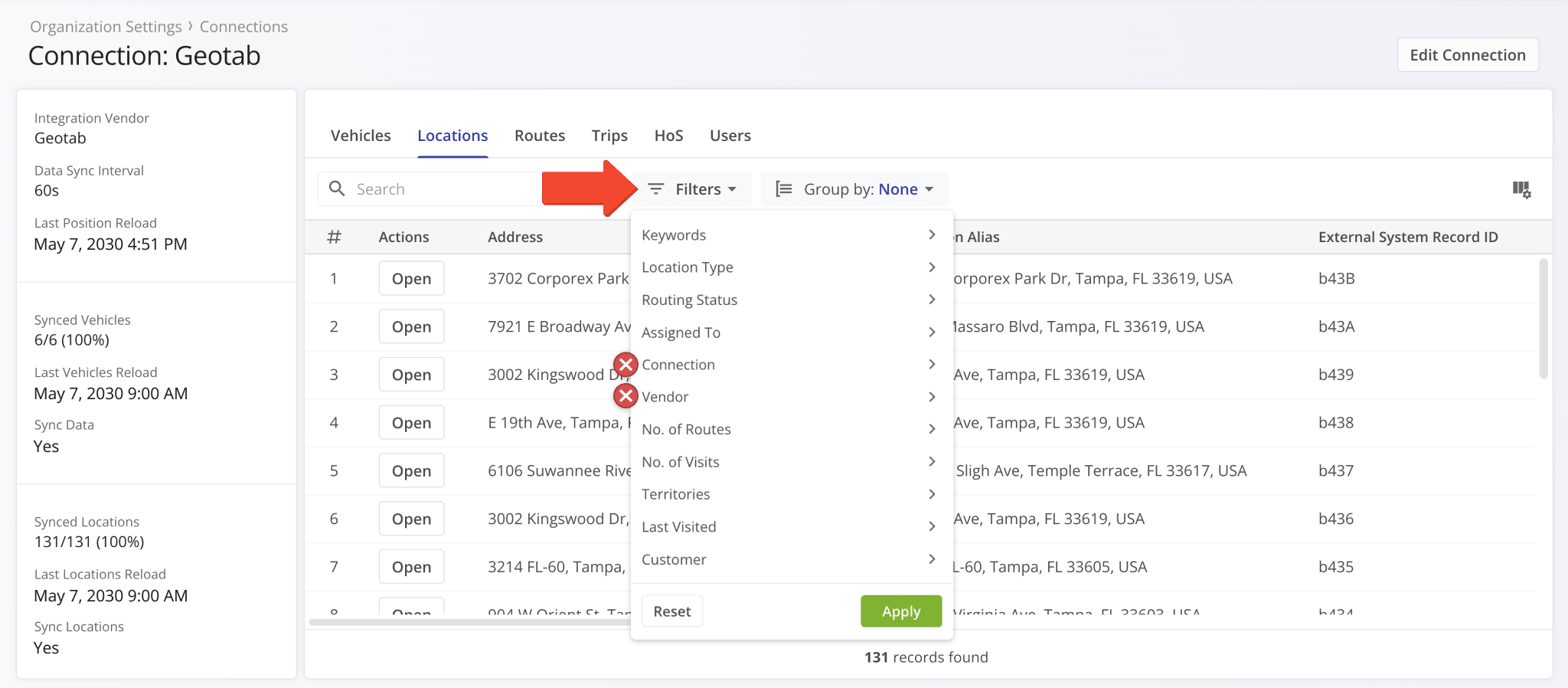
Two redundant filter options were removed from the “Locations” tab in Connection Snapshots. Specifically, the “Connection” and “Vendor” filters are no longer available.
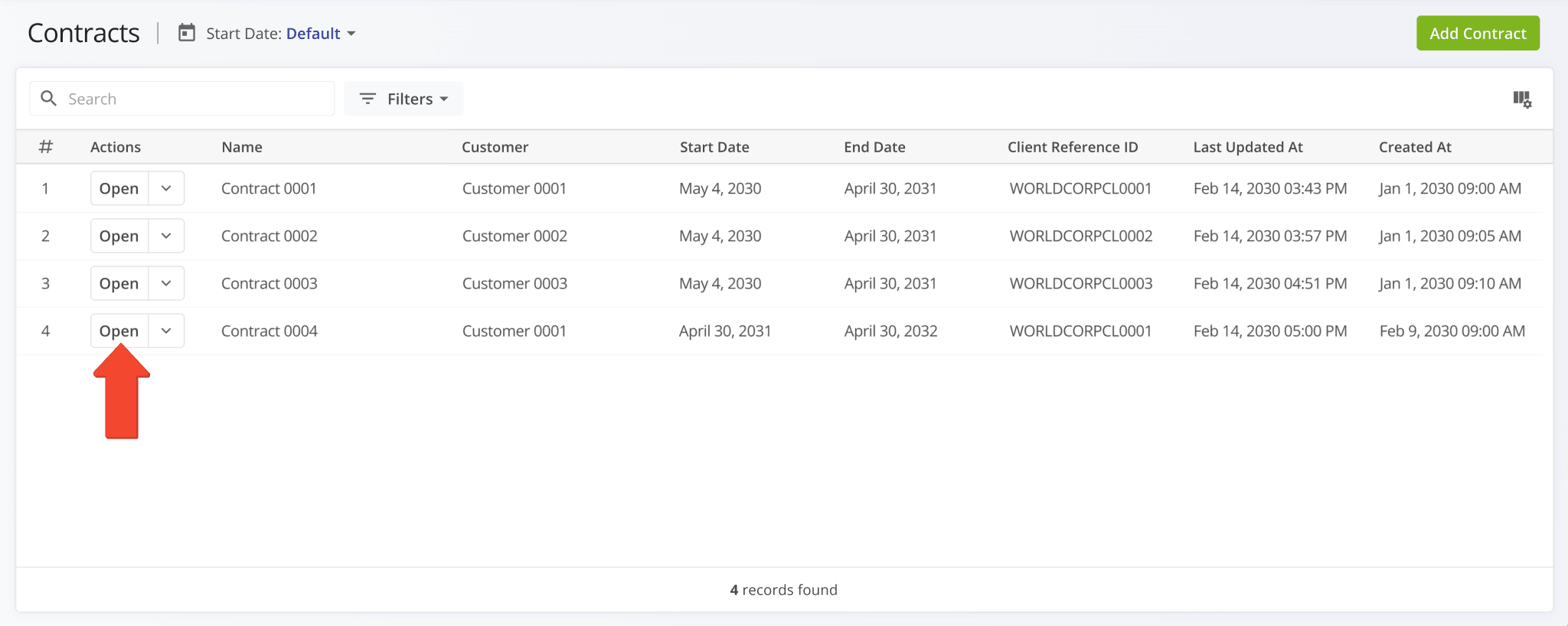
You can now open Contract Snapshots directly from the Contracts List by clicking the new “Open” button.
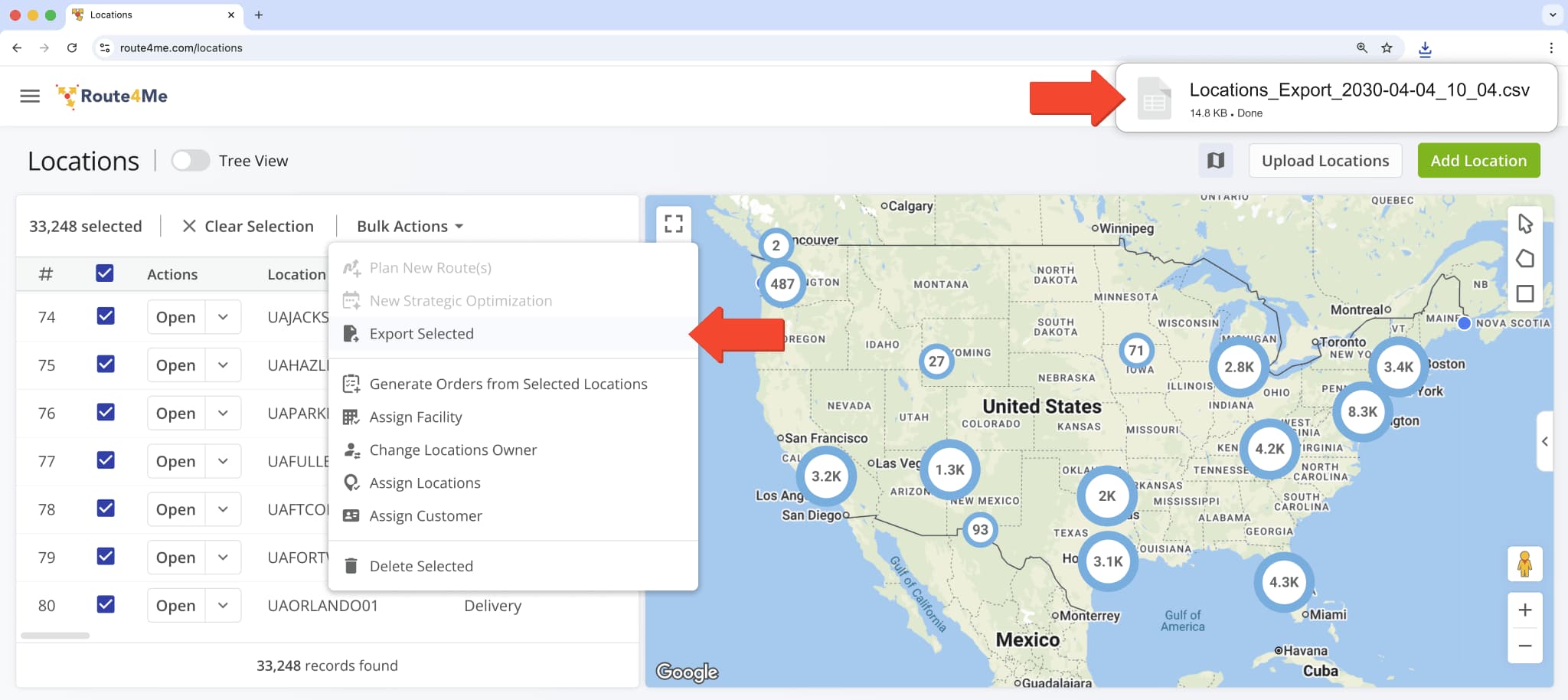
The name of the spreadsheet file downloaded when exporting Locations was updated to the following format:
- Locations_Export_year-month-date_hour_minute
For example: “Locations_Export_2030-04-04_10_04“
Previously, the filename prefix was “Customer_Locations” and was changed to “Locations“.
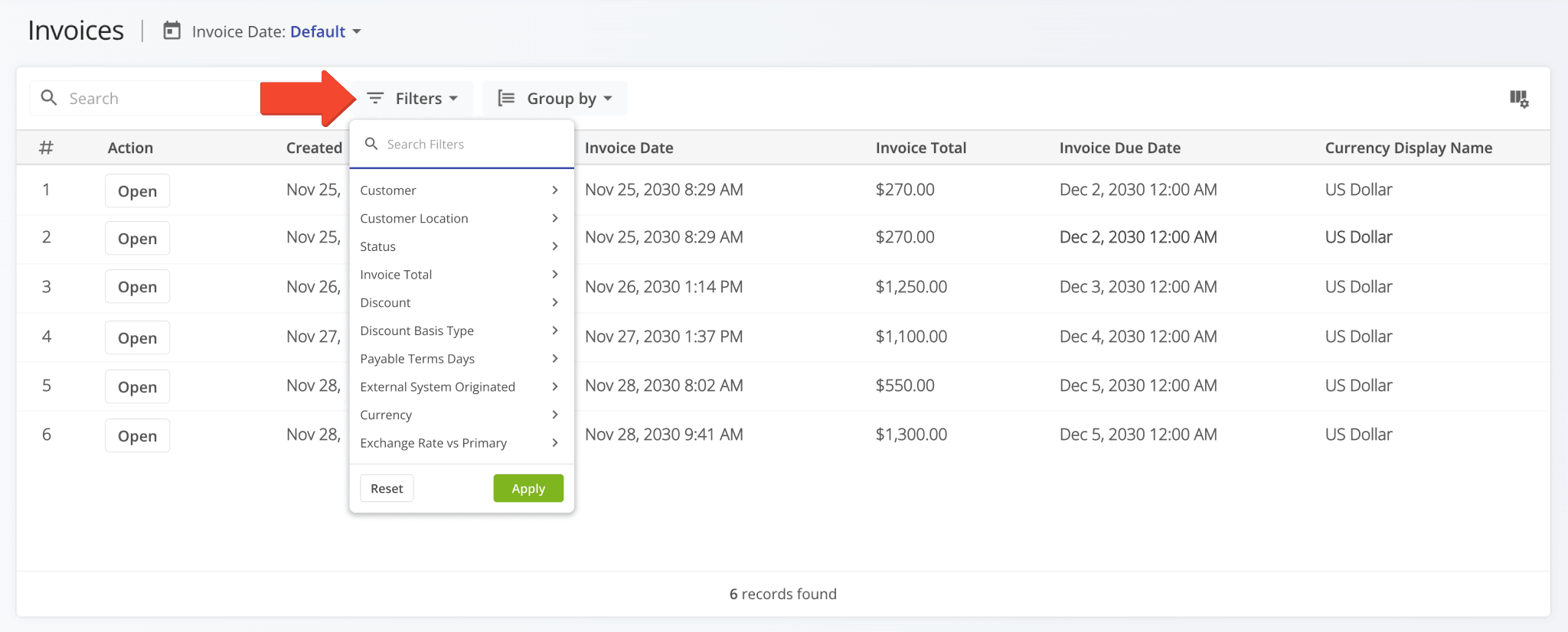
Filter options on the Invoices Page were revised, and a new “Customer Location” filter was added.
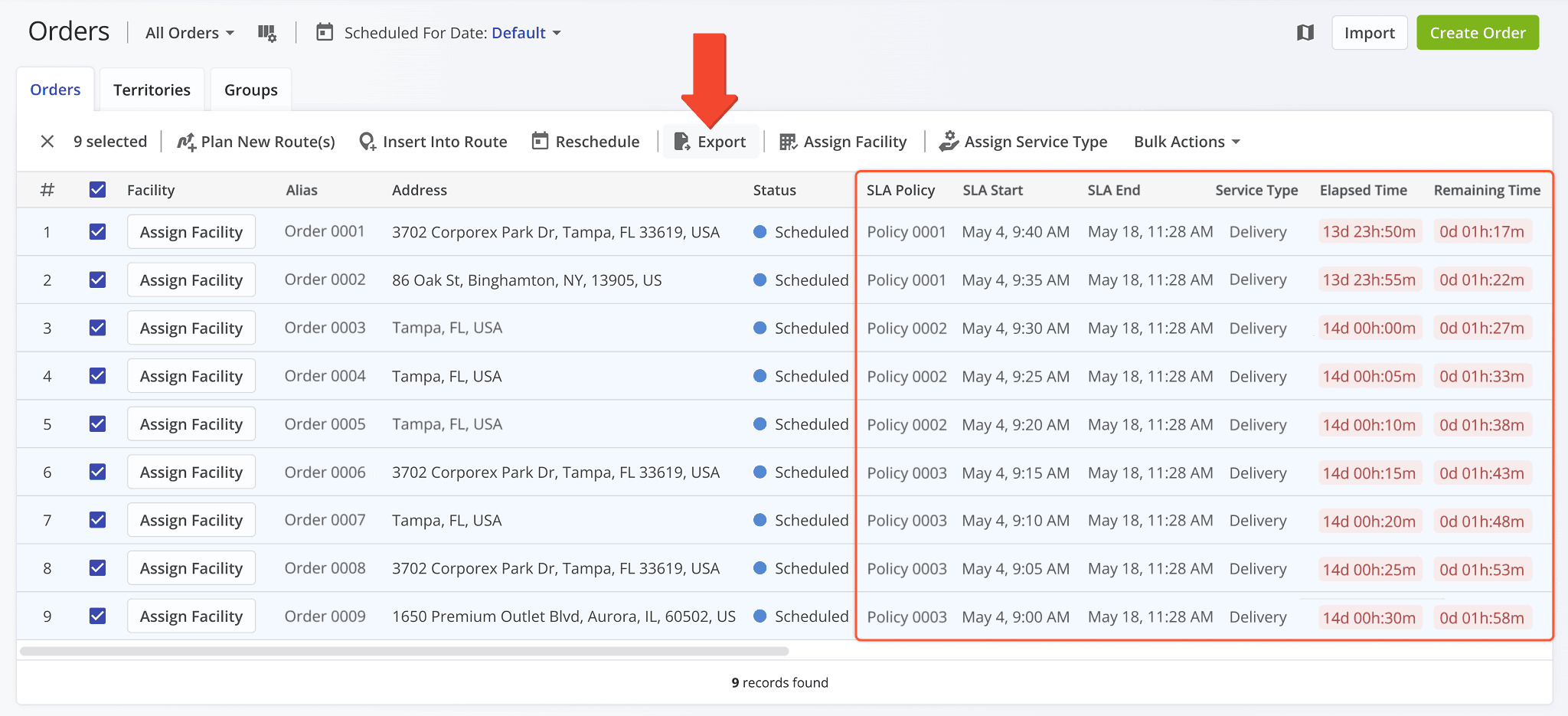
The following SLA (Service Level Agreement) columns have been added to the list of Order Export items:
- SLA Policy: Name or alias of the SLA Policy associated with an order.
- SLA Start: Date and time from which the SLA Policy associated with an order is active.
- SLA End: Date and time at which the SLA Policy associated with an order will conclude.
- Service Type: Type of service associated with an order.
- Elapsed Time: How much time has passed from the SLA Start time.
- Remaining Time: How much time is left until the SLA End time.
To export orders, simply check the boxes next to them and click “Export“.
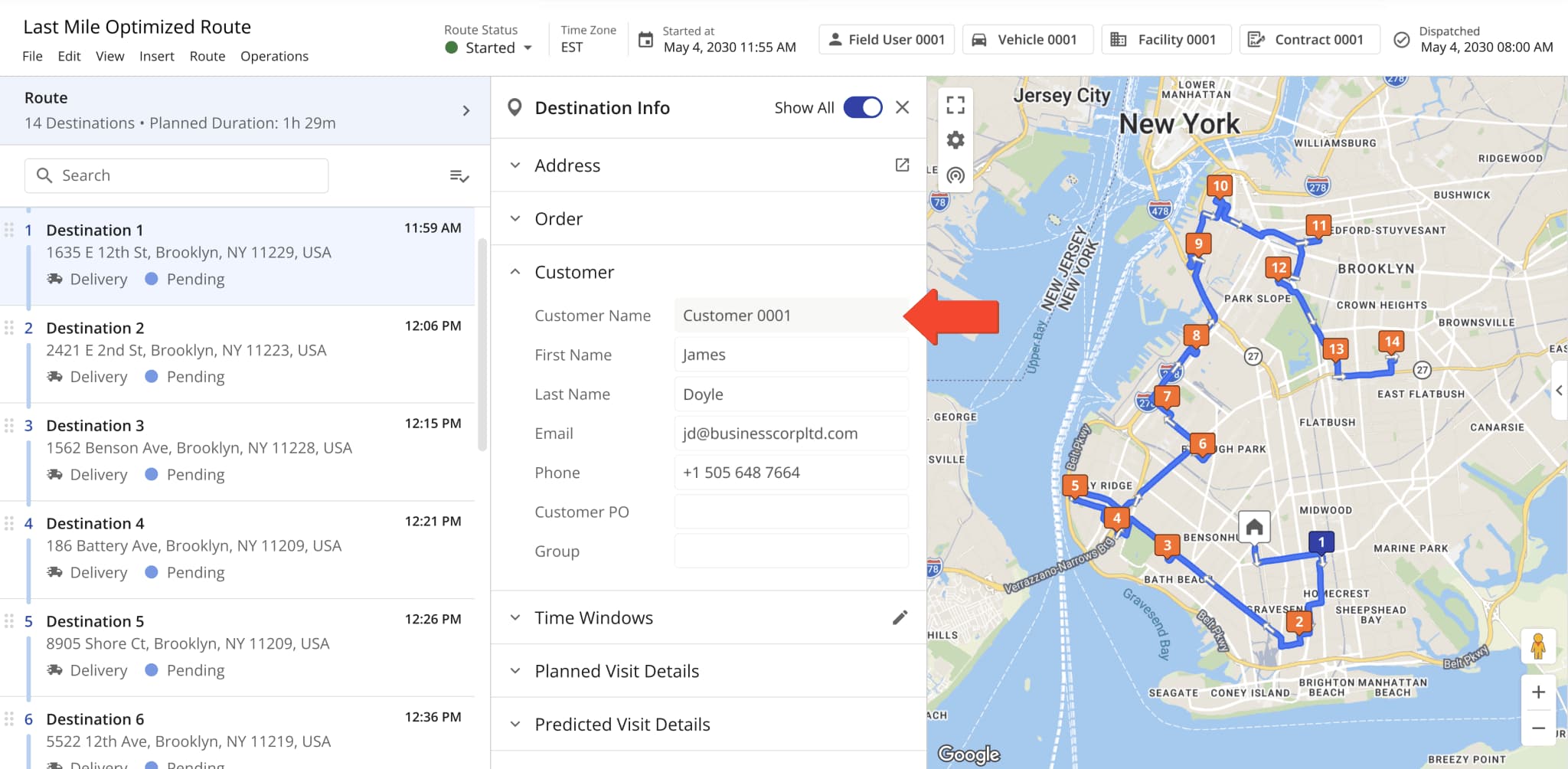
A new read-only “Customer Name” field was added to the Destination Info panel in the Route Editor. It shows the alias of a Customer and can’t be modified from the Route Editor.
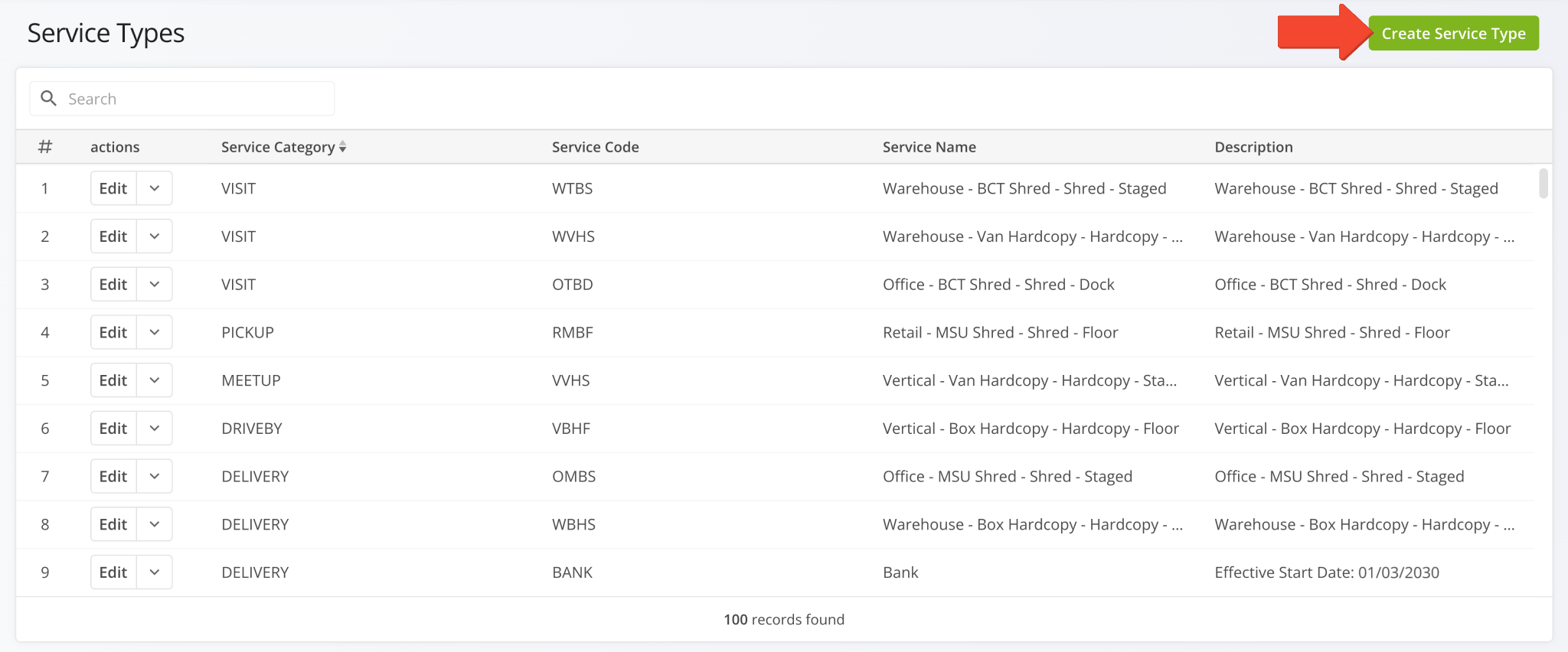
A new Service Types page was added. You can use it to configure custom Service Types that can be associated with Locations and other entities in your Route4Me account. Click “Create Service Type” to start customizing a new Service Type.
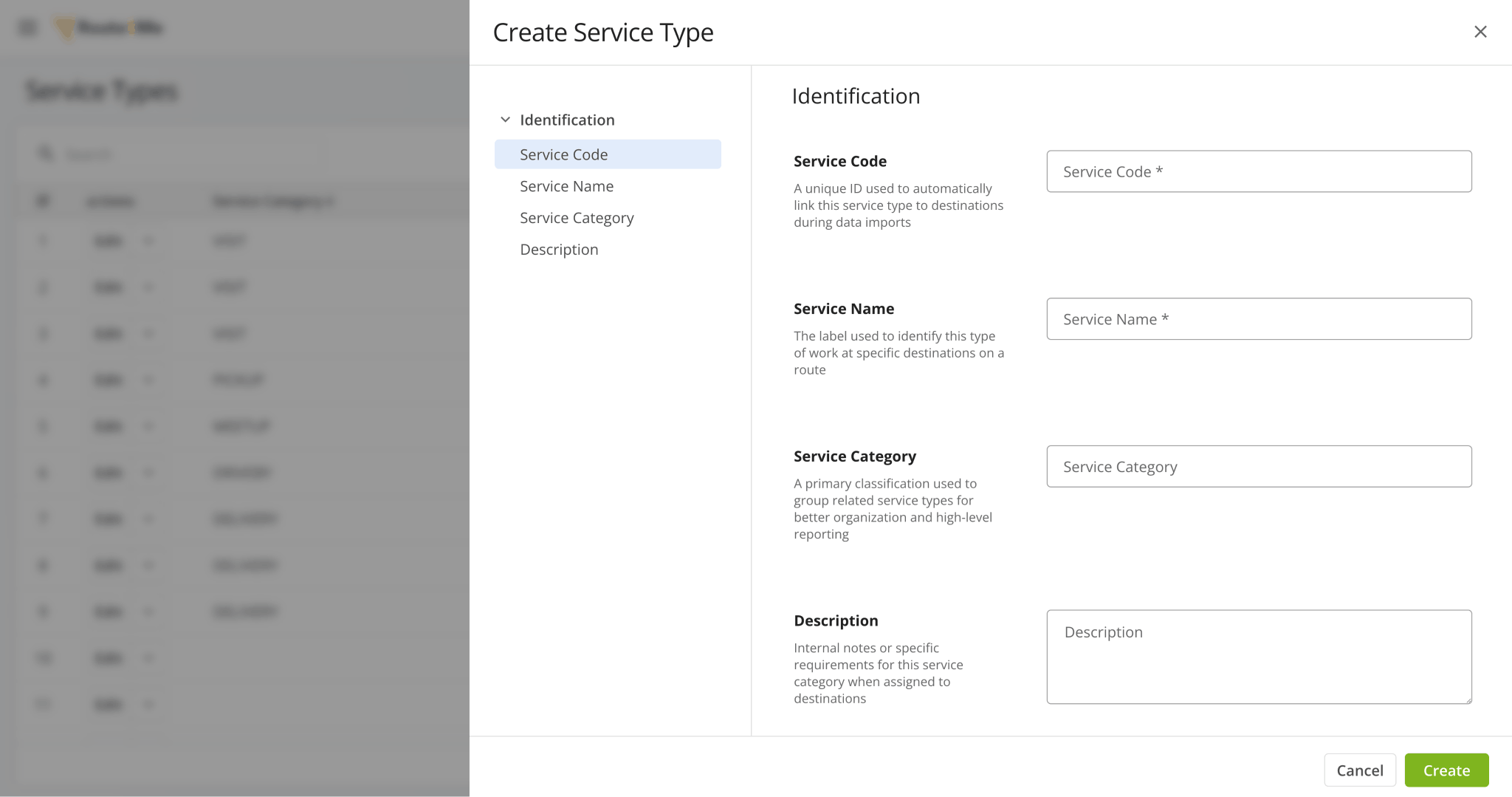
You can customize the following data fields when creating Service Types:
- Service Code: A unique ID used to automatically link this service type to destinations during data imports.
- Service Name: The label used to identify this type of work at specific destinations on a route.
- Service Category: A primary classification used to group related service types for better organization and high-level reporting.
- Description: Internal notes or specific requirements for this service category when assigned to destinations.
A new “Customer” section was added to the Orders System where you can assign a Customer and Location when creating an order. These new attribution fields are linked, and selecting a different Customer than the one already associated with a Location will reset the “Location” field.
This update introduces structured relationships between Orders, Customers, and Locations, improving data integrity and enabling more advanced, entity-based routing and reporting.
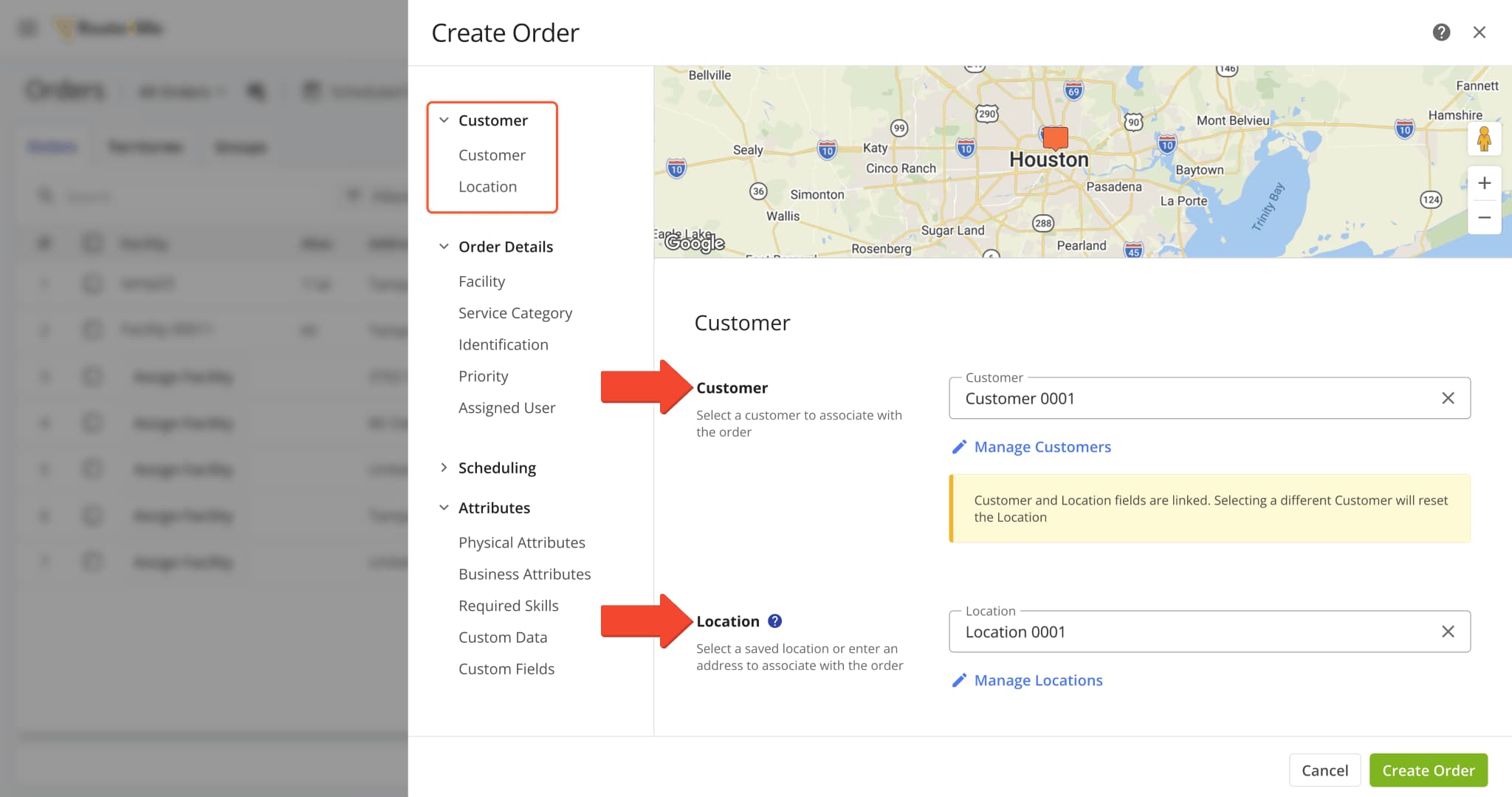
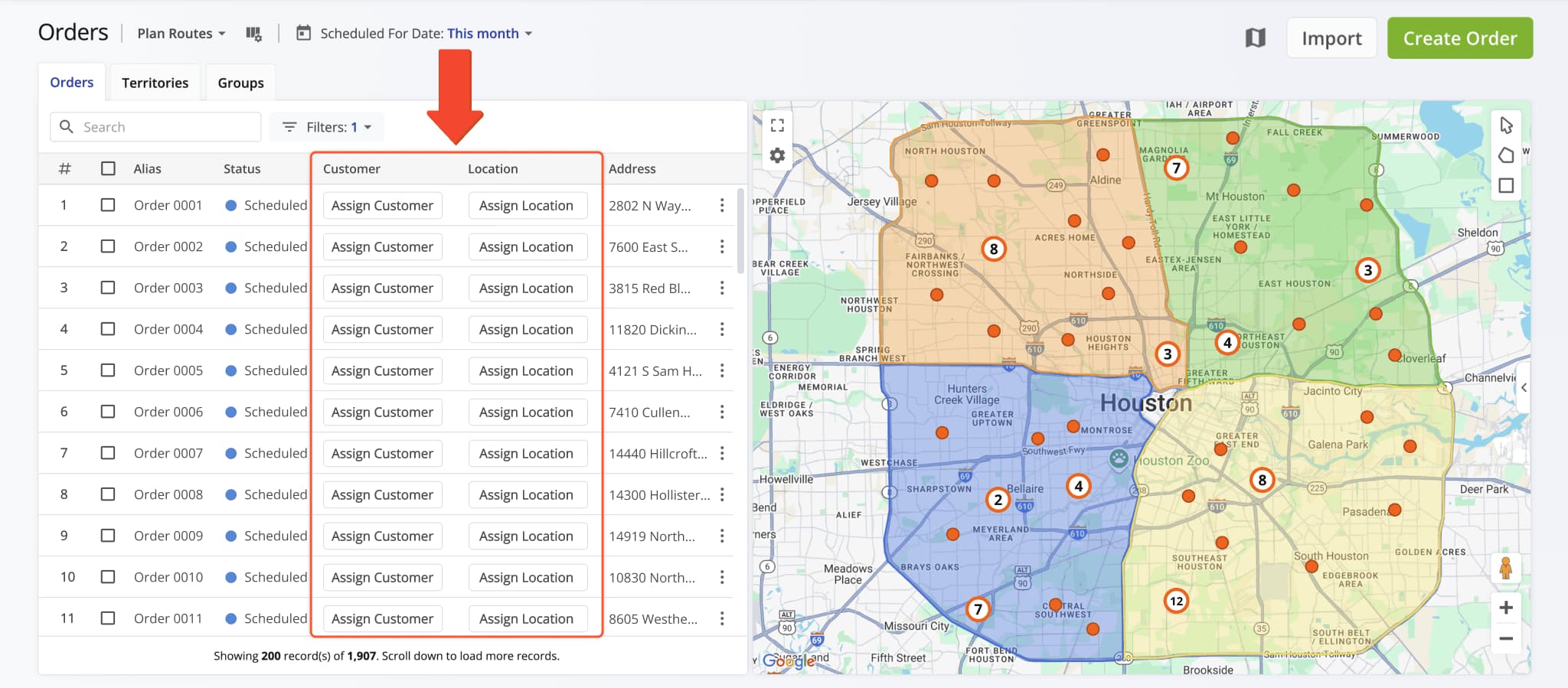
You can also directly assign Customers and Locations to Orders from the Orders List in the respective columns.
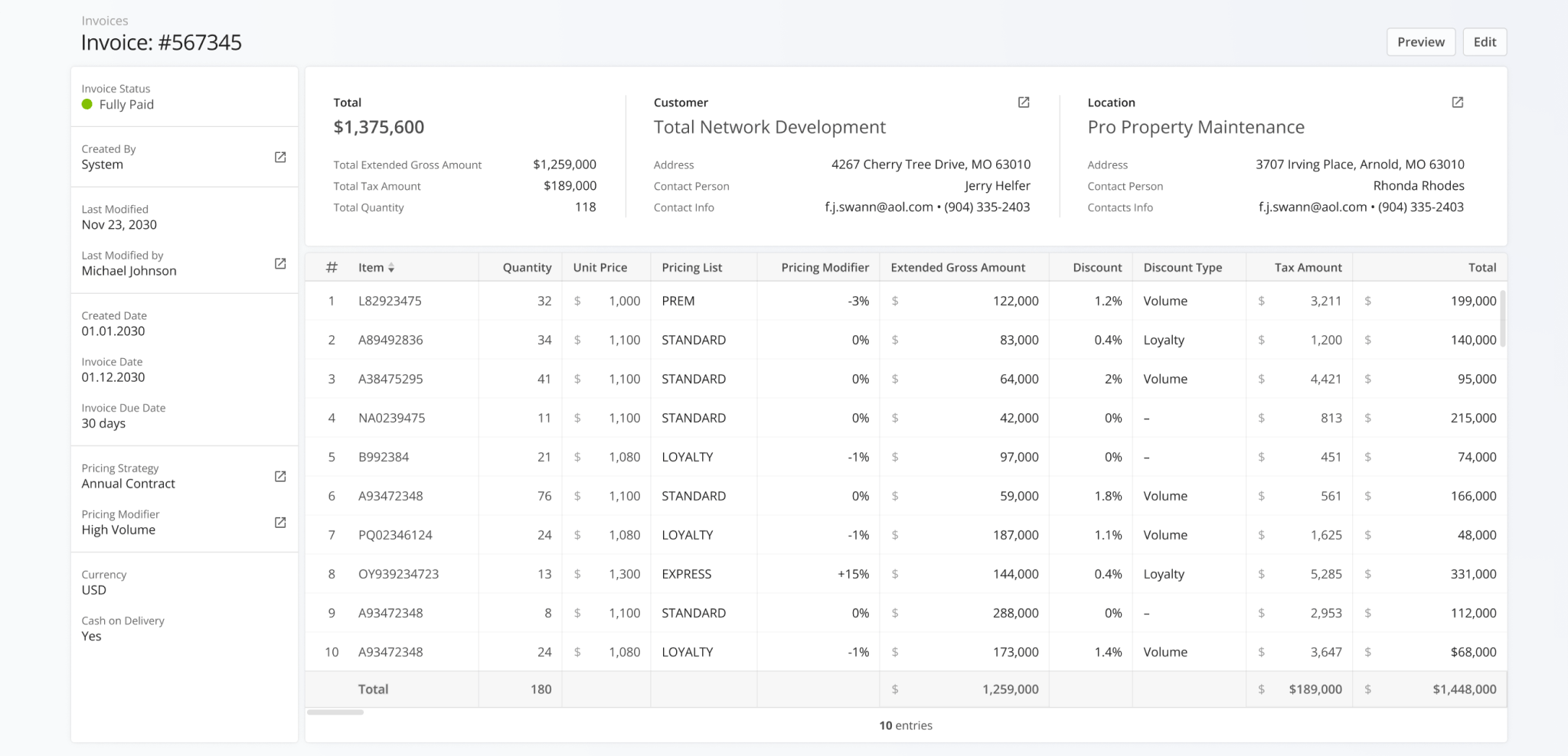
The Invoice Snapshots page was redesigned with a new financial data interface showing more detailed invoice information, customer and location attribution, and total values for all displayed invoice metrics.
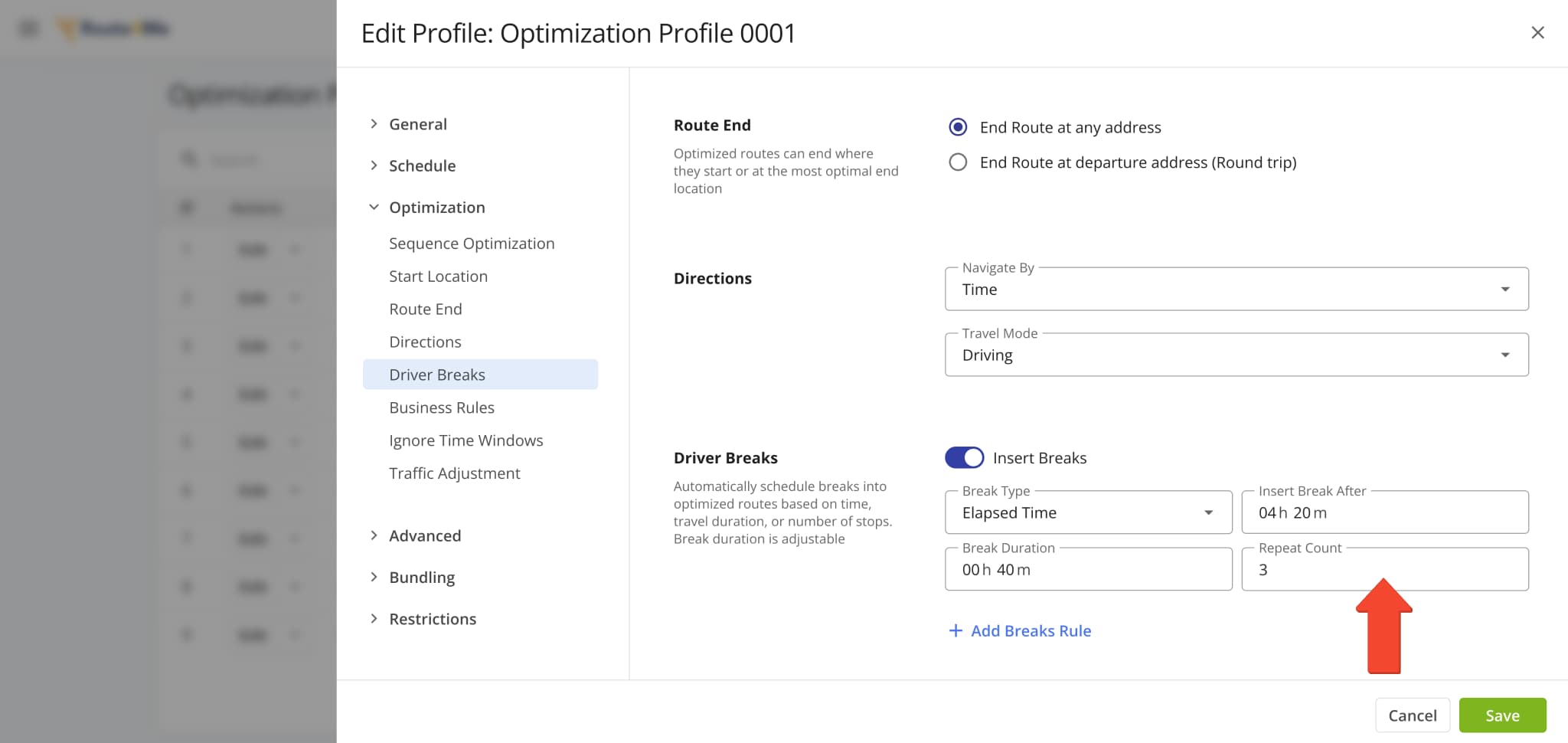
A new “Repeat Count” field was added when customizing Driver Breaks in Optimization Profiles and other interfaces. This new value defines how many times a specific Driver Break configuration will repeat when planning routes.
Open Your Optimization Profiles
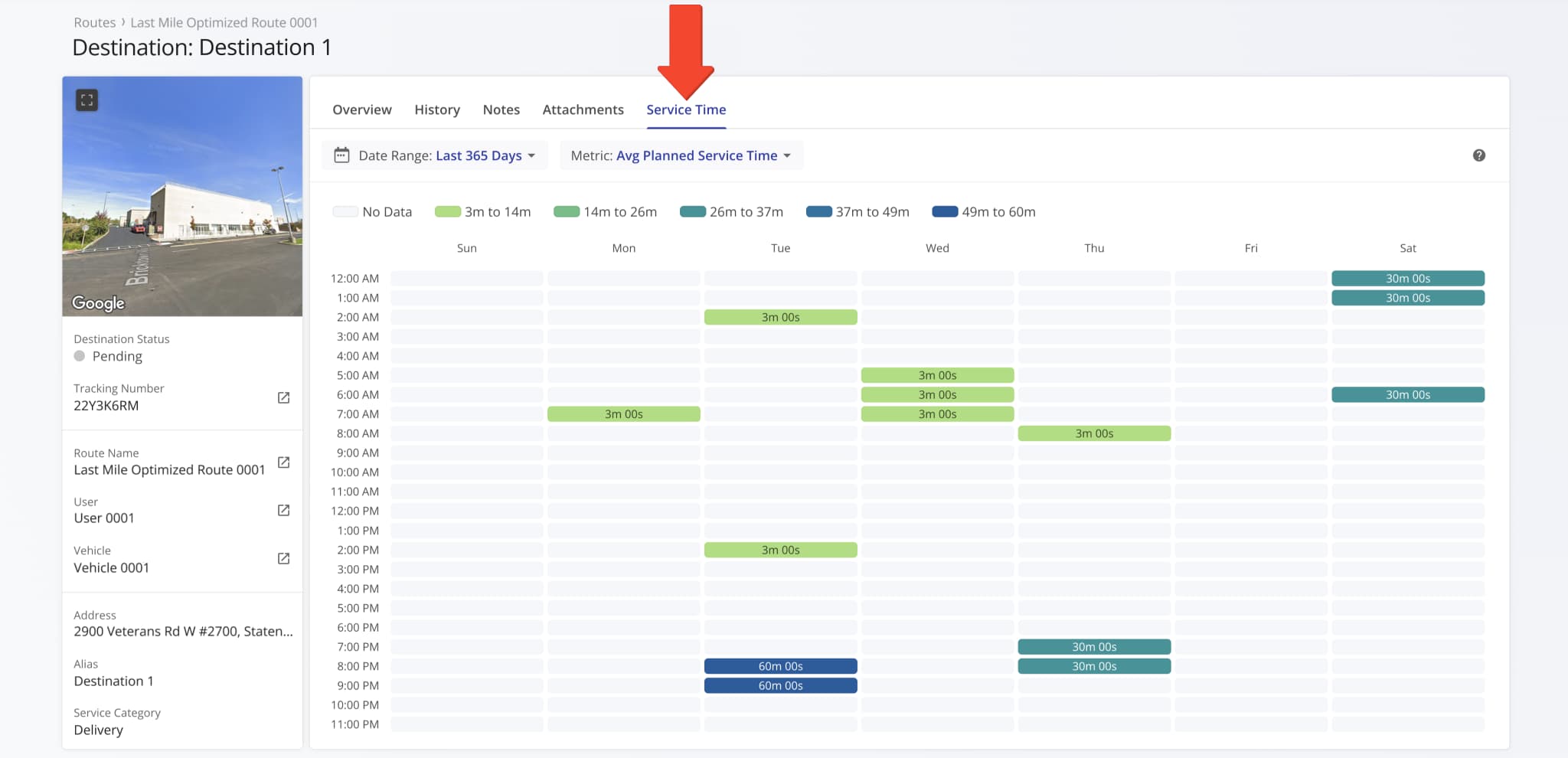
A new “Service Time” section was added to Destination Snapshots. It shows the distribution of Service Time at a destination across the days of the week over the specified period. This update enables you to get a clear overview of how the planned, reported, and detected Service Time at a destination is distributed.
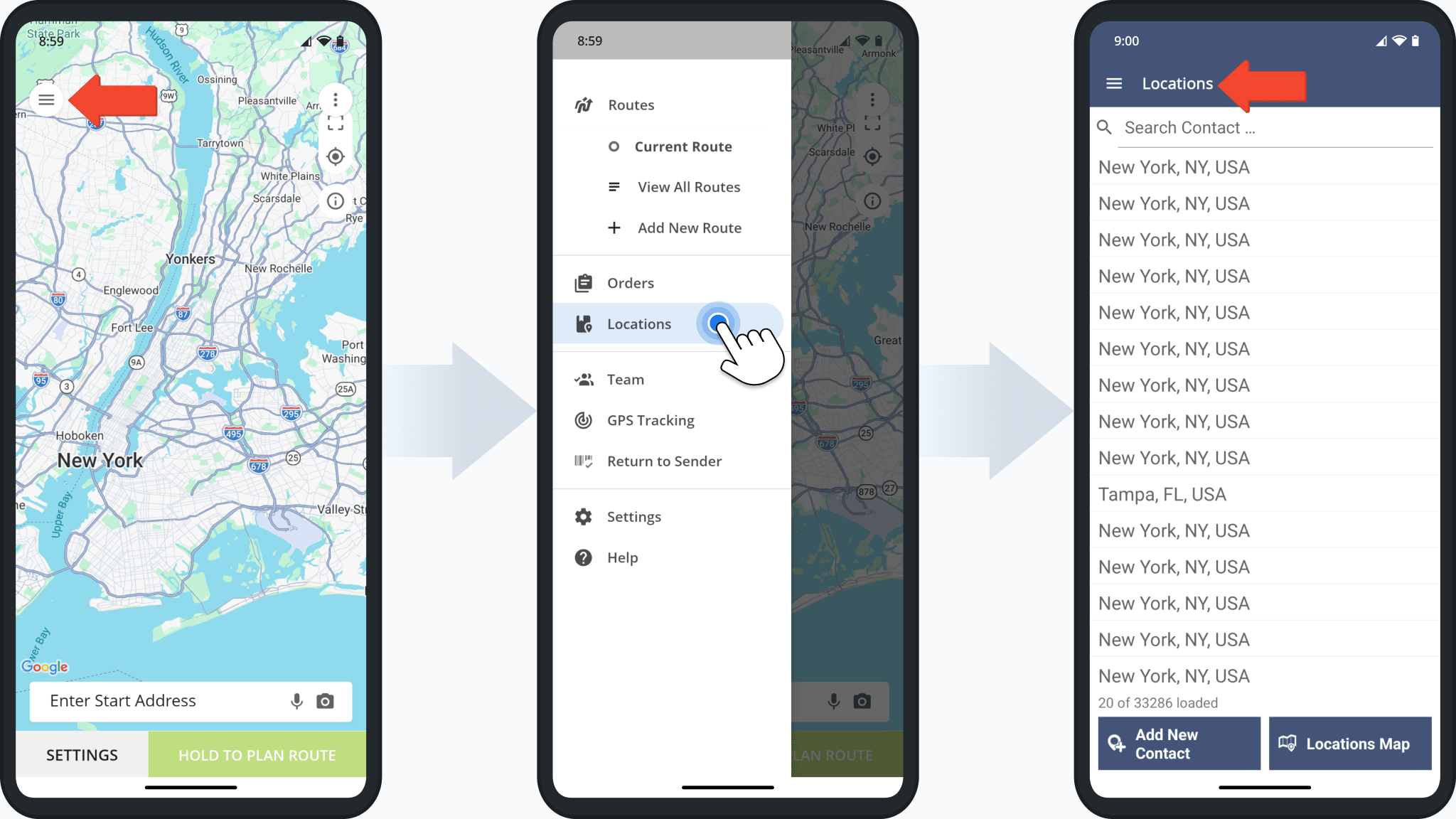
The Route4Me Android App Address Book has been renamed to “Locations”, providing a more unified way to access and manage Customer Locations directly from the mobile app. Users with the appropriate permissions can now view Customer Locations synced from the primary Route4Me account.
To access the updated feature, open the app menu and tap “Locations” to view the full Locations list.
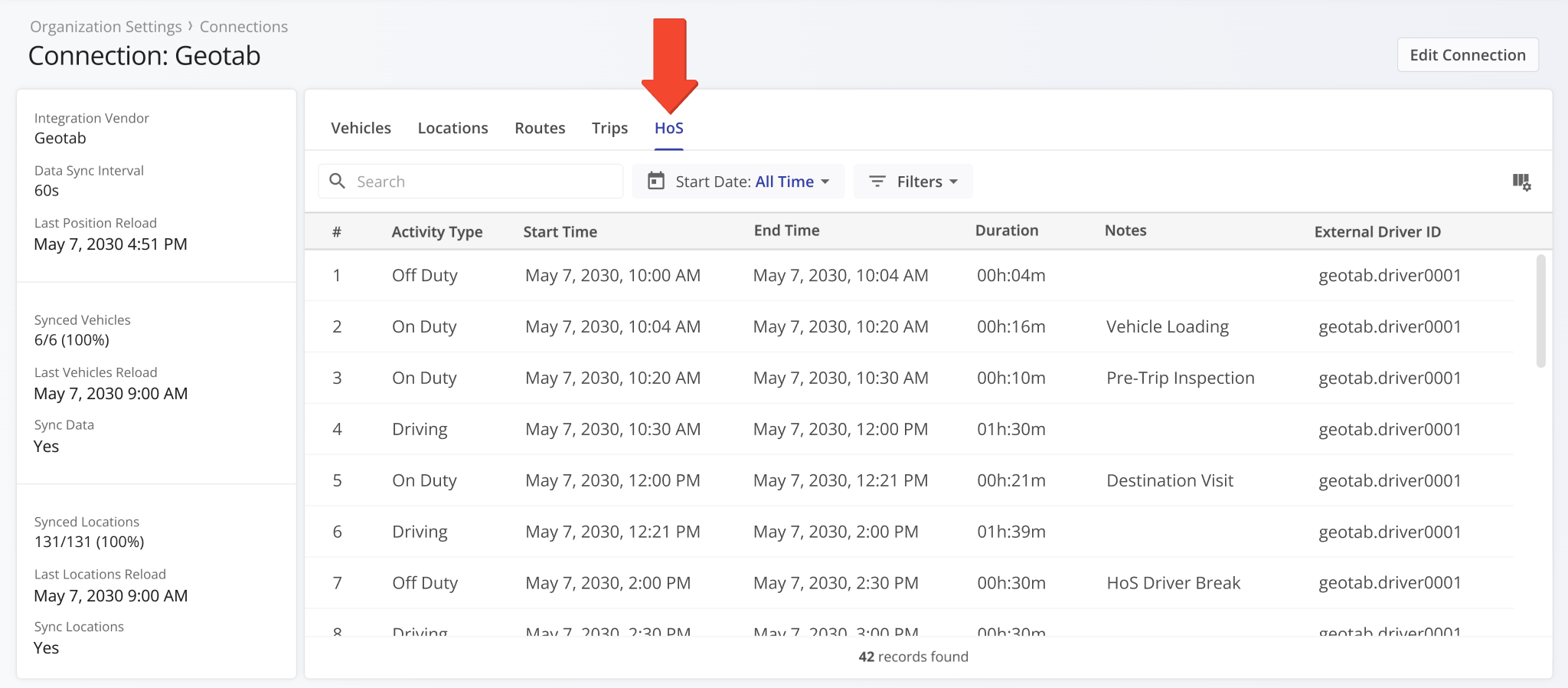
A new “HoS” section was added to Connection Snapshots. It shows synced hours of service events related to the vendor connection and its associated routes, assets, and users.
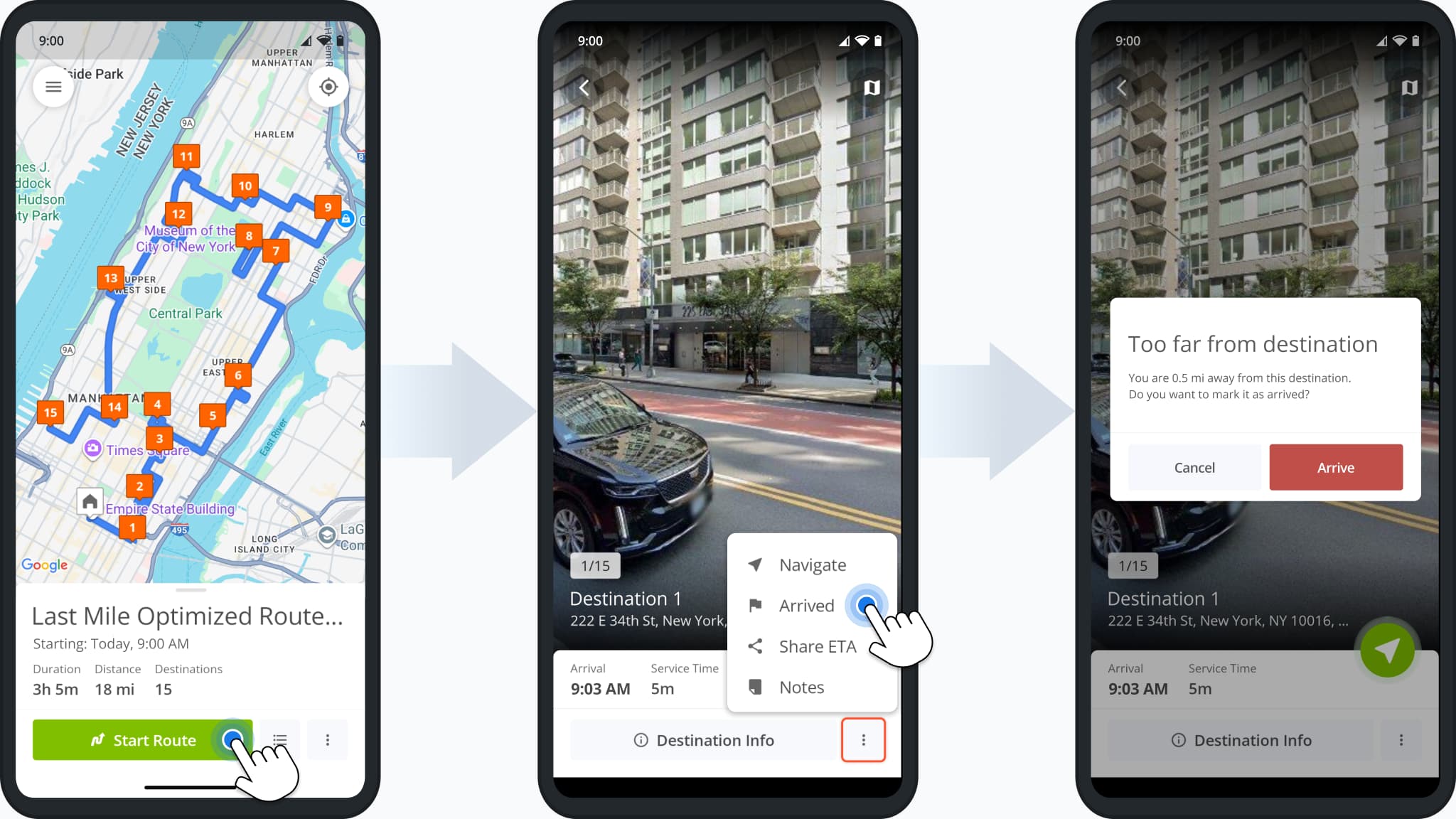
A new arrival distance alert was added to the Route4Me route planner app for Android. Users will see the alert shown in the image below when attempting to mark destinations as “Arrived” while not being close to the destination address.
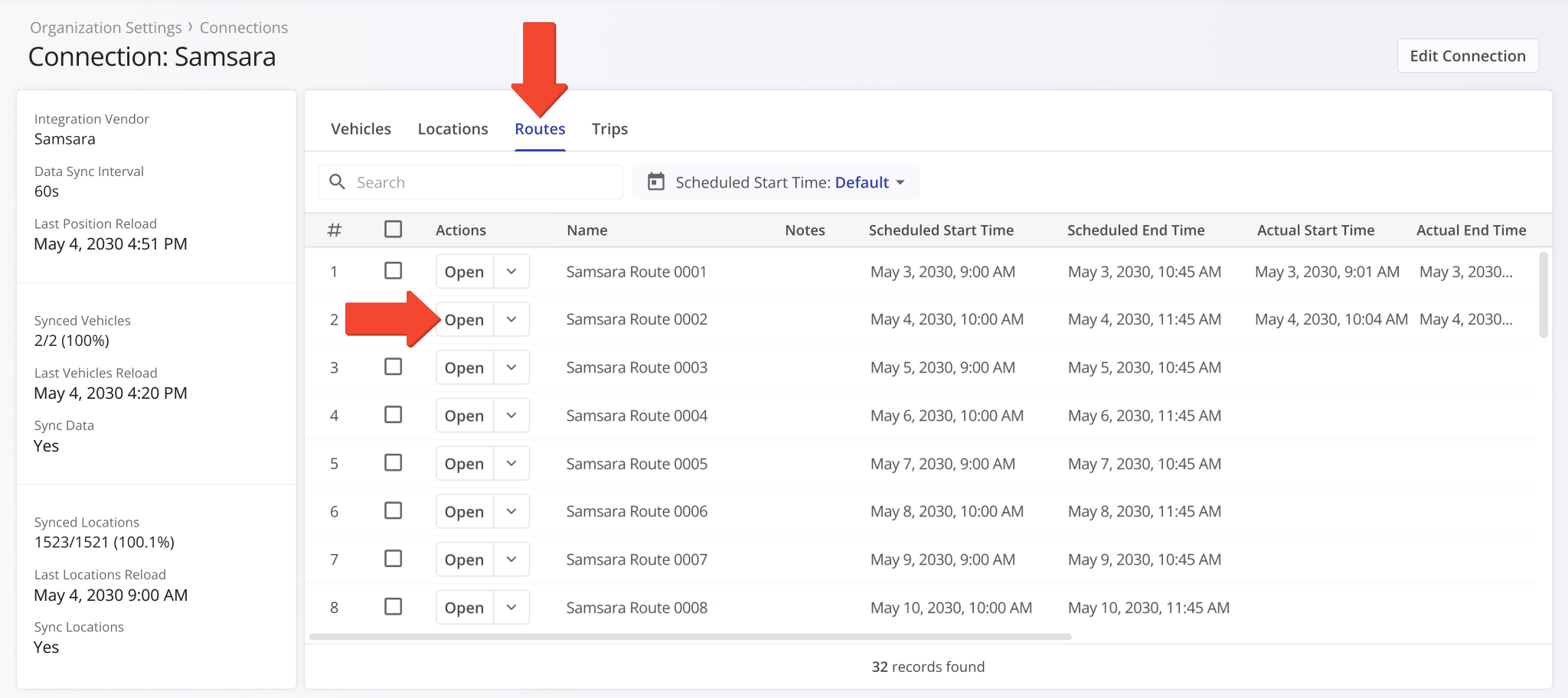
You can now open imported and synced routes in the “Routes” category of Connection Snapshots. To do so, simply click “Open” next to a connection vendor route.
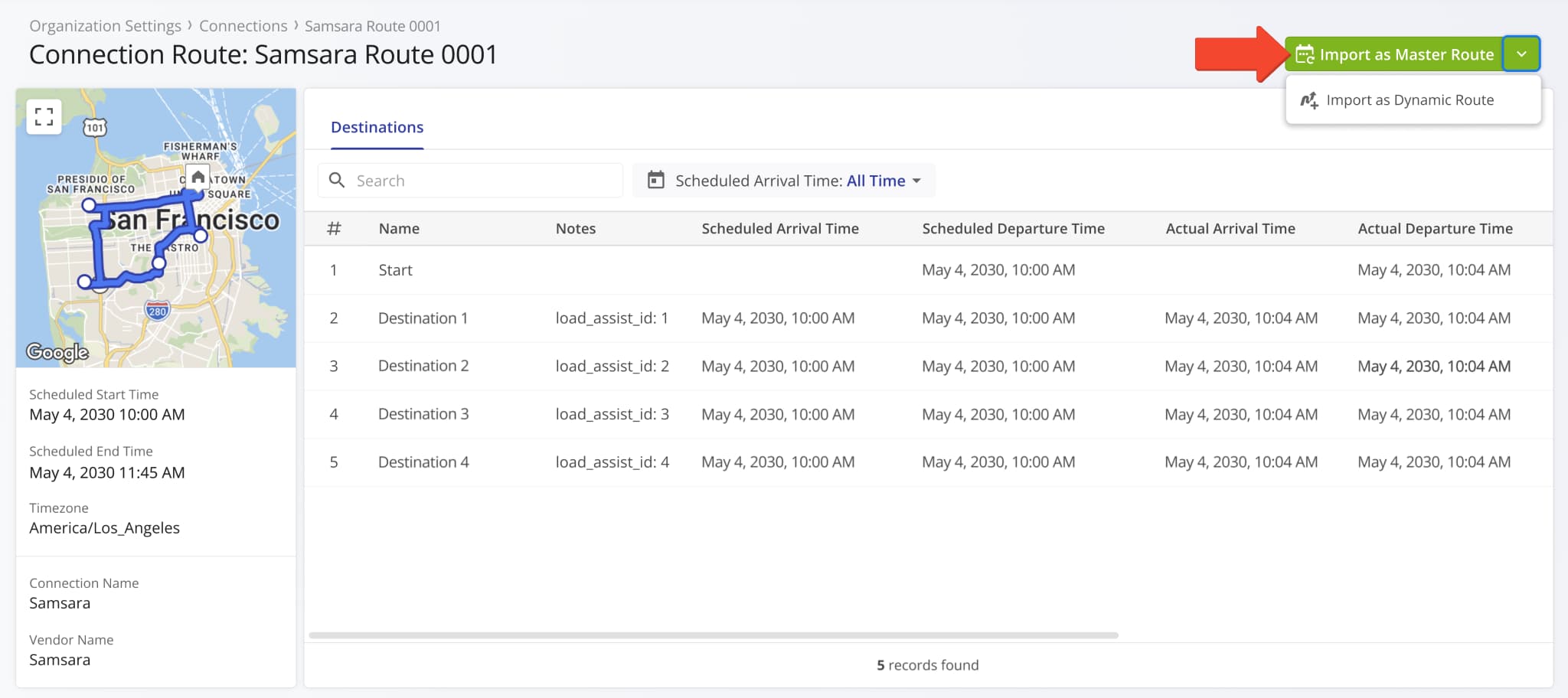
You’ll see a new Connection Route Snapshot which shows detailed destination data associated with the synced connection route. Vendor routes have to be imported before you can use them in Route4Me.
Click the “Import as Master Route” button to import a vendor route as a Master Route for Recurring Routing. Alternatively, click the Down Arrow and select “Import as Dynamic Route” to add a vendor route to your Routes List.
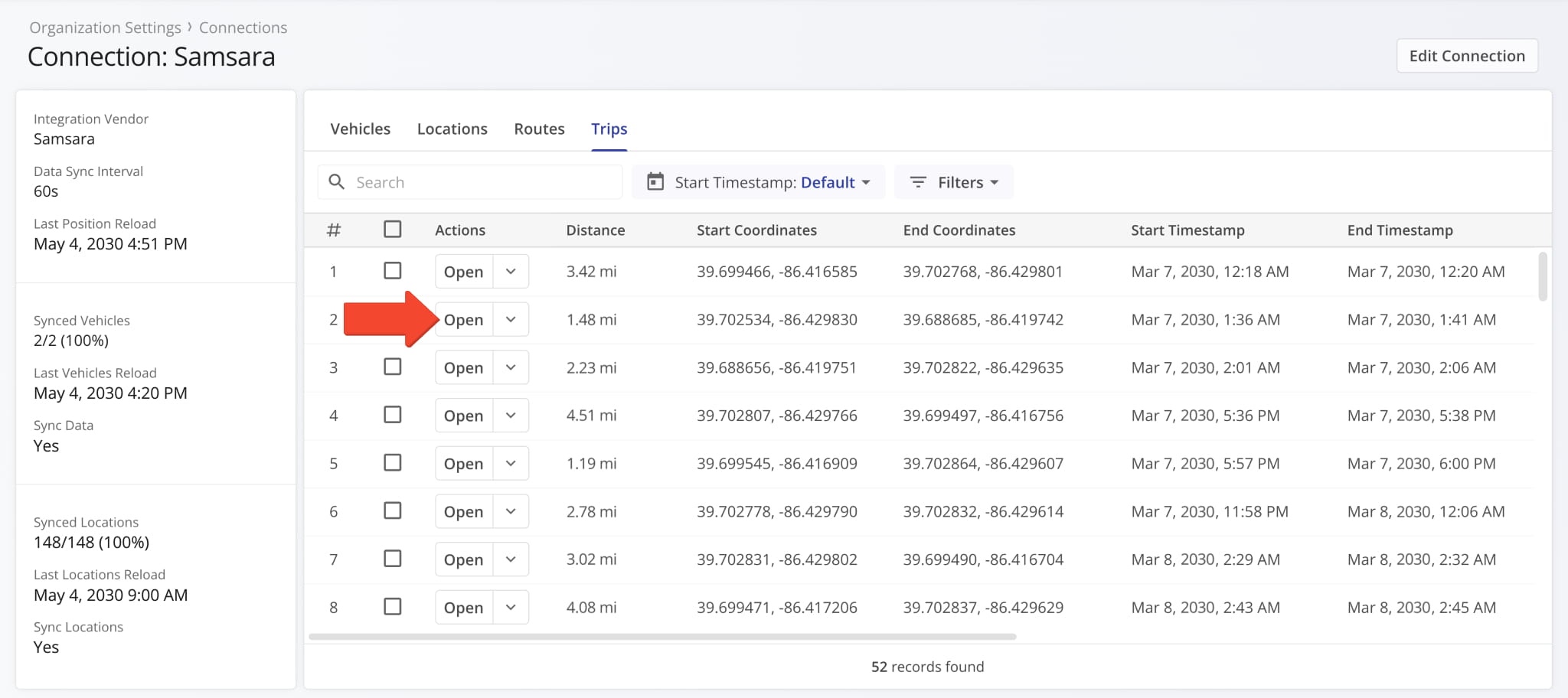
You can now open Telematics Trip Snapshots from the “Trips” category of Connection Snapshots. To do so, simply click “Open” next to a connection vendor trip.
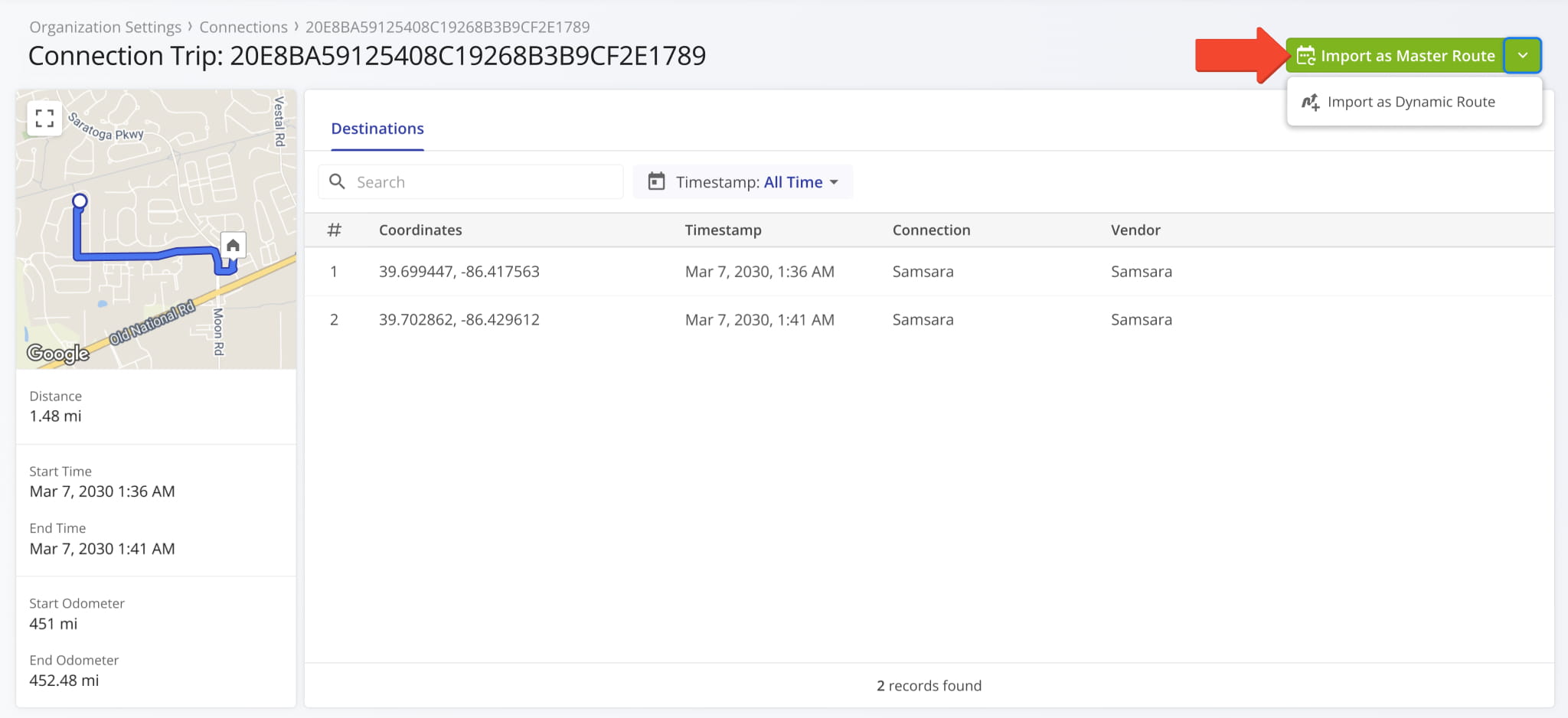
You’ll see a new Connection Trip Snapshot which shows the synched distance and directions traveled by a telematics vehicle according to your vendor settings. Trips can be imported and used as routes in Route4Me.
Click the “Import as Master Route” button to import a vendor trip as a Master Route for Recurring Routing. Alternatively, click the Down Arrow and select “Import as Dynamic Route” to add a vendor trip to your Routes List.
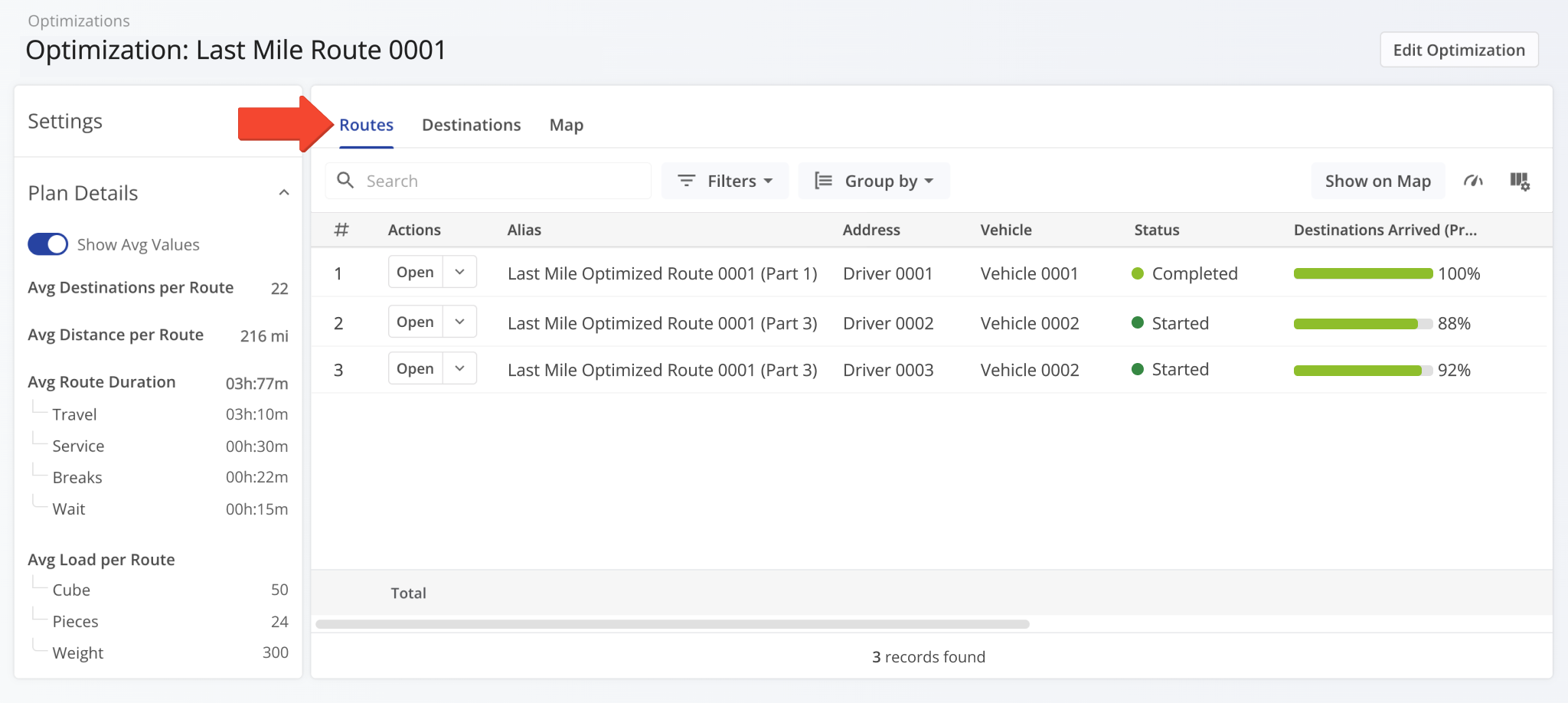
When you open an Optimization Snapshot, the “Routes” tab will be selected by default. Previously, the “Map” tab was selected by default. This update makes Optimization Snapshots consistent with other snapshot interfaces.
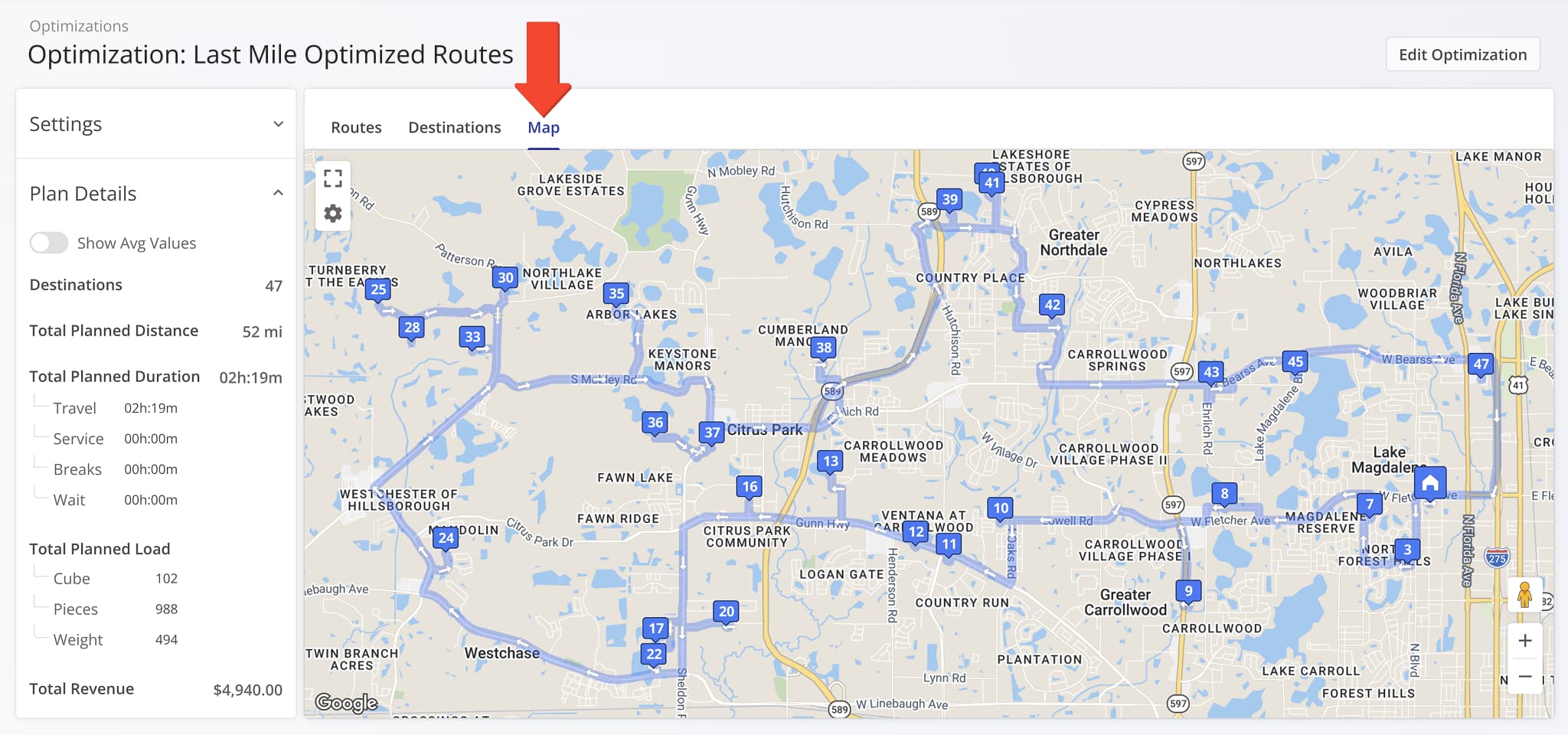
A new “Map” section was added to Optimization Snapshots showing route destinations and directions.
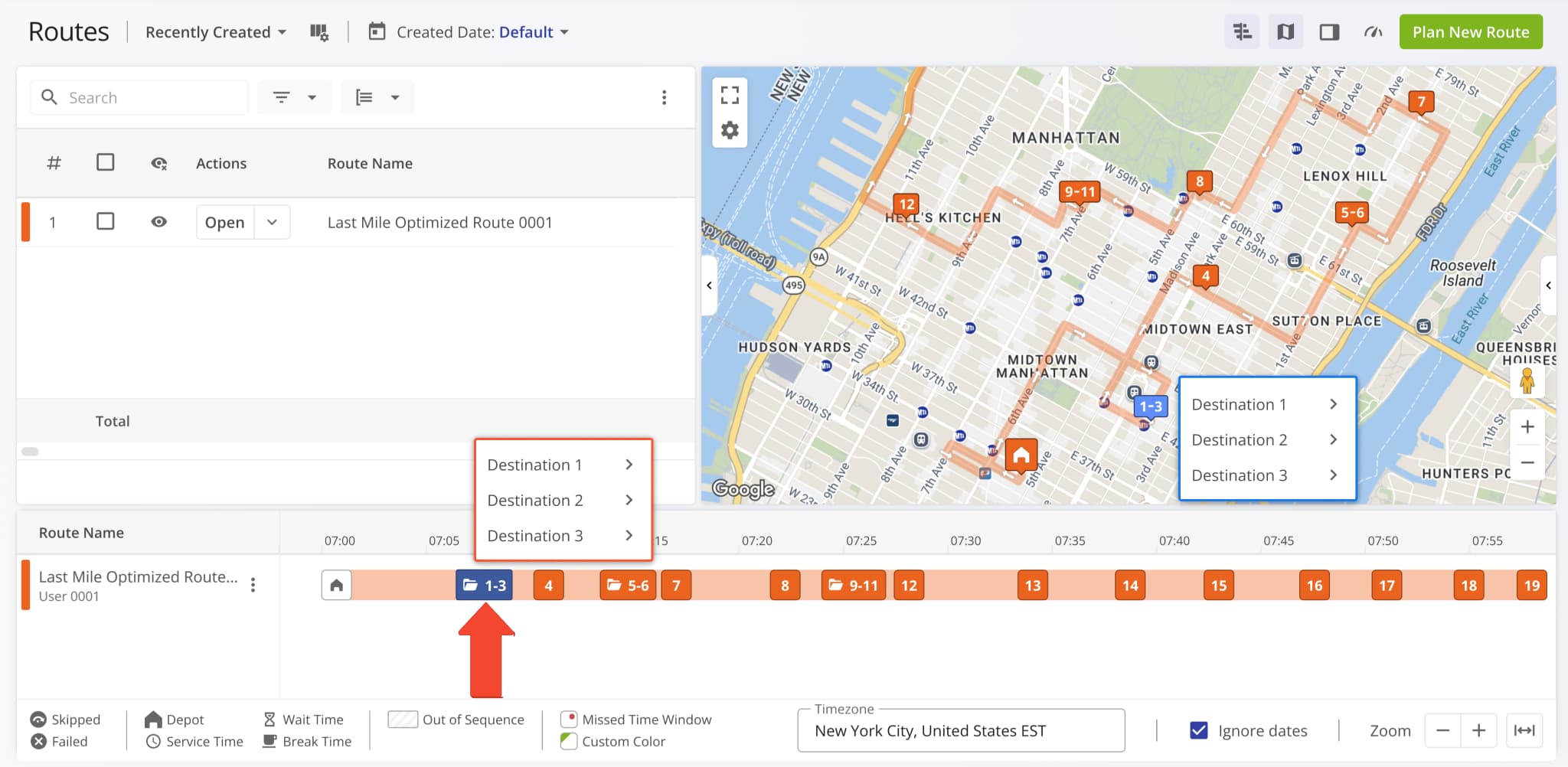
Grouped destinations in the Routes Timeline have been redesigned as a vertical list like on the Routes Map. Previously, hovering over grouped destinations on the timeline would show individual numbered icons instead of destination aliases.
Users can now see Avoidance Zones when navigating routes on the Android Route App.
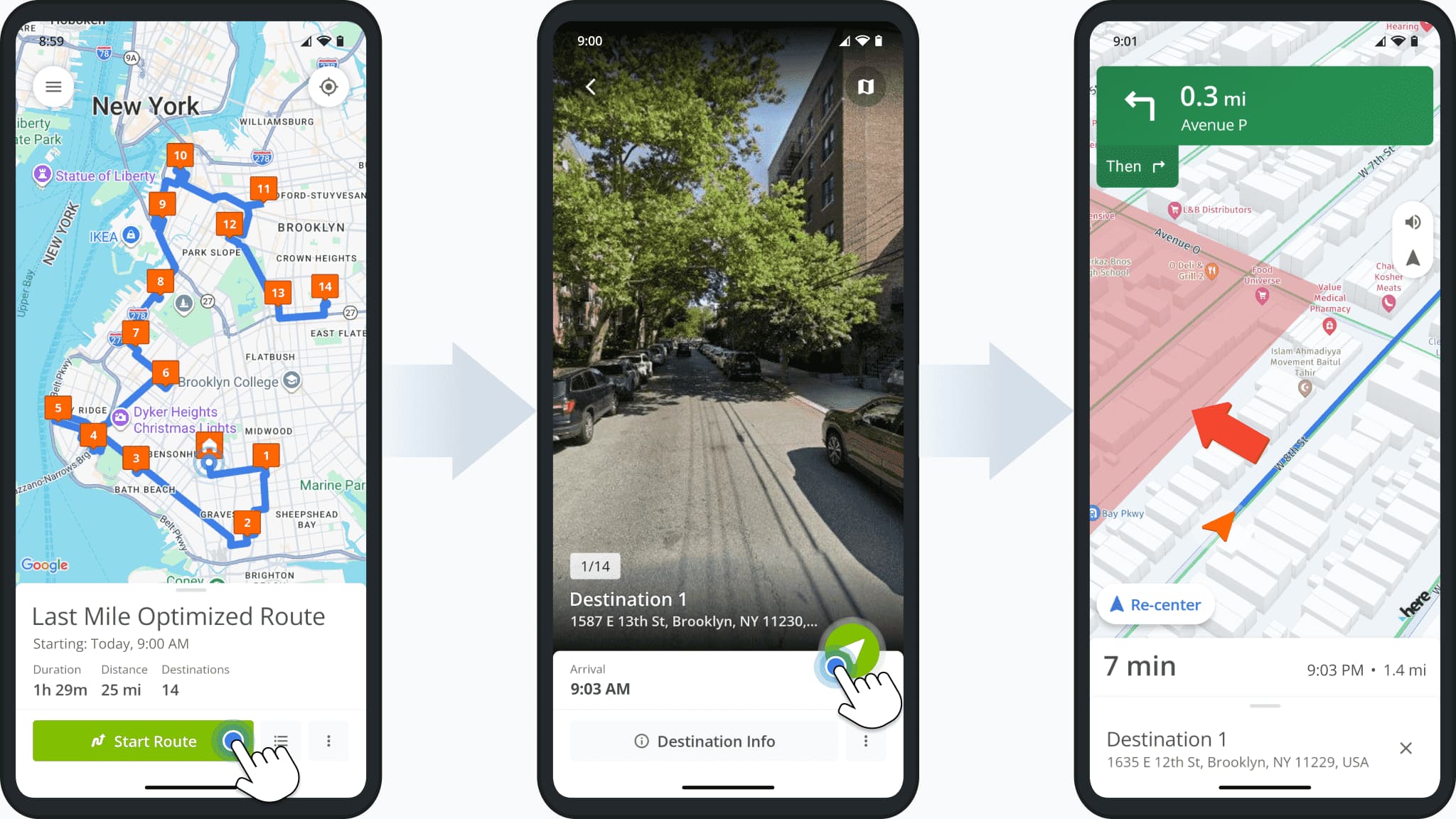
Users can now import addresses from Google Drive when using the mobile route planning app. To do so, simply start planning a route, tap “Import Addresses” and select “Import Addresses From Google Drive“.
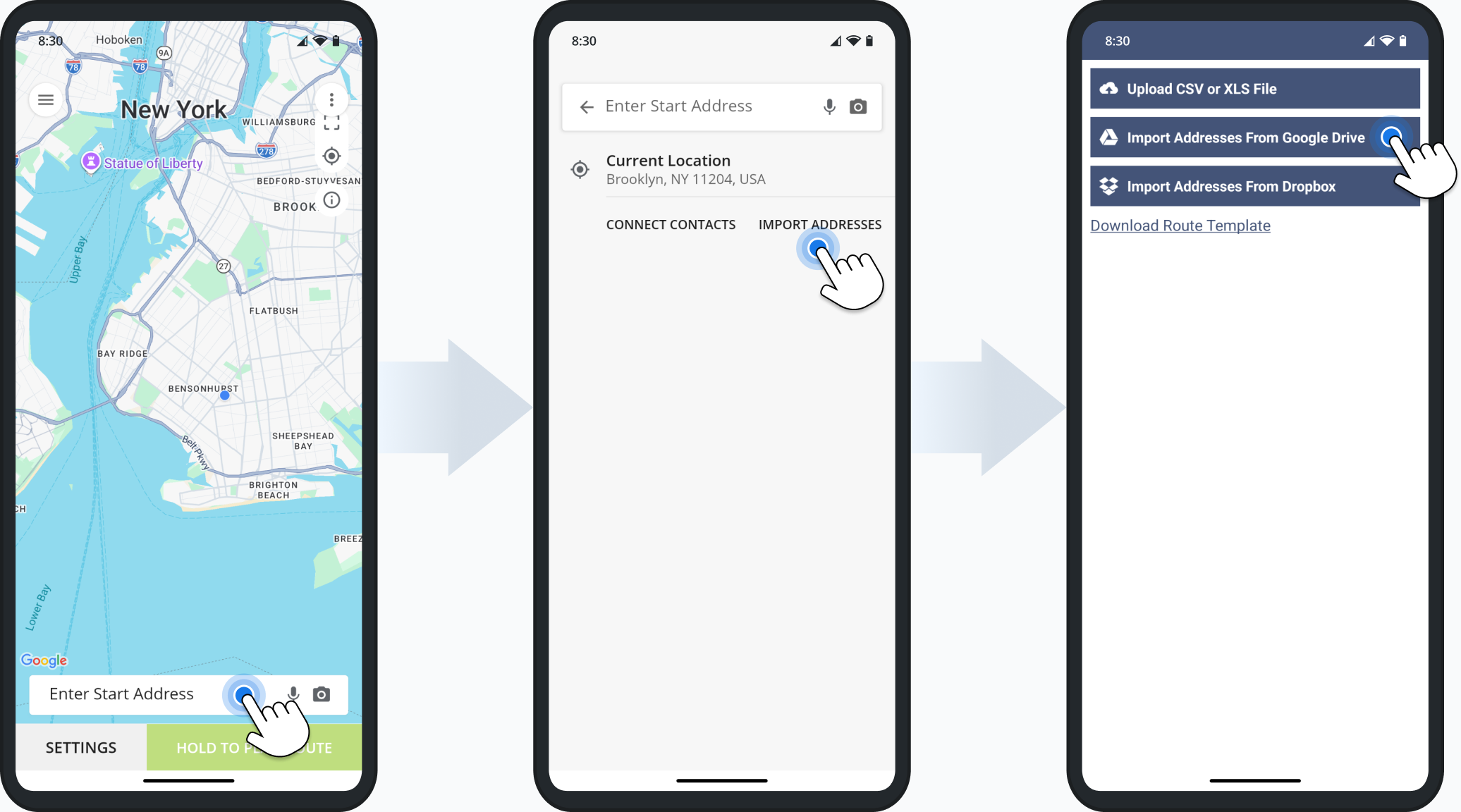
You can now open, add, and manage Custom Route Data directly from the Route Editor. A new option was added to the “Route” action menu in the top menu bar. Click “Route” and select “View Custom Data“.
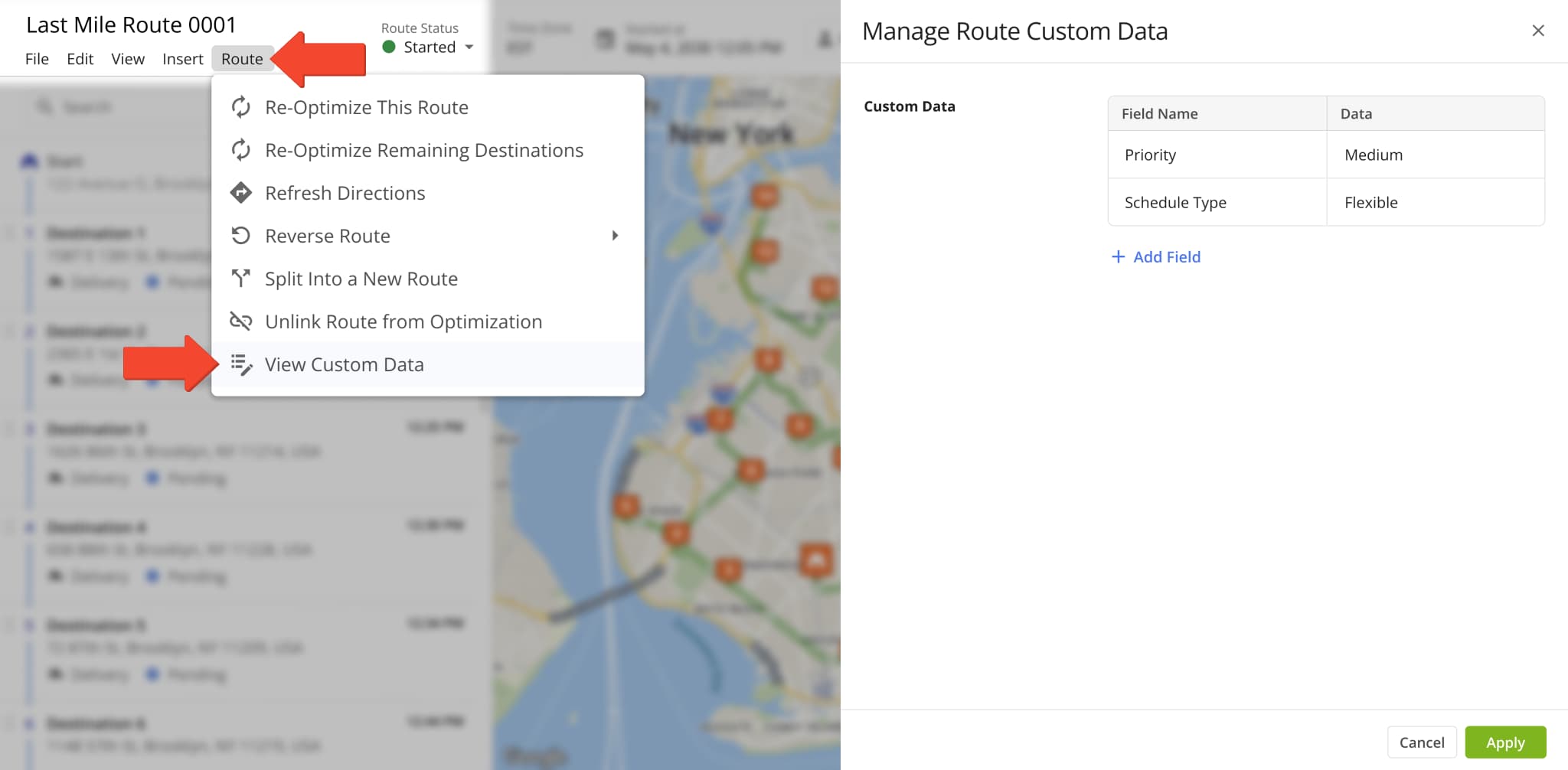
A new “Route Info” sidebar was added to the Route Editor. It shows planned and actual route data and percentages in a customizable vertical format. To open it, click the Sidebar Button to the right of the map and then click the Route Info icon.
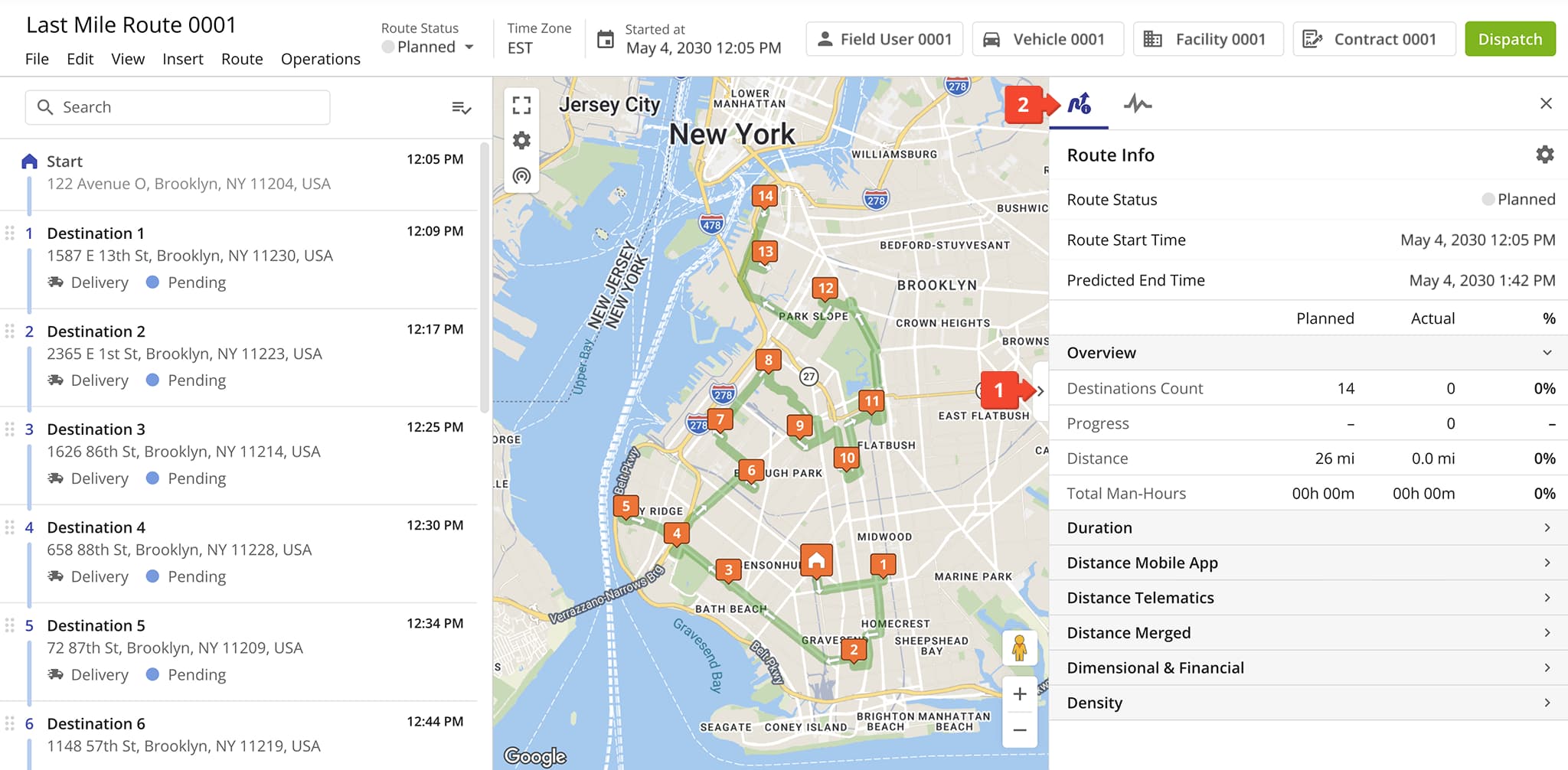
The dashboard sidebar in the Route Editor was removed and replaced with a customizable, real-time Route Info interface.
The image below shows the old dashboard that was removed and replaced with Route Info on March 16th, 2026.
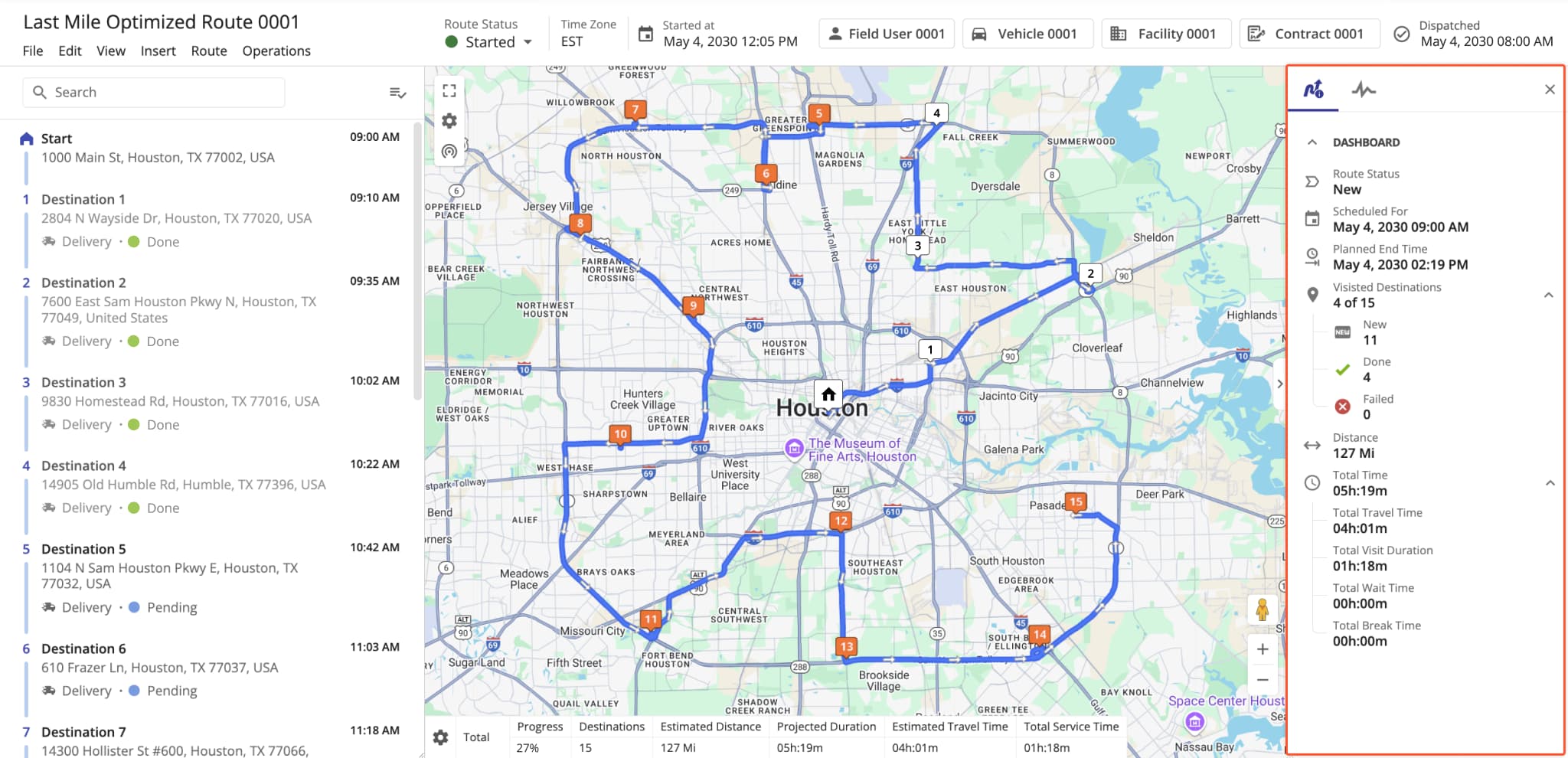
The Route Manifest page and route management action were removed from the Route4Me Transportation Management Software. Previously, the manifest was accessible from the Routes Page, Route Editor, and the original Routes Map.
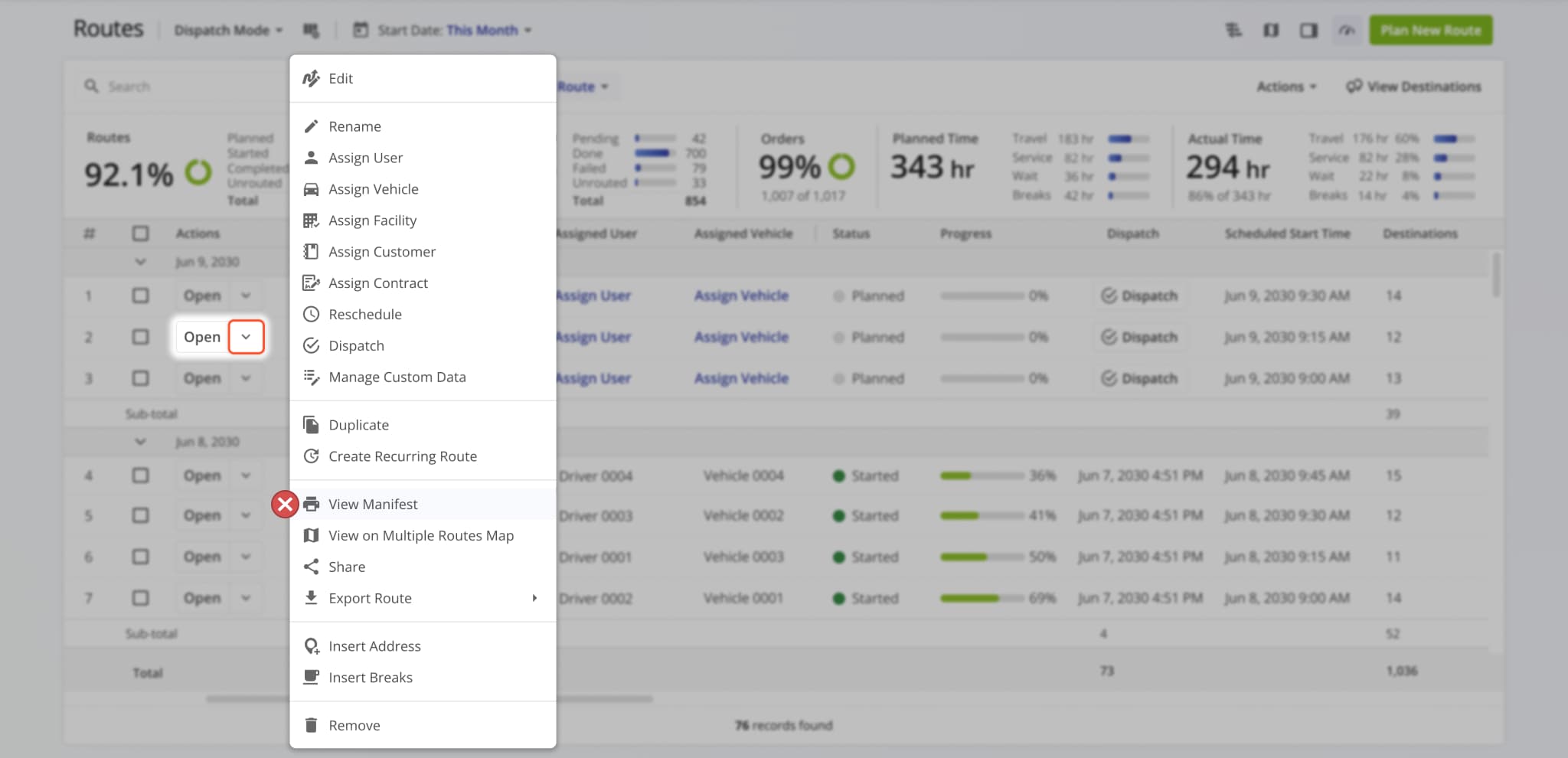
The “Address Destination Type” field and display column in the Locations page was renamed to “Service Category“.
This update improves parity and consistency across Route4Me’s various route management tools and pages.
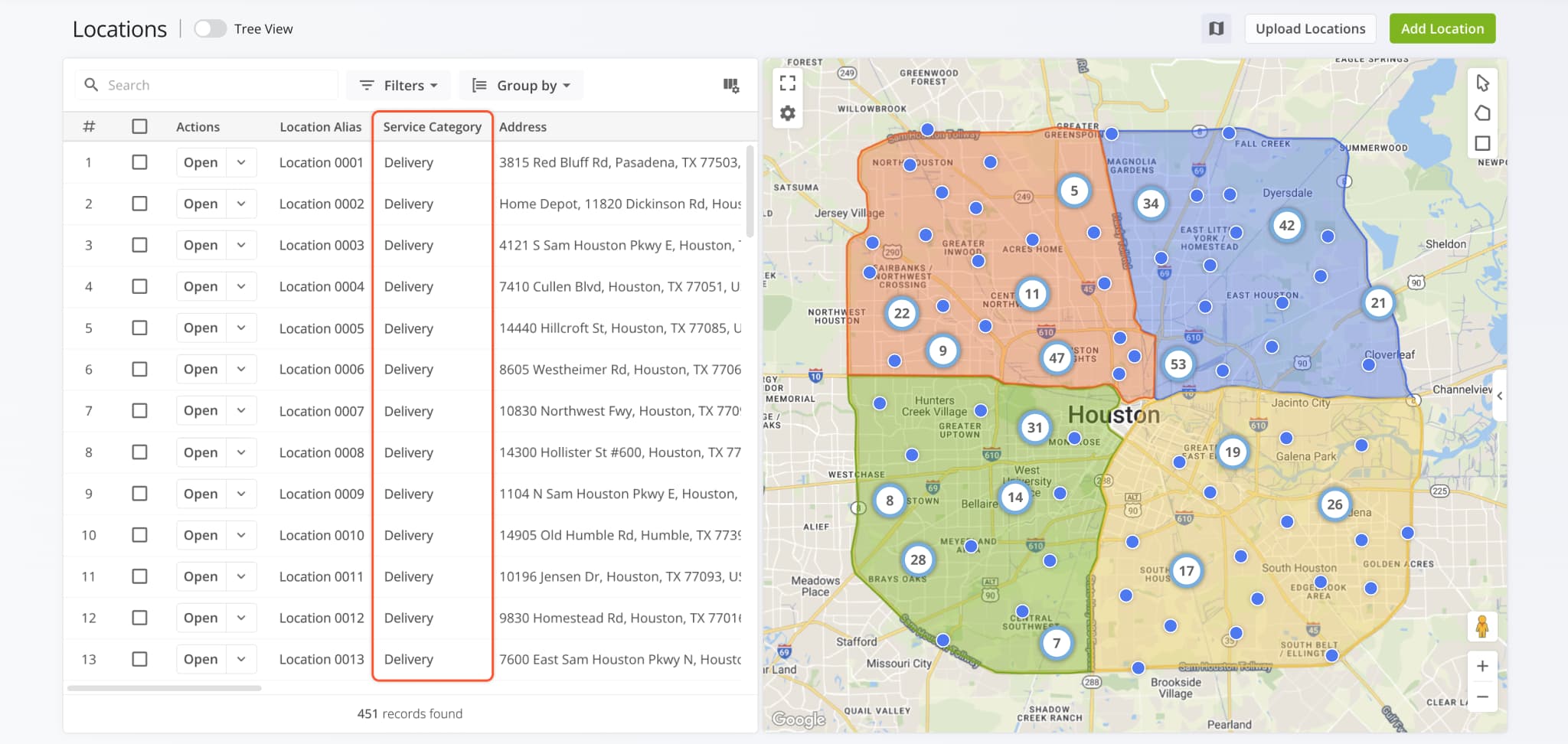
Facilities shown on the Address Book Map have a new map marker that improves their visibility. To see Facilities, click “Map Settings” and check the “Facilities” box. You’ll then see the new Facility markers on the map with name tags showing the first three characters of their respective aliases. You can also hover over Facilities on the map to see their details.
If you need access to the Address Book Map, contact Route4Me support.
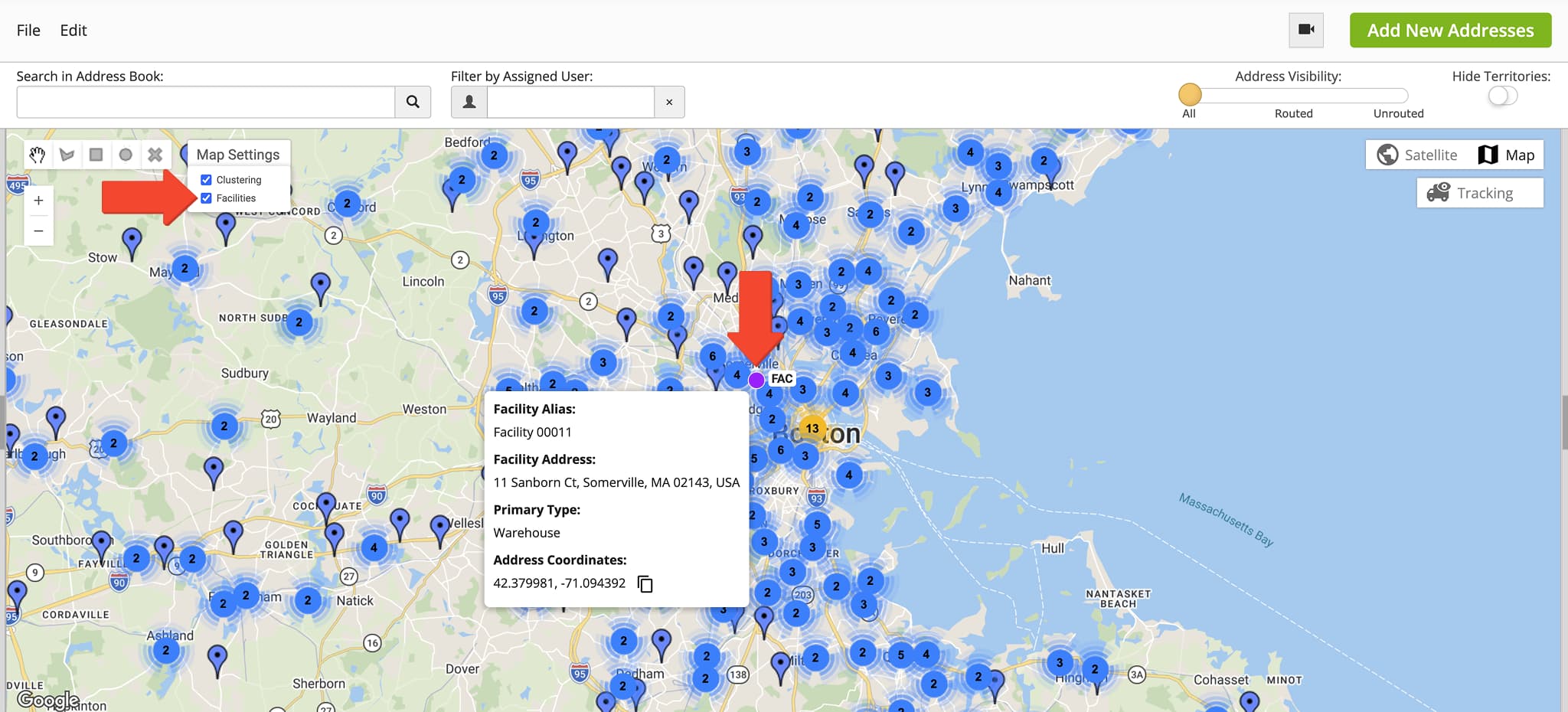
A new “Set as Default” option was added when you open the management actions by clicking the Down Arrow next to a Workflow. Selecting the new option will set the Workflow as the default when planning new routes.
Learn more about collecting proof of service.
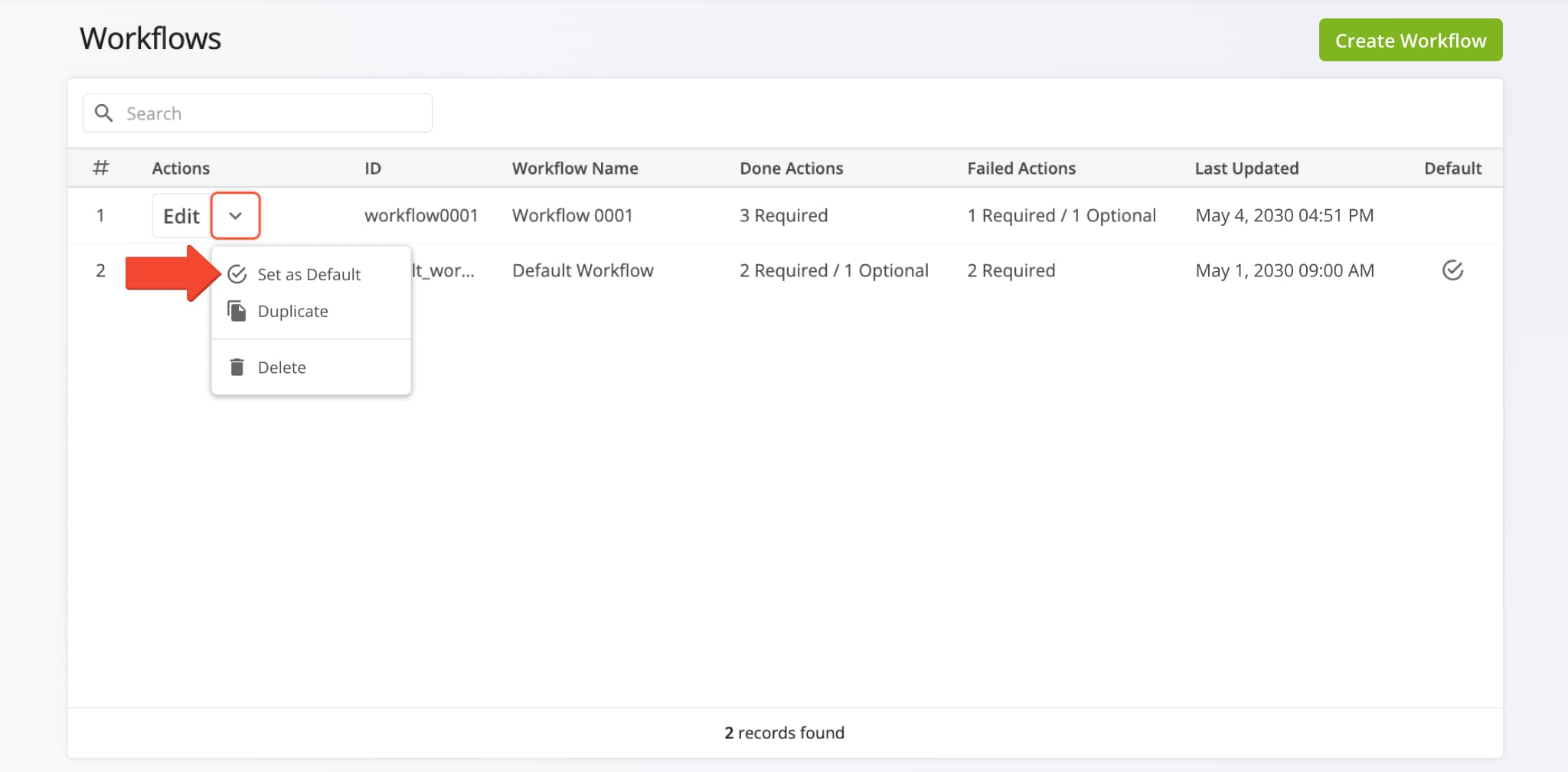
The Orders List on the Route4Me route planner app for Android was updated with a new Facilities filter. From the main menu, tap “Orders” and then “All Facilities” to select a specific Facility to use as a filter for your Orders List.
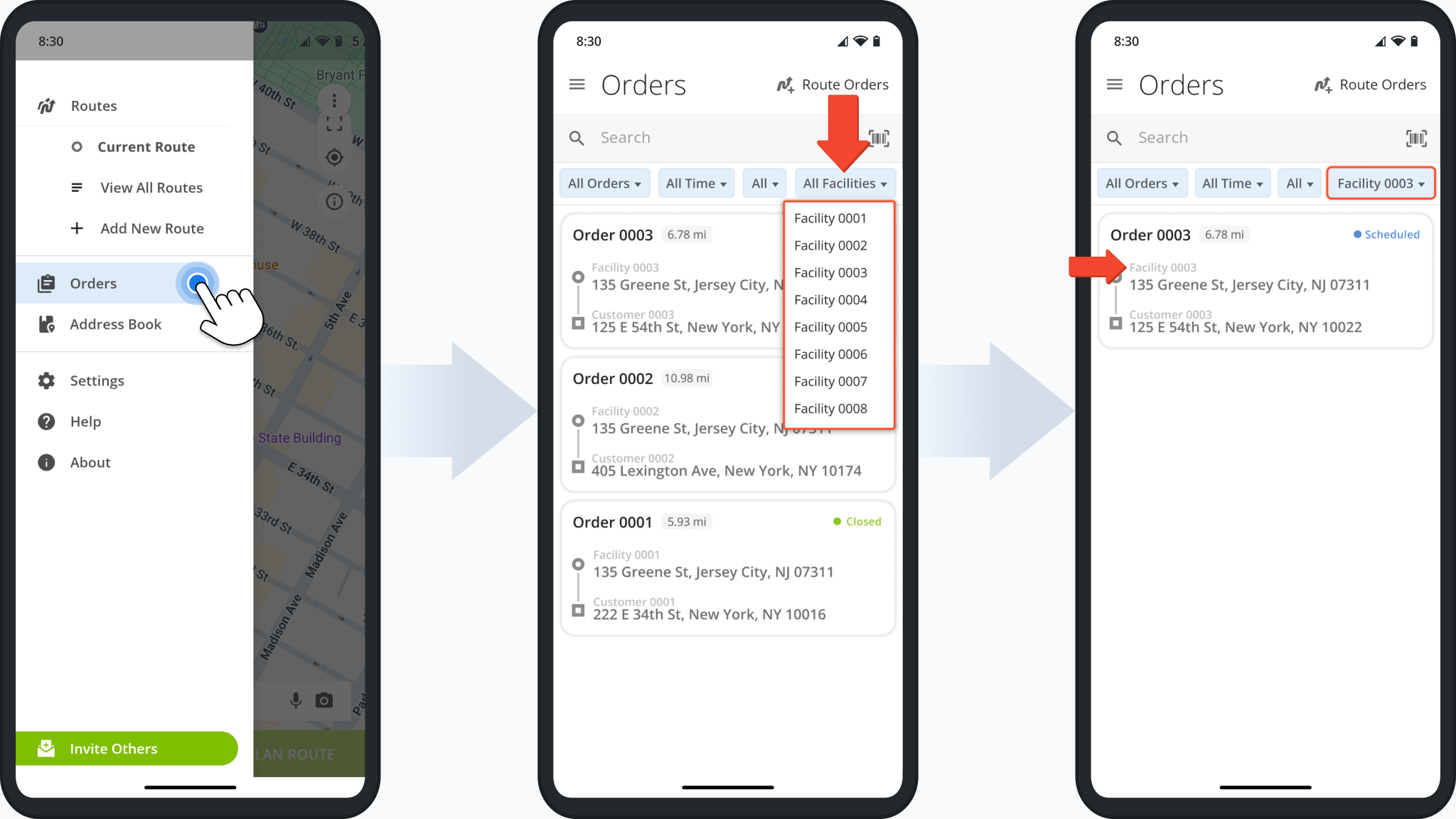
A new “Info” column was added to the “Label Scan” tab of Route Snapshots. You can hover over the Location Icon in the “Info” column to see a popover window showing where the label scan was performed on the map using its coordinates.
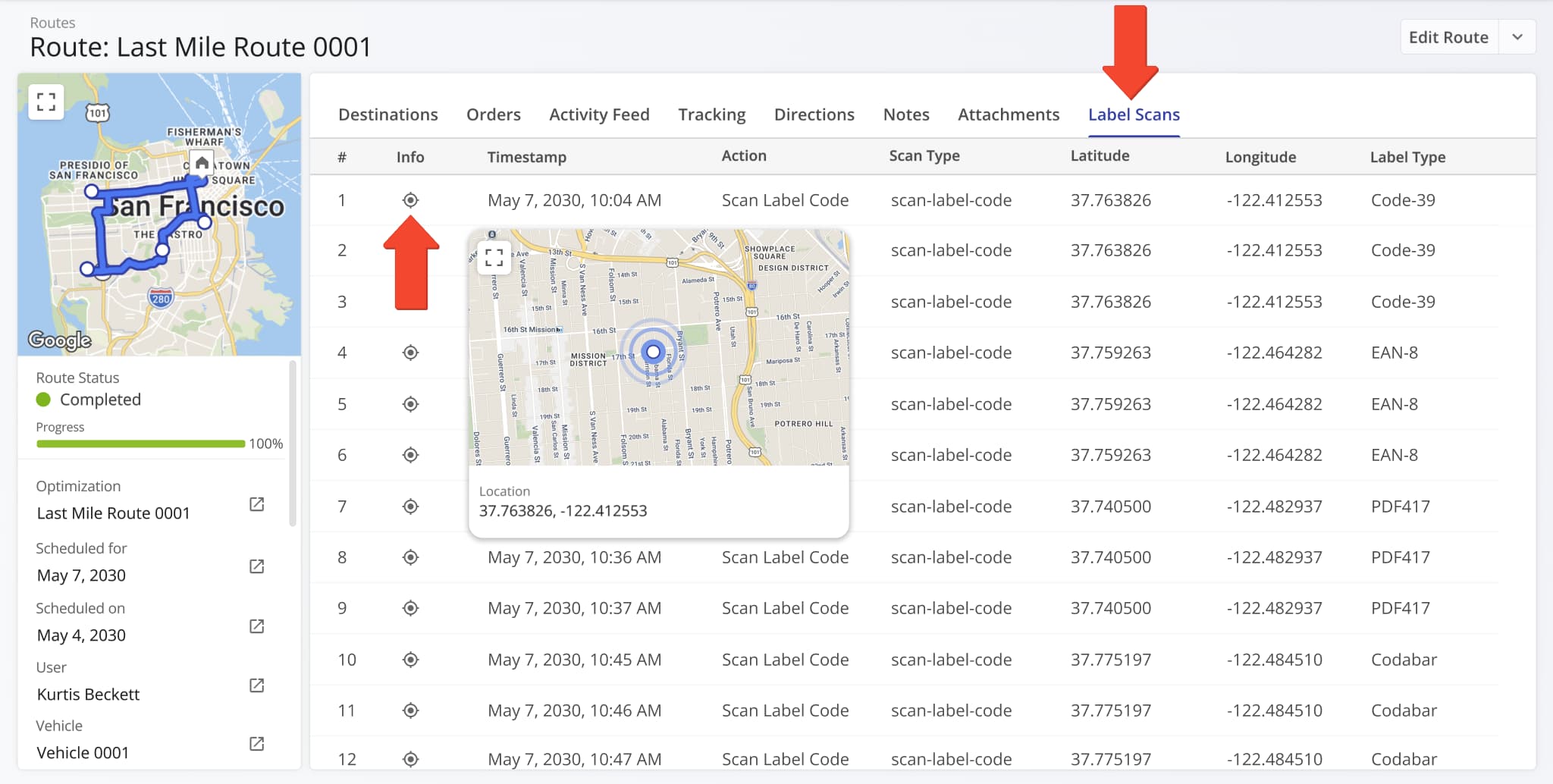
The “Location” column in the “Label Scan” tab of Route Snapshots was split into new “Latitude” and “Longitude” columns.
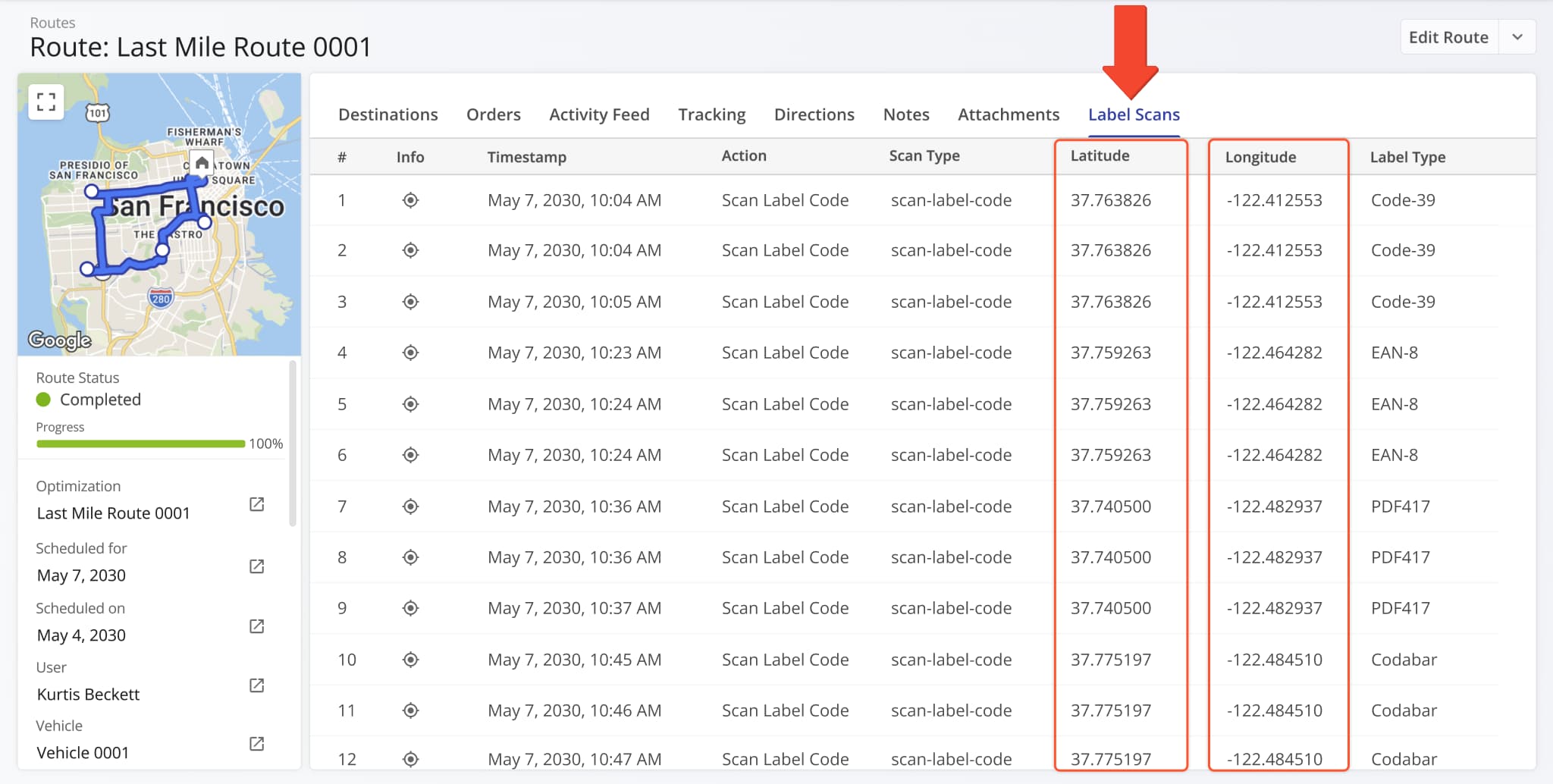
The “Edit Destination” panel, previously only accessible from the Routes Page, can now be opened directly from the Destinations List. Simply click the Down Arrow next to a Destination and select “Edit” to open the editor.
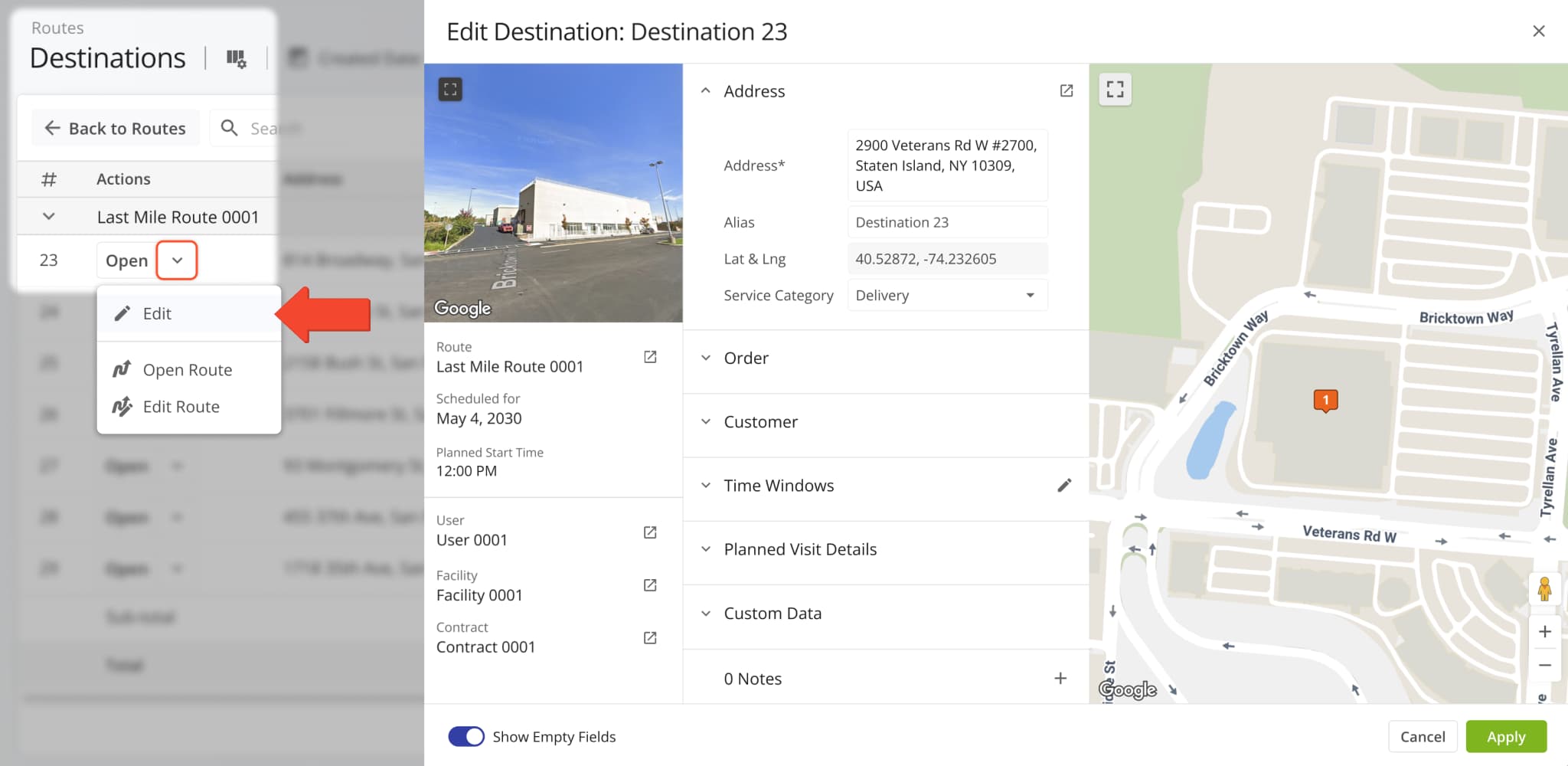
The Route Metrics interface on the Routes Page was updated with new data fields. After you open the Route Metrics, click the Gear Icon to customize the data fields shown in the metrics panel.
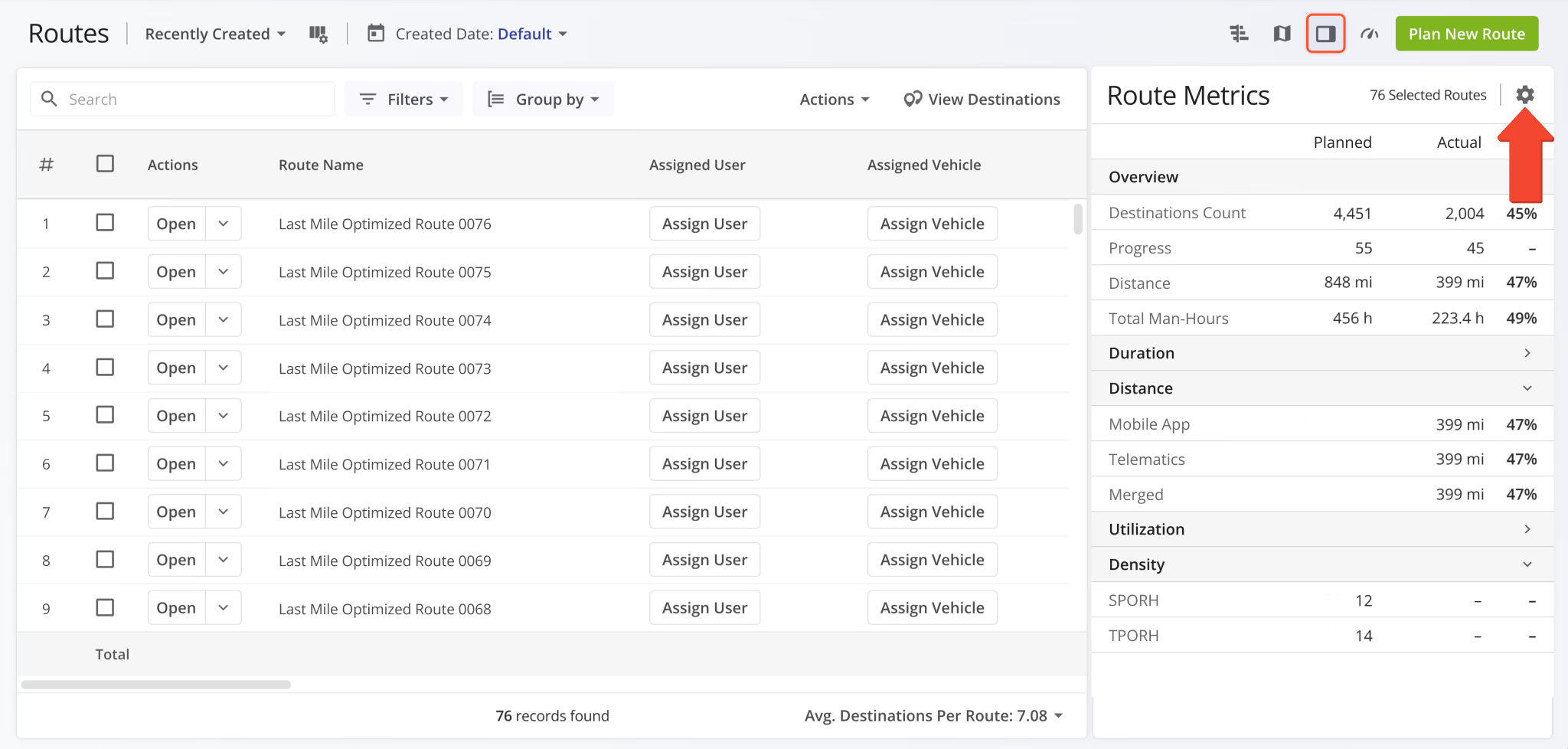
The distance data category was split into three new categories depending on the source of distance data (Mobile App, Telematics, or Merged). Additionally, new distance data items were added. Previously, you could only see planned and completed distance; now you can see different distance data metrics as percentages.
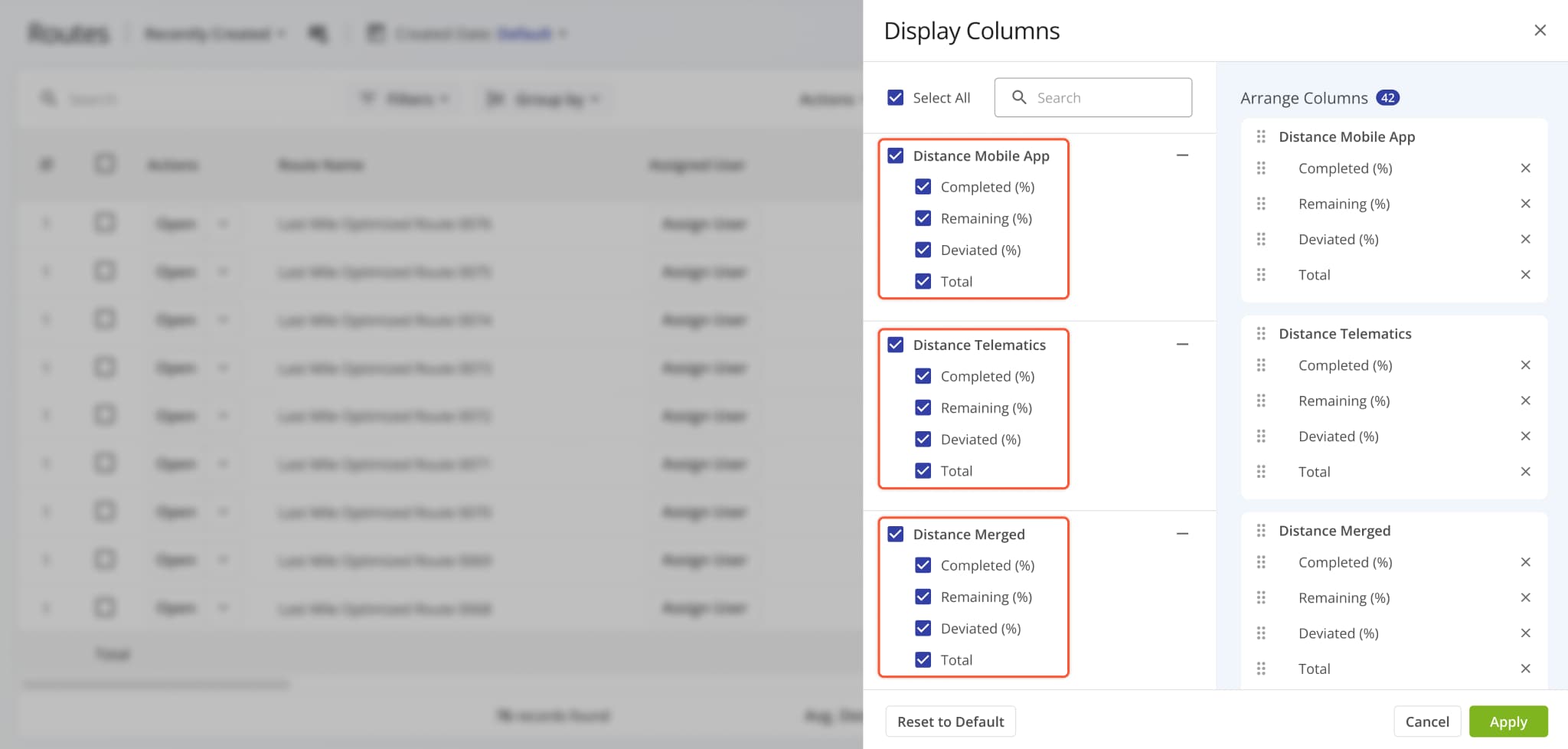
New fields were also added to the “Dimensional & Financial” and “Density” categories, as shown in the image below.
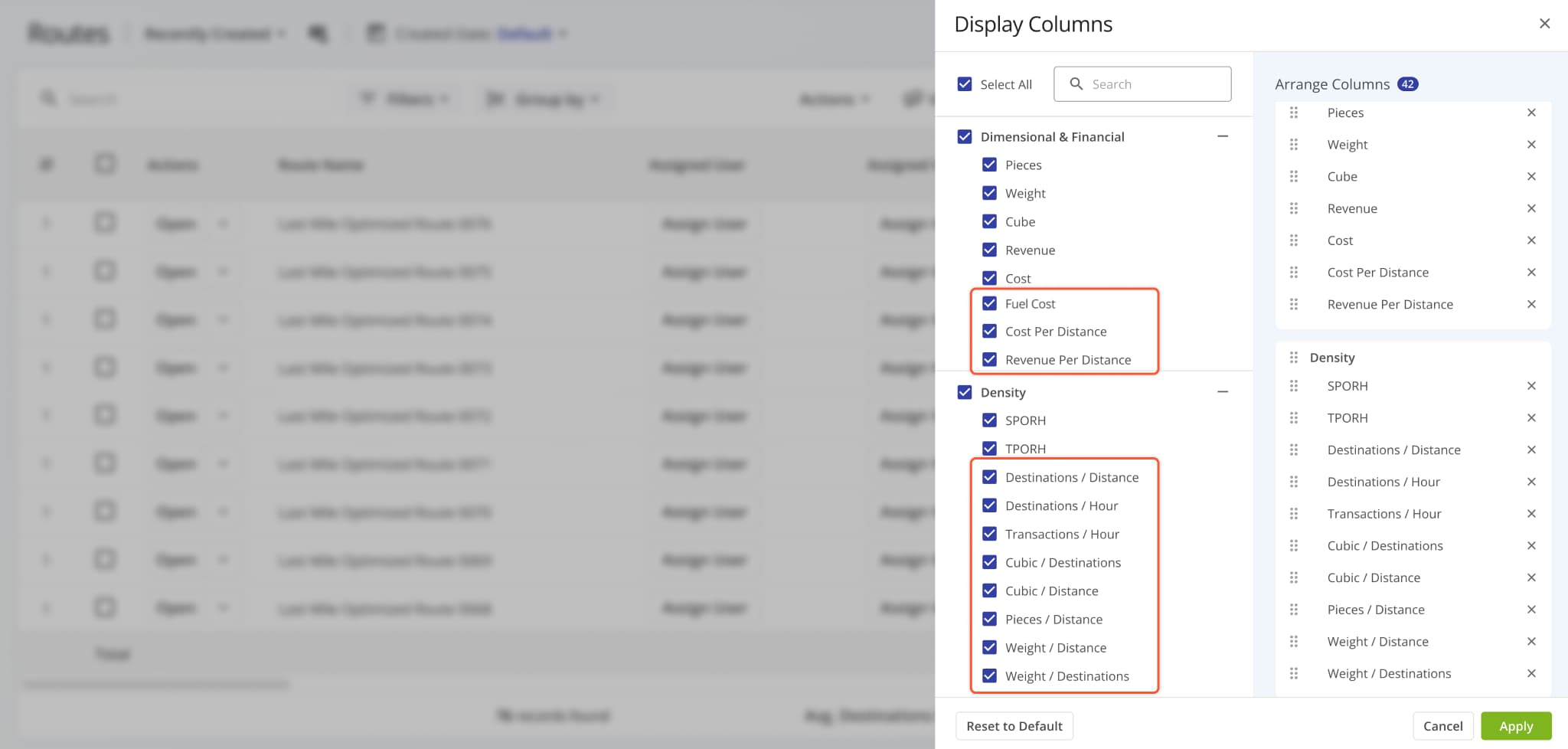
The “Utilization – Cost” filter category on the Routes Page was expanded with the following additional filter options:
- Cost Completed (%): Percentage of planned Cost value that’s been completed.
- Cost Completed: Total Cost value associated with completed destination visits.
- Cost Remaining At End (%): Percentage of planned Cost remaining (uncompleted) at the end of routes.
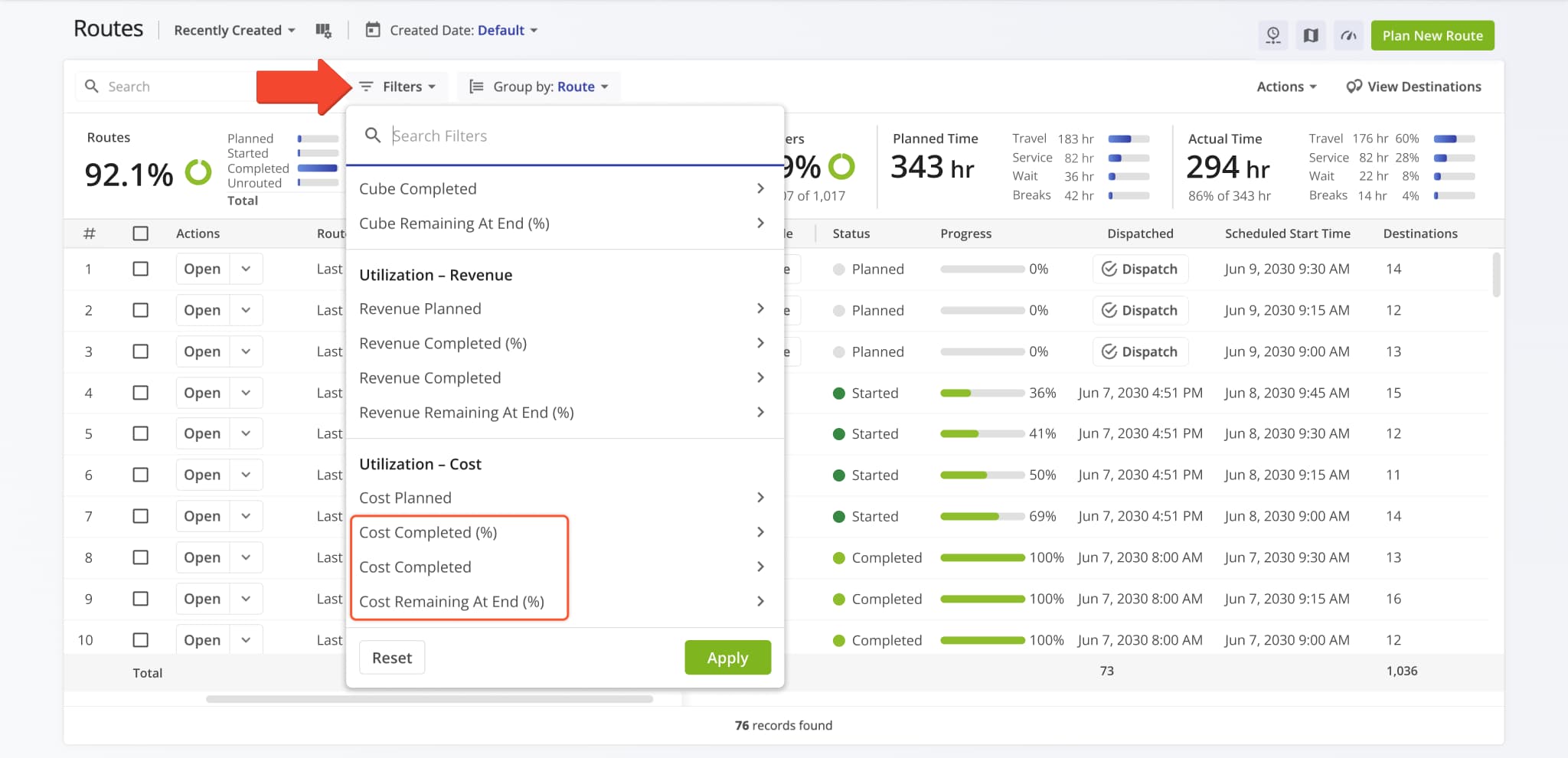
A new automatic data lookup function was added when you plan routes. You can now upload spreadsheets to plan routes that contain a single column with location reference IDs, and Route4Me will automatically fill all other applicable fields with Location Data from your account. Specifically, you can use the following reference ID types:
- address_id: Internal ID of a Location. You can find Location IDs in the “address_id” column when exporting Locations.
- client_reference_id: Unique client IDs associated with Locations set at creation or import.
- external_connection_object_id: Unique external system record IDs associated with imported Locations.
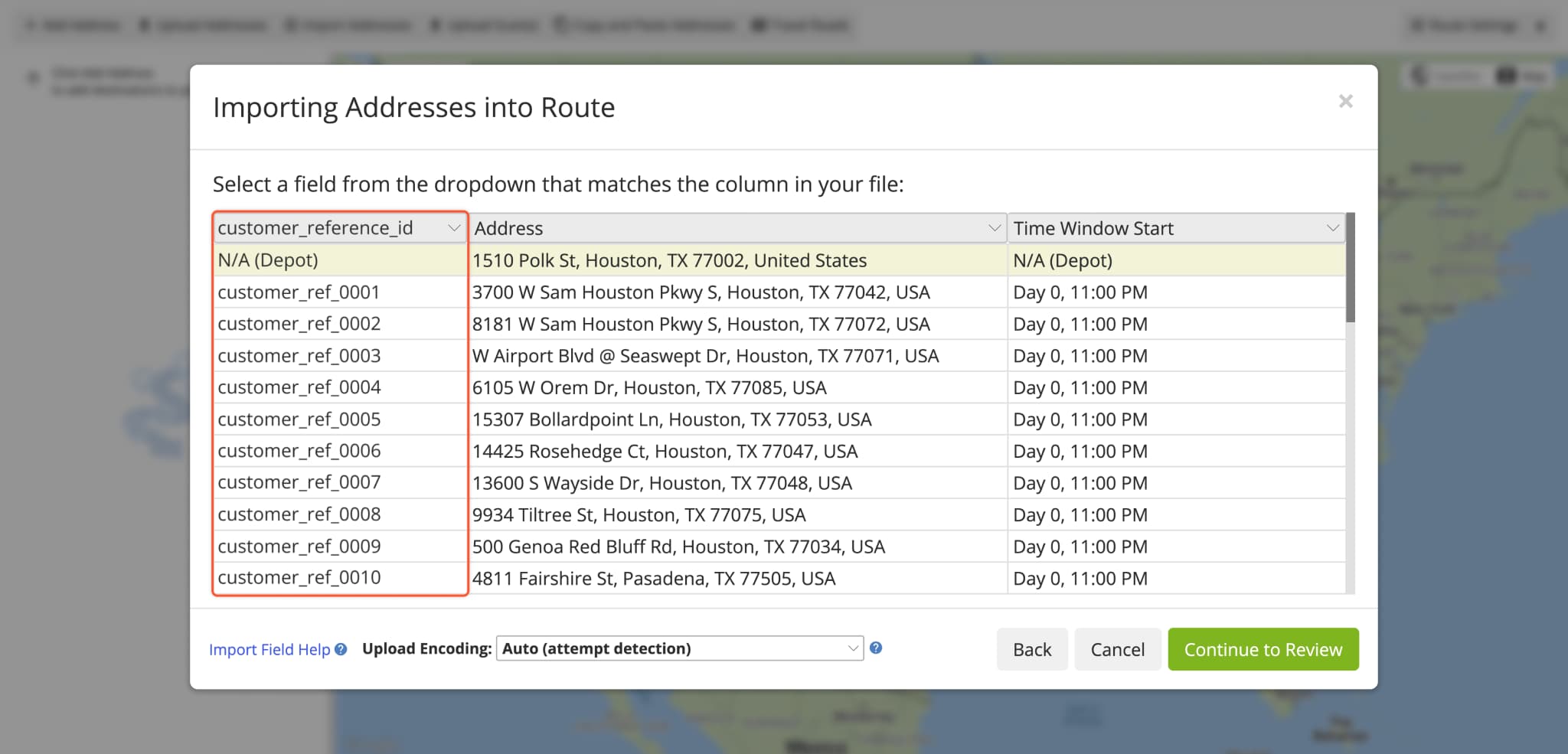
A new “Receipt Note” action was added to Workflows. With this new action type, assigned users can easily confirm the issuing or collection of receipt notes at destinations. Learn more about collecting proof of service.
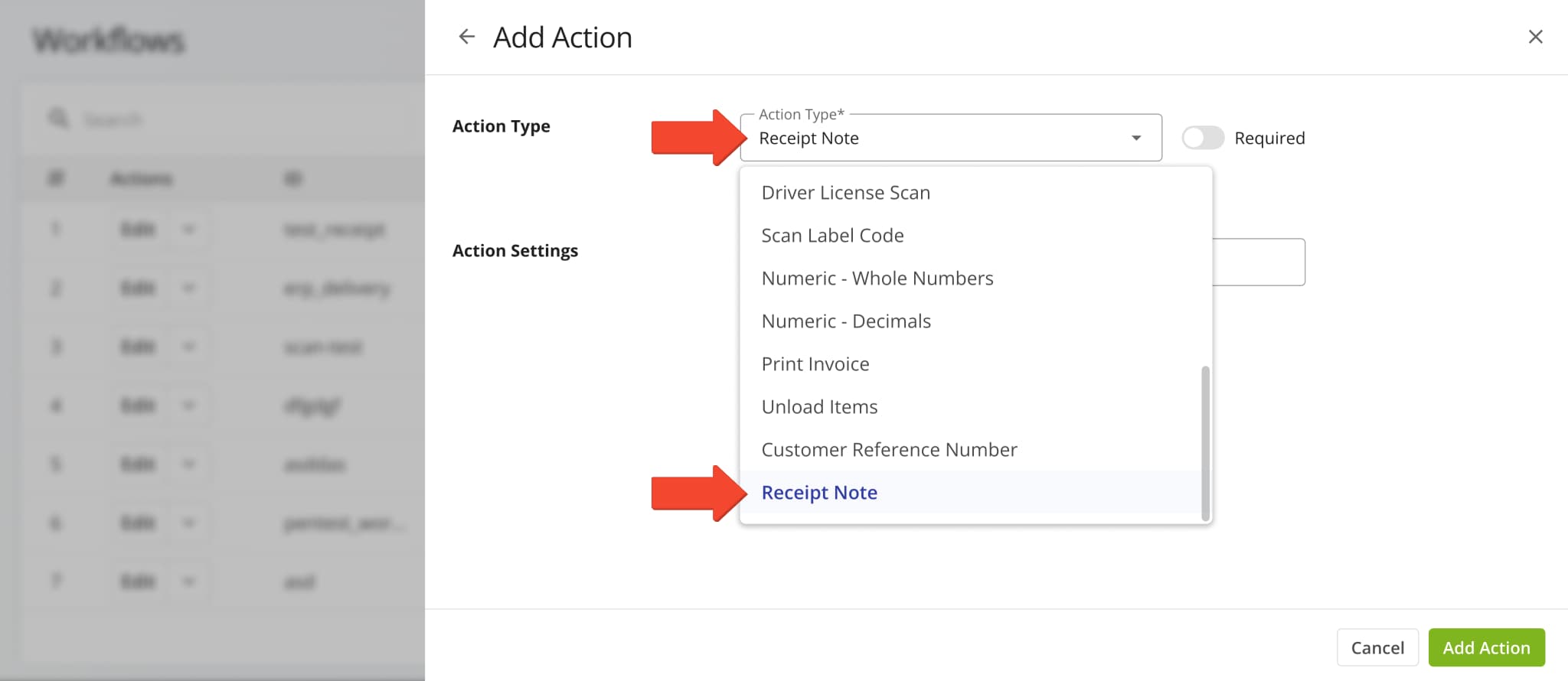
The “Facilities” field in the Route4Me Web Platform header was updated to show “All” when no Facilities are selected. This ensures consistent behavior by showing entities (Routes, Users, Vehicles, Locations, etc.) associated with all account Facilities when no specific Facilities are selected.
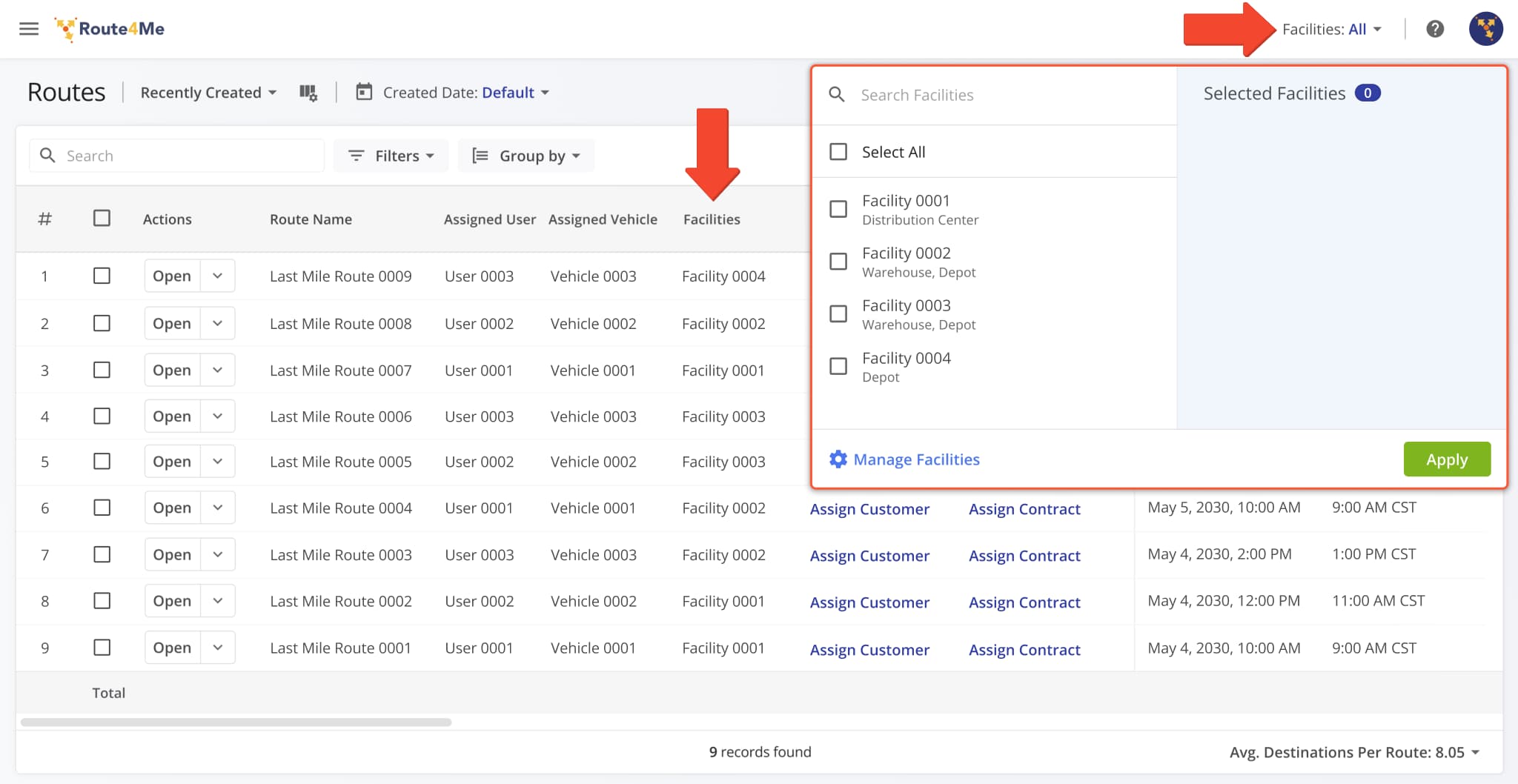
The “Manage Custom Data” interface on the Routes Page was changed from a popover to a full side panel. This update makes it easier to see and manage more Custom Route Data fields with better utilization of the available screen space.
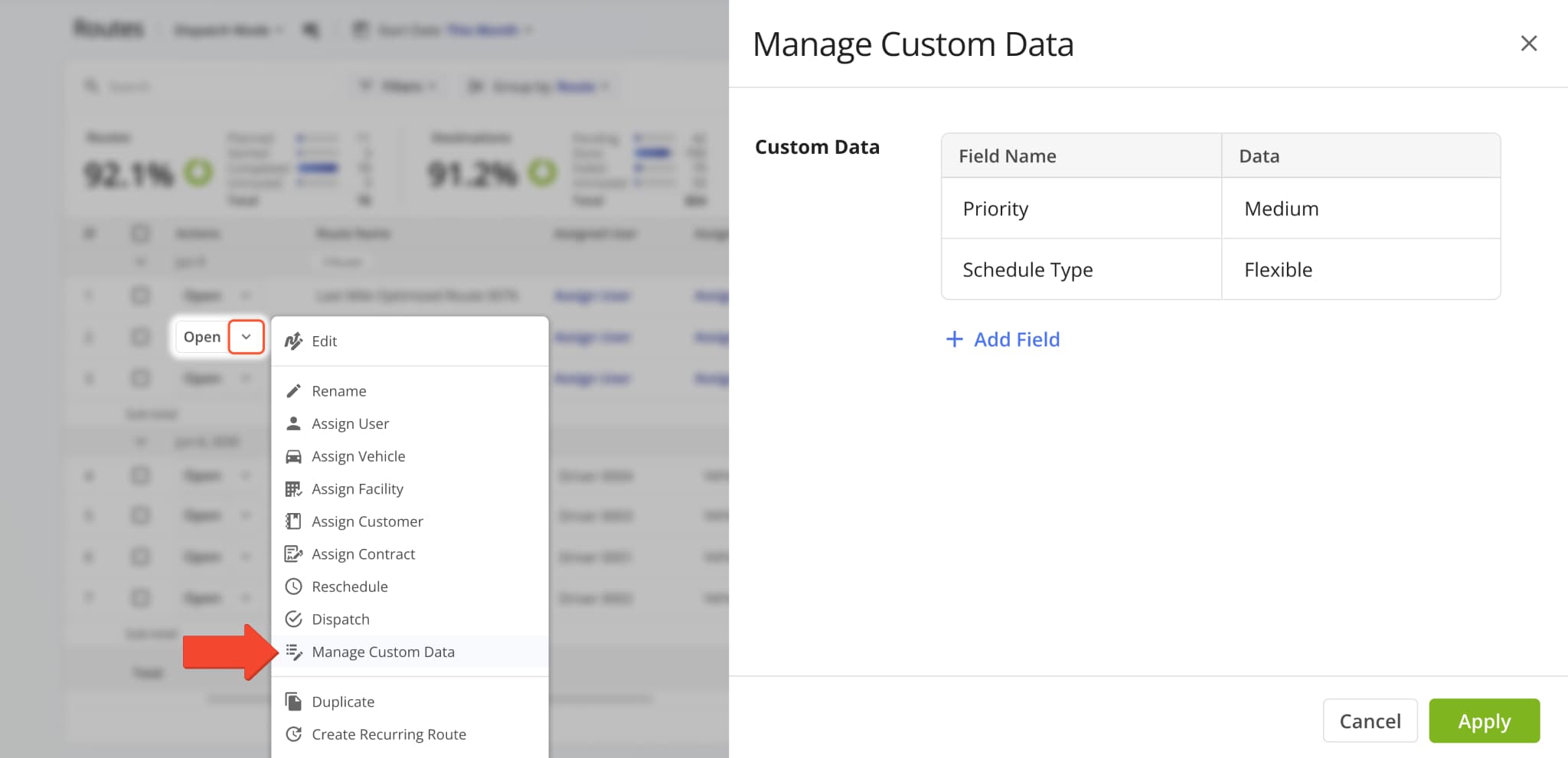
The “Order Type” filter and display column in the Routes Map sidebar was renamed to “Service Category“.
This update improves parity and consistency across Route4Me’s various route management tools and pages.
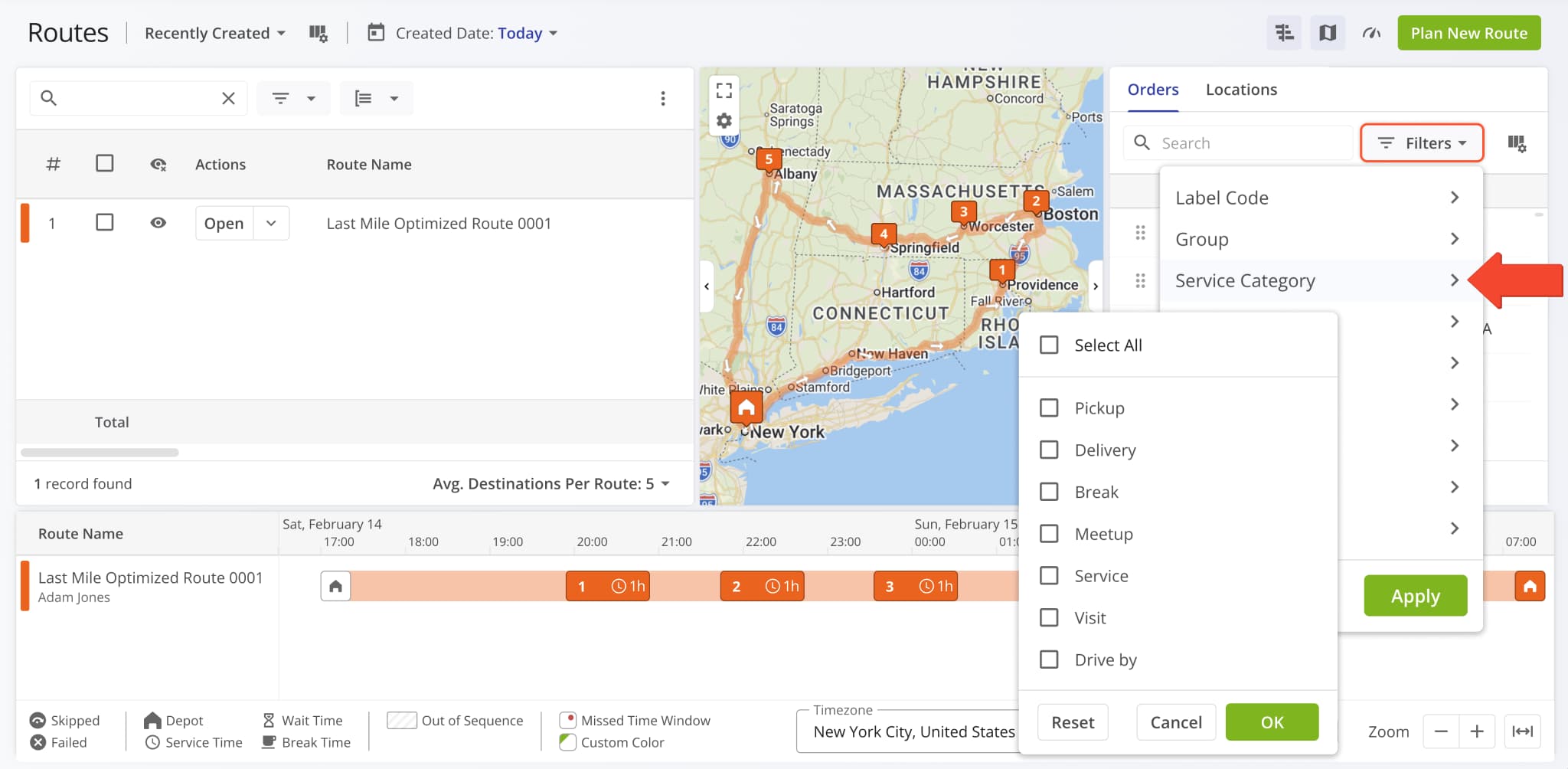
You can now add and manage Custom Route Data directly from an open Route Snapshot. A new “Manage Custom Data” option was added to the “Edit Route” menu.
You can also scroll to the bottom of the Route Summary and click the Pencil Icon next to “Custom Data“.
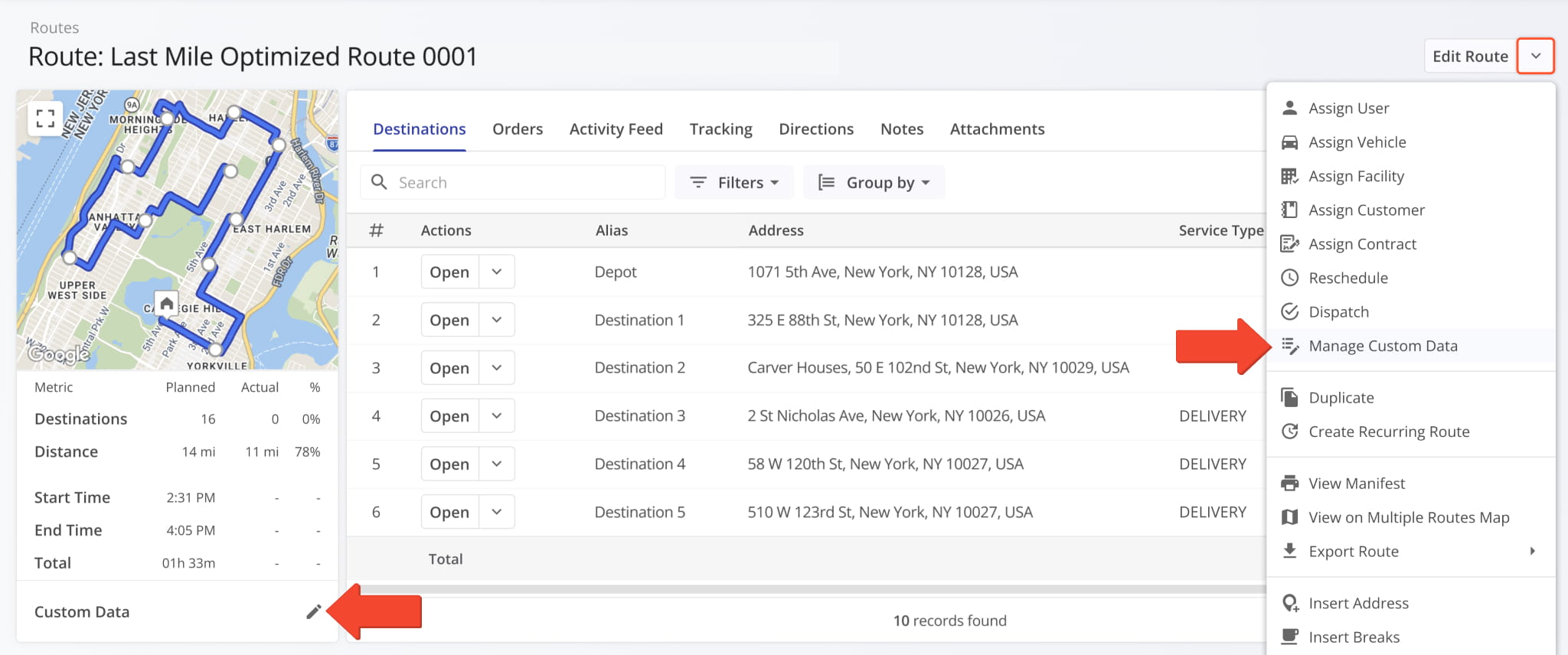
In the “Manage Custom Data” panel, you can see Custom Data associated with the route, add Custom Data fields with the “Add Field” button, and remove Custom Data by clicking the Delete Icon.
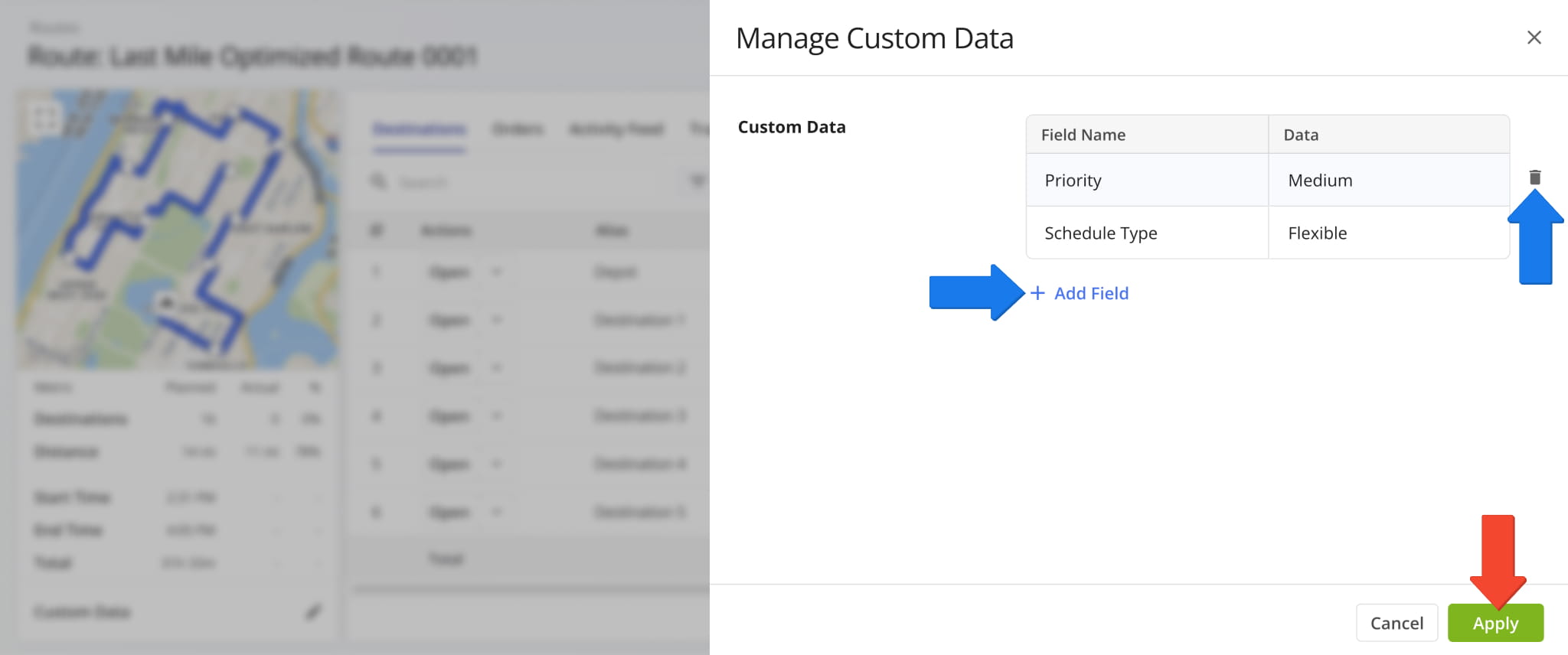
You can also click a Custom Data value in the Route Summary to open and automatically filter the Routes Page to show only routes with the corresponding Custom Data field and value.
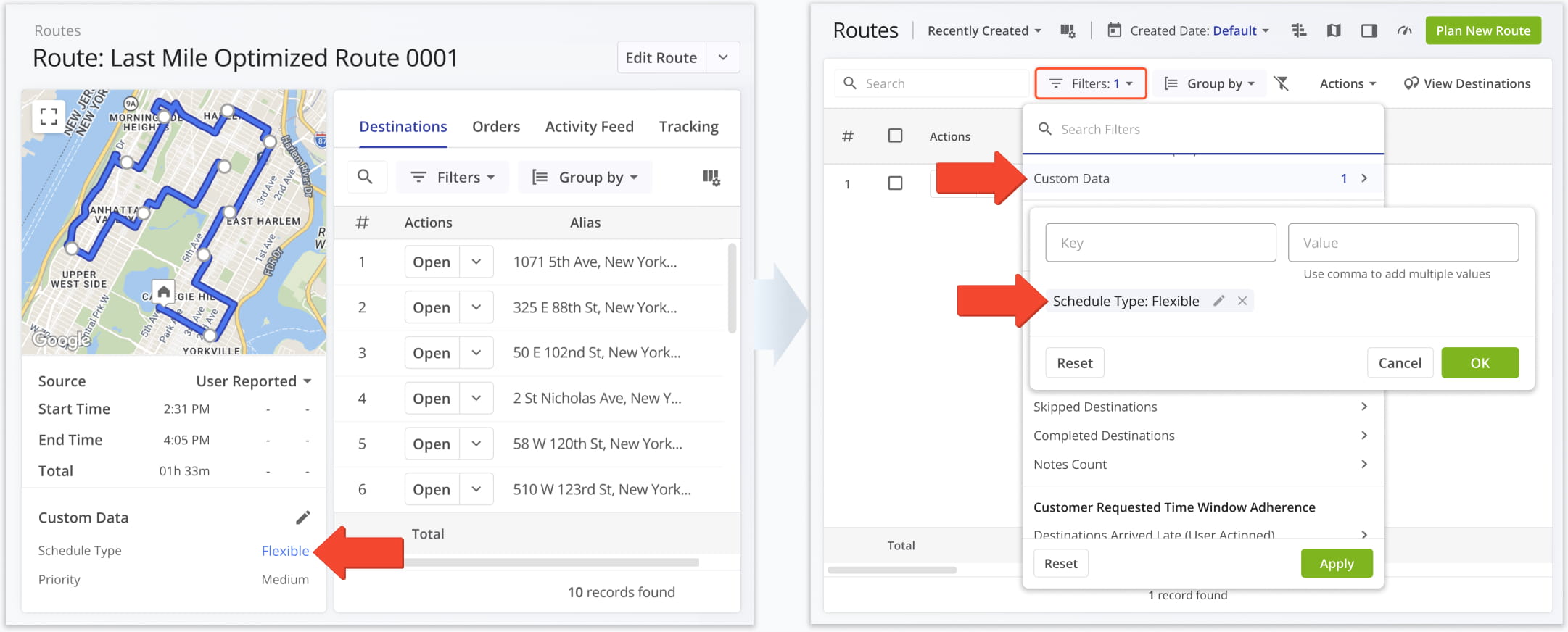
Vehicle odometer reading events were added to the “Activity Feed” section of Route Snapshots. Route4Me synchronizes imported vehicle odometer values at the start and end of routes.
Route start and end odometer synchronization are separate events that show the corresponding odometer readings.
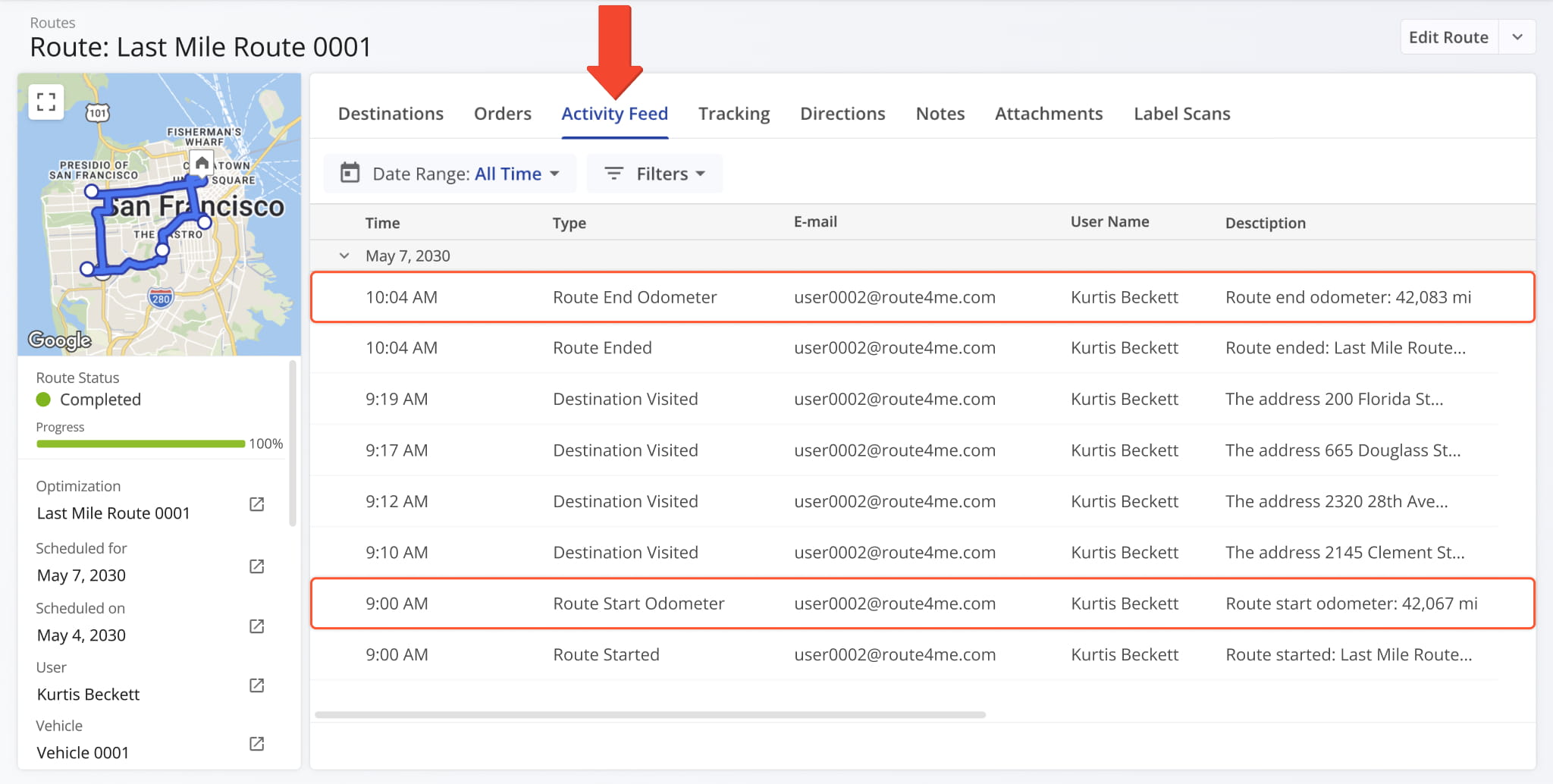
A new “Cancel Requested” order status was added to the ERP Order Management System. Just like other statuses, it can also be used to filter your Orders List to show only orders with that status. Learn more about Route4Me Order Statuses.
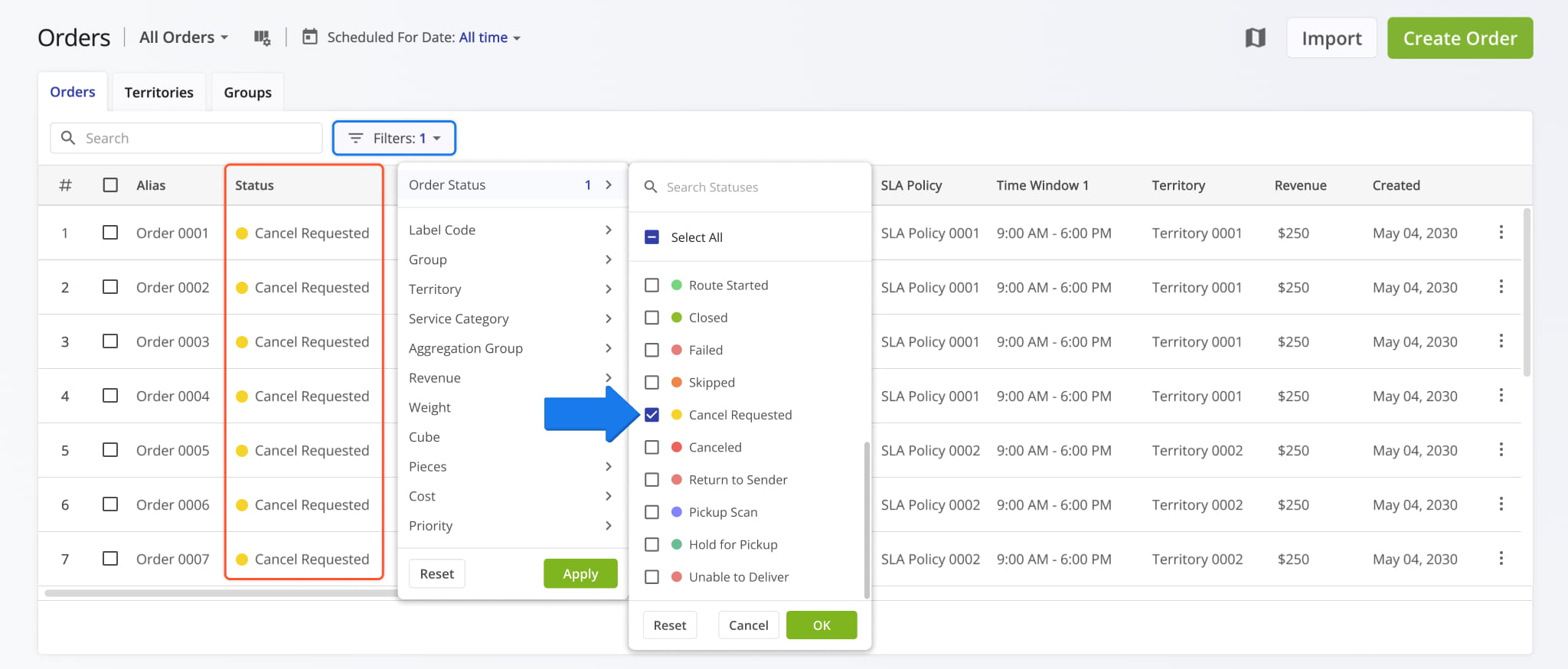
The new “Cancel Requested” order status is also visible in Order Snapshots.
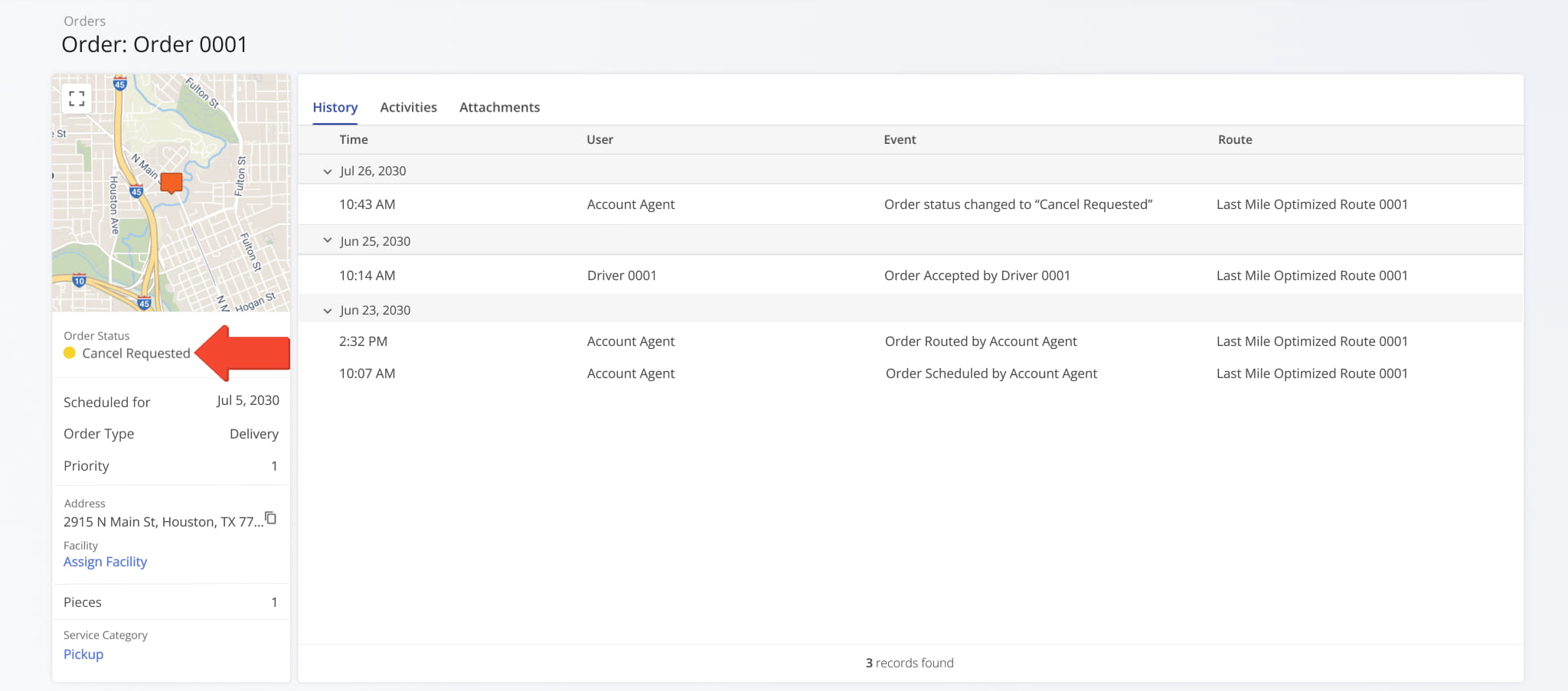
Two new Custom Data fields were added to the Route Export options. These new options enable you to include Custom Data field aliases and values as separate columns in exported route data spreadsheets.
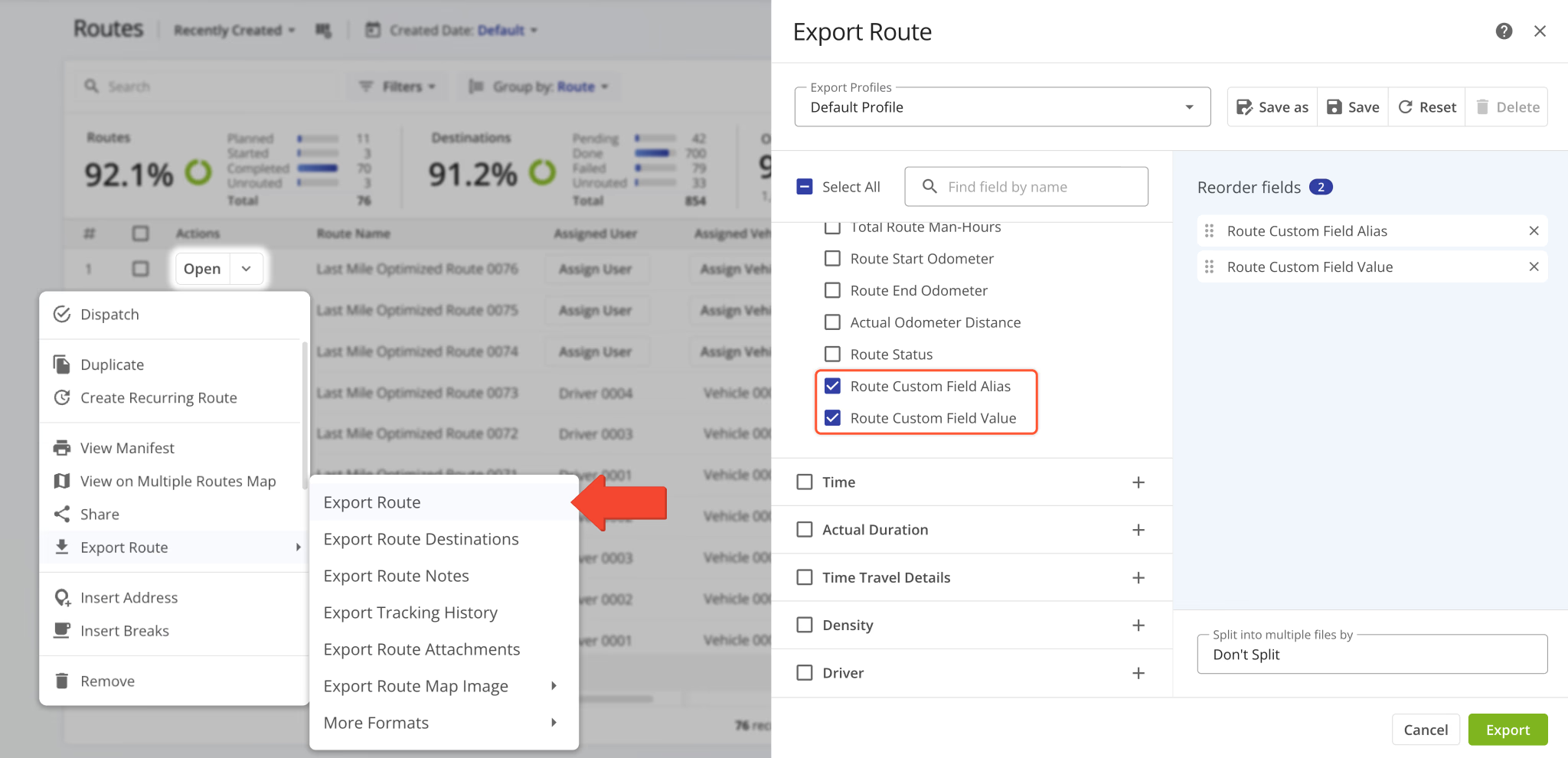
You can now open, add, and manage Custom Route Data directly from the Routes Page. A new option was added to the route action menu. Click the Down Arrow next to a route and select “Manage Custom Data“.
In the “Manage Custom Data” window, you can see Custom Data associated with the selected routes, add Custom Data fields with the “Add Field” button, and remove Custom Data by clicking the Delete Icon.
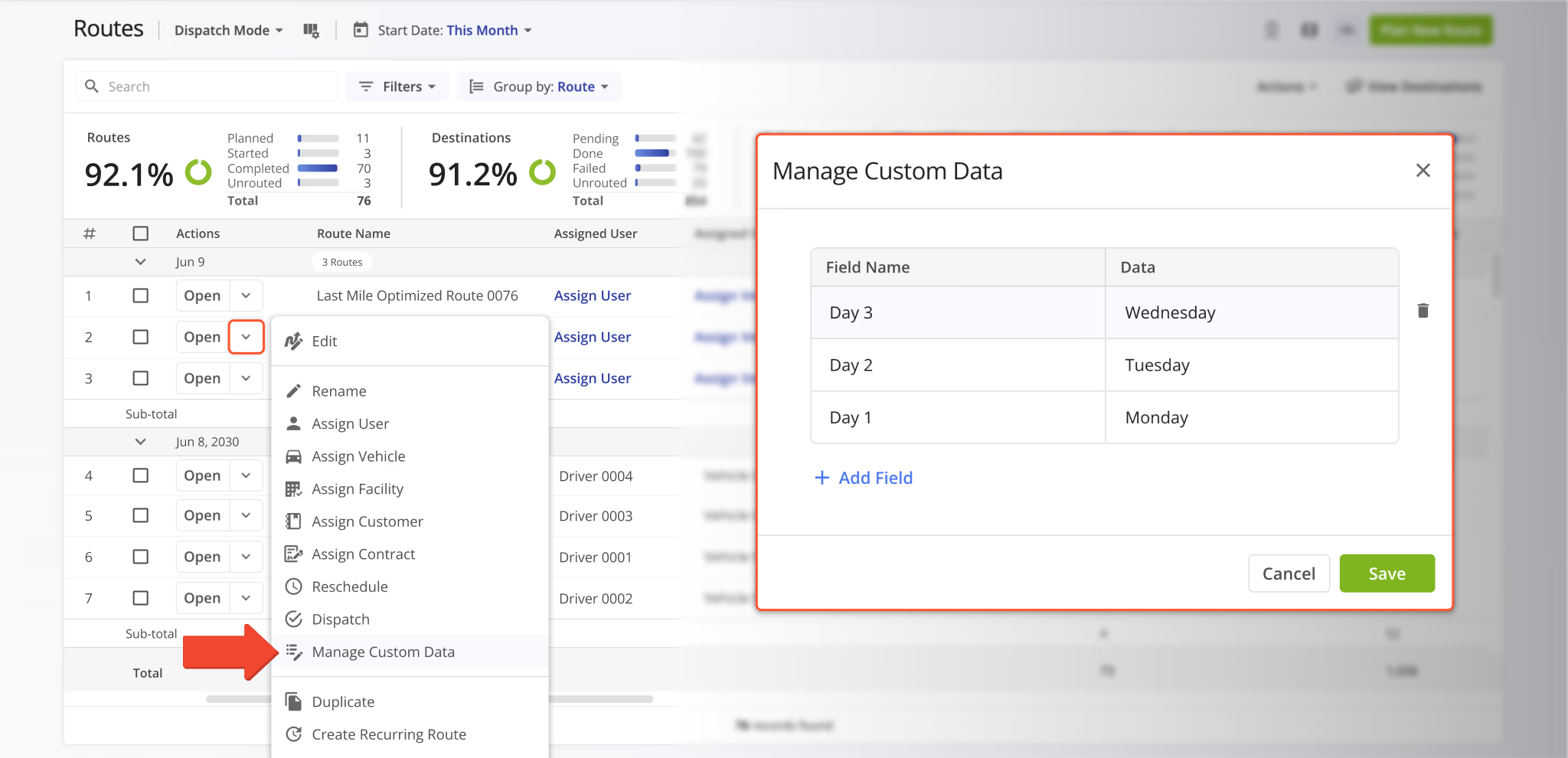
You can also manage Custom Data for multiple routes at the same time. Check the boxes next to routes to select them, click “Bulk Actions“, and select “Manage Custom Data” from the menu.
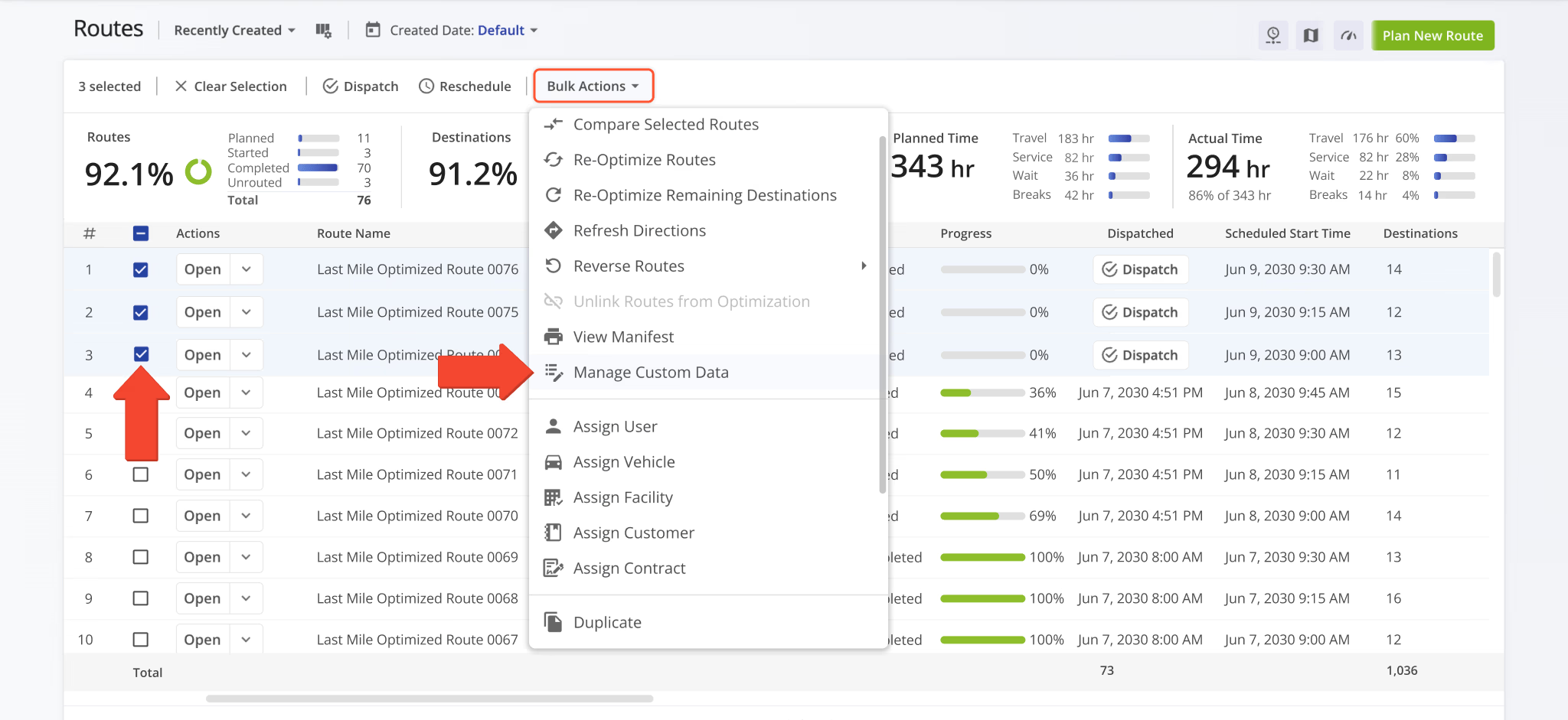
Assignment buttons for Users, Vehicles, Facilities, Customers, and Contracts on the Routes Page were redesigned to match the assignment buttons in other Route4Me interfaces. This change improves consistency and readability across the UI.
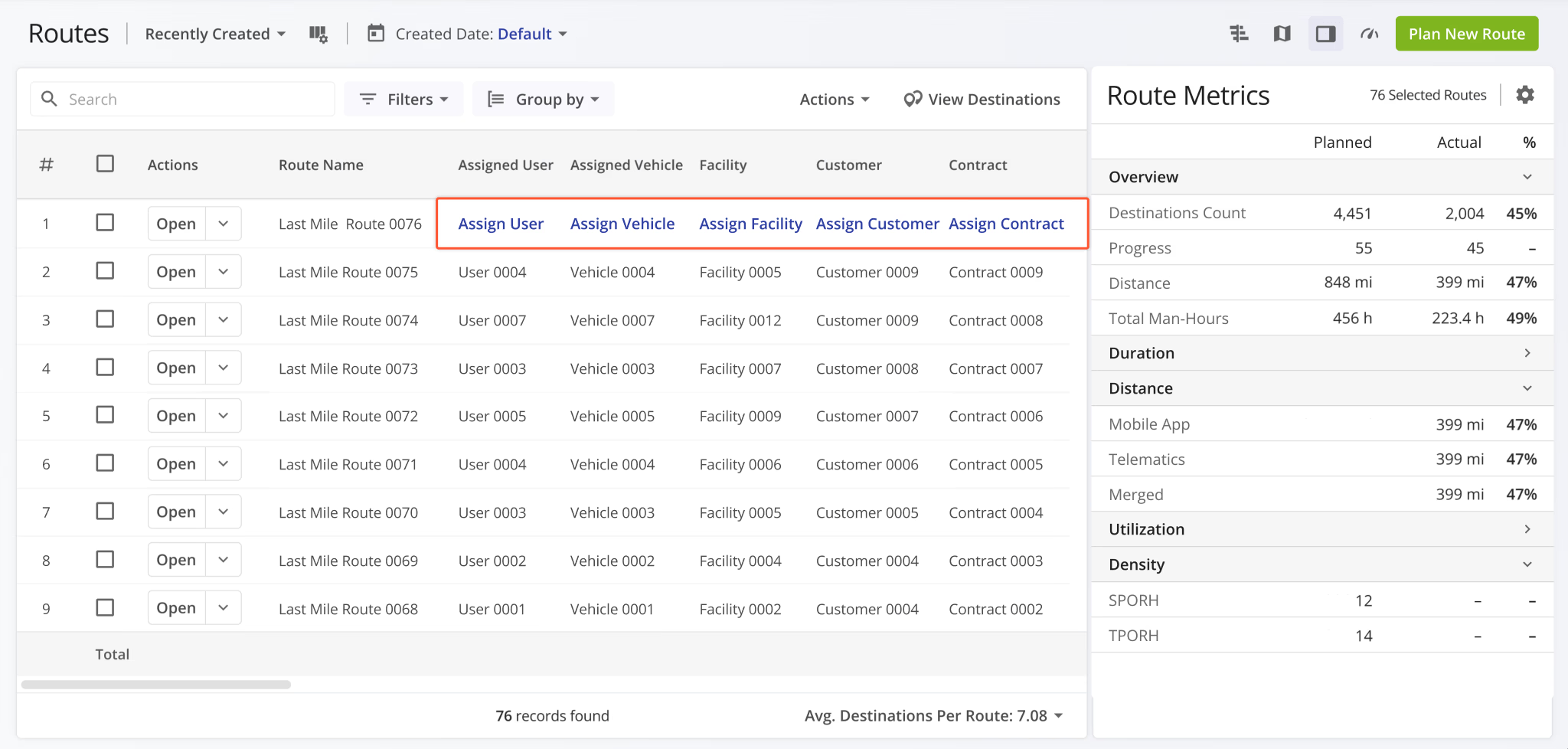
A new “Contract” field was added to the “Edit Destination” panel on the Routes Page.
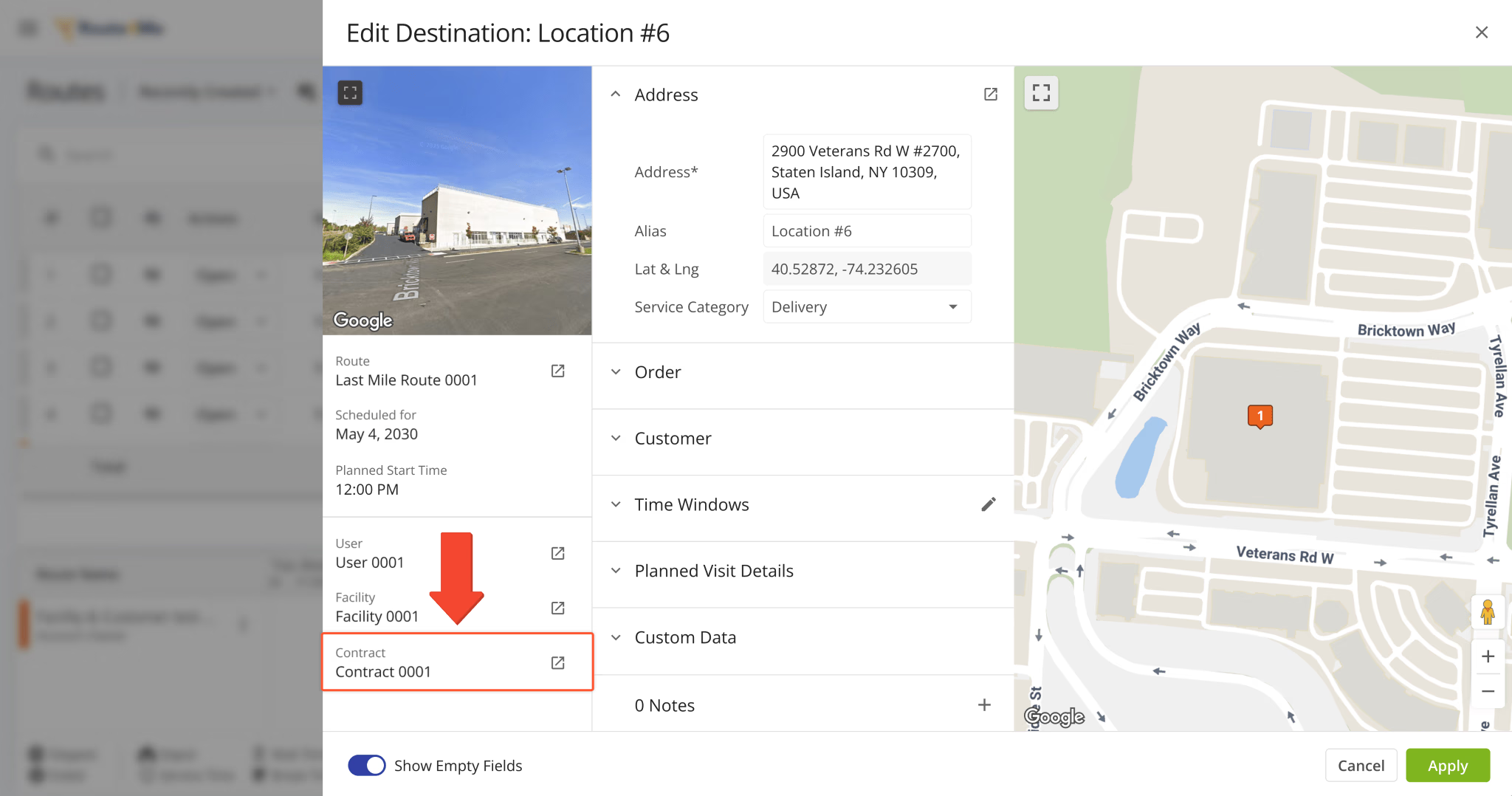
A new “Contract” field was added to the Route Summary popover when you hover over a route in the Routes Timeline.
You can also click the Open Button to go directly to the corresponding Contract Snapshot, similar to other Route4Me fields.
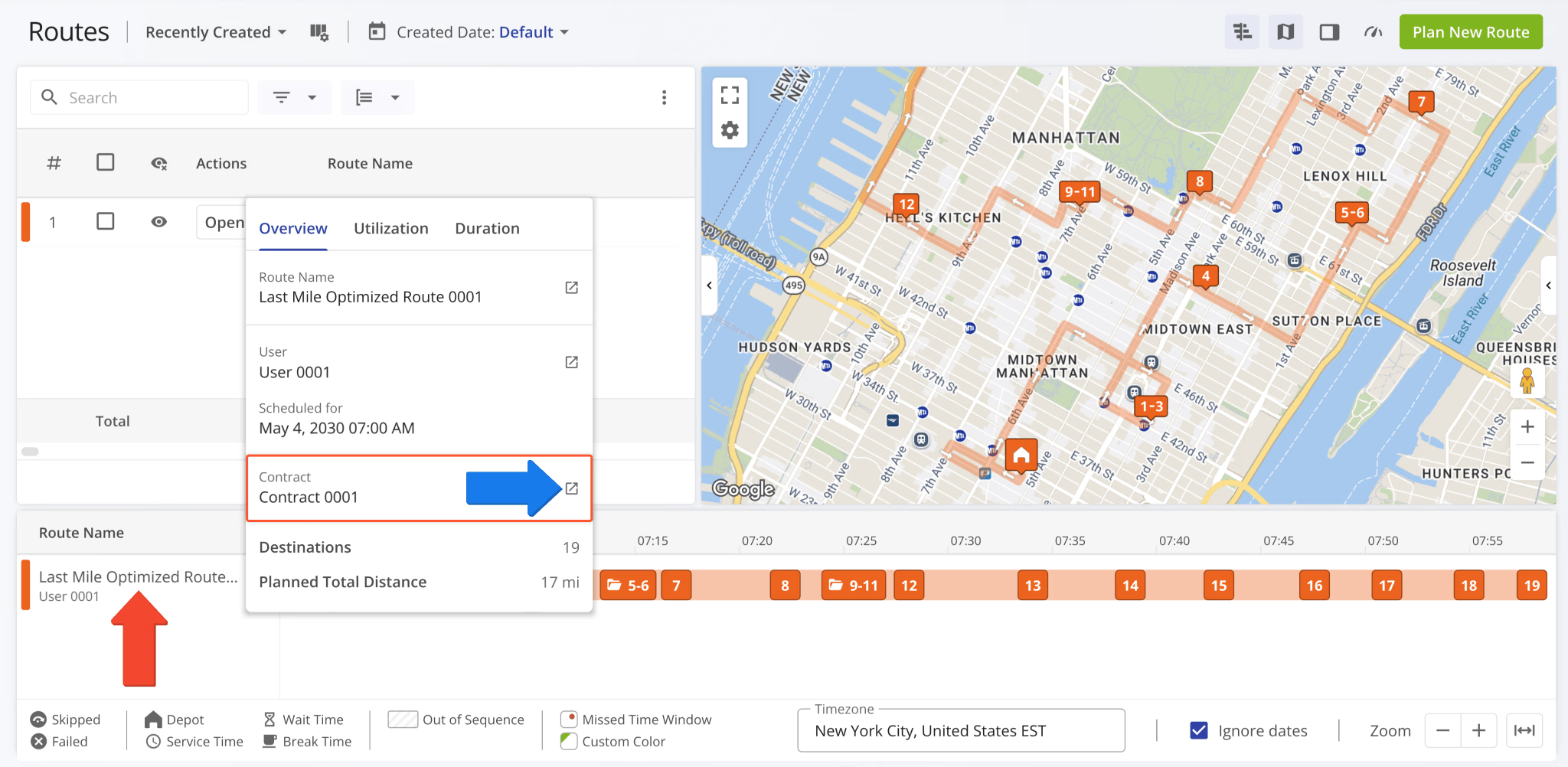
A new “Location Sitemap” Destination Info field was added to the Route Editor. When a destination is linked to a Location from your account, you can preview its associated sitemap directly from the Destination Info panel.
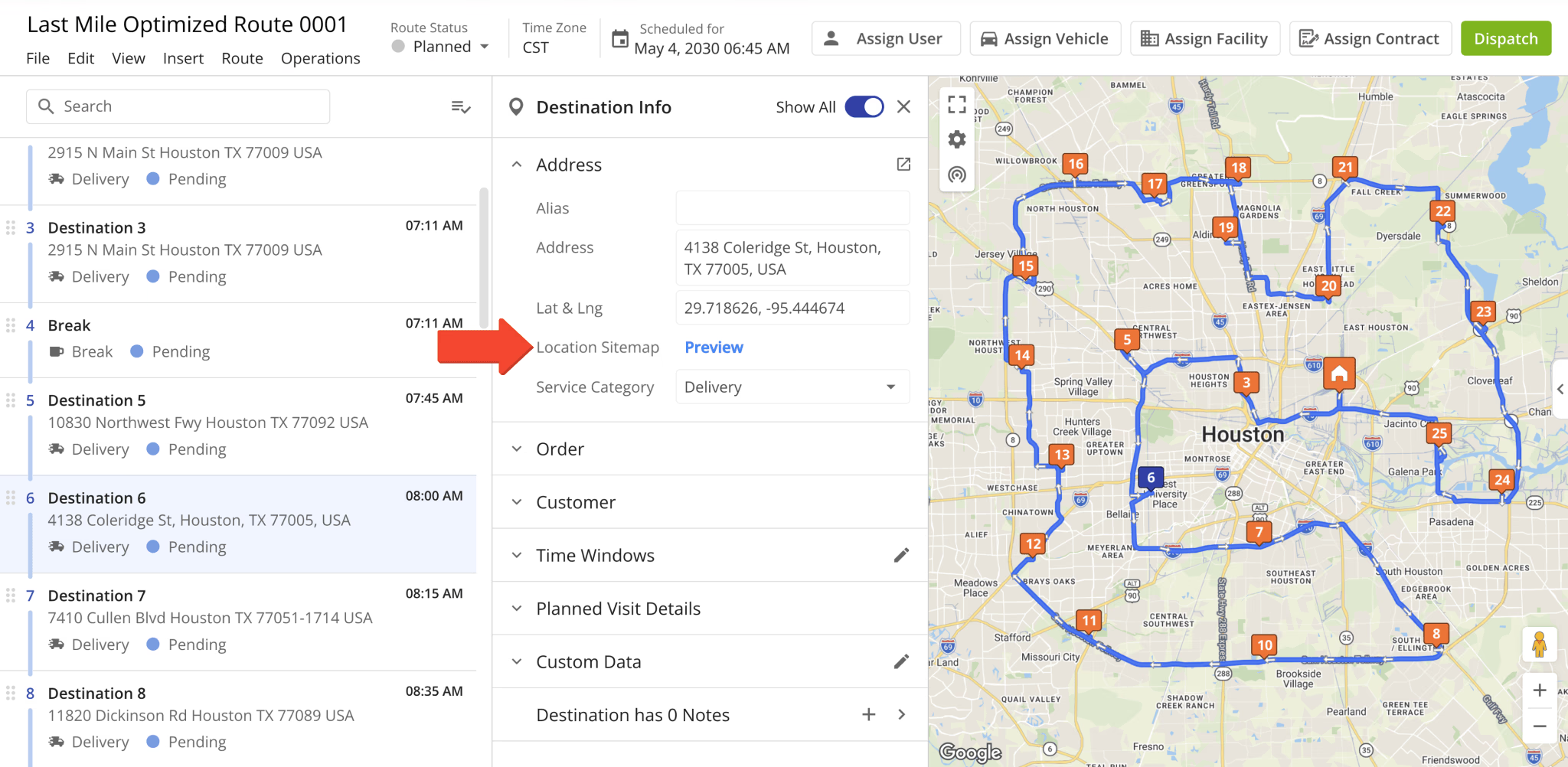
When a Location doesn’t have a sitemap, you can upload an image or PDF sitemap directly from the Route Editor.
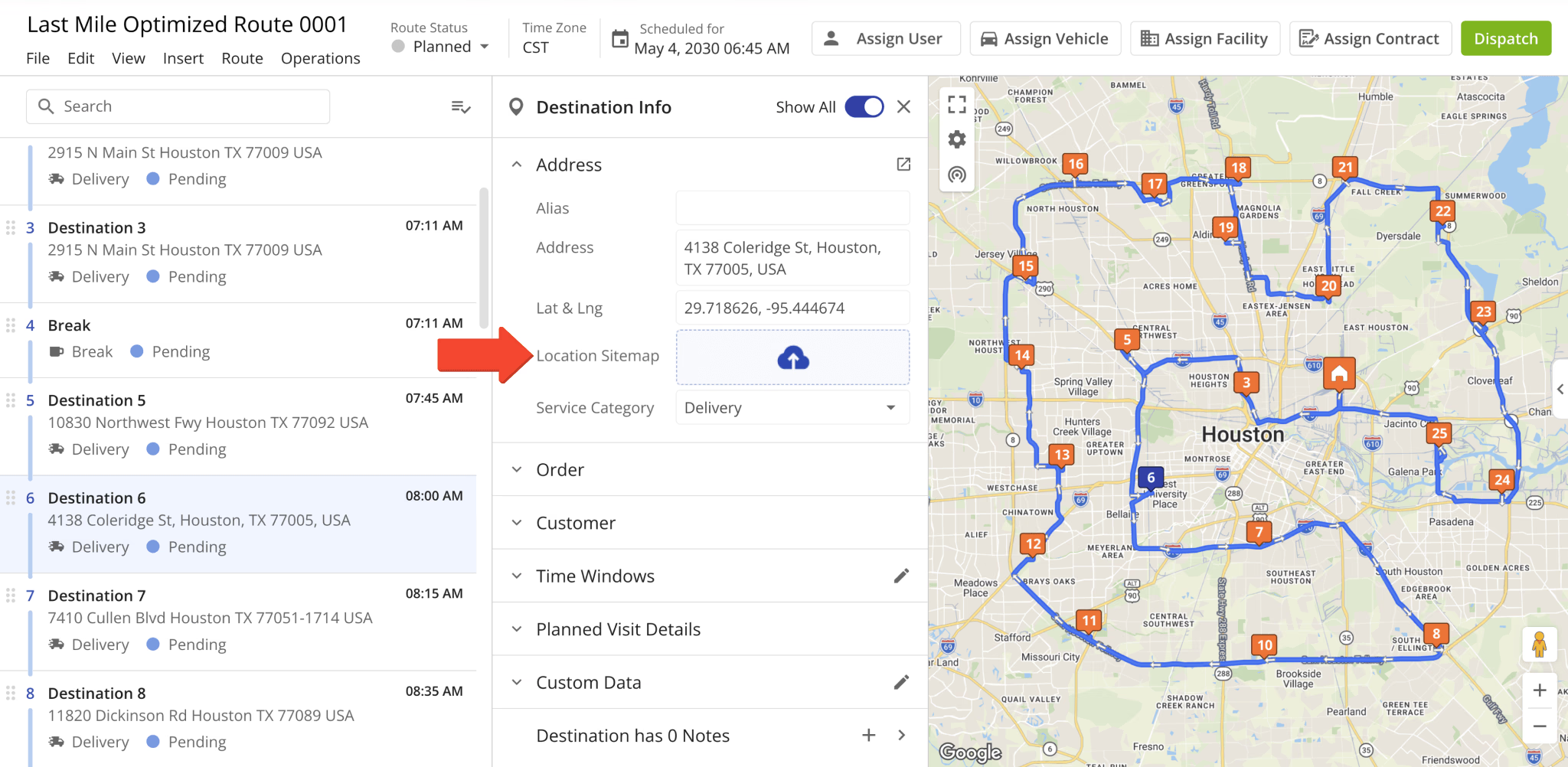
The “Destination Type” field in the Route Editor Destination Info interface was renamed to “Service Category“.
This update improves parity and consistency across Route4Me’s various route management tools and pages.
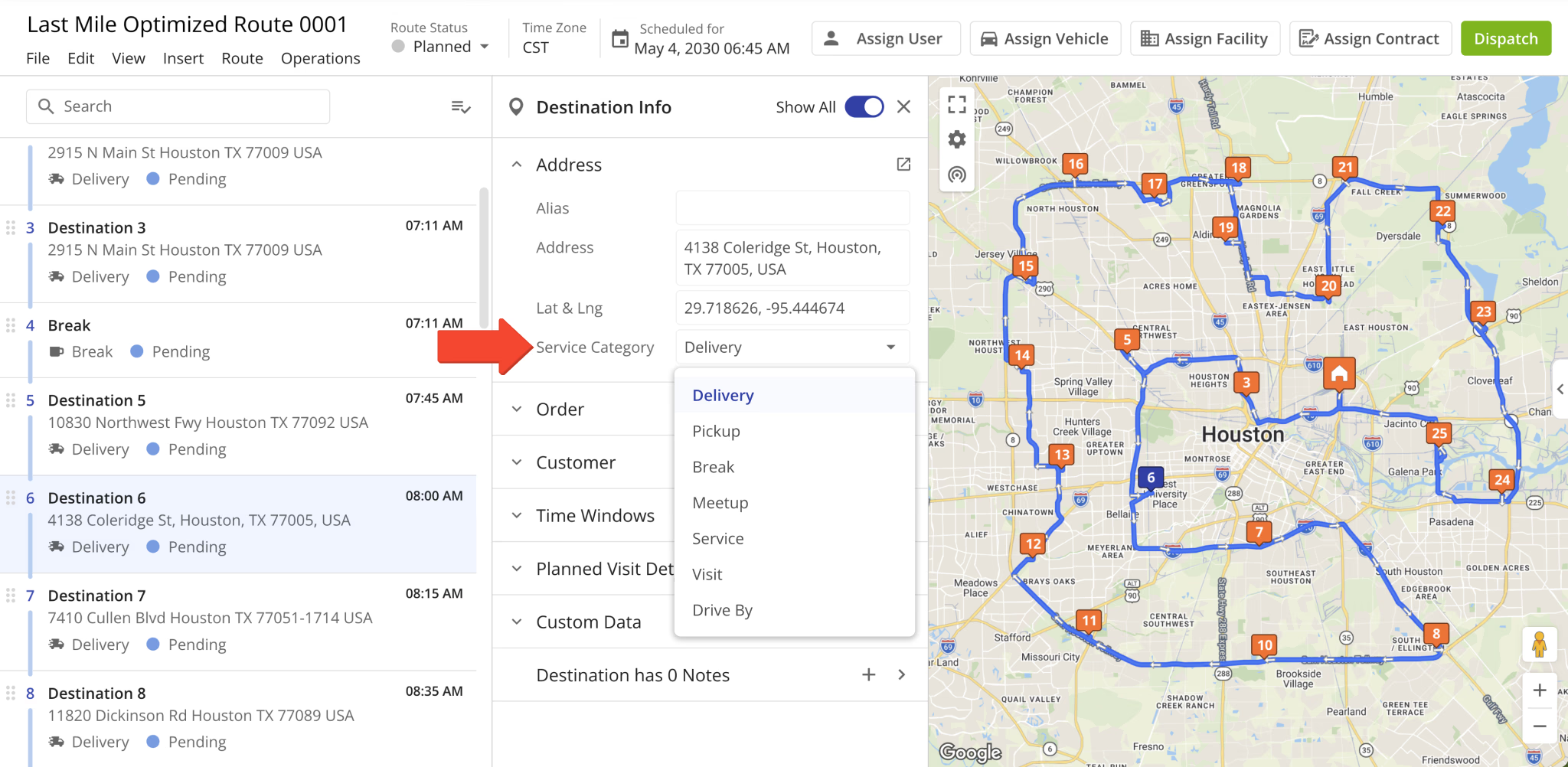
A new “Custom Data” filter was added to the Routes Page. You can now filter routes by their associated Custom Data.
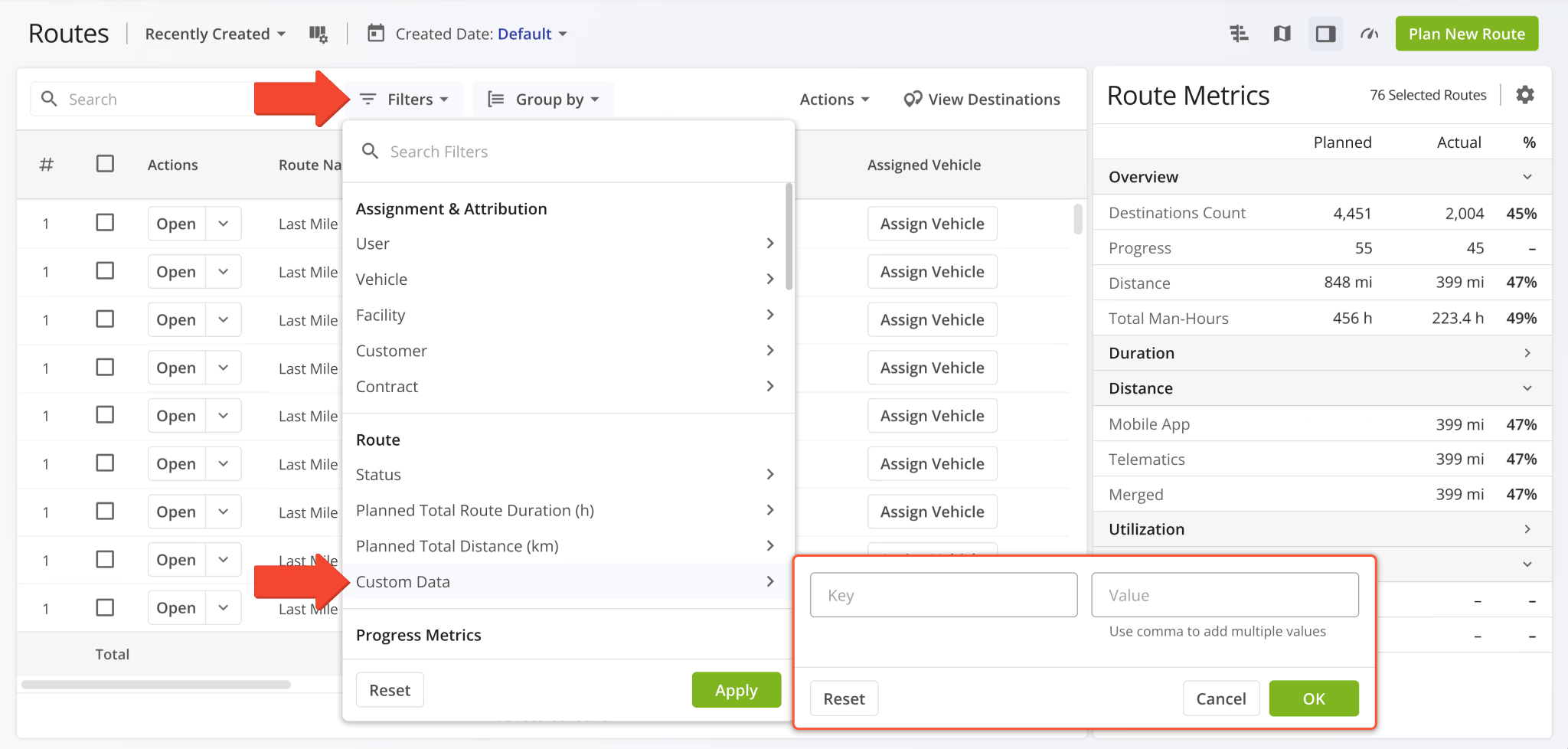
February 2026
60You can now Assing Contracts to routes directly from the Route Editor. To do so, click “Edit” from the top menu bar and select “Assign Contract“. Alternatively, simply click the “Assign Contract” button in the top-right.
Previously, it wasn’t possible to manage contract attribution in the Route Editor.
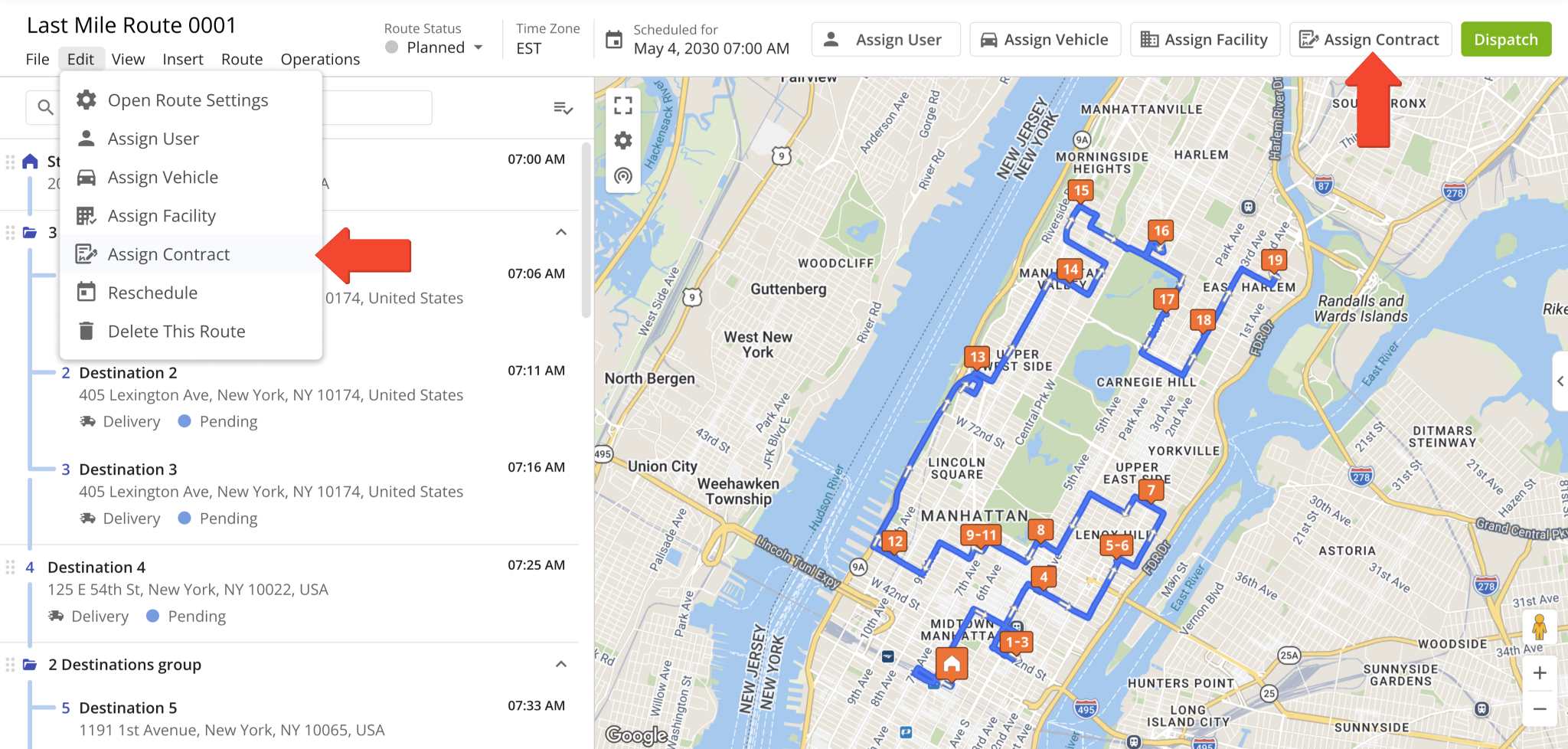
A new “Location” display column was added to the Orders Page. It shows the Customer Locations associated with orders.
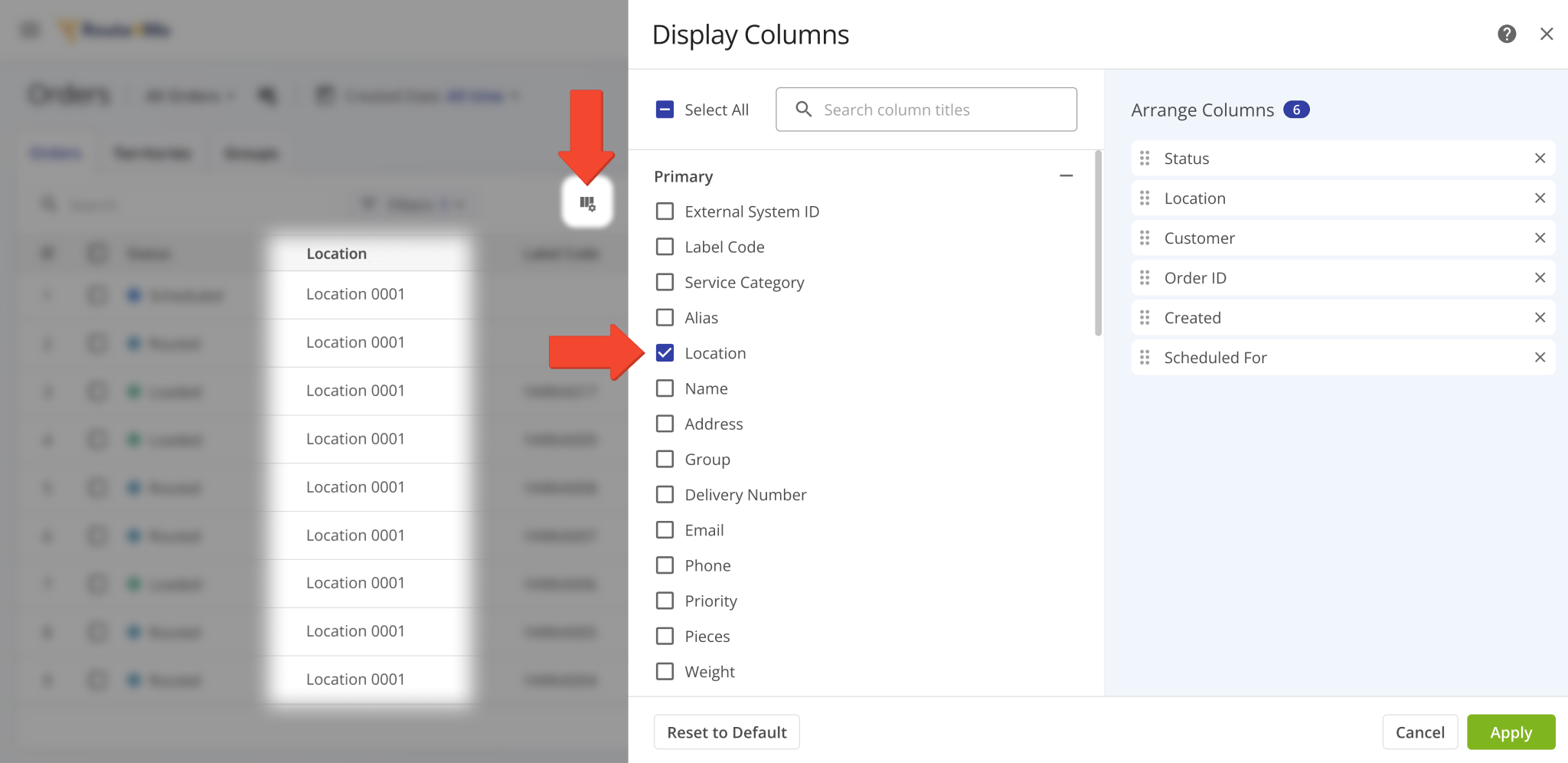
The Route Metrics interface on the Routes Page was updated with new data customization functionality. After you open the Route Metrics, click the Gear Icon to customize the data fields shown in the metrics panel.
You’ll see the Display Columns customizer. This update groups Route Metrics column on the right according to their data categories. This enables you to click and drag category names to arrange entire groups relative to each other. Previously, you could only arrange individual columns. Learn more about supported route data in the Routes Page Data Catalog.
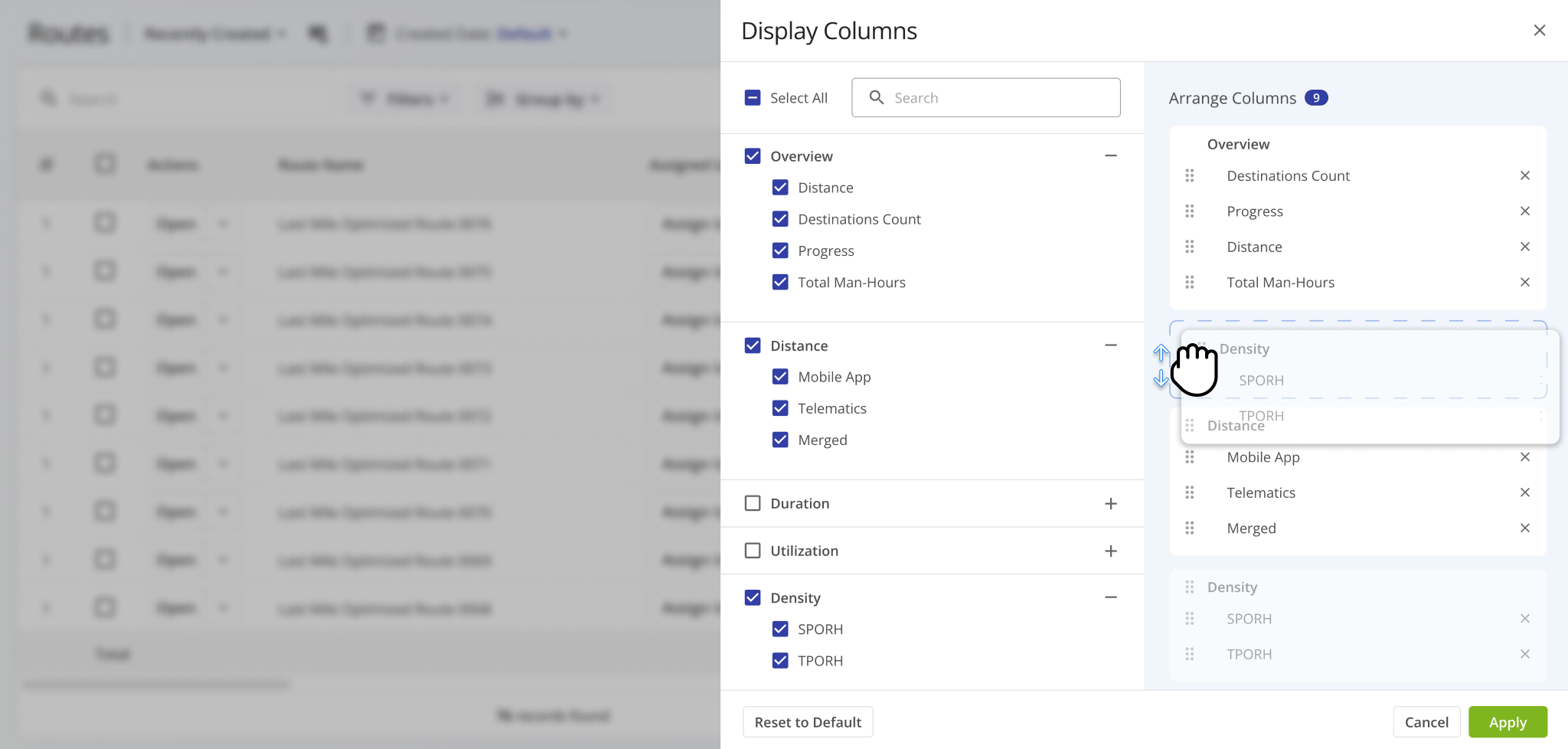
The “Service Type” field in Snapshot data summaries and filters has been renamed to “Service Category“. Affected pages:
- User Snapshot
- Order Snapshot
- Route Snapshot
- Facility Snapshot
- Location Snapshot
- Destination Snapshot
- Optimization Snapshot
- Strategic Route Snapshot
- Strategic Location Snapshot
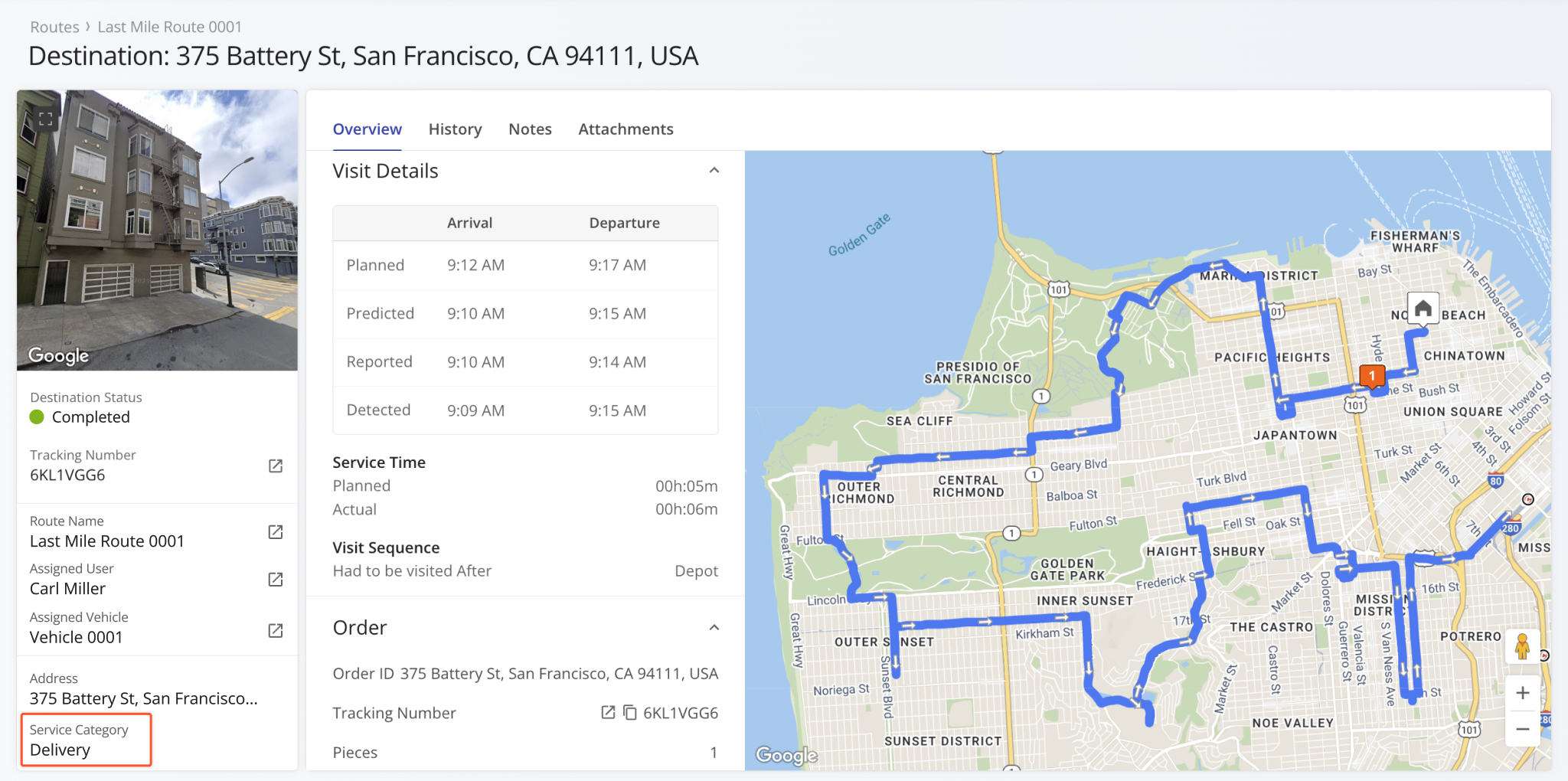
Additional Geofencing Settings were added to the Organization Settings page. The following options were added:
- Tracking Extend Route Start Time: Add a period before routes start (scheduled) during which tracking data is collected.
- Tracking Extend Route End Time: Add a period after routes end during which tracking data is collected.
- Automatic Route Start When Depot Left: Automatically set routes to “Started” when assigned users leave depot geofences.
- Mark As Visited On Geofence Entry: Automatically mark destinations as visited when assigned users enters geofences.
- Mark As Departed On Geofence Departure: Automatically mark destinations as departed when assigned users leave geofences.
Previously, these settings were only available as Advanced Account Configurations.
Open Your Organization Settings
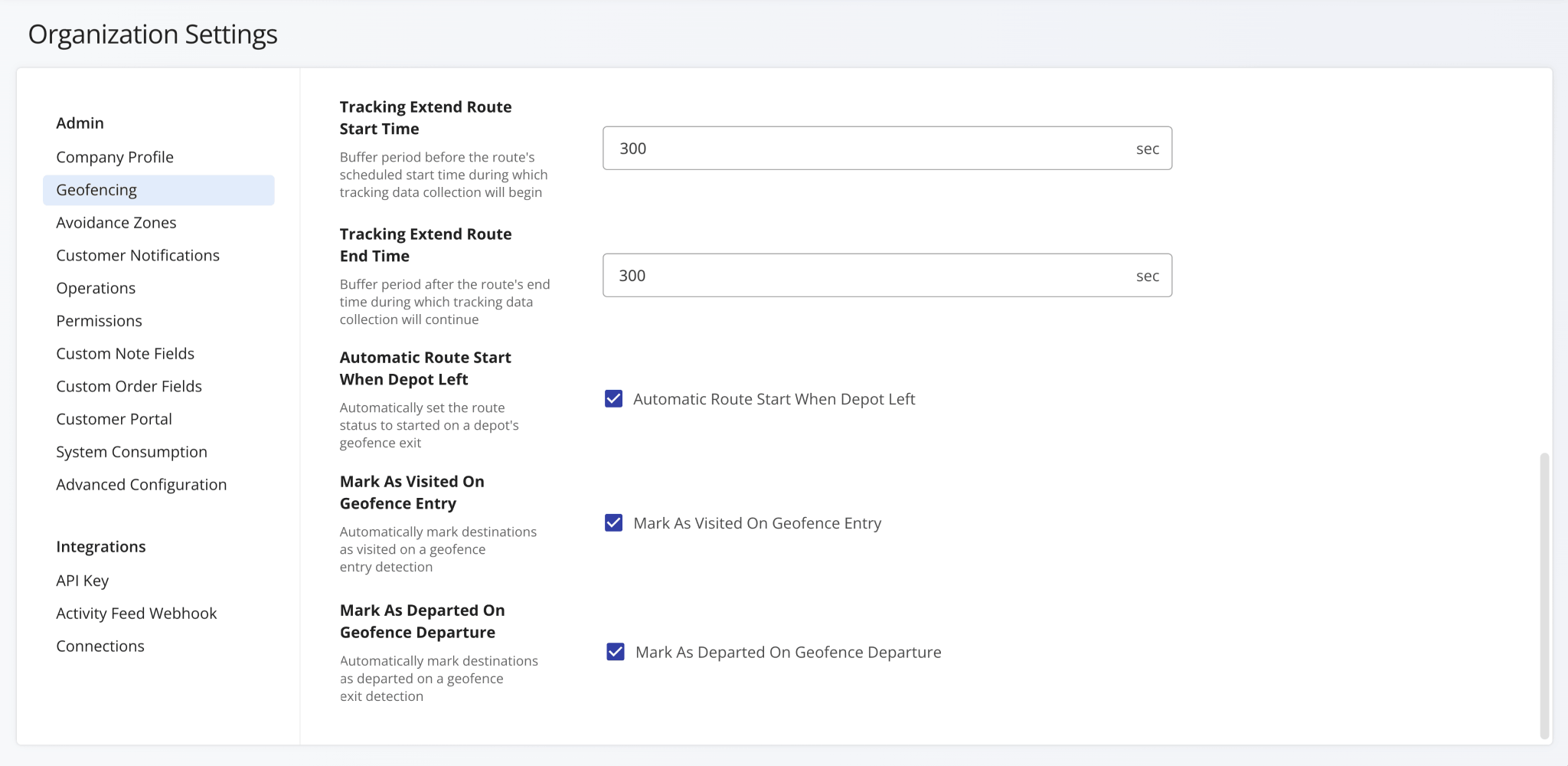
You can now open Invoice Snapshots from your Invoices Page. To do so, click the “Open” button.
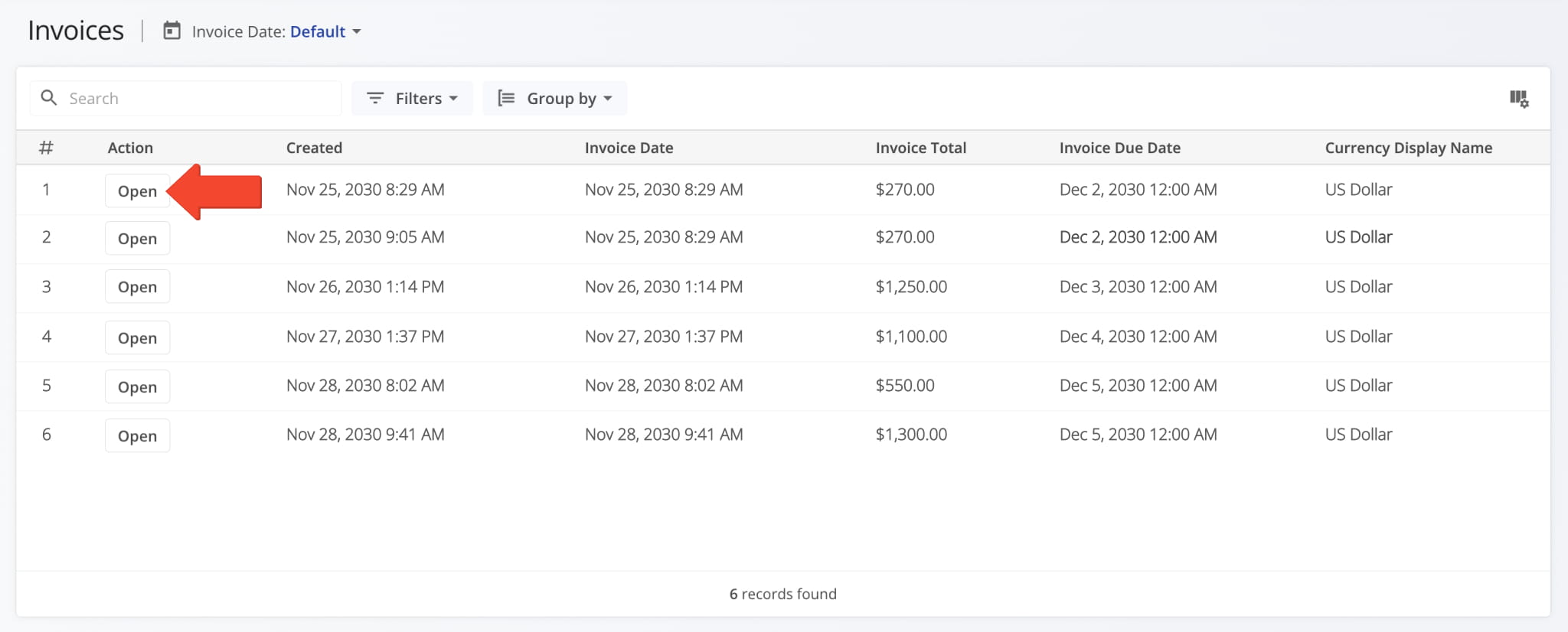
Invoice Snapshots provide enterprise business users with a centralized view of detailed invoice data from your ERP system. You can quickly review line items, track amounts, and analyze totals, discounts, and taxes in one place.
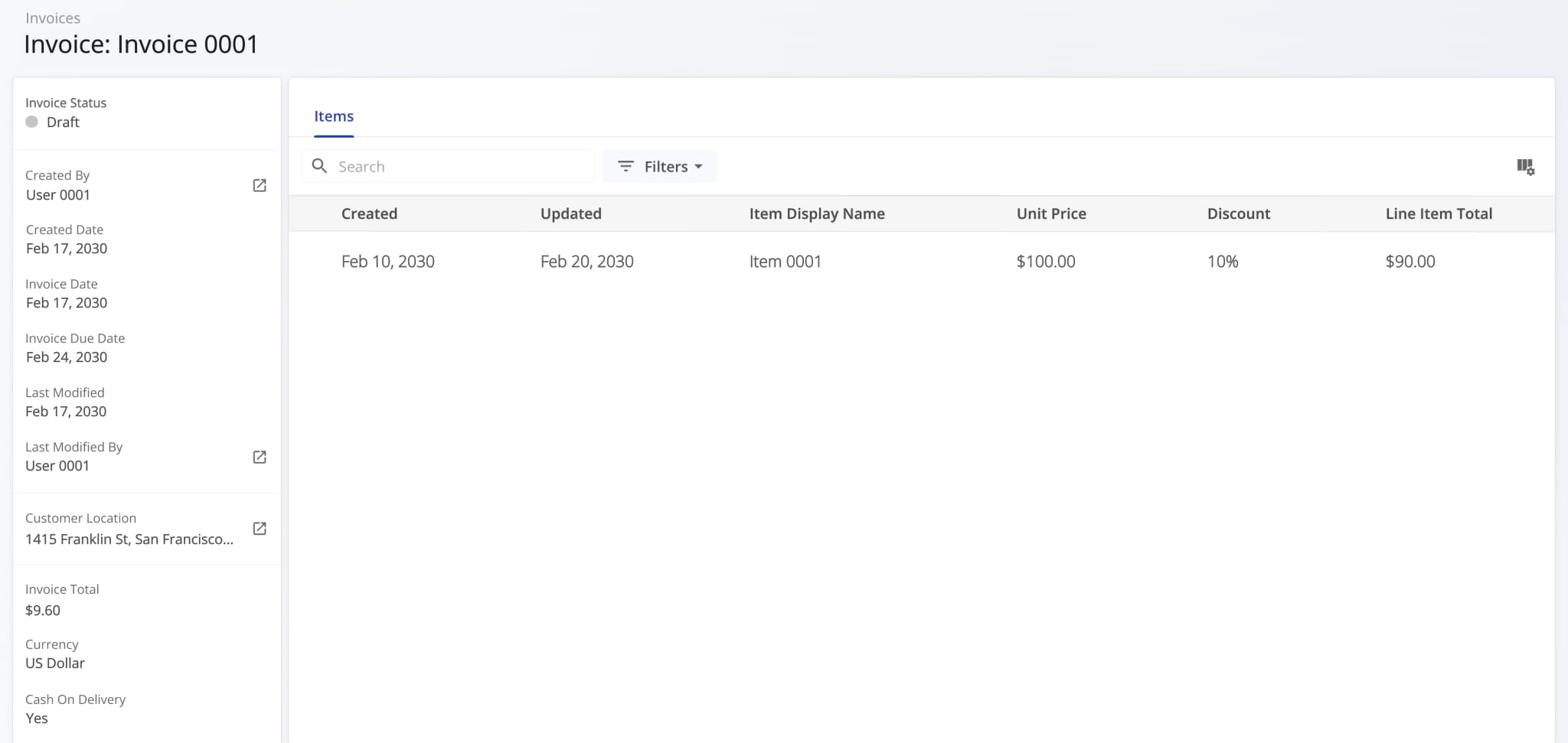
An interactive route summary popover was added to the Routes Timeline. Now, when you hover a route’s name, you’ll see a dynamic summary of its most important information, including utilization and duration metrics.
This update makes it easy to see key route info right in the timeline. This was previously only possible by using other Routes Page features such as the Routes List data table or Performance Insights alongside filters.
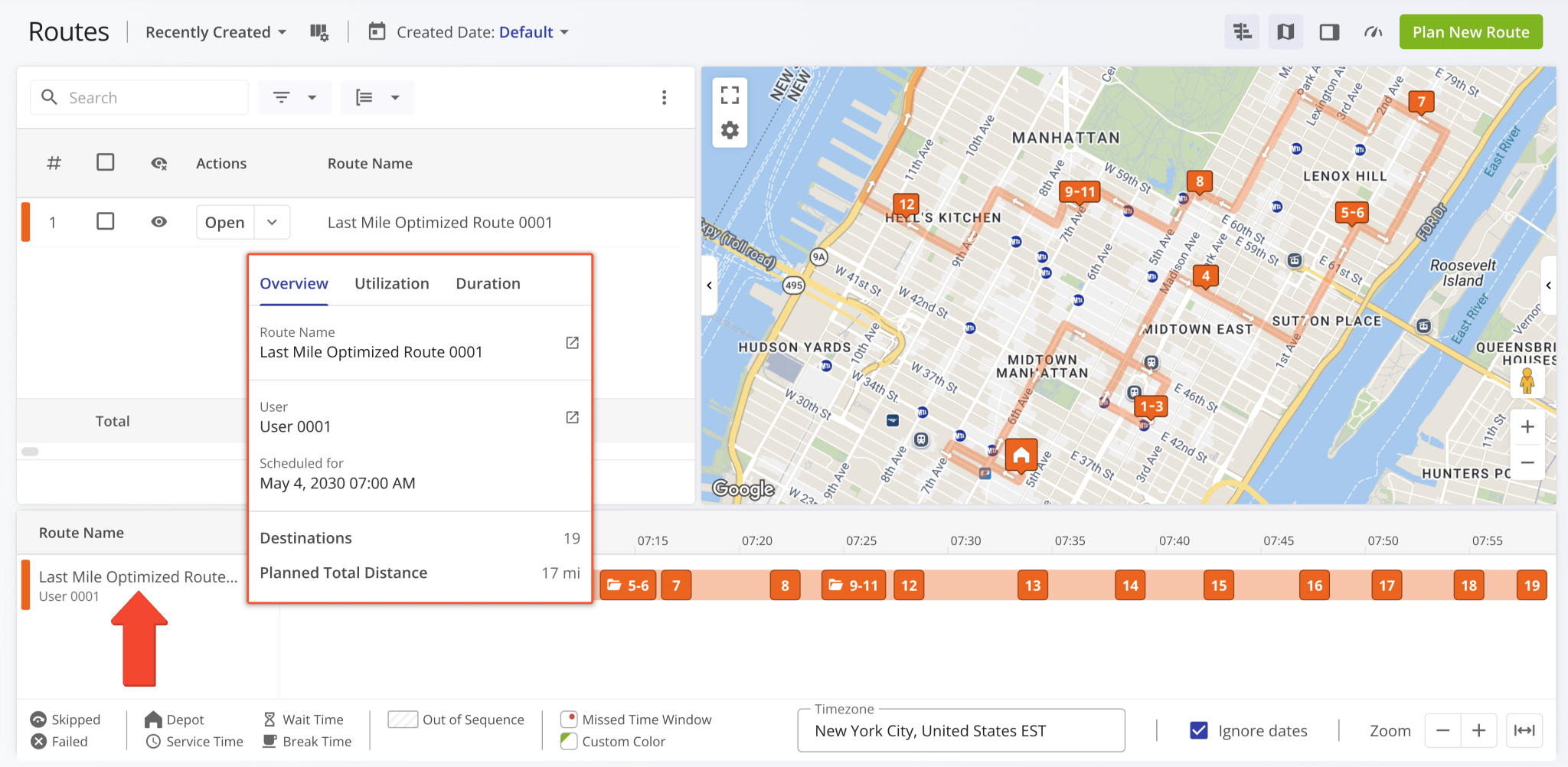
The Route4Me Mobile App now supports unloading multiple items at destinations with customizable item types and amounts. Additionally, the app will show price values and totals when unloading items synced with your Price List.
Just like before, users can scan and unload items using their device camera or a third-party scanner. Previously, users had to scan each item when unloading. The new unloading functionality streamlines and speeds up ERP delivery operations.
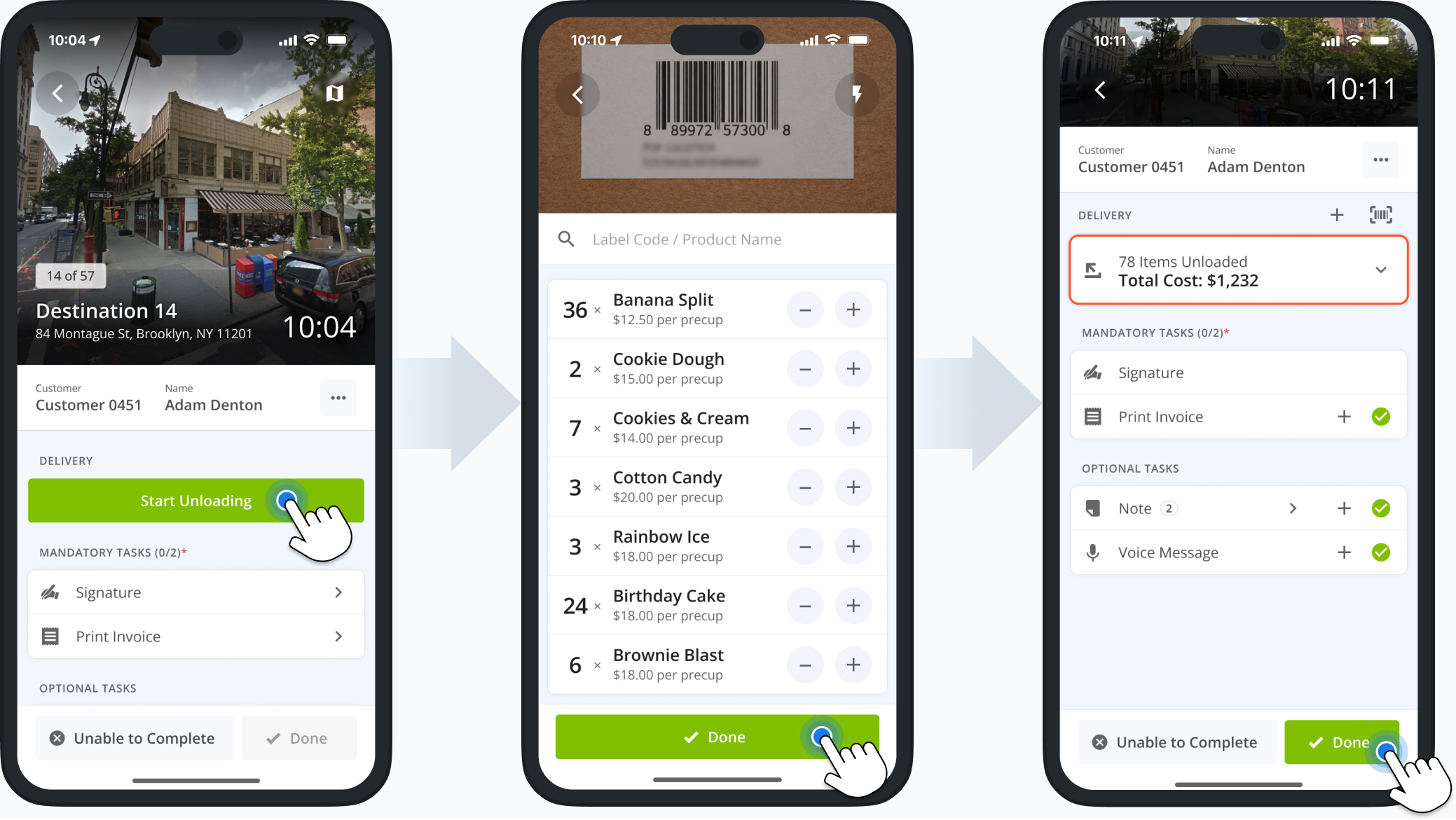
Several filters on the Users Page now have the same names as their corresponding data columns. Consistent filter names make finding users and navigating user data quicker and easier. The image below shows the affected filter options.
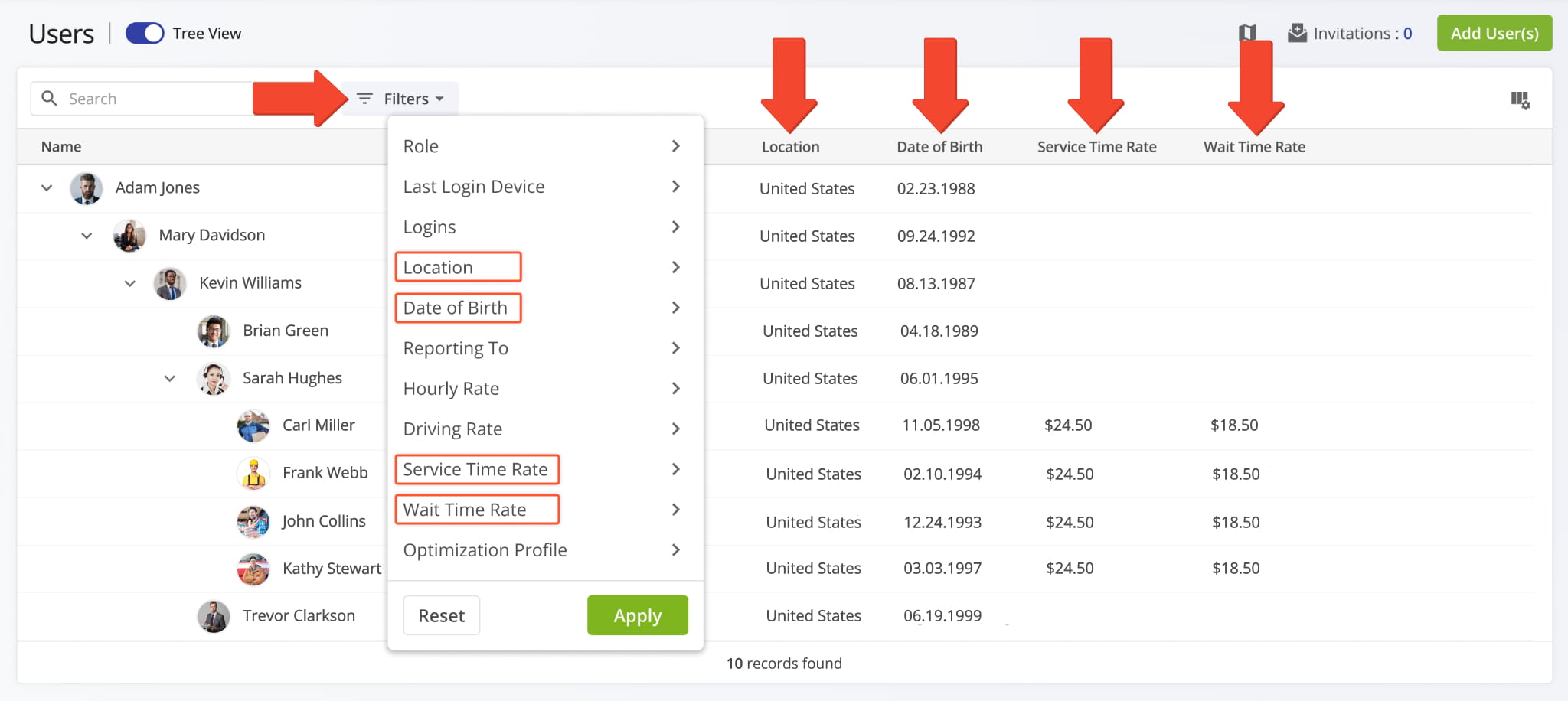
A new “SLA Policy” display column was added to the Orders Page. It shows the agreement policies associated with orders.
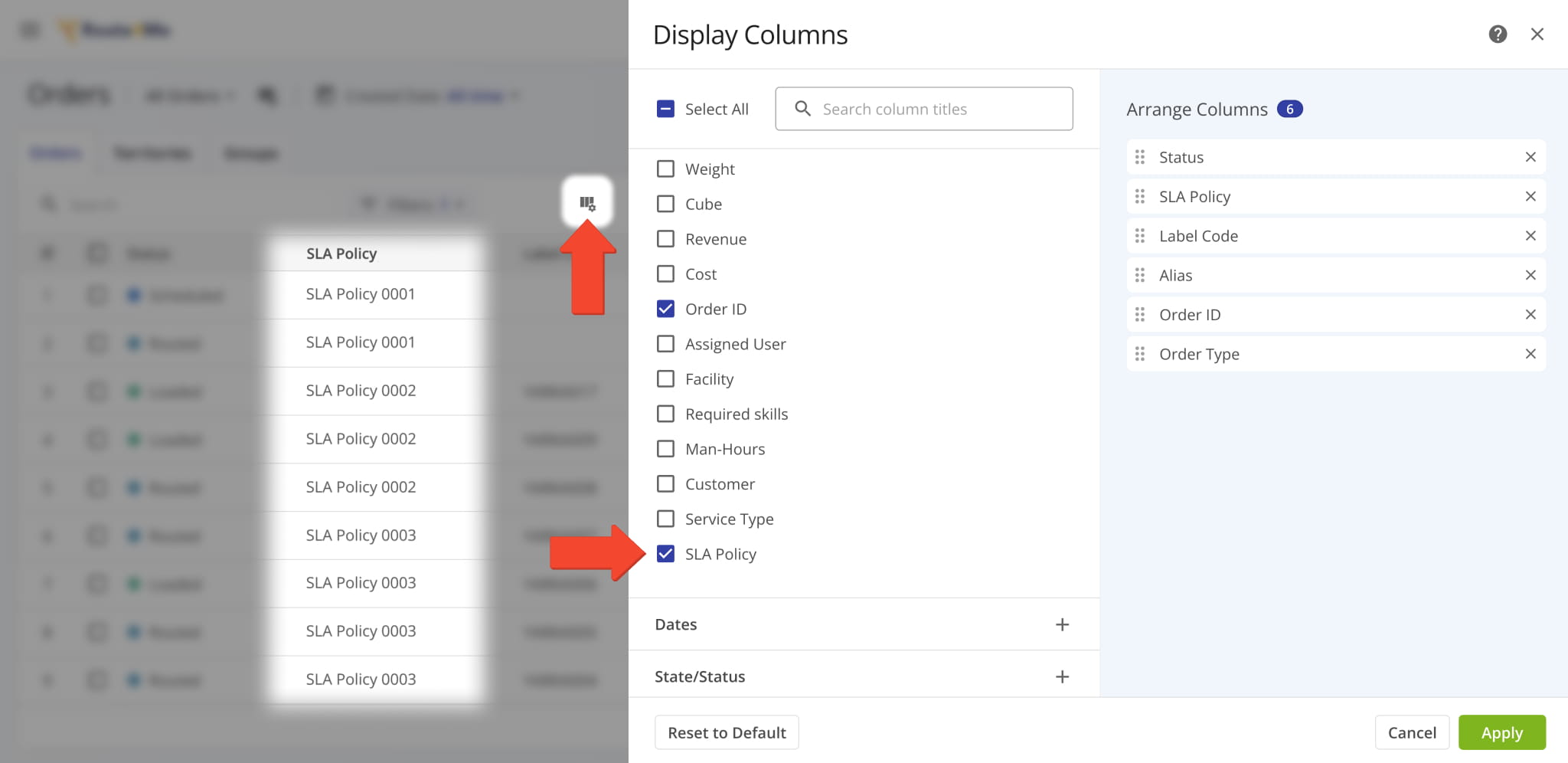
Two new Display Columns were added to ERP Invoices. They show the routes and destinations your invoices are associated with. Additionally, you can open Route Snapshots and Destination Snapshots directly from the new columns.
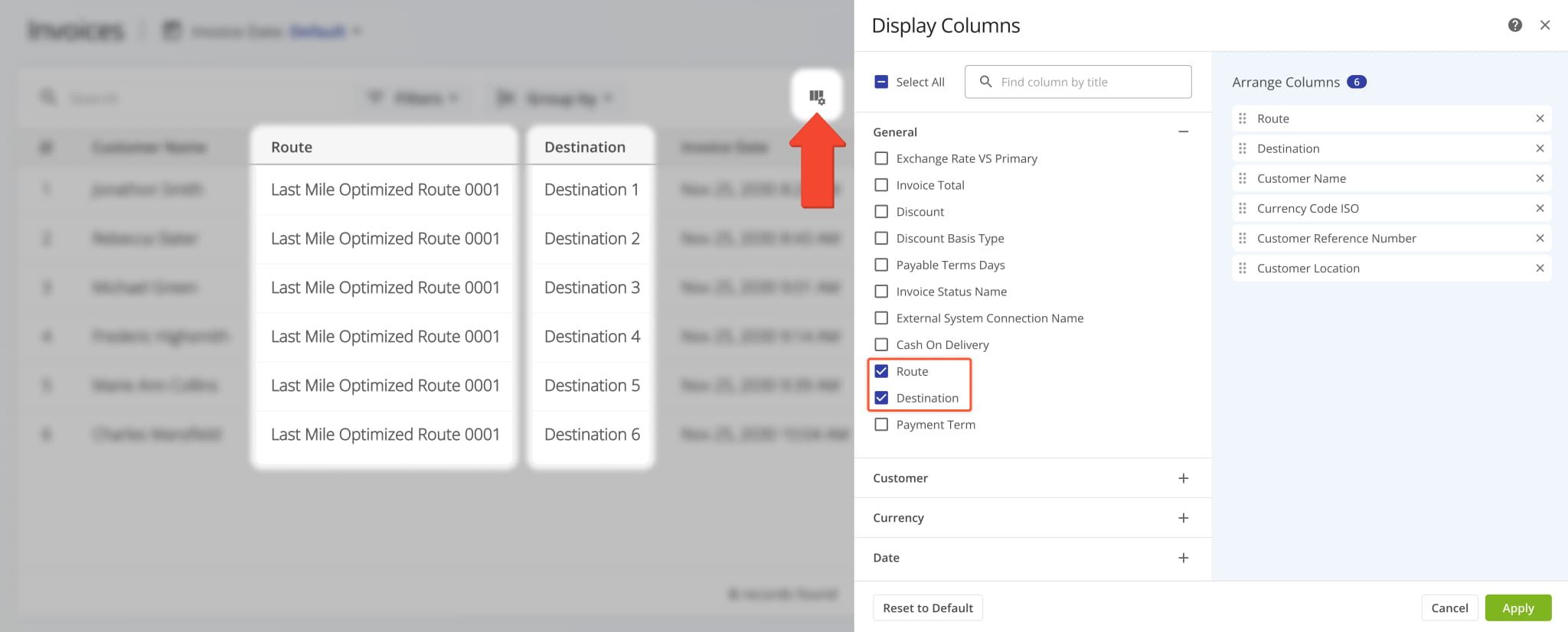
Snapshot functionality was added for Strategic Optimization Locations. To open a Strategic Location Snapshot, open a Strategic Optimization, go to the “Locations” tab, and click “Open” next to a Location.
Open Your Strategic Optimizations
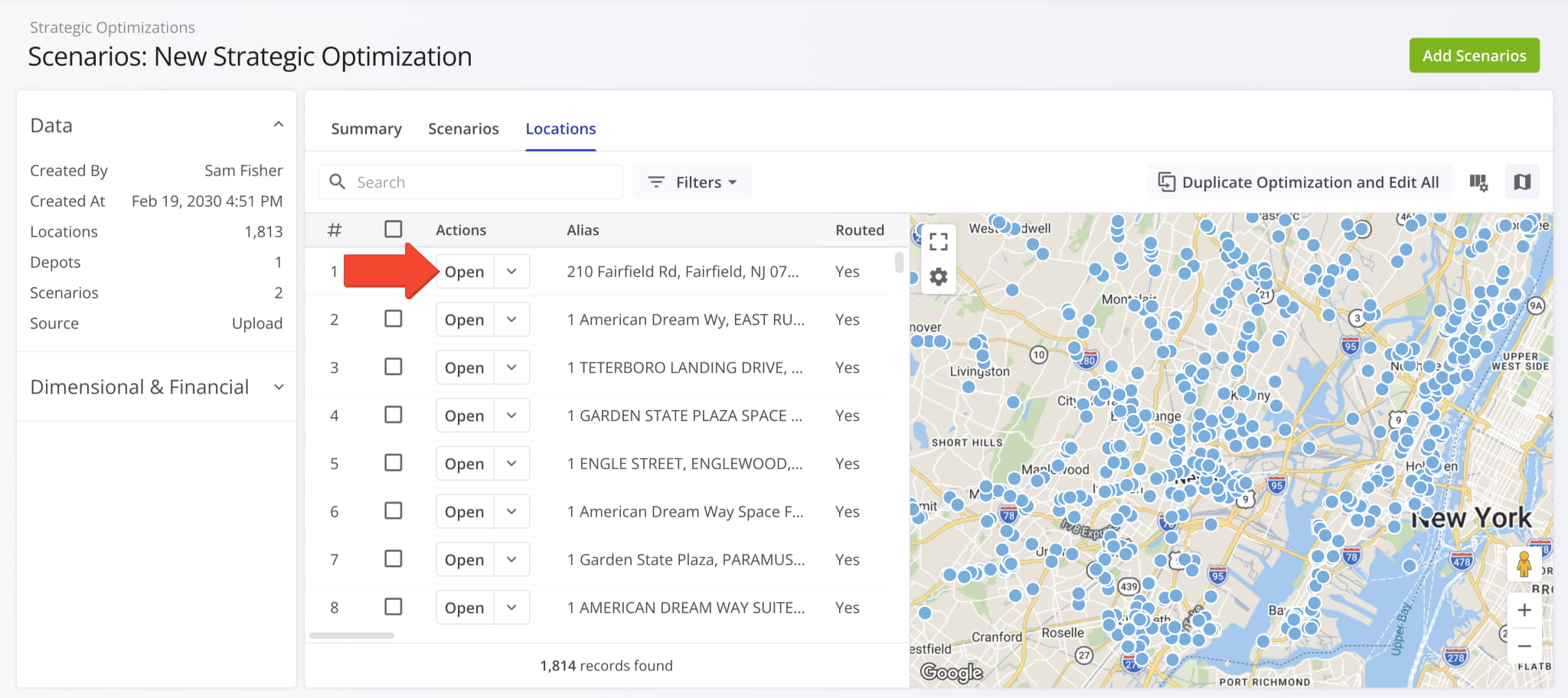
Strategic Location Snapshots show visit and route data for a location with customizable columns, filters, and more.
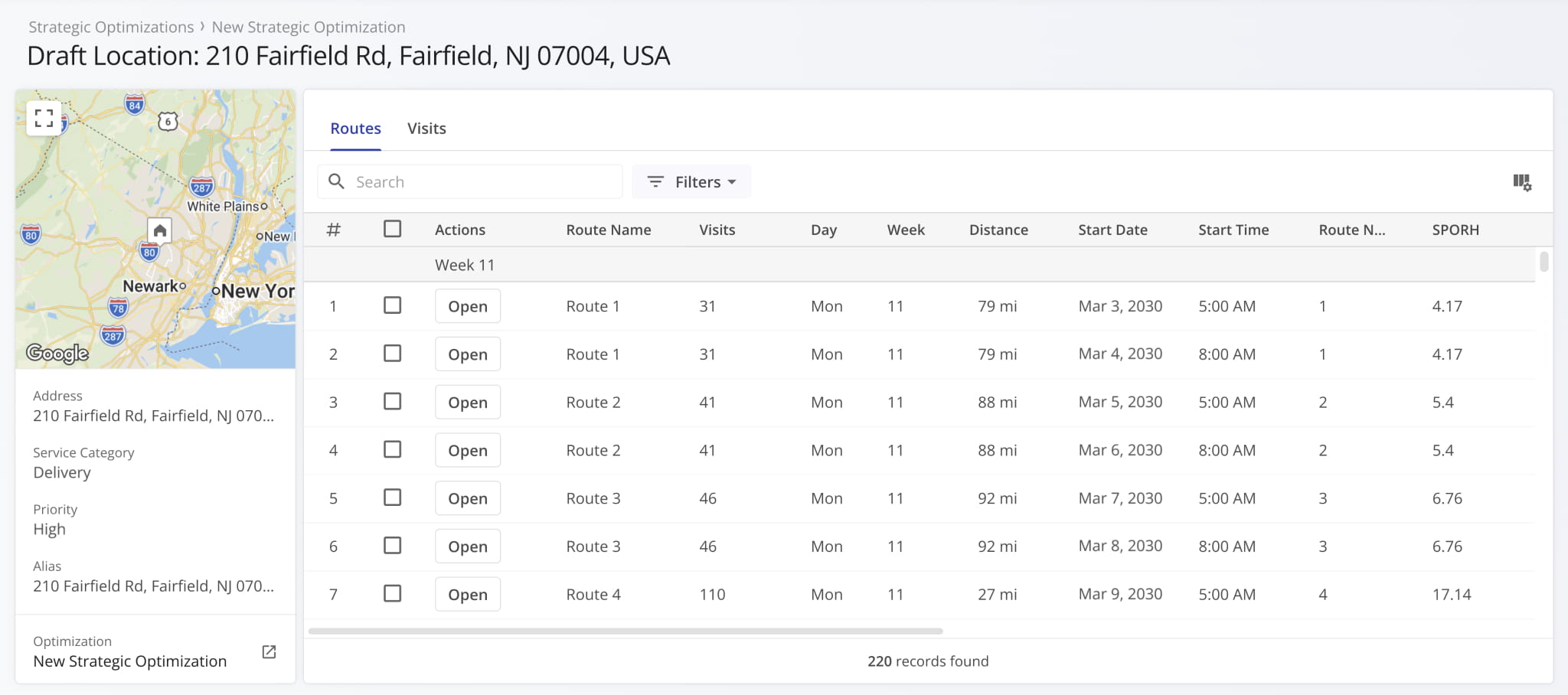
A new button was added to the Destinations List on the Route4Me App. Open a route and swipe up; you’ll find the new Three-dot Button next to the Information Icon. Tap it to see actions available for the destination.
Routes need to be started for destination actions to be available. Learn more about starting and navigating routes.
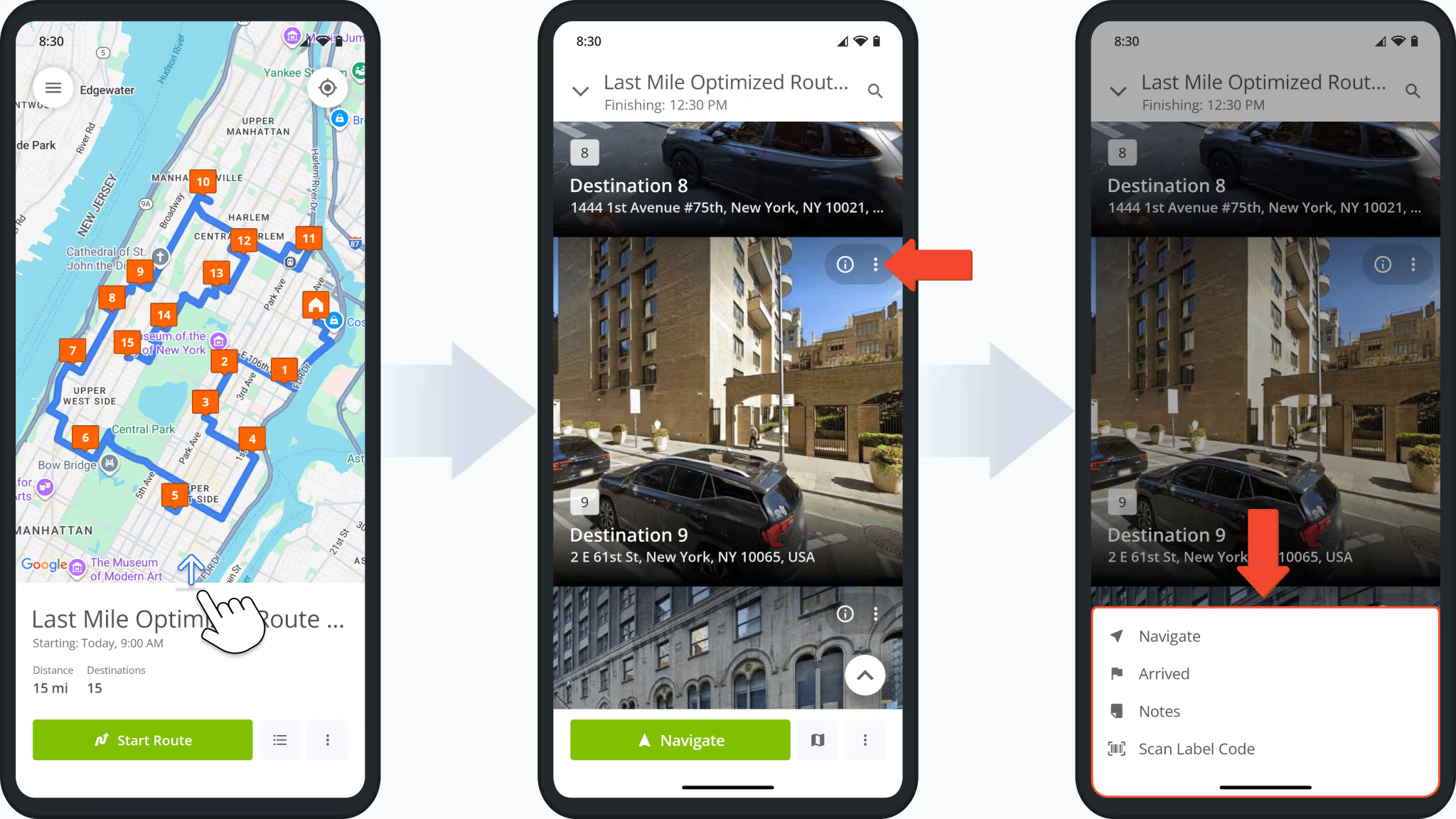
When planning routes on mobile with the Route4Me App and adding Service Time to a destination, you can now specify the exact seconds value in addition to hours and minutes. Previously, the Service Time selector did not support seconds.
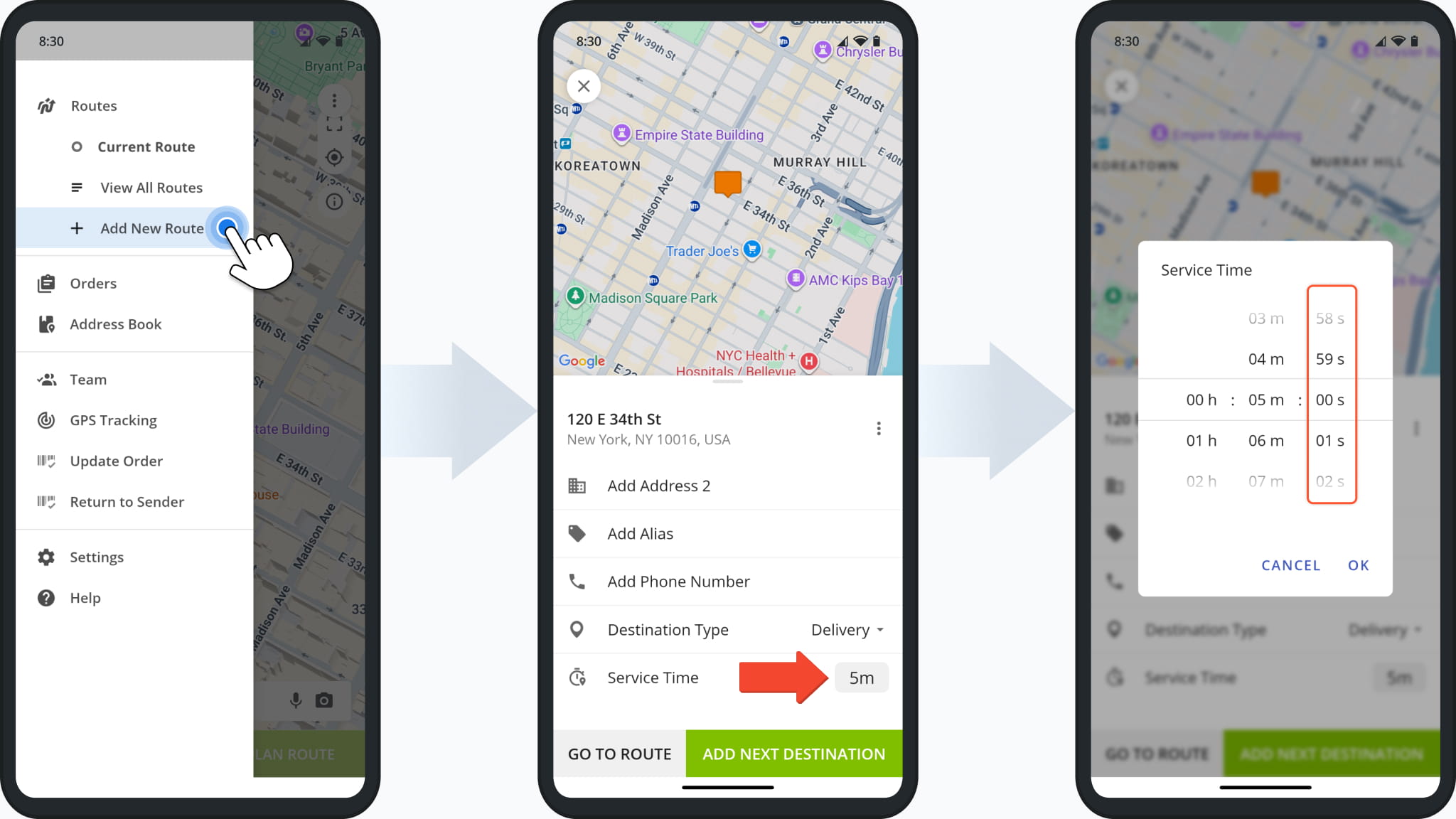
You can now insert multiple hours of service (HOS) breaks when planning routes or into already planned routes. Previously, you could only set a single HOS Driver Break rule per route and would have to manually insert additional break stops.
This update enables you to set multiple break rules with different trigger types and parameters directly in your manual route settings, Optimization Profiles, and when using the Strategic Cycle Route Planner.
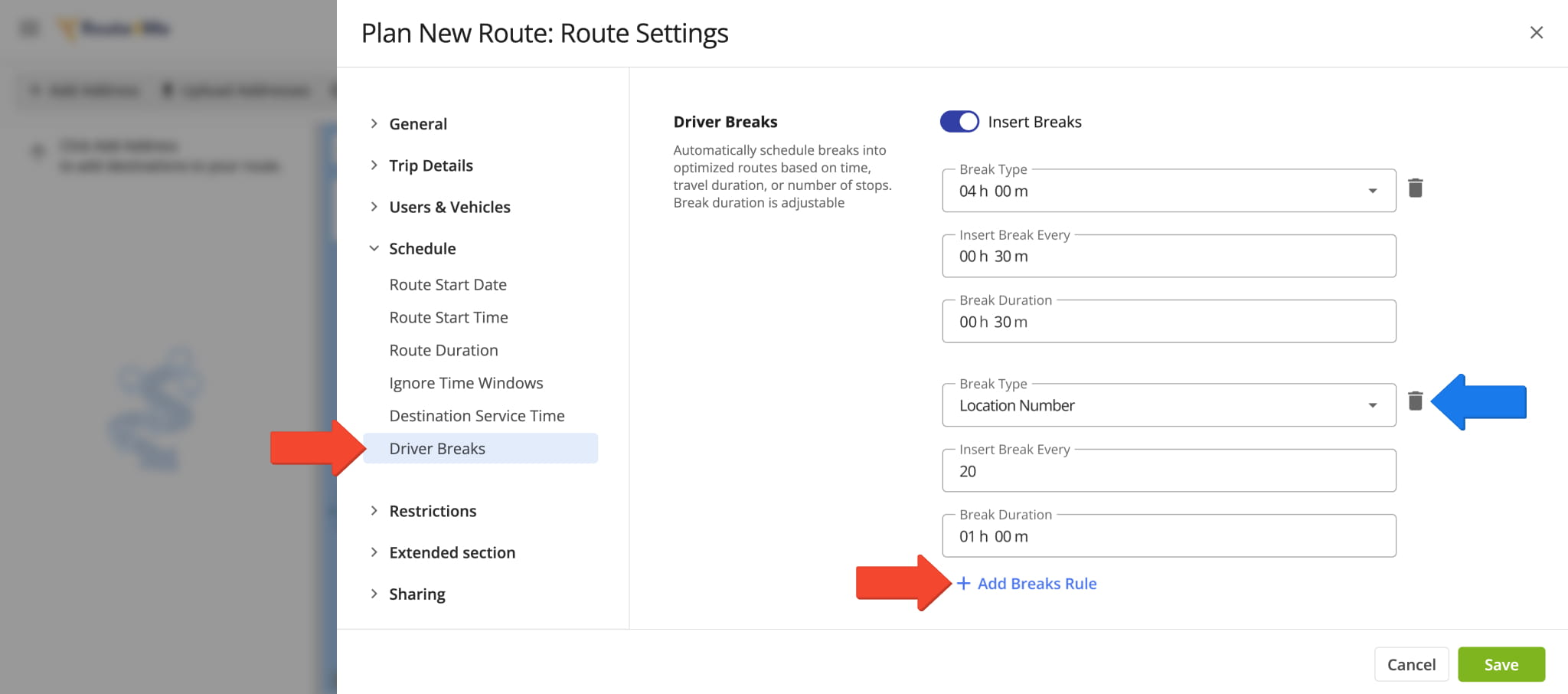
The same enhancement is also available in the original route settings interface. This ensures a consistent experience when adding Driver Breaks regardless of your account’s specific setup and enables features.
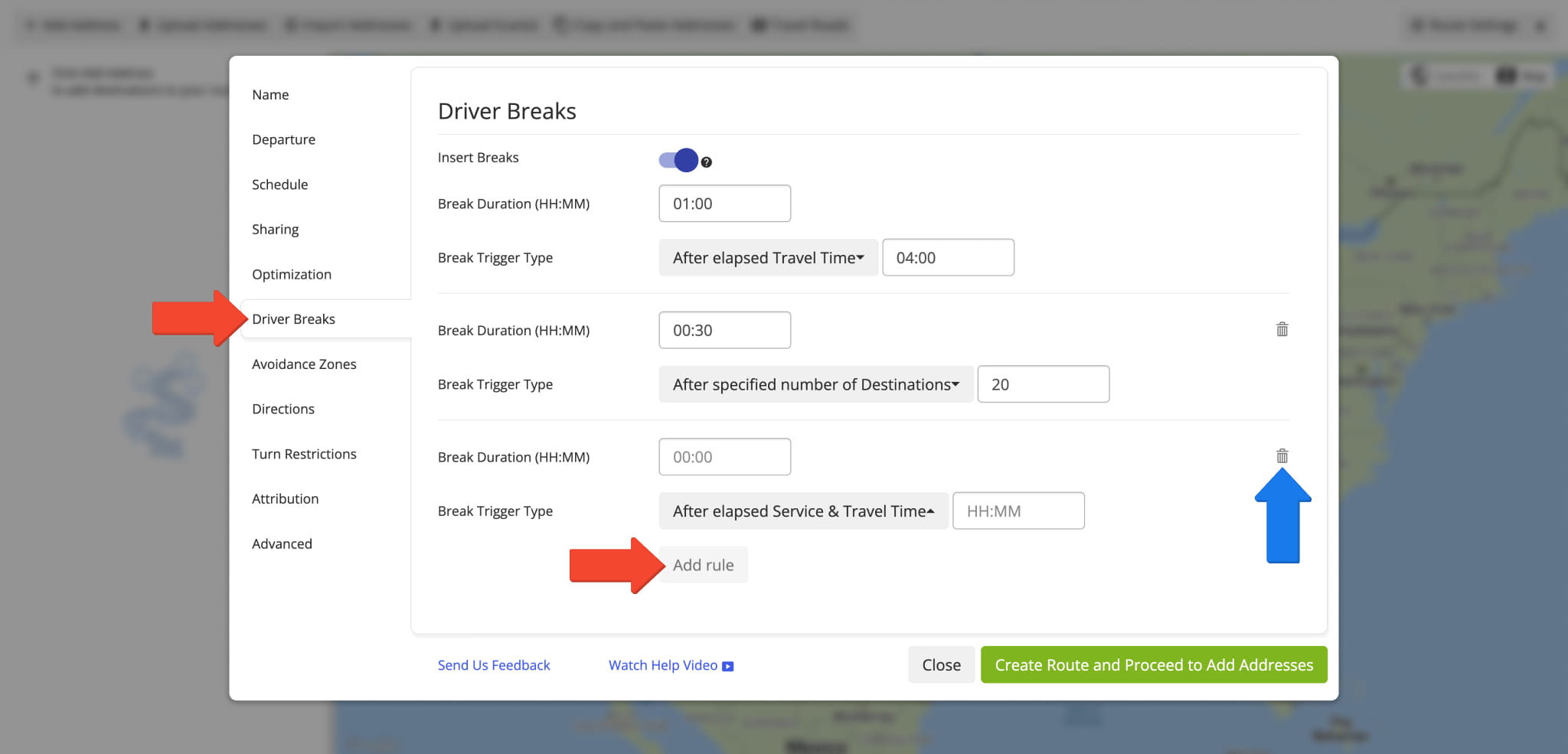
The Routes Timeline and Routes Map now show new Destination Groups for routes with Destination Bundling. To see on-hover destination info, simply hover over a group, and you’ll see the individual destinations it contains.
Previously, Destination Bundling created overlapping destinations at the same map location with different sequence numbers. This update highlights grouped destinations clearly, improving and streamlining complex route management.
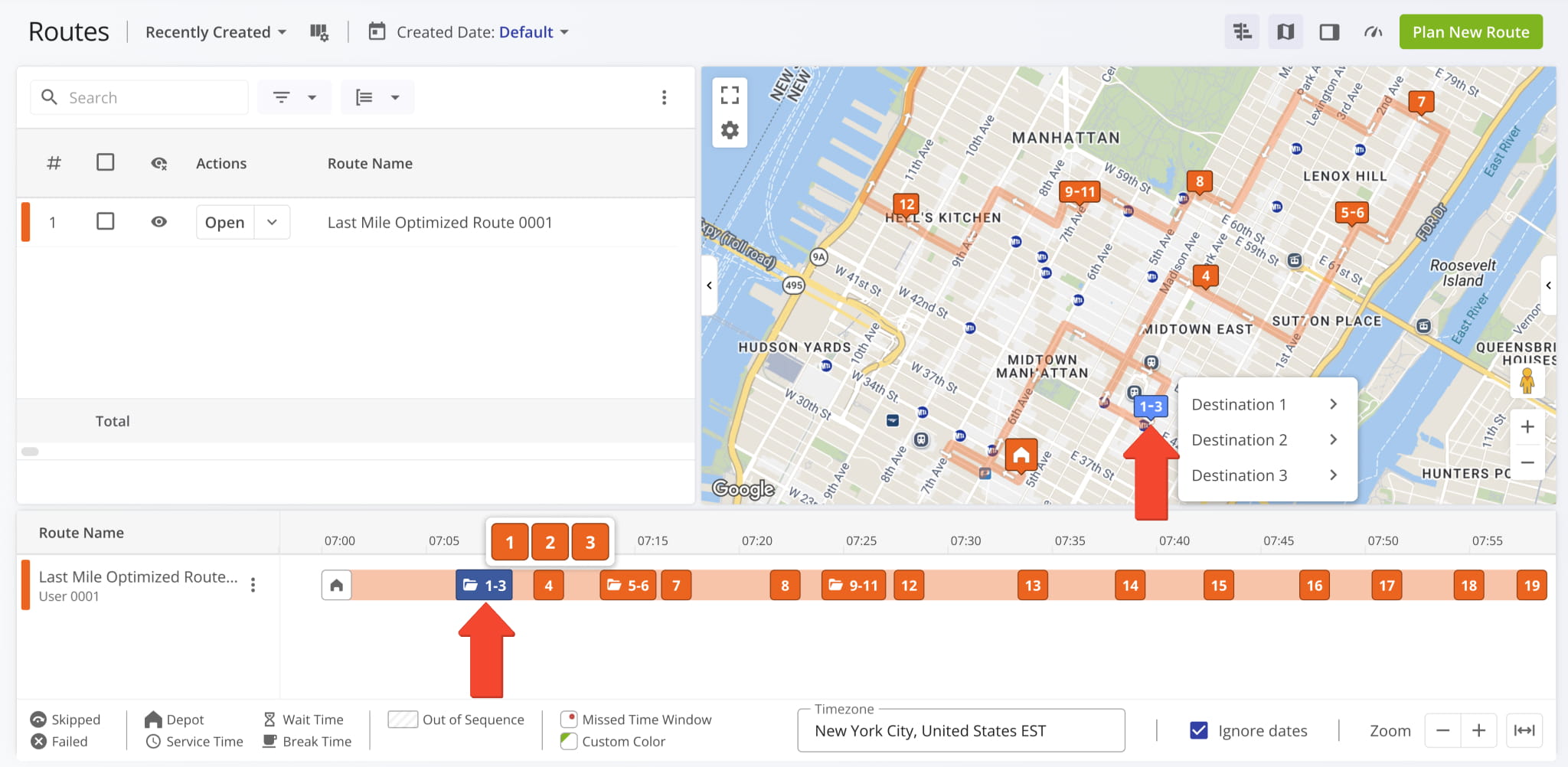
A direct link to Contract Snapshots was added to the Customers Page in the “Contracts” column.
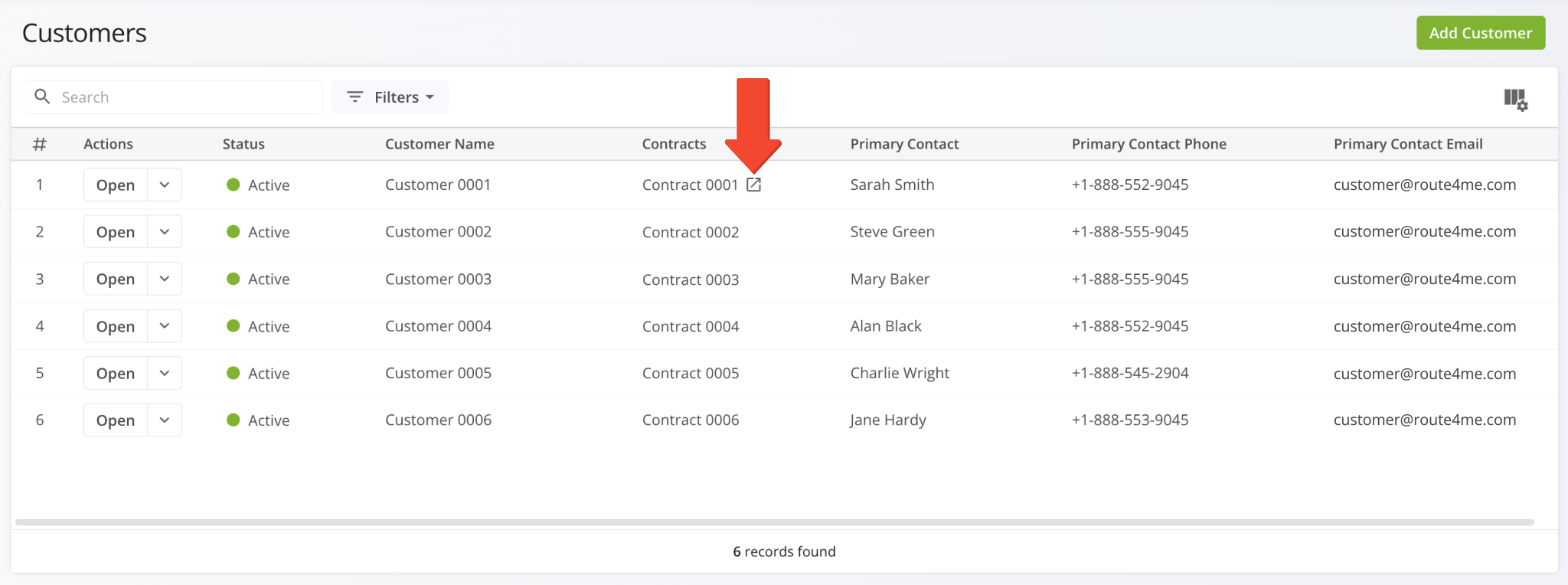
A new “Skip Destination” screen was added to the Route4Me App. When a user attempts to visit route destinations out of sequence, they’ll be prompted to resolve the unvisited destinations.
Depending on the enabled features and specific user permissions on your account, different options will be available.
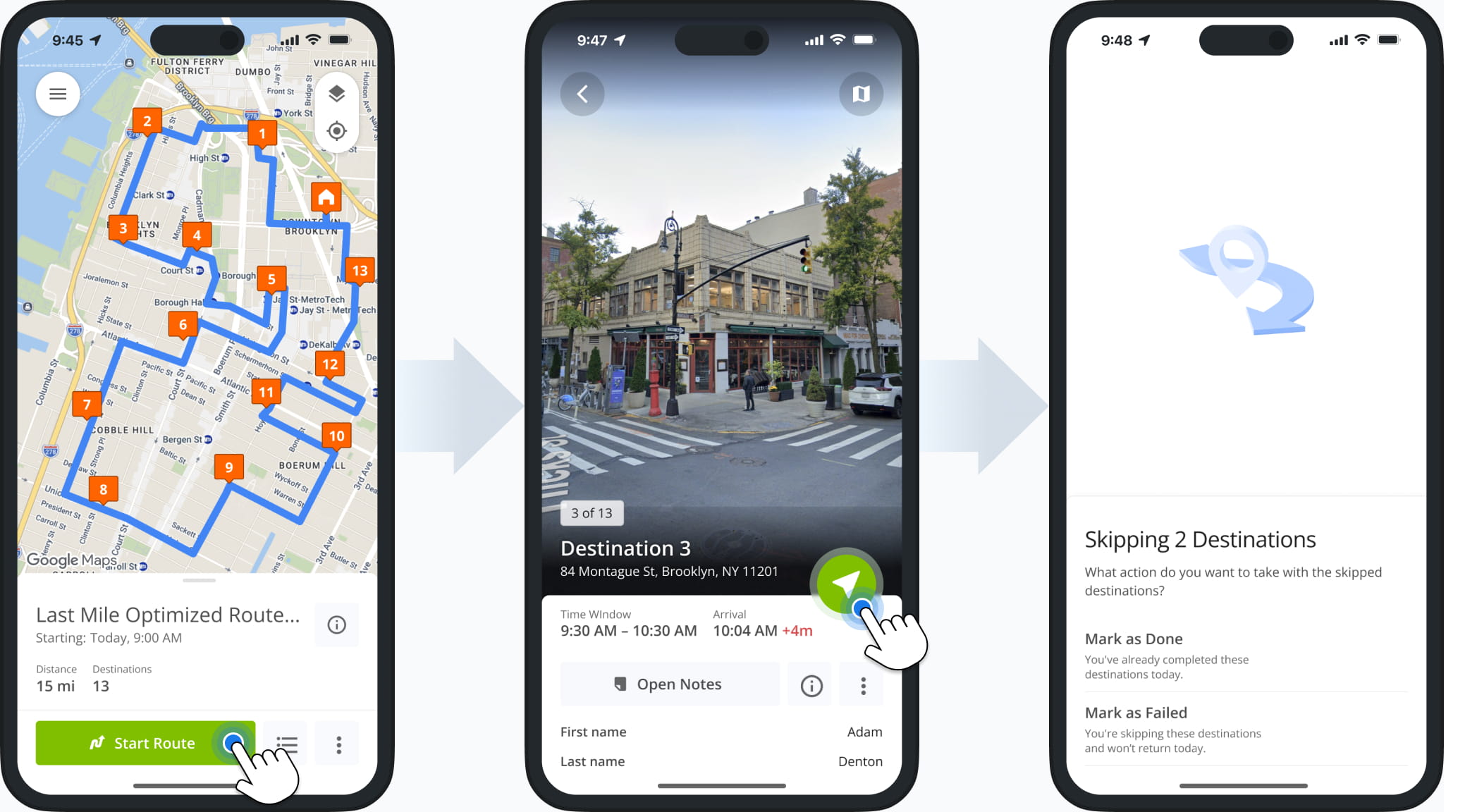
New options were added to the “Bulk Actions” menu for Recurring Routes. In addition to existing actions, you can now:
- Re-Optimize Routes: Recalculate route optimizations after making changes.
- Refresh Route Directions: Recalculate driving directions between route destinations.
- Reverse Routes: Reverse route sequences to invert visitation order.
- View Route Manifest: See detailed, print-friendly route metrics and data.
- Duplicate Routes: Create new copies of the selected routes.
- View on Multiple Routes Map: Open the selected routes in the Routes Map.
- Insert Driver Breaks: Add breaks to routes for hours of service compliance.
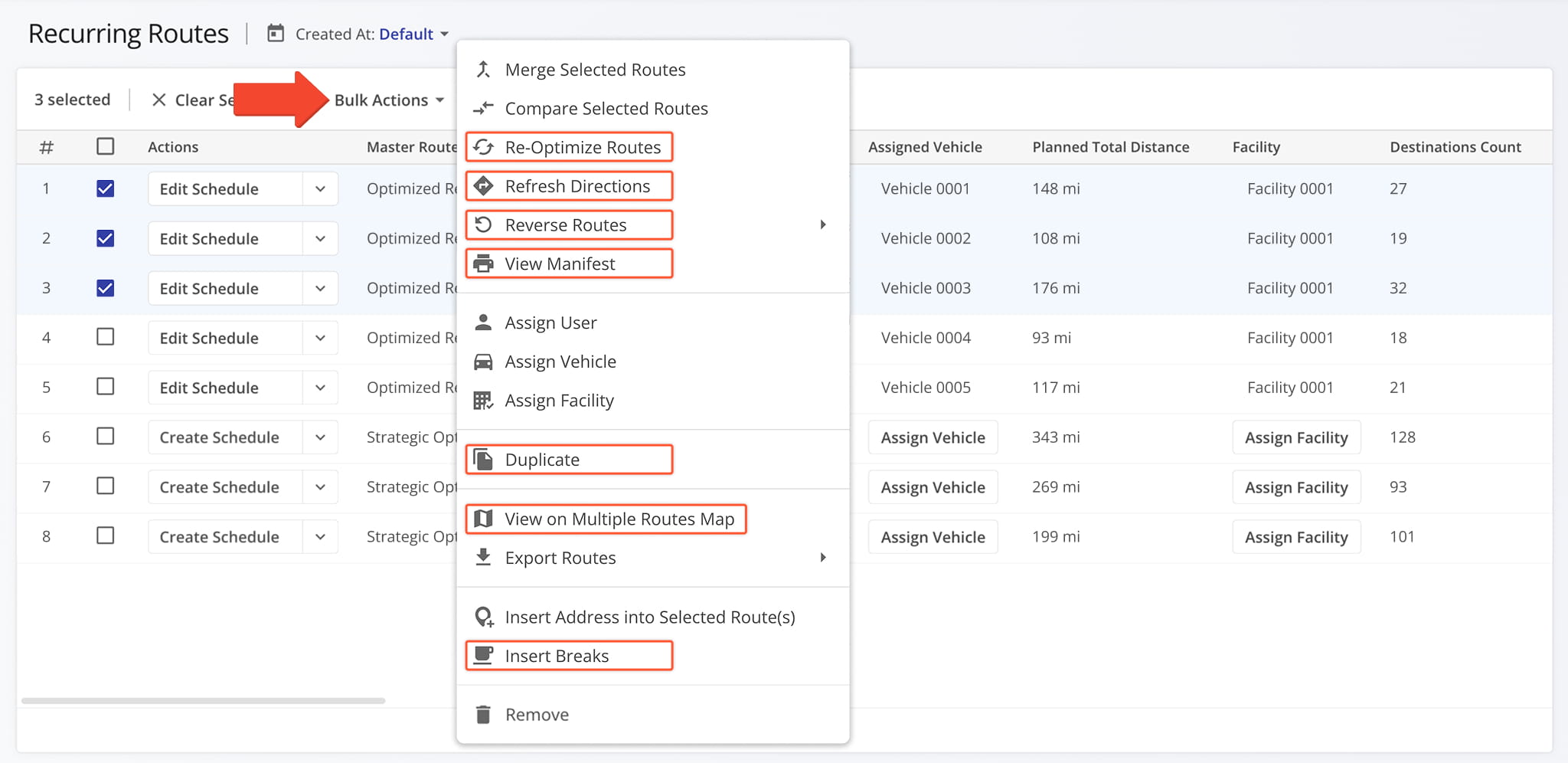
The filters for Recurring Routes were updated. The “Unassigned” checkbox was removed to streamline filter customization. Now, simply not selecting an entity to filter by will show any Recurring Master Routes with no such entity assigned.
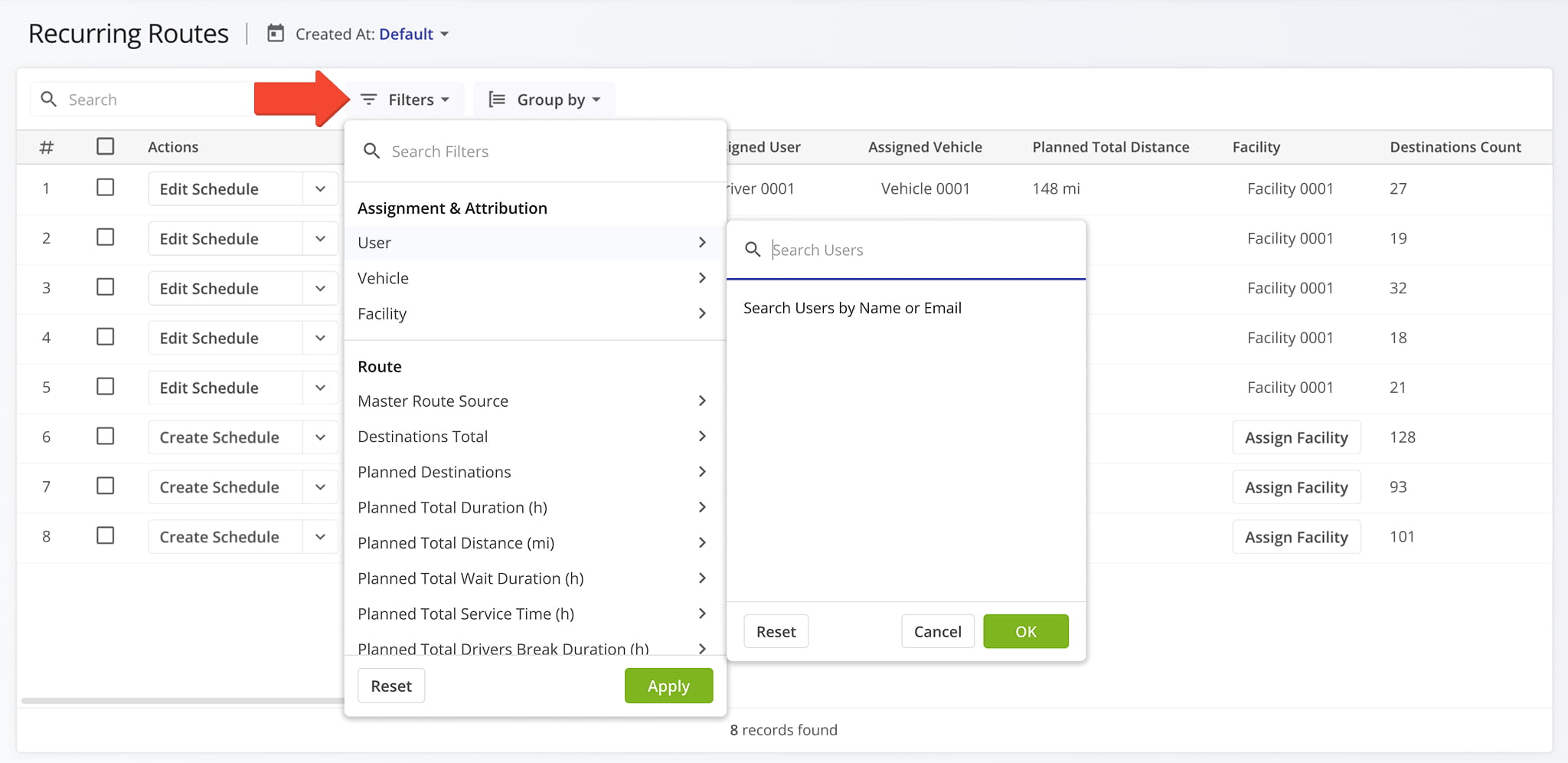
Contract Snapshots are now available for Contracts on your account. Just like other snapshots, the Contract Snapshot enables you to easily see data and activities associated with a specific entity on your account.
Currently, Contract Snapshots show the routes associated with a specific Contract.
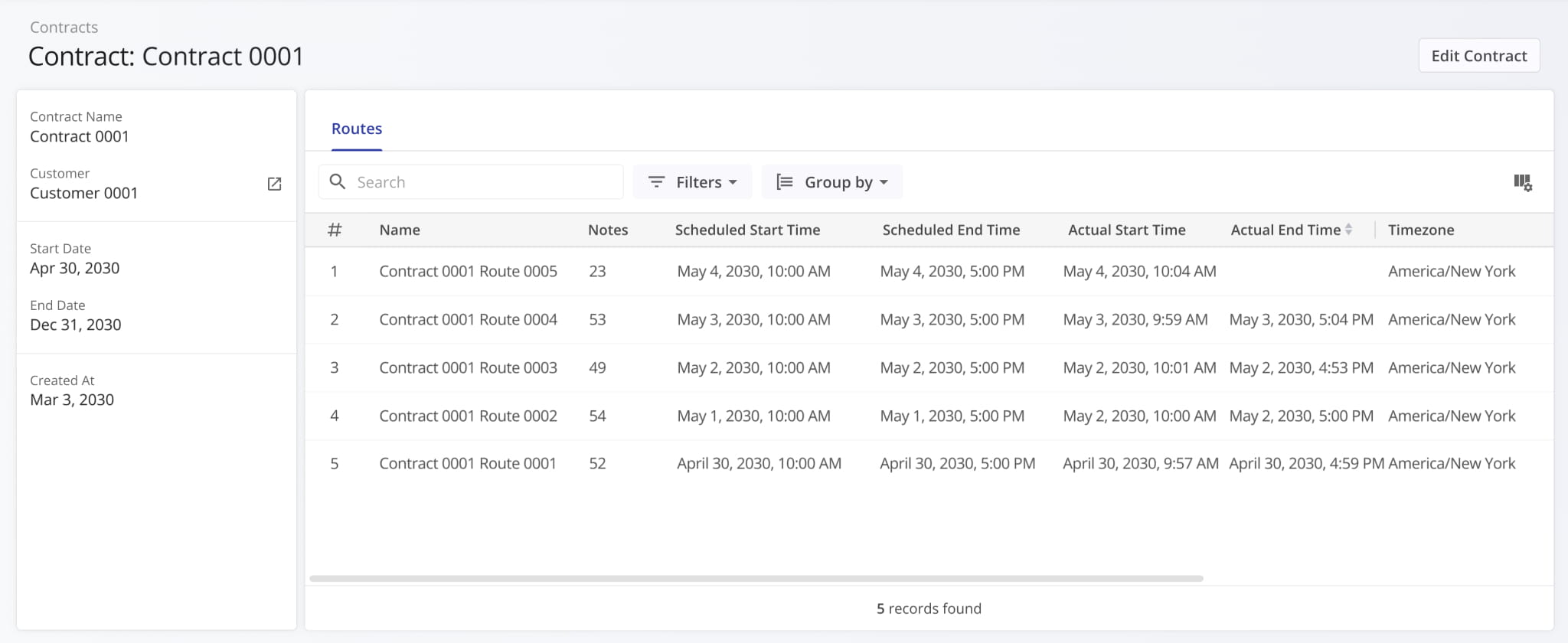
A new “Cost Planned” filter was added to the Routes Page Filters in the “Utilization – Cost” section. This update enables you to filter routes by the total planned cost value associated with route orders and destinations.
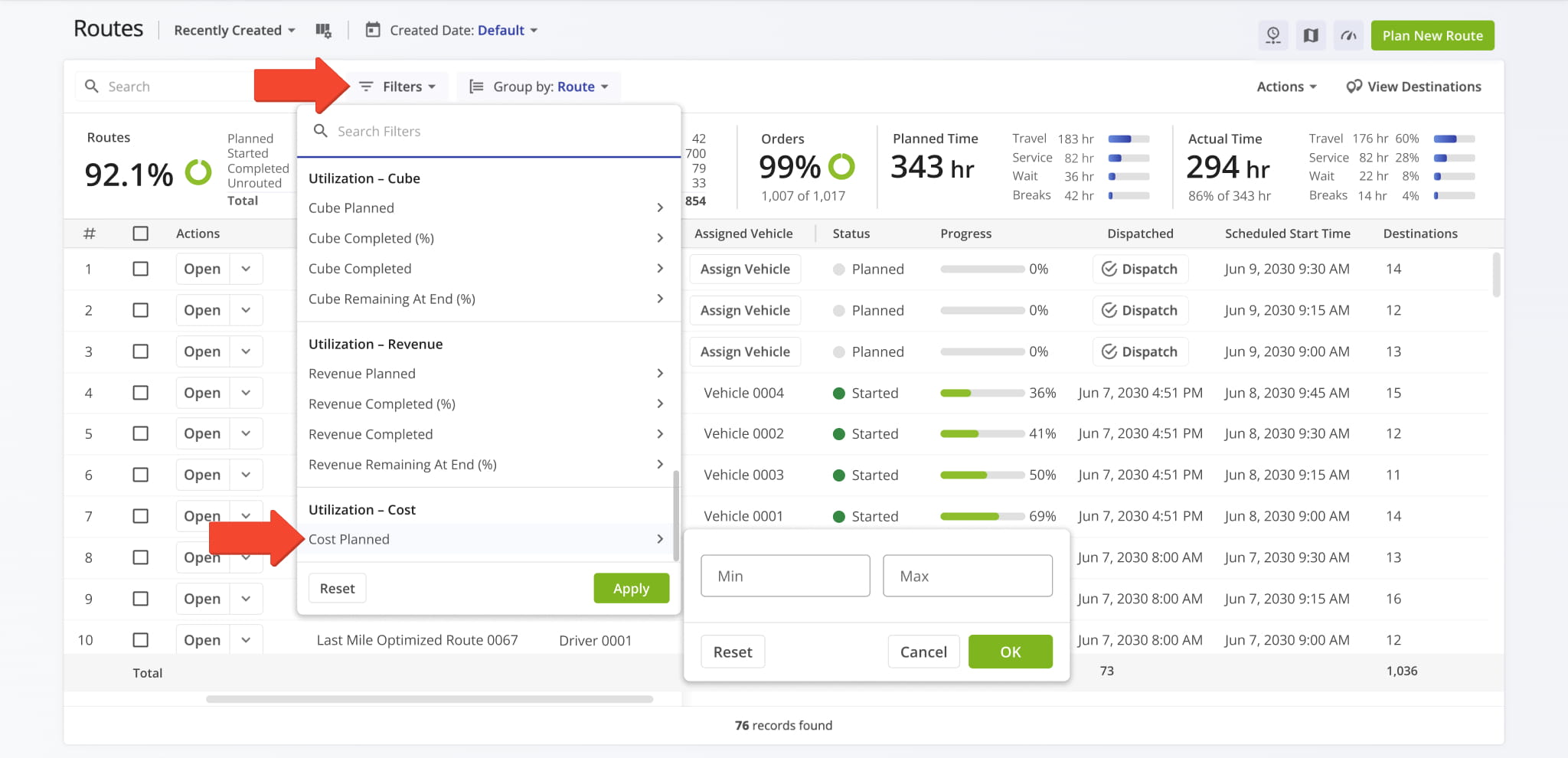
A new “Cost” filter was added to the Destinations List in the “Dimensional & Financial” section. This update enables you to filter destinations by their associated cost values.
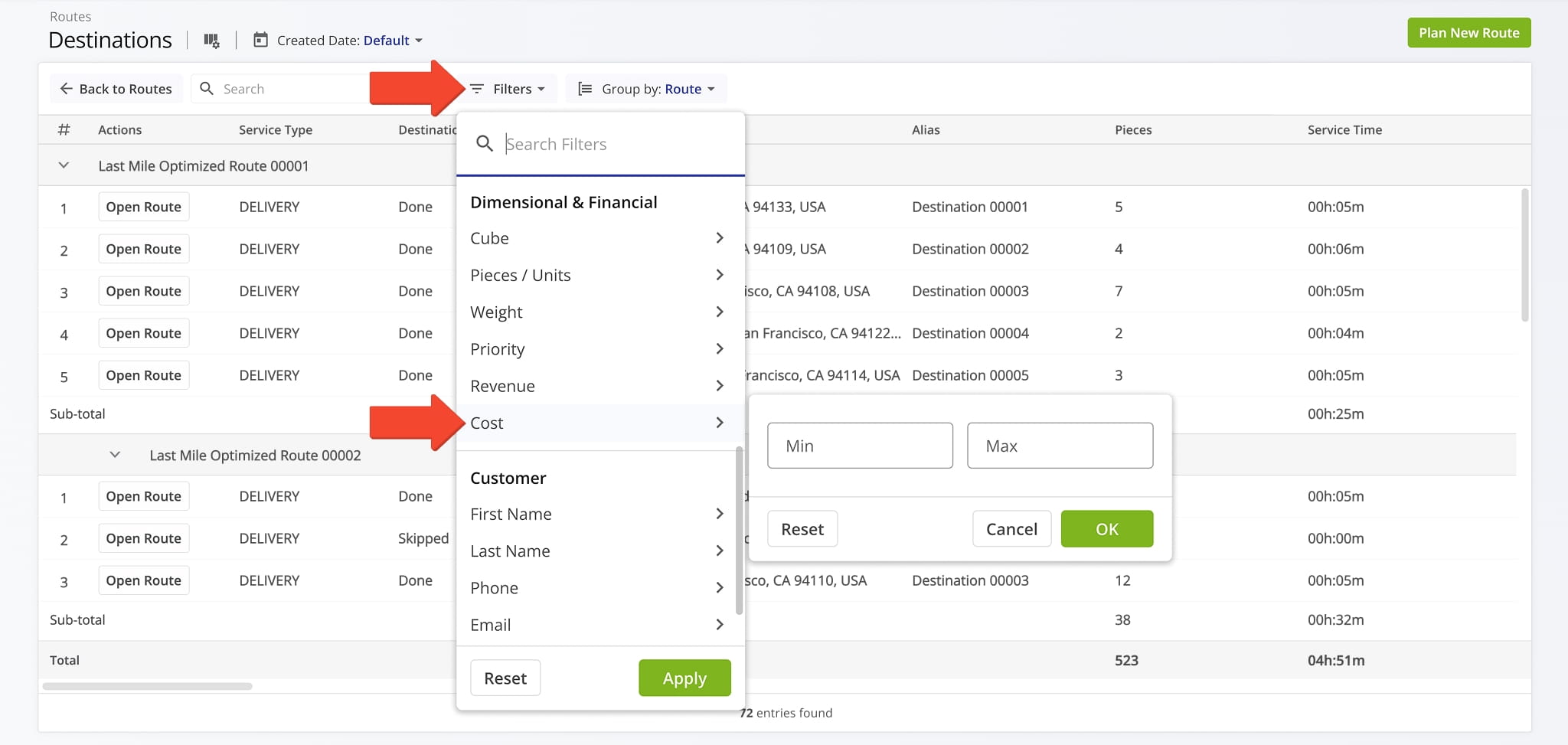
The “Edit Optimizations” function accessible from Optimization Snapshots was updated.
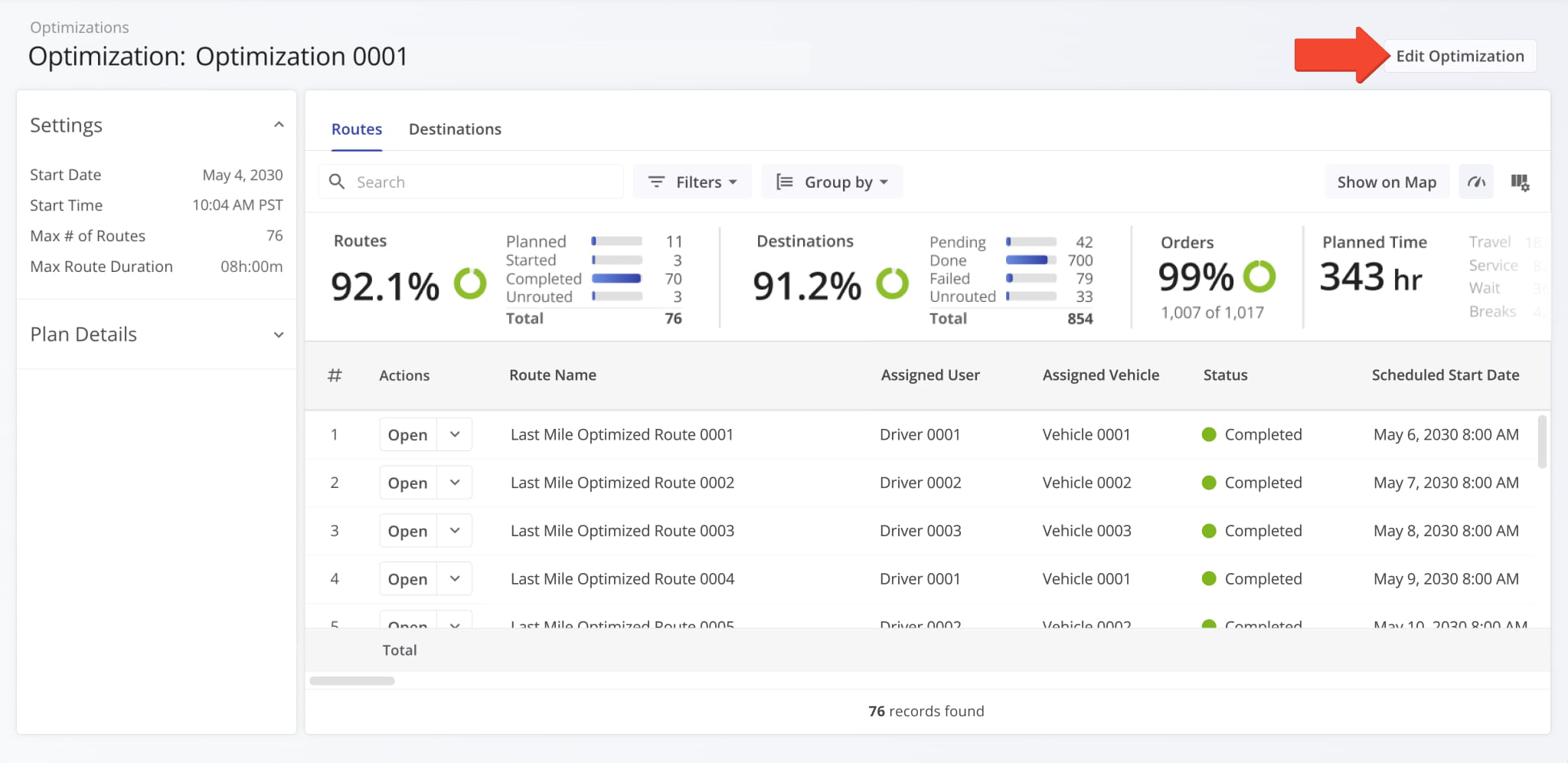
The new “Edit Optimization” panel supports all available Optimization settings. Previously, users could only access these settings in classic Optimizations (Original). This update makes them available in Optimization Snapshots.
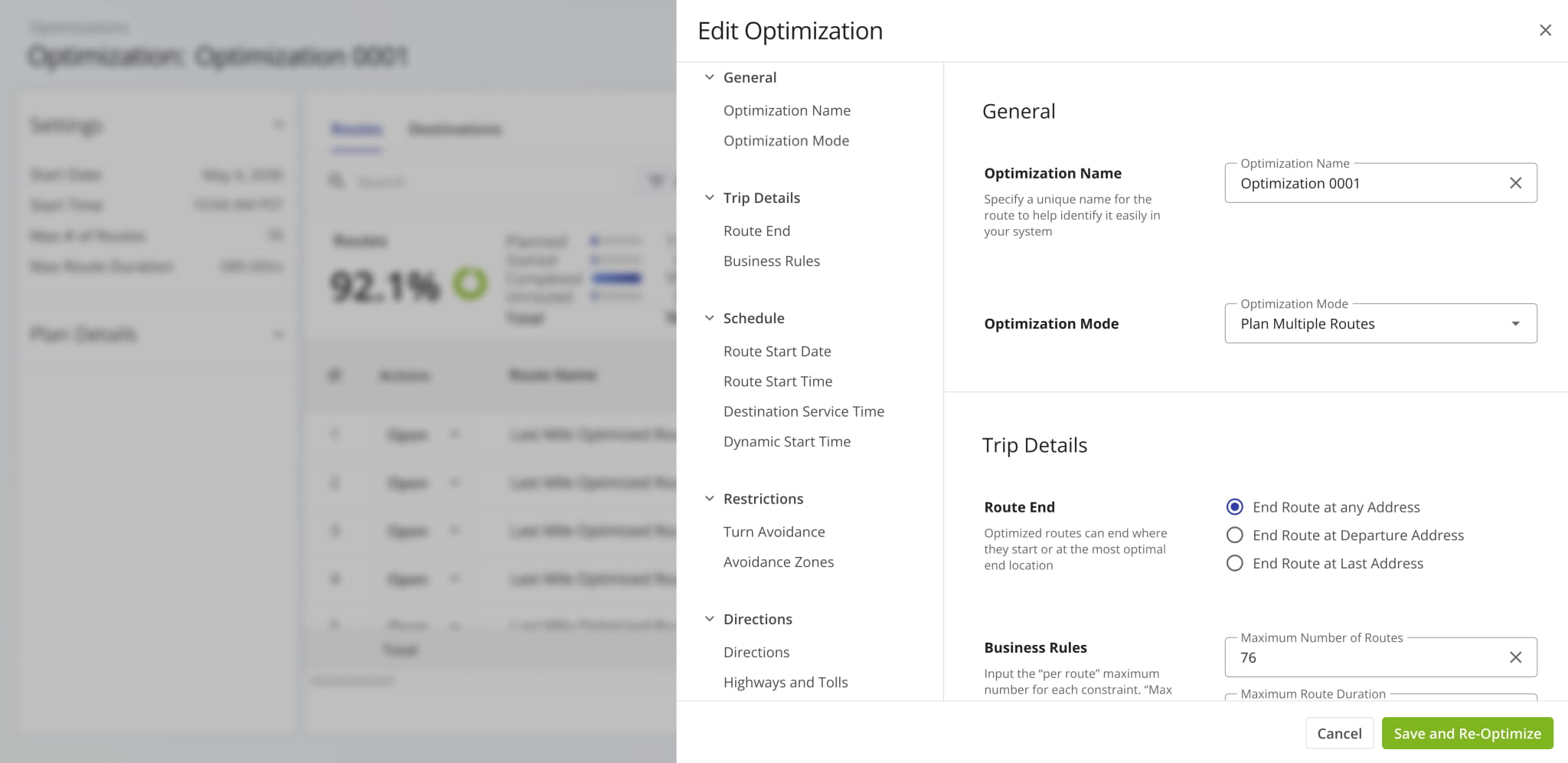
The Route4Me App was updated to remove the “Invite Others” button from the main menu and disable invite functionality for user accounts. This update ensures only the main company account and authorized sub-users can send invitations.
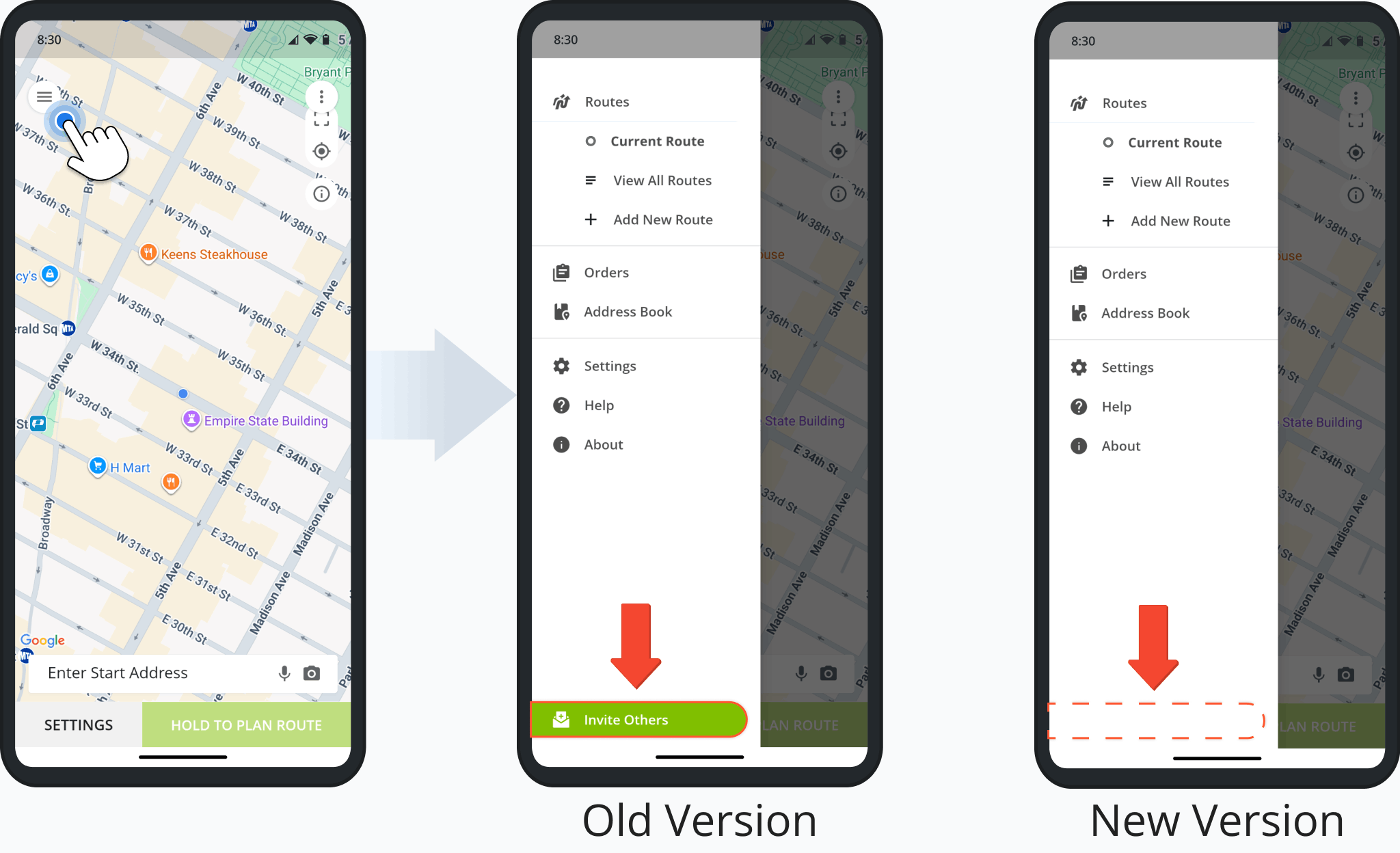
A facility attribution field was added to data pop-ups on the Locations Map, showing a Location’s assigned Facilities.
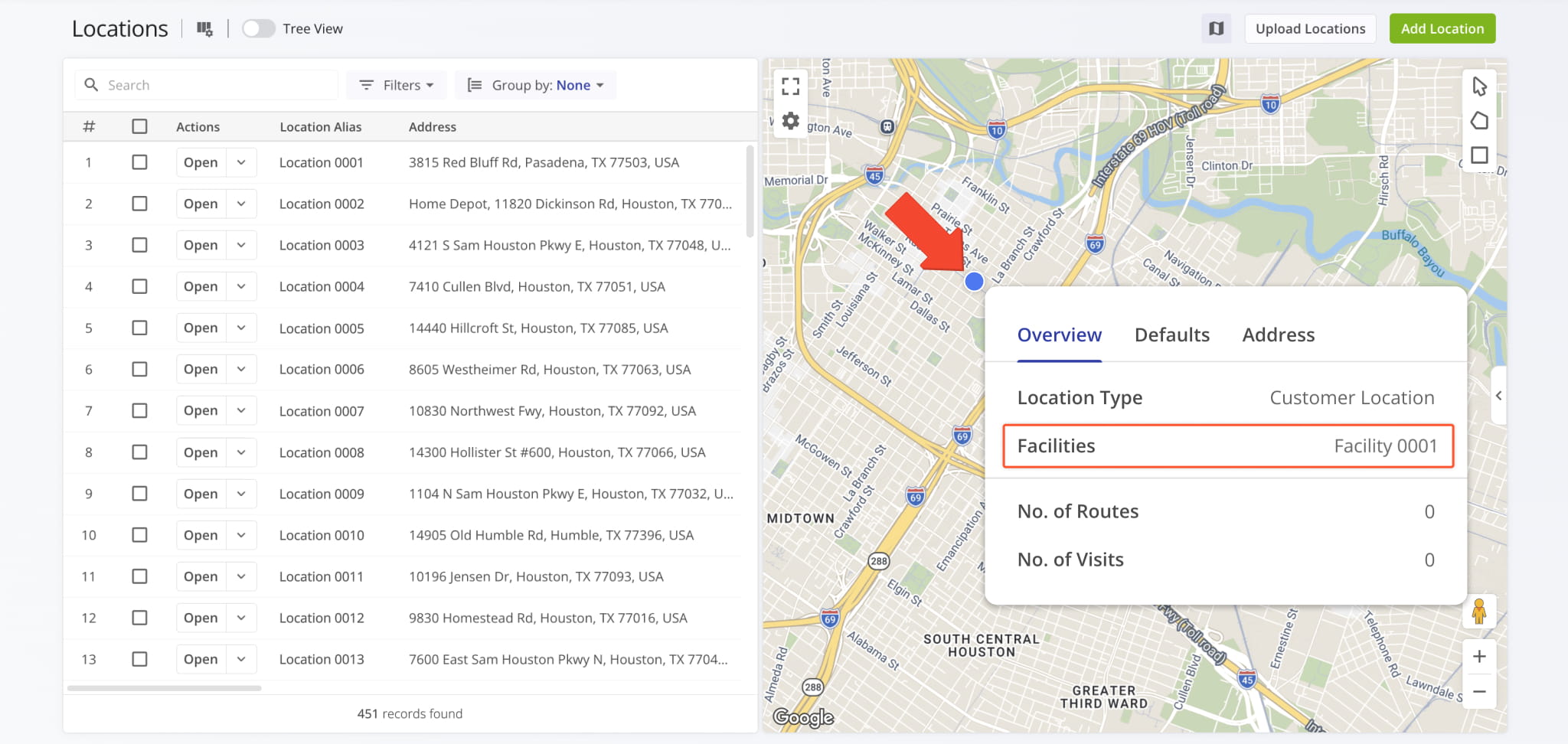
The “File Type” filter in the “Notes” tab of Route Snapshots and Destination Snapshots has been redesigned to provide more clarity. Now, you can more easily find the most important proof of service note attachments.
High-priority files such as images and data were put higher in the list. The previously-available ambiguous “File” option was renamed to “Other” for clarity. It filters for less common file types such as voice memos, videos, etc.
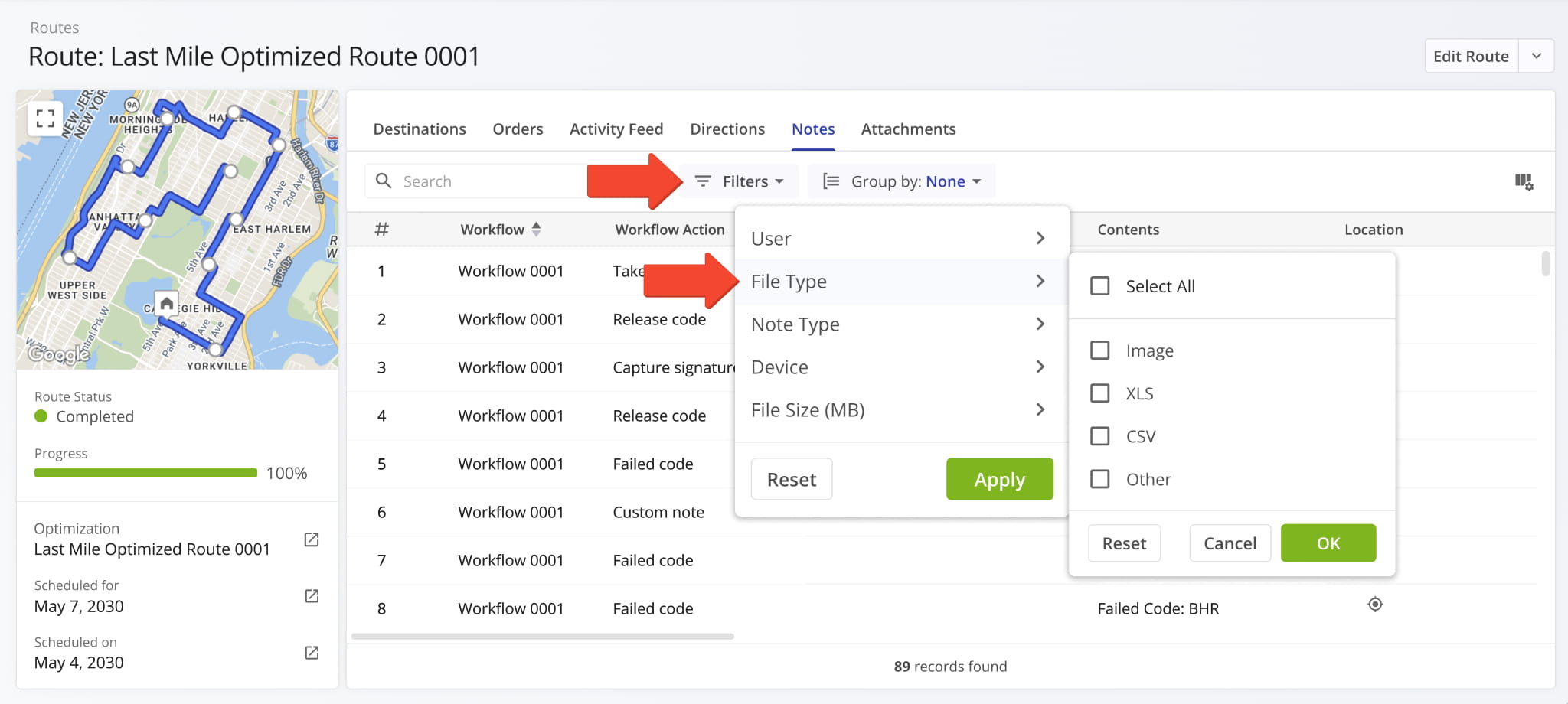
Information related to an Order’s associated Service Level Agreement (SLA) was added to Order Snapshots. You can see the new SLA info fields in the summary panel on the left. Previously, Order SLA data was only available as Display Columns.
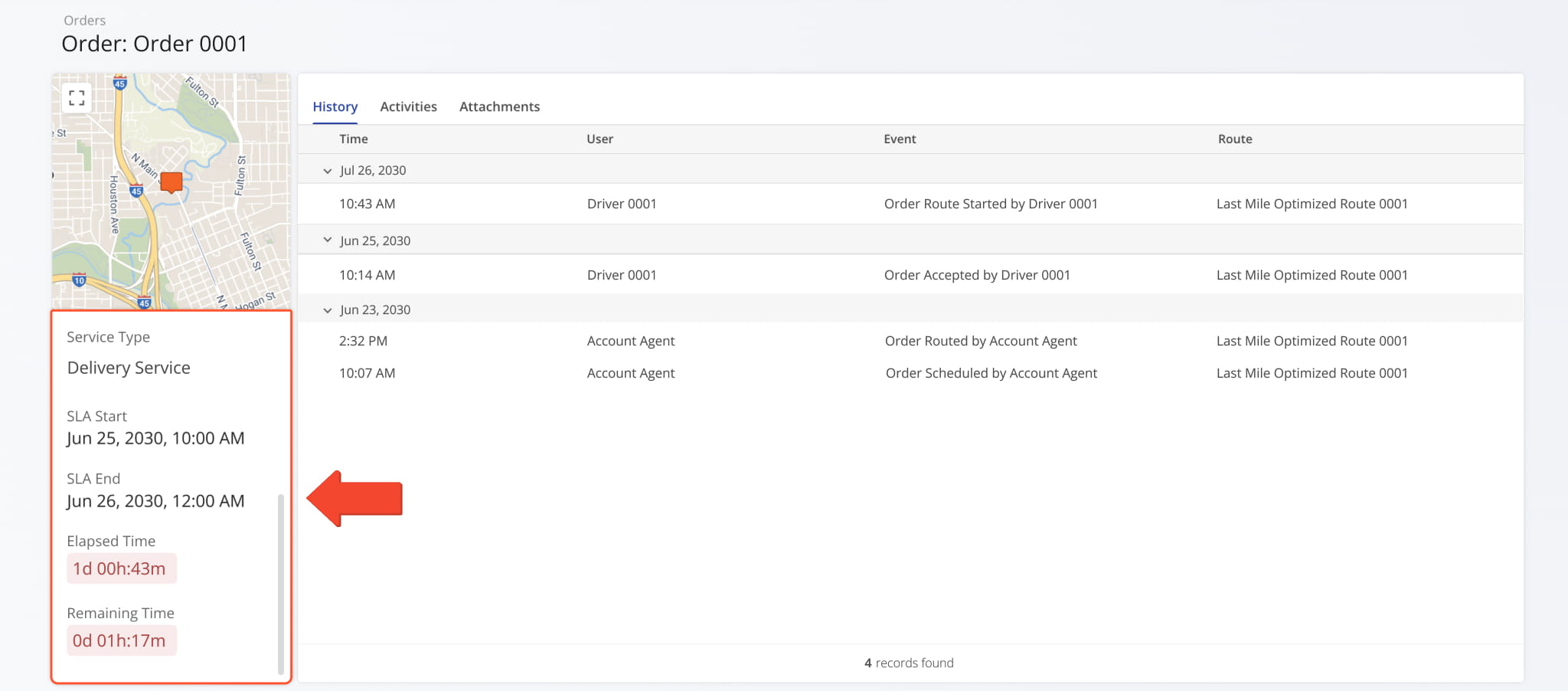
A new “Service Time” category was added to Location Snapshots. It shows the distribution of Destination Service Time at a Location across the days of the week over the specified time period. This update enables you to get a clear overview of how the planned, reported, and detected Service Time at a Location is distributed.
Previously, you could only see specific Service Time values at route destinations but couldn’t track their distribution.
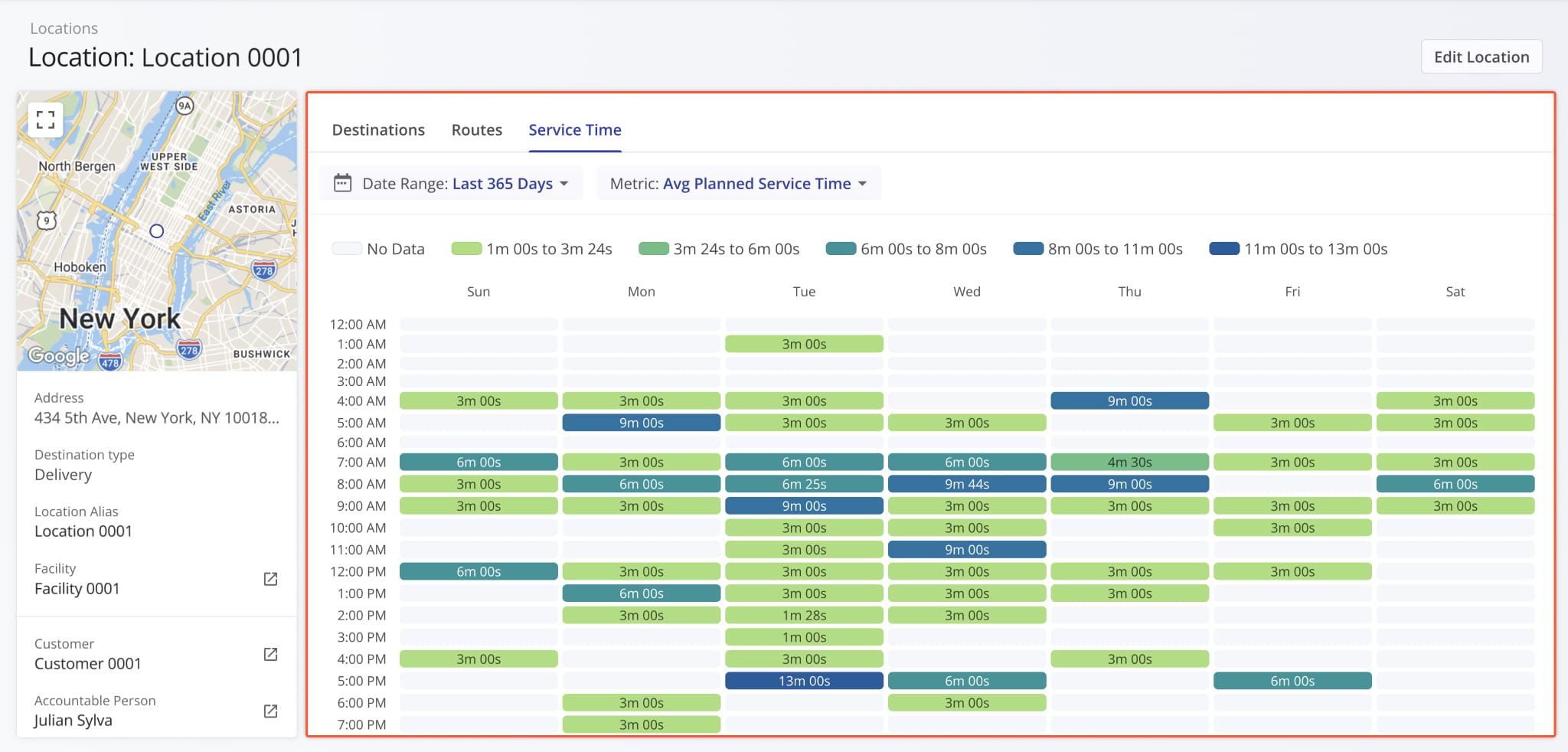
The Route4Me Geotab Add-In now syncs the status of vehicles and enrolled devices in real time. This enables you to use synced telematics vehicles right away without manually comparing and consolidating statuses between Geotab and Route4Me.
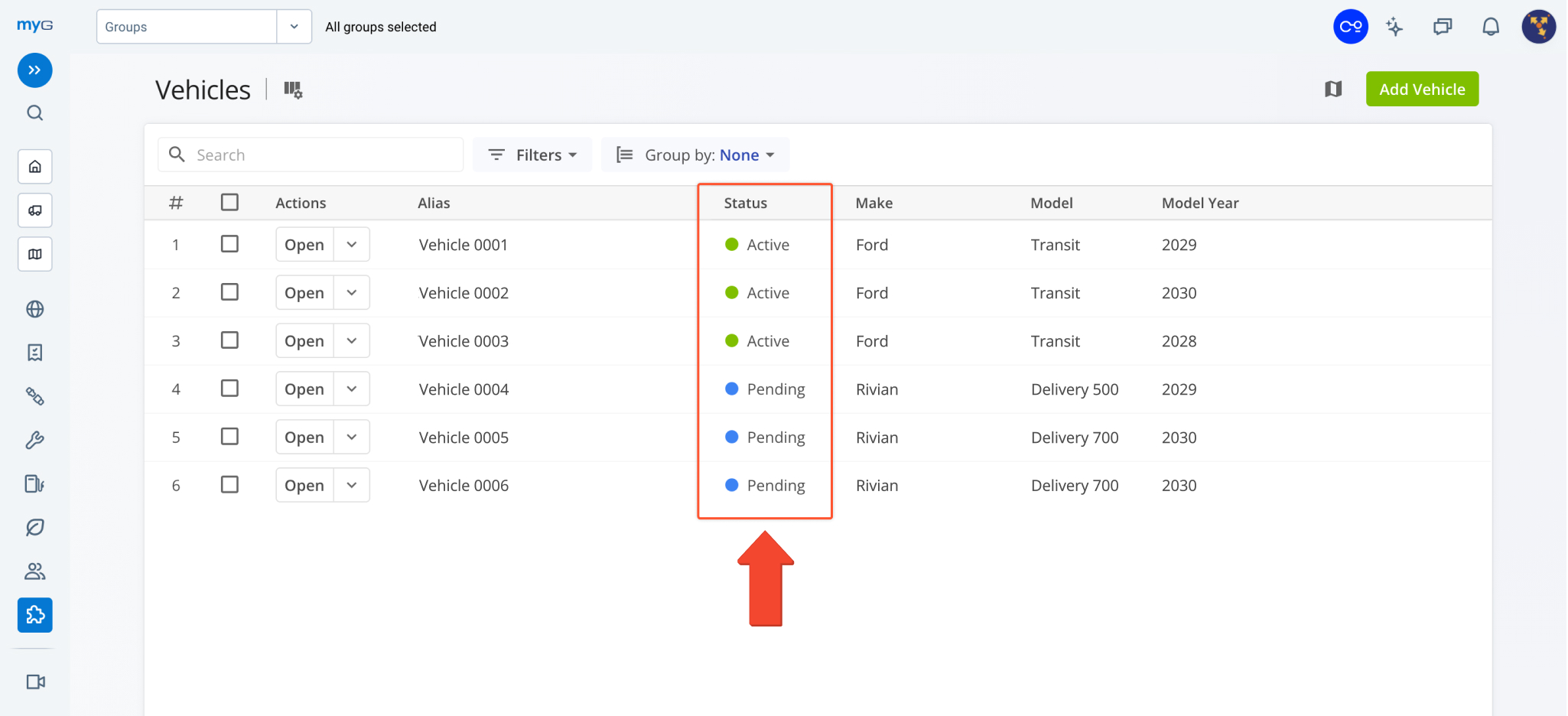
You can now drag and drop Orders and Locations from the Routes Map Sidebar directly onto the Routes Timeline to insert orders and locations into routes. Learn more about inserting orders into routes and inserting destinations into routes.
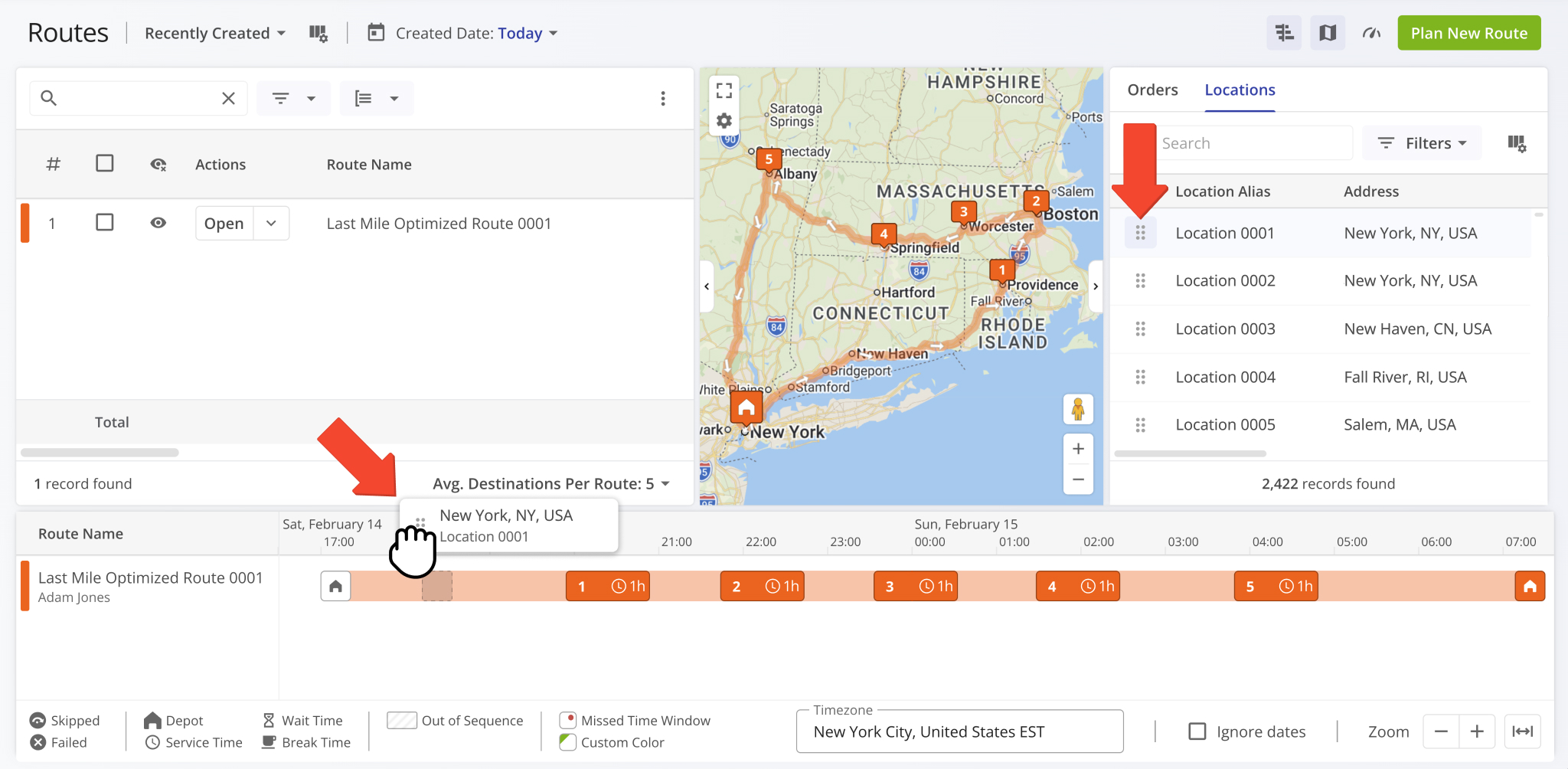
You can now see Strategic Scenario Settings when you compare Strategic Optimization Scenarios in addition to previously available data items, which are now grouped in the “Results” section.
Open Your Strategic Optimizations
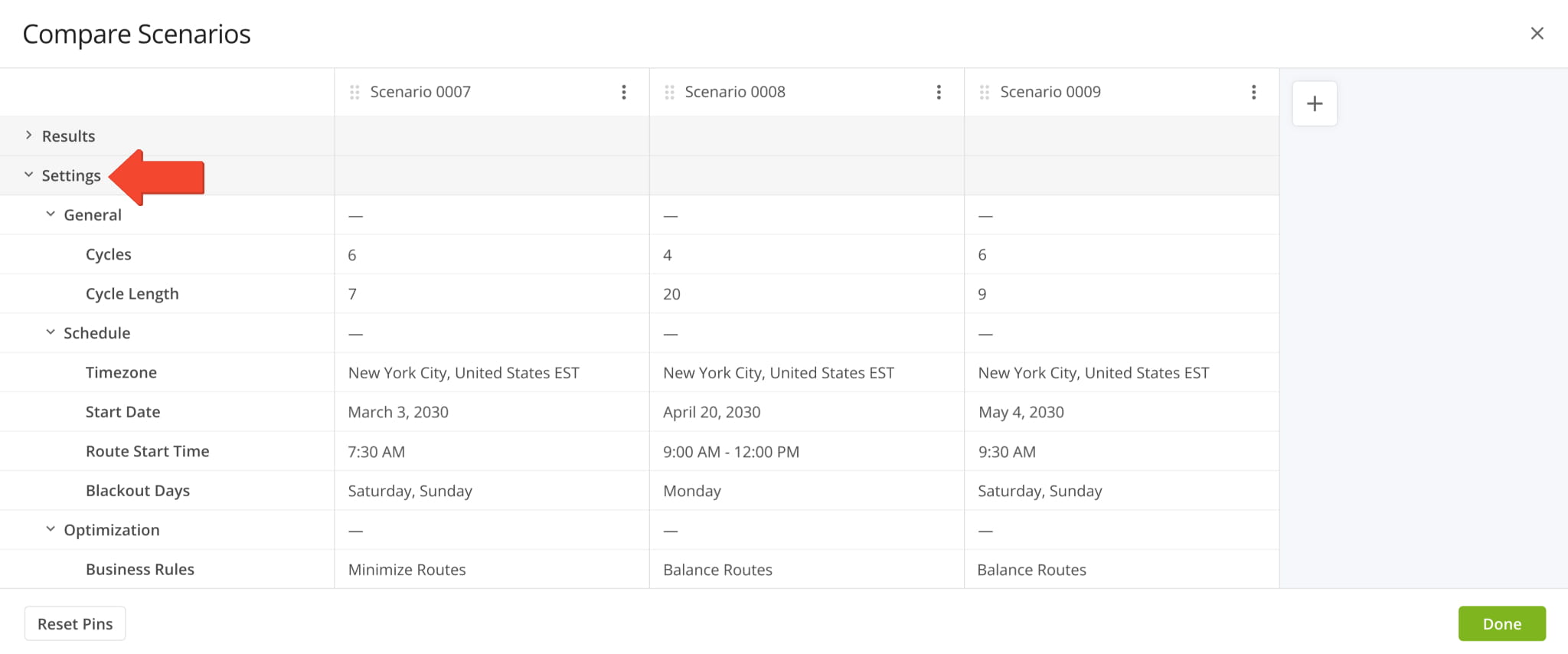
A new “Contracts” filter was added to the Customers Page, enabling you to filter Customers by their associated Contracts.
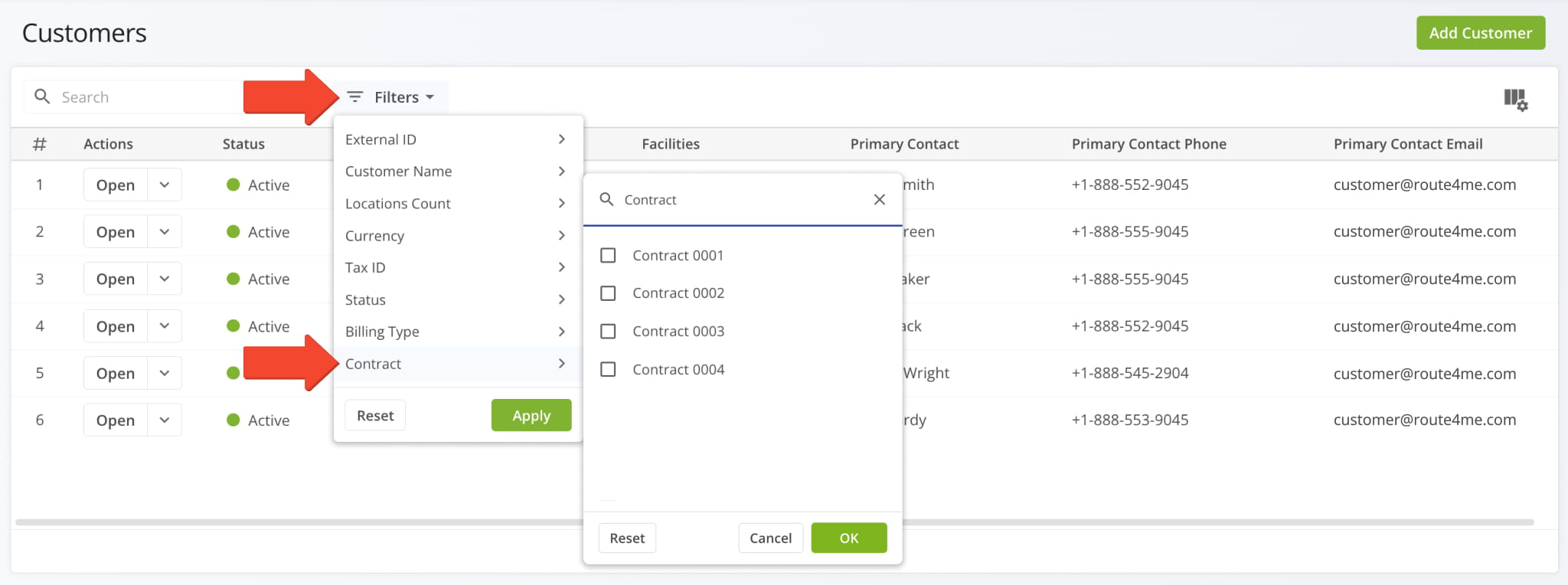
A new “Source” field was added to the route data summary in Route Snapshots. It enables you to select the source of the route data shown in the route summary on the left. The available data source options are:
- User Reported: Data based on Assigned User action events on the Route4Me Mobile App.
- Mobile App Detected: Automatically detected GPS data using Route4Me Geofencing.
- Telematics Detected: Automatically detected data using Route4Me Telematics Integrations.
These source settings correspond to those available for Route4Me’s GPS Route Tracking functionality.
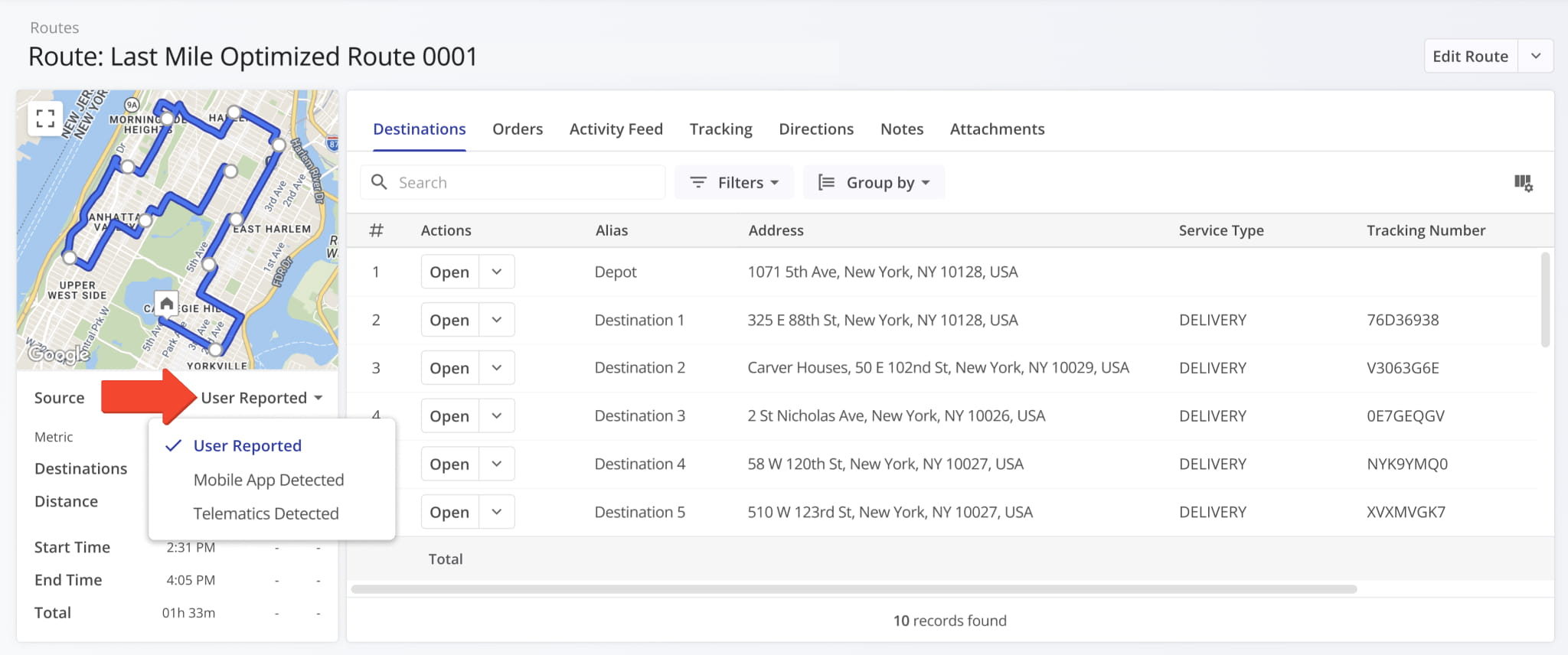
Two new “Assignment & Attribution” filters were added to the “Destinations Schedule” tab of an open Strategic Scenario. You can filter Scenario Destinations by their associated Facilities using the new multi-select filter.
Open Your Strategic Optimizations
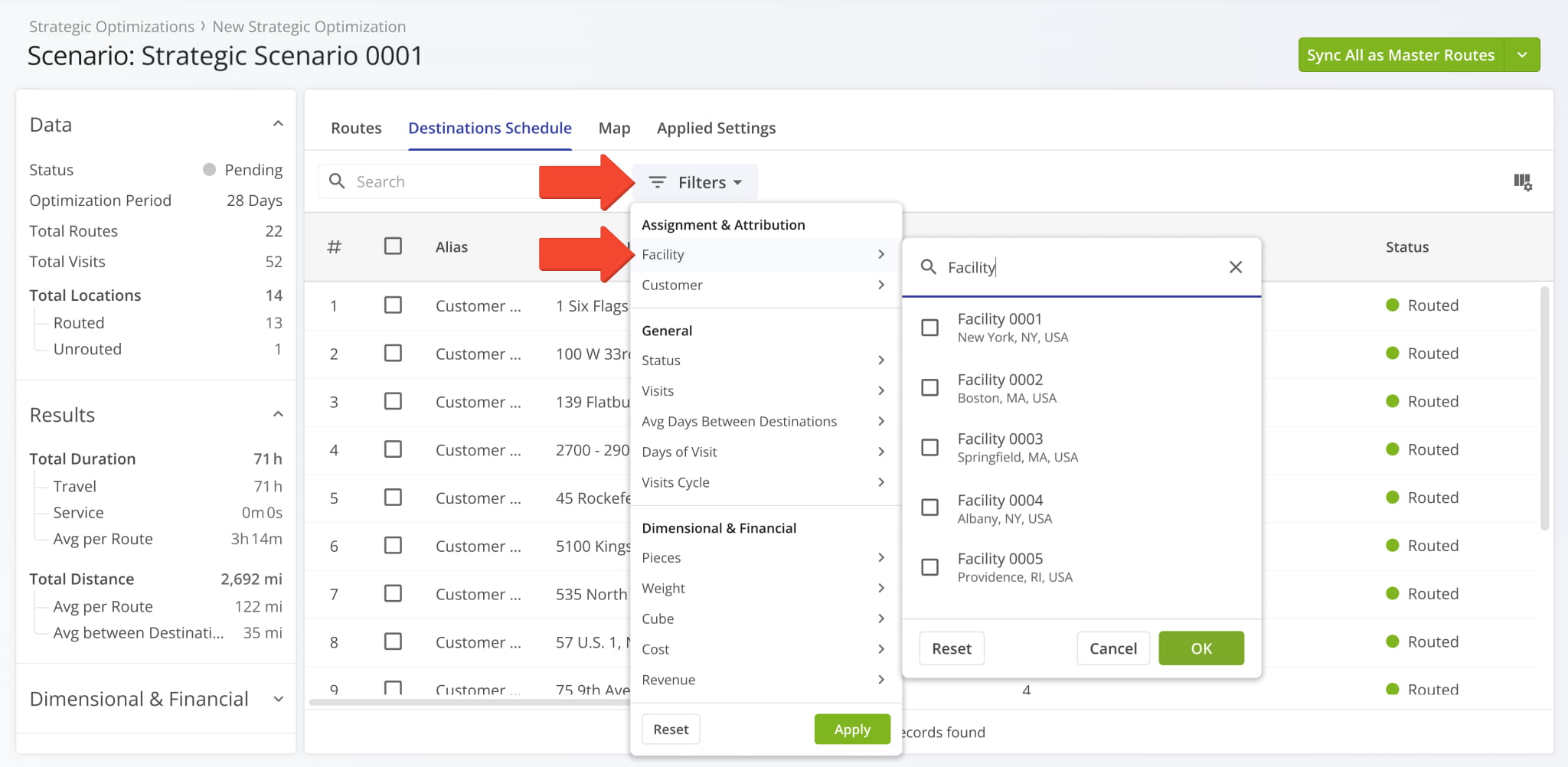
You can also filter Scenario Destinations by their associated Customers with the same multi-select functionality.
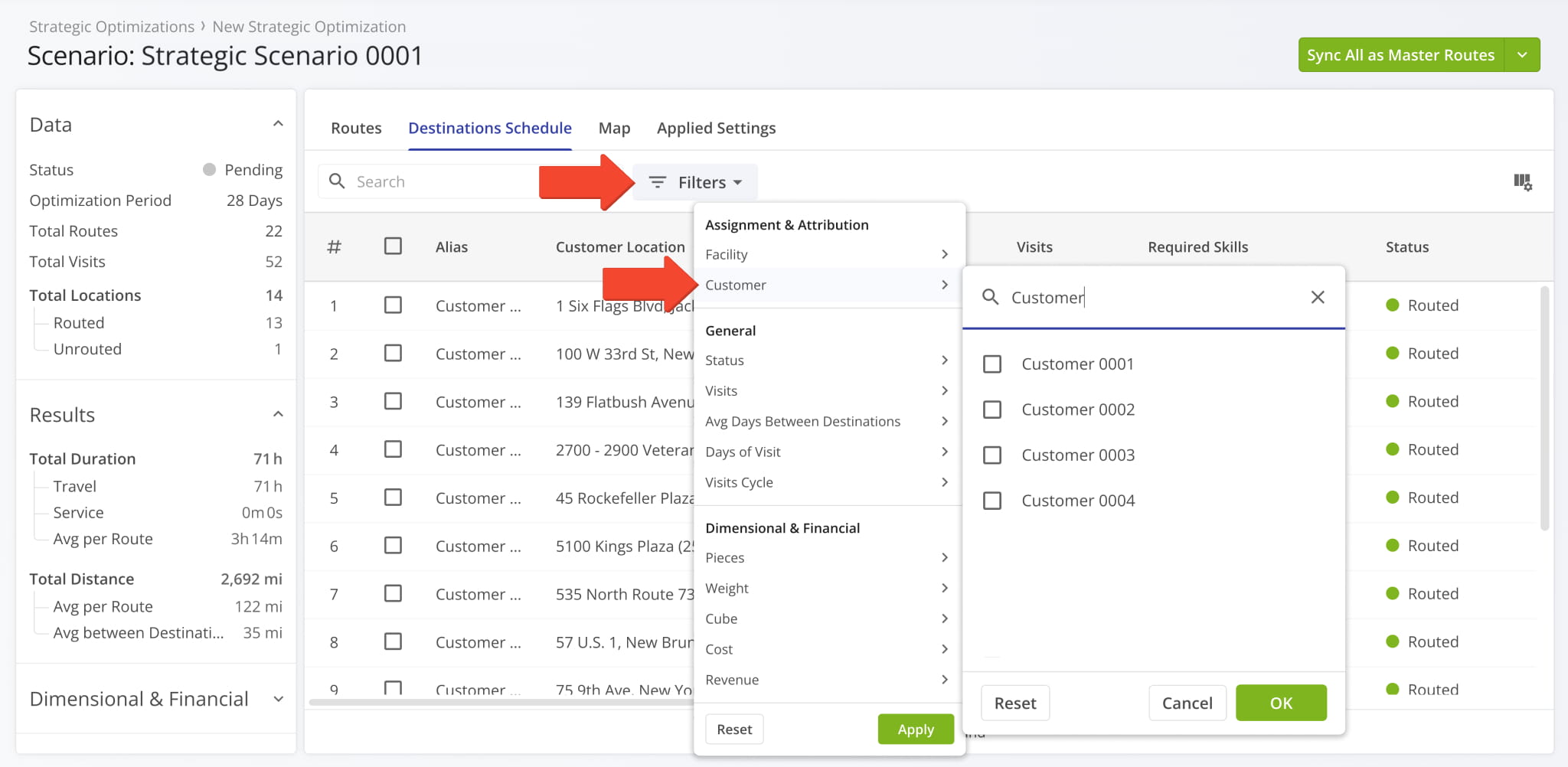
A new “Virtual Resource Profiles” option was added to the configurator when you Create Strategic Optimizations.
You can use virtual Driver Skills profiles to optimize scenarios using skill groups instead of team member profiles.
Open Your Strategic Optimizations
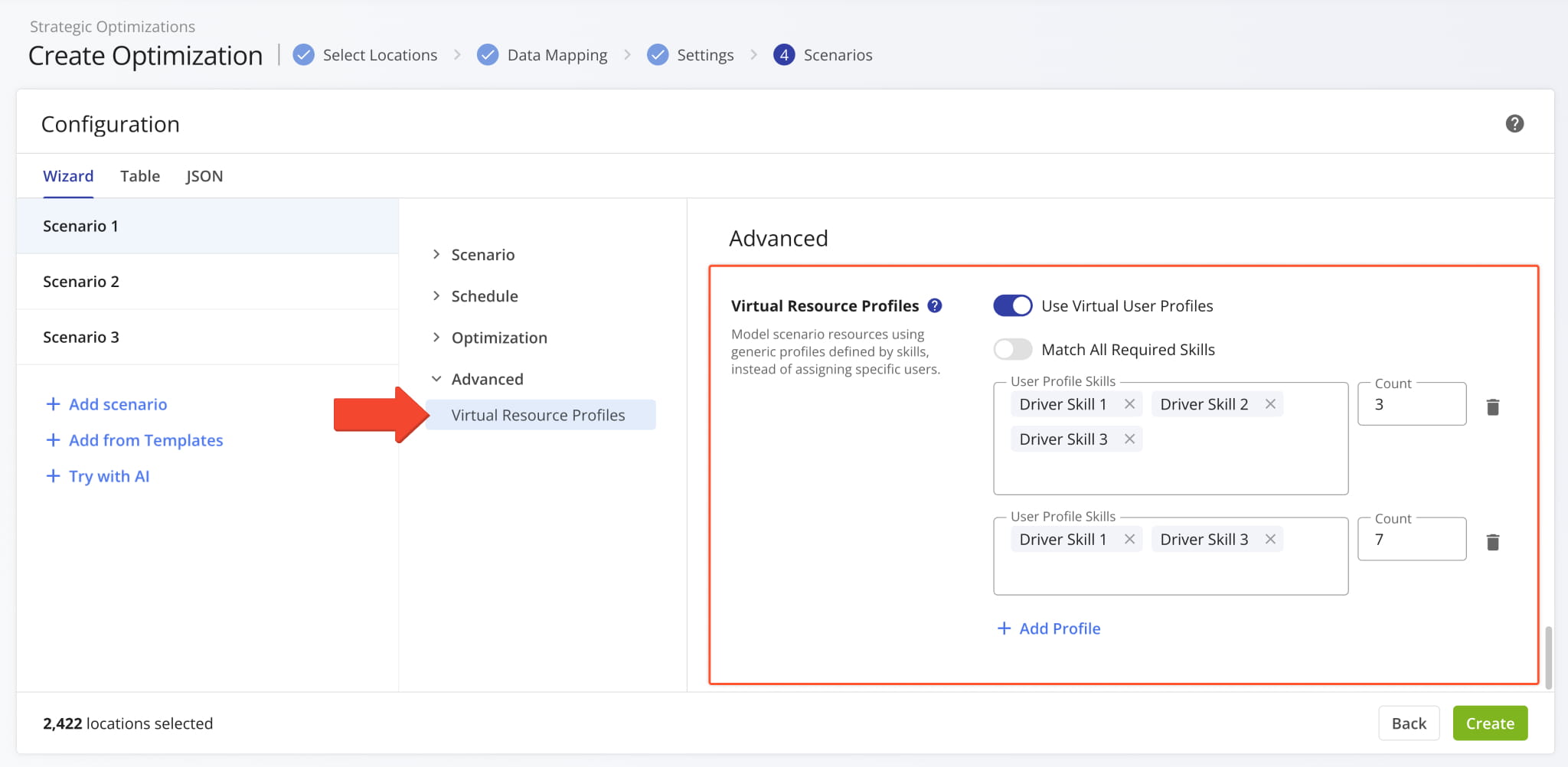
It’s now possible to add Driver Breaks to your Strategic Scenario optimization settings when you Create Strategic Optimizations. To help you optimize complex strategic cycle planning scenarios with multiple factors, this new functionality supports adding multiple different break types with the “+ Add Break Rule” button. You can also remove break types with the Delete Icon.
Open Your Strategic Optimizations
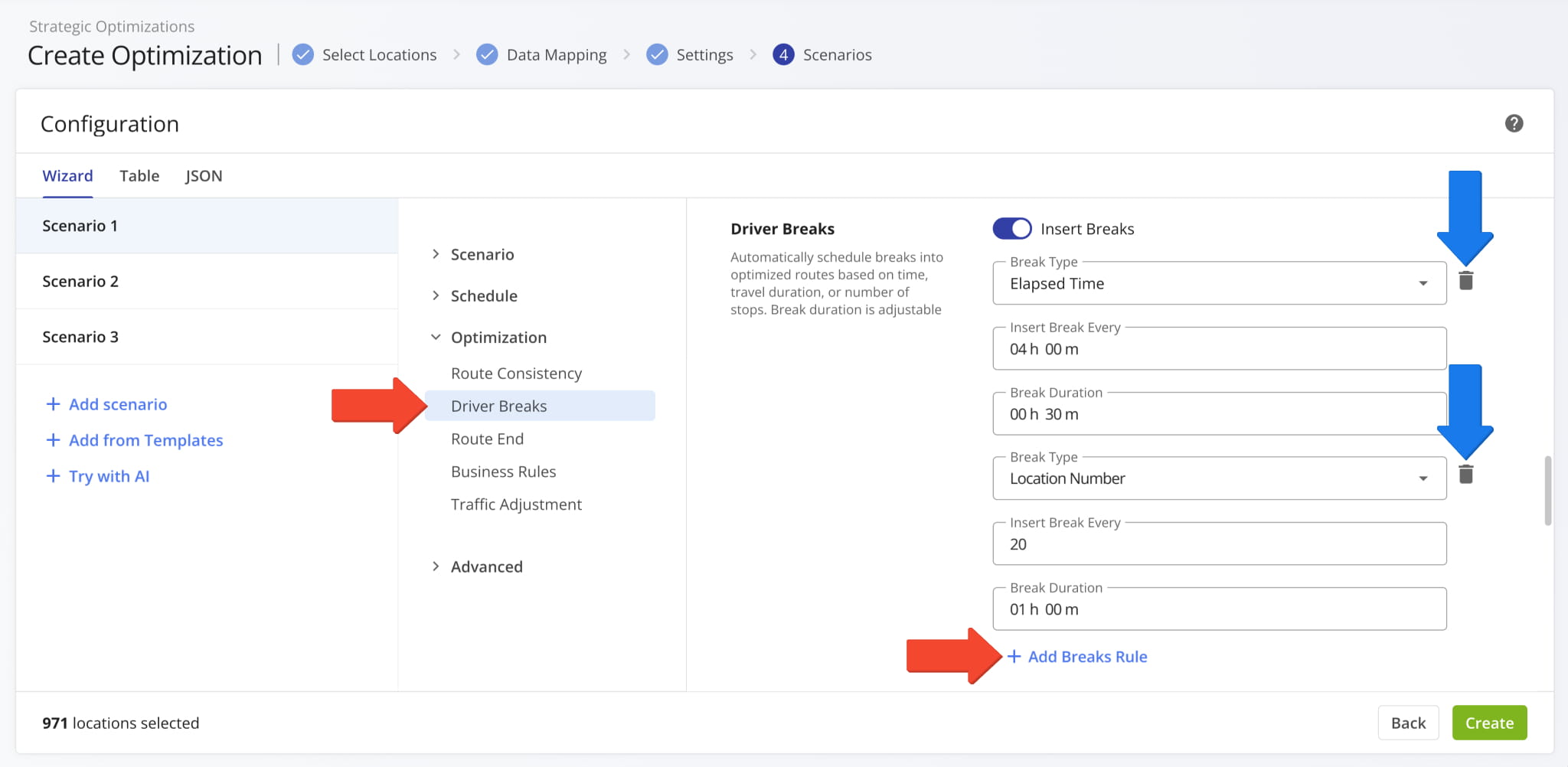
Two new “Assignment & Attribution” filters were added to the “Locations” tab of an open Strategic Optimization. You can filter an Optimization’s Locations by their associated Facilities using the new multi-select filter.
Open Your Strategic Optimizations
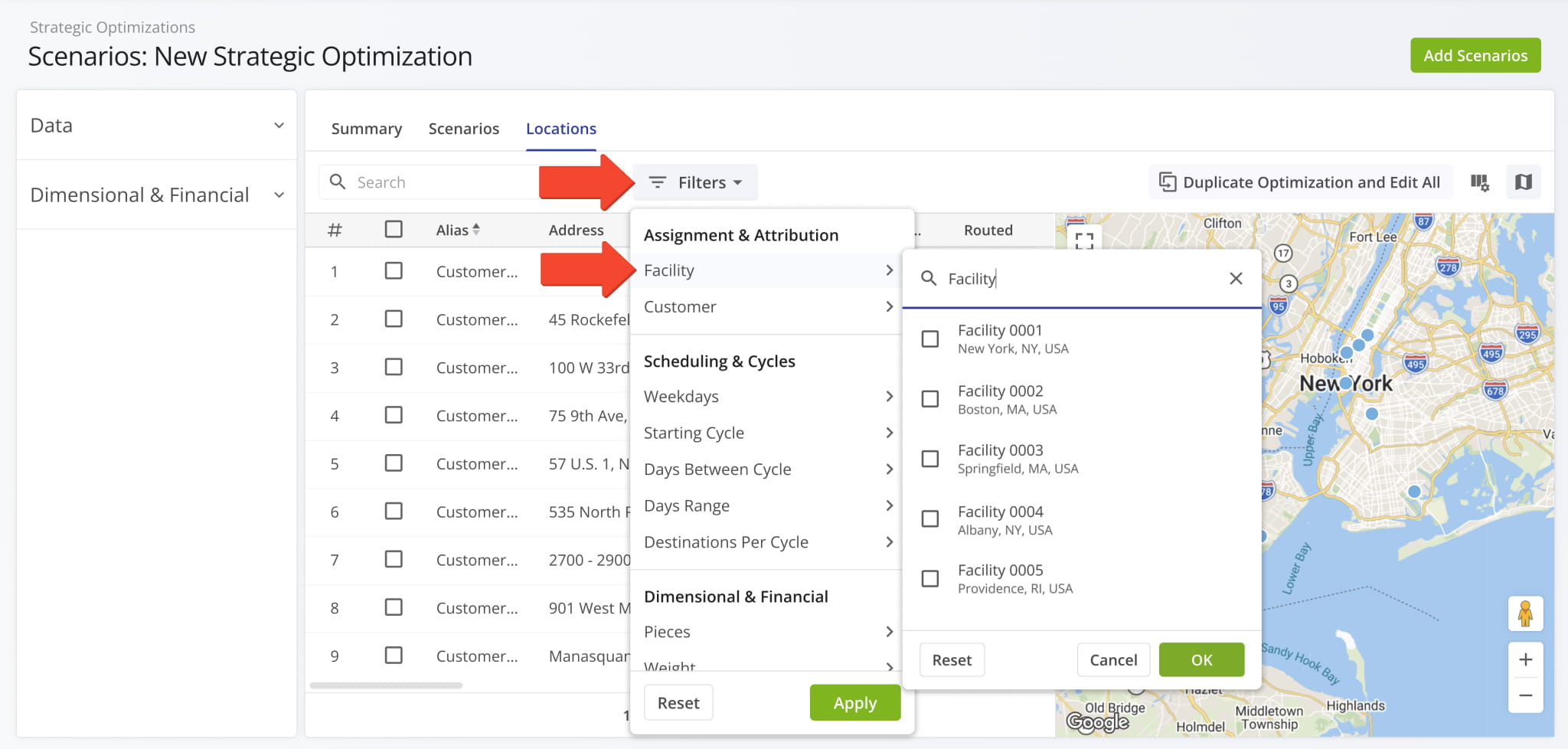
You can also filter Optimization Locations by their associated Customers with the same multi-select functionality.
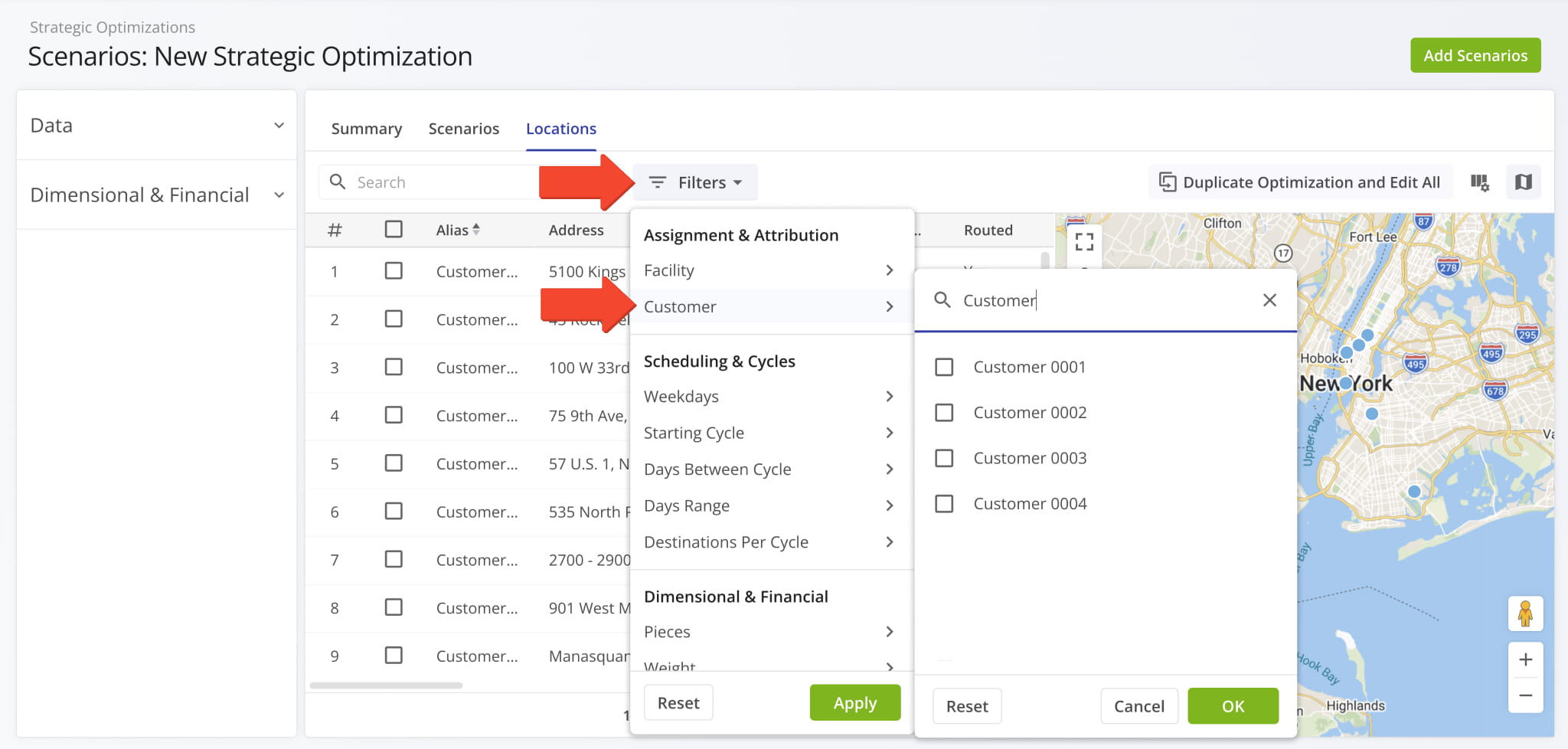
A new “Assignment & Attribution” filter was added to the “Routes” tab of an open Strategic Scenario. You can filter Scenario Routes by their associated Facilities using the new multi-select filter.
Open Your Strategic Optimizations
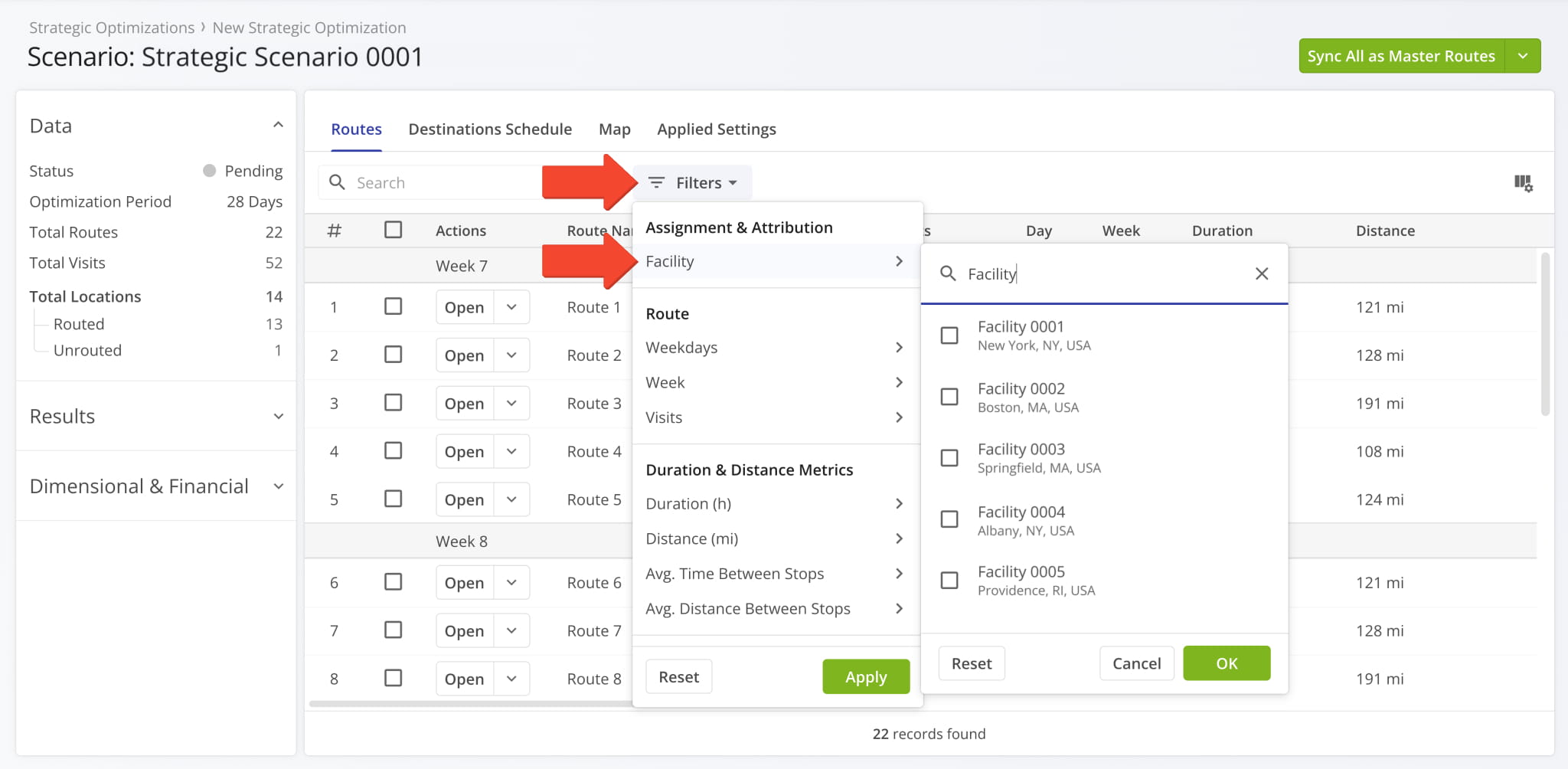
Your account’s Activity Feed now supports matching Workflow IDs and Workflow Action IDs to Destination Notes. Currently, the new data fields are visible when you export Activity Feed data by clicking the “Download” button.
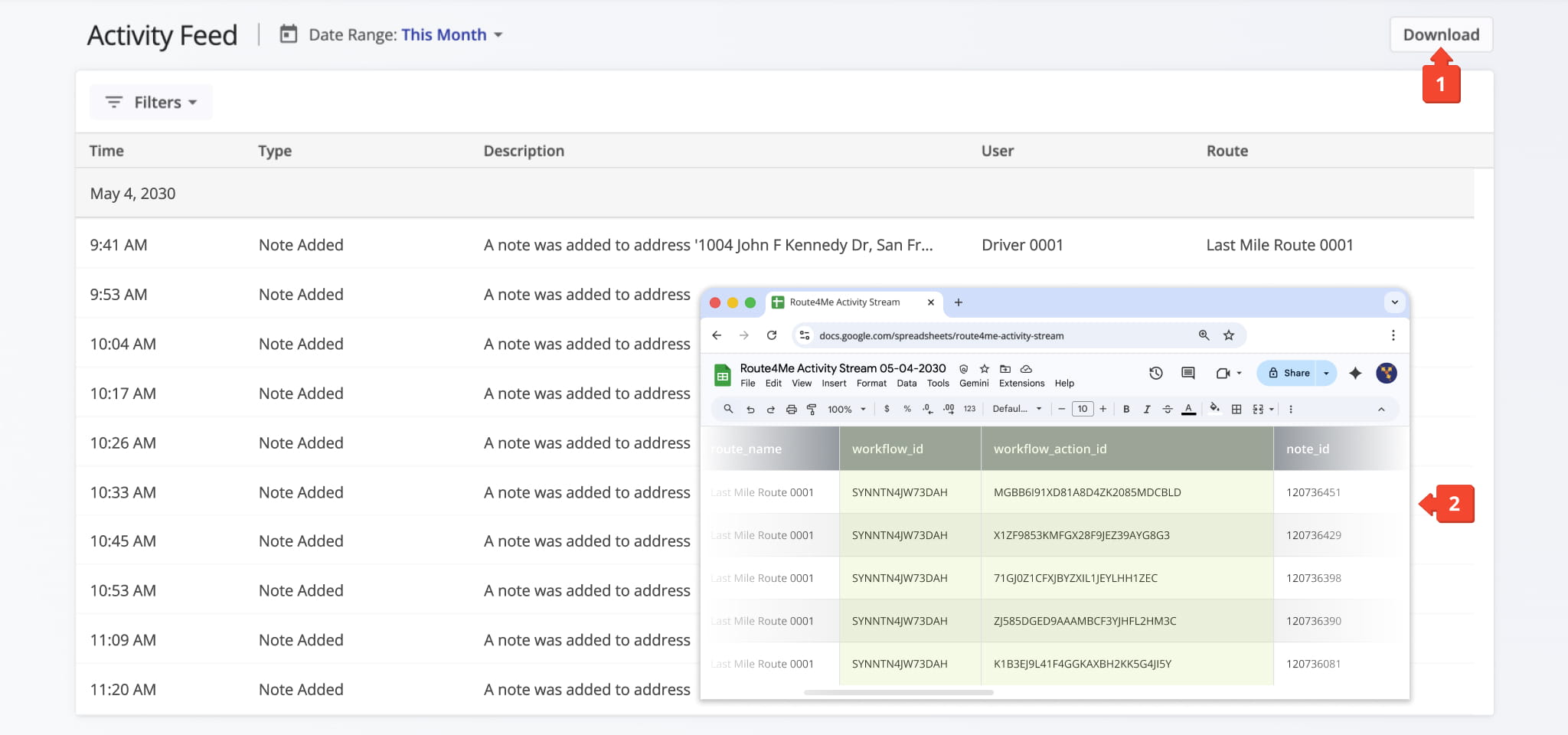
A new “Is Commercial Vehicle” toggle option was added to the “Details” section when you add and manage vehicles. When enabled, it allows you to select a Commercial Vehicle Profile in the “Vehicle Profile” field.
Previously, you’d select a vehicle type separate from Vehicle Profiles. The new toggle option streamlines the process of commercial vehicle management by reducing ambiguity and overlap between interfaces.
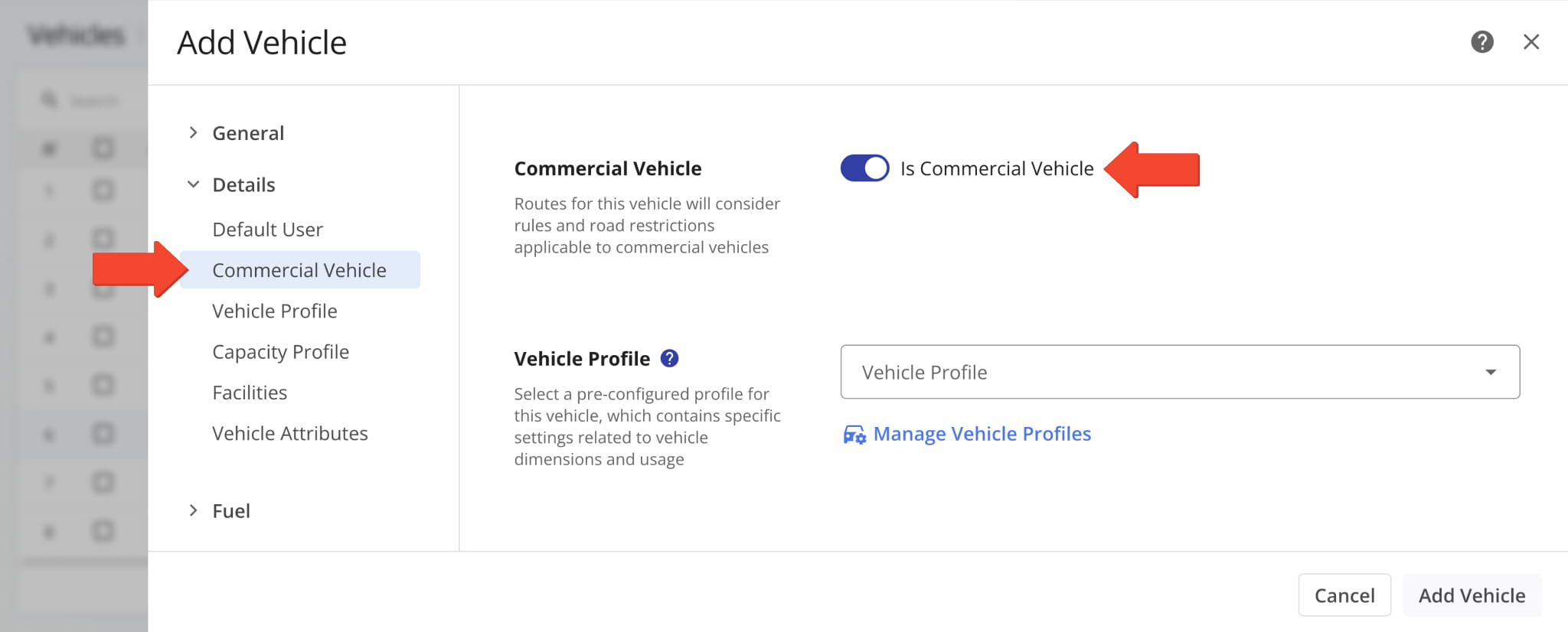
New Workflow data items were added to the “Export Route Notes” settings. They enable you to see the names and internal system IDs of Workflows and Workflow Actions associated with specific Destination Notes.
Previously, Workflow data wasn’t available when exporting Notes.
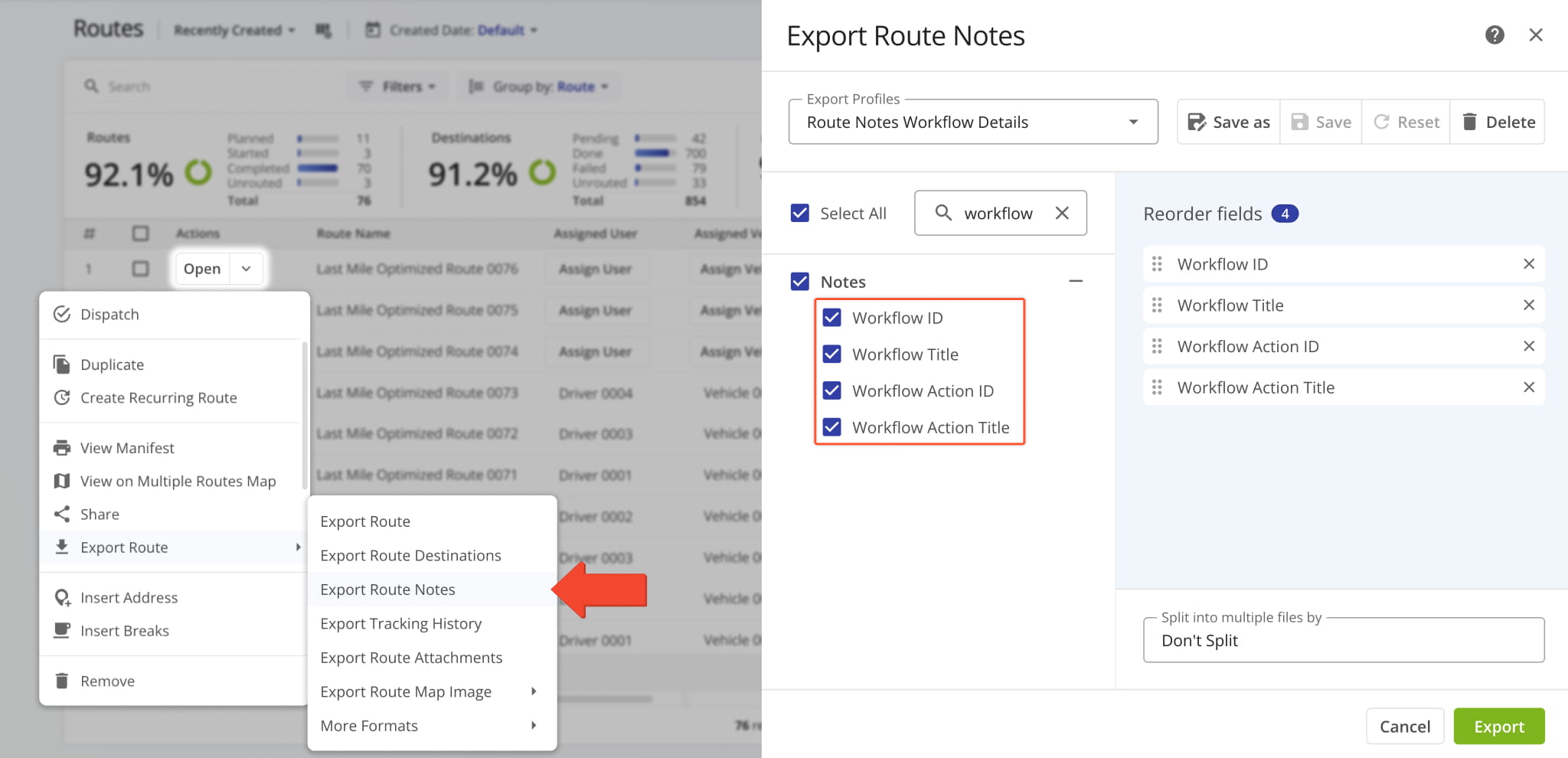
New “Workflow” and “Workflow Action” Display Columns were added to Route Snapshots in the “Notes” category.
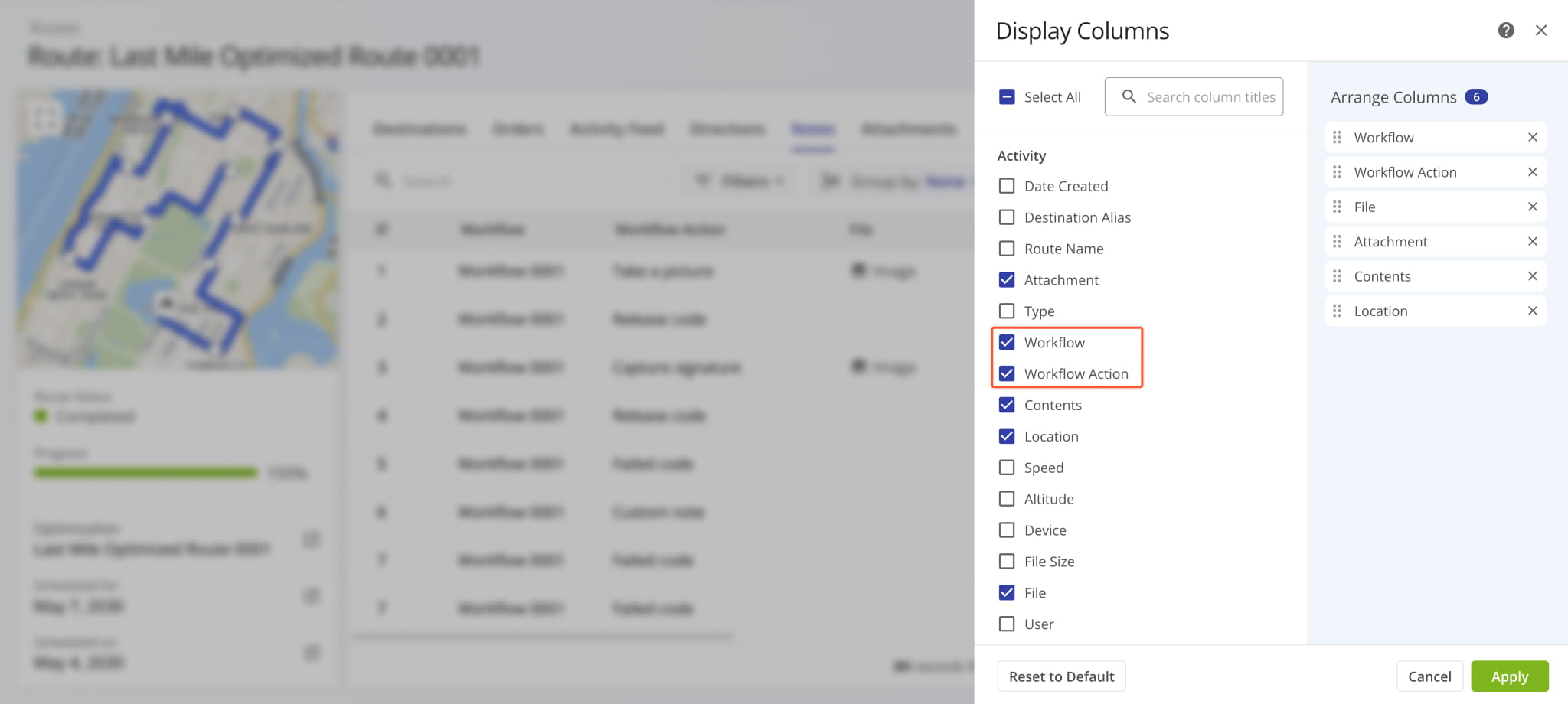
These new workflow data columns show which Workflow and action-specific Destination Notes are associated with. Additionally, just like most Route4Me Display Columns, you can click the column header to sort the entire data table accordingly.
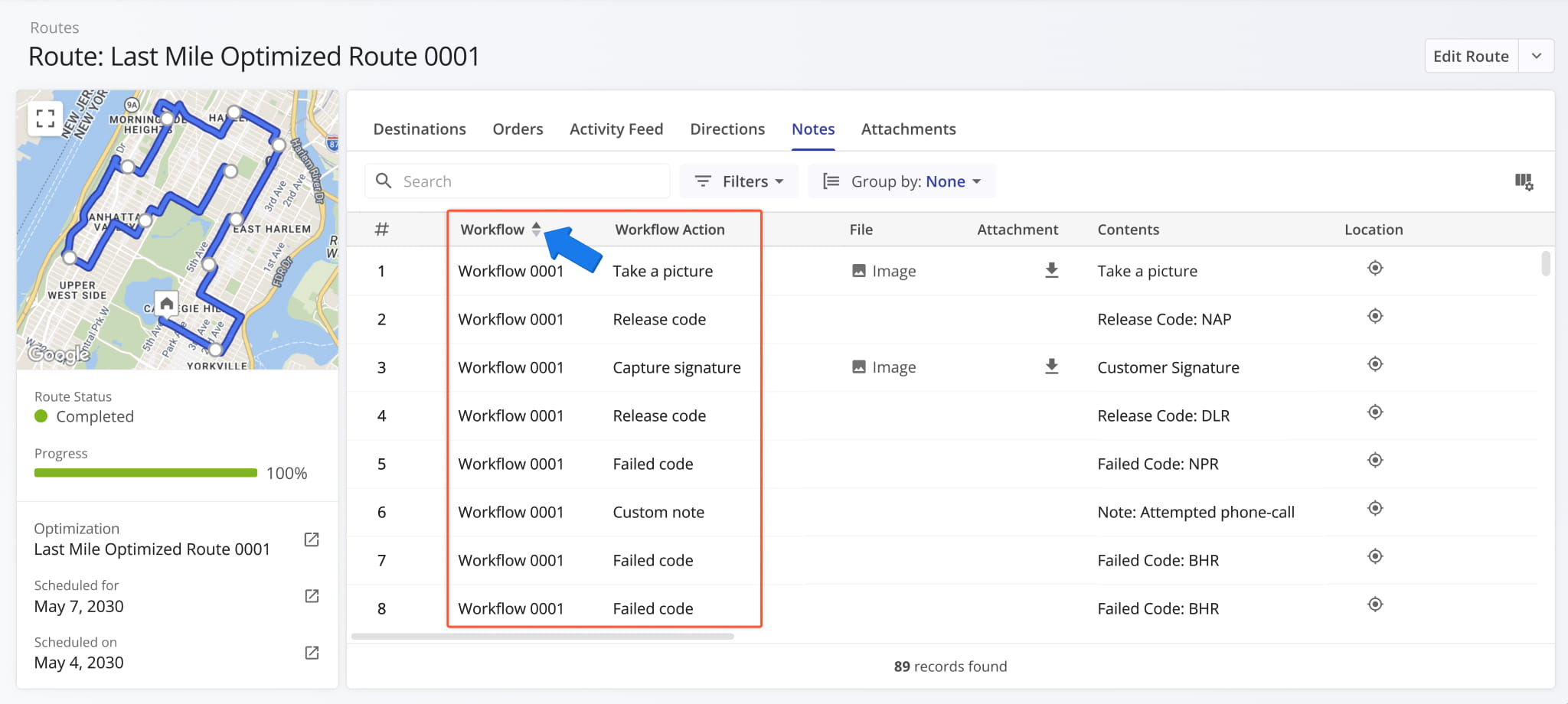
The “Notes” section of Route Snapshots was redesigned to match how Notes are displayed in Order Snapshots. This updated, unified interface enables you to easily find the Destination Notes you’re looking for, no matter which Route4Me tool you’re using.
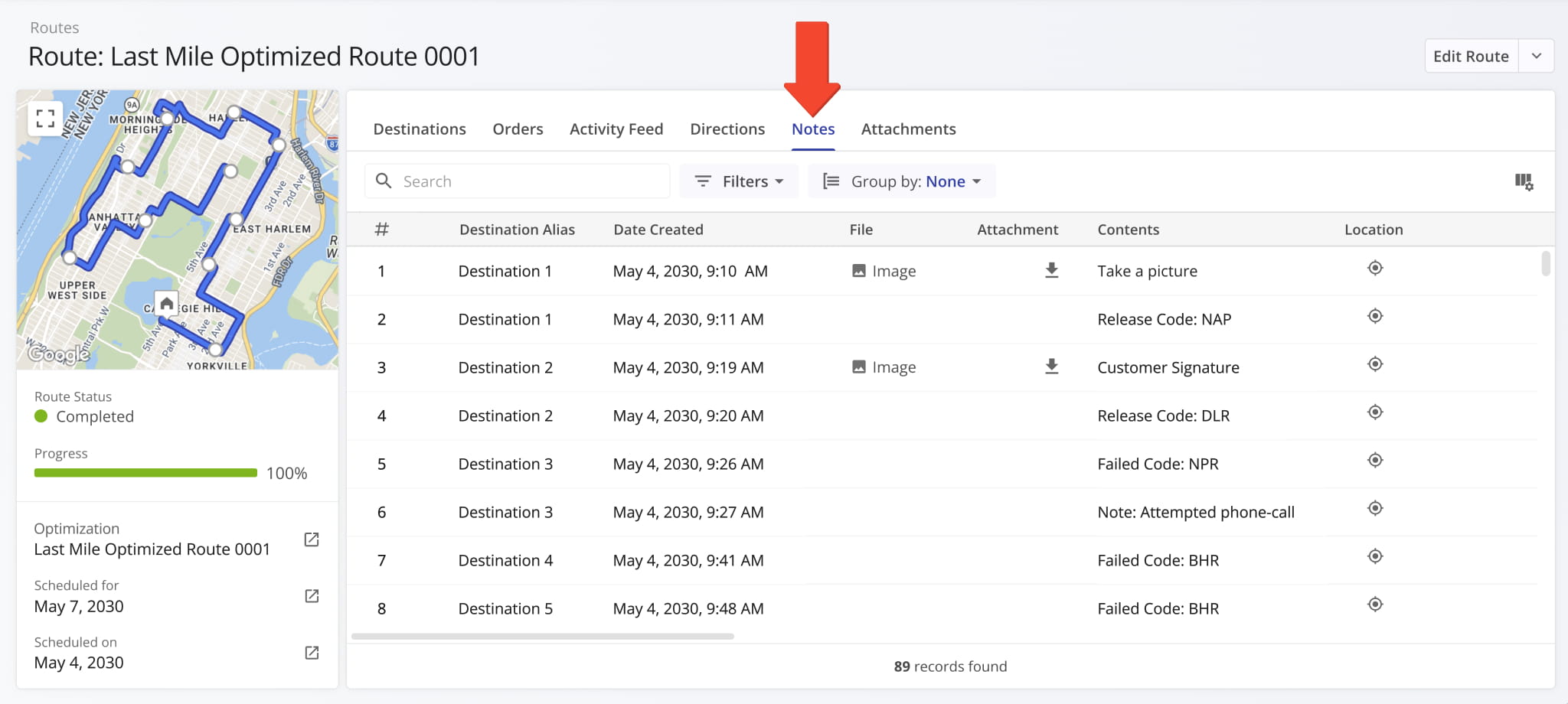
The “Attachments” section of Route Snapshots is now also standardized across different snapshots. Just like the “Notes” tab, this provides a unified experience, which helps you save time looking for the data you need.
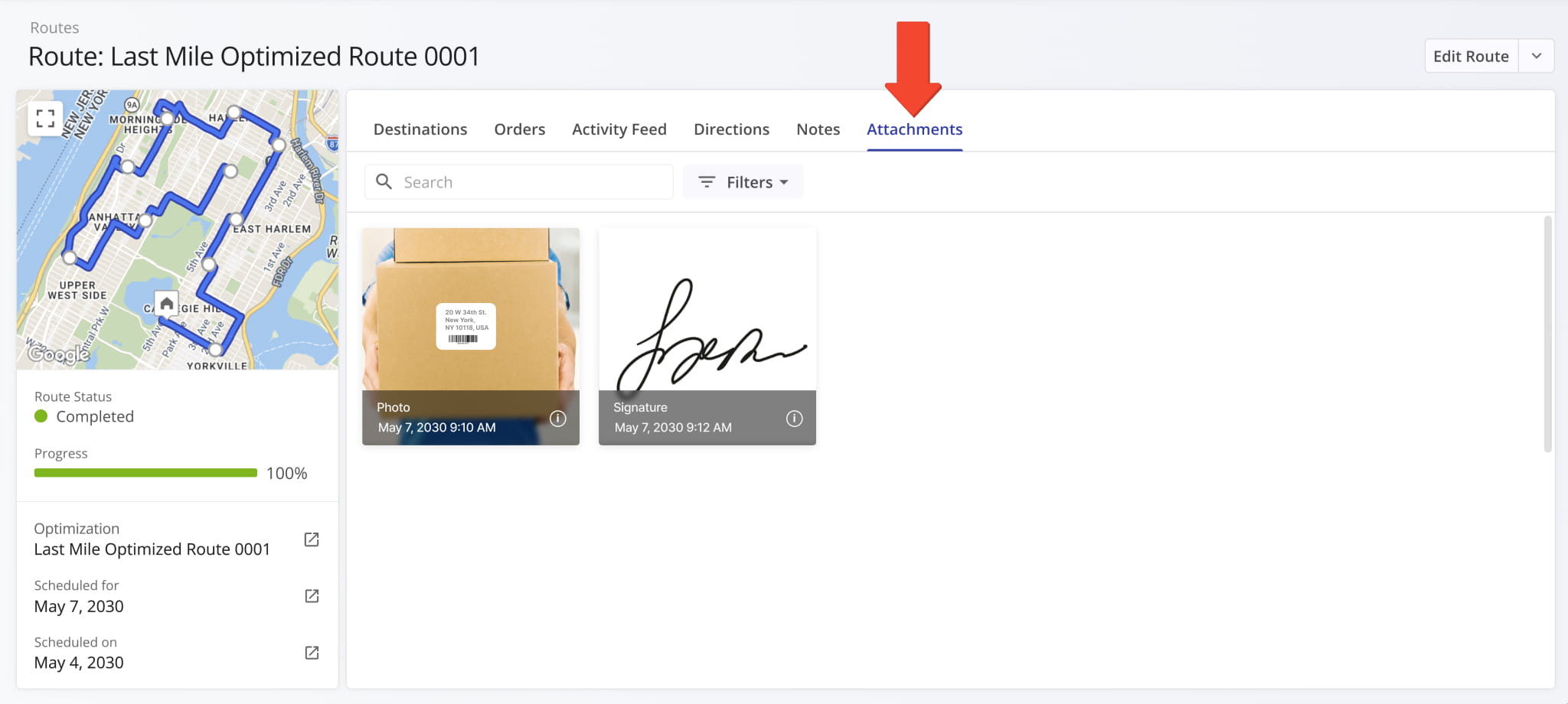
The “Assign Facility” button in User Snapshots now opens a new dynamic panel where you can assign multiple facilities to the respective user and see where those facilities are located on the map.
Previously, you could only assign facilities through a search field in the User Snapshot summary on the left.
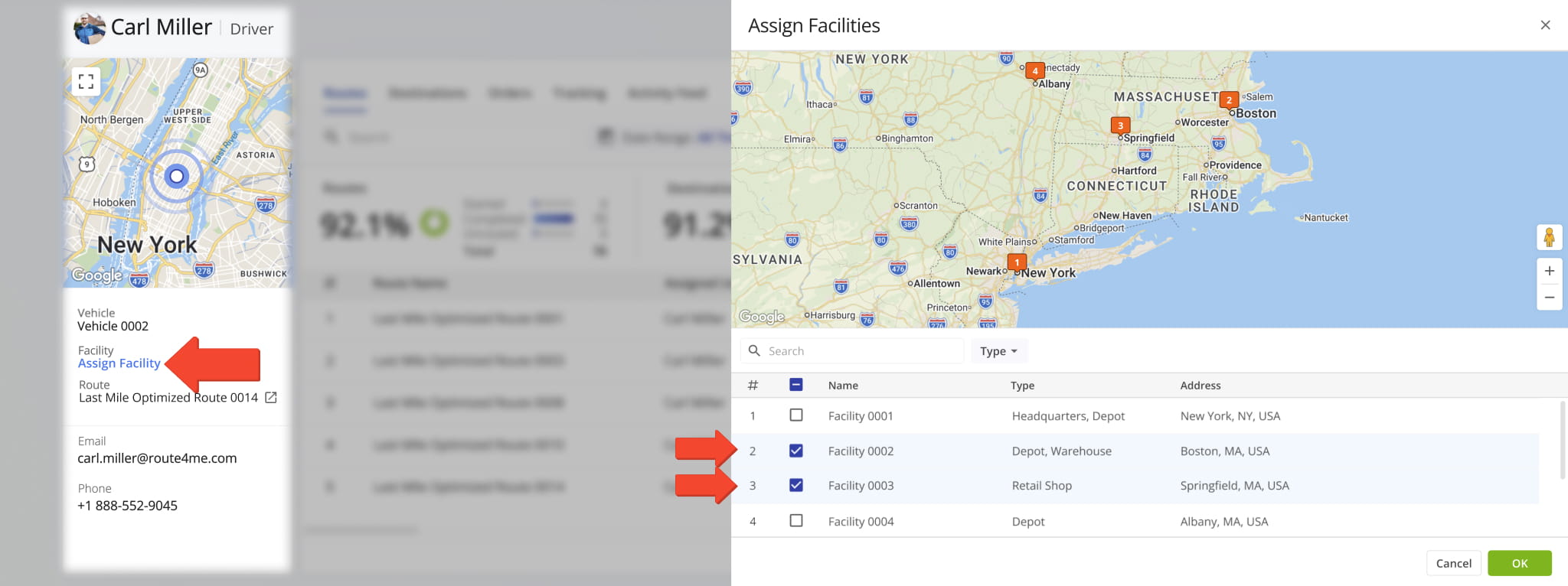
The “Assign Facility” button in Vehicle Snapshots now opens a new dynamic panel where you can assign multiple facilities to the respective vehicle and see where those facilities are located on the map.
Previously, you could only assign facilities through a search field in the Vehicle Snapshot summary on the left.
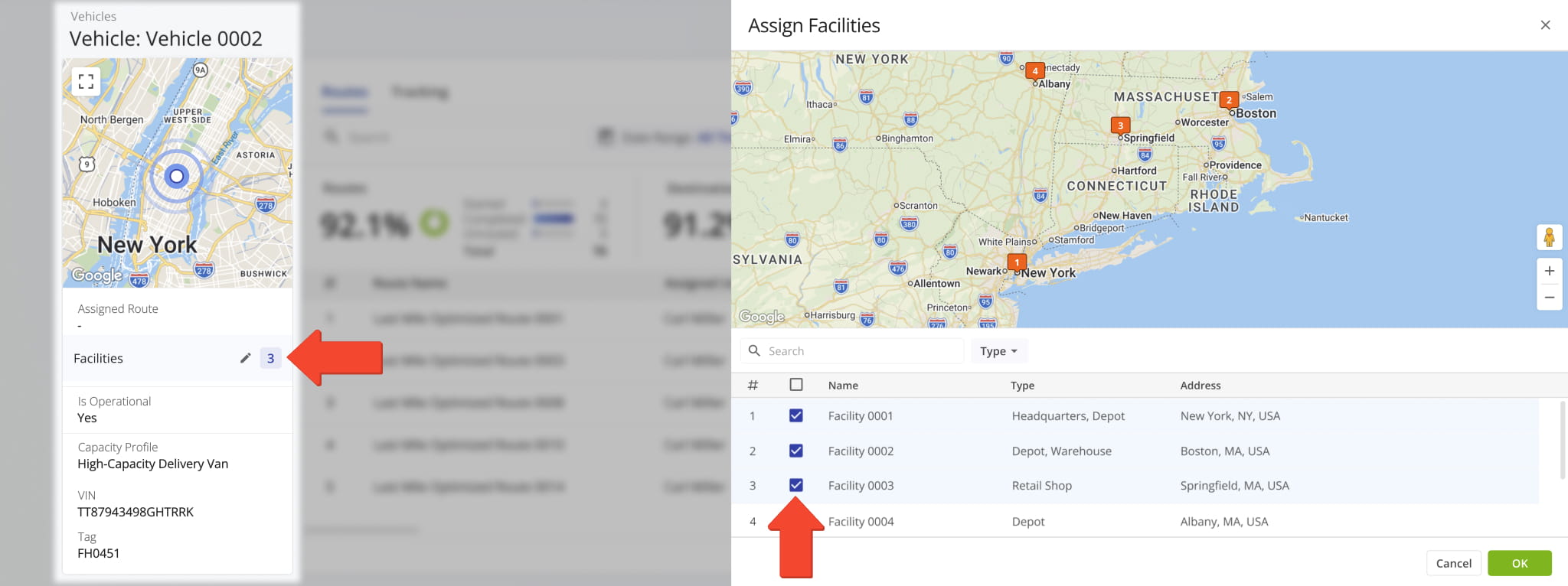
The “Hazardous Materials” field in Vehicle Profiles now supports multi-selection. Check the boxes next to options you want to include in a profile. This new functionality streamlines creating and managing profiles for commercial HAZMAT vehicles.
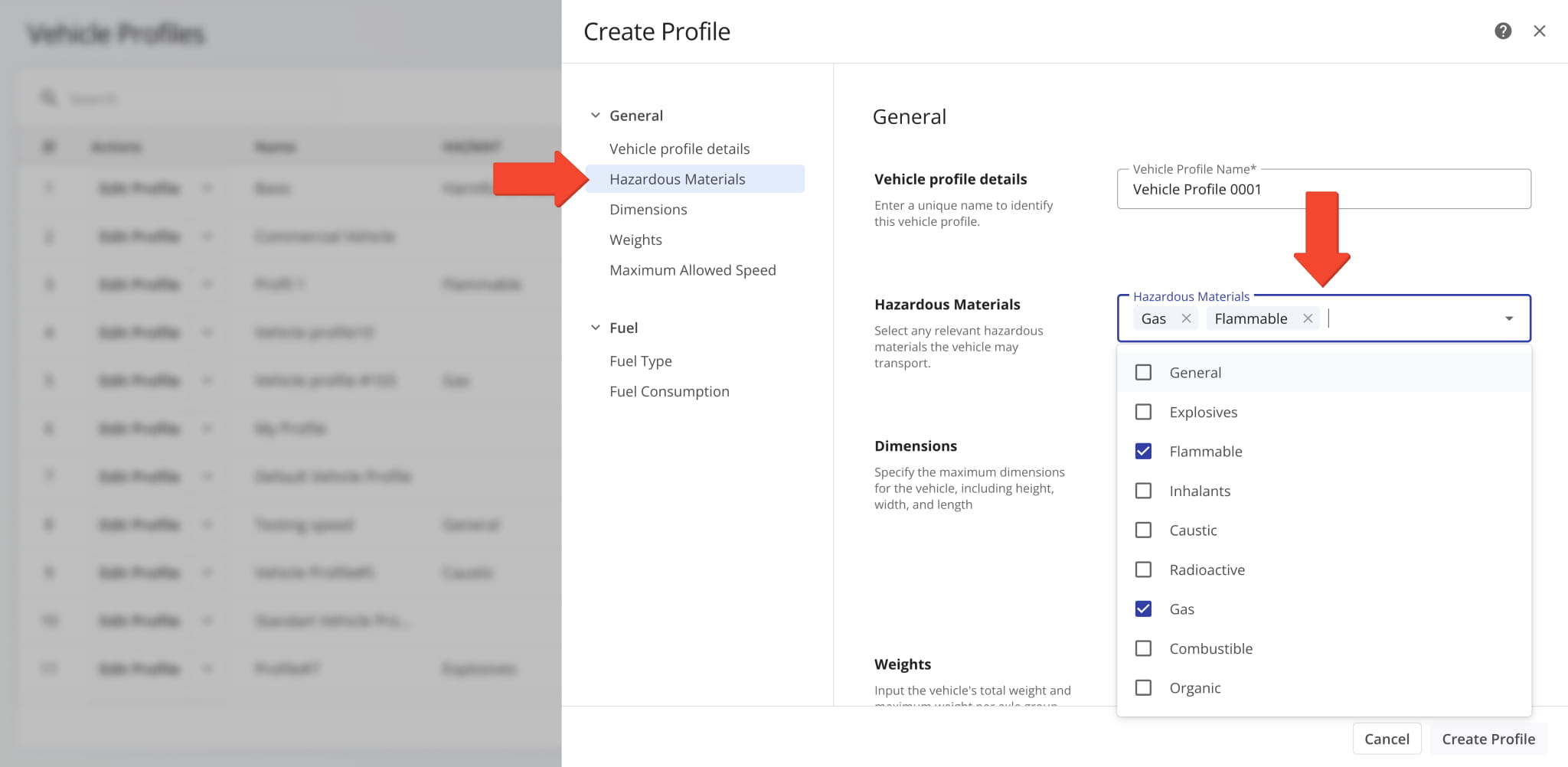
The “Service Type” column on the Orders Page now supports dynamic assignment. You can click the “Assign Service Type” button and find or select a service type for orders. To add or manage service types on your account, contact Route4Me support.
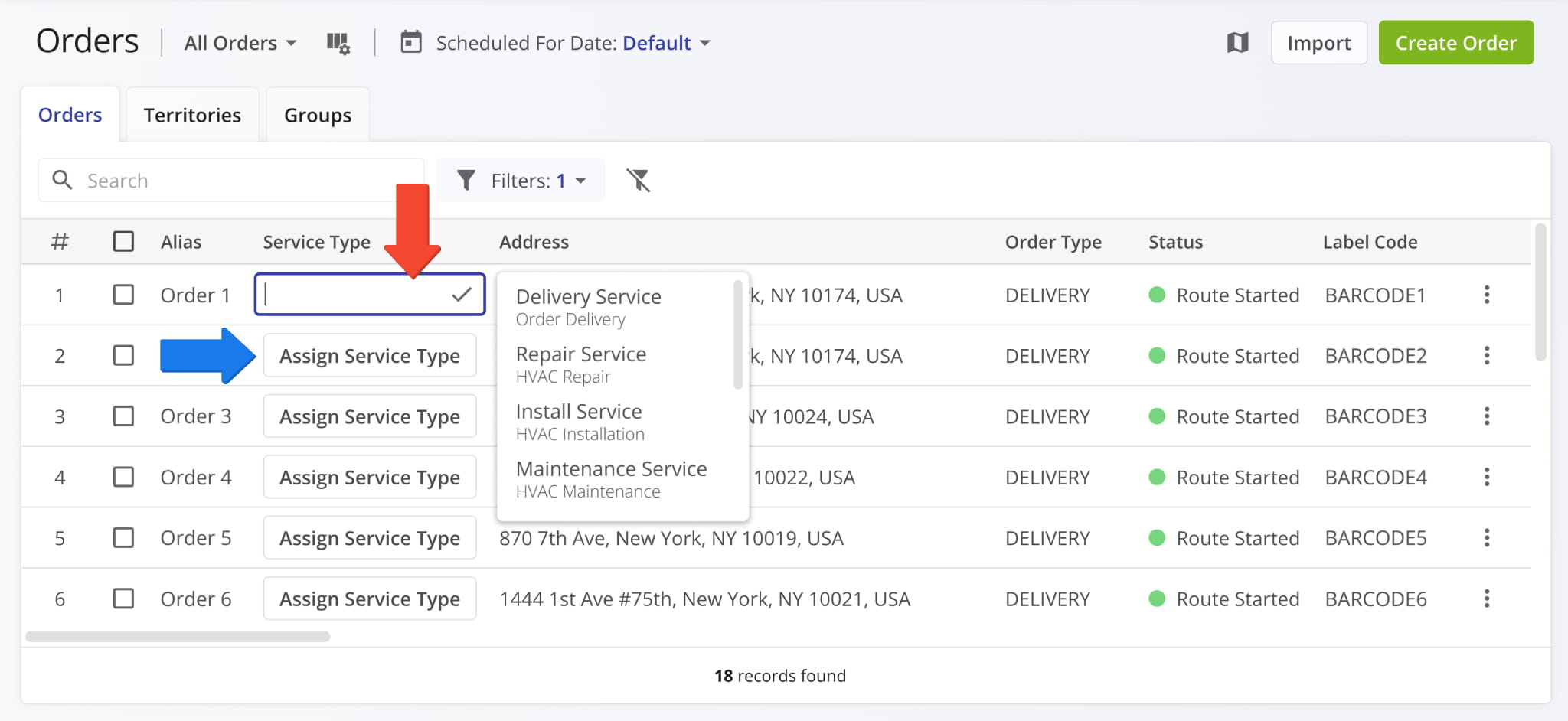
The available filters in the “Locations” section of Customer Snapshots now match the filters available on your Locations Page. Unified filters enable you to easily find Locations no matter which interface you’re using, improving consistency and efficiency.
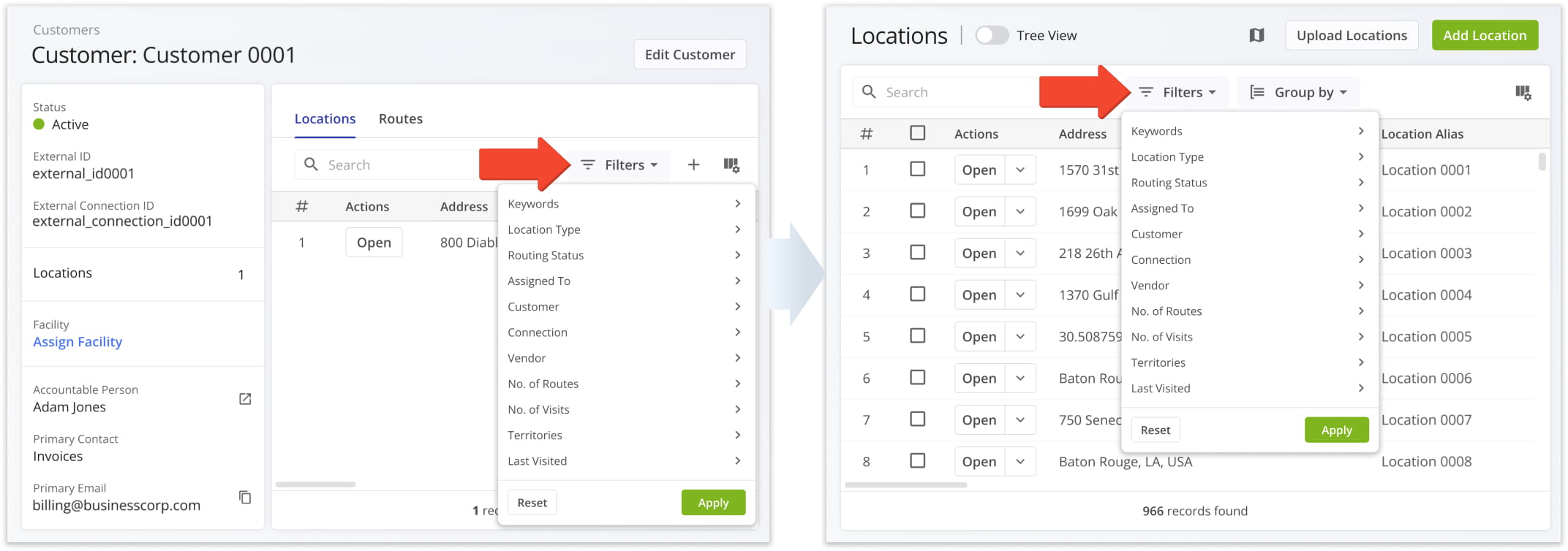
A new “Contracts” Display Column was added to your Customers Page. It shows the specific contracts associated with Customers.
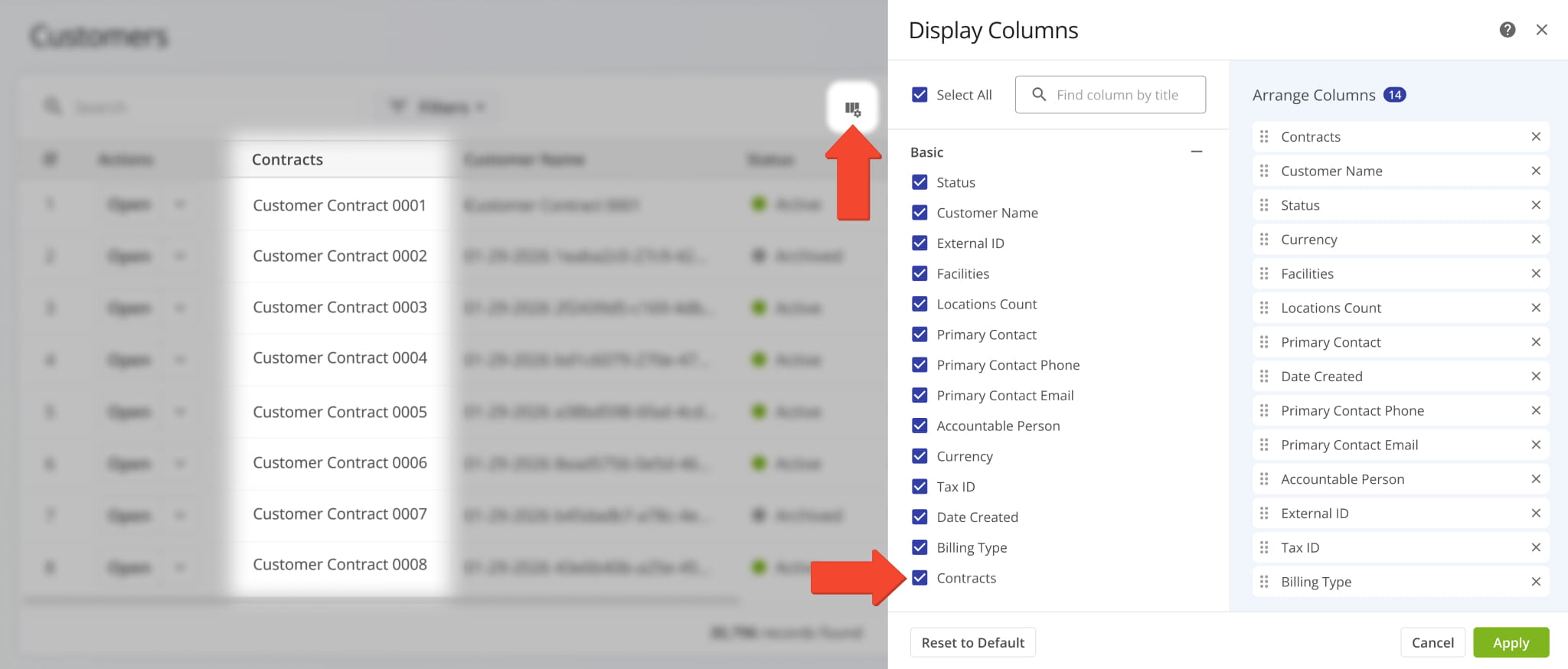
A new “Trips” category was added to Connection Snapshots. It shows telematics vehicle data associated with the respective Vendor Connection, such as trip distance, timestamps, odometer readings, and more.
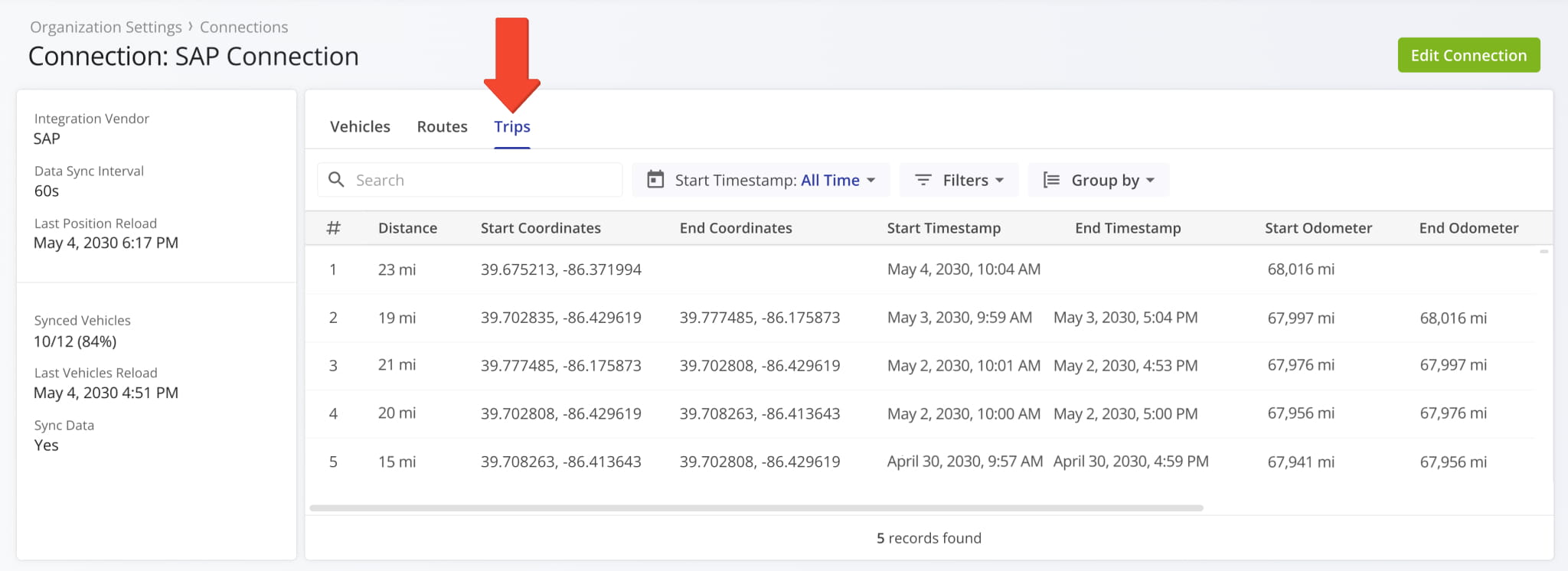
A new “Routes” category was added to Connection Snapshots. It shows route data associated with the respective Vendor Connection, such as route schedule data, actual timestamps, route destination notes, and more.
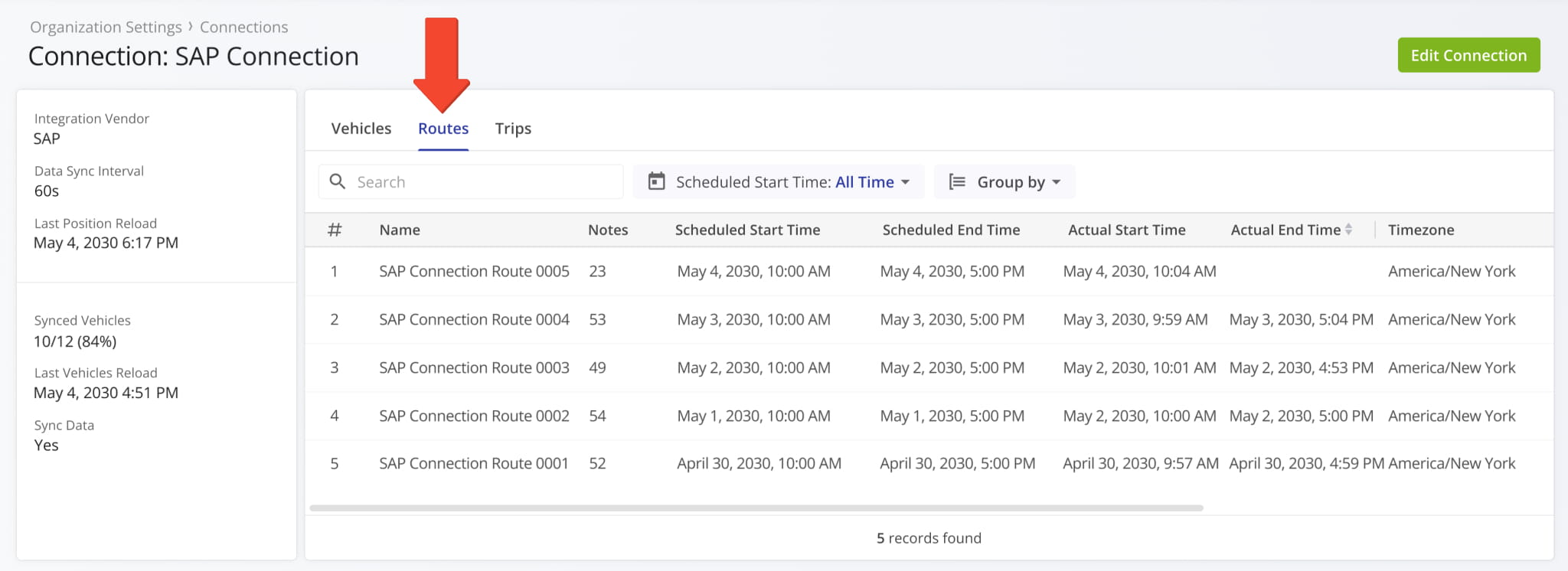
A new “Tracking” section was added to Route Snapshots. In the “Tracking” tab, you can see a list of location updates associated with a route. Each update corresponds to an instance when the assigned user or vehicle’s location was synced. Tracking updates contain timestamps, coordinate and location details, and detailed vehicle information if synced via Telematics Integration.
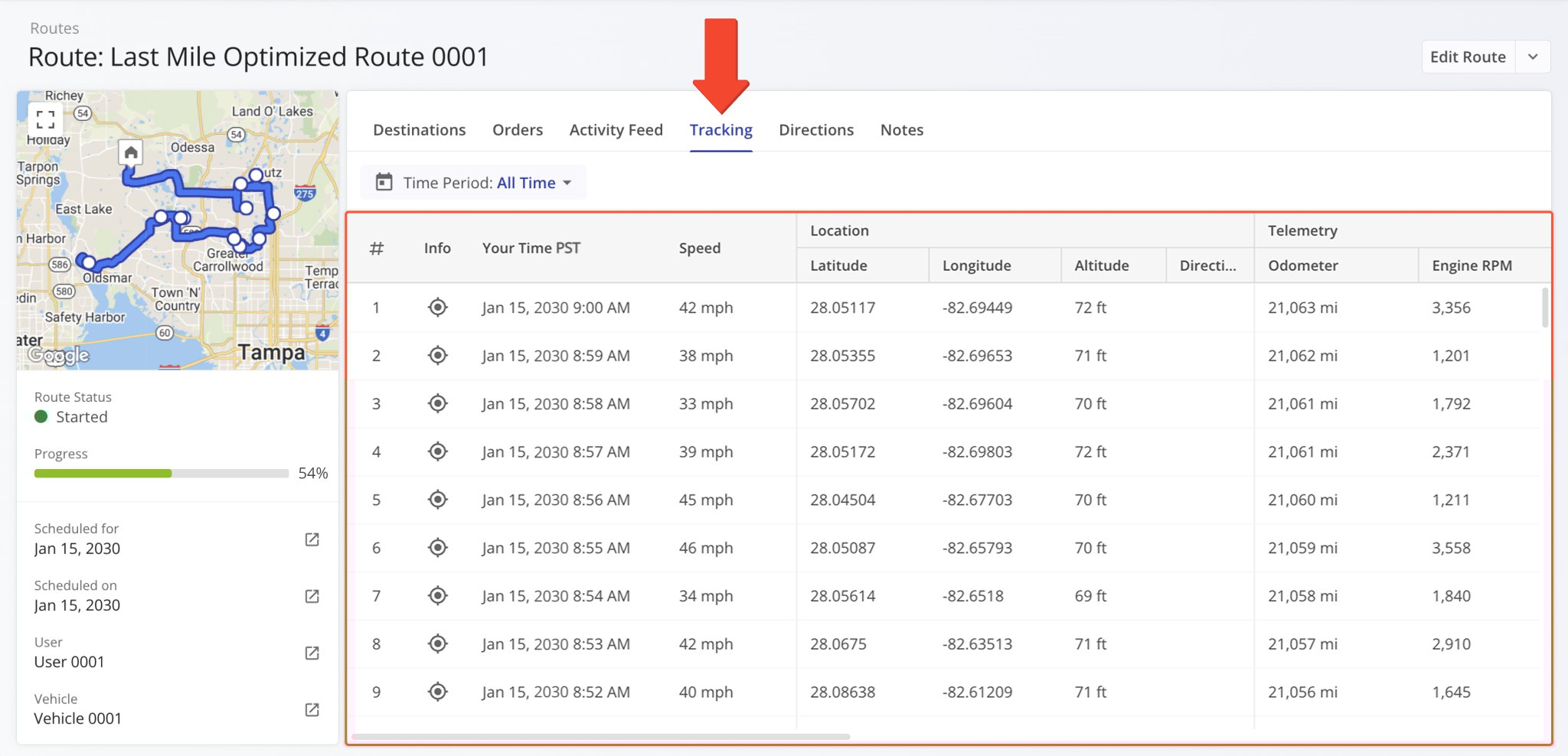
Additionally, you can hover over the Tracking Icon in the “Info” column to view a tracking summary for the respective location update. In detail, this will open a pop-up window that shows the location update’s associated coordinates, device timestamp, vehicle speed, odometer reading, and the assigned vehicle’s location on the map at the time of the location update.
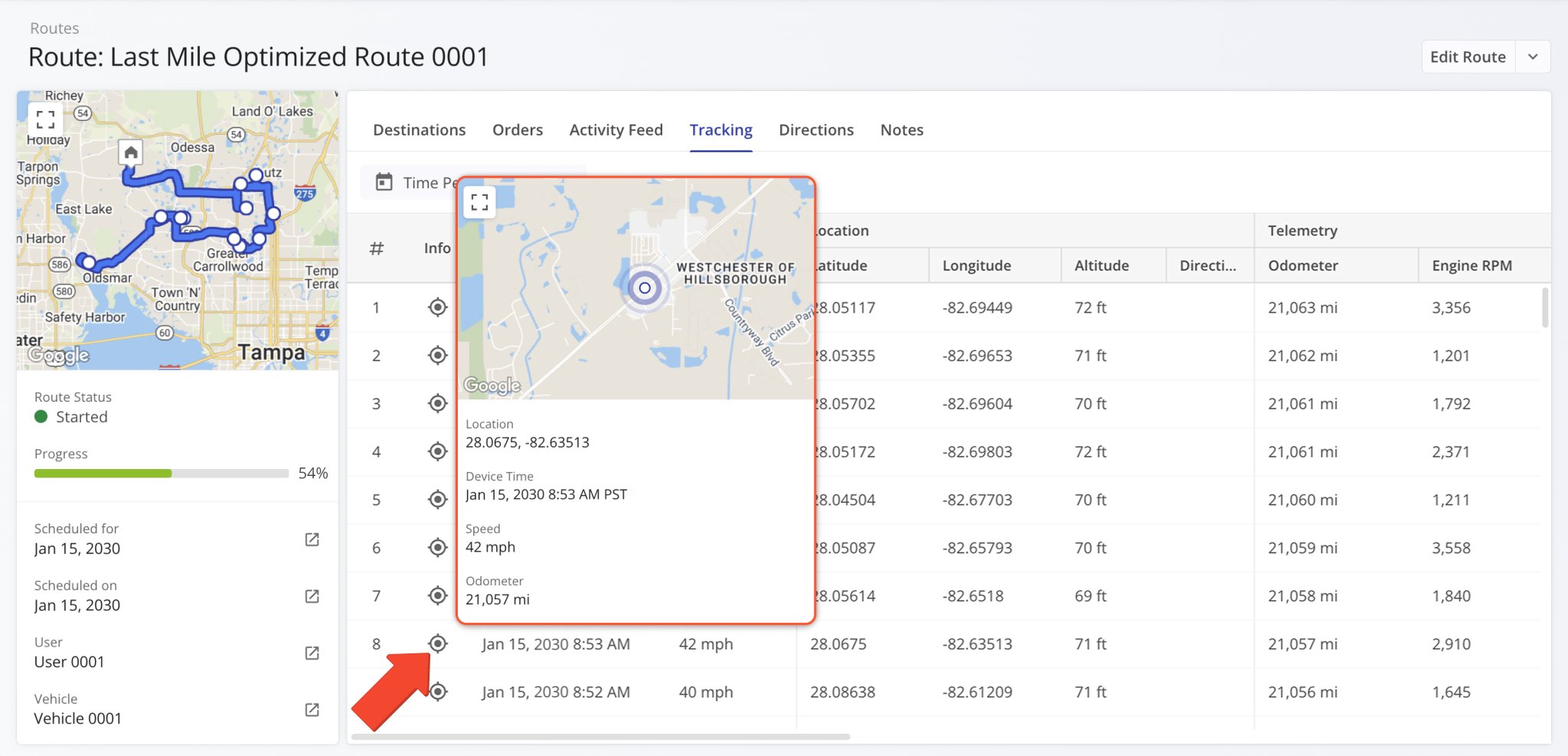
A new “Customers” data category was added to Facility Snapshots where you can see the Facility’s associated Customers.
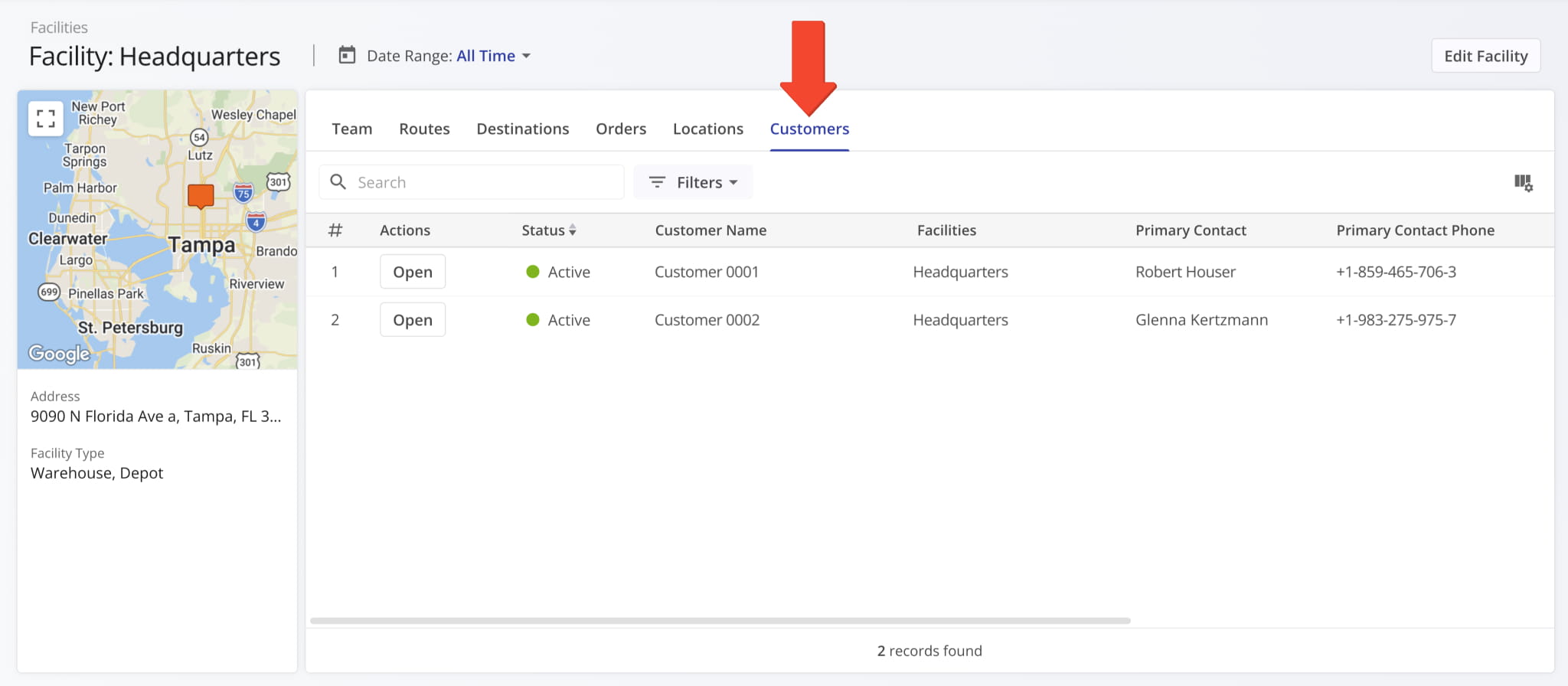
A new “External Connection ID” field was added to the Customer Snapshots in the summary on the left. It shows the unique ID of Customers imported through external vendor connections.
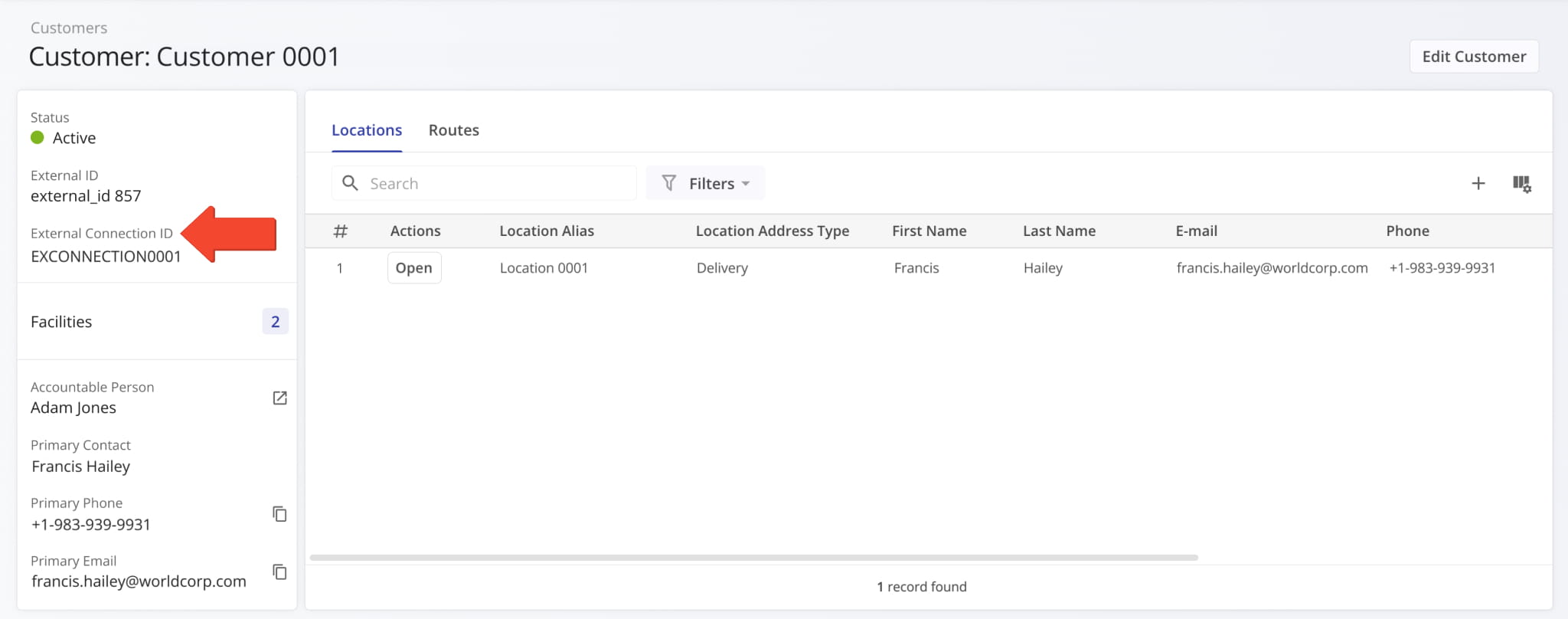
New “Elapsed Time” and “Remaining Time” columns were added to the “Orders” section of Route Snapshots. These new columns show dynamic timers tracking the following durations:
- Elapsed Time: Total time that has passed since the Order was created or imported.
- Remaining Time: Total time remaining until the Order’s scheduled completion.
Learn more about adding and importing Orders.
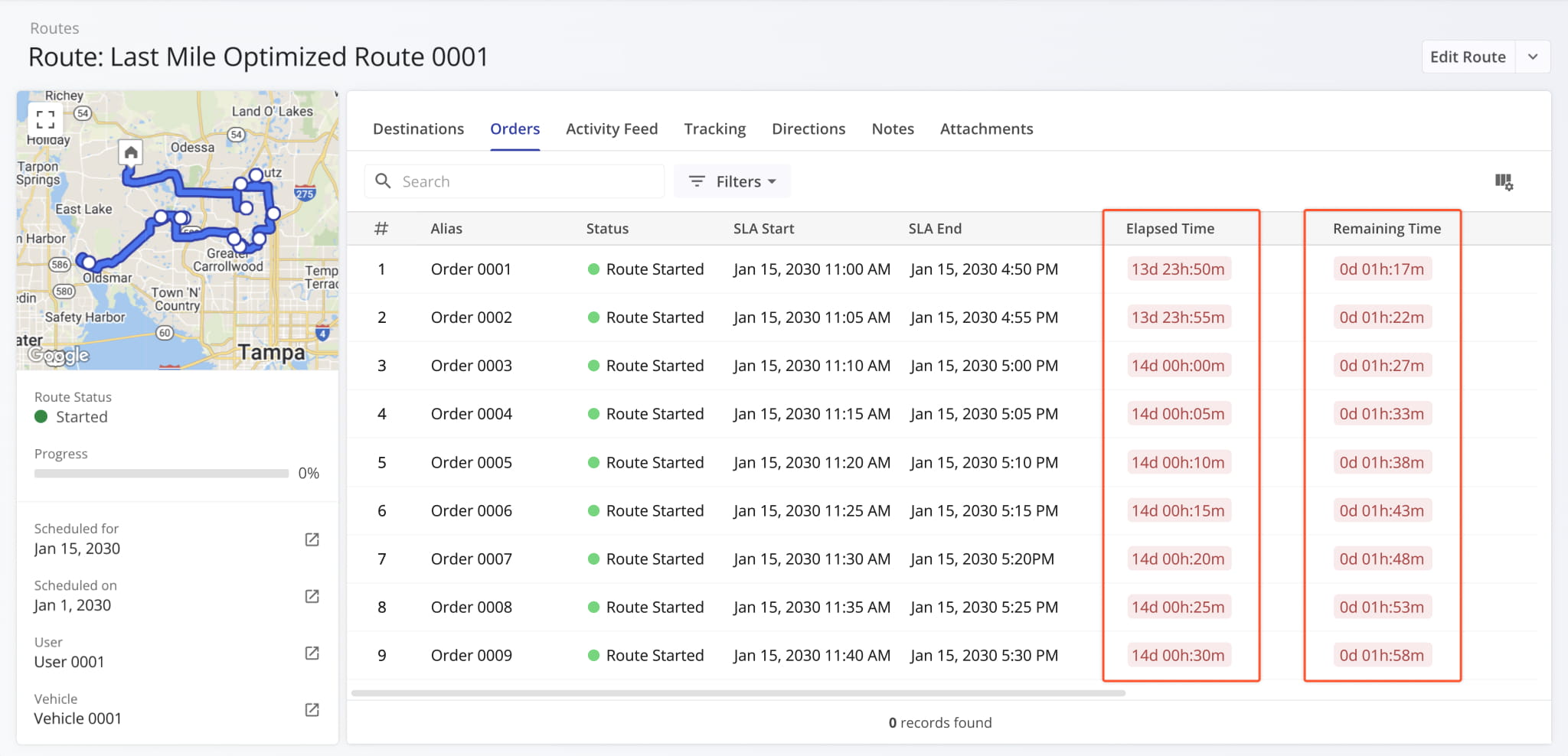
A new “Assign Customer” button was added to the summary panel on the left in open Route Snapshots. This enables you to seamlessly associate a Customer with a route directly from its snapshot.
A new “Assign Contract” button was also added. This enables you to seamlessly associate a Contract with a route directly from its snapshot.
The ERP Price List can be filtered by the Customers associated with price entries. This update adds the option to select “Unassigned Customer” when filtering to see price entries with no associated Customer.
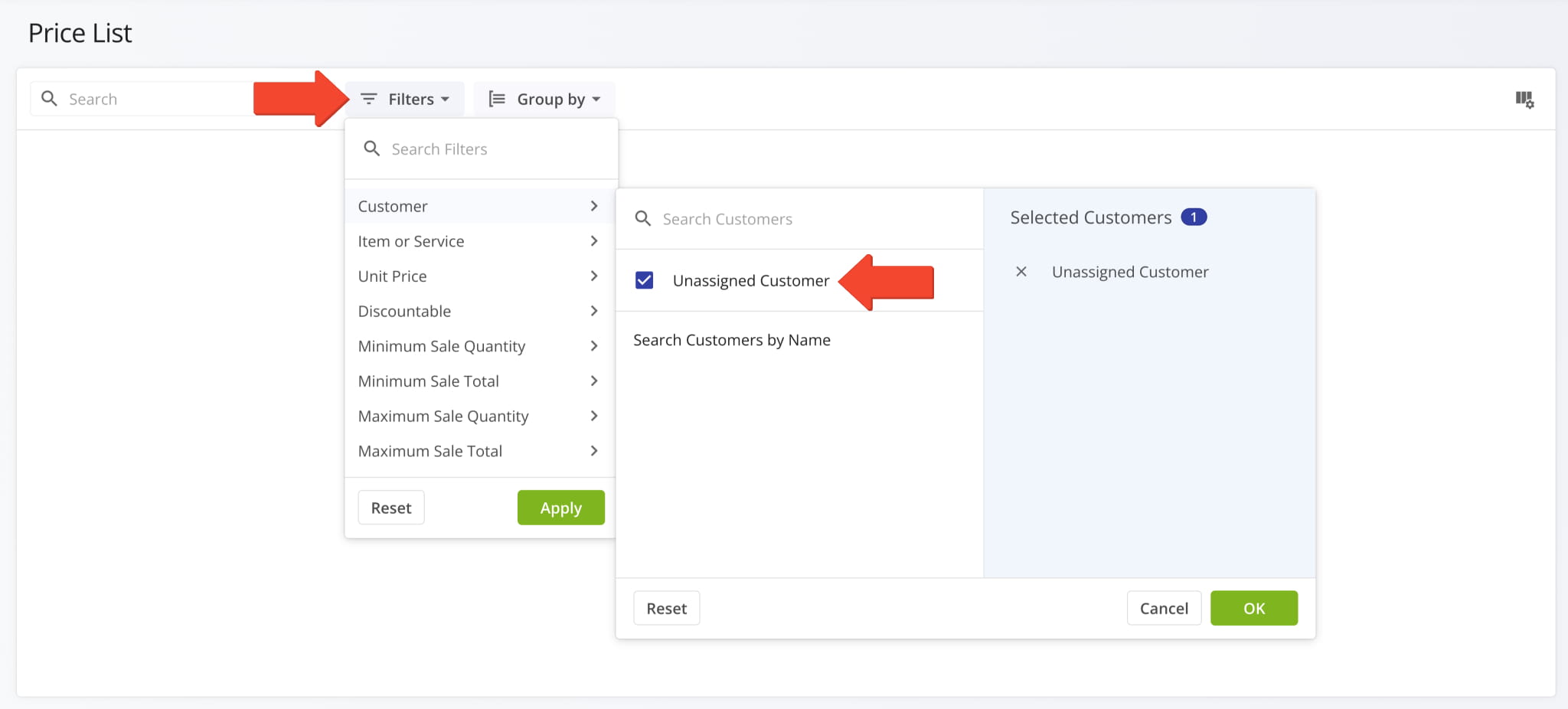
The “Telematics Connections” section of the Organization Settings page has been renamed to “Connections“. Accordingly, “Telematics Vendors” have been renamed to “Vendors“. This update reflects Route4Me’s expanded integration and connection functionality, enabling you to sync not just telematics vehicles to your account but also locations and other entities.
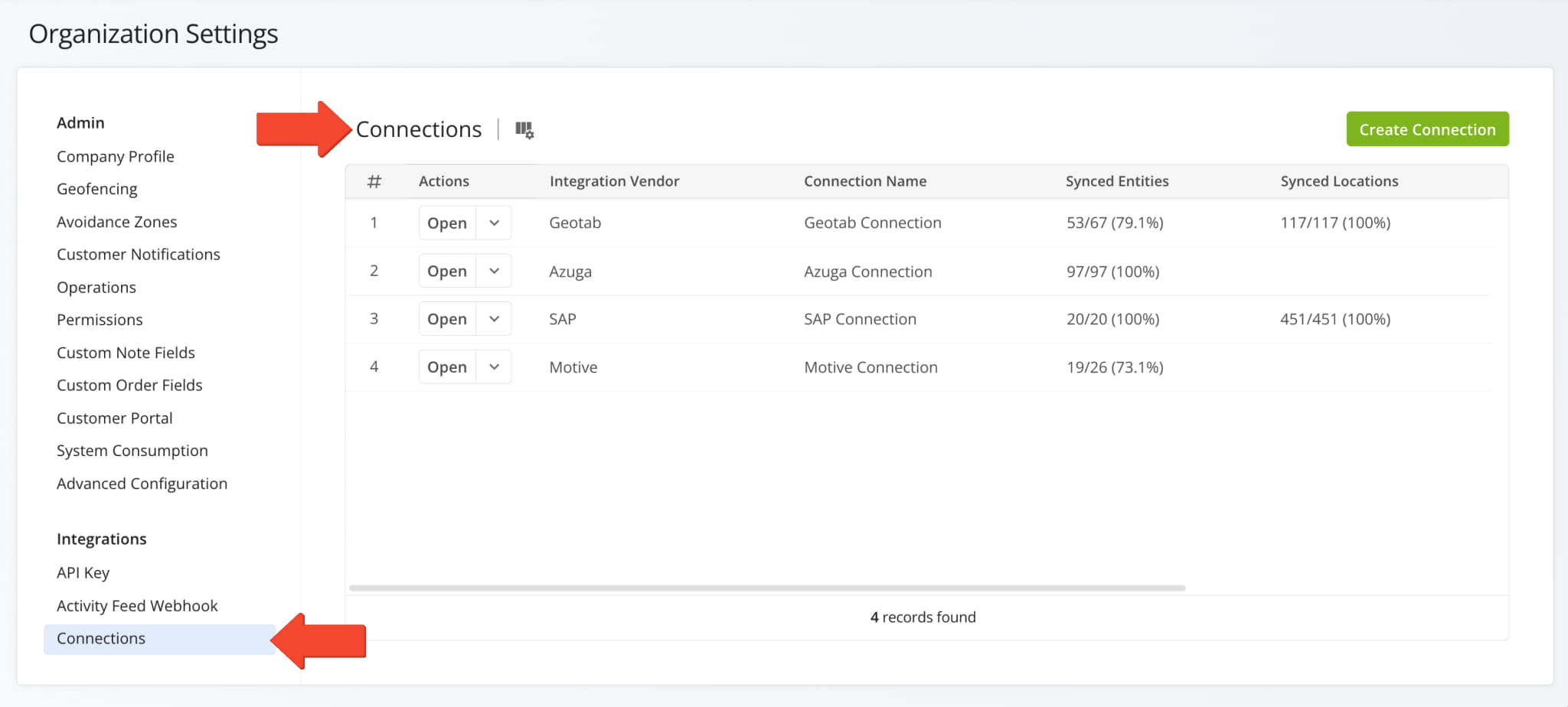
The URL of your Locations Page has been moved from “route4me.com/customer-locations” to “route4me.com/locations” to better align with Route4Me’s enterprise-grade transportation management software. Learn more about Locations.
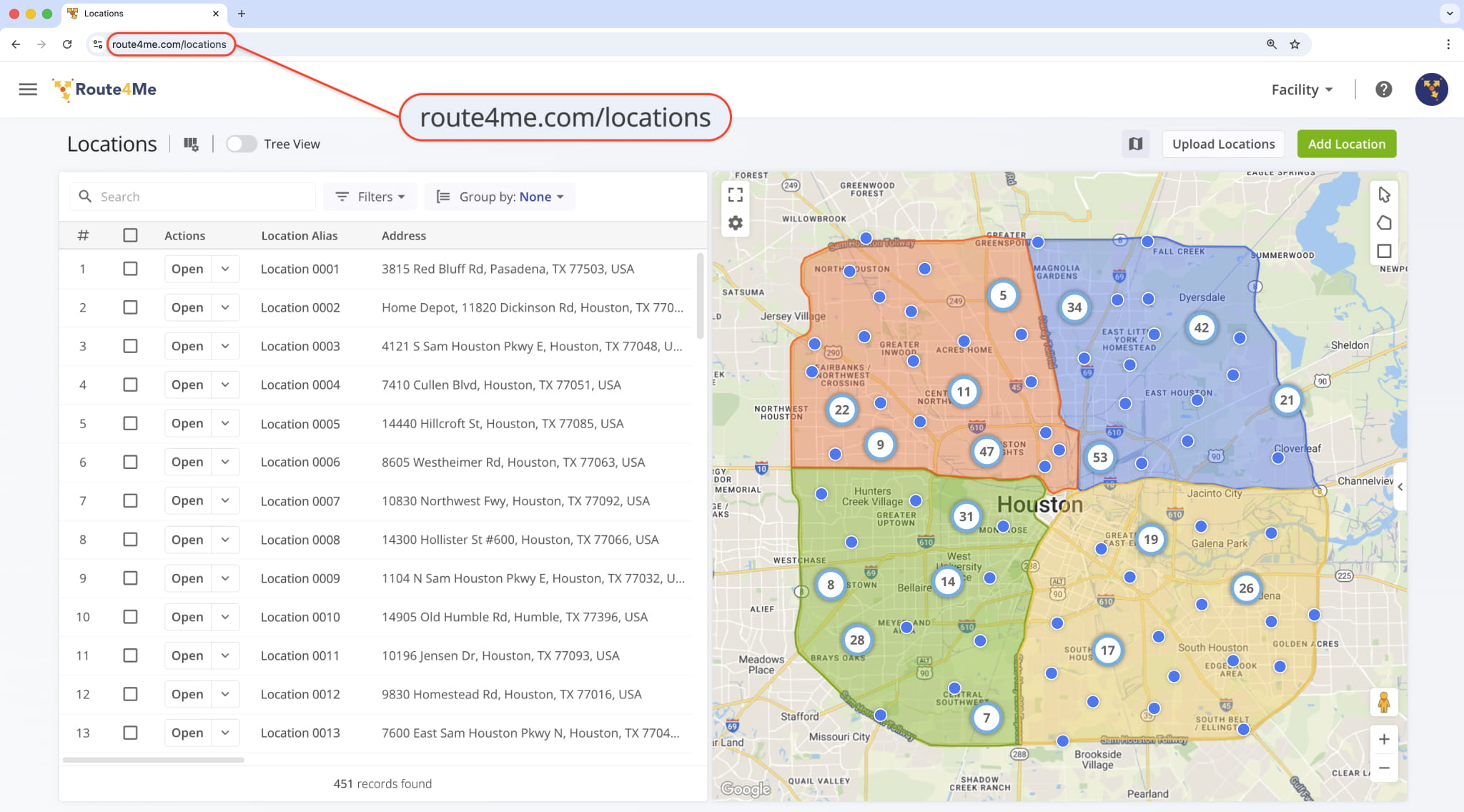
January 2026
50A new horizontal mode was added to Route4Me’s Web Platform Navigation Menu. When enabled, you’ll see menu options aligned in a horizontal scrollable row. If you want to enable horizontal mode, you can contact Route4Me Support.
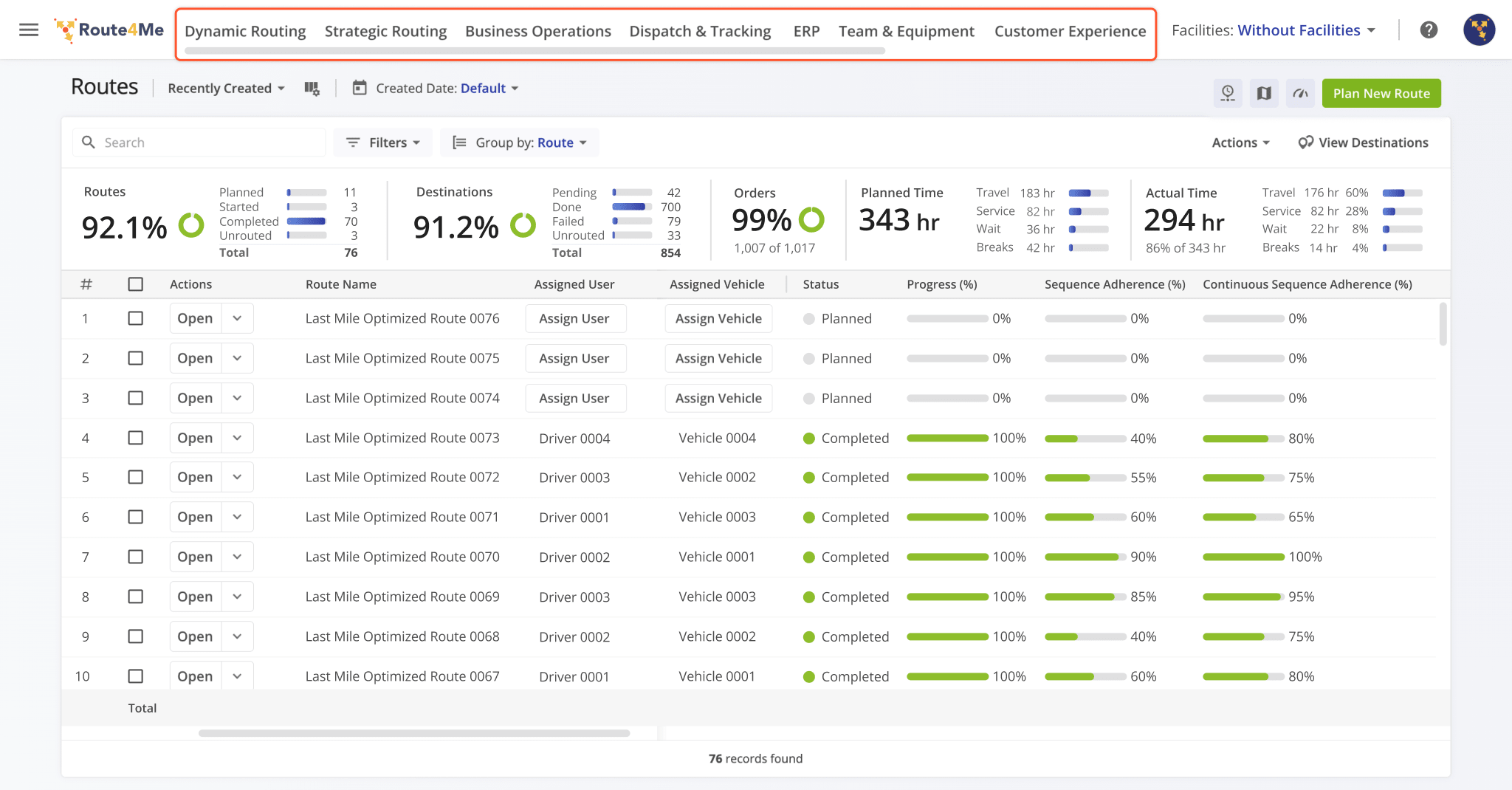
A new “Route Metrics” panel was added to the Routes Page. It shows planned and actual route data and percentages similar to the existing Performance Insights. In comparison, the new Route Metrics show more structured, collapsible, and customizable data while Performance Insights offer a clear progress overview with intuitive visual graphs.
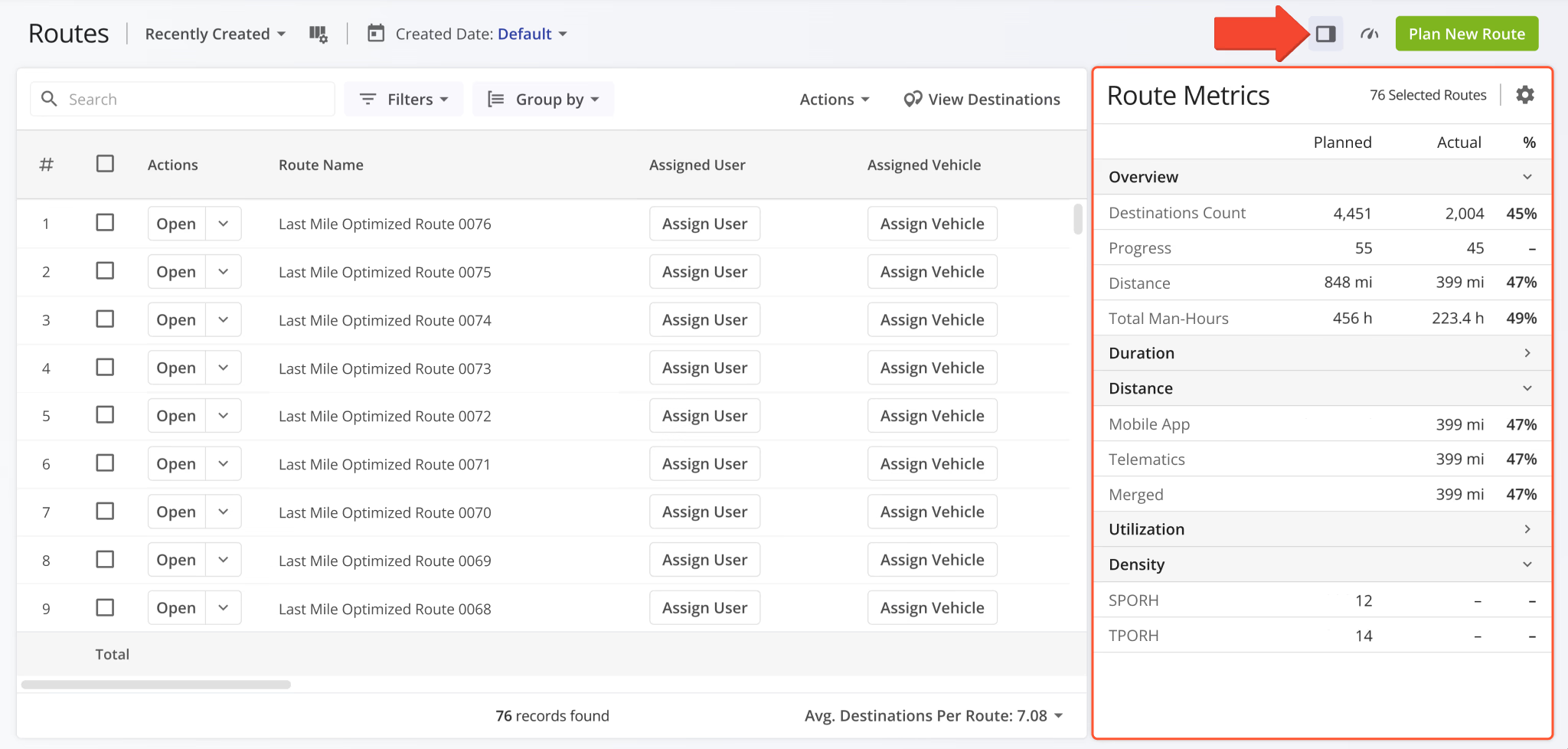
A new Contracts Page was added to Route4Me’s ERP and transportation management software. Contracts can be associated with customers and routes, enabling structured oversight of customer agreements, service periods, and more. Each Contract stores key details and external reference IDs for customer profiles imported from external vendors.
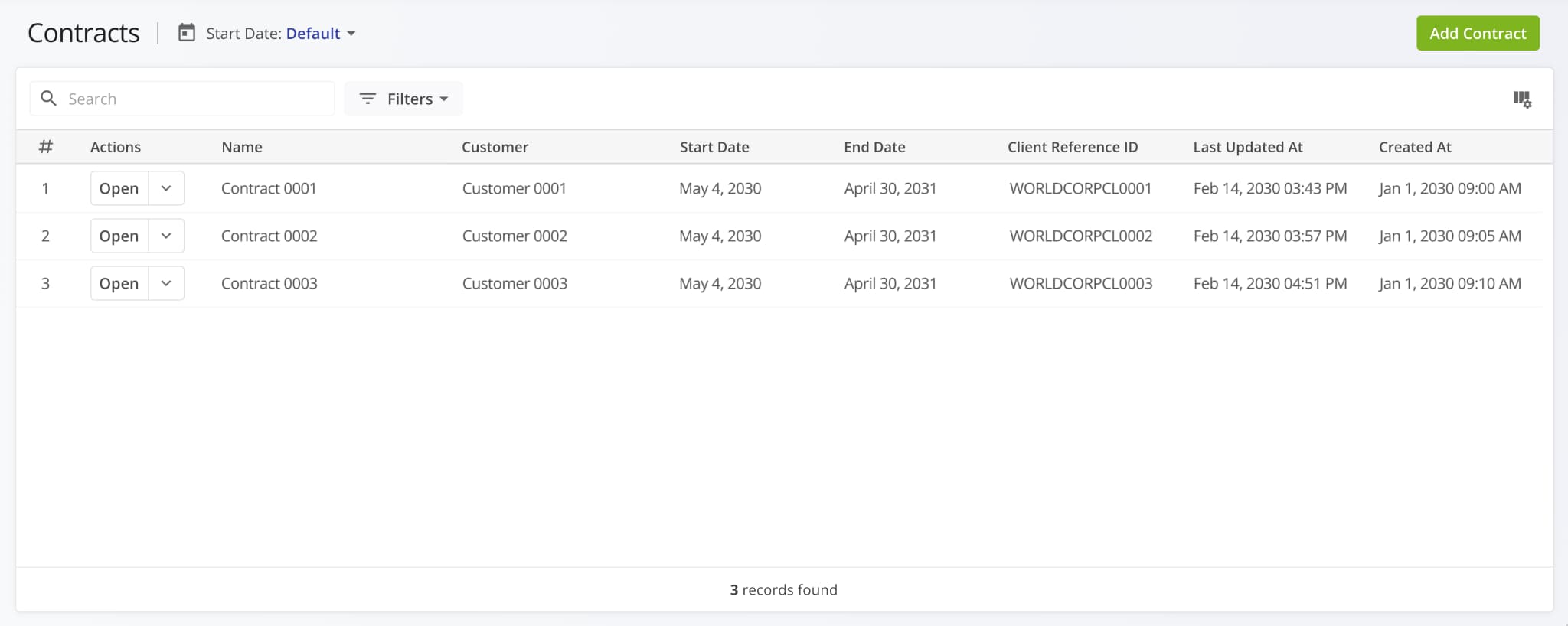
Man-Hours values associated with destinations can now be viewed in the Route Editor Destination Info panel.
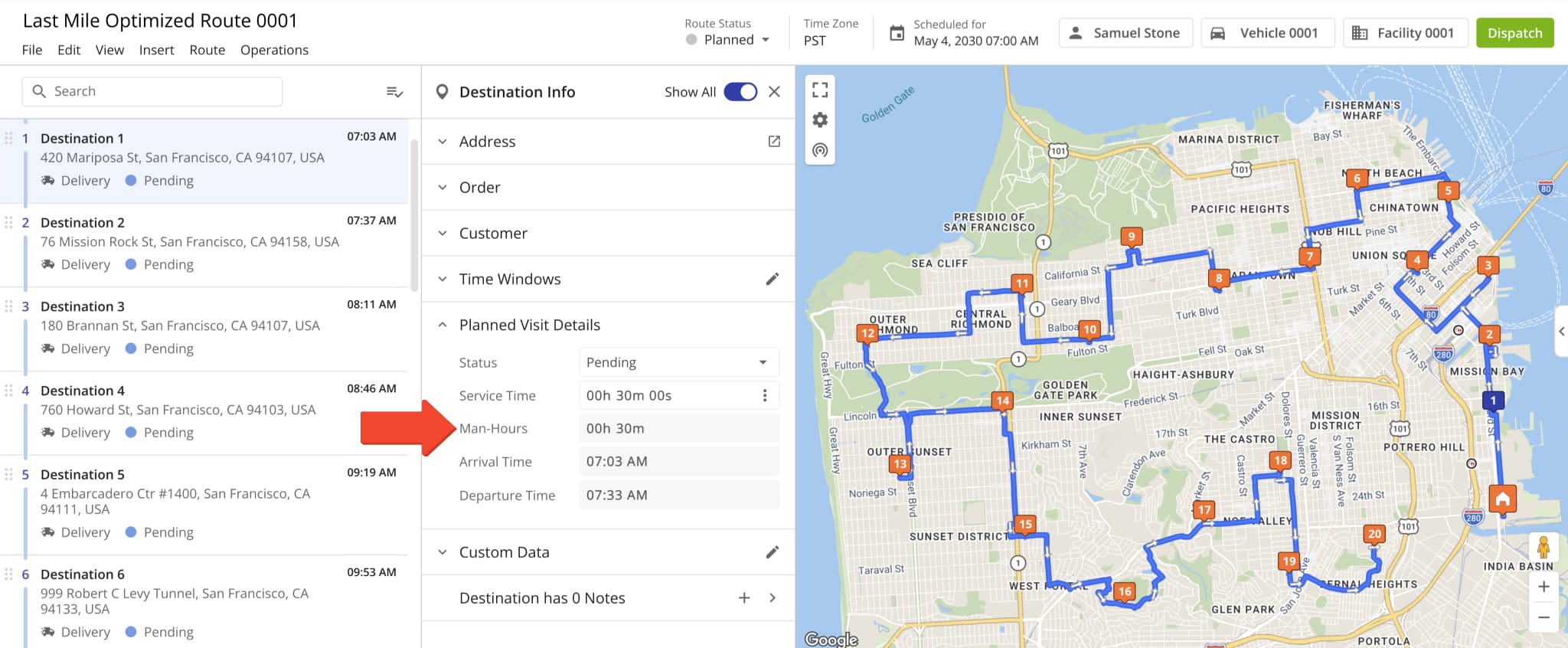
Additionally, the “Total Man-Hours” data column was added as an option in the Route Metrics Display Columns. It shows the combined “Man-Hours” values for all destinations on the opened route.
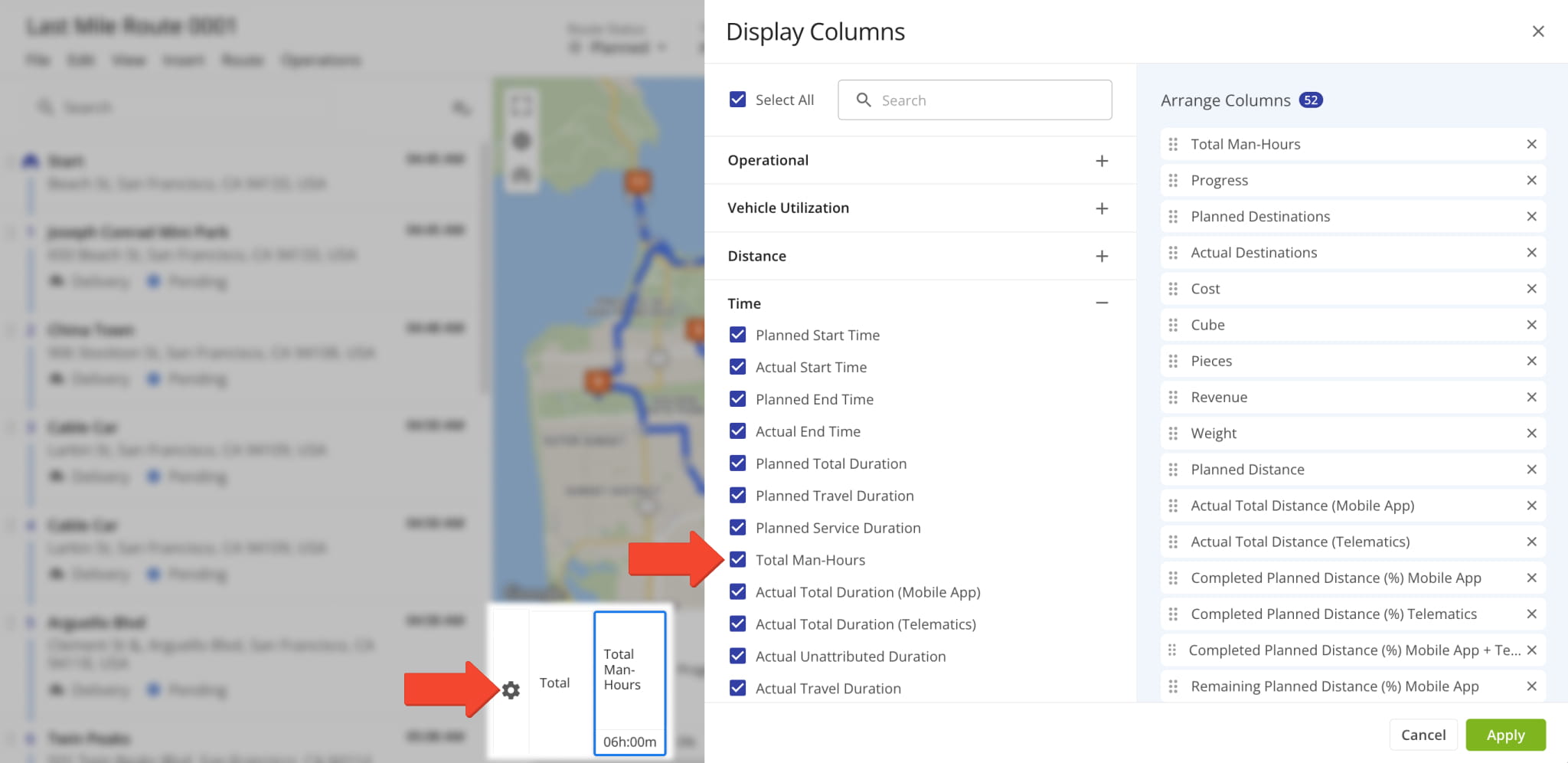
Destination ETAs on the Interactive Routes Map now show “Service Time” and “Man-Hours“. Previously, only four destination schedule fields were available. Now, our dynamic ETAs provide a more comprehensive overview of destination schedules.
To enable Destination ETAs, click the Gear Icon on the Routes Page Map and check the “ETAs” box.
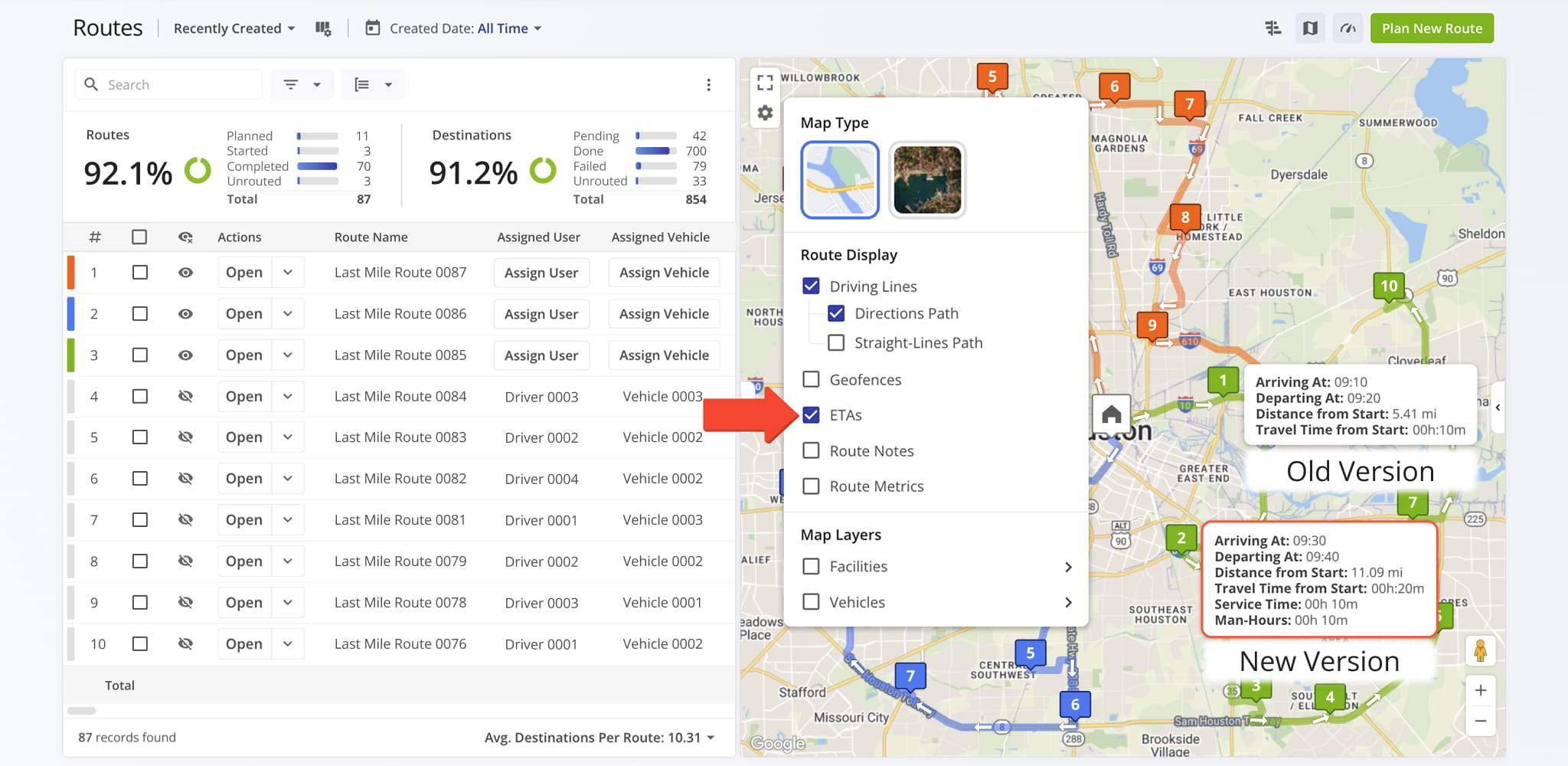
A new feature was added to the Strategic Optimizations interface that enables you to compare optimizations side by side. Simply check the boxes next to optimizations you want to compare, click “Bulk Actions” and select “Compare Selected Optimizations“.
Open Your Strategic Optimizations
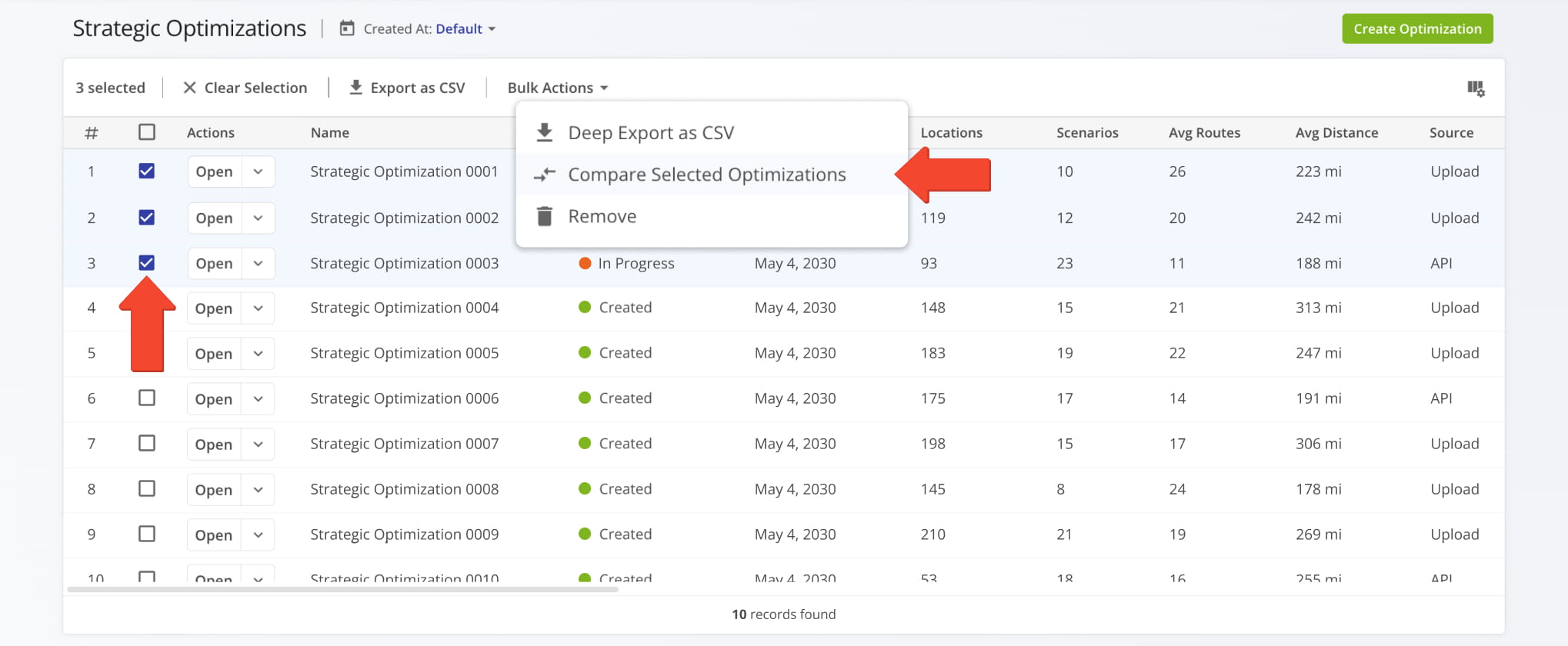
The “Compare Optimizations” interface will arrange your selected optimizations side by side. From there, you can add more optimizations by clicking the Plus Button or remove an optimization by clicking the Three-dot Button and selecting “Remove from Comparison“. When you’re finished comparing Strategic Optimizations, click the “Done” button to go back.
Learn more about Strategic Optimization Management.
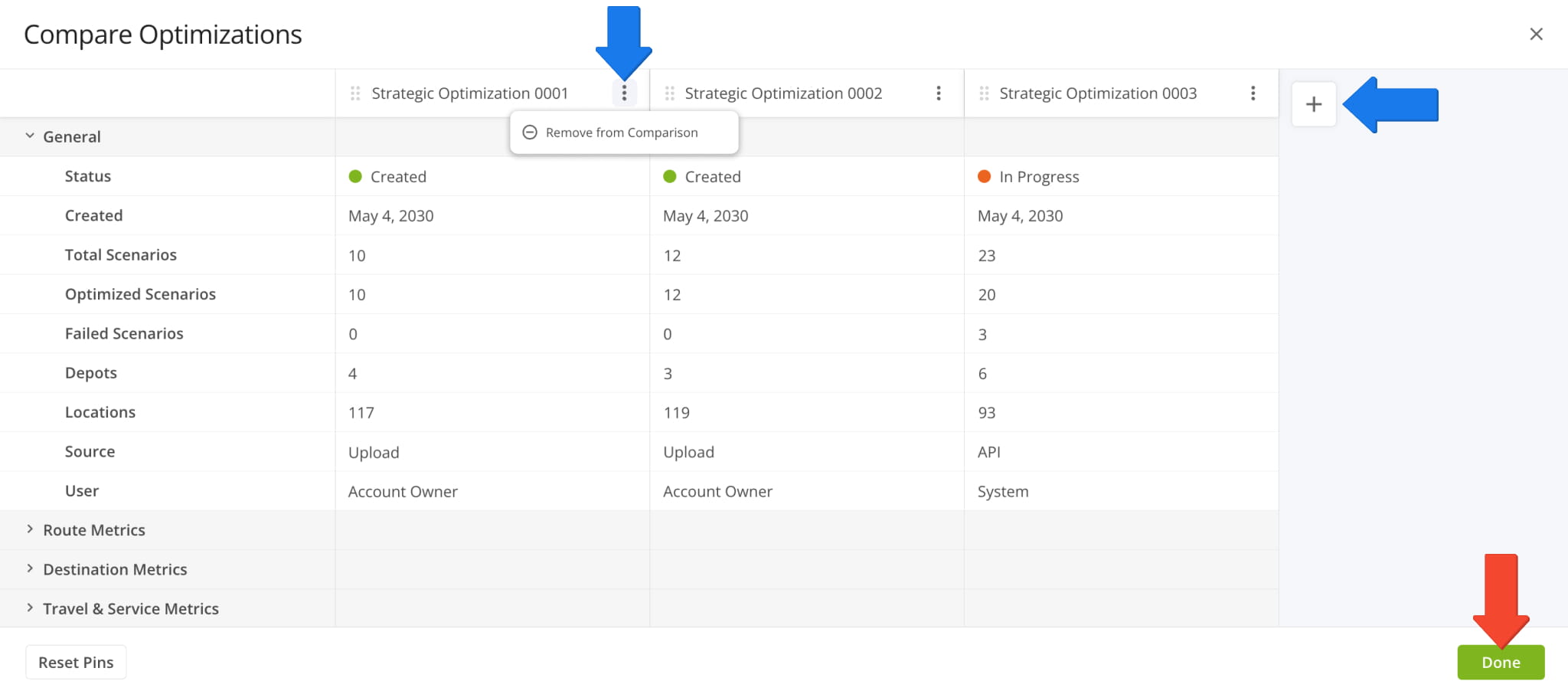
Comparison functionality was also added to Strategic Scenarios in open Strategic Optimizations. Go to the “Scenarios” tab, check the boxes next to the scenarios you want to compare, click “Bulk Actions“, and select “Compare Selected Scenarios“.
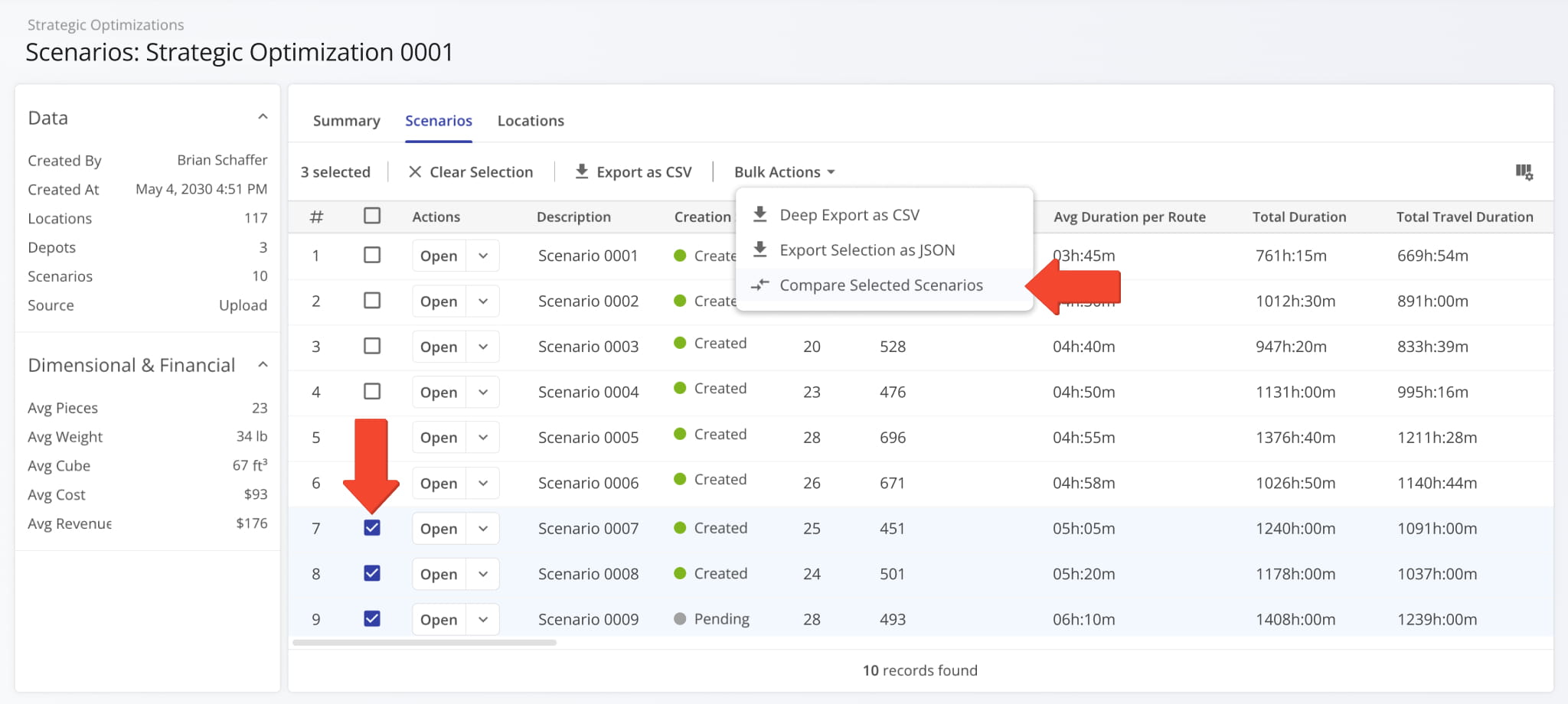
The “Compare Scenarios” interface will arrange your selected scenarios side by side. From there, you can add more scenarios by clicking the Plus Button or remove a scenario by clicking the Three-dot Button and selecting “Remove from Comparison“. When you’re finished comparing Strategic Scenarios, click the “Done” button to go back.
Learn more about Strategic Scenario Management.
The “Start Location” section of the settings screen when you Create Strategic Optimizations was improved. A new dynamic map provides a visual overview of the start locations you’ve added. Additionally, you can now add start locations from your account Facilities or add addresses on the same screen by clicking the respective buttons.
Each button opens a new window with a set of filters and search options, making start location selection faster and easier.
Open Your Strategic Optimizations
Previously, the map wasn’t available, and you had to switch between entering start location addresses manually or selecting start locations from your Facilities. The image below shows how “Optimization Settings” looked before the new update.
When you right-click a destination in the Routes Timeline, you can select “Move Destination To” to change its position in the sequence. Now, you’re also able to move it into a different route at any sequence position. The routes currently enabled in the timeline will be grouped at the top of the suggested routes list.
Previously, you could only move a destination to another sequence position in the same route.
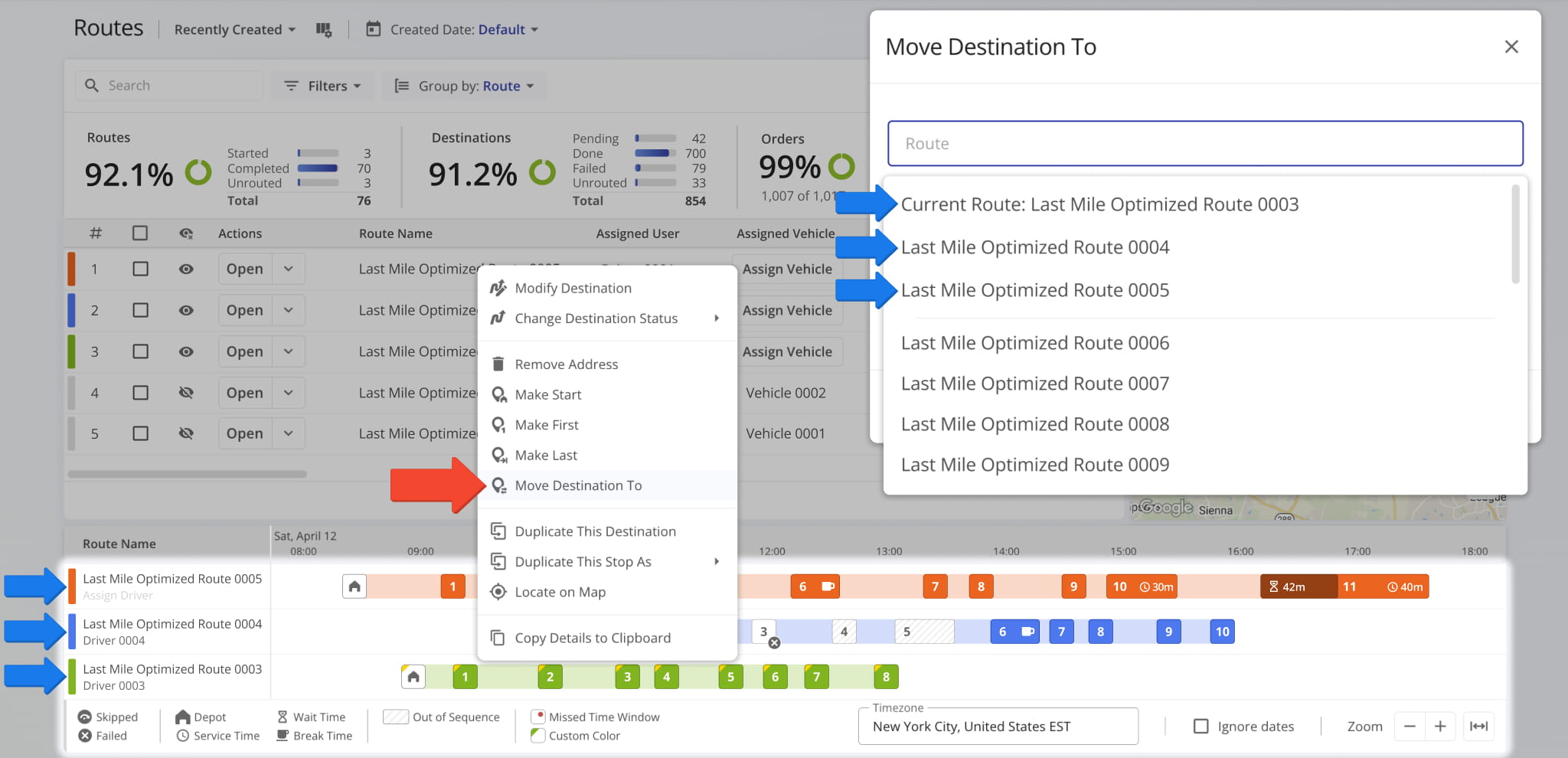
When you manage Strategic Optimizations and Strategic Scenarios, you have access to in-depth export customization through the “Deep Export” option. This update introduces dynamic filter options for optimization and scenario deep export. Additionally, new counters next to the Filter Button help you see exactly how many data items are available according to your settings.
Open Your Strategic Optimizations
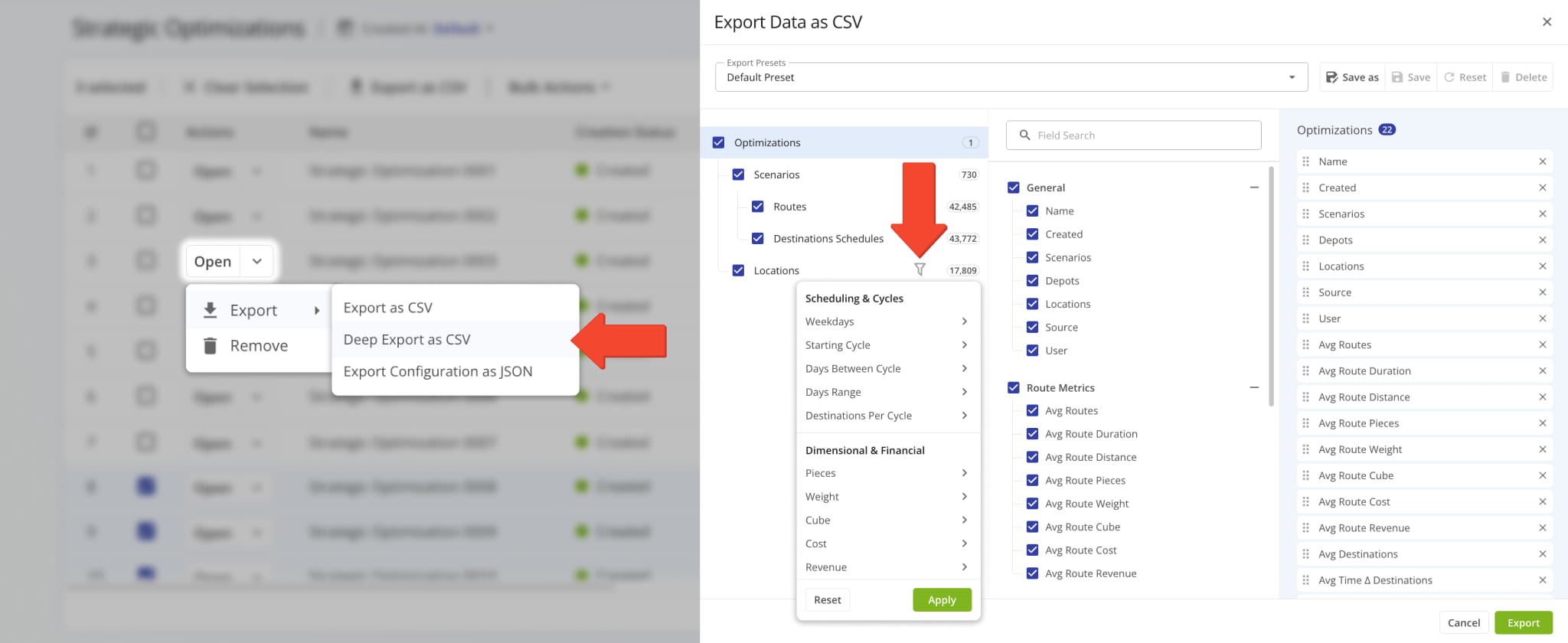
When you Manage Strategic Optimizations, you have the option to duplicate an optimization as a customizable draft. This update enables you to refine the Location Dataset of your duplicated draft by allowing the deletion of Locations.
Click the Down Arrow and select “Delete” to remove a Location. To delete multiple Locations, check the boxes next to them, click “Bulk Actions“, and select “Delete“. Previously, duplicated Strategic Optimization datasets couldn’t be customized.
Open Your Strategic Optimizations
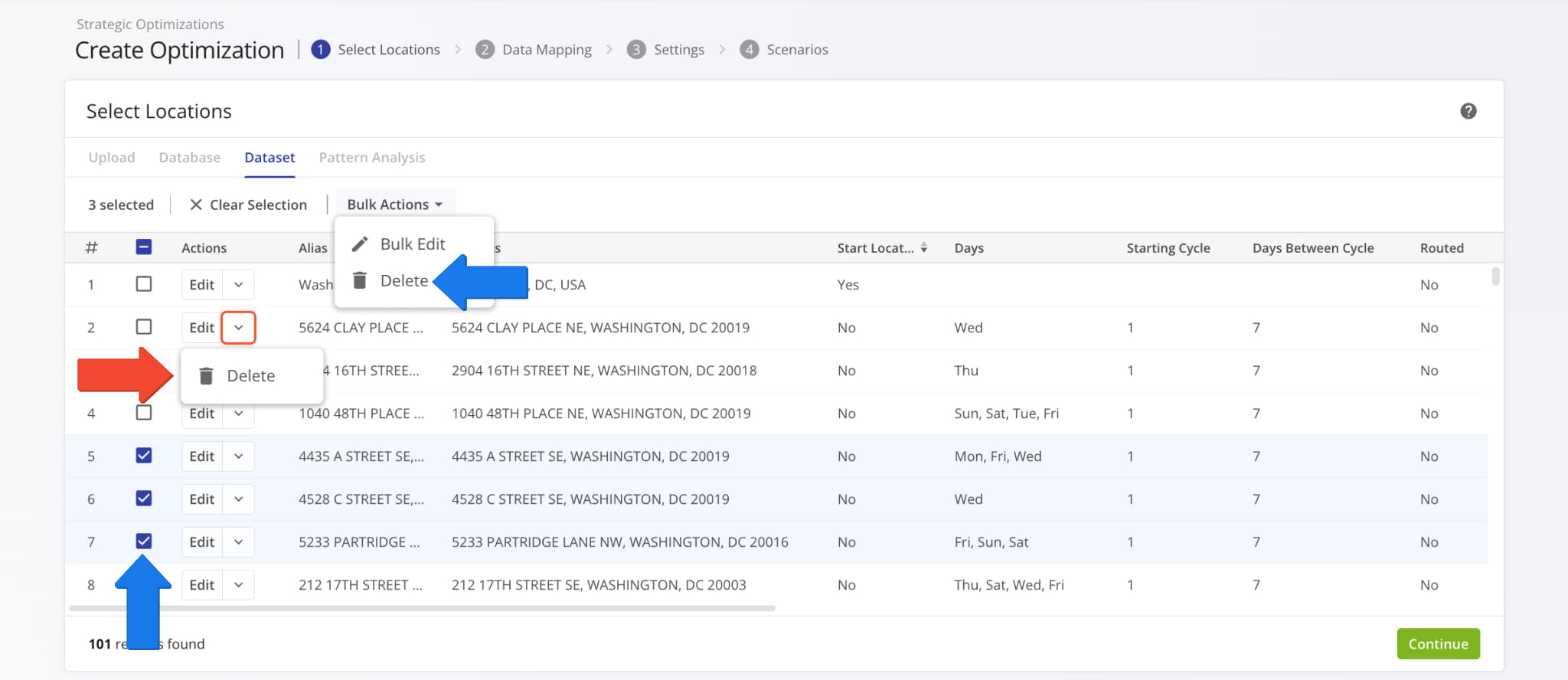
Route4Me TMS now supports adding “Man-Hours” values to Routes, Orders, and Locations via upload or manual creation settings. The image below shows an example of adding “Man-Hours” to a Location manually. Learn more about Adding Locations.
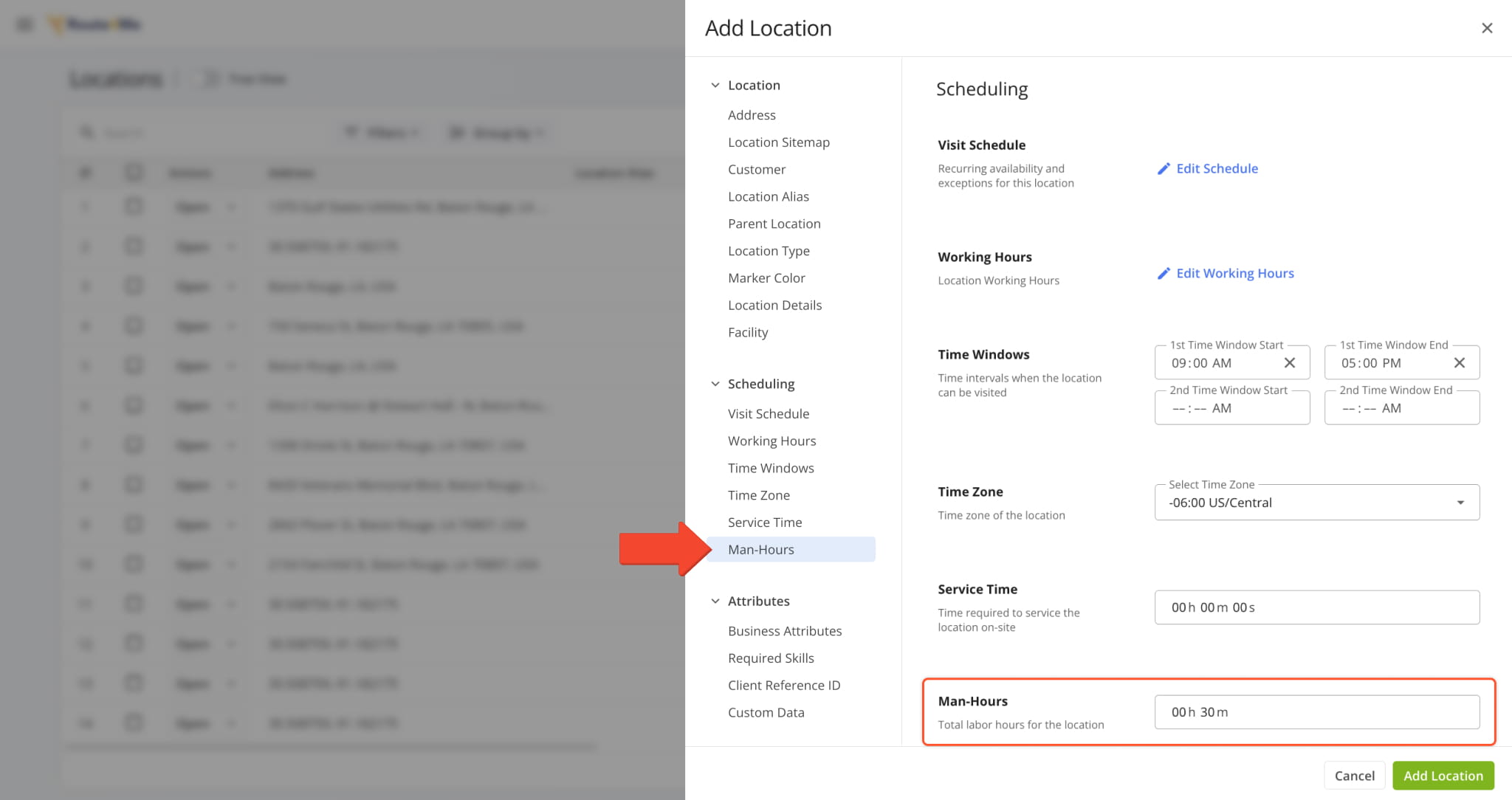
When you upload addresses to plan routes, you can add a “Man-Hours” column with time values for each address, and Route4Me will automatically validate your data and assign the corresponding man-hours values to each route destination.
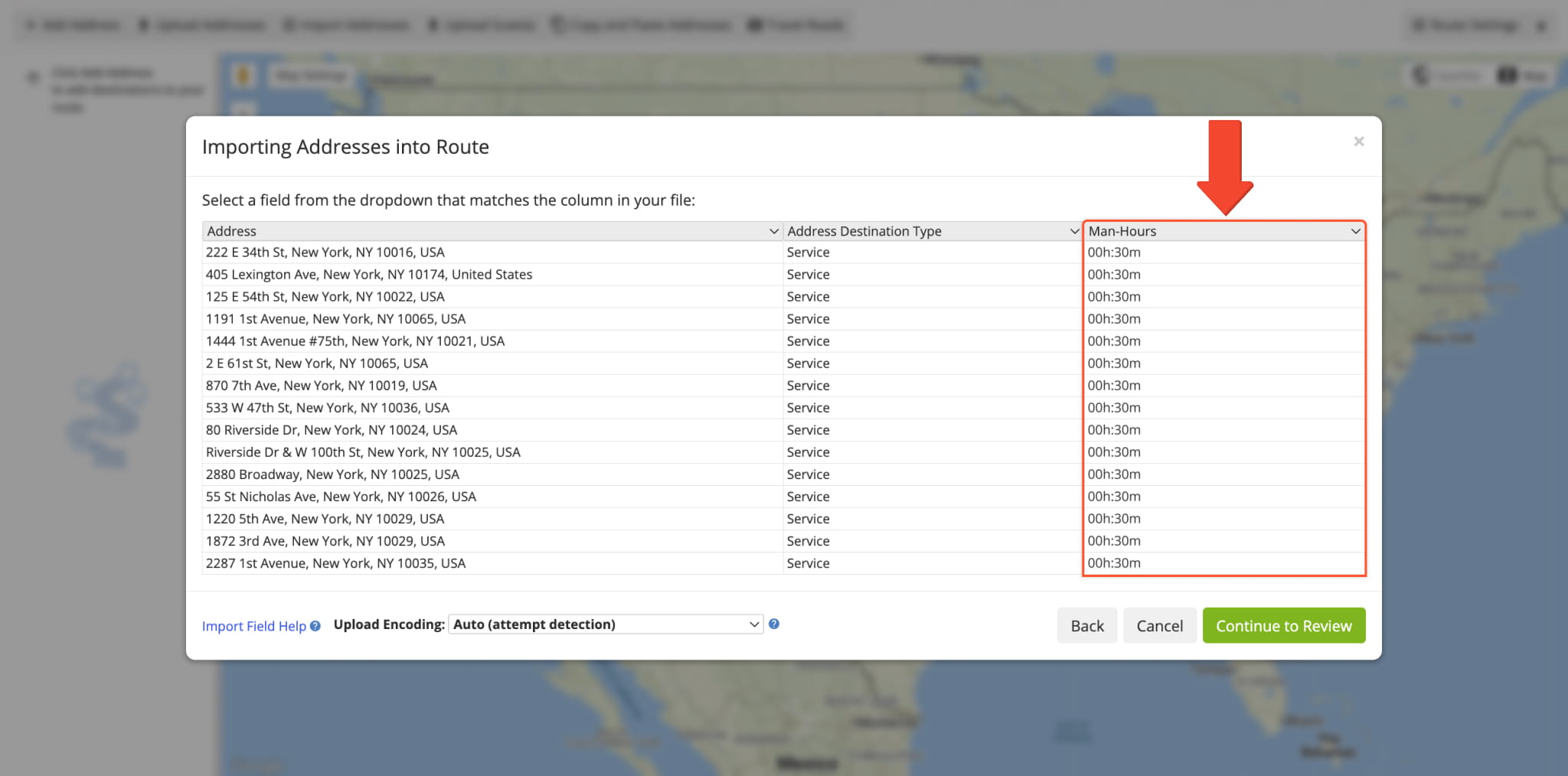
The same functionality is present when you Upload Orders and include the “man_hours” column with time values for each order. After importing, “Man-Hours” values will be applied to route destinations when planning routes with orders.
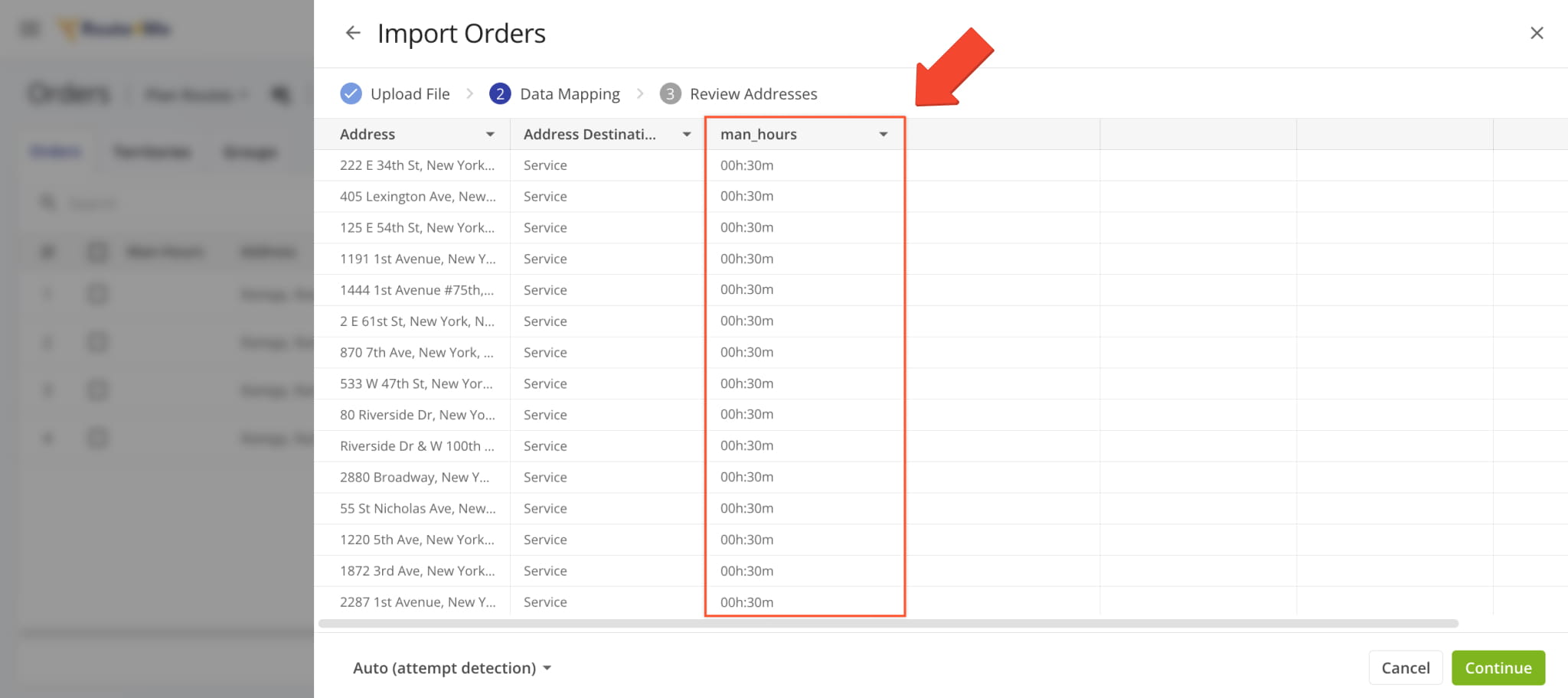
A new “Planned” field was added to the “Routes” section of the Route Performance Metrics dashboard. It shows the total number of filtered routes that have the “Planned” status (optimized and scheduled).
Previously, only three fields were available: “Unrouted“, “Started“, and “Completed“.
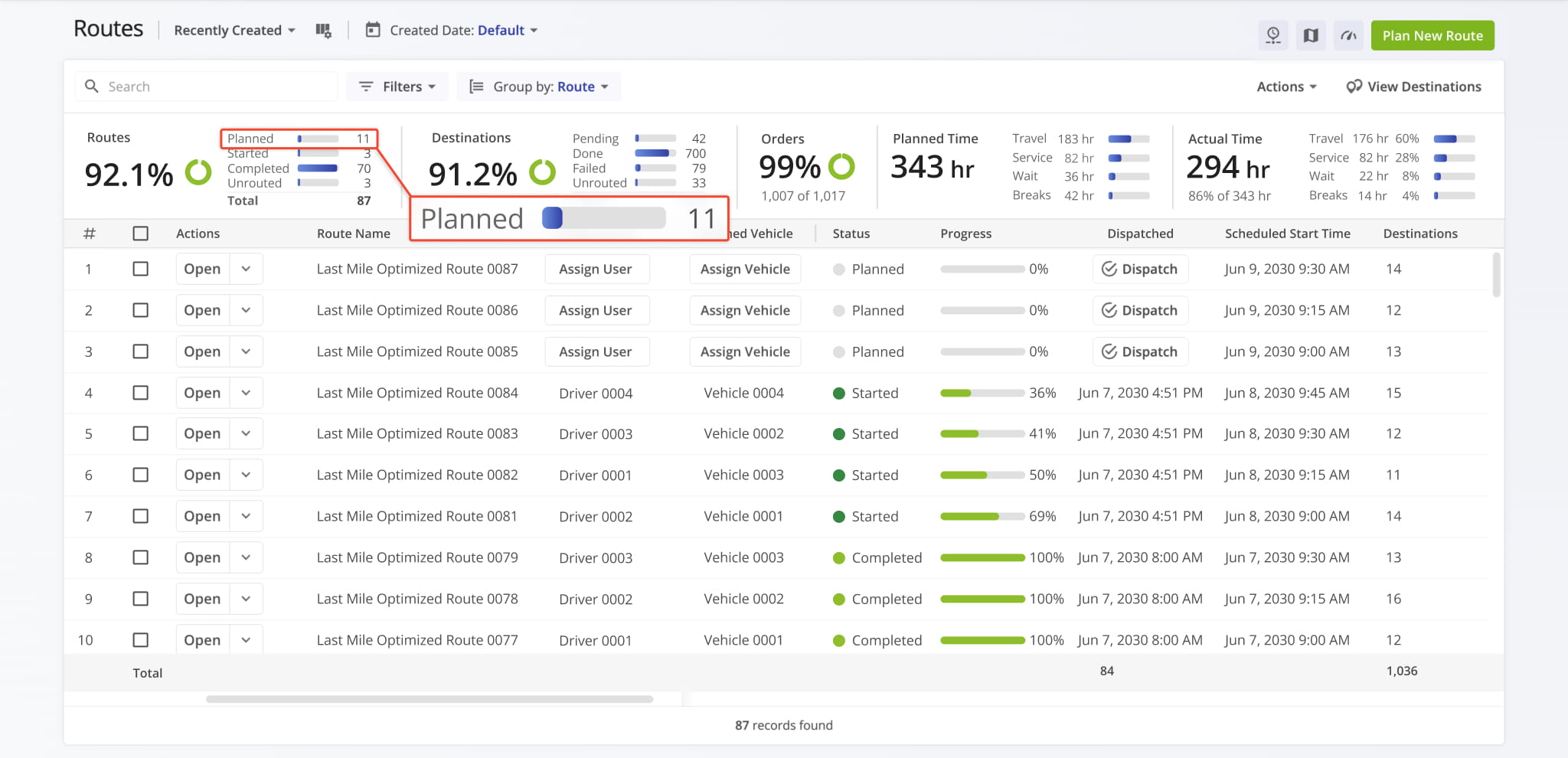
The Destinations Page “Customer” column was updated with new dynamic functionality. When you hover over a Customer, you’ll see a new button. You can click the new Open Button to go directly to the corresponding Customer Snapshot.
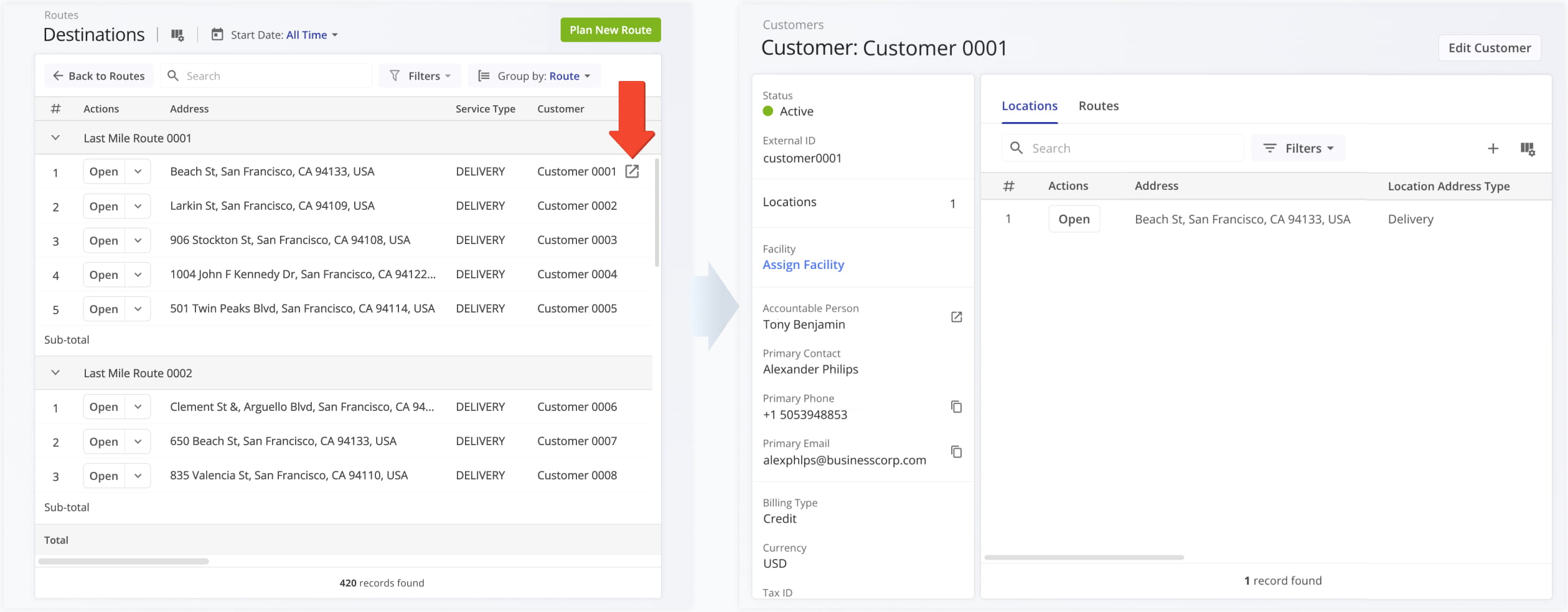
The Orders List in the Route4Me Mobile Driver App has been redesigned to show Facility Attribution and more order details. In addition to previously available information, you can see the name and address of an order’s associated facility and destination.
Previously, only order alias, distance, and status were available on the mobile app orders list.
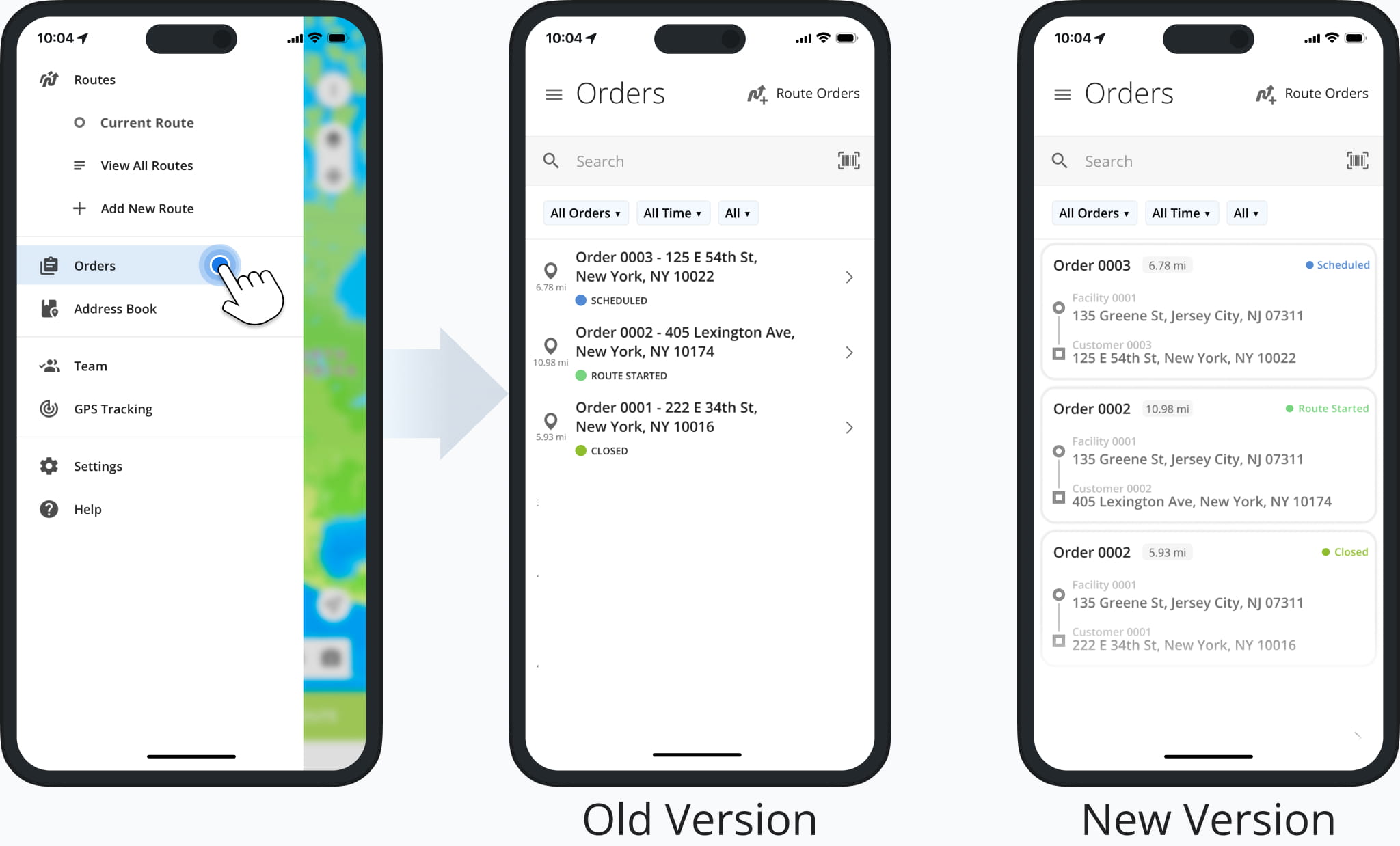
A new ERP Item and Service Master page was released. It provides enterprise business users with a centralized view of all Items and Services in their ERP system. From this page, you can review details, track status, and organize records.
Open Your Items & Service Master
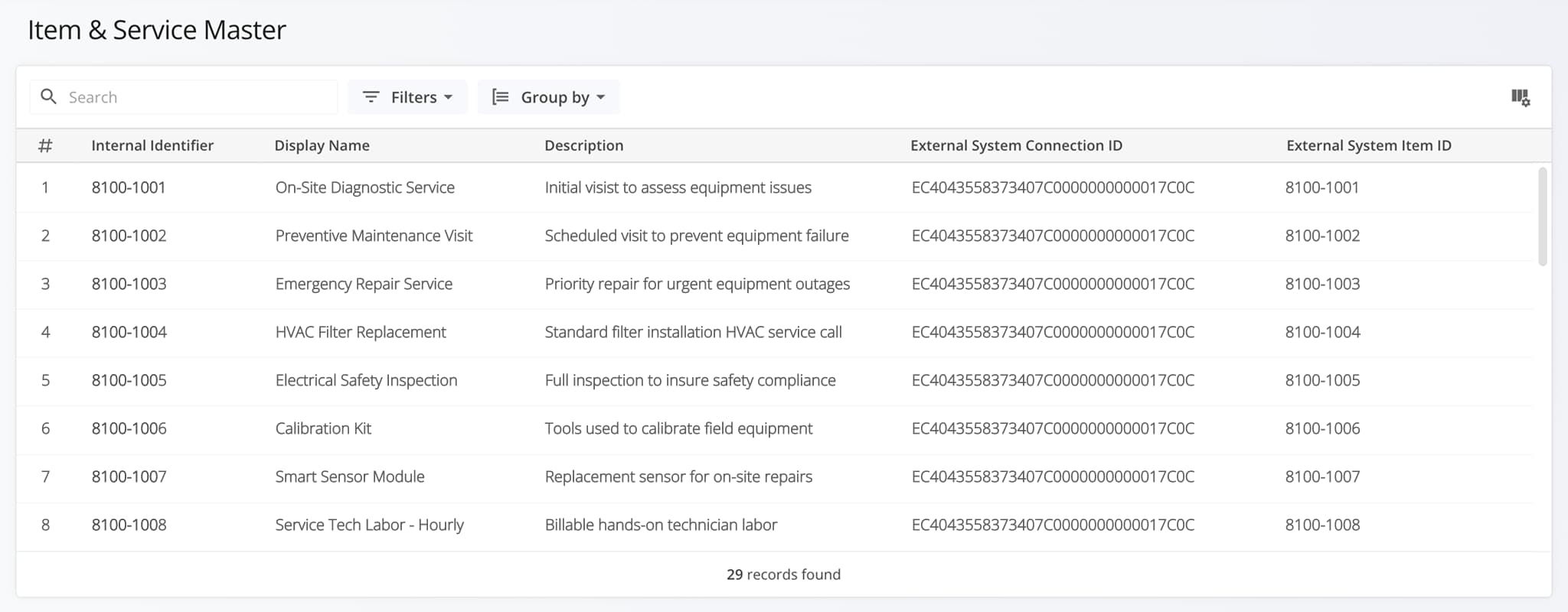
A new “Select All” option was added to the Route Export configurator. This enables you to select every available route data option for your export file with a single click, streamlining the process of downloading route data. Learn more about exporting routes.
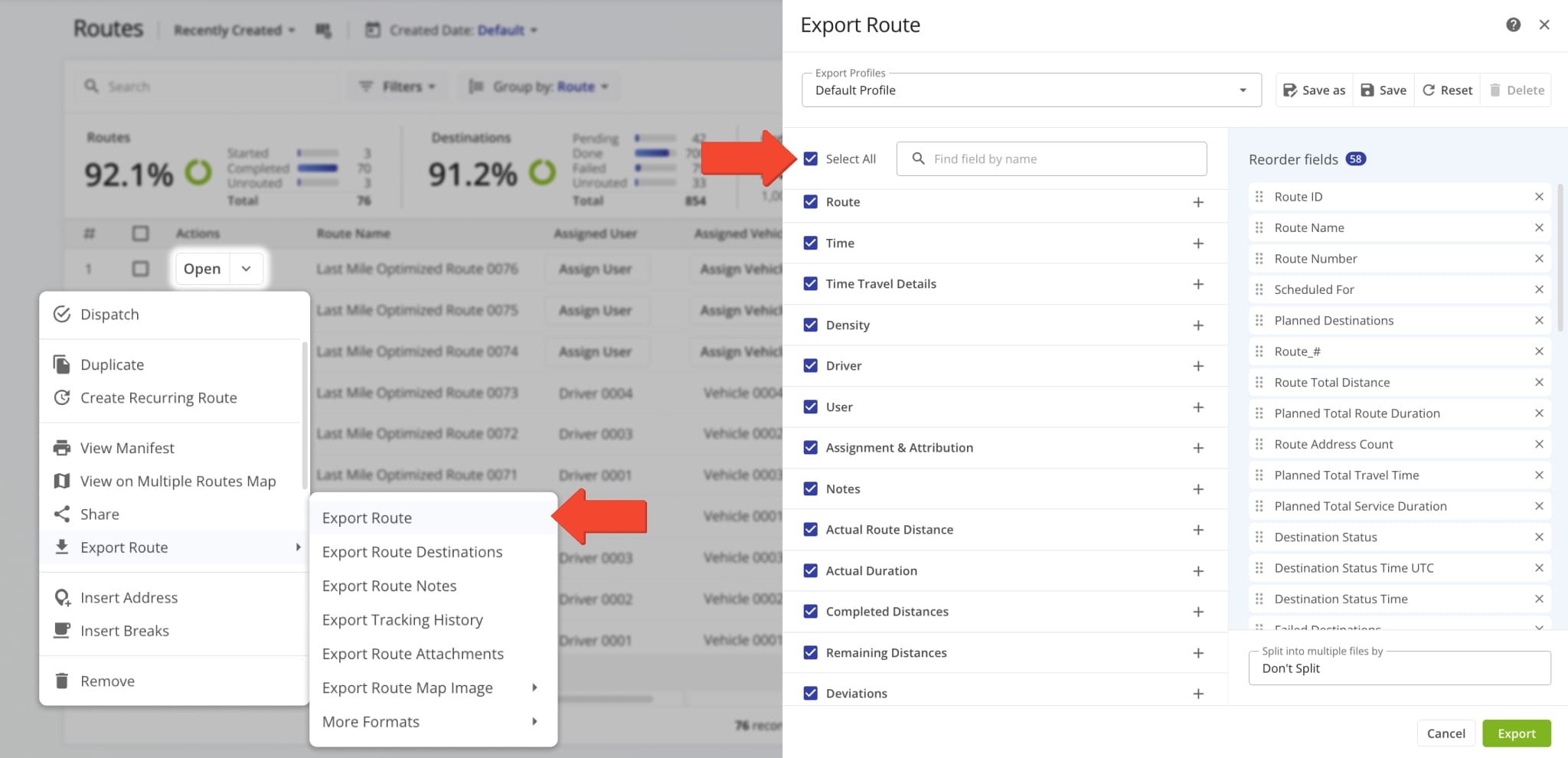
The XML file format is no longer supported for data export due to being outdated. Learn more about exporting routes.
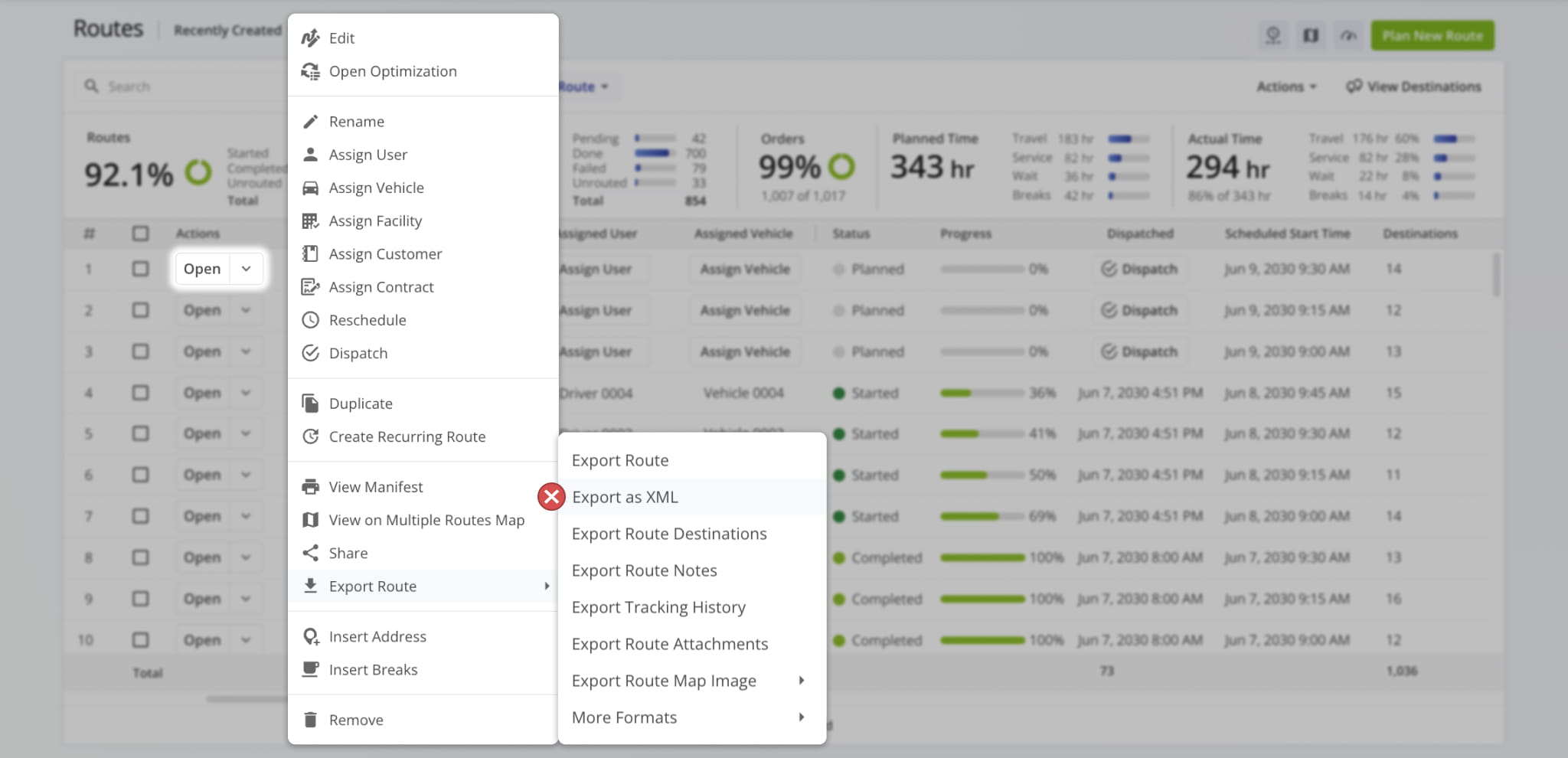
A new “Customer Reference Number” action was added to Workflows. With this new action type, assigned users can easily confirm a customer’s reference number when visiting route destinations. Learn more about collecting proof of service.
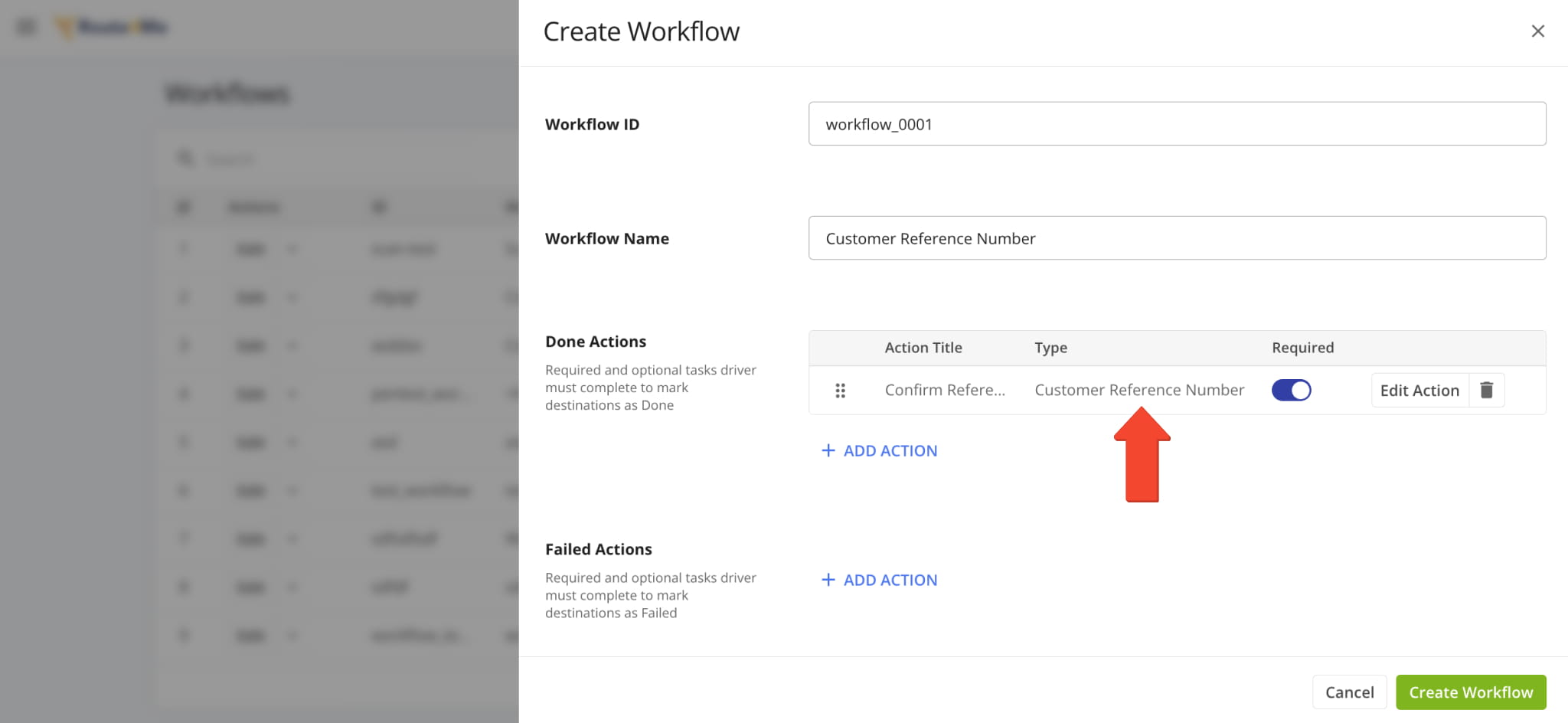
The “Notes” section of Route Snapshots has been redesigned. Previously, the “Notes” tab contained a simple data table showing Destination Note information. Now, each Note has additional context with its associated address and time always visible, as well as attachment media previews, timestamps, and more.
Additionally, you can click any image (photo, signature, etc.) to open it in full size in a new tab.
The “Notes” section of Destination Snapshots has been redesigned. Previously, the “Notes” tab contained a simple data table showing Destination Note information. Now, each Note has additional context with its associated address and time always visible, as well as attachment media previews, timestamps, and more.
Additionally, you can click any image (photo, signature, etc.) to open it in full size in a new tab.
The Route Performance Metrics feature was added to User Snapshots. The Performance Metrics panel provides a summary of the user’s planned and completed routes, destinations, orders, time distribution, etc. It enables you to monitor progress, track efficiency, and evaluate the operational performance of a user across your filtered routes with real-time data visualization.
The Route Performance Metrics feature was added to Vehicle Snapshots. The Performance Metrics panel provides a summary of the vehicle’s planned and completed routes, destinations, orders, time distribution, etc. It enables you to monitor progress, track efficiency, and evaluate the operational performance and vehicle utilization of your fleet with real-time data visualization.
The Route Performance Metrics feature was added to Facility Snapshots. The Performance Metrics panel provides a summary of the facility’s associated planned and completed routes, destinations, orders, time distribution, etc. It enables you to monitor progress, track efficiency, and evaluate operational performance across your organization with clear data visualization.
The Route Performance Metrics feature was added to Location Snapshots. The Performance Metrics panel provides a summary of a location’s associated planned and completed routes, destinations, orders, time distribution, etc. It enables you to monitor progress, track efficiency, and evaluate operational performance at customer locations with clear data visualization.
The Route Performance Metrics feature was added to Optimization Snapshots. The Performance Metrics panel provides a summary of an optimization’s associated planned and completed routes, destinations, orders, time distribution, etc. It enables you to monitor progress, track efficiency, and evaluate operational performance with clear data visualization.
The “Route Status” data column was added to the Route Export customizer. This column shows the current status (“Planned“, “Started“, or “Completed“) of the route at the time of export. Learn more about exporting routes.
Additionally, the “Note ID” data column was added to the Route Notes Export customizer. This column shows the unique alphanumeric IDs Destination Notes on the route. Learn more about exporting routes.
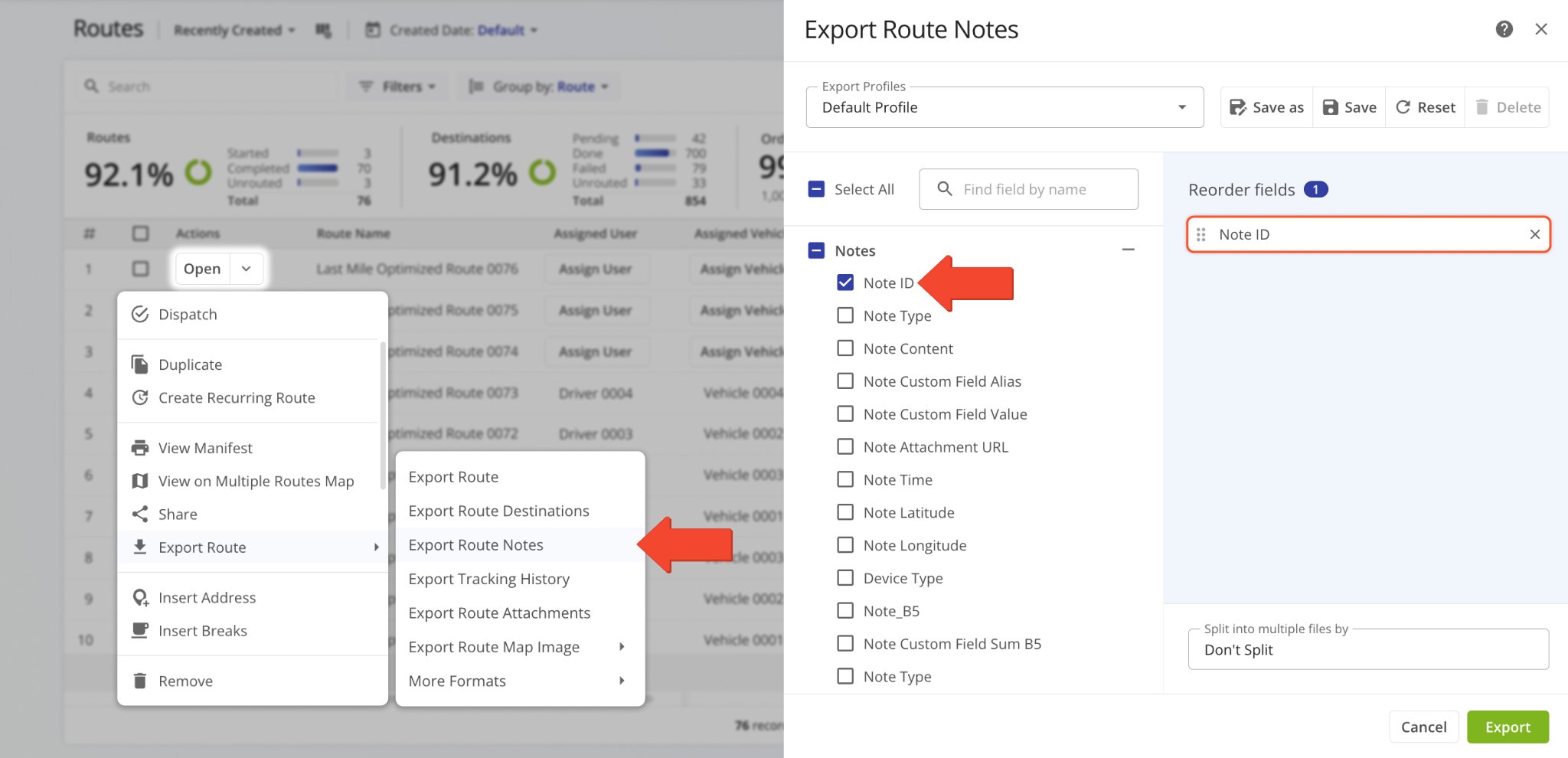
A new “Tracking” section was added to User Snapshots. In the “Tracking” tab, you can see a list of location updates associated with a user. Each update corresponds to an instance when the user’s location was synced. Tracking updates contain timestamps, coordinate and location details, and detailed vehicle information if synced via Telematics Integration.
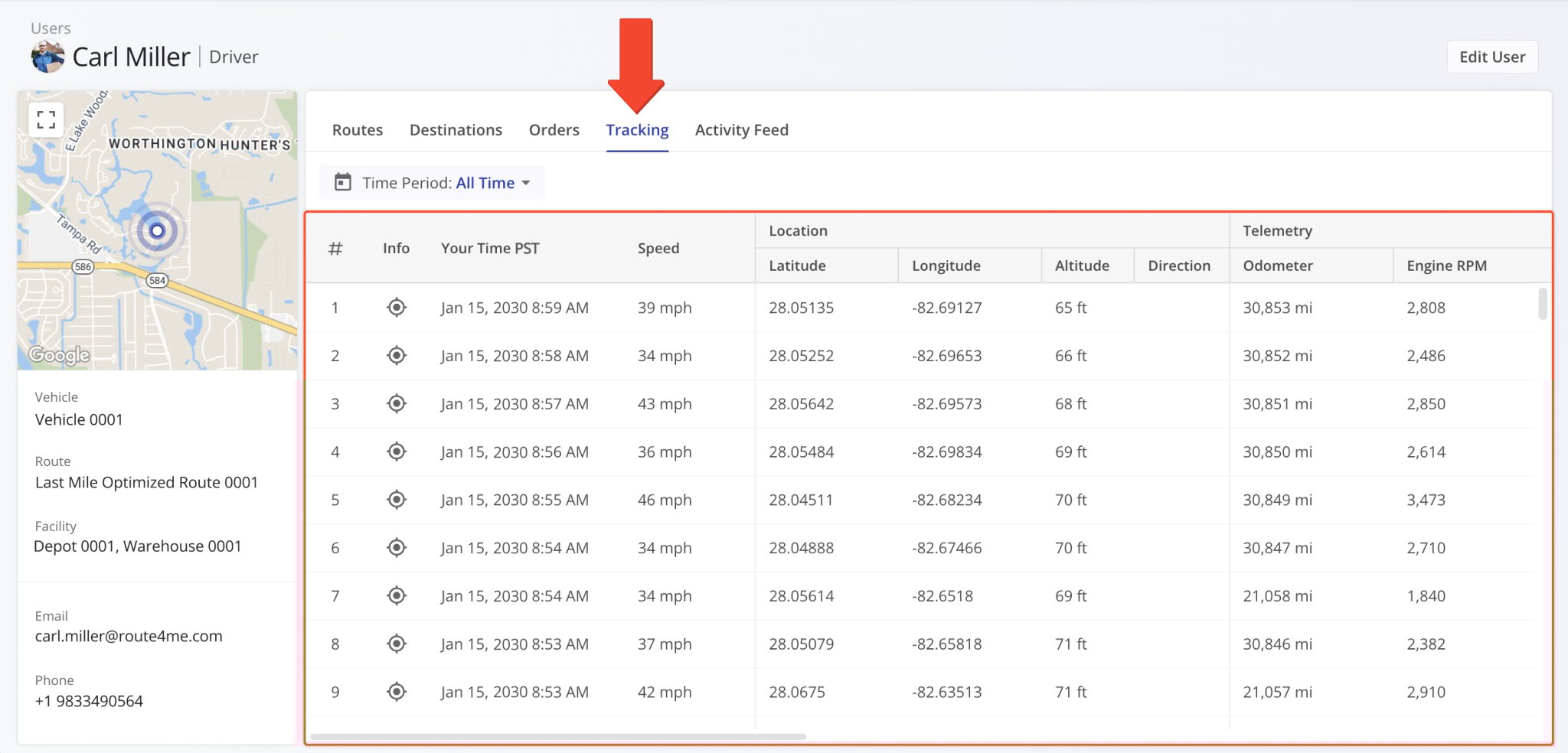
Additionally, you can hover over the Tracking Icon in the “Info” column to view a tracking summary for the respective location update. In detail, this will open a pop-up window that shows the location update’s associated coordinates, device timestamp, vehicle speed, odometer reading, and the user’s location on the map at the time of the location update.
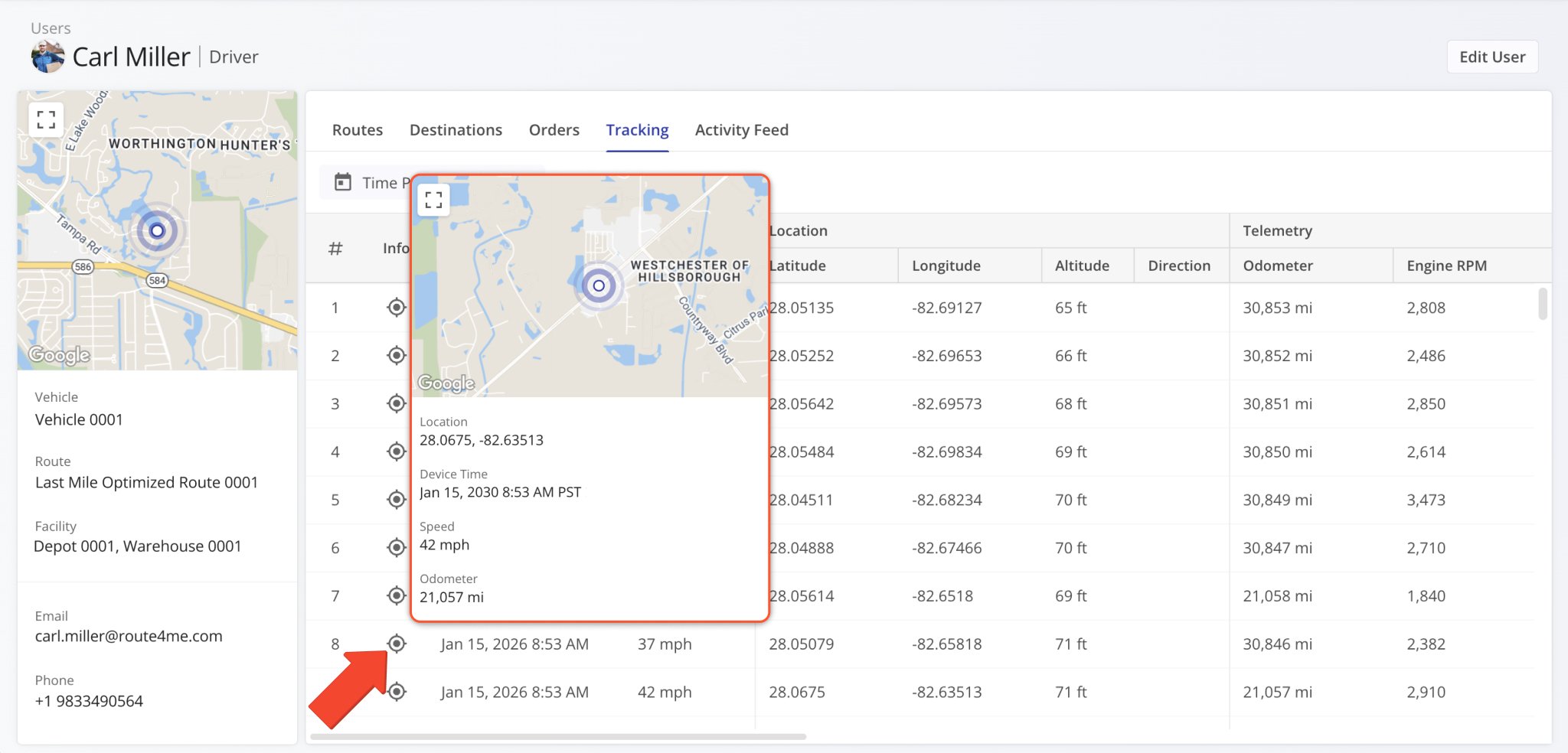
A new “Tracking” section was added to Vehicle Snapshots. In the “Tracking” tab, you can see a list of location updates associated with a vehicle. Each update corresponds to an instance when the vehicle’s location was synced. Tracking updates contain timestamps, coordinate and location details, and detailed vehicle information if synced via Telematics Integration.
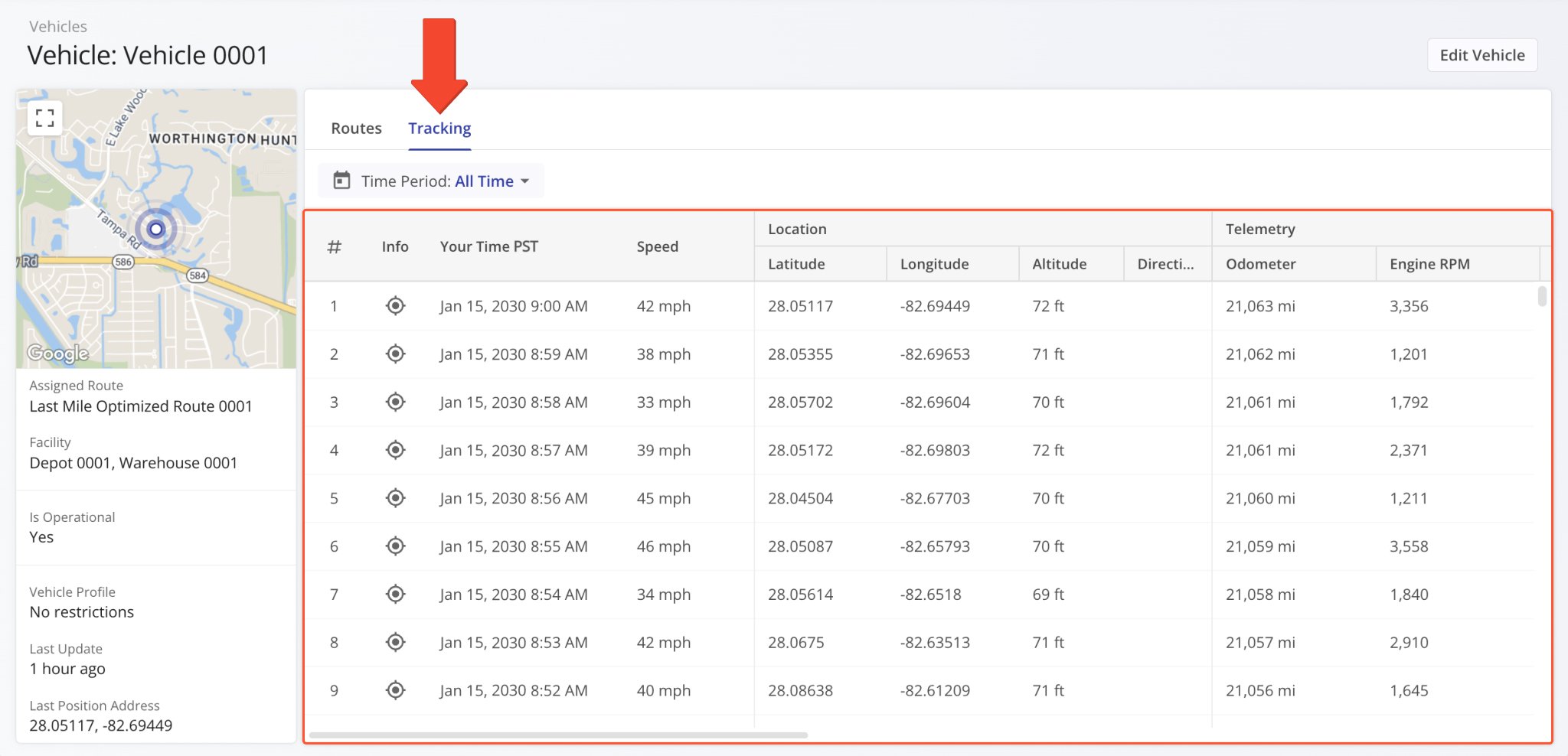
Additionally, you can hover over the Tracking Icon in the “Info” column to view a tracking summary for the respective location update. In detail, this will open a pop-up window that shows the location update’s associated coordinates, device timestamp, vehicle speed, odometer reading, and the vehicle’s location on the map at the time of the location update.
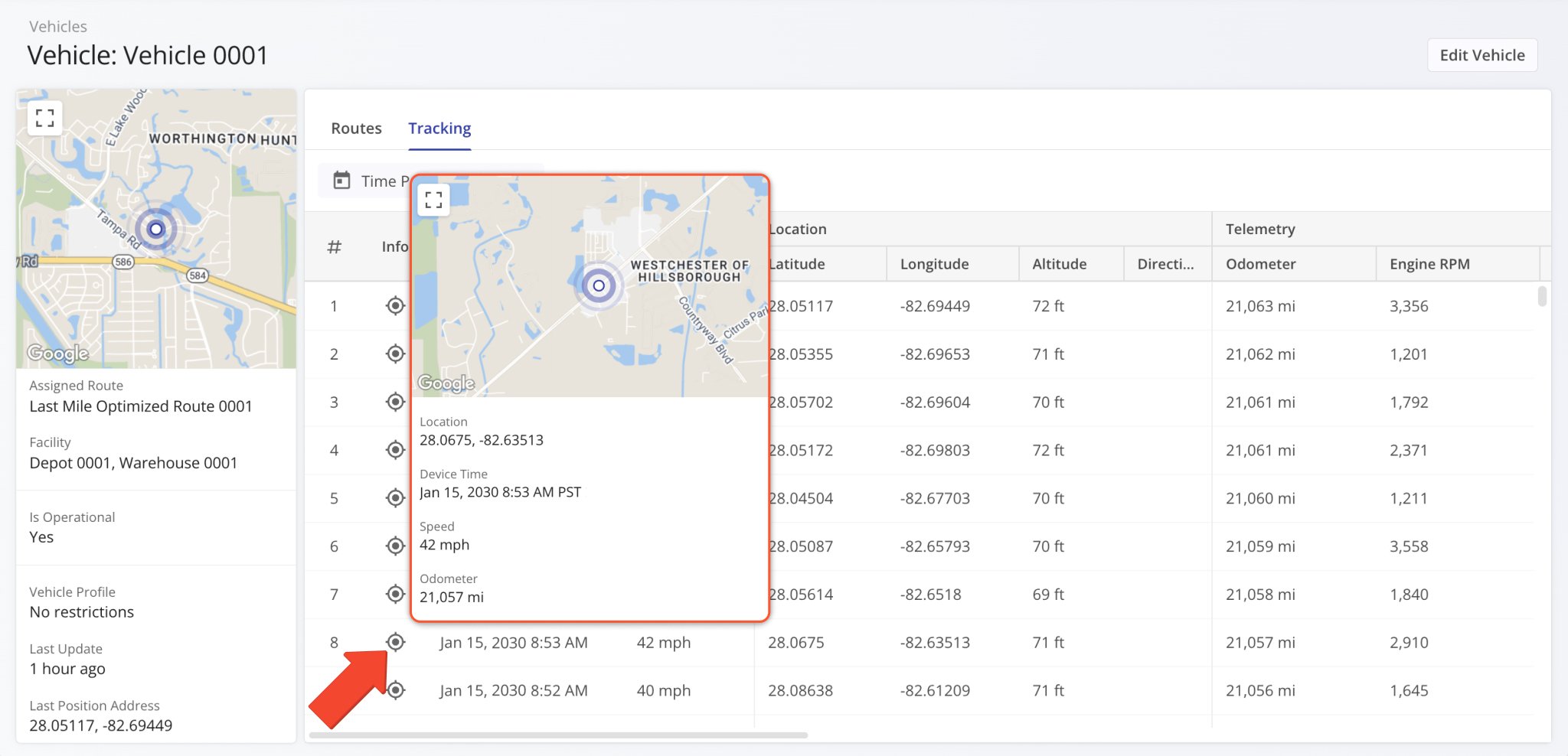
The “Recipient Phone” and “Recipient Email” columns were added to the Notifications History page. They show a contact person’s phone number and email address, respectively. This enables you to easily find the contact details associated with any of your customer notifications. Previously, only the timestamp, trigger, and message text were available.
Open Your Notifications History
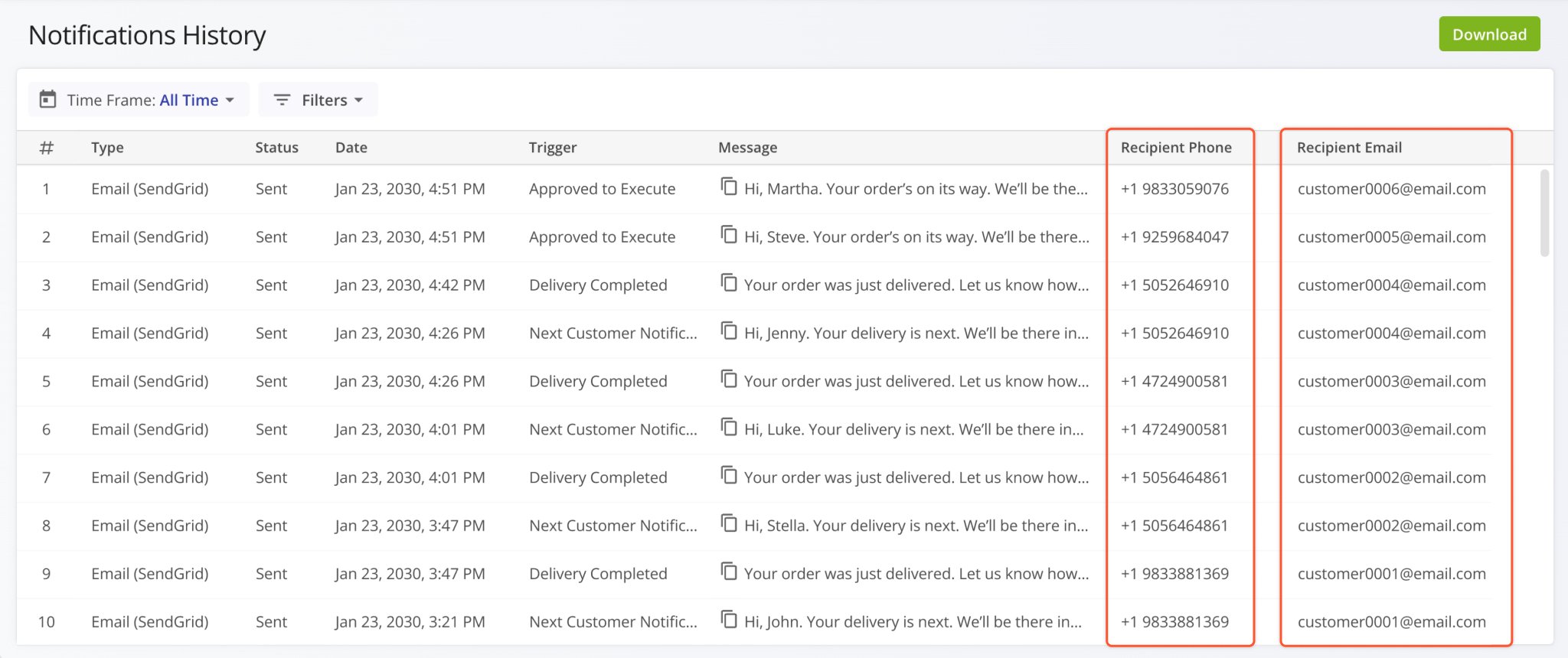
Route Status indicators were added to the Routes List in the Route4Me Mobile App. This enables users to easily see the current status (“Planned“, “Started“, or “Completed“) of routes. By tapping the Search Icon and inputting a status, users can easily find all routes visible to them with the corresponding route status. Learn more about Mobile Route Management.
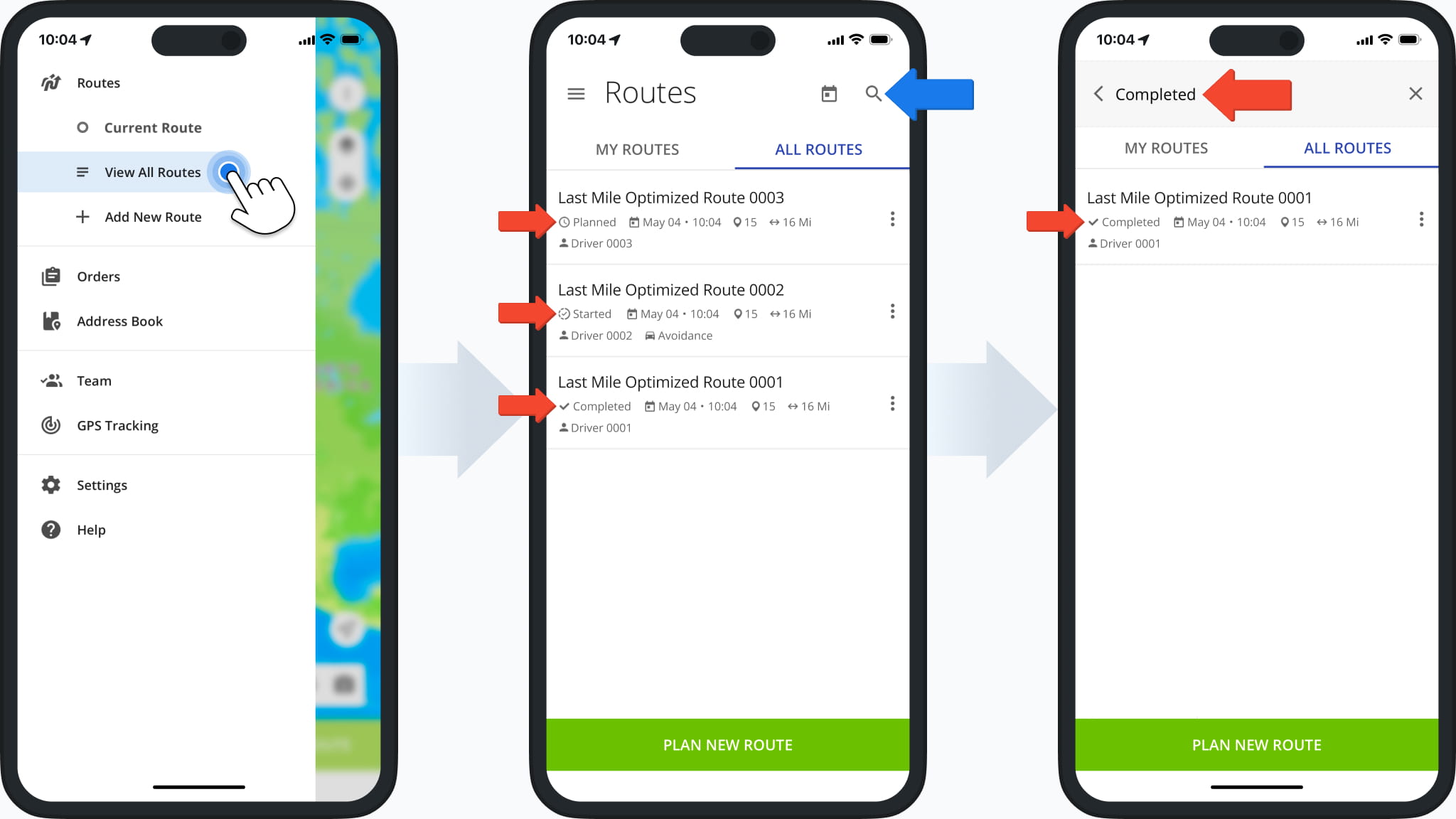
A new “Export Route Notes” option was added to the Route Export menu. It enables you to export all destination notes associated with the selected routes with full export column customization functionality.
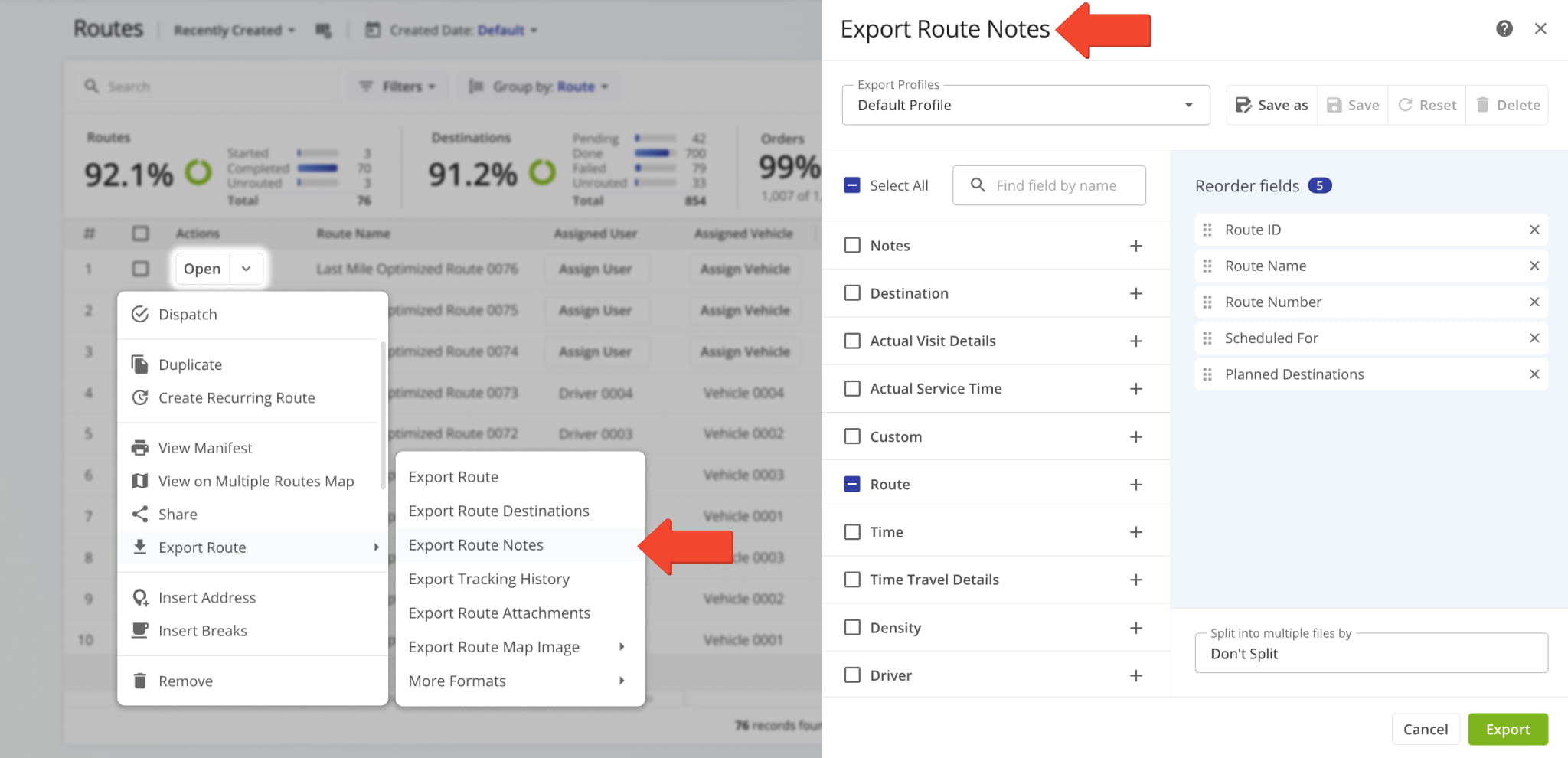
The route sequence display column “Route #” on the Routes Page can now be used to sort routes according to their optimization sequence. When you optimize multiple routes with one optimization, routes optimized earlier have a lower number than routes optimized later. When you optimize a single route, its “Route #” value will always be “1“.
Learn more about Route4Me Optimizations.
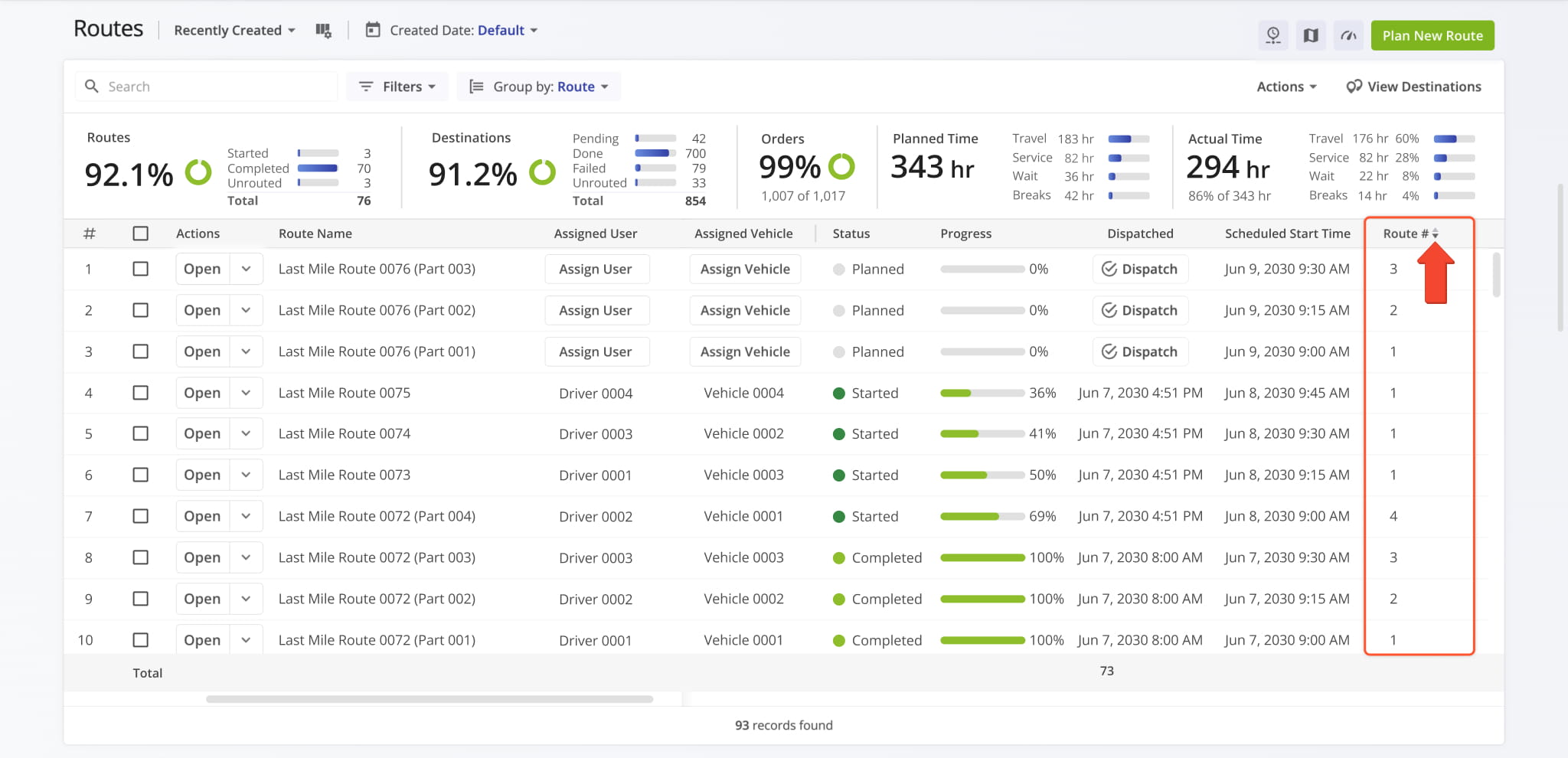
A new option to “Modify Destination” was added when you right-click a destination in the Routes Page Timeline.
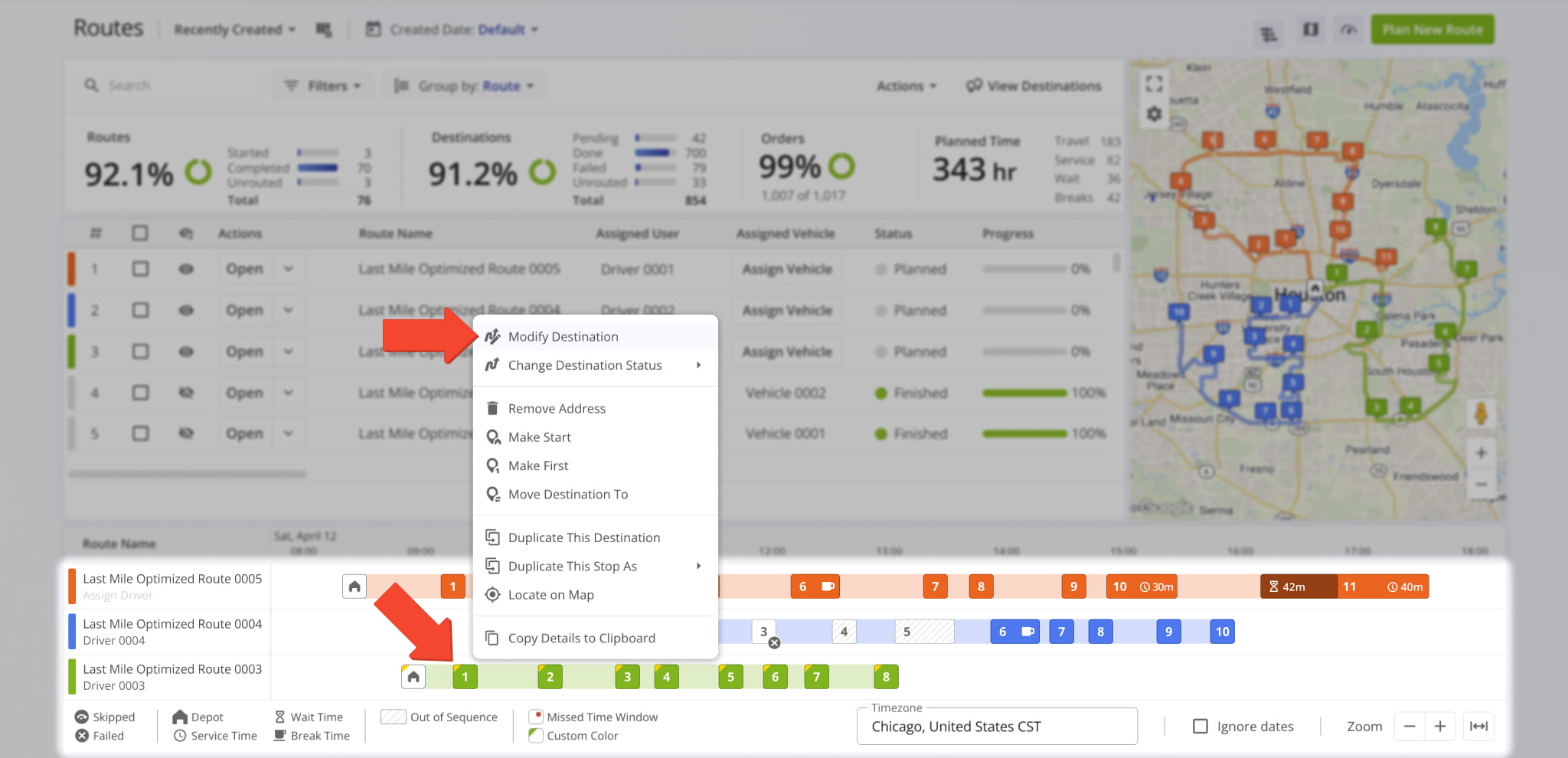
This opens the “Edit Destination” panel where you can see and modify destination details and open associated entities (route, user, etc.). The functionality of the “Edit Destination” interface is similar to the “Destination Info” in your Route Editor.
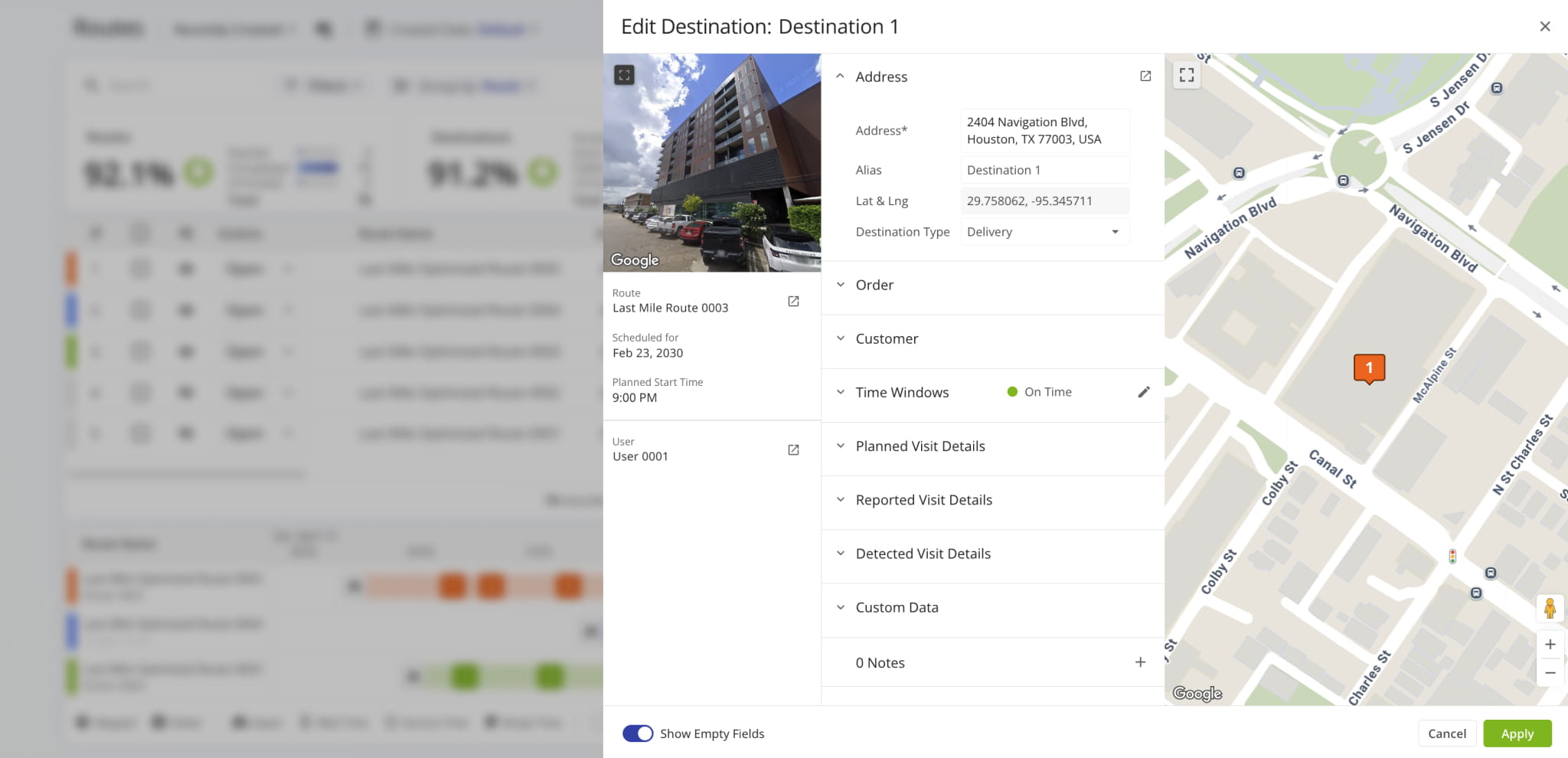
The available options in the “Export Route” menu have been renamed and resequenced to provide a more streamlined and efficient experience when you download routes. Learn more about exporting routes.
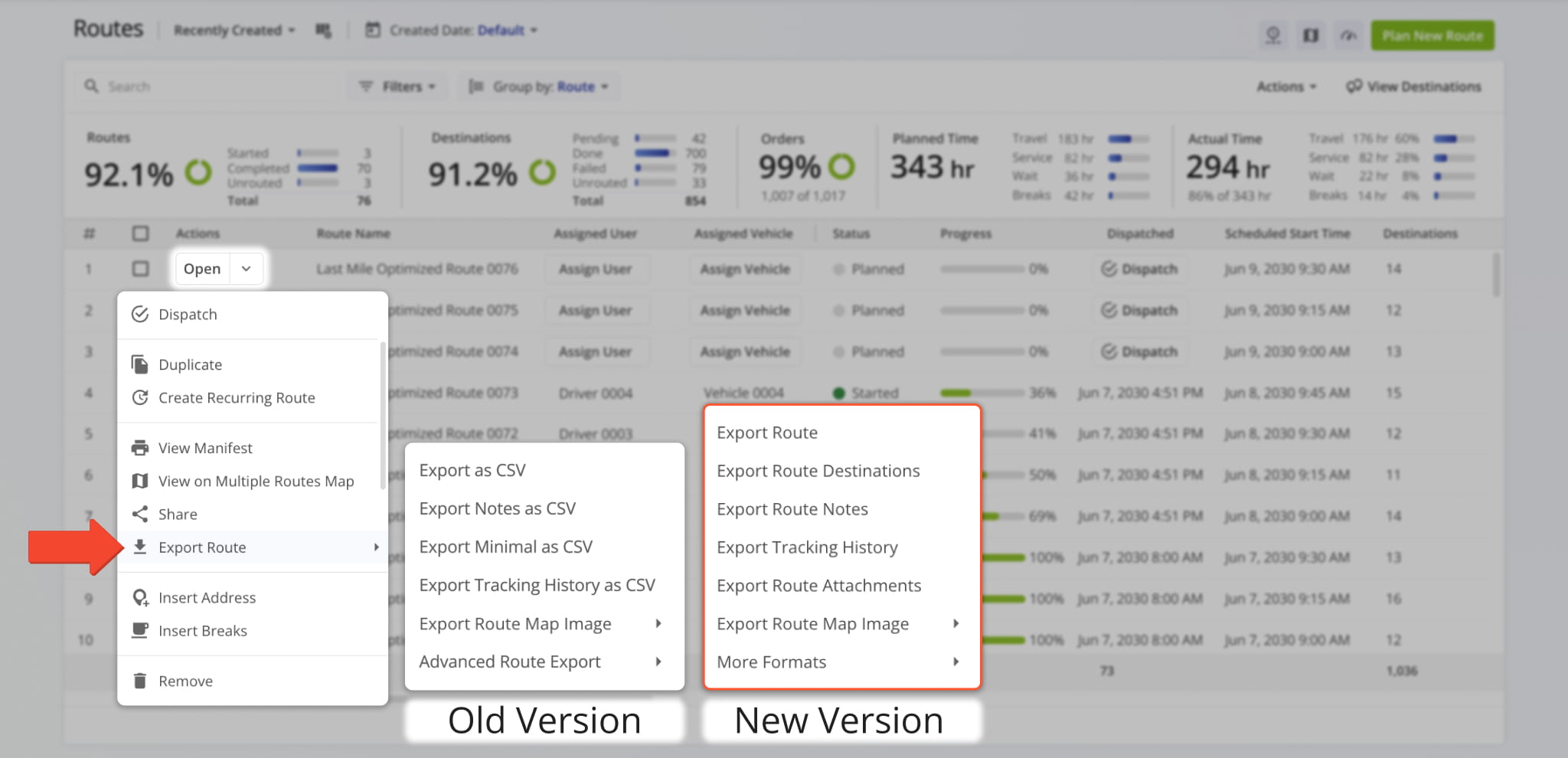
New vehicle odometer columns have been added to the Routes Page in “Display Columns” > “Key Metrics“.
The “Route Start Odometer” column shows the odometer reading of an Assigned Vehicle at the start of a route.
The “Route End Odometer” column shows the odometer reading of an Assigned Vehicle at the end of a route.
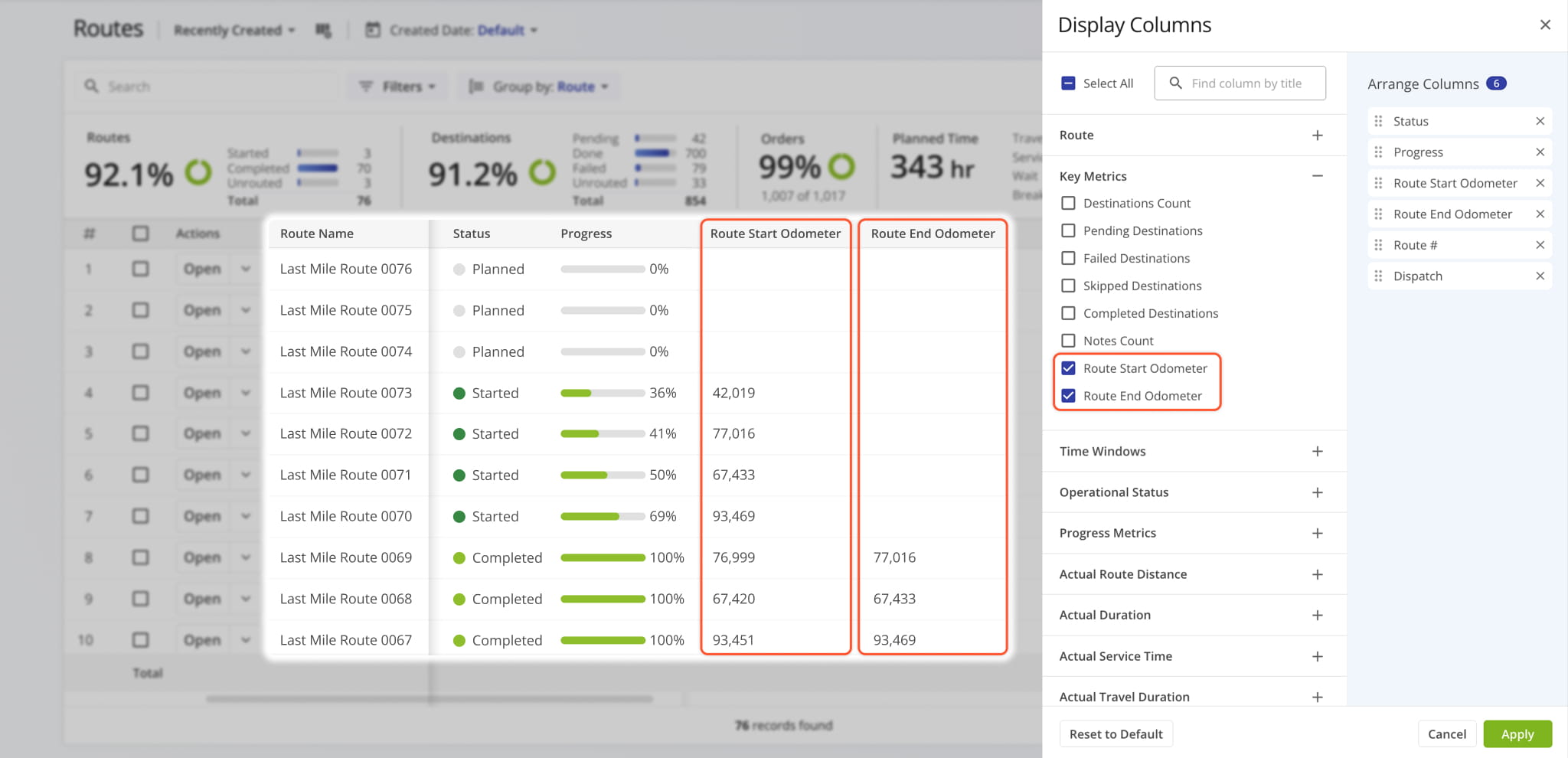
A new “Dataset” function was added when duplicating Strategic Optimizations. It enables you to select Locations from the original duplicated optimization for use in the new optimization.
Open Your Strategic Optimizations
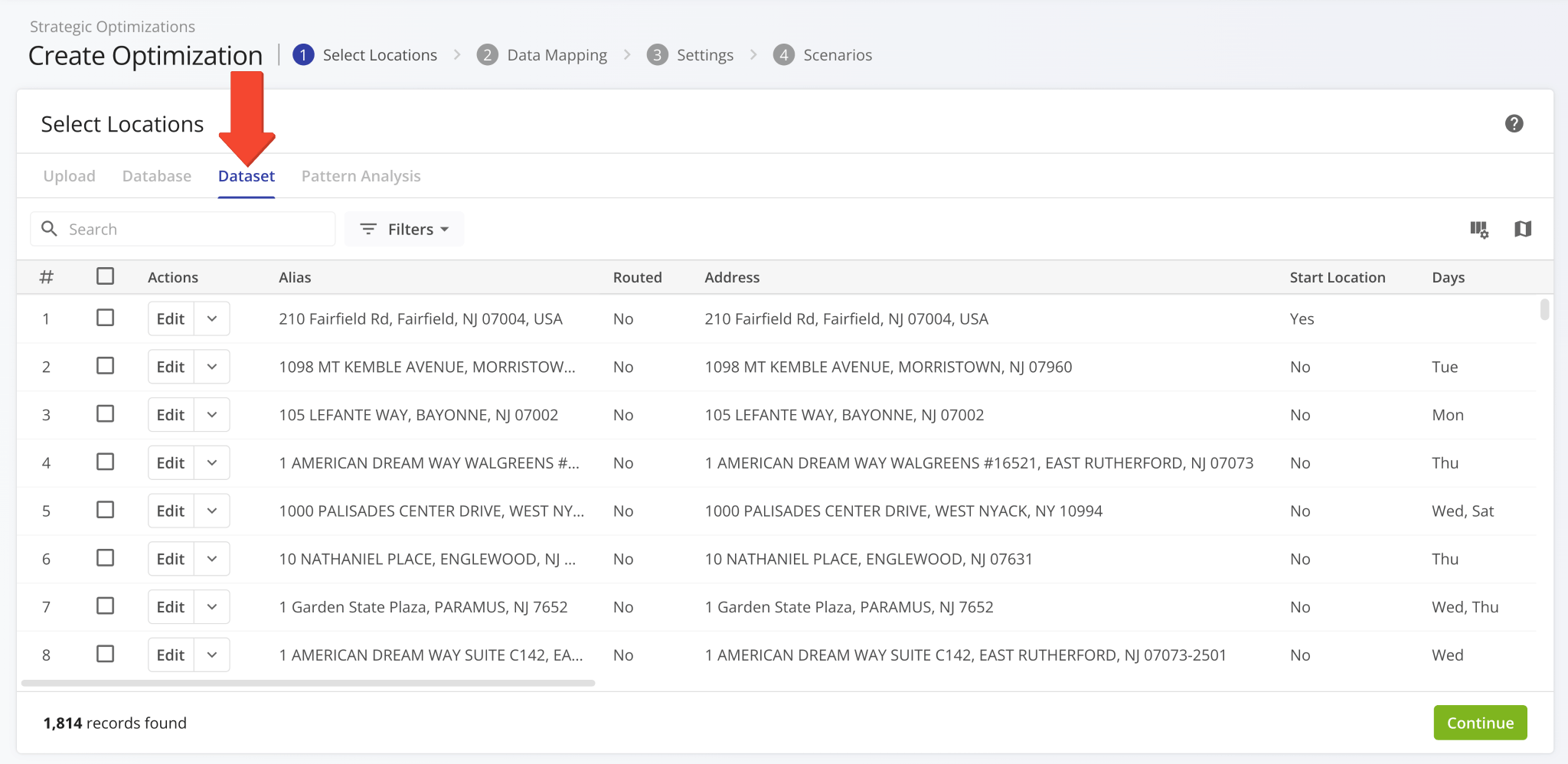
A new “Duplicate Optimization and Edit All” button was added to the “Locations” tab of open Strategic Optimizations. It enables you to create an editable draft based on the current optimization with all locations and scenarios.
Open Your Strategic Optimizations
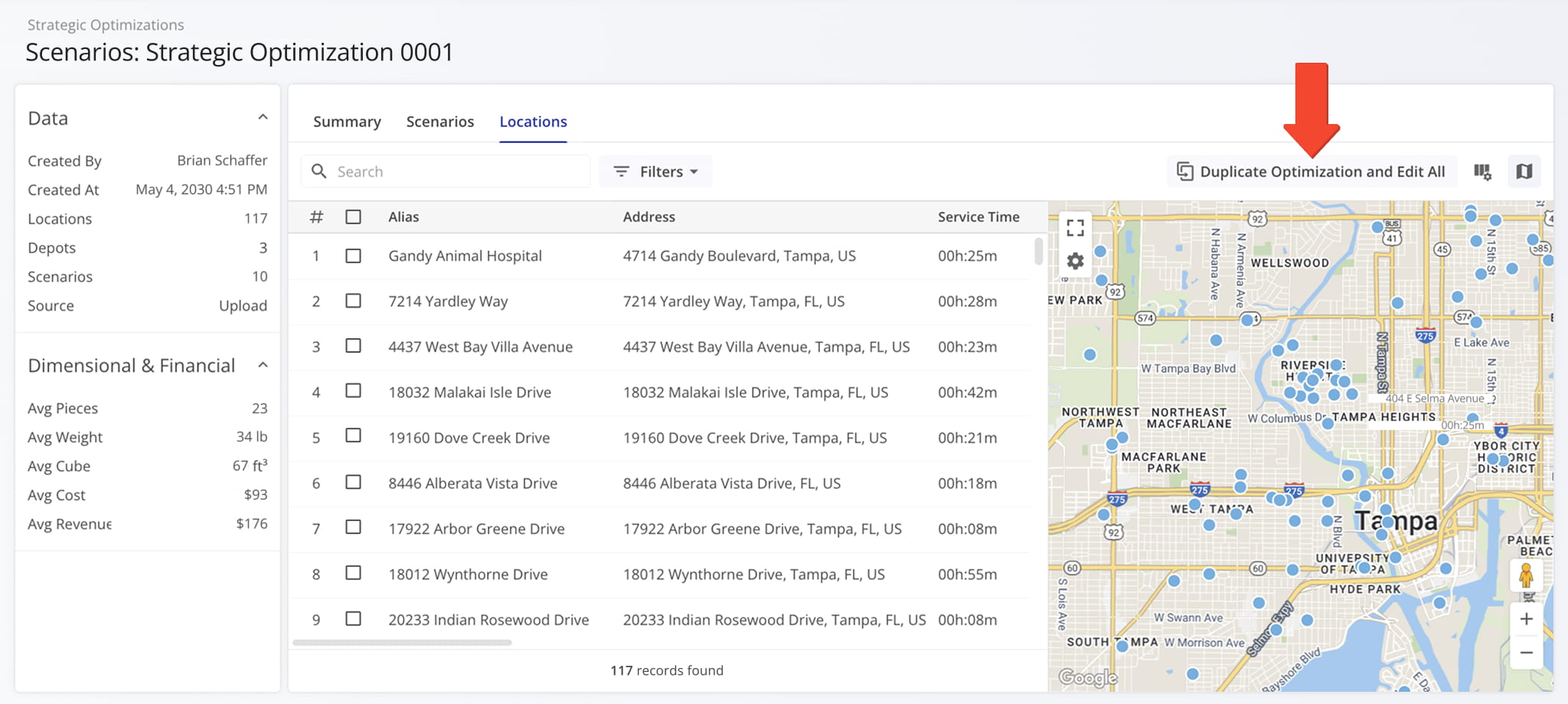
You can also do the same with only specific locations by selecting them and clicking “Bulk Actions” to access the “Duplicate Optimization and Edit Selected” option to create an editable draft based on the current optimization with the selected locations.
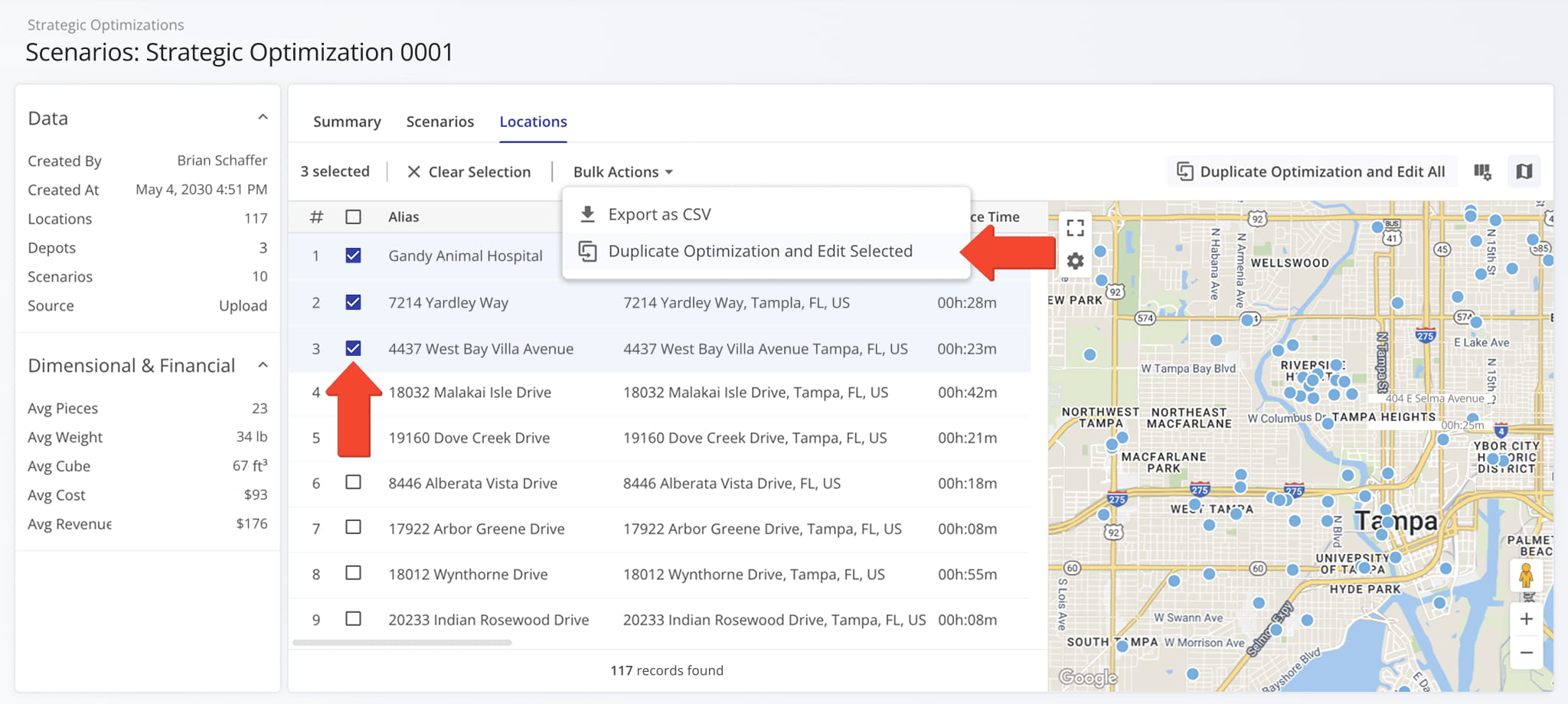
A new vehicle odometer column was added to the Vehicles Page in “Display Columns” > “Telemetry“.
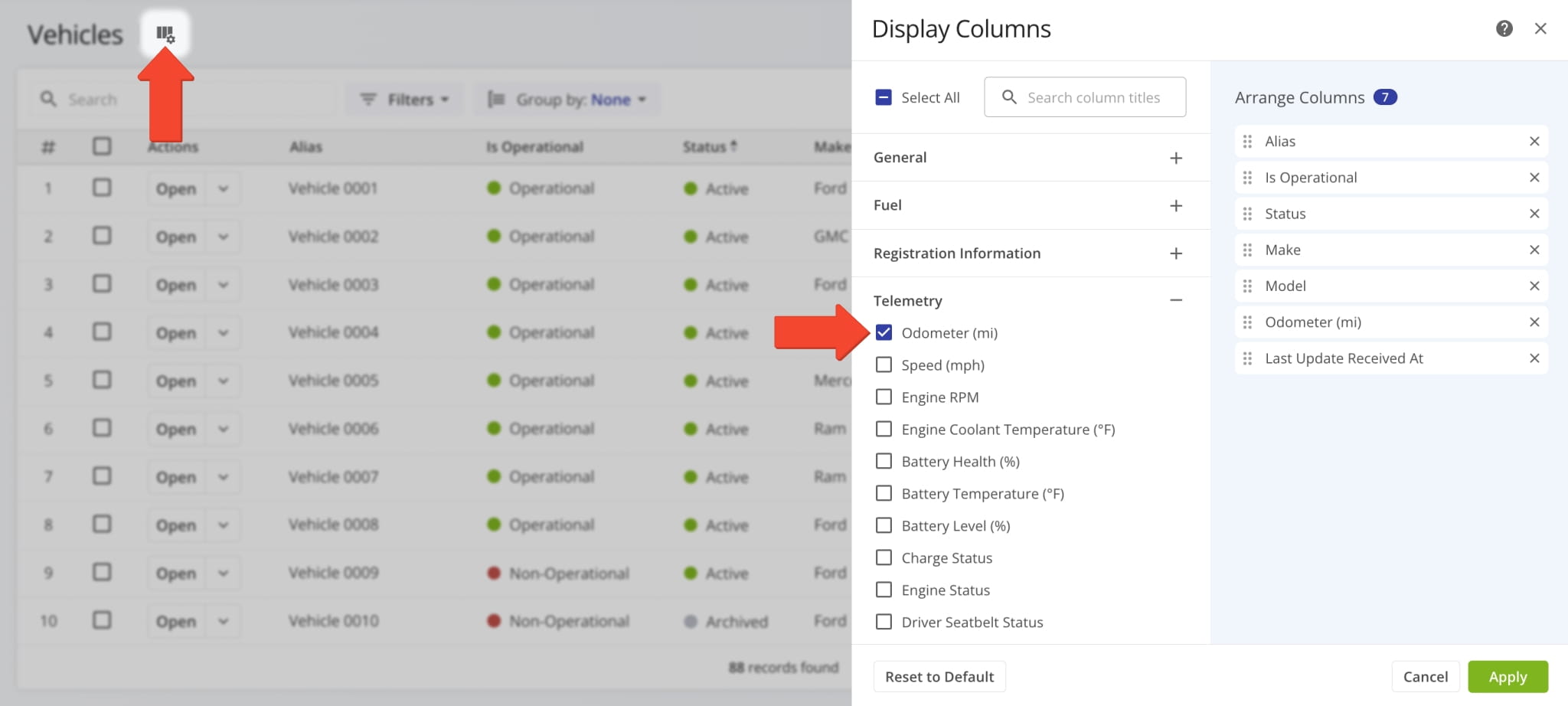
The “Odometer (mi)” column shows the most recent total mileage value of your fleet vehicles.
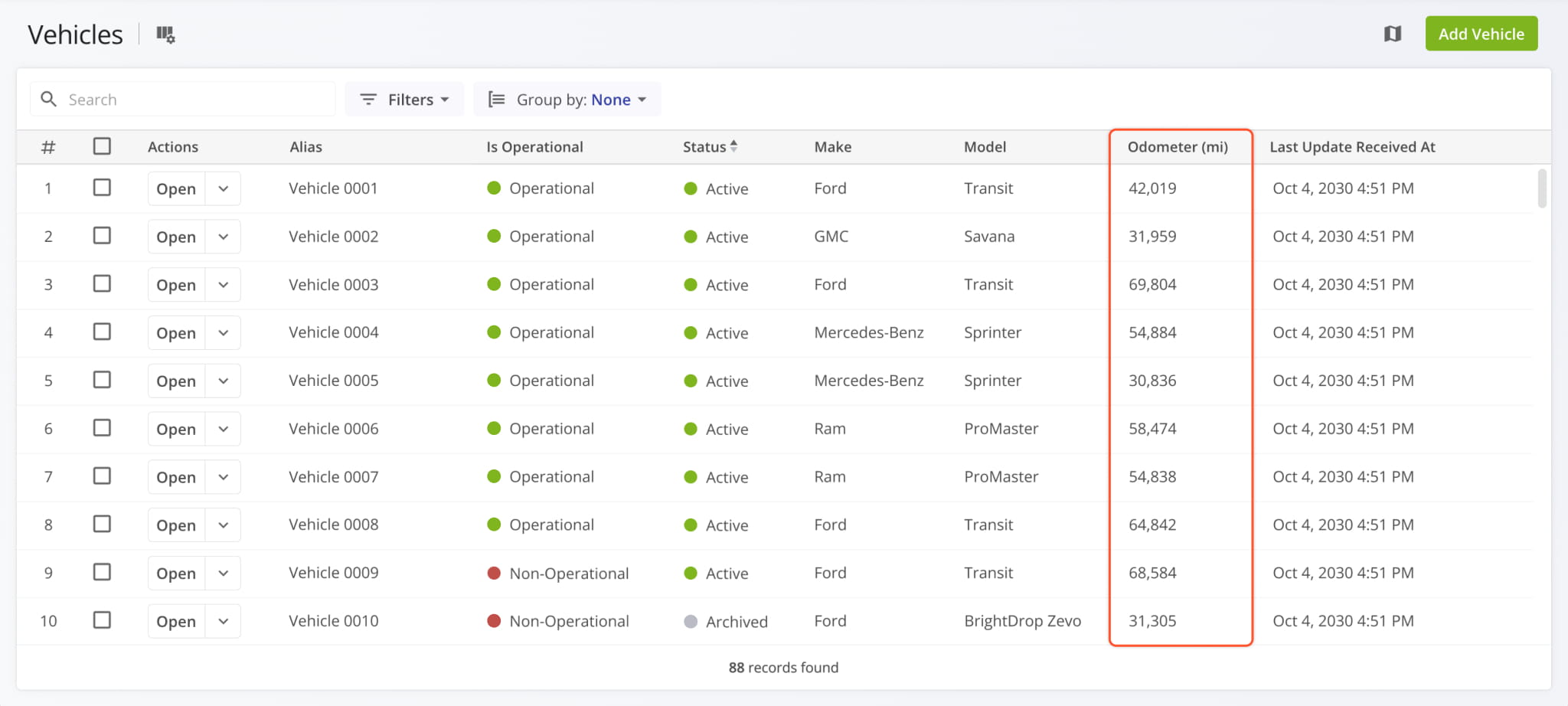
A new button was added to open Strategic Optimizations, which enables you to add scenarios to an optimization.
Open Your Strategic Optimizations
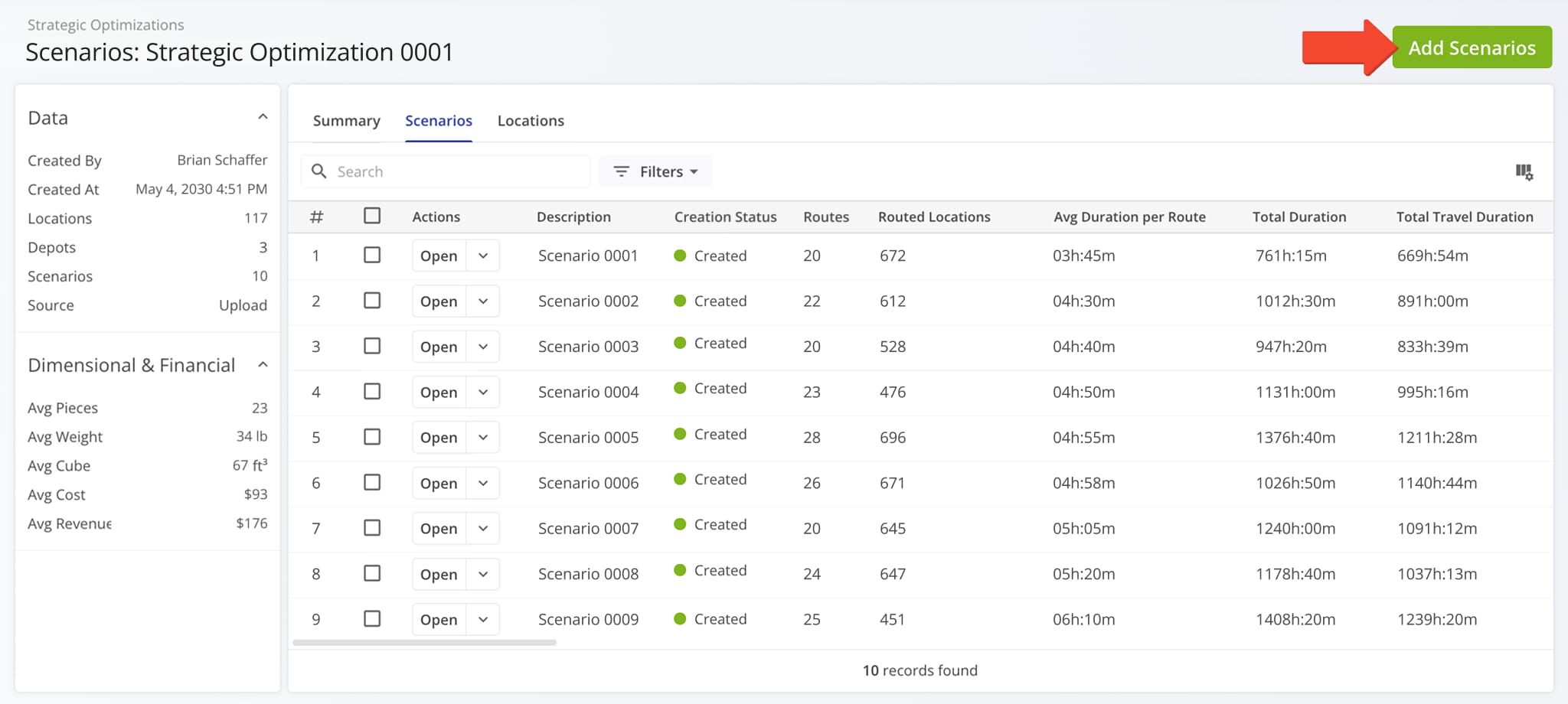
The “Add Scenarios” panel supports all the same options as creating strategic optimizations.
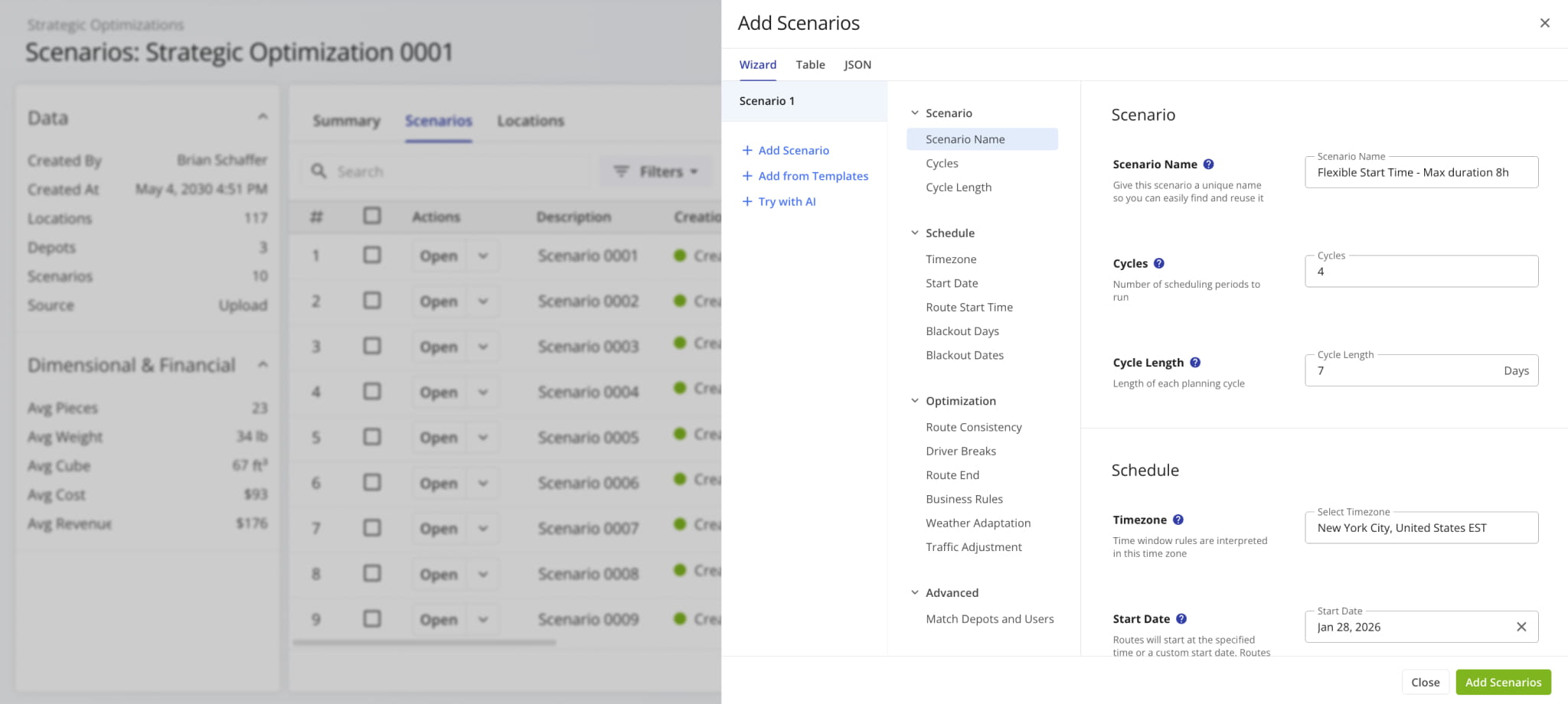
A new route edit action menu was added to Route Snapshots when you click the Down Arrow next to the “Edit Route” button in the top-right. This enables you to make quick edits to a route without opening the Route Editor.
See the list below to learn more about the new quick edit actions.
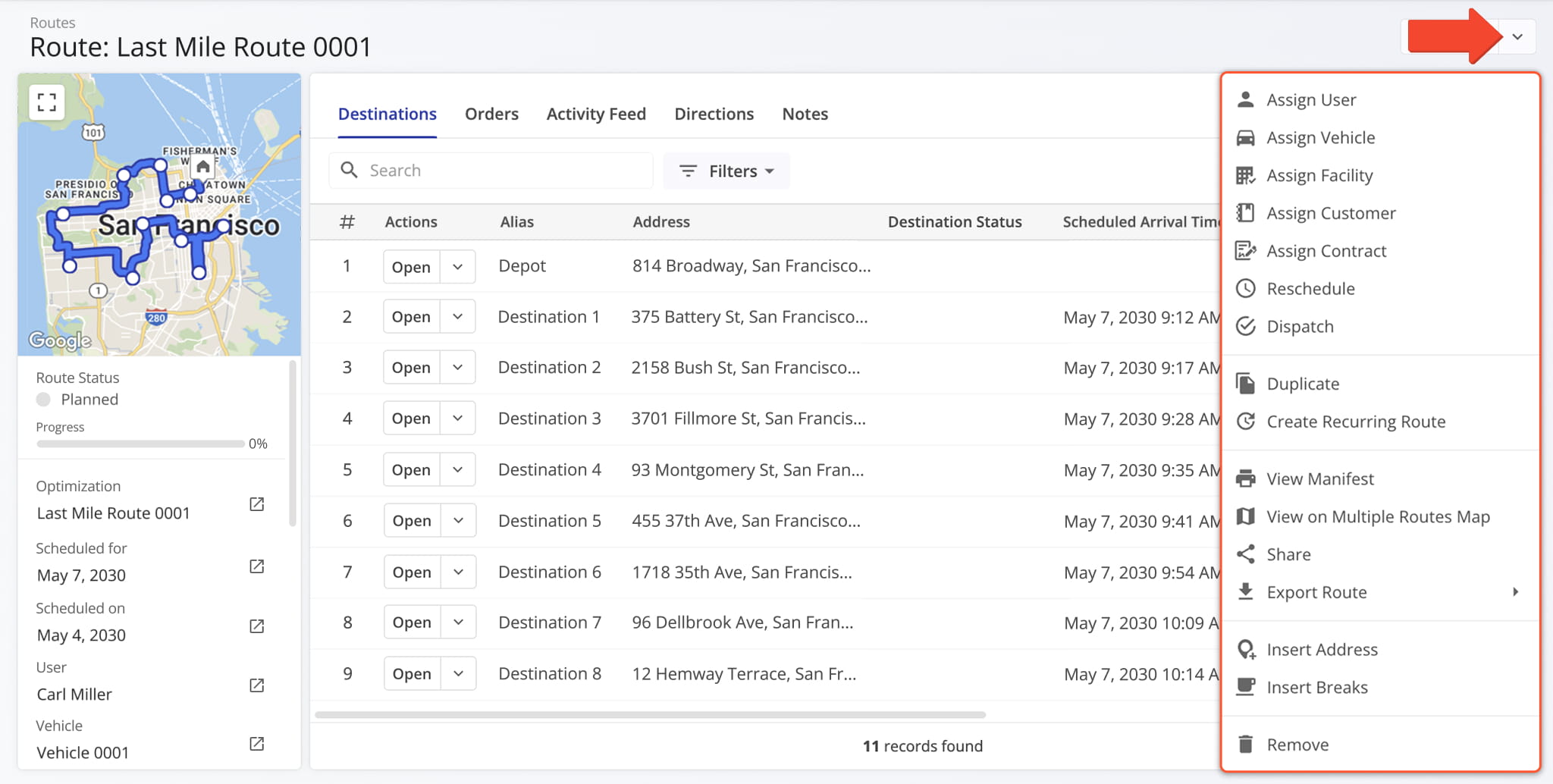
Assign User: Assign a driver or team member to the route.
Assign Vehicle: Assign a vehicle to the route from your homogeneous or mixed fleet of vehicles.
Assign Facility: Assign a specific facility to the route, linking it to a warehouse, depot, or other facility.
Assign Customer: Assign a specific customer to the route, ensuring that visits are accurately linked to the correct client.
Assign Contract: Assign a contract to the route to tie route activities to specific contractual obligations.
Reschedule: Change the date and time of the day the route is scheduled to start.
Dispatch: Dispatch the route to send automated SMS and Email customer notifications.
Duplicate: Create a copy of the route. The new route will have “(Duplicate)” added to the end of its name.
Create Recurring Route: Create a new Master Route for use when planning recurring schedule routes.
View Manifest: Download or print a detailed Route Manifest. This manifest includes all available route data.
View on Multiple Routes Map: Open the route on the Routes Map.
Share: Share the route with other Users by direct link or send a link via Email.
Export Route: Export route data as a CSV spreadsheet or navigation data file for import into navigation devices.
Insert Address: Insert an address into the route by typing or searching the address in the “Address” field.
Insert Breaks: Add driver breaks on the route with customizable break duration and break trigger type.
Remove: Permanently delete the route.
A new “Client Reference ID” field was added to the supported fields when adding and editing Customer Locations. This enables you to add Client Reference IDs from external systems to your locations for better integrated location mapping.
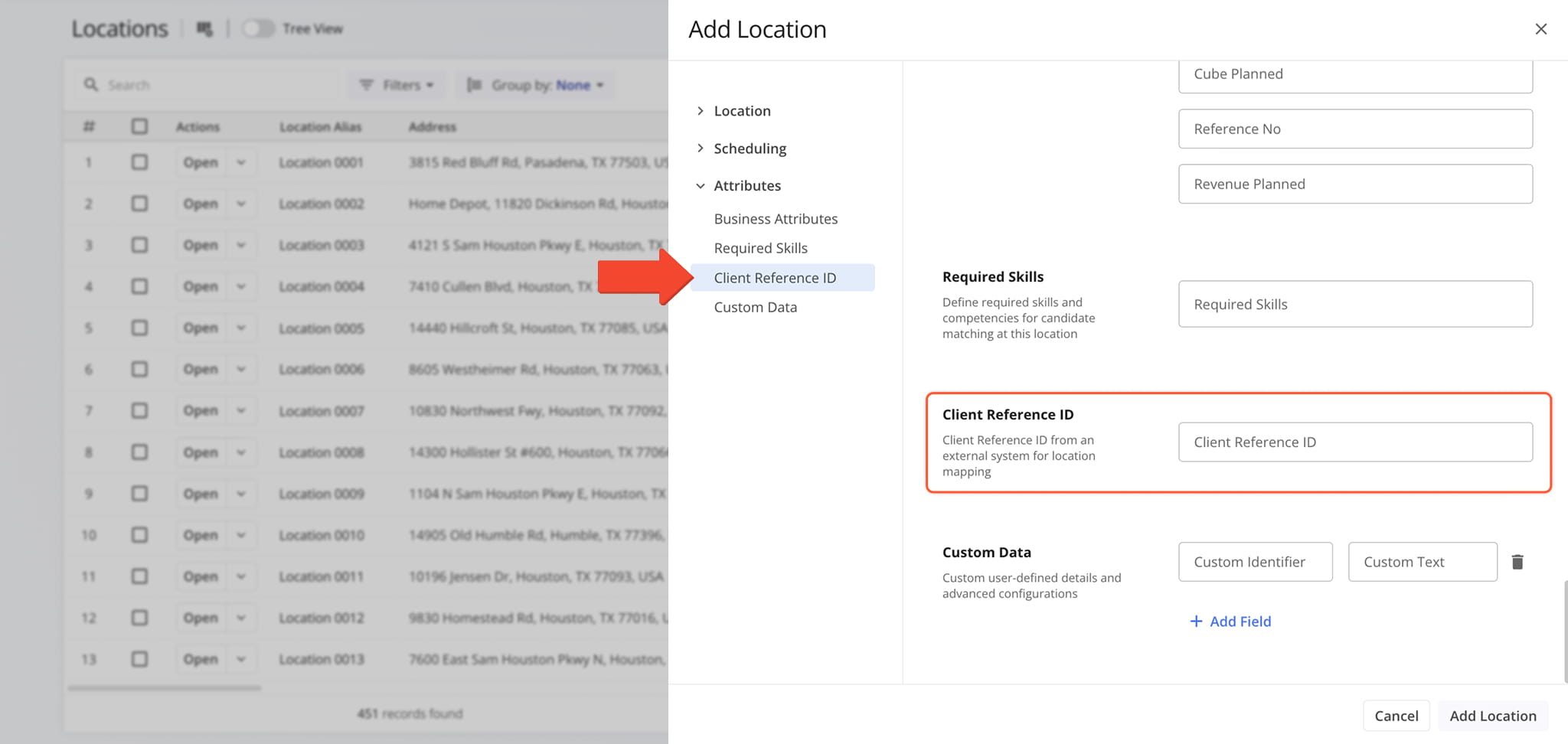
Route4Me’s Android App received multiple enhancements, including a redesigned Destination Info screen, Destination Groups in Visually Immersive Mode, new Routes List functionality, and the release of Visually Immersive Mode for Android tablets.
The image shows the new Destination Info screen. Previously, users would have to drag the information panel up to see all fields. The new Destination Info screen shows more information in a way that’s easier to read and navigate for users.
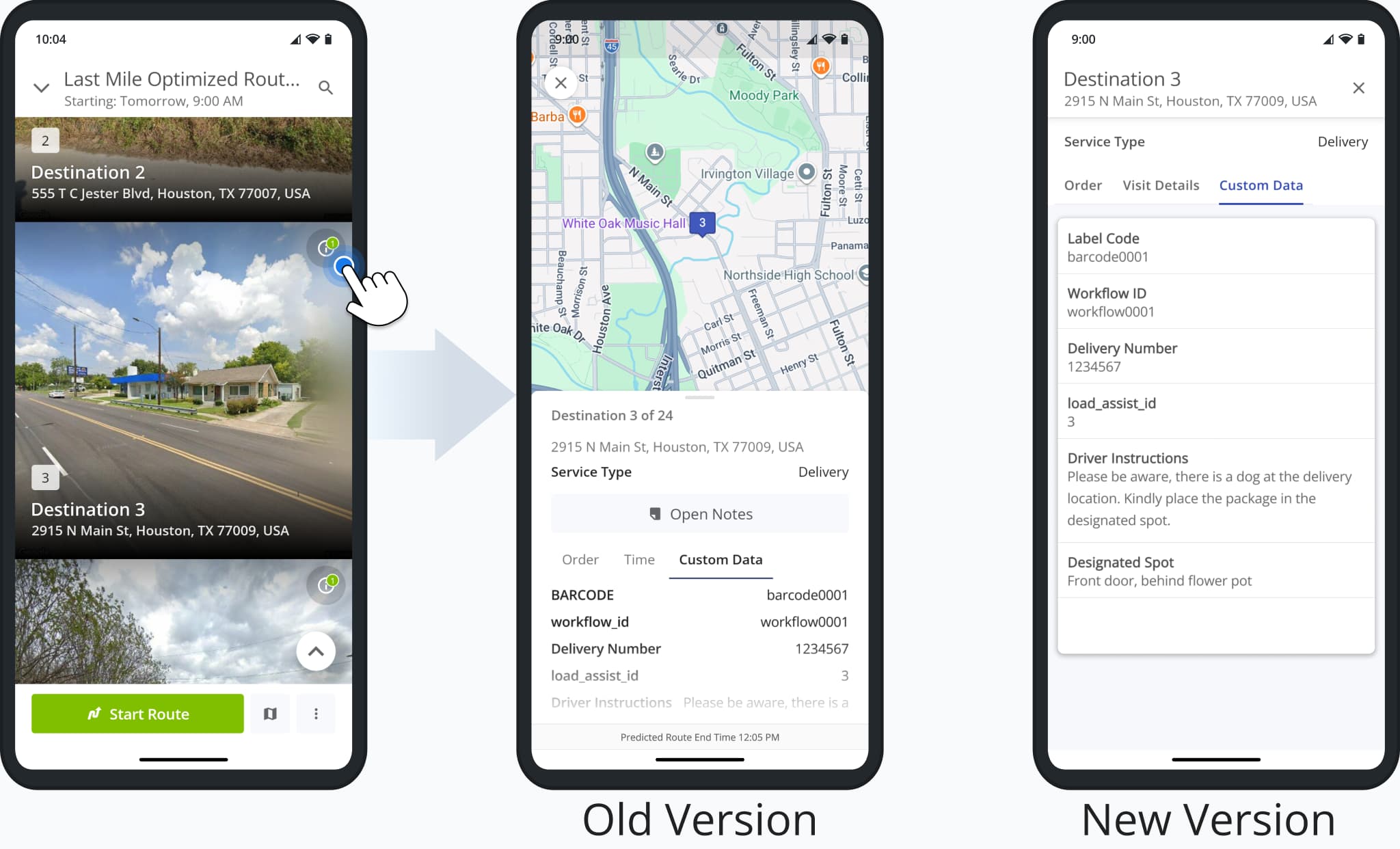
Additionally, Grouped Destinations are now available in Visually Immersive Mode, enabling users to access destination details when multiple destinations share a single address.
The “Destination Info” button in Destination Groups opens the updated Destination Info described above.
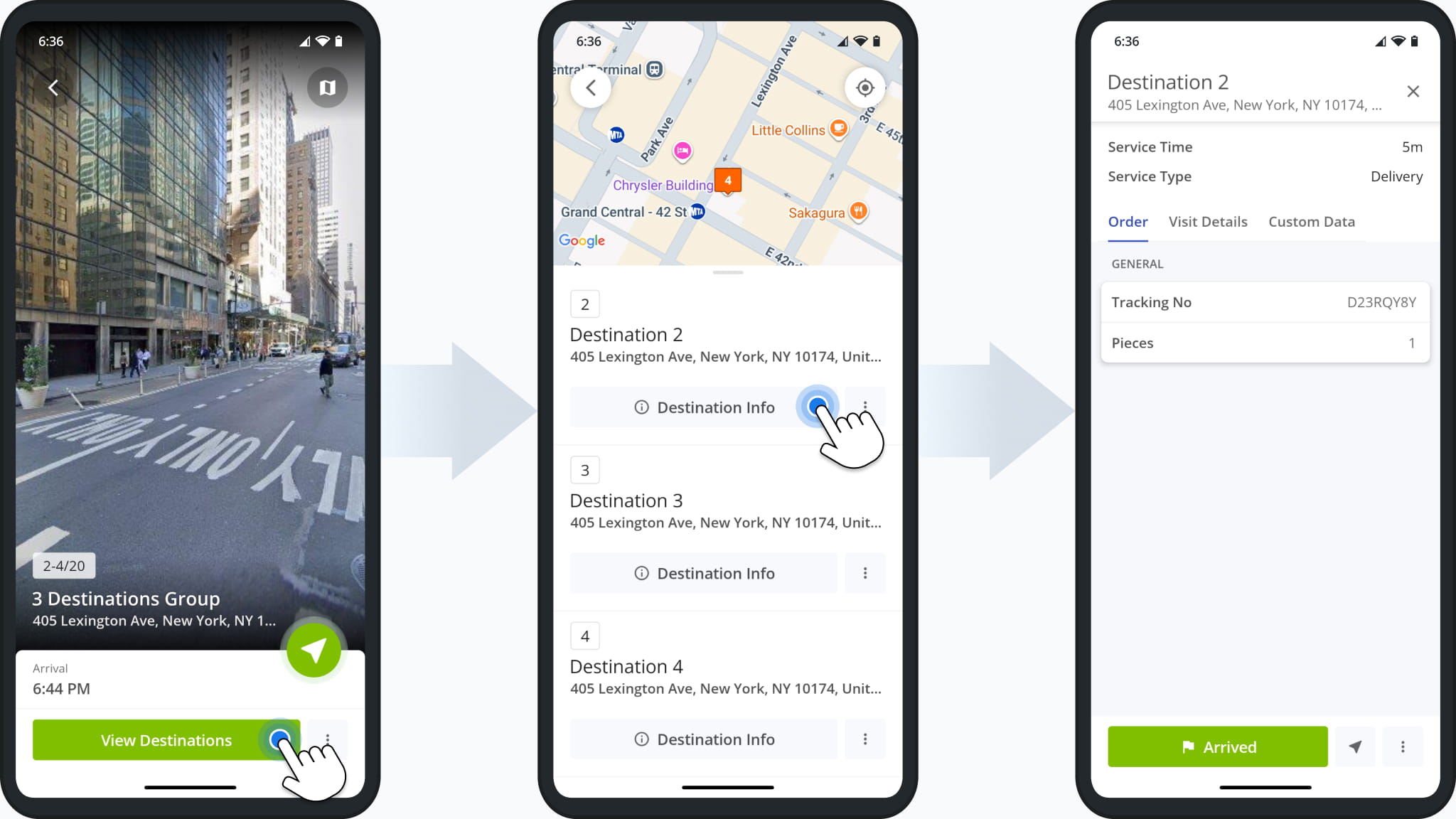
Furthermore, the Mobile Routes List on the Route4Me App has been updated to show route statuses and condensed schedule information. This makes it easier to see the current status of a route, and combining the scheduled date and time into one field makes it easier to see exactly when routes are scheduled to start.
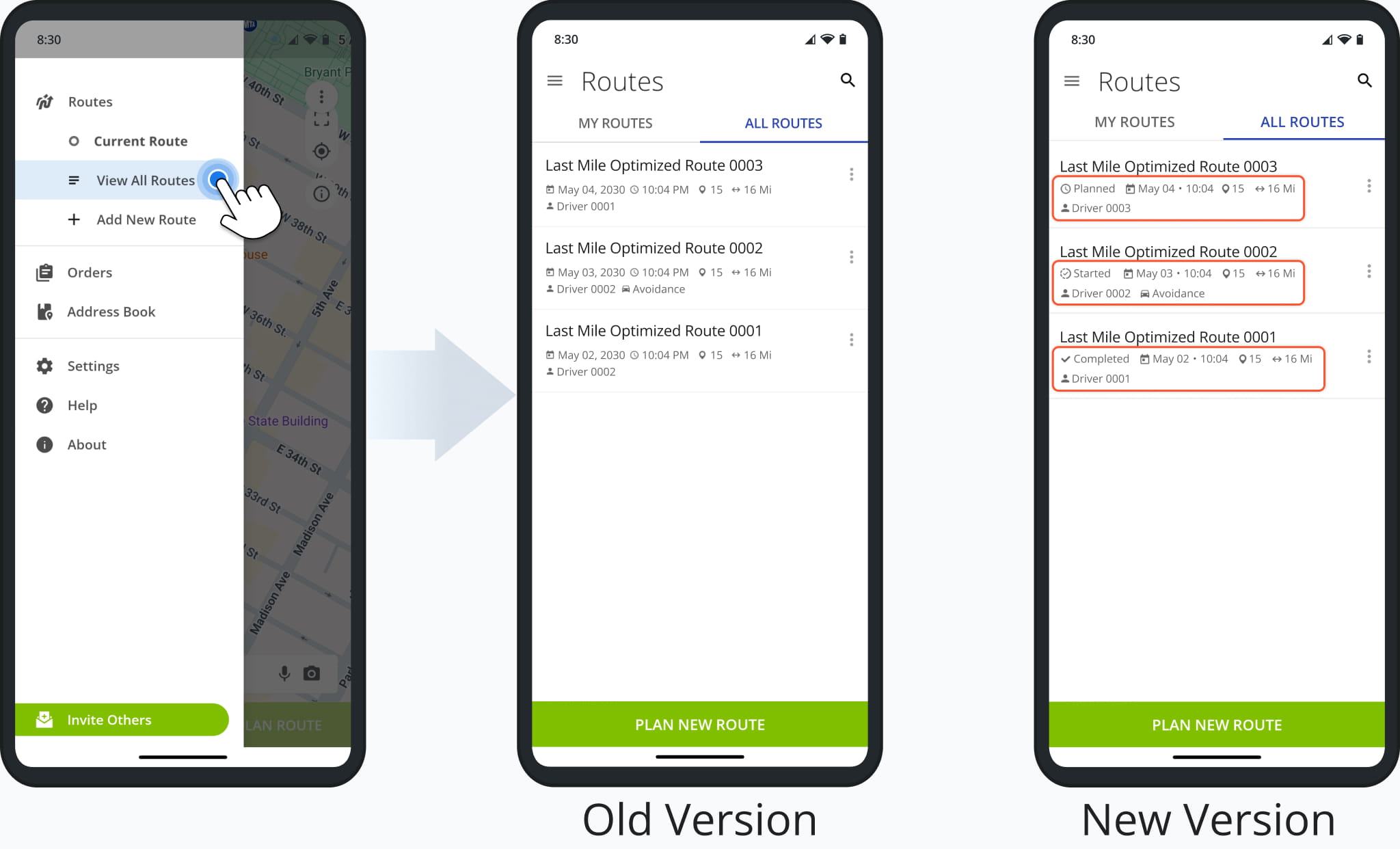
This version of the Route4Me App brings Visually Immersive Mode to tablets for the first time. It enables users to get more context for destinations with immersive street views and streamlines starting, navigating, and completing routes.
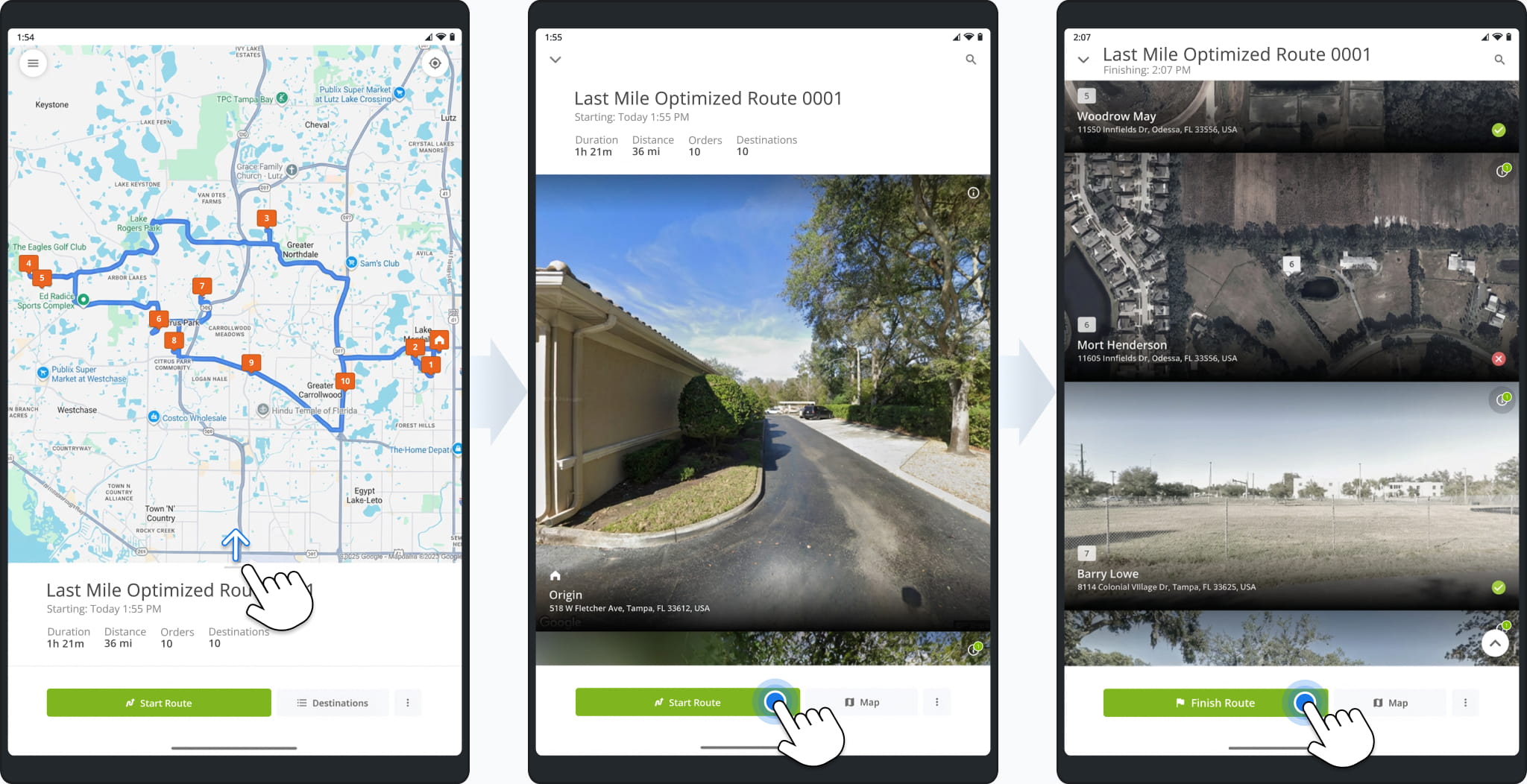
Landscape orientation is also supported and allows the app to display the immersive destinations list next to the route screen, providing more information and functionality than previous versions of the Route4Me tablet route planner app.
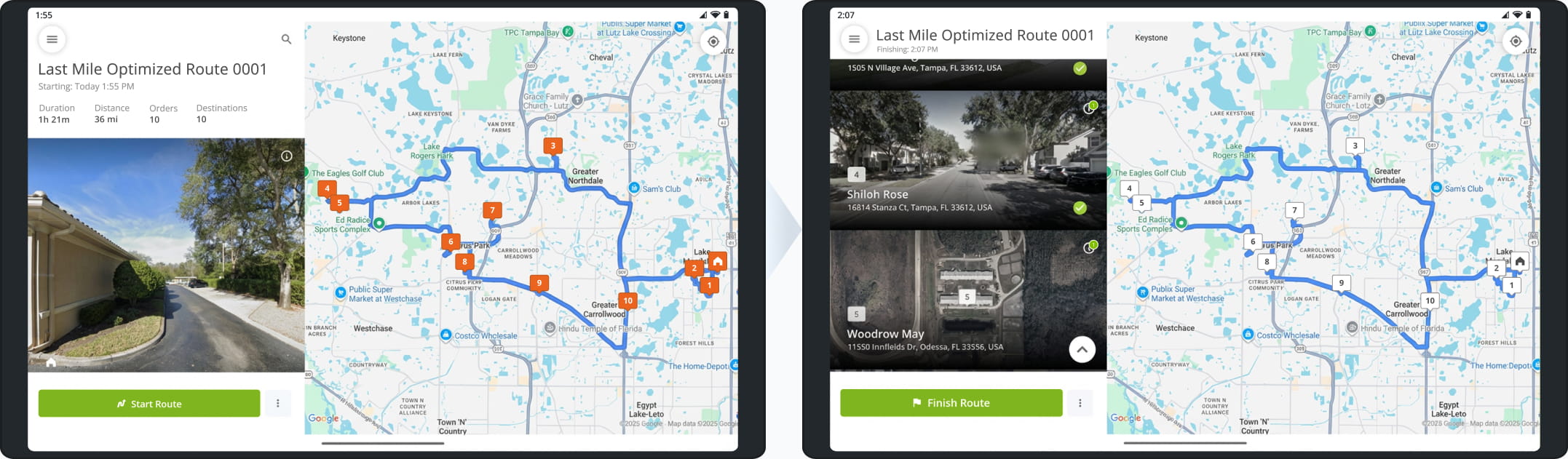
You can now define custom Geozones around Customer Locations to account for irregularly shaped buildings with difficult-to-find access areas and other potential issues. Geozones function as custom location-based Route4Me Geofences.
You can contact Route4Me support to set up custom geozones on your account.
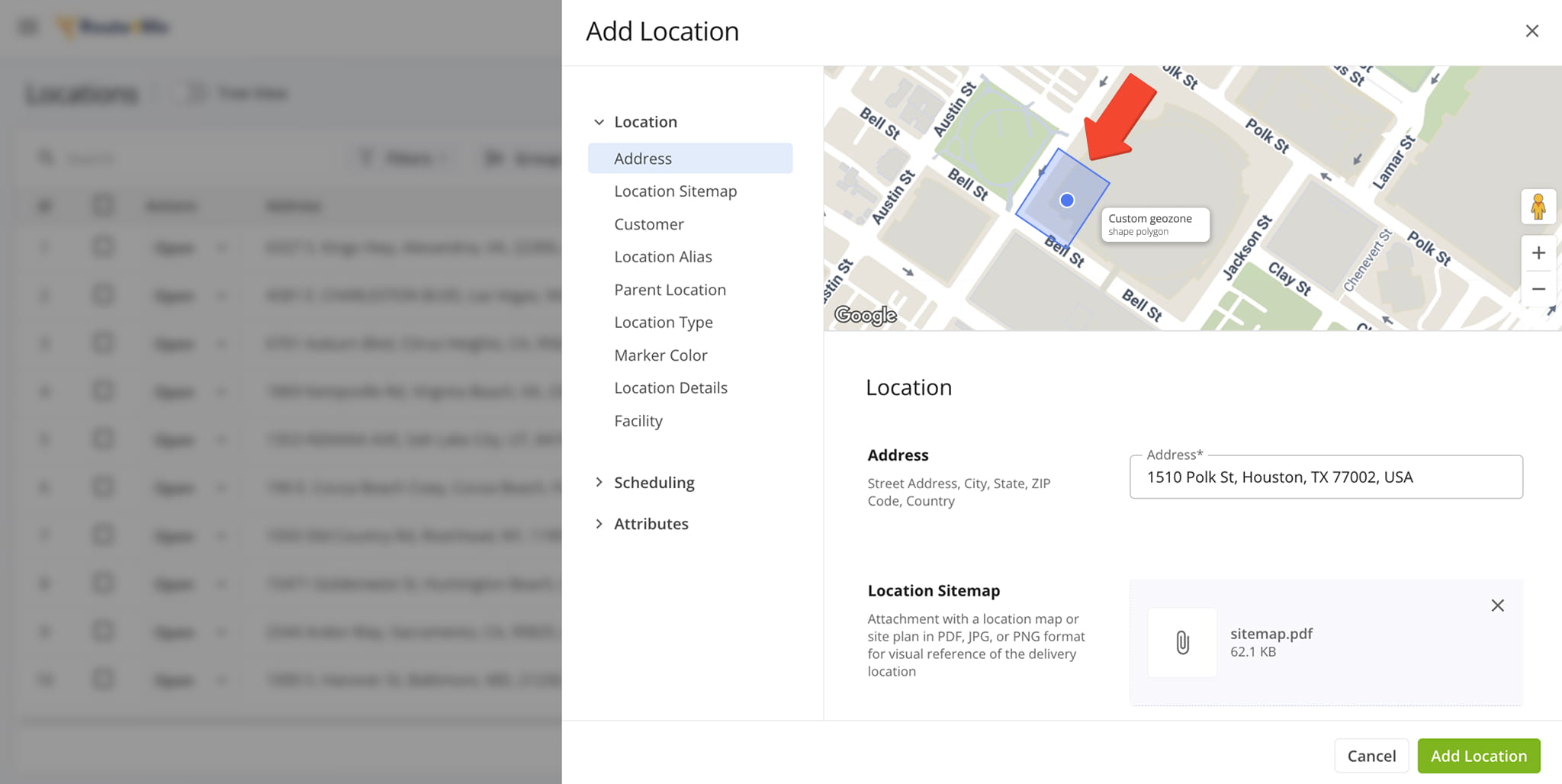
A new “Location Sitemap” field was added when you add and edit Customer Locations. It enables you to upload sitemap images for location previews that users assigned to routes can view on the mobile app.
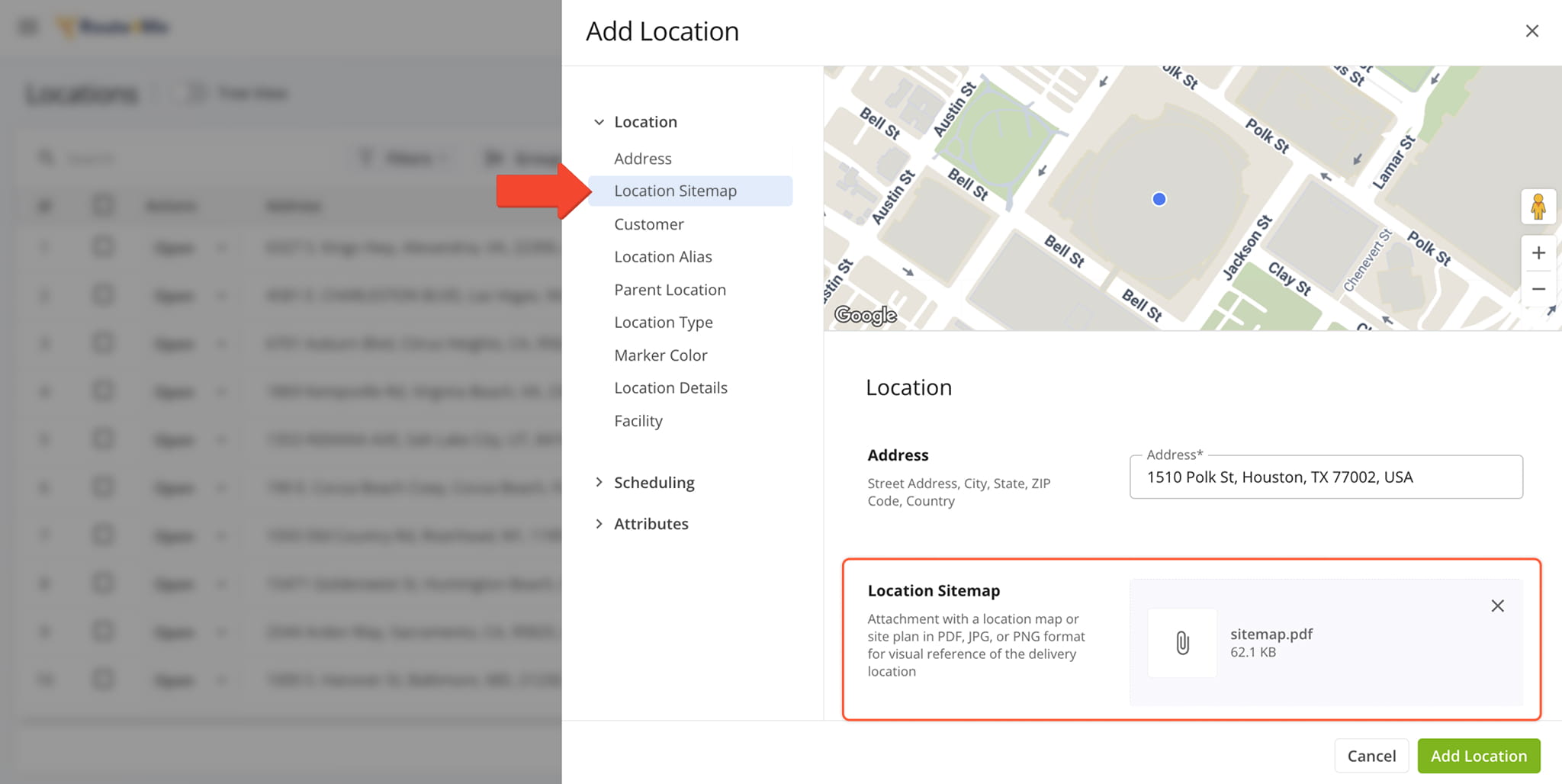
The new “Billing Type” customer data field was added to the summary panel in Customer Snapshots.
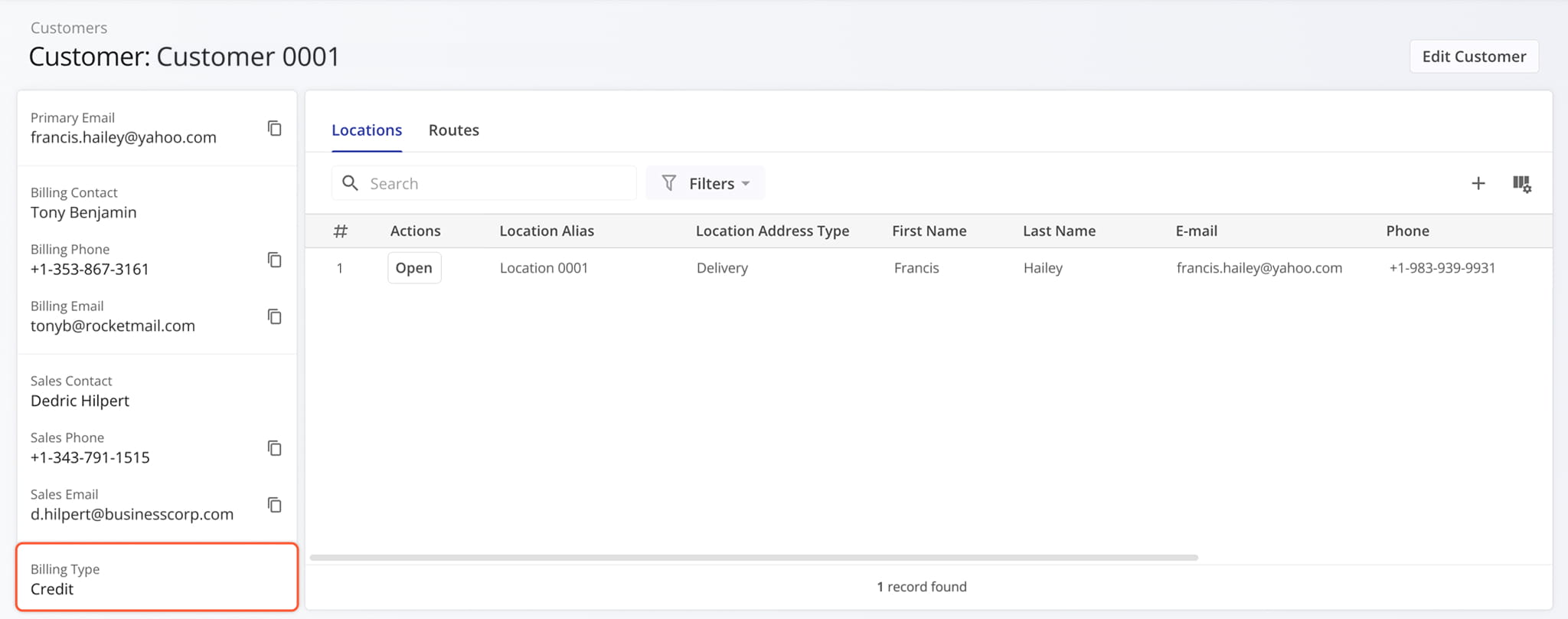
Billing Type information was added to the available customer data when creating or editing Customers on your account.
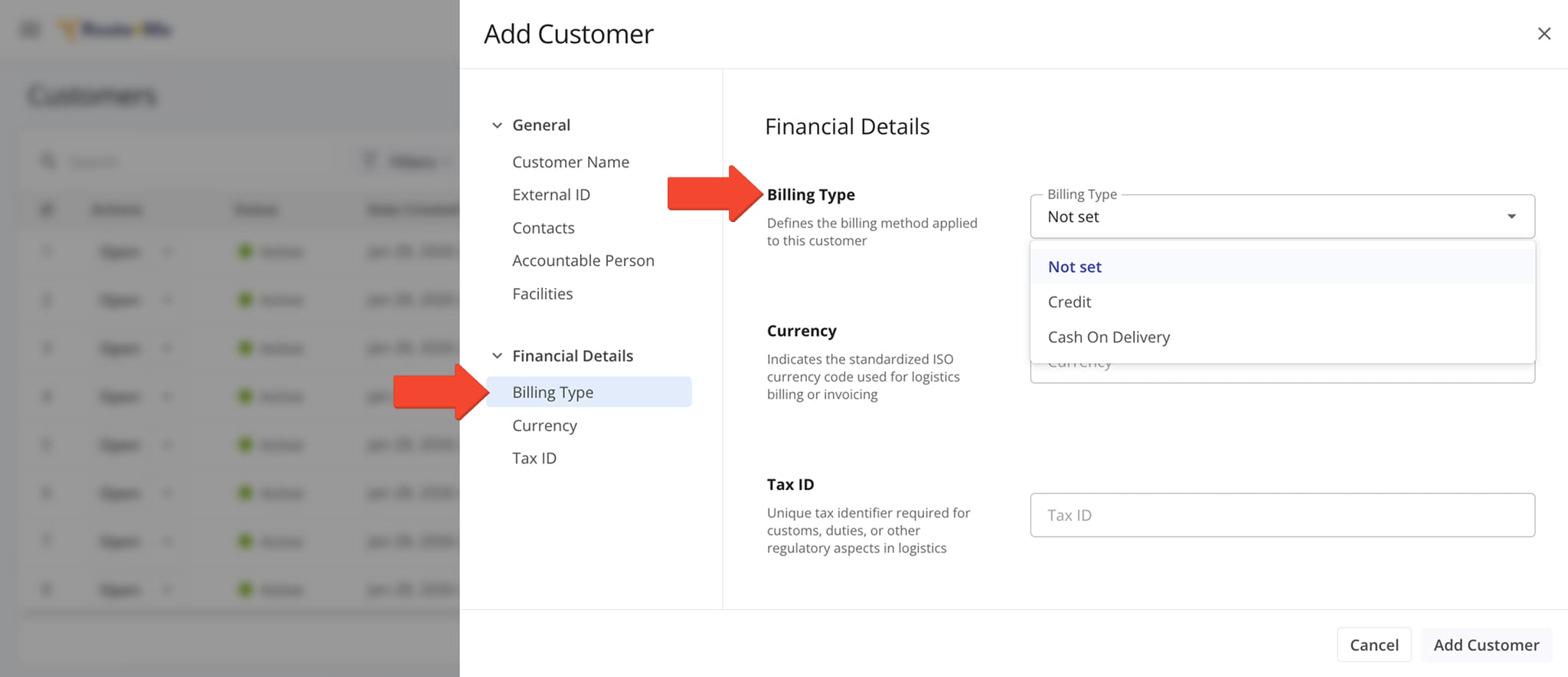
Additionally, Billing Type is also available as a filter on your Customers Page.
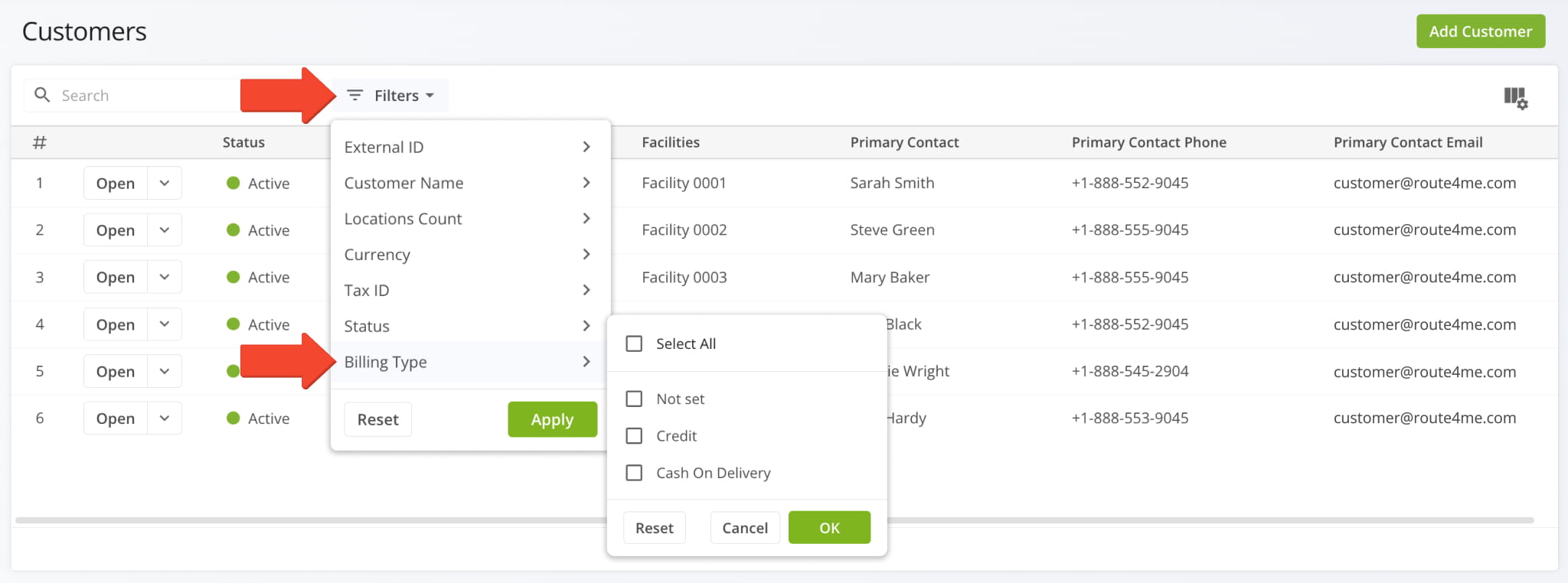
The Recurring Routes interface has been enhanced with new filters, grouping options, management actions, display columns, and column customization. This update brings the Recurring Routes page in line with the most recent Route4Me TMS releases and provides many more options for recurring routing management than before.
The image below shows the new filter options and grouping menu along with the newly added date filter.
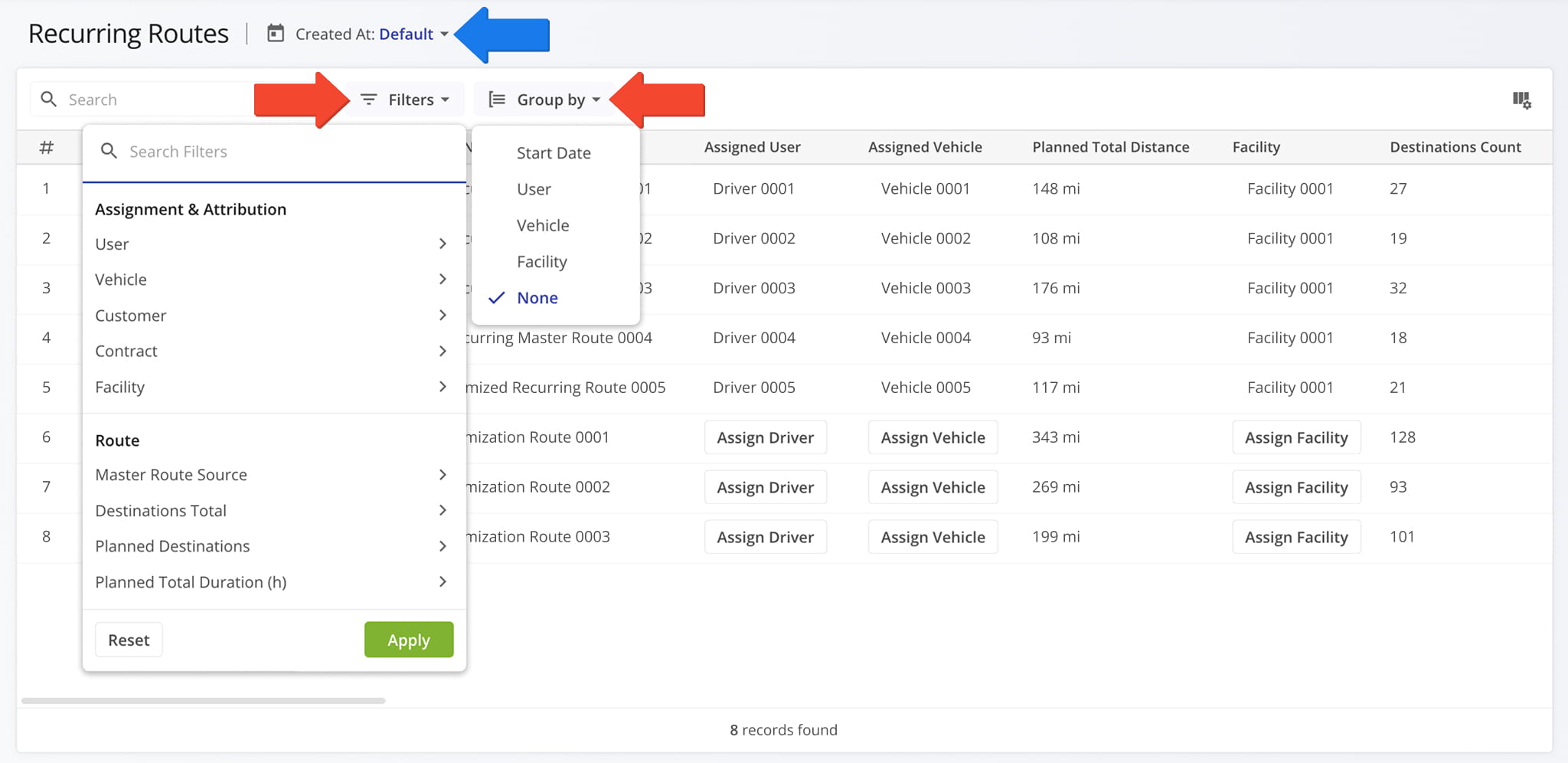
For the first time, you can now customize the data columns available for your Recurring Routes. This new functionality helps you see only the data relevant to your needs. More columns have also been added, providing additional depth and detail to the information available for your Recurring Schedules and Master Routes.
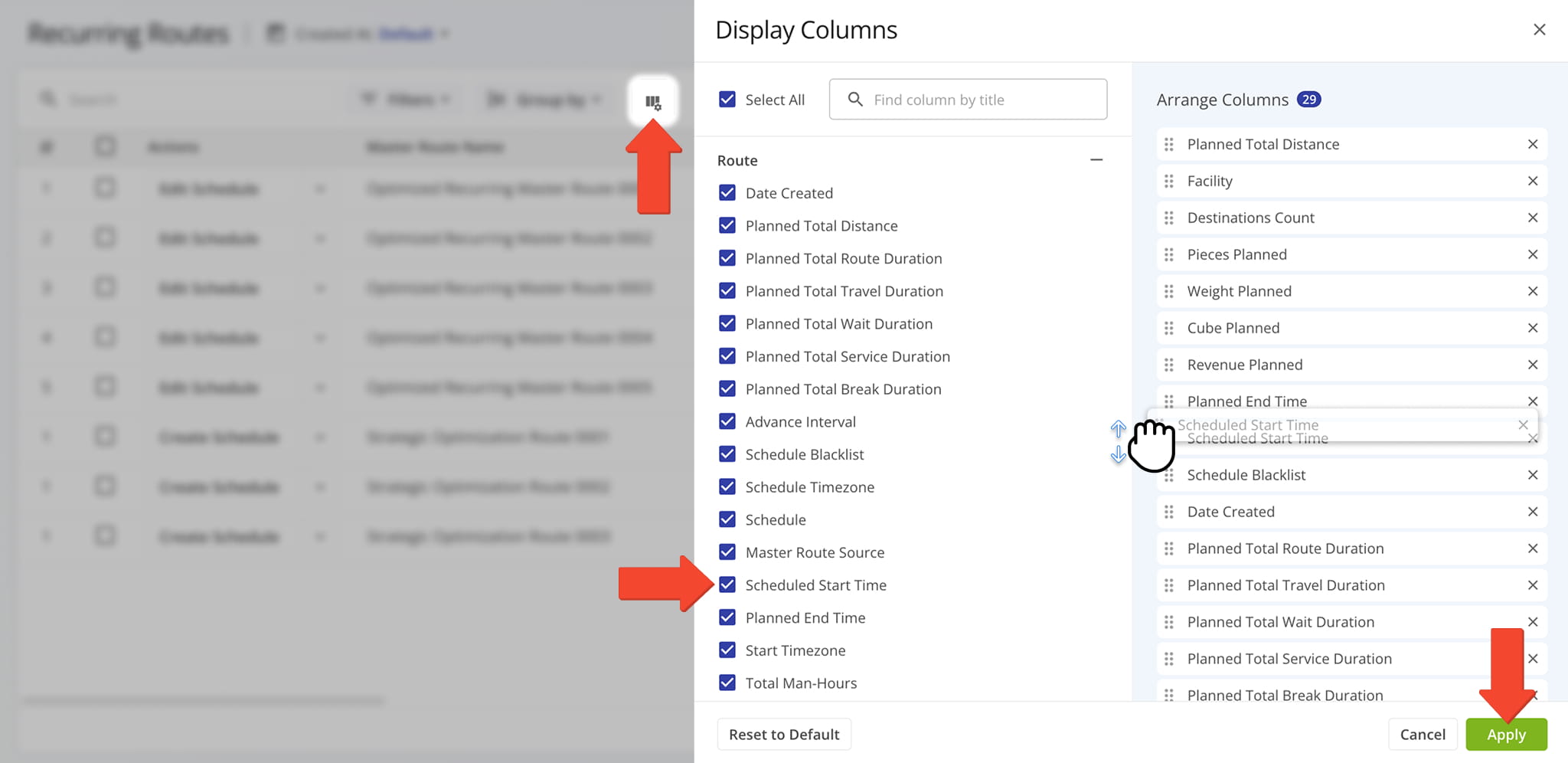
A new management action menu was added to your Recurring Routes, enabling you to make quick edits to Master Routes without opening the Route Editor. You can also directly assign users, vehicles, facilities, customers, and contracts from the data table by clicking the corresponding field. See the list below to learn more about the new quick edit actions.
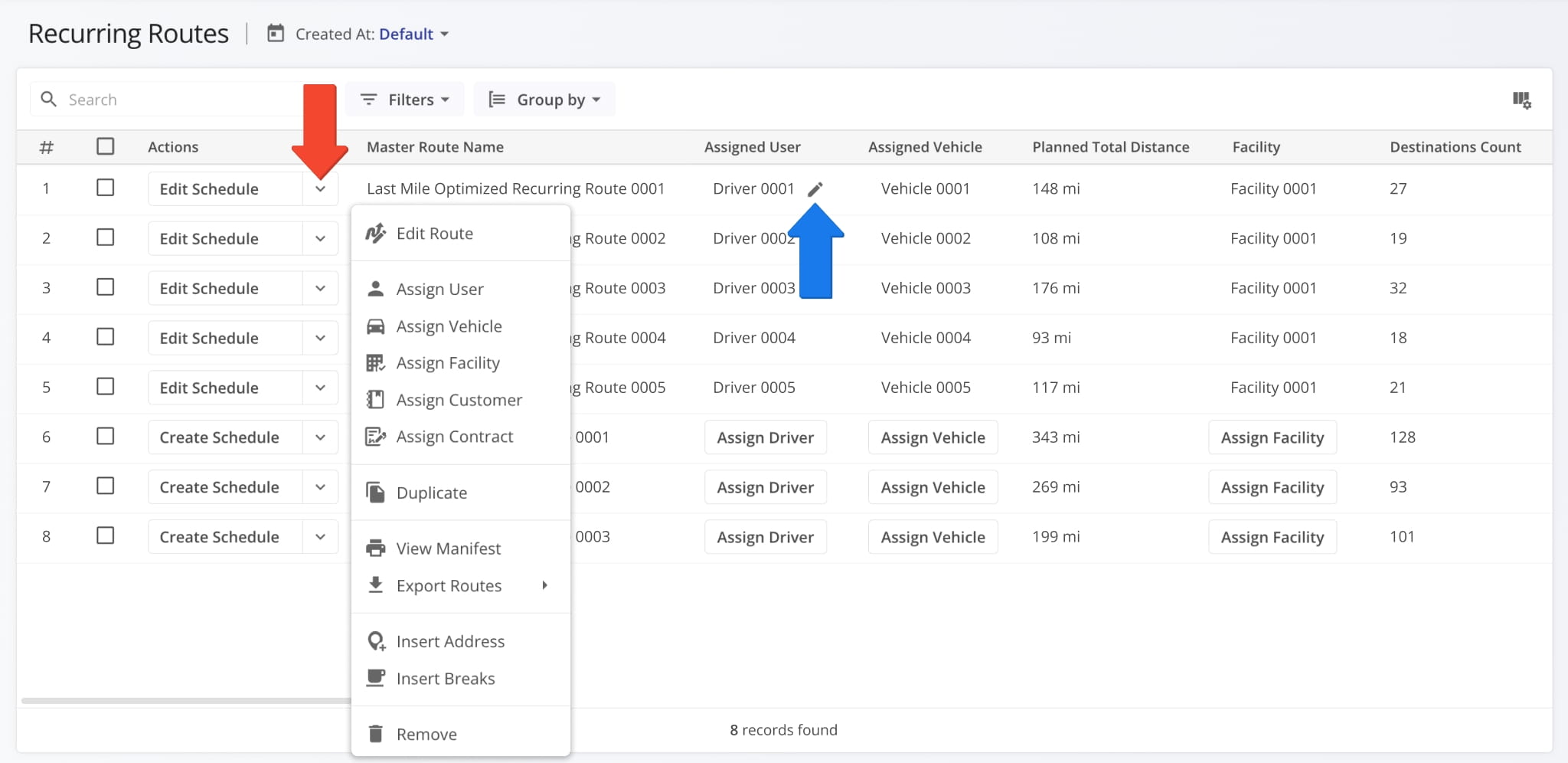
Edit Route: Open a master route in the Route Editor.
Assign User: Assign a driver or team member to the route.
Assign Vehicle: Assign a vehicle to the route from your homogeneous or mixed fleet of vehicles.
Assign Facility: Assign a specific facility to the route, linking it to a warehouse, depot, or other facility.
Assign Customer: Assign a specific customer to the route, ensuring that visits are accurately linked to the correct client.
Assign Contract: Assign a contract to the route to tie route activities to a specific contractual obligations.
Reschedule: Change the date and time of the day the route is scheduled to start.
Dispatch: Dispatch the route to send automated SMS and Email customer notifications.
Duplicate: Create a copy of the route. The new route will have “(Duplicate)” added to the end of its name.
Create Recurring Route: Create a new Master Route for use when planning recurring schedule routes.
View Manifest: Download or print a detailed Route Manifest. This manifest includes all available route data.
View on Multiple Routes Map: Open the route on the Routes Map.
Share: Share the route with other Users by direct link or send a link via Email.
Export Route: Export route data as a CSV spreadsheet or navigation data file for import into navigation devices.
Insert Address: Insert an address into the route by typing or searching the address in the “Address” field.
Insert Breaks: Add driver breaks on the route with customizable break duration and break trigger type.
Remove: Permanently delete the route.
You can also manage multiple Master Routes at the same time. Just like any other Route4Me interface, simply check the boxes next to them and use the “Bulk Actions” menu. See the list below to learn more about the new bulk actions.
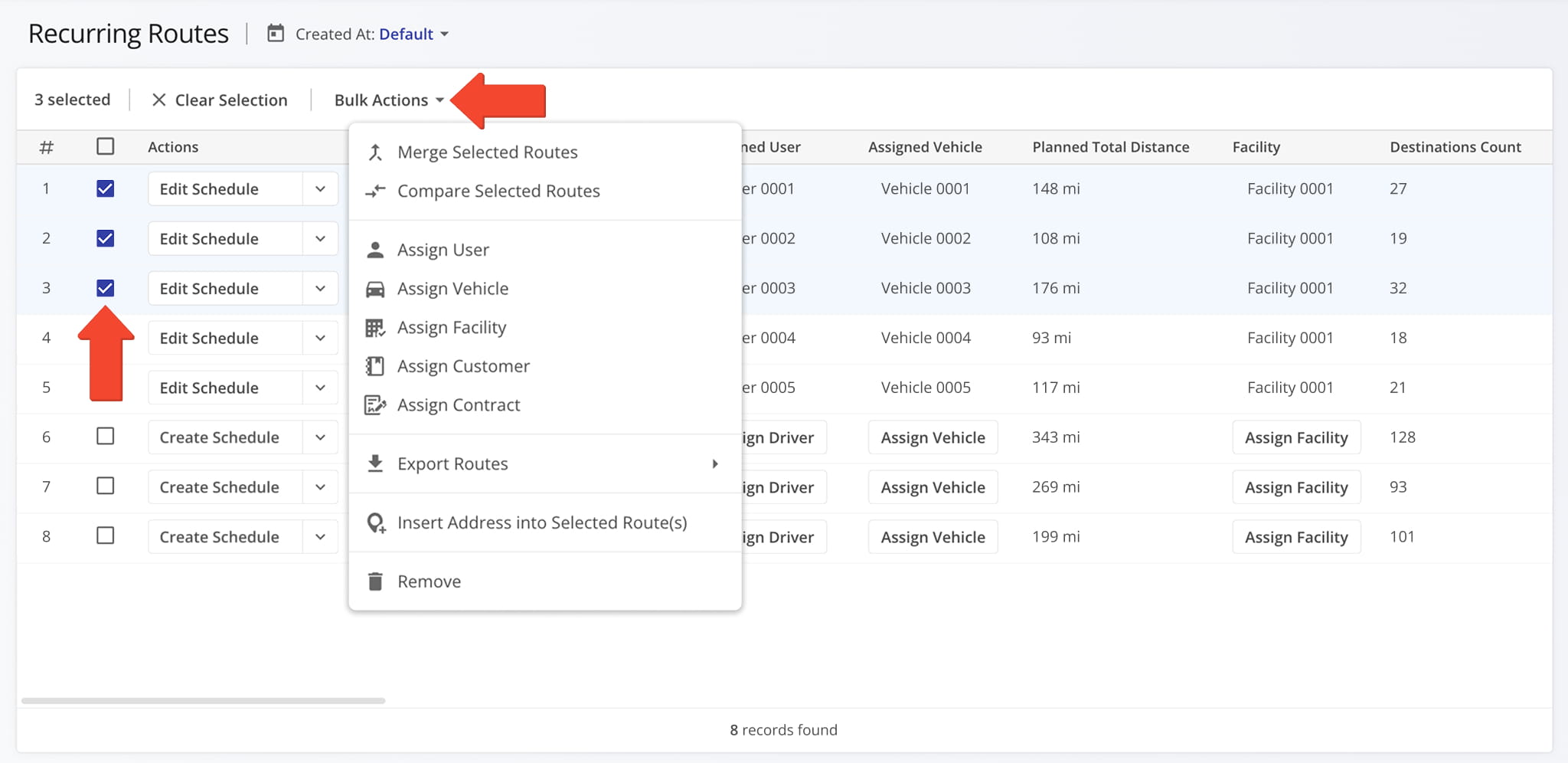
Merge Routes: Create a new, combined route while keeping the original routes intact.
Assign User: Assign a driver or team member to the routes.
Assign Vehicle: Assign a vehicle to the routes from your homogeneous or mixed fleet of vehicles.
Assign Facility: Assign a specific facility to the routes, linking them to a warehouse, depot, or other facility.
Assign Customer: Assign a specific customer to the routes, ensuring that visits are accurately linked to the correct client.
Assign Contract: Assign a contract to the routes to tie route activities to specific contractual obligations.
Export Routes: Export route data as a CSV spreadsheet or navigation data file.
Insert Address into Selected Route(s): Insert an address into the routes.
Remove: Permanently delete the selected Master Routes.
Man-Hours can now be enabled in Route Snapshots for the “Destinations” and “Orders” categories. These new data columns give you a clear overview of the person hours required at any specific destination or to complete any order on a given route.
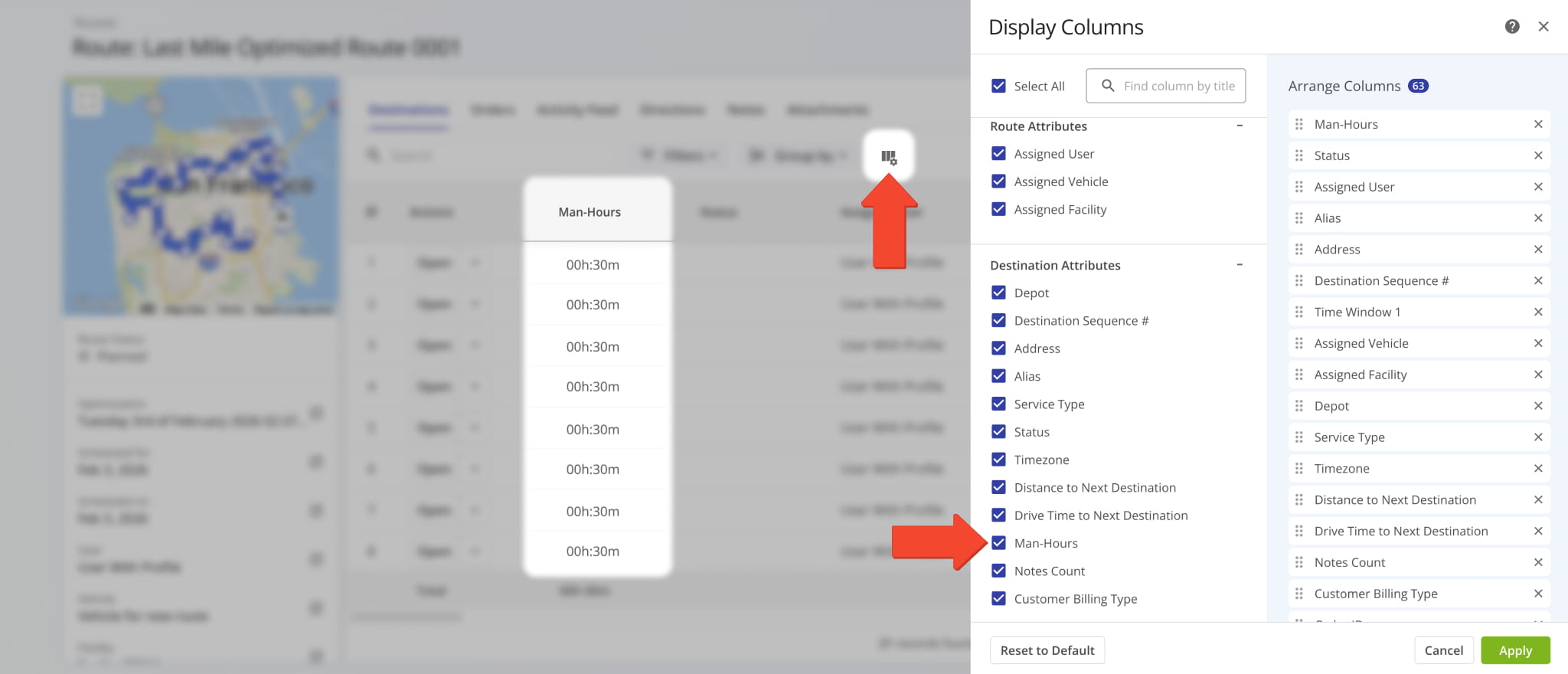
A new “All” View Mode was added to the Routes Page. When selected, it uses the “All Time” setting for the date filter and displays all routes on the account. Previously, only “Recently Created” and “Dispatch Mode” were available.
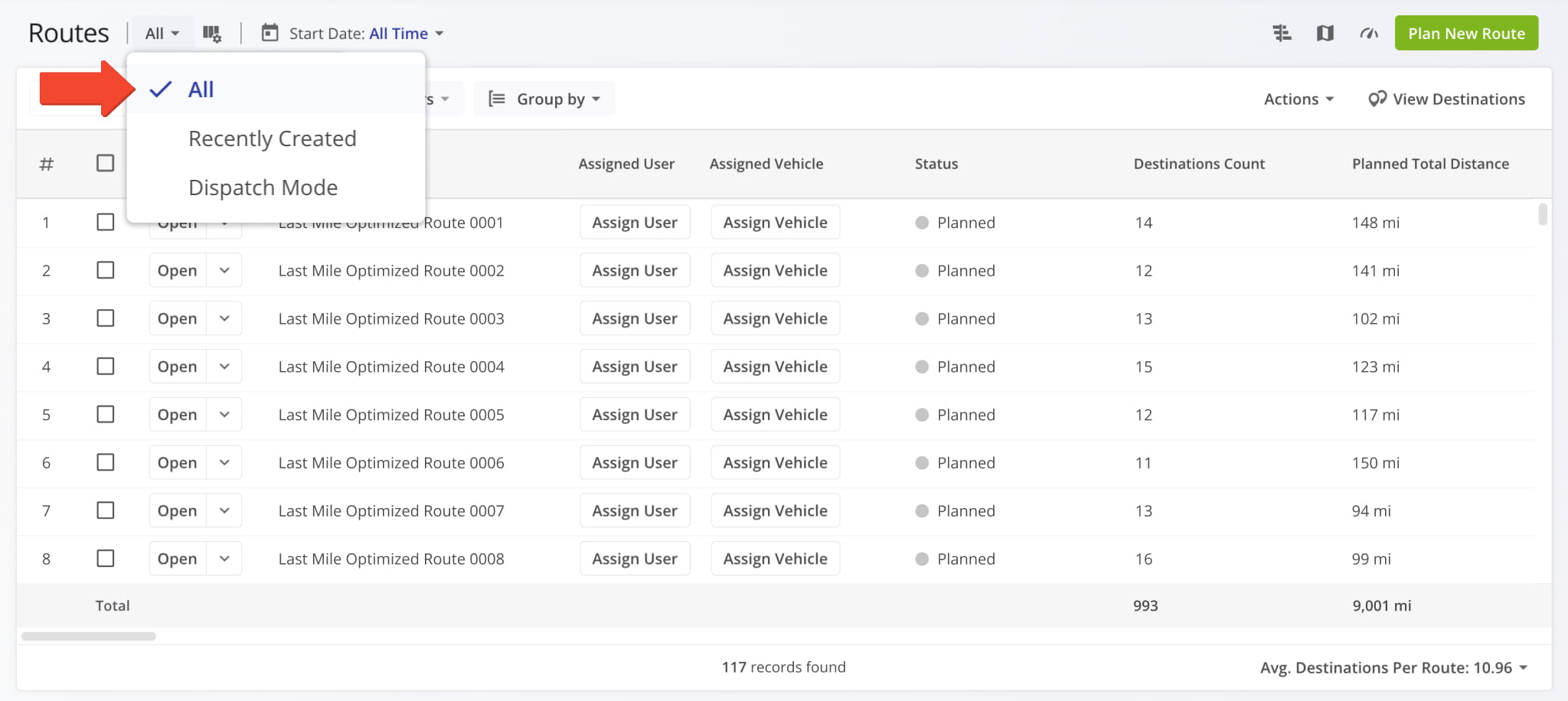
The Business Insights Dashboard was updated to support grouped columns that show the total number of entities or resources that that match the corresponding grouping and filters. For example, the “Routes” column shows the total number of routes scheduled for your selected date range and grouping type.
You can always click on a grouped cell to see all the items it contains. Where available, you’ll also have access to additional buttons. For routes, this means you can open Route Snapshots and open routes in the Route Editor. Additionally, for resources matching Business Insights tabs, you’ll find a new “Drill Down” button that takes you directly to the corresponding tab and automatically filters it according to the selected date range and grouping type.
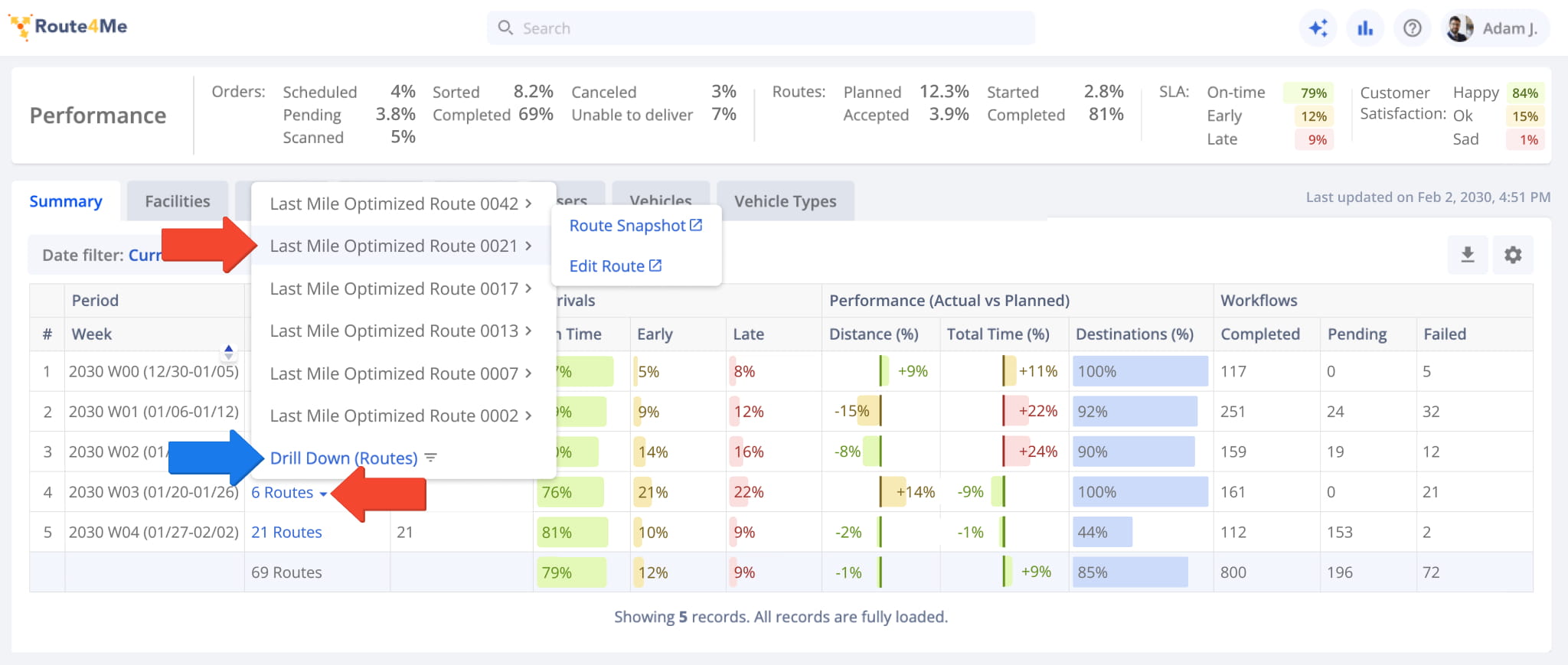
The “Scheduled For” column is enabled by default and shows the number of items scheduled for the selected date range and date grouping type. When you expand a grouped cell in the schedule column, you’ll see a list of the exact schedules associated with it.
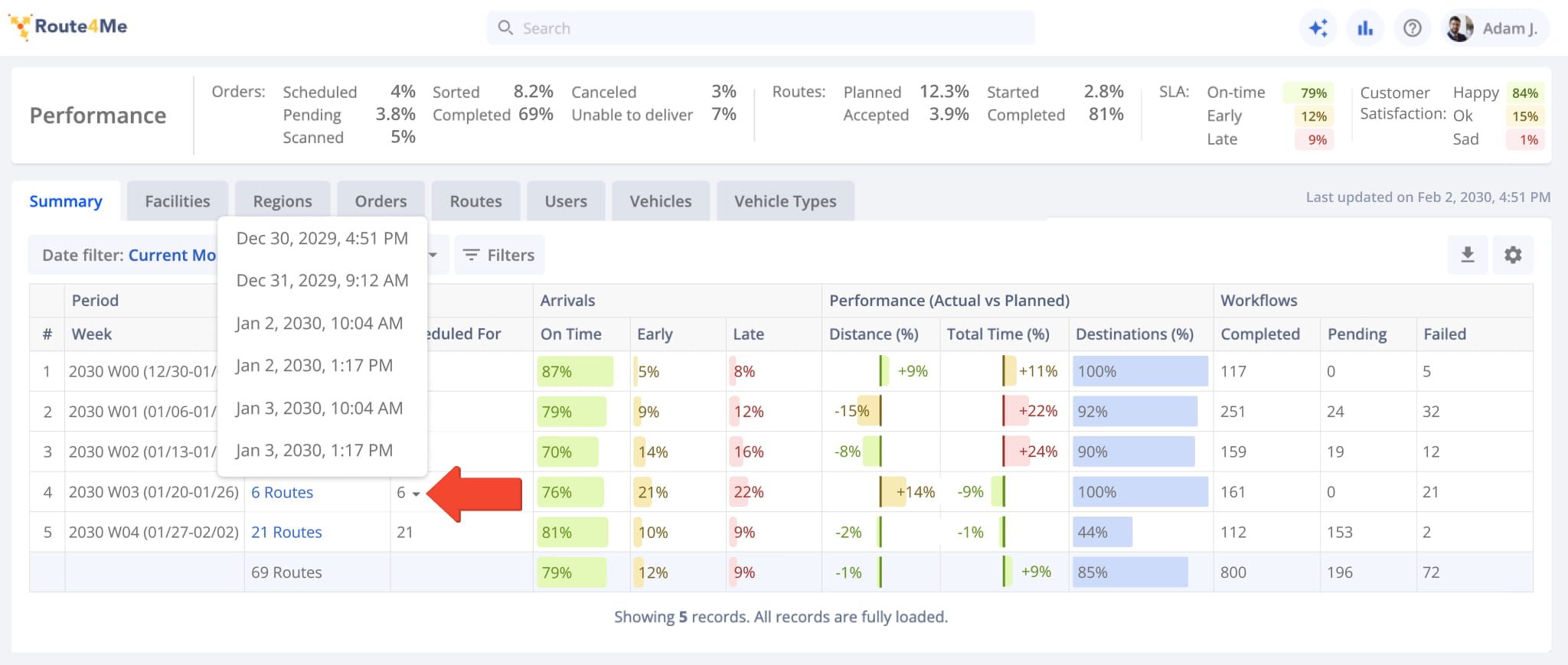
Route4Me Update Types And Release Notes Legend
Route4Me’s industry-leading transportation management software is continuously evolving, with new features and updates released regularly. The table below lists the types of updates described on this page.
Route4Me Release Types & Release Notes Legend
● Highlights
Highlighted releases are major updates and brand new features.
Any of the release types listed below can be highlighted, and you can use the "Release Type" filter to add or exclude "Highlights" from the visible Release Notes.
● New Feature
Introduces brand-new functionality, pages, or tools. These updates expand the core capabilities of the platform, such as new optimization types and dedicated management modules.
● Enhancement
Improvements to existing features. This includes adding new data columns, advanced filtering options, or increasing the efficiency of current workflows.
● UI/UX Updates
Visual and structural changes. These updates focus on redesigns and navigation improvements to make the software more intuitive and easier to navigate.
● System Updates
Behind-the-scenes technical improvements. While not always visible, these updates enhance platform stability, security, and backend processing speed.
● Integration
Updates related to connecting Route4Me with external systems. This includes ERP and API integrations, Telematics providers, and third-party applications to ensure seamless data flow across your organization.
● Feature Removal
The retirement or deprecation of legacy tools.
Features are removed to reduce complexity, replace outdated tech, streamline the user experience, and ensure you always have access to the most up-to-date Route4Me functionality.
About author: Alex Yasko

