
Route4Me White Labeling And Account Customization
Route4Me is a global route planning and optimization platform that helps businesses save time, cut costs, and increase profits. With our white-labeling solutions, you can launch your own branded route optimization services, add new revenue streams, and grow faster without building technology from scratch. Provider-level access to a large distribution network makes it easy to expand your reach, while complete anonymity keeps the focus on your brand. End customers see only your company, strengthening trust and loyalty. This guide explains how to enable white label features and lists all available configuration keys.
Table of Contents
Enabling And Disabling White Labeling Commands
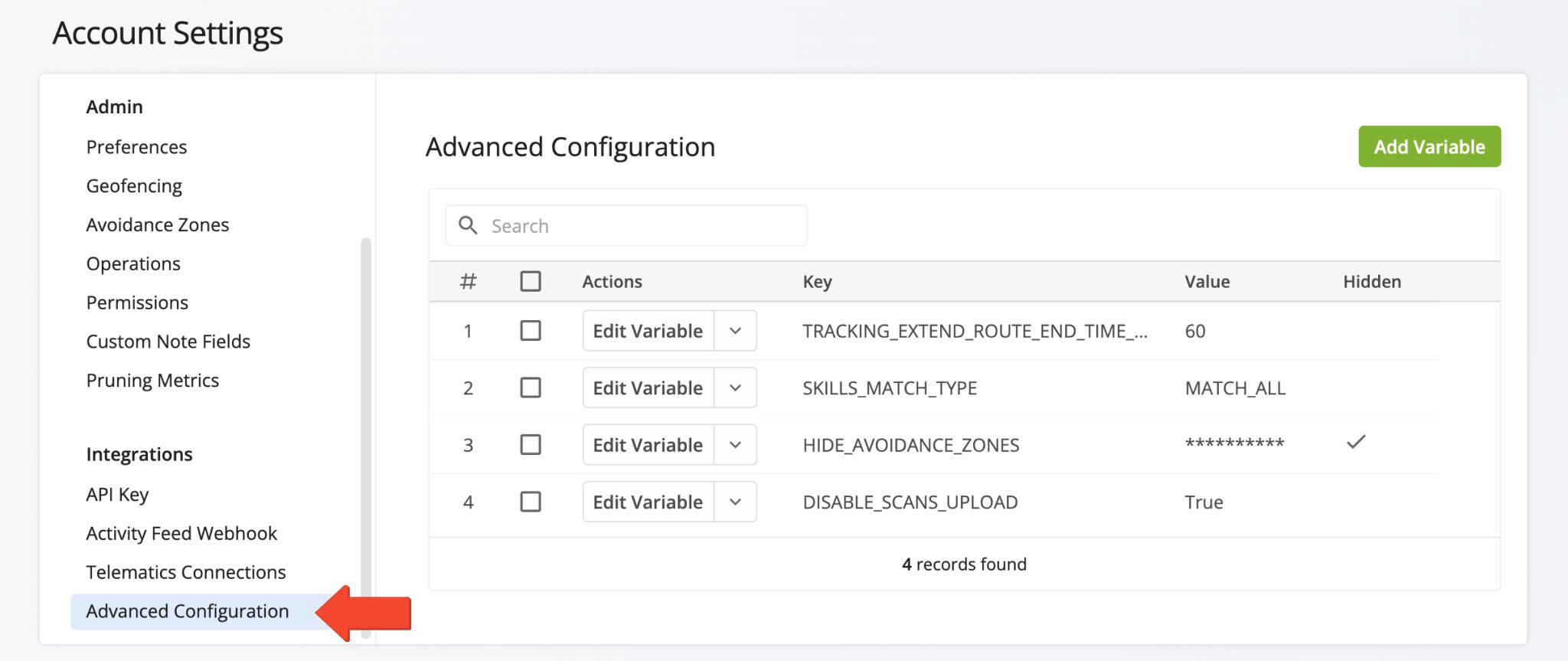
You can manage all available white labeling commands in the Advanced Configuration Editor. Each configuration key can be enabled or disabled individually, giving you full control over how Route4Me is branded and presented to your end users.
For faster setup, turn on Global White Label Mode by setting “whitelabel_mode_enabled = true“. This automatically activates a set of commonly used white labeling configurations. Once enabled, you can still fine-tune or override individual keys as needed.
Open Your Advanced Configuration Editor
White Labeling Modes
You can white label both the functionality and appearance of your Route4Me account:
-
Functionality white labeling controls how users interact with the software in your account.
-
Appearance white labeling controls how your account is visually presented to users.
Below, you’ll find configuration keys for customizing both functionality and appearance. The more branding you want to apply, the more customization options you’ll use.
NOTE: To activate certain features, you’ll need to contact your Routing Expert or Route4Me Customer Support.
White Labeling Options
-
Complete White Labeling – Activate Global White Label Mode for a fully branded experience where end users see only your company name. (See instructions above.)
-
Partial Branding – Enable only selected keys while keeping some default Route4Me features visible for advanced users.
-
Testing and Rollouts – Start with a few key settings, test the customer experience, and enable Global White Label Mode when you are ready to roll it out to all users.
Feature Configuration Keys For Account White Labeling
The table below lists the available configuration keys for white labeling your Route4Me account’s functionality. You can enable or disable these keys in the Advanced Configuration Editor to customize how your account is branded and experienced by end users.
NOTE: Some features require activation. To enable them, please contact your Routing Expert or Route4Me Customer Support.
White Labeling Advanced Configuration Keys
Color Configuration Keys For Account White Labeling
In addition to functionality, you can customize the appearance of your Route4Me account and how it is displayed to your users. To adjust colors, use the “ui_theme_colors” key.
Within this key, you can define a JSON-like structure with your preferred RGB values for specific interface elements. This allows you to apply your brand’s color scheme across the Route4Me platform.
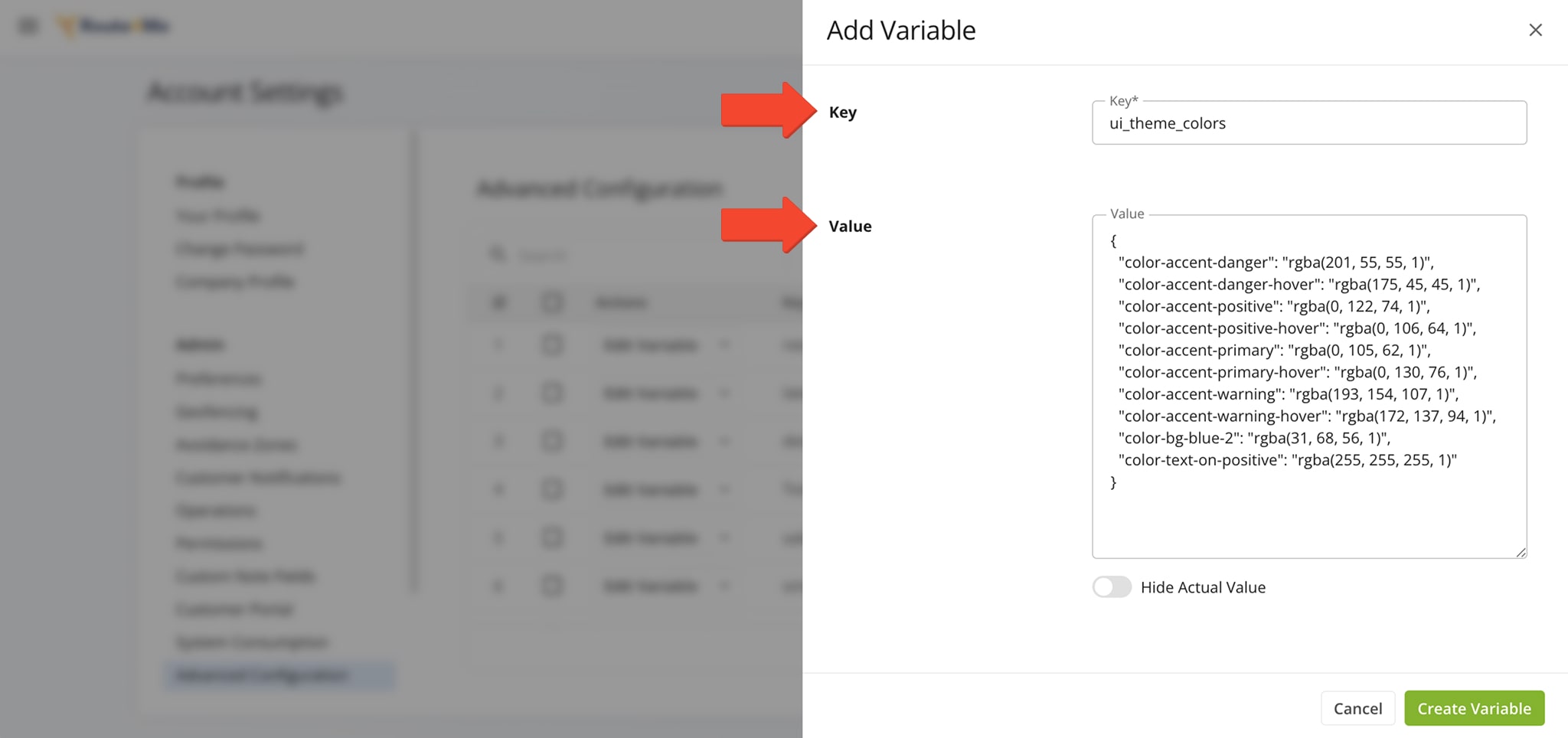
Sample JSON-like structure for color configuration variables.
{
"color-accent-danger": "rgba(201, 55, 55, 1)",
"color-accent-danger-hover": "rgba(175, 45, 45, 1)",
"color-accent-positive": "rgba(0, 122, 74, 1)",
"color-accent-positive-hover": "rgba(0, 106, 64, 1)",
"color-accent-primary": "rgba(0, 105, 62, 1)",
"color-accent-primary-hover": "rgba(0, 130, 76, 1)",
"color-accent-warning": "rgba(193, 154, 107, 1)",
"color-accent-warning-hover": "rgba(172, 137, 94, 1)",
"color-bg-blue-2": "rgba(31, 68, 56, 1)",
"color-text-on-positive": "rgba(255, 255, 255, 1)"
}
The table below lists all available white labeling configuration keys for partners and resellers. You can use these keys to customize how Route4Me is branded and experienced by your end users.
NOTE: Some features require activation. To enable them, please contact your Routing Expert or Route4Me Customer Support.
Route4Me White Labeling Config. Keys
Visit Route4Me's Marketplace to Check Out More Add-Ons and Modules:
- Route Optimization
Address Book and Territories Planning
- Operations
Custom Data Add-On
About author: Daniel Archer

