
Route Map (Original) – Multiple Route Management On Interactive Map
Route4Me’s dynamic routing system creates time-efficient multi-destination routes, putting route planning and enterprise route optimization software on autopilot. The Routes Map provides a clear visual overview of multiple optimized routes and lets you quickly add, remove, or move destinations between them. It also allows real-time tracking of your field team with GPS and synchronized updates between the Routes Map and the Mobile Driver App. In this guide, you’ll learn how to use the Routes Map to manage multiple routes and destinations at once.
NOTE: The Classic Routes Map will be removed for all new accounts. Existing customers will not be affected.
Table of Contents
Open Routes Map – View Multiple Routes Simultaneously On Interactive Map
To open your Route4Me Routes Map, go to “Dynamic Routing” > “Routes Map” in the Navigation Menu.
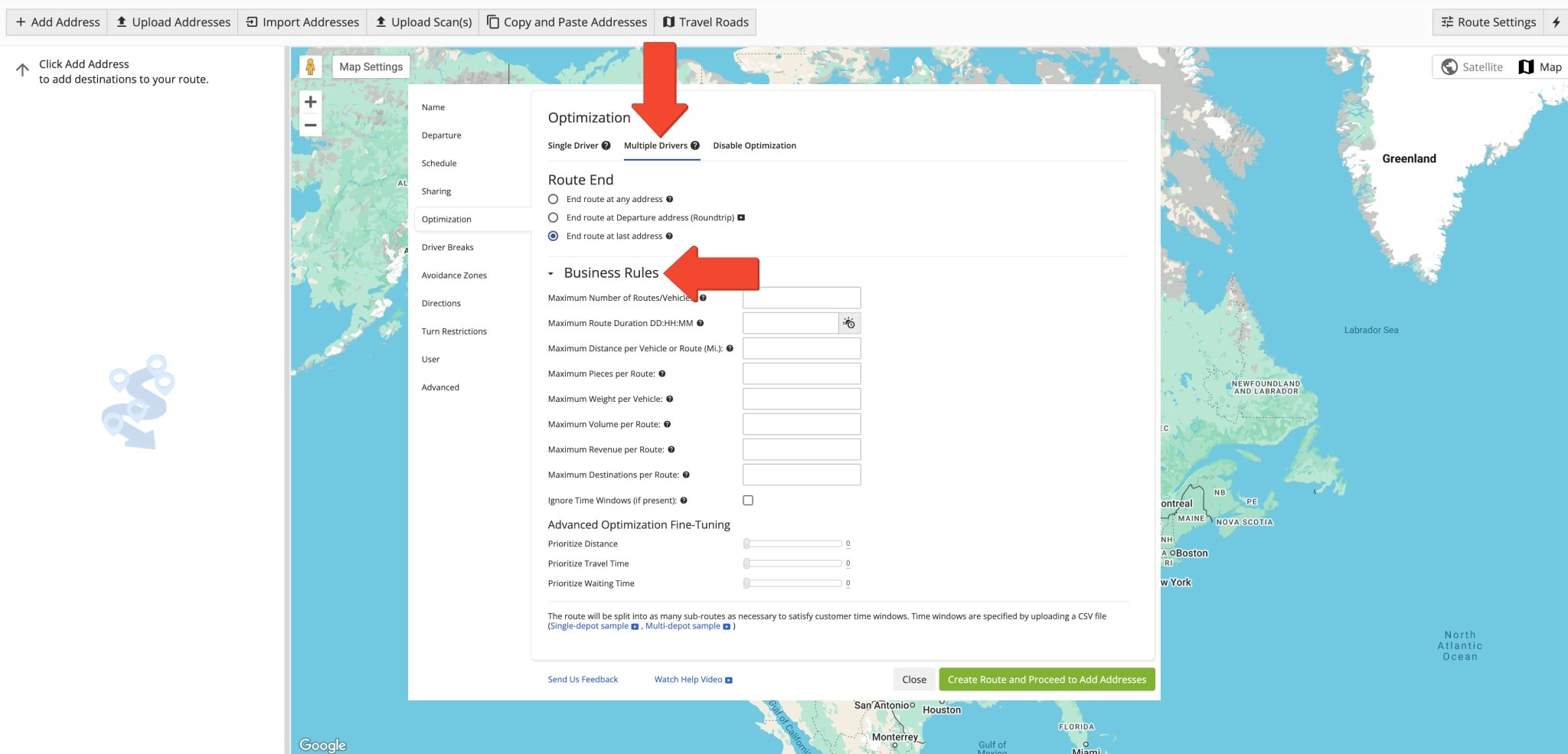
NOTE: When you plan multiple routes simultaneously with business rule constraints like Max Destinations, Max Distance, Max Duration, Pieces, Weight, Cubic Volume, and Revenue, they will open automatically in the Routes Map.
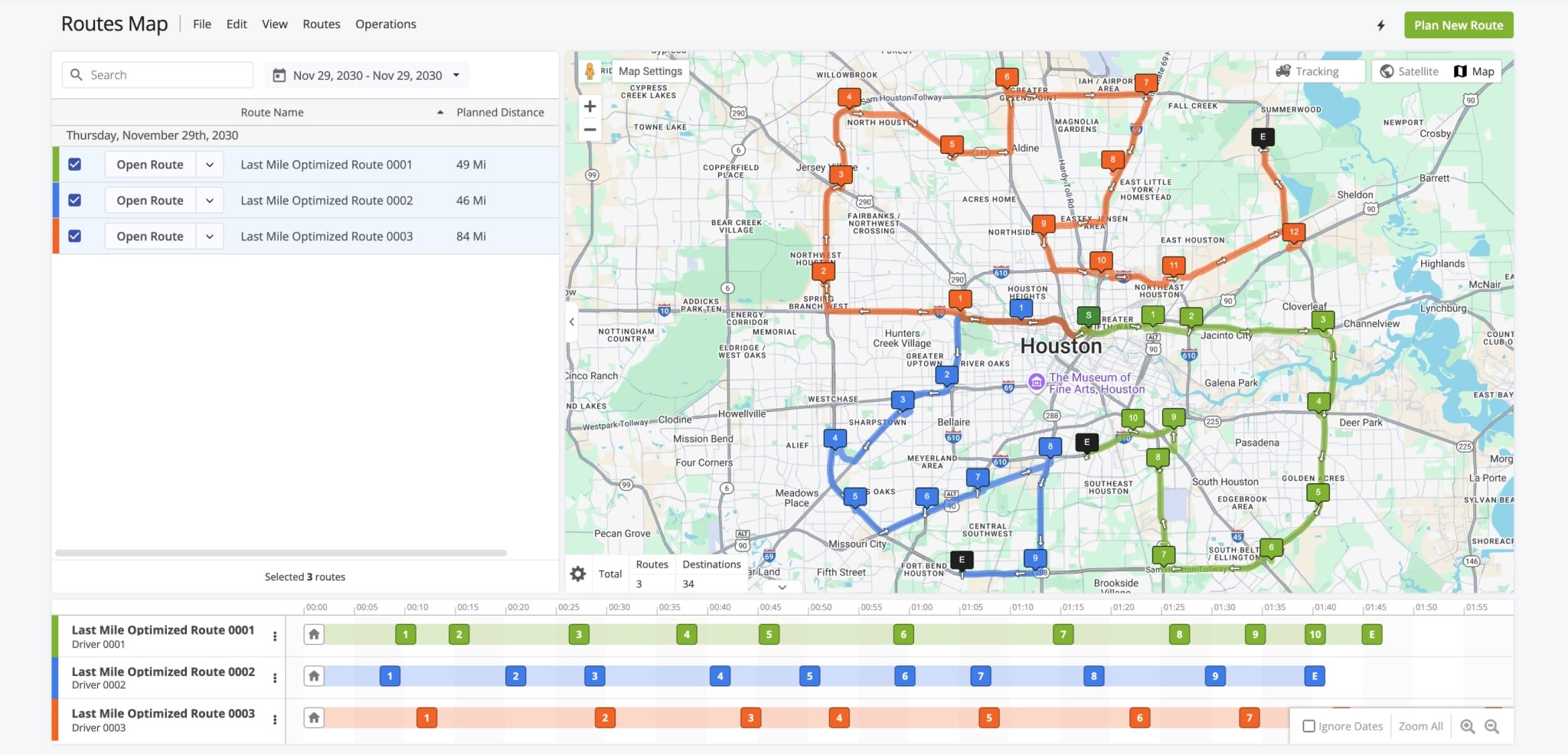
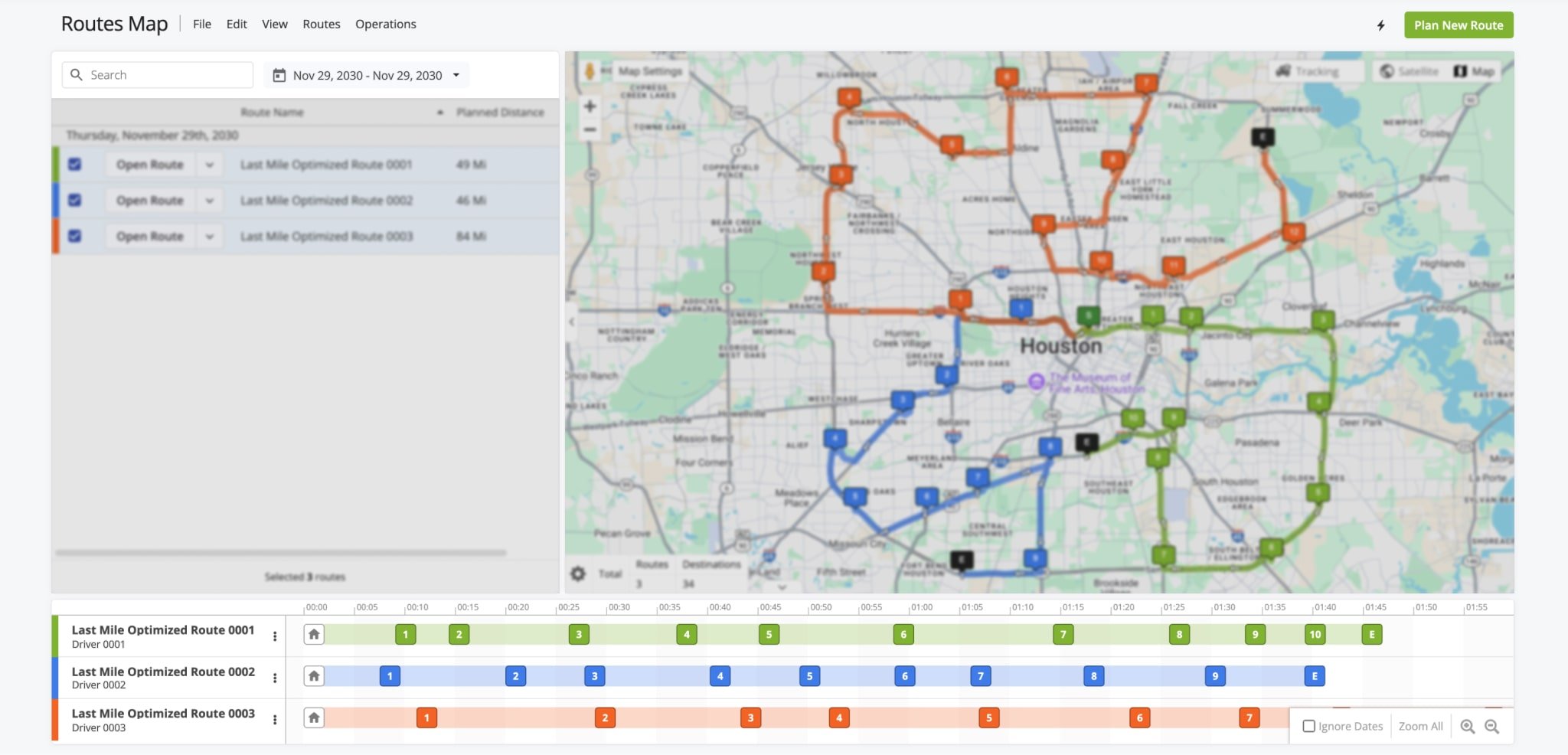
Routes Map Overview – Routes Map List, Interactive Map And Routes Time Line
The Routes Map page is divided into three sections, each with their own functions. For effortless route and destination management, some options are available in multiple sections.
From the Routes Map List, you can open routes on the map, manage routes, and view data in the customizable Route Data Table.
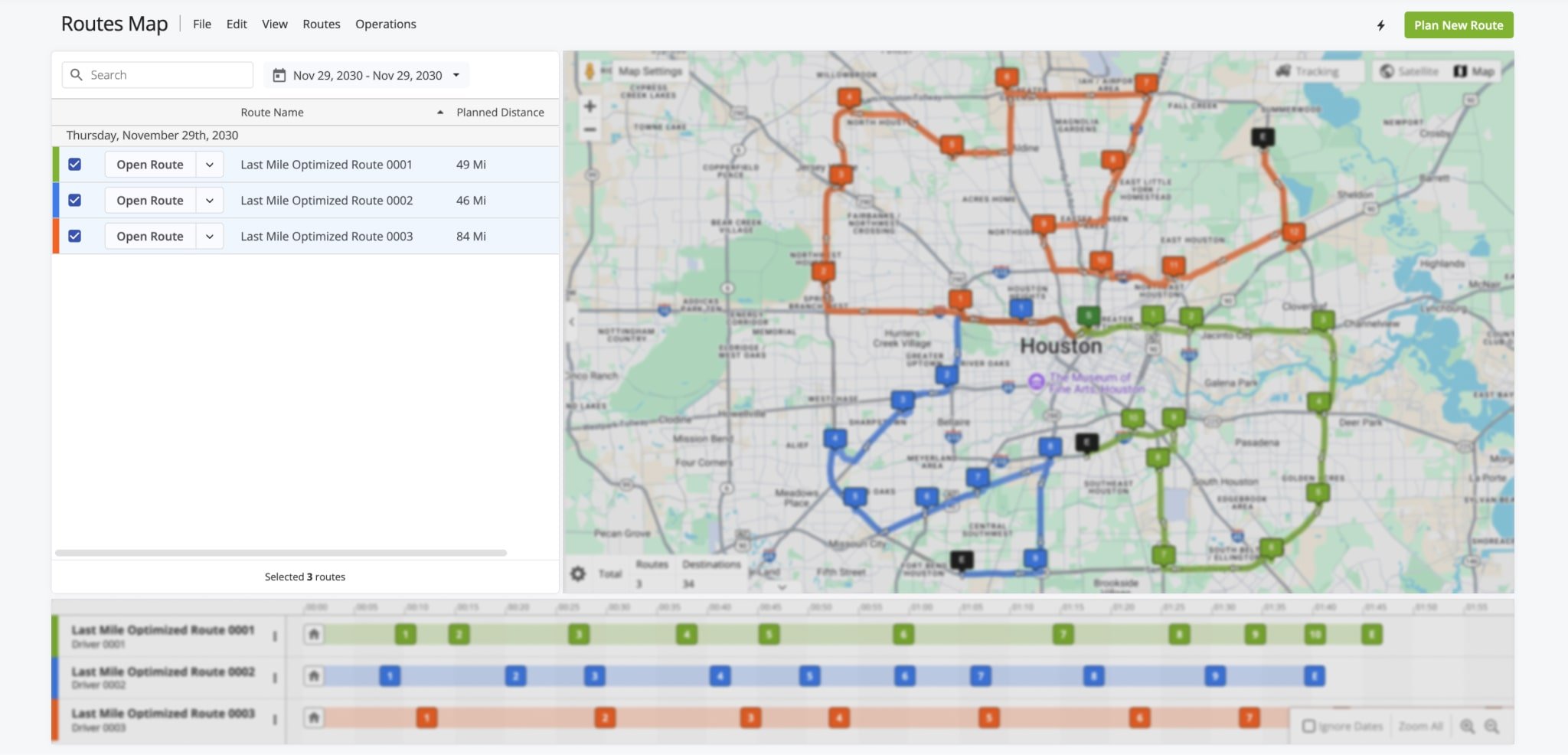
The Interactive Map displays routes enabled in the Routes Map List, showing their respective destination sequences.
From the Interactive Map, you can customize map settings, enable user tracking, and access time-specific route data. You can also view aggregate route data via the customizable Summary Table.
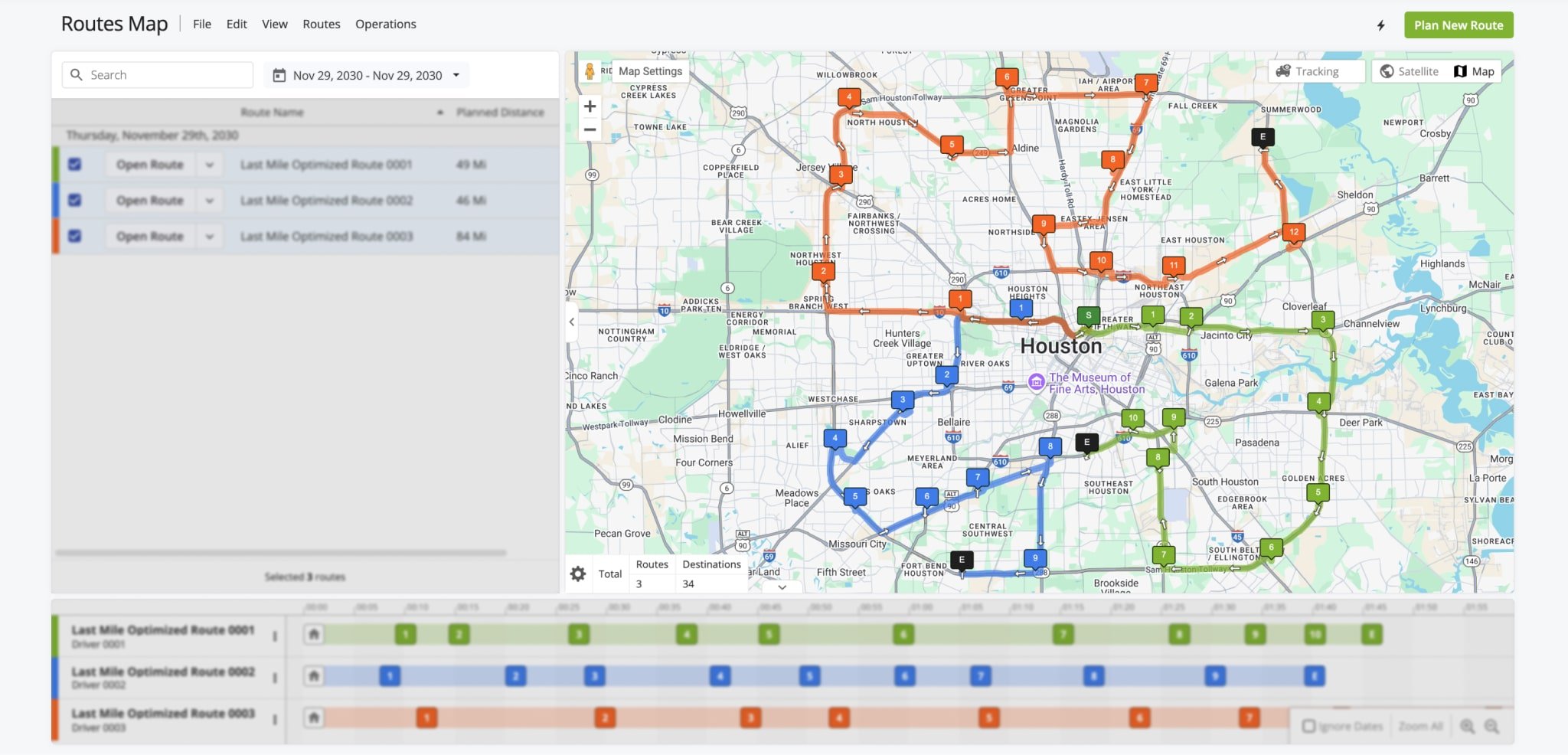
The Routes Time Line below the Routes Map List and Interactive Map enables you to view destination sequences for selected routes according to their schedules.
From the Routes Time Line, you can view specific destination information, manage destinations, move a destination within its given route or even move it to a different route.
Routes Map Columns – Customize Route Data On The Routes Map
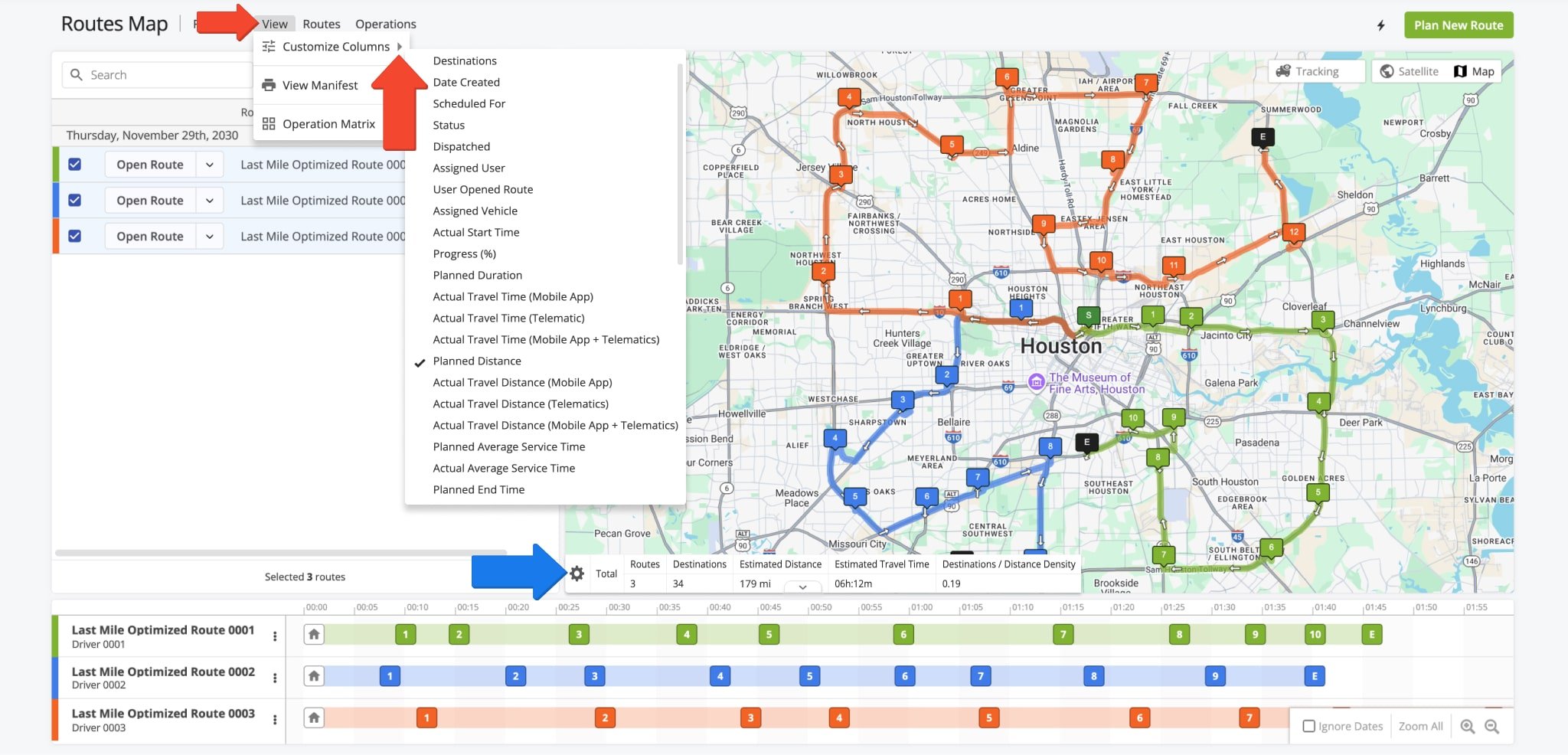
With the Routes Map, you can easily filter and view route data. The Routes Map List includes a customizable table of route parameters.
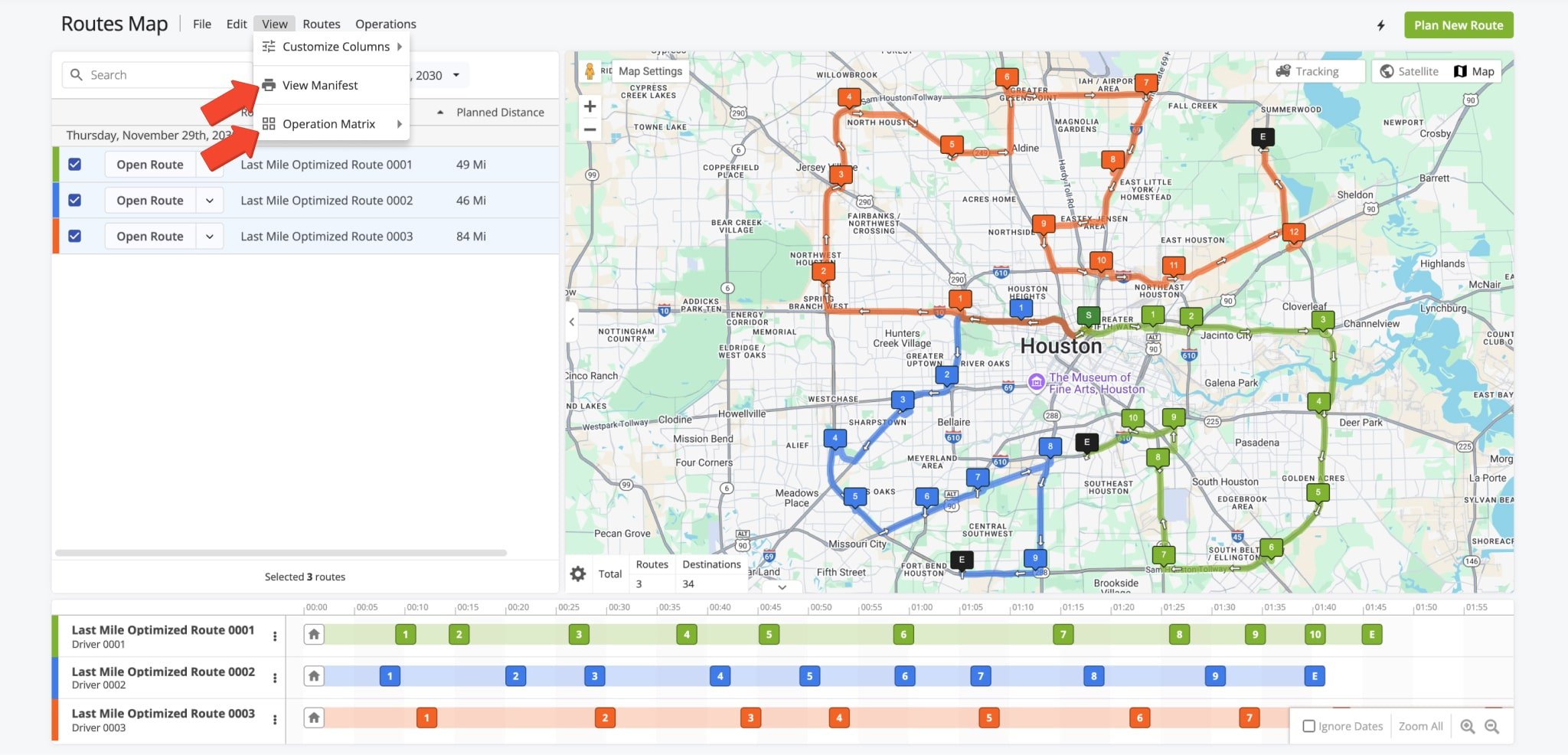
To customize the data items that appear in your Routes Map List, click on “View” in the Tool Bar. Then, hover over “Customize Columns” and select the data items you wish to see in the Routes Map List. See the table below for more on available data items.
You can also find aggregated data for selected routes in the customizable Summary Table located on the lower left of the Interactive Map.
Route Data Options
Manage Routes – Open And Manage Routes And Route Data
The Routes Map makes it easy to open and manage multiple routes simultaneously. You can filter routes by name or schedule, open routes for specific dates, and use a variety of tools to edit, view, or export route data for efficient route management.
Open Routes – Filter And View Multiple Routes Side By Side On Routes Map
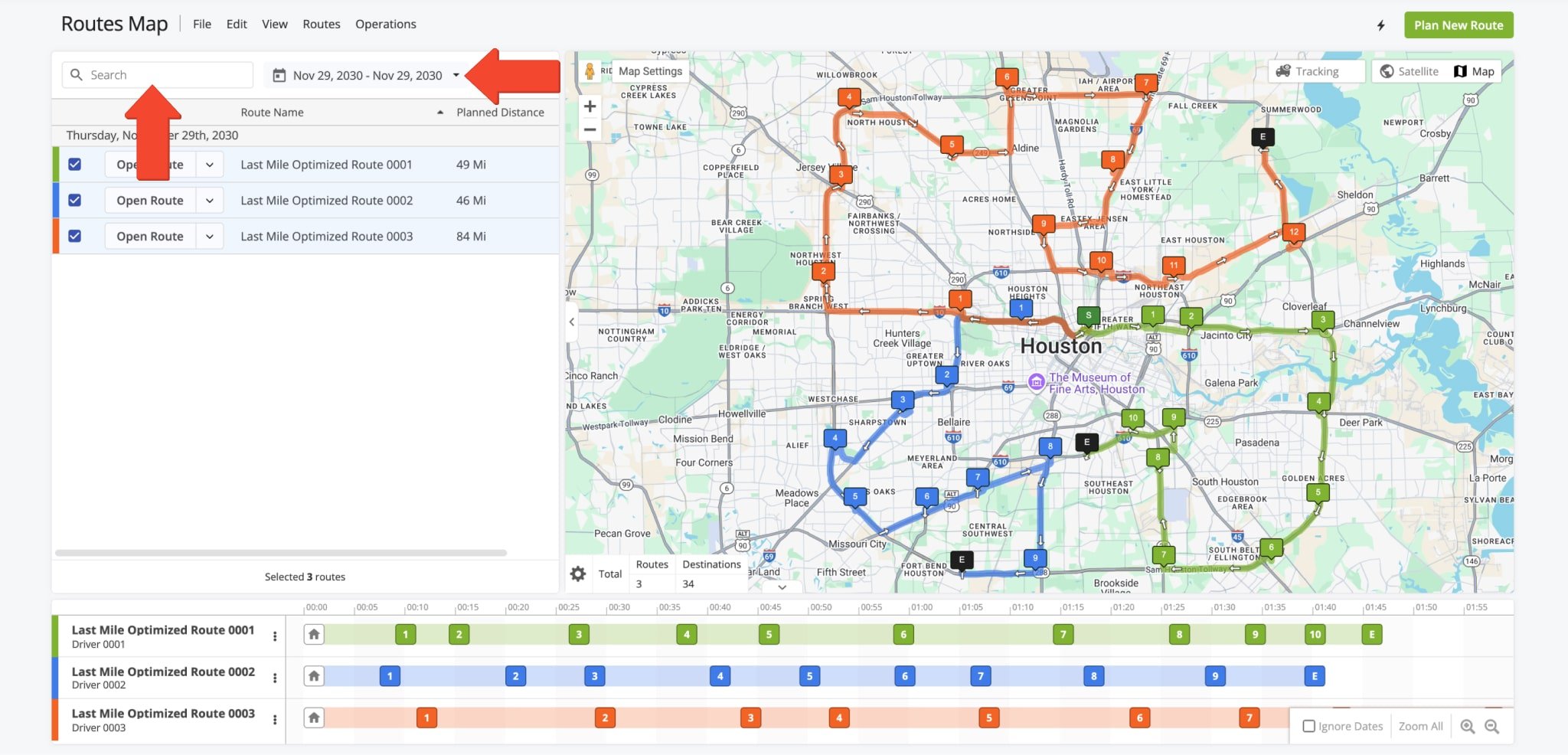
To open routes directly from the Routes Map, go to “Operations” in the Navigation Menu, then click “Routes Map“. Use the Calendar Icon to filter routes by date. They will be displayed in the Routes Map List.
To refine your filter criteria further, use the Search Bar to display specific route details. Only routes with those details, scheduled for the selected date range, will appear in the Routes Map List.
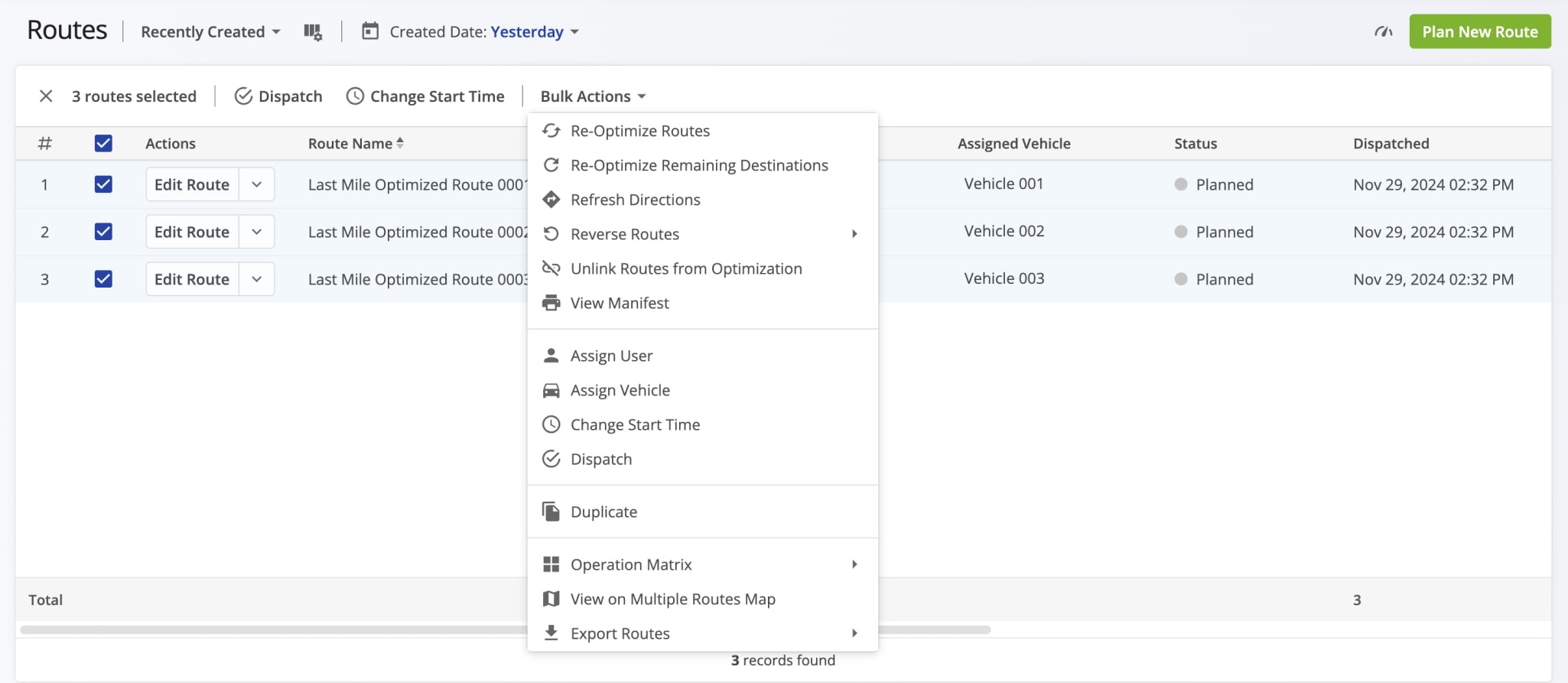
Alternatively, to open previously planned routes on the Routes Map, go to “Dynamic Routing” > “Routes” in the Navigation Menu to access your Routes List.
Select desired routes by checking their boxes, click “Bulk Actions” in the top menu bar and, then, choose “View on Multiple Routes Map“.
Additionally, when you plan multiple routes from a single set of addresses with constraints such as Max Destinations, Max Distance, Max Duration, Pieces, Weight, Cubic Volume, and Revenue, these routes are automatically opened on the Routes Map.
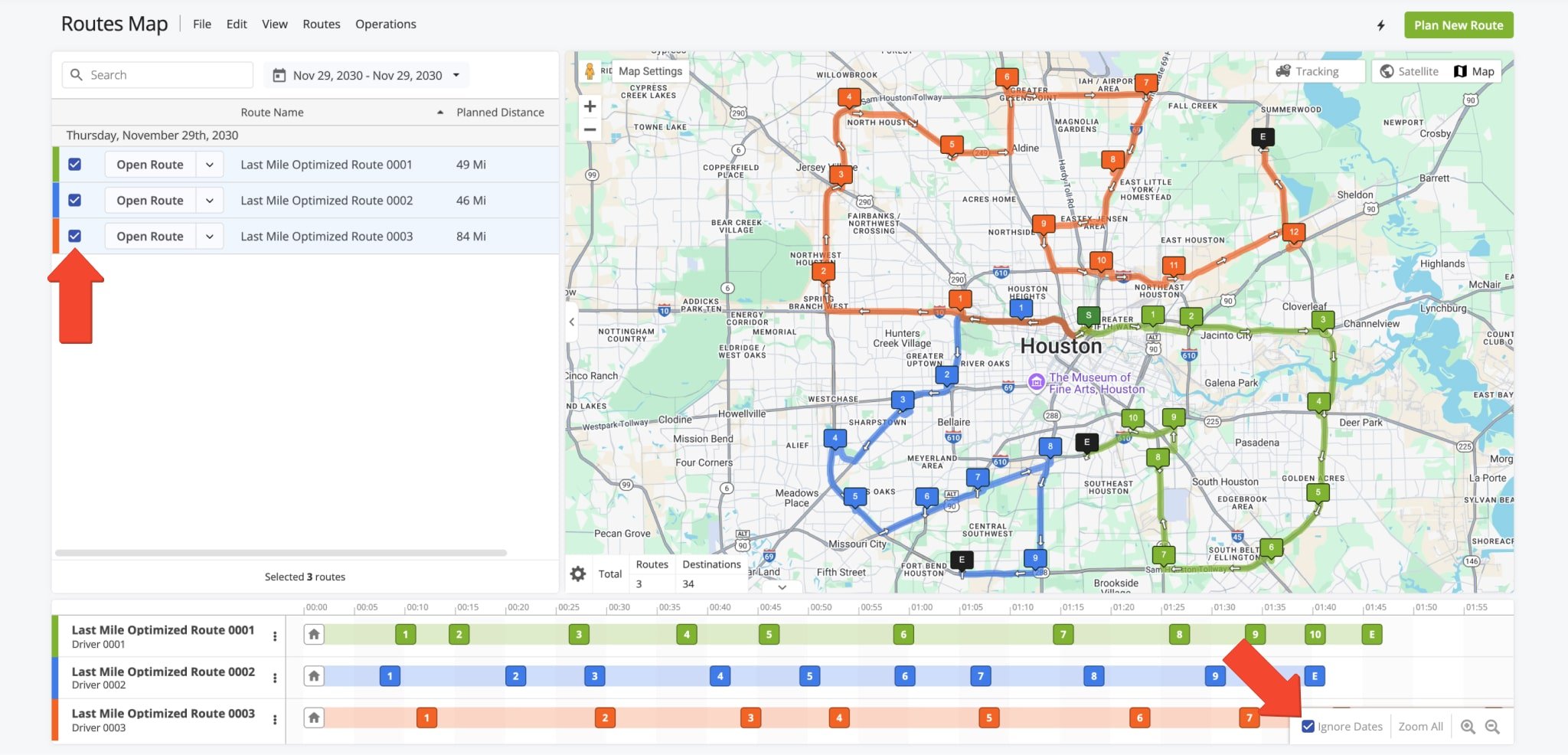
To display routes on the map, select the desired routes by checking their boxes in the Routes Map List.
Unchecking them hides the routes. If routes are scheduled for different dates, check the “Ignore Dates” box in the Time Line controls. This will align all selected routes’ timelines for easier cross-route destination management.
Manage Routes – Insert Addresses, Re-Optimize Routes, Adjust Schedules And More
The Routes Map offers various tools to manage your routes effectively.
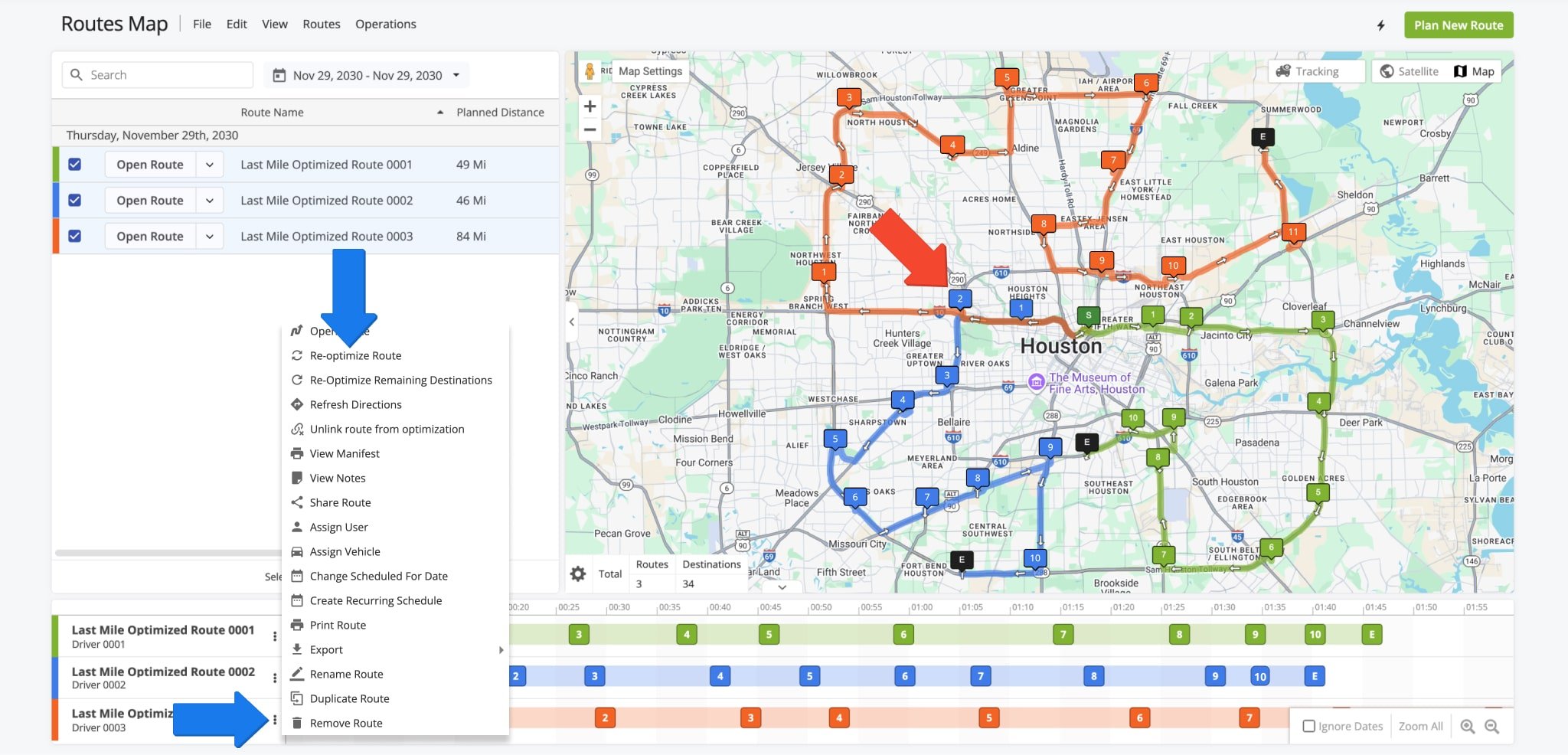
From the top menu bar, you can assign users and vehicles from the “Edit” menu, and insert addresses and re-optimize routes from the “Routes” menu. You can also click on a Down Arrow Button in the Routes Map List or a Three-dot Icon in the Time Line to individually manage a specific route.
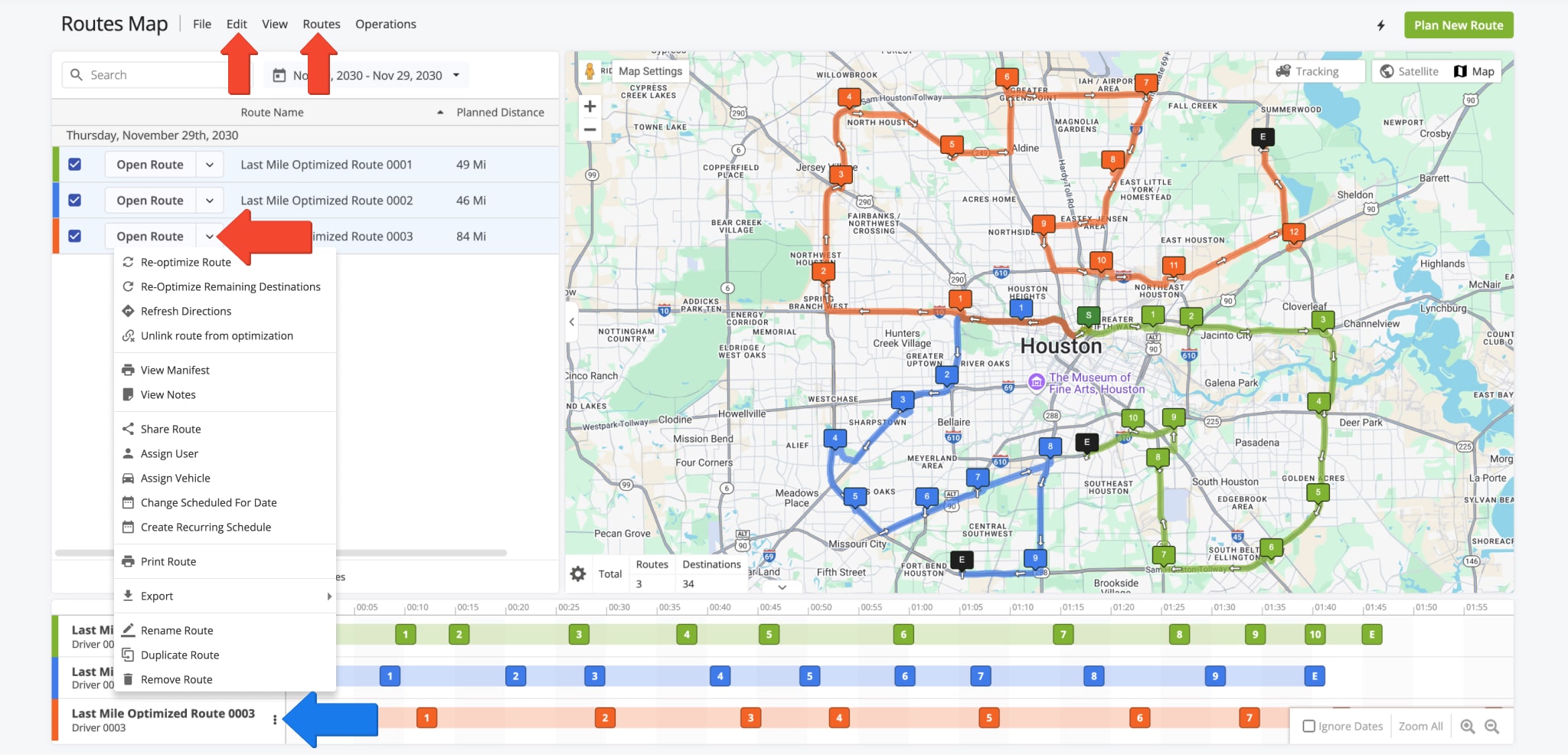
Route Management Options
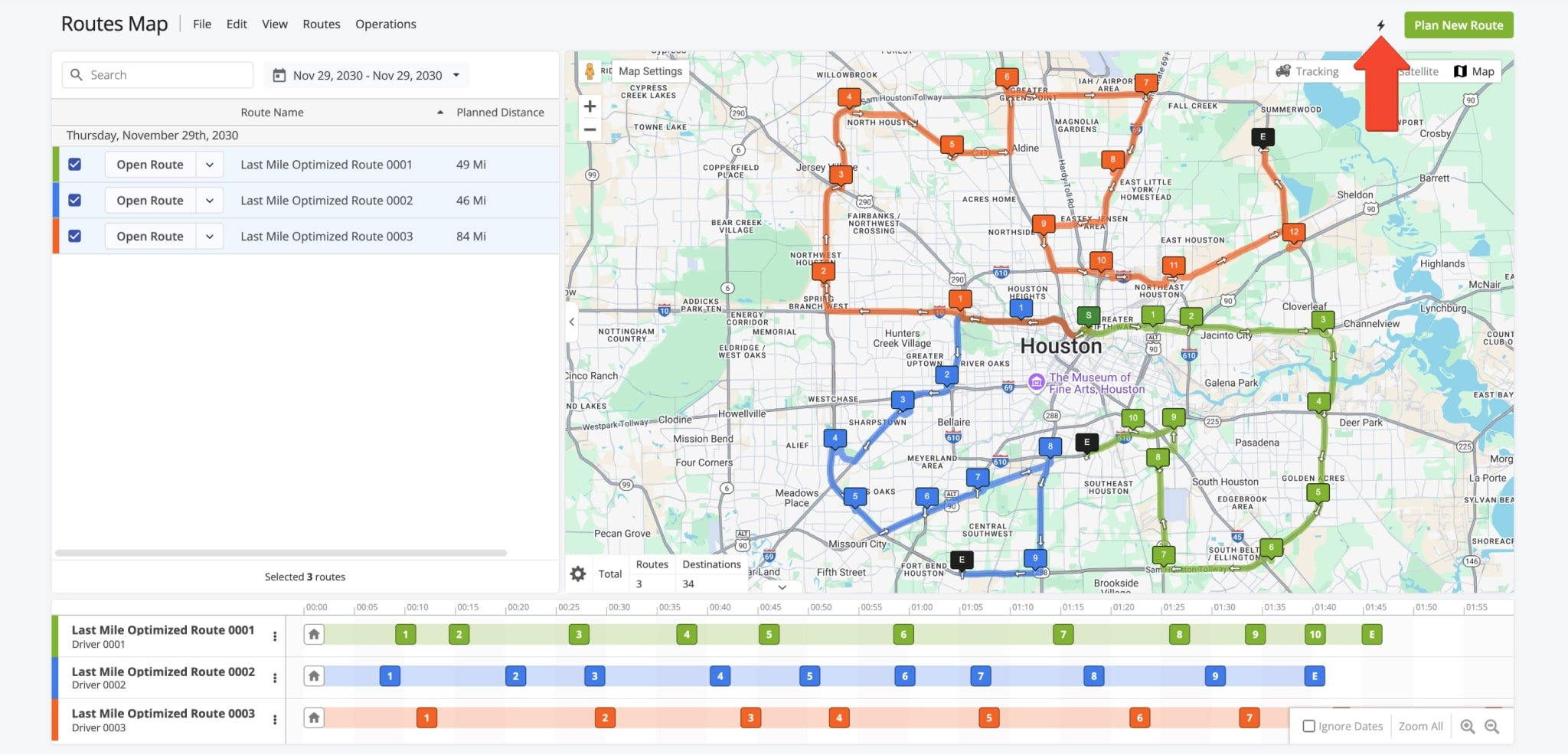
For added convenience, you can click on the Lightning Bolt Icon above the Interactive Map to access a variety of Quick Actions, Commands, and Help options.
To access detailed route data, click “View” in the Tool Bar, then “Route Manifest” to open your customizable, dynamic Route Manifest.
To view a comprehensive visual overview of real-time route progress, click on “Operation Matrix“, also located under “View” in the Tool Bar. The Operation Matrix displays selected routes side by side, enabling you to view in real time each route’s visitation progress via color-coded metrics.
Interactive Map – Map Settings, Route Data Summary Table And Live Tracking
When you select routes in the Routes Map List, they appear on the Interactive Routes Map along with their destination sequences. In addition, the Interactive Map provides a summary of all selected routes, user and driver tracking capabilities, and customizable map settings for a tailored view.
Map View – Map Controls And Map Modes On Route4Me’s Routes Map
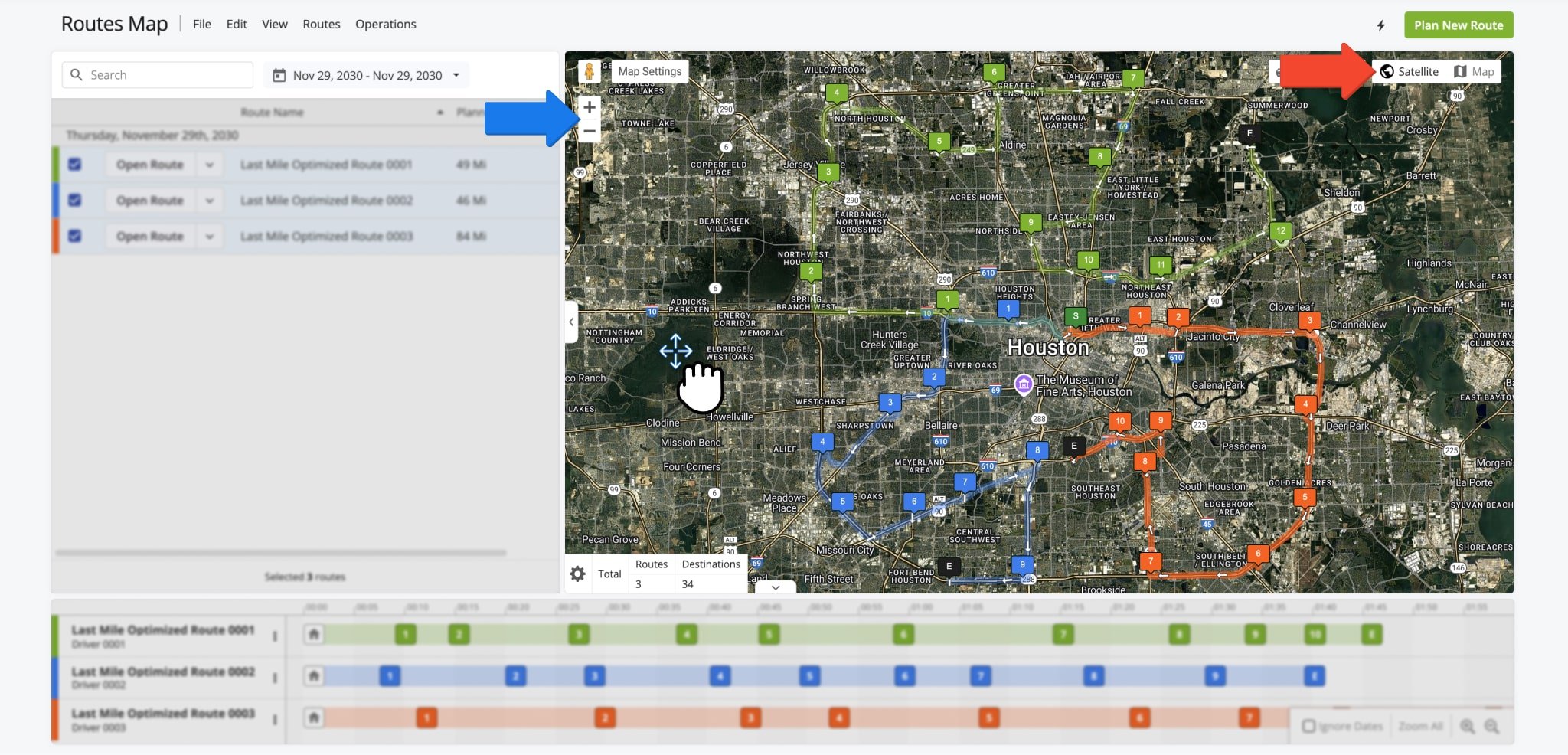
To navigate the Interactive Map, drag the map to move it and use scroll, pinch gestures, or the Zoom In or Zoom Out buttons to adjust the zoom level. For a tailored display, switch between “Satellite” and “Map” views using the respective buttons.
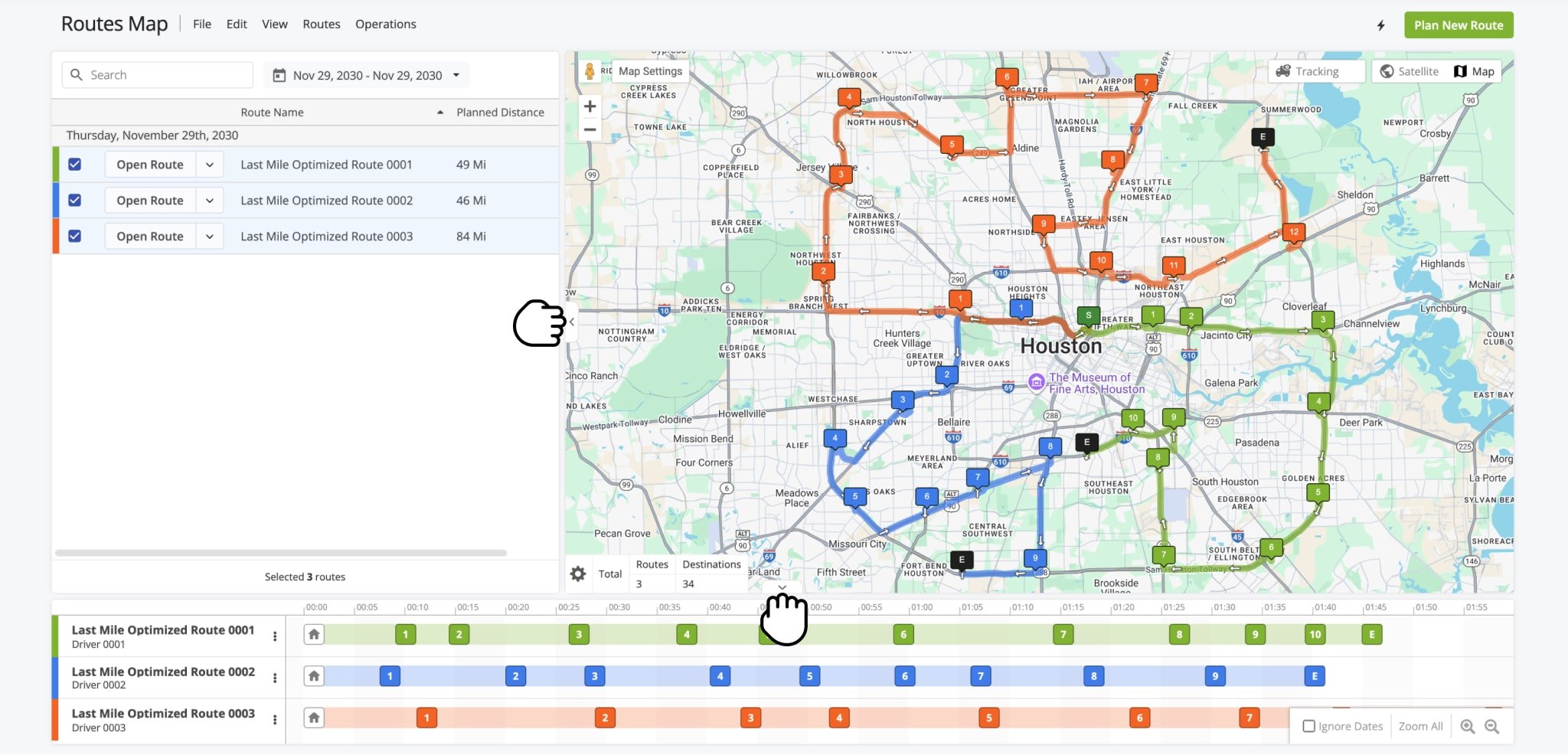
To resize the Interactive Map in relation to the Routes Map List and Time Line, click and drag the panel separators to adjust the layout. Clicking and dragging a separator minimizes the corresponding panels, allowing you to maximize the panels you wish to focus on at any given time.
Map Settings – Enable Territories, Geofences, ETAs And More On Routes Map
In addition to basic view options and map controls, the Interactive Map enables you to view various routing items like Territories, Geofences, and more. Click the “Map Settings” button to access the below options.
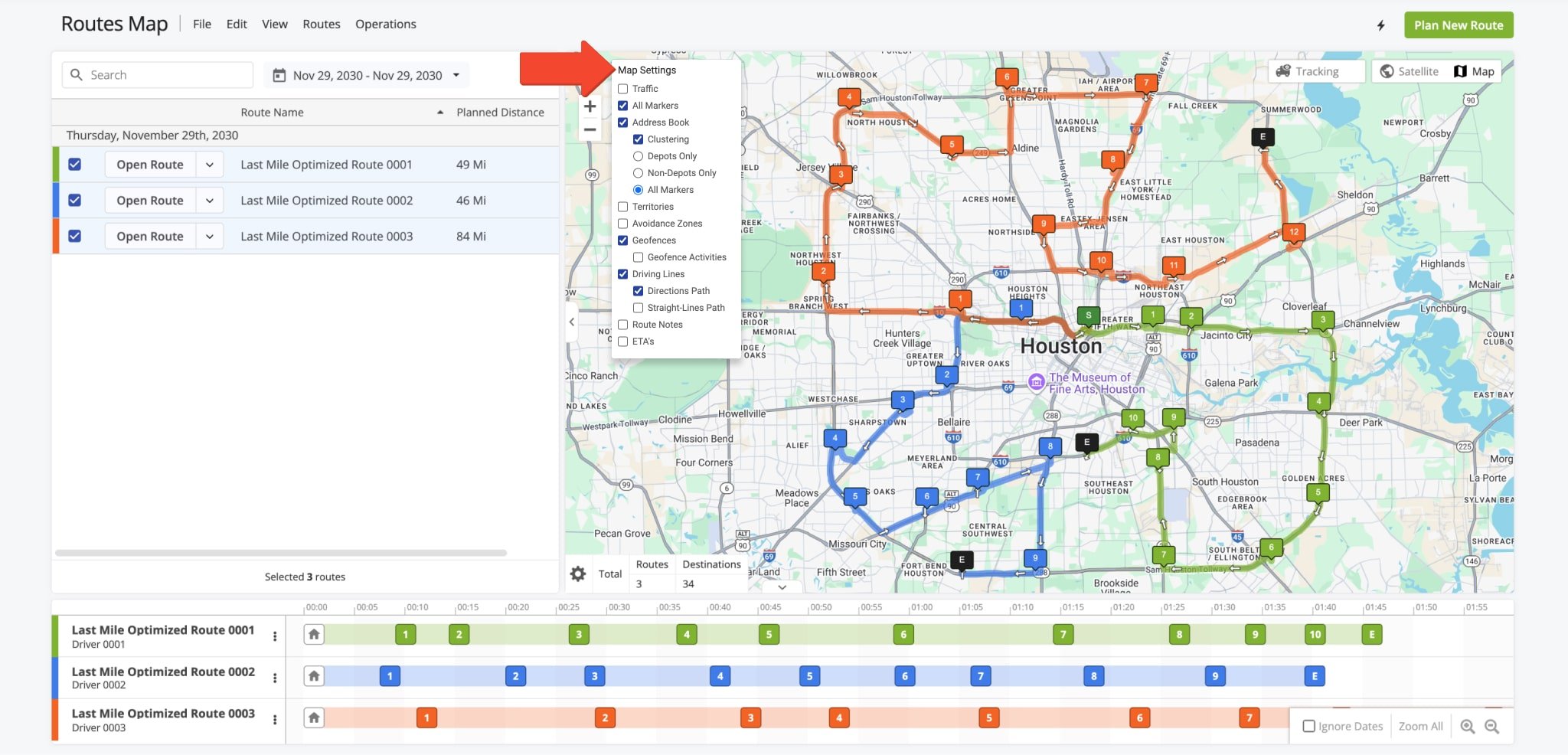
Map Settings
User Tracking – Live Multiple Driver Tracking On The Route4Me Routes Map
The Interactive Routes Map enables you to track users and drivers. Hover over the “Tracking” button to access the tracking menu. From there, hover over “Routes” to filter routes by date or click “Users” to open the user tracking panel. You can use the “Search in Users” field to filter users by name.
Optionally, by checking the Connection box, you can display only currently active users. Currently connected users will have a green Connection Icon next to their names; those who aren’t will have a red Connection Icon. Learn more about Route4Me’s customizable enterprise route management software User Types and Hierarchy.
Hovering over a user’s name will give you access to additional options. For instance, you will be able to locate their position on the Interactive Map in real time. You can select “Open Last Known Route” to view in the Route Editor the last route executed by the user.
You can also select “Show Activity Feed” to open a dynamic Activity Feed which displays a list of actions performed by the user. Learn more about Route4Me’s Dynamic Activity Feed.
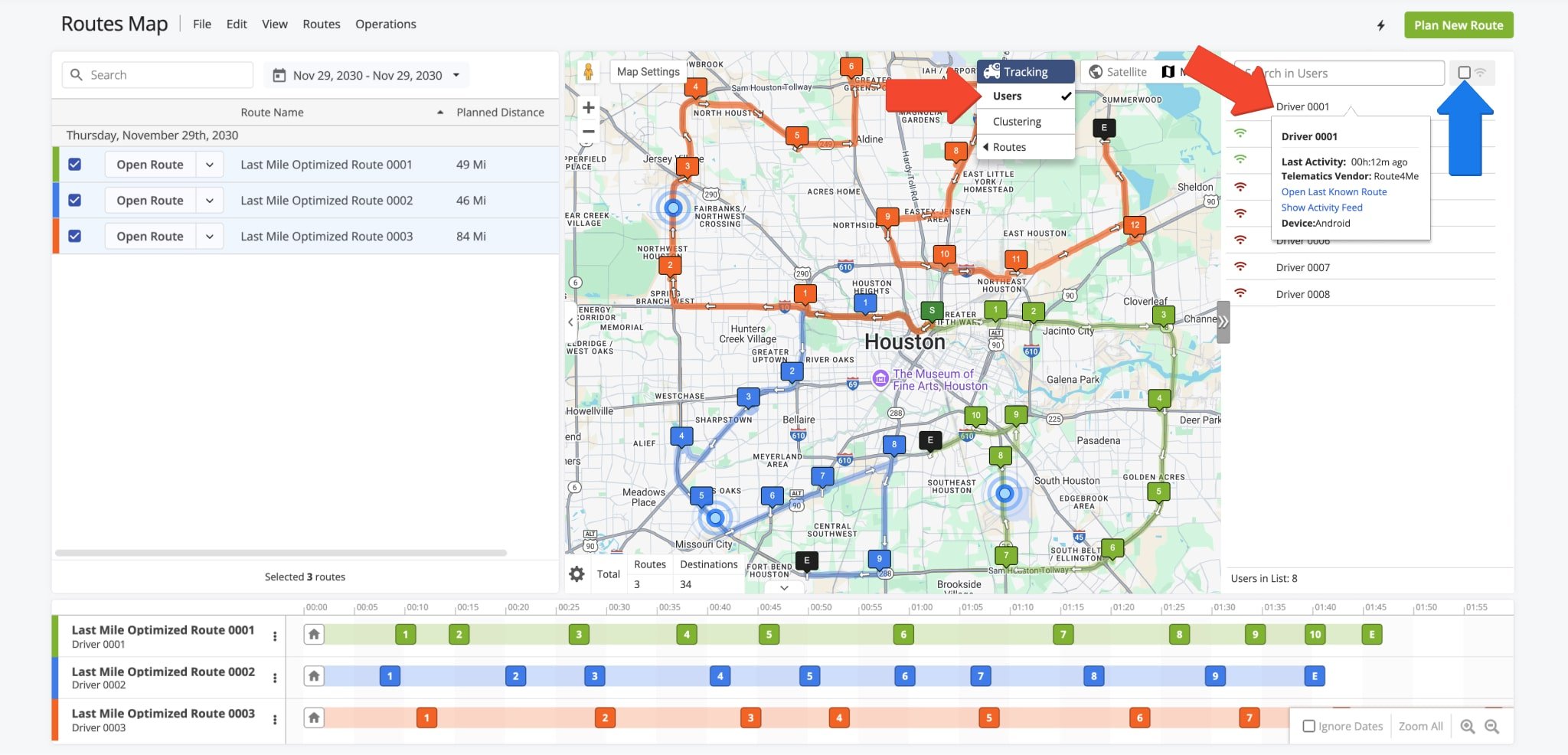
Users with the Mobile Route Planner App installed and location services enabled on their mobile devices will appear on the Interactive Map if they meet your filters.
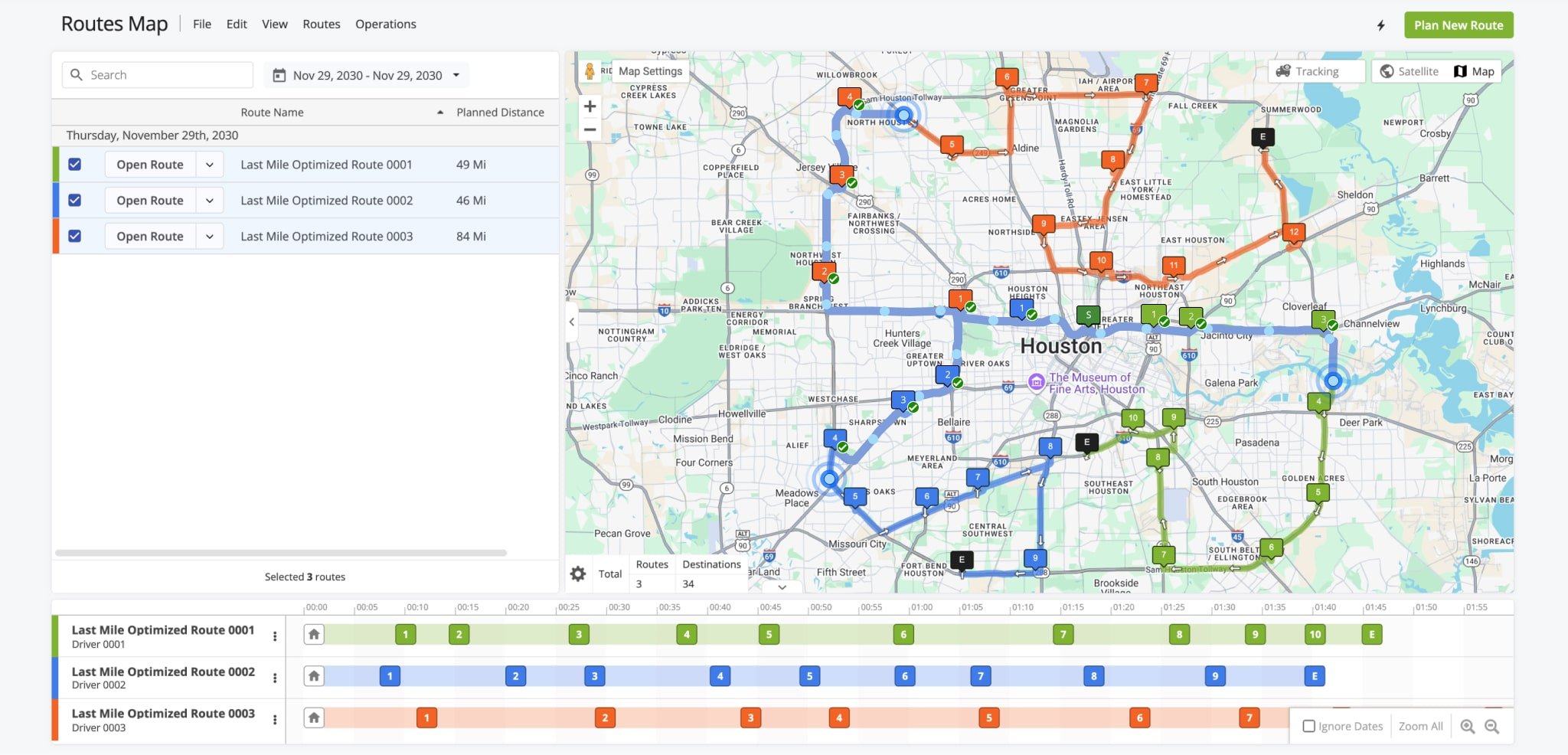
Once a driver begins a route in the the Mobile Route Planner App, their progress is displayed as a blue trail on the Routes Map. This trail consists of GPS breadcrumbs, marking points where their devices updated and synchronized GPS coordinates with the Route4Me business route software.
Time Line View – Routes Map Route View Options And Time Line Controls
The Time Line displays routes according to their scheduled start times relative to each other.
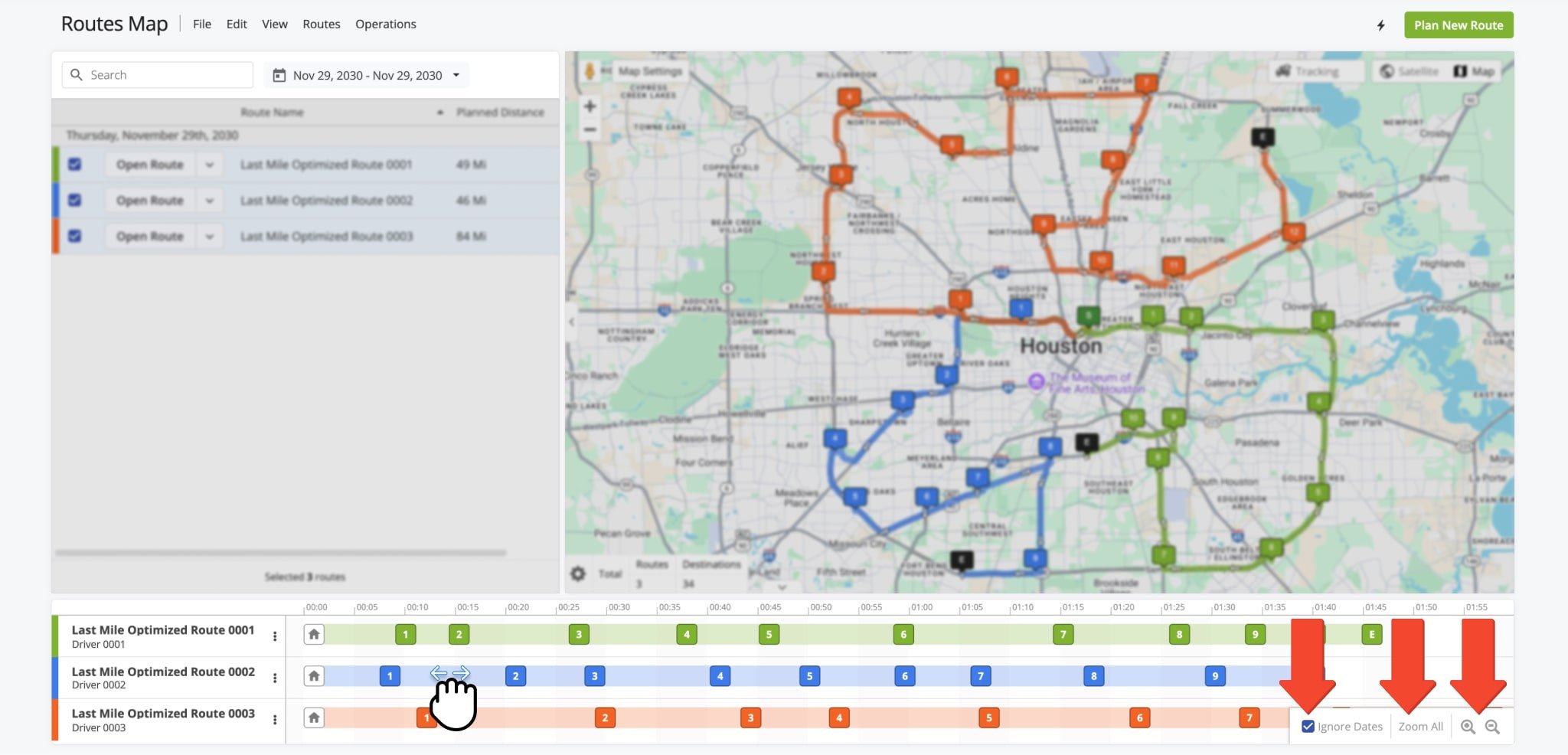
You can click and drag to navigate left or right or use the Zoom In or Zoom Out buttons to adjust the scale. To display on the same time line routes scheduled for different dates, check “Ignore Dates“.
Alternatively, clicking “Zoom All” expands the view to show the maximum number of destinations possible, regardless of their schedule.
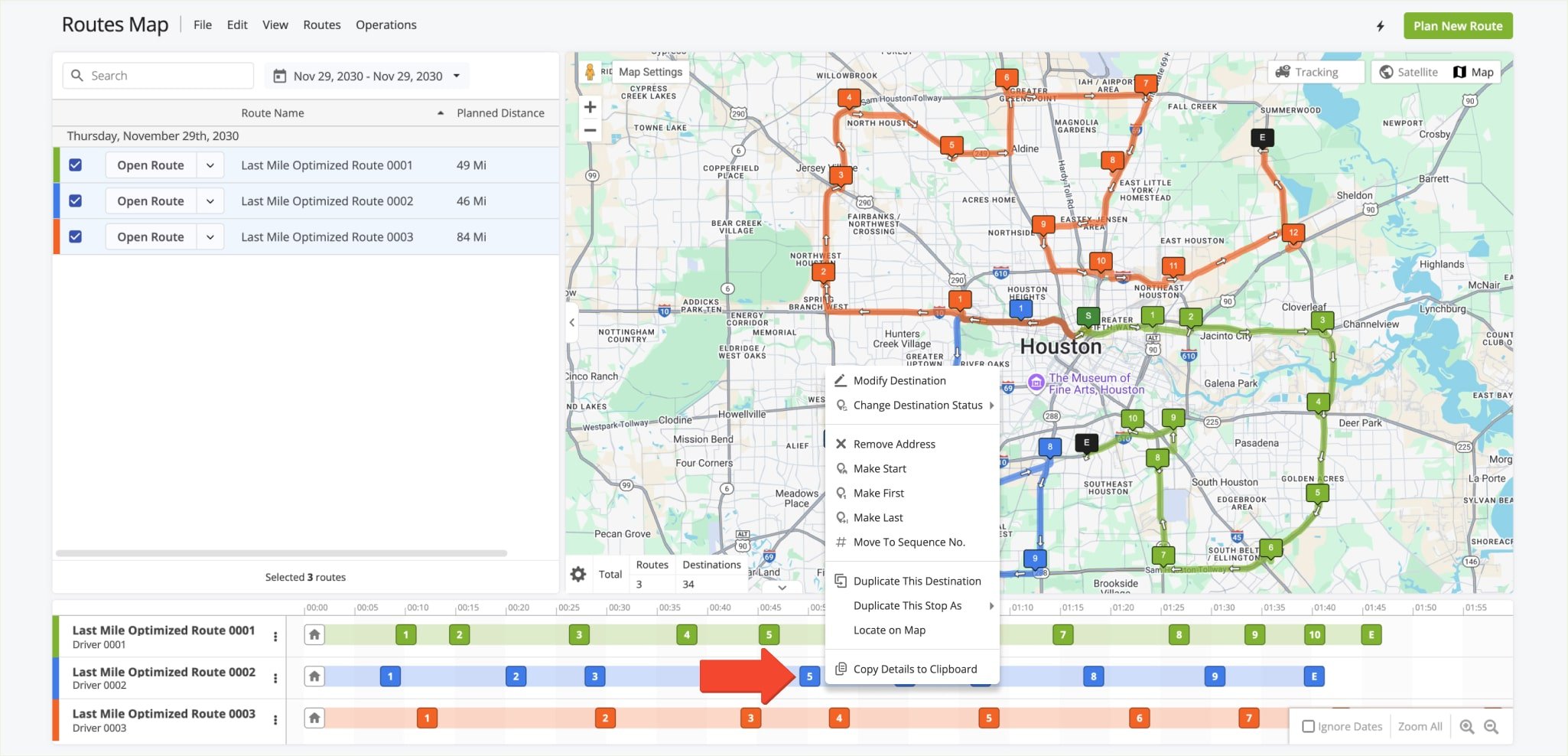
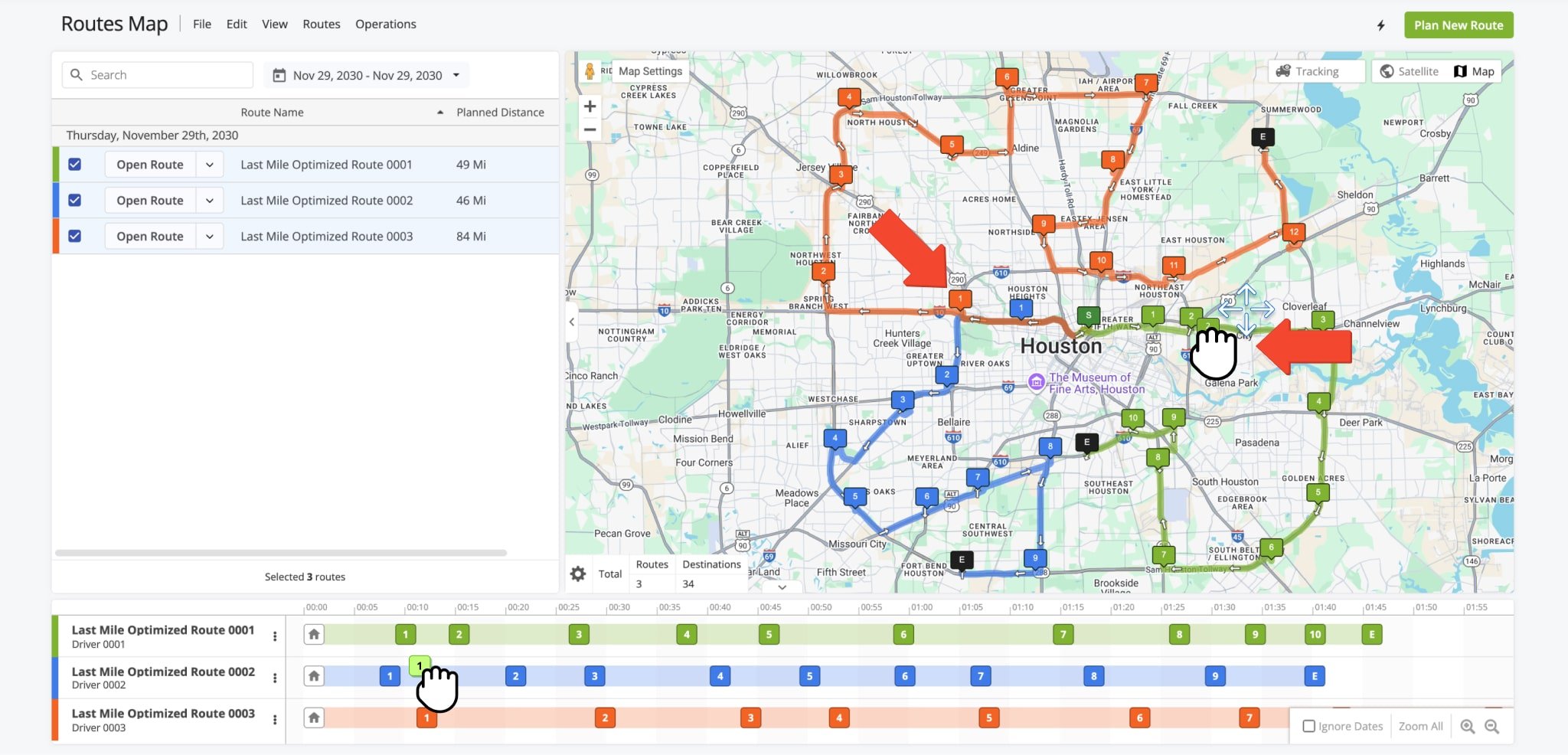
To ensure routes are optimized for maximum efficiency, re-optimize them after making changes.
To do so, click the Three-dot Icon next to the modified route on the Time Line, the Down Arrow button in the Routes Map List, “Routes” from the top menu bar, or click the Thunderbolt Icon above the Interactive Map. Then, select “Re-Optimize Route” or “Re-Optimize Remaining Destinations” for routes that have already started.
NOTE: The “Re-Optimize Routes” option available from the “Routes” menu on the top menu bar will re-optimize all routes selected on the Routes Map List. Route with visited destinations will not be re-optimized, use “Re-Optimize Remaining Destinations” to re-optimize started routes with visited destinations.
Sync Routes Map Updates To Mobile Driver App In Real Time
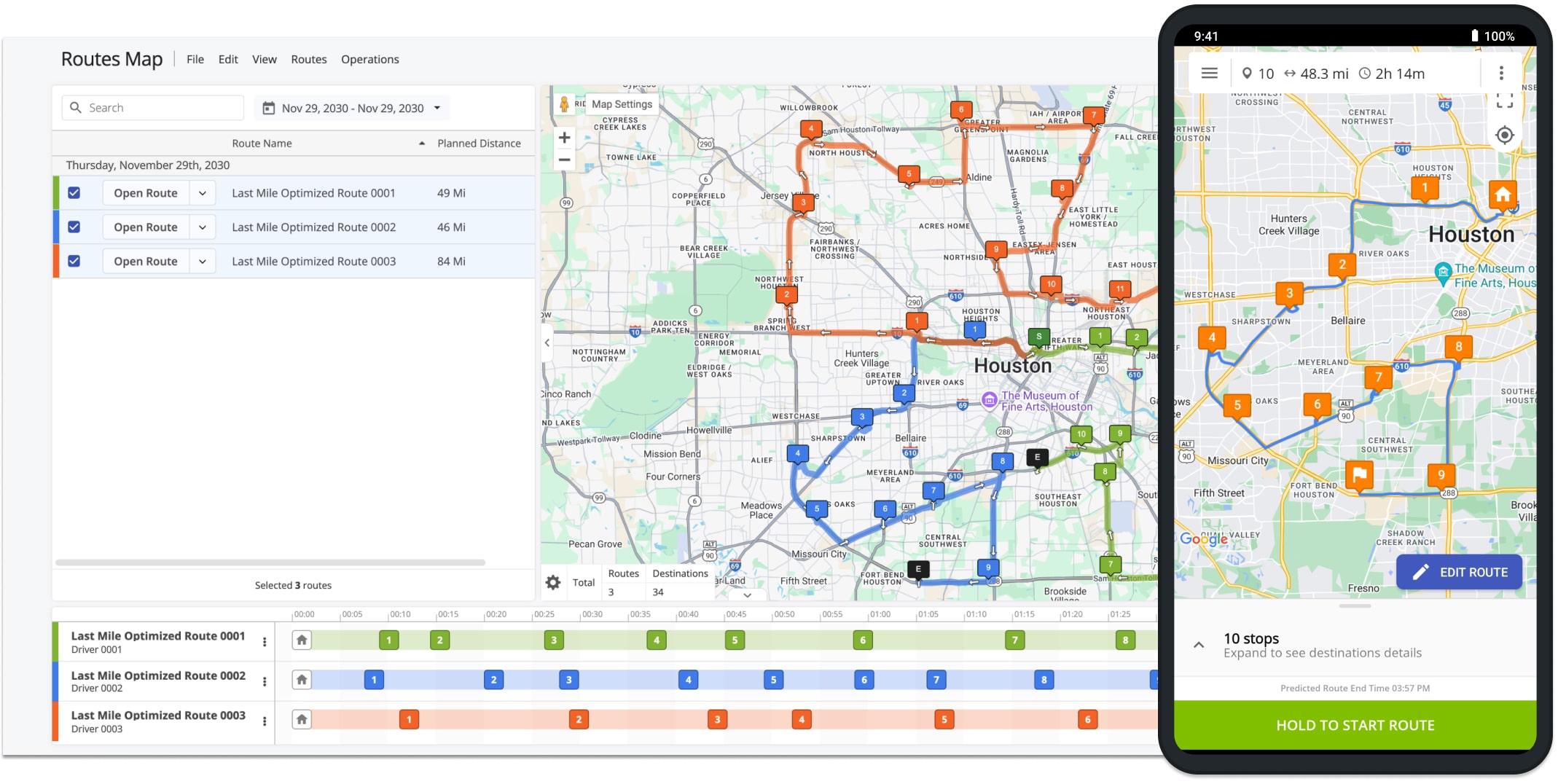
Route4Me seamlessly syncs all updates made on the Routes Map with the Mobile Route Planner in real-time.
Changes to routes or destinations, as well as updates from field teams via mobile driver apps such as destination statuses, visit notes, and proof of delivery are instantly reflected on Route4Me’s enterprise route software Routes Map.
This ensures your field teams remain informed of any adjustments, supporting efficient route execution, while providing accurate, up-to-date information from the field to enhance overall coordination.
Visit Route4Me's Marketplace to Check out Associated Modules:
- Operations
Custom Data Add-On
- Operations
Advanced Team Management Add-On
About author: Daniel Archer

