
Activity Feed – Track Real-Time Route Activity
Route4Me’s Activity Feed is an analytics and auditing tool that records the events associated with your routes, including when routes are planned or modified and when destinations are marked as arrived or detected as arrived. It captures activity from the Route4Me business route planner software, iPhone Route Planner, and Android Route Planner, so your team’s events appear in one place, and you can filter them to find a specific action among thousands of logs. Use the Activity Feed to audit team performance, generate reports, and monitor your operations.
Table of Contents
Activity Feed Overview – View Route And Destination Activity Log
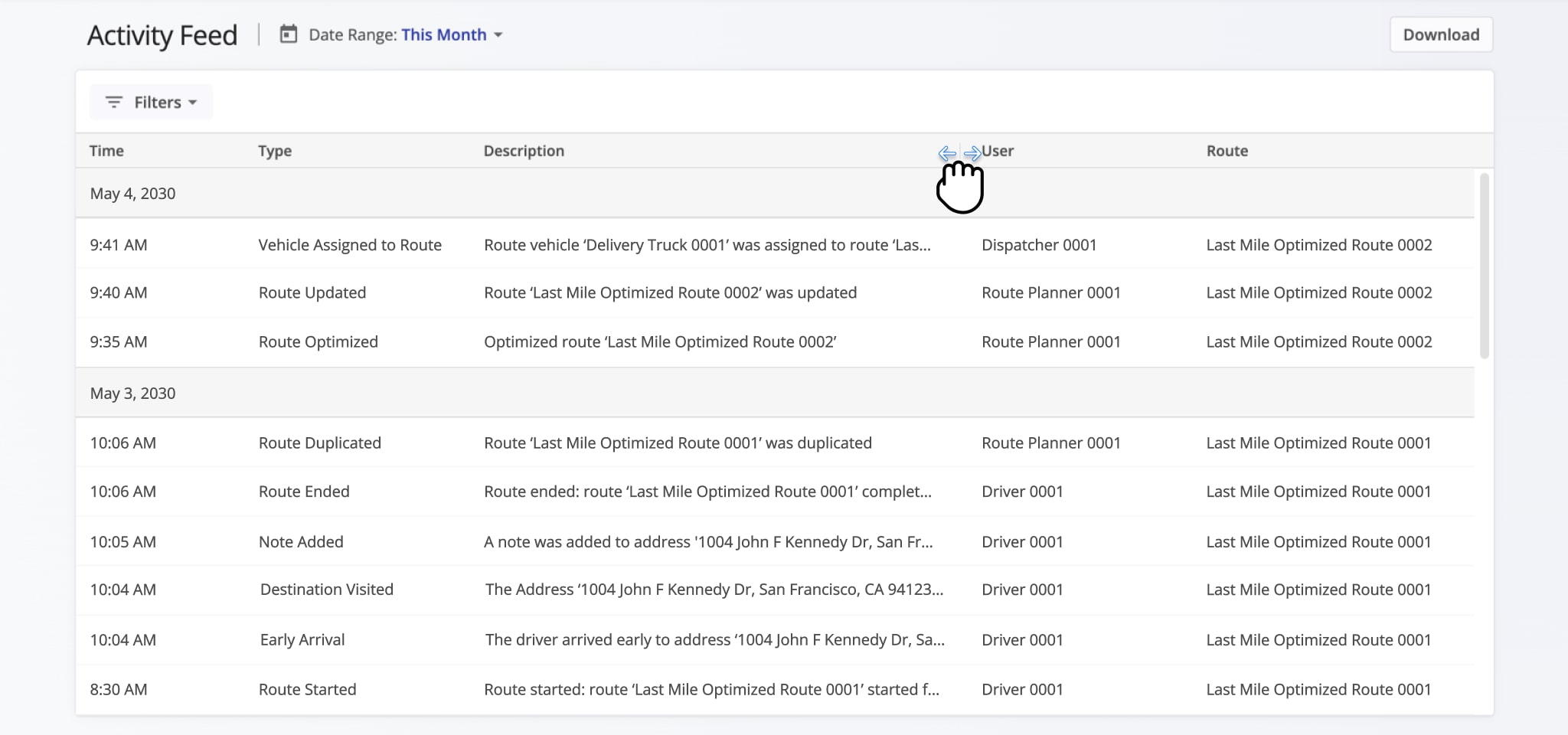
To view the Activity Feed of your Route4Me account, go to “Business Operations” > “Activity Feed” from the Navigation Menu. To better view Activity Feed data, you can resize columns by clicking and dragging the dividers between them left or right.
As the Account Owner, you can view the activities of all sub-users associated with the Primary Route4Me Account. All other users can view only their own activities and those of their sub-users.
Open Your Account Activity Feed
The table below provides a list of all events that are recorded and stored in your Route4Me Activity Feed.
Activity Feed Event Types
Check-In Geofence Triggered
User entered the Geofence set around the given route destination. Learn more about customer address Geofencing.
Check-Out Geofence Triggered
User left the Geofence set around the given route destination. Learn more about customer address Geofencing.
Destination Deleted
Address was removed or deleted from the corresponding route. You can delete route address from your Routes Map, Routes Page, and Route Editor.
Destination Departed
Address was marked as "Departed" from the Route4Me Web Platform or Mobile Routing Apps.
Destination Inserted into Route
Address was added or inserted into the corresponding route. You can insert route addresses from any interface where you can manage routes.
Destination Moved Sequence
Address changed its sequence position within the corresponding route. You can adjust a route's destination sequence in the Routes Map and Route Editor.
Destination Status Updated
Destination was marked as "Done", "Failed", or "Skipped" on the Route4Me Web Platform or Mobile Routing Apps.
Destination Updated
The details of the corresponding address were updated or changed. You can update destinations in the Route Editor.
Destination Visited
Address was marked as "Visited" from the Route4Me Web Platform or Mobile Routing Apps.
Destination Visited Out of Sequence
Route destination has been visited out of sequence.
Directions Prepared
Recorded when turn-by-turn driving directions, maneuvers, travel times, and route line geometry are successfully calculated. It confirms that navigation data is ready for dispatch and driver guidance.
Directions Preparation Failed
Recorded when the routing engine fails to generate travel paths, road geometry, or turn-by-turn directions between stops. It indicates that navigation data could not be computed.
Early Arrival
User arrived one hour earlier than the estimated time of arrival (ETA).
Label Code Scanned
User completed a label scan of a code associated with the destination as part of a POD Workflow.
Late Arrival
User arrived one hour later than the estimated time of arrival (ETA).
Messages via Activity Feed
User sent or received the given message in the live chat.
Note Added
Note was added to the corresponding destination. Learn more about proof of delivery and visit.
On-Time Arrival
User arrived within a one-hour range of the estimated time of arrival (ETA).
Order Created
Order was created, uploaded, or imported. Learn how to add and import orders.
Order Deleted
Order was deleted and removed from the main Route4Me account. Learn more about order management.
Order Updated
The details of the corresponding order were updated or changed. Learn more about order management.
Pickup Label Code Scanned
Order label barcode for pickup was scanned. Learn how to scan order barcodes.
Route Deleted
Route was deleted. You can delete routes from Routes Map, Routes Page, Route Editor, and any other interface for managing routes.
Route Dispatched
The route was approved for execution. Learn more about how to dispatch routes and notifications.
Route Duplicated
Route was duplicated. You can duplicate routes from the Routes Map, Routes List, and Route Editor
Route Ended
All route destinations have been visited and marked as "Done" or marked as "Failed" or "Skipped", and the route is finished. Learn more about navigating and completing routes.
Route End Odometer
The vehicle’s odometer reading at the end of the route, recorded when the route is marked as completed, failed, or skipped.
Route Optimization Failed
Logged when the system cannot complete route optimization due to conflicting constraints, unreachable locations, or engine timeouts.
Route Optimized
Route was optimized or re-optimized. Learn more about route planning and optimization.
Route Paused
Route was temporarily paused after being started.
Route Started
Route was started on the Route4Me Android Mobile App or Route4Me iPhone App. Learn more about starting and navigating routes on the Route4Me mobile app.
Route Start Odometer
The vehicle’s odometer reading at the start of the route, recorded when the route is marked as started.
Route Updated
Logged when modifications are made to an existing route, such as changing route settings, renaming the route, or altering stop details and schedules. It tracks manual or automated edits applied after the route was initially created.
Routes Merged
Several routes were merged to create a new route. You can merge routes on the Routes Map and Routes Page.
User Assigned to Route
A User was assigned to the given route or the owner of the route has changed. You can assign users to routes from the Routes Map, Routes Page, and Route Editor.
QR Code Scanned
Pre-defined Custom Data QR code was scanned at a destination, and a corresponding Note was created. The associated Note records the destination, timestamp, and unique ID of the QR code scan.
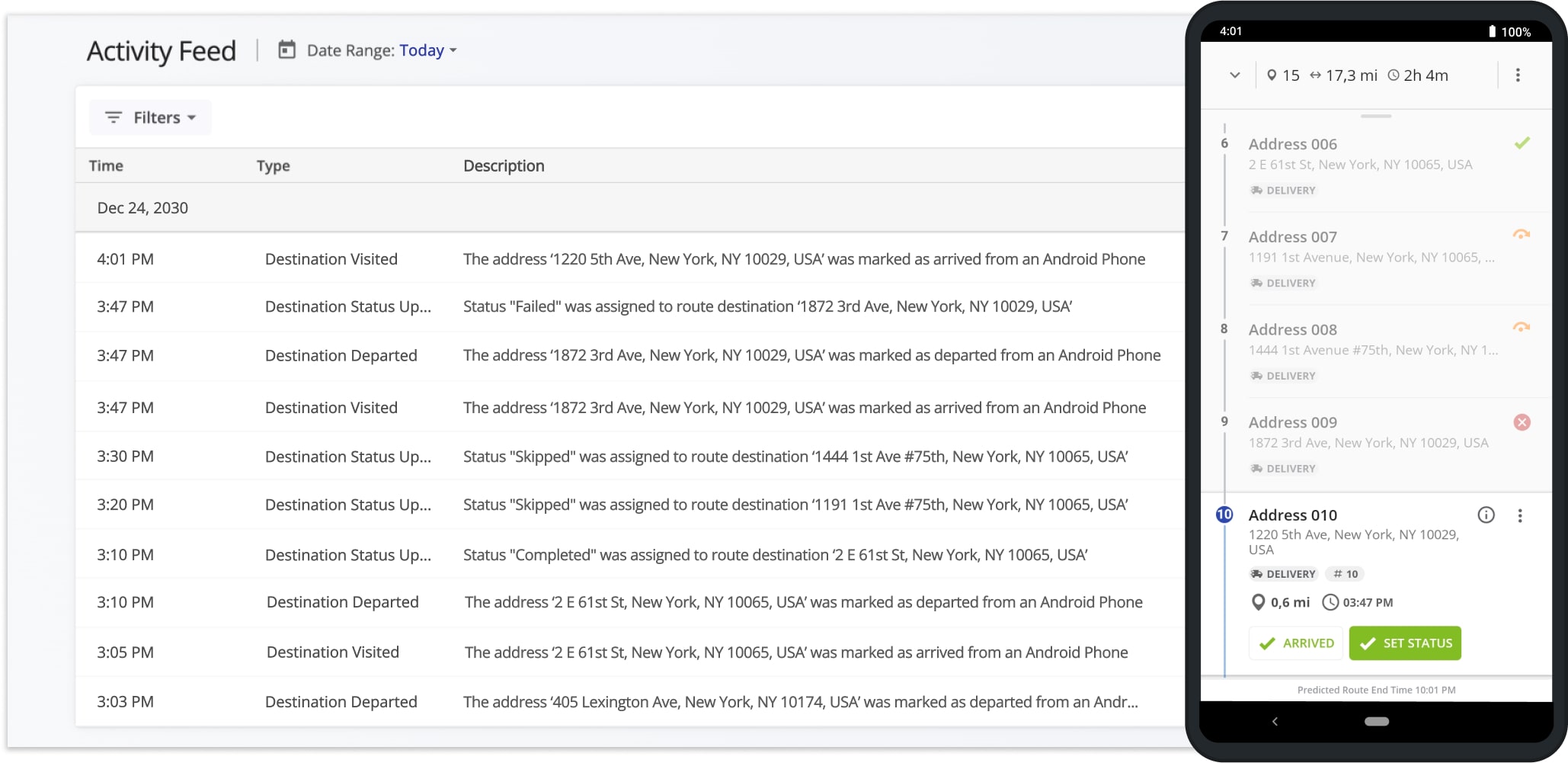
The Activity Feed shows all activities performed by you and your sub-users in chronological order, along with timestamps and user names.
It also shows which Route4Me platform was used for each activity: Business Route Optimizer, iPhone Route Planner, or Android Route Planner.
Filter Activity Feed – Filter Actions By Date, User, Route Name, Or Activity Type
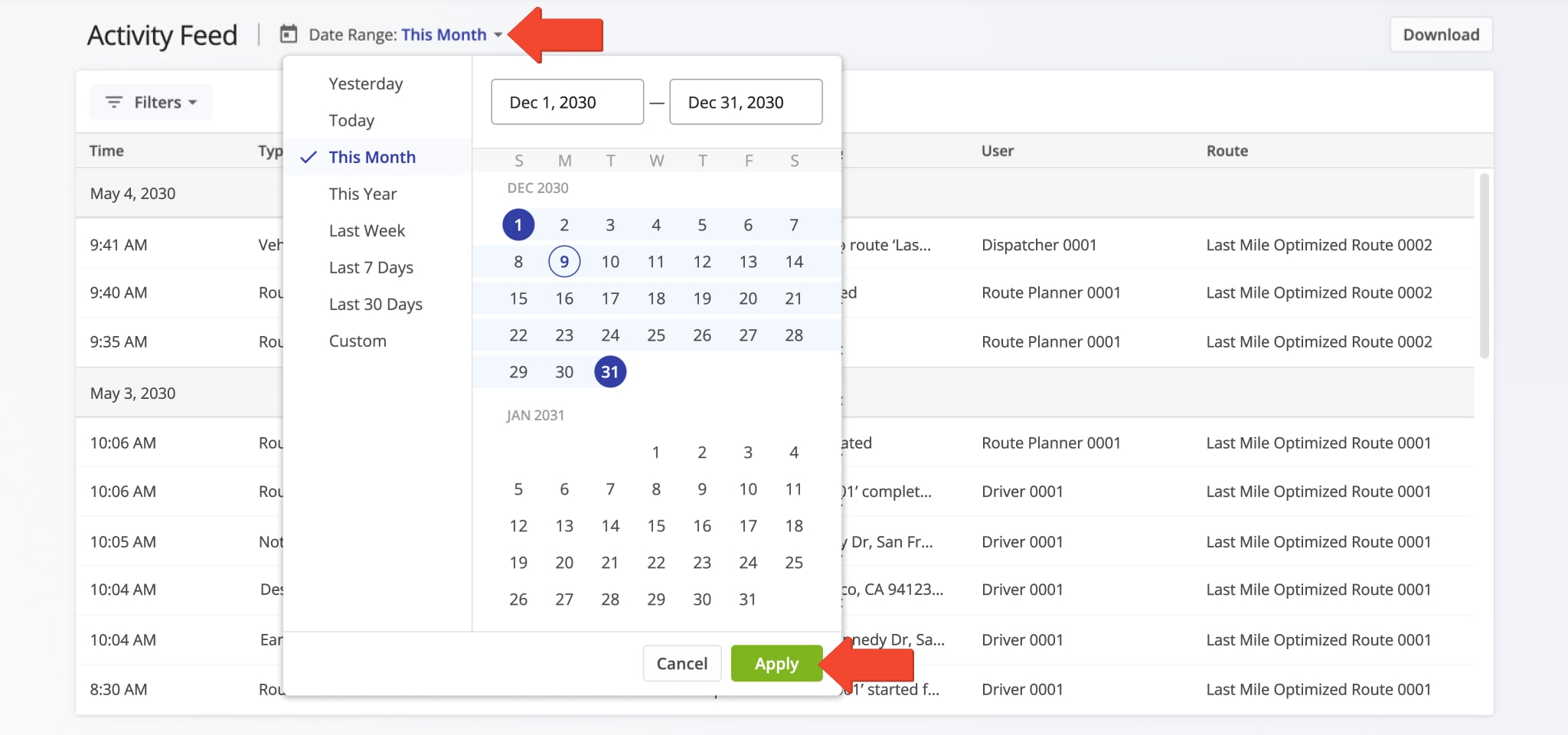
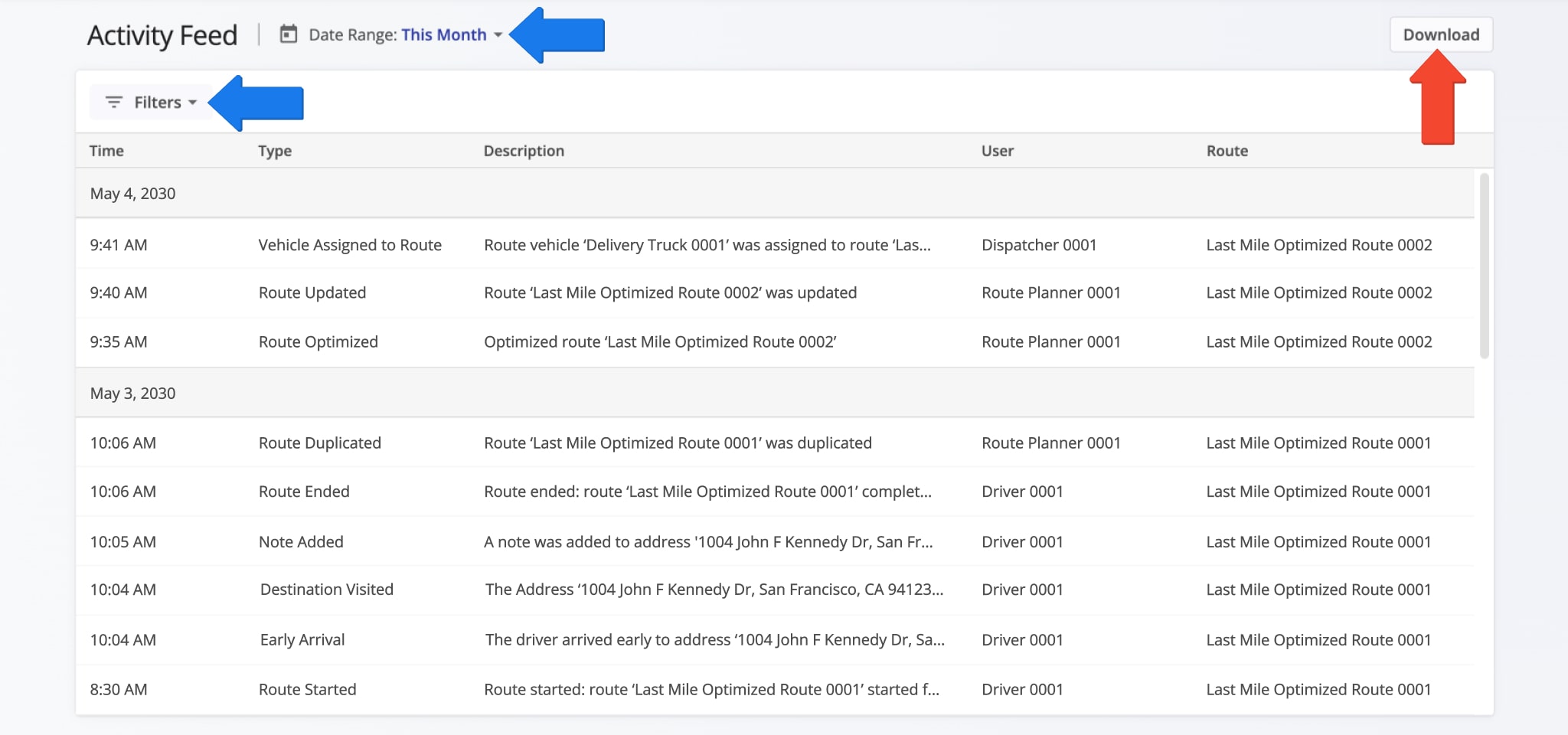
To find an activity that happened on a specific date, filter the Activity Feed by date or date range. Click the Down Arrow next to “Date Range“, select a date or time interval, and then click “Apply“.
You can also filter events in your Activity Feed by team member or route name.
To filter by team member, click “Filters“, then “User“. Enter the name or email of the team member you are searching for and click “OK“. To filter by route name, click “Filters“, then “Routes“. Enter the name of the route you are searching for and click “OK“.
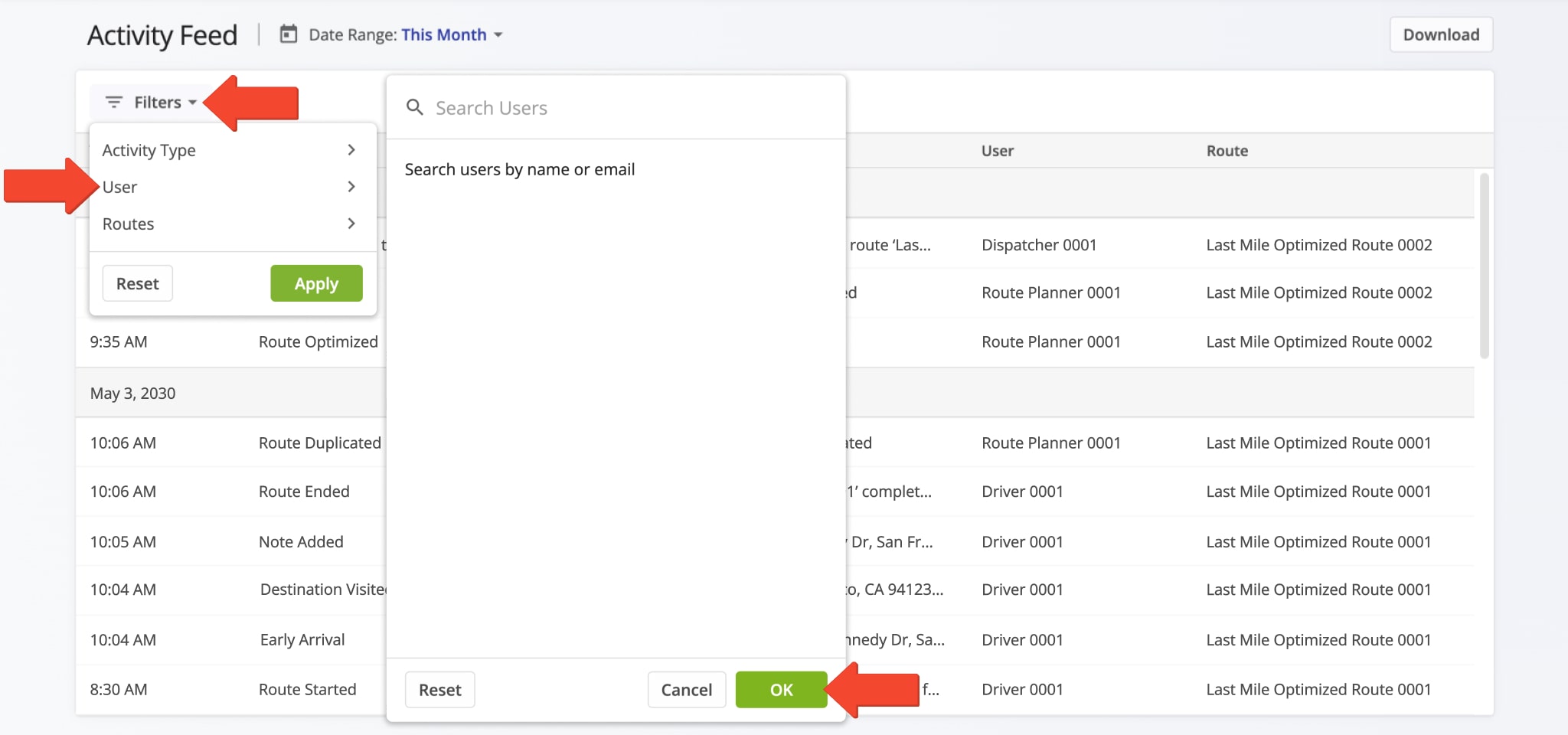
Alternatively, filter your event history by activity type. Click “Filters“, then “Activity Type“, select the checkboxes for the activities you want to see, and click “Apply“. The table below describes all available activity type filters.

Activity Type Filters
Route Editor Activity Feed – View Route And Destination Activity In Route Editor
The Activity Feed is also available in the Route Editor.
To view the activity for a particular route, open the route in the Route Editor from the Routes List or the Routes Map. Then, click the Arrow Button to open the Route Info panel and select the Activity Feed tab.
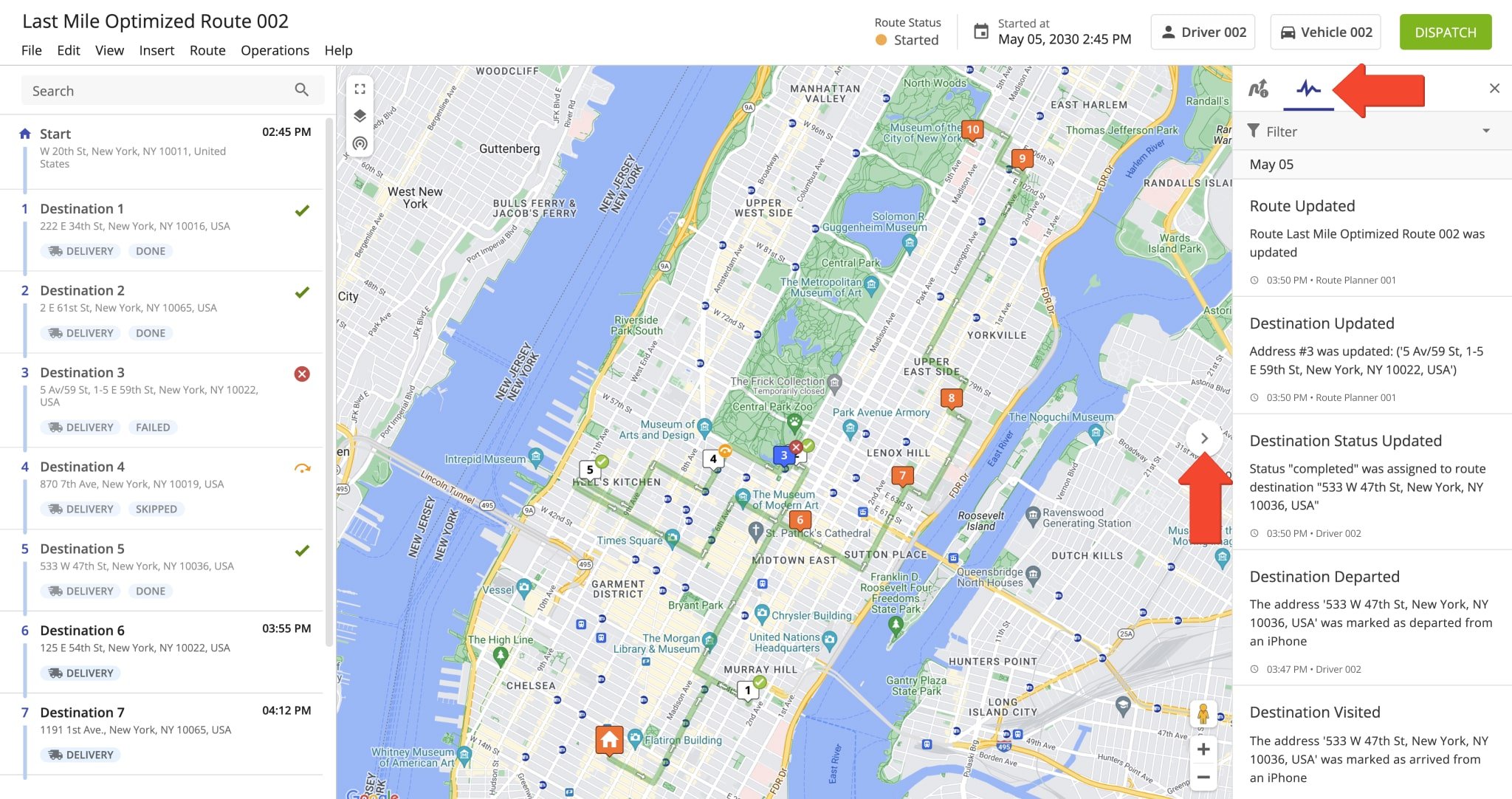
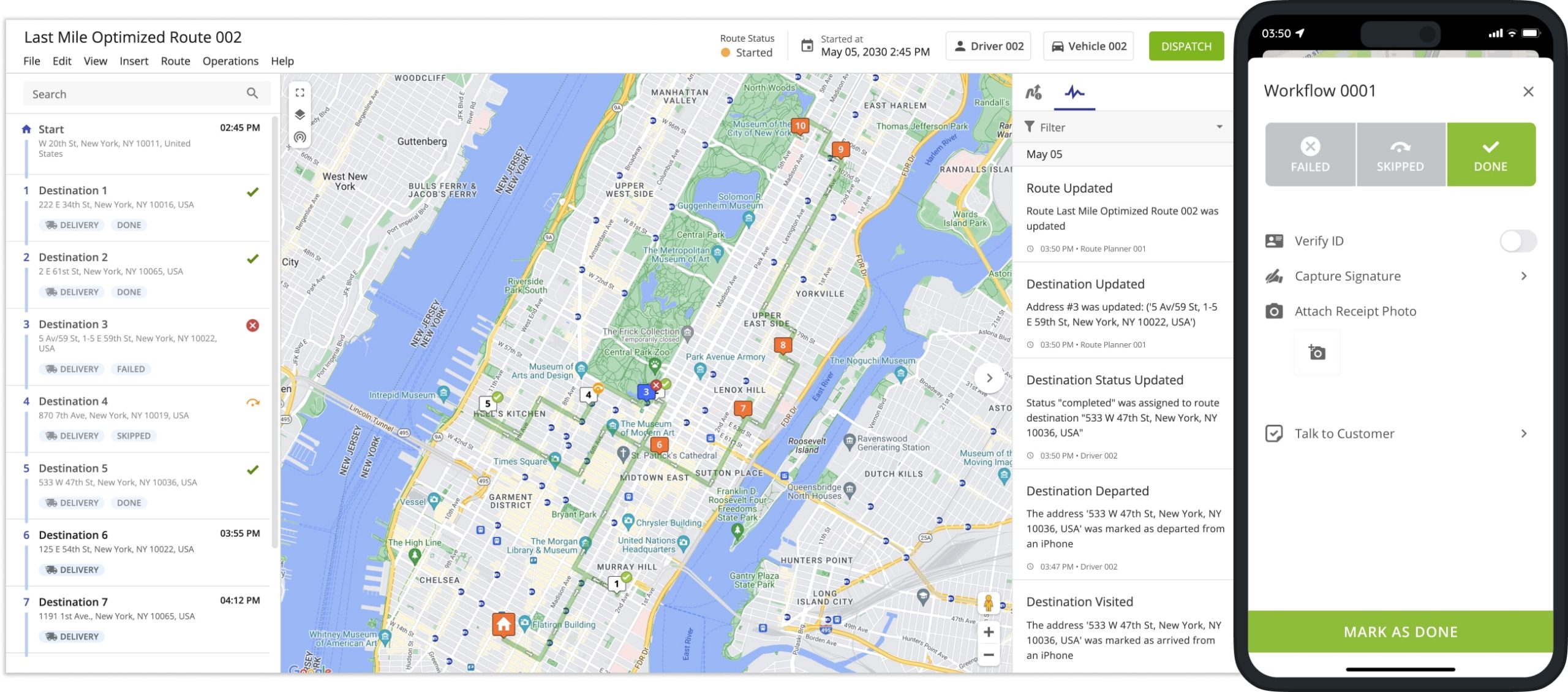
In the Route Editor, the Activity Feed lists all actions performed by the assigned users above them. It also shows which Route4Me platform was used for each activity: Business Route Planning Software, iPhone App, or Android App.
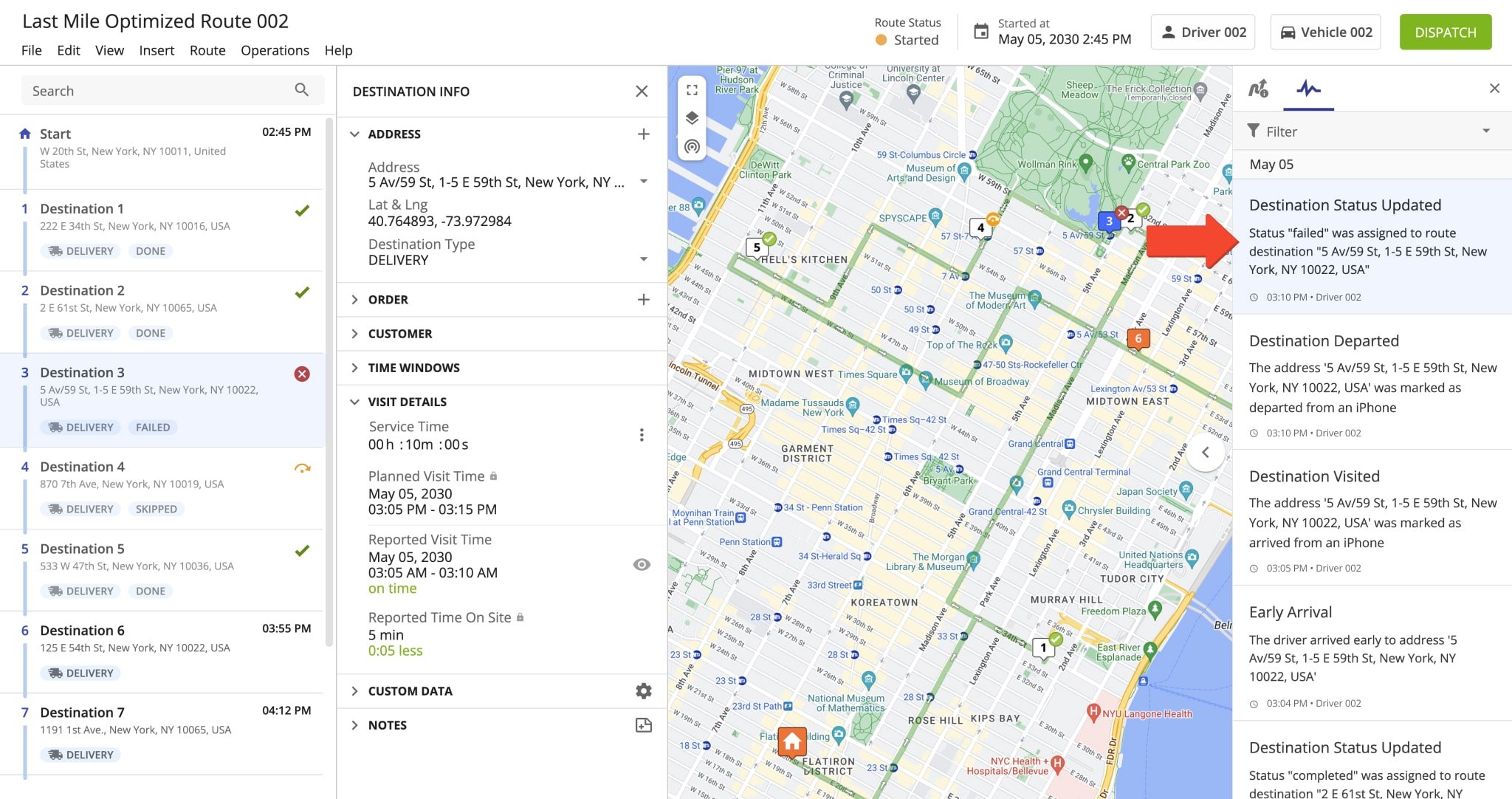
To view which destination on the opened route is associated with a particular event in the Activity Feed, click this event in the Activity Feed. The associated destination will be selected, and its Destination Info panel will open.
Export Activity Data – Export Route And Destination Activity Logs
As the Account Owner, you can view and export your activities and those of all sub-users on your Primary Trusted Route Planner Account. All other users can view and export only their own activities and the activities of their sub-users.
Click “Download” to export activity data, route events, and destination actions as a CSV spreadsheet, including timestamps, usernames, route IDs, and more. NOTE: Only the events and actions that are displayed and match your filters are exported.
The table below lists the items included in the exported CSV spreadsheet.
Activity Feed Export Items
Visit Route4Me's Marketplace to Check out Associated Modules:
- Operations
Audit Logging and Activity Stream
- Operations
Custom Data Add-On
- Operations
Advanced Team Management Add-On
About author: Kristian Andreev

