
Export Routes – Download Route Data As CSV, Destination Notes & Attachments, Access Export Catalog
Route4Me’s dynamic routing software uses patented route optimization algorithms to help plan time- and cost-efficient multi-destination routes. Optimized routes can be exported to GPS devices and shared with delivery drivers, sales reps, field technicians, dispatchers, and route planners. Exported route data can also be used for reporting, performance analysis, and operational auditing. This guide shows you how to export route data, performance metrics, and route KPIs.
Table of Contents
Export Route Data With Route4Me Route Management Tools
Route4Me’s business route planning software helps you plan and manage routes using tools such as the Routes Page, Routes Map, and Route Editor.
The Routes Page displays all planned and optimized routes in your account; the Routes Map allows you to view and adjust multiple routes on an interactive map; and the Route Editor provides access to detailed destination settings.
Each of these tools also supports exporting route data as a CSV file or as navigation data for GPS devices.
Routes List – Export Routes From Routes List
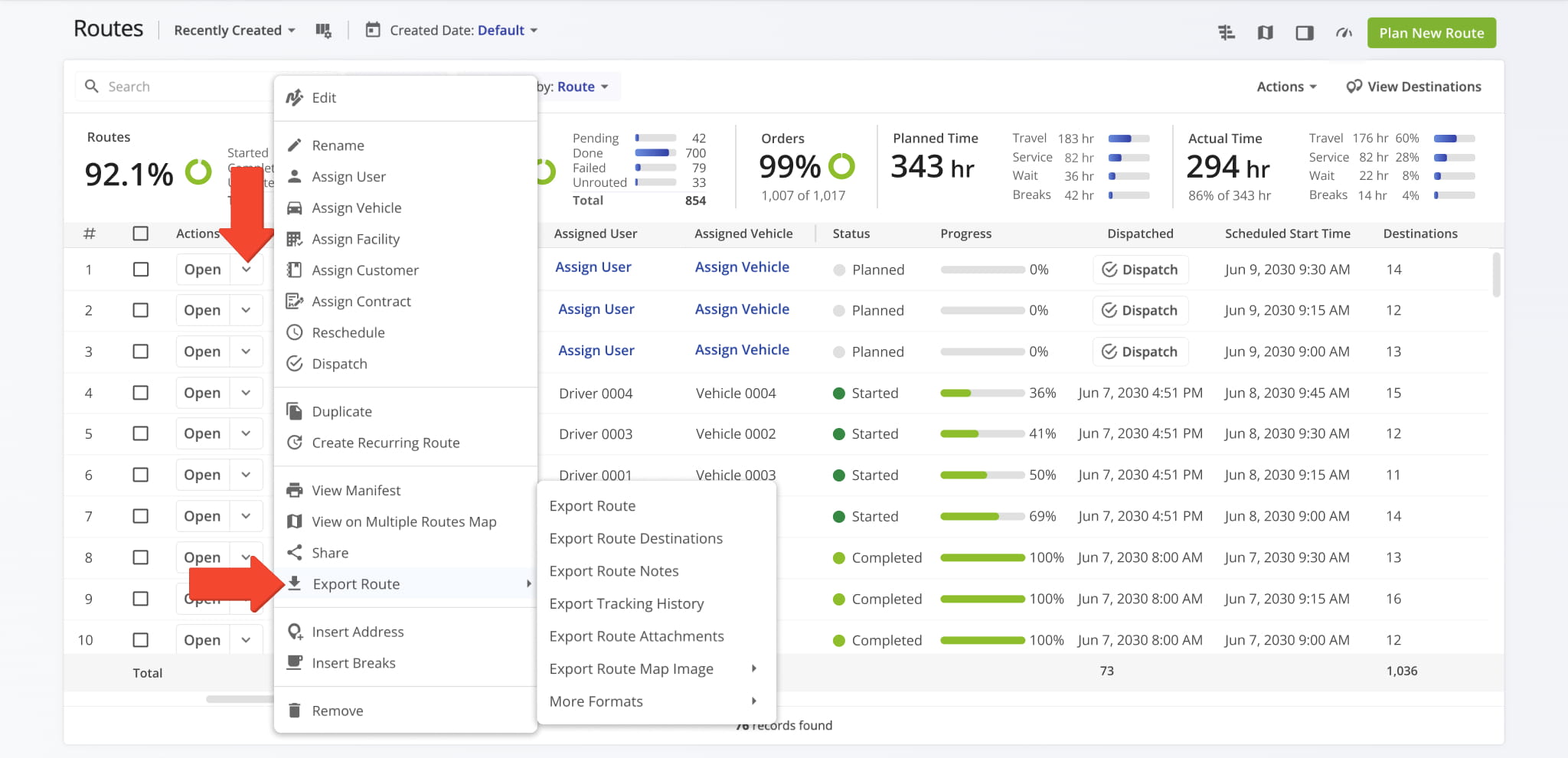
To export route data from your Routes List, go to “Dynamic Routing” > “Routes” from the Navigation Menu. Then, click the Down Arrow next to a route you want to export, hover over “Export Route“, and select an export option from the menu.
Learn more about export options and how to customize export files in the Detailed Export section of this guide.
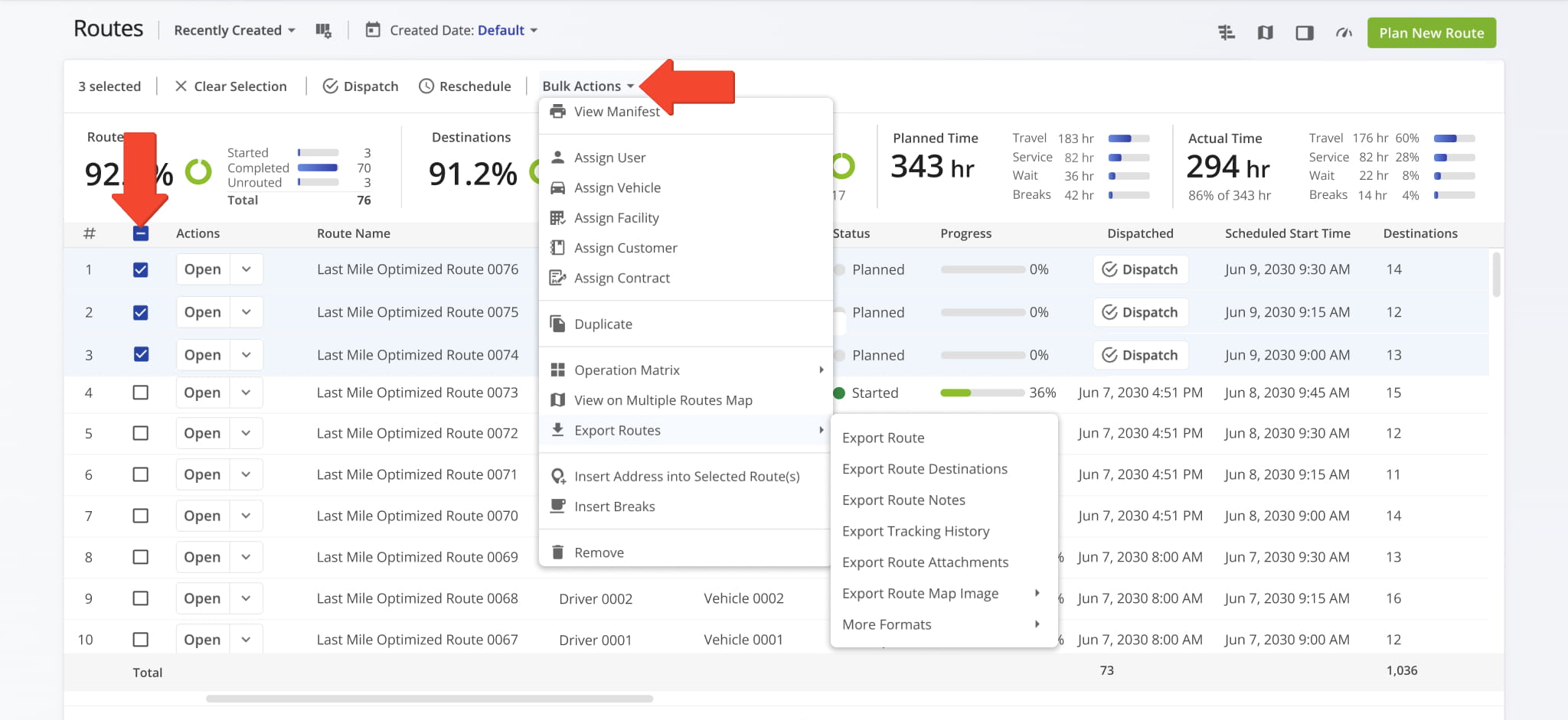
To export data for multiple routes, select the routes you want to export. Then, click “Bulk Actions“, hover over “Export Routes“, and choose an export option. NOTE: Navigation exports, except UPD, are not available when exporting multiple routes.
Learn more about export options and how to customize export files in the Detailed Export section of this guide.
The following table provides an overview of the export options available from the Routes List.
Route Export Options
2 columns · 7 rows
Export Route
Exports routes as CSV files with customizable data columns, including distance, duration, status, and more. You can create Export Profiles to reuse preferred data selections.
Export Route Destinations
Exports route destinations as CSV files with customizable columns such as destination ID, address, coordinates, and related destination data. Export Profiles can be used to save column selections.
Export Route Notes
Exports route notes as CSV files with customizable columns, including note ID, note type, and note content. Export Profiles allow you to reuse selected fields.
Export Tracking History
Exports route tracking data as CSV files, including timestamps, coordinates, speed, odometer readings, altitude, vehicle ID, and tracking device ID.
Export Route Attachments
Exports an archive containing all documents, images, videos, and other media files attached to destination notes on the route.
Export Route Map Image
Exports a high-resolution image of the route map with marked stops and the highlighted route path.
More Formats
Exports route data for use with GPS navigation devices in formats such as XML, TomTom, KML, and others.
See “Export Route Data for GPS Navigation Devices” later in this guide for a full list.
Route Editor – Export Routes From Route Editor
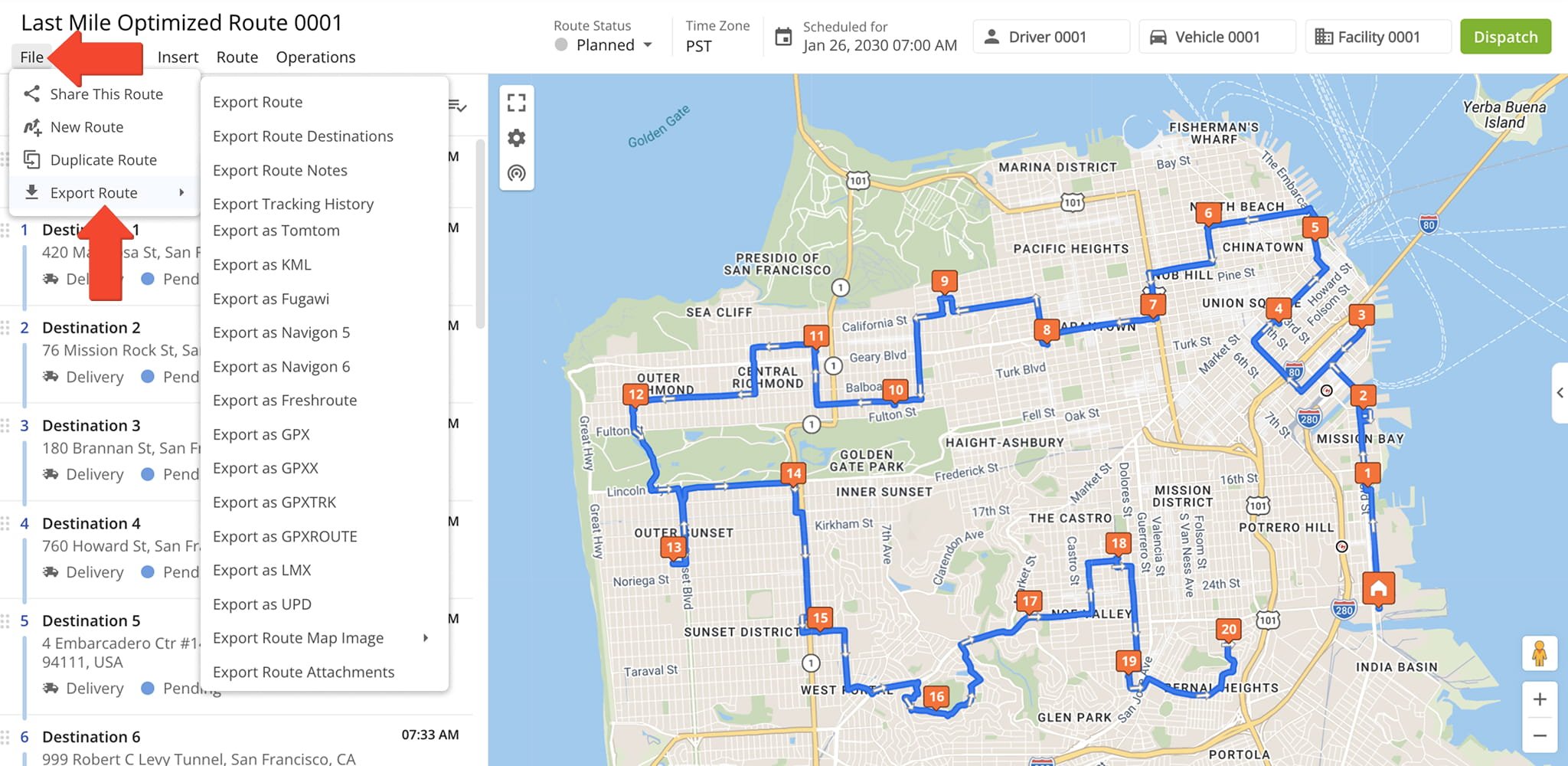
To export route data from the Route Editor, click “File” in the toolbar, hover over “Export Route“, and select an export option.
Learn more about export options and how to customize export files in the Detailed Export section of this guide.
Detailed Route Export – Customizable CSV Spreadsheets For Exporting Routes
When exporting routes, you can choose from several formats.
- Export as CSV: Exports routes as customizable spreadsheets. You can create export profiles that include your preferred settings.
- Route Map Image: Exports a high-resolution route map with marked stops and highlighted route path.
- Route Attachments: Export an archive of all docs, images, videos, and other media attached to destination notes on a route.
You can also export route data for use with navigation devices such as Garmin. Keep reading to learn more.
You can customize all CSV exports. From the export menu, you can select which fields you want to include in the exported file.
Selected fields appear in the panel on the right, where you can drag and reorder them to control the column order in the exported CSV. You can also use the Field Search bar to quickly find fields and the X icon to remove them.
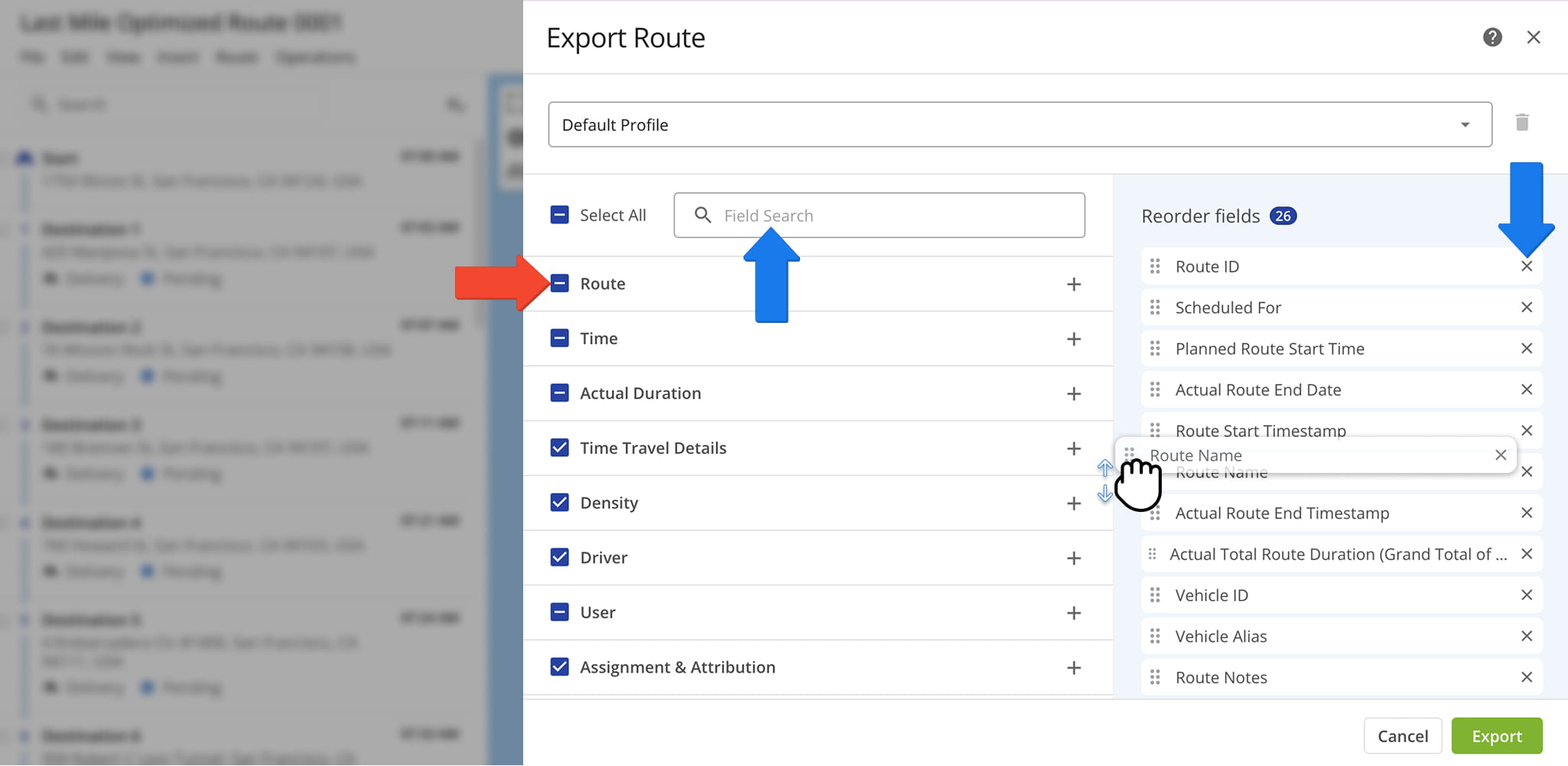
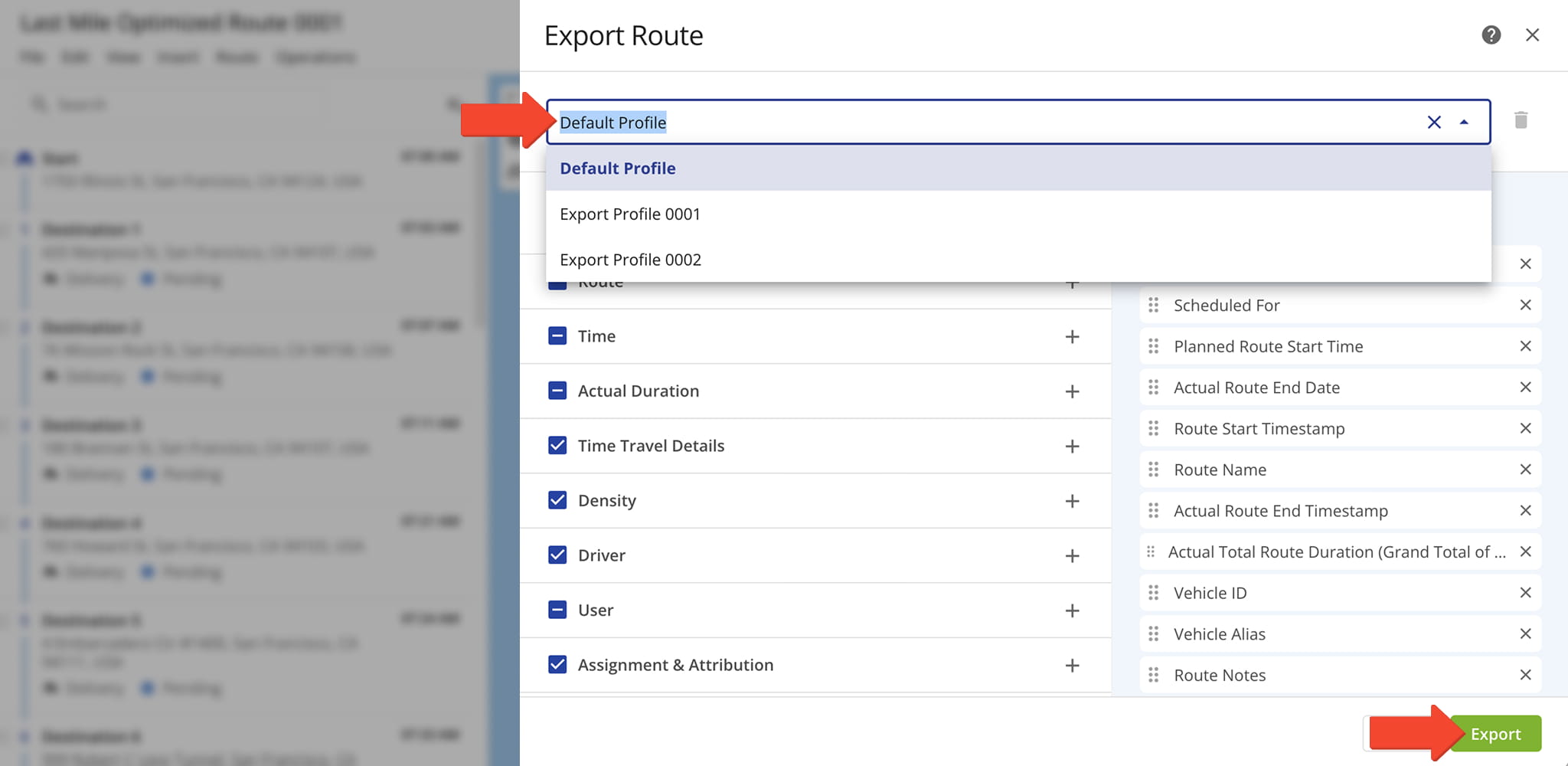
In addition, you create Export Profiles, reusable templates with pre-selected items for route exports. To create a Profile, check the boxes for the data you want to include and enter a Profile Alias in the Export Profile field.
The system saves the Alias automatically. You can then reuse the profile to export CSV spreadsheets with the same details. Just select the profile and click “Export“.
Refer to the following glossary for definitions of terms included in exported files.
Route Data Export Values
3 columns · 88 rows
Route ID
Route_ID
The unique internal identification number of the route.
Route Name
Route_Name
The name (alias) assigned to the route.
Route #
Route_Number
The route number. This is relevant when you are exporting multiple routes.
Route Total Distance
Route_Total_Distance
The total distance traveled on the route.
Planned Total Route Duration
Planned_Total_Route_Duration
The total estimated time planned for completing the route.
Route Address Count
Route_Addresses_Count
Number of destinations on the route, excluding the departure address (depot).
Planned Total Travel Time
Planned_Total_Travel_Time
The total drive time is computed based on the Route_Planned_Time + Route_Planned_Total_Service_Time + Wait_Time variables.
Planned Total Service Duration
Planned_Total_Service_Duration
The total planned time required for servicing all destinations on the route.
Scheduled For
Scheduled_For
Scheduled route start date and time.
Destination Status
Stop_Status
The last destination Status that was set or updated for the respective destination.
Destination Status Time UTC
Stop_Status_Time_UTC
The time (in UTC) when the respective destination Status was set or updated for the destination.
Destination Status Time
Stop_Status_Time
The time when the respective destination Status was set or updated for the destination in the time format of the main Route4Me account.
Planned Destinations
Planned_Destinations
Total number of destinations currently without a status: Done, Skipped or Failed.
Failed Destinations
Failed_Destinations
Total number of destinations marked as "Failed" by the assigned User via the Mobile App.
Skipped Destinations
Skipped_Destinations
Total number of destinations marked as "Skipped" by the assigned User via the Mobile App.
Completed Destinations
Completed_Destinations
Total number of destinations marked as "Done" by the assigned User via the Mobile App.
Facility
Facility
The depot, warehouse, or starting point used for planning the route; serves as the origin for route sequencing and time calculations.
Planned Total Break Time
Planned_Total_Break_Time
The total duration of all scheduled breaks for the route, calculated based on the planned stops and route schedule.
Total Route Man-Hours
Total_Route_Man_Hours
The sum of the planned time required for all stops and travel on the route, representing the total labor hours needed to complete it.
Route Start Odometer
Route_Start_Odometer
The vehicle odometer reading at the beginning of the route.
Route End Odometer
Route_End_Odometer
The vehicle odometer reading at the completion of the route.
Actual Odometer Distance
Actual_Odometer_Distance
The total distance traveled on the route, calculated from the start and end odometer readings.
Route Start Engine Hours
Route_Start_Engine_Hours
The engine hour meter reading recorded at the beginning of the route.
Route End Engine Hours
Route_End_Engine_Hours
The engine hour meter reading recorded at the completion of the route.
Route Status
Route_Status
The current state of the route, such as Planned, In Progress, or Completed.
Route Custom Field Alias
Route_Custom_Field_Alias
The name or label assigned to a custom field created for the route.
Route Custom Field Value
Route_Custom_Field_Value
The value or data entered for the corresponding route custom field.
Planned Route Start Date
Planned_Route_Start_Date
Date when the route is or was planned to start.
Planned Route Start Time
Planned_Route_Start_Time
Time when the route is or was planned to start.
Actual Route End Date
Actual_Route_End_Date
Date when the route is planned to be or was completed.
Actual Route End Time
Actual_Route_End_Time
Time when the route is planned to be or was completed.
Route Start Timestamp
Route_Start_Timestamp
Timestamp of the time when the route was actually started.
Route End Timestamp
Actual_Route_End_Timestamp
Timestamp of the time when the route was actually completed.
Time From Start To First Destination
Time_From_Start_To_First_Destination
Time duration from the start of the route to the first destination on the planned route. Calculated based on the Planned Arrival Time of the first destination on the route. Represents the Travel Time between the route origin (depot) and first destination.
Time From Last Destination To Start
Time_From_Last_Destination_To_Start
Time duration from the last destination on the planned route to the route origin location (depot). Used for round trip routes where the assigned User returns to the route origin (depot) after completing the last destination on the route.
Actual Route Duration (User Actioned)
Actual_Route_Duration_(User_Actioned)
Actual Route Duration is calculated based on the received Mobile App GPS data. Duration is measured from when the route was started to when the route was ended by the assigned User on the Mobile App.
Actual Total Route Duration (Grand Total of All Sub-Durations)
Actual_Total_Route_Duration_(Grand_Total_of_All_Sub-Durations)
The total time spent traveling the route, including all individual segments and stop durations.
Actual Total Travel Duration (User Actioned)
Actual_Total_Travel_Duration_(User_Actioned)
The total time spent traveling the route, recorded from driver actions in the Mobile App.
Actual Total Service Duration (User Actioned)
Actual_Total_Service_Duration_(User_Actioned)
The total time drivers spent servicing stops, recorded from actions in the Mobile App.
Actual Total Duration (Mobile_App)
Actual_Total_Duration_(Mobile_App)
The total time recorded for the route, based on driver activity captured in the Mobile App.
Actual Travel Time (Telematics)
Actual_Travel_Time_(Telematics)
The total time spent traveling the route, recorded automatically by connected telematics or GPS devices.
Actual Travel Time (Mobile App + Telematics)
Actual_Travel_Time_(Mobile_App_+_Telematics)
The total time spent traveling the route, recorded from both driver actions in the Mobile App and data from connected telematics devices.
Route Wait Time
Route_Wait_Time
Total amount of time that a driver spent being inactive while driving the route (i.e., a route started before the opening hours and a driver had to wait, a driver arrived at the address before the opening of the Time Window, etc.).
Stops Per On-Road Hour
Stops_Per_On-Road_Hour
Dynamically predicted number destinations (stops) visited per hour spent driving the route. If the route is completed, this will reflect the actual average value instead of an estimate.
Transactions Per On-Road Hour
Transactions_Per_On-Road_Hour
Dynamically predicted number transactions per hour spent driving the route. If the route is completed, this will reflect the actual average value instead of an estimate.
Vehicle ID
Vehicle_Id
Unique identification number of the vehicle associated with the route.
Vehicle Alias
Vehicle_Alias
Alias (name) of the vehicle associated with the route. Vehicle Alias can be used to search for vehicles in the Vehicles List and when assigning vehicles to routes or dispatching routes to vehicles.
User ID
User_Id
Identification number of the team member assigned to the route.
User Email
User_Email
Email address of the team member assigned to the route.
User First Name
User_First_Name
First name of the team member assigned to the route.
User Last Name
User_Last_Name
Last name of the team member assigned to the route.
Assigned Customer Name
Assigned_Customer_Name
The name of the customer associated with the route or destination, as defined in the account or order data.
Assigned Contract
Assigned_Contract
The name or identifier of the contract linked to the assigned customer, if applicable, used for tracking or reporting purposes.
Route Notes
Route_Notes
Total number of Notes attached to destinations on the route. Normally, Notes are attached to destinations by the assigned User using the Mobile App.
Actual Travel Distance (Mobile App)
Actual_Travel_Distance_(Mobile_App)
Actual Travel Distance traveled by assigned Users on the route. Actual Travel Distance is calculated based on the on-road Travel Distance between destinations and does not include distance traveled inside Geofences.
Actual Travel Distance (Telematics)
Actual_Travel_Distance_(Telematics)
Actual Route Travel Distance based on the received Telematics GPS data. Actual Travel Distance is calculated based on the on-road Travel Distance between destinations and does not include distance traveled inside Geofences.
Actual Travel Distance (Mobile App + Telematics)
Actual_Travel_Distance_(Mobile_App_+_Telematics)
Actual Travel Distance traveled by assigned User. Actual Travel Distance is calculated based on the on-road Travel Distance between destinations and does not include distance traveled inside Geofences.
Completed Planned Distance % (Telematics)
Completed_Planned_Distance_%_(Telematics)
Percentage of the route's total planned distance that was traveled by the assigned Vehicle calculated based on the received Telematics GPS data.
Completed Planned Distance % (Mobile App)
Completed_Planned_Distance_%_(Mobile_App)
Percentage of the route's total planned distance that was traveled by the assigned User calculated based on the received Mobile App GPS data.
Completed Planned Distance % (Mobile App + Telematics)
Completed_Planned_Distance_%_(Mobile_App_+_Telematics)
Percentage of the route's total planned distance that was traveled by the assigned User calculated based on the combined Mobile App and Telematics GPS data.
Remaining Planned Distance % (Telematics)
Remaining_Planned_Distance_%_(Telematics)
Percentage of the route's total planned distance that was not traveled by the assigned Vehicle calculated based on the received Telematics GPS data.
Remaining Planned Distance % (Mobile App)
Remaining_Planned_Distance_%_(Mobile_App)
Percentage of the route's total planned distance that was not traveled by the assigned User calculated based on the received Mobile App GPS data.
Remaining Planned Distance % (Mobile App + Telematics)
Remaining_Planned_Distance_%_(Mobile_App_+_Telematics)
Percentage of the route's total planned distance that was not traveled by the assigned User calculated based on the combined Mobile App and Telematics GPS data.
Deviated From Planned Distance % (Telematics)
Deviated_From_Planned_Distance_%_(Telematics)
Percentage of the route's total planned distance that was deviated from by the assigned Vehicle calculated based on the received Telematics GPS data.
Deviated From Planned Distance % (Mobile App)
Deviated_From_Planned_Distance_%_(Mobile_App)
Percentage of the route's total planned distance that was deviated from by the assigned User calculated based on the received Mobile App GPS data.
Deviated From Planned Distance % (Mobile App + Telematics)
Deviated_From_Planned_Distance_%_(Mobile_App_+_Telematics)
Percentage of the route's total planned distance that was deviated from by the assigned User calculated based on the combined Mobile App and Telematics GPS data.
Sequence Adherence (%)
Sequence_Adherence_%
The number of stops visited in the exact order planned in the optimized route. This metric shows how closely the driver followed the prescribed stop sequence.
Continuous Sequence Adherence (%)
Continuous_Sequence_Adherence_%
The number of consecutive stops visited in the correct order without any deviations. This highlights uninterrupted adherence to the planned route sequence, helping identify where deviations occurred.
Harsh Brake
Incident_Harsh_Brake
A telematics-detected event where the vehicle braked more abruptly than normal driving conditions warrant, which can indicate tailgating or delayed driver reaction.
Learn more about Route Safety Incidents.
Harsh Acceleration
Incident_Harsh_Acceleration
A telematics-detected event where the vehicle accelerated more aggressively than normal driving conditions warrant.
Learn more about Route Safety Incidents.
Harsh Cornering
Incident_Harsh_Cornering
A telematics-detected event where the vehicle took a turn with more lateral force than normal driving conditions warrant.
Learn more about Route Safety Incidents.
Collision
Incident_Collision
A detected impact event indicating the vehicle was involved in a collision.
Learn more about Route Safety Incidents.
Speeding
Incident_Speeding
An event indicating the vehicle exceeded the posted or configured speed limit.
Learn more about Route Safety Incidents.
Distraction
Incident_Distraction
A detected event indicating driver distraction, such as phone use or taking eyes off the road.
Learn more about Route Safety Incidents.
Seatbelt
Incident_Seatbelt
An event indicating the driver or a passenger was not wearing a seatbelt while the vehicle was in motion.
Learn more about Route Safety Incidents.
Tailgating
Incident_Tailgating
An event indicating the vehicle followed another vehicle at an unsafe following distance.
Learn more about Route Safety Incidents.
Forward Collision Warning
Incident_Forward_Collision_Warning
An alert triggered when the vehicle's forward collision warning system detects a high risk of an imminent front-end collision.
Learn more about Route Safety Incidents.
Lane Departure
Incident_Lane_Departure
An event indicating the vehicle drifted out of its lane without signaling.
Learn more about Route Safety Incidents.
Drowsiness
Incident_Drowsiness
An event indicating signs of driver fatigue or drowsiness were detected.
Learn more about Route Safety Incidents.
Stop Sign Violation
Incident_Stop_Sign_Violation
An event indicating the vehicle failed to come to a complete stop at a stop sign.
Learn more about Route Safety Incidents.
Red Light Violation
Incident_Red_Light_Violation
An event indicating the vehicle entered an intersection after the traffic signal had turned red.
Learn more about Route Safety Incidents.
Failure To Yield
Incident_Failure_To_Yield
An event indicating the driver did not yield the right of way as required by traffic rules.
Learn more about Route Safety Incidents.
Idling
Incident_Idling
An event indicating the vehicle's engine remained running while stationary for longer than the configured threshold.
Learn more about Route Safety Incidents.
Manual Event
Incident_Manual_Event
A safety incident manually logged by a driver, dispatcher, or fleet manager rather than detected automatically.
Learn more about Route Safety Incidents.
Unsafe Parking
Incident_Unsafe_Parking
An event indicating the vehicle was parked in a location or manner considered unsafe, such as blocking a lane, driveway, or fire zone.
Learn more about Route Safety Incidents.
Other
Incident_Other
A safety incident that was recorded but doesn't fall into any of the other predefined categories.
Learn more about Route Safety Incidents.
Total Incidents
Total_Incidents
The total number of safety incidents of all types recorded on the route.
Learn more about Route Safety Incidents.
Export Route Destination Data And Visitation Metrics
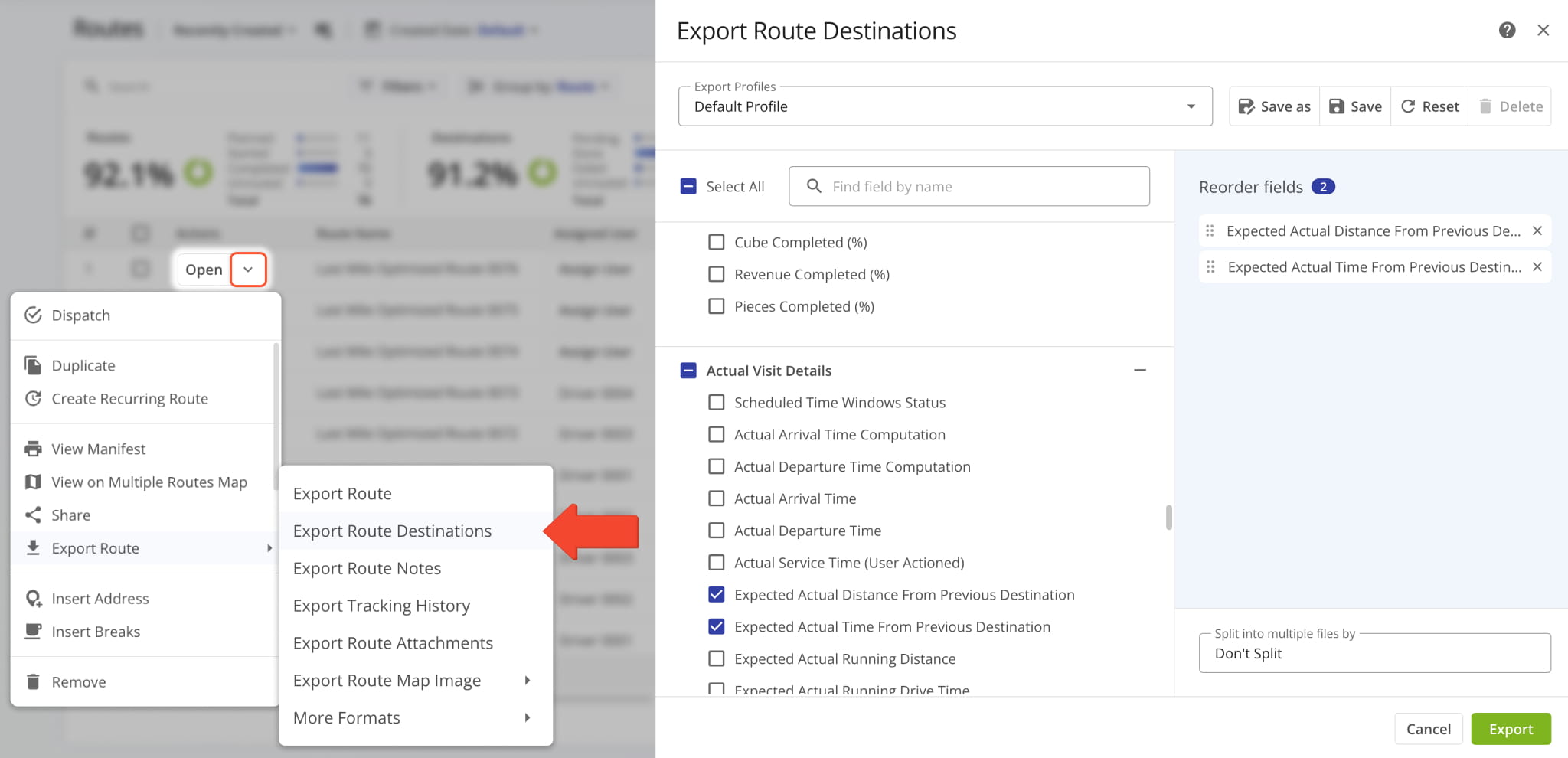
In addition to exporting route data totals, you can also export destination-level data. To do so, go to “Export Route” > “Export Route Destinations” in the action menu and follow the same steps as described above.
Refer to the table below for a full list of available destination data export items.
Destination Data Export Values
3 columns · 213 rows
Destination ID
Route_Destination_ID
Unique internal identification number of a Destination.
Destination UUID
Route_Destination_UUID
Unique universal internal identification number of a Destination.
Alias
Alias
Сustom alias or name of a route Destination.
You can assign aliases to Destinations for faster and easier route searches or other operating requirements.
Address
Address
Information used for describing the location of a Destination.
Normally, an address should contain the location's identifiers, such as street name and number, city, state, country, and zip code.
An Address may also be referred to as a Stop or Destination. Learn more about Route4Me's Standard Address Verification.
Service Category
Service_Category
Type of action required to complete a visit at a Destination. Available Service Categories include:
- Delivery
- Pickup
- Break
- Meetup
- Service
- Visit
- Drive By
NOTE: Service Category can affect the optimization.
Destination Custom Field Label
Destination_Custom_Field_Label
The user-defined name of a custom field associated with a Destination for tracking or reporting.
Destination Custom Field Value
Destination_Custom_Field_Value
The value entered for a Destination’s custom field.
Address Latitude
Address_latitude
Latitude of a Destination (in decimal form) at the rooftop of the location.
Address Longitude
Address_longitude
Longitude coordinate of a Destination (in decimal form) at the rooftop of the location.
Curbside Latitude
Curbside_latitude
Destination curbside latitude coordinate in decimal value.
Curbside Longitude
Curbside_longitude
Destination curbside longitude coordinate in decimal value.
Route Destination Man-Hours
Route_Destination_Man_Hours
The planned labor hours required to service a specific Destination on a route, including travel and Service Time.
Sequence Number
Sequence_Number
Sequence number of a Destination on the route.
Out of Sequence Destinations
Out_of_Sequence_Destinations
Number of Destinations visited out of their planned route sequence position.
Destinations Arrived Late
Destinations_Arrived_Late
Total number of Destinations visited later than 1 minute 30 seconds after their Planned Visit Time.
Destinations Arrived Early
Destinations_Arrived_Early
Total number of Destinations visited earlier than their Planned Visit Time.
Changes in value are triggered by marking Destinations as "Arrived" on the Mobile App earlier than and up to 1 second before their Planned Visit Time.
Destinations Arrived On Time
Destinations_Arrived_On_Time
Total number of Destinations visited within 1 minute 30 seconds of their Planned Visit Time.
Route ID
Route_ID
The unique internal identification number of the route.
Route Name
Route_Name
The name (alias) assigned to the route.
Route Number
Route_Number
The route number. This is relevant when you are exporting multiple routes.
Route Total Distance
Route_Total_Distance
The total distance traveled on the route.
Planned Total Route Duration
Planned_Total_Route_Duration
The total estimated time planned for completing the route.
Route Address Count
Route_Addresses_Count
Number of Destinations on the route, excluding the departure address (depot).
Planned Total Travel Time
Planned_Total_Travel_Time
The total route travel time is computed as the combined:
- Route_Planned_Time
- Route_Planned_Total_Service_Time
- Wait_Time
Planned Total Service Duration
Planned_Total_Service_Duration
The total planned time required for servicing all destinations on the route.
Scheduled For
Scheduled_For
Scheduled route start date and time.
Destination Status
Stop_Status
The last Destination Status that was set or updated for the respective Destination.
Destination Status Time UTC
Stop_Status_Time_UTC
The time (in UTC) when a Destination Status was set or updated for the destination.
Destination Status Time
Stop_Status_Time
The time when a Destination Status was set or updated for a Destination in the time format of the main Route4Me account.
Planned Destinations
Planned_Destinations
Total number of Destinations currently without a status:
- Done
- Skipped
- Failed
Failed Destinations
Failed_Destinations
Total number of destinations marked as "Failed" by the assigned User via the Mobile App.
Skipped Destinations
Skipped_Destinations
Total number of destinations marked as "Skipped" by the assigned User via the Mobile App.
Completed Destinations
Completed_Destinations
Total number of destinations marked as "Done" by the assigned User via the Mobile App.
Facility
Facility
The depot, warehouse, or starting point used for planning the route; serves as the origin for route sequencing and time calculations.
Planned Total Break Time
Planned_Total_Break_Time
The total duration of all scheduled breaks for the route, calculated based on the planned stops and route schedule.
Total Route Man-Hours
Total_Route_Man_Hours
The sum of the planned time required for all stops and travel on the route, representing the total labor hours needed to complete it.
Route Start Odometer
Route_Start_Odometer
The vehicle odometer reading at the beginning of the route.
Route End Odometer
Route_End_Odometer
Vehicle odometer reading at the completion of the route.
Actual Odometer Distance
Actual_Odometer_Distance
Total distance traveled on the route, calculated from the start and end odometer readings.
Route Start Engine Hours
Route_Start_Engine_Hours
Engine hour meter reading recorded at the beginning of the route.
Route End Engine Hours
Route_End_Engine_Hours
Engine hour meter reading recorded at the completion of the route.
Actual Engine Hours
Actual_Engine_Hours
Total accumulated engine hours on a route.
Represents the difference between the route start and route end engine hour meter readings.
Route Status
Route_Status
The state of the route at the time of export, such as:
- Planned: The route has been scheduled but not started.
- In Progress: The route has been started.
- Completed: The route has been finished.
Address Book Group
Address_Book_Group
Custom ID of the Address Book Group associated with a Destination.
Customer Purchase Order
Customer_Purchase_Order
Purchase order (PO) of the contact or customer associated with a Destination.
First Name
First_Name
First name of the contact or customer associated with a Destination.
Last Name
Last_Name
Last name of the contact or customer associated with a Destination.
Email address of the contact or customer associated with a Destination.
Phone
Phone
Phone number of the contact or customer associated with a Destination.
Priority
Priority
Destination's associated Order priority for route optimization, ranging from 1 (highest) to 65,535 (lowest).
Invoice Number
Invoice_Number
Invoice number of the Order associated with a Destination.
Reference Number
Reference_Number
Destination Order's Reference Number.
The Order's Reference Number can be found and edited using the Route Editor.
Order Number
Order_Number
Destination Order's Number.
The Order Number can be found and edited using the Route Editor.
Weight
Weight
Weight value of a Destination's associated Order.
Order Weight can be used as an operational constraint. Learn more about route optimization constraints.
Cost
Cost
Cost incurred for completing a Destination's associated Order.
Revenue
Revenue
Revenue generated by completing a Destination's associated Order.
Order Revenue can be used as an operational constraint. Learn more about route optimization constraints.
Cube
Cube
Cubic volume of a Destination's associated Order.
"Cube" can be used as an operational constraint. Learn more about route optimization constraints.
Pieces
Pieces
Number of units of a Destination's associated Order.
Order Pieces can be used as an operational constraint. Learn more about route optimization constraints.
Tracking Number
Tracking_Number
Order Tracking Number used by customers to track the status of their Order in real-time using Route4Me's Order Tracking Portal.
Learn more about the Customer Order Tracking Portal.
Skills
Skills
Skills required to complete a Destination's associated Order. Used to match Orders with qualified team members during route planning.
Learn more about Skill Management.
Service Time
Service_Time
Scheduled amount of time allocated to complete the service at a Destination, as defined in the route plan or optimization profile.
Time Window Start
Time_Window_1_Start
Time_Window_2_Start
Start time of the Time Window (working hours) when a Destination can be visited and serviced, in the Destination's Time Zone.
To account for complex Destination availability, Route4Me supports two Time Windows per address.
Learn more about Time Windows.
Time Window End
Time_Window_1_End
Time_Window_2_End
End time of the Time Window (working hours) when a Destination can be visited and serviced, in the Destination's Time Zone.
To account for complex Destination availability, Route4Me supports two Time Windows per address.
Learn more about Time Windows.
Optimized Time Window Start
Optimized_Time_Window_Start
Destination Time Window Start after applying time constraint relaxation.
Optimized Time Window End
Optimized_Time_Window_End
Destination Time Window End after applying time constraint relaxation.
Planned Arrival Time
Planned_Arrival_Time
Planned time for the assigned User to arrive at a Destination, based on the original route schedule before any real-time updates or delays.
Planned Departure Time
Planned_Departure_Time
Planned time for the assigned User to leave a Destination, based on the original route schedule before any real-time updates or delays.
Predicted Arrival Time
Predicted_Arrival_Time
Dynamically calculated time for the assigned User to arrive at a Destination.
When a driver arrives early or late at a Destination, the Predicted Arrival Time for all subsequent destinations on the route is adjusted accordingly.
Predicted Departure Time
Predicted_Departure_Time
Dynamically calculated time for the assigned User to leave a Destination.
When a driver arrives early or late at a Destination, the Predicted Departure Time for all subsequent Destinations on the route is adjusted accordingly.
Time Impact
Time_Impact
Displays how the time spent by a driver at a Destination impacts the remaining route schedule.
User Opened Route
User_Opened_Route
Timestamp showing the time when the assigned User most recently opened the route on the Mobile App.
Planned End Time
Planned_End_Time
Planned end time for the route.
Actual Average Service Time
Actual_Average_Service_Time
Average Service Time per Destination based on real recorded Service Time at Destinations on the same route.
Planned Average Service Time
Planned_Average_Service_Time
Average Service Time per Destination based on the planned Service Time when the route was optimized.
Planned Route Start Date
Planned_Route_Start_Date
Date when a route is or was planned to start.
Planned Route Start Time
Planned_Route_Start_Time
Time of day when a route is or was planned to start.
Actual Route End Date
Actual_Route_End_Date
Date when the route is planned to be or was completed.
Actual Route End Time
Actual_Route_End_Time
Time of day when the route is planned to be or was completed.
Route Start Timestamp
Route_Start_Timestamp
Timestamp of the time when the route was actually started.
Actual Route End Timestamp
Actual_Route_End_Timestamp
Timestamp of the time when the route was actually completed.
Time From Start To First Destination
Time_From_Start_To_First_Destination
Time from the start of a route to its first destination.
Calculated based on the Planned Arrival Time of the first destination on the route. Represents the Travel Time between the route origin (depot) and the first destination.
Time From Last Destination To Start
Time_From_Last_Destination_To_Start
Time duration from the last destination on the planned route to the route origin location (depot).
Used for round trip routes where the assigned User returns to the route origin (depot) after completing the last destination on the route.
Visited
Visited
Shows whether a Destination has been visited or not with the values:
- YES
- NO
Address Book Last Visited
Address_Book_Last_Visited
Timestamp of when a Destination's corresponding Address Book entry was last visited.
Address Book Last Departed
Address_Book_Last_Departed
Timestamp of when a Destination's corresponding Address Book entry was last departed.
Marked Arrival Time
Marked_Arrival_Time
Timestamp that is manually created when an assigned User arrives at a Destination and marks that Destination as "Arrived".
Can be triggered automatically with Client-Side Geofencing Configuration.
Marked Departure Time
Marked_Departure_Time
Timestamp that is manually created when an assigned User leaves a Destination and marks that Destination as "Completed".
Can be triggered automatically with Client-Side Geofencing Configuration.
Marked Destination Time
Marked_Stop_Time
Total time an assigned User spent at a Destination.
Calculated as the difference between the “Marked Arrival Time” and “Marked Departure Time”.
Visited Latitude
Visited_Latitude
Latitude coordinate where an assigned User marked a Destination as "Arrived".
Visited Longitude
Visited_Longitude
Longitude coordinate where an assigned User marked a Destination as "Arrived".
Departed
Departed
Shows whether a Destination has been left or not with the values:
- YES
- NO
Departed Latitude
Departed_Latitude
Latitude coordinate where an assigned User marked a Destination as "Completed".
Departed Longitude
Departed_Longitude
Longitude coordinate where an assigned User marked a Destination as "Completed".
Geofence Visited Time
Geofence_Visited_Time
Timestamp of the Detected Arrival Time when an assigned User entered a Destination's geofence.
Geofence Departed Time
Geofence_Departed_Time
Timestamp of the Detected Departure Time when an assigned User entered a Destination's geofence.
Geofence Time On Site
Geofence_Time_On_Site
Time an assigned User spent inside a Destination's geofence calculated based on the detected arrival and departure time.
Geofence Entrance Latitude
Geofence_Detected_Visited_Lat
Latitude coordinate of an assigned User at the detected Geofence Visited Time.
Geofence Entrance Longitude
Geofence_Detected_Visited_Lng
Longitude coordinate of an assigned User at the detected Geofence Visited Time.
Geofence Departure Latitude
Geofence_Detected_Departed_Lat
Latitude coordinate of an assigned User at the detected Geofence Departed Time.
Geofence Departure Longitude
Geofence_Detected_Departed_Lng
Longitude coordinate of an assigned User at the detected Geofence Departed Time.
Geofence Local Visited Time
Geofence_Local_Visited_Time
Timestamp of the automatically reported arrival time generated when an assigned User entered a Destination's geofence.
This value is only available when the “TRIGGER_GEOFENCE_ARRIVED_USING_CLIENT_GEOFENCE” Client-Side Geofencing Configuration is enabled.
Geofence Local Departed Time
Geofence_Local_Departed_Time
Timestamp of the automatically reported departure time generated when an assigned User left a Destination's geofence.
This value is only available when the “TRIGGER_GEOFENCE_DEPARTED_USING_CLIENT_GEOFENCE” Client-Side Geofencing Configuration is enabled.
Geofence Local Time On Site
Geofence_Local_Time_On_Site
Time an assigned User spent inside a Destination's geofence calculated based on the reported arrival and departure time, identical to “Reported Time On Site” value.
This value is only available when the “TRIGGER_GEOFENCE_ARRIVED_USING_CLIENT_GEOFENCE” and “TRIGGER_GEOFENCE_DEPARTED_USING_CLIENT_GEOFENCE” Client-Side Geofencing Configuration are enabled.
Geofence Local Visited Latitude
Geofence_Local_Visited_Lat
Latitude coordinate value of the automatically reported arrival location generated when an assigned User entered a Destination's geofence.
This value is only available when the “TRIGGER_GEOFENCE_ARRIVED_USING_CLIENT_GEOFENCE” Client-Side Geofencing Configuration is enabled.
Geofence Local Visited Longitude
Geofence_Local_Visited_Lng
Longitude coordinate value of the automatically reported arrival location generated when an assigned User entered a Destination's geofence.
This value is only available when the “TRIGGER_GEOFENCE_ARRIVED_USING_CLIENT_GEOFENCE” Client-Side Geofencing Configuration is enabled.
Geofence Local Departed Latitude
Geofence_Local_Departed_Lat
Latitude coordinate value of the automatically reported departure location generated when an assigned User entered a Destination's geofence.
This value is only available when the “TRIGGER_GEOFENCE_DEPARTED_USING_CLIENT_GEOFENCE” Client-Side Geofencing Configuration is enabled.
Geofence Local Departed Longitude
Geofence_Local_Departed_Lng
Longitude coordinate value of the automatically reported departure location generated when an assigned User entered a Destination's geofence.
This value is only available when the “TRIGGER_GEOFENCE_DEPARTED_USING_CLIENT_GEOFENCE” Client-Side Geofencing Configuration is enabled.
Geofence Entrance Speed
Geofence_Entrance_Speed
Speed of an assigned User or Vehicle recorded when entering a Destination's geofence.
Geofence Entrance Odometer
Geofence_Entrance_Odometer
Odometer reading of an assigned Vehicle recorded when entering a Destination's geofence.
Geofence Entrance Engine Hours
Geofence_Entrance_Engine_Hours
Engine hours value of an assigned Vehicle recorded when entering a Destination's geofence.
Geofence Departure Speed
Geofence_Departure_Speed
Speed of an assigned User or Vehicle recorded when leaving a Destination's geofence.
Geofence Departure Odometer
Geofence_Departure_Odometer
Odometer reading of an assigned Vehicle recorded when leaving a Destination's geofence.
Geofence Departure Engine Hours
Geofence_Departure_Engine_Hours
Engine hours value of an assigned Vehicle recorded when leaving a Destination's geofence.
Geofence Device ID
Geofence_Device_ID
Unique device ID of a GPS device recorded in a Destination's geofence on a route.
Geofence Vehicle ID
Geofence_Vehicle_ID
Unique ID of a Vehicle recorded in a Destination's geofence on a route.
Geofence Telematics Vehicle ID
Geofence_Telematics_Vehicle_ID
Unique Telematics Vehicle ID of a synced or imported Vehicle recorded in a Destination's geofence on a route.
Distance To Next
Distance_To_Next
Distance from a Destination to the next stop on the route.
Cumulative Distance
Cumulative_Distance
Total distance traveled along a route from the first Destination up to and including the current Destination.
Distance From Start
Distance_From_Start
Total distance from the start of a route to a Destination.
Drive Time To Next
Drive_Time_To_Next
Estimated driving time from a Destination to the next stop on a route, accounting for route optimization and traffic conditions.
Running Service Time
Running_Service_Time
Cumulative amount of time spent on service-related activities at each Destination on a route.
Tracks the real-time Service Time as the route progresses.
Running Travel Time
Running_Travel_Time
Cumulative amount of time spent traveling between Destination on a route.
Tracks the real-time Travel Time as the route progresses.
Running Wait Time
Running_Wait_Time
Cumulative amount of Wait Time spent not traveling between or servicing Destinations.
Route Wait Time
Route_Wait_Time
Total amount of Wait Time spent not traveling between or servicing Destinations on a route.
Running Distance
Running_Distance
Total distance traveled by an assigned User upon reaching a given Destination on a route.
Fuel From Start
Fuel_From_Start
Amount of fuel (petrol, diesel, etc.) required to visit a Destination from the route's start address or depot.
Fuel Cost From Start
Fuel_Cost_From_Start
Price of fuel (petrol, diesel, etc.) required to visit a Destination from the route's start address or depot.
Remaining Weight
Remaining_Weight
Positive "Remaining Weight" values indicate the occupied space on a Vehicle, while negative values indicate the reserved or free space on a Vehicle upon reaching a Destination.
Weight values present the weight of Orders loaded on a Vehicle.
Remaining Pieces
Remaining_Pieces
Positive "Remaining Pieces" values indicate the occupied space on a Vehicle, while negative values indicate the reserved or free space on a Vehicle upon reaching a Destination.
Pieces represent the number of units loaded on a Vehicle.
Remaining Cube
Remaining_Cube
Positive "Remaining Cube" values indicate the occupied space on a Vehicle, while negative values indicate the reserved or free space on a Vehicle upon reaching a Destination.
Cube values represent the cubic volume of Orders.
Total Cost
Total_Cost
Total cost associated with completing all Destinations on the planned route.
Total Weight
Total_Weight
Total Weight value of Destination Orders on a planned route.
Vehicle Capacity Profiles don't affect this value.
Total Cube
Total_Cube
Total cubic volume of Destination Orders on a planned route.
Vehicle Capacity Profiles don't affect this value.
Total Revenue
Total_Revenue
Revenue generated from completing all Destinations on a planned route.
Total Pieces
Total_Pieces
Total number of units of Destination Orders on a planned route.
Vehicle Capacity Profiles don't affect this value.
Weight Remaining At End (%)
Weight_Remaining_At_End_(%)
Percentage of the total planned Weight amount of Orders that remains not completed at the end of a route.
Destinations are completed when manually marked as "Completed" via the Mobile App.
Cube Remaining At End (%)
Cube_Remaining_At_End_(%)
Percentage of the total planned cubic volume of Orders that remains not completed at the end of a route.
Destinations are completed when manually marked as "Completed" via the Mobile App.
Revenue Remaining At End (%)
Revenue_Remaining_At_End_(%)
Percentage of the total planned Revenue amount of Destination Orders that remains uncompleted at the end of the route.
Destinations are completed when manually marked as "Completed" via the Mobile App.
Pieces Remaining At End (%)
Pieces_Remaining_At_End_(%)
Percentage of the total planned number of Destination Order units that remains not completed at the end of the route.
Destinations are completed when manually marked as "Completed" via the Mobile App.
Weight Completed (%)
Weight_Completed_(%)
Percentage of the total planned Weight amount of Destination Orders that has been completed.
Destinations are completed when manually marked as "Completed" via the Mobile App.
Cube Completed (%)
Cube_Completed_(%)
Percentage of the total planned cubic volume of Destination Orders that has been completed.
Destinations are completed when manually marked as "Completed" via the Mobile App.
Revenue Completed (%)
Revenue_Completed_(%)
Percentage of the total planned Revenue of Destination Orders that has been completed.
Destinations are completed when manually marked as "Completed" via the Mobile App.
Pieces Completed (%)
Pieces_Completed_(%)
Percentage of the total planned units of Destination Orders that has been completed.
Destinations are completed when manually marked as "Completed" via the Mobile App.
Scheduled Time Windows Status
Scheduled_Time_Windows_Status
TBD
Actual Arrival Time Computation
Actual_Arrival_Time_Computation
Actual Destination Arrival Time timestamp computed according to the Actual Arrival Time Computation Method.
Actual Departure Time Computation
Actual_Departure_Time_Computation
Actual Destination Departure Time timestamp computed according to the Actual Departure Time Computation Method.
Actual Arrival Time
Actual_Arrival_Time
Timestamp when an assigned User actually arrived at a Destination.
Calculated based on the most accurate data, e.g., when a Destination was marked as "Arrived" by a User or when a User entered its geofence, and Route4Me automatically generated an arrival timestamp.
Actual Departure Time
Actual_Departure_Time
Timestamp when an assigned User actually departed a Destination.
Calculated based on the most accurate data, e.g., when a Destination was marked as "Completed" by a User or when a User left its geofence, and Route4Me automatically generated a departure timestamp.
Actual Service Time (User Actioned)
Actual_Service_Time_User_Actioned
Total time spent by an assigned User on servicing a Destination.
Value is the duration from when the Destination was marked as "Arrived" to when it was marked as "Completed" by the assigned User.
Expected Actual Distance From Previous Destination
Expected_Actual_Distance_From_Previous_Destination
Predicted travel distance to a Destination measured from the previous Destination on the same route.
This value is calculated based on GPS tracking data from the Mobile App and Telematics device, if applicable.
Expected Actual Time From Previous Destination
Expected_Actual_Tim_From_Previous_Destination
Predicted time needed to arrive at a Destination after arriving at the previous Destination on the same route.
This value is calculated based on GPS tracking data from the Mobile App and Telematics device, if applicable, as follows:
- Previous Destination Arrival Time + Service Time + Travel Time to the Current Destination
Expected Actual Running Distance
Expected_Actual_Running_Distance
Expected cumulative Travel Distance of an assigned User or Vehicle up to reaching a given Destination on a route.
Expected Actual Running Drive Time
Expected_Actual_Running_Drive_Time
Expected cumulative Travel Time of an assigned User or Vehicle up to reaching a given Destination on a route.
Expected Actual Running Service Time
Expected_Actual_Running_Service_Time
Ongoing total time spent at Destinations during a route, as it accumulates in real-time.
Tracks Service Time as an assigned User performs tasks like parking, unloading, or interacting with customers, updating continuously throughout a route.
Actual Distance Computation Method
Actual_Distance_Computation_Method
Method used for calculating the actual Travel Distance on the route.
Based on the GPS and Telematics tracking data.
Actual Drive Time Computation Method
Actual_Drive_Time_Computation_Method
Method used for calculating the actual Travel Time on a route.
Based on GPS or geofencing arrival and departure timestamps.
Actual Arrival Time Computation Method
Actual_Arrival_Time_Computation_Method
Method used to calculate a Destination's Actual Arrival Time.
Based on GPS or geofencing arrival and departure timestamps.
Actual Departure Time Computation Method
Actual_Departure_Time_Computation_Method
Method used to calculate a Destination's Actual Departure Time.
Based on GPS or geofencing arrival and departure timestamps.
Actual Service Time Computation Method
Actual_Service_Time_Computation_Method
Method used to calculate the total time spent at a Destination on a route.
Based on GPS or geofencing arrival and departure timestamps.
Expected Actual Time From Start
Expected_Actual_Time_From_Start
Dynamically predicted Travel Time from the start of the route to a Destination.
Expected Actual Distance From Start
Expected_Actual_Distance_From_Start
Dynamically predicted Travel Distance from the start of the route to a Destination.
Total Actual Route Distance
Total_Actual_Route_Distance
The total elapsed time for the route from start to finish, based on the actual route start and end times.
Total Actual Route Time
Total_Actual_Route_Time
Actual Route Start Time
Actual_Route_Start_Time
Actual time when the route started.
Actual Route Start Date
Actual_Route_Start_Date
Actual date when the route started.
Note Attachments URL
Note_Attachments_URL
Web address URL of all files attached to a Destination's associated Notes. Links to an archive of all Note attachments.
Note ID
Note_ID
Unique internal ID of a Note associated with a Destination.
Note Type
Note_Type
Type of Note (note status) associated with a Destination.
Note Content
Note_Content
Content (custom text) of a Note associated with a Destination.
Note Custom Field Alias
Note_Custom_Field_Alias
Name or alias of a Custom Note Field associated with a Destination.
Note Custom Field Value
Note_Custom_Field_Value
Value entered in a Custom Note Field associated with a Destination.
Note Attachment URL
Note_Attachment_URL
Web address URL of a file attached to a Destination Note.
Note Time
Note_Time
Timestamp when a Destination activity was recorded and a corresponding Note was generated.
Note Latitude
Note_Lat
Latitude coordinate at which a Destination activity was recorded and a corresponding Note was generated.
Note Longitude
Note_Lng
Longitude coordinate at which a Destination activity was recorded and a corresponding Note was generated.
Device Type
Device_Type
Type of device used to record a Destination activity and generate a corresponding Note.
Workflow ID
Workflow_ID
Unique internal ID of a specific Workflow associated with an activity required to mark a Destination as completed.
Workflow Title
Workflow_Title
Name or alias of the specific Workflow associated with an activity required to mark a Destination as completed.
Workflow Action ID
Workflow_Action_ID
Unique internal ID of a particular action performed within a Workflow associated with a Destination Note.
Workflow Action Title
Workflow_Action_Title
Name or alias of a particular action performed within a Workflow associated with a Destination Note (e.g., Take a Picture, Release Code, Capture Signature).
Unique Custom Note Field IDs from your settings.
Each Custom Note Field is shown as its own unique column, with a corresponding ID set when the custom field was created.
Actual Total Service Time (Auto Detected)
Actual_Total_Service_Time_(Auto_Detected)
Automatically detected total time an assigned User spent at Destinations on a route or inside Destination Geofences.
Actual Route Duration (User Actioned)
Actual_Route_Duration_(User_Actioned)
Actual Route Duration is calculated based on the received Mobile App GPS data.
Duration is measured from when the route was started to when the route was ended by the assigned User on the Mobile App.
Actual Total Route Duration (Grand Total of All Sub-Durations)
Actual_Total_Route_Duration_(Grand_Total_of_All_Sub-Durations)
Total time spent traveling the route, including all individual segments and stop durations.
Actual Total Travel Duration (User Actioned)
Actual_Total_Travel_Duration_(User_Actioned)
Total time spent traveling the route, recorded from driver actions in the Mobile App.
Actual Total Service Duration (User Actioned)
Actual_Total_Service_Duration_(User_Actioned)
Total time drivers spent servicing stops, recorded from actions in the Mobile App.
Actual Total Duration (Mobile App)
Actual_Total_Duration_(Mobile_App)
Total time recorded for the route, based on driver activity captured in the Mobile App.
Actual Travel Time (Telematics)
Actual_Travel_Time_(Telematics)
Total time spent traveling the route, recorded automatically by connected telematics or GPS devices.
Actual Travel Time (Mobile App + Telematics)
Actual_Travel_Time_(Mobile_App_+_Telematics)
Total time spent traveling the route, recorded from both driver actions in the Mobile App and data from connected telematics devices.
Stops Per On-Road Hour
Stops_Per_On-Road_Hour
Dynamically predicted number of destinations (stops) visited per hour spent driving the route.
If the route is completed, this will reflect the actual average value instead of an estimate.
Transactions Per On-Road Hour
Transactions_Per_On-Road_Hour
Dynamically predicted number of transactions per hour spent driving the route.
If the route is completed, this will reflect the actual average value instead of an estimate.
Vehicle ID
Vehicle_Id
Unique identification number of the vehicle associated with the route.
Vehicle Alias
Vehicle_Alias
Alias (name) of the vehicle associated with the route.
Vehicle Alias can be used to search for vehicles in the Vehicles List and when assigning vehicles to routes or dispatching routes to vehicles.
User ID
User_Id
Identification number of the team member assigned to the route.
User Email
User_Email
Email address of the team member assigned to a Destination's route.
User First Name
User_First_Name
First name of the team member assigned to a Destination's route.
User Last Name
User_Last_Name
Last name of the team member assigned to a Destination's route.
Assigned Customer Name
Assigned_Customer_Name
The name of the Customer associated with a Destination, as defined in the main Route4Me account or Order data.
Assigned Contract
Assigned_Contract
The name or identifier of the Contract linked to the assigned Customer, if applicable, used for tracking or reporting purposes.
Actual Travel Distance (Mobile App)
Actual_Travel_Distance_(Mobile_App)
Actual Travel Distance traveled by assigned Users on the route.
Actual Travel Distance is calculated based on the on-road Travel Distance between Destinations and does not include distance traveled inside Geofences.
Actual Travel Distance (Telematics)
Actual_Travel_Distance_(Telematics)
Actual Route Travel Distance based on the received Telematics GPS data.
Actual Travel Distance is calculated based on the on-road Travel Distance between Destinations and does not include distance traveled inside Geofences.
Actual Travel Distance (Mobile App + Telematics)
Actual_Travel_Distance_(Mobile_App_+_Telematics)
Actual Travel Distance traveled by assigned User.
Actual Travel Distance is calculated based on the on-road Travel Distance between Destinations and does not include distance traveled inside Geofences.
Completed Planned Distance % (Telematics)
Completed_Planned_Distance_%_(Telematics)
Percentage of the route's total planned distance that was traveled by the assigned Vehicle calculated based on the received Telematics GPS data.
Completed Planned Distance % (Mobile App)
Completed_Planned_Distance_%_(Mobile_App)
Percentage of the route's total planned distance that was traveled by the assigned User calculated based on the received Mobile App GPS data.
Completed Planned Distance % (Mobile App + Telematics)
Completed_Planned_Distance_%_(Mobile_App_+_Telematics)
Percentage of the route's total planned distance that was traveled by the assigned User calculated based on the combined Mobile App and Telematics GPS data.
Remaining Planned Distance % (Telematics)
Remaining_Planned_Distance_%_(Telematics)
Percentage of the route's total planned distance that was not traveled by the assigned Vehicle calculated based on the received Telematics GPS data.
Remaining Planned Distance % (Mobile App)
Remaining_Planned_Distance_%_(Mobile_App)
Percentage of the route's total planned distance that was not traveled by the assigned User calculated based on the received Mobile App GPS data.
Remaining Planned Distance % (Mobile App + Telematics)
Remaining_Planned_Distance_%_(Mobile_App_+_Telematics)
Percentage of the route's total planned distance that was not traveled by the assigned User calculated based on the combined Mobile App and Telematics GPS data.
Deviated From Planned Distance % (Telematics)
Deviated_From_Planned_Distance_%_(Telematics)
Percentage of the route's total planned distance that was deviated from by the assigned Vehicle calculated based on the received Telematics GPS data.
Deviated From Planned Distance % (Mobile App)
Deviated_From_Planned_Distance_%_(Mobile_App)
Percentage of the route's total planned distance that was deviated from by the assigned User calculated based on the received Mobile App GPS data.
Deviated From Planned Distance % (Mobile App + Telematics)
Deviated_From_Planned_Distance_%_(Mobile_App_+_Telematics)
Percentage of the route's total planned distance that was deviated from by the assigned User calculated based on the combined Mobile App and Telematics GPS data.
Sequence Adherence (%)
Sequence_Adherence_%
The number of Destinatinations visited in the order planned in the optimized route.
Continuous Sequence Adherence (%)
Continuous_Sequence_Adherence_%
The number of Destinations visited in the correct order consecutively without any deviations.
Export Route Data For GPS Navigation Devices
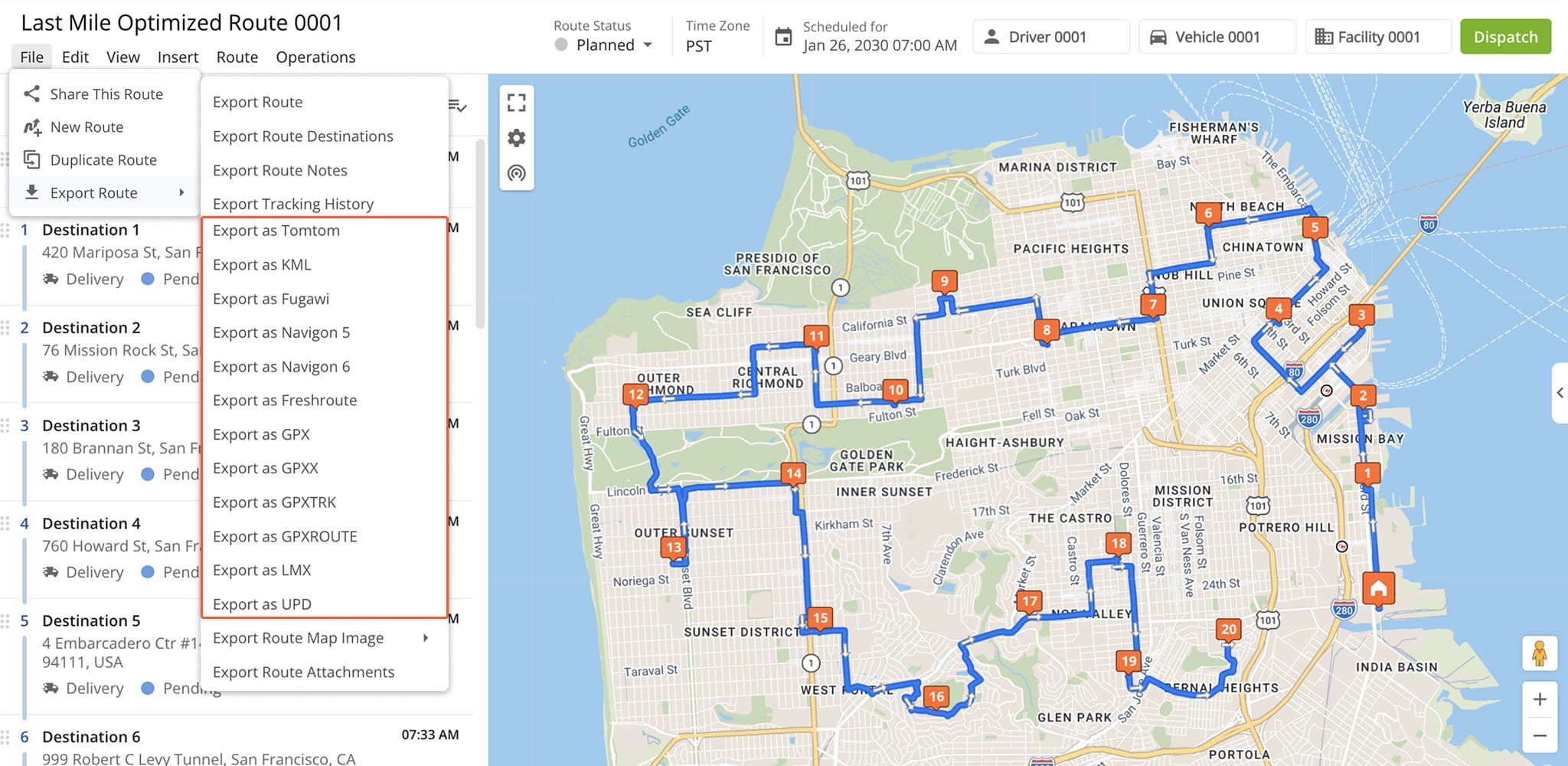
Route4Me, the best route software for enterprise route planning, also lets you export route data for use with navigation devices such as Garmin GPS and others. Below is a description of the export options for different devices.
NOTE: Export for navigation is not available when exporting multiple routes.
Navigation Device Export Options
2 columns · 12 rows
TomTom
Exports an optimized route file with the route’s data that can be uploaded to TomTom devices and used for driving the exported route, respectively.
KML
Exports an optimized KML (Keyhole Markup Language) file that can be uploaded and used on the devices that support the corresponding format.
Fugawi
Exports an optimized route file with the route’s data that can be uploaded to Fugawi devices or software and used for driving the exported route, respectively.
Navigon 5
Exports an optimized file with the route’s data that can be uploaded to the devices supporting the Navigon 5 maps and used for driving the exported route.
Navigon 6
Exports an optimized file with the route’s data that can be uploaded to the devices that support the Navigon 6 maps and used for driving the exported route respectively.
Freshroute
Exports an optimized file that can be used on Freshroute.
Garmin (GPX)
Exports an optimized GPX file with the route’s data that can be uploaded to Garmin devices and used for driving the exported route, respectively.
Garmin (GPXX)
Exports an optimized GPXX file with the route’s data that can be uploaded to Garmin devices and used for driving the exported route, respectively.
Garmin (GPXTRK)
Exports an optimized GPXTRK file with the route’s data that can be uploaded to Garmin devices and used for driving the exported route, respectively.
Garmin (GPXRoute)
Exports an optimized GPXRoute file with the route’s data that can be uploaded to Garmin devices and used for driving the exported route, respectively.
LMX
Exports an optimized file with the route’s data that can be uploaded to Nokia devices and used for driving the exported route, respectively.
UPD
Exports an optimized route file with the route’s data that can be uploaded to various devices or software and used for driving the exported route, respectively.
Visit Route4Me's Marketplace to Check out Associated Modules:
- Platform
Route Management
- Operations
Ultra High Resolution Route Mapping
About author: Kristian Andreev

