
Dataset Management – Open & Edit Strategic Routing Datasets With Locations & Schedules
Route4Me’s Strategic Routing simplifies route planning with complex schedules over long planning periods. When you create Strategic Optimizations, the system automatically saves Datasets to your account. In this guide, you’ll learn how to access and manage Datasets, edit Location visit and schedule rules, and how to start Strategic Routing with Datasets.
Table of Contents
Dataset Creation And Generation Methods
Strategic Routing Datasets with Location settings and schedule rules are saved to your account when you:
- Upload Strategic Locations: Create Strategic Optimizations by uploading spreadsheets with Locations and schedules.
- Select Database Locations: Create Strategic Optimizations by selecting Customer Locations from your account.
- Duplicate Existing Datasets: Use an existing Strategic Optimization to duplicate its Location Dataset.
Route4Me saves your Datasets automatically when they’re created, making it easy to use and manage Datasets.
Datasets Overview – How To Open And Use The Datasets Page
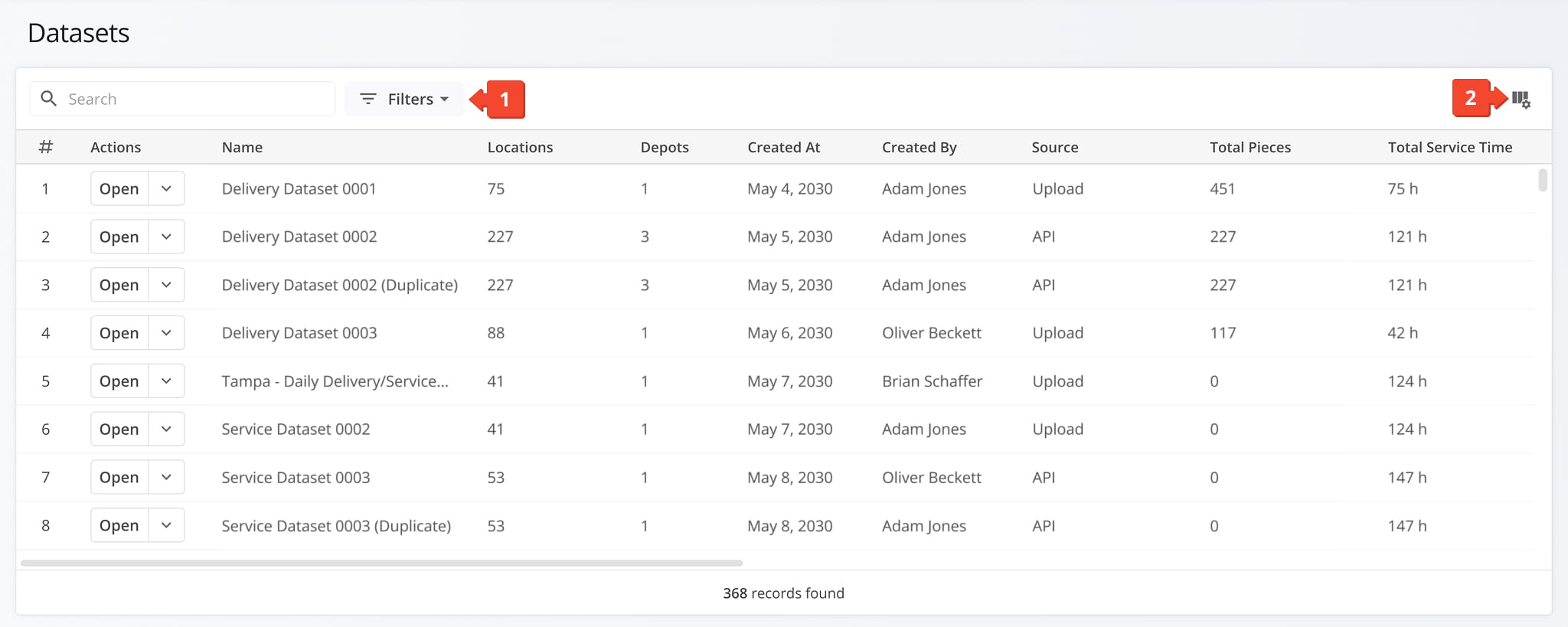
The Datasets Page is where you can find Datasets previously used to create Strategic Optimizations. To find specific Datasets and see the data relevant to your needs, you can:
- Use the “Search” and “Filter” fields to find and filter Datasets.
See the Strategic Routing Data catalog for a full list of filters. - Click the Columns Icon to customize data columns on the Datasets Page.
See the Strategic Routing Data catalog for a full list of supported columns.
NOTE: Currently, the Datasets Page is available on request. Contact Route4Me Support to get set up.
Open Your Strategic Routing Datasets
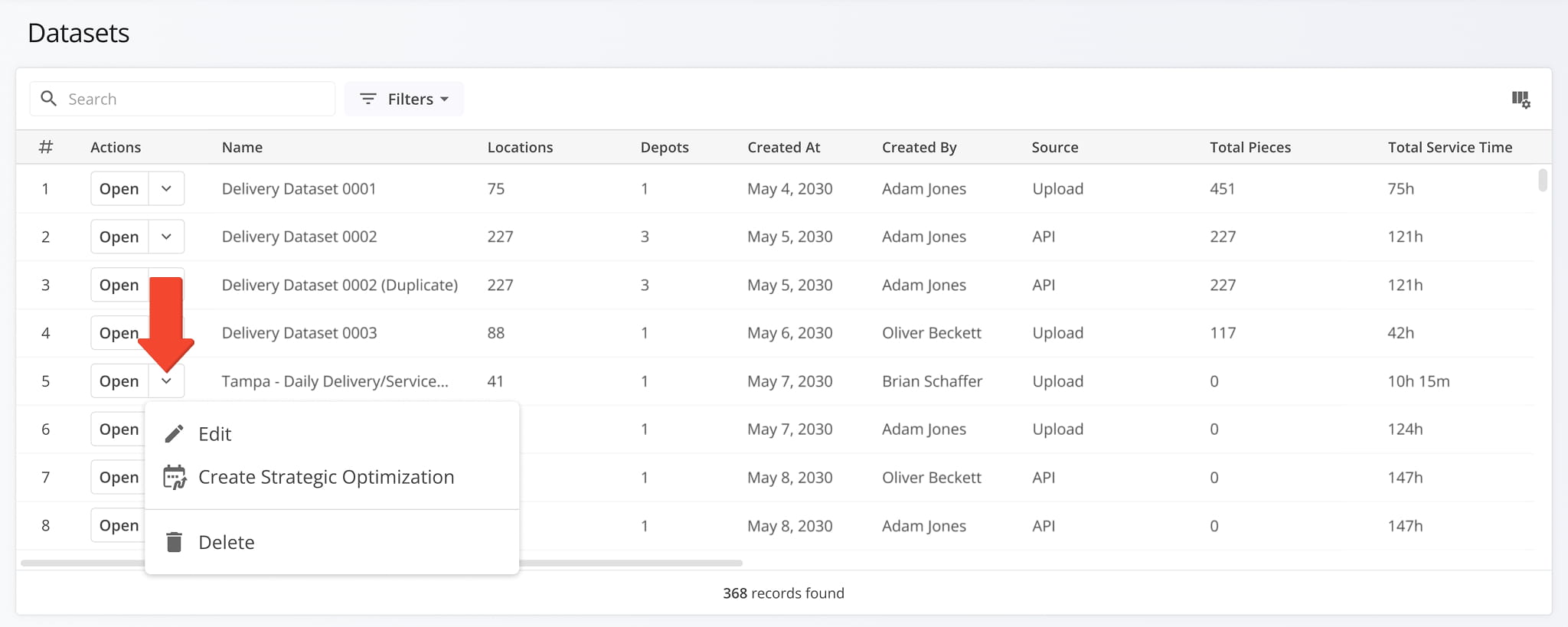
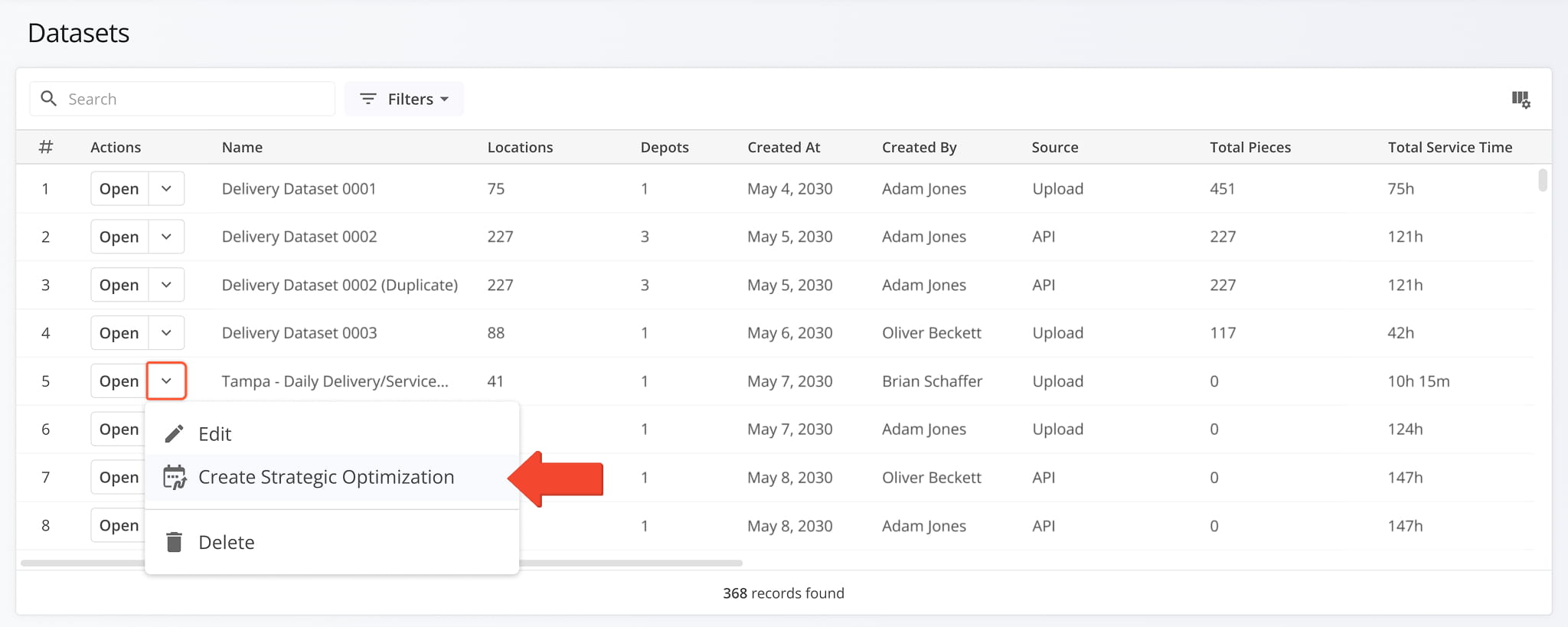
Click the Down Arrow next to a Dataset to access the following management actions:
- Edit: Rename or open a Dataset to edit Locations and schedules.
- Create Strategic Optimization: Start Strategic Routing with a Dataset.
- Delete: Remove a Dataset from your account.
Keep reading to learn more about opening and editing Strategic Routing Datasets.
Open And Edit Datasets To Adjust Location And Schedule Settings
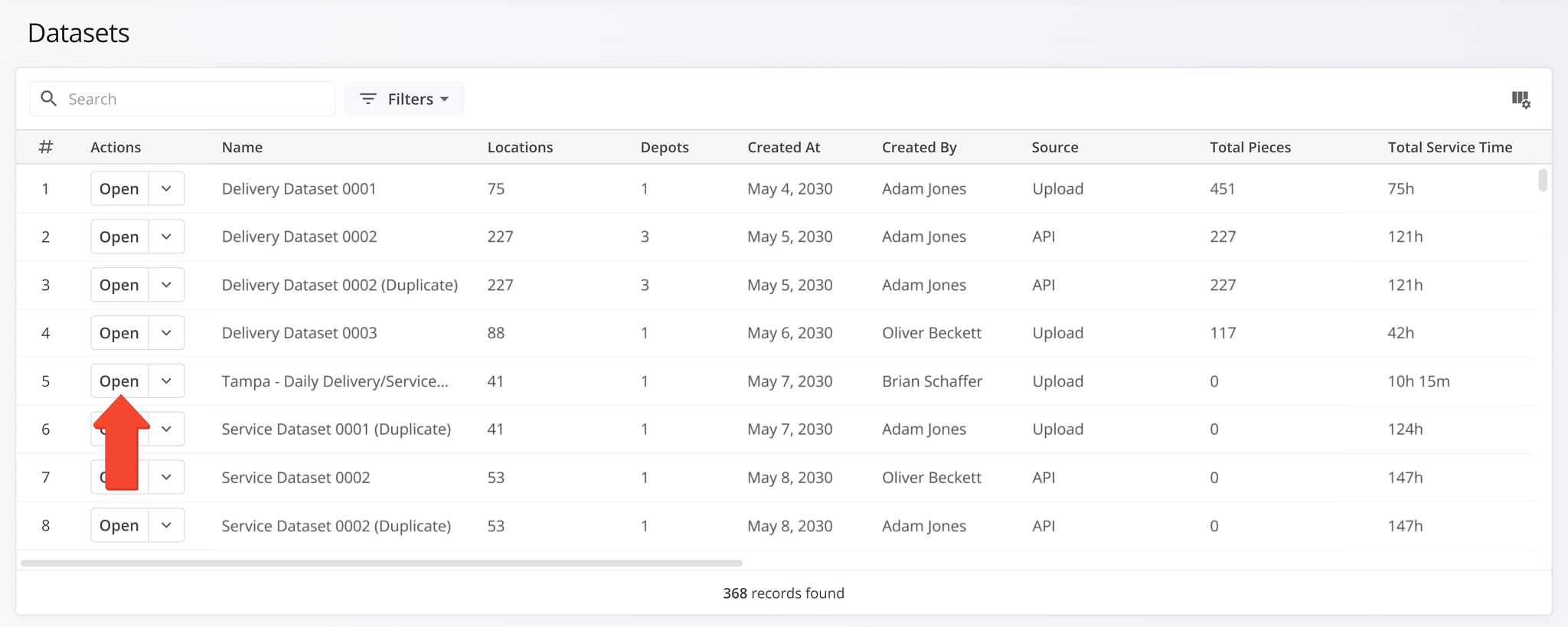
To edit a Dataset’s Location settings and schedule rules, first open it by clicking the “Open” button.
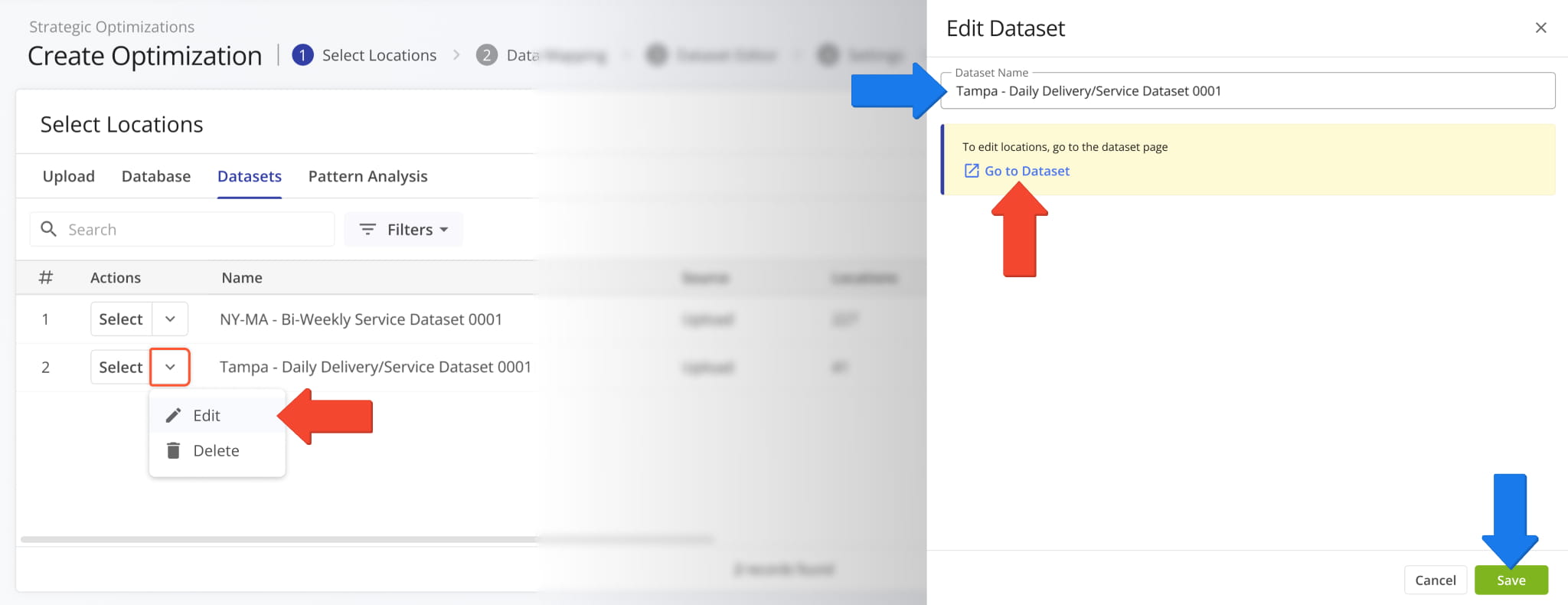
You can also open Datasets when routing with Datasets. Simply click the Down Arrow, select “Edit” and click “Go to Dataset“.
From here, you can also rename a Dataset using the “Dataset Name” field and clicking “Save“.
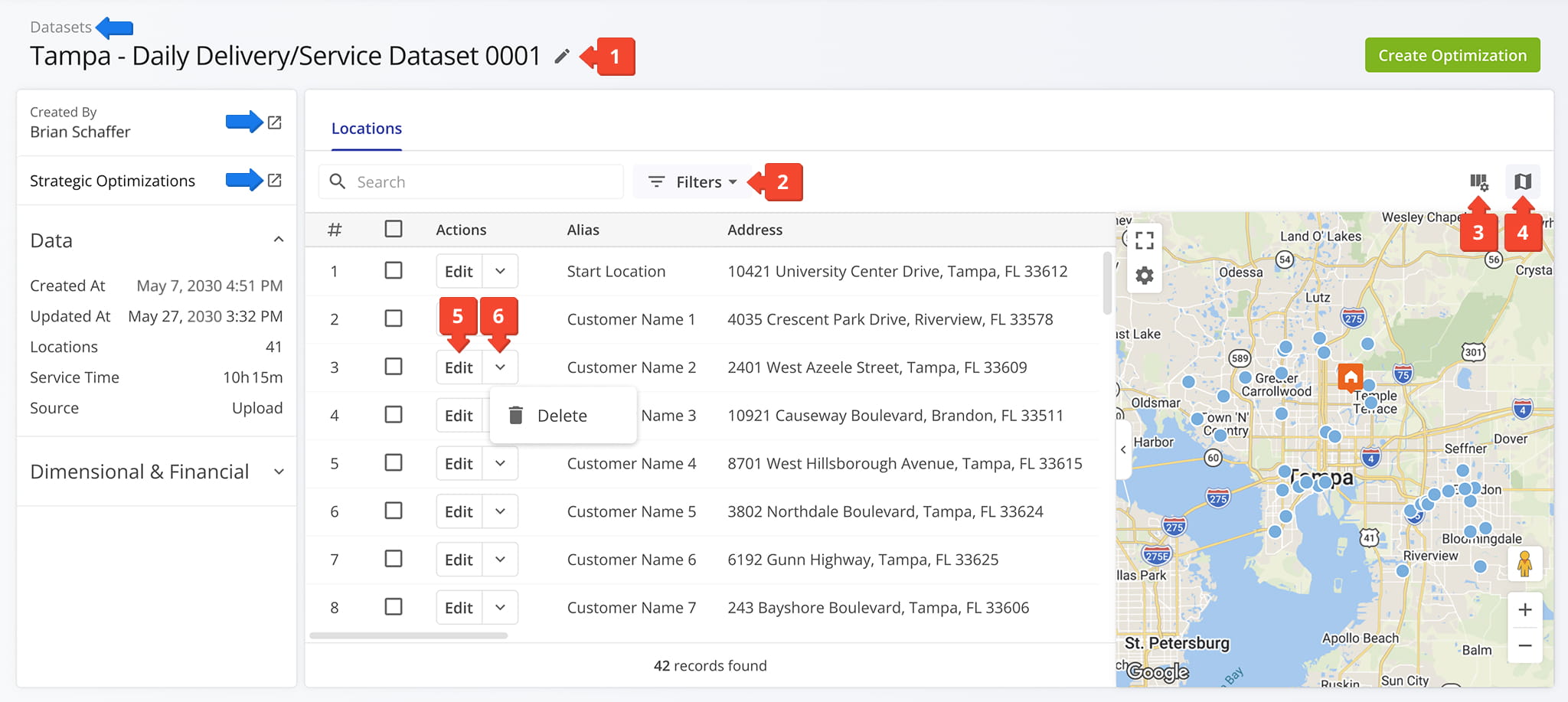
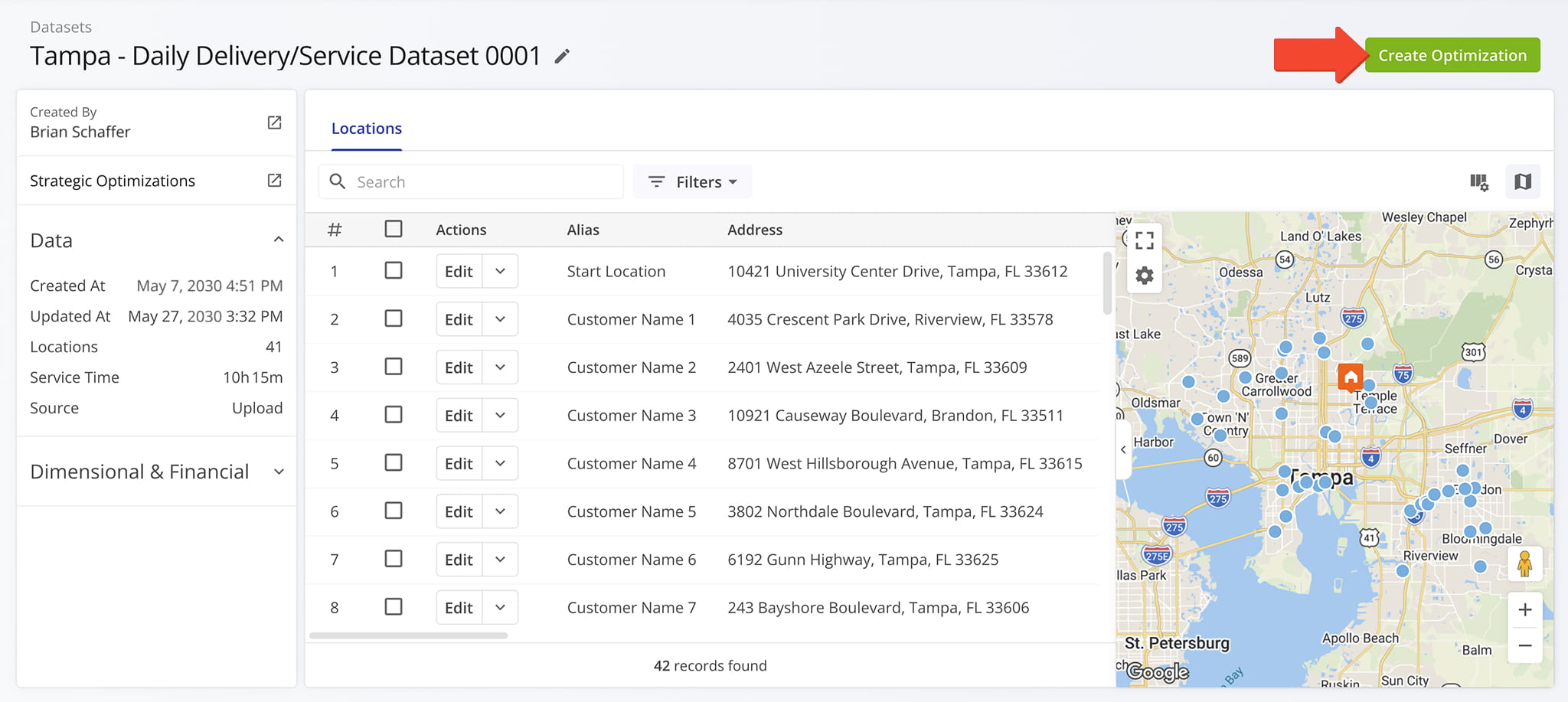
When you open a Dataset, you’ll see all of its Locations in an interface similar to Optimization Locations. From here, you can:
- Rename the Dataset by clicking the Pencil Icon.
- Filter the Locations List using the “Search” field and “Filters” menu.
- Customize the data columns shown in the Locations List by clicking the Columns Icon.
- Close or open the Locations Map by clicking the Map Icon.
- Edit a Location’s settings and schedule rules by clicking the “Edit” button.
- Remove a Location from the Dataset by clicking the Down Arrow and selecting “Delete“.
From here, you can additionally access several navigation options:
- Click the “Datasets” link in the top-left to go to the Datasets Page.
- Click the Open Icon next to the user in the “Created By” field to see their User Snapshot.
- Click the Open Icon next to “Strategic Optimizations” to open the Strategic Optimizations Page.
NOTE: The Optimizations List will be pre-filtered to show only Optimizations created with the Dataset.
Edit Dataset Location Settings And Schedule Rules
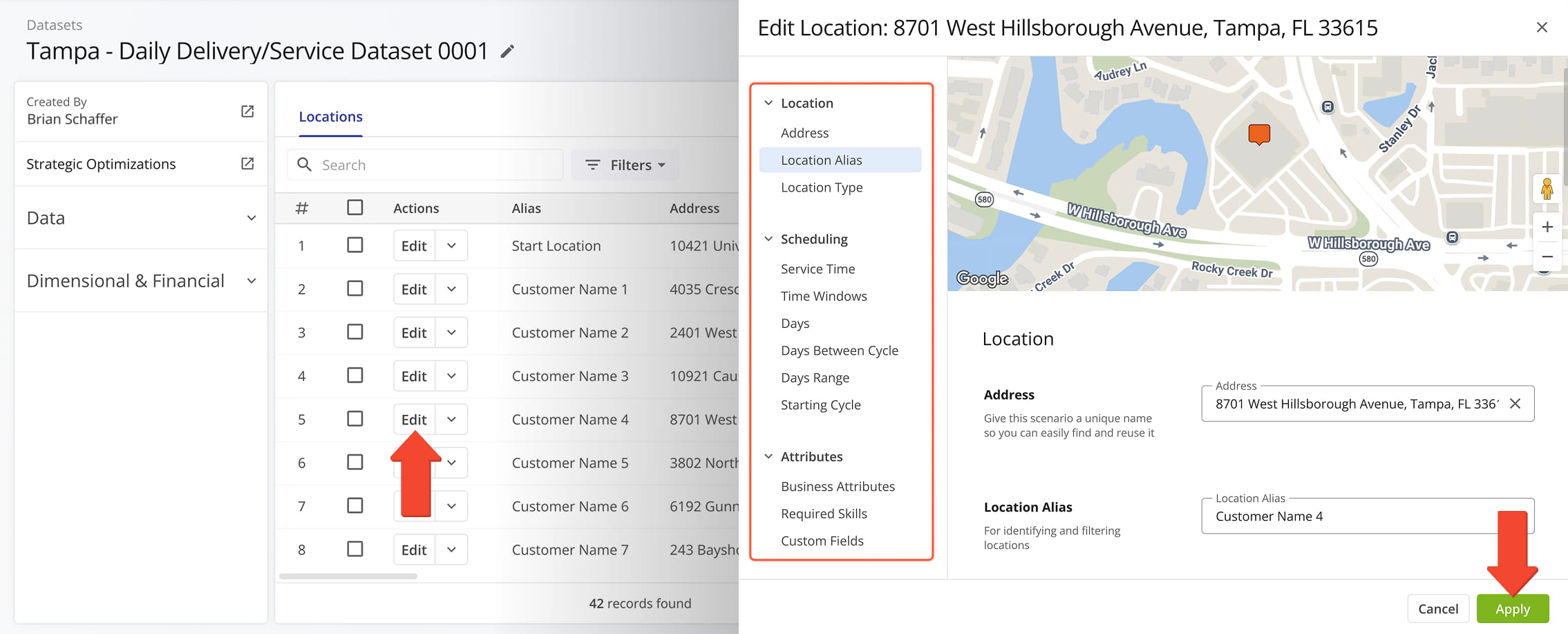
Click “Edit” next to a Location in a Dataset to open its settings. See the table below for more details about settings available in the Dataset Editor. When finished, click “Apply” to save your changes.
Dataset Location Settings
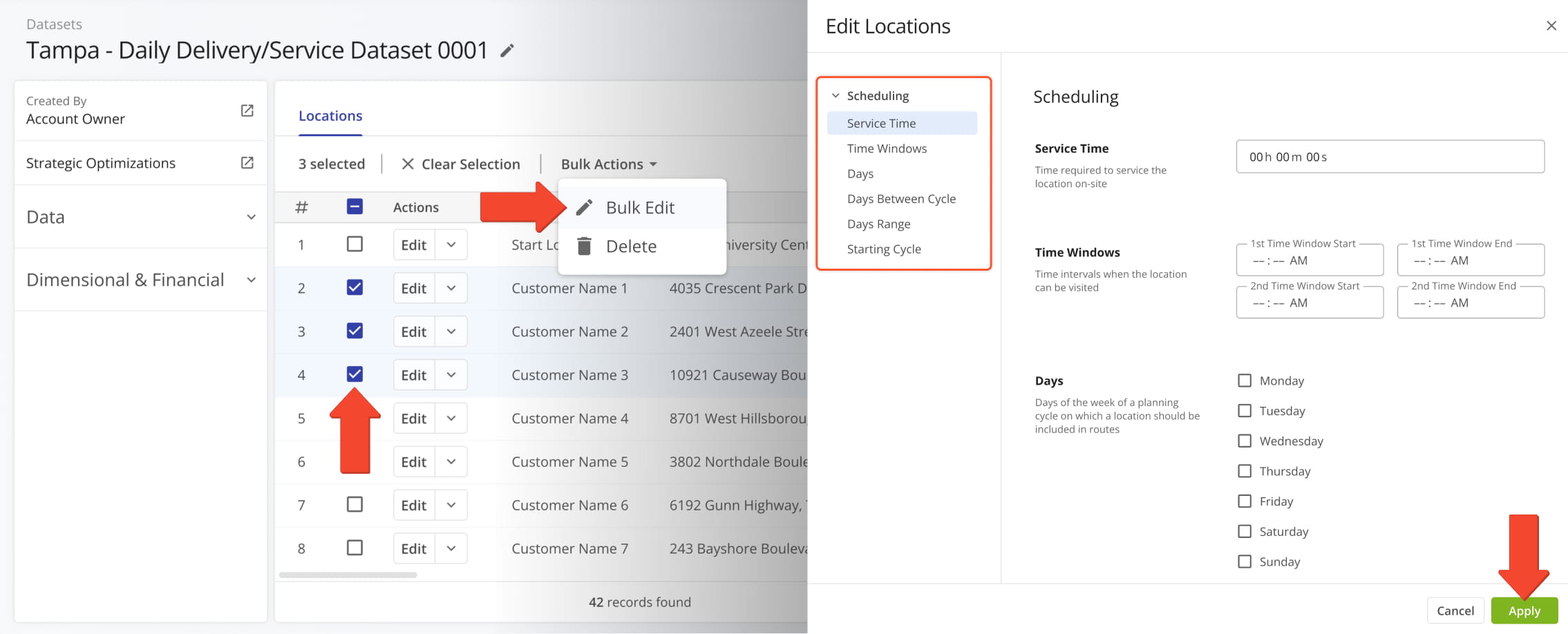
You can also adjust scheduling settings for multiple Locations at the same time. In the Locations List, select the Locations you want to edit. Then, click “Bulk Actions” > “Bulk Edit“. After adjusting “Scheduling” settings, click “Apply” to save your changes.
Create Optimizations From Existing Datasets
Using a Dataset to create a new Strategic Optimization is easy. From an open Dataset, simply click the “Create Optimization” button to use the Dataset for Strategic Routing.
You can also start routing from the Datasets Page. To do so, click the Down Arrow and select “Create Strategic Optimization“.
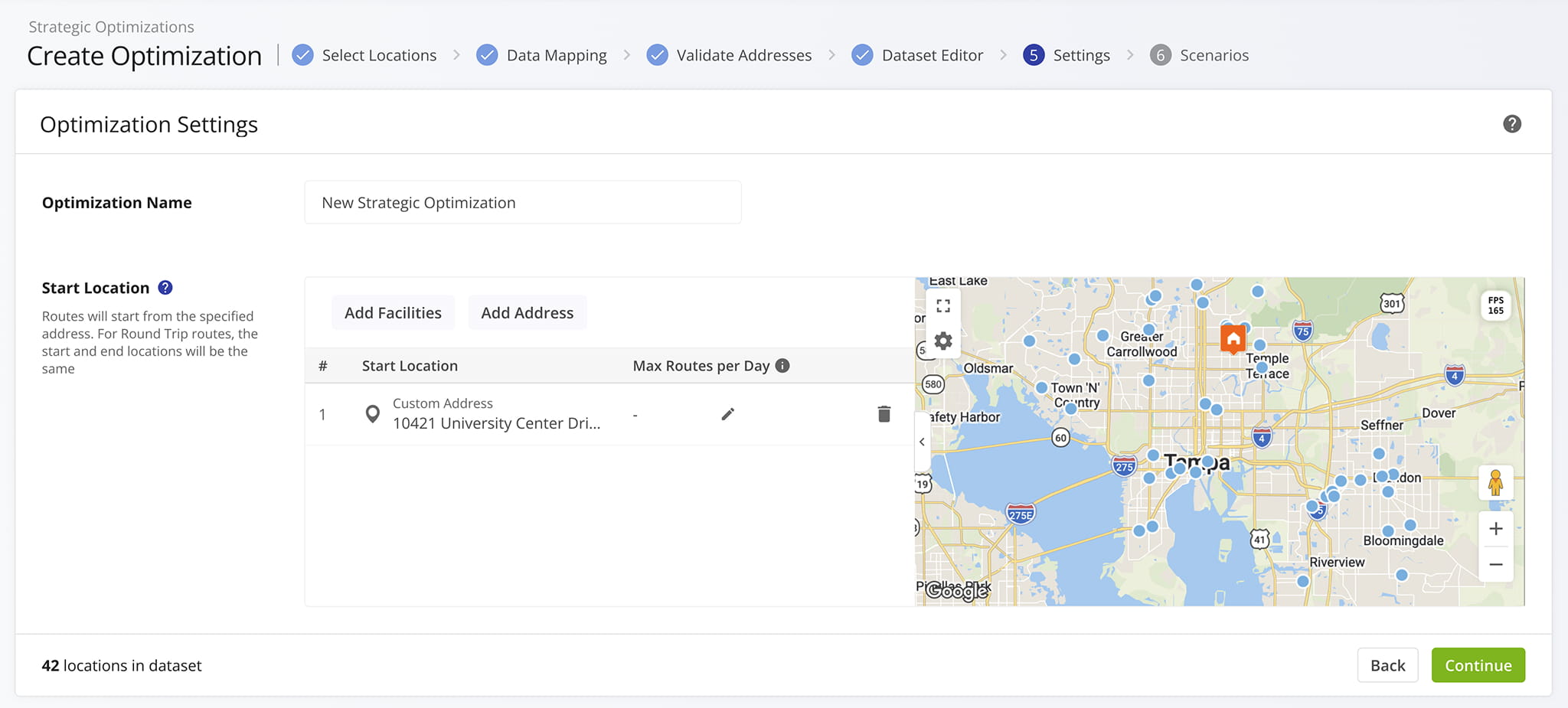
Next, the strategic planning interface will open automatically, and you’ll see the “Optimization Settings” stage where you can select route start locations. Learn more about Creating Strategic Optimizations from this step.
Visit Route4Me's Marketplace to Check out Associated Modules:
- Operations
Audit Logging and Activity Stream
- Operations
Custom Data Add-On
- Operations
Advanced Team Management Add-On
About author: Kristian Andreev

