Manage Master Routes From Recurring Route Page
Master Routes give you control over recurring route schedules and their settings. From the Recurring Routes page, you can edit a single Master Route or update multiple routes using Bulk Actions. This helps you quickly adjust routing details, assignments, and settings while keeping recurring schedules consistent. In this guide, you’ll learn how to manage individual and multiple Master Routes and perform common updates from the Recurring Route page.
Table of Contents
Manage A Single Master Route – Route Editing And Assignment Tools
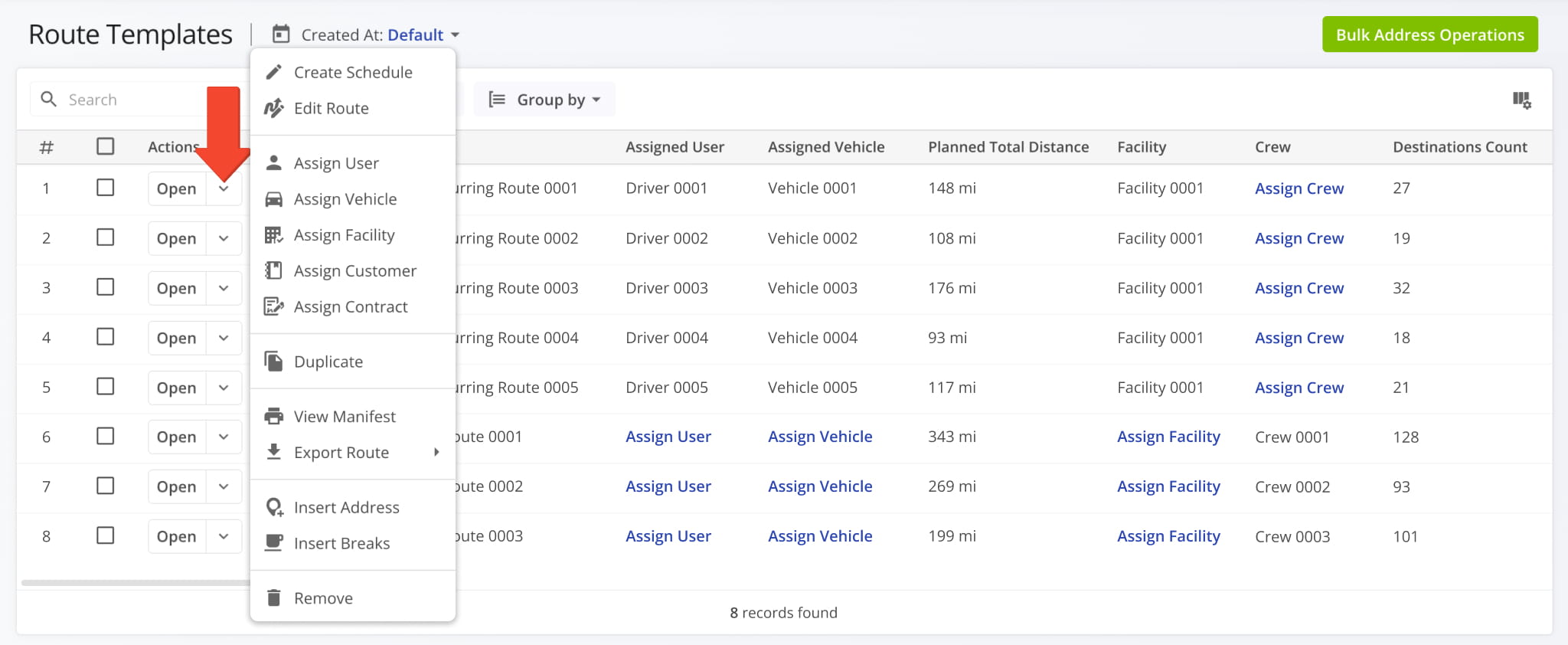
To manage a Master Route from the Recurring Route page, click the Down Arrow button next to the Master Route to open its Action Menu.
From this menu, you can open the Master Route in the Route Editor, update assignment settings, export routes, insert addresses, or remove the Master Route from your account. See the table below for a complete list of available actions.
Any updates made to a Master Route are automatically applied to all associated Recurring Routes.
| Action | Description |
|---|---|
| Edit Route | Open a route in the Route Editor to change settings, sequence, or optimization. |
| Assign User | Assign a team member (such as a driver or planner) to the route. |
| Assign Vehicle | Assign a vehicle from your fleet to the route. |
| Assign Facility | Assign a facility to be used as the route’s start/end location. |
| Assign Customer | Associate a customer with the route for billing/reporting and service context. |
| Assign Contract | Assign contract terms or service rules to the route. |
| Duplicate | Create a copy of the route; the new route includes “(Duplicate)” in its name. |
| View Manifest | Open or download a detailed Route Manifest showing route and destination data. |
| Export Routes | Export route data as a CSV or navigation file for external use. |
| Insert Address | Add a customer address to the route by typing or searching for the address. |
| Insert Breaks | Add driver break destinations with configurable duration and trigger conditions. |
| Remove | Permanently delete the selected route from your account. |
Manage Multiple Master Routes – Bulk Editing And Management Tools
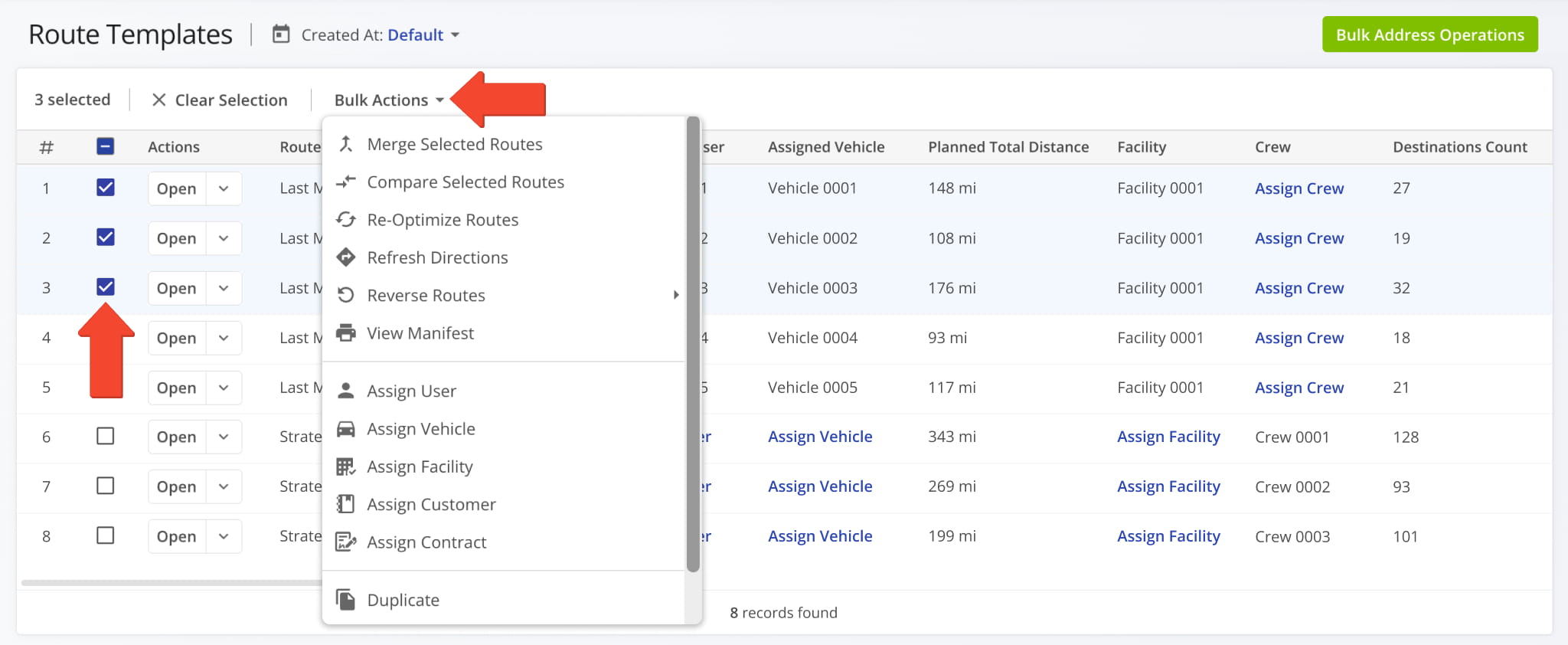
To manage multiple Master Routes at the same time, check the boxes next to them and click “Bulk Actions“. See the table below for a full overview of available Bulk Actions.
Updates made to Master Routes are automatically applied to all associated Recurring Routes.
| Action | Description |
|---|---|
| Merge Selected Routes | Combine multiple selected routes into a new route with an optimized destination sequence. |
| Compare Selected Routes | View selected routes side by side to compare schedules, distance, travel time, and vehicle usage. |
| Re-Optimize Routes | Recalculate route optimization for all selected routes based on updated destinations, settings, or constraints. |
| Refresh Directions | Rebuild turn-by-turn directions for all selected routes to reflect the most current routing data. |
| Reverse Routes | Reverse the stop sequence of all selected routes or their destinations to change travel order. |
| View Manifest | Open or download a detailed Route Manifest for all selected routes showing route and destination data. |
| Assign User | Assign a team member (such as a driver or planner) to all selected routes. |
| Assign Vehicle | Assign a vehicle from your fleet to all selected routes. |
| Assign Facility | Assign a facility to be used as the start/end location for all selected routes. |
| Assign Customer | Associate a customer with all selected routes for billing and reporting purposes. |
| Assign Contract | Assign contract terms or service rules to all selected routes. |
| Duplicate | Create a copy of all selected routes; the new routes includes “(Duplicate)” in their name. |
| View on Multiple Routes Map | Display selected routes on a dynamic map to visualize destinations, review route details, and monitor operational data in one view. |
| Export Routes | Export route data as a CSV or navigation file for external use. |
| Insert Address into Selected Route(s) | Add a new address to one or more selected routes. |
| Insert Breaks | Insert general breaks into all selected routes by opening the Breaks Wizard to set break types, intervals, and durations. |
| Remove | Permanently delete the selected routes from your account. |
Visit Route4Me's Marketplace to Check out Associated Modules:
- Operations
Custom Data Add-On
- Operations
Advanced Team Management Add-On