
Order Snapshot – Customizable Data And Analytics Overview
Route4Me’s Order Snapshot provides a centralized, easy-to-navigate view of all data related to a specific order. From one screen, you can review order details, customer information, scheduled activities, and order history. It also lets you track trends, view real-time updates, and explore delivery events, status changes, and user actions. By consolidating this information, the Order Snapshot helps improve efficiency, reduce service errors, and support better decision-making. Learn more in this guide.
NOTE: Order Snapshots are currently available only by request. To enable this feature, contact Customer Support.
Table of Contents
Open Order Snapshot – Order Data And Analytics Overview
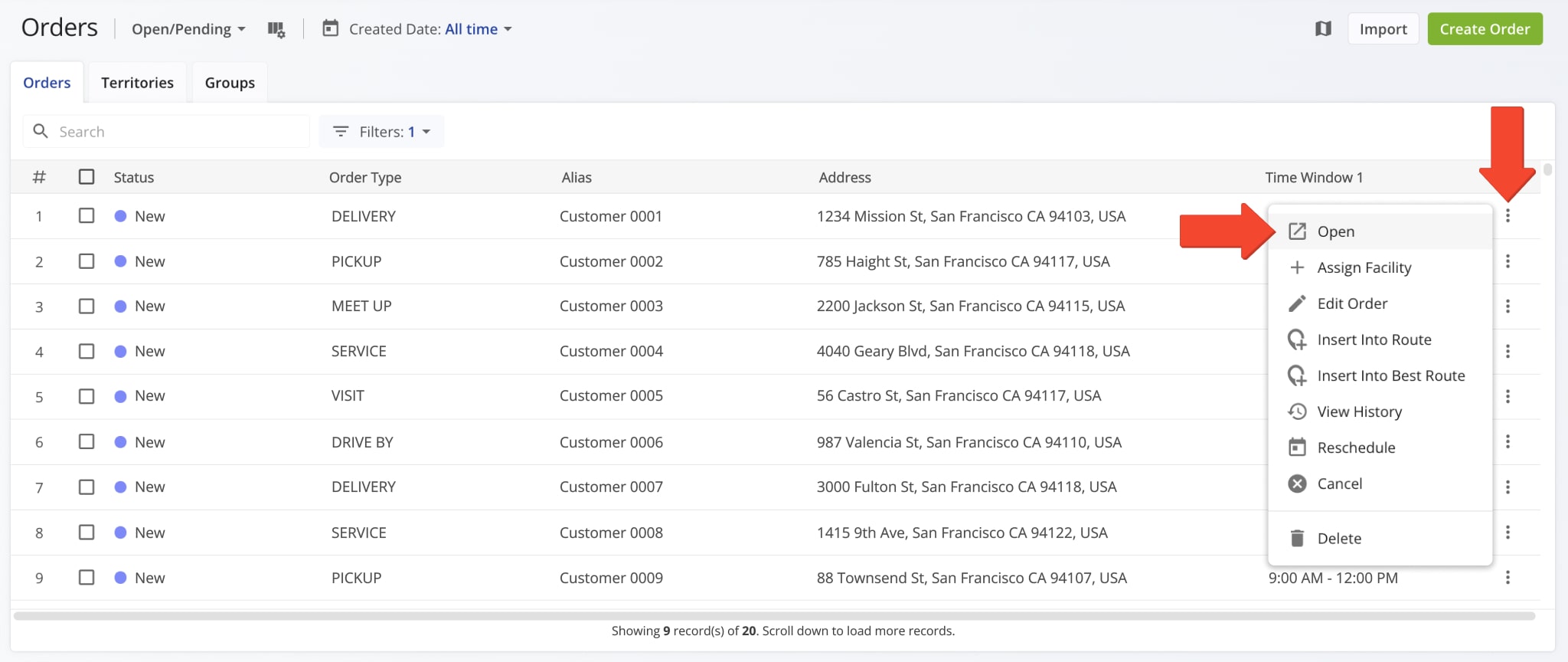
To open an Order Snapshot, click “Business Operations” > “Orders” in the Navigation Menu. Then, right-click an Order in your Orders List and select “Open“. You can also select “Open” from the menu that appears when you click the Three-dot Icon.
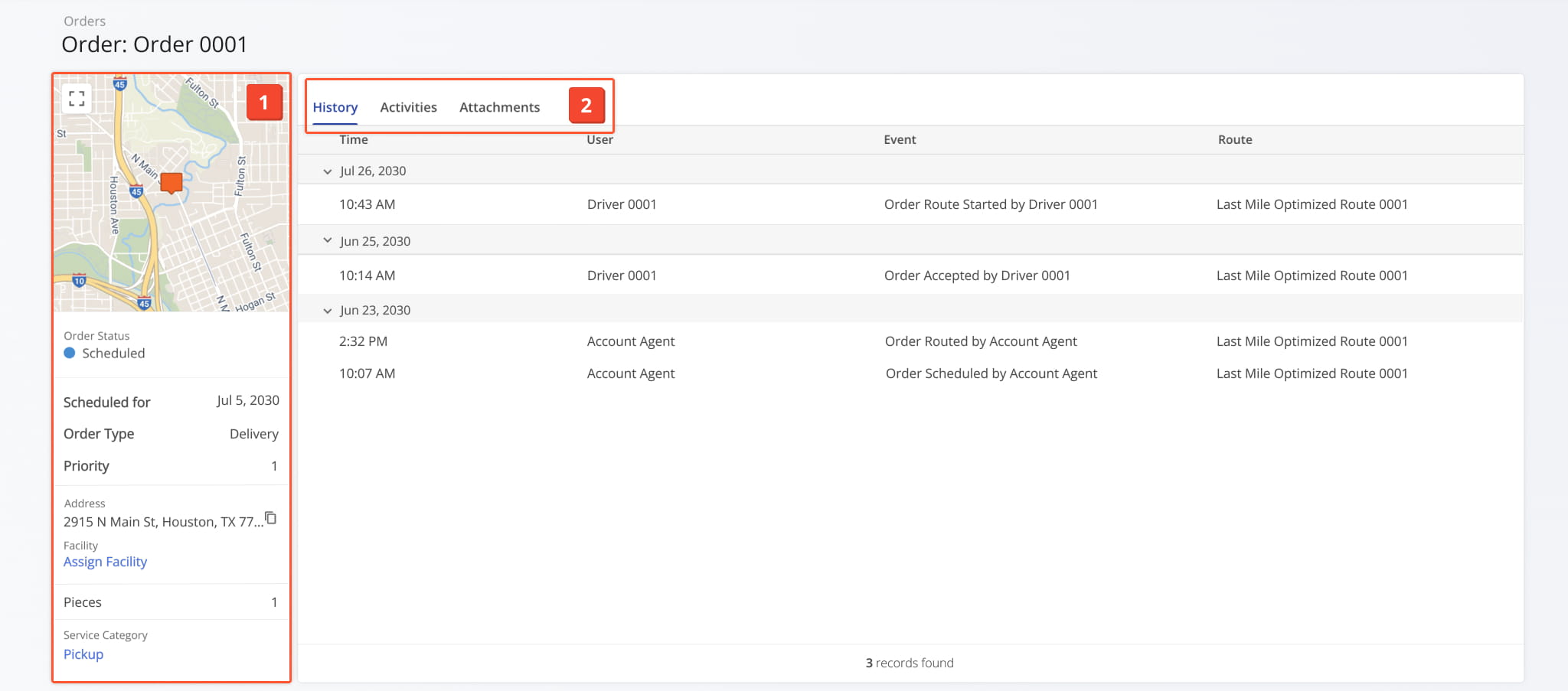
Once the Snapshot is opened, you’ll see a detailed interface designed to help you review and manage all Order data in one place:
- Order Summary: A quick overview of essential information including customer and address details, order type, and more.
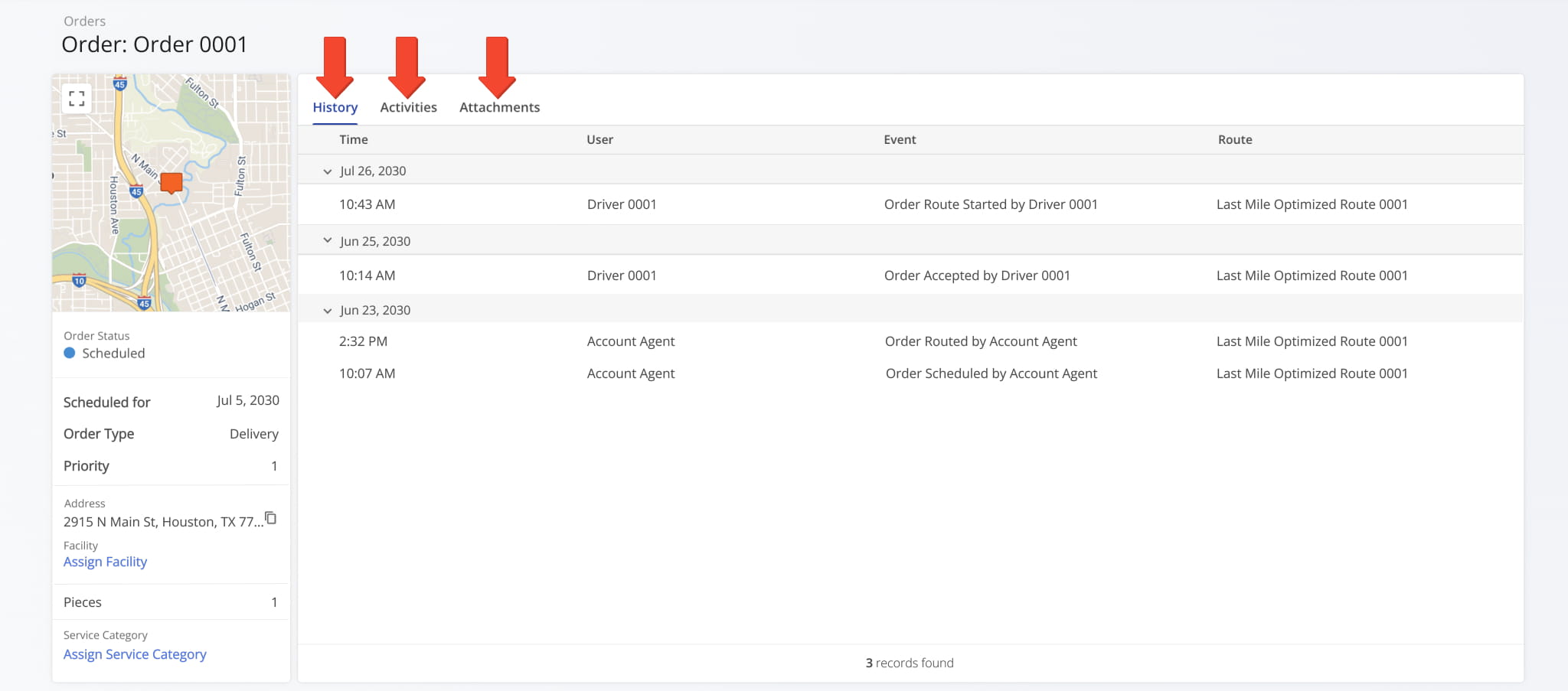
- Order Data Tabs: Switch between “History“, “Activities“, and “Attachments” to explore data which you can filter and customize.
All data is centralized and accessible, making it easier to analyze Customer information, spot trends, and plan accordingly.
Order Details Summary – Customer, Address, Order Data
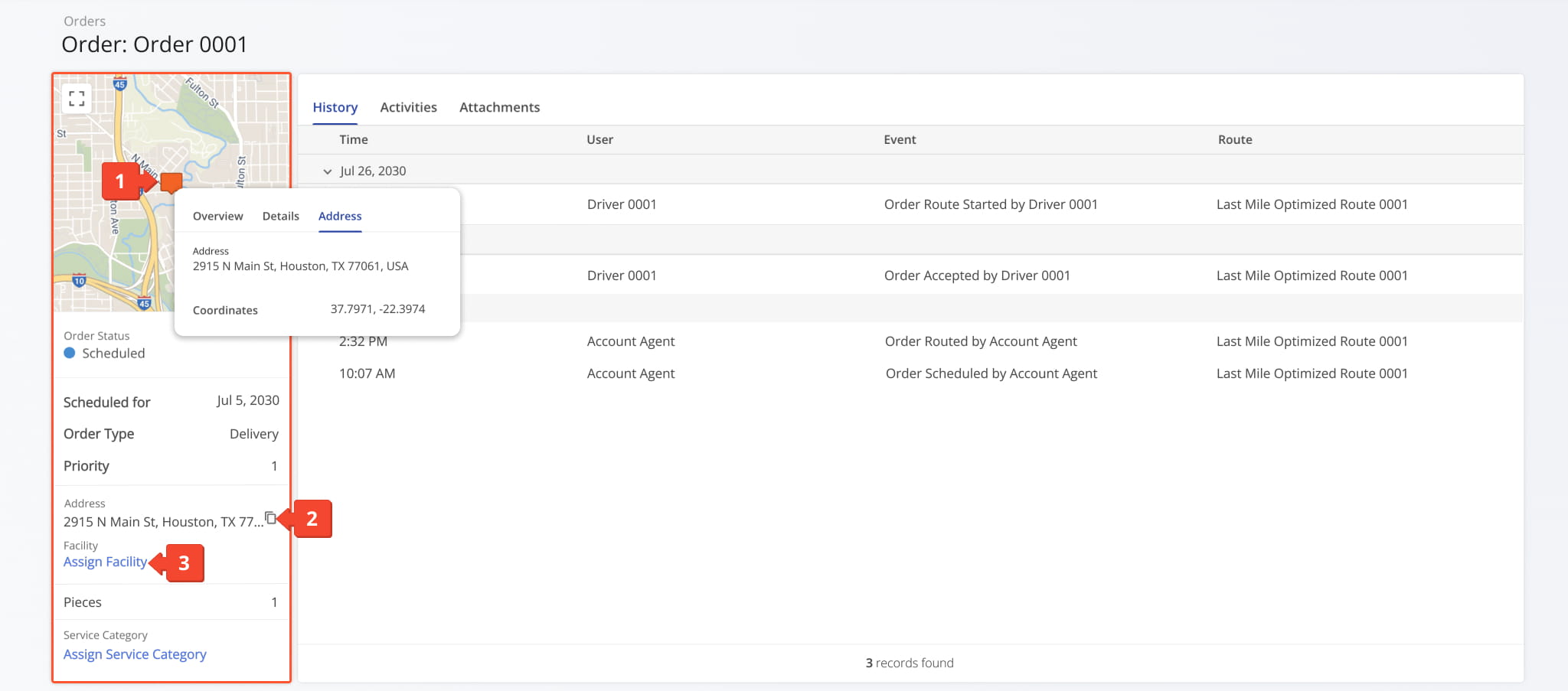
The Order Information panel provides a summary of key details, including Customer and Address information, the Order Type, the Scheduled For date, and other relevant order data. From this panel, you can:
- View the destination on a map and hover over it to see additional details.
- Copy the order address to your clipboard.
- Assign a Facility or Service Category for the order.
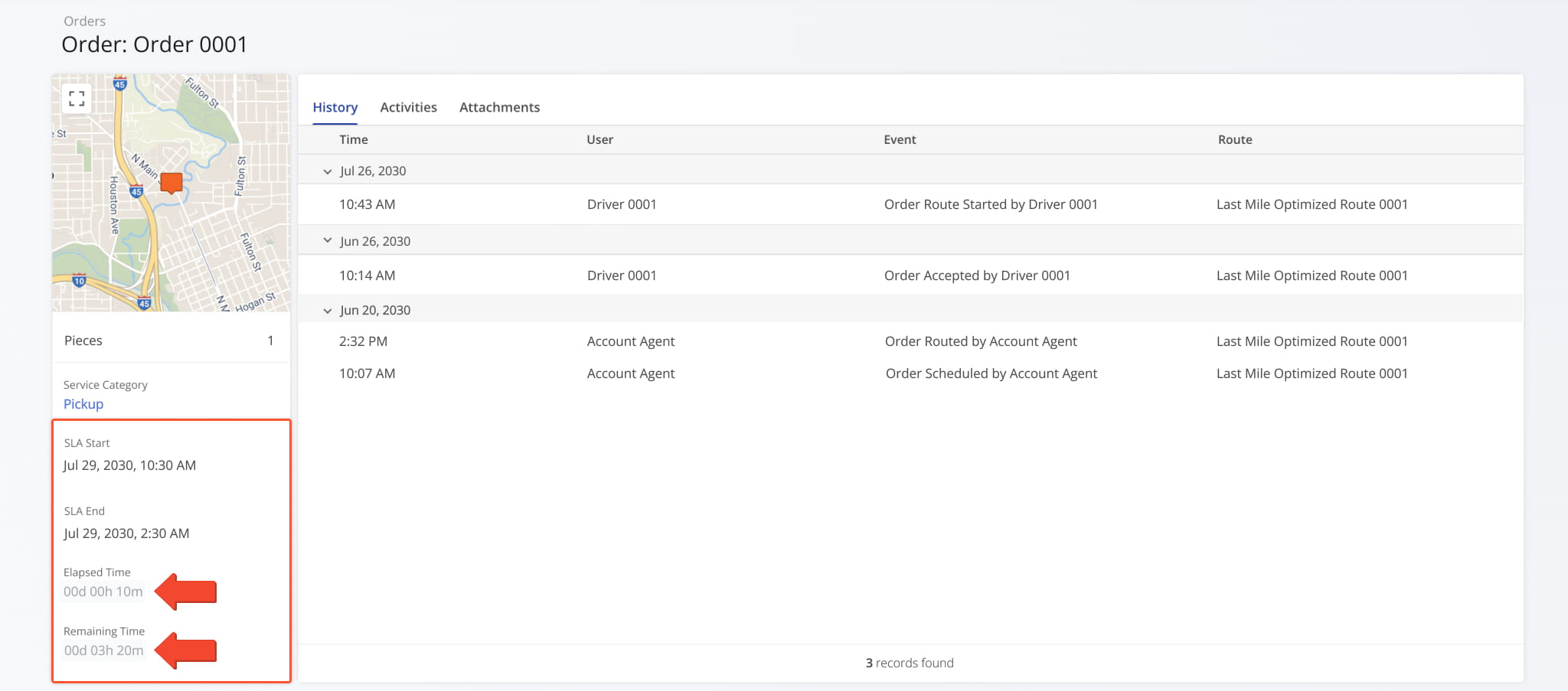
Scrolling down the panel reveals additional details, including Service Type, SLA Start, SLA End, Elapsed Time, and Remaining Time. These fields summarize the order’s service requirements and deadlines.
The SLA timer starts when an order has a valid address, facility, and service type. Elapsed Time shows time passed, and Remaining Time counts down to the SLA deadline, with color indicators highlighting safe, warning, or critical statuses.
Order Snapshot Categories – Analytics Overview Data Tabs
The Order Snapshot is organized into multiple tabs, each corresponding to a specific category of data, described below.
History Tab – Order Events And User Activity
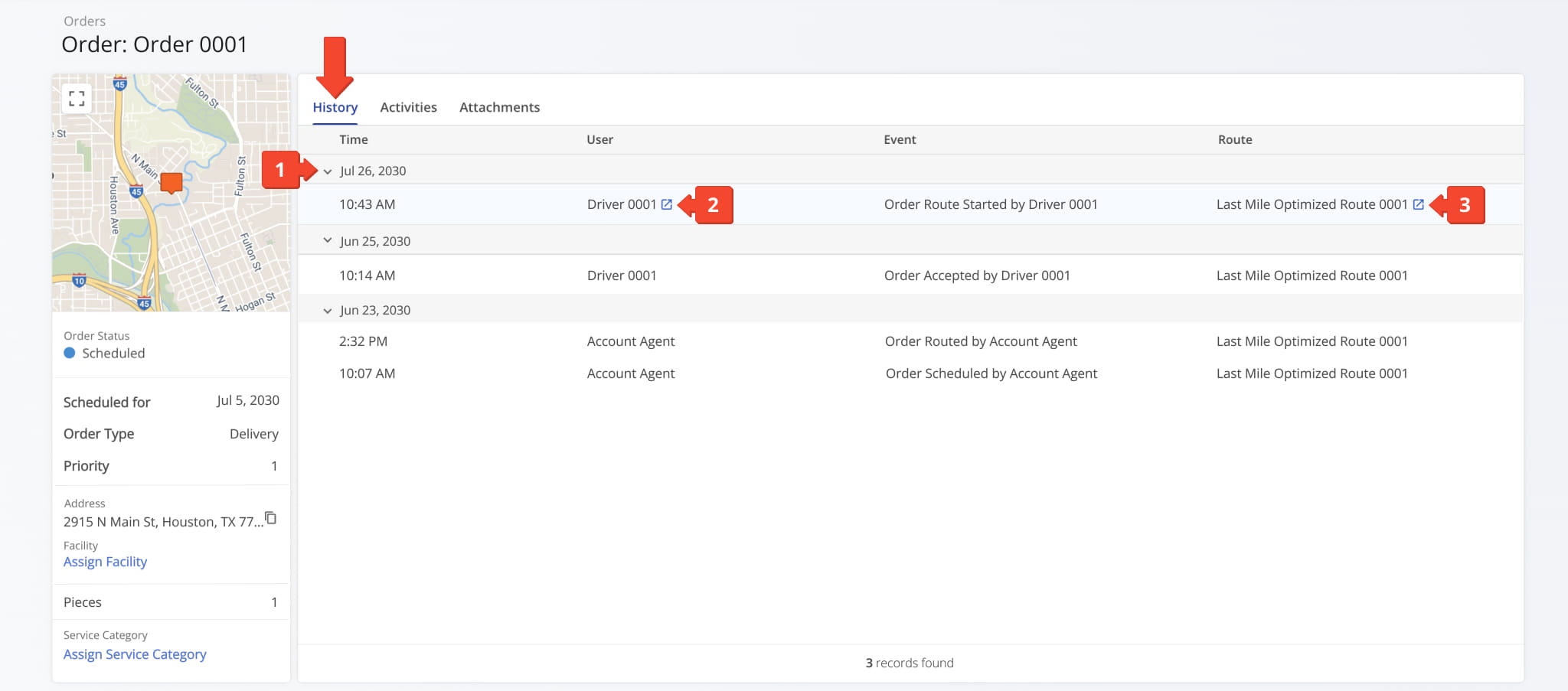
The History tab provides a chronological view of all historical events associated with the Order, including its creation, completion, or cancellation, along with the Users and Routes linked to each event. From this tab, you can:
- Click the Arrow Icon next to any date to expand or collapse all historical events for that day.
- Hover over a User and click the Go-To Icon to open their User Snapshot for a detailed overview of their activity.
- Hover over the Route name and click the Arrow Icon to open the associated Route Snapshot.
Activities Tab – Order Activity Overview
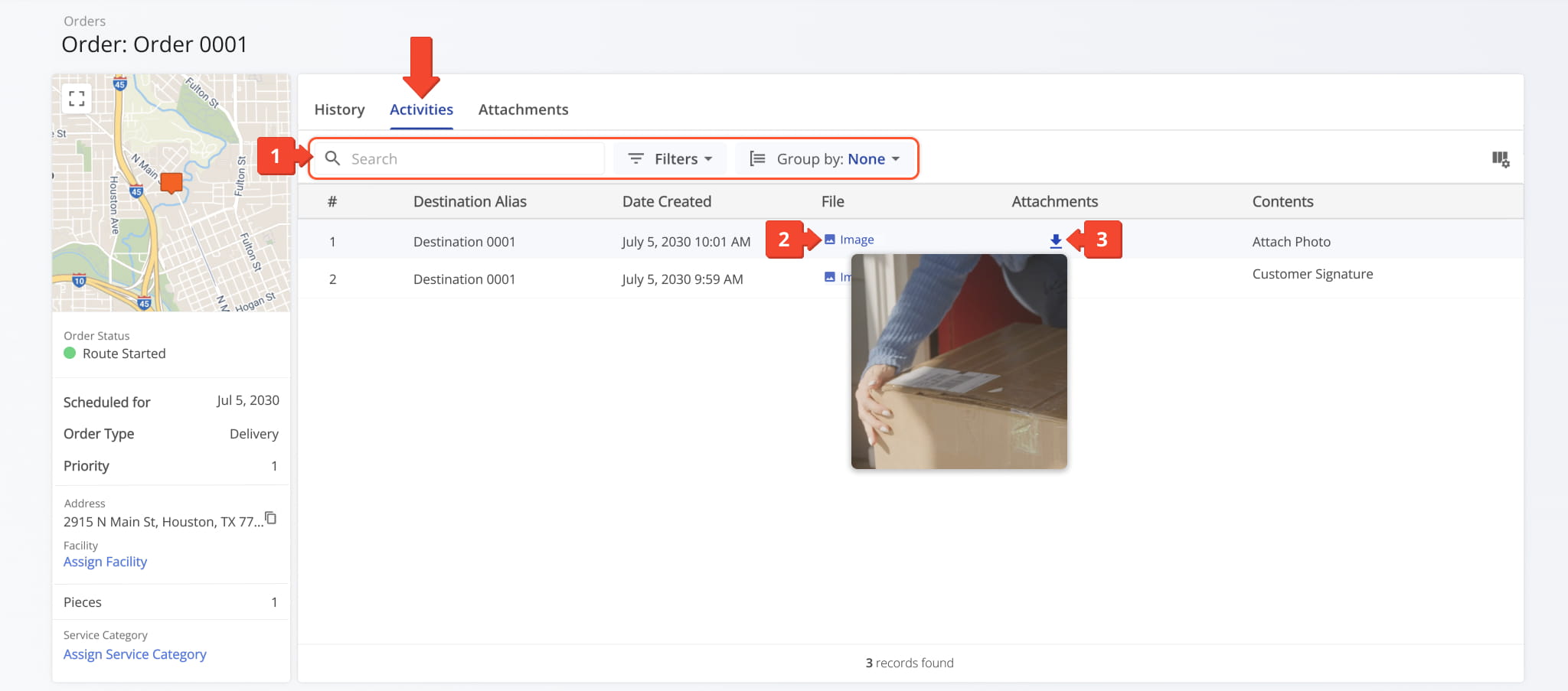
The Activities tab provides a detailed view of all activities associated with the Order. From this tab, you can:
- Use the Search field, apply filters (described below), and use the Group By option to organize activities by Route Name or Destination Alias.
- Hover over an image to view an enlarged version.
- Click the Download Arrow Icon to save an image file.
Order Snapshot - Filters
You can also customize the data displayed in the table. Click the Column Icon to select which data fields appear and adjust their order to suit your operational needs.
The table below provides an overview of all available data columns, which you can reorder by dragging them into place.
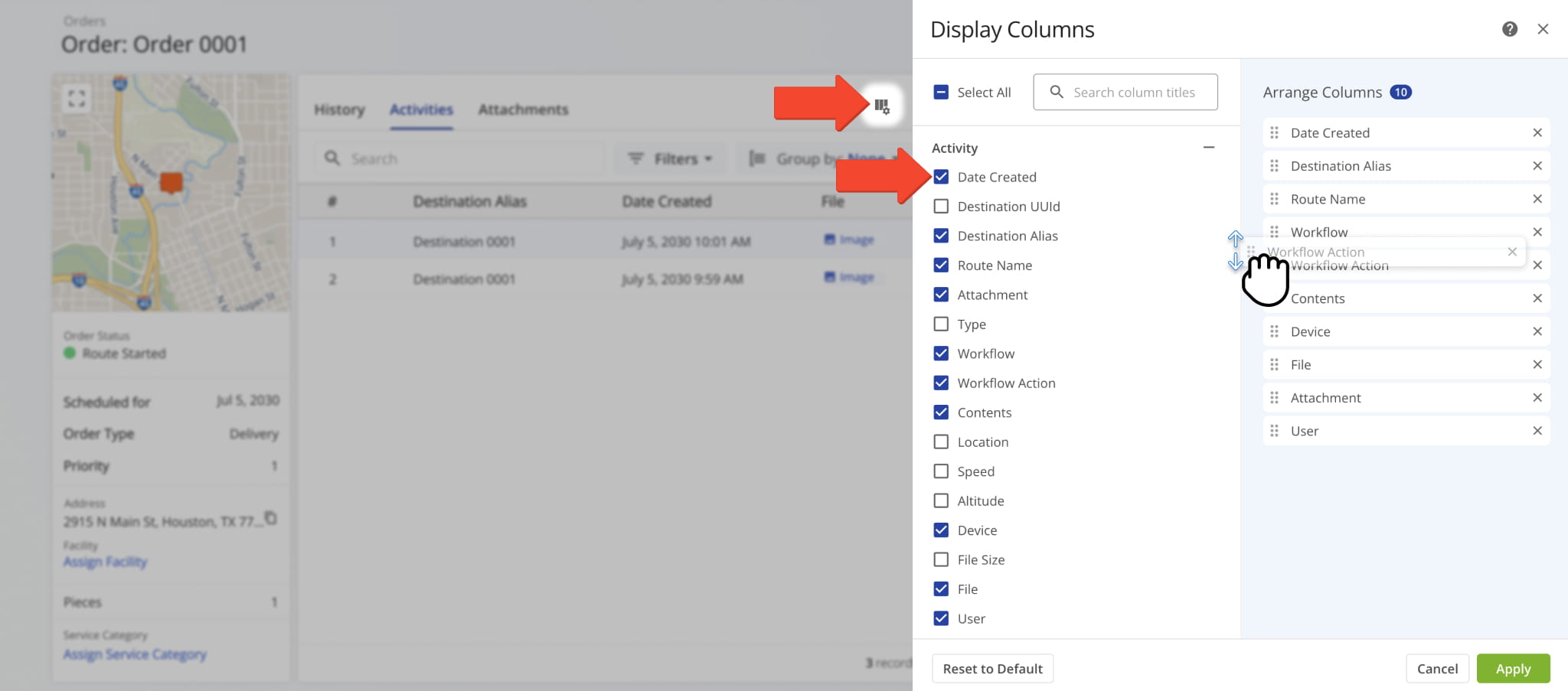
Order Snapshot - Activities Data Columns
Attachments Tab – Proof Of Visit Files
Click the Attachments tab to view all files linked to the Destination, including proof of visit workflow attachments created when the assigned User completes mandatory or optional tasks, such as uploading delivery photos or collecting customer signatures.
From this tab, you can:
- Use the search field to quickly find specific Notes or apply filters, described below, to narrow results.
- Hover over the Information Icon to view additional details for each file.
NOTE: Learn more about managing proof of visit.
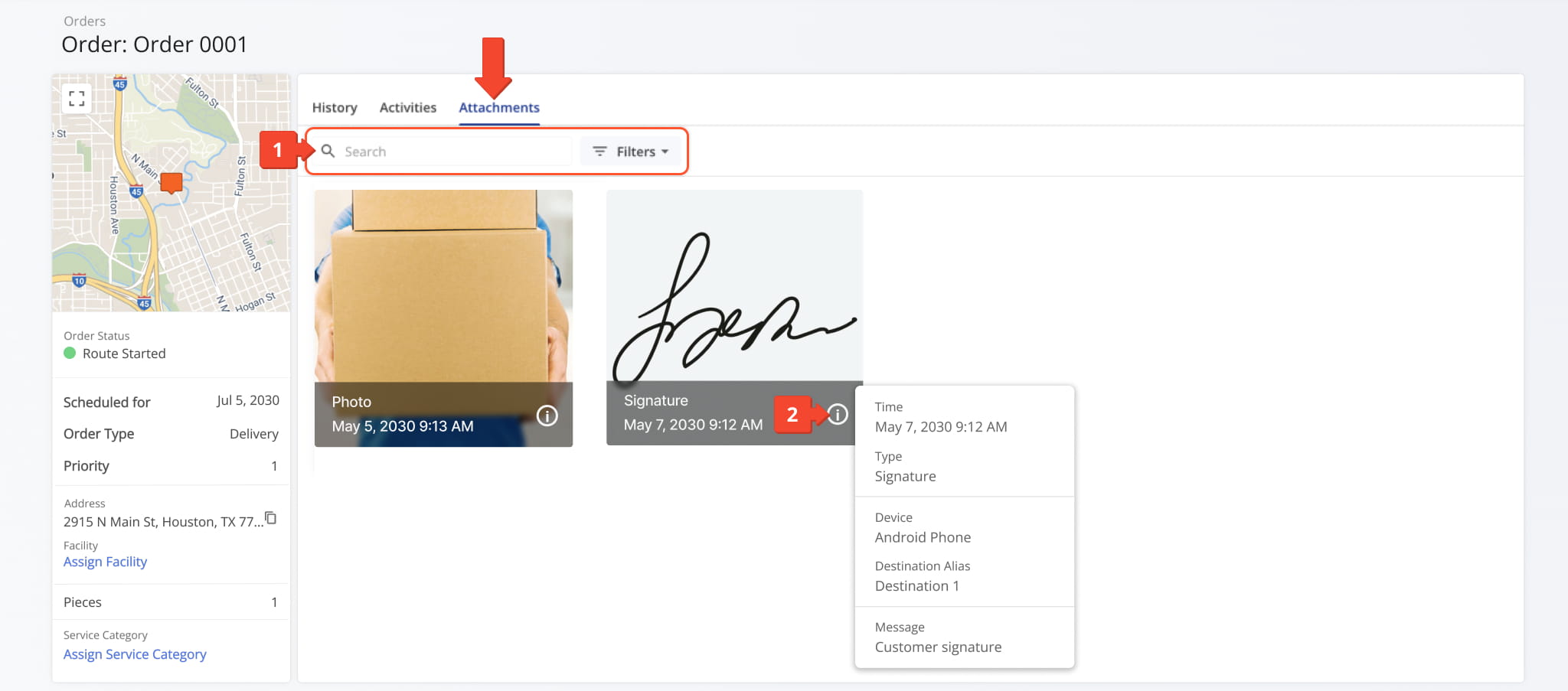
Order Snapshot - Filters
Visit Route4Me's Marketplace to Check out Associated Modules:
- Operations
Audit Logging and Activity Stream
- Operations
Custom Data Add-On
- Operations
Advanced Team Management Add-On
About author: Daniel Archer

