
Advanced Configuration Editor And Expert Mode – Customize Account Features
With Route4Me’s Advanced Configuration Editor, you can add additional features and customizations to your account to better meet your last mile routing, logistics, and business needs. Customize features, modify the user interface, enhance system performance, and configure Route4Me, the best route optimization software, for your unique business requirements. This guide will show you how to add, enable, and disable Advanced Configurations and provide you with a list of available Configuration options that you can use to enhance your account.
NOTE: Only Account Owners can use the Advanced Configuration Editor. Learn about User Types and Account-Level Permissions.
Table of Contents
Open Your Advanced Configuration Editor
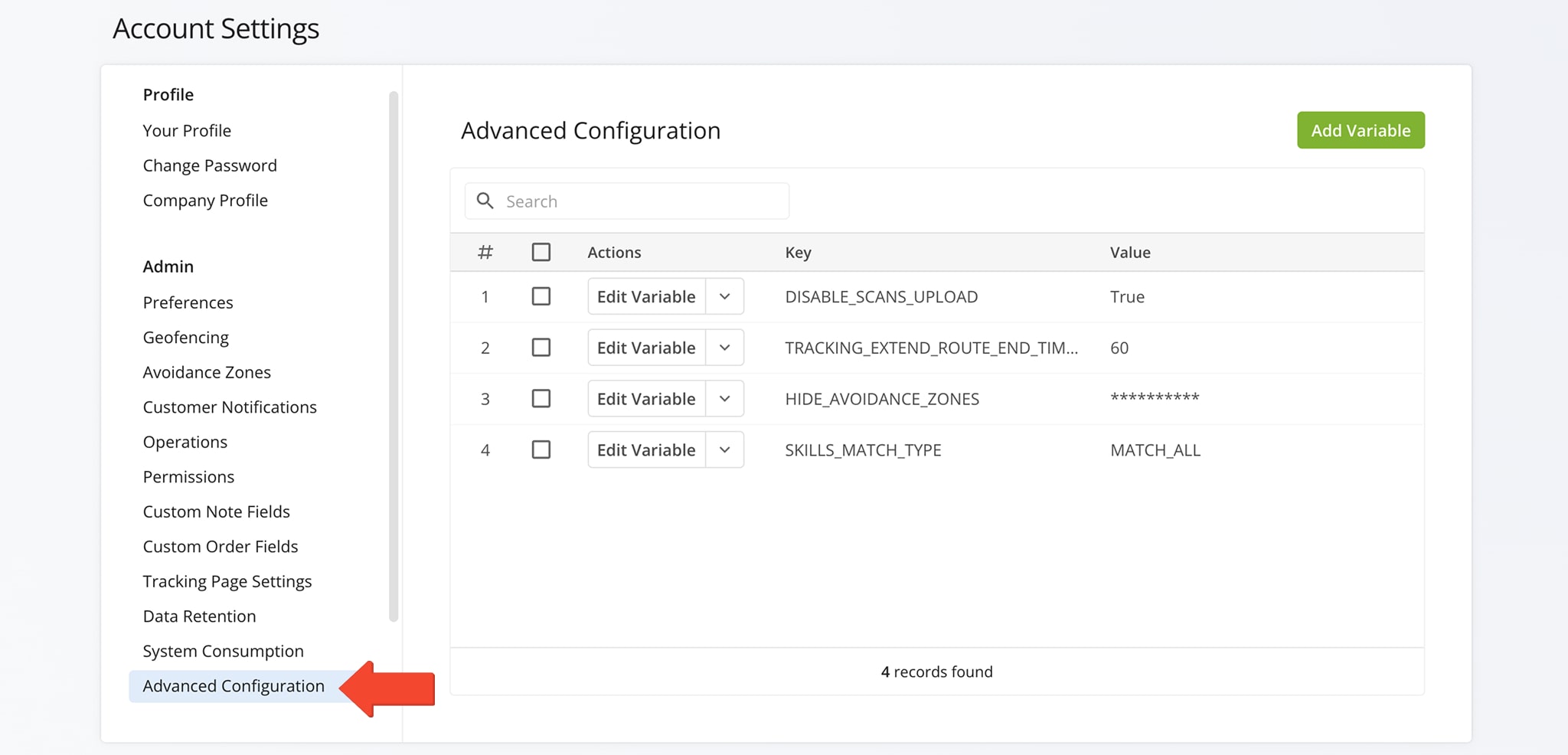
To access your Advanced Configuration Editor, go to “Settings” > “Organization Settings” from the Navigation Menu and select “Advanced Configuration“. Please be advised, the Advanced Configuration Editor can only be accessed by the Account Owner or an Administrator.
NOTE: If you haven’t already enabled the Advanced Configuration Editor for your account, please contact your Route4Me Routing Expert or our Customer Support Team to help you get set up.
Open Your Advanced Configuration Editor
Add And Manage Advanced Route4Me Account Configurations
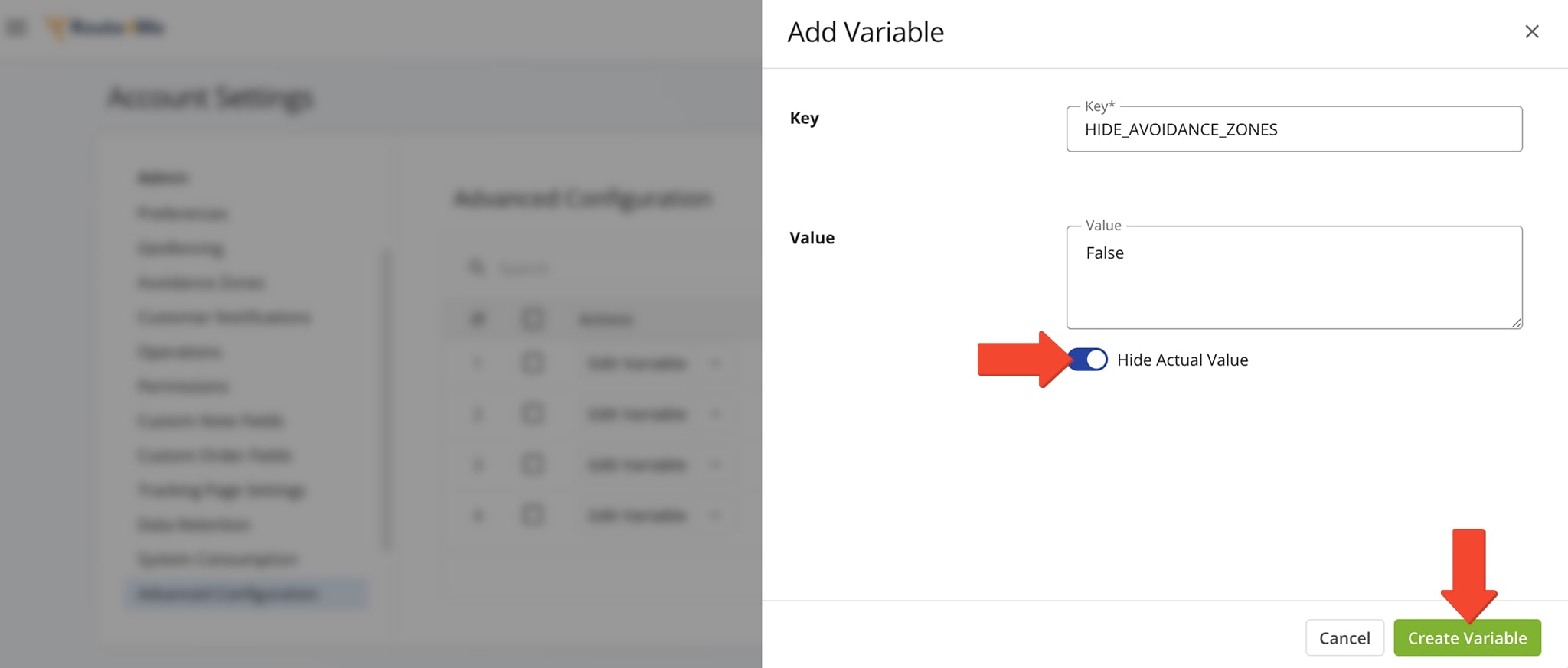
To add a new Configuration to your account, click the “Add Variable” button. Then, add the Configuration Key, a string or a line of code. Next, add one or more Configuration Values that enable or disable the configuration, add custom configuration settings, etc. Click “Create Variable” to add the new configuration.
NOTE: You can hide confidential values in any added configuration by toggling the “Hide Actual Value” switch. Be sure to click “Create Variable” to update the configuration. Boolean values are case-insensitive. For example, “true”, “True”, and “TRUE” are all interpreted the same.
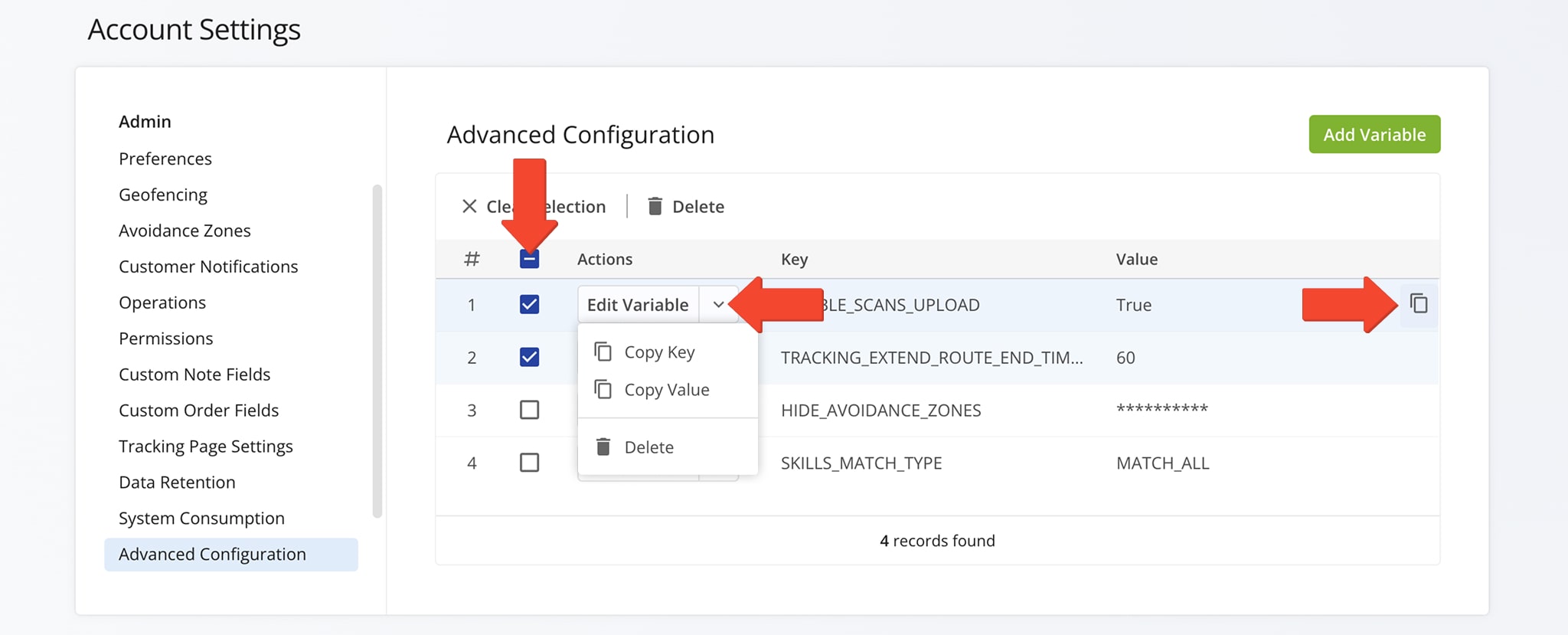
You can instantly access and manage newly created Configurations in your Advanced Configuration Editor. Just click the “Edit Variable” button next to a Configuration to modify it. Click the Arrow button to copy its Key and Value.
To delete a Configuration, click the Arrow button, then “Delete“. To remove multiple Configurations, check the boxes next to them and click “Delete“. To copy a Configuration, hover your cursor over to it, then click the Copy Icon that appears.
Web Platform Advanced Configurations
The table below lists Advanced Configurations that modify the functionality of your Route4Me business route software. These include enabling or disabling interface elements, showing or hiding User details, access limits based on user type, and more.
NOTE: The “true” value enables configurations and makes them active, while the “false” value or not adding configurations at all disables them. Boolean values are case-insensitive. For example, “true“, “True“, and “TRUE” function the same.
Advanced Configs > Web Platform
Key: "ENABLE_DISTANCE_OPTIMIZATION_OPTION" (copy without quotes)
Enables the "Distance" tab when planning routes, which allows the use of:
- Drive Time Optimization
- Straight Line Optimization
- Big City Optimization
Default value: "False"
- True
- False
Key: "ENABLE_MATRIX_FALLBACK_CALCULATION" (copy without quotes)
Enables planning a route to a Destination that has no known driving directions.
When enabled, and a Destination doesn't have any known driving directions (i.e., physical roads), the system will generate a straight line to the Destination's coordinates (rooftop latitude and longitude). This allows planning routes to off-road locations, new or unmapped areas, etc.
Default value: "False"
- True
- False
Key: "HIDE_AVOIDANCE_ZONES" (copy without quotes)
Hides the "Avoidance Zones" tab when planning routes.
Default value: "False"
- True
- False
Key: "DISABLE_ROUTE_NATIVE_CONTEXT_MENU" (copy without quotes)
Disables the native context window in the Routes List so users can't open new browser tabs and view Route4Me-related content.
Default value: "False"
- True
- False
Key: "OPEN_ROUTE_BUTTON_FOR_ROUTES_LIST" (copy without quotes)
Allows adding the "Open Route" button to all routes in the Routes List.
The configuration also disables opening the native context windows for all routes in the Routes List so that users can't open new browser tabs and view Route4Me-related content.
Default value: "False"
- True
- False
Key: "DISABLE_SCANS_UPLOAD" (copy without quotes)
Disables the "Upload Scan(s)" feature used for planning routes.
Default value: "False"
- True
- False
Key: "HIDE_MEMBERS_EMAILS" (copy without quotes)
Hides the Email addresses of members assigned to the corresponding routes in the Routes List.
Default value: "False"
- True
- False
Key: "ASSIGN_DRIVERS_ONLY" (copy without quotes)
Restricts assigning all user types to routes except for the Driver user type. When enabled, only the Driver user type can be assigned to routes.
Default value: "False"
- True
- False
Key: "HIDE_SHARING_IN_ROUTE_PARAMETERS_DIALOG" (copy without quotes)
Disables sharing when planning routes by hiding the "Sharing" tab.
Default value: "False"
- True
- False
Key: "HIDE_USERS_MANAGEMENT_LINK_IN_ROUTE_PARAMETERS_DIALOG" (copy without quotes)
Hides the "Manage Users" option when planning routes.
Default value: "False"
- True
- False
Key: "HIDE_VEHICLES_MANAGEMENT_LINK_IN_ROUTE_PARAMETERS_DIALOG" (copy without quotes)
Hides the "Add New Vehicle" and vehicle management options when planning routes.
Default value: "False"
- True
- False
Key: "APPEND_ASSIGNEE_TO_THE_ROUTE_NAME_IN_ROUTES_LIST" (copy without quotes)
Appends the names of team members assigned to corresponding routes in the Routes List.
When enabled, instead of Emails, the names of the assigned members are displayed next to the corresponding routes.
This configuration helps to hide or display the names of the members assigned to routes.
Default value: "False"
- True
- False
Key: "TRACKING_PAGE_ETA_SOURCE" (copy without quotes)
Show planned or predicted ETA on the Customer Order Tracking Page.
Default value: "1" (Planned)
- 1 (Planned)
- 2 (Predicted)
Key: "DISABLE_ROUTES_LIST_HOVER_PREVIEW" (copy without quotes)
Hides the pop-up overview shown when you hover over routes in the Routes List.
Default value: "False"
- True
- False
Key: "SKILLS_MATCH_TYPE" (copy without quotes)
With the "MATCH_ANY" value, a driver can be assigned to an address if they have Driver Skills that match ANY of the Required Skills specified for that address.
With the "MATCH_ALL" value, a driver can be assigned to an address if they have Driver Skills that match ALL the Required Skills specified for that address.
- MATCH_ANY
- MATCH_ALL
Key: "TRACKING_EXTEND_ROUTE_START_TIME_FOR_SECONDS" (copy without quotes)
Extends the duration of asset tracking before the scheduled start of a route by the specified number of seconds.
In detail, asset position update collection starts before the scheduled start time of the route. Useful for resolving tracking update issues.
Number of seconds
Key: "TRACKING_EXTEND_ROUTE_END_TIME_FOR_SECONDS" (copy without quotes)
Extends the duration of asset tracking past the end of the route by the specified number of seconds.
In detail, asset position updates continue to be synchronized after the end of the route for the specified number of seconds. Useful for resolving tracking update issues.
Number of seconds
Key: "IGNORE_SDR_TIME_WINDOWS" (copy without quotes)
Ignores Time Window values when planning routes by uploading spreadsheets and leaves Time Window fields of Destinations empty.
- True
- False
Key: "ROUTES_MAP_MAX_ALLOWED_SELECTED_ROUTES" (copy without quotes)
Defines the maximum number of routes that can be selected and opened on the Routes Map simultaneously to improve performance.
Default value: "75"
Number of routes
Key: "MAP_TEAM_POSITION_LIFETIME" (copy without quotes)
Defines the period of time (number of hours), from the most recent location update, after which User and Vehicle location pins on the Routes List Map will be grayed out.
Default value: "24"
Number of hours
Mobile Apps Advanced Configurations
Additionally, you can customize the user interface and functionality of Route4Me’s iPhone Routing App and Android Route Navigation App. Modify menus, buttons, and route planning options, add custom content, and more.
NOTE: The “true” value enables configurations and makes them active, while the “false” value or not adding configurations at all disables them. Boolean values are case-insensitive. For example, “true“, “True“, and “TRUE” function the same.
Advanced Configs > Mobile
Key: "HIDE_VISITED_MENU" (copy without quotes)
Hides the button to mark destinations as "Arrived".
NOTE: After marking a particular destination as "Arrived", the app automatically allows you to mark it as "Departed" with the same button. Thus, when hiding the button to mark destinations as "Arrived", the button to mark them as "Departed" is also hidden.
- True
- False
- Android
- iOS
Key: "HIDE_DEPARTED_MENU" (copy without quotes)
Hides the button to mark destinations as "Departed".
NOTE: If "HIDE_VISITED_MENU" is enabled, then destinations can be marked as "Arrived" but not marked as "Departed".
- True
- False
- Android
- iOS
Key: "VISITED_MENU_TEXT" (copy without quotes)
Enables you to specify the custom text to be displayed under the button used for marking route destinations as "Arrived".
Custom Text
- Android
- iOS
Key: "DEPARTED_MENU_TEXT" (copy without quotes)
Enables you to specify the custom text to be displayed under the button used for marking route destinations as "Departed".
Custom Text
- Android
- iOS
Key: "DISABLE_ADD_NEW_ROUTE" (copy without quotes)
Hides the button on the "Routes" screen that allows a user to start planning and optimizing new routes.
- True
- False
- Android
- iOS
Key: "HIDE_PLAN_ROUTE_BUTTON" (copy without quotes)
Hides the "Plan Route" button that allows a user to optimize a new route after specifying settings and adding or importing addresses.
This way, you can start planning a new route, specify settings, add or import addresses, and save this route as a draft without the ability to optimize and synchronize it with your Route4Me Routes List.
- True
- False
- Android
- iOS
Key: "HIDE_REPLAN_ROUTE_BUTTON" (copy without quotes)
Hides the "Done Editing" and "Replan Route" buttons on the "Destinations" screen where a user can re-optimize already planned routes.
Re-optimizing a planned route enables you to either apply the new optimization settings or re-optimize the route after modifying its sequence or optimization settings.
- True
- False
- Android
- iOS
Key: "HIDE_SHARE_ROUTE_MENU" (copy without quotes)
Prohibits a user from sharing routes by hiding all route-sharing UI elements and buttons from all app interfaces.
- True
- False
- Android
- iOS
Key: "HIDE_DUPLICATE_ROUTE_MENU" (copy without quotes)
Prohibits a user from duplicating routes by hiding all "Duplicate Route" UI elements and options from all app interfaces.
- True
- False
- Android
- iOS
Key: "HIDE_ASSIGN_USER_MENU" (copy without quotes)
Prohibits a user from assigning other users to routes by hiding all "Assign User" UI elements and buttons from all app interfaces.
- True
- False
- Android
- iOS
Key: "CUSTOM_CONTENT_MENU_ALIAS" (copy without quotes)
Preferred name for the Custom Content URL tab in your iPhone Route Planner app.
Custom Text
iOS
Key: "HIDE_CUSTOM_NOTE_TYPE_DROPDOWN" (copy without quotes)
Use the "true" value to hide the default note type or stop status drop-down or "false" to display it.
- True
- False
Android
Key: "HIDE_MINOR_ROUTES_LIST_NOTIFICATIONS" (copy without quotes)
Disables route update notifications on Route4Me's Mobile Apps.
- True
- False
- Android
- iOS
Key: "HIDE_MULTI_ORDERS_ROUTING_OPTION" (copy without quotes)
Use the "true" value to disable planning routes with multiple orders or "false" to maintain the functionality of planning routes with orders on Route4Me's iOS App.
- True
- False
iOS
Key: "MANDATORY_SIGNATURE_NOTE_FOR_MARK_STOP" (copy without quotes)
Toggles mandatory signature capture before marking route destinations as "Done" on Route4Me's Mobile Apps.
- True
- False
- Android
- iOS
Key: "MANDATORY_IMAGE_NOTE_FOR_MARK_STOP" (copy without quotes)
Toggles mandatory image (picture) capture before marking route destinations as "Done" on Route4Me's Mobile Apps.
- True
- False
- Android
- iOS
Key: "MANDATORY_TEXT_NOTE_FOR_MARK_STOP" (copy without quotes)
Toggles mandatory text note entry before marking route destinations as "Done" on Route4Me's Mobile Apps.
- True
- False
- Android
- iOS
Key: "SINGLE_BARCODE_RECONCILIATION_ENABLED" (copy without quotes)
Toggles a requirement to scan order barcodes for loading and unloading orders at route destinations.
- True
- False
- Android
- iOS
Key: "SINGLE_BARCODE_SCAN_ENABLED" (copy without quotes)
Toggles a requirement to scan order barcodes only for unloading packages at route destinations.
- True
- False
- Android
- iOS
Key: "SCAN_QR_CODE" (copy without quotes)
Enable the QR code scanner on Route4Me's Mobile Apps.
- True
- False
- Android
- iOS
Route Navigation And Compliance Advanced Configurations
You can also customize navigation, tracking, and compliance features with Advanced Configurations. You can adjust navigation apps available for field employees, track compliance with planned routes, and define how drivers navigate routes.
NOTE: The “true” value enables configurations and makes them active, while the “false” value or not adding configurations at all disables them. Boolean values are case-insensitive. For example, “true“, “True“, and “TRUE” function the same.
Advanced Configs > Navigation & Compliance
Key: "DISABLE_EXTERNAL_NAVIGATION" (copy without quotes)
Only allow drivers to use Route4Me's in-app route navigation instead of Apple Maps, Google Maps, Waze, HERE WeGo, Uber, CoPilot GPS, or other third-party navigation apps.
Default value: "False"
- True
- False
Key: "DISABLE_NAVIGATION_PATH_COMPLIANCE" (copy without quotes)
By default, route directions in Route4Me's navigation app are identical to the planned route.
When enabled, this configuration disconnects the route path on the mobile app from that on the Web Platform. The sequence of destinations remains the same, while driving directions can be different on the mobile app due to real-time traffic data, weather, and more.
Default value: "False"
- True
- False
Key: "DEFAULT_NAVIGATION_MODE" (copy without quotes)
When "Single" Destination navigation is enabled, a driver or field employee can navigate to one Destination at a time and select which Destination to navigate to.
When "Continuous" route navigation is enabled, a driver or field employee can only navigate to the next destination on the route, and all destinations will be navigated to in the planned sequence.
Default value: "Single"
- Single
- Continuous
Key: "AUTO_START_ROUTE_ON_TRACKING_EVENT" (copy without quotes)
When enabled, route status is automatically set to "Started" when an assigned User's tracked GPS location matches any point along the planned route path.
Default value: "False"
- True
- False
Client-Side Geofencing Advanced Configurations
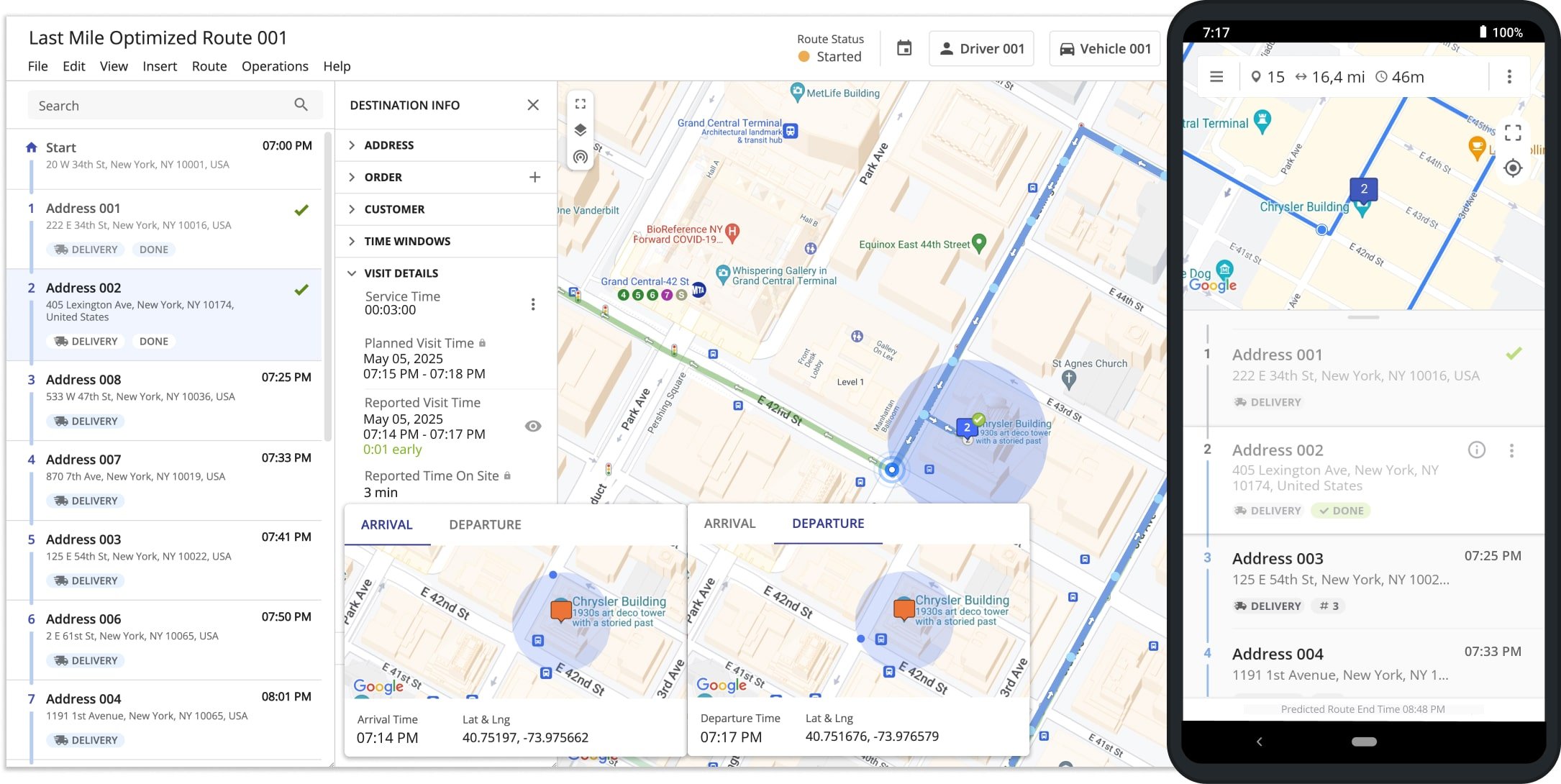
Along with Route4Me’s default Geofencing, the Advanced Configuration Editor can help you automate the reporting of route visitation data via client-side Geofencing Configurations. In this context, “client” refers to Route4Me’s Mobile Apps. The advanced configurations in the table below enable automatic reporting of arrival and departure data from the mobile app.
NOTE: The “true” value enables configurations and makes them active, while the “false” value or not adding configurations at all disables them. Boolean values are case-insensitive. For example, “true“, “True“, and “TRUE” function the same.
Advanced Configs > Client-Side Geofencing
Key: "TRIGGER_GEOFENCE_ARRIVED_USING_CLIENT_GEOFENCE"
(copy without quotes)
When a user enters a geofence, the mobile app automatically sets the Reported Arrival Time and coordinates without the user marking the address as "Arrived" on the mobile app.
- True
- False
- geofence_local_visited_timestamp
- geofence_local_visited_lng
- geofence_local_visited_lat
Key: "TRIGGER_GEOFENCE_DEPARTED_USING_CLIENT_GEOFENCE
(copy without quotes)
When a user leaves a geofence, the mobile app automatically sets the Reported Departure Time and coordinates without any user making changes on the mobile app or Web Platform.
- True
- False
- geofence_local_departed_timestamp
- geofence_local_departed_lng
- geofence_local_departed_lat
- geofence_local_service_time
Key: "TRIGGER_DESTINATION_ARRIVED_USING_GEOFENCE"
(copy without quotes)
When a user enters a geofence, the mobile app automatically marks Destinations as "Arrived" and sets the corresponding timestamp.
This "Arrival Time" is used together with the "Departure Time" to calculate the "Reported Time On Site" on the Web Platform.
- True
- False
- timestamp_last_visited
- visited_lat
- visited_lng
- is_visited
Key: "TRIGGER_DESTINATION_DEPARTED_USING_GEOFENCE"
(copy without quotes)
When a user leaves a geofence, the mobile app automatically marks Destinations as "Departed" and sets the corresponding timestamp.
This "Departure Time" is used together with the "Arrival Time" to calculate the "Reported Time On Site" on the Web Platform.
- True
- False
- timestamp_last_departed
- departed_lat
- departed_lng
- is_departed
Key: "TRIGGER_STATUS_DONE_USING_GEOFENCE"
(copy without quotes)
When a user leaves a geofence, the mobile app automatically marks Destinations as "Done".
When this configuration is disabled or not added, drivers must manually mark Destinations as "Done".
- True
- False
additional_status
Key: "AUTOMATIC_ROUTE_START_WHEN_DEPOT_LEFT"
(copy without quotes)
Routes will automatically be started, with the "Started" status, when the assigned User leaves the geofence around the route start address or depot.
A User no longer needs to manually start the route from the Route4Me Mobile App, as the route will start automatically based on the detected depot geofence departure.
- True
- False
actual_start_timestamp
Key: "AUTO_START_ROUTE_ON_GEOFENCE_VISIT"
(copy without quotes)
Routes will automatically be started, with the "Started" status, when the assigned User first enters a geofence around any route Destination.
A User no longer needs to manually start the route from the Route4Me Mobile App or depart from the route start location (depot) to start a route.
- True
- False
actual_start_timestamp
White-Labeling Advanced Configurations
Route4Me’s business route management software offers white-labeling options, enabling partners to customize branding. Using configurations, you can hide or disable Route4Me-branded content, including elements of the user interface, branded menus, and links and pop-ups. The available configurations are listed below.
NOTE: The “true” value enables configurations and makes them active, while the “false” value or not adding configurations at all disables them. Boolean values are case-insensitive. For example, “true“, “True“, and “TRUE” function the same.
Advanced Configs > White-Labeling
Key: "HIDE_BRANDED_CONTENT" (copy without quotes)
Allows the hiding of the Route4Me branded content from user interfaces.
- True
- False
Key: "HIDE_HELP_MENU" (copy without quotes)
Allows the hiding of the Route4Me branded help menu with all its content from all user interfaces.
- True
- False
Key: "ENABLE_TELEMATICS_POPUP_OVERLAY" (copy without quotes)
Allows enabling Route4Me branded telematics popups in all user interfaces of the platform.
- True
- False
Key: "HIDE_UPSELLING_IN_ROUTE_PARAMETERS_DIALOG" (copy without quotes)
Allows the hiding of Route4Me-branded upgrade links and content from the platform’s user interface.
- True
- False
Key: "HIDE_COVID19_WARNING" (copy without quotes)
Hides the Pandemic Subscription Alert pop-up window on the Order Tracking Customer Portal.
- True
- False
Visit Route4Me's Marketplace to Check out Add-Ons for Your Account:
- Operations
Custom Data Add-On
- Operations
Advanced Team Management Add-On
- Operations
Audit Logging and Activity Stream


