
Insert Orders – Add Orders To Planned And Optimized Routes
Route4Me lets you drag and drop orders or insert them directly into your routes, carrying over each order’s address and customer details automatically. You can route a single order by looking up a route by name, have Route4Me match it to the route with the least impact on distance and time, or insert several orders at once. Wherever you insert an order, Route4Me handles the re-optimization for you. This guide covers each of these methods, from the Orders Page and from the Routes List.
Table of Contents
Assign Orders To Routes – Add Orders From Orders List
Add Order To Specific Route – Route An Order By Its Scheduled Date
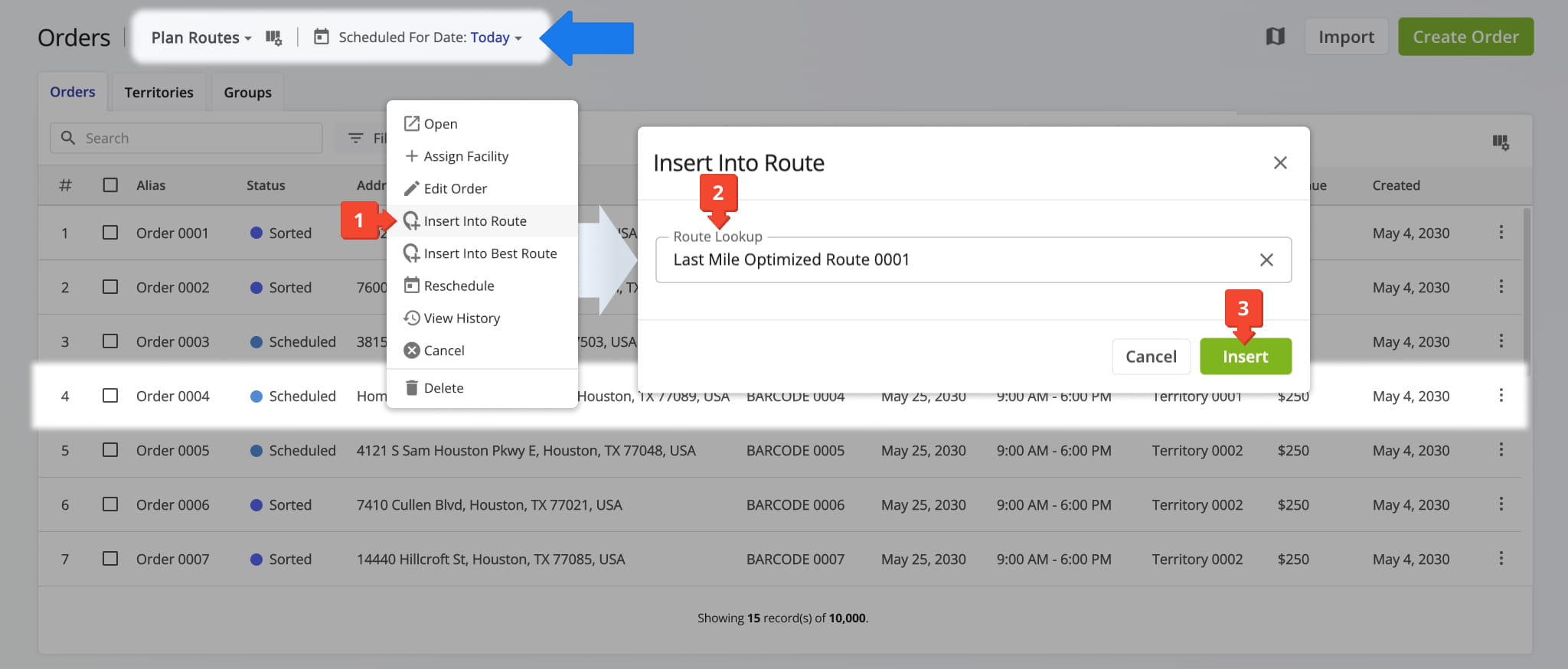
From your Orders page, right-click any order with a scheduled date to insert it into a planned route. Then, follow these steps:
- Select “Insert Into Route” from the right-click menu.
- Use the “Route Lookup” field to find a route by entering its alias (route name).
- Click the “Insert” button to add the order to the route as a new destination.
Route4Me’s ERP order management software will add a new destination to the specified route with the order’s address and associated customer details. The order’s status will change to “Routed” and the system will automatically re-optimize the route.
NOTE: To avoid scheduling errors, use the “Plan Routes” View Mode to see only scheduled orders. Also, apply the “Scheduled For Date” filter to select the date or date range that fits your routing needs.
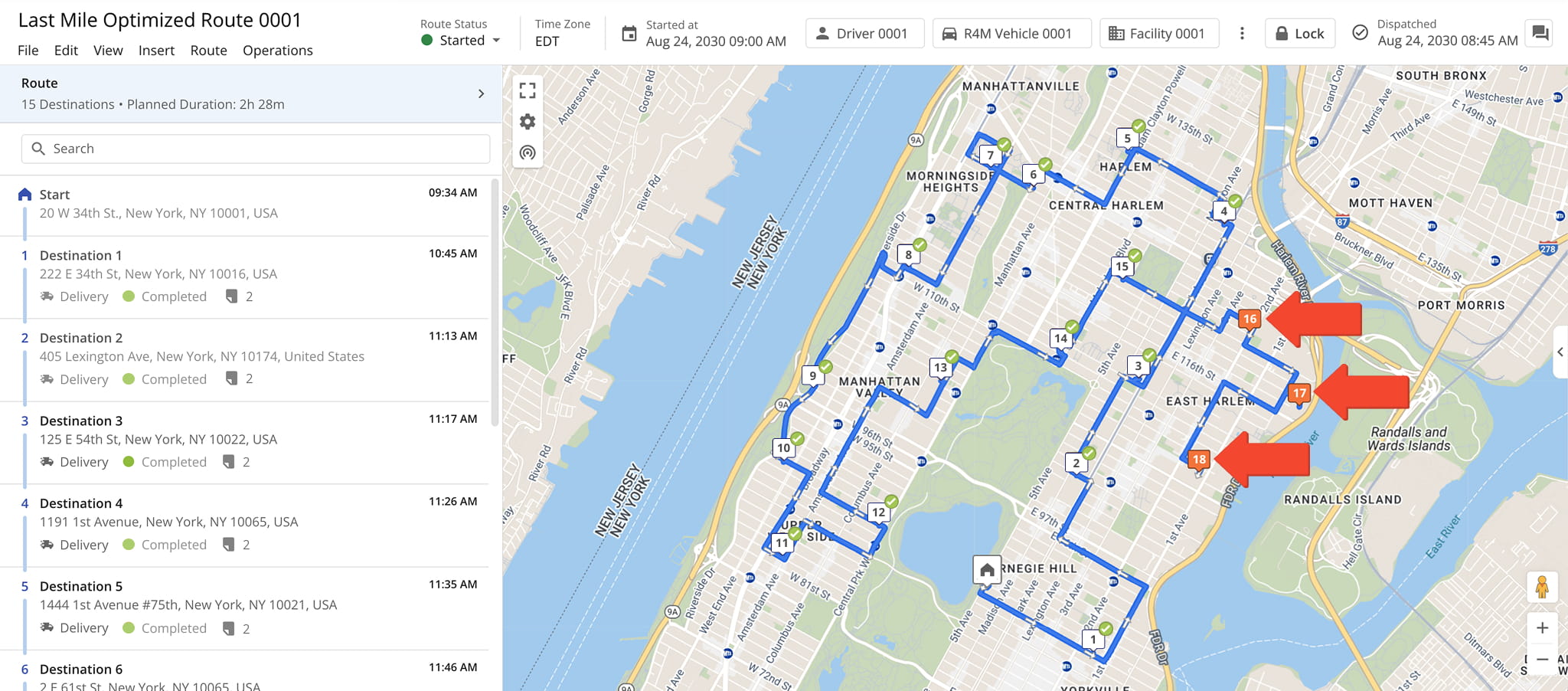
You can also use this same method to add orders to routes that are already in progress. However, new orders can only be added to the part of a started route that hasn’t been completed yet. Stops that have already been visited can’t be changed.
You can either re-optimize the remaining stops so the rest of the route is as efficient as possible, or add the new orders as the last destinations on the route.
Add Order To Best Route – Automatically Match Order To Optimal Route
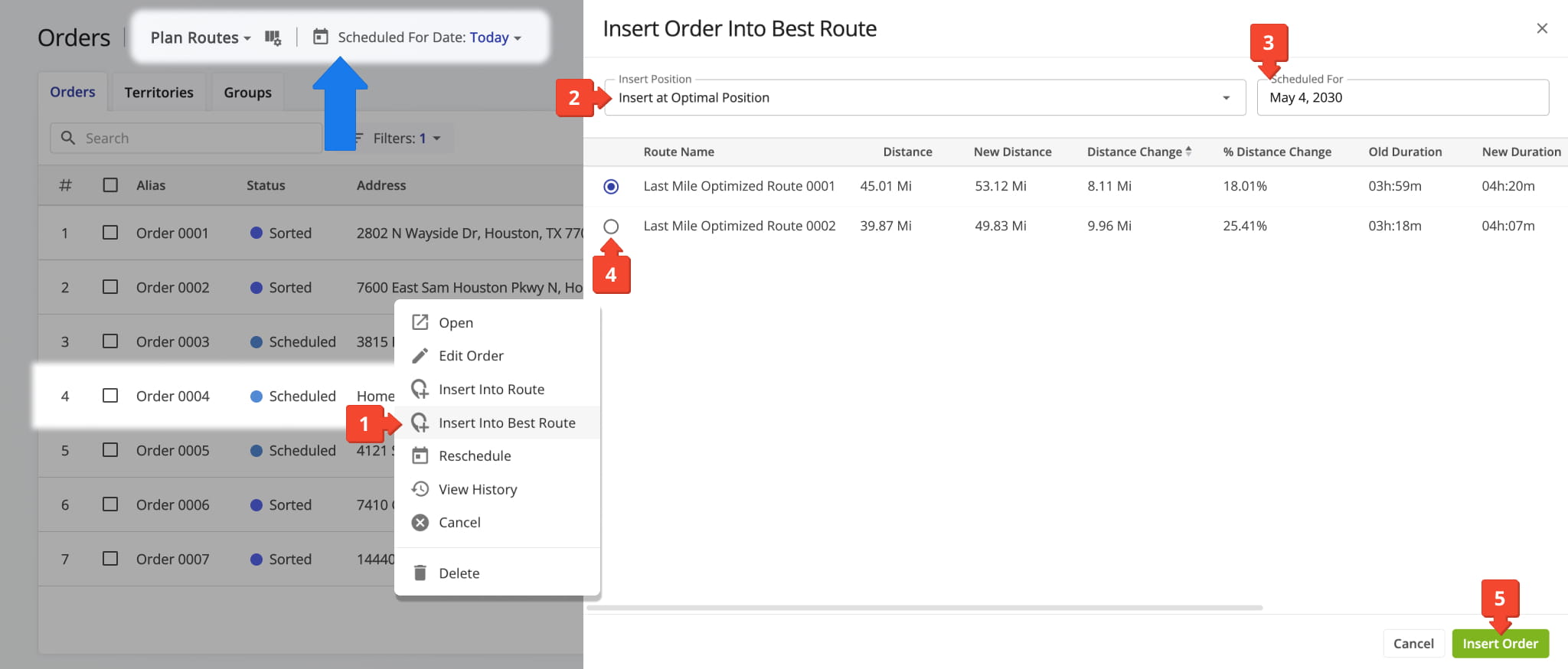
Quickly find the best route for an order by right-clicking any scheduled order, then following these steps:
- Select “Insert Into Best Route” from the right-click menu.
- Use the “Insert Position” field to choose where to place the order in the route sequence. You can add orders at the start or end, after the last visited destination on started routes, or let Route4Me calculate the optimal position with minimal time and distance impact.
- Use the “Scheduled For” date picker to filter routes scheduled by a specific date.
- Select a route by clicking the Radio Button next to it.
- Click “Insert Order” to add the order as a new destination.
The “Insert Order Into Best Route” panel shows scheduled routes and how adding the order changes route distance and duration, displayed in absolute values and percentages to help you choose a route with minimal extra travel time and distance.
NOTE: For accurate scheduling, filter orders using “Plan Routes” View Mode and “Scheduled For Date“.
Add Multiple Orders To A Planned Route – Insert Several Orders At Once
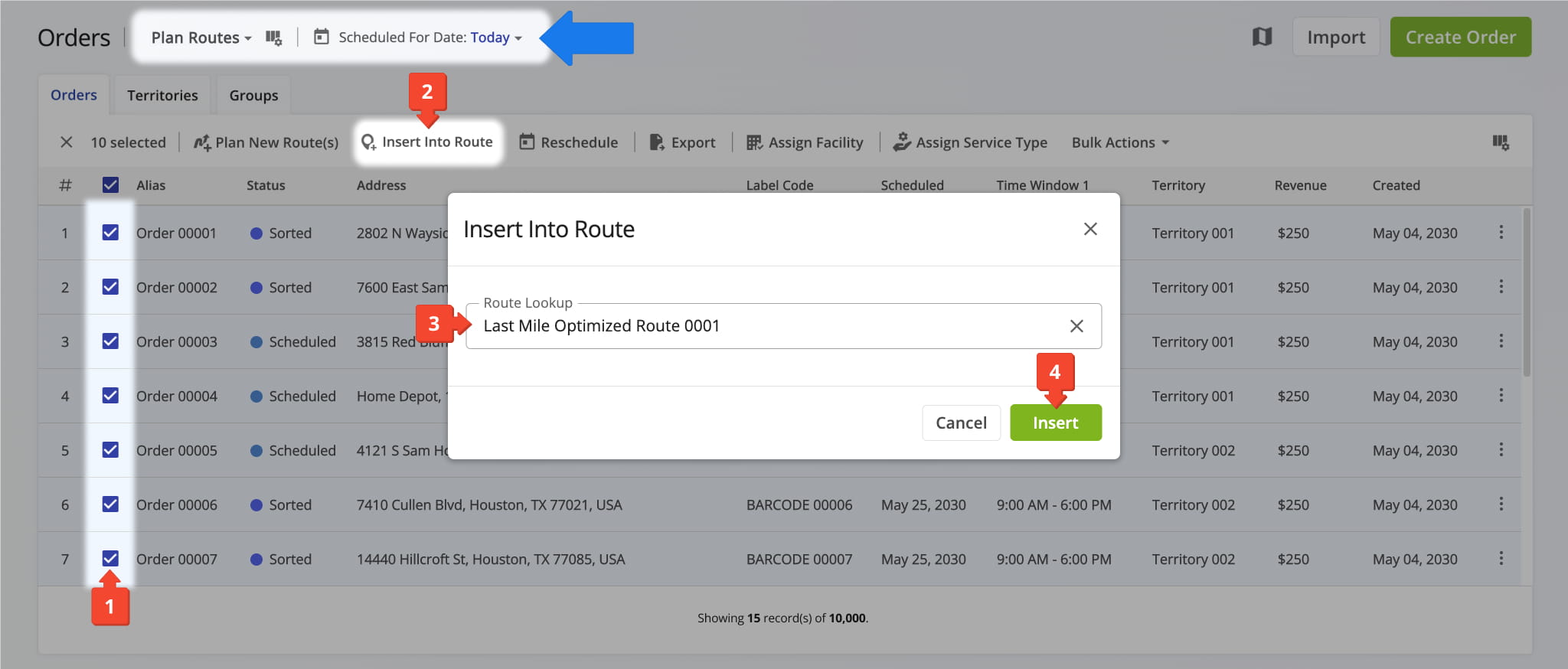
Inserting multiple orders into a specific route is just as quick as adding a single order. Follow these steps:
- Select the orders by checking the boxes next to them.
- Click “Insert Into Route” in the action bar above the Orders List.
- Use the “Route Lookup” field to find a route by entering its alias (route name).
- Click the “Insert” to add the orders as a new destination.
Route4Me will add the selected orders to the chosen route, re-optimize it, change to status to “Routed“, and copy all associated customer details to the new destination.
NOTE: For accurate scheduling, filter orders using “Plan Routes” View Mode and “Scheduled For Date“.
Add Orders From Routes Page – Insert Orders Into Optimal Route
You can also use the Routes List to insert an order. Specifically, you can insert it into a route which will be least impacted by its inclusion:
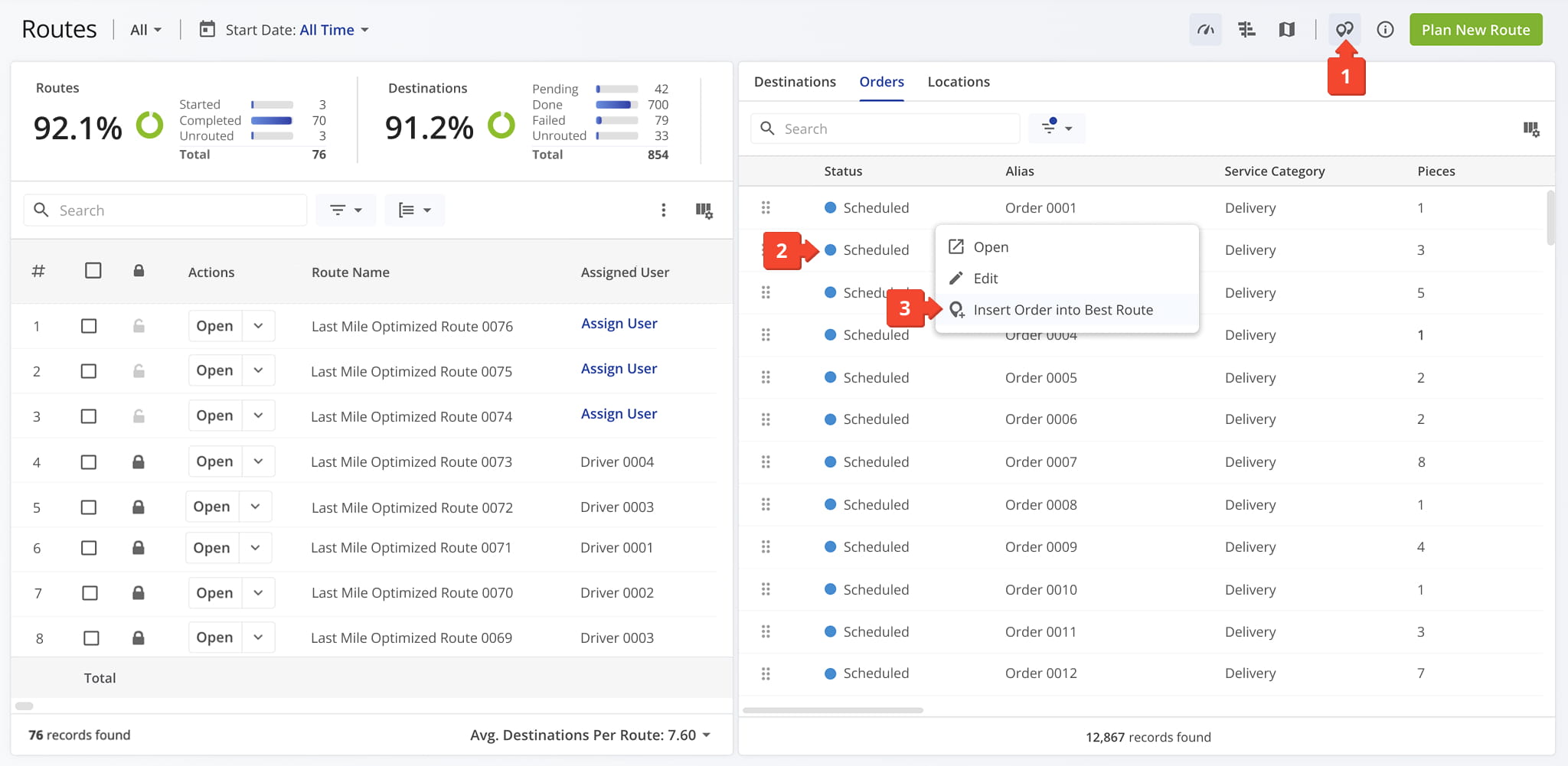
- Click the Order Icon at the upper-right of the screen to open the Assignable Work panel.
- Right click the order you wish to add.
- Select “Insert Order Into Best Route” from the menu.
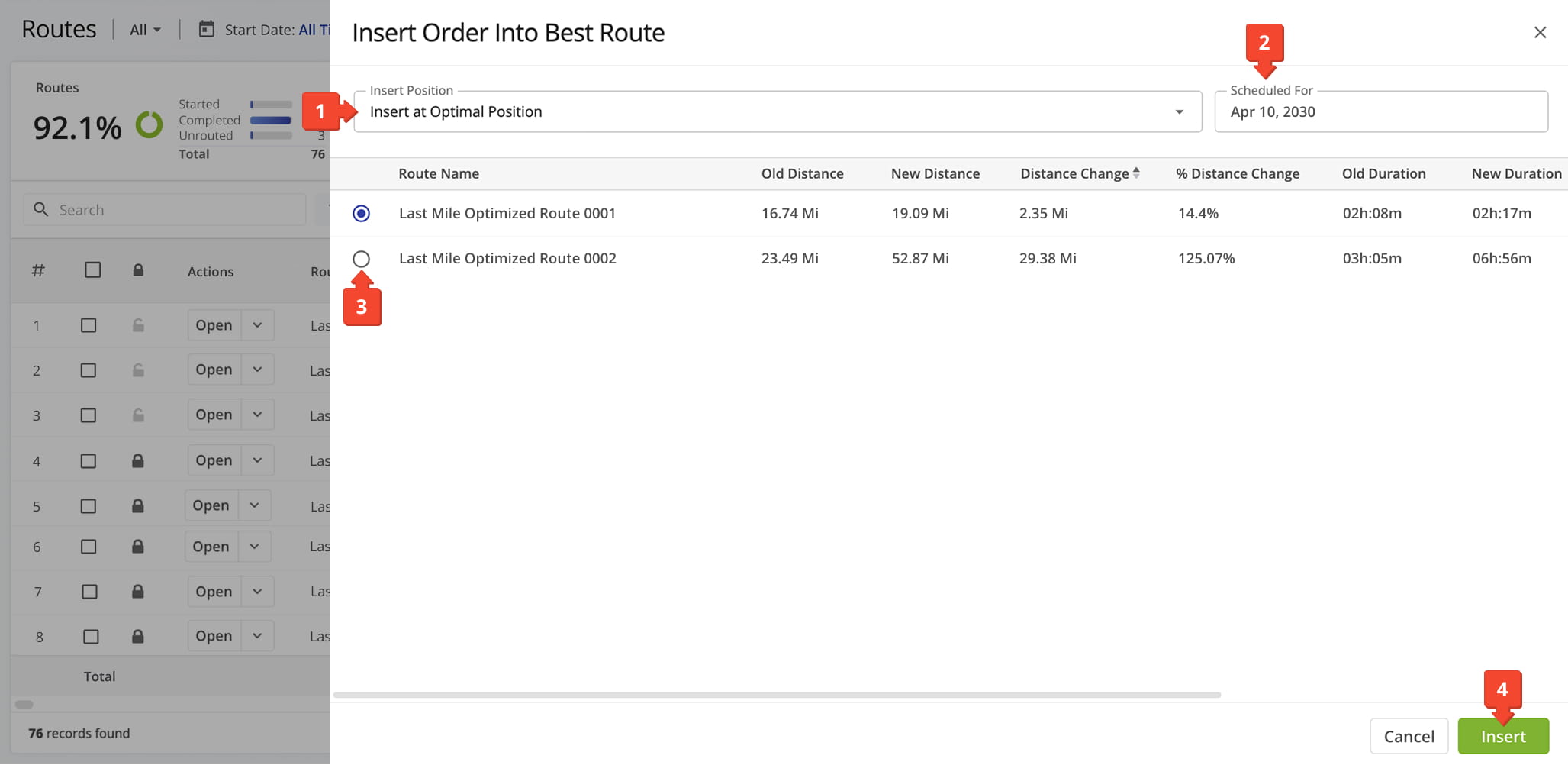
Then, from the insertion panel, follow these steps:
- Use the “Insert Position” field to choose where to place the order in the route sequence. You can add orders at the start or end, after the last visited destination on started routes, or let Route4Me calculate the optimal position with minimal time and distance impact.
- Use the “Scheduled For” date picker to filter routes scheduled by a specific date.
- Select a route by clicking the Radio Button next to it.
- Click the “Insert” button.
The “Insert Order Into Best Route” panel shows scheduled routes and how adding the order changes route distance and duration, displayed in absolute values and percentages to help you choose a route with minimal extra travel time and distance.
Visit Route4Me's Marketplace to Check out Associated Modules:
- Operations
Advanced Team Management Add-On
- Operations
Custom Data Add-On
About author: Kristian Andreev

