
Measurement Units – Configure Weight, Length, Height, And Width Settings
Route4Me lets you configure a single Measurement Unit – Imperial or Metric – that standardizes how weight, length, and height values are entered and displayed across your account. Setting this once ensures that every team member works with the same units without needing to adjust individual records or profiles. Your selection carries through areas such as Vehicle Profiles, Capacity Profiles, Orders, and Optimization Profiles, keeping dimensional data consistent wherever these values appear.
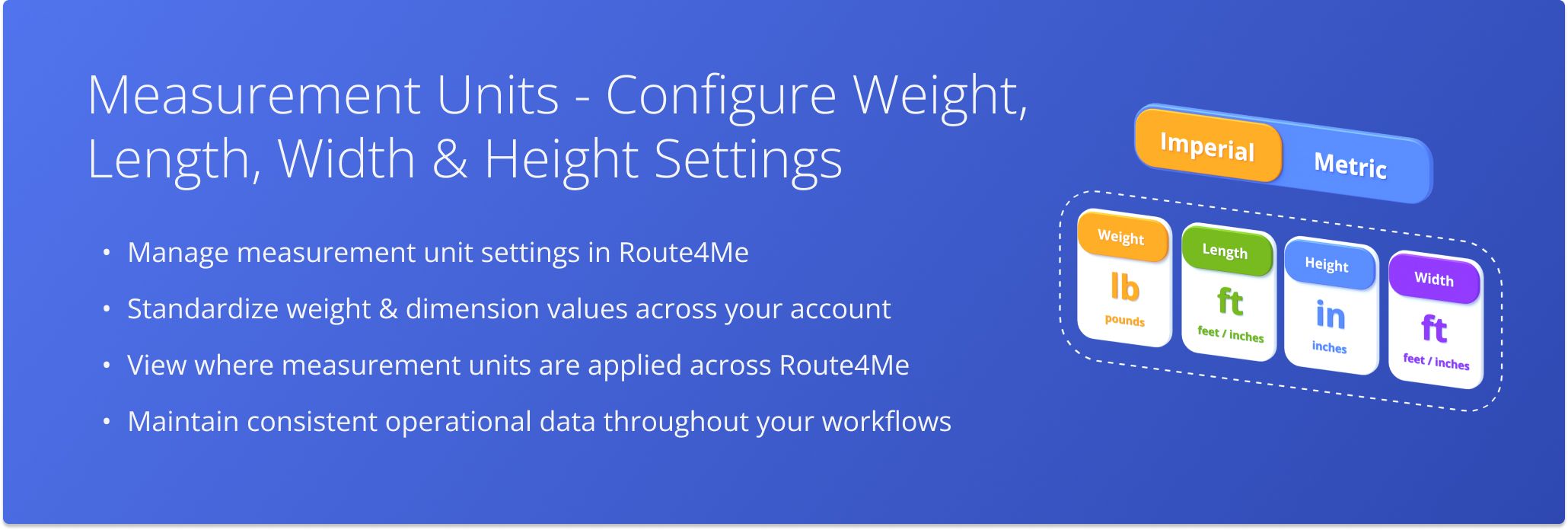
Table of Contents
Manage Measurement Units In Your Account
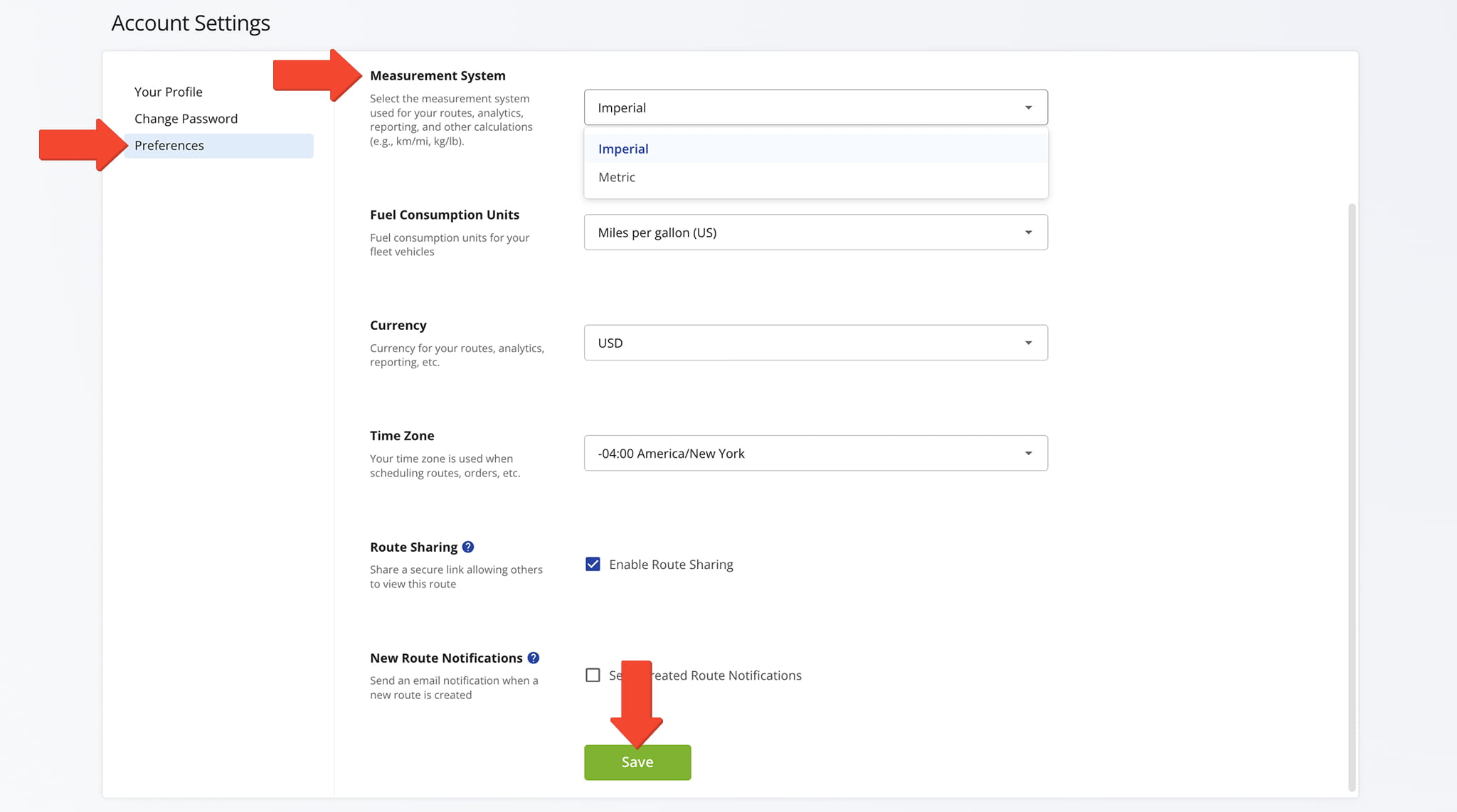
To access Measurement Unit settings, click “Settings” > “Account Settings” from the Navigation Menu, then open the “Preferences” tab. From the “Measurement System” field, select “Imperial” or “Metric” and click “Save“.
The setting is account-wide. It affects all routes and applies to all users under the account. Sub-users inherit the Measurement Unit from the Account Owner and cannot override it independently.
NOTE: Your Measurement Unit setting also affects Fuel Consumption Units and Speed units. For example, selecting Metric (kilometers) changes speed displays from mph to km/h throughout your account.
View Measurement Units Across Your Account
Your preferred Measurement Unit – Imperial or Metric – is automatically applied wherever measurement values appear in your account. The following examples show some, but not all, of the areas where this setting takes effect.
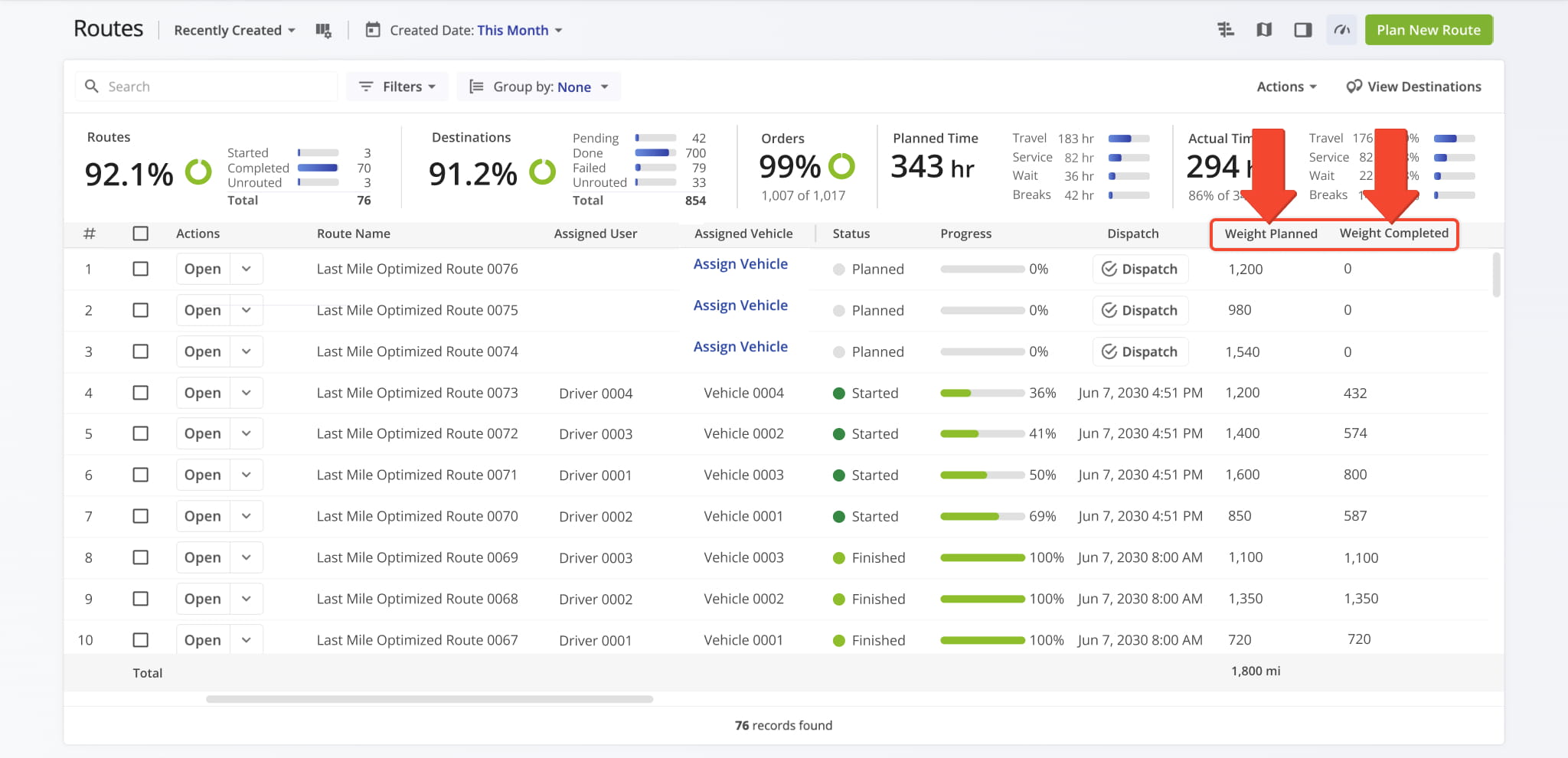
Routes List – Measurement Units For Weight Planned And Completed
From your Routes List, the “Weight Planned” and “Weight Completed” columns display values in your configured Measurement Unit, showing weight data in Imperial or Metric depending on your account preference.
NOTE: Weight amounts displayed in Route Snapshots also reflect your configured setting.
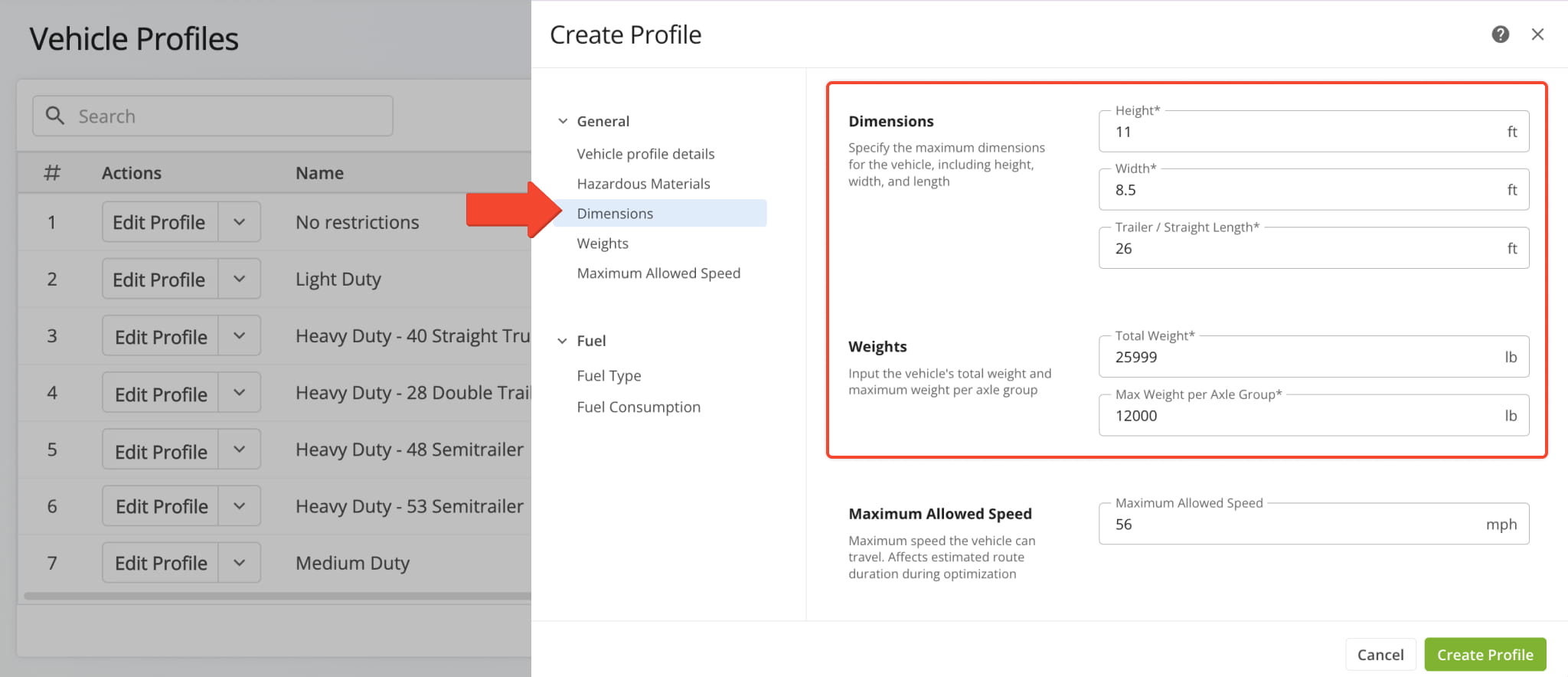
Vehicle Profiles – Imperial And Metric Dimension And Weight Fields
Dimensions – height, width, length – and weight fields in Vehicle Profiles are displayed in your configured Measurement Unit.
NOTE: Weight amounts displayed in Vehicle Snapshots also reflect your configured setting.
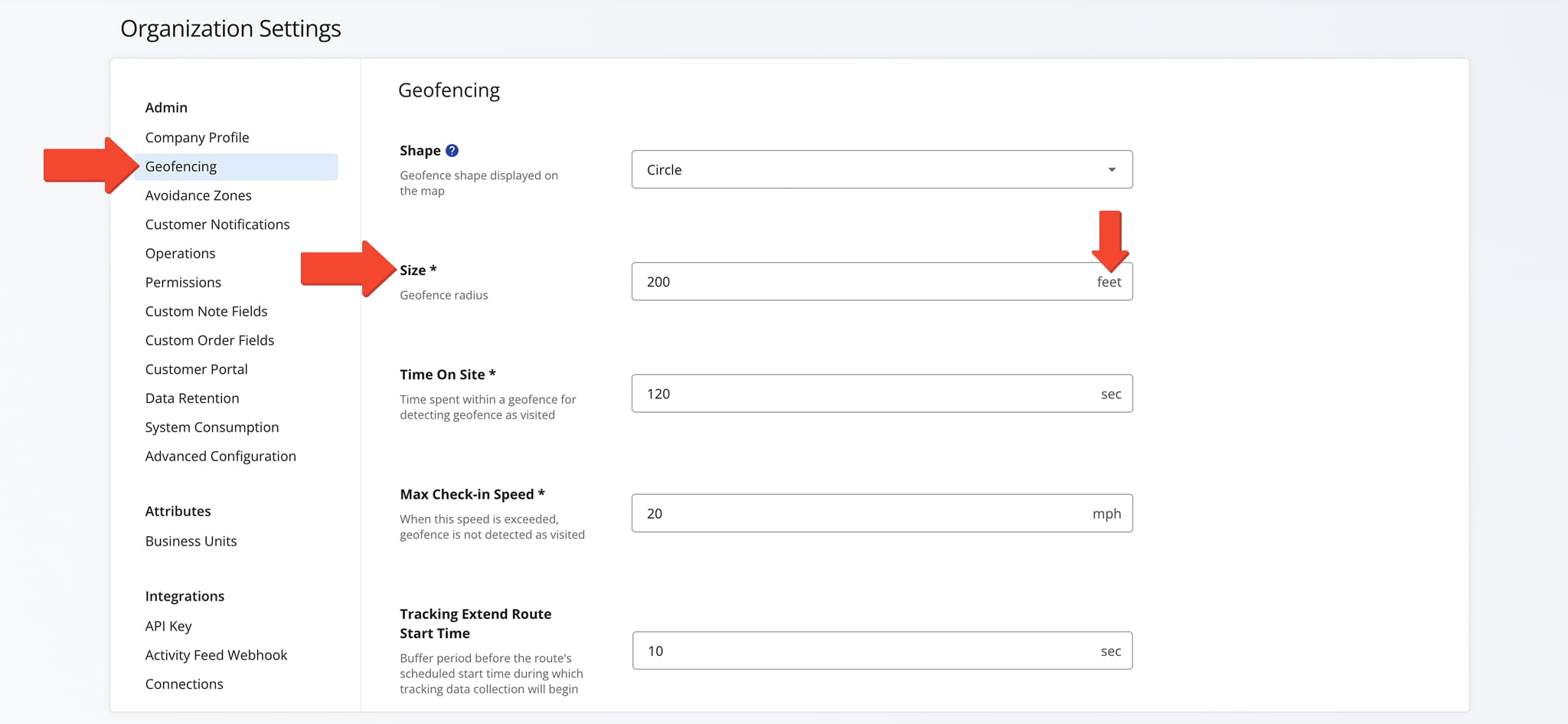
Geofences – Geofence Dimensions In Your Configured Measurement Unit
When creating or editing geofences, size and radius values are entered using your configured Measurement Unit setting.
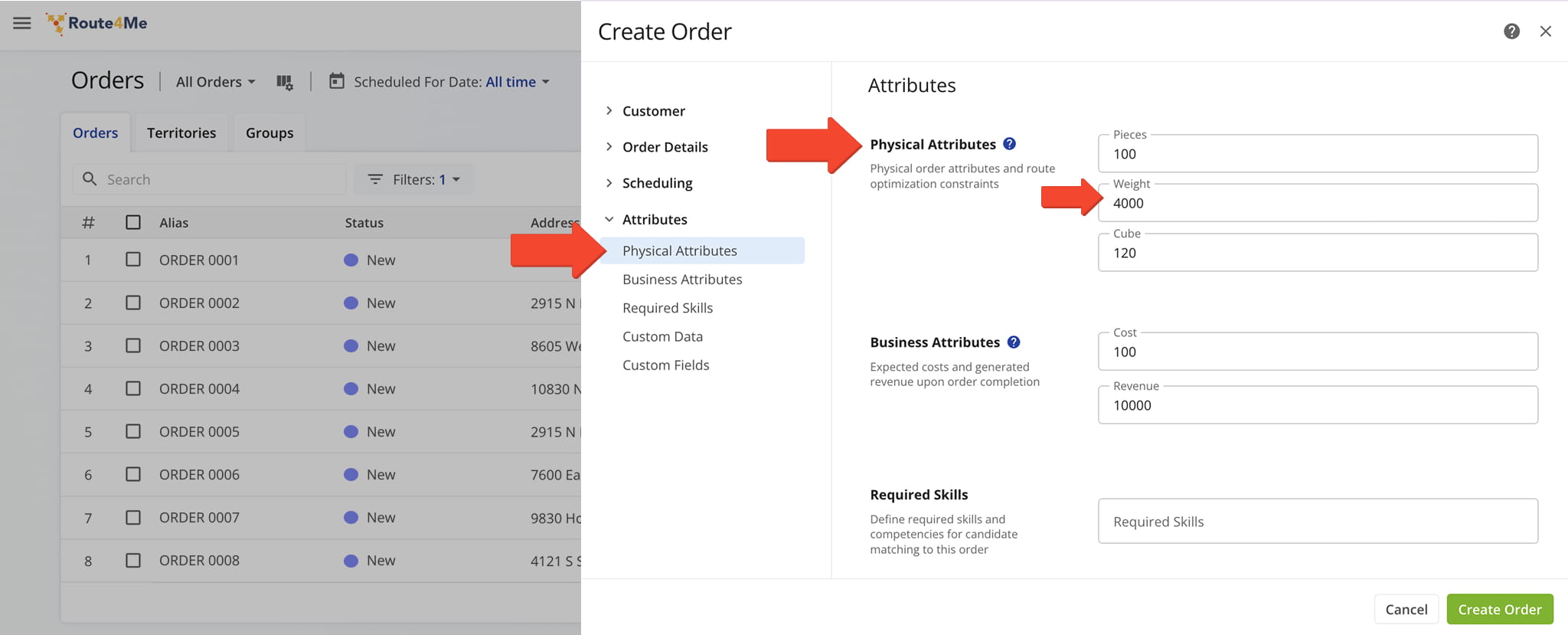
Orders – Measurement Units Applied To Order Physical Attributes
Physical Attribute values for an Order are calculated in your configured measurement system.
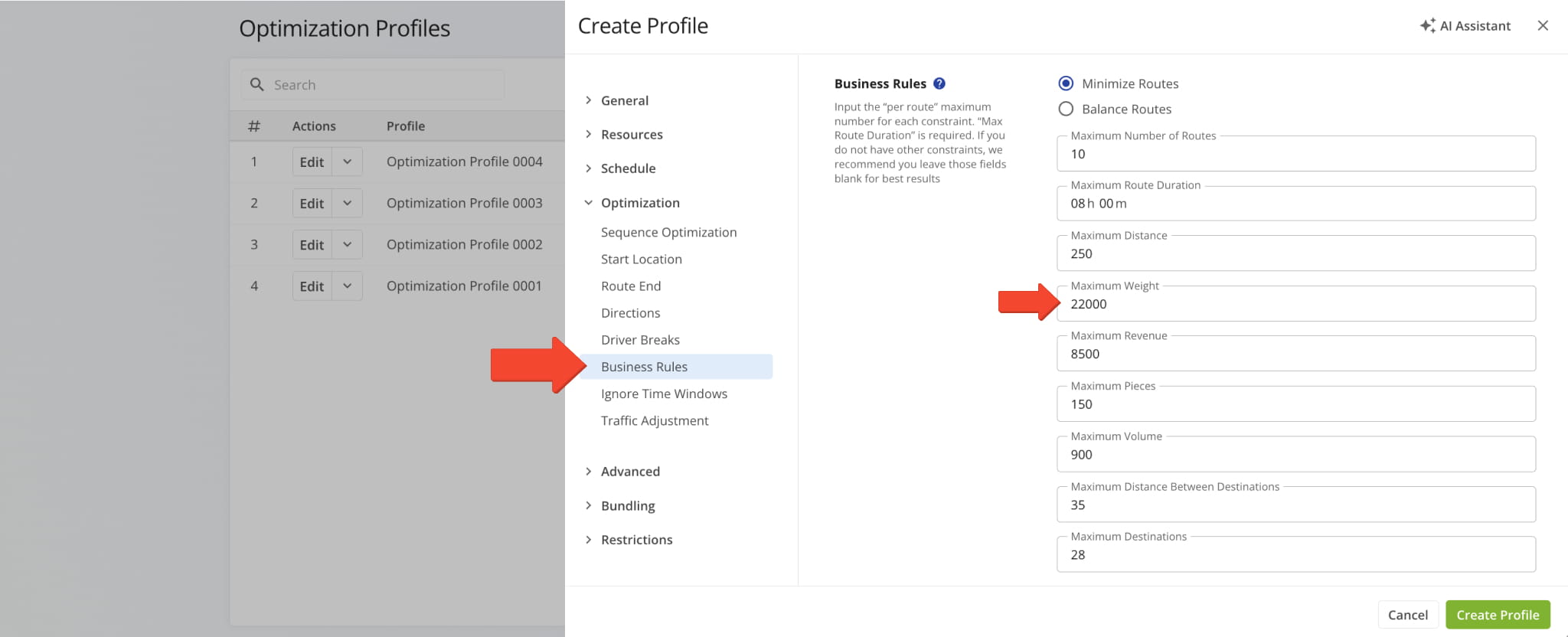
Route Optimization – Weight-Based Business Rules
Weight constraints defined in Business Rules, whether entered during manual optimization or saved as a reusable Optimization Profile, are applied in Imperial or Metric based on your account setting.
NOTE: Weight amounts displayed in Optimization Snapshots also reflect your configured setting.
Open Your Optimization Profiles
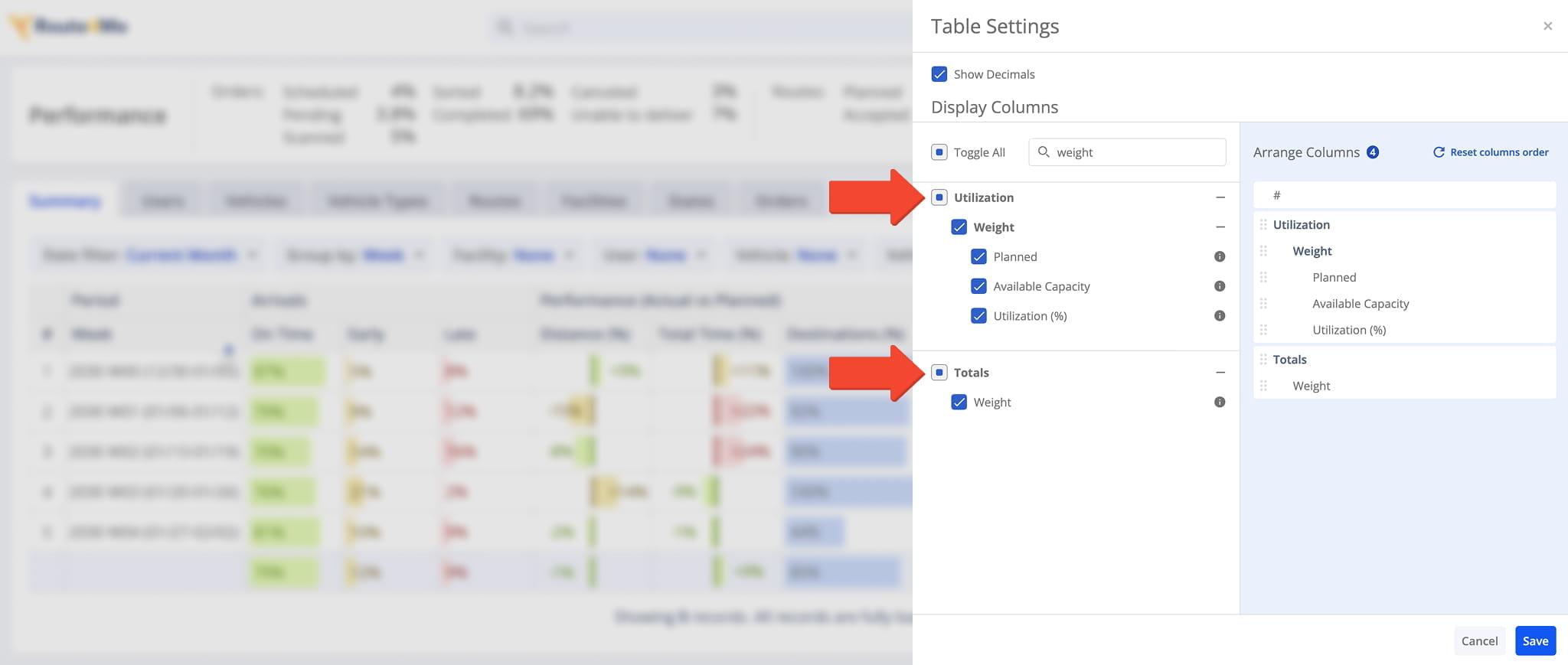
Business Insights – Weight-Related Columns In Data Table
From Business Insights, you can configure your data table to include weight-related columns, all displayed in Imperial or Metric, consistent with your Account Settings.
Visit Route4Me's Marketplace to Check out Associated Modules:
- Route Optimization
Mixed Vehicles Routing
- Route Optimization
Route Optimization for Multiple Drivers Without Advanced Constraints
- Route Optimization
Commercial Vehicle Route Planning
About author: Daniel Archer

