
Organization Settings – Edit Company Profile, Business Settings And Preferences
Learn how to manage your Organization Settings. Discover how to update your company profile and set up Geofences and Avoidance Zones. See also how to enable automatic new route email notifications, set callback URLs, and connect to Telematics vendors. In addition, learn how to access to your API Key, Data Retention details, and System Consumption data.
Table of Contents
Organization Settings – Open And Manage Admin Settings And Preferences
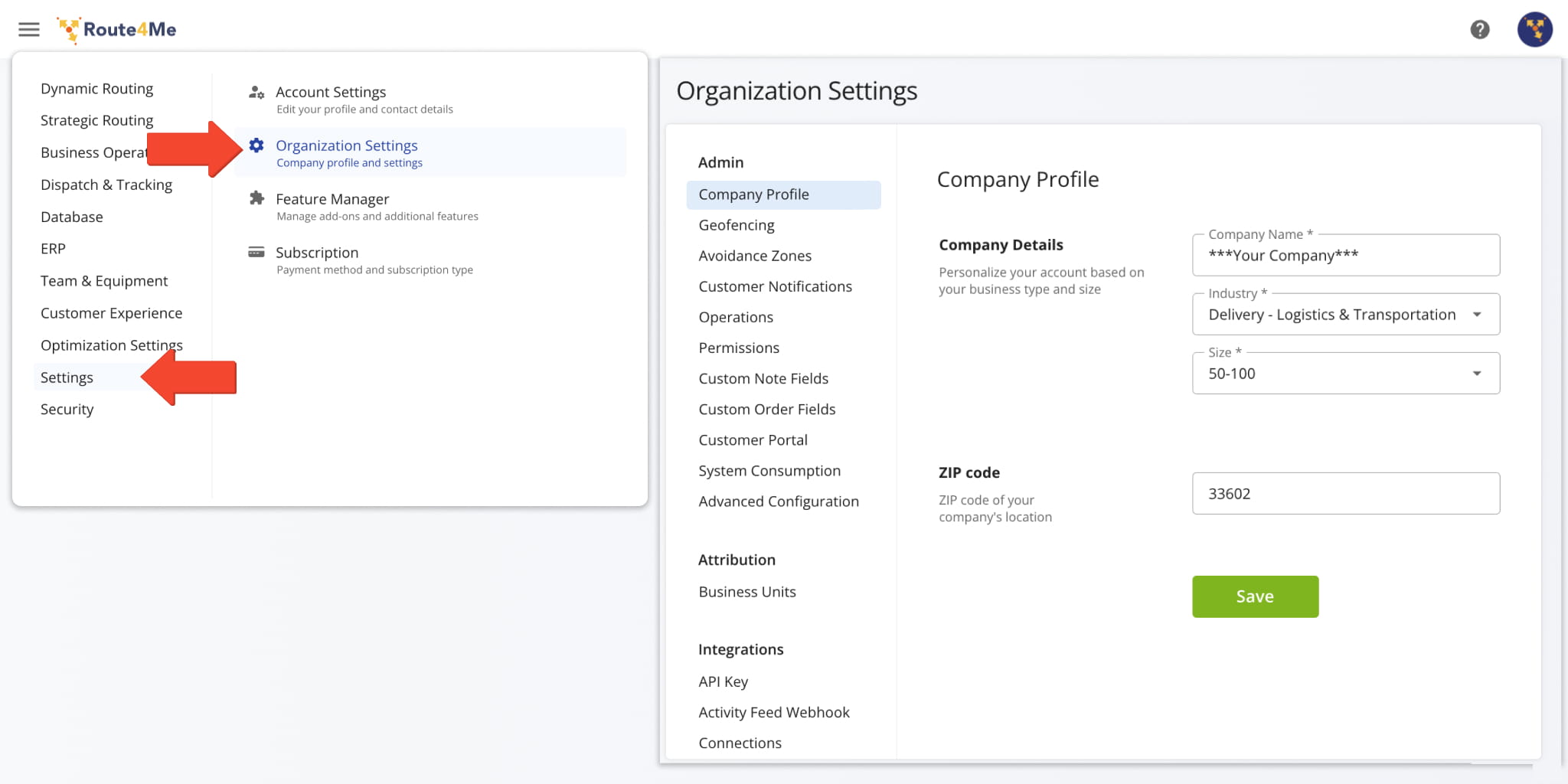
To open your organization settings, go to “Settings” > “Organization Settings” from the Route4Me Main Menu.
This will open your Company Profile settings where you can edit your company’s details including its name, the industry in which it operates, its size, and its ZIP code. Keep reading to learn more about your Organization Settings.
Open Your Organization Settings
Admin Settings – Geofences, Notifications, Custom Notes, And More
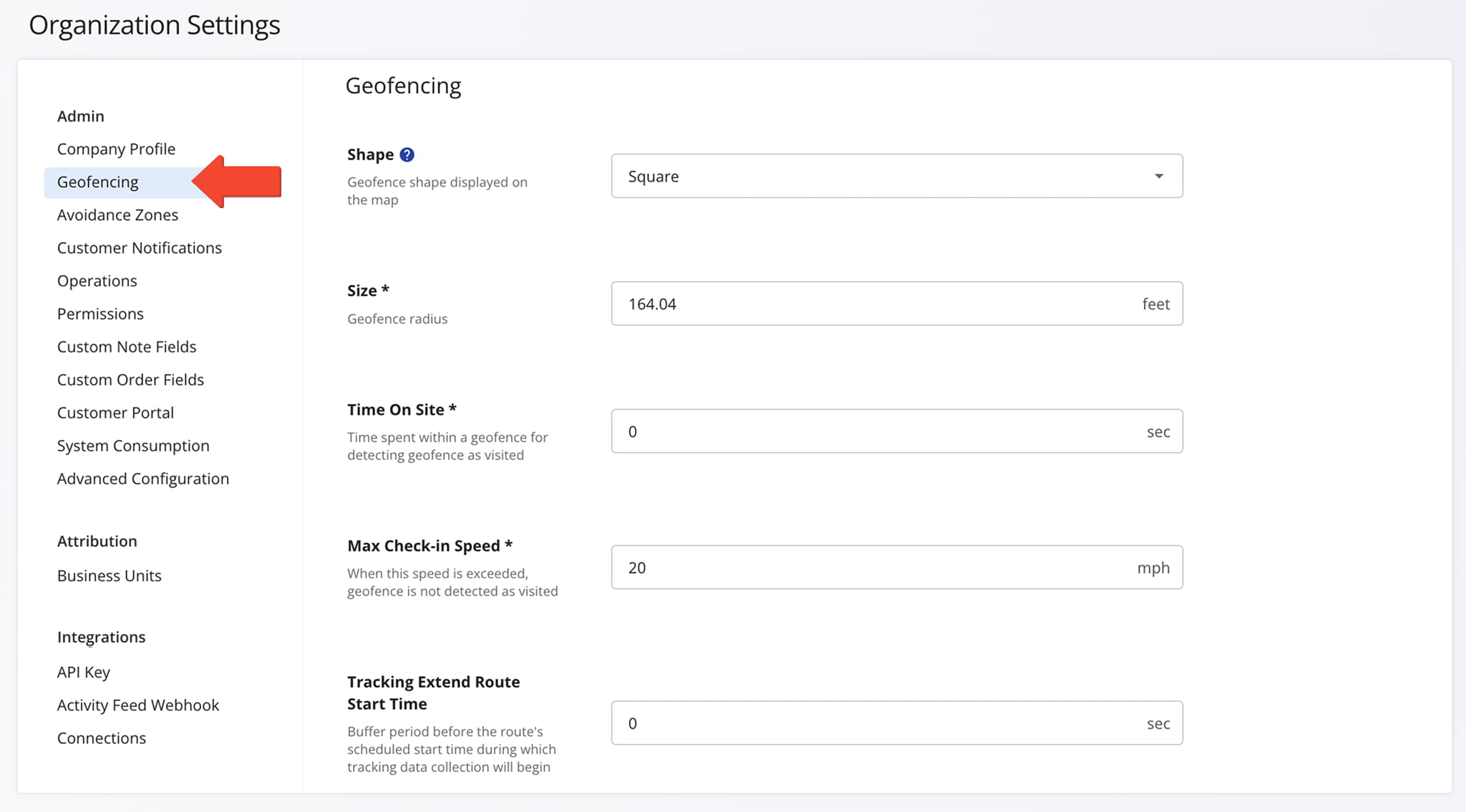
In the “Admin” section, you can manage setting for Customer Notification, Operations, and Permissions. You can also customize Geofencing, Avoidance Zone, and Customer Note preferences, and monitor your account’s Data Retention and System Consumption records.
The table below provides a detailed overview of the tabs available in this section.
Admin Settings
Operations – Send New Route Notifications, Dispatch Started Routes, And More
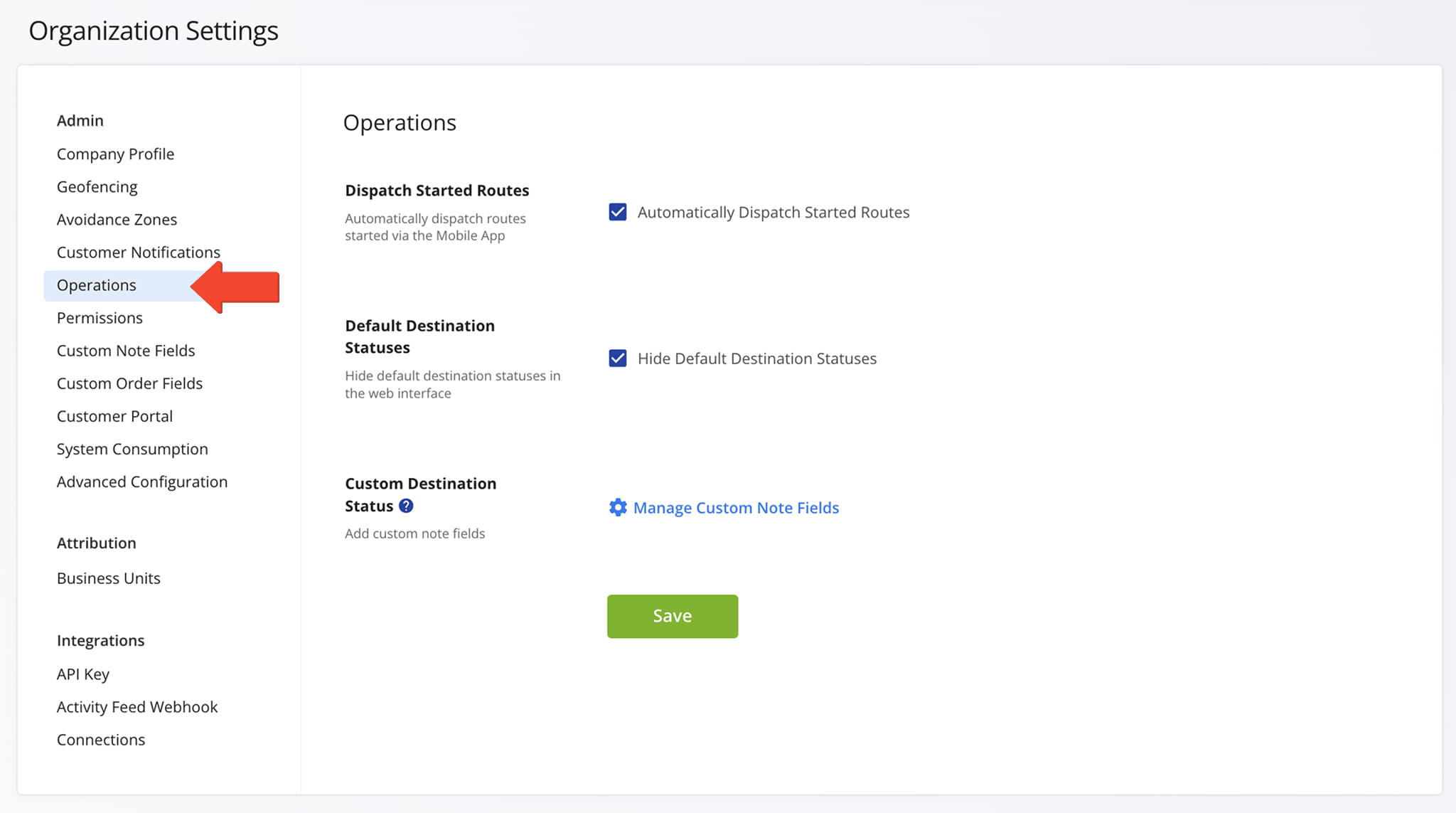
In the “Operations” tab, you can auto-dispatch started routes, hide default destination statuses, and access the page where you create custom destination statuses.
More details about these settings are provided in the table below.
Operations Settings
Permissions – Route And Destination Statuses, Return To Sender Scanner, And More
In the “Permissions” tab, you can manage settings for Route and Destination Statuses, enable or restrict Return to Sender options, and configure Proof of Visit actions.
More details about these settings are provided in the table below.
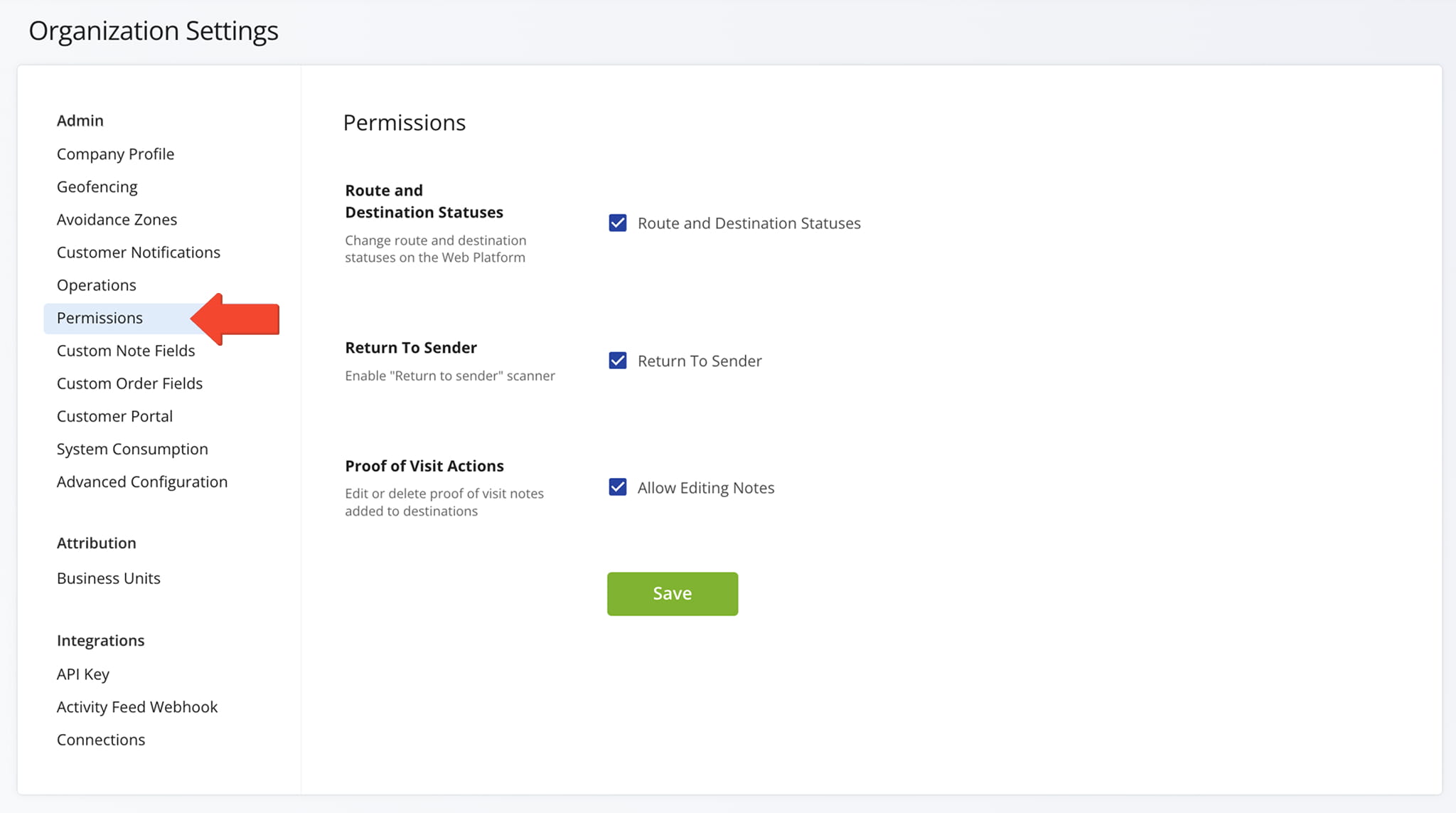
Permissions Settings
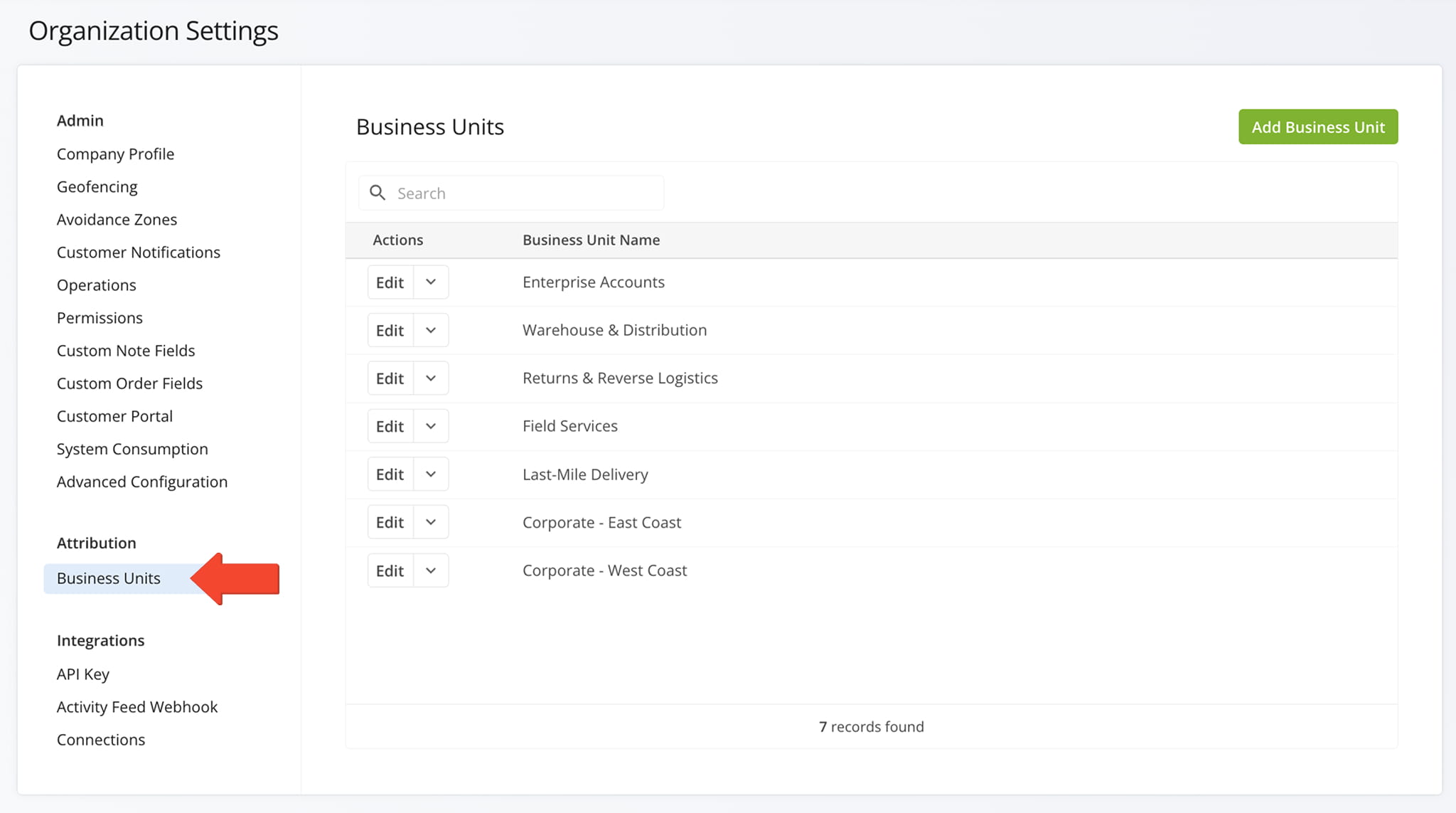
Attribution – Business Units Management
From the “Attribution” section, you can access Business Units, where you can create and manage organizational units in a structured way that reflects your real-world operations.
Integrations – API Key, Callback URL, And Telematics Connections
From the “Integrations” section, you can access your Route4Me API key and enter your Callback URL to receive activity feed notifications, and create and manage Telematics connections.
The table below provides a detailed overview of the tabs available in this section.
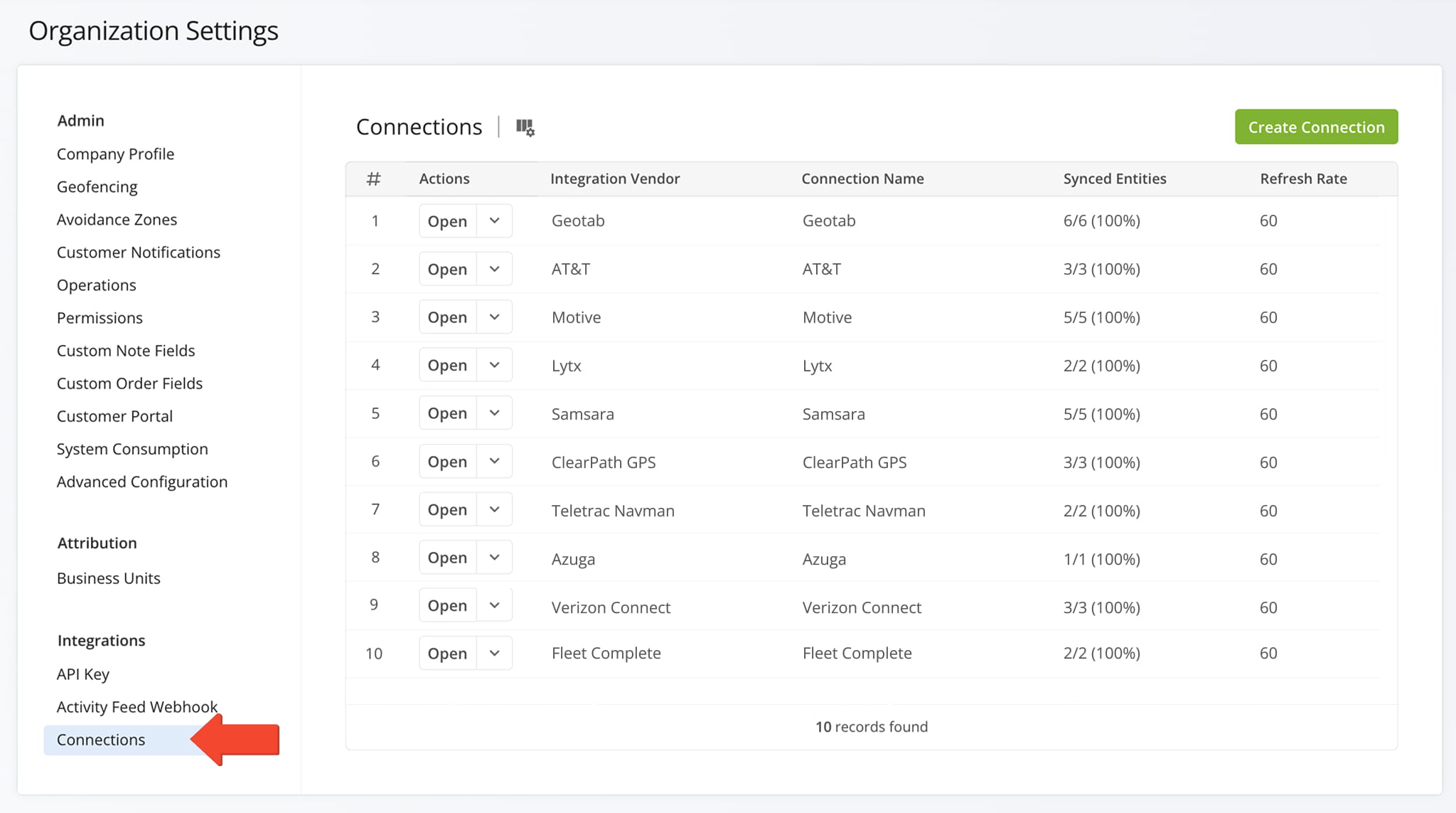
Integration Settings
Visit Route4Me's Marketplace to Check out Associated Modules:
- Operations
Custom Data Add-On
- Operations
Advanced Team Management Add-On
About author: Kristian Andreev

