Create And Manage Recurring Route Schedules

Recurring schedules help you automate route planning so routes can be generated on a regular basis without starting from scratch each time. This makes it easier to maintain consistent routing patterns while reducing manual setup. In this guide, you’ll learn how to set up and manage recurring schedules within Route4Me. You’ll also see how to adjust and update them as your planning needs change over time.
Learn how to create and manage recurring route schedules to automate consistent route planning in Route4Me.


Create A Recurring Schedule Based On A Master Route

To create a Recurring Schedule, you first need a Master Route, which serves as the template that your Recurring Routes will be built from. You can either plan a new route or use an existing one and designate it as your Master Route.

If you’re working with an existing route, you can set it as a Master Route directly from the Routes List or Route Editor. Once it’s set, it can be reused to generate Recurring Schedules.


Access The Schedule Editor – Configure Your Recurring Schedule

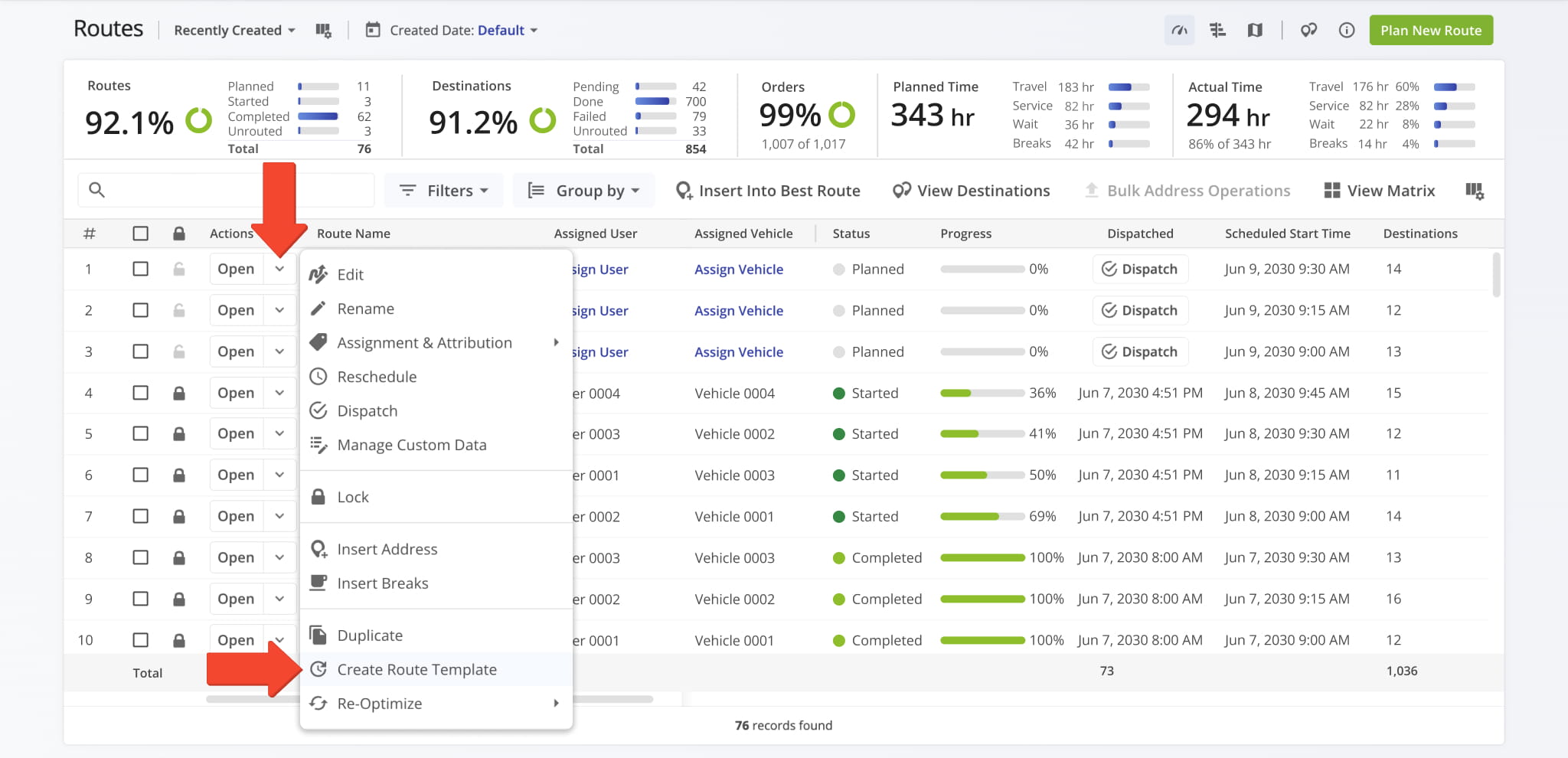
To use your Routes List, go to “Dynamic Routing” > “Routes” from the Navigation Menu. Then, click the Down Arrow next to a route and select “Create Recurring Route” to use it as a Master Route.

Open Your Routes List

To create a Recurring Schedule, you need a Master Route to use as a template. You can plan a new route or use an existing one as a Master Route.


You’ll be redirected to the Recurring Routes Schedule Editor, where you can configure your Recurring Schedule.

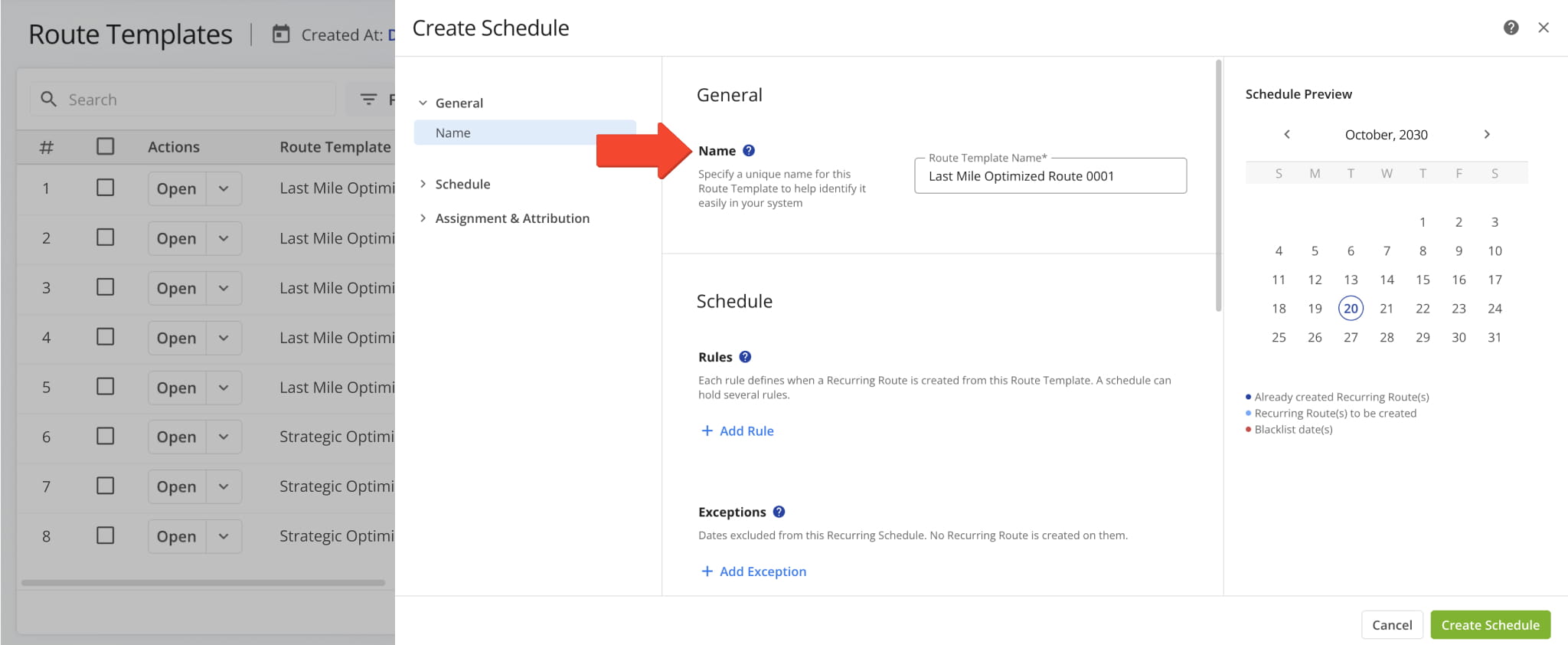
To begin, complete the fields in the “General” section: “Master Route Name“, “Assign User“, and “Assign Vehicle“. Refer to the table below for a detailed explanation of each field.

To create a recurring schedule, give your master route a name and assign a user and vehicle.

General FieldField Description
Master Route NameThe Master Route automatically inherits the name of the template route, but you can rename it if needed.
Assign UserSelect a driver or field team member for the recurring schedule. This user will be automatically assigned to all routes generated from this schedule.
Assign VehicleChoose a vehicle for the recurring schedule. This vehicle will be automatically assigned to every route created from the schedule.


Create Recurring Route Rules – Control When Routes Repeat

Next, create a scheduling rule by completing the fields in the “Schedule” section: “Date Range“, “Repeat Frequency“, and “Repeat Settings“. You’ll find detailed descriptions of each field in the table below.

After you click “Save“, the rule will appear in the Recurring Routes Schedule Editor. From there, you can use the toggle to activate or deactivate the rule, click the Pencil Icon to edit it, or click the Trash Icon to delete it.

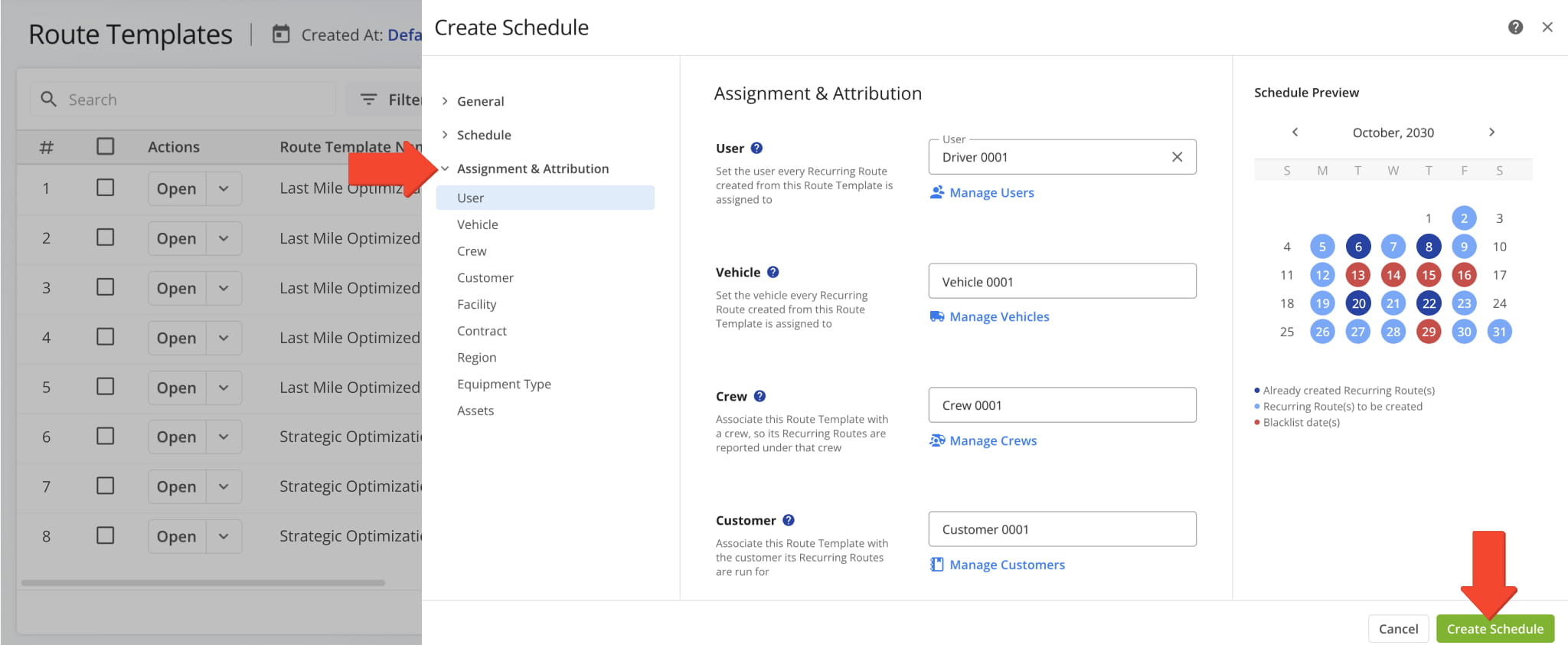
The Schedule Preview highlights in light blue all dates when recurring routes will be generated.
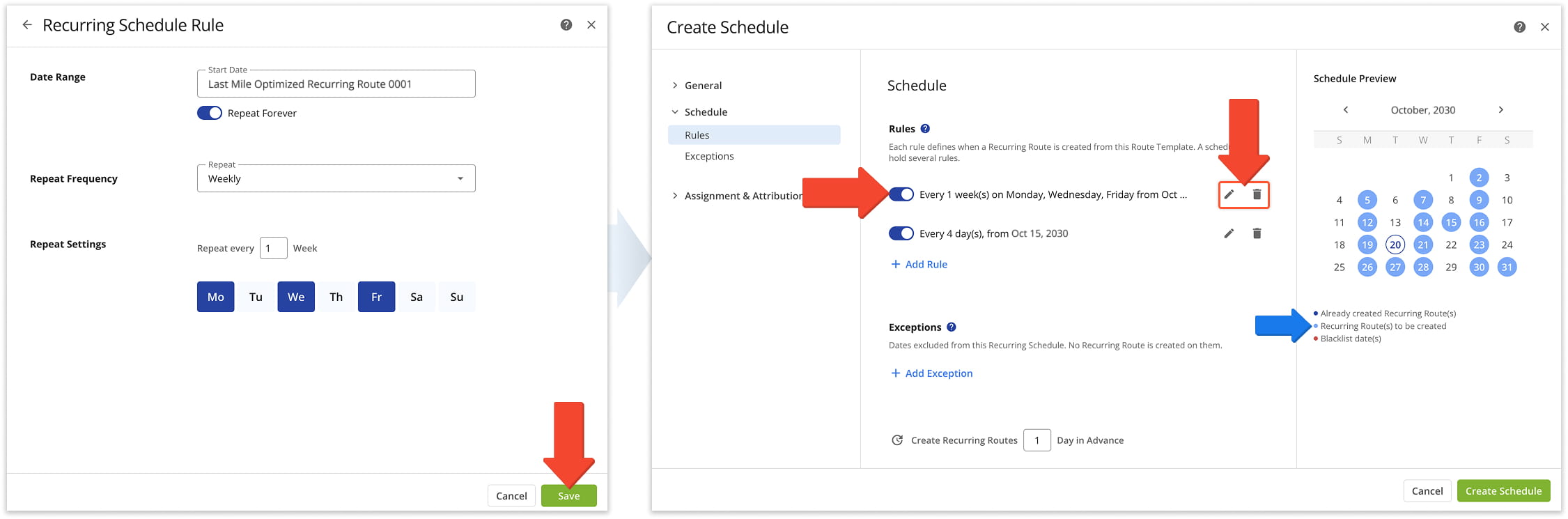
Create a schedule by defining date range, frequency, and repeat rules.

Schedule FieldField Description
Date RangeSet the start and end dates for the recurring schedule. If you do not want the schedule to end, enable “Repeat Forever“. You can add multiple Date Range rules to the same schedule to support different recurring patterns or seasonal schedule changes without creating separate schedules.
Repeat FrequencyChoose how often recurring routes should be generated: daily, weekly, monthly, or annually.
Repeat SettingsDefine the interval for the selected frequency, such as every day, every 2 days, every week, or every 3 months.


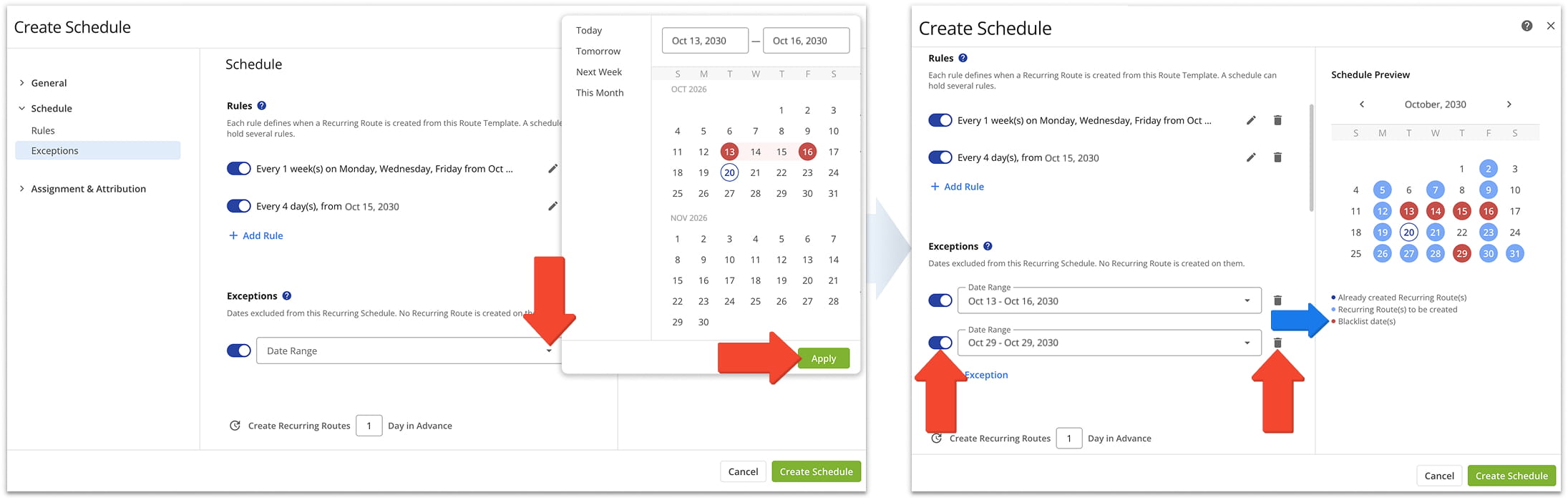
To add exceptions to your schedule rules, select any dates you want to exclude from the Recurring Schedule. Recurring Routes will not be generated on these dates. You can add multiple exception dates, which will appear in red in the Schedule Preview.

Exceptions make it easy to skip routes on holidays, seasonal dates, or other non-working days without creating a separate schedule. You can also use the toggle to temporarily deactivate an exception, or click the Trash Icon to permanently delete it.

In the Exceptions field, you can create exceptions to the recurring route Schedule rules you have created.


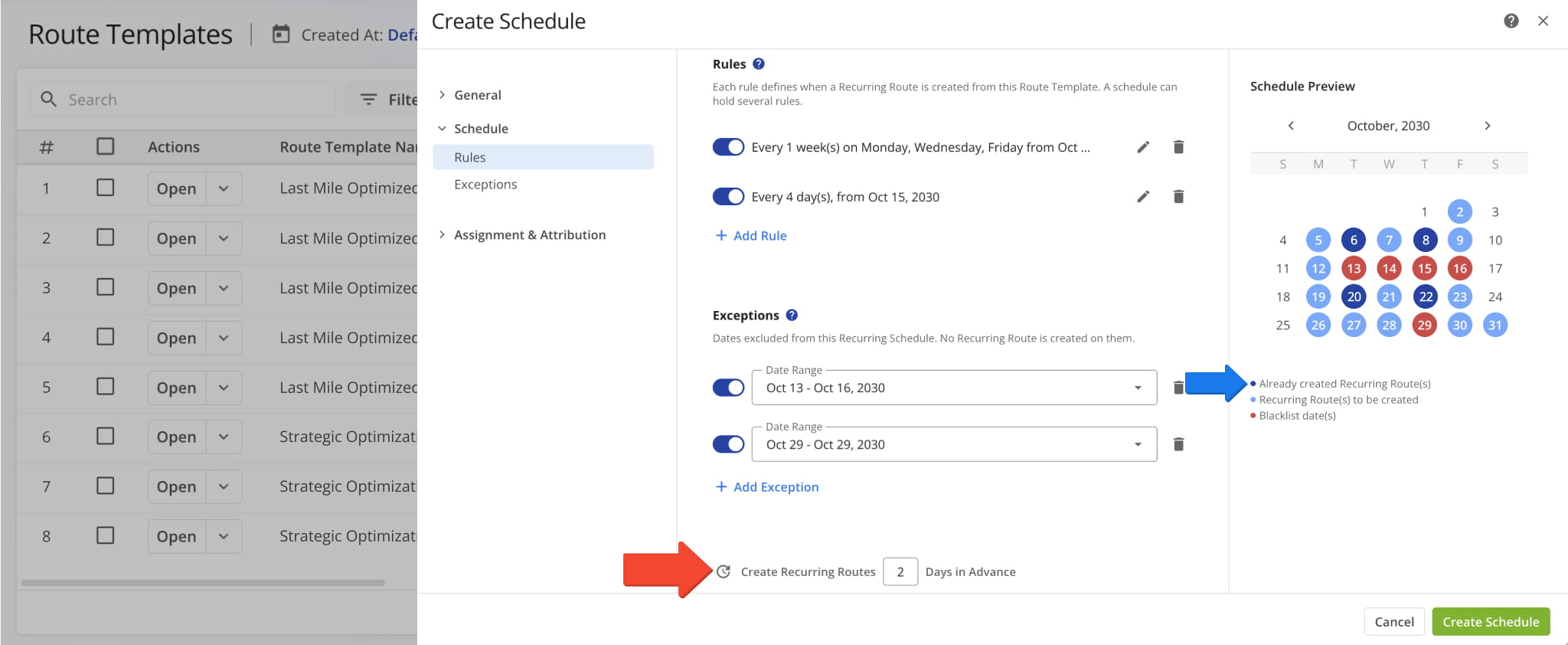
Lastly, specify how many days in advance Recurring Routes should be generated from this schedule, then click “Create Schedule” to finalize it.

NOTE: Dark blue dates in the Schedule Preview indicate Recurring Routes that have already been created, helping you quickly see which dates are already scheduled.You can predefine the number of days in advance you would like to create recurring routes.


Manage Recurring Route Schedules – View, Filter, And Edit Schedules

View Recurring Schedules – Filter And Refine Results

You can view all of your Recurring Schedules on the Recurring Routes page.

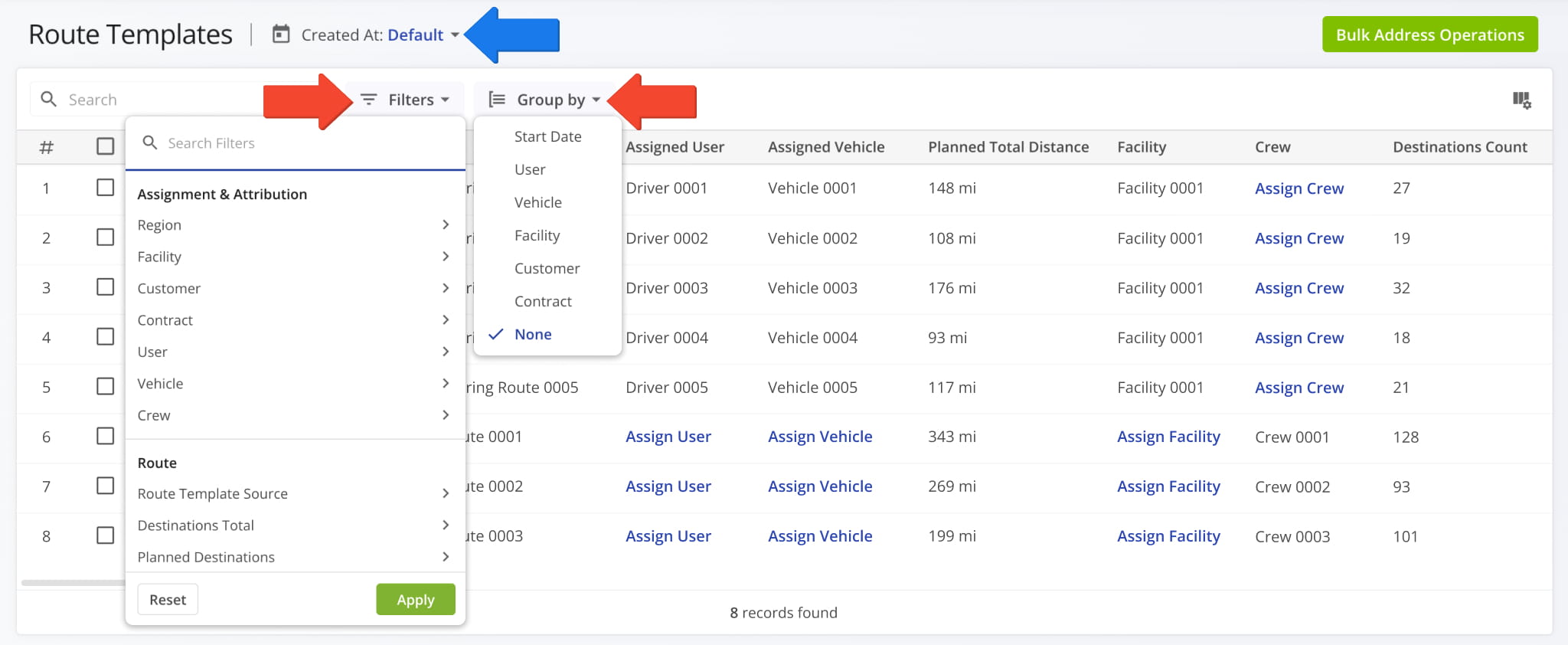
Route4Me provides filters and grouping options to help you refine which Recurring Schedules appear on this page. You can also use the “Created At” calendar to filter schedules by their creation date. See table below for an overview of all filters.

Open Your Recurring Routes

Route4Me

FilterDescription
Assignment & Attribution
UserFilter by user assigned to the route.
VehicleFilter by vehicle assigned to the route.
CustomerFilter by customer linked to the route.
ContractFilter by contract linked to the route.
FacilityFilter by facility linked to the route.
Strategic Optimization
Master Route SourceFilter by the source used to create the route, such as Telematics, API, Route Planner, AMP Job, or Website.
Destinations TotalFilter by the total number of destinations assigned to the route.
Planned DestinationsFilter by the total number of destinations planned during route optimization.
Planned Total Duration (h)Filter by the total estimated duration, in hours, planned for completing the route.
Planned Total Distance (mi)Filter by the total planned distance, in miles, for completing all stops on the route.
Planned Total Wait Duration (h)Filter by the total planned wait time, in hours, across all destinations on the route.
Planned Total Service Time (h)Filter by the total planned service time, in hours, required to complete all route destinations.
Planned Total Drivers Break Duration (h)Filter by the total planned driver break time, in hours, scheduled within the route.
Planned Average Service Time (h)Filter by the average planned service time, in hours, per destination on the route.
Scheduling
Advanced IntervalFilter by routes that use an advanced scheduling interval configuration.
Advanced Schedule Interval DaysFilter by the number of days defined in the advanced scheduling interval.
Dimensional & Financial
Cube PlannedFilter by total planned Cube (volume) amount of all Destinations on the planned route.
Pieces PlannedFilter by total planned Pieces (units) amount of all Destinations on the planned route.
Weight PlannedFilter by total planned Weight amount of all Destinations on the planned route.
Revenue PlannedFilter by total revenue to be generated from servicing all route Destinations.


Customize Data Display Columns – Adjust And Reorder Data Table Layout

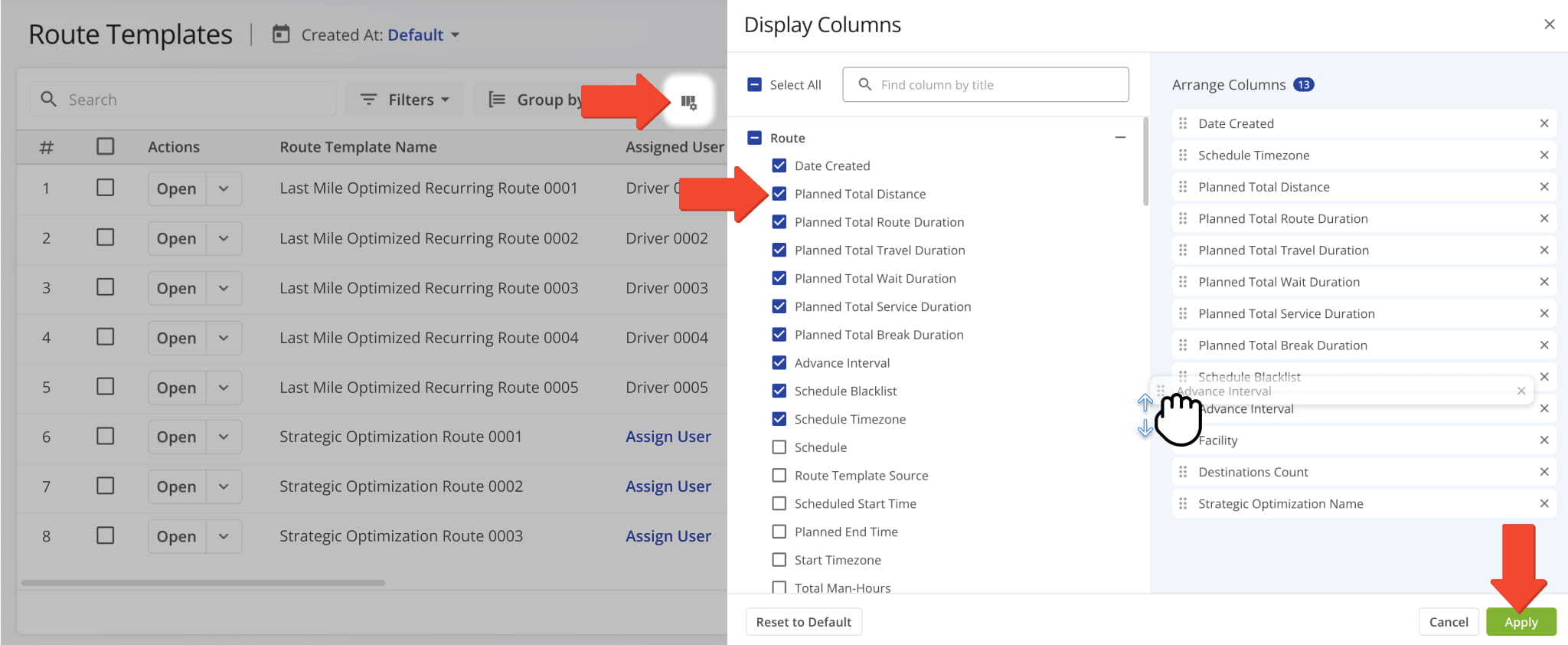
You can also customize the data columns displayed on your Recurring Routes page. To do this, click the Display Columns Icon in the upper-right corner, then select the checkboxes for the columns you want to show.

Drag and drop column names to reorder them in your data table. Once you’re done, click “Apply” to save your changes. See the table below for a full overview of all available data columns.

You can also customize the data columns shown on your Recurring Routes page. To do so, click the Display Columns button and check the boxes next to the columns you want to enable.

Data ColumnDescription
Route
Date CreatedDate and time when the route was created.
Planned Total DistanceTotal distance planned for the route, including all stops.
Planned Total Route DurationEstimated total duration for completing the route.
Planned Total Wait DurationEstimated total wait time during the route.
Planned Total Service DurationEstimated total service time at destinations.
Actual Total Breaks DurationTotal break time taken by drivers during the route.
Advanced IntervalNumber of days defined in advanced scheduling for creating future routes.
Schedule BlacklistDates when routes should not be scheduled (e.g., holidays or blocked days).
Schedule TimezoneTime zone used for interpreting scheduled route dates and repeat patterns.
ScheduleRecurring schedule settings that define how often and on what dates the route repeats.
Master Route SourceSource used to create the route (e.g., Telematics, API, Route Planner, AMP Job, Website).
Scheduled Start TimeScheduled start time for the route.
Planned End TimePlanned end time for the route.
Start TimezoneTime zone associated with the route’s planned start location.
Total Man-HoursCombined estimated man-hours required for all planned route tasks.
Route #Unique identifier number for the route.
Assignment & Attribution
FacilityLocation or service point assigned to the route.
CustomerCustomer assigned to the route.
ContractContract associated with the route.
Key Metrics
Destinations CountTotal number of destinations planned for the route.
Pending DestinationsNumber of destinations not yet visited.
Notes CountTotal number of notes added to the route, destinations, or stops.
Utilization
Pieces PlannedTotal number of pieces planned for delivery.
Weight PlannedTotal weight of items planned for delivery.
Cube PlannedTotal cubic volume planned for delivery.
Revenue PlannedPlanned revenue for the route based on scheduled deliveries.
Strategic Optimization NameName of the strategic optimization applied to the route.
Scenario NameScenario associated with the strategic optimization.


Edit Recurring Schedules – Update Schedule Details

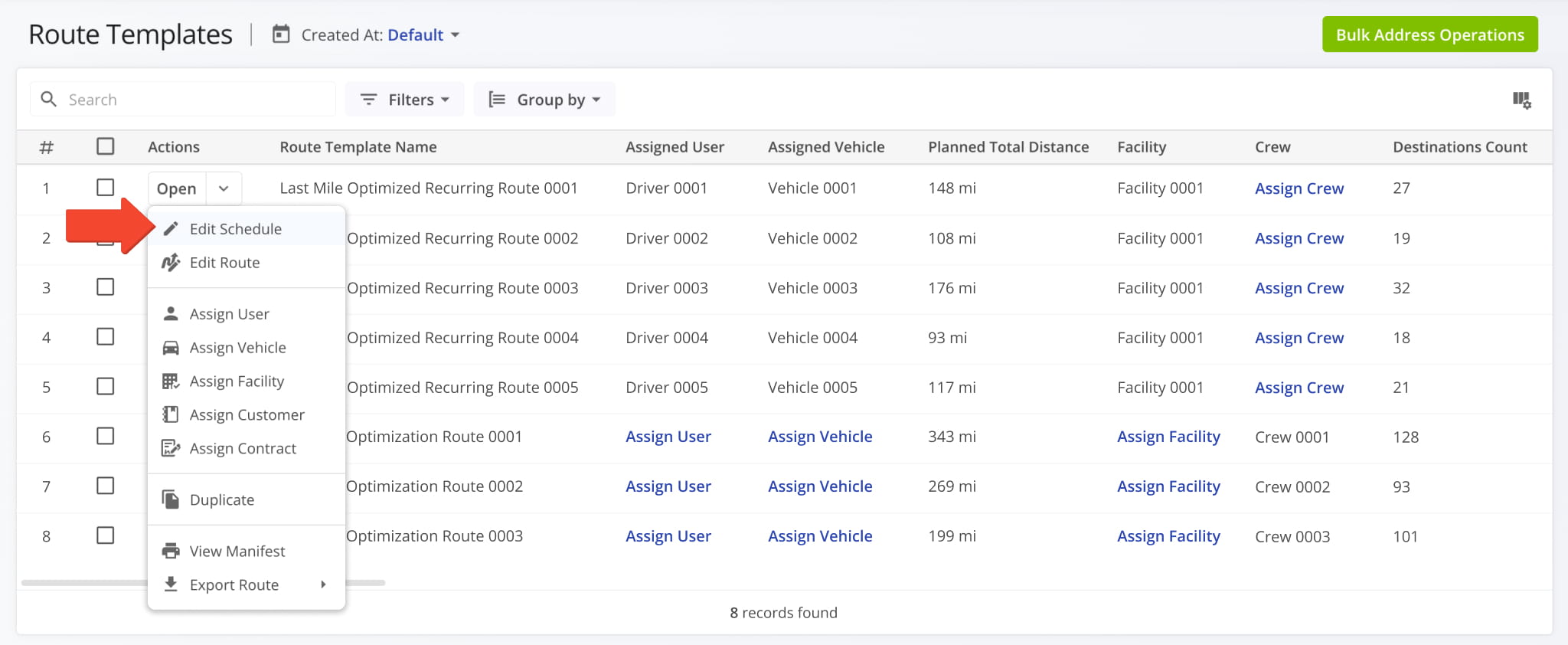
From this page, you can also edit existing Recurring Schedules. Click “Edit Schedule” to open the Recurring Routes Schedule Editor where you can make changes.

To update an assigned User, Vehicle, or Facility, hover over the relevant field, then click the Pencil Icon to edit it.View and manage all Recurring Schedules on the Recurring Routes page.


Last Updated:

About author: Daniel Archer

Daniel ArcherWith a background in pedagogy and writing instruction, Daniel is a former tenured English Instructor who, after nearly 20 years of teaching, transitioned into content strategy and leading writing teams for global brands. Now, as Technical Documentation Manager at Route4Me, he translates complex logistics technology into clear, accessible content that empowers users.

Was this article helpful?
Still can't find what you're looking for? Contact us
Route4Me

About Route4Me

Route4Me has over 40,000 customers globally. Route4Me's Android and iPhone mobile apps have been downloaded over 2 million times since 2009. Extremely easy-to-use, Route4Me's apps create optimized routes, synchronize routes to mobile devices, enable communication with drivers and customers, offer turn-by-turn directions, delivery confirmation, and more. Behind the scenes, Route4Me's operational optimization platform combines high-performance algorithms with data science, machine learning, and big data to plan, optimize, and analyze routes of almost any size in real-time.