
Route4Me AI Chat – Using Prompts, Voice Input, Attachments, And History
Route4Me AI Chat enables users to interact with the platform through conversational prompts, providing faster access to route insights, operational data, and planning support. It reduces friction in everyday workflows by delivering answers and analysis directly within the interface, allowing users to review routes, explore performance data, and address operational questions in real time. It can also check routes against your account’s rules – like shift limits and required breaks – and prepare configuration changes, such as updated route settings, for you to review and apply. Learn more about the AI Chat panel in this guide.
Table of Contents
AI Chat Overview – Open And Use Route4Me AI Chat Panel
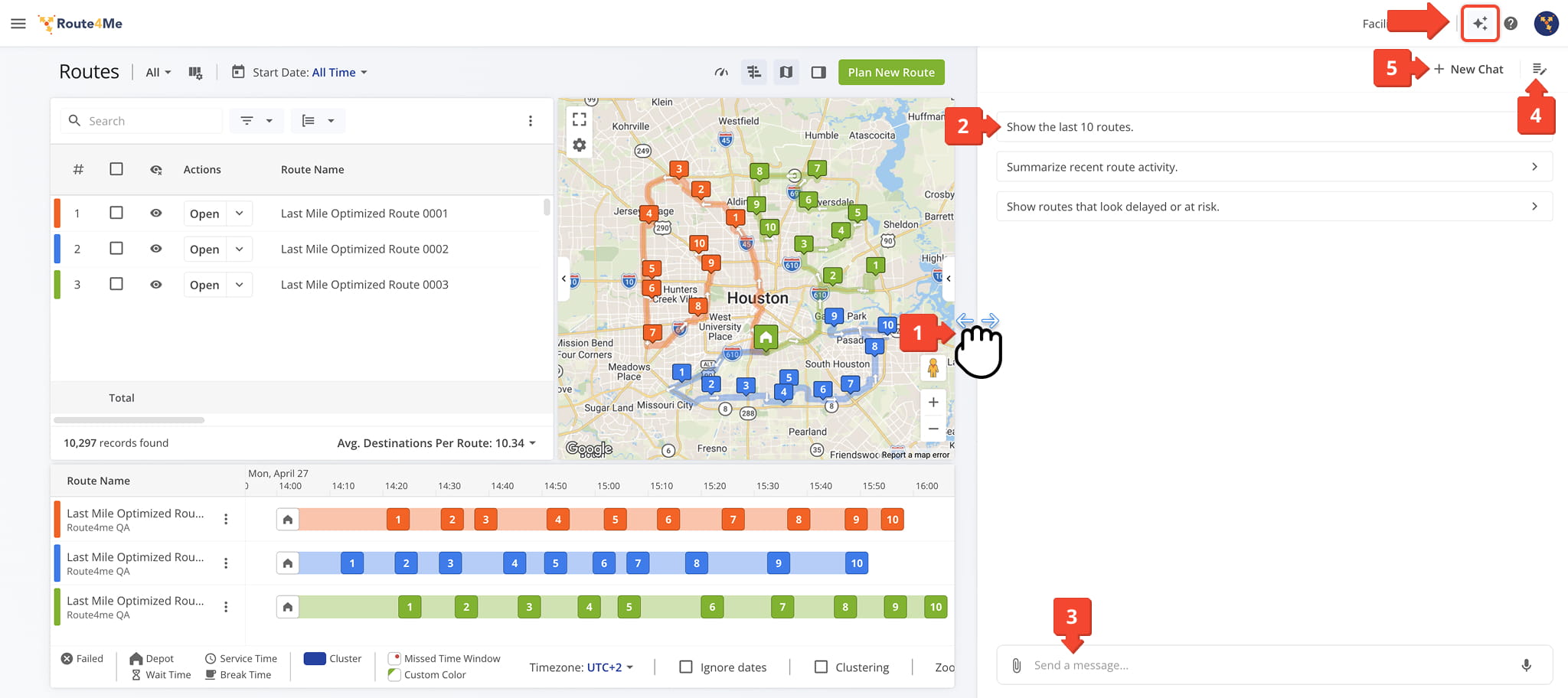
To open the AI Chat panel, click on the Stars Icon in the top-right corner. Then, from the open Panel, you can:
- Drag the Panel to expand its width.
- Click on suggested prompts to start a conversation quickly.
- Enter a new prompt in the message field to start a new interaction.
- View and reopen previous conversations from your chat history.
- Click the “New Chat” button to clear a chat.
NOTE: A chat session stays open as you move between pages, so switching, for example, from the Routes List to the Route Editor won’t lose your conversation. To see suggestions tailored to the new page, start a New Chat.
AI Chat Capabilities – Access Data, Flag Risks, And Apply Changes
AI Chat does more than answer questions. It can pull live account data, flag issues before they become problems, and prepare changes for you to apply. Here’s what to expect:
AI Chat Capabilities
Live data access
AI Chat queries your account in real time - from routes and destinations to orders, customers, and vehicles - and returns tables with direct links to the records involved.
Risk and policy checks
AI Chat flags routes that look delayed or at risk - an early dispatch, a stalled route - checks them against your account's rules, like shift limits and required breaks, and recommends a fix.
One-click configuration changes
AI Chat can prepare a configuration change - for example, to route settings, a planning scenario, or an optimization profile - for you to review and apply in one click, with the option to undo.
Image and proof-of-delivery review
AI Chat can read text in a photo you attach - a shipping label, a proof-of-delivery shot - describe what it shows, and annotate it, like circling damage or highlighting a package.
Submit Prompts To AI Chat – Execute AI Requests And Commands
Use Suggested Prompts – Start Conversations With Prebuilt AI Queries
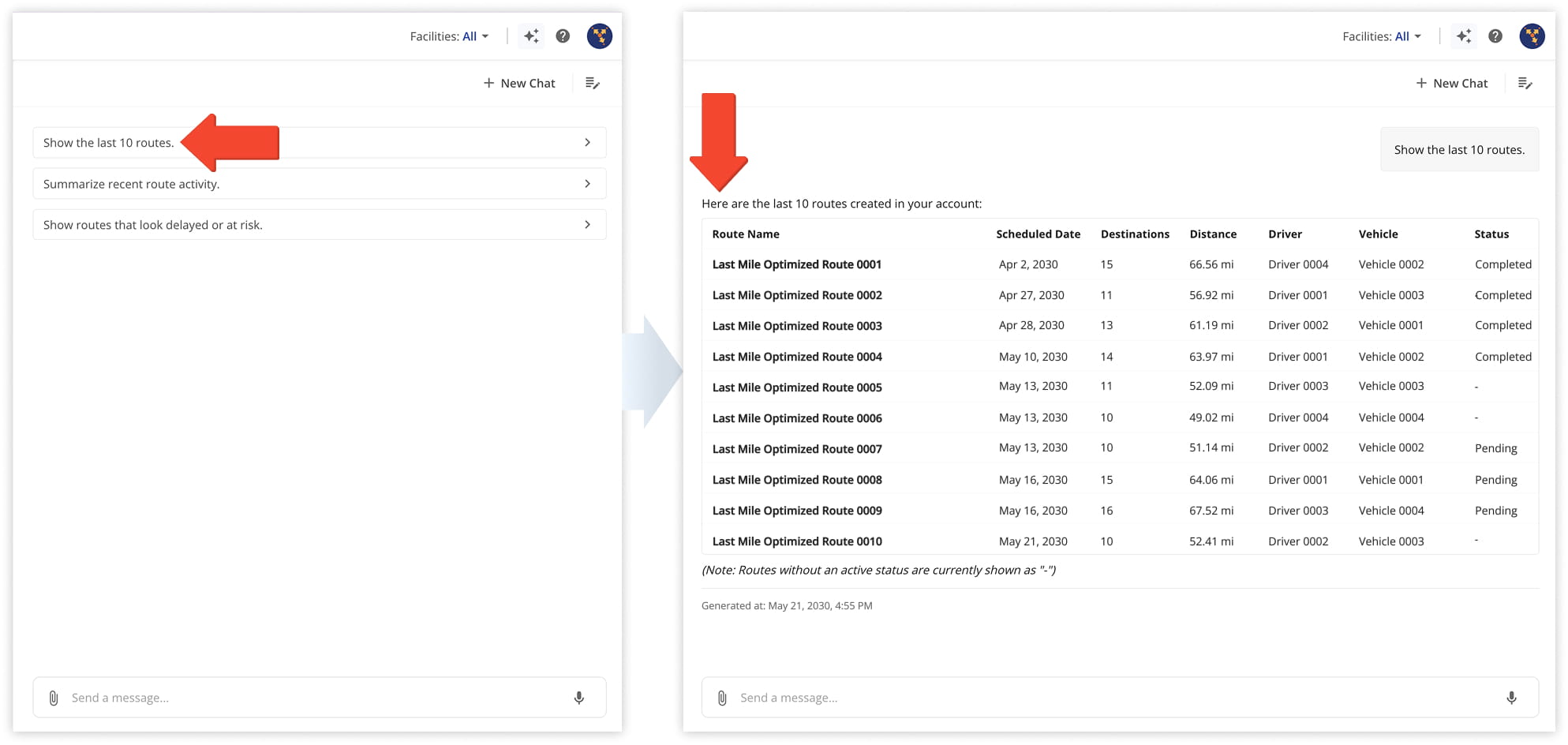
When the AI Chat panel opens, you will see suggested prompts for quickly starting common tasks. Selecting a prompt runs a predefined request and immediately starts a conversation with the AI Chat system.
Suggested prompts change based on the page you’re on. On the Routes List, for example, you’ll see options like “Show the last 10 routes” or “Show routes that look delayed or at risk.” NOTE: Route4Me regularly adds new page-specific suggestions.
Suggested prompts are useful when exploring a new workflow or when you are unsure how to phrase a request. They provide quick access to insights such as route analytics and common operational questions without starting from scratch.
Create A New Prompt – Submit Custom AI Requests In Chat
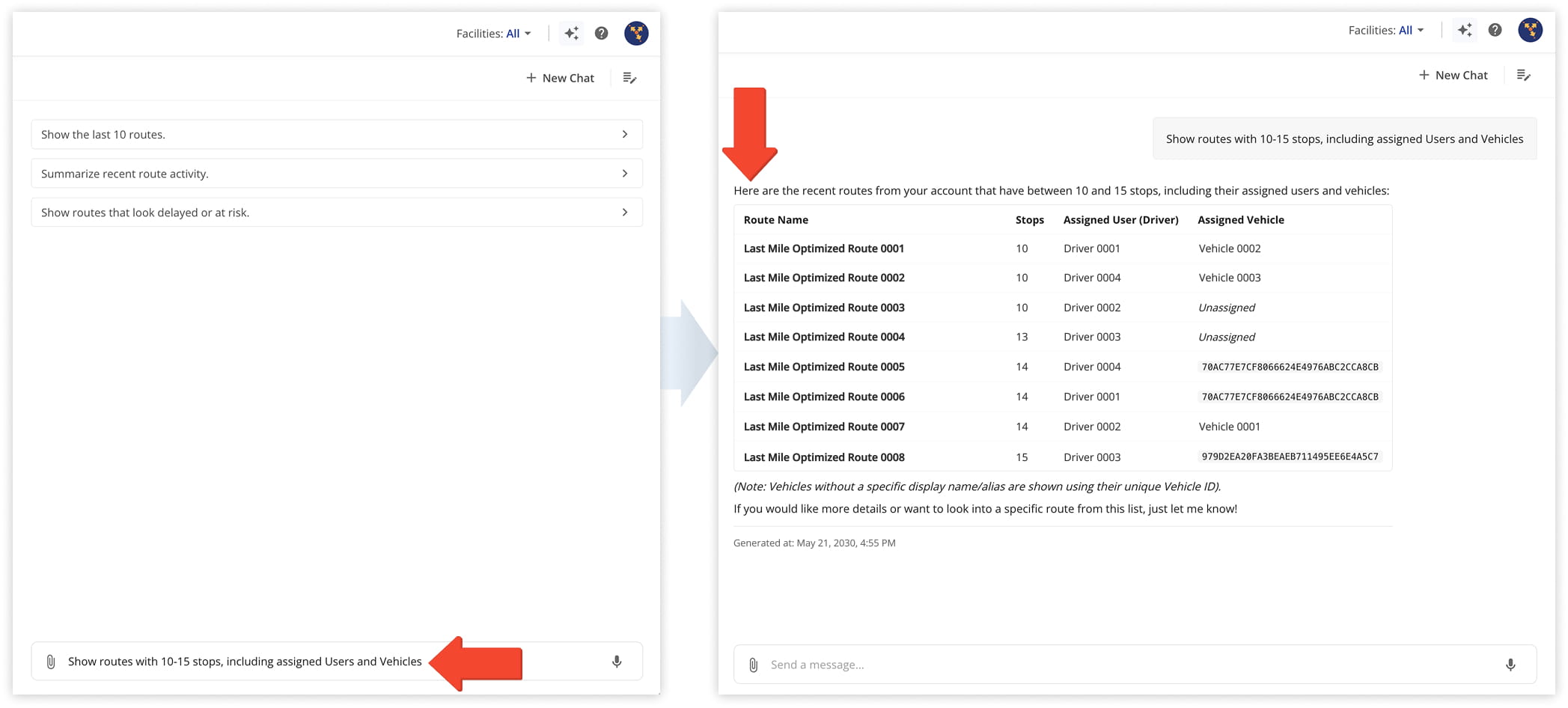
Use the message field at the bottom of the AI Chat panel to enter and submit a custom prompt.
This option is best when you want more control over the request than a suggested prompt provides. You can tailor the prompt to your specific situation and ask more detailed or targeted questions.
NOTE: The quality of the response will depend on how clearly the prompt is written. Providing relevant context and specific instructions will generally produce more accurate and useful results.
Reuse Previous Conversations – Access AI Chat History and Past Prompts
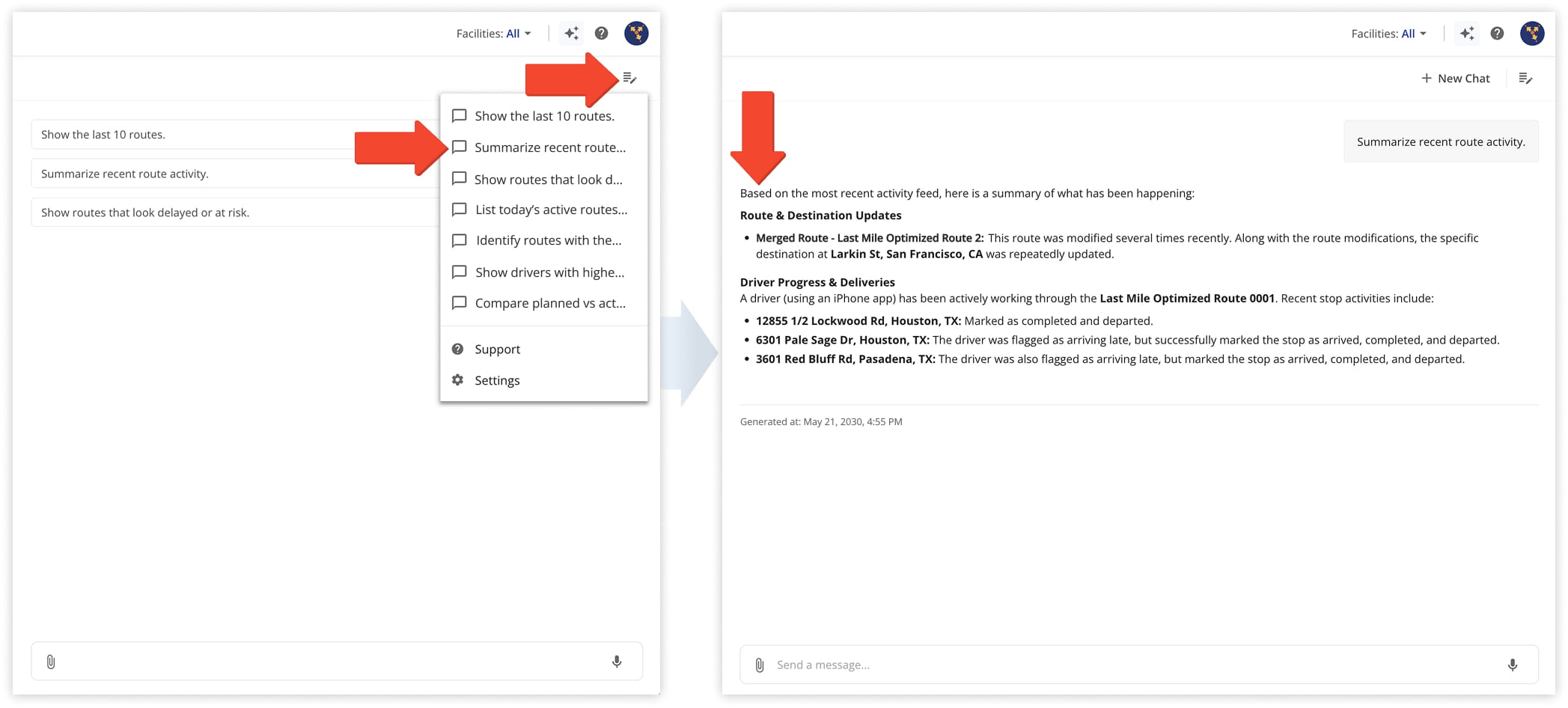
Click the chat history icon at the top of the AI Chat panel to view past conversations and reopen previous chats. This allows you to continue an earlier discussion without starting a new prompt from scratch.
This is useful when refining a request over time, comparing results, or returning to a previous workflow. It helps maintain context so you don’t need to repeat earlier prompts or re-enter the same information.
Use Voice Input – Dictate AI Prompts Using Microphone
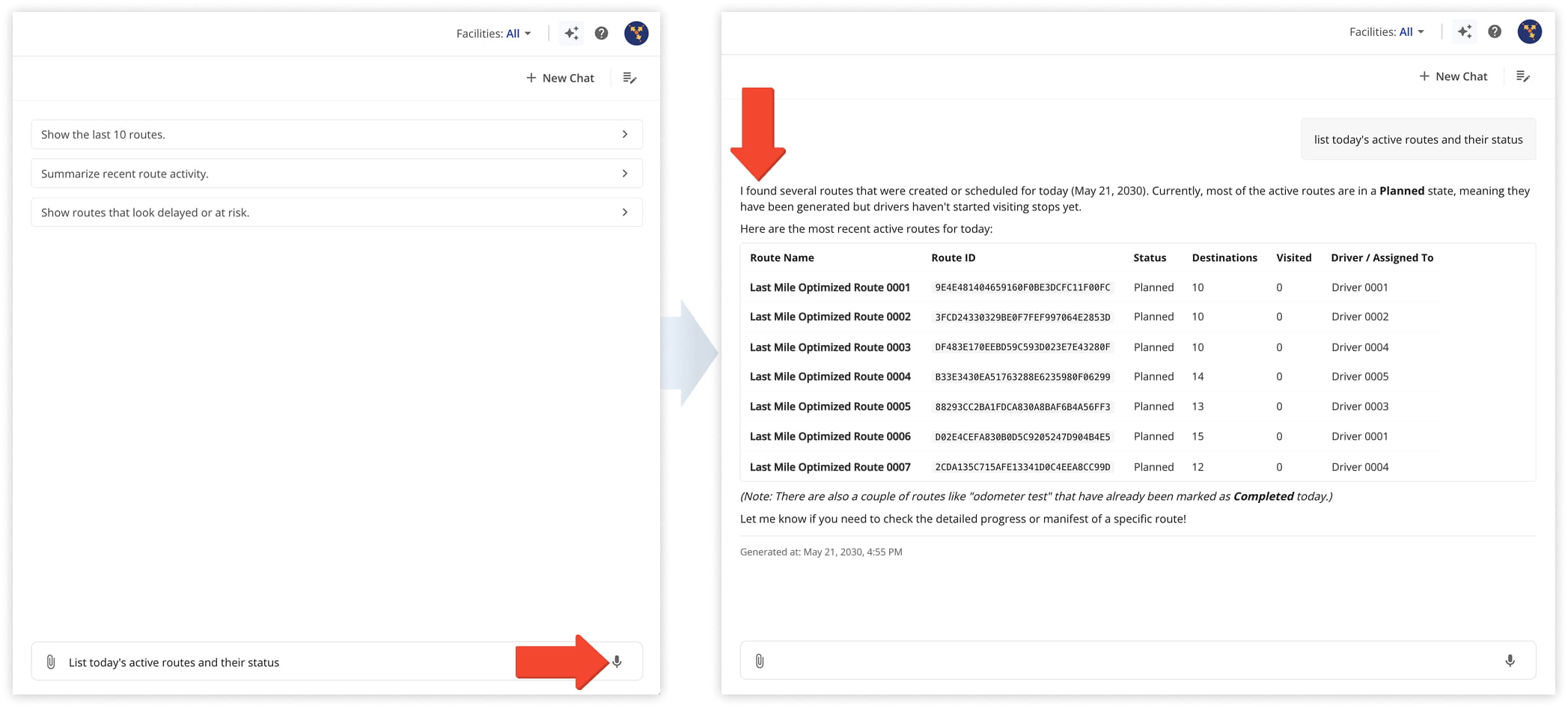
Click the Microphone Icon to dictate a prompt instead of typing it. Your speech will be converted into text in the message field before being submitted.
Voice input is useful when entering longer prompts or when typing is less convenient, such as when reviewing routes or working across multiple screens. It allows you to quickly turn spoken instructions or questions into a ready-to-submit prompt.
NOTE: To use this feature, you must allow microphone access in your browser when prompted.
Add Attachments To Prompts – Upload Files to Provide AI Context
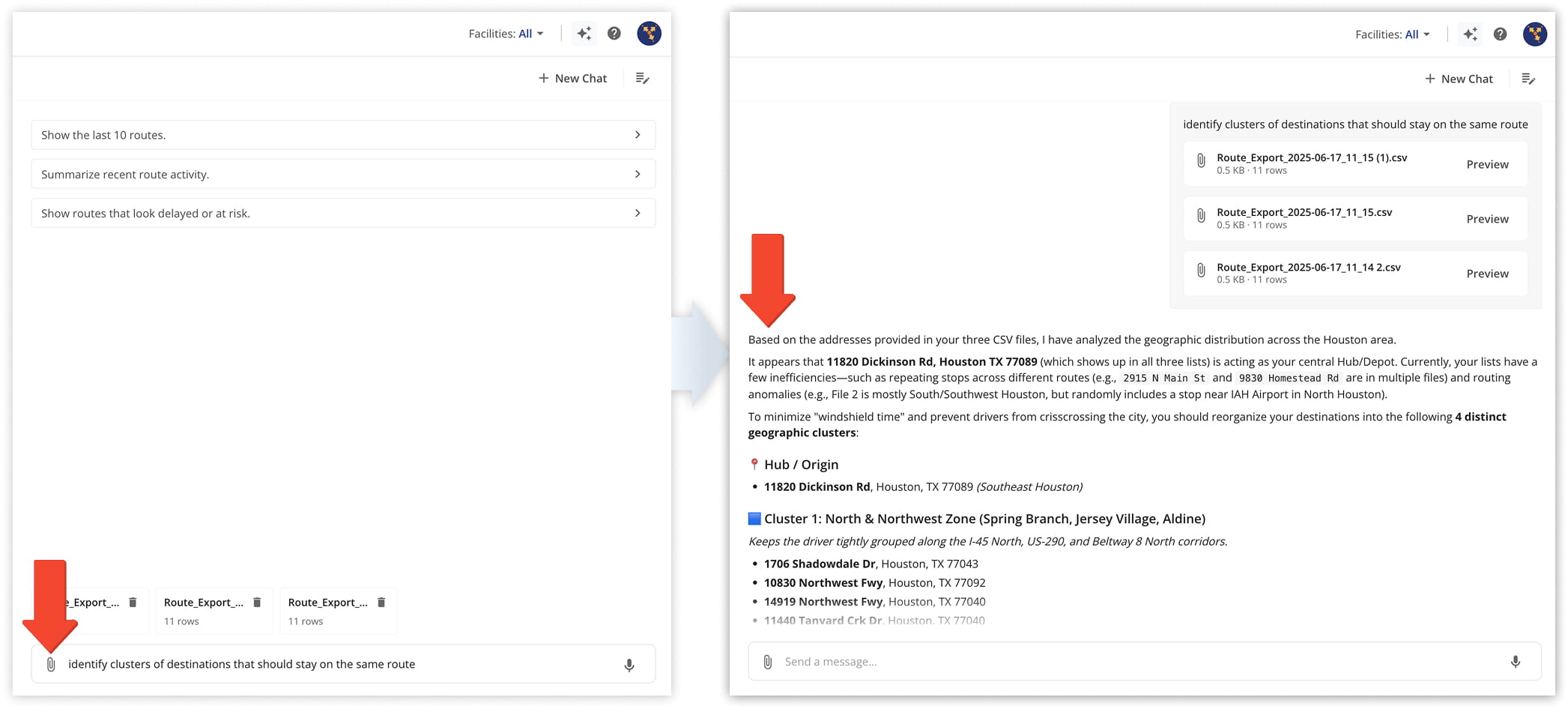
Use the Paperclip Icon to attach files to your prompt before sending it. Attachments give AI Chat more context for your question, for example, a shipping label, a proof-of-delivery photo, or a CSV of addresses.
It can then read the label, describe the delivery condition, point out visible damage, or geocode the addresses for route planning.
Role-Based Use Cases – Example Prompts For Dispatchers, Analysts, And Leadership
Below, you’ll find common use cases and example prompts organized by role. Try them as written, or adapt them to fit your own account.
Use Cases & Prompts
Visit Route4Me's Marketplace to Check out Associated Modules:
- Operations
Custom Data Add-On
- Operations
Advanced Team Management Add-On
About author: Daniel Archer

