
Route4Me MCP Server – AI Integration Guide For Last Mile Routing
Route4Me’s MCP Server lets you connect AI assistants like Claude Desktop, ChatGPT, and Cursor directly to the Route4Me platform using the Model Context Protocol (MCP). Once connected, your AI assistant can plan and optimize routes, manage orders, geocode addresses, track vehicles, and more, all through simple, conversational requests. Use this guide to configure your AI client, set up authentication, and start automating your last mile routing operations.
NOTE: To use the Route4Me MCP Server, contact Route4Me Support to obtain access and get your Route4Me API Key. The base server URL is provided during the onboarding process, along with instructions and examples on how to get started.
Table of Contents
Model Context Protocol Overview – What Is The MCP?
MCP is a communication framework that allows AI assistants to connect directly with external software platforms and tools. Once a platform supports MCP, any compatible AI assistant can connect and start working with it right away.
Connecting your AI assistant to Route4Me via MCP offers several key advantages:
- No custom development required – MCP provides a shared standard that works across all compatible systems, eliminating the need to build custom connections for each AI tool.
- Works with leading AI assistants – Connect Claude Desktop, ChatGPT, Cursor, or any other MCP-compatible tool of your choice.
- Secure and automated – MCP handles authentication and data exchange automatically, keeping your account data protected.
- Widely supported – Originally developed by Anthropic, MCP is now adopted across the AI industry.
MCP operates through three core components that work together:
MCP Components
Host
The AI application or assistant that initiates requests to external systems.
Claude Desktop, ChatGPT, Cursor, or any other MCP-compatible AI tool.
Client
A protocol layer within the host that manages the connection, translates requests, and ensures secure communication.
The built-in MCP client in Claude Desktop or Cursor that manages the connection to the Route4Me MCP Server.
Server
The external system being accessed, which exposes its tools and data via MCP.
Route4Me's MCP Server at mcp.route4me.com, which provides access to Route4Me's full platform capabilities.
Route4Me MCP Server Overview
What Is The Route4Me MCP Server?
The Route4Me MCP Server (mcp.route4me.com) gives any MCP-compatible AI assistant full access to Route4Me’s platform capabilities.
When your assistant makes a request, the server returns both a plain-language summary and a structured data block, so you get clear conversational answers alongside precise, actionable data.
Key features of the Route4Me MCP Server include the following:
- Read-only by default: Write operations are blocked unless explicitly enabled, protecting your account from unintended changes.
- Scalable and reliable: Each request is handled independently, supporting high volumes of concurrent AI connections.
- Flexible connectivity: Supports multiple connection methods to work with your preferred AI client.
- Comprehensive coverage: Access 17+ tool domains including route optimization, order management, telematics, geocoding, and more.
- Compatible with all major AI clients: Works with Claude Desktop, ChatGPT, Cursor, Hermes, OpenClaw and any other MCP-compatible tool.
How Does The MCP Server Work?
When an AI agent sends a natural-language request such as “Show me today’s active routes” the following sequence occurs:
- The AI agent selects an MCP tool based on the request from the available tools on the server.
- The MCP client connects to the Route4Me MCP Server and sends a tool call with the tool name and parameters.
- The MCP Server authenticates via API key, checks the write guard, and processes the request at the Route4Me platform.
- Route4Me processes the request and returns the results.
- The MCP Server formats the response as a human-readable text summary and structured JSON code and sends it back to the AI agent.
- The AI agent uses the text summary for natural-language conversation and the JSON code for any additional data processing or follow-up queries.
MCP Server Setup – Prerequisites And Requirements
Before connecting your AI assistant to the Route4Me MCP Server, make sure you have the following:
MCP Requirements
An active Route4Me subscription with API access enabled.
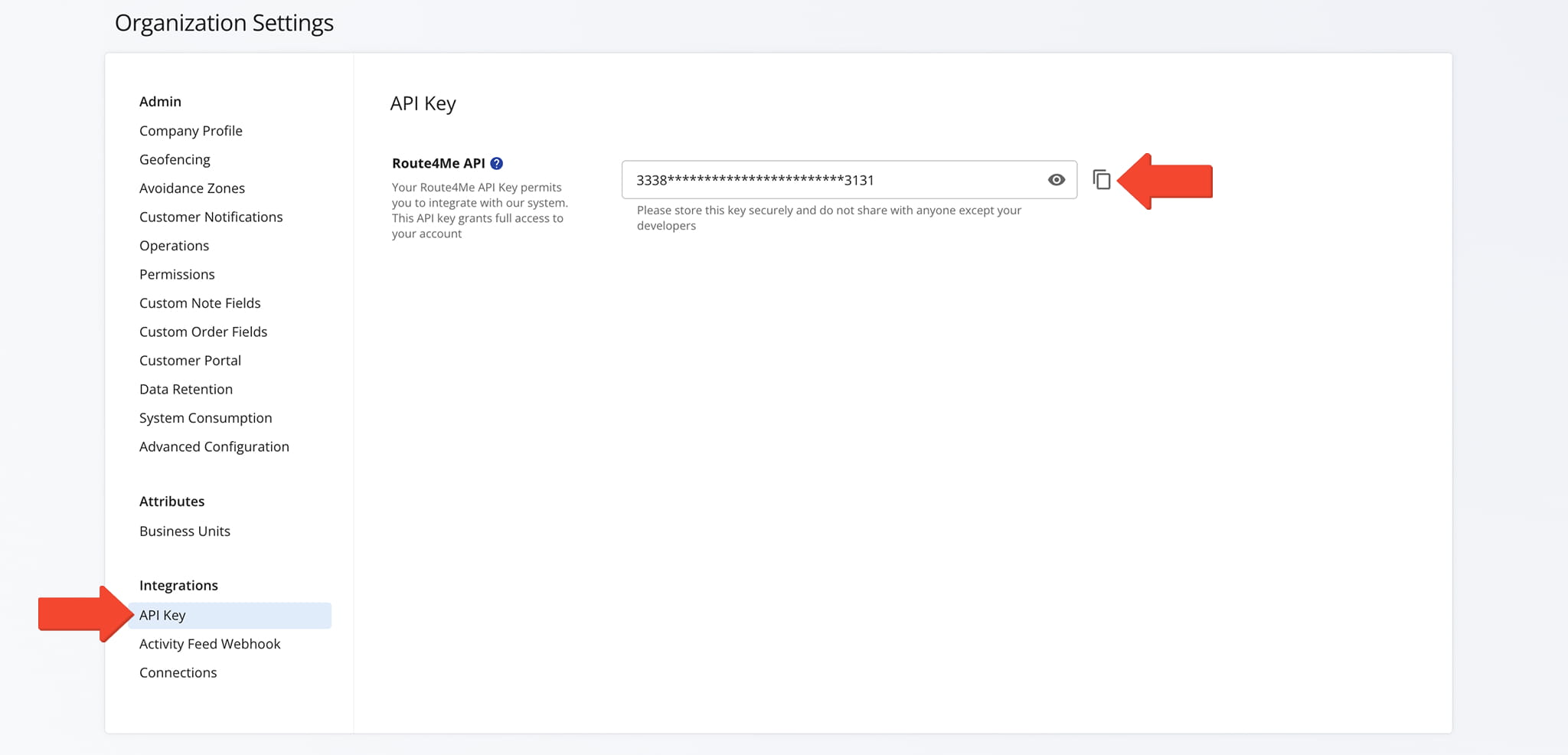
Your unique account API key. To access it, go to "Security" > "Organization Settings" > "API Key" from the Navigation Menu.
An AI app that supports MCP. Cursor supports it natively; Claude Desktop requires the UI or mcp-remote bridge; ChatGPT uses its Connectors UI.
Server URL
The Route4Me MCP Server URL: https://mcp.route4me.com. The base URL is provided during onboarding. Contact Route4Me Support for assistance.
Connect Your AI Agent To The MCP Server – Setup Instructions
Claude Desktop – Connection and Setup
Claude Desktop supports remote MCP servers via the Connectors UI or through a config file with the “mcp-remote” bridge. Choose one of the two methods below to connect.
Method 1 – Via The Settings UI (Recommended)
- Open Claude Desktop, click your profile picture and select “Settings“.
- Go to the “Customize” section and select “Connectors“.
- Click “Add” and select “Add custom connector“.
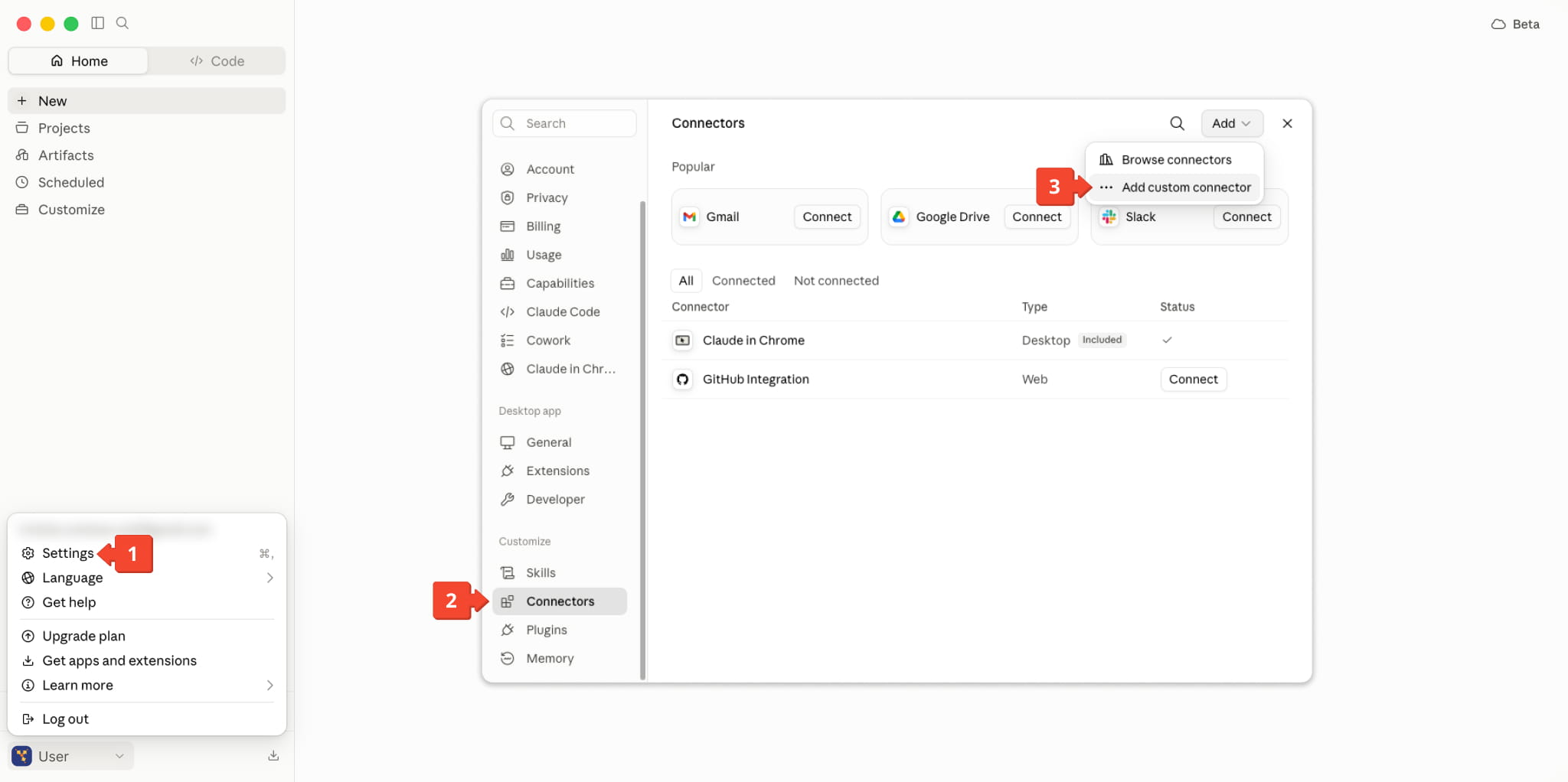
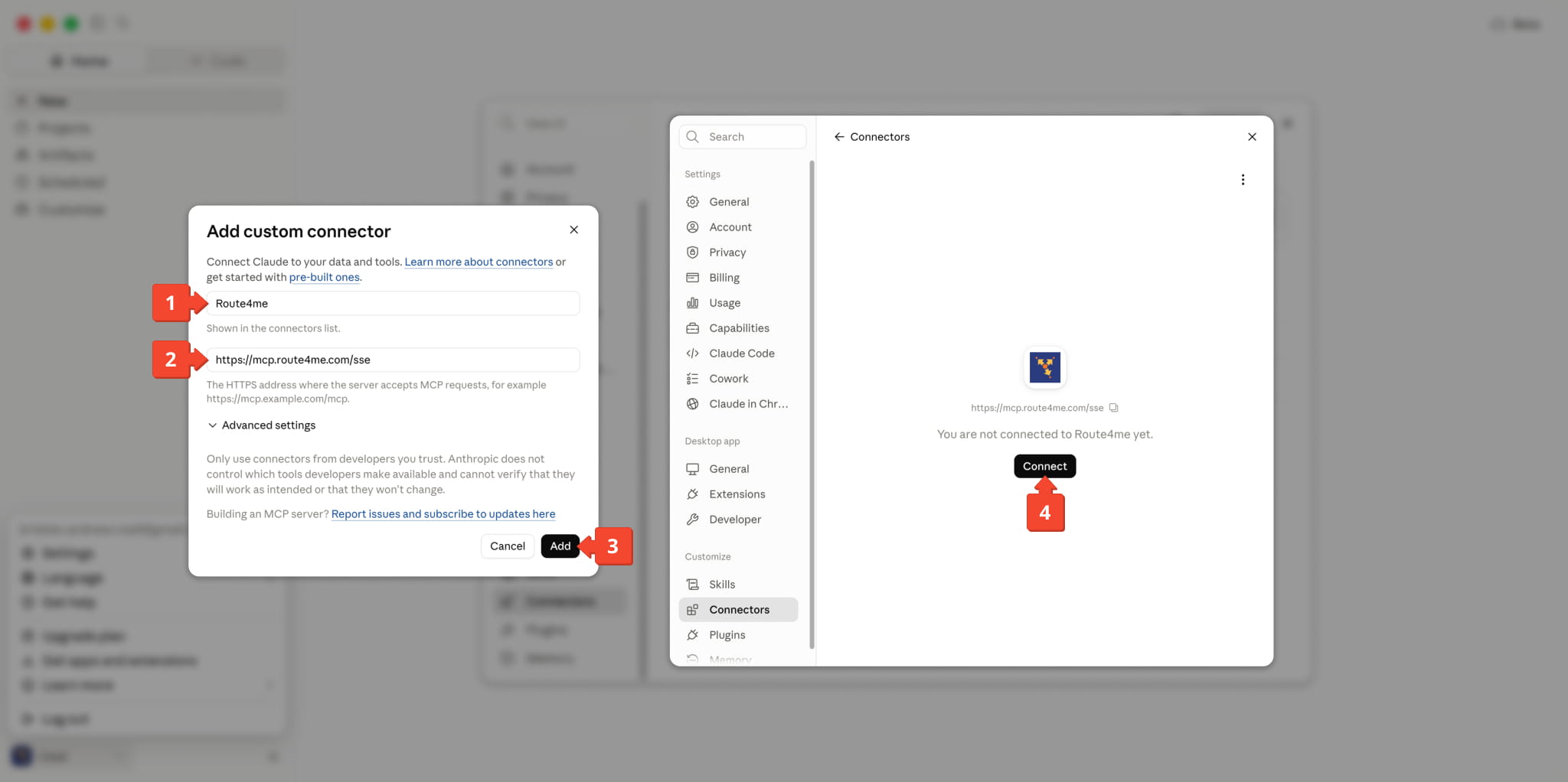
Next, set up the MCP server connector by following these steps:
- Enter a name (e.g., “Route4Me“) which will be shown in the connectors list.
- Add the server URL: ““
- Click “Add“. You’ll see the server in your “Connectors“
- Click “Connect“.
Enter your Route4Me API Key when prompted to finalize.
NOTE: Remote MCP server support in Claude Desktop is available on Pro, Max, Team, and Enterprise plans.
Method 2 – Via Config File
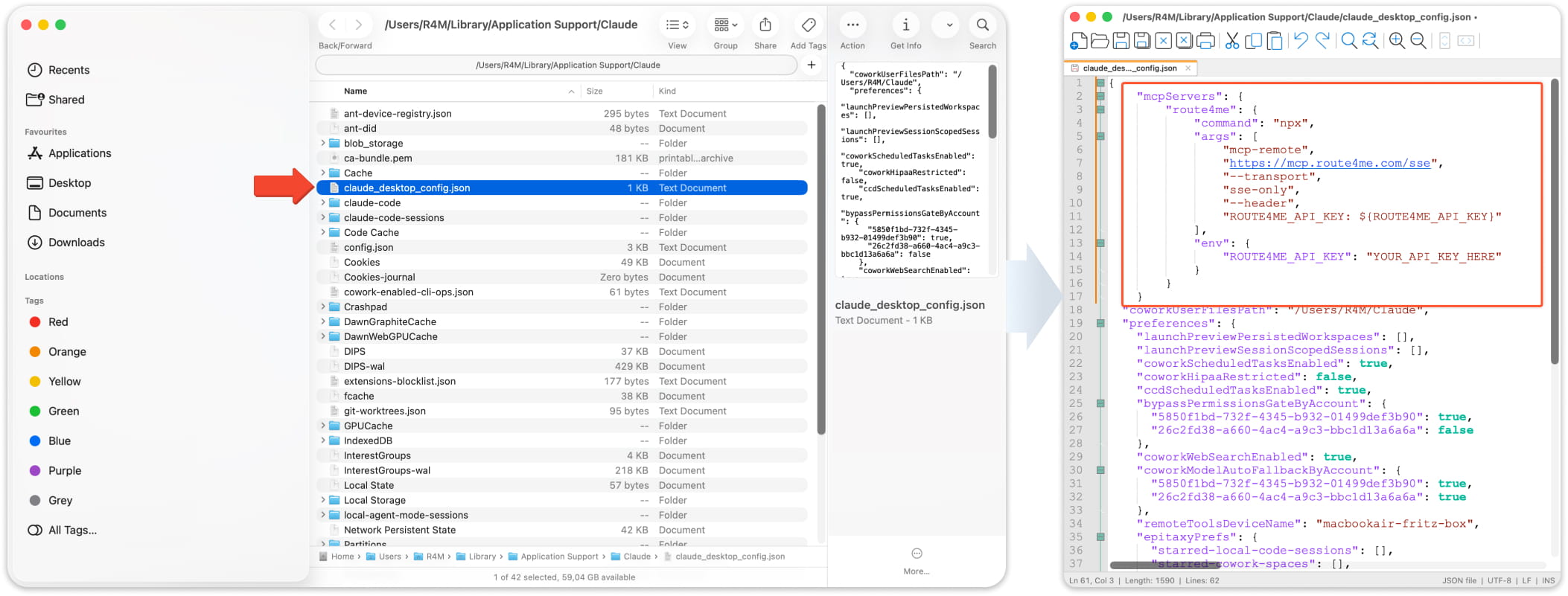
This method uses a JSON configuration file with the “mcp-remote” bridge. Before getting started, make sure you have Node.js (v18 or later) installed on your computer. Next, follow these steps to open the file:
- Open Claude Desktop, click your profile picture and select “Settings“.
- Go to the “Desktop app” section and select “Developer“.
- Click “Edit Config“.
Alternatively, you can open the configuration file manually at the following path for your operating system:
- macOS: ~/Library/Application Support/Claude/claude_desktop_config.json
- Windows: %APPDATA%\Claude\claude_desktop_config.json
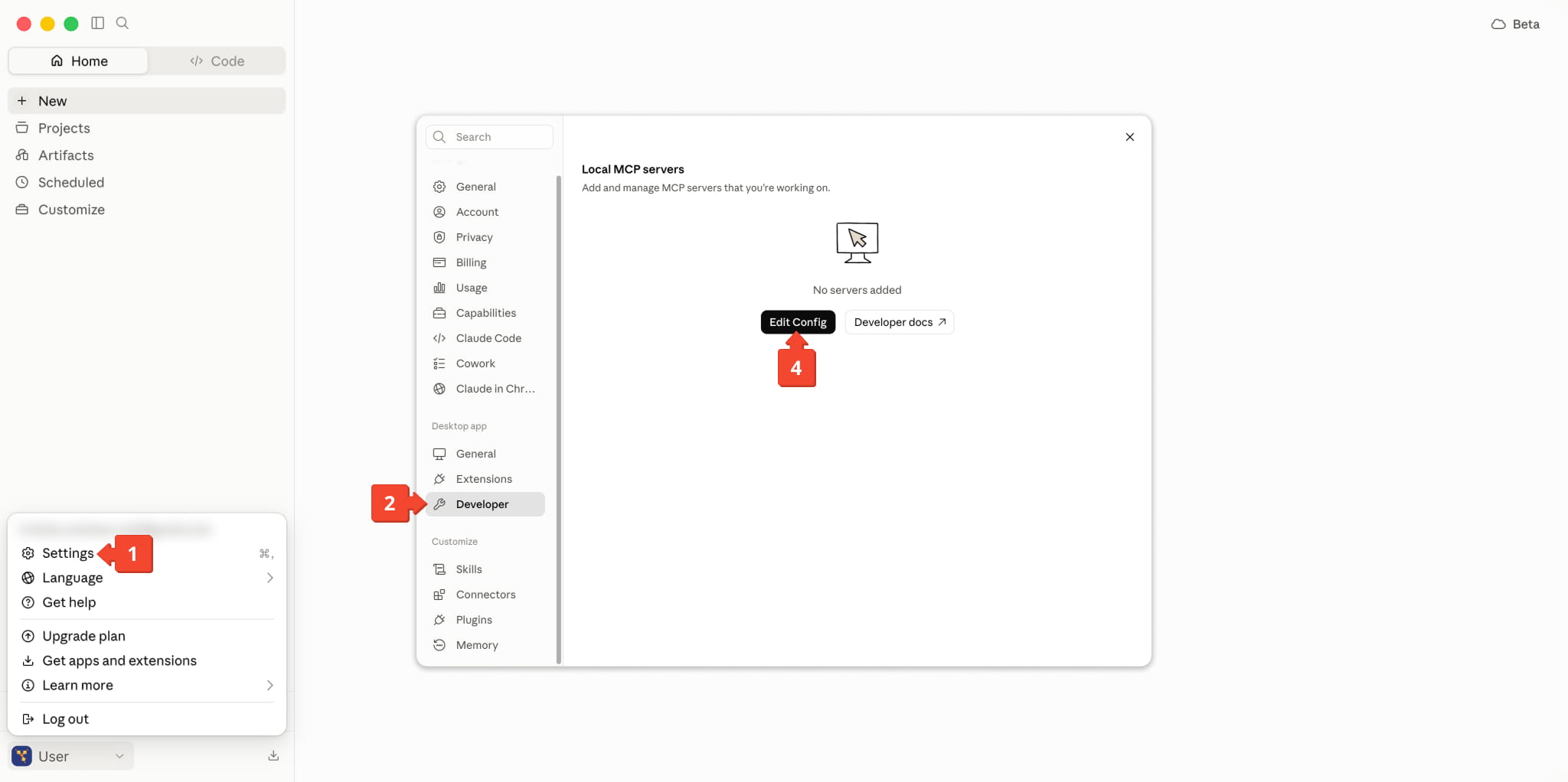
Next, paste the JSON code shown below the image into the configuration file. Replace the colored text with your Route4Me API Key. After saving the file, quit and restart Claude Desktop. The Route4Me tools will appear in Claude’s tool catalog.
macOS / Linux:
{
  "mcpServers": {
    "route4me": {
      "command": "npx",
      "args": [
        "mcp-remote",
        "https://mcp.route4me.com/sse",
        "--transport",
        "sse-only",
        "--header",
        "ROUTE4ME_API_KEY: ${ROUTE4ME_API_KEY}"
      ],
      "env": {
        "ROUTE4ME_API_KEY": "YOUR_API_KEY_HERE"
      }
    }
  }
}
Windows:
{
  "mcpServers": {
    "route4me": {
      "command": "npx.cmd",
      "args": [
        "mcp-remote",
        "https://mcp.route4me.com/sse",
        "--transport",
        "sse-only",
        "--header",
        "ROUTE4ME_API_KEY: ${ROUTE4ME_API_KEY}"
      ],
      "env": {
        "ROUTE4ME_API_KEY": "YOUR_API_KEY_HERE"
      }
    }
  }
}
NOTE: On Windows, use “npx.cmd” instead of “npx”. The .cmd extension is required by Claude Desktop on Windows.
ChatGPT – Connection and Setup
ChatGPT connects to the Route4Me MCP Server through its Connectors feature. No configuration files are needed. Everything is done through the ChatGPT interface.
- Open ChatGPT on the web (chat.openai.com) and enable Developer Mode in Settings.
- Go to “Settings” > “Connectors” (or the MCP Servers section).
- Click “Add Connector” and enter the details from the table below.
- Click “Save“. ChatGPT will discover all available Route4Me tools and display them in the tool panel.
NOTE: ChatGPT MCP support requires a Plus, Pro, Team, Business, Enterprise, or Education subscription. The Connectors feature is currently available on the web. Refer to OpenAI’s documentation for the latest availability details.
ChatGPT MCP Setup Fields
Server Name
route4me
Server URL
https://mcp.route4me.com/sse
Authentication Header
ROUTE4ME_API_KEY: YOUR_API_KEY_HERE
Write Guard (optional)
X-MCP-Allow-Write: true
Cursor – Connection and Setup
Cursor natively supports remote MCP servers, so no additional bridge or setup is needed. Create or edit the configuration file at .cursor/mcp.json (project-specific) or ~/.cursor/mcp.json (global), and add the following:
{
  "mcpServers": {
    "route4me": {
      "url": "https://mcp.route4me.com/sse",
      "headers": {
        "ROUTE4ME_API_KEY": "YOUR_API_KEY_HERE"
      }
    }
  }
}
Alternatively, go to “Settings” > “MCP Servers” in the Cursor UI and add a new server using the details from the table below. Be sure to save the configuration and reload Cursor. All Route4Me tools will appear in the agent tool panel.
Cursor MCP Setup Fields
Name
route4me
Type
sse
Server URL
https://mcp.route4me.com/sse
Headers
ROUTE4ME_API_KEY: YOUR_API_KEY_HERE
Route4Me MCP Server – Authentication and Access Settings
All requests to the Route4Me MCP Server must include your Route4Me API Key as an HTTP header. The server uses this key to verify your identity and connect requests to your Route4Me account.
To access and copy your API Key, go to “Settings” > “Organization Settings” > “API Key” from the Navigation Menu. You’ll see your API key in the “Route4Me API” field. Click the Copy Icon to copy it to the clipboard.
NOTE: Your API key grants access to your Route4Me account data. Never share your API key publicly, commit it to source control, or embed it in client-side code. Store it securely using environment variables or a secrets manager.
By default, the Route4Me MCP Server operates in read-only mode, meaning write operations, such as creating routes, updating orders, or deleting destinations, are blocked.
To enable write operations, include the following header in your connection configuration:
X-MCP-Allow-Write: true
NOTE: Route4Me recommends keeping write operations disabled during initial setup and testing. Only enable write access once you have validated your AI assistant’s behavior in your environment.
MCP Server Response Format – Text Summaries And Structured JSON
Every tool call to the Route4Me MCP Server returns a response containing two content blocks:
- Human-readable text summary: A plain-language description of the results that your AI assistant uses in conversation.
- Structured JSON resource: The complete data payload, identified by a route4me:// URI, available for downstream processing or follow-up queries.
This dual-format approach allows your AI assistant to provide clear, conversational answers while retaining full access to the underlying data for multistep operations. Here is an example of the response structure:
{
  "content": [
    {
      "type": "text",
      "text": "Found 3 active routes scheduled for today..."
    },
    {
      "type": "resource",
      "resource": {
        "uri": "route4me://routes/list",
        "mimeType": "application/json",
        "text": "{\"routes\": [{...}, {...}, {...}]}"
      }
    }
  ]
}
AI-Powered Routing Capabilities – Platform Tool Domains
The Route4Me MCP Server provides access to 17+ tool domains, each covering a major area of the Route4Me platform. The table below summarizes each domain and its primary capabilities.
NOTE: By default, only “Read” operations are available within each domain. To access “Create“, “Update“, and “Delete” operations, enable the “X-MCP-Allow-Write: true” header in your connection configuration.
MCP Server Capabilities
Work with saved optimization profiles.
List profiles, get details and templates.
Route Status
Track real-time execution status of routes.
Get route status, list statuses across fleet.
Automate Last Mile Routing – AI Agent Workflow Examples
The following examples show how your AI assistant can help automate common routing tasks in Route4Me:
Plan And Optimize A New Route
Example prompt:
Create an optimized route for tomorrow starting at our
warehouse at 123 Main St, Chicago, IL. Include these 8
delivery stops: [address list]. Use round-trip optimization
and set service time to 10 minutes per stop.
Your AI assistant will use the Optimization domain to create a new route with the specified parameters, addresses, and constraints.
Check Route Progress And Status
Example prompt:
Show me the current status of all active routes for today.
Which drivers are behind schedule?
Your AI assistant will combine the Routes and Route Status domains to list today’s routes, check execution progress, and identify any routes running behind schedule.
Geocode And Validate Addresses
Example prompt:
Geocode these 50 customer addresses and tell me which
ones have low confidence scores that need manual review.
Your AI assistant will use the Geocoding domain’s bulk geocoding capability to process the addresses and flag any with low confidence scores for review.
Review Fleet Telematics Data
Example prompt:
What are the current GPS positions of all our delivery
vehicles? Show me which are nearest to our downtown facility.
Your AI assistant will use the Telematics and Vehicles domains to retrieve real-time GPS positions and calculate proximity to the specified facility.
MCP Connection Endpoints – Developer Reference
The Route4Me MCP Server supports the following connection endpoints. All connections use HTTPS. Contact Route4Me Support for access and onboarding.
MCP Server Endpoints
JSON-RPC
/mcp
HTTP POST (JSON-RPC)
Preferred connection endpoint. Supports standard JSON-RPC request/response over HTTP.
SSE
/sse
Server-Sent Events
Legacy/streaming endpoint. Use for clients that require SSE transport, such as Claude Desktop via mcp-remote and ChatGPT Connectors.
Health
/health
HTTP GET
Server health status. Use for connectivity checks and monitoring.
MCP Integration – Troubleshooting And FAQs
If you’re unable to find the answer you’re looking for, please contact Route4Me Support for assistance.
Verify that your MCP client is configured with the correct Route4Me MCP Server URL and that your “ROUTE4ME_API_KEY” header is set with a valid API key. Restart your AI client after making any configuration changes.
If the issue persists, visit the Route4Me Support Portal or contact Route4Me Support for assistance.
Confirm that your Route4Me API Key is active and correctly copied. Follow the step-by-step instructions in the API Key guide to locate and copy your key. Make sure there are no extra spaces or line breaks in the key value.
If you continue to experience issues, contact Route4Me Support.
The MCP Server operates in read-only mode by default to protect your data. Write operations are blocked until you explicitly enable them by adding the “X-MCP-Allow-Write: true” header to your connection configuration.
See the “Authentication and Access Settings” section above for details.
The Route4Me MCP Server works with all major MCP-compatible AI clients, including Claude Desktop, ChatGPT, Cursor, and custom-built agents.
See the “Connect Your AI Assistant” section above for step-by-step setup instructions for each client.
Yes. Any application that implements the MCP client protocol can connect to the Route4Me MCP Server. You can build custom AI agents in Python, Node.js, or any other language.
Refer to the MCP Protocol Documentation for implementation details, or contact Route4Me Support for guidance.
The following resources are available to help you get the most out of the Route4Me MCP Server:
- Route4Me API and SDK Docs – Overview of available APIs and SDKs.
- Route4Me API Key Guide – How to access and copy your API key.
- Route4Me GitHub – Open-source SDKs in Python, C#, Java, PHP, Node.js, Ruby, Go, and more.
- Route4Me Support Portal – Guides for route planners, dispatchers, drivers, and admins.
- Model Context Protocol (MCP) Specification – Official MCP documentation and protocol reference.
- Contact Route4Me – Reach our team for onboarding, API key provisioning, and technical assistance.
Visit Route4Me's Marketplace to Check out Associated Modules:
- Operations
Custom Data Add-On
- Operations
Advanced Team Management Add-On
About author: Daniel Archer

