
Distance Units – Configure Miles And Kilometers Across Your Account
Route4Me lets you configure how distance values are displayed throughout your account, ensuring consistency across your routes and fleet management workflows. This guide explains how to set your preferred Distance Unit – miles (Imperial) or kilometers (Metric) – and where that setting is applied. Once configured, your chosen unit is automatically reflected everywhere distance data appears, from your Routes List and route filters to exports and the Route Editor.
Table of Contents
Manage Distance Units In Your Account
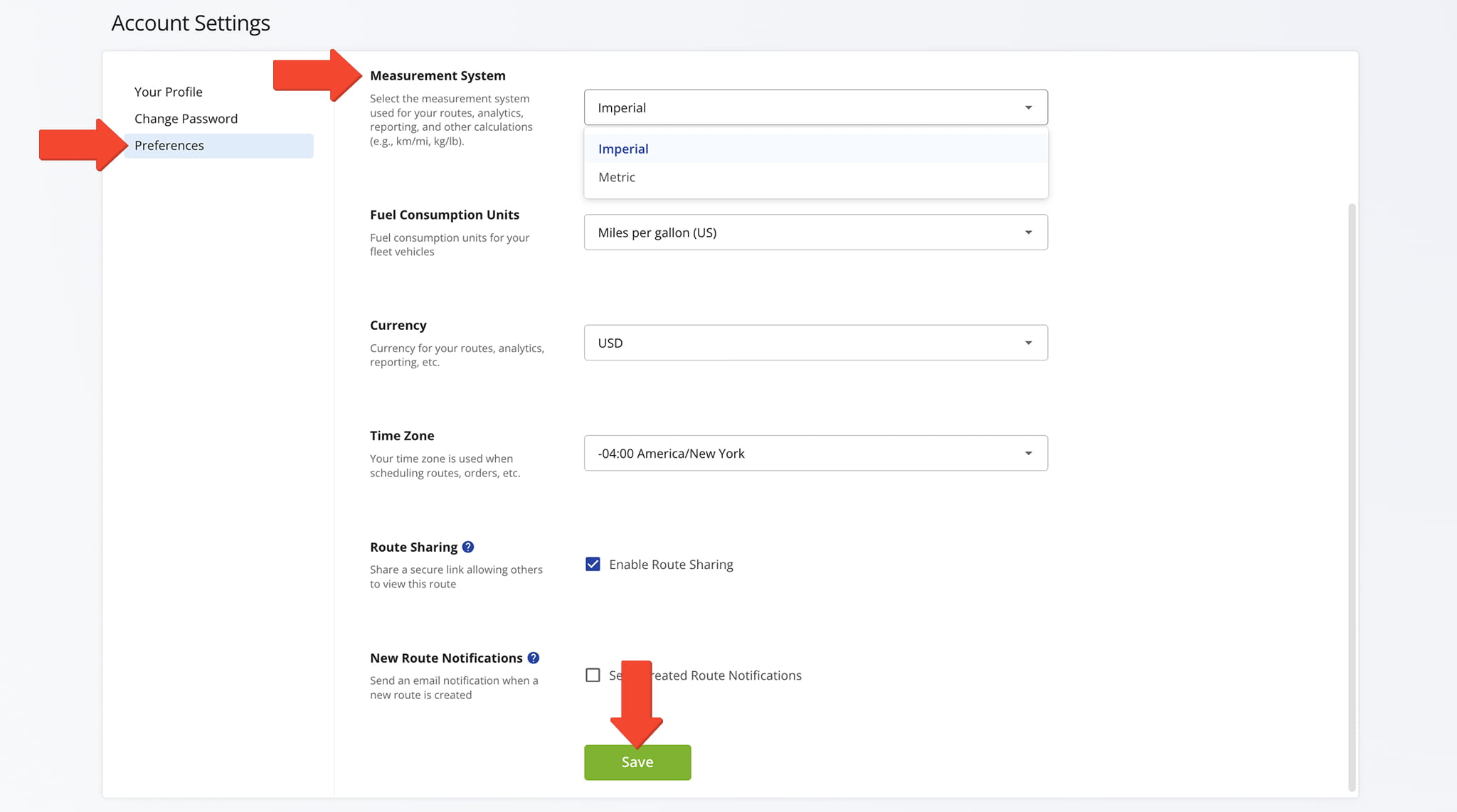
To access Distance Units settings, click “Settings” > “Account Settings” from the Navigation Menu, then open the “Preferences” tab. From the “Measurement System” field, select “Imperial” (for miles) or “Metric” (for kilometers) and click “Save“.
The setting is account-wide. It affects all routes and applies to all users under the account. Sub-users inherit the Distance Unit from the Account Owner and cannot override it independently.
NOTE: Your Distance Unit setting also affects your Fuel Consumption Units and Speed Units. For example, selecting kilometers (Metric) changes speed displays from mph to km/h throughout your account.
View Distance Units Across Your Account
Your preferred Distance Unit – miles (Imperial) or kilometers (Metric) – is automatically applied wherever distance values appear in your account. The following examples show some, but not all, of the areas where this setting takes effect.
Routes List – View Planned And Actual Distances
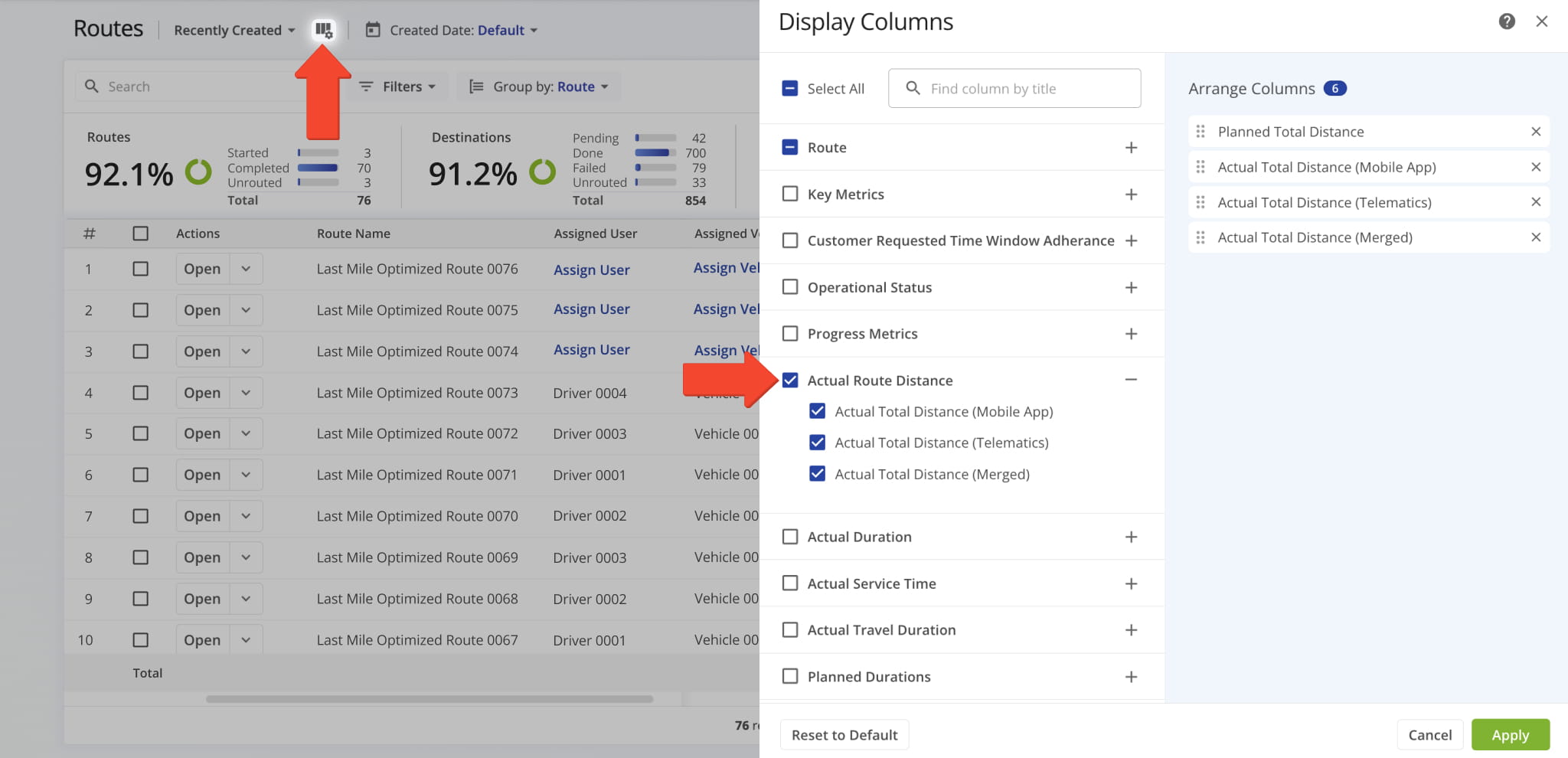
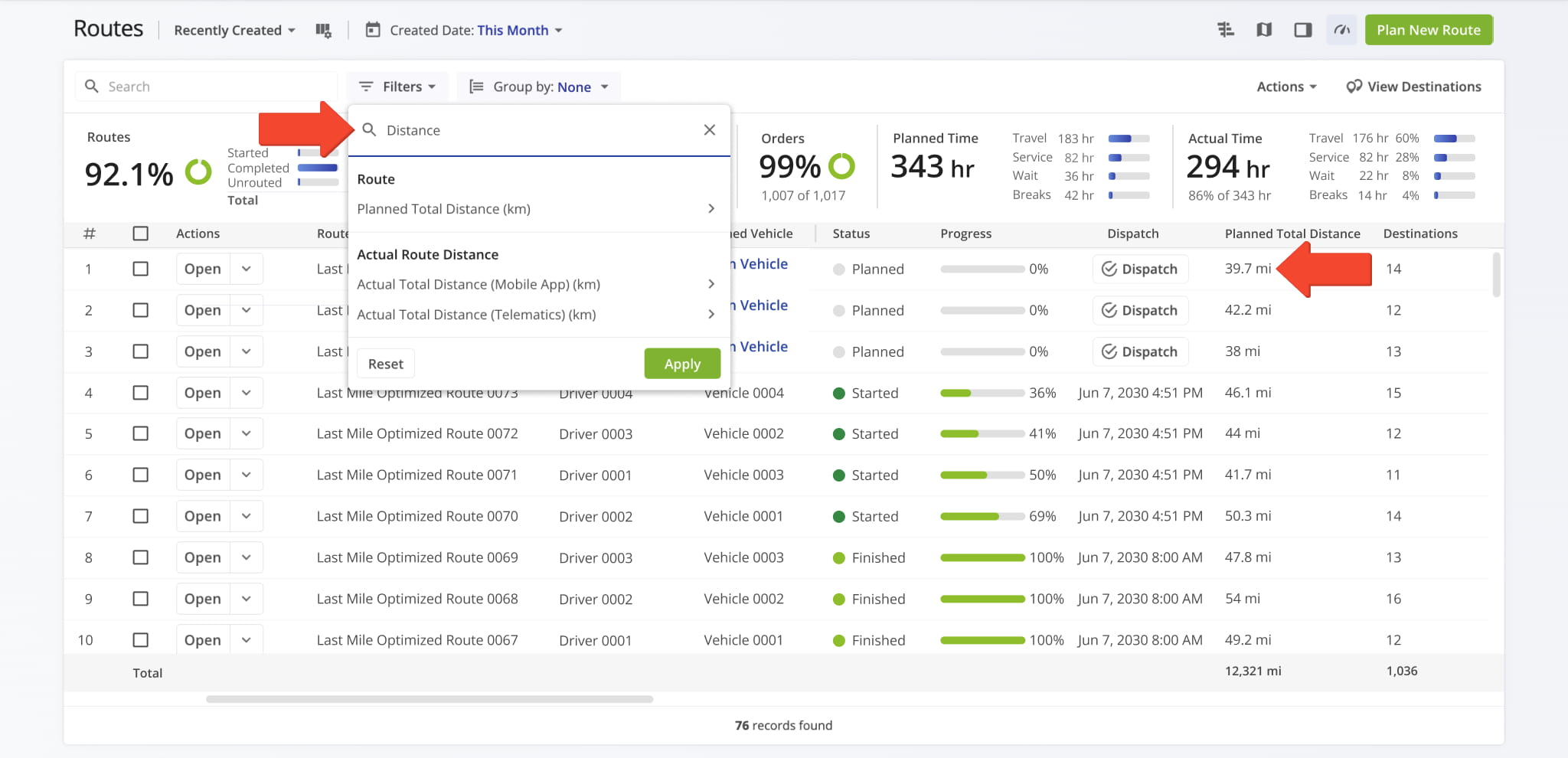
From your Routes List, you can view distance-related metrics – “Planned Total Distance” and “Actual Total Distance” data – according to your preferred Distance Unit setting.
NOTE: Distance Units displayed in Route Snapshots also reflect your configured setting.
Route Filters – Filter Routes By Distance
When filtering routes by distance from your Routes List, the filter dropdown uses your selected unit abbreviation – “mi” for miles, “km” for kilometers.
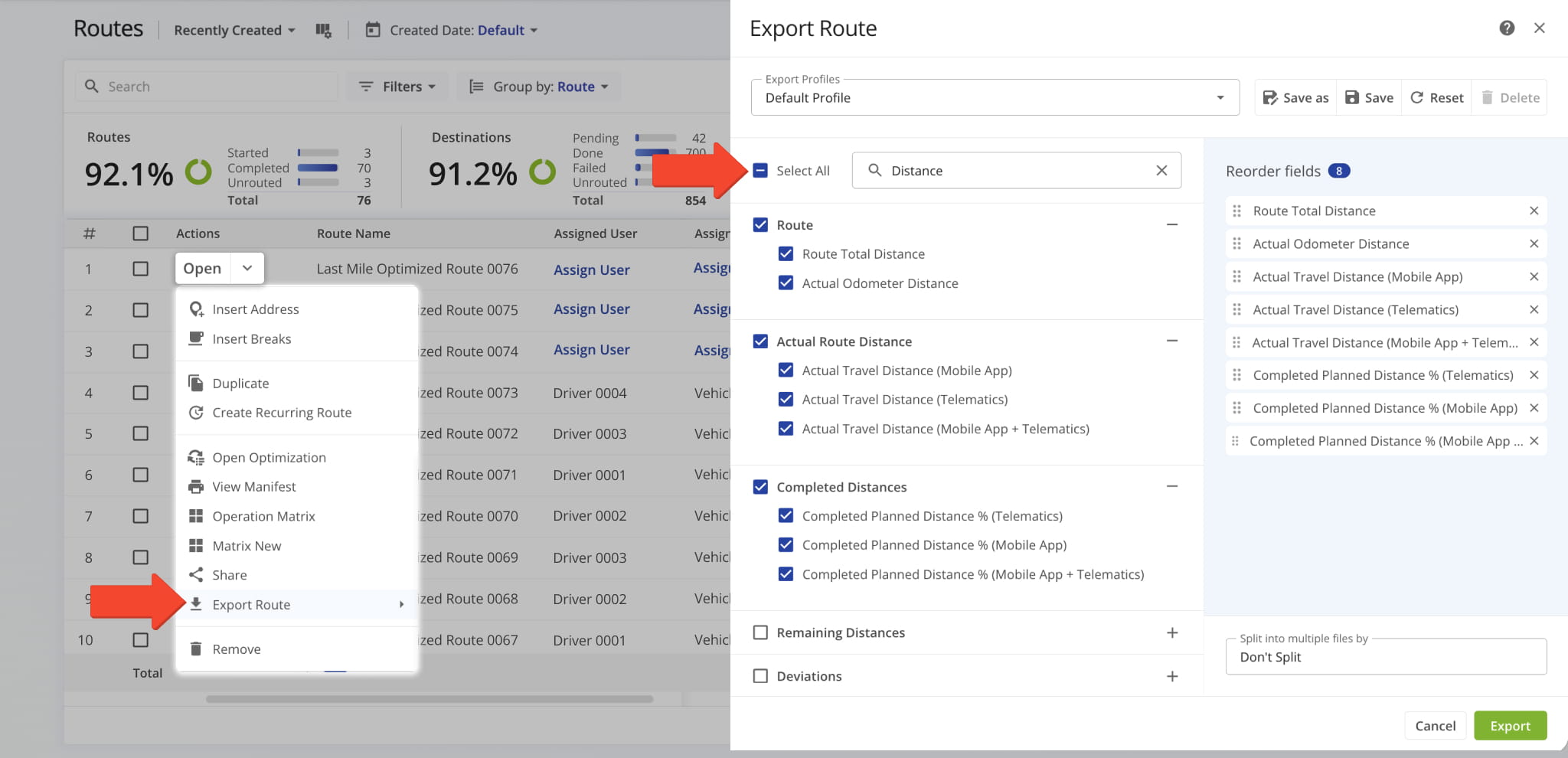
Route Exports – Export Route Data With Preferred Distance Values
When exporting routes, all distance columns reflect your chosen unit. Column headers will display the appropriate abbreviation (“mi” or “km“).
NOTE: If you notice exported distances appearing in an unexpected unit (such as feet), please contact Support. Distances should always export in miles or kilometers consistent with your account setting.
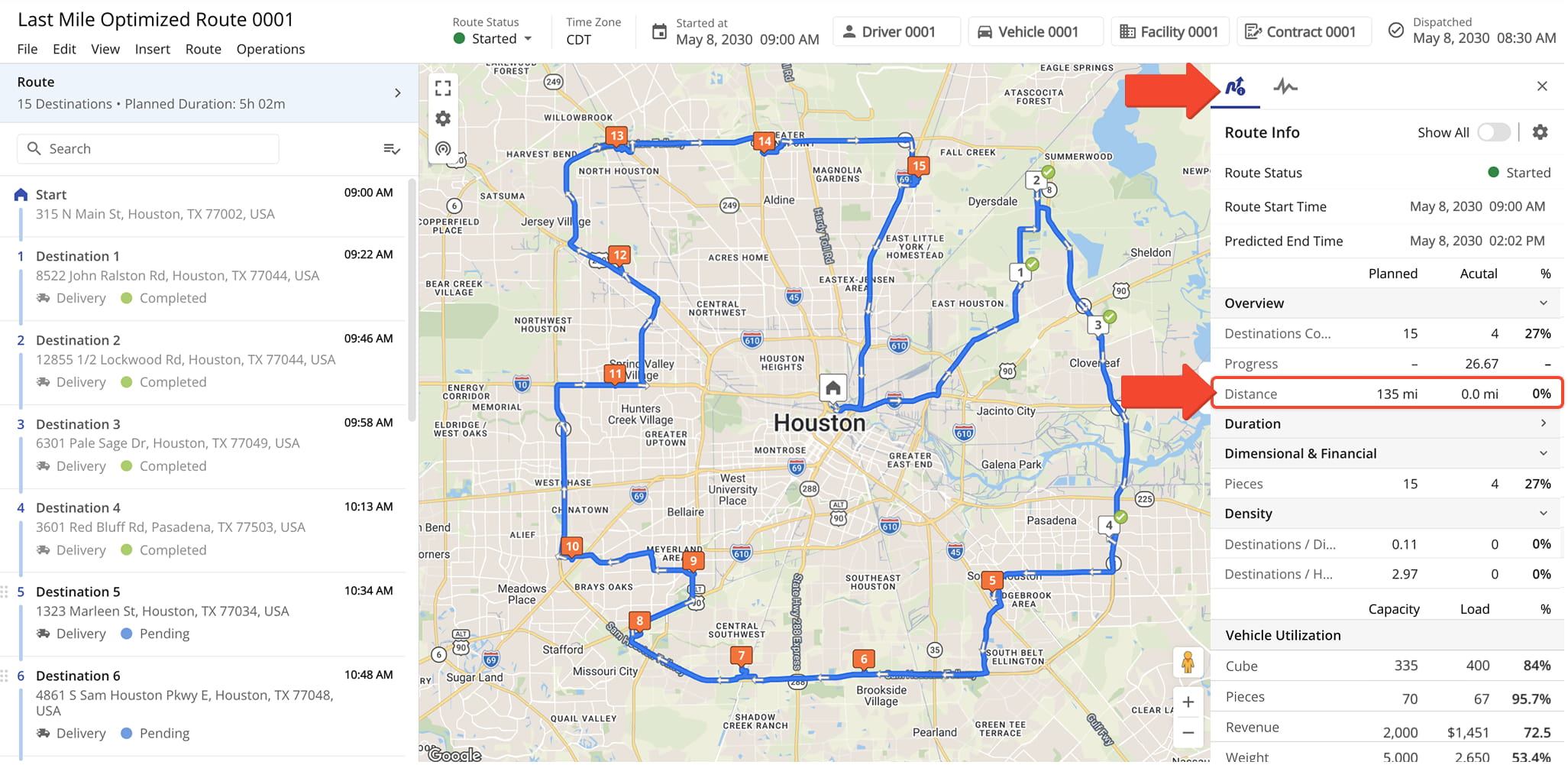
Route Editor – Review Distance Data In The Informational Panel
The Route Editor’s Information Panel displays aggregated route data, including distance values, in your chosen unit – miles or kilometers.
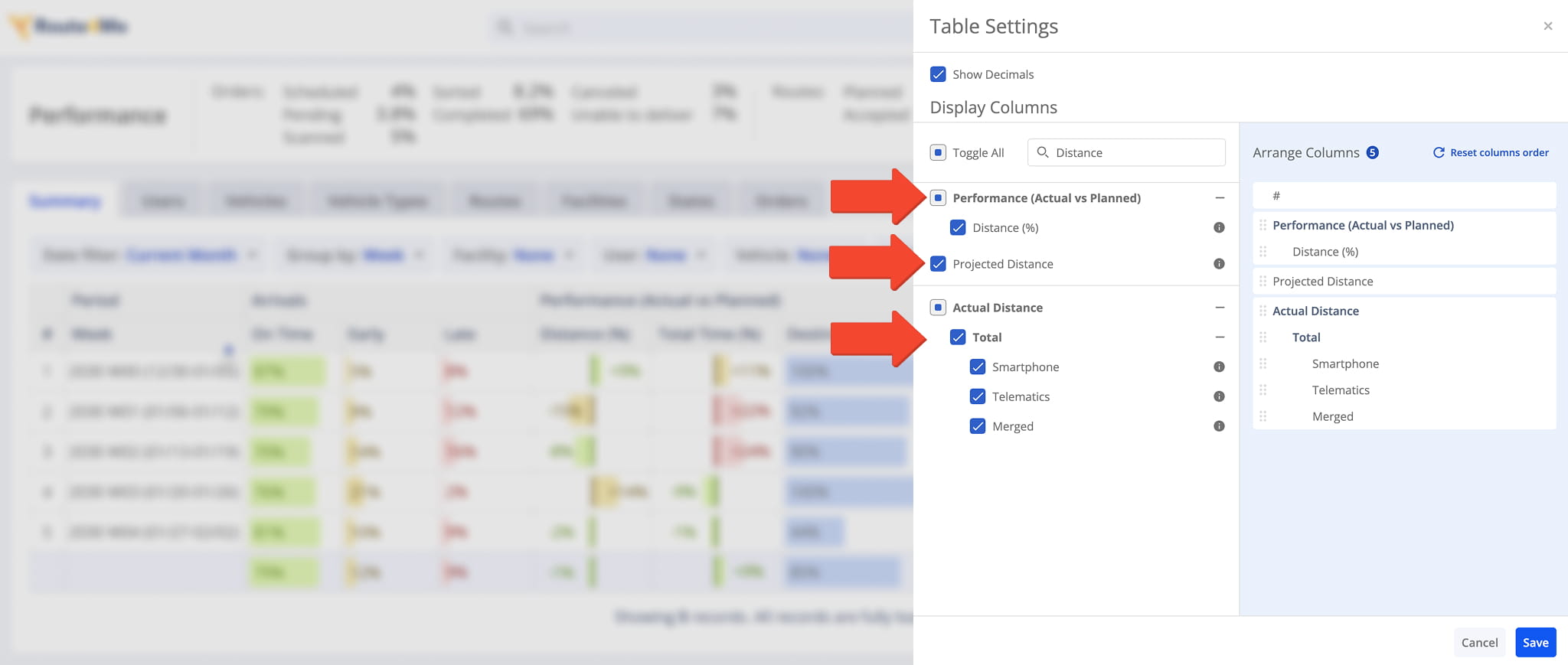
Business Insights – View Distance Units In Data Table
From Business Insights, you can configure your data table to include distance-related columns, all displayed in miles (Imperial) or kilometers (Metric), consistent with your Account Settings.
Visit Route4Me's Marketplace to Check out Associated Modules:
- Route Optimization
Mixed Vehicles Routing
- Route Optimization
Route Optimization for Multiple Drivers Without Advanced Constraints
- Route Optimization
Commercial Vehicle Route Planning
About author: Daniel Archer

