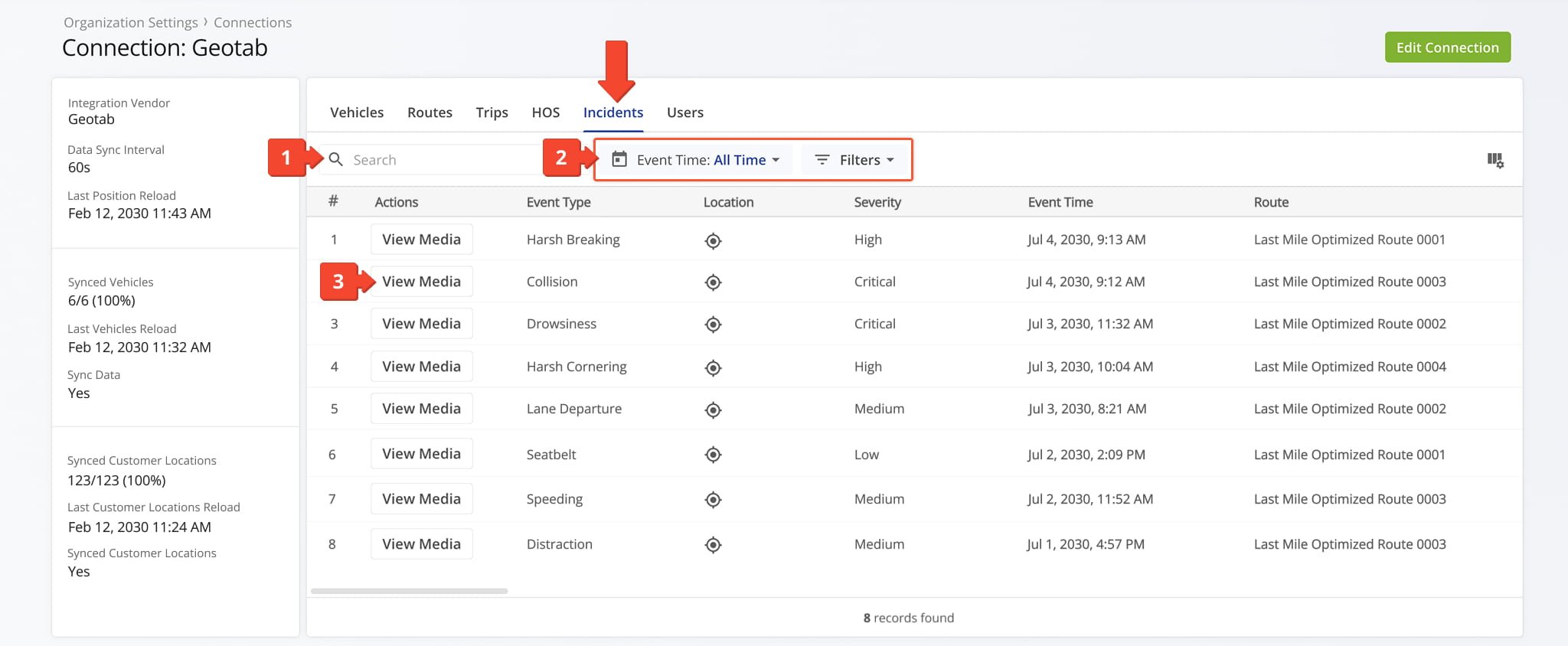
Telematics Snapshot – Telematics Connection Data Page And Analytics Summary
Route4Me’s Telematics Snapshot is an intuitive analytics tool that provides an overview of any Telematics Vendor Integration on your account. It brings vehicle data, route information, and key metrics from your Telematics Connection into one place, giving you visibility into fleet activity and performance. With a Telematics Snapshot, you can track synchronized vehicles, monitor last sync timestamps, and review detailed insights into vehicles, locations, routes, and individual trips to improve fleet efficiency.
Table of Contents
Open Telematics Snapshot – Telematics Data And Analytics Overview
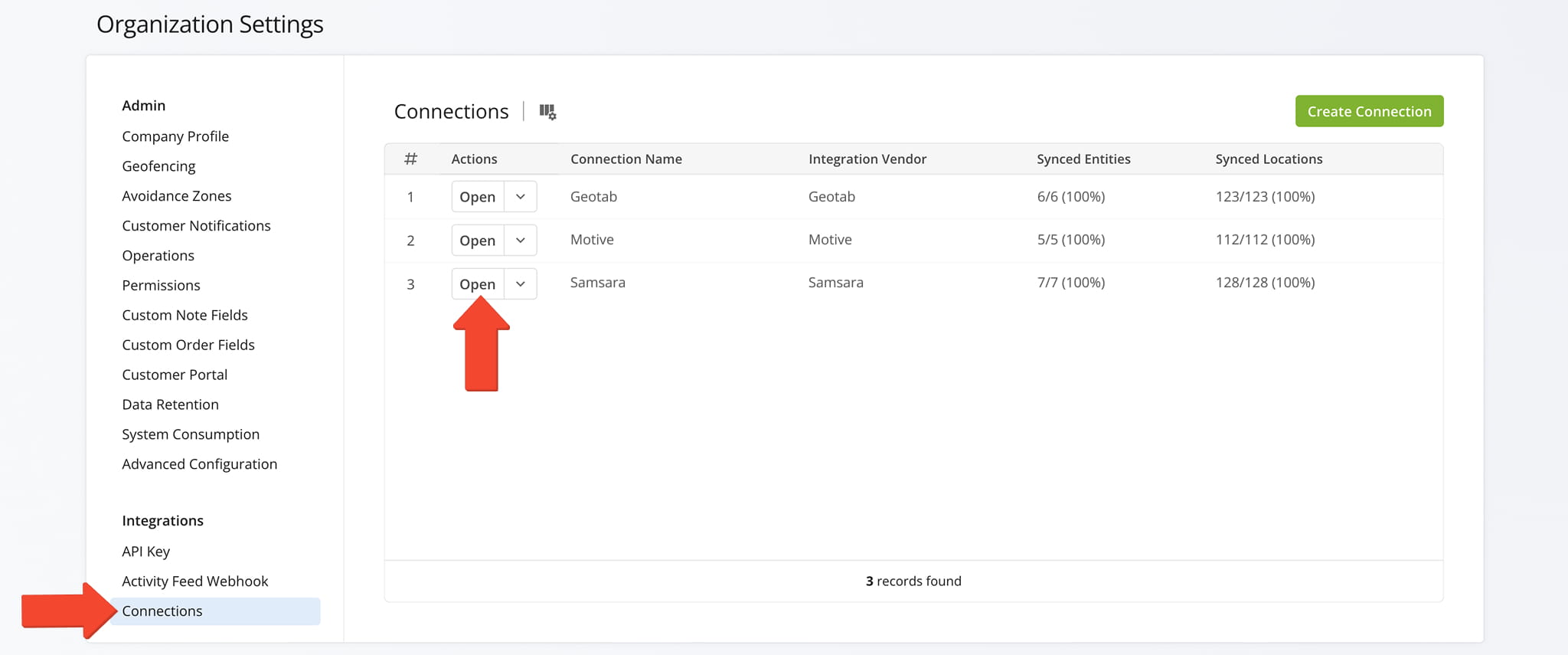
To open the Telematics Snapshot for any Telematics Connection, go to “Settings” > “Organization Settings” from the Navigation Menu. Then, click “Connections” > “Open” next to the desired connection.
Open Your Telematics Connections
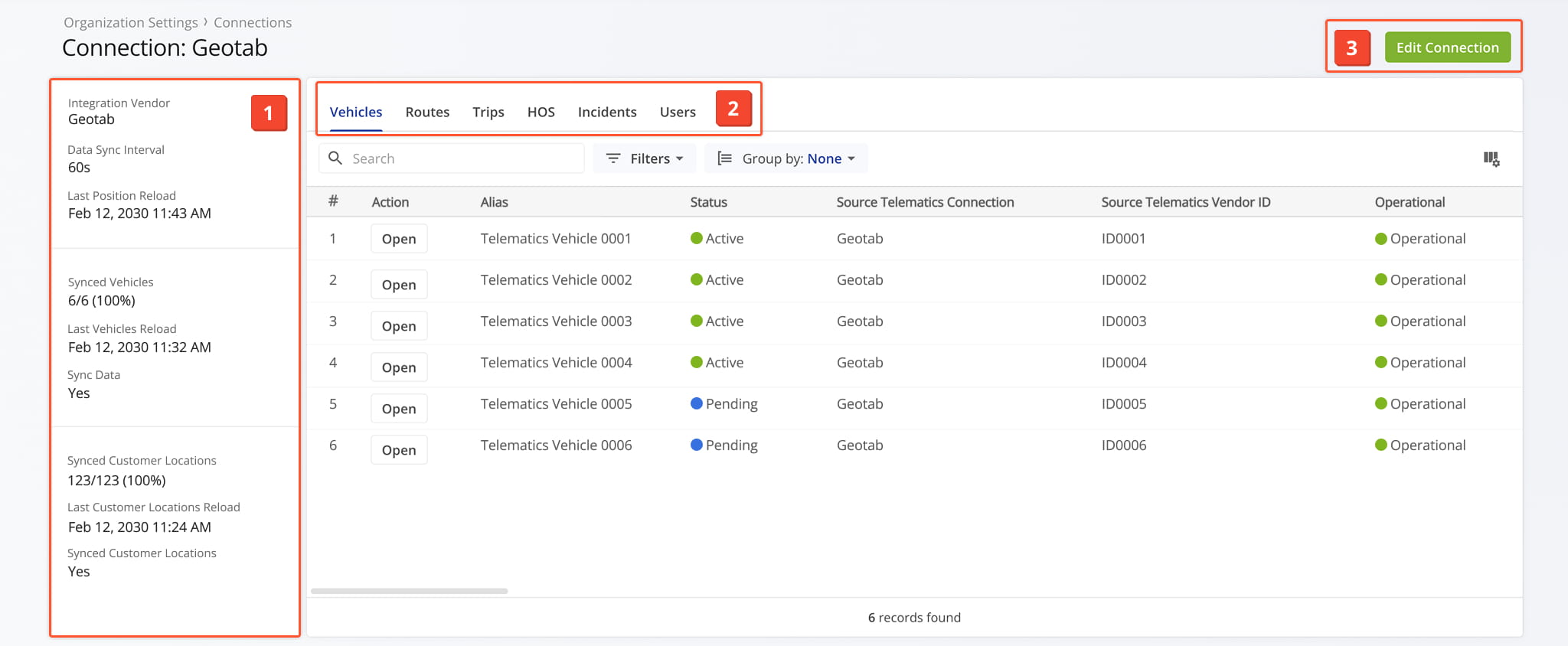
One the Snapshot is opened, you’ll see a detailed interface designed to help you review and manage all telematics data:
- Connection Summary: An overview of essential information related to the telematics connection.
- Connection Tabs: Switch between multiple tabs to explore telematics connection data which you can filter and customize as needed.
- Edit Controls: Click the “Edit Connection” button to modify connection details.
Telematics Information Panel – Integration, Sync Status, Data Overview
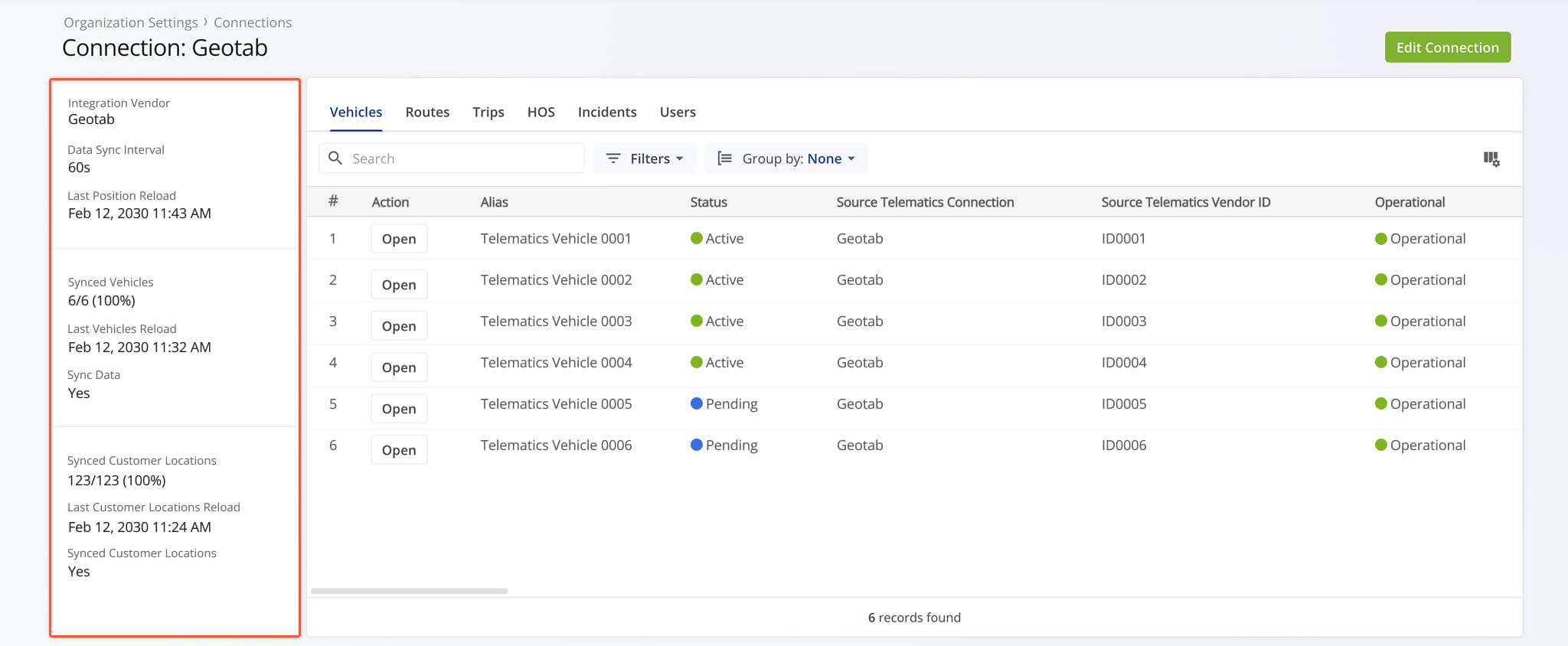
The Telematics Summary panel on the left provides an overview of the selected connection.
It shows the integration vendor, data sync interval, the number and percentage of synced vehicles and customer locations, and the date and time of the last vehicle and customer data updates.
Telematics Snapshot Categories – Analytics Overview Data Tabs
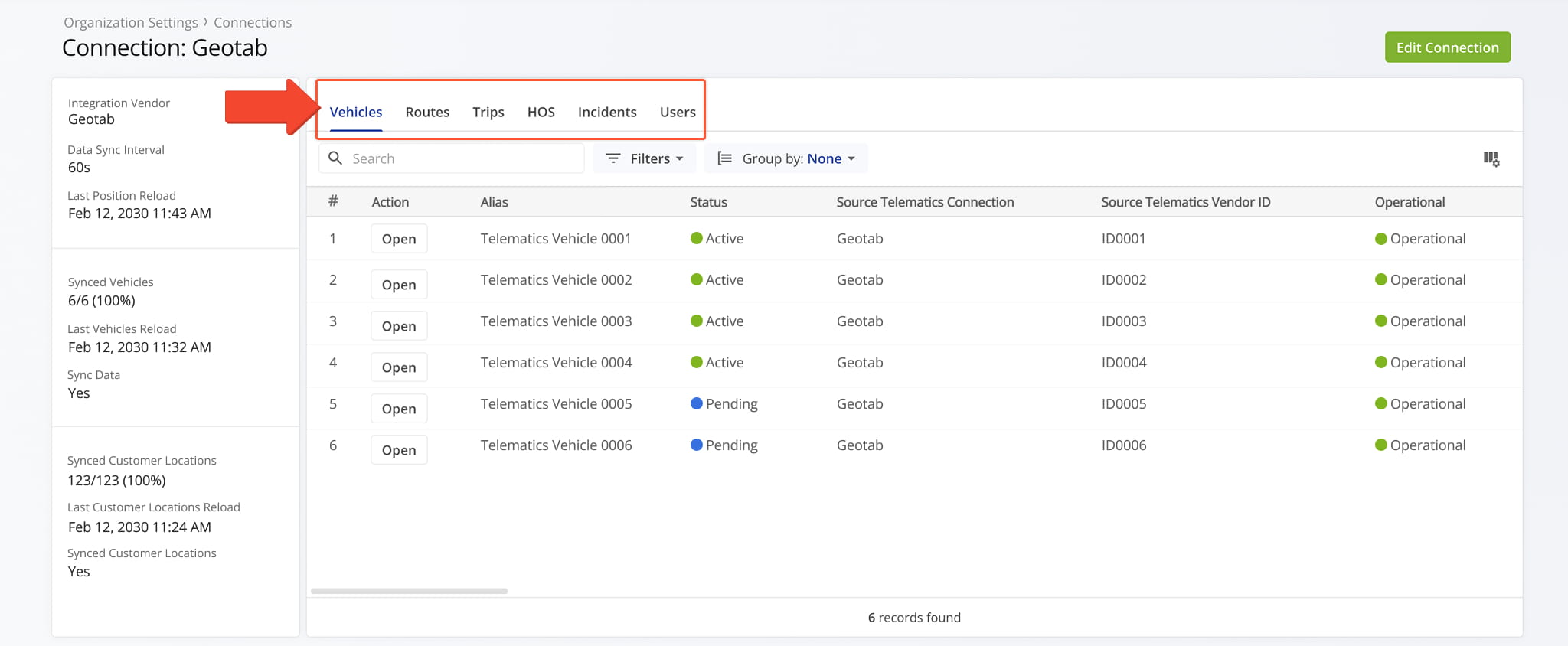
The Telematics Snapshot is organized into multiple tabs, each corresponding to a specific category of connected data.
The tabs include Vehicles, Locations, Routes, Trips, HoS, and Users. NOTE: The Locations tab is available only for accounts using a Geotab or Samsara integration. Each tab is described in detail below.
Vehicles Tab – Telematics Vehicle Data Overview
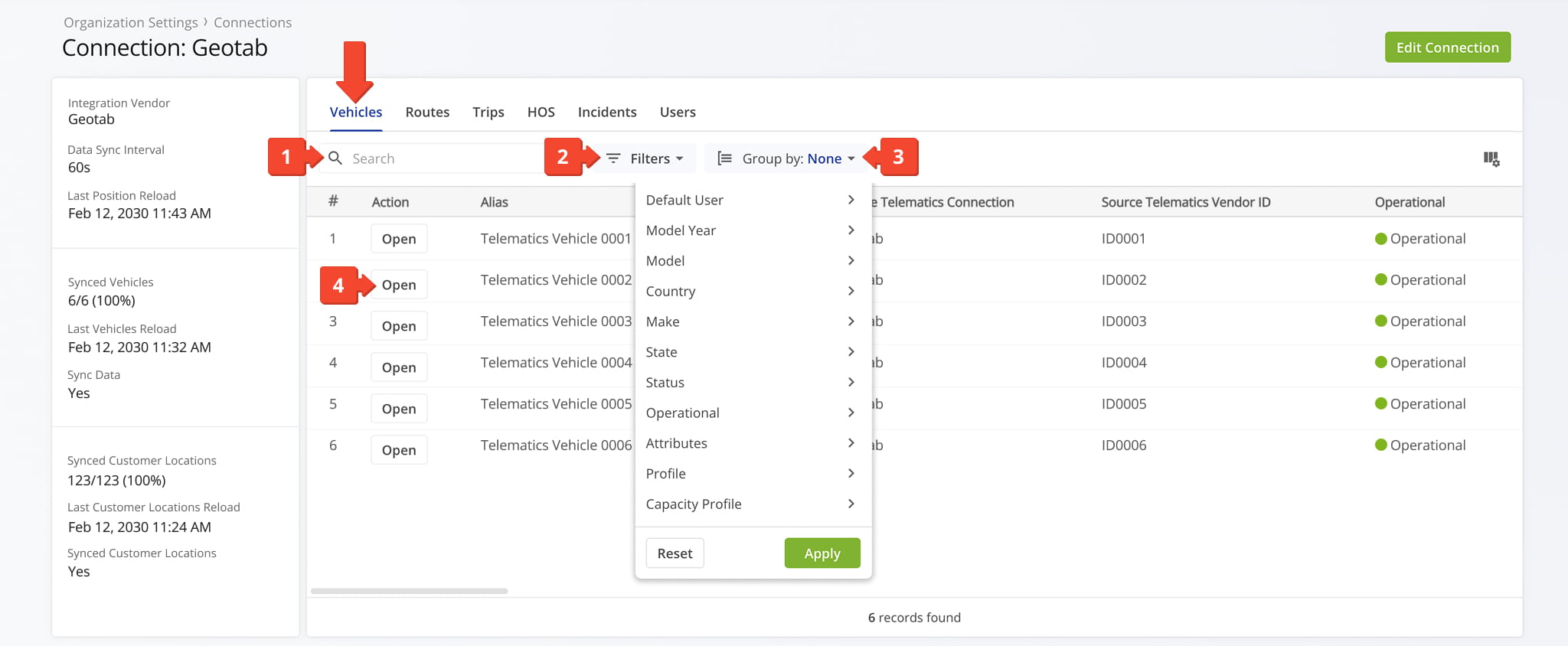
The Vehicles tab provides an overview of all vehicles synced with the selected Telematics Connection, displayed in a customizable data table. From this tab, you can manage and organize the vehicle data using the following features:
- Search: Locate specific vehicles quickly by entering keywords or vehicle identifiers.
- Filters: Narrow down the data by options such as default user, model year, model, and many other criteria detailed in the table below.
- Group By: Organize the table by attributes like status, make, model, facility, and additional categories detailed in the table below.
- “Open” Button: Click “Open” next to any vehicle to open its Vehicle Snapshot.
Keywords
Enter a keyword to search for specific customer locations.
Select location types added to your Route4Me account, such as customers, warehouses, or depots.
Routing Status
Filter customer locations by routed or unrouted status.
Search by user name or email to view assigned locations.
No. of Routes
Filter by the minimum or maximum number of assigned routes.
No. of Visits
Filter by the minimum or maximum number of visits.
Search by configured territory names in your account.
Last Visited
Filter by a specific date or date range of the last visit.
Search by customer name in your account.
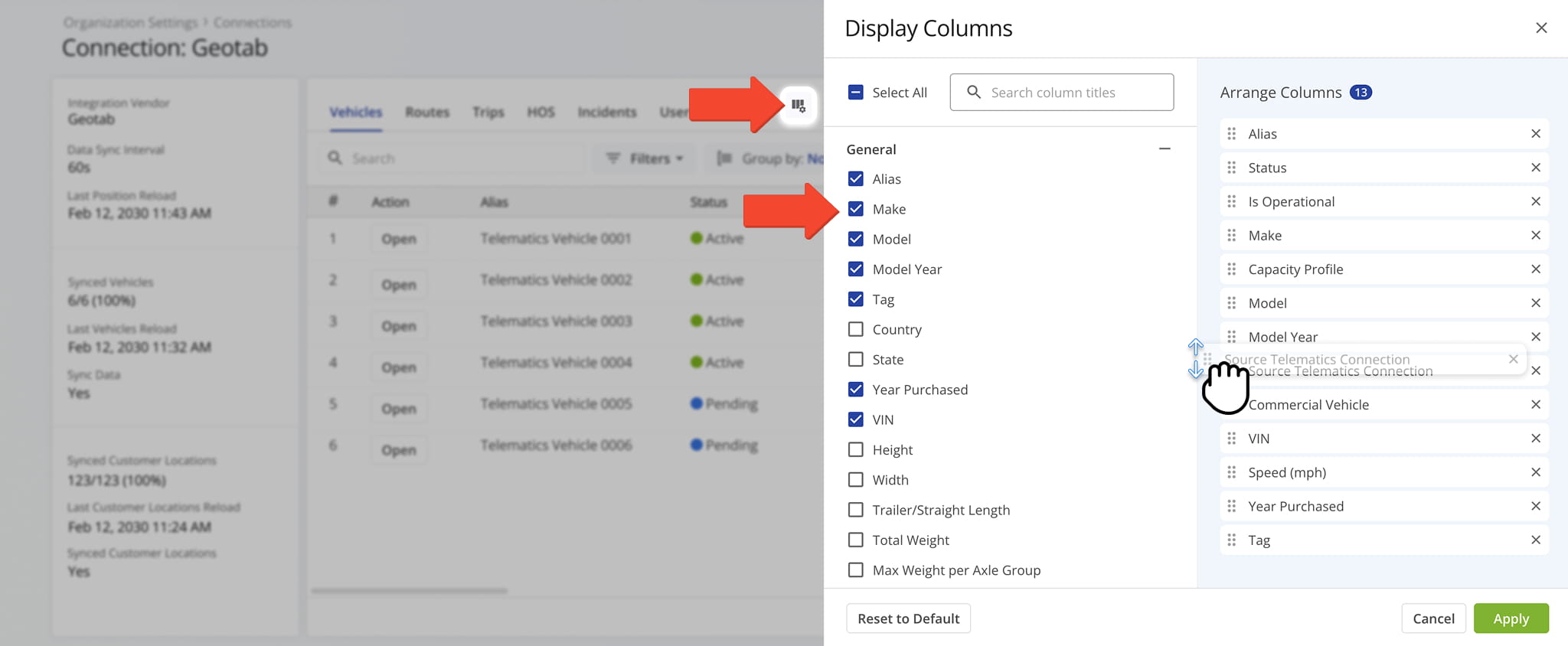
You can also customize the data displayed in the table. Click the Column Icon in the upper right corner to select which route data fields appear and adjust their order to suit your operational needs.
The table below provides an overview of all available data columns, which you can reorder by dragging them into place.
Alias
Unique vehicle name used to easily identify and assign the vehicle to routes.
Make
Vehicle manufacturer or brand.
Model
Specific vehicle model name or designation.
Model Year
Year the vehicle model version was manufactured.
Tag
Vehicle license plate number used for identification.
Country
Country where the vehicle is registered.
State
State where the vehicle is registered.
Year Purchased
Year the vehicle was purchased.
VIN
Vehicle Identification Number (VIN), a unique identifier assigned to the vehicle.
Height
Maximum vehicle height.
Width
Maximum vehicle width.
Trailer/Straight Length
Total vehicle or trailer length.
Total Weight
Vehicle’s total weight.
Max Weight per Axle Group
Maximum allowable weight per axle group.
Configured vehicle dimensions, usage settings, and applicable restrictions.
Maximum load capacity by weight, volume, quantity, or other limits.
Is Operational
Indicates whether the vehicle is currently available for routing.
Indicates whether the vehicle is designated for commercial use.
Associated facilities used to optimize routes based on proximity to operational locations.
Vehicle capabilities used for Driver Skills and Vehicle Attributes–based route planning.
Default User
User automatically associated with the vehicle.
Source Telematics Vehicle ID
Unique vehicle identifier assigned by the telematics provider.
Name of the telematics connection syncing this vehicle’s data.
Name of the telematics provider supplying vehicle data.
Fuel Type
Vehicle fuel type (e.g., gasoline, diesel, electric, hybrid).
Fuel Consumption City
Fuel efficiency for city driving conditions.
Fuel Consumption Highway
Fuel efficiency for highway driving conditions.
Status
Vehicle status: Active, Pending, or Archived.
Odometer (mi)
Total distance traveled at the time of the last tracking update.
Engine Hours (h)
Vehicle's last synced engine hour meter reading in hours.
Speed (mph)
Current or last recorded vehicle speed.
Engine RPM
Engine revolutions per minute.
Engine Coolant Temperature
Engine coolant temperature used to monitor operating conditions.
Battery Health
Overall assessment of battery condition.
Battery Health (%)
Remaining battery health expressed as a percentage.
Battery Temperature (°F)
Current battery temperature.
Battery Level
Remaining battery charge percentage.
Charge Status
Indicates whether the battery is charging, discharging, or fully charged.
Engine Status
Indicates whether the engine is running or off.
Driver Seatbelt Status
Indicates whether the driver’s seatbelt is fastened.
Last Update Received At
Date and time of the most recent telematics data transmission.
Last Update Address
Physical address of the vehicle’s last recorded location.
Locations Tab – Telematics Customer Location Data Overview
The Locations tab provides an overview of all customer locations synced with the selected Telematics Connection. NOTE: This tab is available only for accounts with a Geotab or Samsara Integration, which automatically synchronize customer location data.
From this tab, you can manage and organize location data using the following features:
- Search: Locate specific locations by entering keywords or identifiers.
- Filters: Narrow data by keyword, routing status, and many other criteria, detailed in the table below.
- Group By: Organize the table by customer name.
- “Open” Button: Click “Open” next to any location to open its Location Snapshot.
Keywords
Enter a keyword to search for specific customer locations.
Select location types added to your Route4Me account, such as customers, warehouses, or depots.
Routing Status
Filter customer locations by routed or unrouted status.
Search by user name or email to view assigned locations.
No. of Routes
Filter by the minimum or maximum number of assigned routes.
No. of Visits
Filter by the minimum or maximum number of visits.
Search by configured territory names in your account.
Last Visited
Filter by a specific date or date range of the last visit.
Search by customer name in your account.
You can also customize the data displayed in the table. Click the Column Icon in the upper right corner to choose which location data fields appear and adjust their order to match your operational needs.
The table below provides an overview of all available data columns, which you can reorder by dragging them into place.
Address
Full street address of the customer location used for routing and navigation.
Custom name assigned to the location for easier identification.
Designated category of the location, such as customer, warehouse, or depot.
Name of the customer associated with the location.
Parent Location
Primary location linked to this address within a location hierarchy.
First Name
First name of the contact associated with the location.
Last Name
Last name of the contact associated with the location.
Email address of the contact for the location.
Phone
Phone number of the contact for the location.
User currently assigned to manage or service the location.
Last Visited
Most recent date the location was visited on a completed route.
Last Routed
Most recent date the location was included in a planned route.
Group
Location group used to organize and filter related customer locations.
Number of Routes
Total number of routes the location has been included in.
Number of Visits
Total number of completed visits to the location.
Associated facilities used to optimize routing based on operational proximity.
External System Record ID
Unique identifier assigned to the location by the connected telematics or external system.
Routes Tab – Telematics Route Data Overview
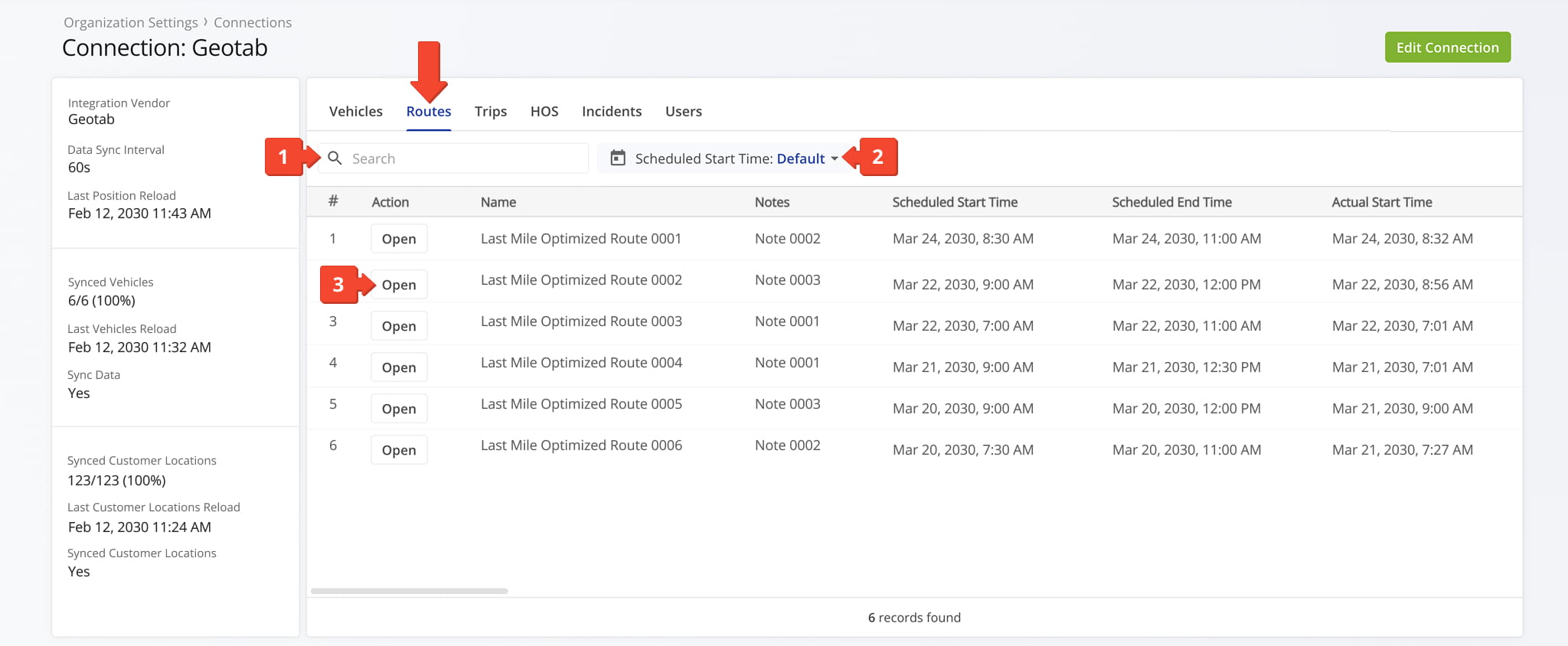
The Routes tab provides an overview of all routes associated with the selected Telematics Connection. The table below provides a detailed overview of all available route data columns.
From this tab, you can review and organize route data using the following features:
- Search: Locate specific routes by entering keywords or route identifiers.
- Date & Time Filters: View routes for a specific date or date range based on scheduled start or end times, or actual start or end times. More details can be found in the table below.
- “Open” Button: Click “Open” next to any route to open its Telematics Route Snapshot.
Name
The name or alias assigned to the route, used to identify it within your Route4Me account.
Notes
Any notes added to the route, including operational details or special instructions.
Scheduled Start Time
The planned date and time when the route is scheduled to begin.
Scheduled End Time
The planned date and time when the route is expected to be completed.
Actual Start Time
The actual date and time the route was started, based on recorded activity.
Actual End Time
The actual date and time the route was completed.
The time zone applied to the route schedule and time-based data.
The telematics connection associated with the route.
The telematics provider supplying tracking data for the associated connection.
Trips Tab – Telematics Trips Data Overview
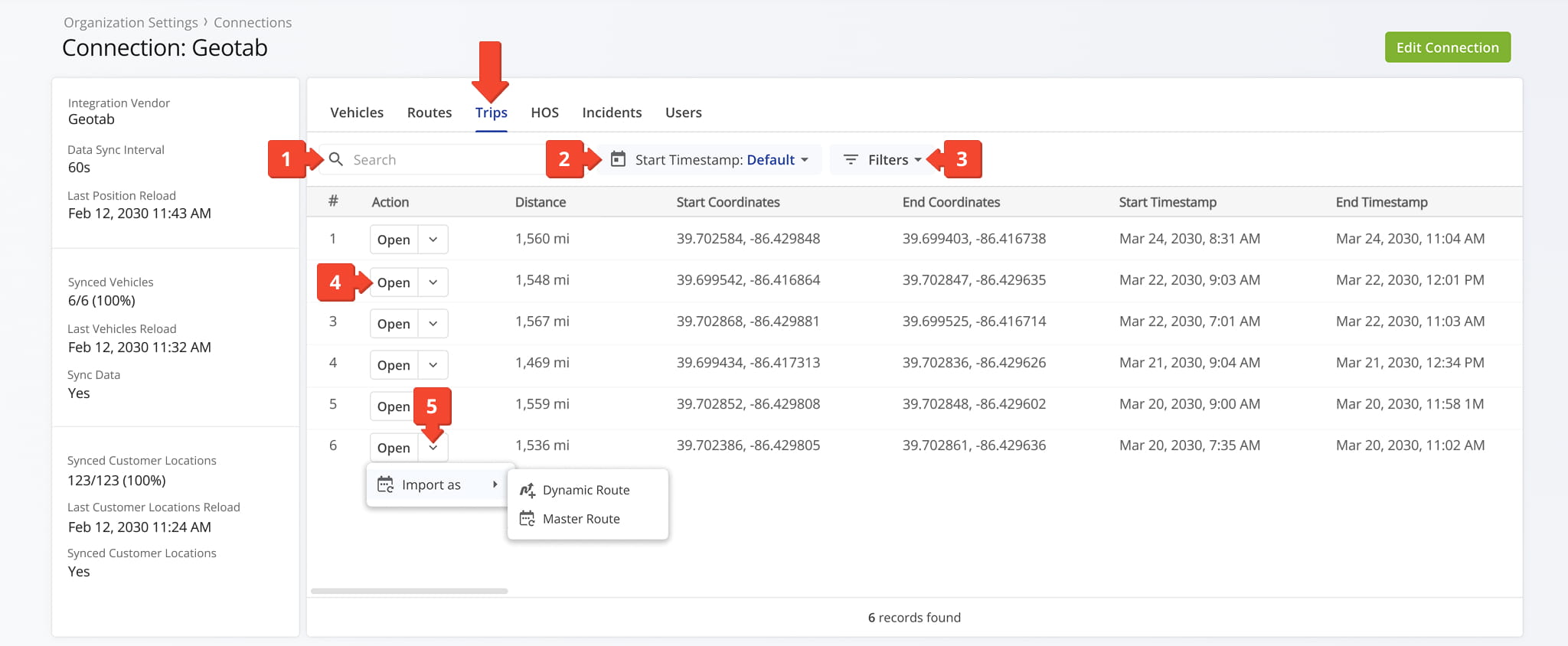
The Trips tab provides an overview of all trips imported from the selected Telematics Connection. The table below provides an overview of the available trip data columns.
From this tab, you can review and organize trip data using the following features:
- Search: Locate specific tripss by entering keywords or route identifiers.
- Date & Time Filters: View routes for a specific date or date range based on scheduled start or end times, or actual start or end times.
- Filters: Narrow the data by distance, start odometer, or end odometer. More details can be found in the table below.
- “Open” Button: Click “Open” next to any route to open its Telematics Trip Snapshot.
- Down Arrow Button: Click the button to import the trip as a Master Route or as a Dynamic Route.
Distance
The total distance traveled during the trip, typically measured in miles.
Start Coordinates
The latitude and longitude of the trip's starting location.
End Coordinates
The latitude and longitude of the trip's ending location.
Start Timestamp
The date and time when the trip began.
End Timestamp
The date and time when the trip ended.
Start Odometer
The odometer reading at the beginning of the trip.
End Odometer
The odometer reading at the end of the trip.
The telematics connection associated with the trip.
The telematics provider supplying tracking data for the associated connection.
Hours Of Service Tab – Telematics HoS Data Overview
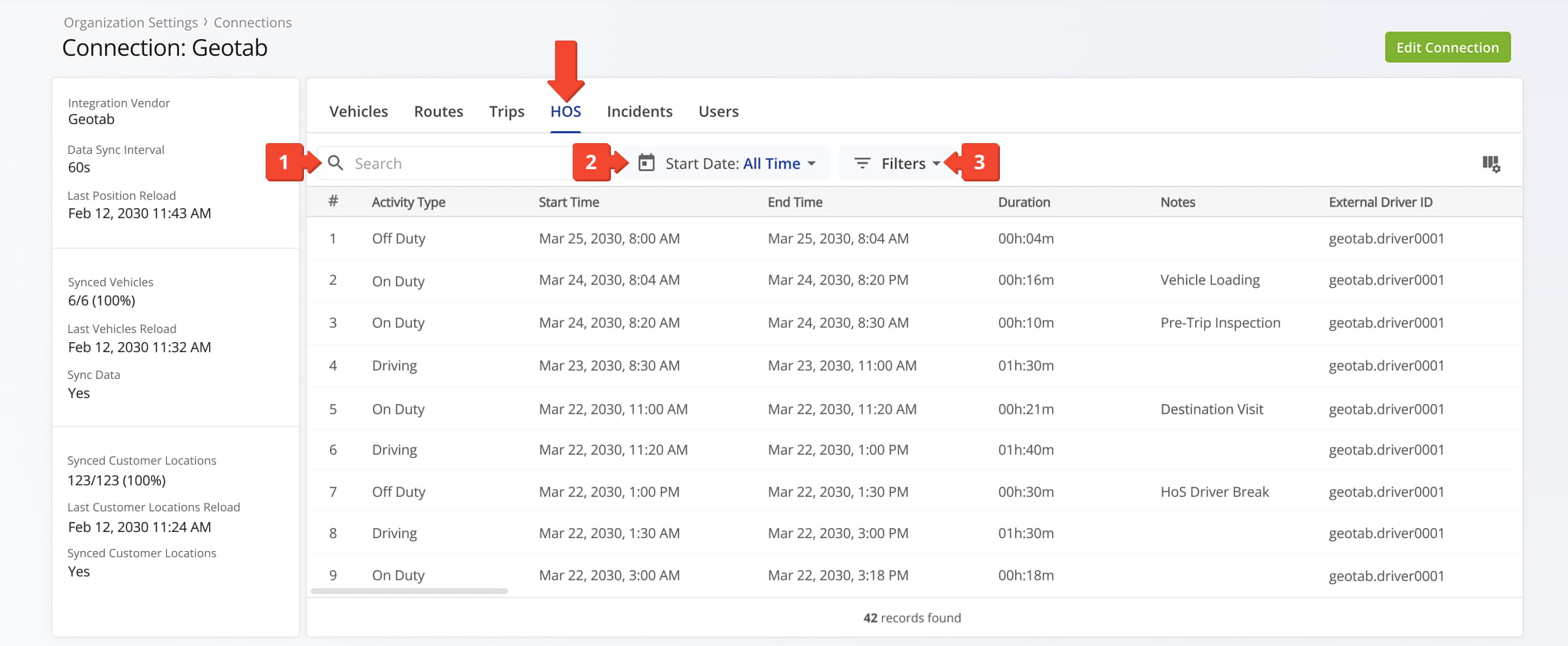
The Hours Of Service tab shows driver activity records imported from the selected Telematics Connection. From this tab, you can review and organize HoS data using the following features:
- Search: Locate specific data by entering keywords or route identifiers.
- Date Filters: View routes by start or end date. Select from preset date ranges or specify a custom date range.
- Additional Filters: Narrow the data by External vehicle ID, External Driver ID, or Activity Type. The table below details each filter.
External Vehicle ID
Filters activities by the unique vehicle identifier from the connected telematics system.
External Driver ID
Filters activities by the unique driver identifier from the connected telematics system.
Activity Type: Driving
Shows only activities where the driver is actively driving.
Activity Type: On Duty
Shows activities where the driver is on duty but not driving.
Activity Type: Off Duty
Shows activities where the driver is off duty.
Activity Type: Sleeping Berth
Shows activities where the driver is in a sleeping berth status.
Activity Type: Idle
Shows activities where the vehicle is idle.
Activity Type: Stopped
Shows activities where the vehicle is stopped.
Activity Type: Personal Conveyance
Shows activities marked as personal conveyance use.
Activity Type: Unknown
Shows activities with an unspecified or unknown status.
You can also customize the data displayed in the table. Click the Column Icon in the upper right corner to select which route data fields appear and adjust their order to suit your operational needs.
The table below provides an overview of all available data columns, which you can reorder by dragging them into place.
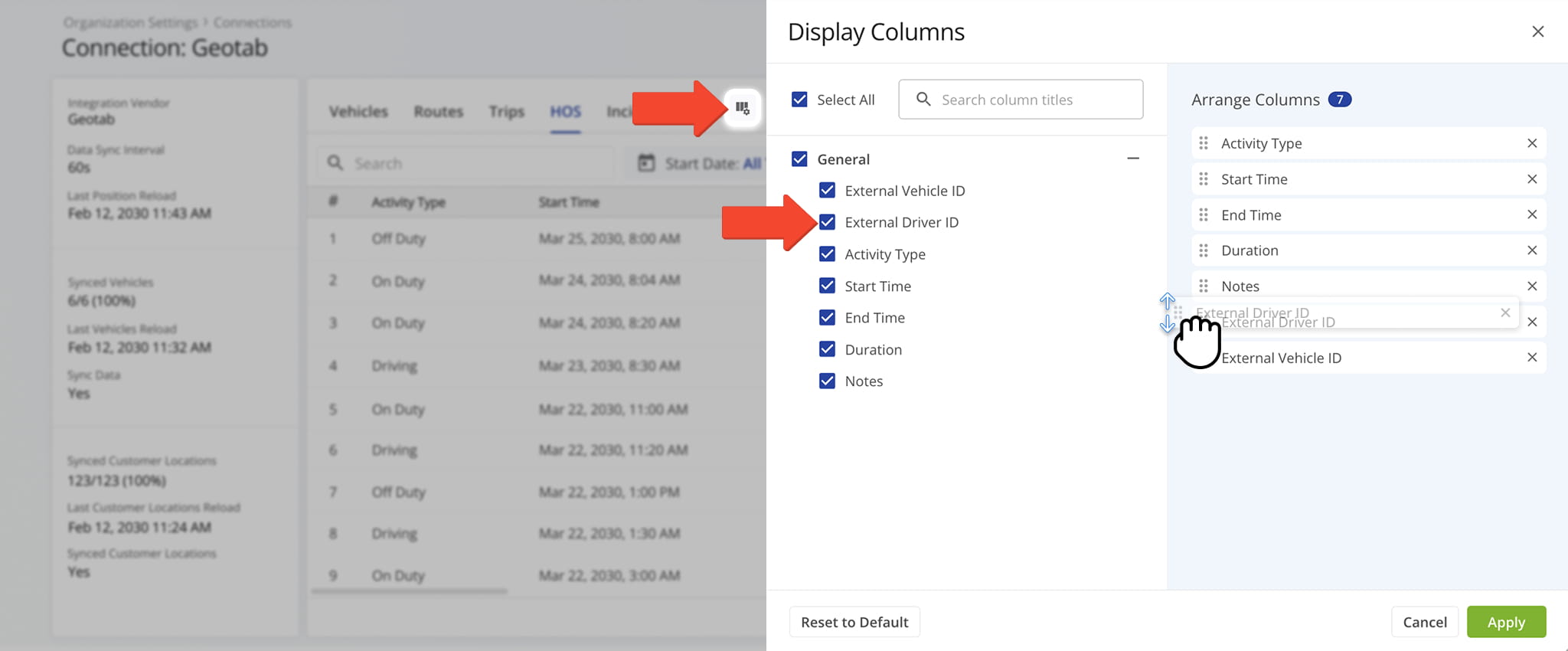
Unique identifier assigned to the vehicle in the connected telematics system.
External Driver ID
Unique identifier assigned to the driver in the connected telematics system.
Activity Type
Type of driver activity recorded, such as Driving, On Duty, or Off Duty.
Start Time
Date and time when the activity began.
End Time
Date and time when the activity ended.
Duration
Total length of the activity based on start and end times.
Additional details or remarks associated with the activity, if provided.
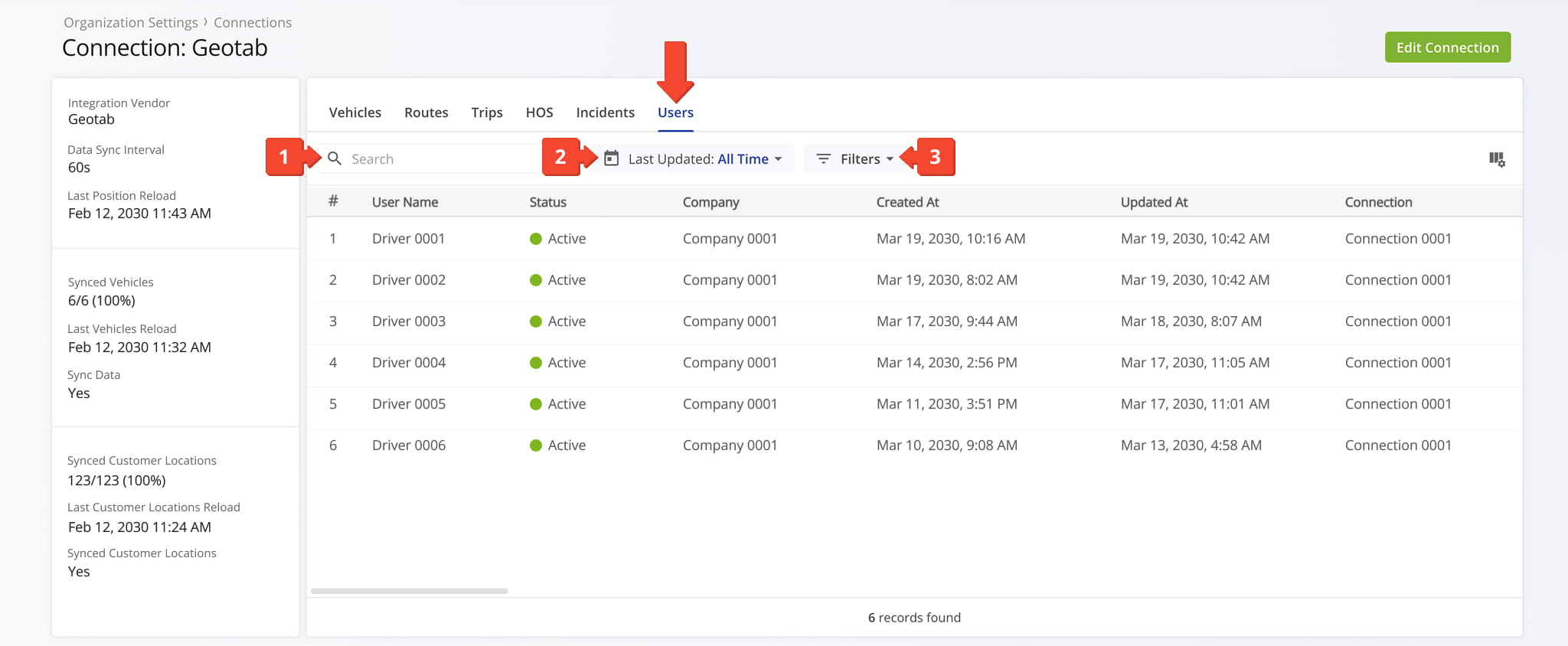
Users Tab – Telematics Driver And User Data Overview
The Users tab provides an overview of all users and drivers synced from the selected Telematics Connection, rather than created in Route4Me. From this tab, you can review and organize user data using the following features:
- Search: Locate specific trips by entering keywords or route identifiers.
- “Updated” Filter: Filter routes by their updated date using preset ranges (e.g., today, last 30 days) or a custom date range.
- Additional Filters: Narrow the data by Status (“Active” or “Deactivated“) or by User role (“Is Driver“).
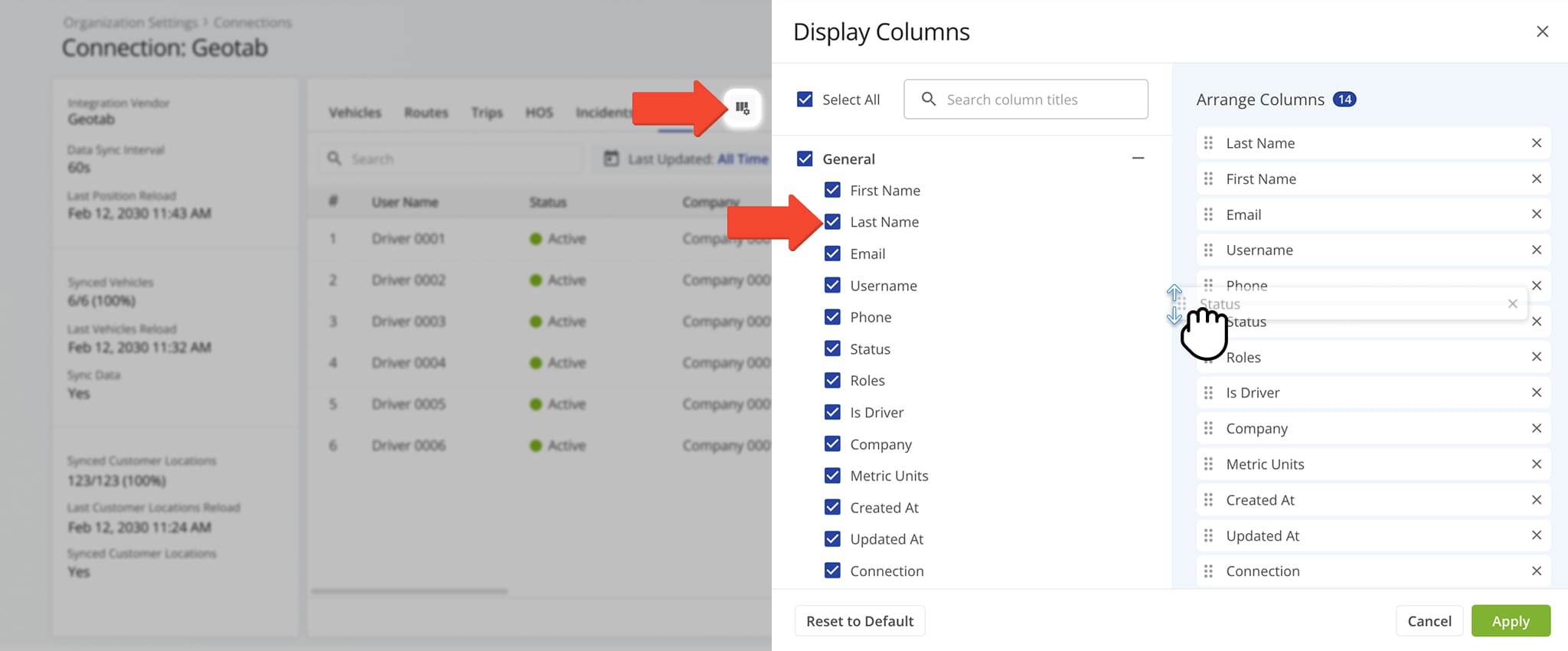
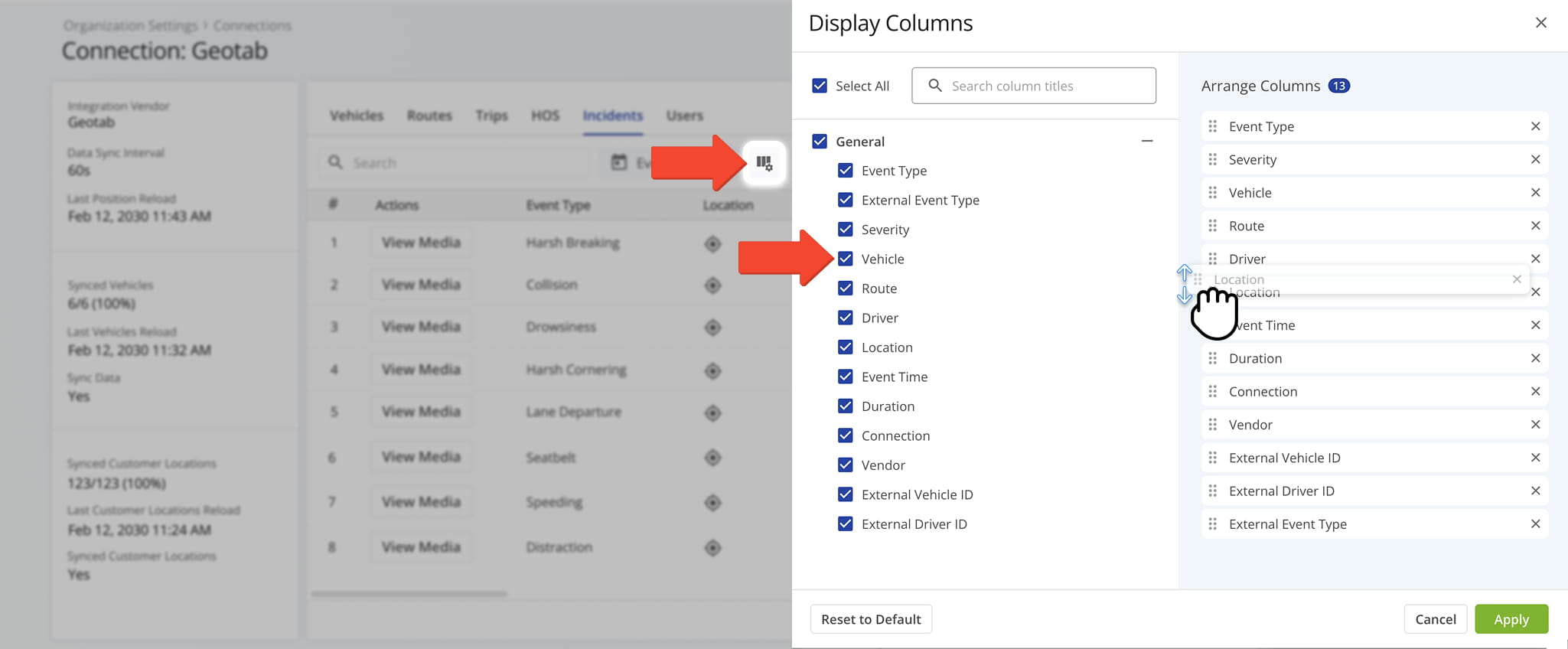
You can also customize the data displayed in the table. Click the Column Icon in the upper right corner to select which route data fields appear and adjust their order to suit your operational needs.
The table below provides an overview of all available data columns, which you can reorder by dragging them into place.
First name of the user or driver associated with the account.
Last name of the user or driver associated with the account.
Email address linked to the user or driver profile.
Unique username used to identify the user in the system.
Phone
Phone number associated with the user or driver.
Status
Current status of the user, such as active or inactive.
Assigned role that defines the user's permissions and access level.
Is Driver
Indicates whether the user is designated as a driver.
Company
Company or organization the user belongs to.
Metric Units
Preferred measurement system for the user, such as miles or kilometers.
Date and time when the user profile was created.
Date and time when the user profile was last updated.
Associated Telematics Connection linked to the user.
Telematics provider or vendor linked to the connection.
Visit Route4Me's Marketplace to Check out Associated Modules:
- Operations
Audit Logging and Activity Stream
- Operations
Custom Data Add-On
- Operations
Advanced Team Management Add-On