
Notes & Attachments – Destination Status And Proof Of Visit Notes Database
When your field employees visit customer destinations and complete Last Mile Workflow tasks, they generate and record proof of delivery, visit, and service Notes. Route4Me automatically syncs these Notes with your account in real time, and you can easily access them by using the Notes Page. In this guide, you’ll learn how to open the Notes Page, find and filter Notes, customize the data shown on your Notes Page, preview attachments, and more.
Table of Contents
Access Your Service Notes Database
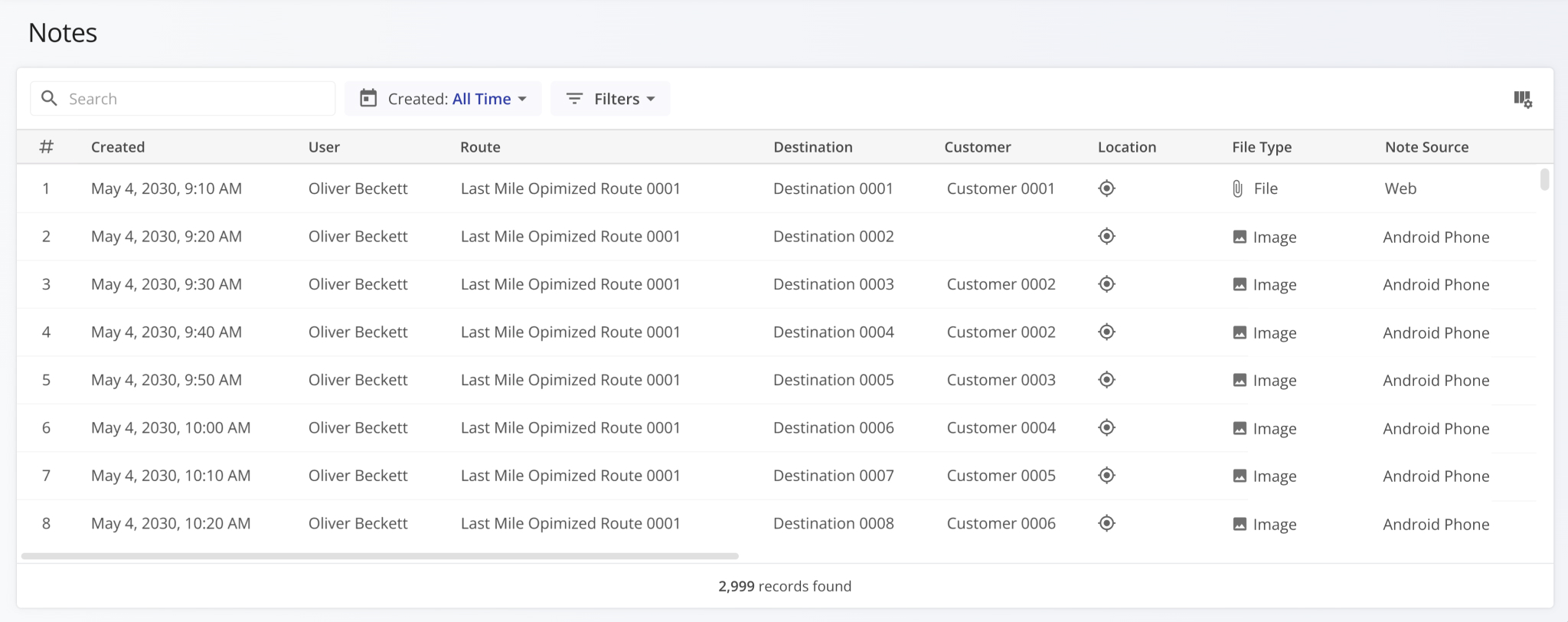
To access your Notes Page, go to “Business Operations” > “Notes” in the Navigation Menu.
Open Your Notes Page
Find And Filter Notes Relevant To Your Needs
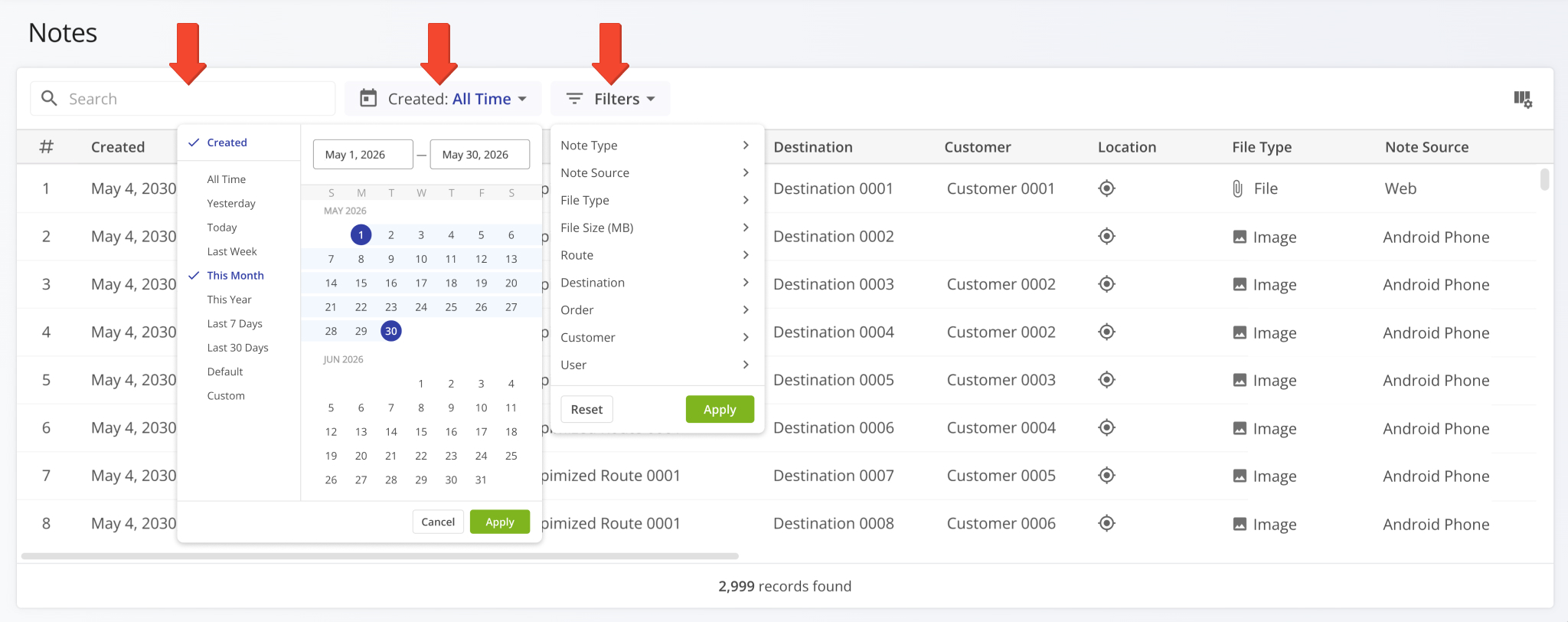
The Notes Page supports the same search and filter functions available in other Route4Me account database pages. You can:
- Use the “Search” field to input Note details and quickly find relevant Notes.
- Use the “Created” field to filter Notes by their creation date, including date ranges.
- Use the “Filters” menu to customize which Notes will be shown on the Notes Page.
Set Up Custom Display Columns On The Notes Page
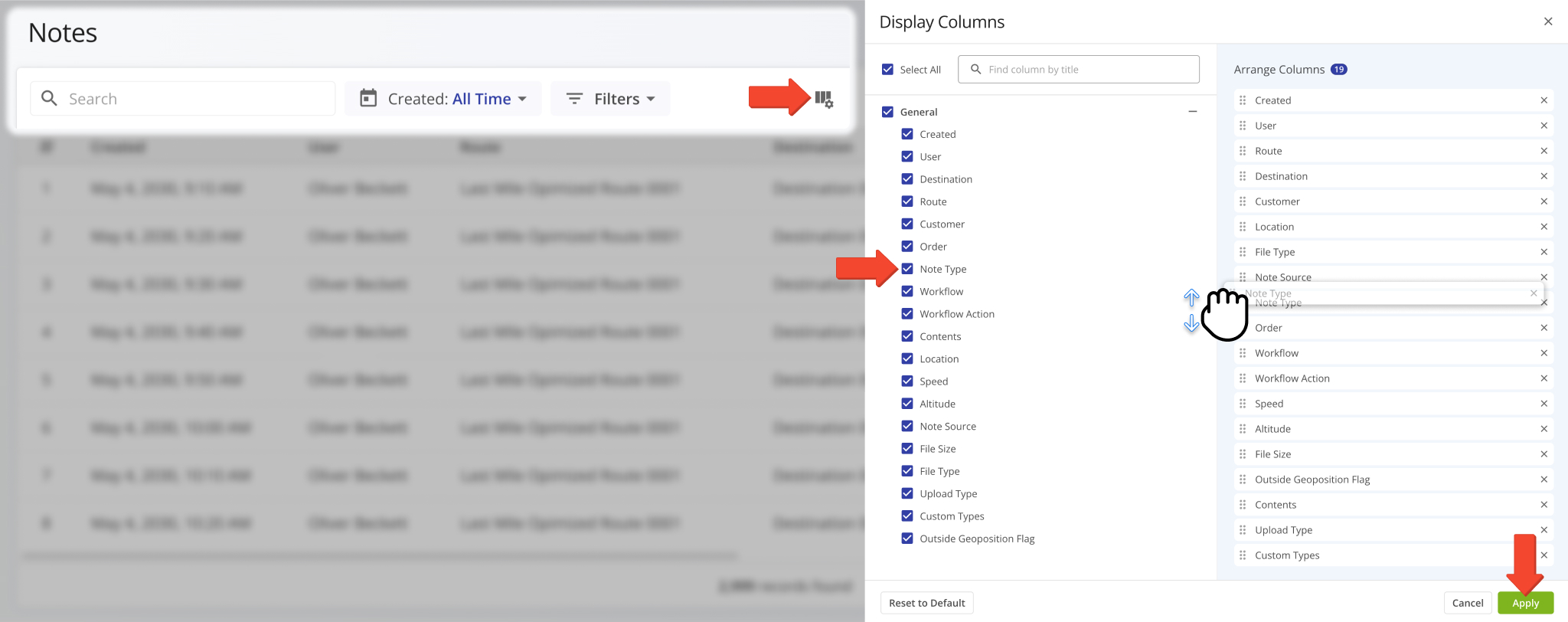
You can easily customize the data columns displayed on your Notes Page. To do so, click the Columns Icon and check the boxes next to columns to enable them. The “Arrange Columns” section on the right is where you can rearrange columns by clicking and dragging. Click “Apply” to save your changes. See the table below to learn more about supported Notes data columns.
Notes Data Columns
Preview Note Coordinates And Attachments
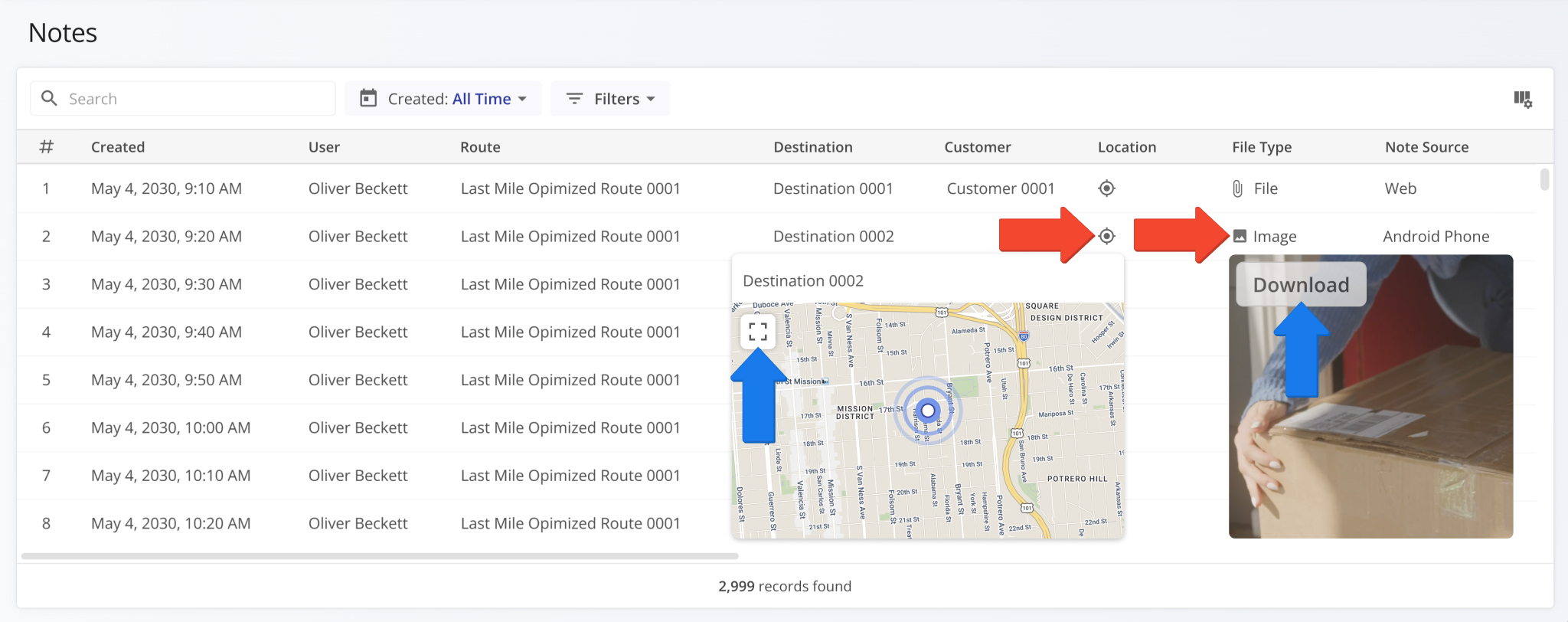
The “Location” and “File Type” columns support dynamic previews when you hover over their icons.
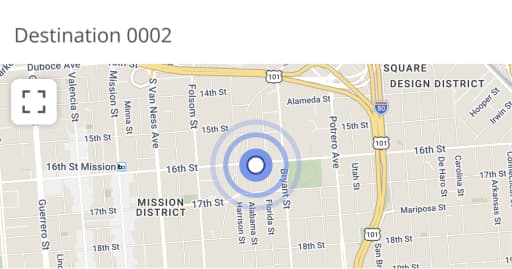
- Location: Hover to see a map showing where a specific Note was recorded.
You can click the Expand Map button to see a full-screen map for more context. - File Type: Hover over the “Image” file type to see a preview of attached images
You can click the “Download” button to save an attached image directly from the Notes Page.
Visit Route4Me Marketplace to Check Out More Add-Ons:
- Route Optimization
Commercial Vehicle & Truck Routing
- Operations
Audit Logging and Activity Stream
- Optimization
Address Book and Territories Planning
About author: Kristian Andreev

