
Route Snapshot – Real-Time Customizable Route Data And Analytics Summary
Route4Me’s Route Snapshot gives you a clear, organized view of any last-mile optimized route. It brings all key metrics and route details together, including a route summary, map overview, route analytics, destinations data, orders, proof of visit records, and executed activities. With everything in one place, you can quickly review route performance, analyze data more effectively, and make informed decisions that help you deliver a better customer experience.
Table of Contents
Open Route Snapshot – Access Route Data And Analytics Overview
To open the Route Snapshot of any planned and optimized route, go to “Dynamic Routing” > “Routes” from the Navigation Menu. Then, click “Open” next to a route.
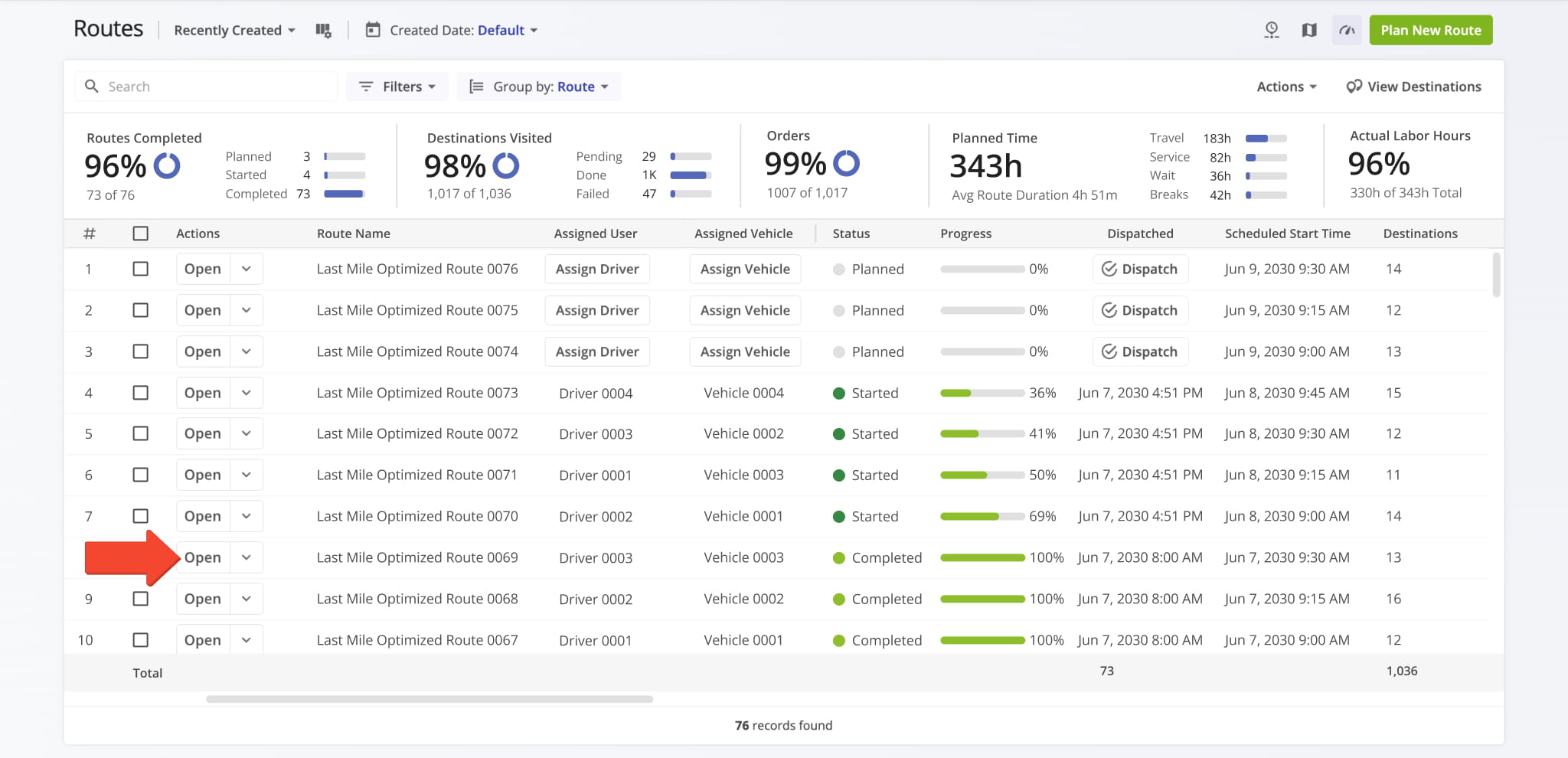
This opens the selected Route Snapshot. From here, you can view route details, make adjustments, assign a user, vehicle, or facility, and manage dispatch and other route tasks.
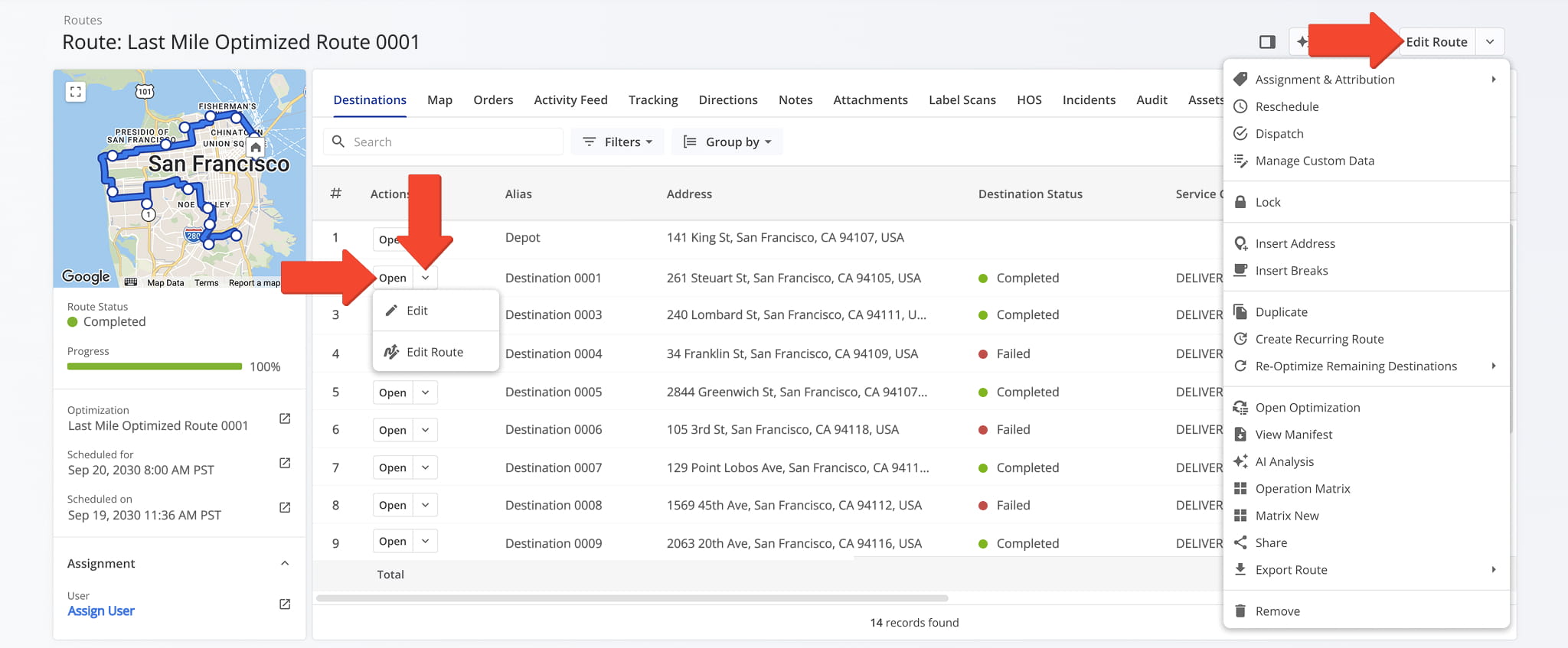
You can click “Open” to access a Destination Snapshot or the Down Arrow button next to it to make edits. You can also click “Edit Route” to perform additional actions, detailed in the table below.
Edit Route Actions
Route Reports – Generate AI-Powered Route Analysis
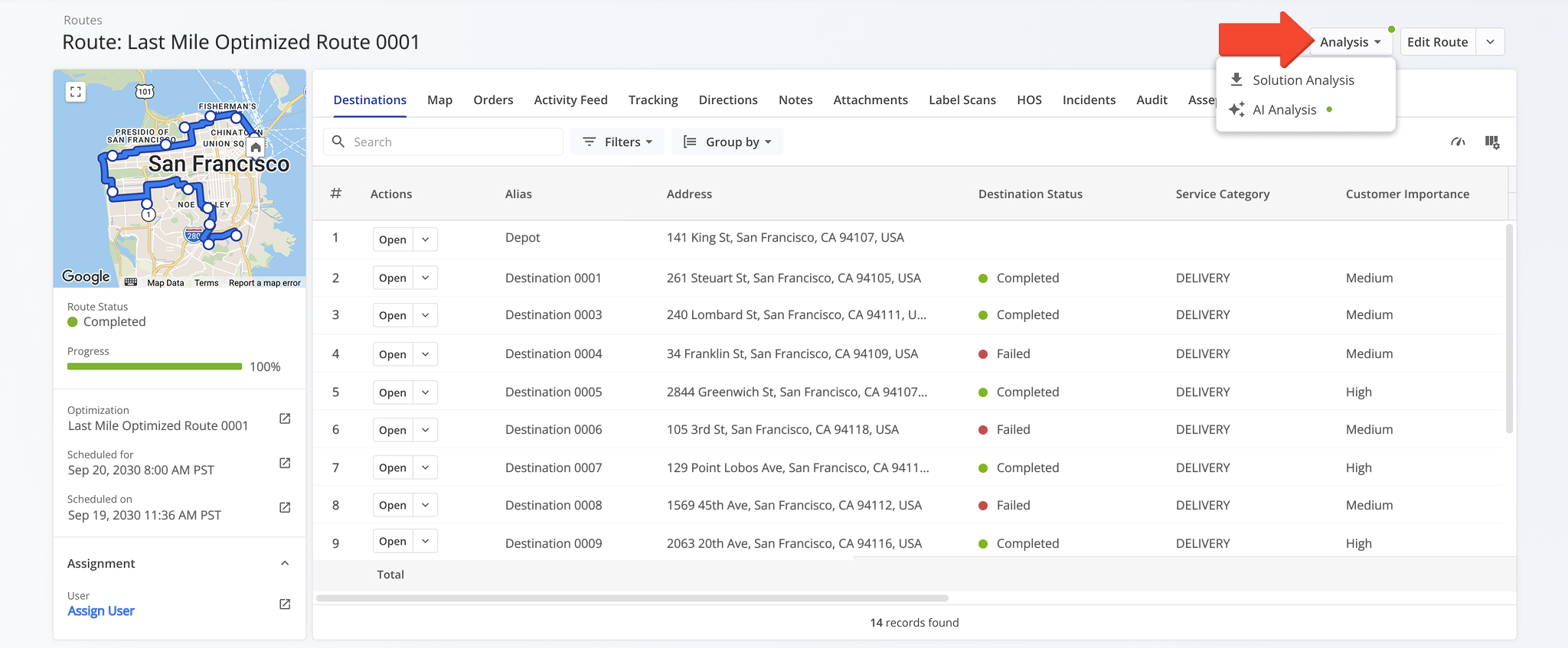
From the Route Snapshot, you can generate a Solutions Analysis, a detailed report for reviewing route constraints and outcomes. You can also download an AI Analysis for a quick, high-level view of your route’s optimization results and overall performance.
Click the “Analysis” button to generate either report.
Route Overview Panels – Location, Details, Performance Metrics
Route Details Summary – Dynamic Map And Route Information Panel
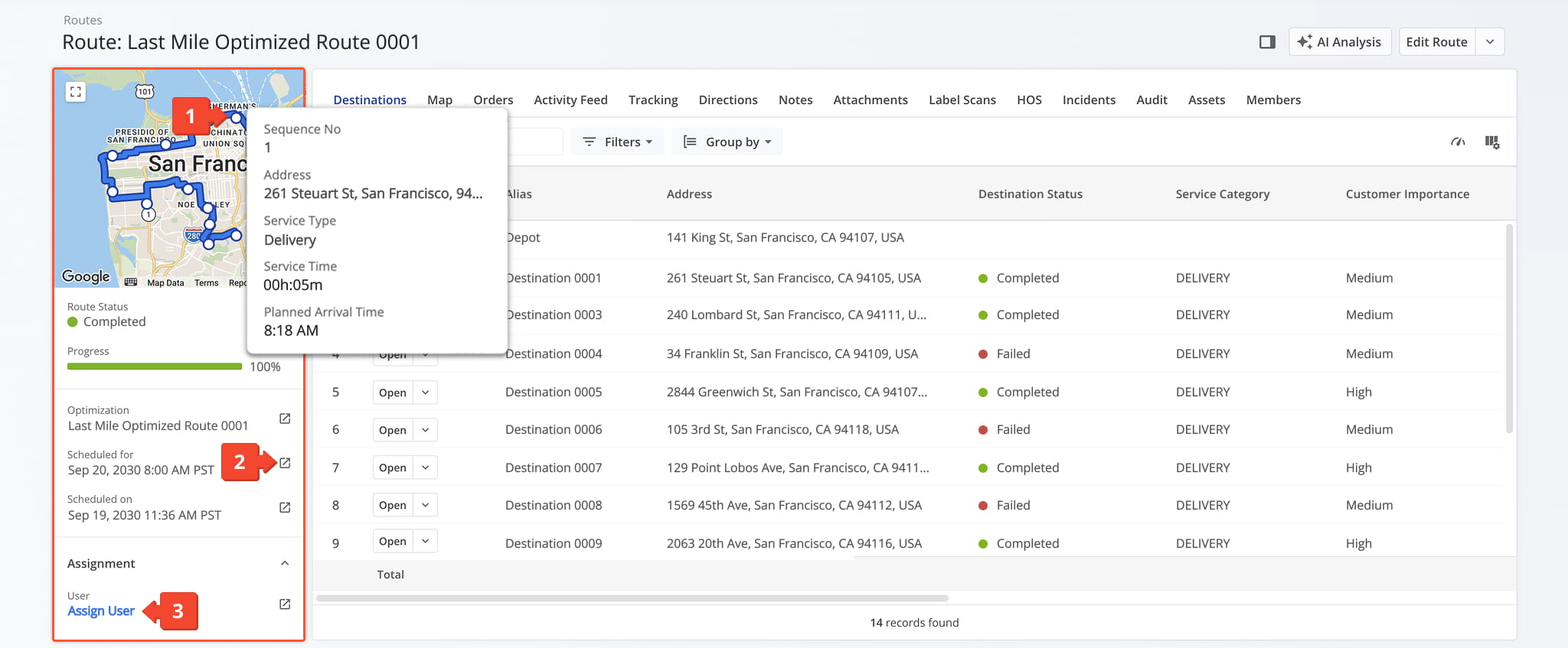
The Route Summary panel displays key details about the route, including a map with its planned path and sequence of destinations, assigned user, vehicle, and facility, and scheduled date.
From this panel, you can perform the following actions:
- Click on any destination on the map to view its details.
- Click the Go-to Icon next to any field to open the corresponding Route4Me interface.
- Click “Assign” on any empty field to assign a user, crew, facility, customer, contract, or region to the route. NOTE: Scroll down the panel to view all “Assign” options.
To better evaluate performance, you can select the tracking data source used to calculate actual route metrics, including User-Reported, Mobile App Detected, or Telematics Detected data. See the table below for an overview of each tracking data source.
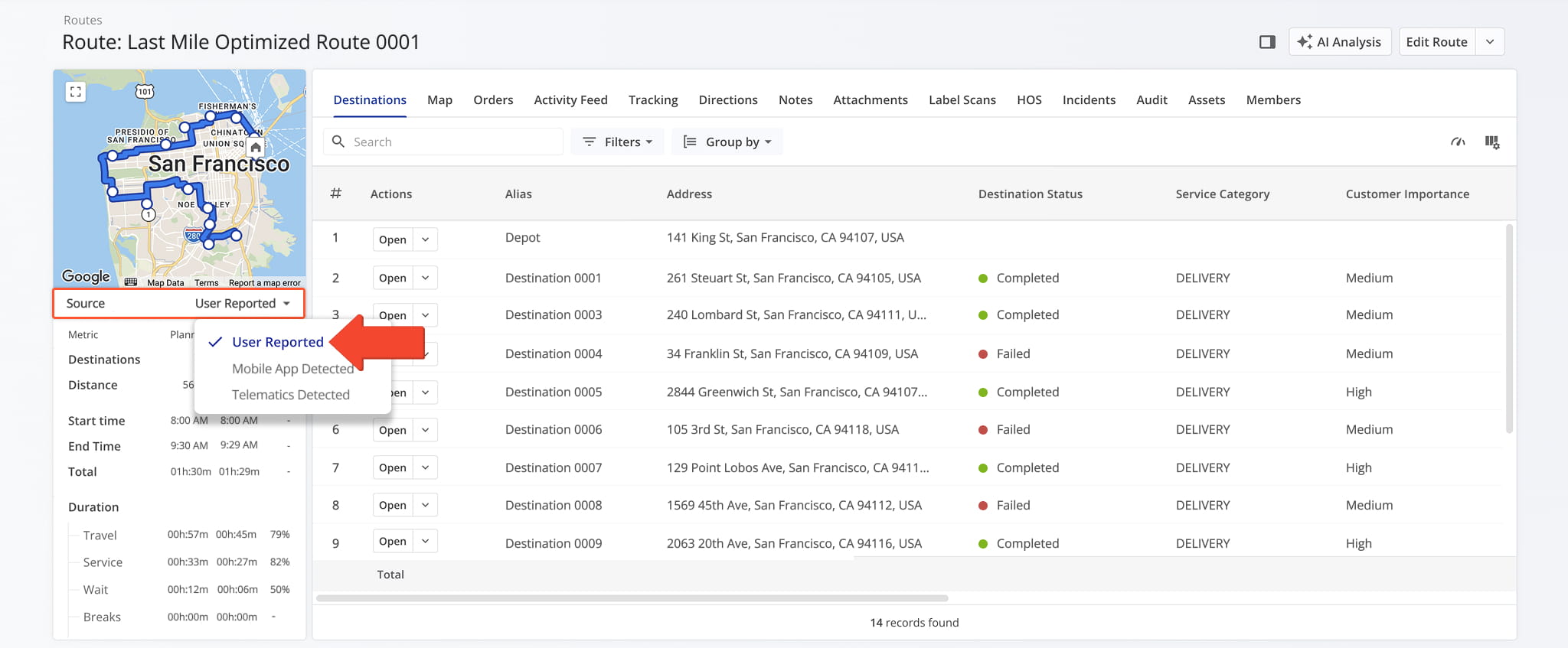
Data Tracking Sources
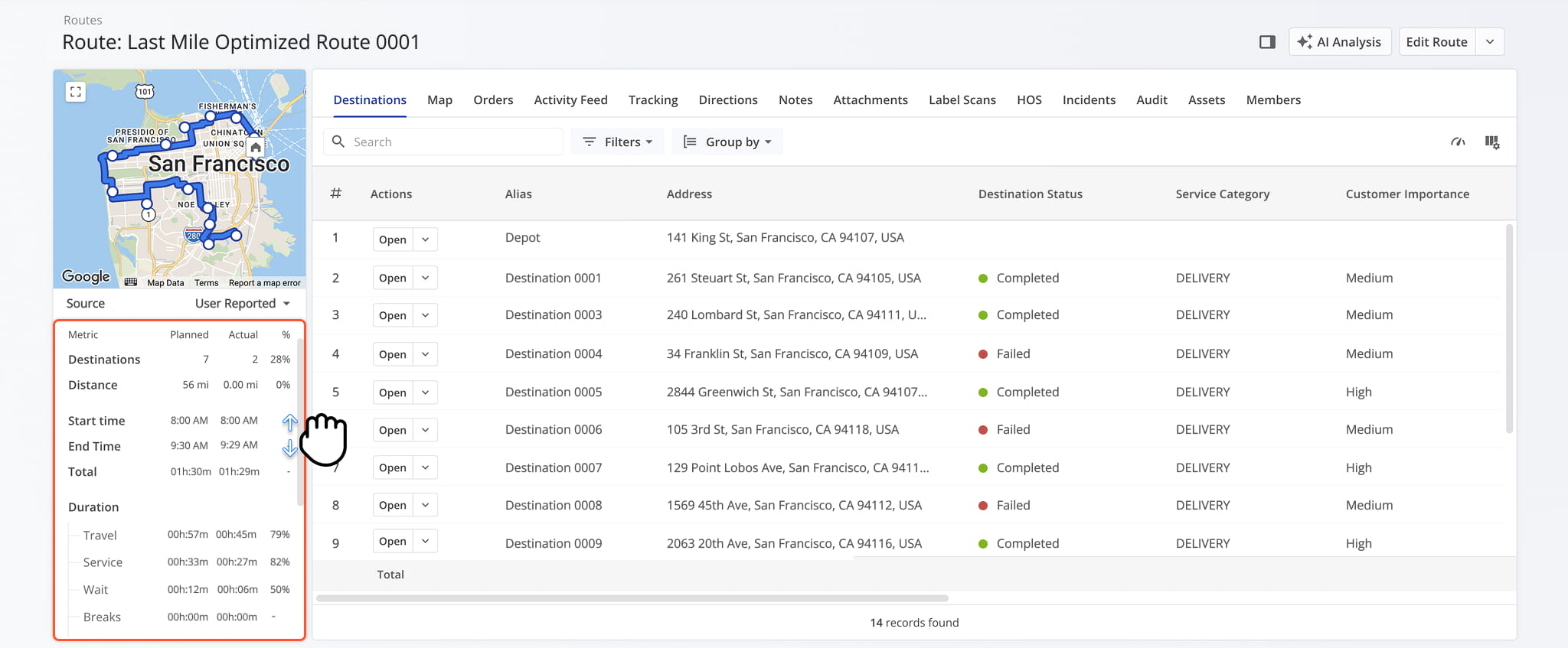
Scroll down the Summary panel to see key route metrics, such as distance, duration and progress. You can compare planned values with actual values for completed routes or with the latest data for started routes.
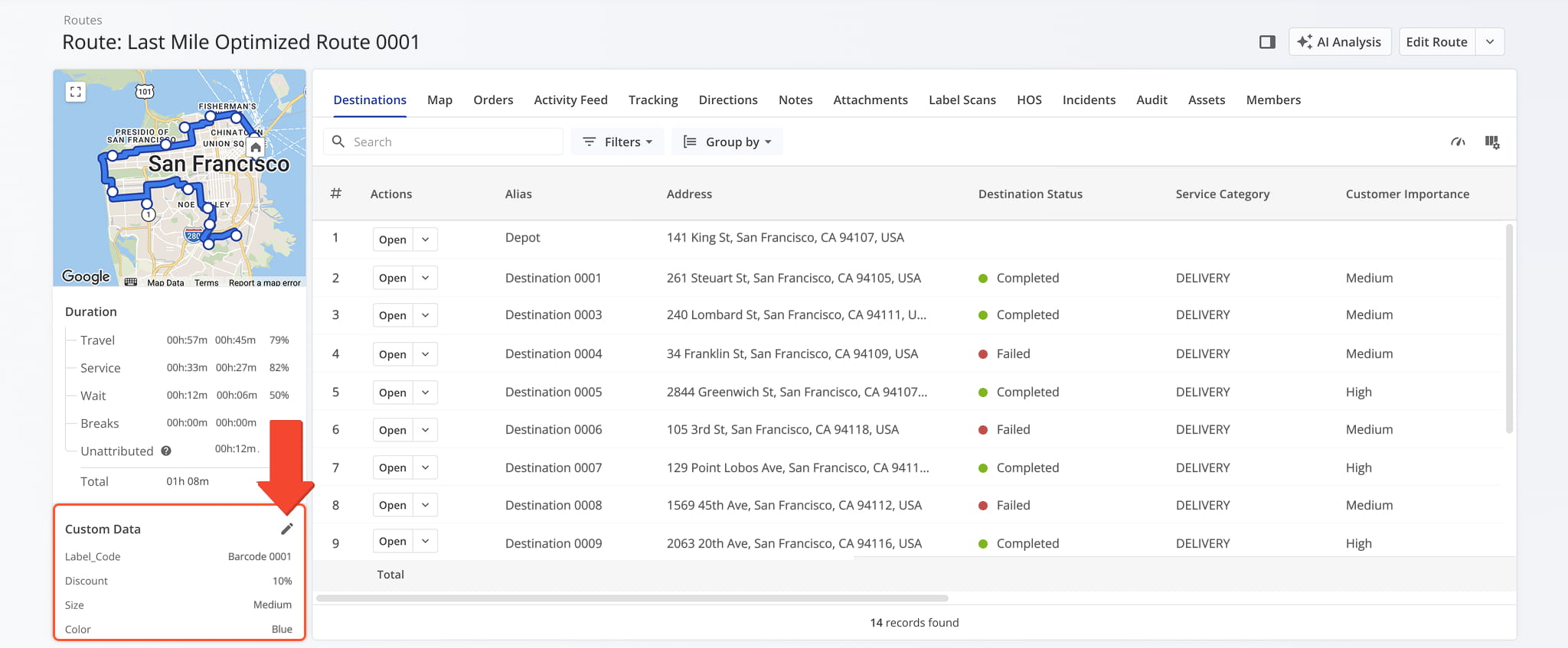
Scroll further down to view all custom data associated with the route, including user-defined fields for tracking additional route details. Click the Pencil Icon to add new data or edit existing data.
Route Performance Metrics Panel – Route Progress And Operational Efficiency
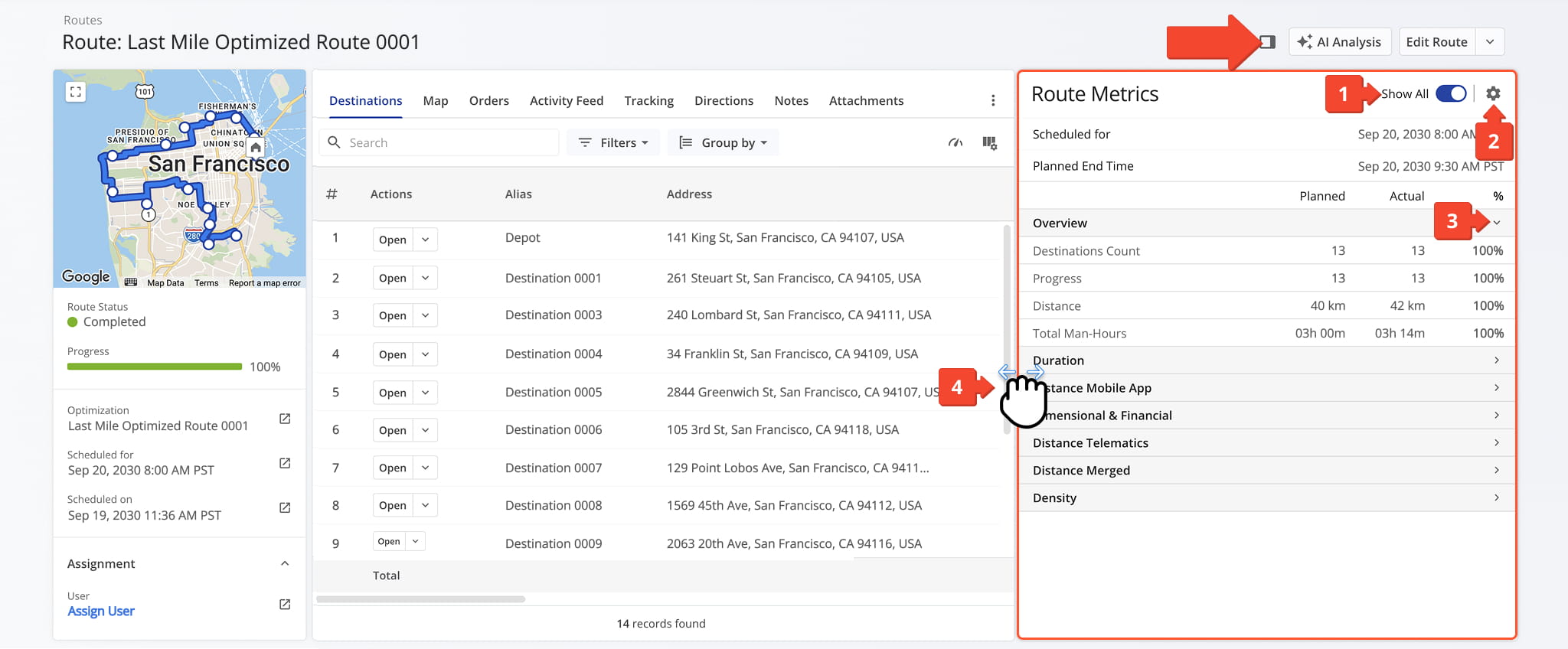
Click the Sidebar Button in the upper-right corner to open the Route Metrics panel where you can view the route’s progress and operational efficiency with planned versus actual metrics for route duration, distance, and more.
From this panel, you can perform the following actions:
- Toggle the “Show All Switch” to view all data categories.
- Click the Gear Icon to customize which data fields appear in the Route Metrics panel.
- Click the Down Arrow next to a data category header to expand or collapse the category.
- Drag the panel to enlarge or reduce its size.
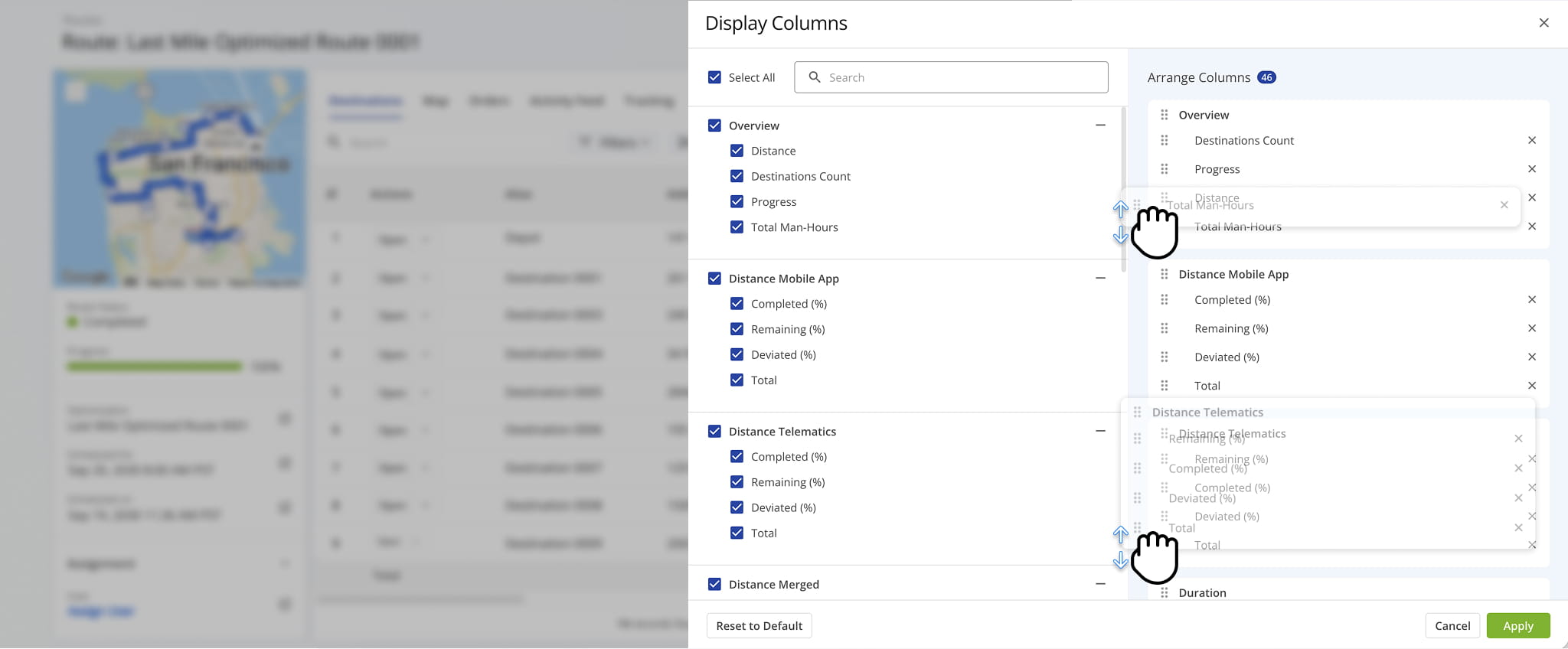
Clicking the Gear Icon opens the “Display Columns” editor where you can select which data fields appear in the Metrics panel. In the “Arrange Columns” section, drag and drop fields or category headers to reorder them.
The table below provides an overview of all available data columns.
Metrics Panel Data Columns
Route Performance Insights Panel – Vehicle Route And Time Performance Overview
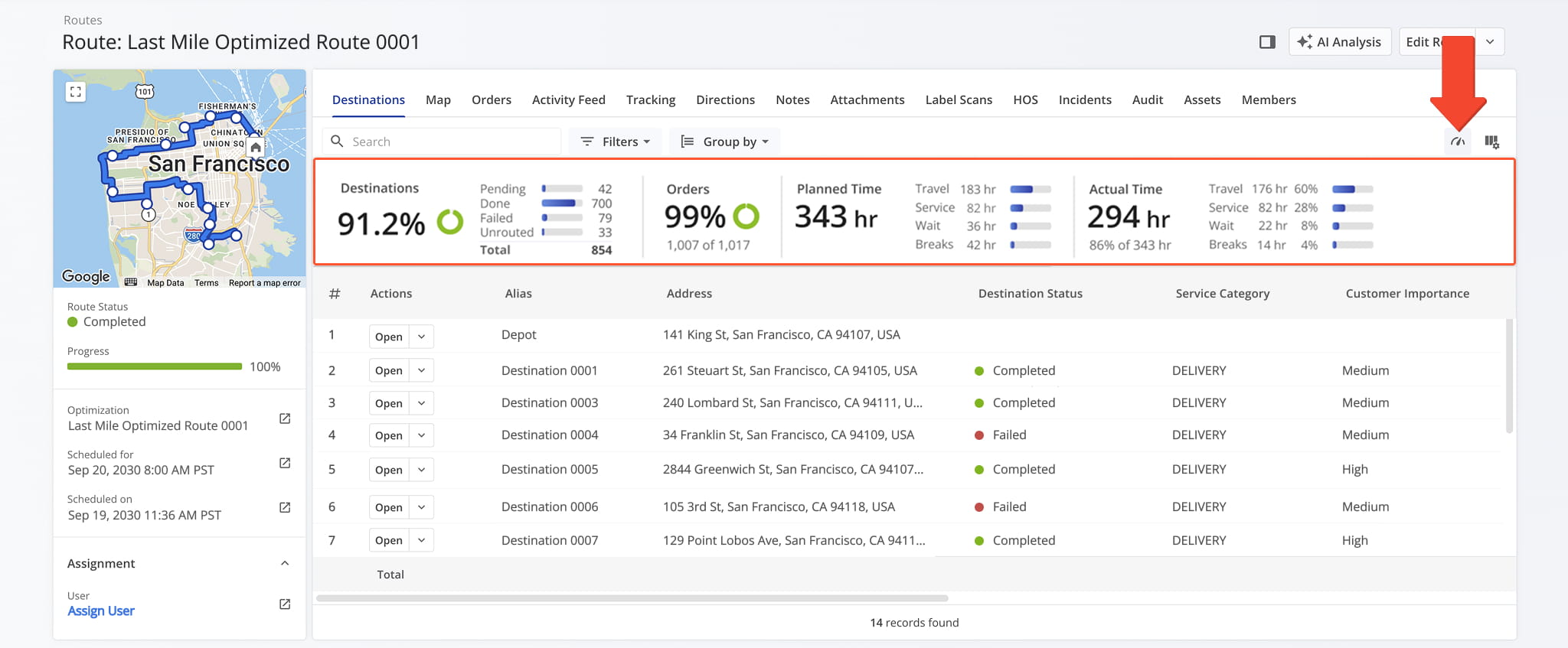
Click the Metrics Icon in the upper-right corner to open the Route Performance Insights panel, where you can monitor progress, track efficiency, and evaluate operational performance across the route.
This panel, available from the Destinations tab, provides a summary of planned destinations and orders, along with a side-by-side breakdown of planned and actual time for travel, service, wait, and breaks.
Route Snapshot Categories – Route Analytics Data Tabs
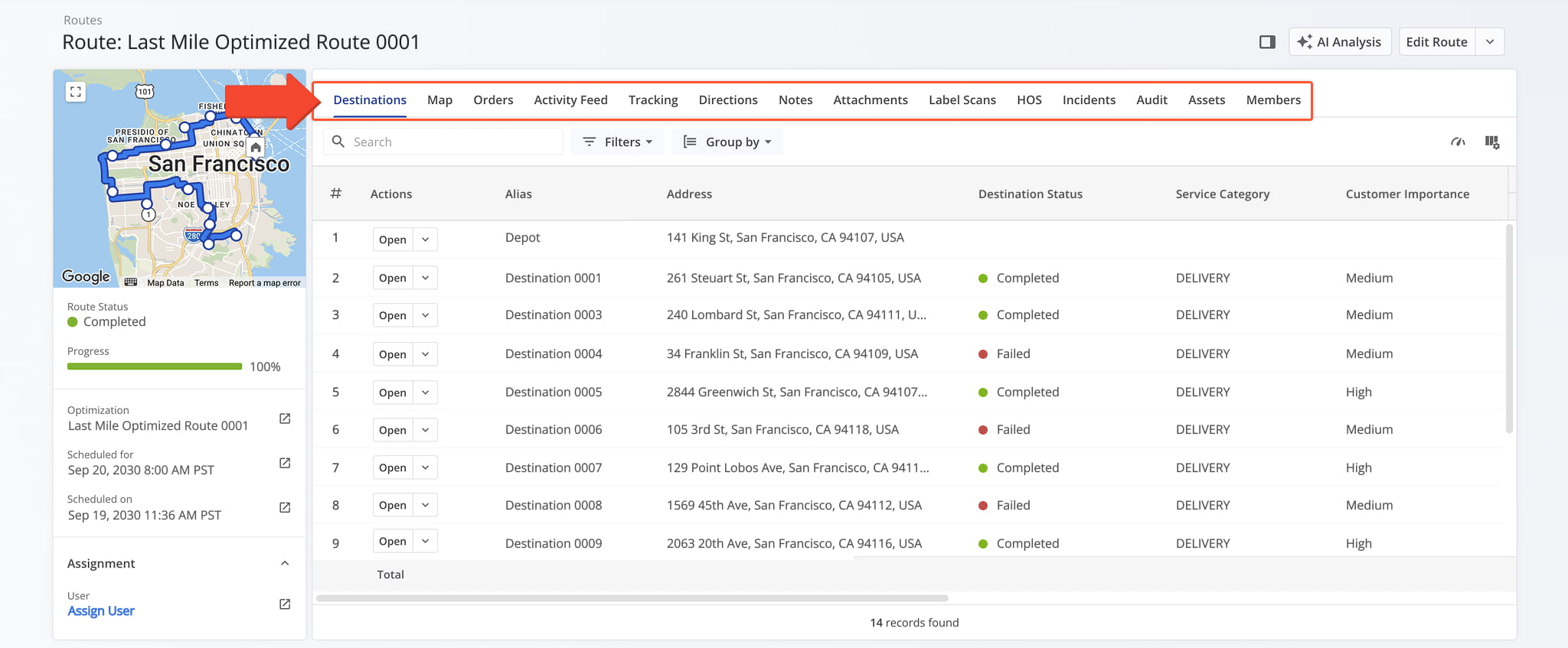
The Route Snapshot is organized into multiple tabs, each corresponding to a specific category of route-related data. Each tab is described in detail below.
Destinations Tab – Route Destinations And Customer Data Overview
The Destinations tab displays all destinations for the selected route in a customizable data table. The destination data here matches what is shown in Destination View Mode on the Routes Page.
From the Destinations tab, you can perform the following actions for each destination on the route:
- Use the Search field to locate specific destinations.
- Apply filters to narrow down the data. See the table below for a full list of available filters.
- Use the Group By option to organize destinations by Facility.
- Click “Open” next to a destination to access its Destination Snapshot.
- Click the Down Arrow button to access the Route Editor and make modifications to the destination as needed.
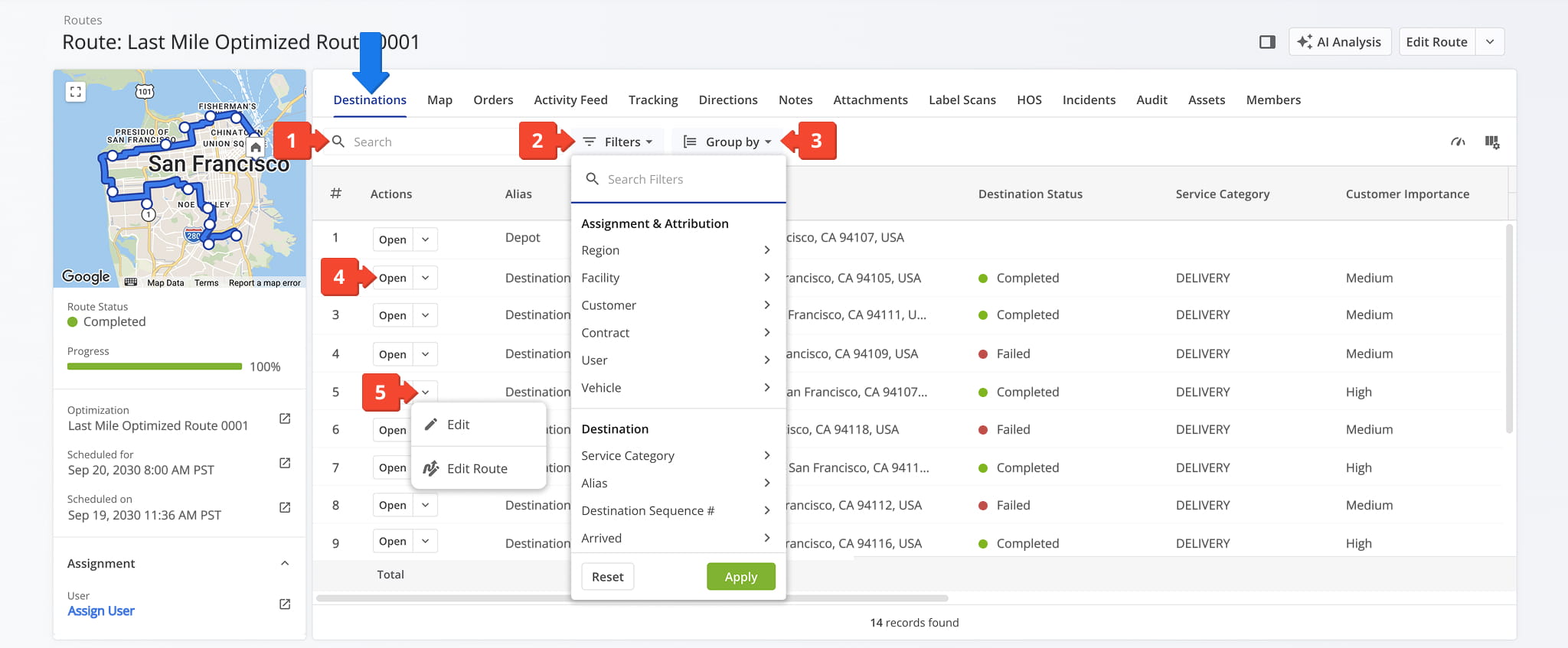
Destinations Filters
You can also customize the data displayed in the table. Click the Column Icon in the upper right corner to select which route data fields appear and adjust their order to suit your operational needs.
The table below provides an overview of all available data columns, which you can reorder by dragging them into place.
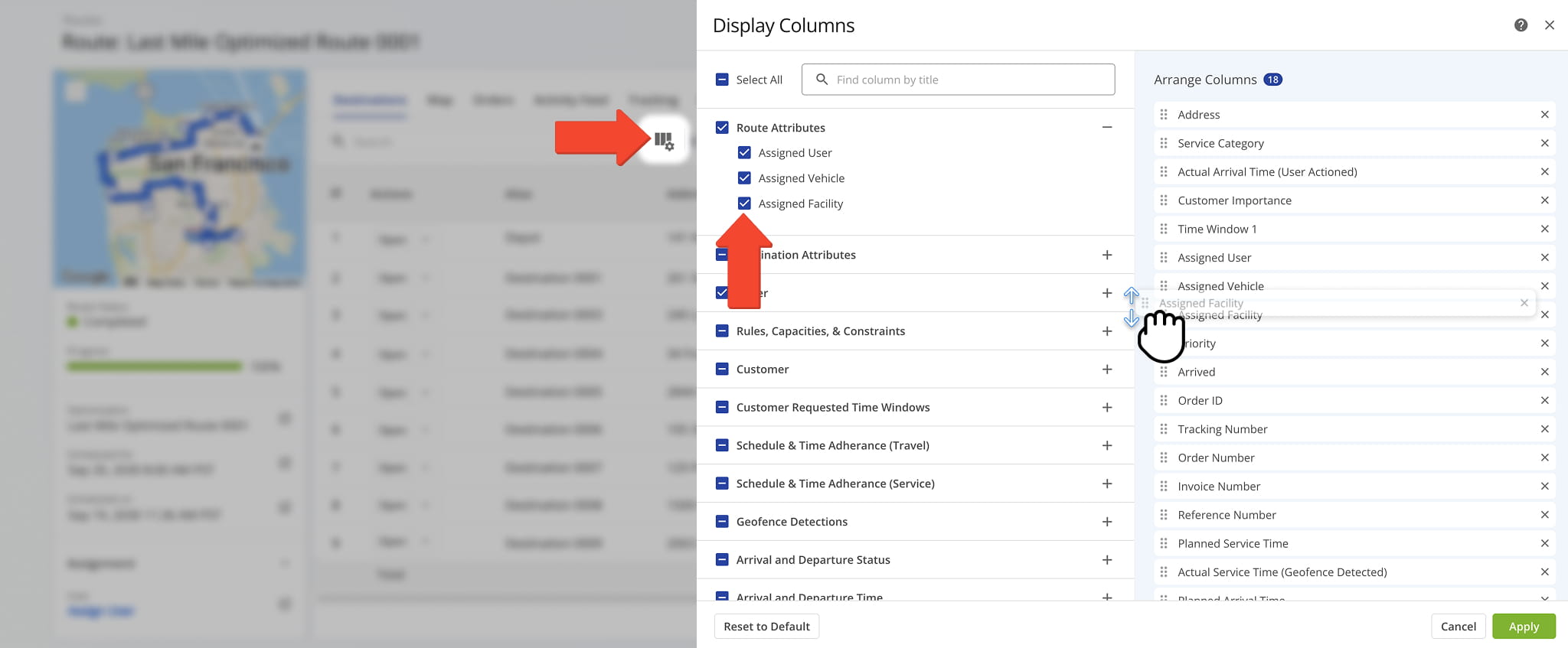
Destinations Data Columns
Map Tab – Route Map And Destination Data Overview
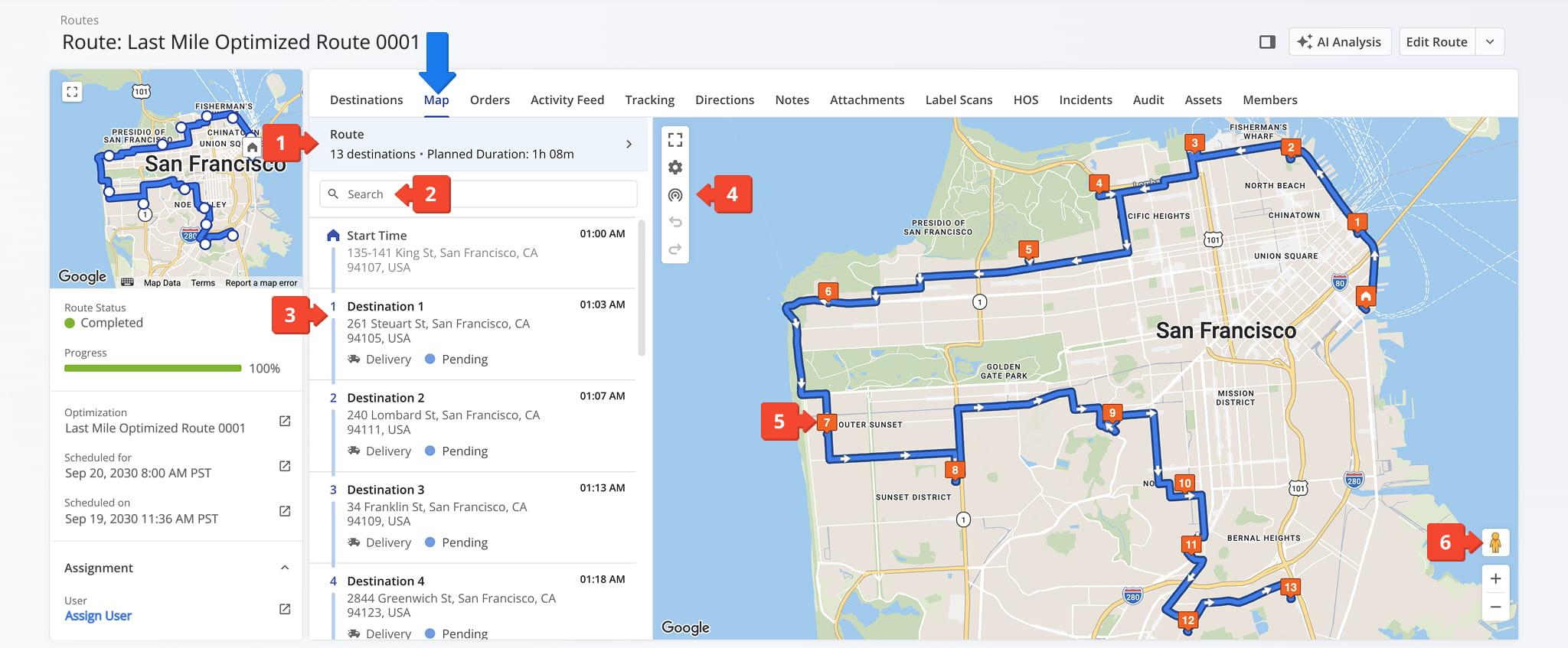
The Map tab provides a visual overview of the route, with quick access to both route properties and destination data. From this tab, you can:
- Click the blue “Route” field above the Route List to view Route Properties, including the route’s scheduled date, assigned User and Crew, Customer details, and custom data.
- Use the Search field to quickly locate a specific destination in the Routes List.
- Click on any destination in the Route List to view key details such as time windows, order details, and service time information.
- Use the map’s control panel to enlarge the map, adjust its appearance, access tracking information, or undo and redo modifications.
- Click on a destination marker in the map to view additional destination details.
- Drag the Pegman Icon onto the map to view it in Street View mode.
Orders Tab – Route Orders And Customer Order Data Overview
The Orders tab displays all orders associated with the selected route in a structured data table. The available order data matches what appears on the Orders Page.
From this tab, you can perform the following actions for each order on the route:
- Use the Search field to locate specific orders.
- Apply filters to narrow the data. See the table below for a complete list of available filters.
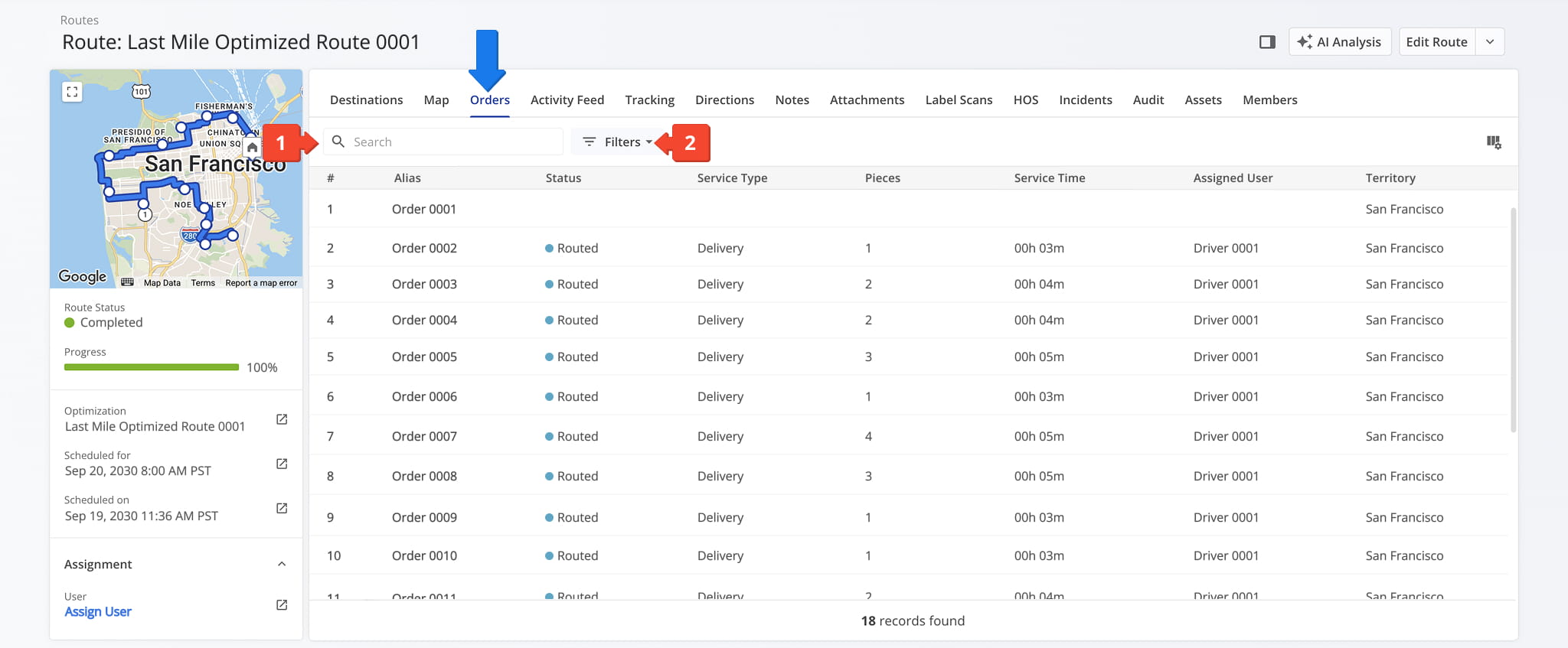
Orders Filters
You can also customize the data displayed in the table. Click the Column Icon in the upper right corner to select which route data fields appear and adjust their order to suit your operational needs.
The table below provides an overview of all available data columns, which you can reorder by dragging them into place.
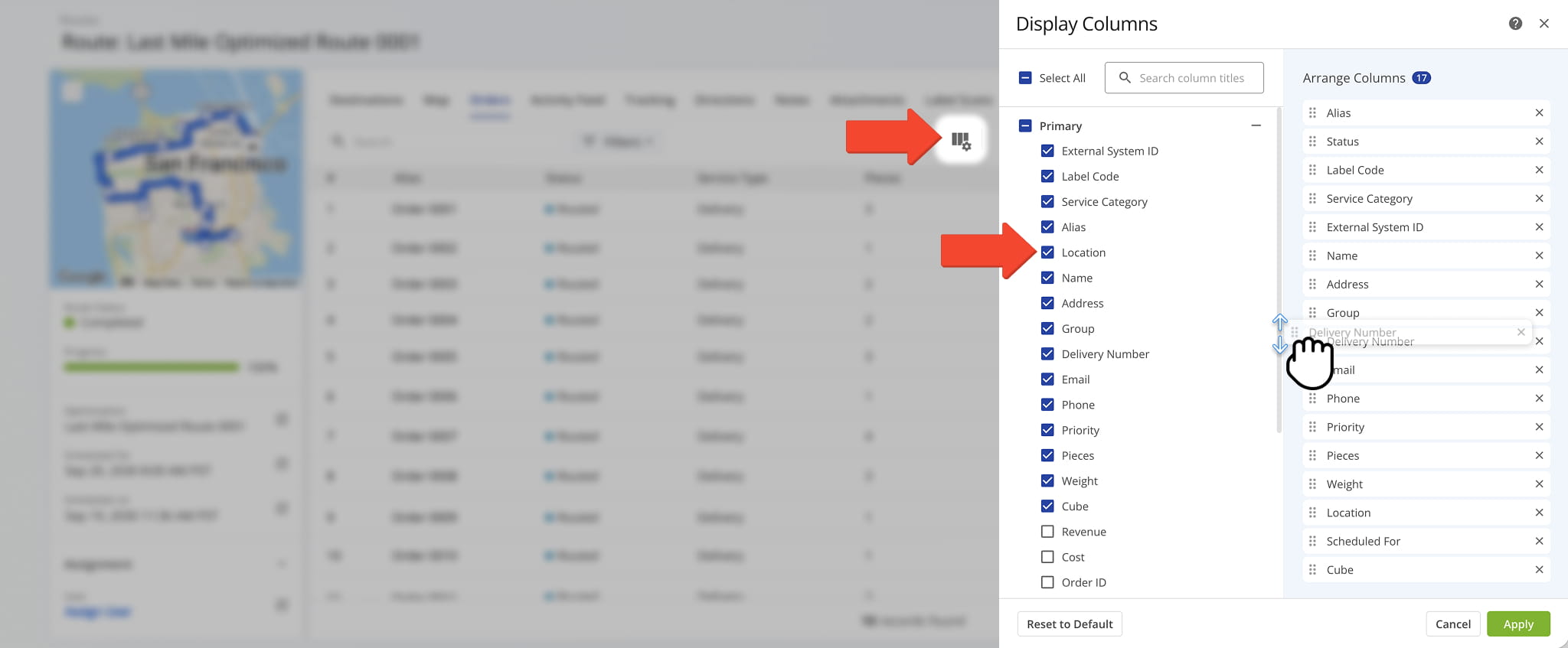
Orders Data Columns
Activity Feed Tab – Route Activity Overview
The Activity Feed tab shows a chronological list of route events, including destination updates and Route Editor changes, and matches the entries available in your standard Activity Feed. From this tab, you can:
- Filter activities by a specific date or date range.
- Refine the list by Filter options, detailed in the table below.
- Scroll down to view all activities, organized by date.
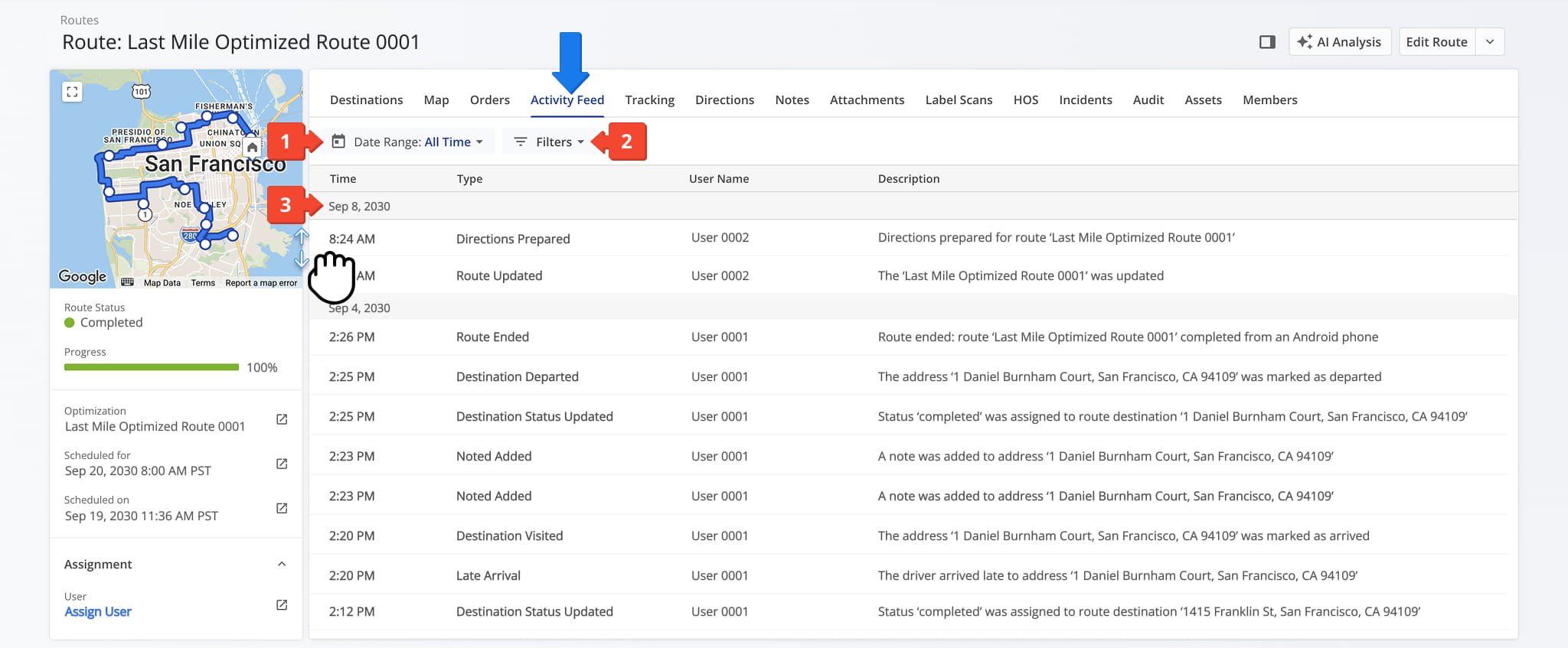
Activity Filters
Tracking Tab – Route Location Updates Overview
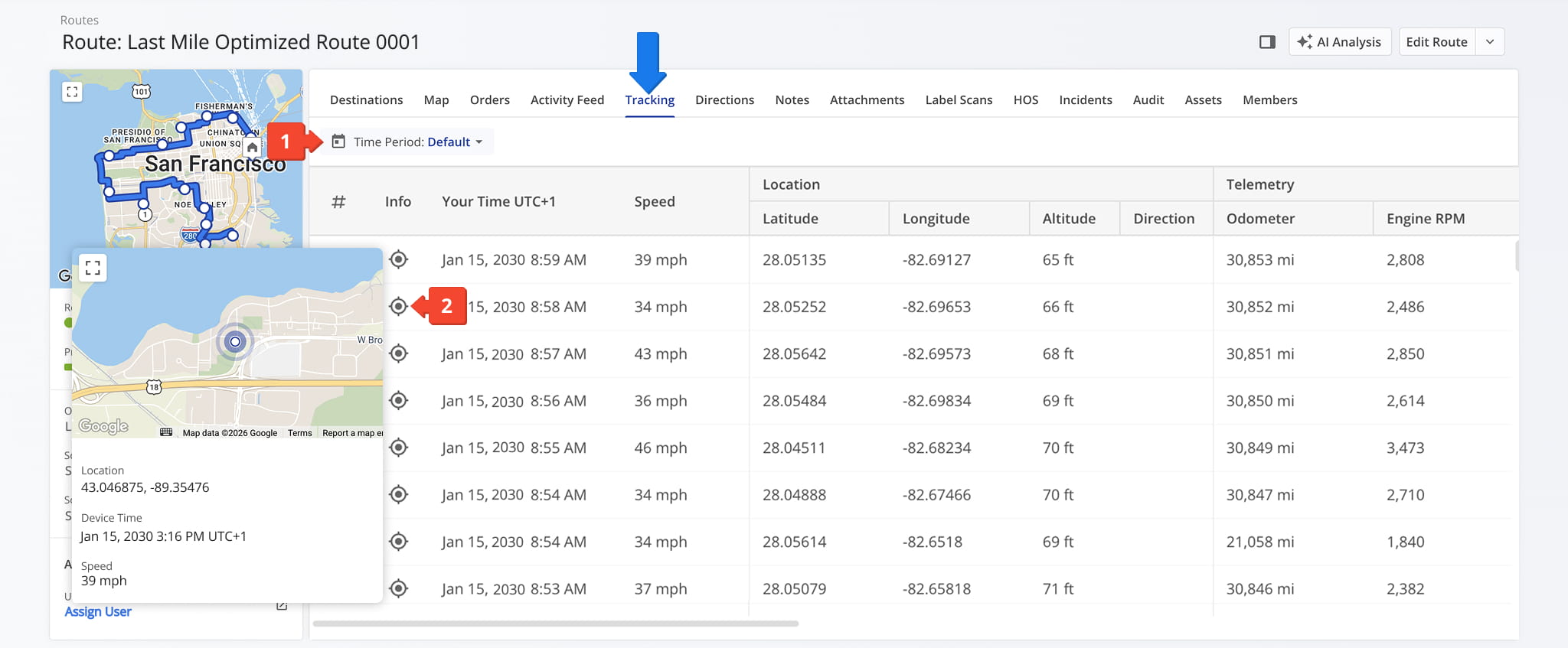
The Tracking tab displays all location updates associated with a route. Each update shows a timestamp, coordinates, vehicle details, operational status, movement, speed, and telemetry data when available via Telematics Integration.
From this tab, you can:
- Use the calendar to filter tracking data by time period or specific date.
- Click the Info Icon to view the route’s tracked location on a map, along with latitude, longitude, and speed at that moment.
Directions Tab – Route Navigation Details
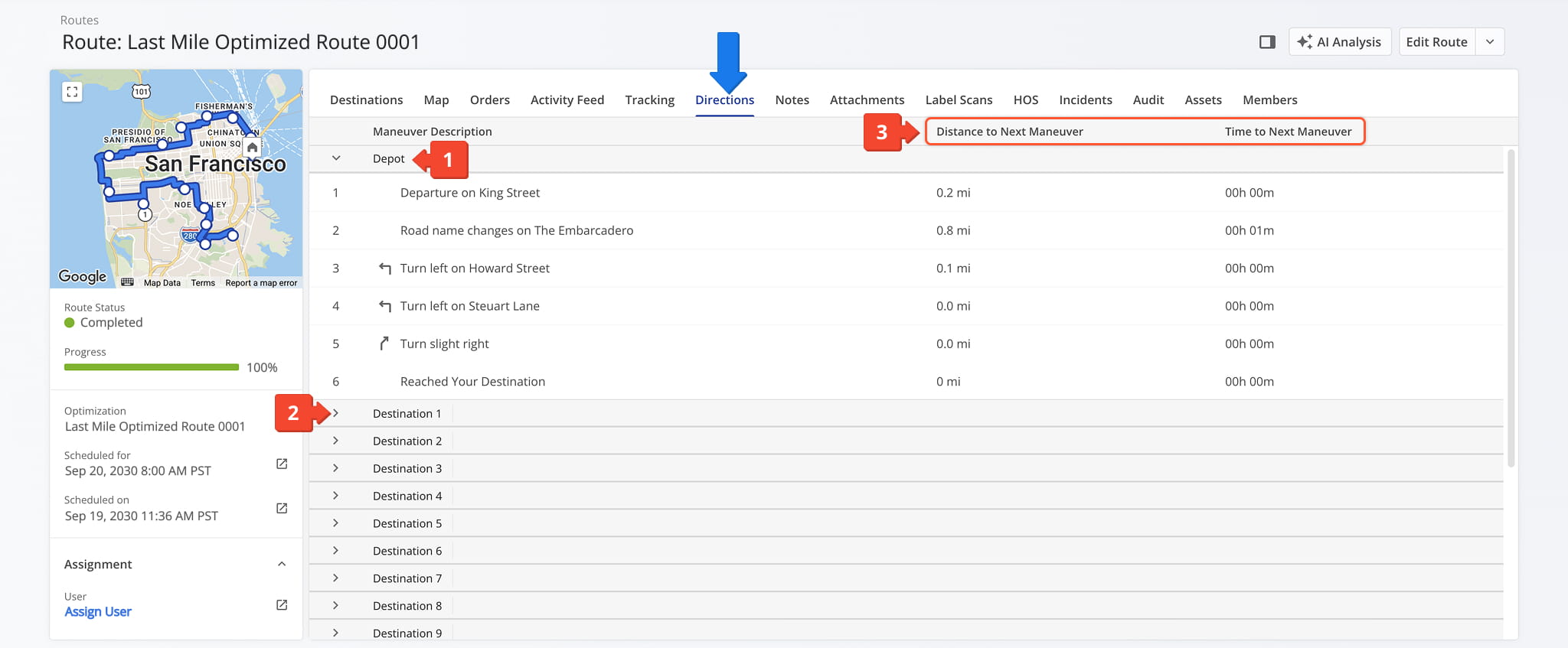
The Directions tab provides a detailed list of turn-by-turn navigation instructions for the selected route. Directions are organized by destination and include maneuvers, distances, and navigation events. From this tab, you can:
- View navigation directions organized by destination.
- Click the arrow next to a destination to expand and review its full list of maneuver instructions.
- Review the distance and estimated time to the next maneuver for each step.
Notes Tab – Route Activity And Destination Notes
The Notes tab provides a list of Destination Status Notes added to each destination by the assigned user. From here, you can:
- Use the search field, calendar, or filters, detailed below, to quickly find specific Notes.
- Click any image, such as a signature or photograph, to view an enlarged, downloadable version.
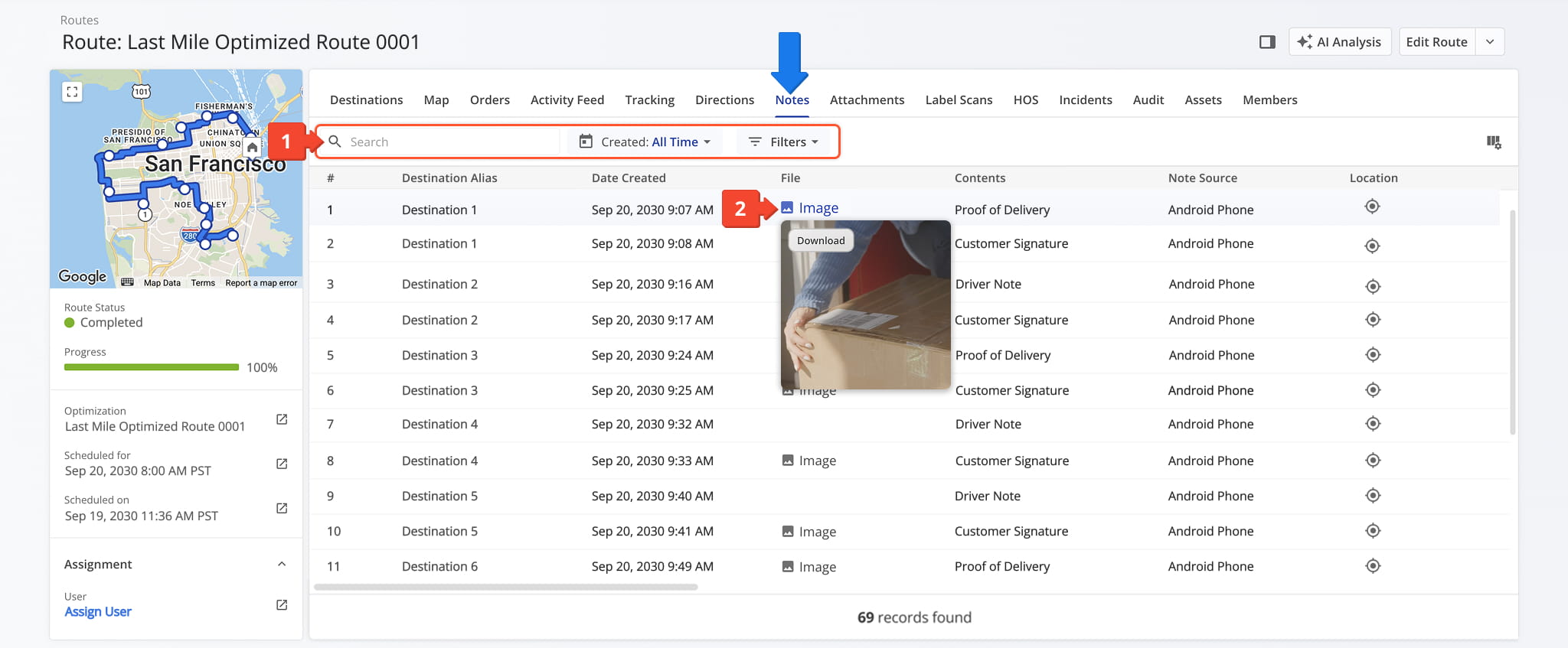
Notes Filters
You can also customize the data displayed in the table. Click the Column Icon in the upper right corner to select which route data fields appear and adjust their order to suit your operational needs.
The table below provides an overview of all available data columns, which you can reorder by dragging them into place.
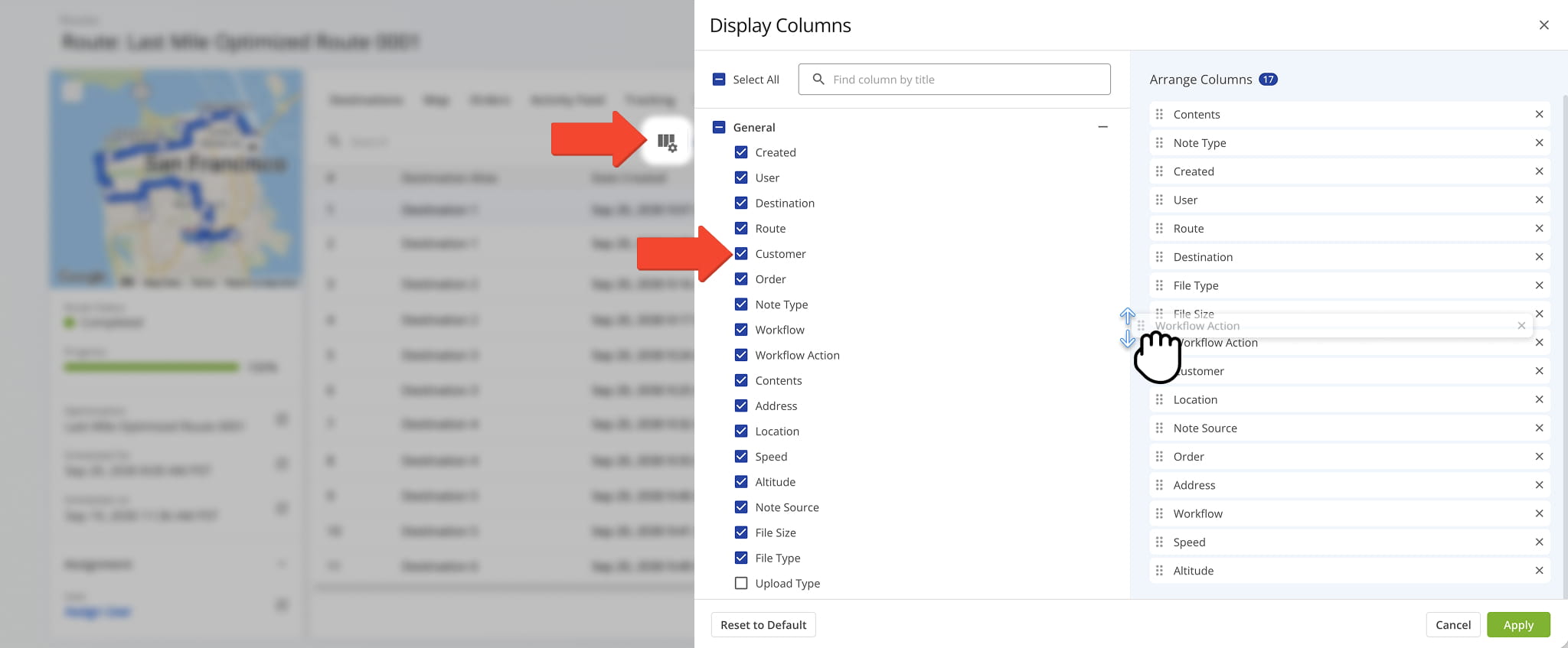
Notes Data Table
Attachments Tab – Destinations Files And Proof Of Visit
The Attachments tab provides an overview of all files linked to destinations, helping you quickly locate the attachments you need without switching between tabs or views. From this tab, you can:
- Use the search field to quickly find specific attachments.
- Use filters, described in the table below, to limit which attachments you see.
- Hover over an image to access the Download Button.
- Click the Information Icon to view attachment details.
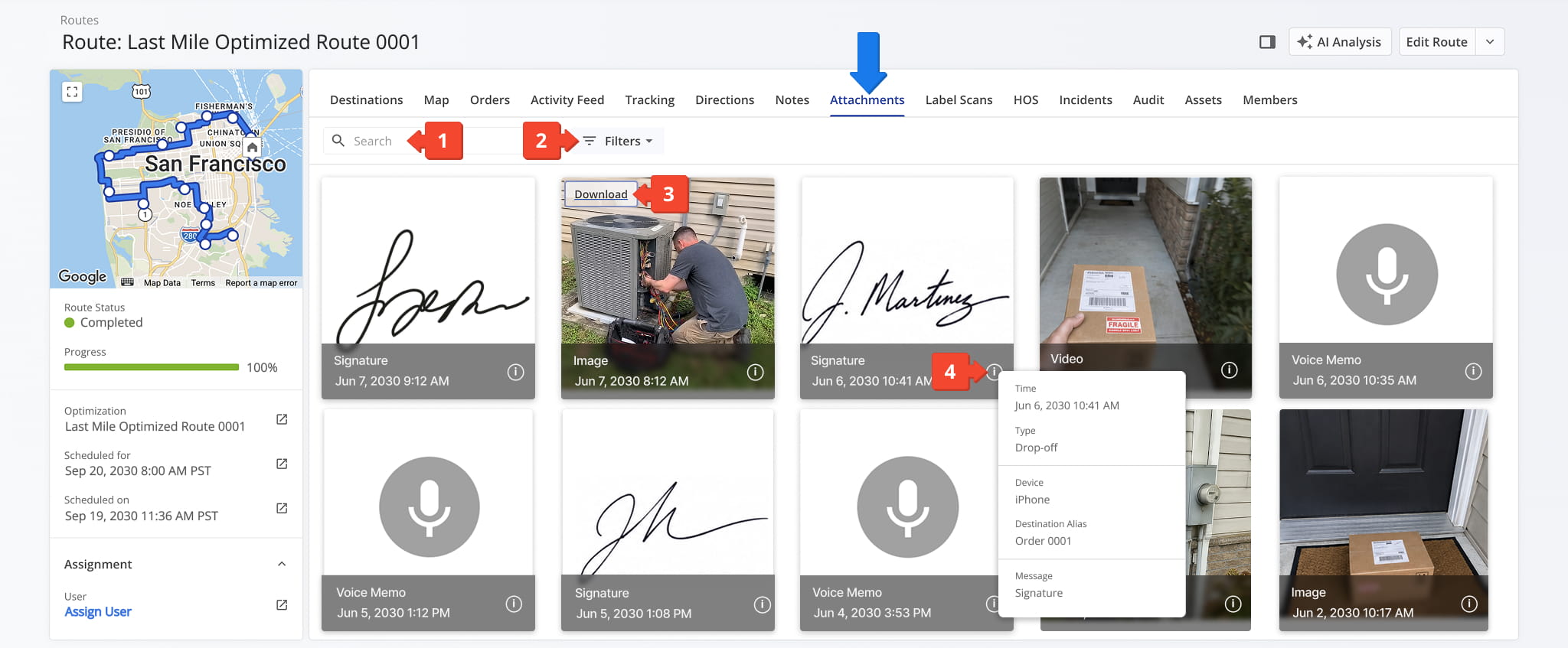
Attachments Filters
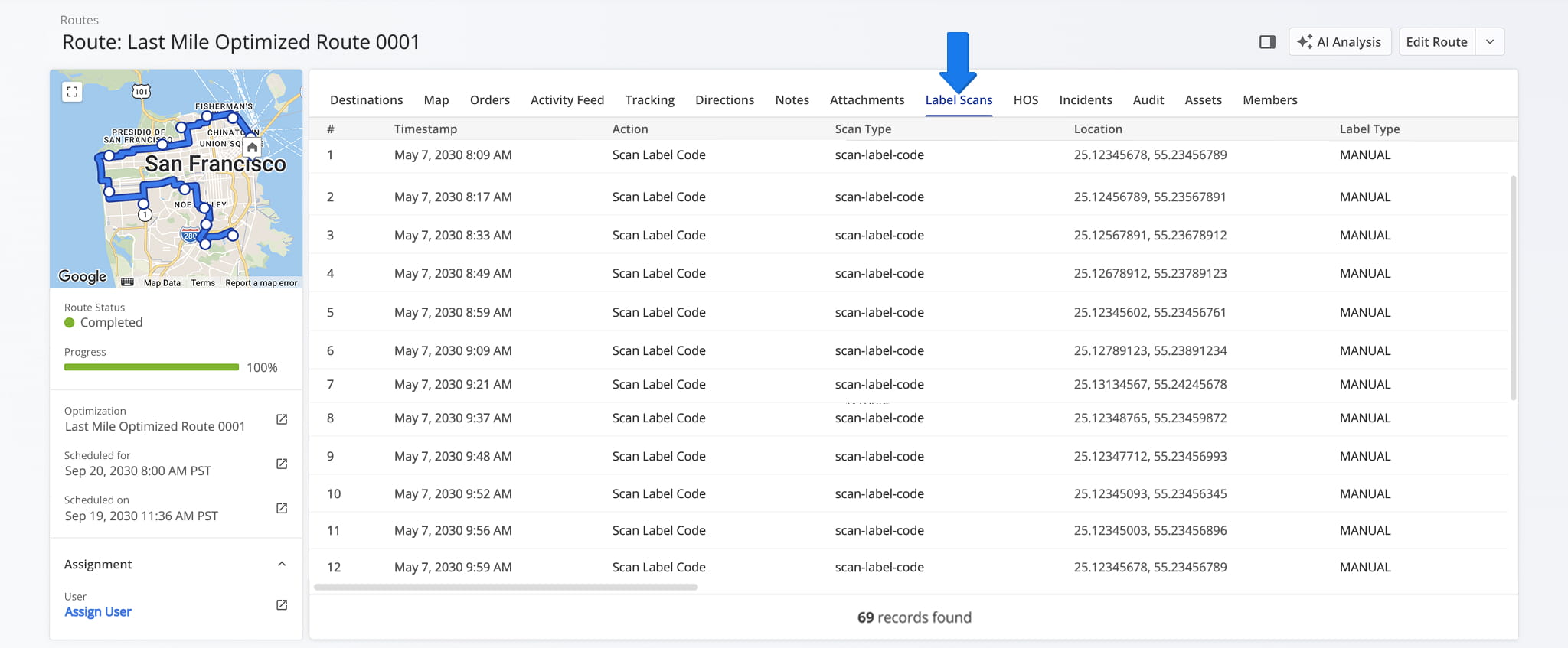
Label Scans Tab – Scan Activity Overview
The Label Scans tab displays all scan activity associated with a route. From this tab, you can review timestamps, actions, scan type details, user details, and location coordinates.
HOS Tab – Service Activity Overview
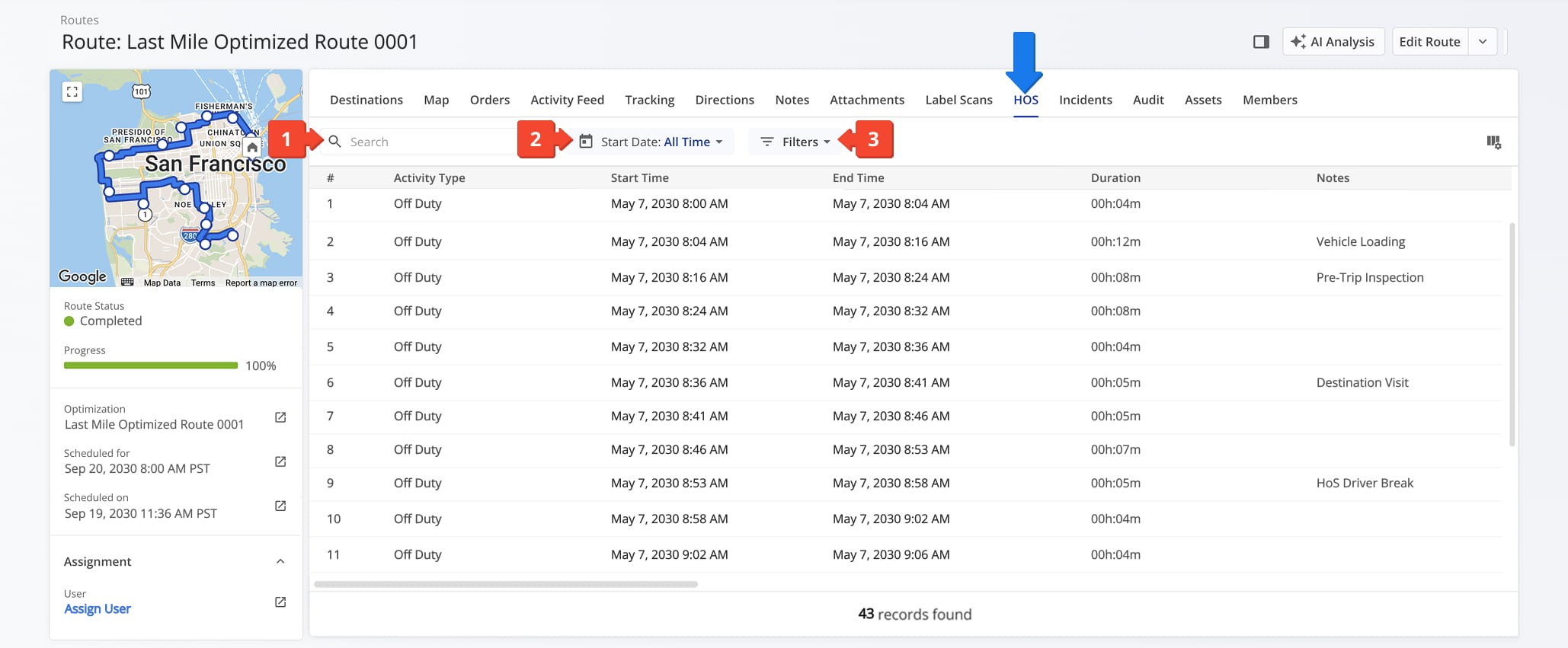
The HOS tab provides an overview of all Hours of Service activity associated with a route. From this tab, you can:
- Search for specific HOS activity using the available search field.
- Filter results by date or a selected date range.
- Refine the data table using filters, described in the table below.
HOS Filters
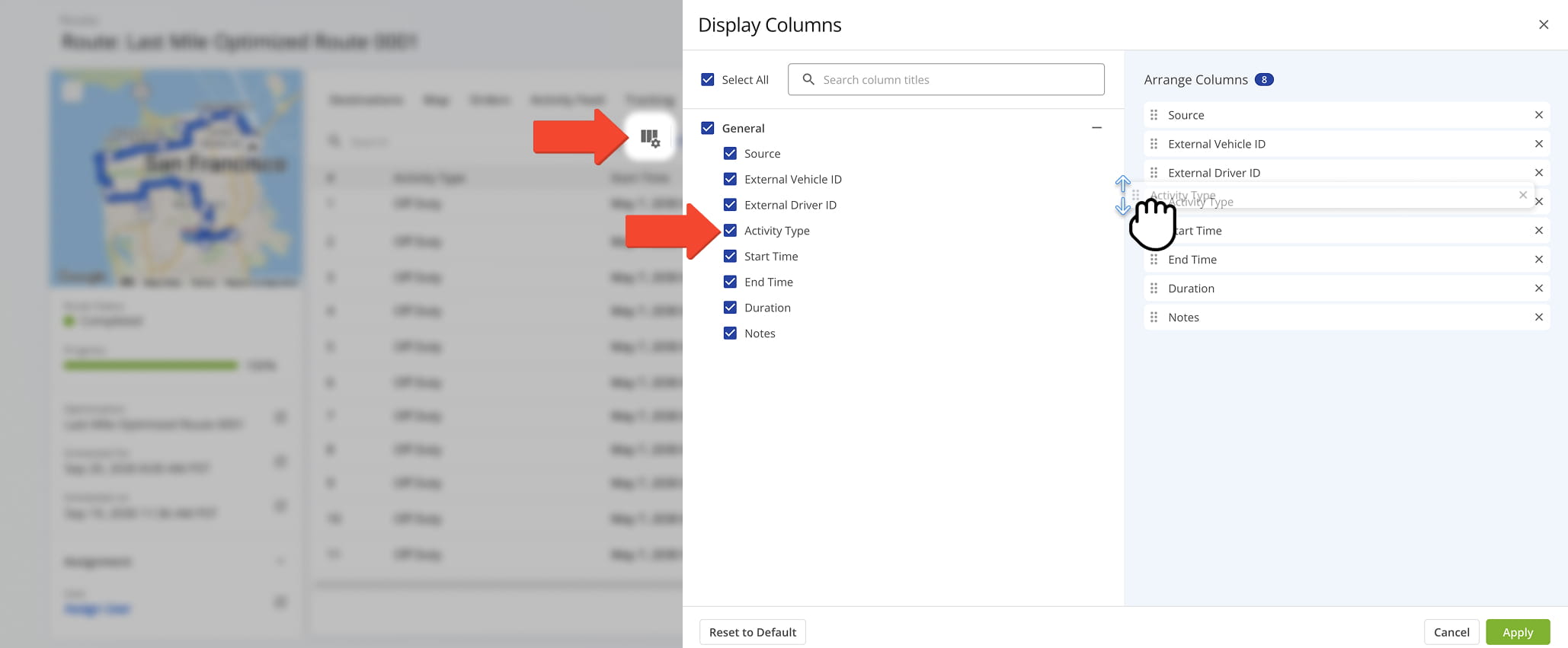
You can also customize the data displayed in the table. Click the Column Icon in the upper right corner to select which route data fields appear and adjust their order to suit your operational needs.
The table below provides an overview of all available data columns, which you can reorder by dragging them into place.
HOS Data Columns
Incidents Tab – Recorded Safety Incidents And Incident Data
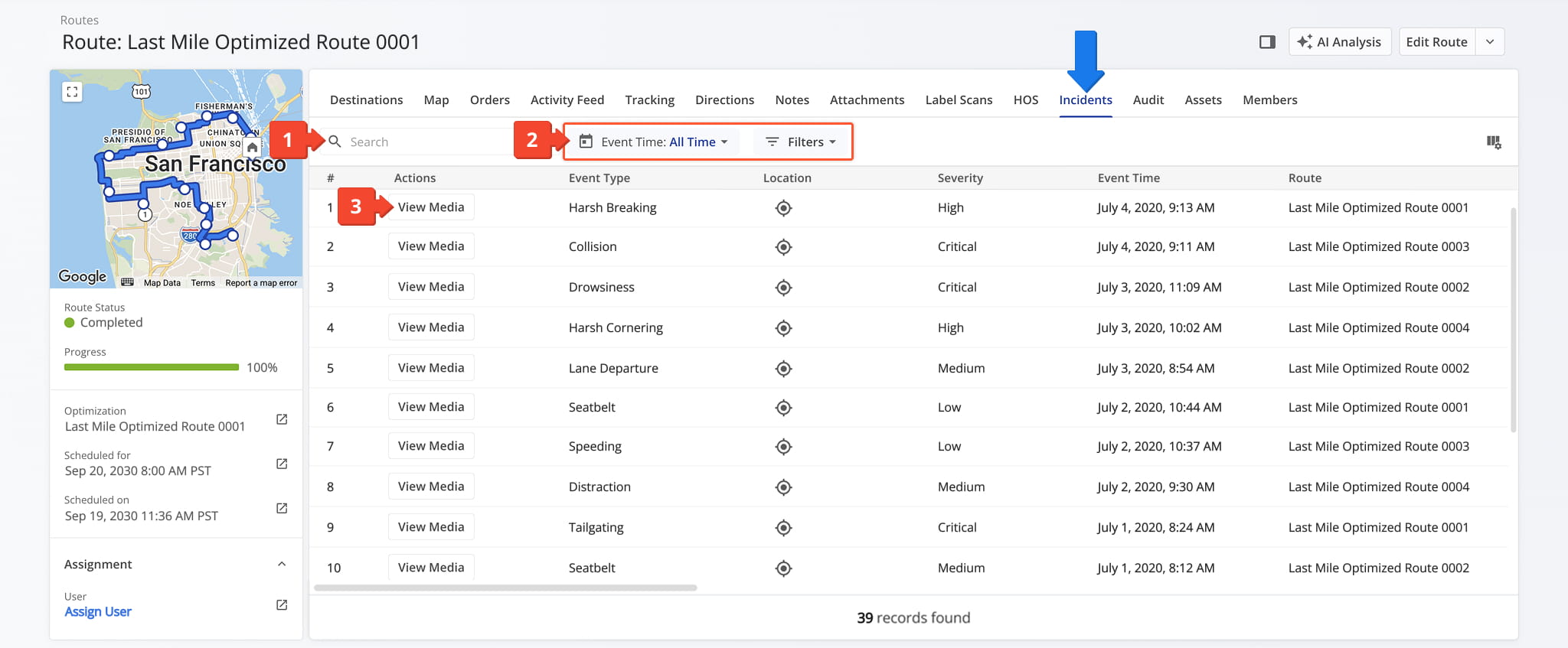
The “Incidents” tab displays all recorded safety incidents – pulled from your telematics device and dash cams – along with their details. From this tab, you can:
- Use the Search field to locate specific incidents.
- Define an Event Time or use Filters, described in the table below, to narrow which incidents appear in the data table.
- Click the “View Media” button to open the media player and inspect the recording associated with an incident.
NOTE: Learn more about these features in our dedicated guide to Route4Me incidents reports.
Incidents Filters
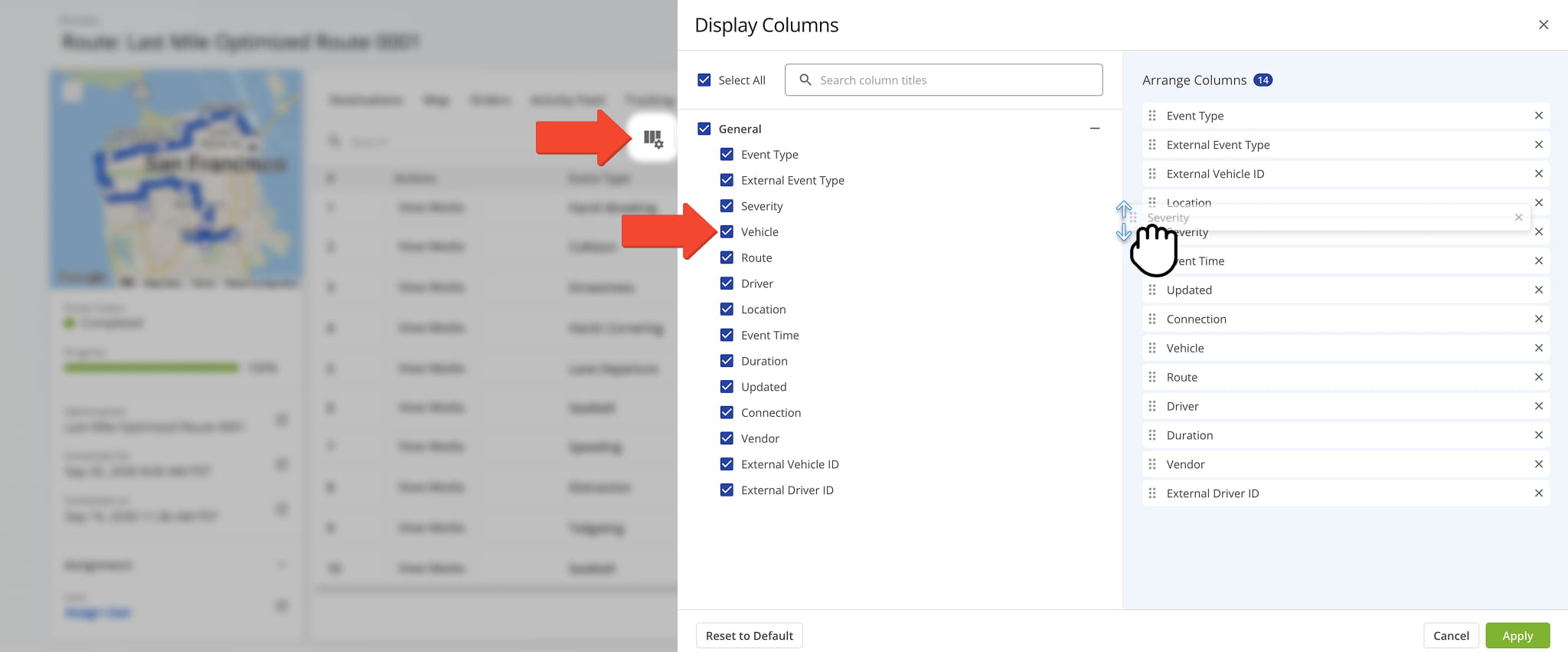
You can also customize the data displayed in the table. Click the Column Icon to select which route data fields appear and adjust their order to suit your operational needs.
The table below provides an overview of all available data columns, which you can reorder by dragging them into place.
Incidents Data Columns
Audit Tab – Route Performance Playback And Plan Vs. Actual Progress Overview
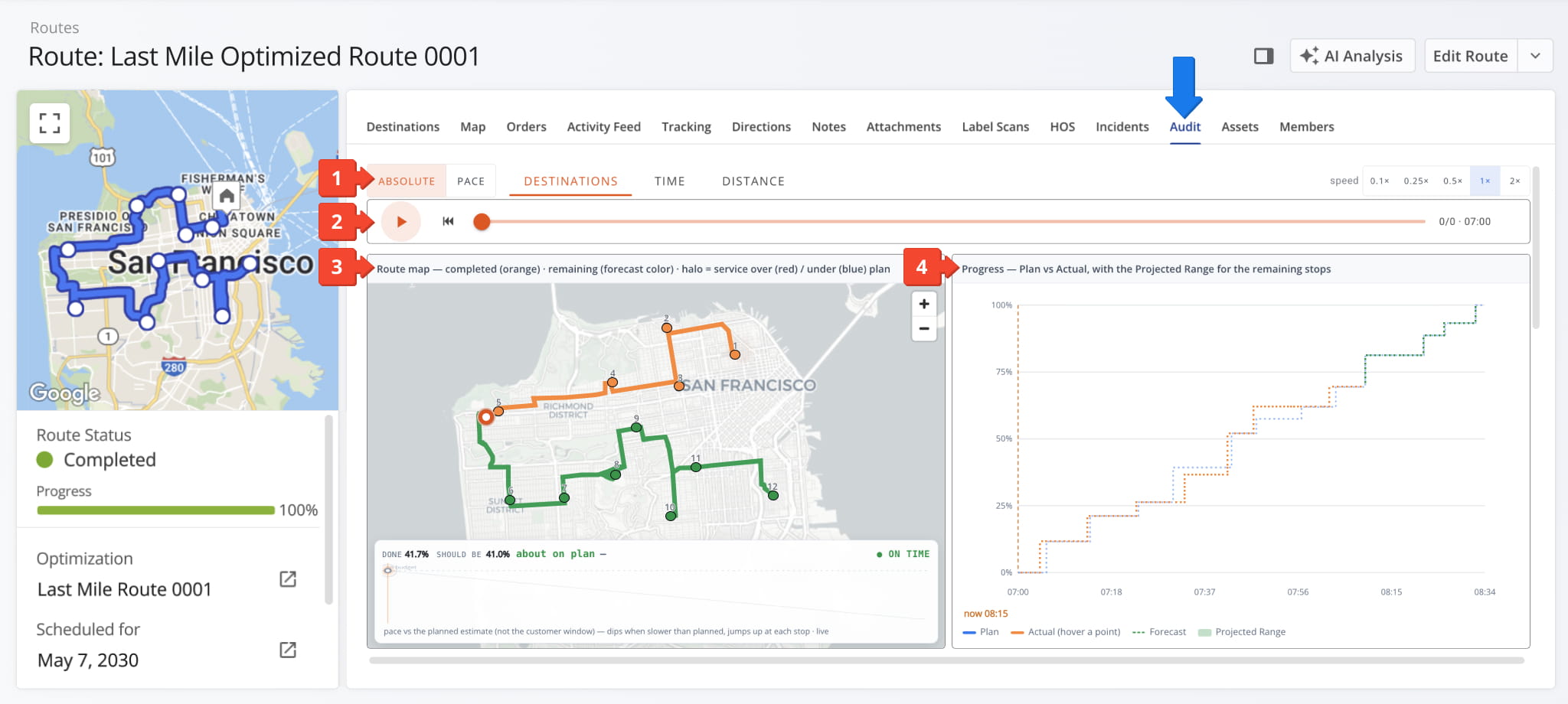
The Audit tab provides a real-time and historical view of route execution, allowing you to compare planned performance against actual driver progress. From this tab, you can:
- Click one of the playback view buttons to analyze route performance from a unique perspective.
- Use playback controls to replay route execution at speeds from 0.1× to 2× to review route progression over time.
- Use the route map and status bar to monitor route progress and overall completion.
- Review the “Progress” chart to compare actual completion against the plan.
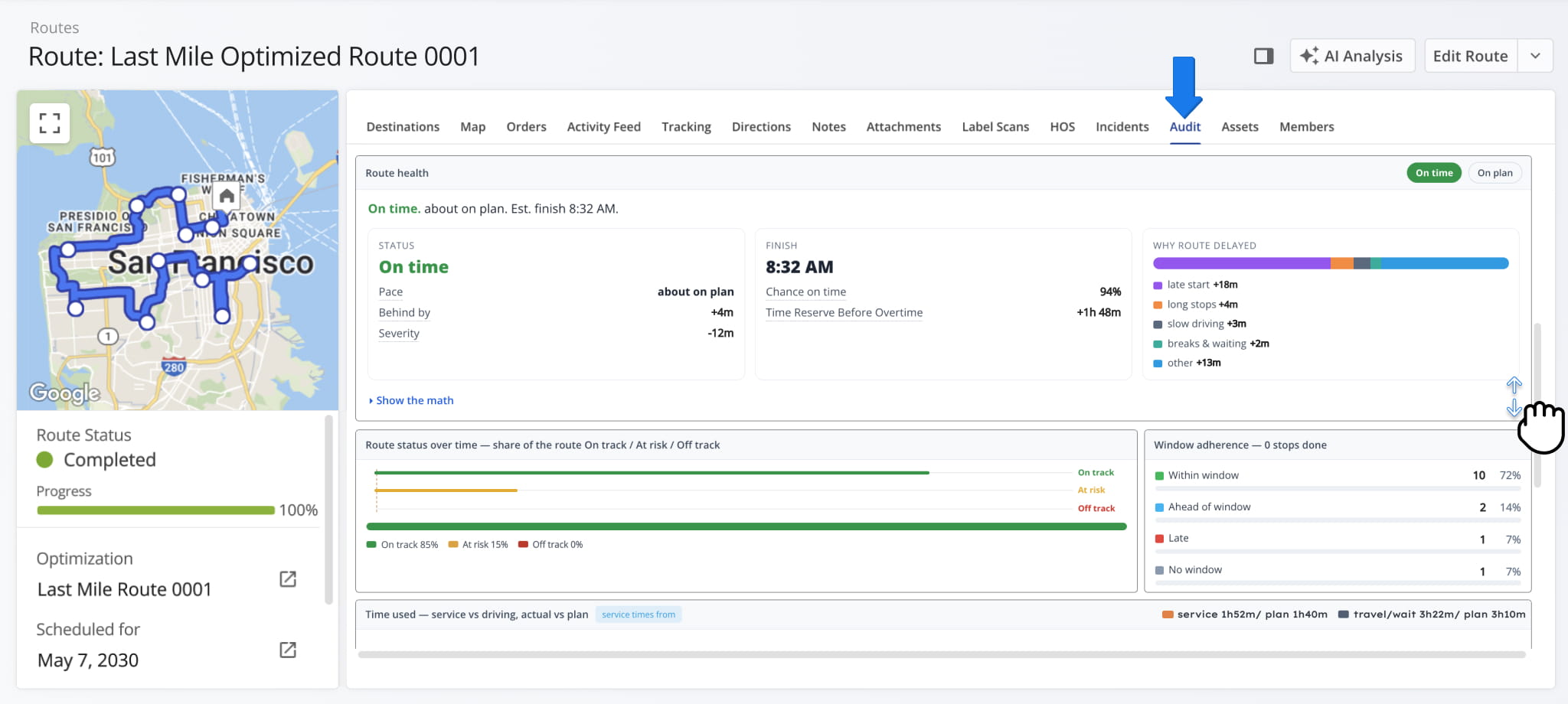
Scroll down the Audit tab to review additional route performance panels, including “Route Health“, “Route Status Over Time“, “Window Adherence“, and more.
Assets Tab – Route Assets Overview
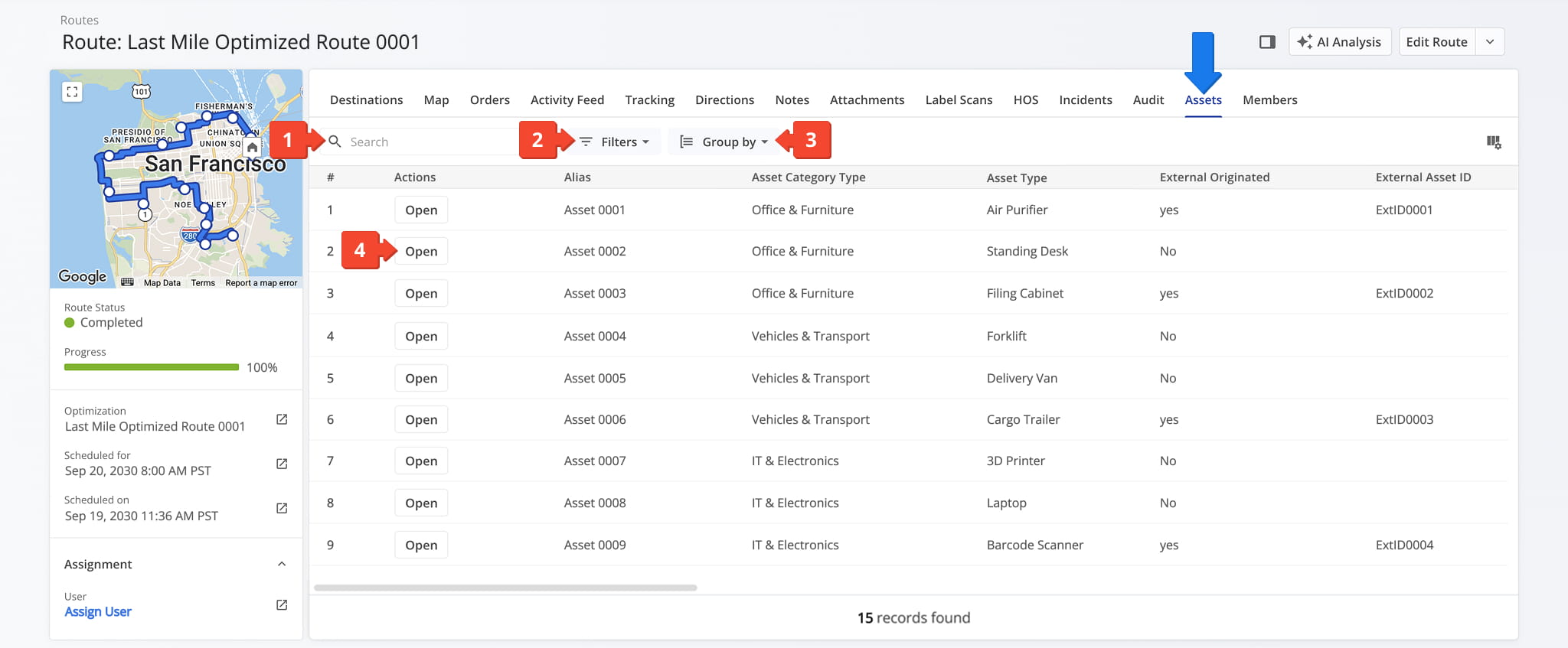
The Assets tab displays all assets associated with the selected route. From this tab, you can:
- Use the Search field to locate specific assets by name or identifier.
- Apply Filters to narrow down the asset list. See the table below for a full list of available filters.
- Use the Group By option to organize assets by asset type or whether they were externally originated.
- Click “Open” next to an asset to access its Asset Snapshot.
Assets Filters
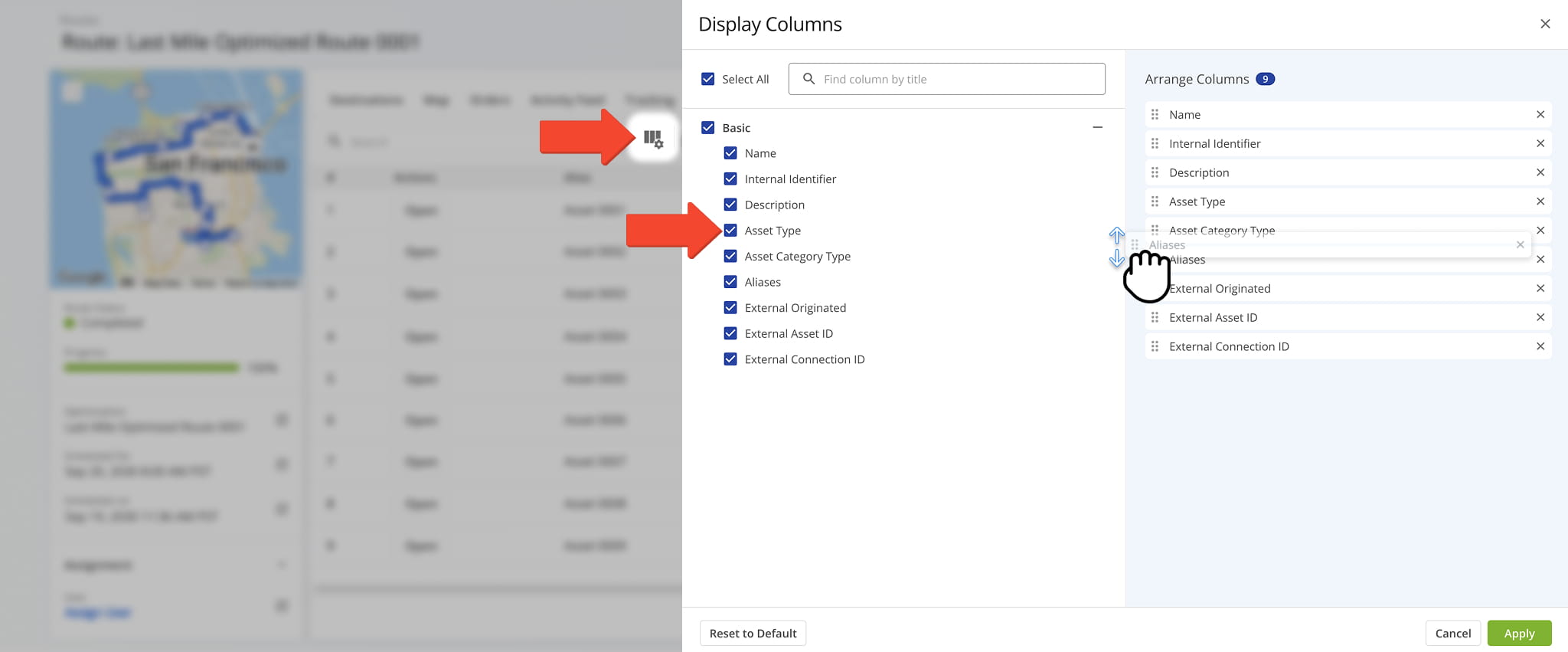
You can also customize the data displayed in the table. Click the Column Icon in the upper right corner to select which route data fields appear and adjust their order to suit your operational needs.
The table below provides an overview of all available data columns, which you can reorder by dragging them into place.
Assets Data Columns
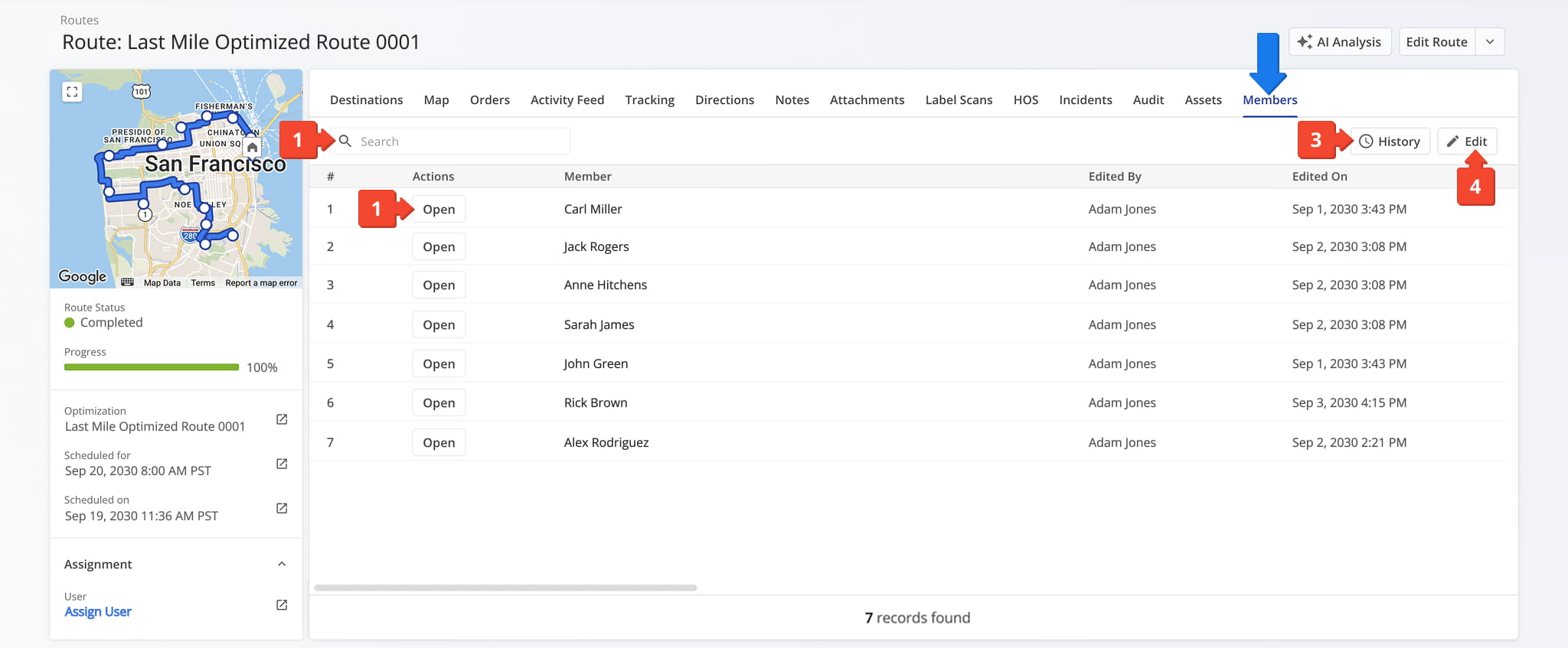
Members Tab – Route Team Members And Assigned User Overview
The Members tab displays all team members associated with a route in addition to the route’s assigned user. From this tab, you can:
- Use the Search field to locate a specific team member.
- Click the “Open” button to access the team member’s User Snapshot.
- Click the “History” button to see when team members were added to or removed from the route.
- Click the “Edit” button to add or remove team members to the route.
Visit Route4Me's Marketplace to Check out Associated Modules:
- Operations
Audit Logging and Activity Stream
- Operations
Custom Data Add-On
- Operations
Advanced Team Management Add-On
Last Updated:
About author: Daniel Archer

