
Invoice Snapshot – Centralized Invoice Data Overview

Route4Me’s Invoice Snapshot provides enterprise business users with a centralized view of detailed invoice data from your ERP system. You can quickly review line items, track amounts, and analyze totals, discounts, and taxes in one place. Filters, search, and customizable columns help streamline invoice analysis and ensure fast access to the information you need.
The Invoice Snapshot provides a centralized, customizable view of all invoice data, making it easy to review, track, and analyze customer invoices.


Access Invoice Snapshot – View Detailed Customer Invoice Data

To open the Invoice Snapshot for any invoice, select “ERP” > “Invoice” from the Navigation Menu. Then, from the Invoice Page, click “Open” next to the desired invoice.
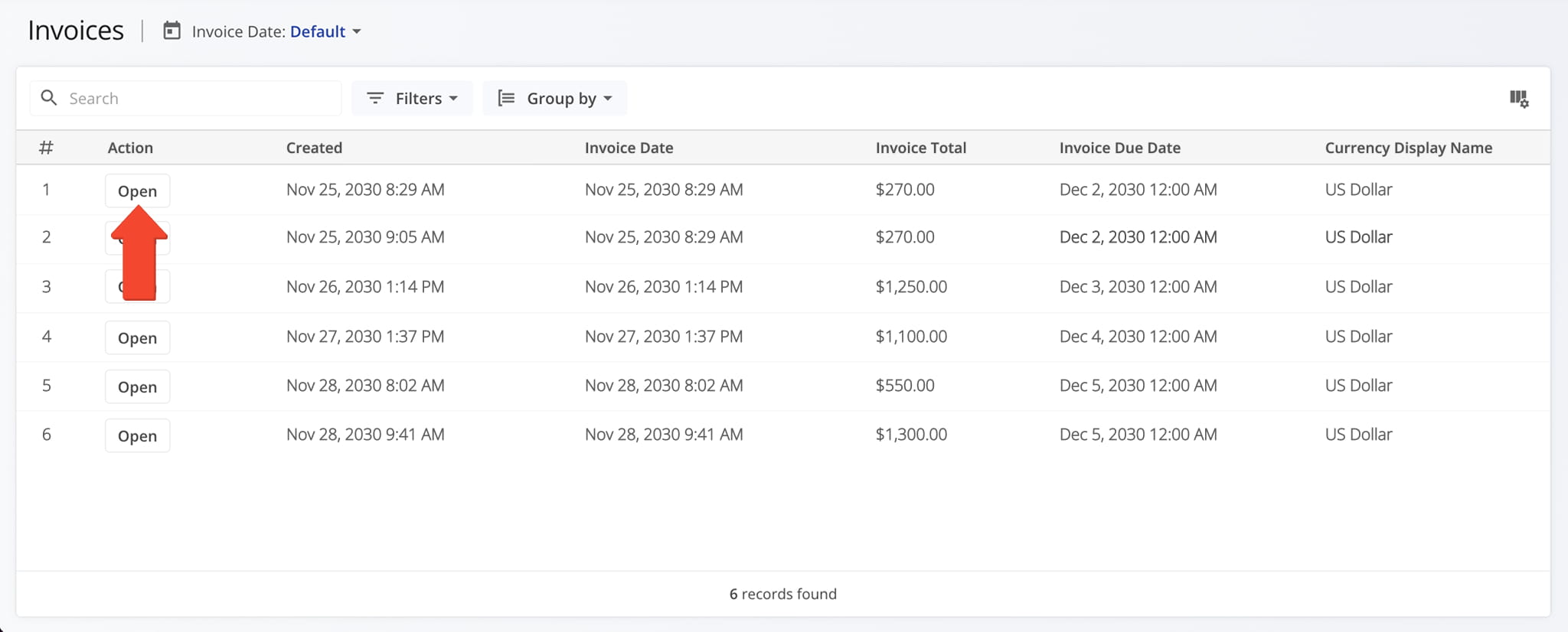
Open Your Invoice Page

You can quickly open any Invoice Snapshot from the ERP Invoice page to view detailed invoice data and analytics in one place.


Invoice Overview Panels – Invoice Dates, Amount, And Details

Invoice Creation Panel – Invoice History And Associated Details

The Invoice Creation Panel displays key historical data, including Invoice creation date, Invoice due date, modification details, and more. From this panel you can:

  1. Click the Go-To Icon next to “Created By” or “Last Modified By” to access the User Snapshot for the associated team member
  2. Click the Go-To Icon next to “Route” to access its Route Snapshot.
  3. Click the Go-To Icon next to “Destination” to access its Destination Snapshot.
  4. Click the Go-To Icon next to “Customer” to access its Customer Snapshot.
  5. Click the Go-To Icon next to “Location” to access its Location Snapshot.
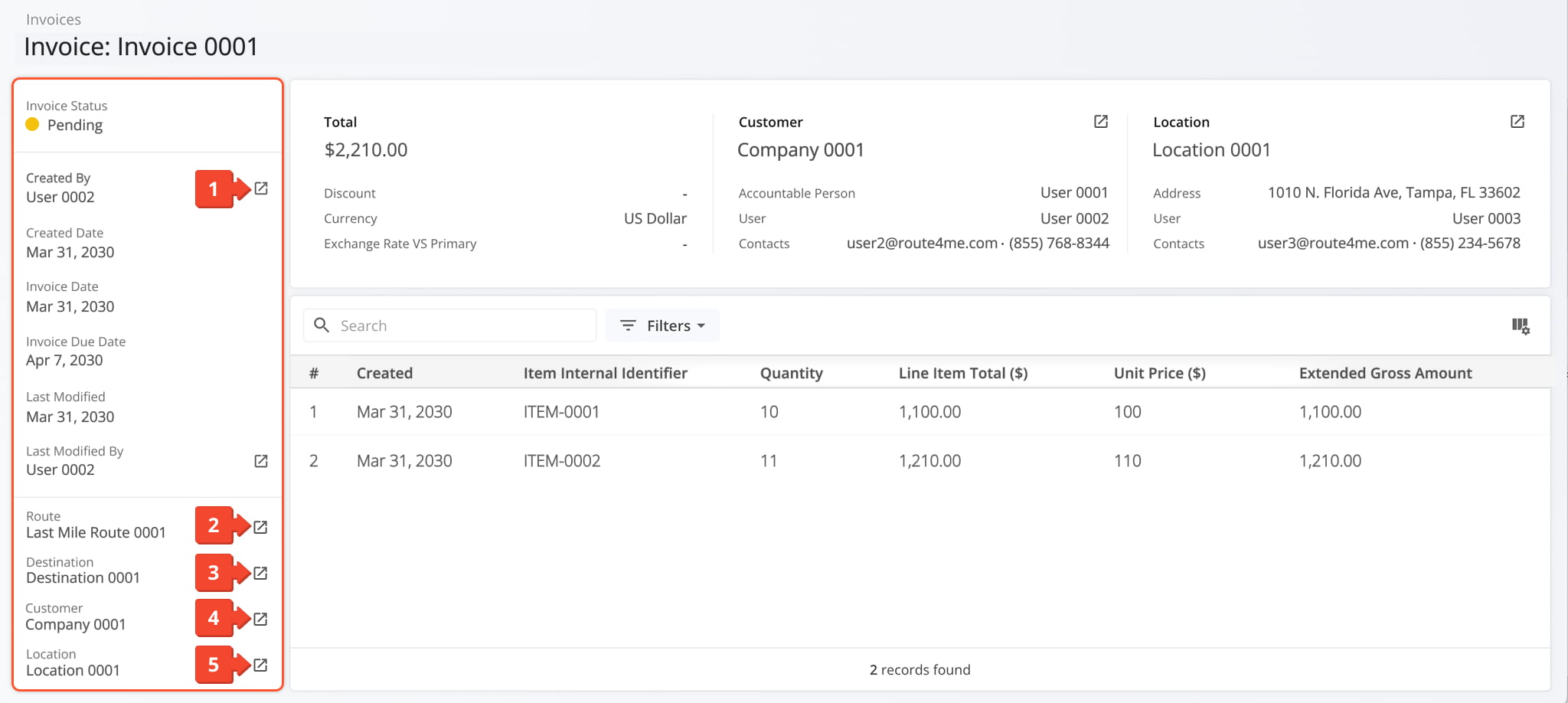
The Invoice Summary Panel provides key invoice details at a glance, including creation date, totals, and team or customer information.


Invoice Summary Panel – Invoice Amount, Customer Details, Location Information

The Invoice Summary Panel provides an overview of the invoice, including amount, discount, currency, exchange rate, customer, and location details. From this panel, you can:

  1. View the total invoice amount, any applicable discounts, currency, and exchange rate compared to the primary currency if relevant.
  2. View customer details, including the customer’s name, responsible users, and contact information. Click the Go-To Icon to access its Customer Snapshot.
  3. View location details, including the destination’s name, address, responsible user, and contact information. Click the Go-To Icon to access its Location Snapshot.
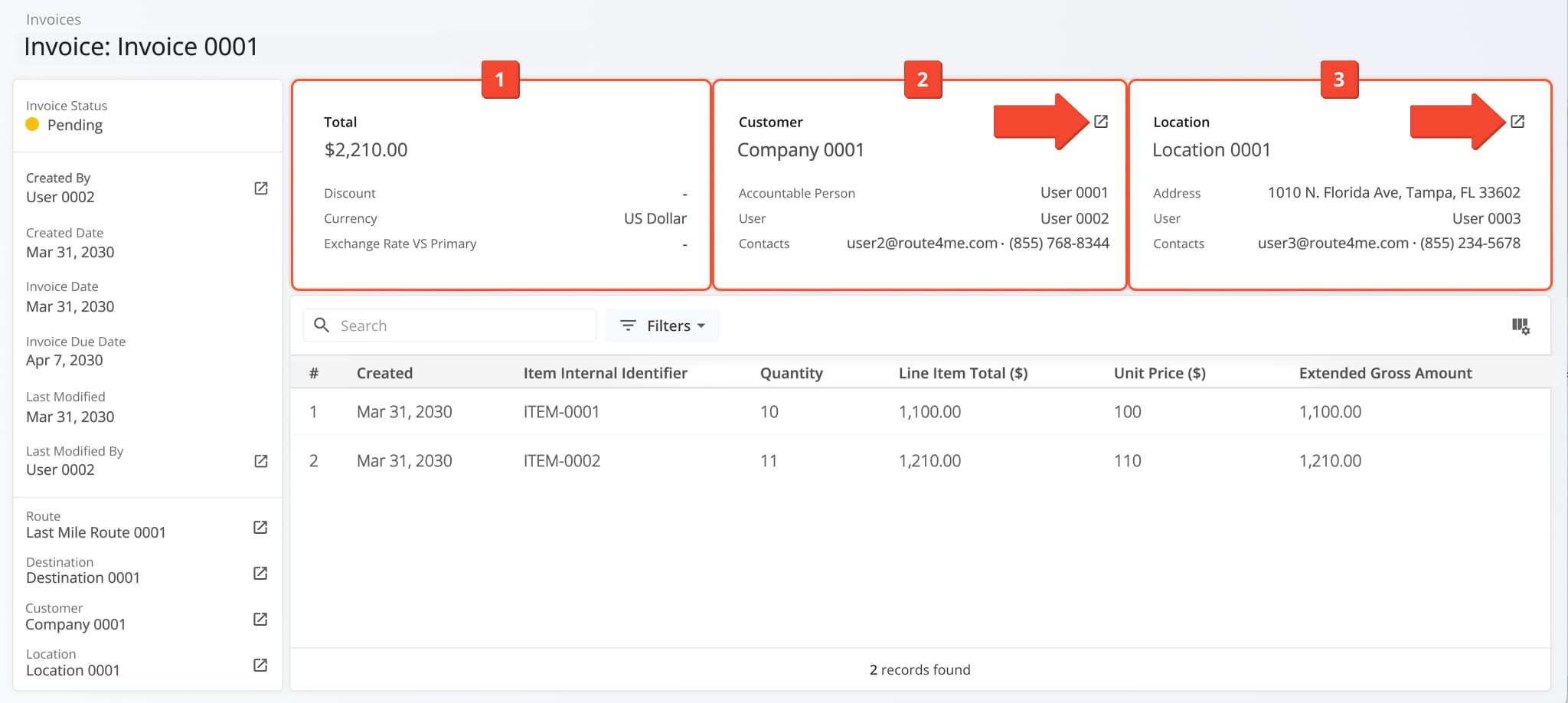
The Invoice Snapshot offers an overview of the Invoice total, key customer details, and important location information.


Invoice Snapshot Data – Customizable Invoice Data Table

The customizable data table provides detailed invoice information, including creation date, item display name, unit price, quantities, totals, and other relevant fields. From the data table, you can:

  1. Use the Search field to locate a specific invoice.
  2. Apply filters to narrow down the data. See the table below for a full list of available filters.
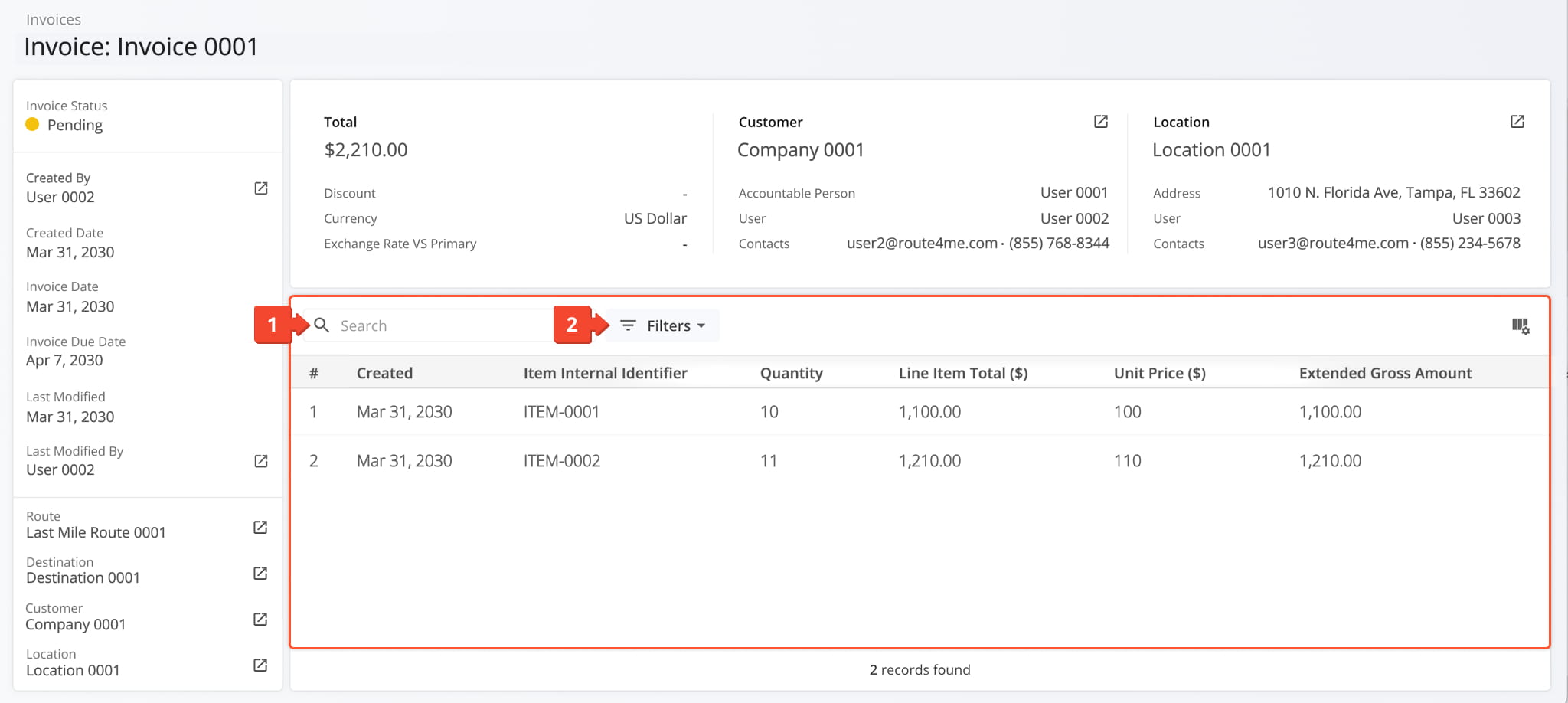
The Invoice Snapshot Data section offers a customizable table of invoice details, letting you search, filter, and organize line items for easy analysis.

FilterDescription
TotalFilter by setting a minimum and/or maximum total invoice amount.
QuantityFilter by setting a minimum and/or maximum item quantity.
Unit PriceFilter by defining a minimum and/or maximum unit price.
Gross AmountFilter by specifying a minimum and/or maximum total amount before discounts, taxes, or adjustments are applied.
DiscountFilter by setting a minimum and/or maximum discount amount applied to the item.
Tax AmountFilter by defining a minimum and/or maximum tax amount.
External Invoice IDFilter by the invoice identifier from an external system or integrated platform.
External Line Item IDFilter by the unique identifier assigned to each invoice line item.
CreatedFilter by selecting a specific creation date or date range using the calendar.
Last UpdatedFilter by selecting a specific last updated date or date range using the calendar.


To customize the data displayed in the table, click the Column Icon to select which data fields appear and adjust their order to suit your operational needs.

The table below provides an overview of all available data columns, which you can reorder by dragging them into place.
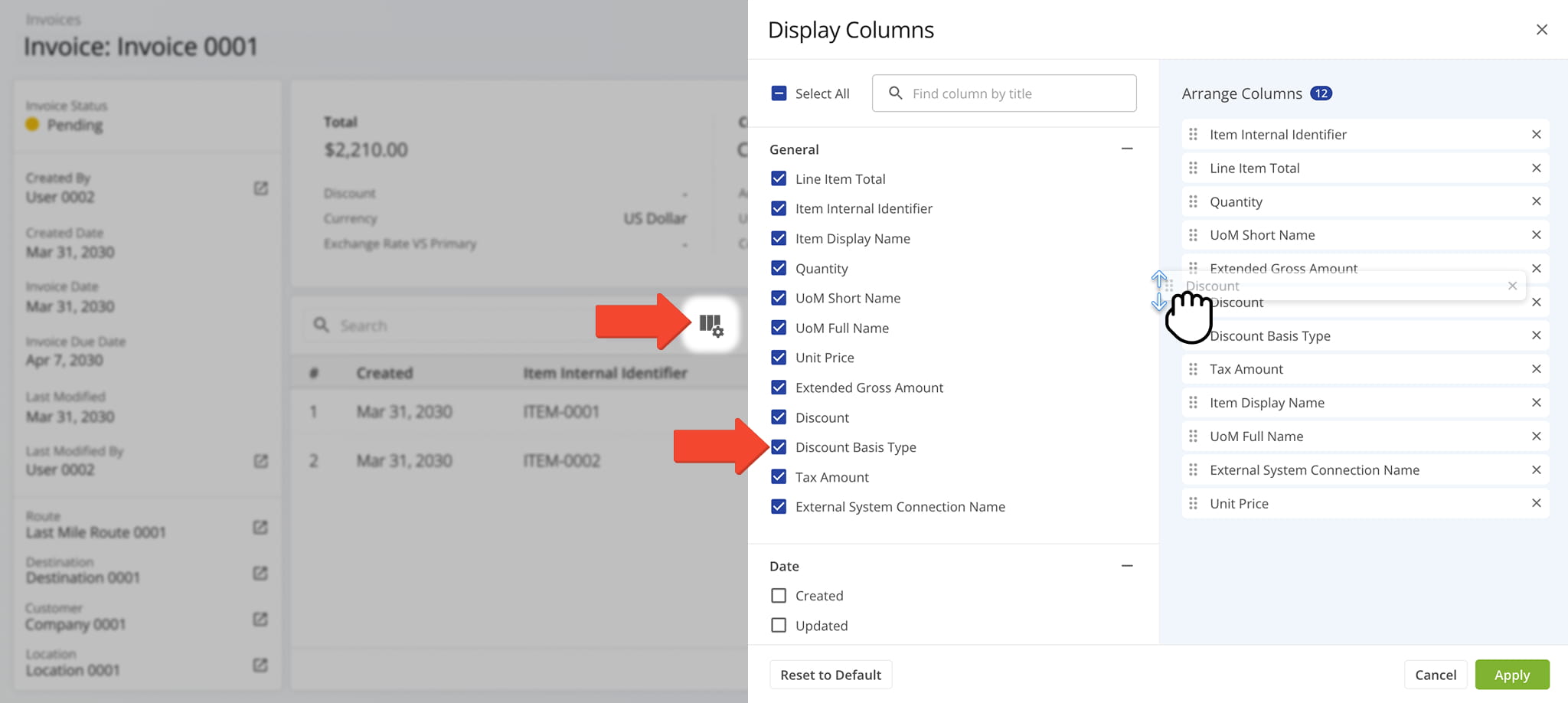
The table view can be customized by selecting which data columns appear and rearranging them to match your workflow.

Data ColumnDescription
General
Line Item TotalThe total calculated amount for the line item after applying quantity, discounts, and taxes.
Item Internal IdentifierThe system-generated internal ID assigned to the item.
Item Display NameThe name of the item as displayed in the invoice.
QuantityThe number of units included in the invoice line item.
UoM Short NameThe abbreviated unit of measure associated with the item.
UoM Full NameThe full unit of measure description associated with the item.
Unit PriceThe price per single unit of the item before discounts or taxes.
Extended Gross AmountThe total gross amount calculated from quantity multiplied by unit price before discounts.
DiscountThe discount amount applied to the line item.
Discount Basis TypeThe method used to calculate the discount (e.g., percentage or fixed amount).
Tax AmountThe total tax applied to the line item.
External System Connection NameThe name of the connected external system associated with the invoice data.
Date
CreatedThe date when the invoice line item was created in the system.
UpdatedThe date when the invoice line item was last modified.


Last Updated:

About author: Daniel Archer

Daniel ArcherWith a background in pedagogy and writing instruction, Daniel is a former tenured English Instructor who, after nearly 20 years of teaching, transitioned into content strategy and leading writing teams for global brands. Now, as Technical Documentation Manager at Route4Me, he translates complex logistics technology into clear, accessible content that empowers users.

Was this article helpful?
Still can't find what you're looking for? Contact us
Route4Me

About Route4Me

Route4Me has over 40,000 customers globally. Route4Me's Android and iPhone mobile apps have been downloaded over 2 million times since 2009. Extremely easy-to-use, Route4Me's apps create optimized routes, synchronize routes to mobile devices, enable communication with drivers and customers, offer turn-by-turn directions, delivery confirmation, and more. Behind the scenes, Route4Me's operational optimization platform combines high-performance algorithms with data science, machine learning, and big data to plan, optimize, and analyze routes of almost any size in real-time.
