
Manage Routes In Mobile Route Planner – Edit, Refresh, Maintain Your Routes
Explore how to manage and keep your routes up to date in the Route4Me Route Planner App for iOS and Android. Learn how to find and open routes, adjust route settings, duplicate or export routes, and remove routes when needed. You’ll also see how to refresh route data and access key tools that help you maintain accurate, organized, and efficient routes at all times.
NOTE: If you experience issues with features described in this guide, or if features you need are not available, please contact Route4Me’s Customer Support Team.
Table of Contents
Routes List – Find And Open Routes
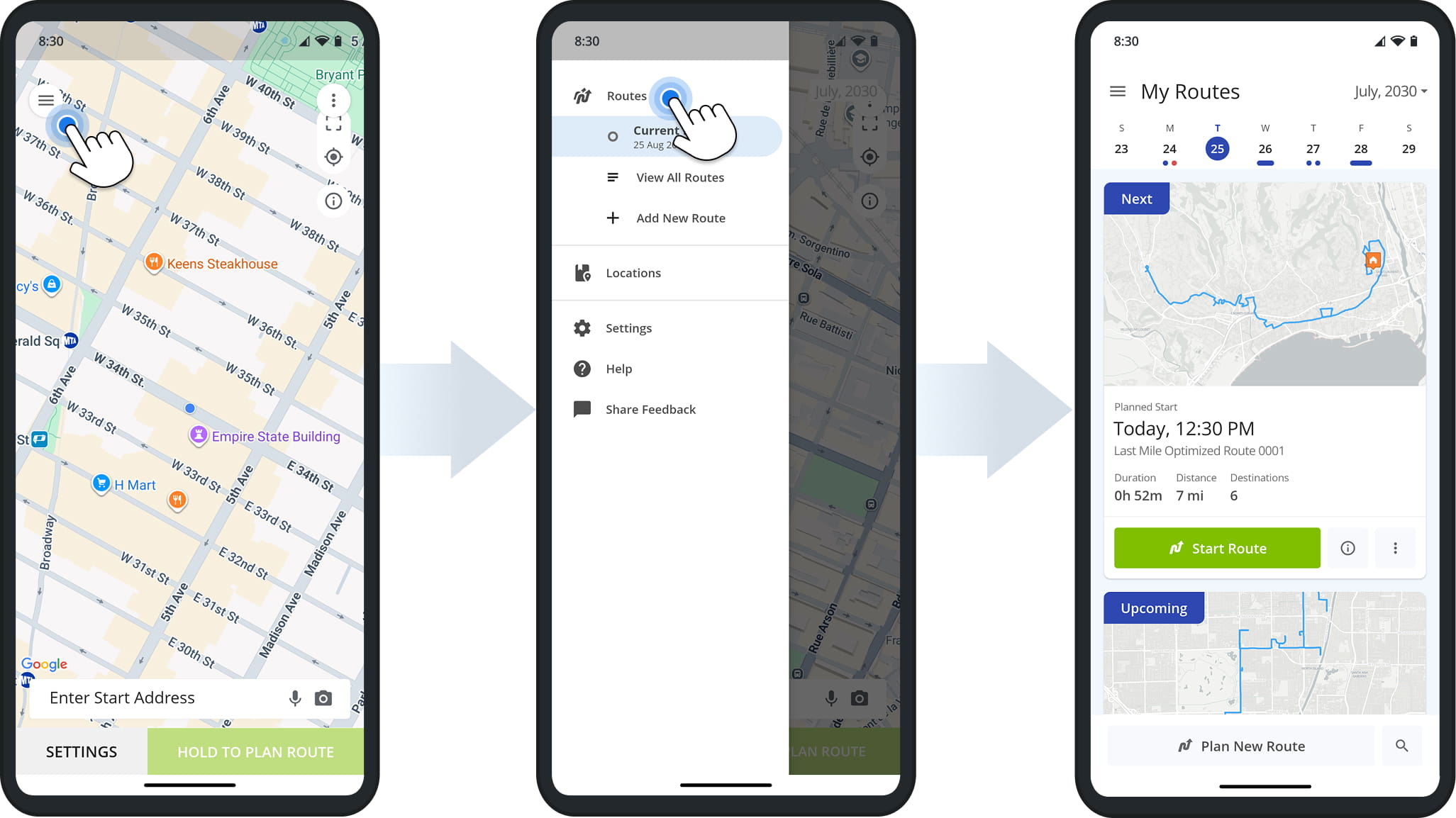
After signing in to the Route4Me mobile route planner app, tap the Menu Button in the top-left corner. Then, tap “Routes” or “View All Routes” to open your Routes List.
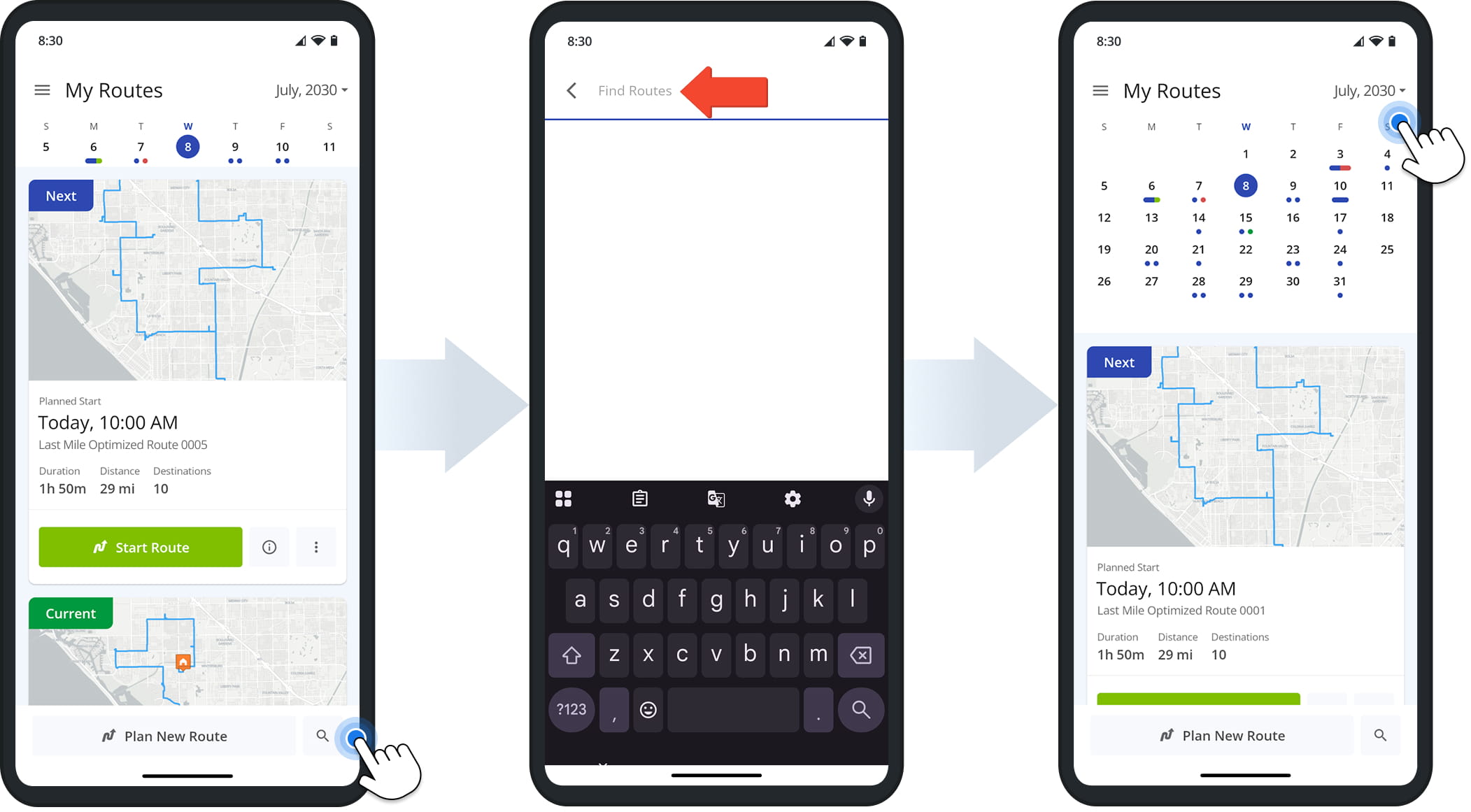
You can use the Search Icon to locate routes by name, scheduled month, city, or other route details. You can also use the calendar above the Routes List to locate routes by date.
Manage Planned, Dispatched, Started, And Completed Routes
Basic route management actions are available directly from the Routes List. Go to “Routes” or “View All Routes” to access your Routes List. Then, tap the Three-dot Icon next to a route and select an available action, detailed in the table below.
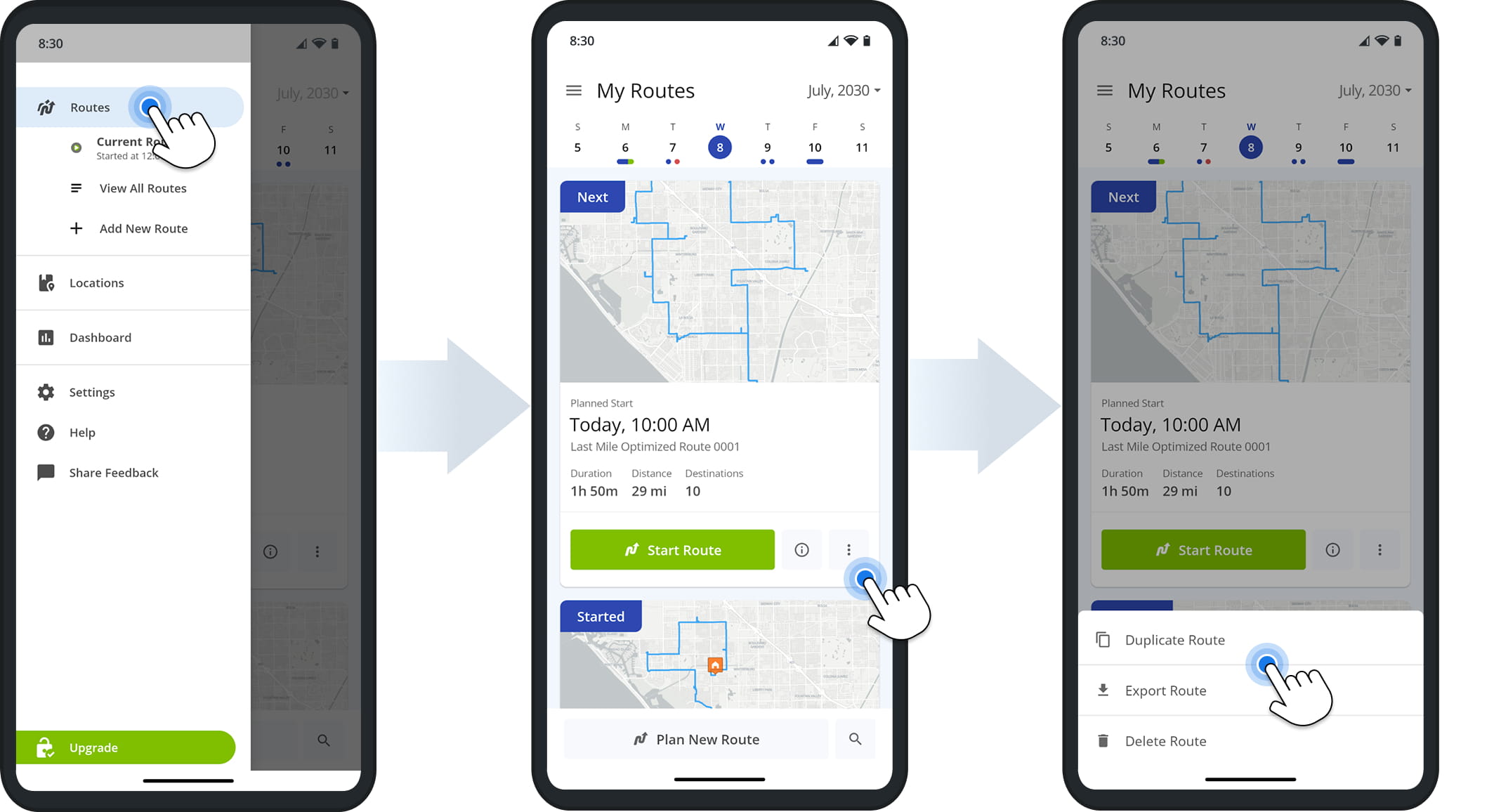
Mobile App Route Management Options
For more detailed management options, tap a Route Map to open the route. Then, tap the Three-dot Icon at the bottom of the screen to access available actions based on the route’s current status.
The table below details all available route management actions.
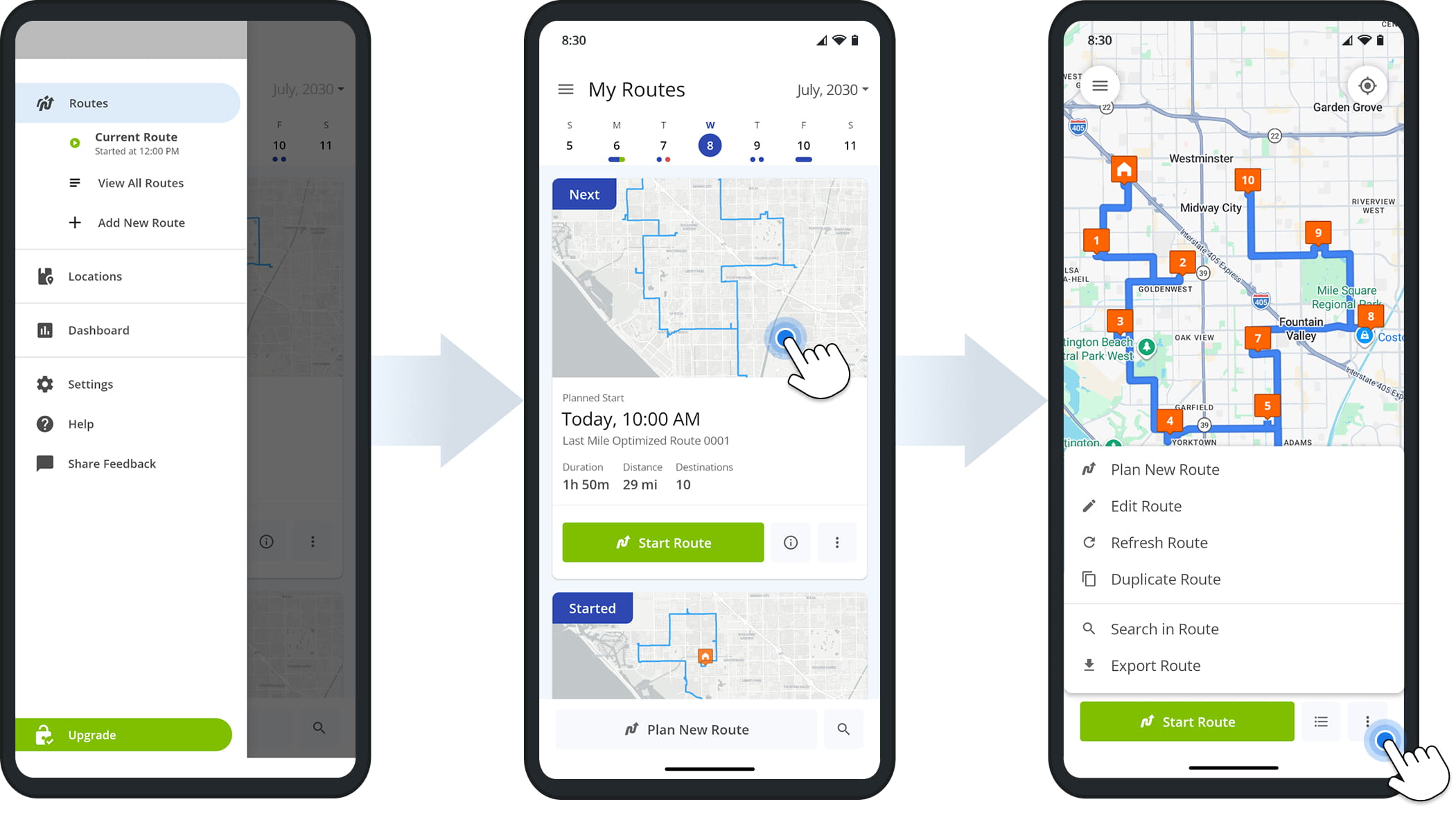
Mobile App Route Management Actions
Edit Routes – Change Destination Sequence And Route Settings
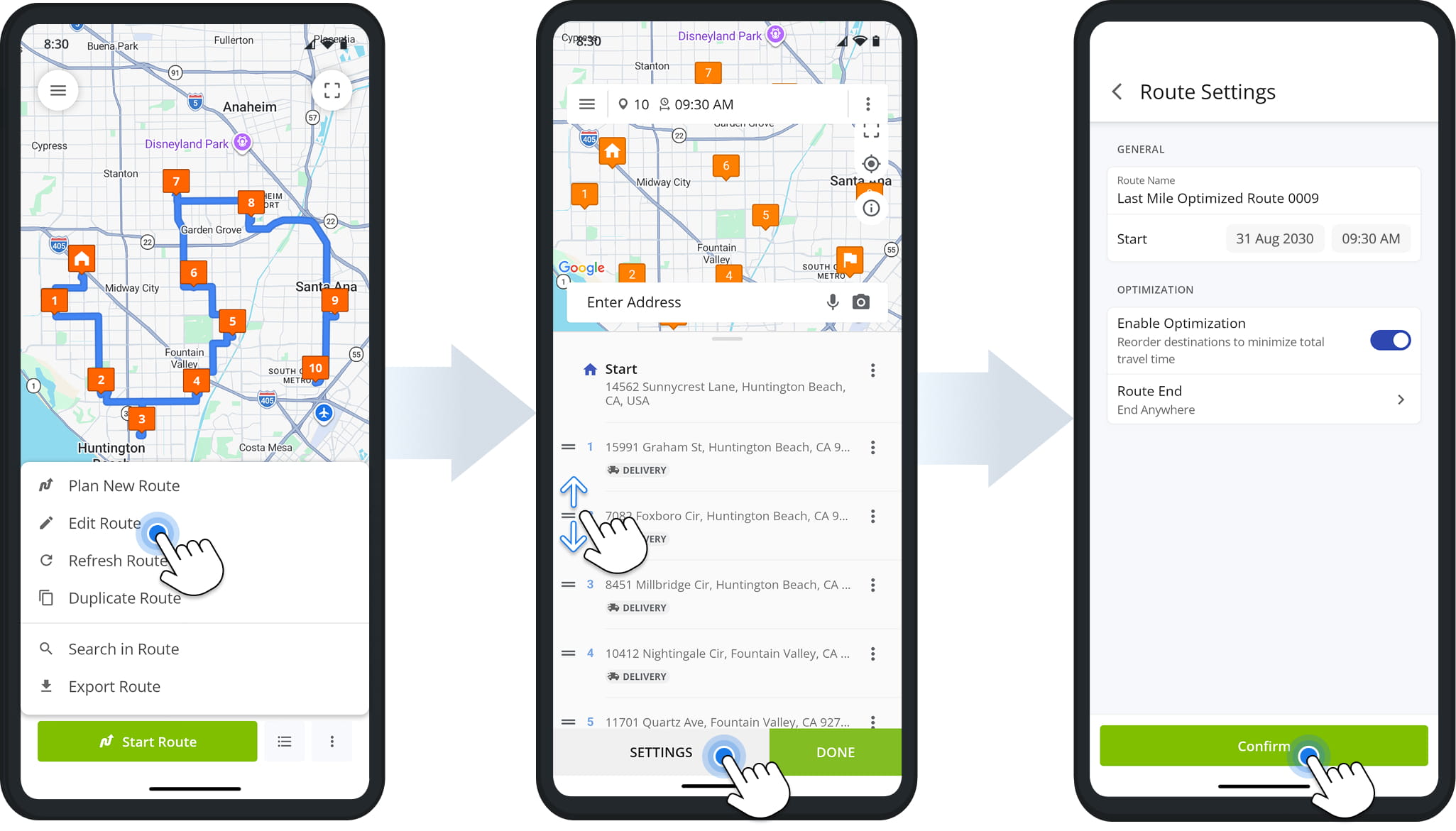
To update a route’s sequence or settings, tap the Three-dot Icon and select “Edit Route“.
You can drag destinations up or down to adjust their planned order. To edit the route name, schedule, or optimization settings, tap “Settings“. When ready, click “Confirm” to automatically save your changes.
Duplicate Routes – Copy Routes From The Routes List
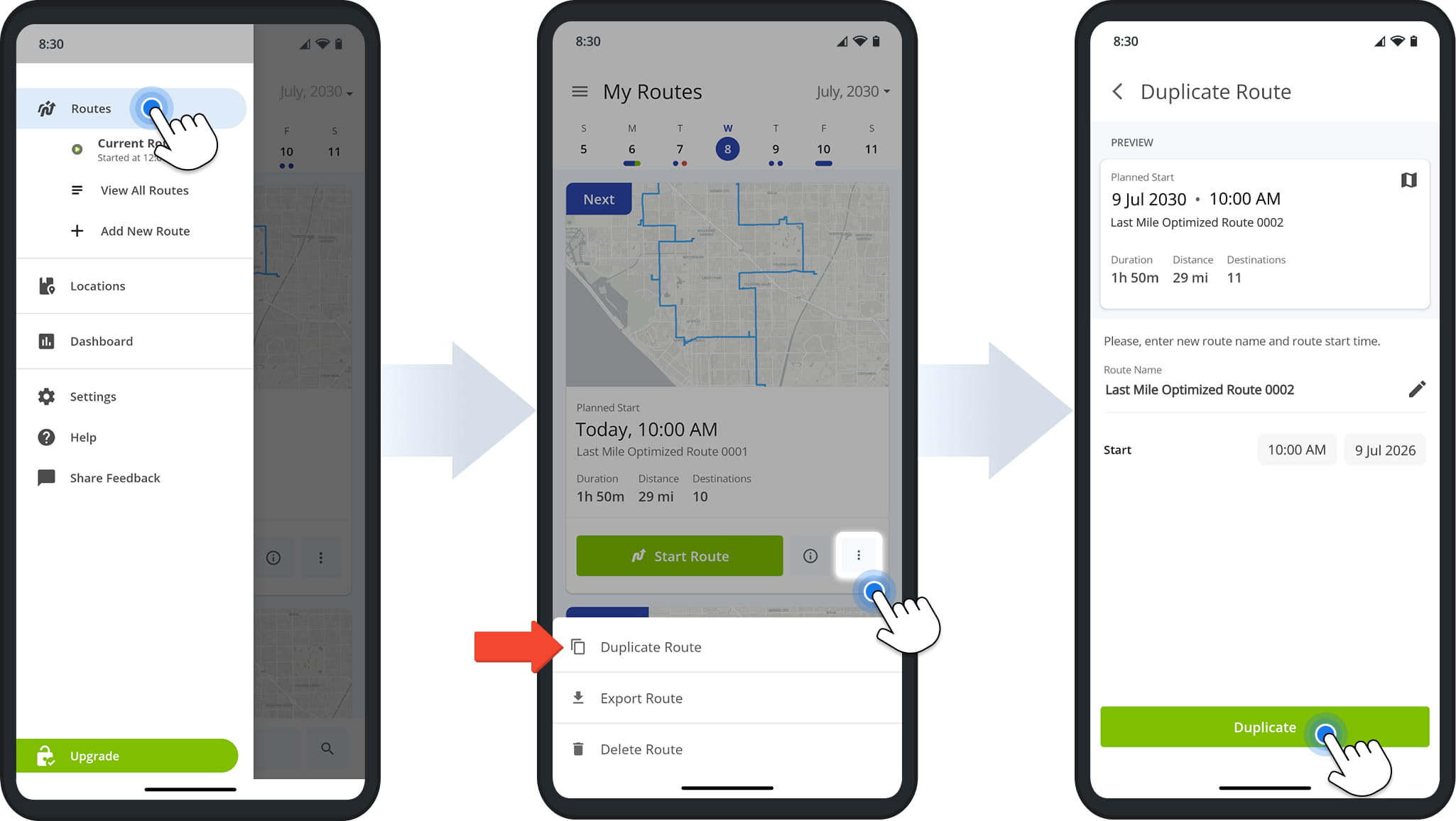
To duplicate a route, go to “Routes” or “View All Routes“, tap the Three-dot Icon next to the route you wish to duplicate, and select “Duplicate Route“.
From the “Duplicate Route” screen, rename the route, assign a start date and time, and press “Duplicate“.The duplicated route is immediately available in your Routes List.
Export Routes – Download Route And Destination Data Spreadsheet
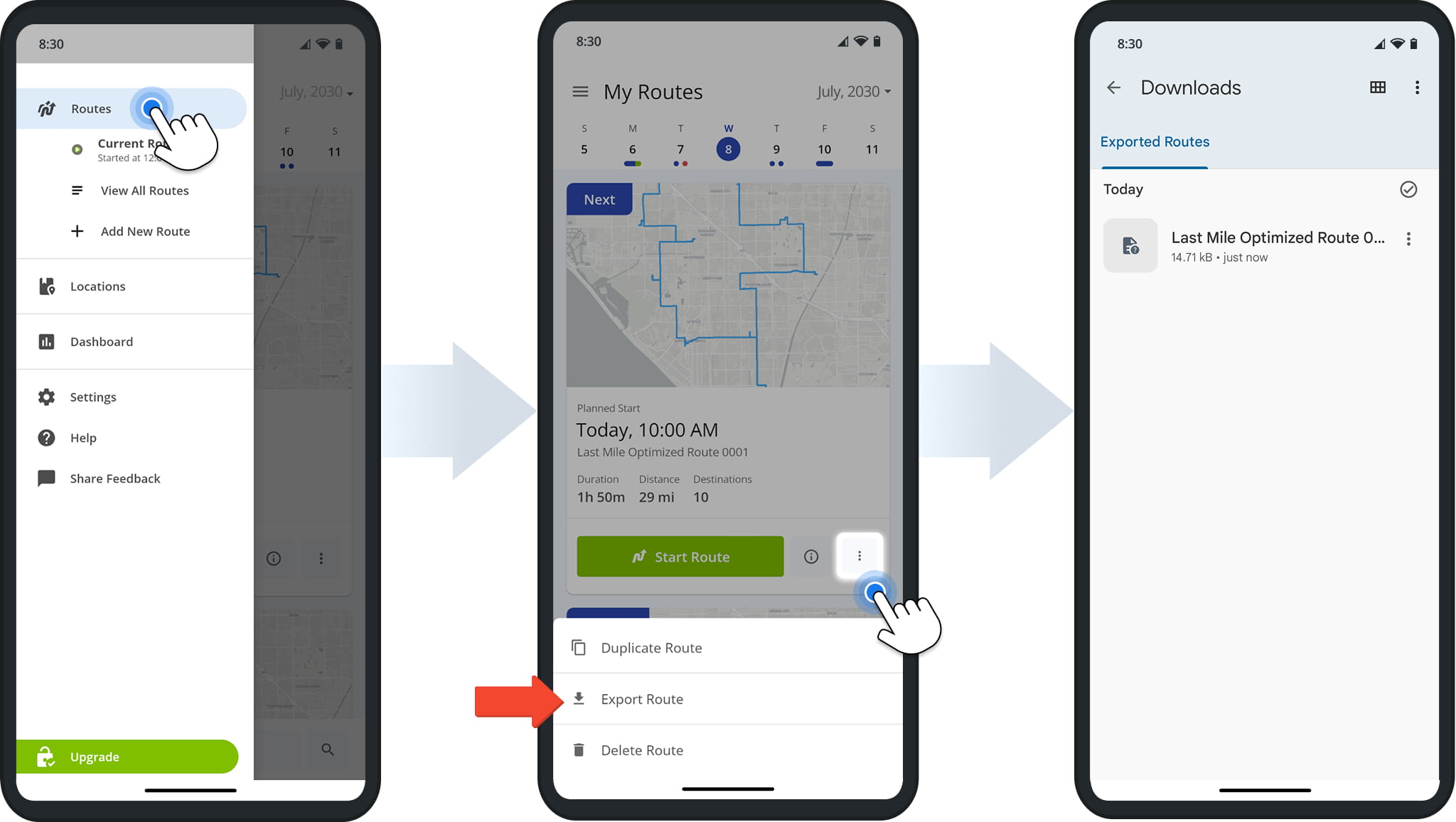
To export route data, go to “Routes” or “View All Routes“, tap the Three-dot Icon next to the route you wish to export, and select “Export Route“. After export, you’ll see a confirmation message. The CSV file is saved to your device’s “Downloads” folder.
Delete Routes – Remove Routes From The Route4Me Mobile Route Planner
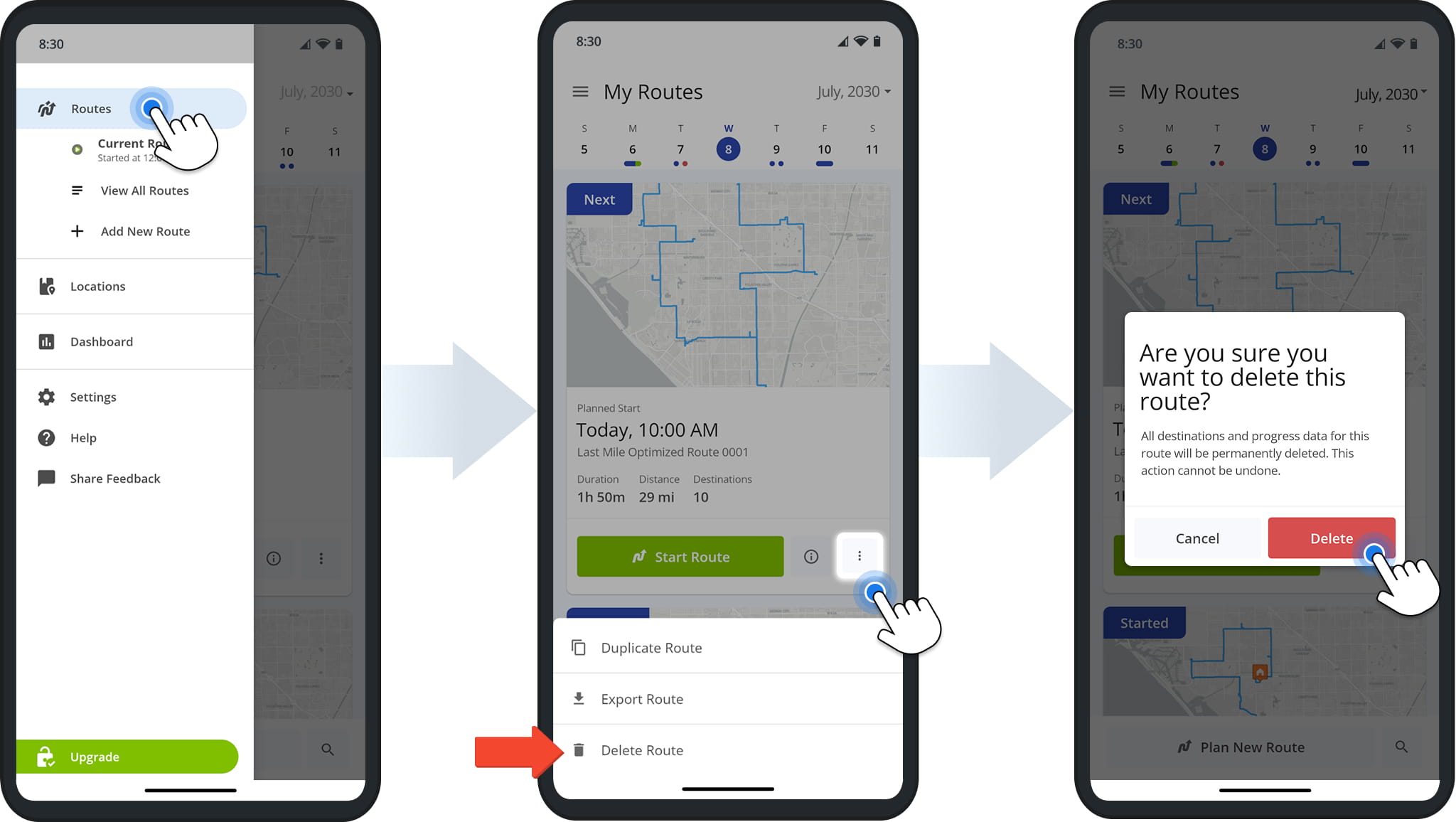
To remove a route, go to a “Routes” or “View All Routes” from the main menu. Then, tap the Three-dot Icon next to the route you want to delete and select “Delete Route“. Confirm by tapping “Delete” when prompted.
Deleted routes cannot be restored from the mobile app.
Visit Route4Me's Marketplace to Check out Associated Modules:
- Operations
Custom Data Add-On
- Operations
Advanced Team Management Add-On
About author: Daniel Archer

