
Contract Snapshot – Centralized Contract Overview

Route4Me’s Contract Snapshot gives enterprise business users a centralized view of detailed Contract data linked to customers, routes, and operational performance. Quickly review Contract terms, track associated activity, and analyze key metrics in one place. Filters, search, and customizable columns streamline Contract oversight and ensure fast access to information.
The Contract Snapshot provides a centralized, customizable view of all contract data, making it easy to review, track, and analyze customer contracts.


Access Contract Snapshot – View Detailed Customer Contract Data

To open the Contract Snapshot for any Contract, select “ERP” > “Contracts” from the Navigation Menu. Then, from the Contracts Page, click “Open” next to the desired contract.
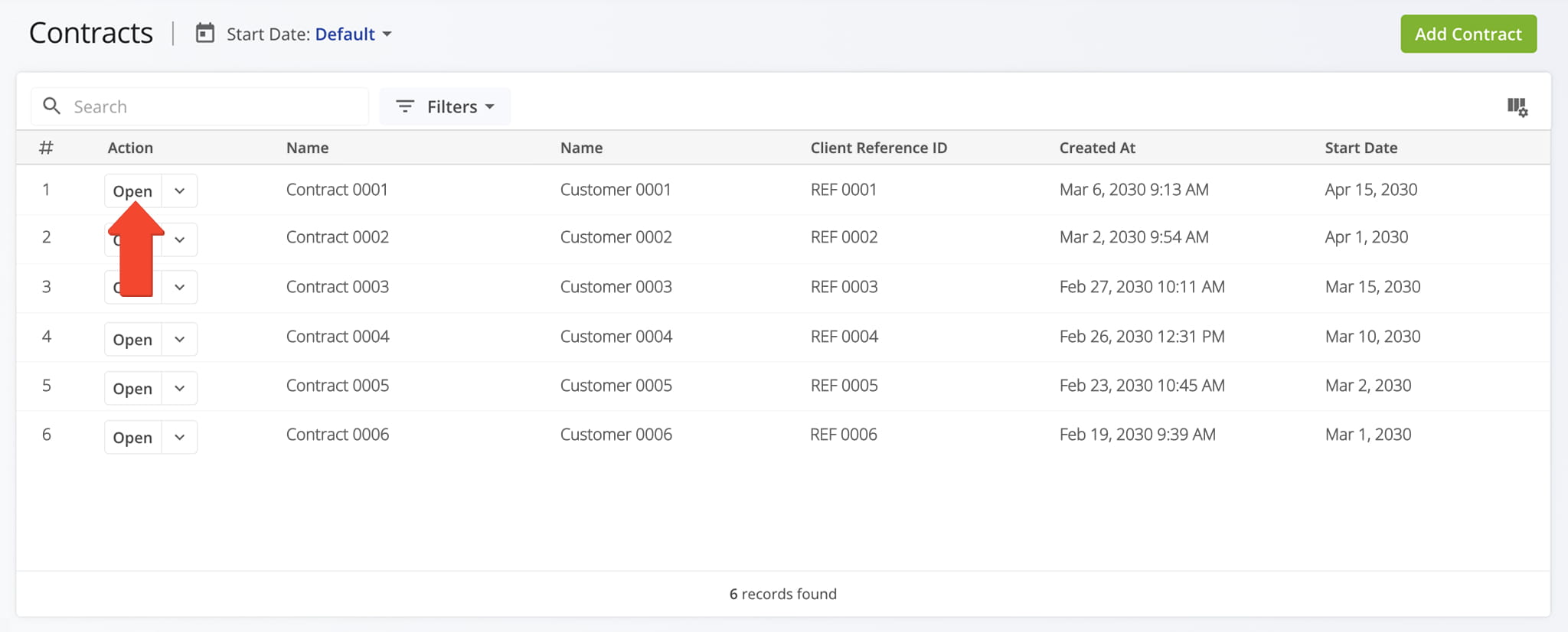
Open Your Contracts Page

You can quickly open any Invoice Snapshot from the ERP Invoice page to view detailed invoice data and analytics in one place.


Once opened, you’ll see a detailed interface designed to help you review and manage all Contract data in one place:

  1. Summary Panel: Overview of key information about the Contract.
  2. Contract Data Tab: Explore Contract-related data, which you can filter and customize as needed.
  3. Edit Controls: Click the “Edit Contract” button in the top-right corner to modify Contract details.
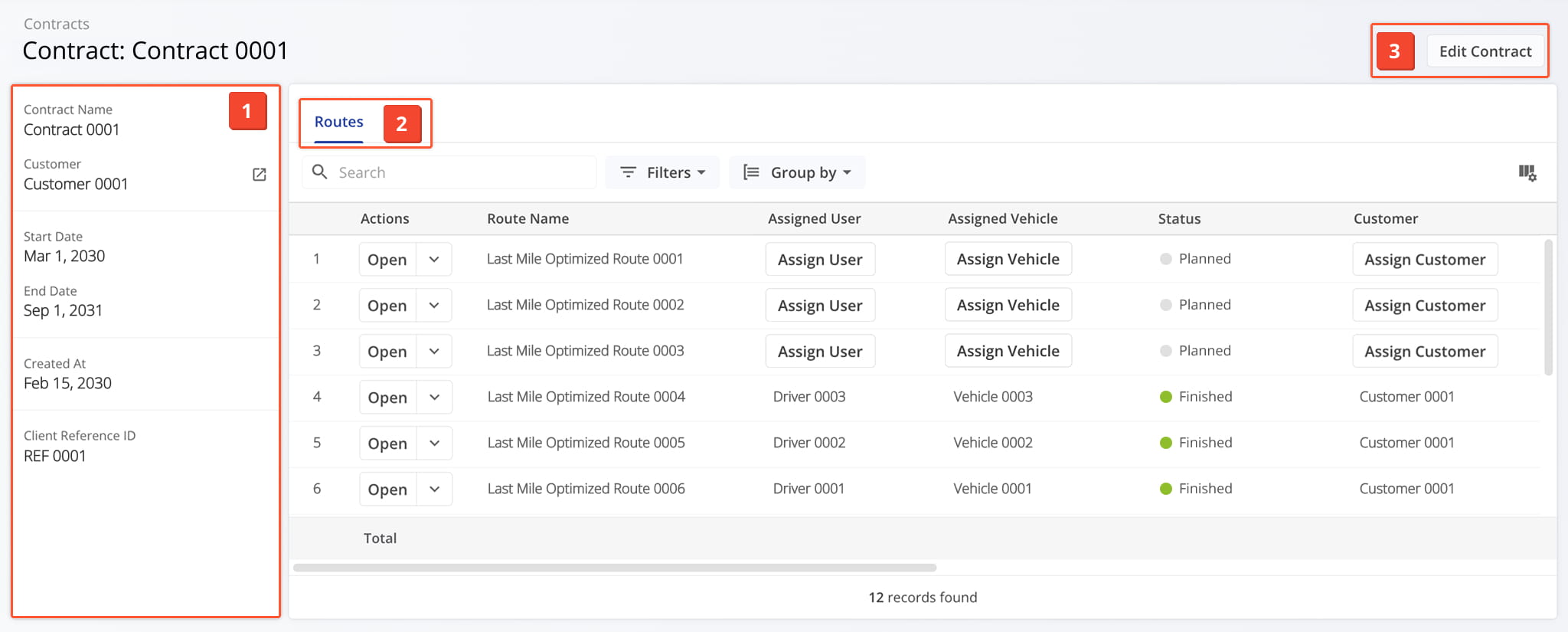
 

Contract Overview – Detailed Snapshot Information Panel

The Contract Summary Panel provides an overview of key contract details, including the contract name and important dates.

It also displays Customer information associated with the contract. To view additional Customer details, click the Go-To Icon next to “Customer” to open the Customer Snapshot.
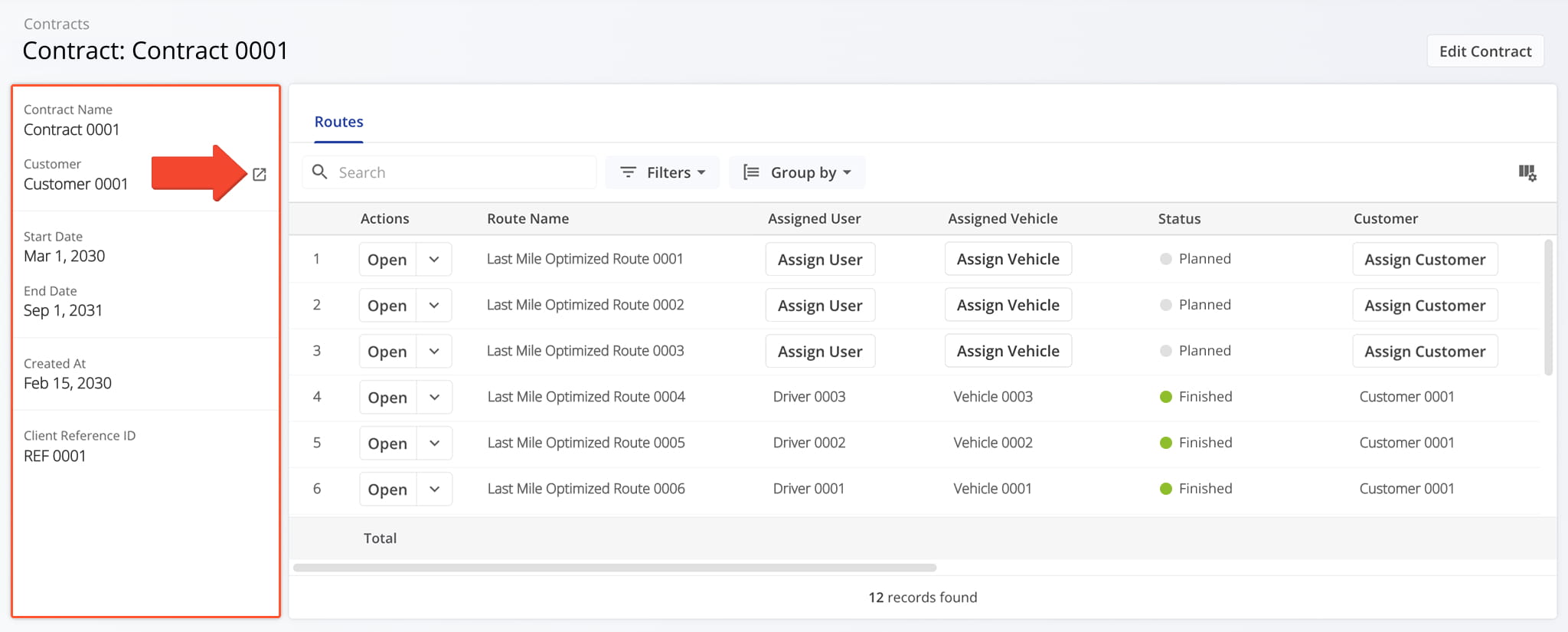
The Contract Summary Panel provides key contract details at a glance, including creation, end, and start dates, totals, as well as customer information.


Contract Snapshot Data – Customizable Contract Data Table

The Contract Snapshot provides a customizable data table with detailed Contract information, including route details, key metrics, operational status updates, and other relevant fields.

You can use the Search field to quickly locate specific Contract items and apply Group By options or Filters, described in the table below, to display results based on selected criteria.
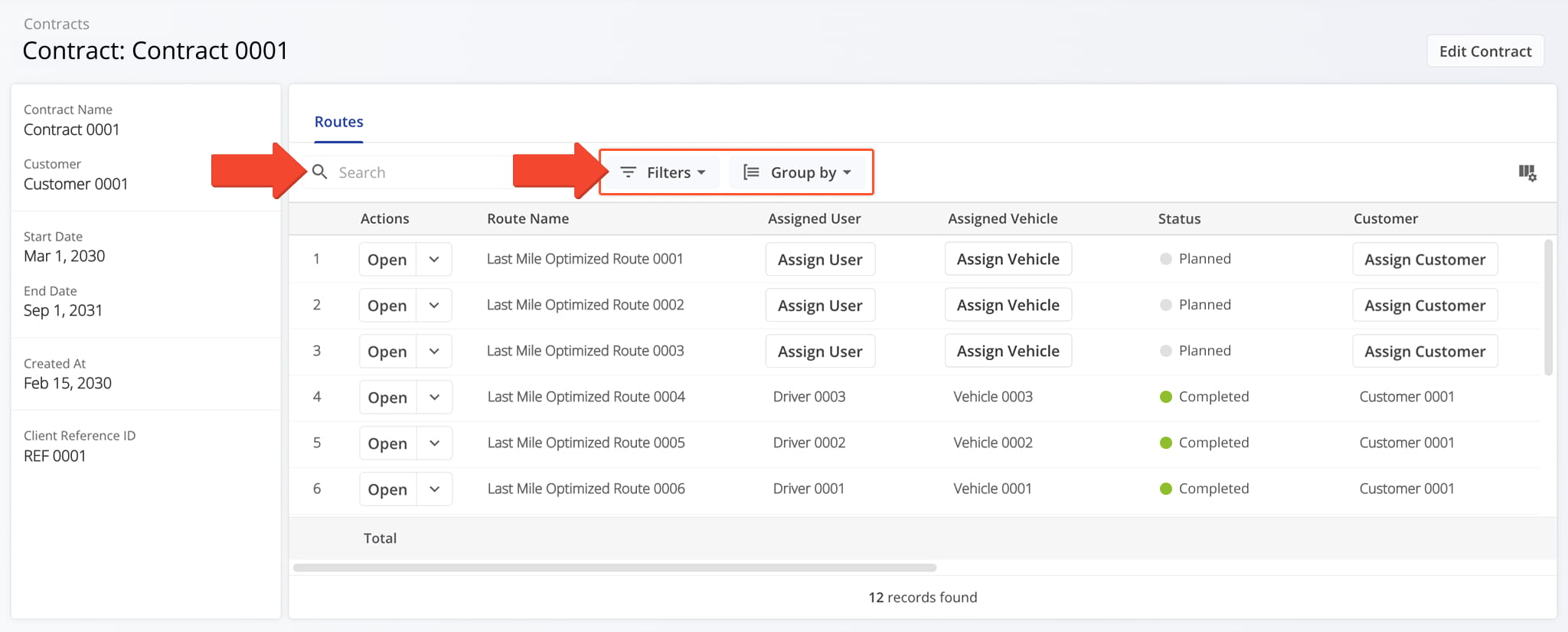
The Contract Snapshot Data section offers a customizable table of contract details, letting you search, filter, and organize line items for easy analysis.

FilterDescription
Assignment & Attribution
UserFilter by user assigned to the route.
VehicleFilter by vehicle assigned to the route.
FacilityFilter by facility linked to the route.
CustomerFilter by customer linked to the route.
Strategic Optimization
Strategic Optimization NameFilter by the name of the strategic optimization used to generate or modify the route.
Scenario NameFilter by the scenario applied during strategic route planning.
Route
StatusFilter by the current progress or completion state of the route (e.g., Planned, Scheduled, Started, Completed).
Planned Total Route Duration (h)Filter by the total estimated duration, in hours, planned for completing the route.
Planned Total Distance (mi)Filter by the total planned distance, in miles, for completing all stops on the route.
Progress Metrics
Destinations Arrived (Progress %) (User Actioned)Filter by the percentage of planned destinations the driver has arrived at.
Key Metrics
Destinations CountFilter by the total number of destinations assigned to the route.
Pending DestinationsFilter by destinations not yet started or completed by the driver.
Failed DestinationsFilter by destinations marked as failed due to inability to complete service.
Skipped DestinationsFilter by destinations the driver intentionally skipped or bypassed.
Completed DestinationsFilter by destinations successfully completed on the route.
Notes CountFilter by number of notes added to the route by users or automated processes.
Customer Requested Time Window Adherence
Destinations Arrived Late (User Actioned)Filter by destinations where the driver arrived after the scheduled time window.
Destinations Arrived Early (User Actioned)Filter by destinations where the driver arrived earlier than the scheduled time window.
Destinations Arrived On Time (User Actioned)Filter by destinations where the driver arrived within the scheduled time window.
SLA
Out of Sequence Destinations (#)The number of destinations visited in an order different from the planned sequence.
Actual Route Distance
Actual Total Distance (Mobile App) (mi)Total distance in miles recorded by the mobile app during the route.
Actual Total Distance (Telematics)Total distance in miles recorded from the assigned vehicle’s telematics device.
Utilization – Pieces/Units
PlannedFilter by total planned Pieces (units) amount of all Destinations on the planned route.
CompletedFilter by total number of completed pieces or units.
Completed (%)Filter by percentage of pieces or units completed.
Remaining At End (%)Filter by percentage of pieces or units still remaining when the route ended.
Utilization – Weight
PlannedFilter by total planned Weight amount of all Destinations on the planned route.
CompletedFilter by total weight completed across all serviced destinations.
Completed (%)Filter by percentage of planned weight completed.
Remaining At End (%)Filter by percentage of planned weight still remaining at the route’s end.
Utilization – Cube
PlannedFilter by total planned Cube (volume) amount of all Destinations on the planned route.
CompletedFilter by total cubic volume completed across all serviced destinations.
Completed (%)Filter by percentage of the planned volume completed.
Remaining At End (%)Filter by percentage of planned volume remaining at the route’s end.
Utilization – Revenue
PlannedFilter by total revenue to be generated from servicing all route Destinations.
CompletedFilter by total revenue generated from the Destinations completed on the route.
Completed (%)Filter by percentage of planned revenue achieved.
Remaining At End (%)Filter by percentage of revenue still unfulfilled at route end.
Cost
Cost PlannedFilter by total planned cost amount associated with all Destinations on the planned route.


You can also customize the data displayed in the table. Click the Column Icon in the upper right corner to select which route data fields appear and adjust their order to suit your operational needs.

The table below provides an overview of all available data columns, which you can reorder by dragging them into place.
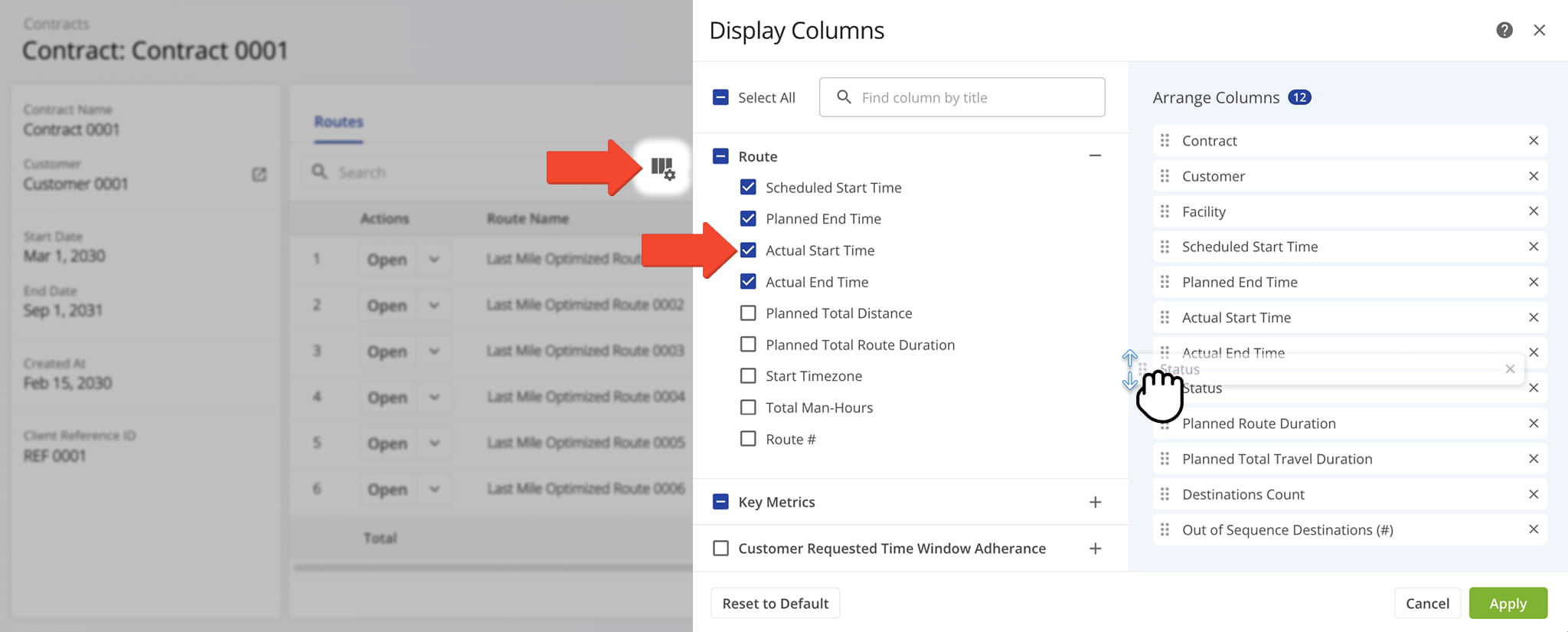
The table view can be customized by selecting which data columns appear and rearranging them to match your workflow.

ItemDescription
Route
Scheduled Start TimeScheduled start time for the route.
Planned End TimePlanned end time for the route.
Actual Start TimeTime when the route actually started.
Actual End TimeTime when the route actually ended.
Route Total DistanceTotal distance planned for the route, including all stops.
Planned Total Route DurationEstimated total duration for completing the route.
Start Time ZoneTimezone of the route’s start location.
Total Man HoursTotal estimated working hours for completing the route.
Route #The route number. This is relevant when you are exporting multiple routes.
Key Metrics
Destinations CountTotal number of destinations planned for the route.
Pending DestinationsNumber of destinations not yet visited.
Failed DestinationsNumber of destinations that could not be completed.
Skipped DestinationsNumber of destinations intentionally skipped.
Completed DestinationsNumber of destinations successfully completed.
Notes CountTotal number of notes added to the route by users or automated processes.
Route Start OdometerThe vehicle odometer reading at the beginning of the route.
Route End OdometerThe vehicle odometer reading at the completion of the route.
Customer Requested Time Window Adherence
Destinations Arrived On-Time (User Actioned)Destinations where arrival matched the scheduled time, based on user input.
Destinations Arrived Early (User Actioned)Destinations reached earlier than scheduled, based on user input.
Destinations Arrived Late (User Actioned)Destinations reached later than scheduled, based on user input.
Operational Status
First Access TimeDate and time the route was first viewed by a user.
StatusCurrent progress or completion status of the route.
DispatchIndicates whether the route has been assigned to a driver or team.
Progress Metrics
Arrived Destinations (User Actioned)Number of destinations marked as arrived by user actions.
Destinations Arrived (Progress %) (User Actioned)Percentage of destinations completed, based on user input.
Actual Route Distance
Actual Total Distance (Mobile App)Total distance traveled, recorded by the mobile app.
Actual Total Distance (Telematics)Total distance traveled, recorded by telematics.
Actual Total Distance (Merged)Combined distance from mobile app and telematics data.
Actual Duration
Actual Route Duration (User Actioned)Actual Route Duration is calculated based on the received Mobile App GPS data. Duration is measured from when the route was started to when the route was ended by the assigned User on the Mobile App.
Actual Total Route Duration (Grand Total of All Sub-Durations)The total time spent traveling the route, including all individual segments and stop durations.
Actual Total Travel Duration (User Actioned)The total time spent traveling the route, recorded from driver actions in the Mobile App.
Actual Total Service Duration (User Actioned)The total time drivers spent servicing stops, recorded from actions in the Mobile App.
Actual Total Wait Duration (User Actioned)Total amount of time that a driver spent being inactive while driving the route (i.e., a route started before the opening hours and a driver had to wait, a driver arrived at the address before the opening of the Time Window, etc.).
Actual Total Break DurationThe total duration of all scheduled breaks for the route, calculated based on the planned stops and route schedule.
Actual Total Unattributed DurationTime not attributed to driving, service, or breaks.
Actual Service Time
Actual Total Service Time (Auto Detected)The total amount of the average Service Time of all destinations on the route.
Actual Travel Duration
Actual Total Duration (Mobile App)Total duration of route recorded via the mobile app.
Actual Total Duration (Telematics)Total duration of route recorded via telematics.
Planned Durations
Planned Route DurationEstimated total route duration.
Planned Total Travel DurationEstimated driving time for the route.
Planned Total Wait DurationEstimated total wait time during the route.
Planned Total Service DurationEstimated total service time at destinations.
Planned Total Break DurationEstimated total driver break time.
SLA
Out of Sequence Destinations (#)The number of destinations visited in an order different from the planned sequence.
Out of Sequence Destinations (%)The percentage of destinations visited in an order different from the planned sequence.
Assignment & Attribution
FacilityThe depot, warehouse, or starting point used for planning the route; serves as the origin for route sequencing and time calculations.
CustomerThe name of the customer associated with the route or destination, as defined in the account or order data.
ContractThe name or identifier of the contract linked to the assigned customer, if applicable, used for tracking or reporting purposes.
Utilization – Pieces/Units
Pieces PlannedTotal number of pieces planned for delivery.
Pieces CompletedNumber of pieces successfully delivered.
Pieces Completed (%)Percentage of planned pieces delivered.
Pieces Remaining At End (%)Percentage of pieces undelivered at the route’s end.
Utilization – Weight
Weight PlannedTotal weight of items planned for delivery.
Weight CompletedWeight of items successfully delivered.
Weight Completed (%)Percentage of planned weight delivered.
Weight Remaining At End (%)Percentage of weight remaining at the end of the route.
Utilization – Cube
Cube PlannedTotal cubic volume planned for delivery.
Cube CompletedCubic volume successfully delivered.
Cube Completed (%)Percentage of planned cubic volume delivered.
Cube Remaining At End (%)Percentage of cubic volume remaining at the end of the route.
Utilization – Revenue
Revenue PlannedPlanned revenue for the route based on scheduled deliveries.
Revenue CompletedRevenue earned from completed deliveries.
Revenue Completed (%)Percentage of planned revenue achieved.
Revenue Remaining At End (%)Percentage of planned revenue remaining at the route’s end.
Utilization – Cost
Cost PlannedEstimated cost associated with completing all stops on the route, including labor, fuel, and other operational expenses.
Strategic Optimization
Strategic Optimization NameName of the strategic optimization applied to the route.
Scenario NameScenario associated with the strategic optimization.


Last Updated:

About author: Daniel Archer

Daniel ArcherWith a background in pedagogy and writing instruction, Daniel is a former tenured English Instructor who, after nearly 20 years of teaching, transitioned into content strategy and leading writing teams for global brands. Now, as Technical Documentation Manager at Route4Me, he translates complex logistics technology into clear, accessible content that empowers users.

Was this article helpful?
Still can't find what you're looking for? Contact us
Route4Me

About Route4Me

Route4Me has over 40,000 customers globally. Route4Me's Android and iPhone mobile apps have been downloaded over 2 million times since 2009. Extremely easy-to-use, Route4Me's apps create optimized routes, synchronize routes to mobile devices, enable communication with drivers and customers, offer turn-by-turn directions, delivery confirmation, and more. Behind the scenes, Route4Me's operational optimization platform combines high-performance algorithms with data science, machine learning, and big data to plan, optimize, and analyze routes of almost any size in real-time.
