
General Ledger – SAP Financial Record Management
The General Ledger in Route4Me provides a centralized view of SAP-synced accounting records and journal entry data. You can review journal entries, line item details, and related financial information in a read-only table format. Search records, customize visible data columns, apply filters, and open individual entries to view additional details. The General Ledger is available for accounts with ERP integration access enabled.
NOTE: The General Ledger is available by request only. Please contact your Route4Me Routing Expert to get set up.
Table of Contents
General Ledger Overview – Navigate Financial Records
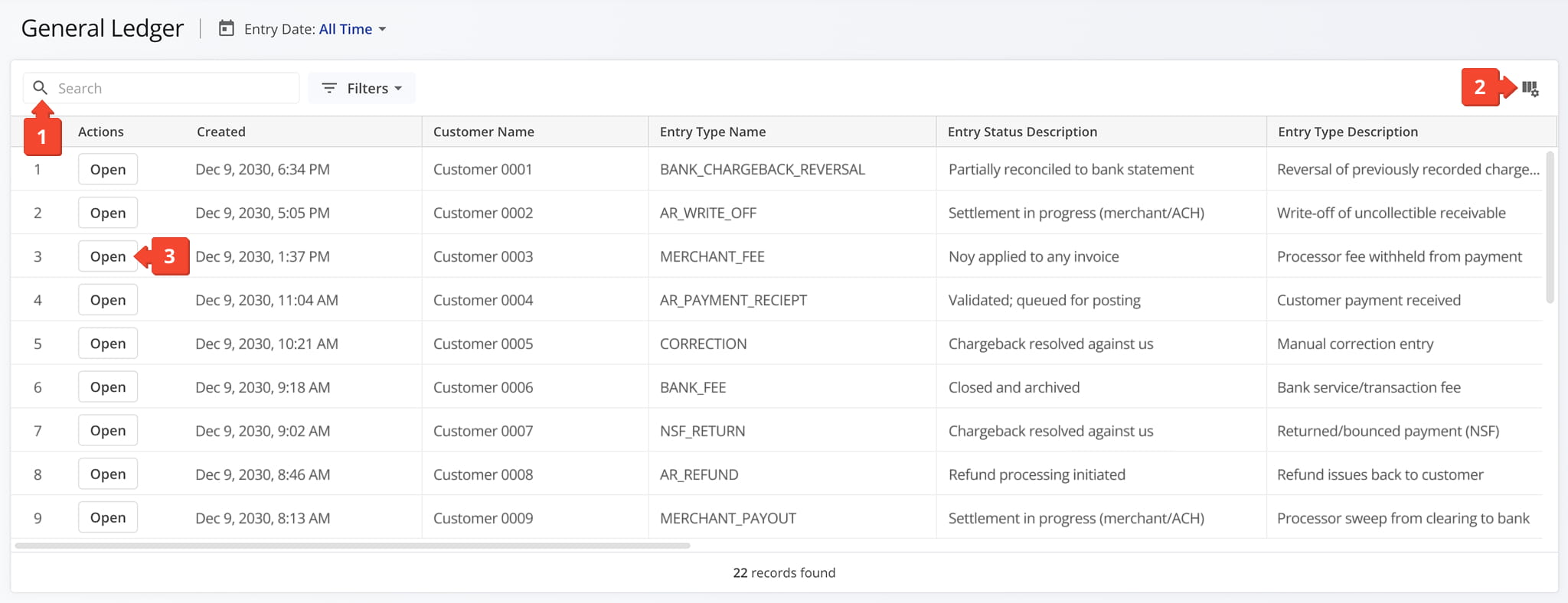
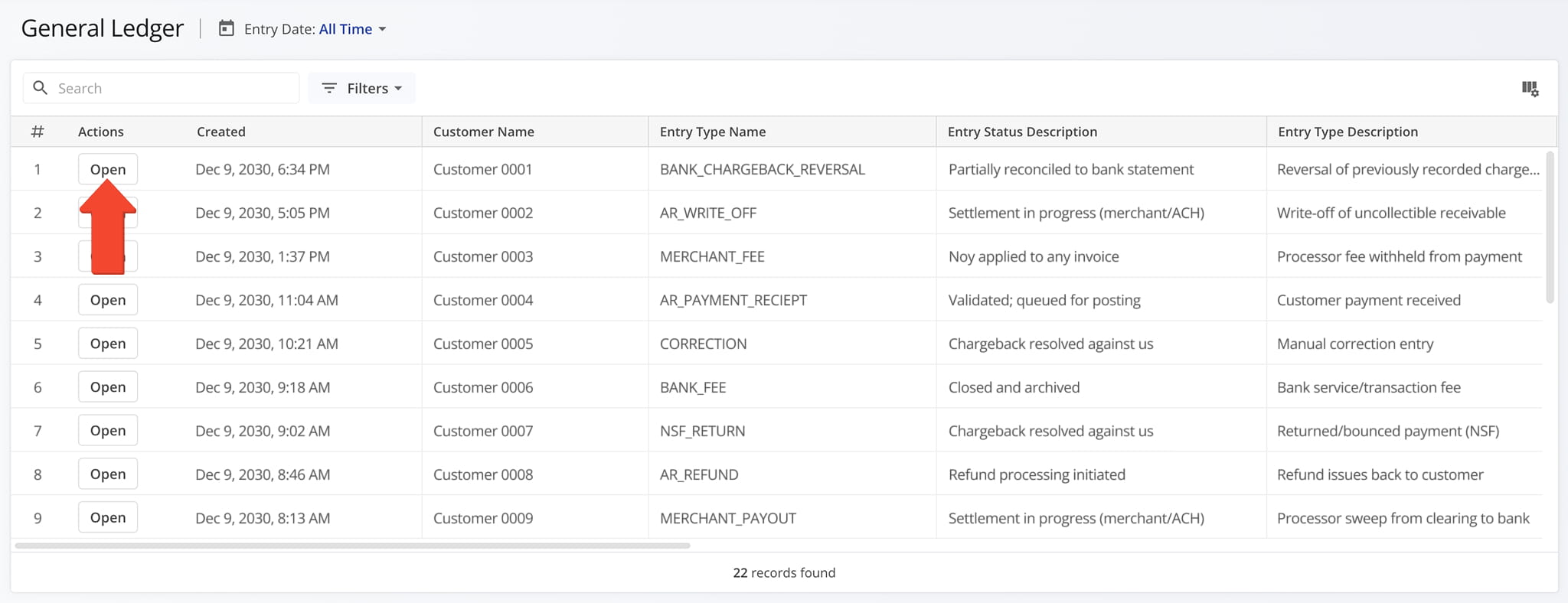
The General Ledger is designed to help you efficiently navigate SAP-synced financial records and access key information. You can quickly move between records, adjust how data is displayed, and drill into specific entries for more detail. From this page you can:
- Use the search bar to quickly locate specific records and explore available entries.
- Click the data columns icon to view, select, and rearrange table columns based on reporting needs.
- Click the “Open” button to access detailed information for a specific general ledger entry.
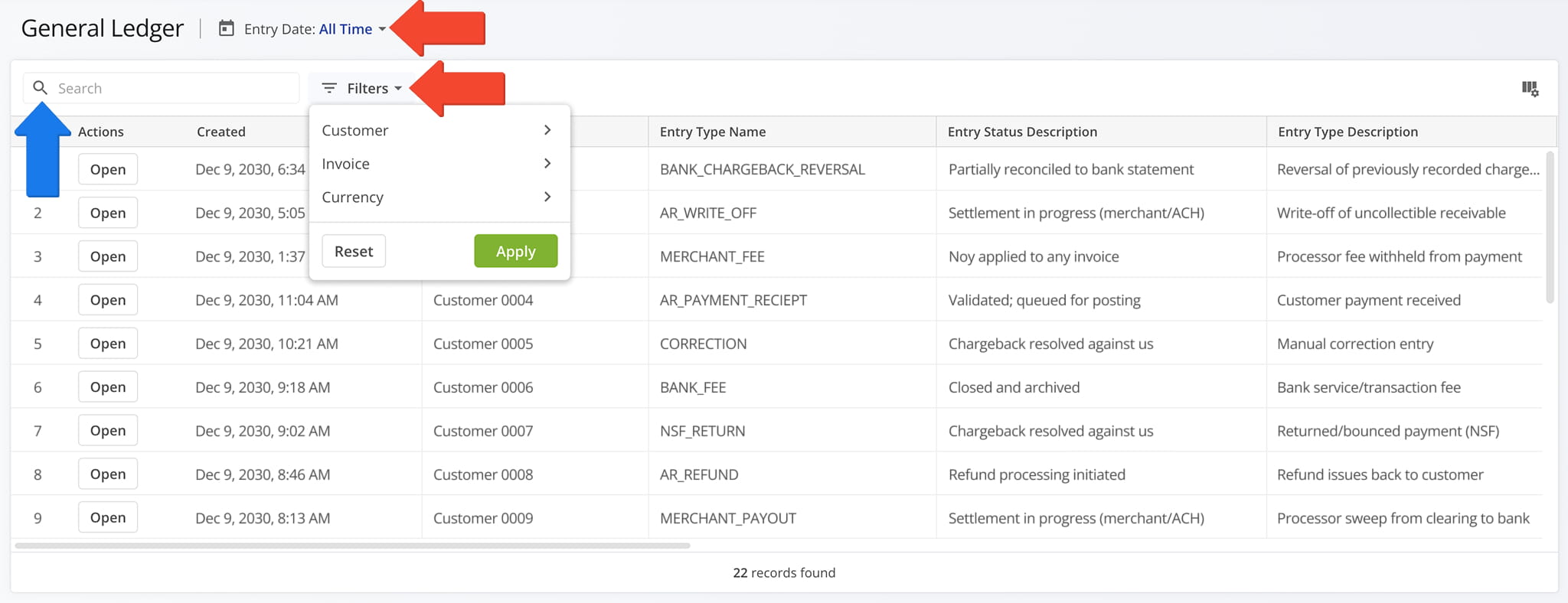
Filter General Ledger Entries To Locate Specific Data
You can filter General Ledger data to quickly locate specific records or refine information for analysis.
The table below includes available filter options that help narrow results based on financial attributes and time periods. Using these filters supports more accurate review of SAP-synced accounting data within Route4Me.
NOTE: You can also use the Search Field to locate specific records.
General Ledger Filters
View And Customize General Ledger Data Columns
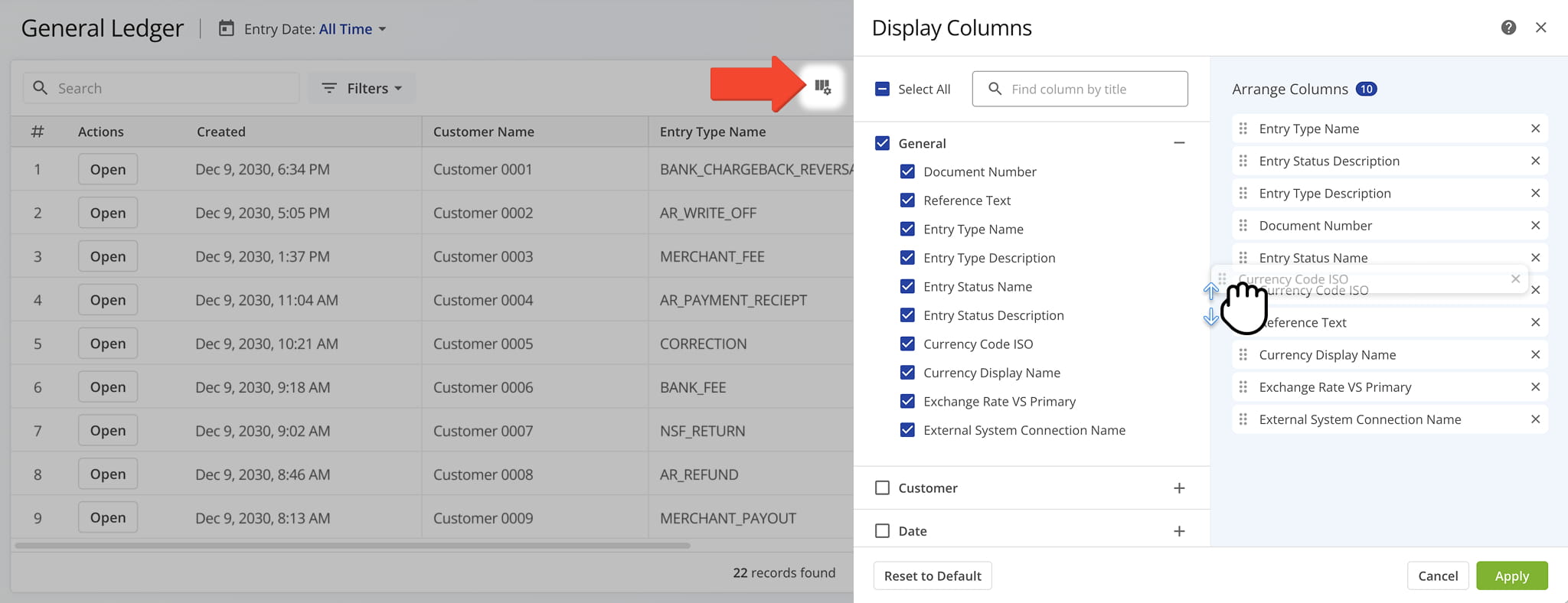
The General Ledger page displays multiple columns of SAP-synced financial data which can be customized to show only the information most relevant to your needs.
To customize the table view, click the Data Columns Icon in the upper-right corner, then select or deselect the checkboxes next to the columns you want to display. You can also drag and drop columns to rearrange their order within the table.
The table below provides a complete overview of available data columns.
General Ledger Data Columns
View General Ledger Entry Details
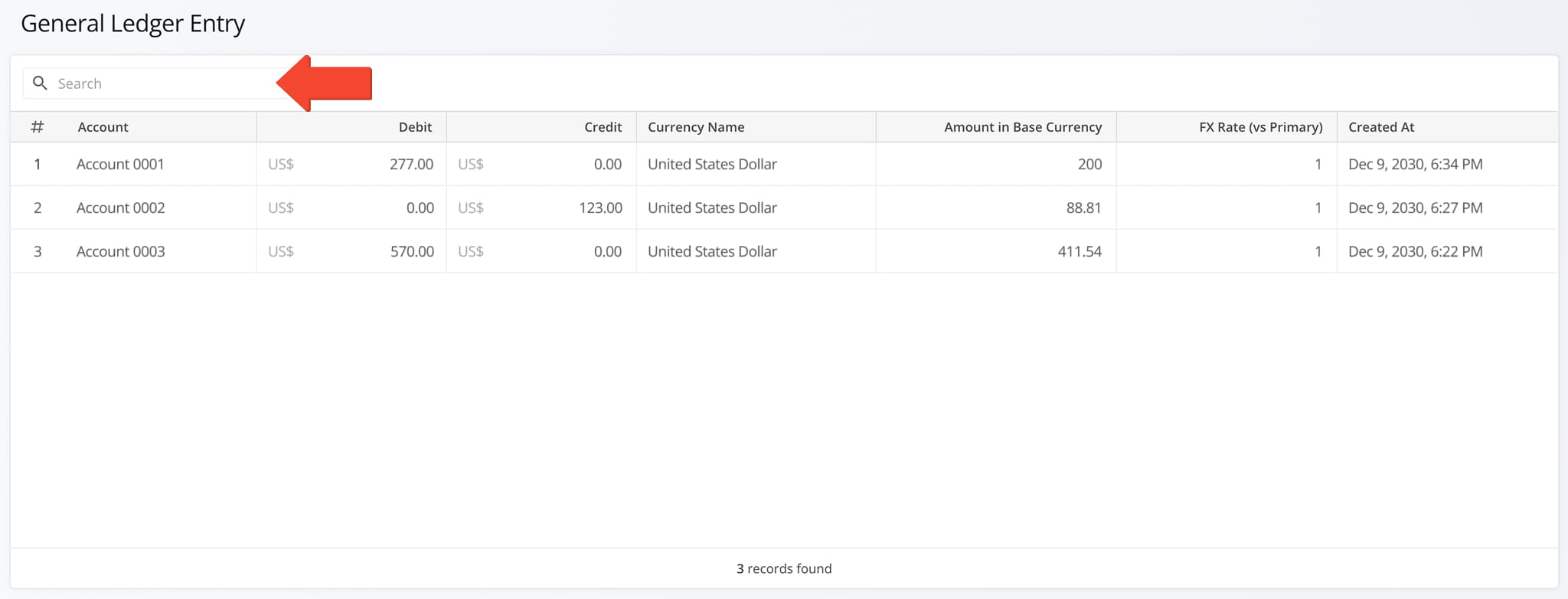
When you click the “Open” button next to a general ledger entry, you are redirected to the General Ledger Entry page where you can view a detailed breakdown of the selected record, including associated journal line items and related financial data.
Each entry displays transaction-level financial details such as debit and credit amounts, currency information, and key timestamps, allowing you to review the full accounting structure behind a single ledger entry.
If the Entry contains a large amount of data, you can use the Search Field to quickly locate specific information.
Visit Route4Me Marketplace to Check Out More Add-Ons:
- Optimization
Address Book and Territories Planning
- Route Optimization
Commercial Vehicle & Truck Routing
- Operations
Audit Logging and Activity Stream
About author: Daniel Archer

