
Set Up Invoice Printing For Multi-Item Delivery Or Service Destinations
The Route4Me Mobile App for last mile delivery enables field employees to unload multiple items at customer Destinations and print itemized invoices. In this guide, you’ll learn how to set up invoice printing for delivery drivers and field teams using enterprise resource planning tools like the Item & Service Master and Price List on your Route4Me account.
NOTE: Contact your routing expert to sync or import the necessary ERP entries for invoice printing.
Table of Contents
Requirements And Steps To Set Up Invoice Printing At Destinations
To plan routes where field workers can select services, items, or quantities of stock keeping units (SKUs) for invoicing, you’ll need:
- Items & Services: Synced items or service entries from a Route4Me ERP Integration.
- Customers: Synced Customer profiles associated with entries in your ERP items and services master.
- Price List: Synced price values for specific items and services associated with specific Customers.
- Locations: Customer Locations associated with the same Customers as the relevant enterprise resources.
Once your enterprise resource planning database is set up and all relevant resources and entities are synced with your Route4Me account, you can plan routes for dynamic invoice printing at destinations. Keep reading to learn more.
Manage Synced Items And Services For Printing Invoices
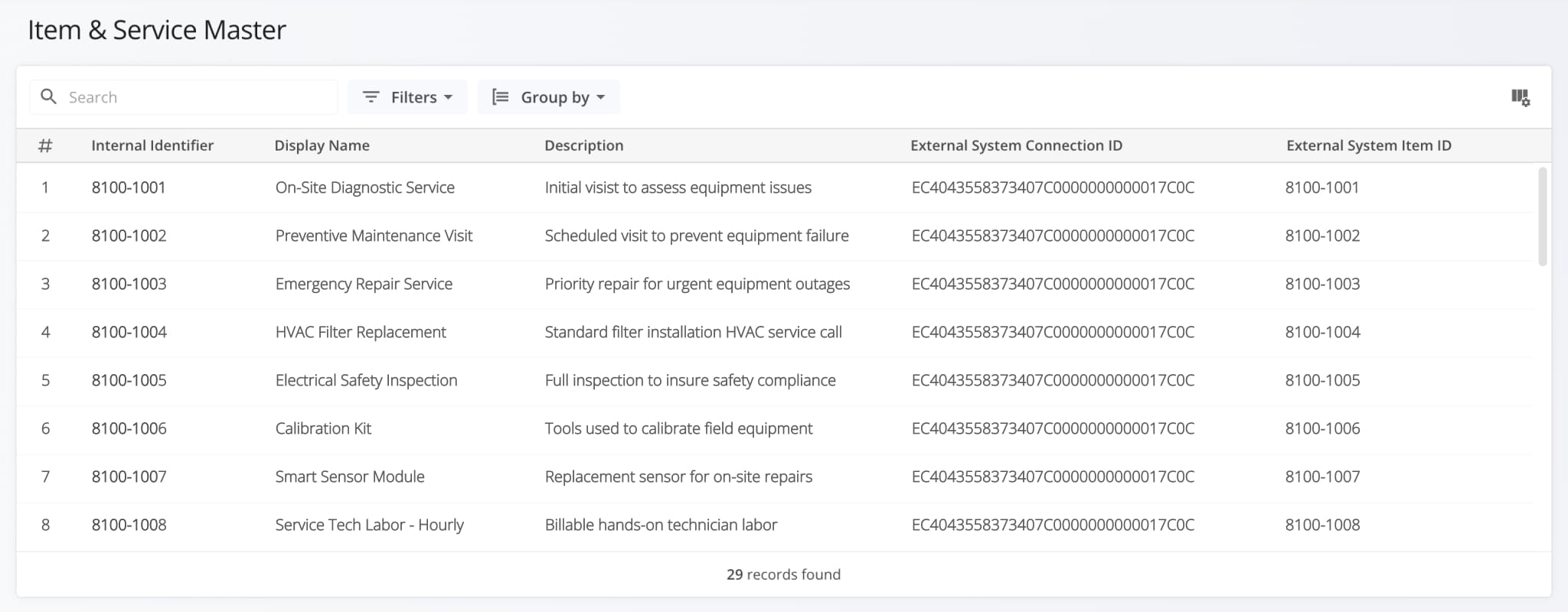
The Item & Service Master is a centralized database of all synced Items and Services in your ERP system. Open it by going to “ERP” > “Item & Service Master” from the Navigation Menu. From this page, you can review details, track status, and organize records. Learn more about your Route4Me Item & Service Master.
Open Your Item & Service Master
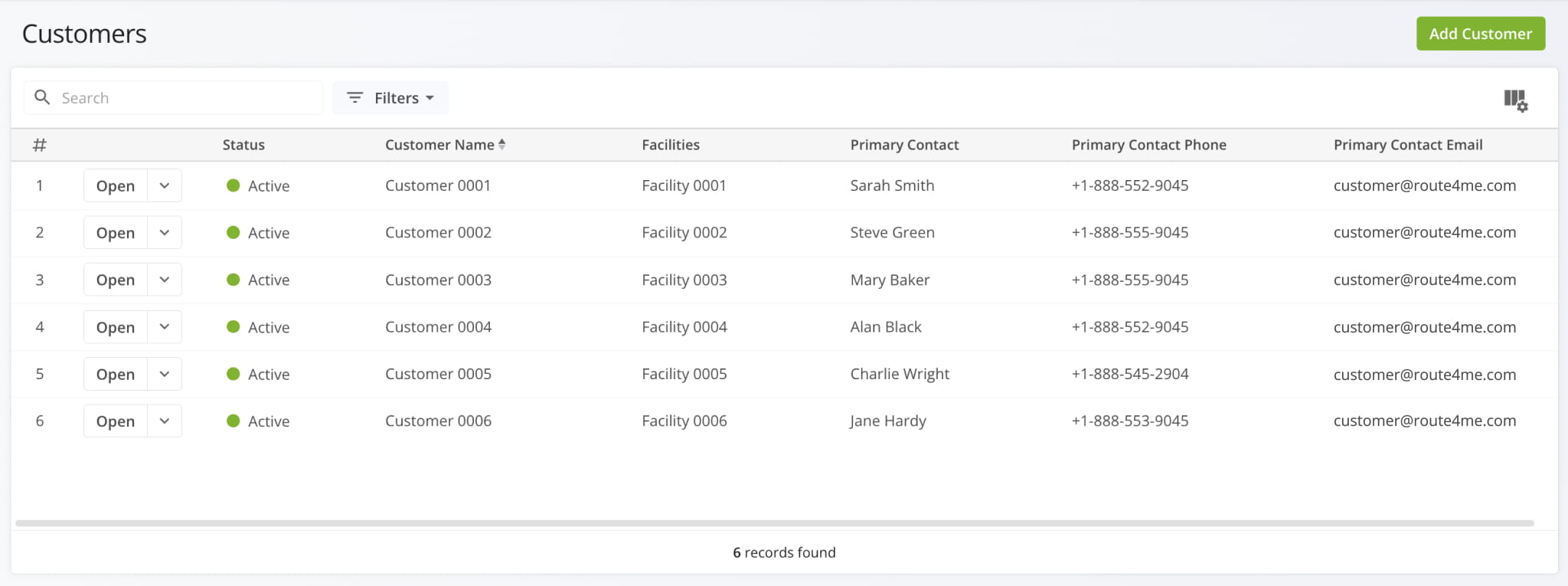
Customers Database With Synced ERP Customer Profiles
To ensure Users assigned to routes can select invoice items, confirm you’ve synced Customers associated with the relevant items or services from your ERP Integration. You can find a full list of your synced Customers on the Customers Page. Open it by going to “Database” > “Customers” in the Navigation Menu. Learn more about your Route4Me Customers Page.
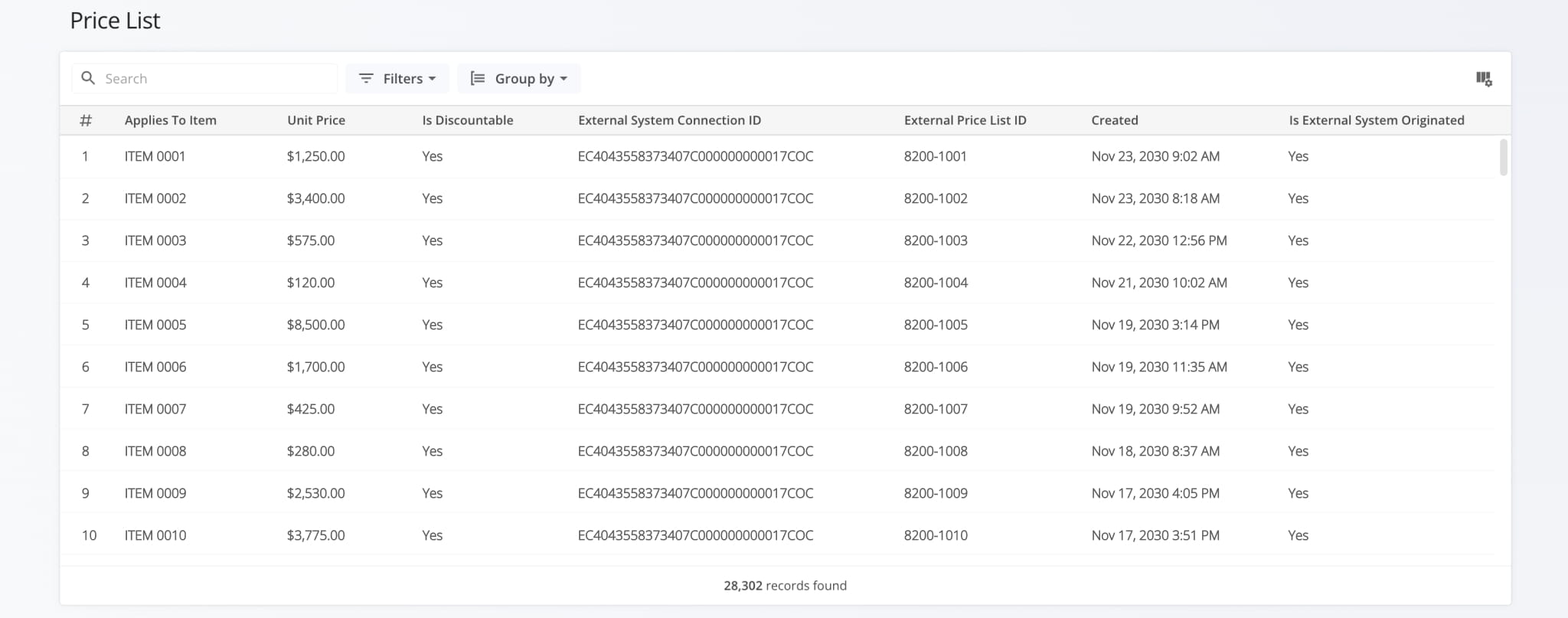
Item And Service Price List For Calculating Invoice Totals
Invoice printing requires prices associated with your imported items, services, and Customers. To confirm prices were correctly synced to your account from an ERP Integration, check the Price List. It provides a centralized view of all your synced pricing information. To open the Price List, go to “ERP” > “Price List” from the Navigation Menu. Learn more about the Price List.
Customer Locations For Route Planning With Invoice Printing
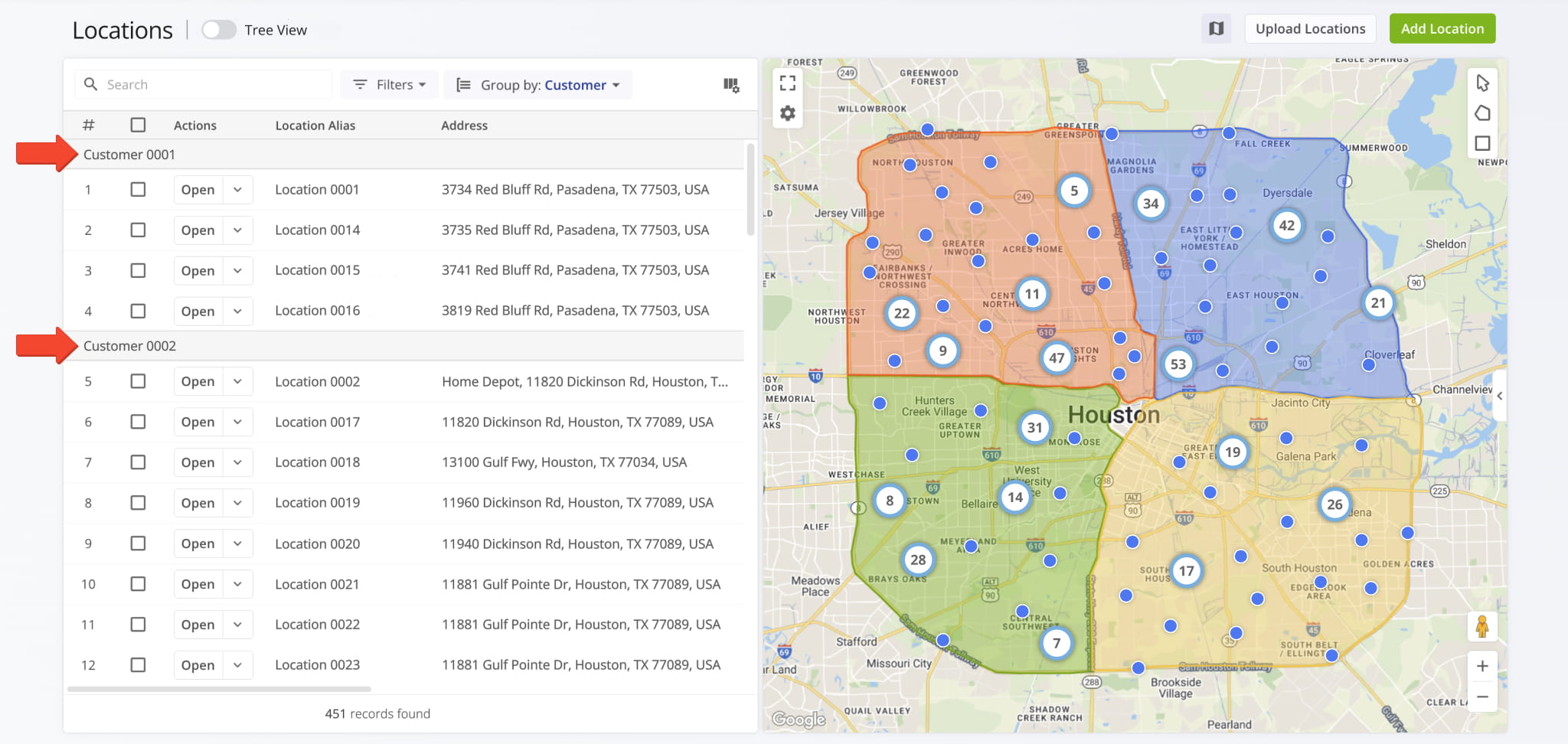
To plan routes on which Users can print invoices at Destinations, you need Locations associated with the relevant Customers. You can import, upload, or manually create Locations and associate them with Customers on your Route4Me account. To open the Locations Page, go to “Database” > “Locations” in the Navigation Menu. Learn more about Customer Locations.
Plan Routes For Invoicing At Customer Locations
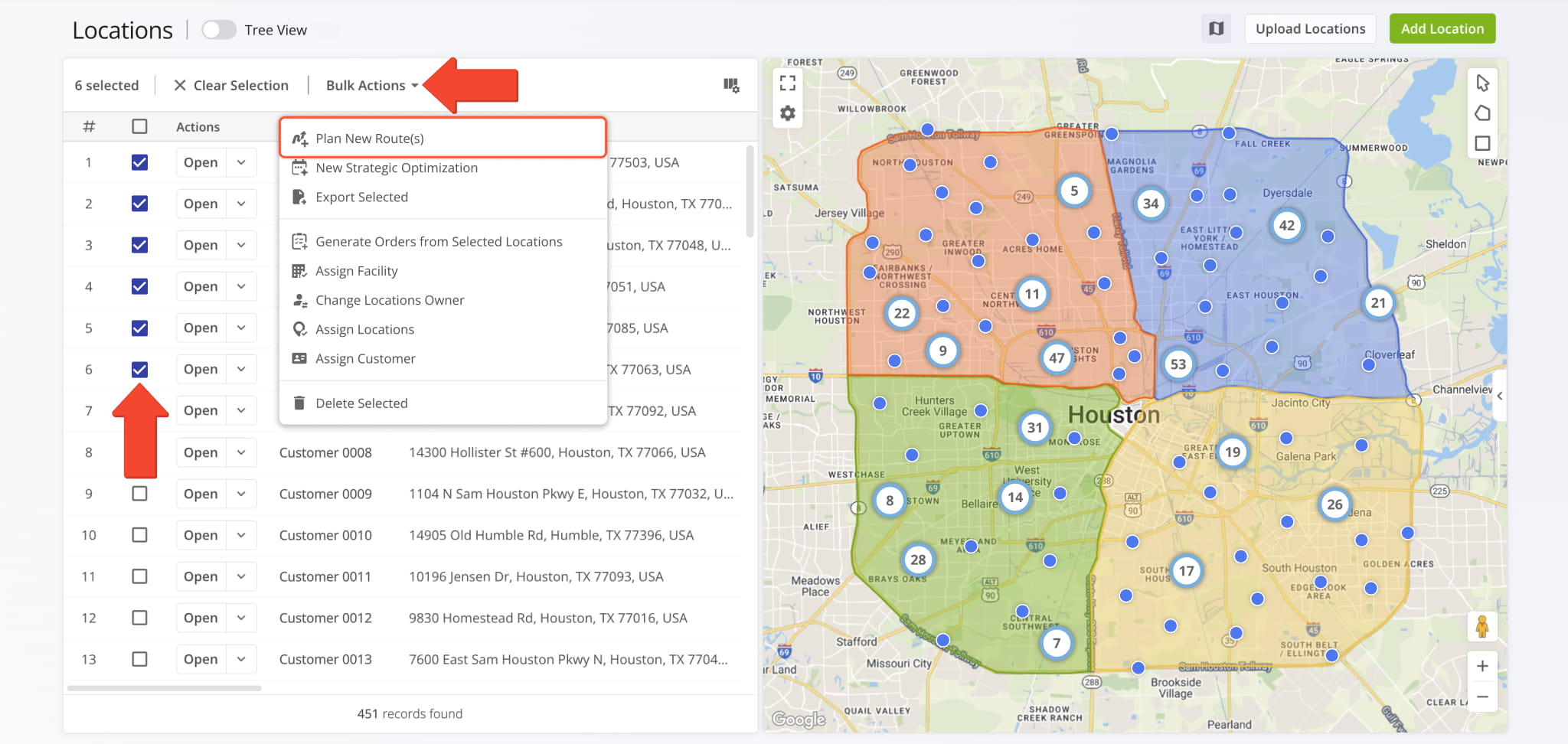
After you’ve set up your ERP database, you can proceed to plan routes for invoice printing. To plan routes from the Locations Page, first select all the Customer Locations you want to include in a route. Then, click “Bulk Actions” and select “Plan New Route(s)“. From there, you can follow the usual steps for planning routes and assigning Users to routes.
Printing Invoices When Completing Delivery Or Service Destinations
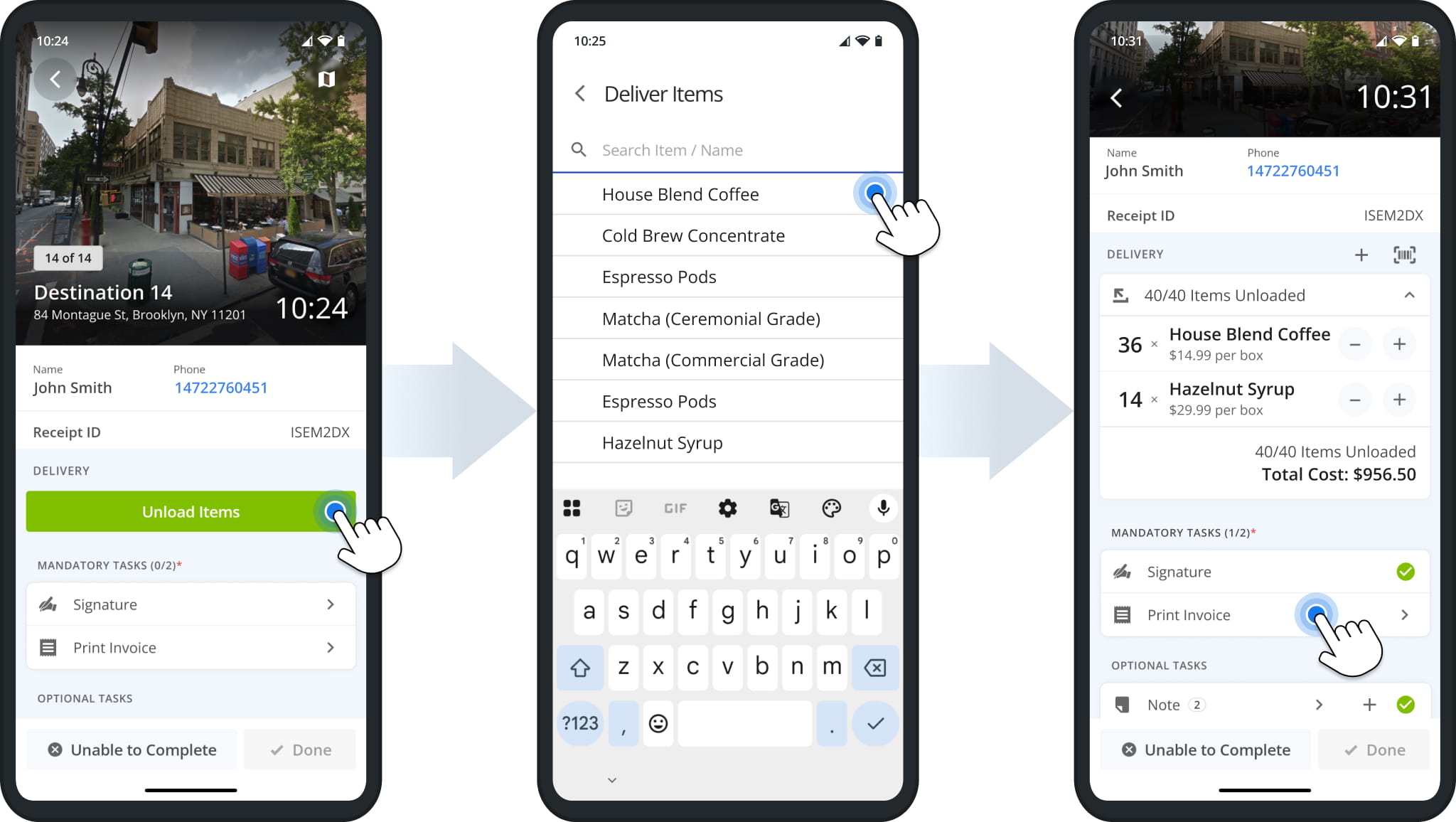
When field employees arrive at Destinations, they can easily begin delivery or service, select Price List items associated with a Destination’s Customer, complete mandatory proof of visit tasks, and tap “Print Invoice” to begin the invoice printing process.
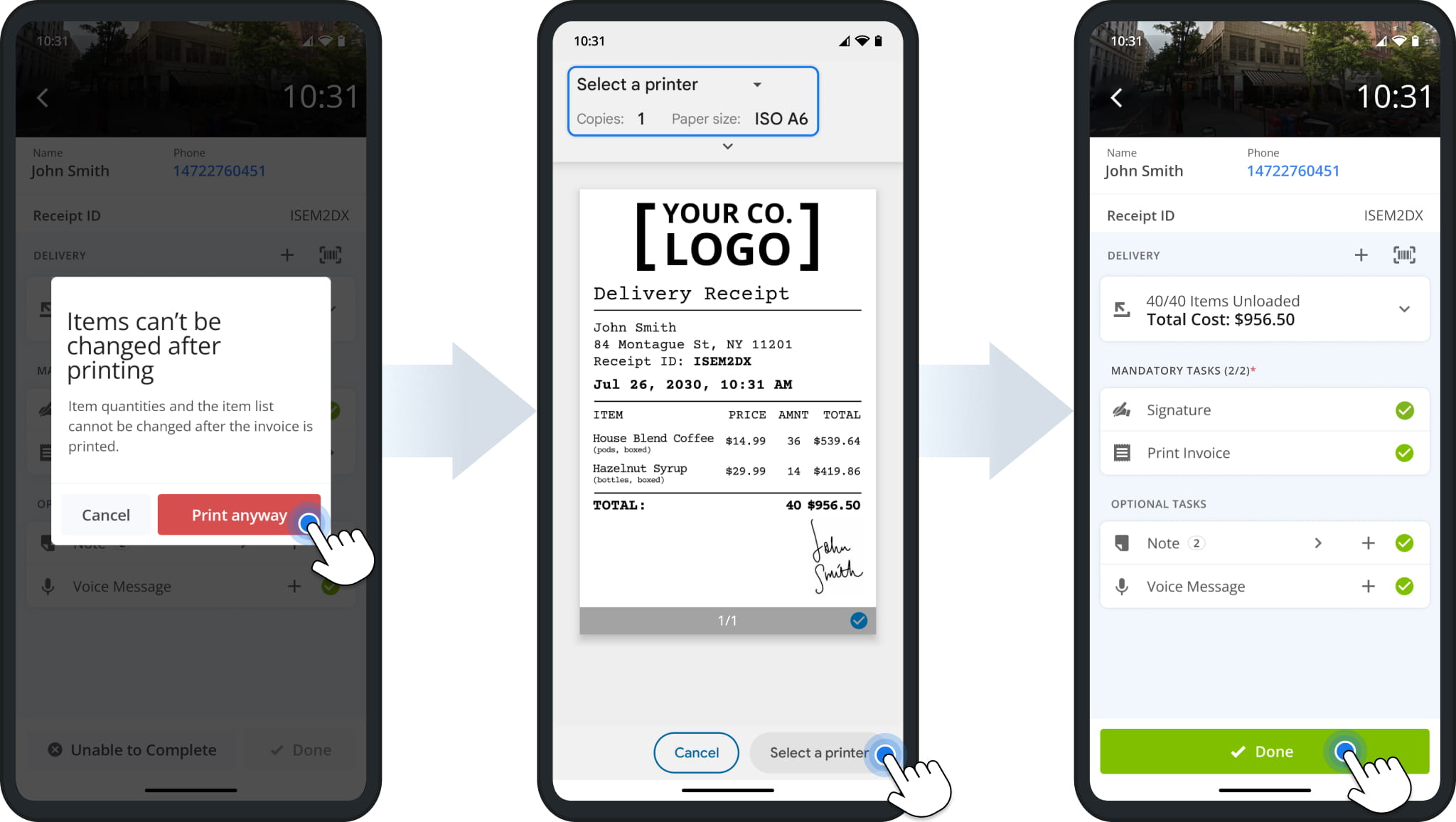
Printing an invoice prevents further changes to the item list for security and compliance. The app shows a preview of the itemized invoice, the User selects a printer, prints the invoice, and marks the Destination as “Done” to finalize the delivery or service visit. Learn more about completing routes with the Route4Me Company Driver App.
Visit Route4Me's Marketplace to Check out Associated Modules:
- Operations
Custom Data Add-On
- Operations
Advanced Team Management Add-On
About author: Kristian Andreev

