
Unload Multiple Items With Multi-Unload Delivery Label Scanner
The Route4Me Mobile App for last mile delivery enables users to load and unload orders at customer destinations with its integrated label scanner. If your company regularly delivers specific stock-keeping units (SKUs) or price list items, users can select delivery quantities after scanning labels to streamline multi-unload deliveries. Keep reading to learn more.
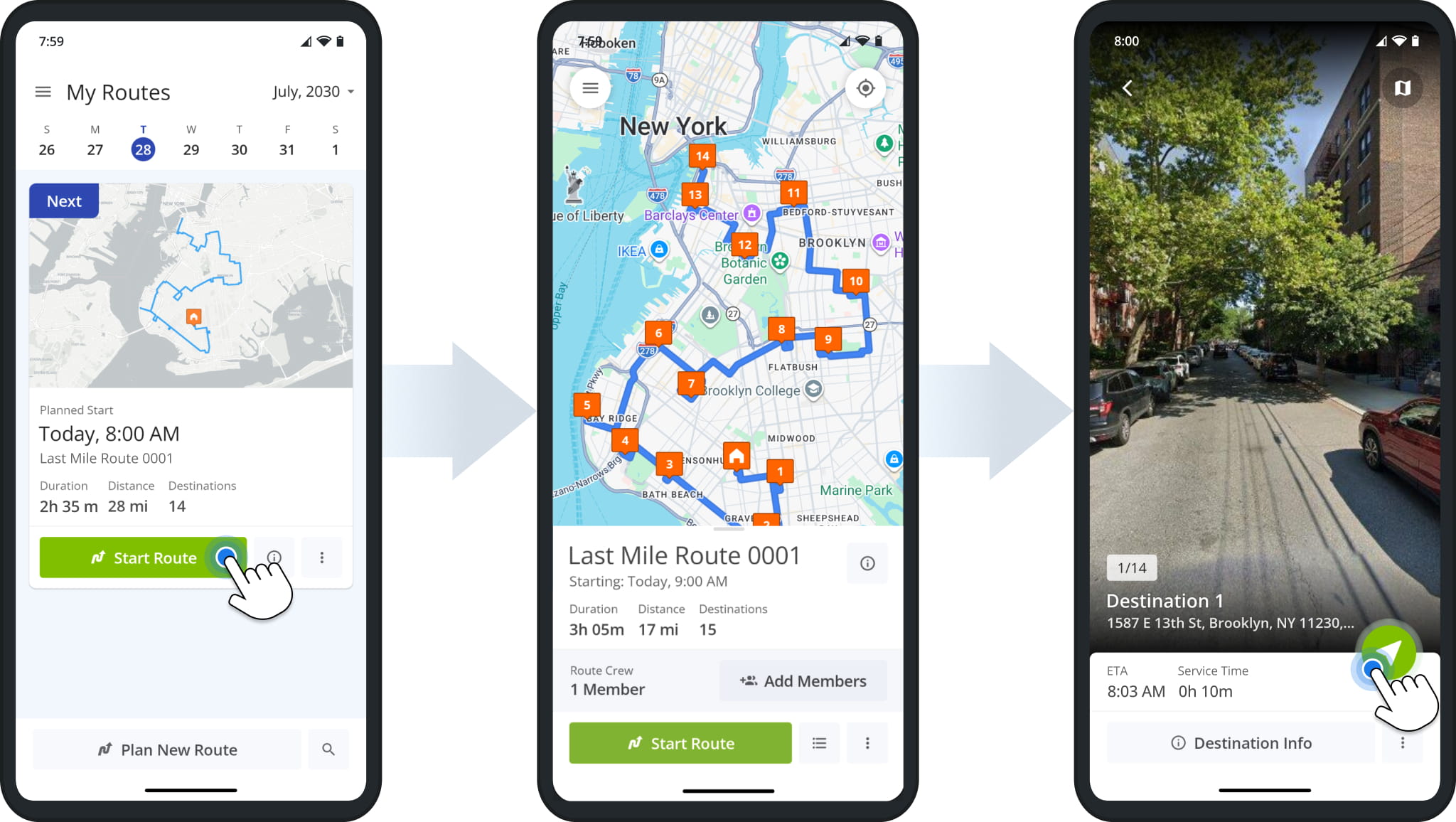
First, start a route as usual by selecting it from the Routes List and tapping “Start Route“. Then, navigate to destinations on the route by tapping the Navigate Button and following the in-app voice-guided GPS directions.
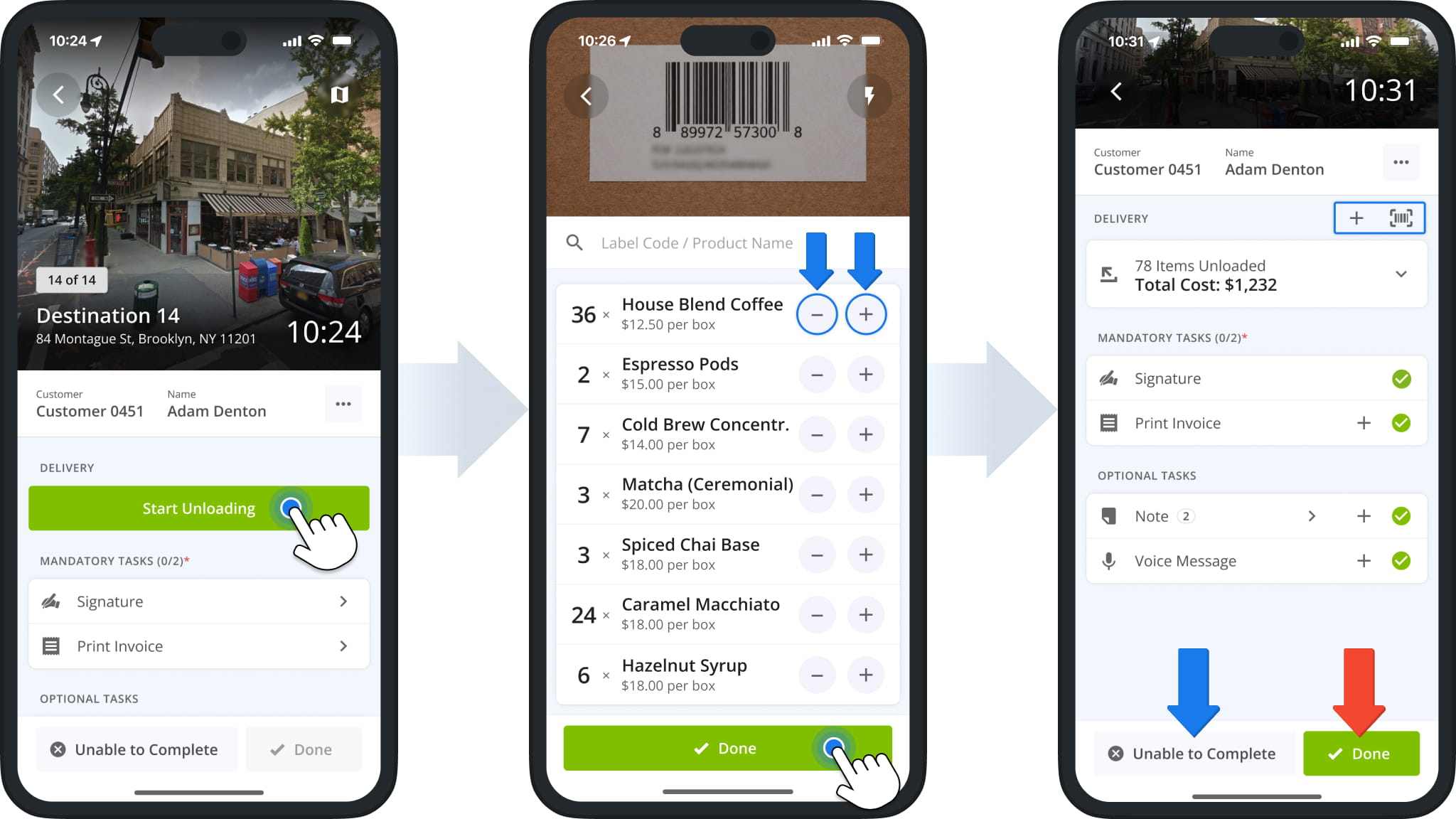
Once you confirm your arrival at a delivery destination, you’ll see its list of proof of delivery (POD) tasks. For delivery routes with multiple items for unloading, you’ll see the “Start Unloading” button in the “Delivery” section. Tap it to proceed.
Next, you’ll see the in-app label scanner. Point your device’s camera at a label, and the app will automatically confirm its item type. Use the Plus and Minus Buttons next to an item type to adjust the quantity after scanning. Tap “Done” to finalize the task.
Complete any other mandatory POD tasks and tap “Done” button to complete the delivery. In case you need to adjust item quantities or make other changes to delivery items, you can tap the Plus Icon or Scanner Icon above the item unload total.
Visit Route4Me's Marketplace to Check out Associated Modules:
- Operations
Custom Data Add-On
- Operations
Advanced Team Management Add-On
About author: Kristian Andreev

