
Locations Territories – Create And Manage Location Service Areas
Organize and manage your customer Locations more efficiently with Territories. By creating custom Territories on the Locations map, you can group Locations logically, streamline route planning, and keep operations organized. Managing Territories individually or in bulk makes it easier to track, assign, and optimize your routes. Learn more in this guide.
Table of Contents
Add Locations – Create Customer Locations For Territory Mapping
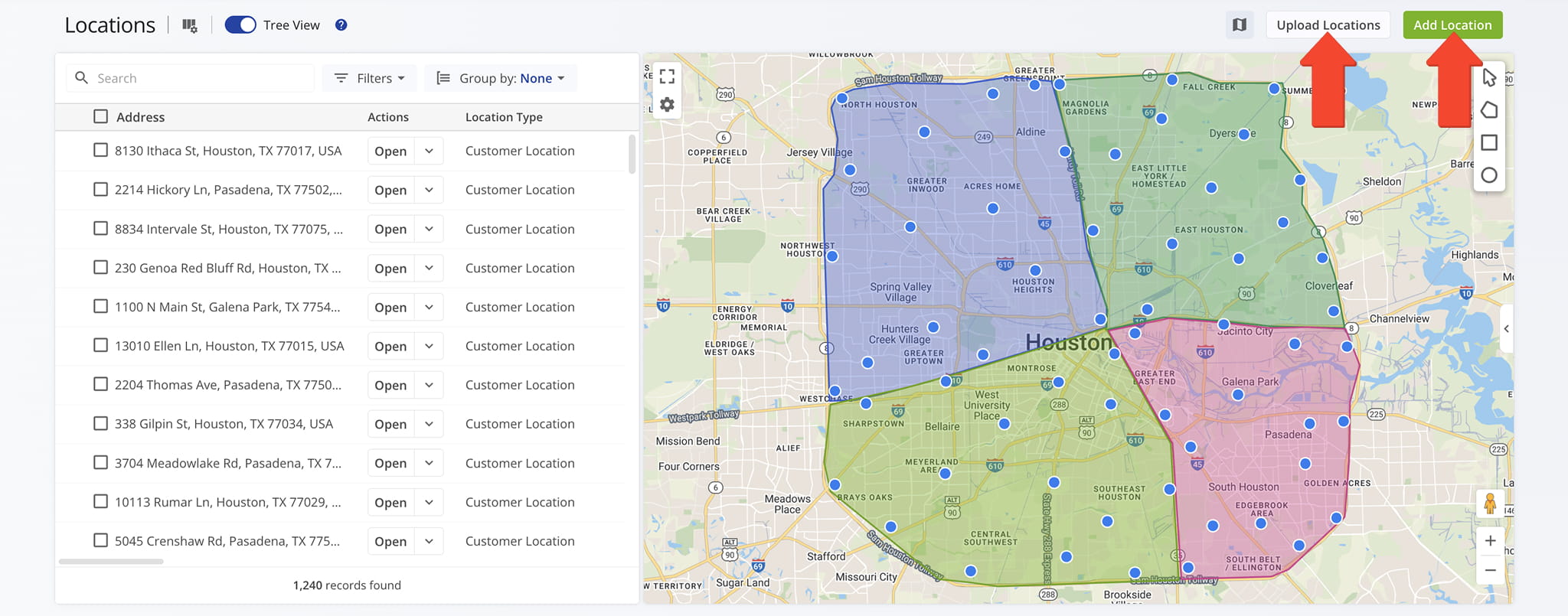
Before you can create territories, you’ll need to create the Locations that those territories will contain. Start by going to “Database” > “Locations” in the Navigation Menu. On your Locations Page you’ll see all of your existing Locations.
To add a new Location, click the “Add Location” button. To add multiple Locations via spreadsheet, click the “Upload Locations” button. Be sure to consult Route4Me’s spreadsheet formatting requirements prior to upload.
NOTE: For more on adding Locations, see our dedicated guide.
Create Territories – Customize Territories Around Customer Locations
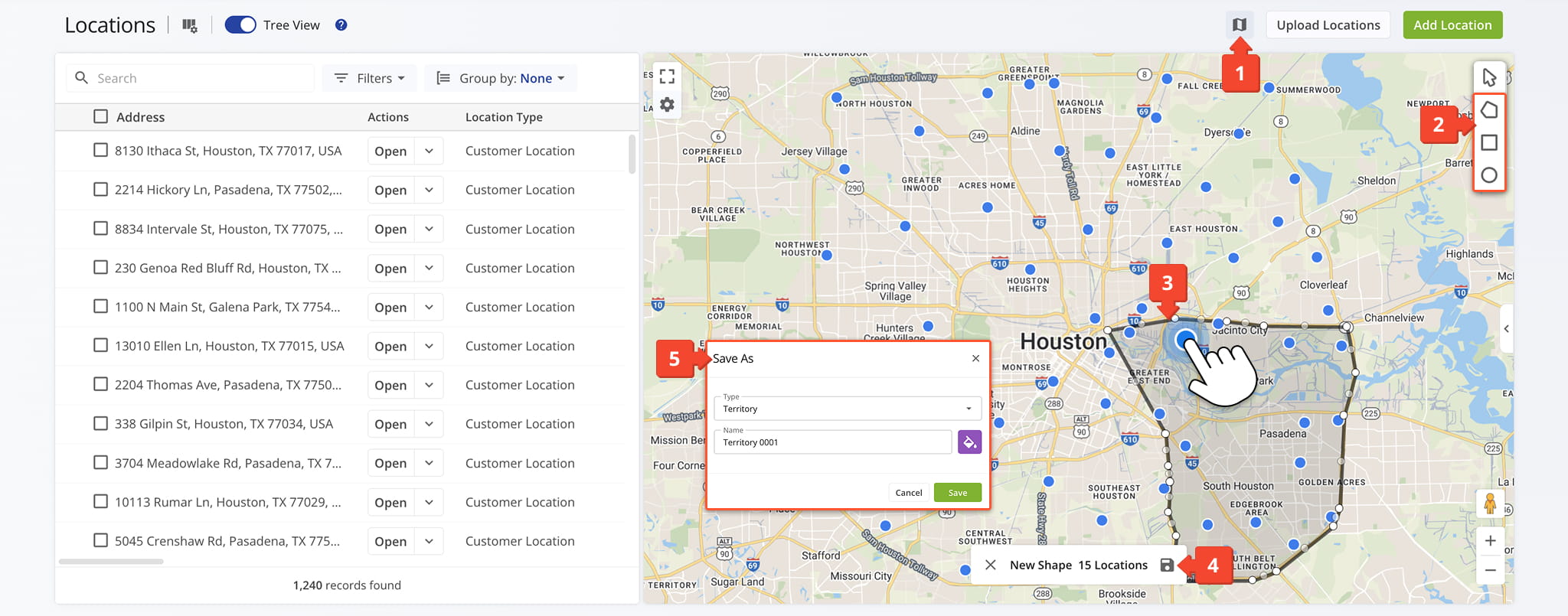
A Territory is a custom-shaped area on the map that organizes your Locations. Any Location that falls within a Territory’s boundaries is automatically associated with that Territory. To create a Territory:
- Click the Map Icon to open the Locations Map.
- From the the top-right corner of the Map, click a Draw Area button (square or polygon).
- Draw your Territory by clicking and dragging the square or clicking to add points to a polygon.
- When finished, click the X to delete and start over or the Disc Icon to save.
- To save the Territory, enter a unique Territory Name, choose a color, and click “Save“.
Manage Territories – View, Edit, And Do More With Your Territories
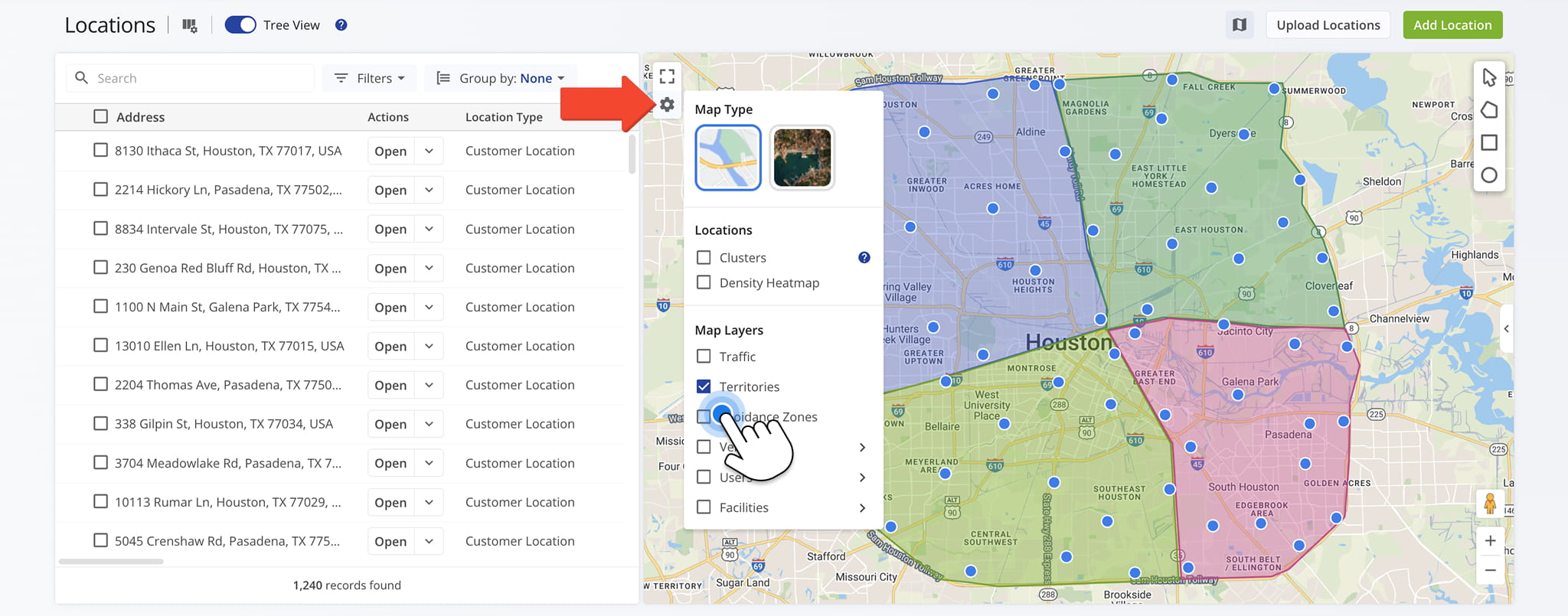
To view all Territories on the Map, click the Gear icon and select “Territories“.
To edit or manage an individual Territory, open the Sidebar. Then, click the Three-dot Icon next to a Territory and select an action. You can also right-click a Territory on the Map to access the same Actions Menu.
The table below outlines the actions you can take when managing a single Territory.
NOTE: Use the Search Field to expedite your search for a specific Territory.
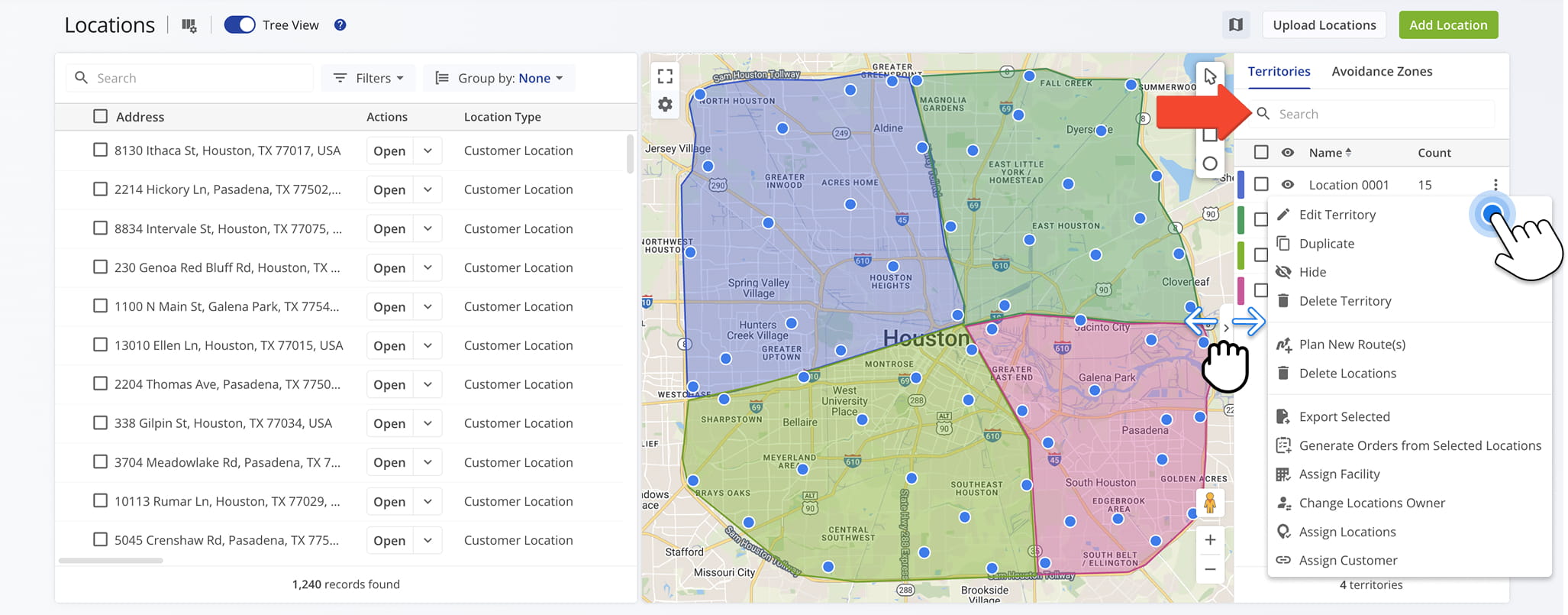
Territory Management Options
To edit or manage several Territories at once, check the boxes next to the Territories you wish to modify. Then, click Bulk Actions and select an action. The table below outlines the actions you can take when managing multiple Territories.
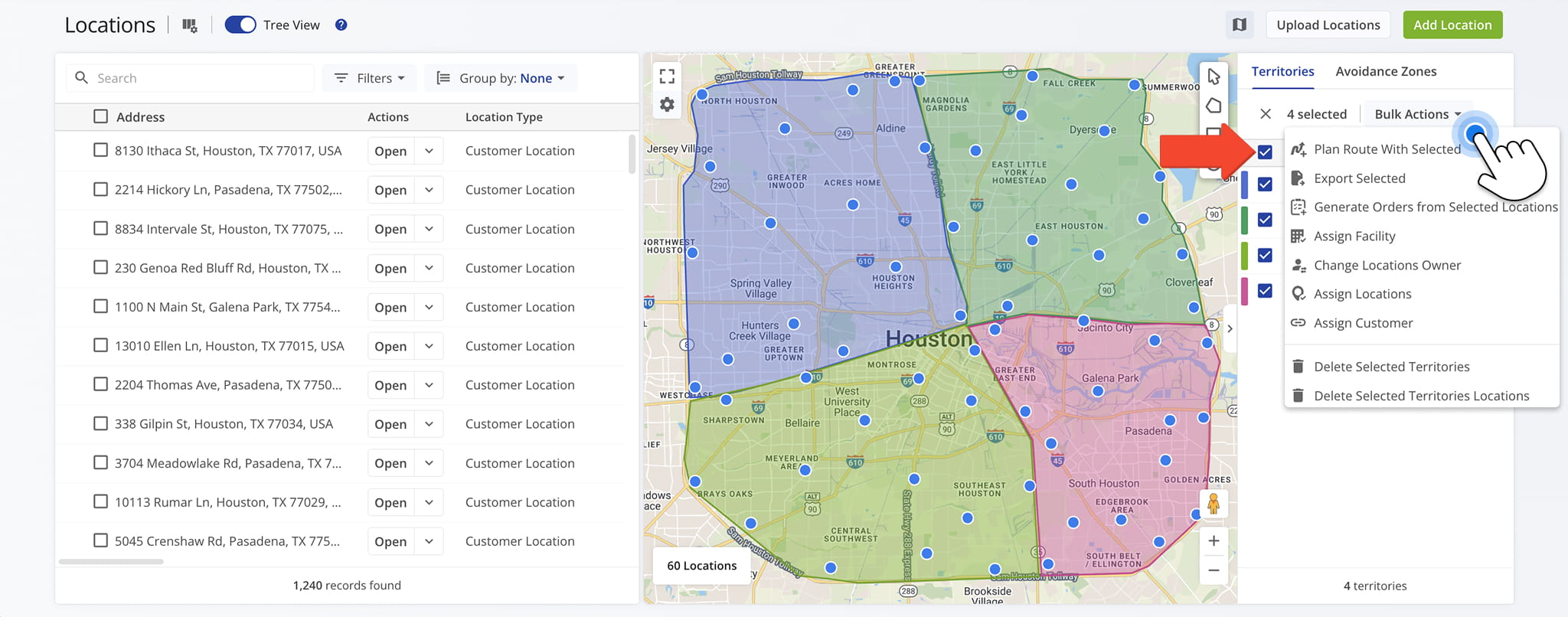
Bulk Management Options
Visit Route4Me Marketplace to Check Out More Add-Ons:
- Optimization
Address Book and Territories Planning
- Route Optimization
Commercial Vehicle & Truck Routing
- Operations
Audit Logging and Activity Stream
About author: Daniel Archer

