
Fueling Strategies – Set Fleet Fueling Rules & Fuel Policies
A Fueling Strategy is a set of rules that determine when, where, and how much your drivers refuel on routes. Each Strategy defines conditions for when to refuel, which fueling stations qualify once those conditions are met, how much to fill up, and whether the system recommends a stop to the assigned User or adds it to the route automatically.
You can build separate Fueling Strategies for city delivery, long haul, return-to-depot, and other operations so dispatchers won’t have to field calls about whether a detour is worth it. Drivers don’t have to guess which gas station to use, and fleet vehicles can fill up at approved stations and at the best fuel prices with minimal impact on your optimized routes.
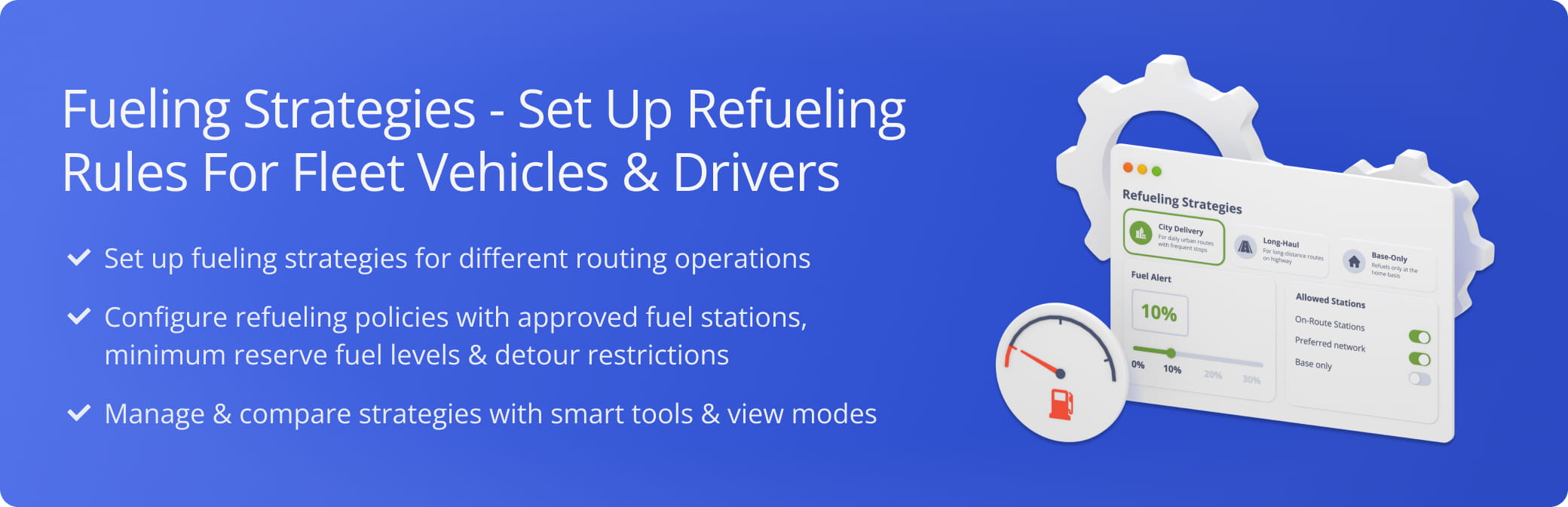
NOTE: The Fueling Strategies feature is currently available on request. Contact Route4Me Support to enable it for your account.
Table of Contents
Fueling Strategies – Add, Find And Open Company Refueling Policies
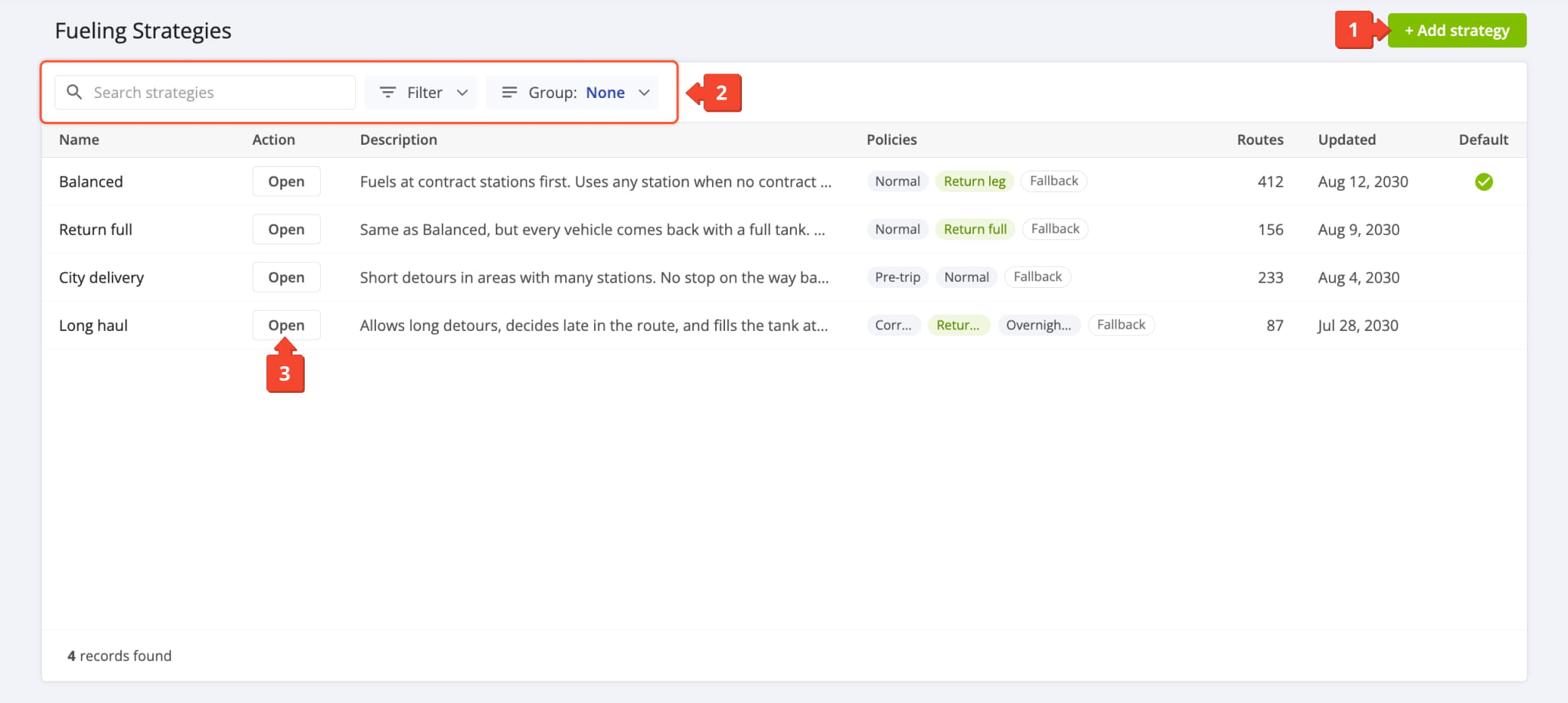
When you open your Fueling Strategies page, you’ll see a list of your existing Strategies, which Policy types they support, how many routes are associated with each Strategy, and more. From the Fueling Strategies page, you can:
- Click “Add Strategy” to create a new Fueling Strategy for your company.
- Find, filter, and group existing Strategies using your preferred settings.
- Click “Open” next to an existing Strategy to see and manage its policies.
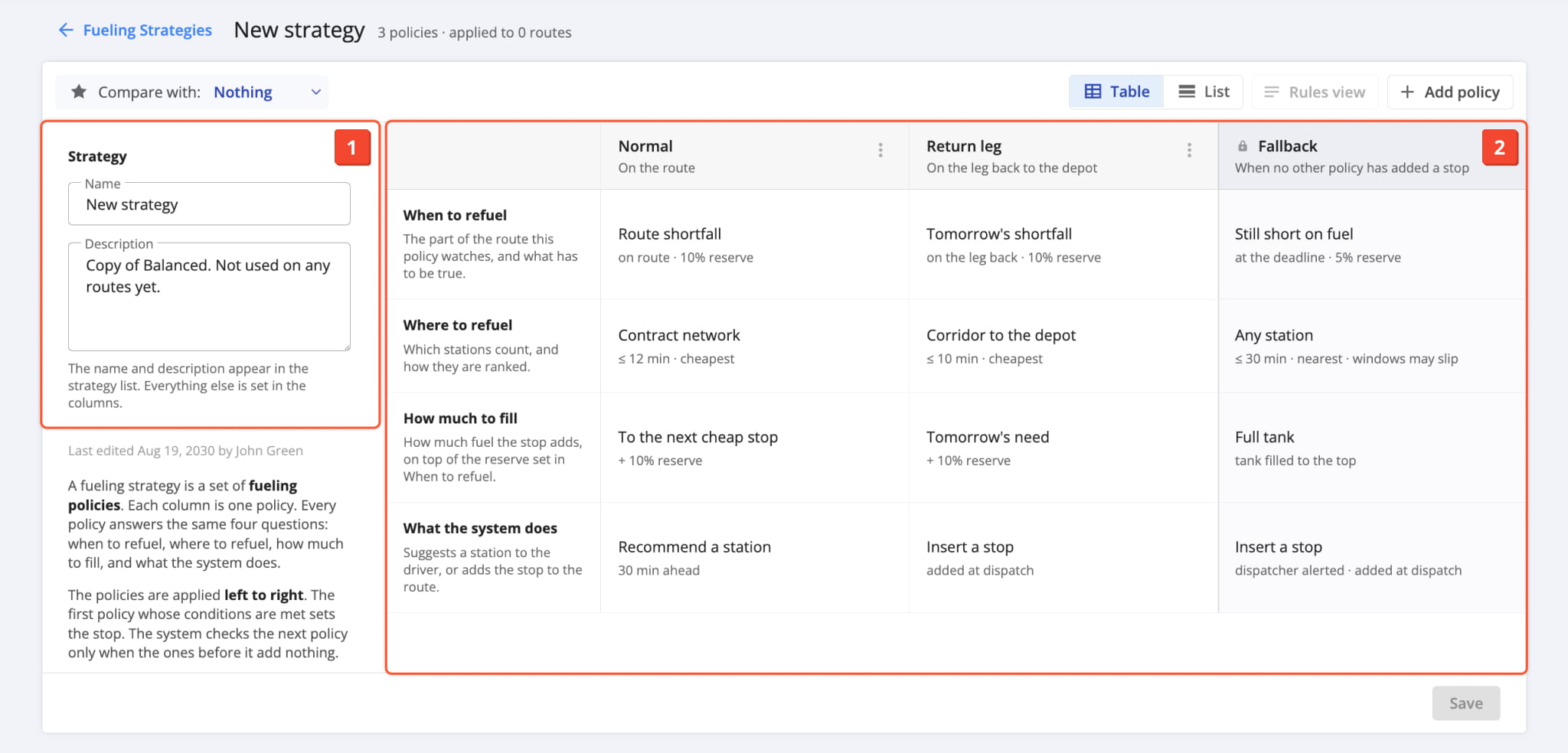
For your convenience, creating and editing Fueling Strategies uses the same intuitive interface. A Fueling Strategy consists of:
- Strategy Settings: A name and description that make the Strategy easy to find and identify.
- Fueling Policies: Policies represent refueling rulesets. Each column is a Policy, and they’re applied left to right on routes.
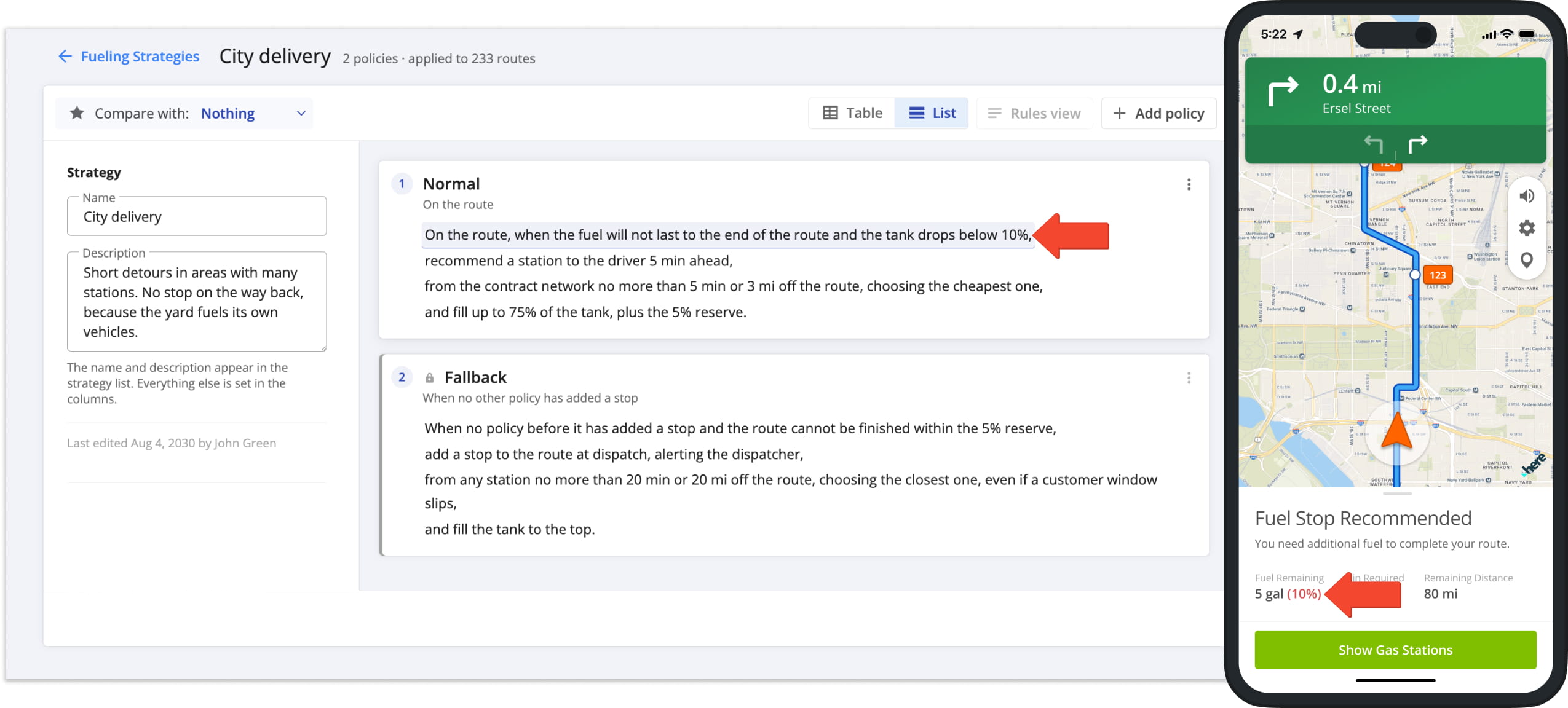
Policies determine when, where, and how much Users should refuel on routes. The first Policy with satisfied conditions determines it’s time to refuel and applies its remaining rules. If conditions aren’t met, the system checks the next Policy and so on.
Add Fueling Strategies – Create And Edit Complex Refueling Rules
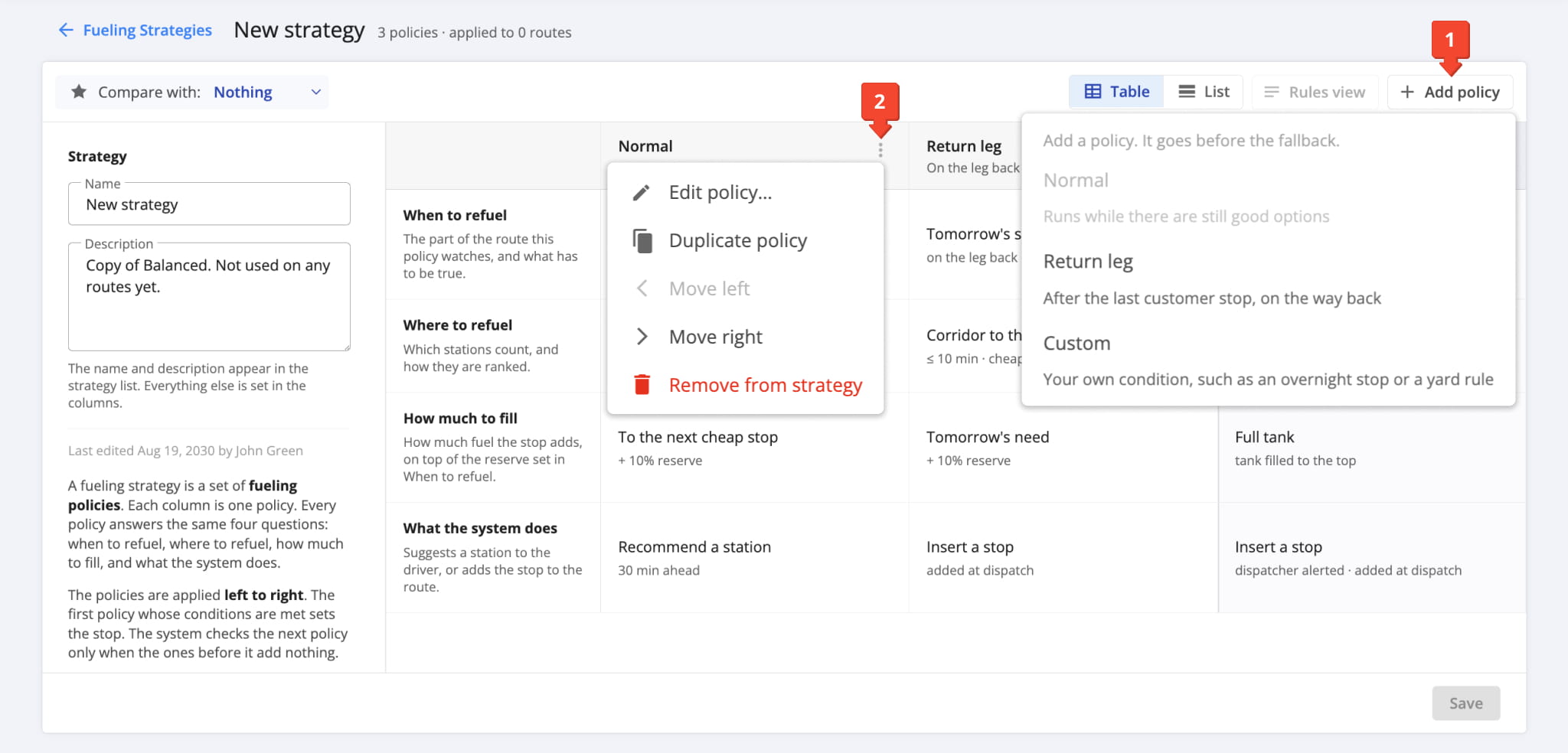
When you add a new Fueling Strategy, the system creates a copy of your company’s default Strategy. You can then:
- Click “Add policy” to add new rules and conditions to the Strategy.
- Click the Three-dot Icon next to a Policy to edit, copy, move, or delete it.
You can add and modify Fueling Policy types such as:
- Normal: Standard Policy the system checks while a route is active.
- Return leg: Return trip Policy the system starts checking after the last route destination on the way back to the depot.
- Custom: A customizable Policy type you can use for special cases such as overnight stops, depot yard fueling, etc.
Every Strategy also has a “Fallback” Policy the system checks when no Policy before it produces a fueling stop and the vehicle can’t finish the route on its fuel reserve. You can edit the “Fallback” Policy, but it can’t be moved or deleted.
Fueling Policy View Modes
Before working on Fueling Policies, you can select one of the following view modes depending on your needs:
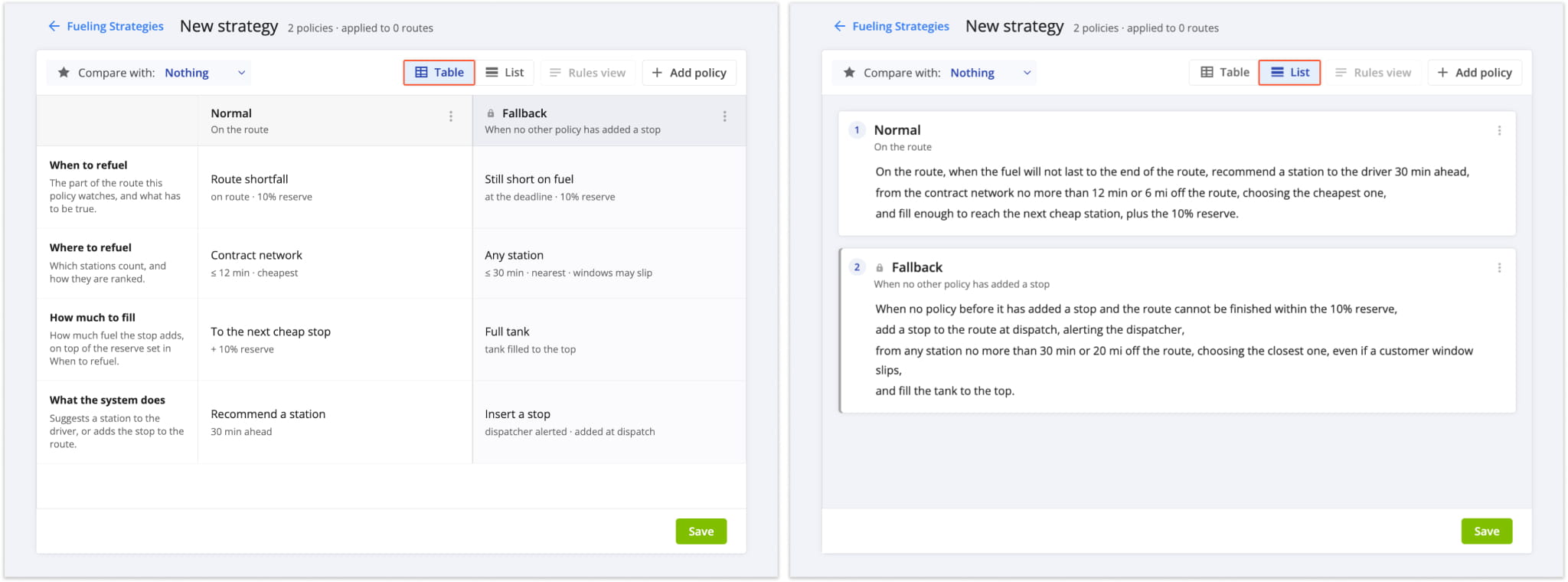
- Table (left): Default side-by-side Policy columns showing each rule as its own row.
Use Table Mode to quickly find specific Policy rules for editing or comparison. - List (right): Numbered vertical list with rules presented as a plain text description of the Policy.
Use List Mode when you want to get a readable overview of Policy rules.
Fueling Policy Settings – Set When, Where And How Much To Refuel
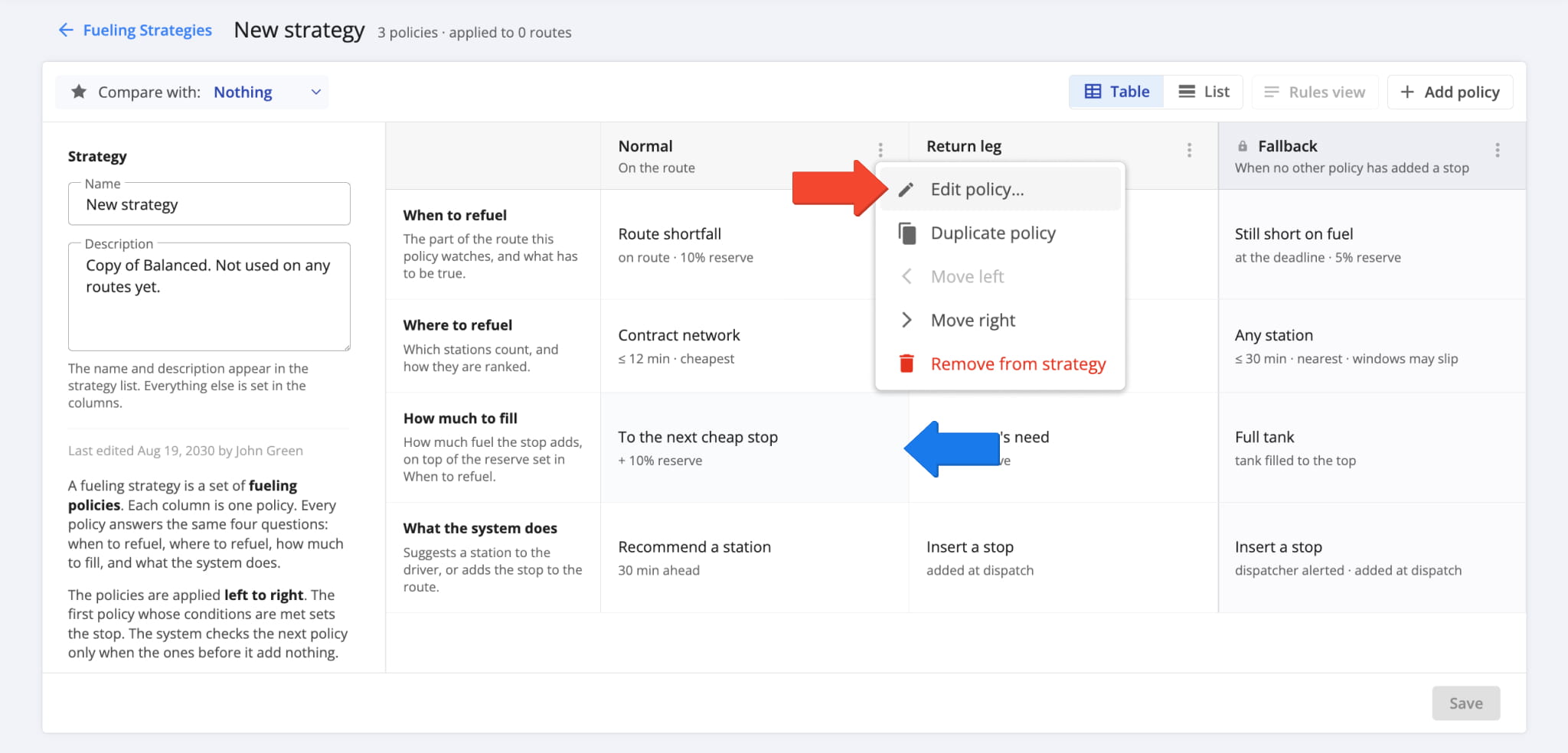
To edit a Fueling Policy and its rules, click the Three-dot Icon next to it and select “Edit policy“. You can also directly click a rule to jump to it in the editor, regardless of your selected view mode.
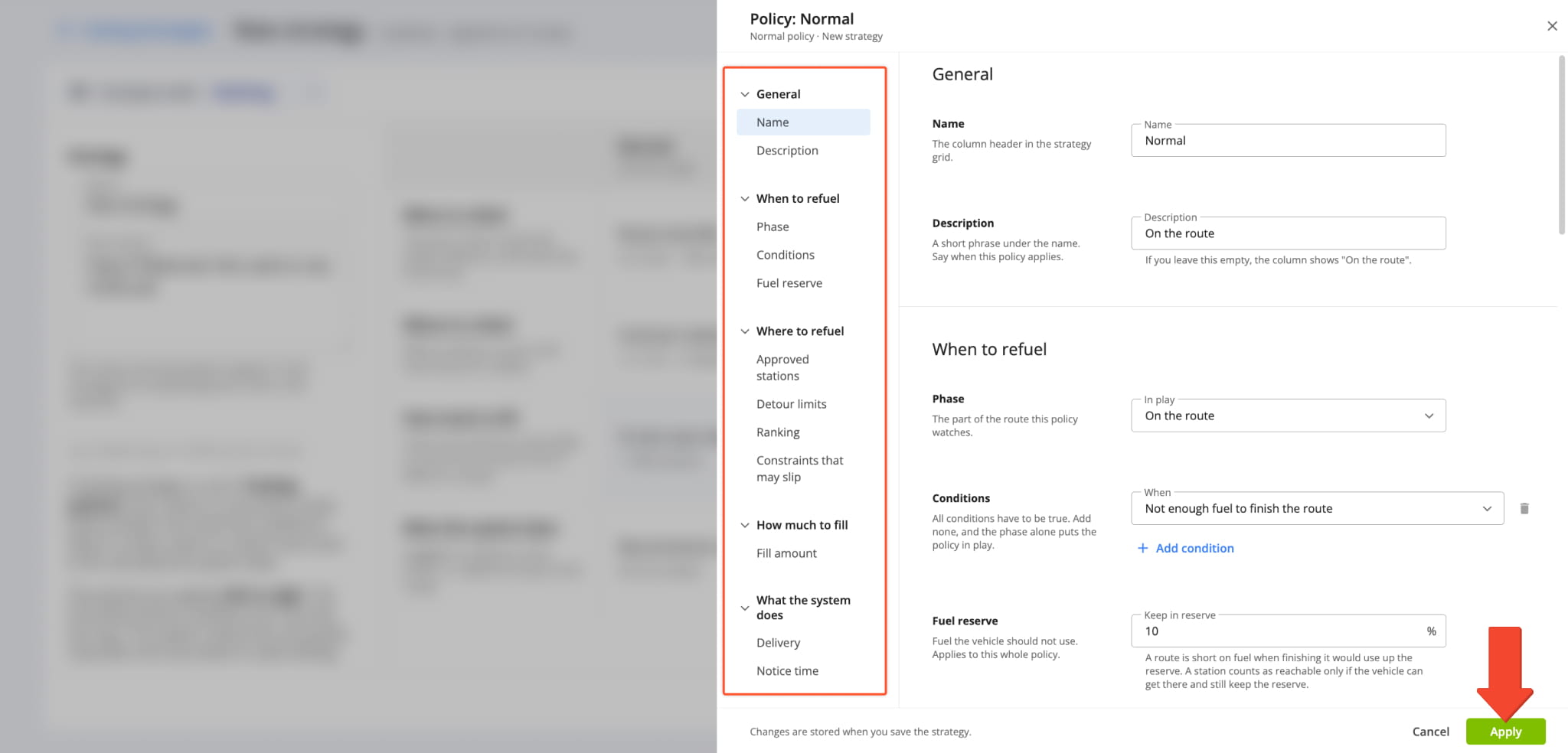
You’ll see the Policy Editor where you can configure settings divided into the following categories:
- General: Name and description of the Policy.
- When to refuel: Conditions the system checks to determine when it’s time to refuel.
- Where to refuel: Configure approved fueling stations, fueling detour limits, etc.
- How much to fill: Adjust refueling amounts based on milestones such as filling enough fuel to complete the route, etc.
- What the system does: Specify whether refueling stops will be inserted automatically or recommended via notification.
See the table below for a full list of available options. Click “Apply” to add your changes to the Policy and return to the Strategy.
NOTE: Clicking “Apply” doesn’t save your changes. Click “Save” on the Strategy to store them. If you close or leave the Fueling Strategy before saving, the system discards changes you applied to Policies. See the next section to learn more.
Fueling Policy Rules & Settings
Save And Compare Fueling Strategies And Strategy Policies
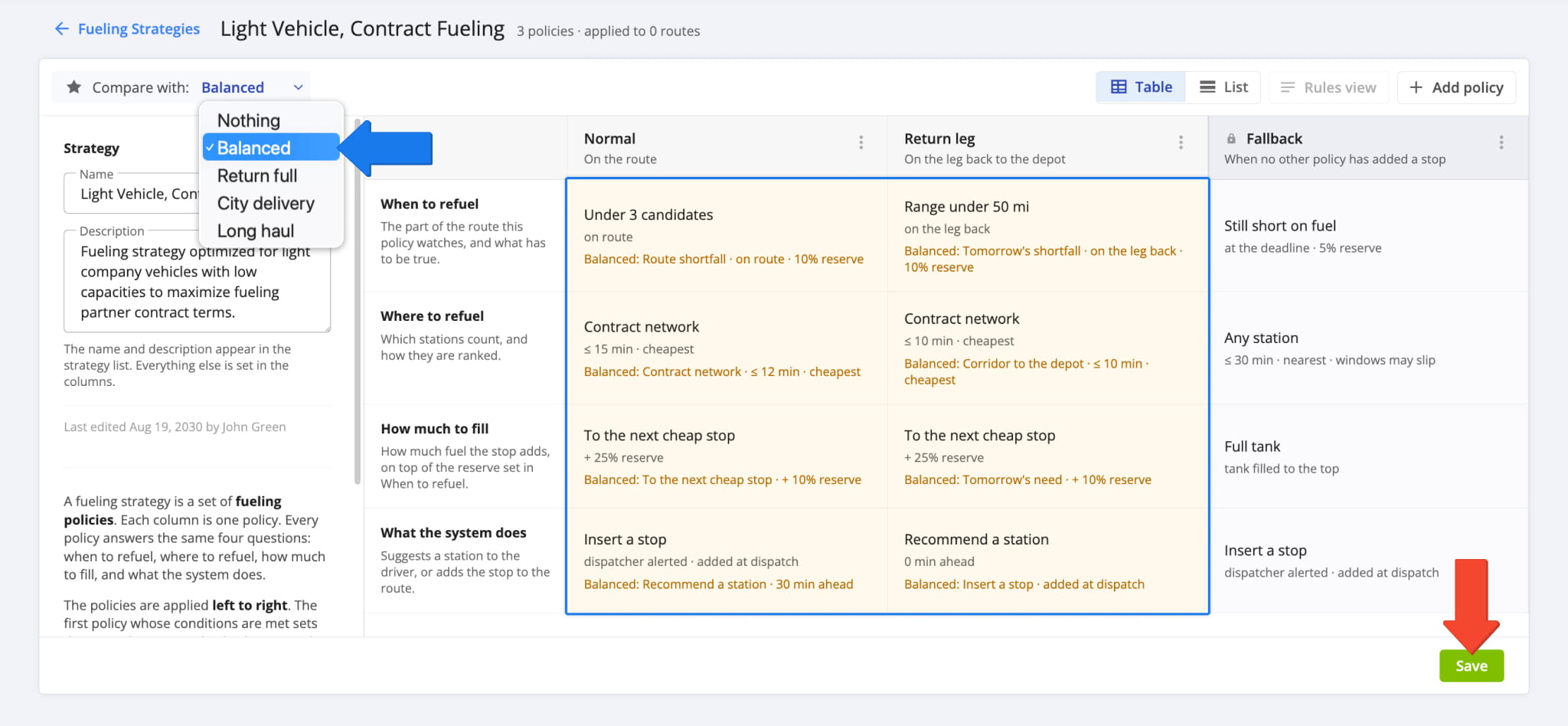
At any point, you can also use the “Compare with” menu to compare the Policy rules of the open Strategy with those of any other Fueling Strategy on your account. Policies with different rules will be highlighted in yellow.
Once you’ve configured Fueling Strategy Policies to your liking, simply click “Save” to finalize.
Fueling Policies On Active Routes – How The System Notifies Drivers
When the conditions are met, the system sends a notification to the company driver app. It shows the remaining fuel, route distance, and a “Show Gas Stations” button that finds your approved fueling stations.
The Policies in your Fueling Strategies control when notifications are sent to field workers. Policies set to “Inserted stop” add the fueling station to the route at dispatch, so drivers see it as a regular Destination instead.
To see how drivers find and add fueling stations on the go, learn more about smart refueling on routes.
Visit Route4Me's Marketplace to Check out Associated Modules:
- Route Optimization
Mixed Vehicles Routing
- Route Optimization
Route Optimization for Multiple Drivers Without Advanced Constraints
- Route Optimization
Commercial Vehicle Route Planning
About author: Kristian Andreev

