
Routing Profiles – Create, Manage & Apply Routing Profiles
Routing Profiles are reusable templates that save your preferred route planning settings so dispatchers and route planners don’t have to configure them from scratch every time a route is created. This is especially useful for enterprise businesses managing last mile route planning at scale, where consistency across hundreds of routes and drivers matters. Once selected, a Routing Profile determines exactly how a vehicle navigates a route, from avoiding restricted zones to following specific driving rules.
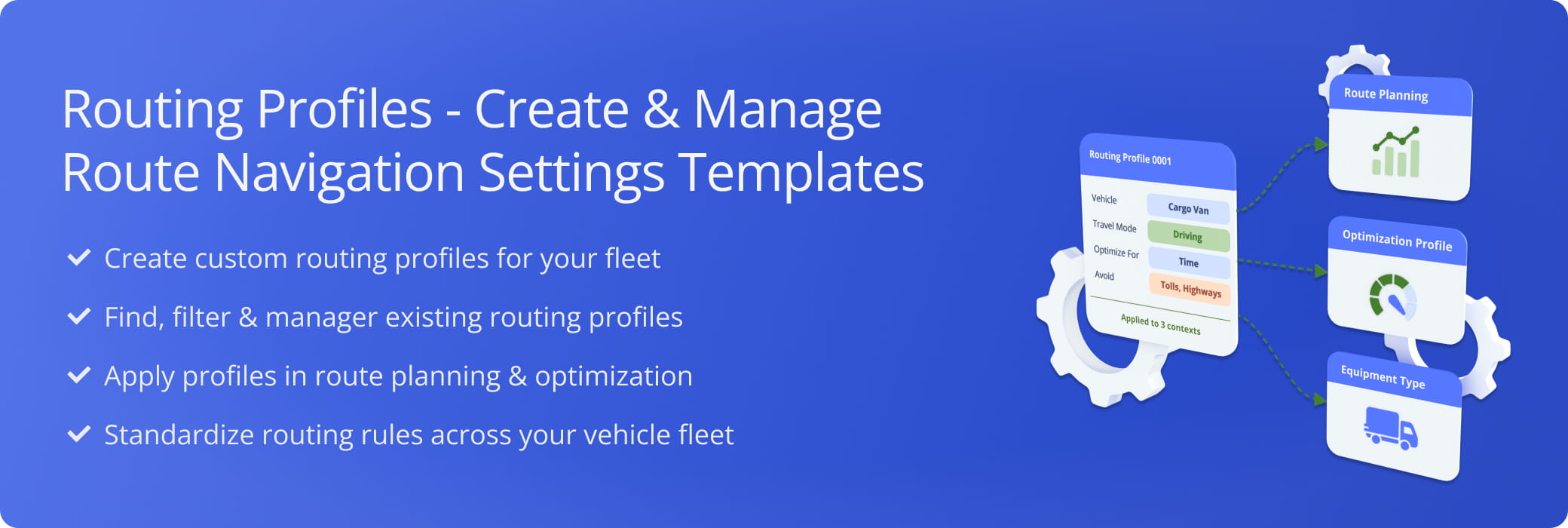
Table of Contents
Routing Profile Page – Access And Overview
To access your Routing Profiles, go to “Optimization Settings” > “Routing Profiles” from the Navigation Menu or click the button below.
This page lists every Routing Profile you’ve added to your account, along with the corresponding data for each, detailed in the table below.
Open Your Routing Profiles Page
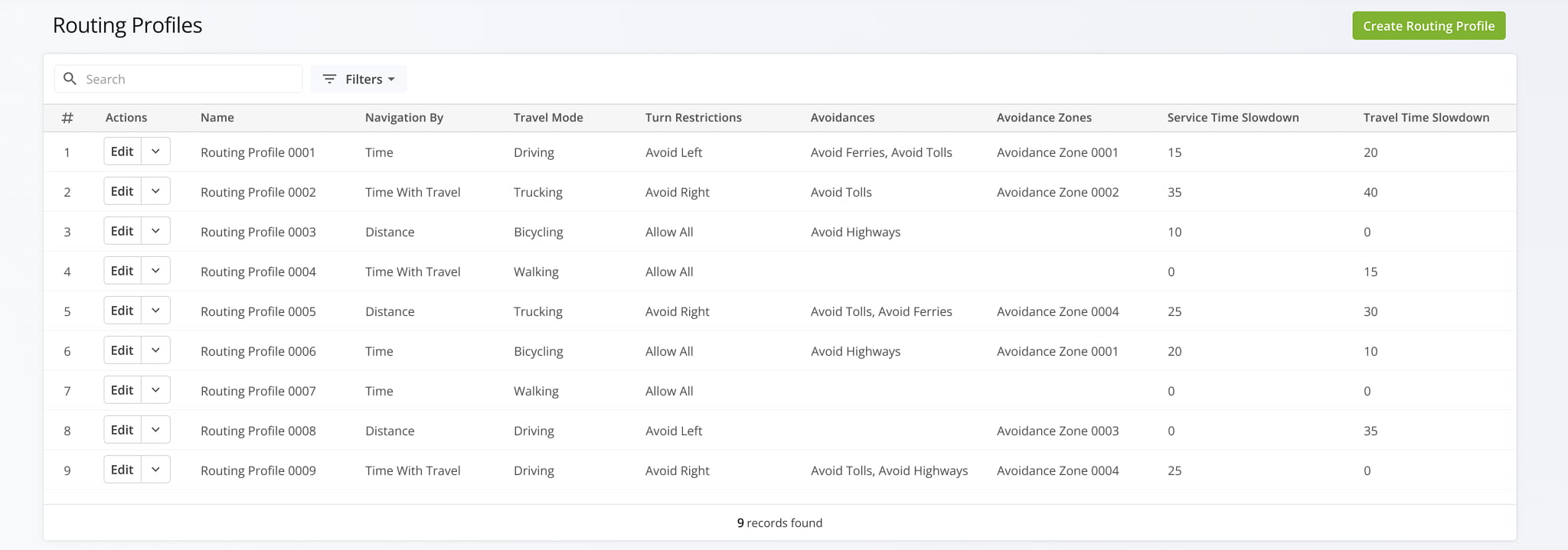
Routing Profile Data Columns
Create A New Routing Profile – Custom Route Optimization Setting
To create a new Routing Profile, click the “Create Routing Profile” button at the top-right. Then, complete all fields in the “Create Routing Profile” editor, detailed in the table below.
Click “Create” to generate the profile, which will be available immediately.
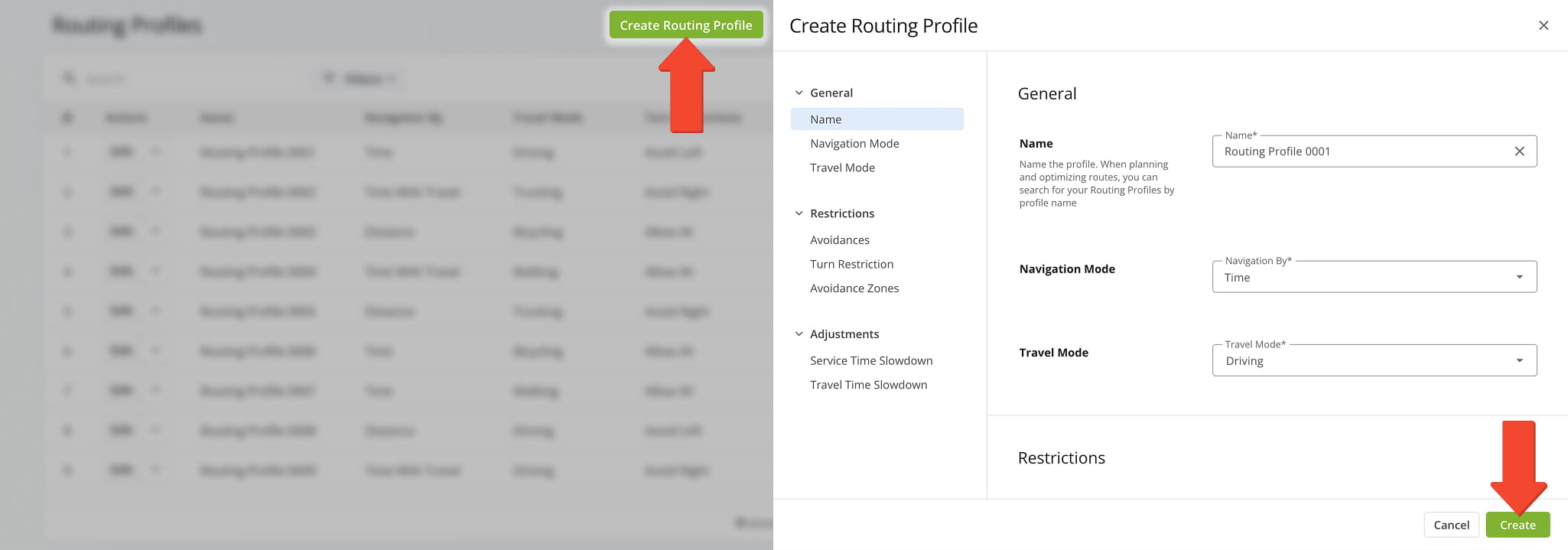
Routing Profile Fields
Manage Routing Profiles – Search, Filter, And Edit Profiles
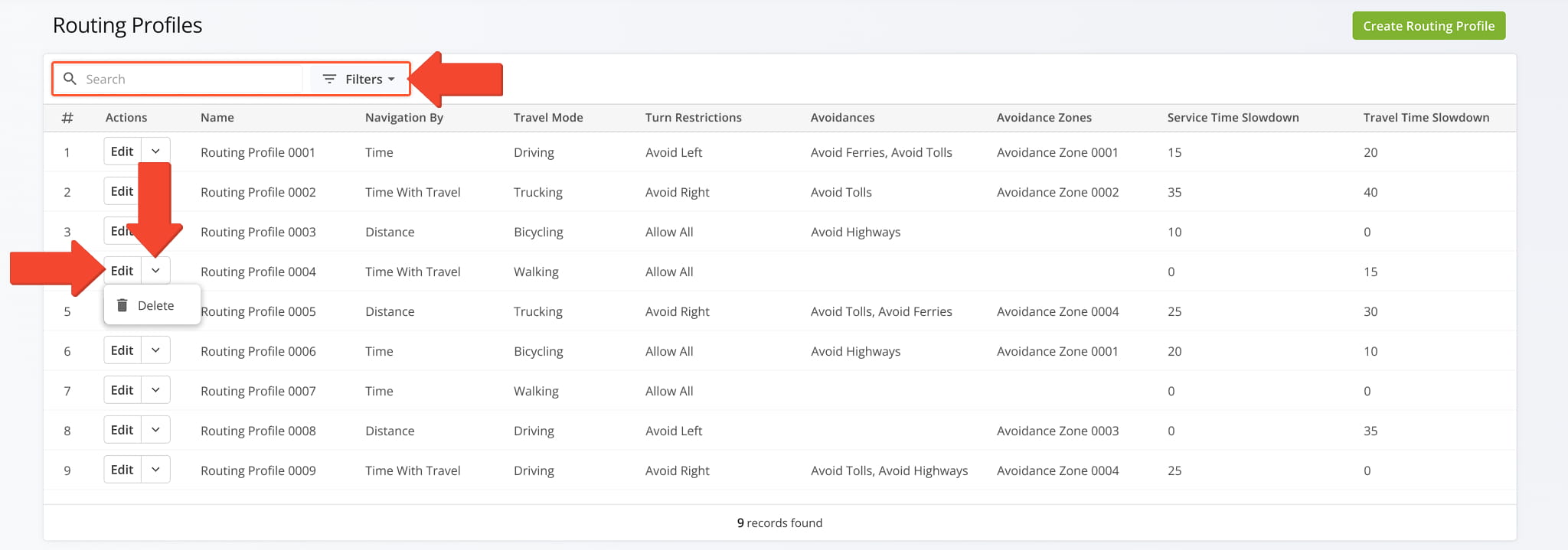
To quickly locate a Profile, use the “Search” field to find it. You can also apply filters, detailed in the table below, to narrow results by specific criteria.
To modify a Profile, click the “Edit” button next to it. To remove a Profile, click the Down Arrow button and “Delete“. NOTE: This action is permanent. Once deleted, the Routing Profile cannot be recovered.
Routing Profile Filter Options
Apply Routing Profiles – Route Optimization And Vehicle Routing
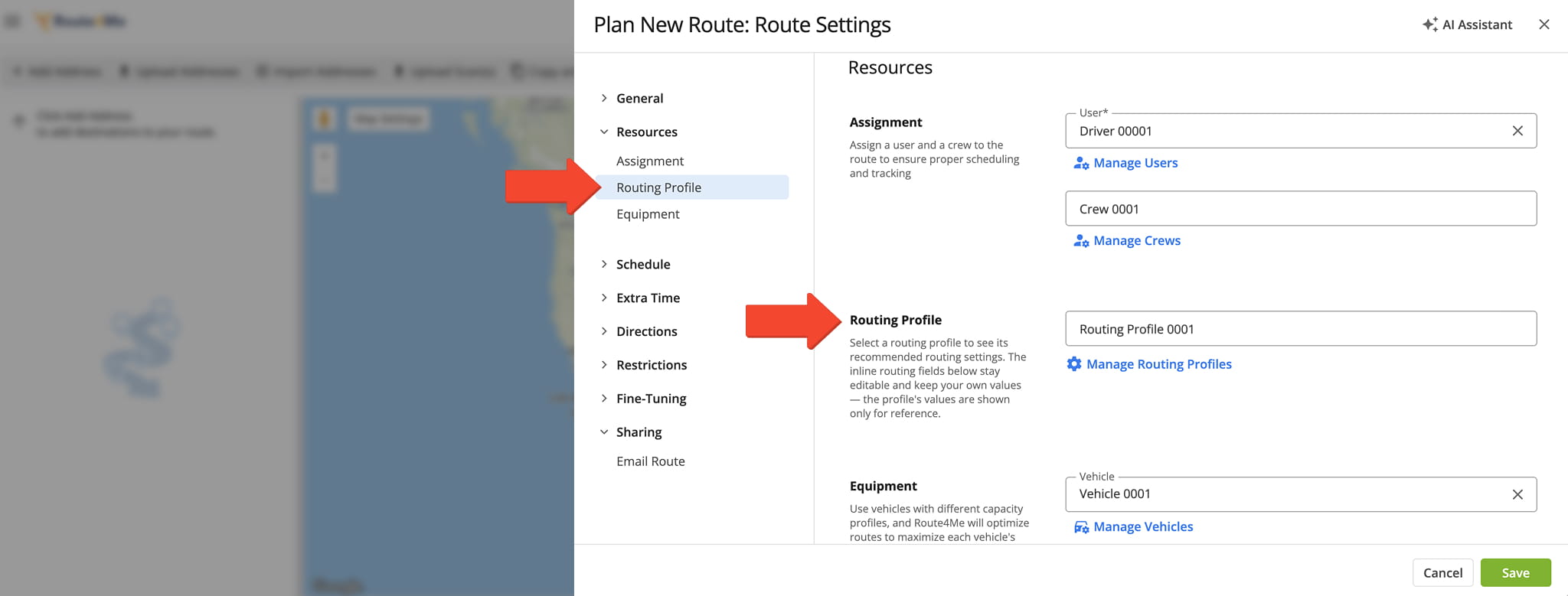
During Route Planning – One-Off Route Optimization
When planning a new route, select a Routing Profile to apply its settings for one-off route optimization.
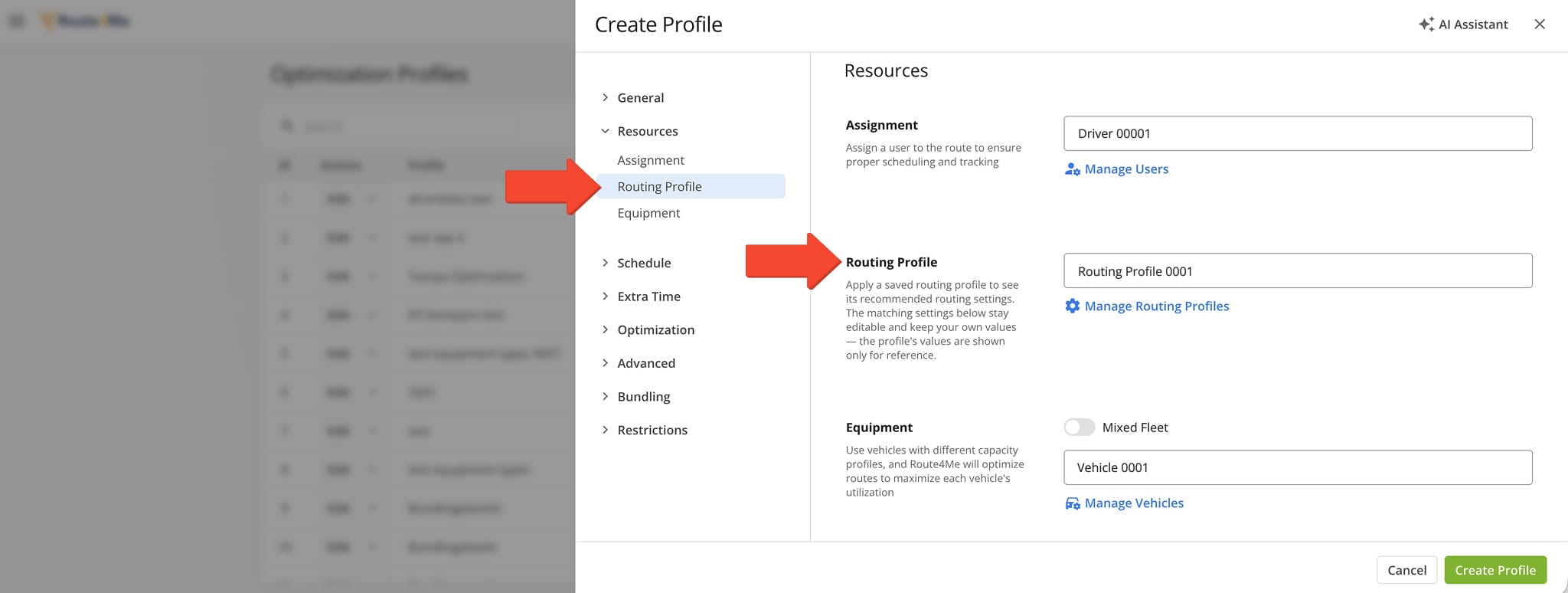
When Creating An Optimization Profile – Default Navigation Rules
When creating an Optimization Profile, apply a Routing Profile to use its settings as the default navigation rules for that optimization.
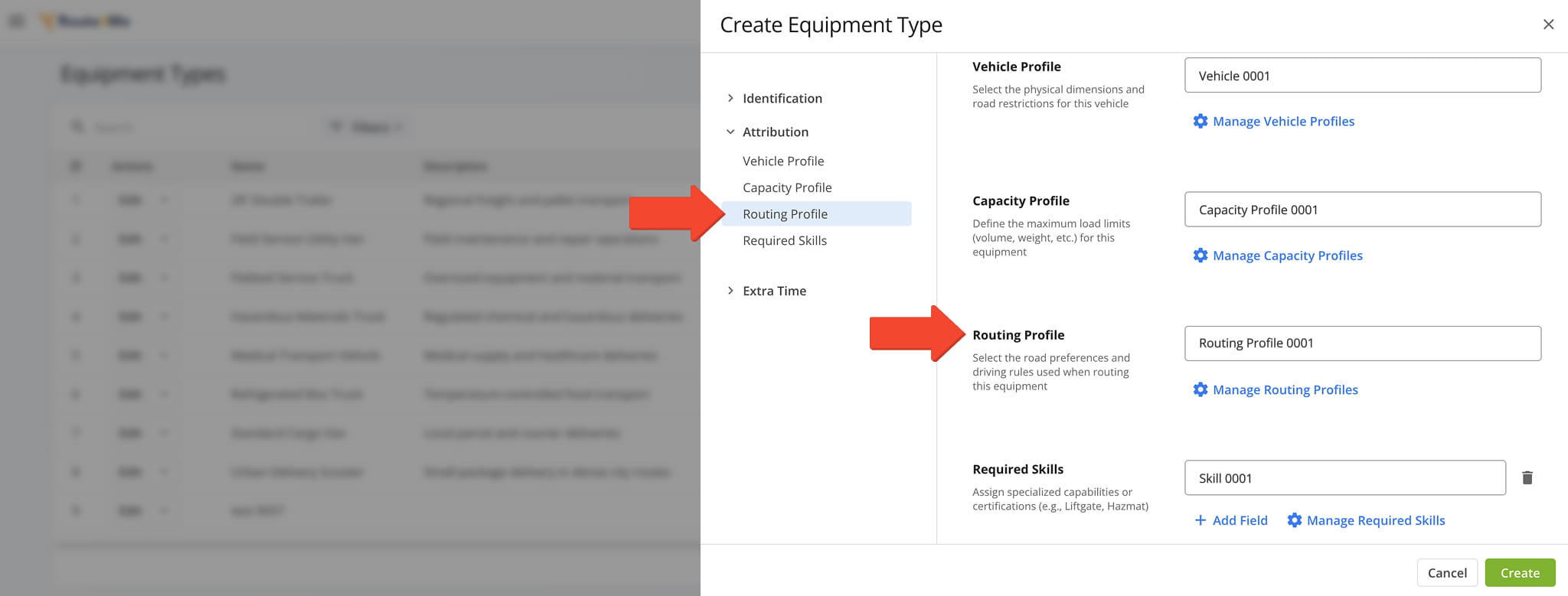
When Creating An Equipment Type – Vehicle-Specific Routing Rules
When creating an Equipment Type, apply a Routing Profile to bind specific road preferences and driving rules to that vehicle configuration.
NOTE: If the Equipment Type has its own routing settings defined, Route4Me uses those. Otherwise, it uses the settings from the applied Routing Profile.
Visit Route4Me's Marketplace to Check Out More Add-Ons and Modules:
- Route Optimization
Mixed Vehicles Routing
- Operations
Custom Data Add-On
About author: Daniel Archer

