
Drag & Drop Locations – Move Locations Into Planned And Started Routes
With Route4Me, you can effortlessly insert locations into planned last mile routes and instantly re-optimize them. To simplify adding locations to routes even further, from the Routes Page Assignable Work Panel you can also drag and drop them into planned routes at any sequence position. You can drop locations onto the Routes List, Routes Map, or Routes Timeline, whichever view fits how you’re working.
Table of Contents
Assignable Work Panel – Drag And Drop New Locations
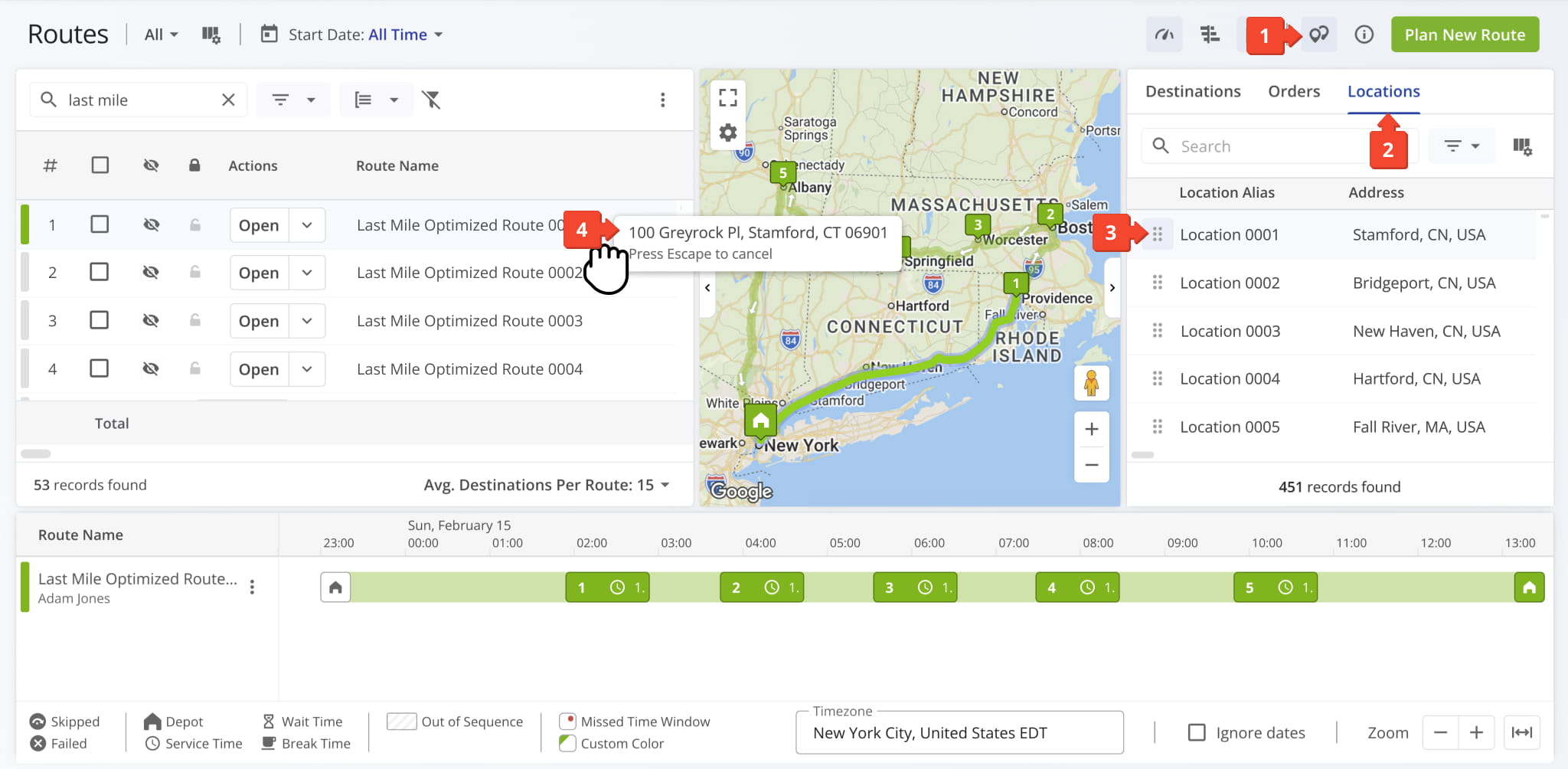
Drag And Drop Location Onto Routes List – Add Location To Route
To drag and drop a location from the Assignable Work Panel to a route in the Routes List:
- Click the Location Icon to open the panel.
- Click on the “Locations” Tab.
- Select the location you want to add to a route.
- Drag the location to the preferred route in the Routes List.
Once inserted, Route4Me will automatically update the route with the new location. This works for upcoming routes as well as ones already in progress, though a few limitations apply once a route has started.
NOTE: New locations can only be added to the unvisited portion of an in-progress route. Add new locations to the end of the route or, if you add them elsewhere, re-optimize the remaining stops to keep the route efficient.
Drag And Drop Location Onto Routes Map – Drop Location Into Route
To drag and drop a location from the Assignable Work Panel to a route in the Routes Map:
- Click the Location Icon to open the panel.
- Click on the “Locations” Tab.
- Select the location you want to add to a route.
- Drag the location to the preferred route on the Routes Map.
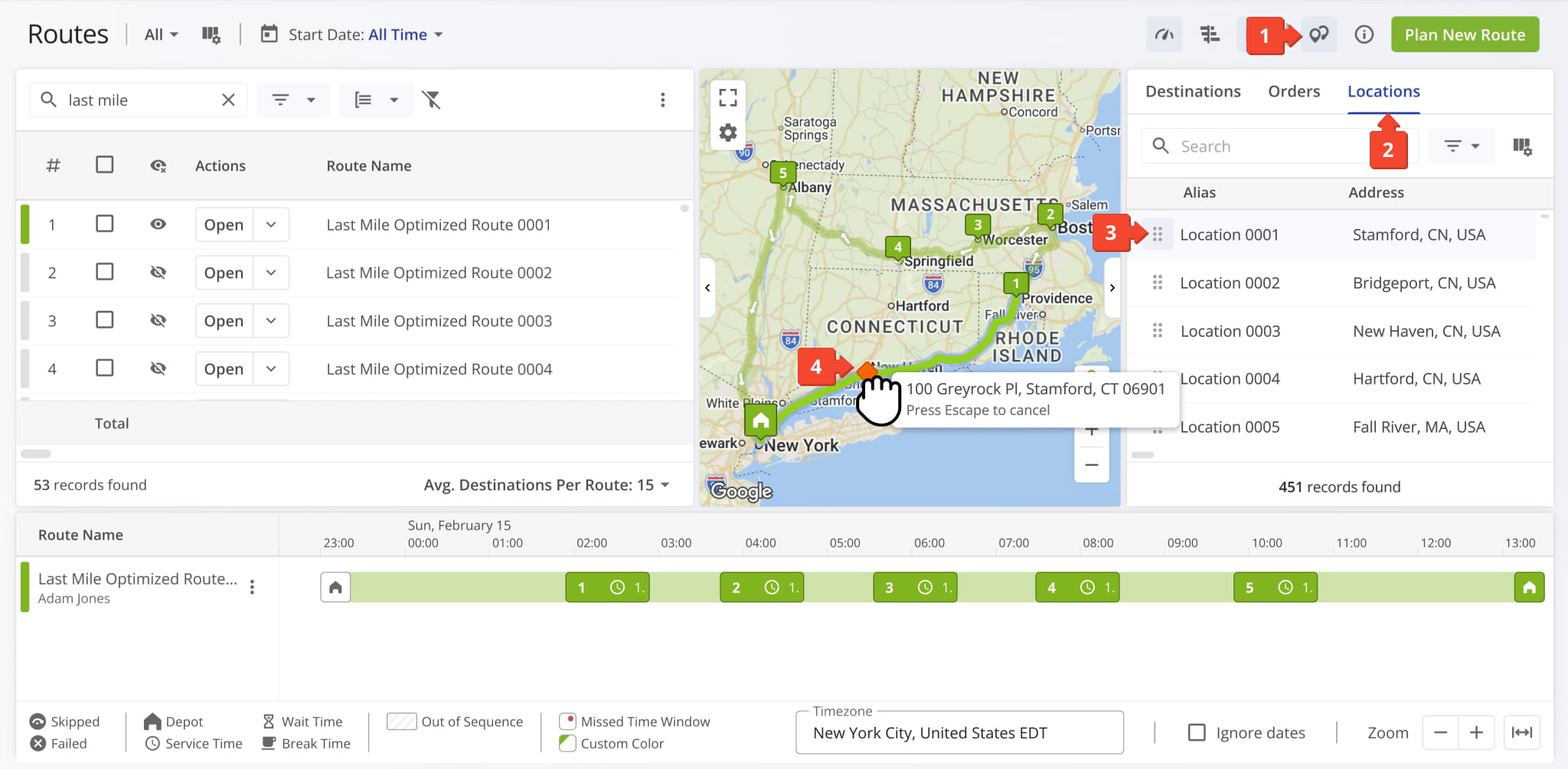
Once added, Route4Me updates the Routes Map to show the new location along the route path.
NOTE: New locations can only be added to the unvisited portion of an in-progress route. Completed stops can’t be changed. Re-optimize the remaining stops to keep the route efficient.
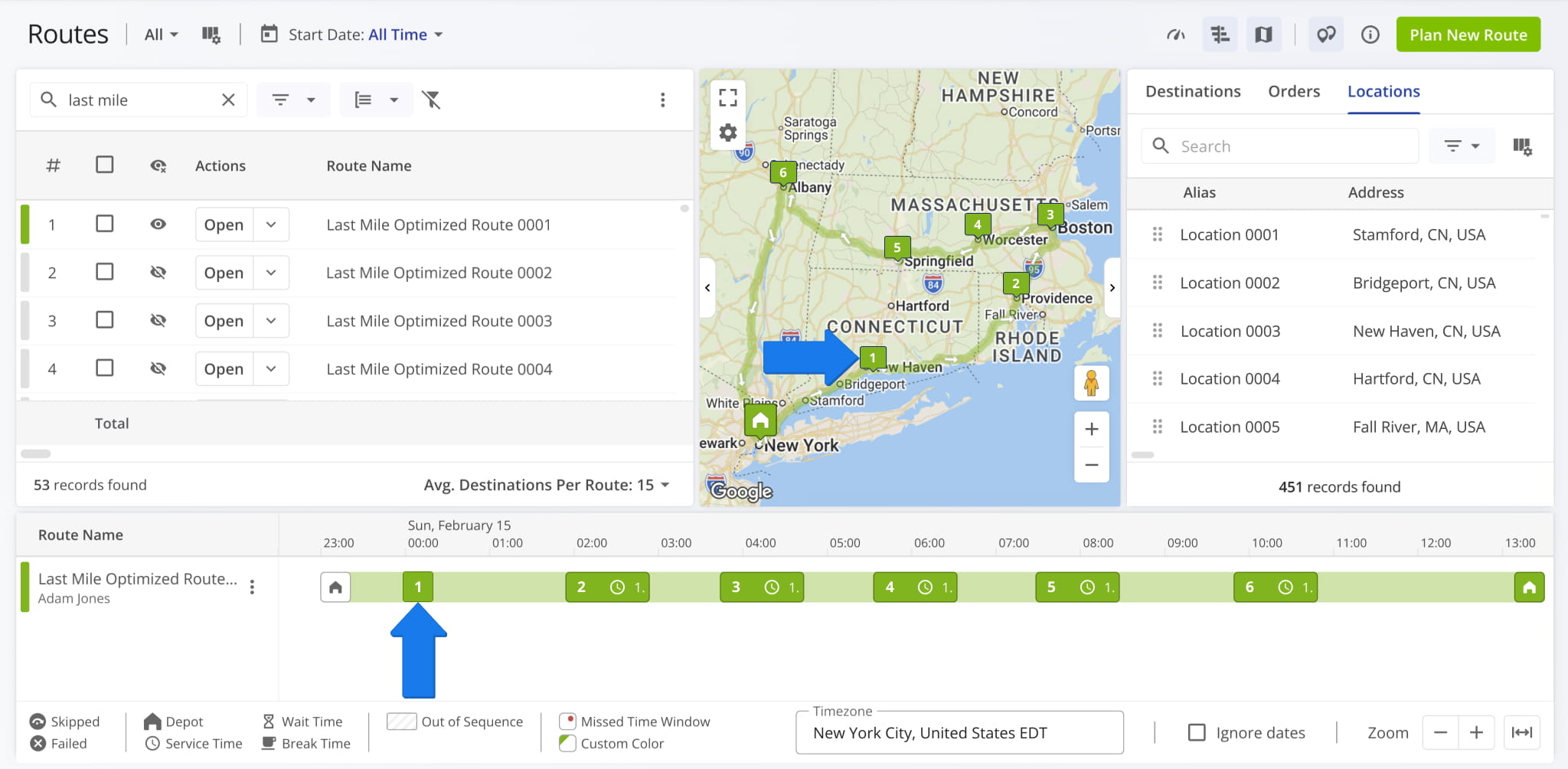
Drag And Drop Location Onto Routes Timeline – Schedule Location
To drag and drop a location from the Assignable Work Panel to a route in the Routes Timeline:
- Click the Location Icon to open the panel.
- Click on the “Locations” Tab.
- Select the location you want to add to a route.
- Drag the loation to the preferred route on the Routes Timeline.
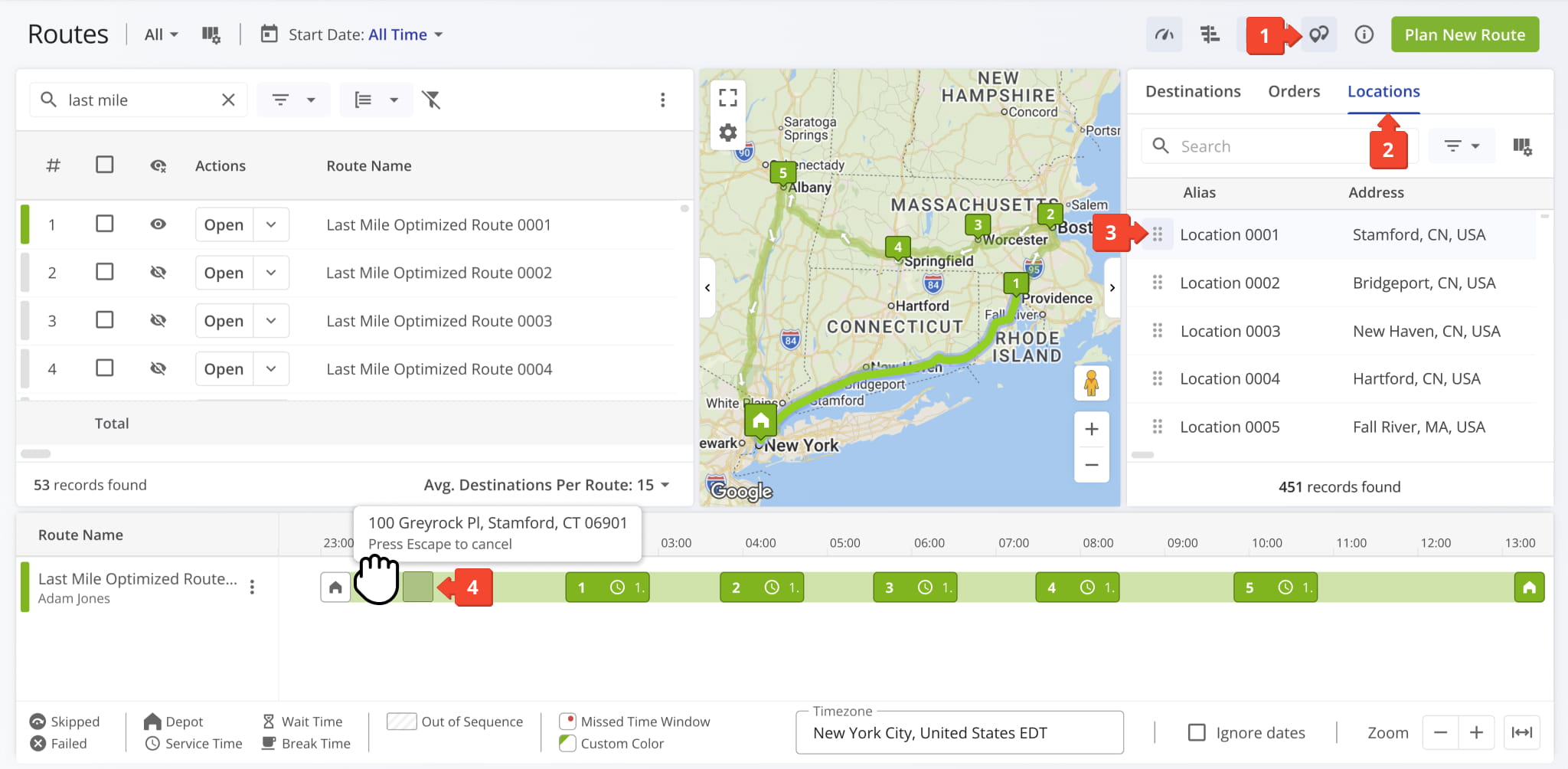
Once added, Route4Me updates the Routes Map to show the new location along the route path.
NOTE: New locations can only be added to the unvisited portion of an in-progress route. Completed stops can’t be changed. Re-optimize the remaining stops to keep the route efficient.
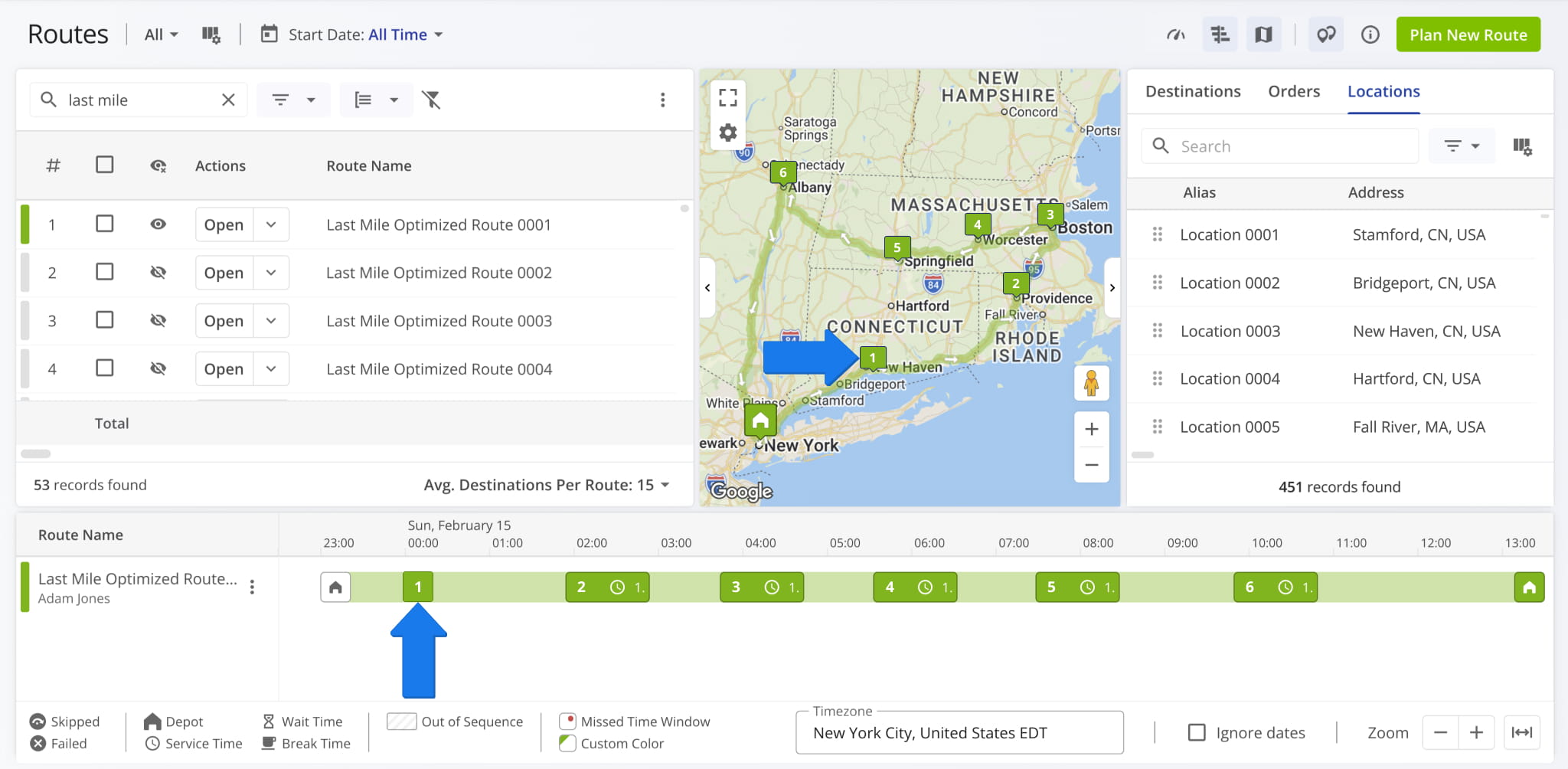
Re-Optimize Routes After Making Changes – Route Optimization Tip
After adding a location using any of the methods above, you can re-optimize your route to ensure directions and timing stay accurate.
From the Route Editor, select “Route” from the top menu, then choose “Re-Optimize This Route“. From the Routes Page, check the box next to the route and select “Re-Optimize Routes” from the “Bulk Actions” menu.
For routes already in progress, select “Re-Optimize Remaining Destinations” instead, which updates only unvisited stops without affecting those already completed. NOTE: Learn more about re-optimizing routes and destinations.
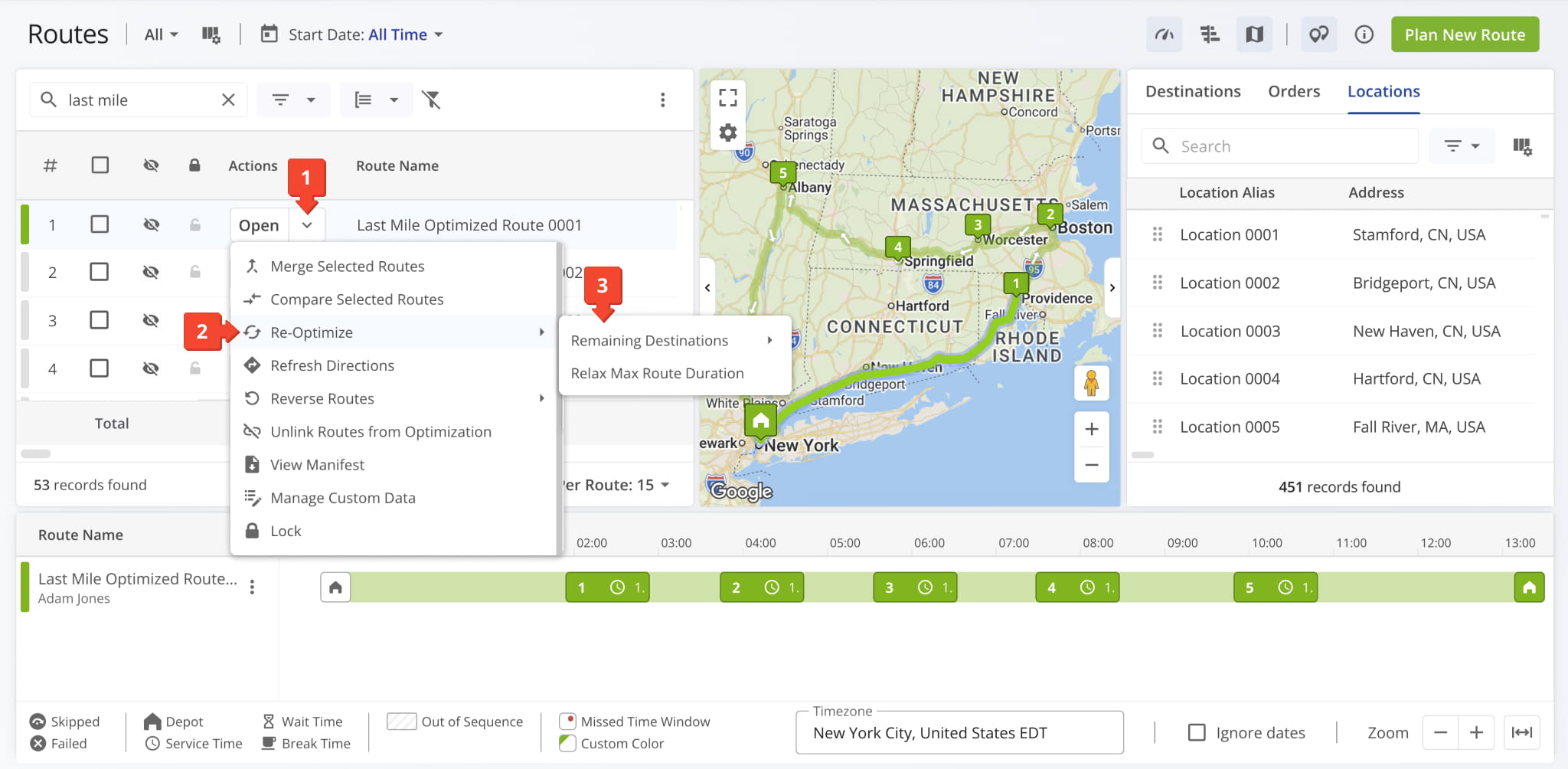
Re-Optimize Routes
Visit Route4Me's Marketplace to Check out Various Modules and Add-Ons:
- Route Optimization
Time Windows
- Operations
Advanced Team Management Add-On
Last Updated:
About author: Daniel Archer

