
Operational Assessment Settings – Participant Management And System Configuration
Operational Assessment settings allow Affiliates to configure account preferences, monitor system activity, and manage Participant data within their Affiliate Account. Users can review account activity, configure permissions, manage Telematics Connections, and update settings from a centralized interface. This article explains the core settings and management features used to configure and operate your Operational Assessment Affiliate Account.
NOTE: Operational Assessment through Optimization4Me is currently available by request only through the Route4Me Support Team. Please contact Route4Me Support to get set up.
Table of Contents
Operational Assessment Profile Settings – Configure Affiliate Account
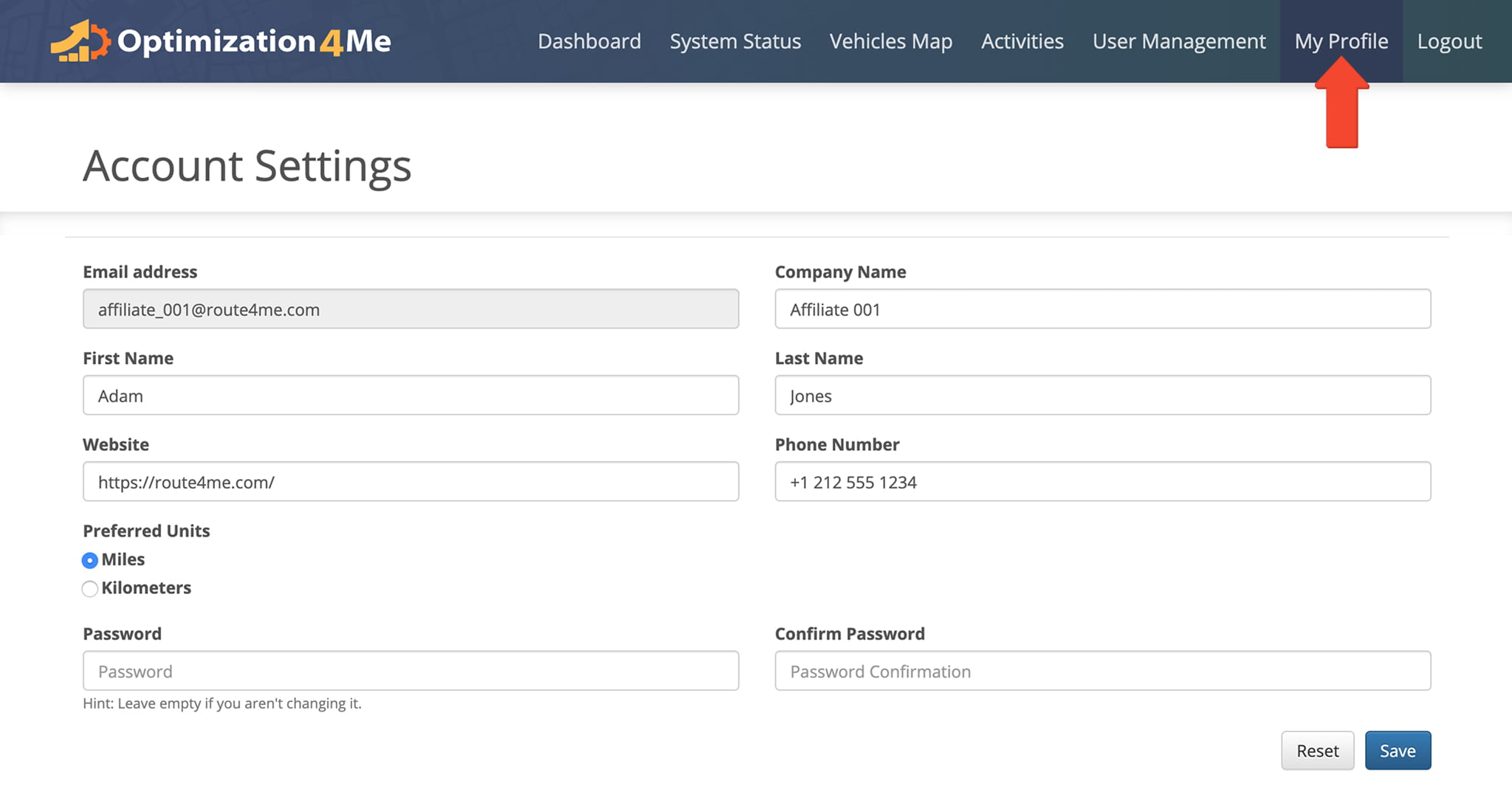
Operational Assessment profile settings allow users to maintain accurate Affiliate account information and configure account preferences used throughout Operational Assessment workflows and reporting.
To access your profile settings, select “My Profile” from the Navigation Menu. Then, from the Account Settings page, you can review and update account information associated with your Affiliate Operational Assessment account.
Entities, Permissions And Device Types – Define User Access
Operational Assessment entities, user role permissions, and participant device types define how Users access and interact with Operational Assessment workflows and account features.
The tables below outline the available entity types, permission levels, and supported participant device classifications used throughout Route4Me’s Operational Assessment platform.
Operational Assessment Entities
Route4Me’s Operational Assessment system includes the following entities:
Operational Assessment Entities
Operational Assessment User Role Permissions
User role permissions define access levels and control which Operational Assessment features users can view and manage.
Operational Assessment - Permissions
Operational Assessment Participant Device Types
The Operational Assessment system can receive tracking and vehicle data from the following Participant device types:
Operational Assessment - Device Types
System Status – Monitor Platform Activity
System Status provides real-time and historical visibility into platform activity across vendors, sessions, and operational data streams. It helps you monitor system performance and track key operational metrics.
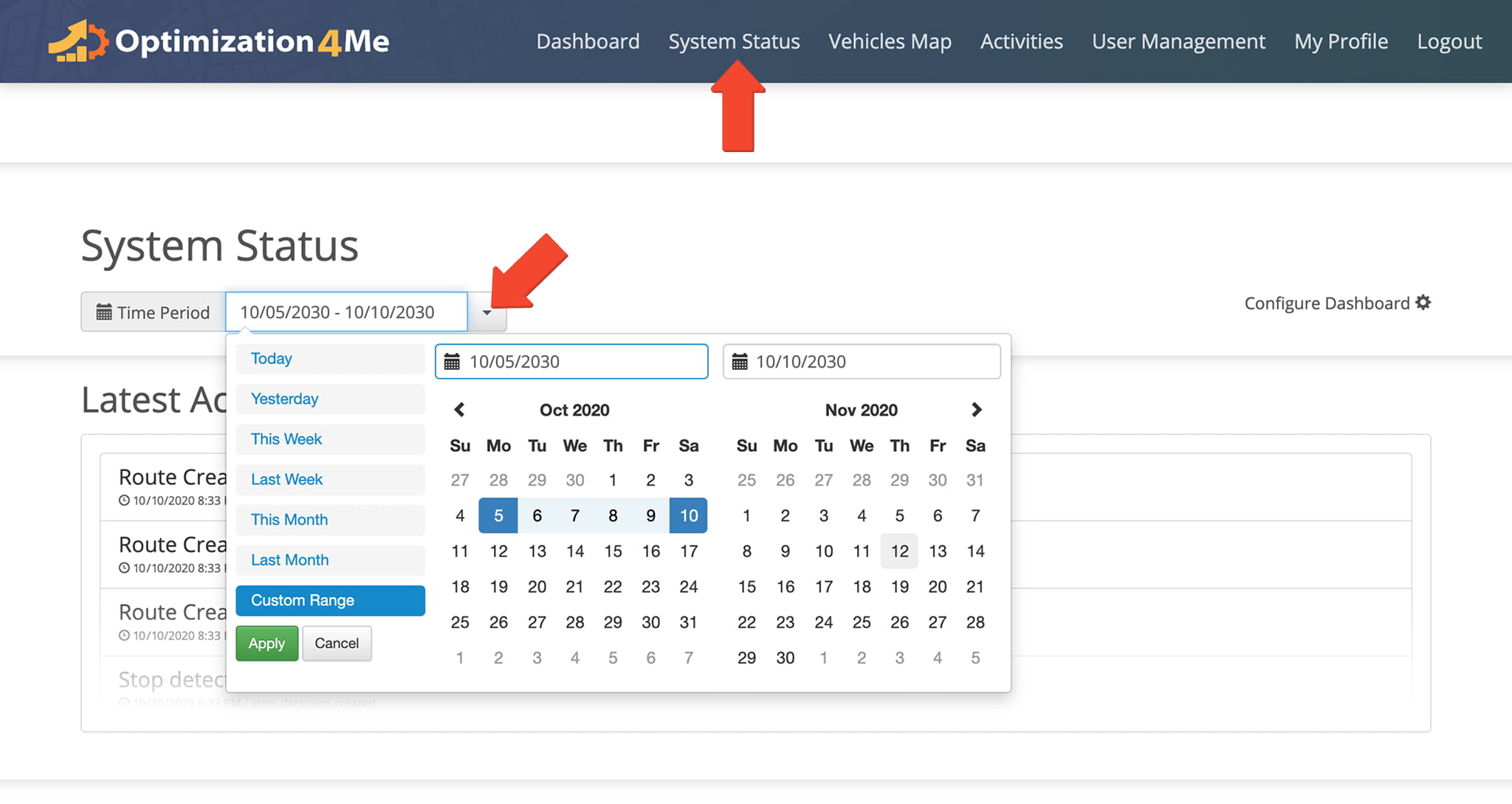
To access it from the Dashboard, open the “System Status” tab. Then, use the Calendar Filter to adjust the reporting period.
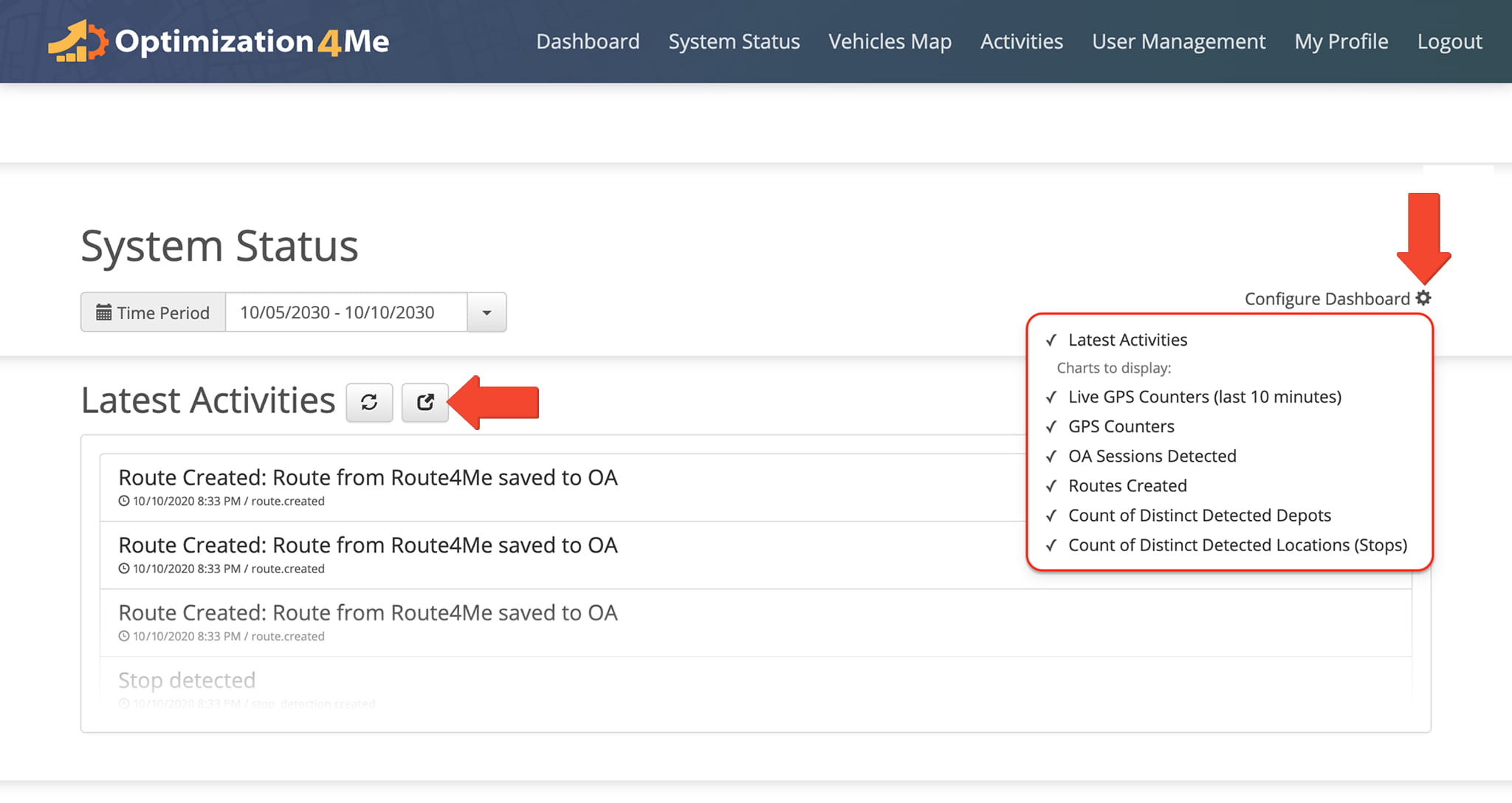
Click the Gear Icon to configure the charts and dashboards you’d like displayed in System Status. In the “Latest Activity” section, you can view your Account’s Activity Feed. To open your Feed in full-screen, click the corresponding button.
The data generated from tracking information is received through the Telematics Vendors associated with account Participants. See the table below for a detailed breakdown of the data available through System Status.
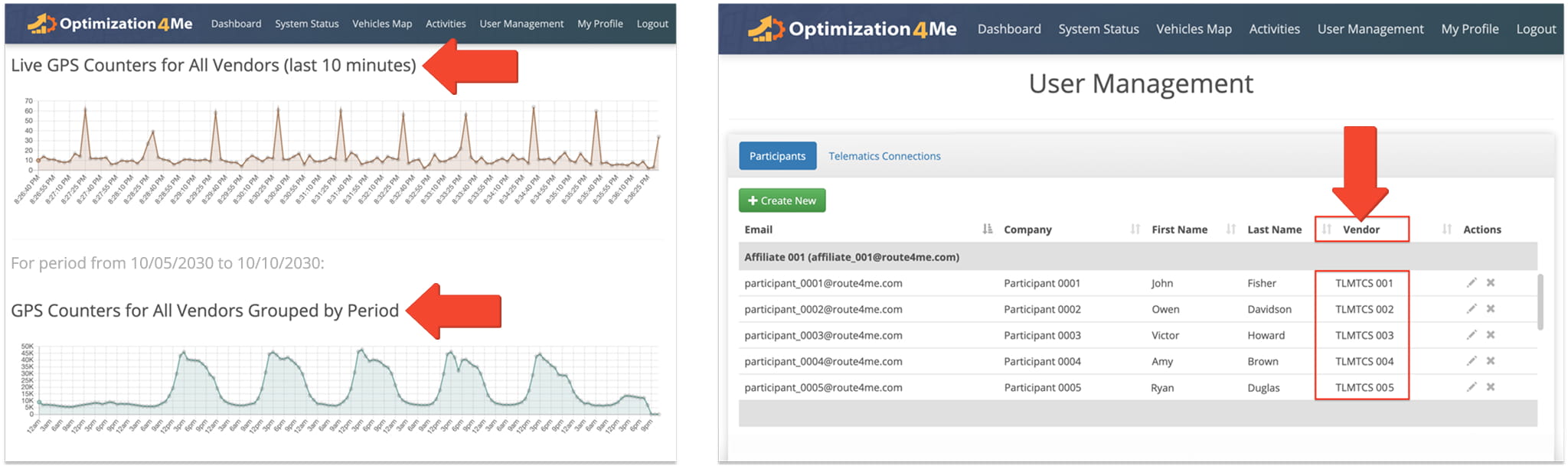
Operational Assessment - Vendor Data
Activity Feed – Review Account Activity
The Activity Feed provides a centralized view of system activities executed within your Affiliate Account. Use the Activity Feed to monitor account activity, review participant actions, and track Operational Assessment events across the platform.
To access the Activity Feed, select the “Activities” tab from the Navigation Menu. Then, use the calendar filter to display activity data for a specific date range.
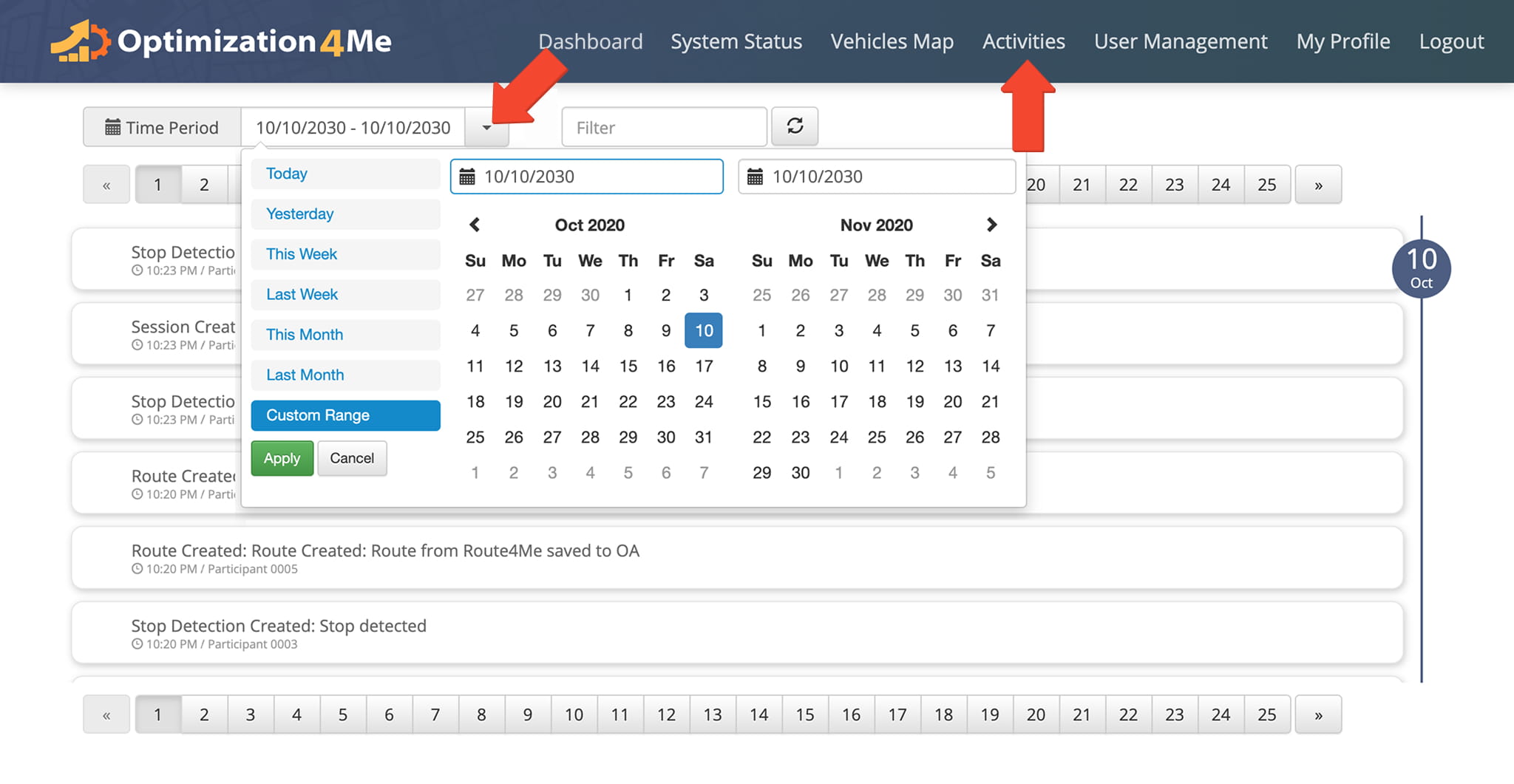
The Activity Feed displays system activities executed within your Operational Assessment Affiliate Account. Each activity entry is labeled with the associated Participant name, making it easier to review account actions and track activity history.
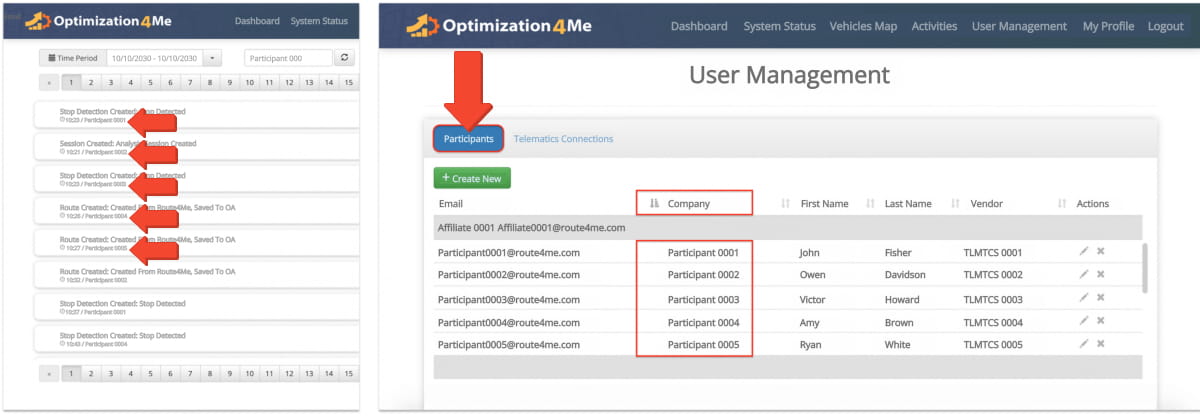
Participant Management – Create And Manage Users
Create And Add New Users To Your Operational Assessment Account
Operational Assessment Participants are Users associated with your Affiliate Account whose telematics and activity data can be used throughout Operational Assessment workflows and reporting.
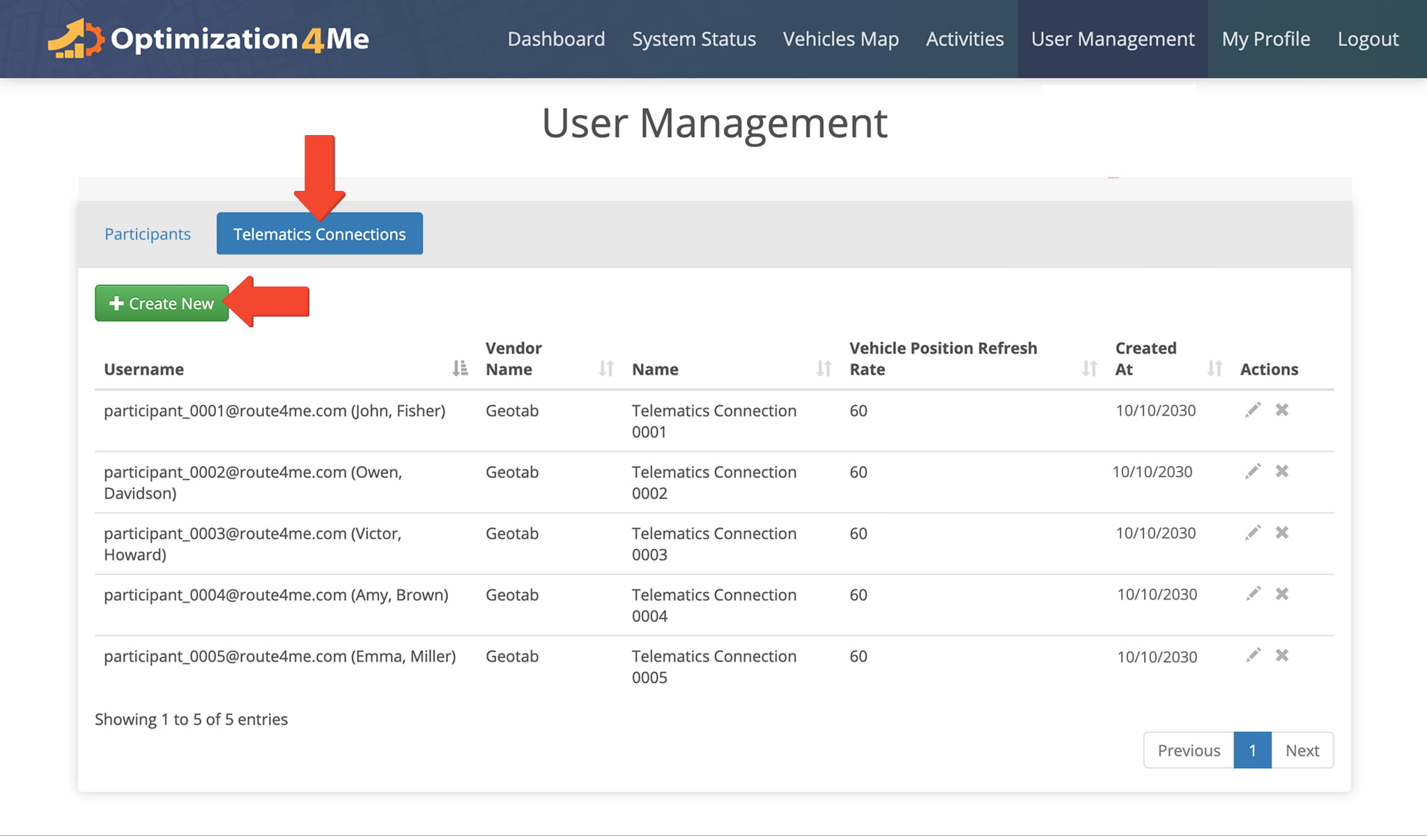
To create a new Participant, open “User Management” from the Navigation Menu. Click the “Participants” tab, then the “Create New” button. From there, enter the relevant account and Participant information when prompted.
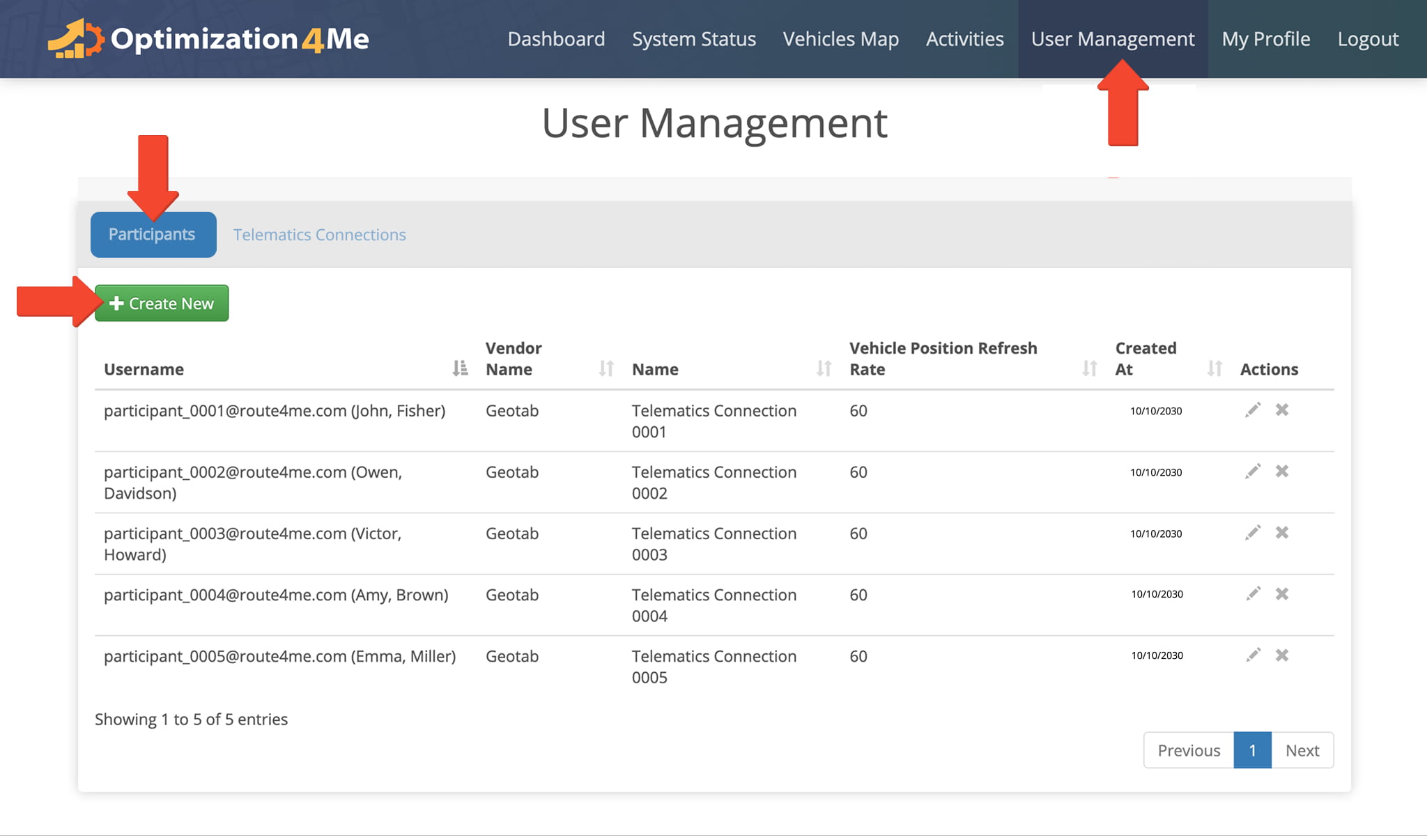
After creating a new Participant, add a Telematics Connection to begin importing tracking and activity data into the Operational Assessment platform. Click the “Telematics Connections” tab, followed by the “Create New” button.
Select the applicable Telematics Vendor, then enter the required connection credentials associated with the Participant account. Once connected, the Participant’s Telematics Data is automatically imported into your Operational Assessment Affiliate Account.
Edit And Delete Users From Your Operational Assessment Account
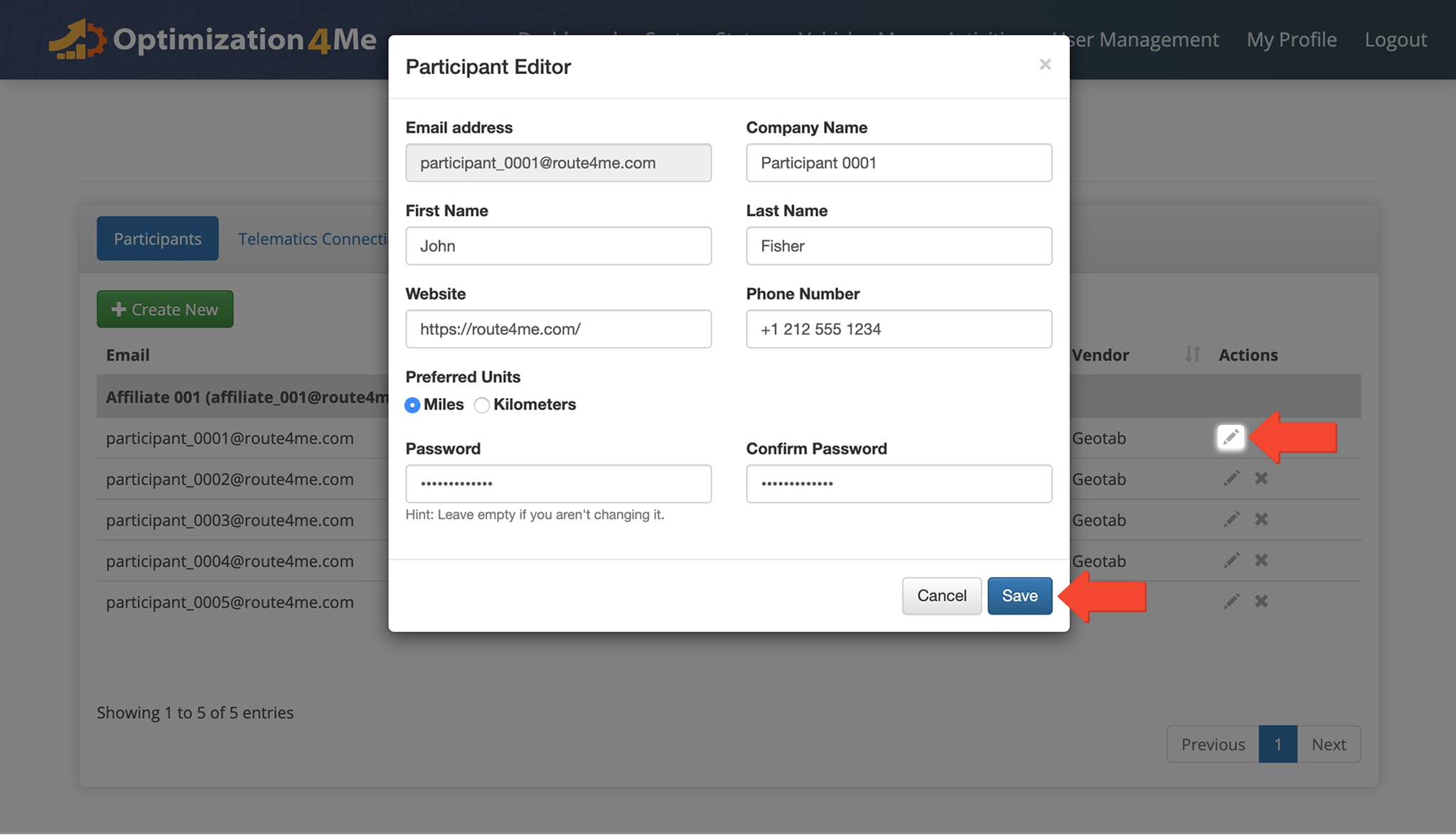
To edit a Participant, click the Pencil Icon next to the applicable Participant record. This opens the Participant editor, where you can update the Participant’s account details. Click “Save” to finalize.
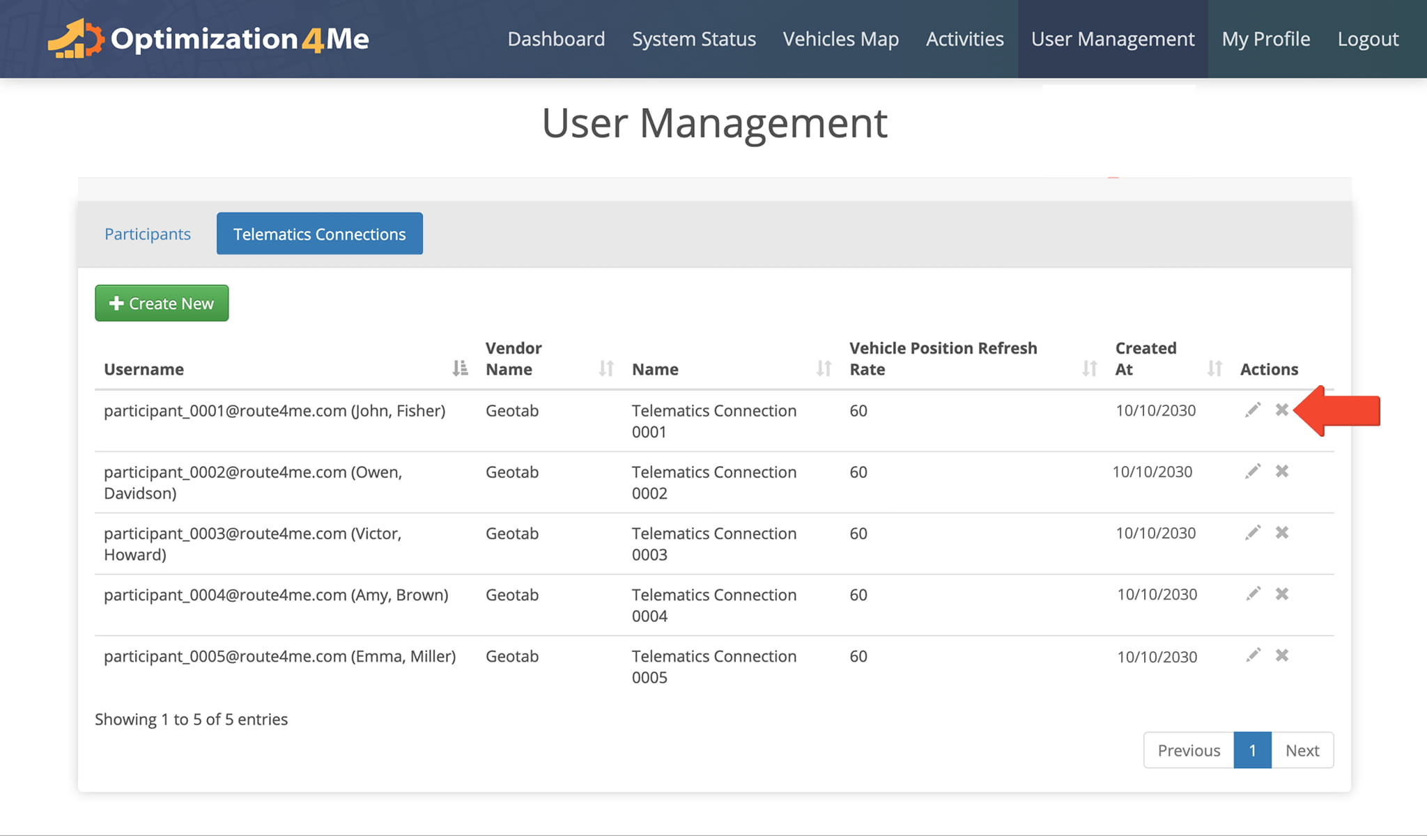
To remove a Participant from your Affiliate Account, click the “X” Icon next to the Participant record you want to remove. Once deleted, the Participant and their associated telematics connection are permanently removed from your Account.
Visit Route4Me's Marketplace to Check out Various Modules and Add-Ons:
- Operations
Advanced Team Management Add-On
About author: Daniel Archer

