
Customer Snapshot – Customizable Data And Analytics Overview
Route4Me’s Customer Snapshot brings all key Customer data together in one place, making it easier to review activity trends, contact details, and associated routes. It provides a clear, unified view of both historical and real-time information, helping you understand Customer performance quickly. Use this guide to get the most out of your Customer Snapshots.
NOTE: Customer Snapshots are currently available only by request. To enable this feature, contact Customer Support.
Table of Contents
Open Customer Snapshot – Customer Data And Analytics Overview
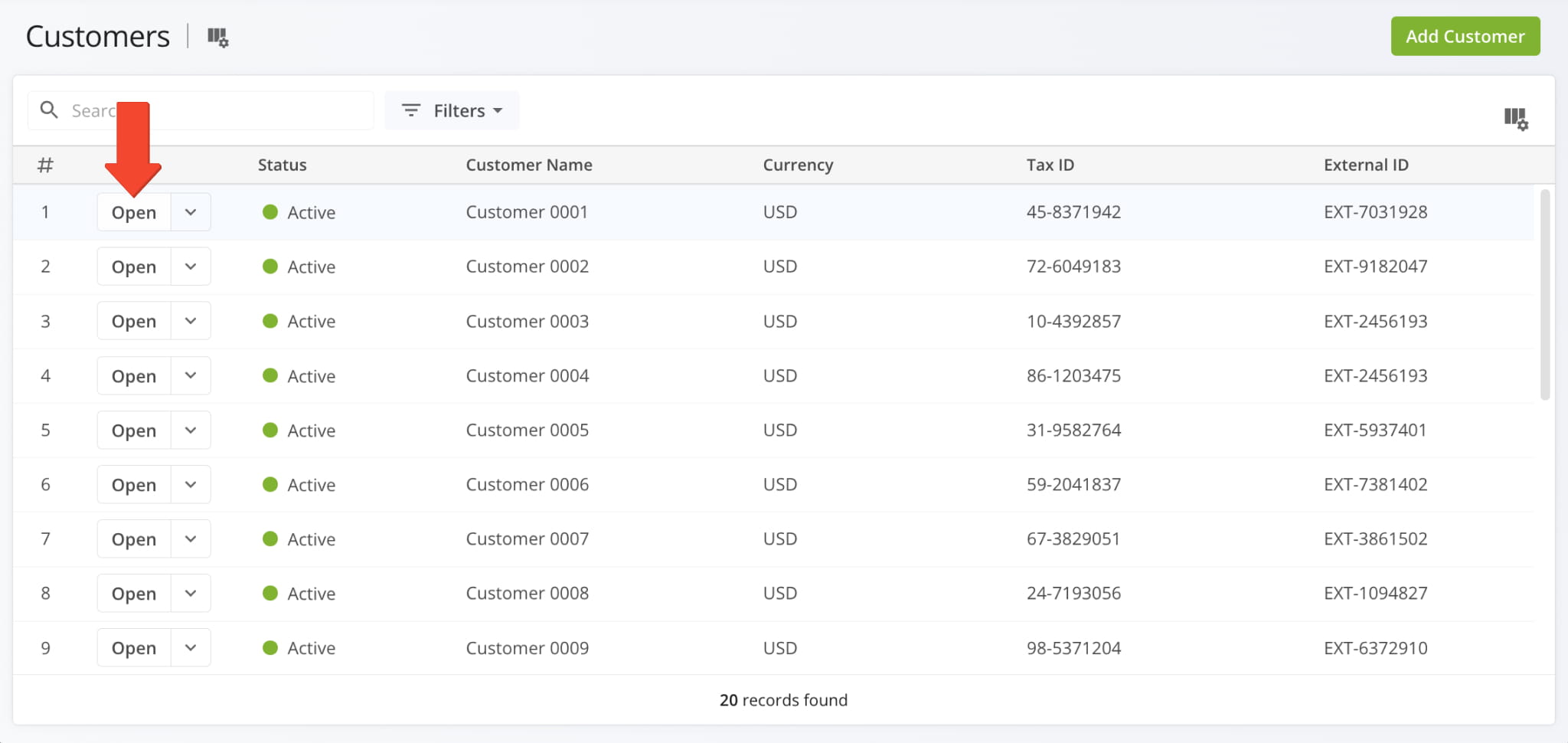
To open a Customer Snapshot, go to “Database” > “Customers” in the Navigation Menu. Then, from the Customers Page, click the “Open” button next to the desired Customer.
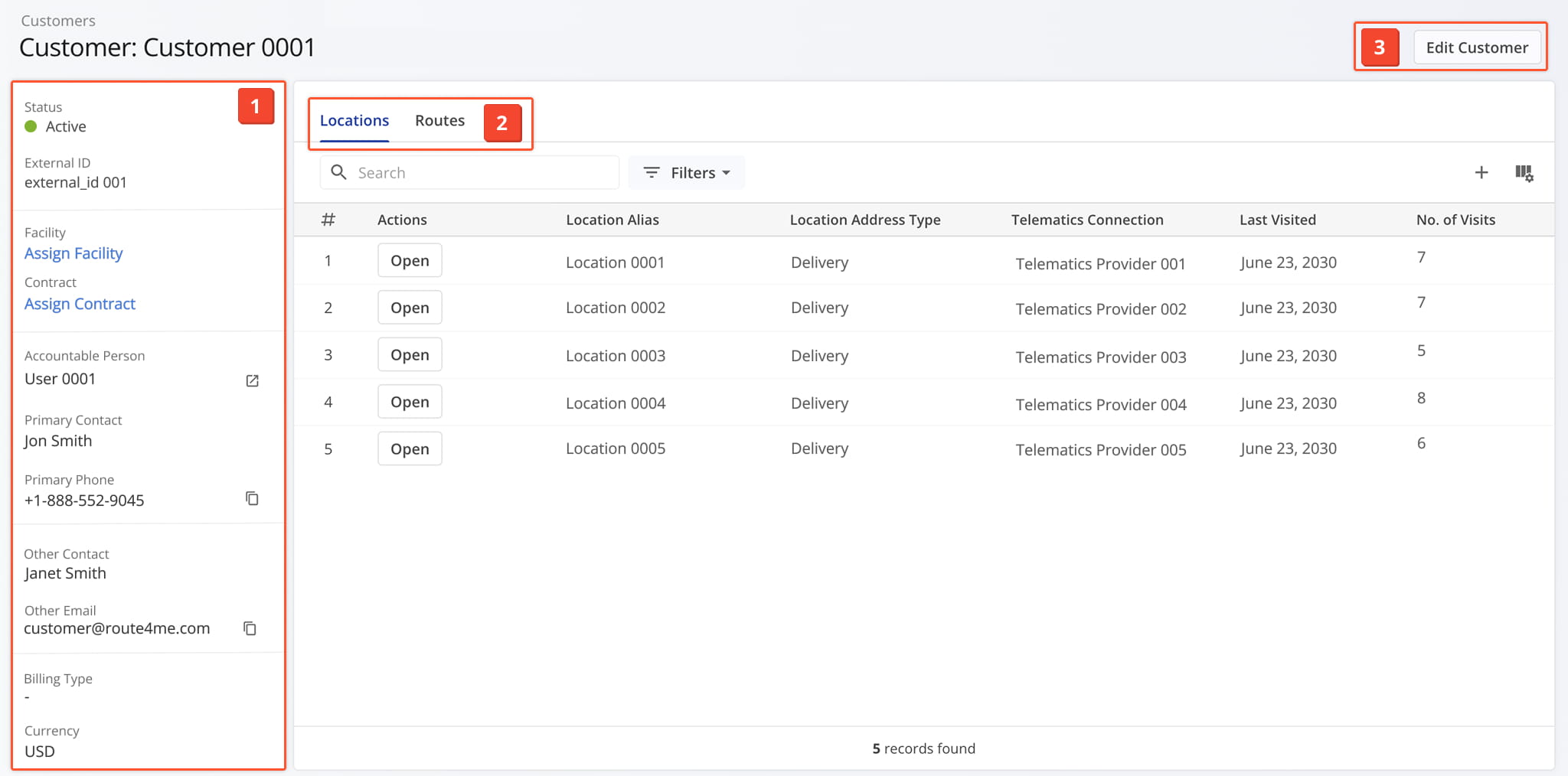
One the Snapshot is opened, you’ll see a detailed interface designed to help you review and manage all Customer data:
- Customer Summary: An overview of essential information including the Customer’s contacts, currency, External ID, and more.
- Customer Tabs: Switch between “Locations” and “Routes” to explore Customer data which you can filter and customize as needed.
- Edit Controls: Click the “Edit Customer” button to modify Customer details.
Customer Details Summary – Customer Information Panel
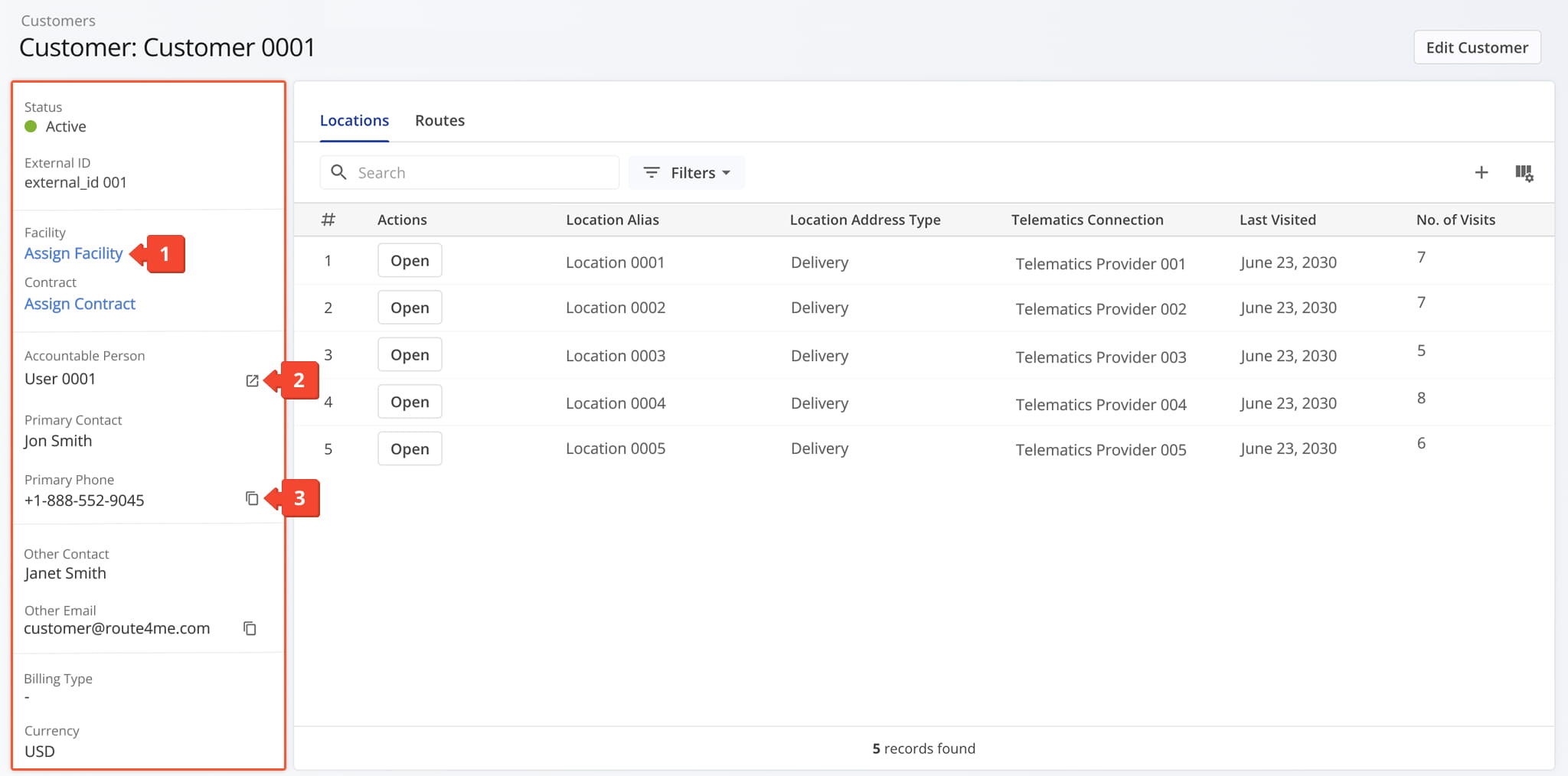
The Customer Information panel displays key details about the Customer, including status, Accountable Person, contact information, billing type, and more. From this panel, you can:
- Assign a Facility or Contract to the Customer.
- Click the Arrow Icon next to the Accountable Person to open their User Snapshot and view associated metrics and details.
- Click the Copy Icon next to a phone number or email to copy it to your clipboard for easy use in communications.
All information is centralized, making it easy to view, manage, and act on Customer data.
Customer Snapshot Categories – Analytics Overview Data Tabs
The User Snapshot is organized by tabs, each tab corresponding to a specific category of data described below.
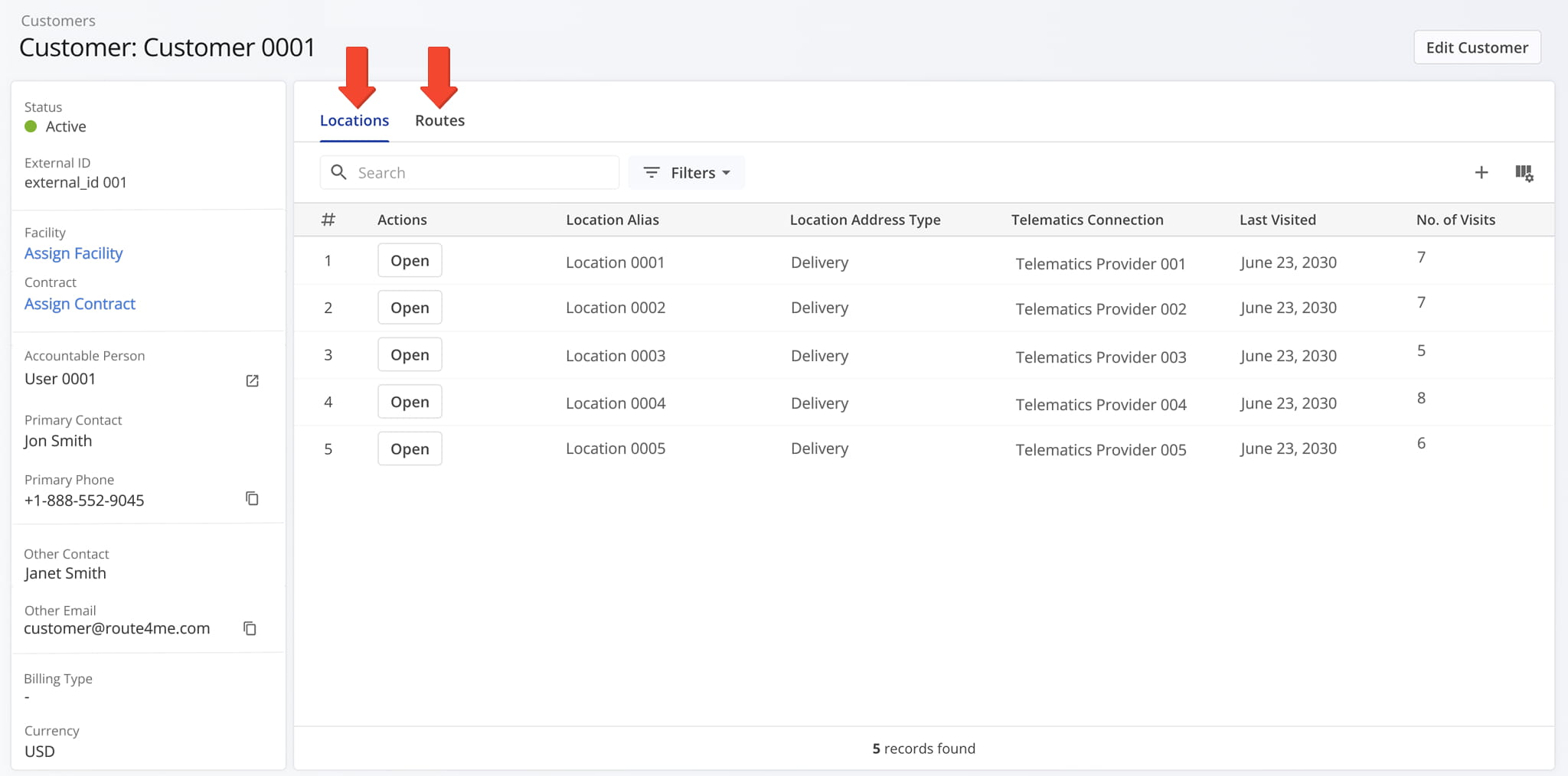
Locations Tab – Customer Location Overview
From the Locations tab, you can view all Locations associated with the Customer. From this tab, you can:
- Use the search field to quickly find a specific Location and apply filters (described below) to narrow down the list of Locations.
- Click “Open” next to any Location to open its Location Snapshot for detailed information.
- Click the Plus Icon to add a Location to your Locations list.
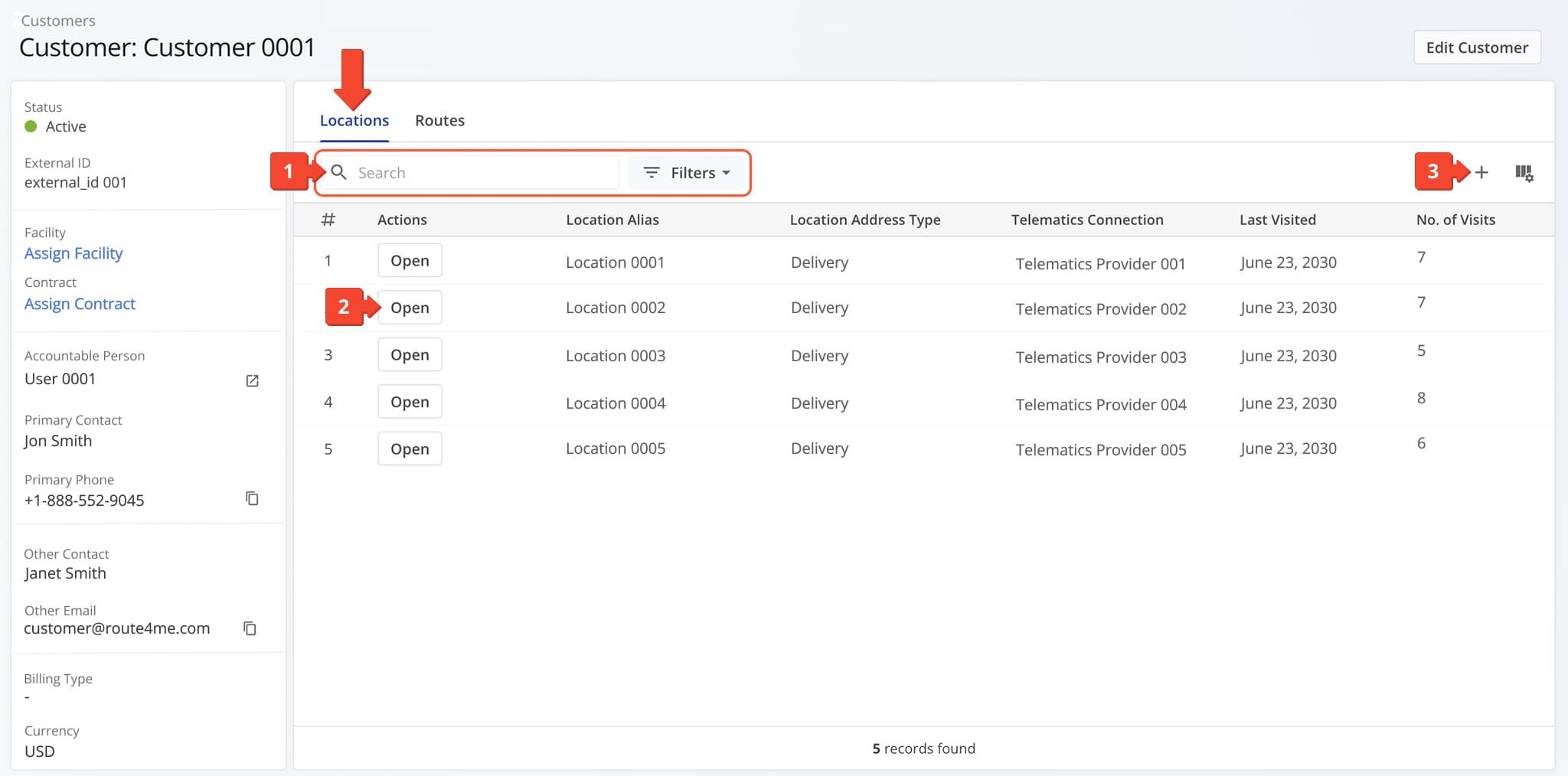
Locations Tab Filters
You can also customize the data displayed in the table. Click the Column Icon in the upper right corner to select which data fields appear and adjust their order to suit your operational needs.
The table below provides an overview of all available data columns, which you can reorder by dragging them into place.
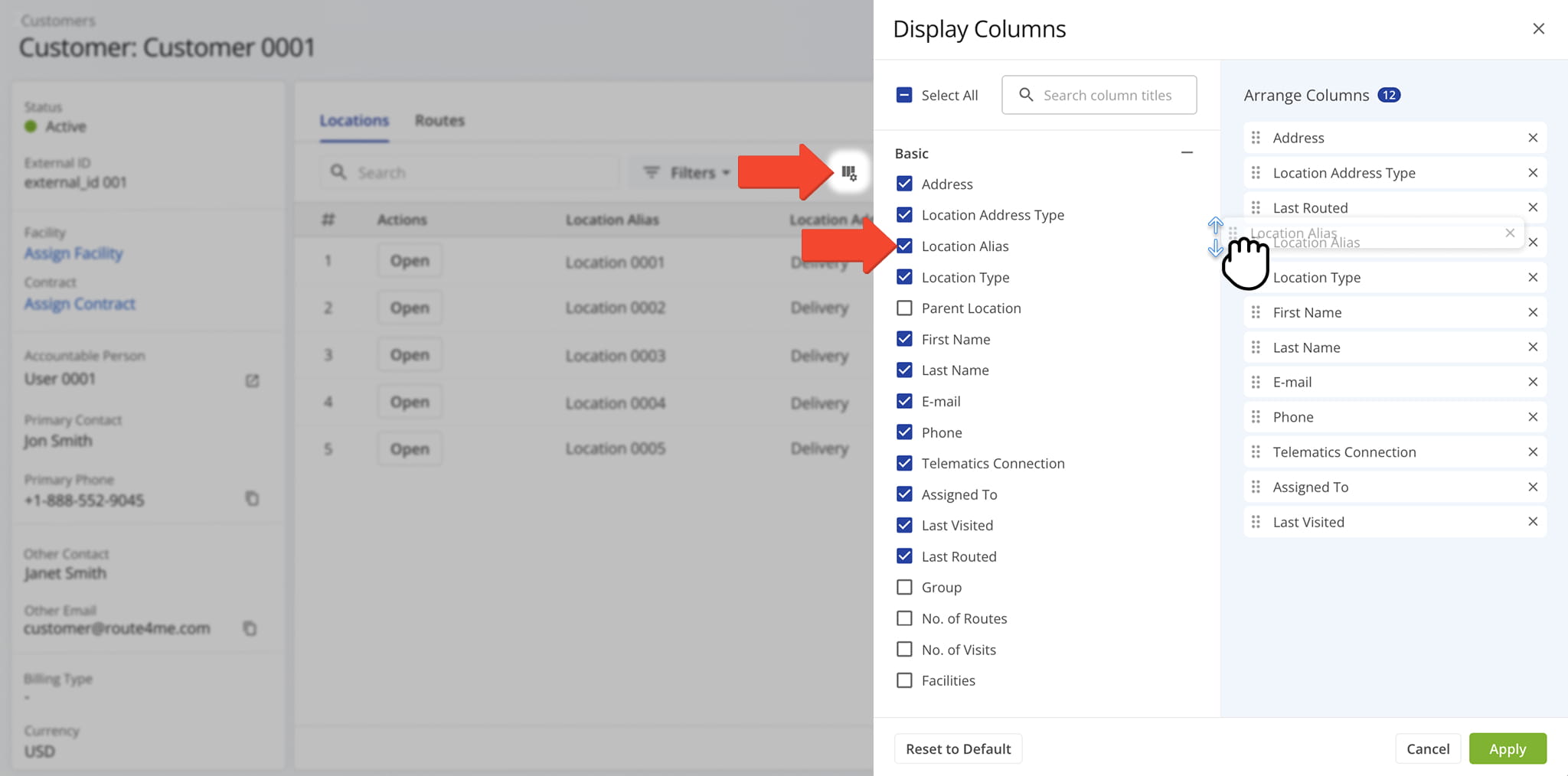
Locations Tab Data Columns
Routes Tab – Customer Route Overview
When the Routes tab is open, you can view all Routes associated with the Customer. From this tab, you can:
- Use the search field to quickly find a specific Route.
- Apply filters, described in the table below, to narrow down the list of Routes.
- Use Group By options to organize Routes based on selected criteria.
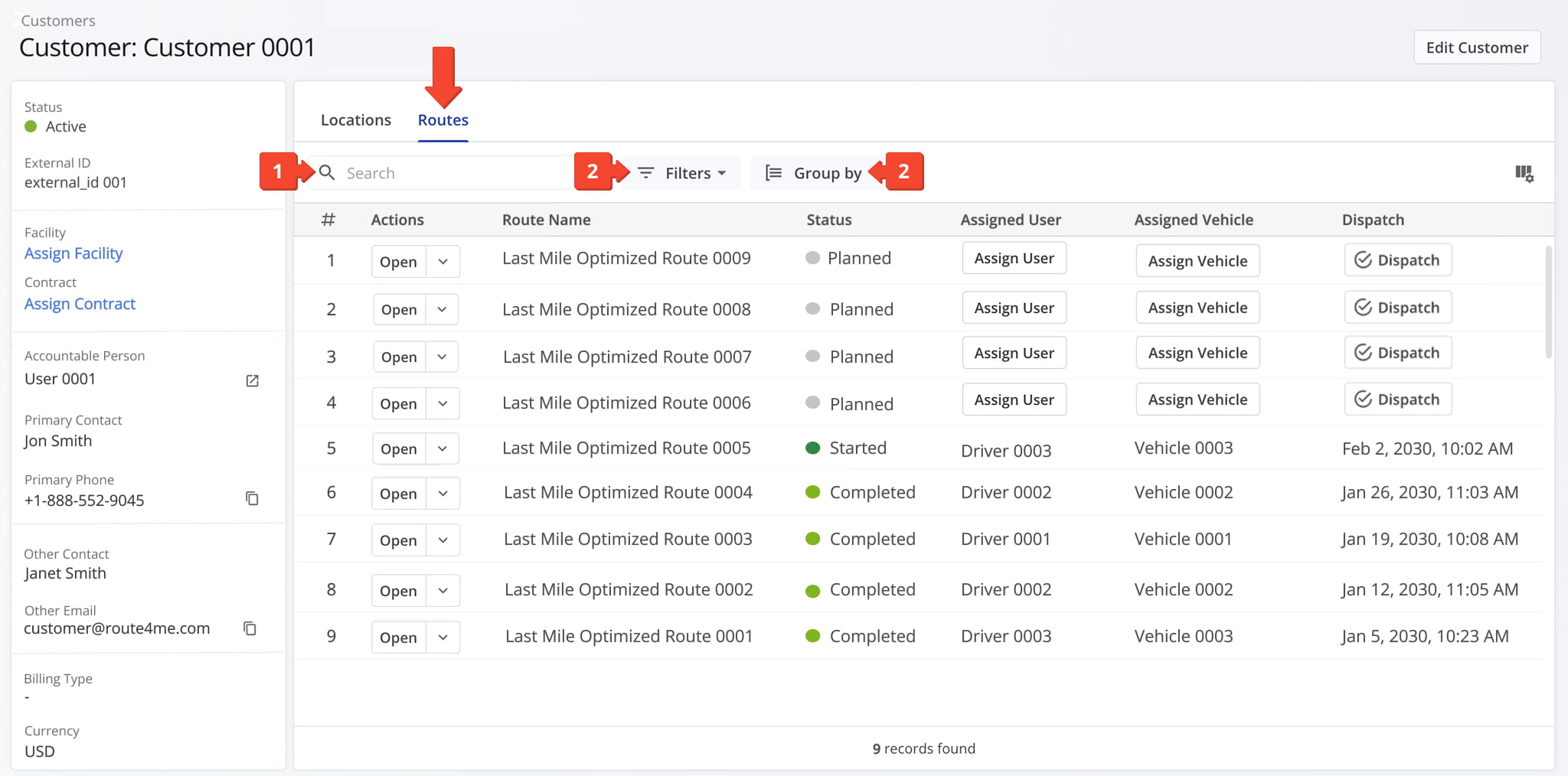
Routes Tab Filters
You can also customize the data displayed in the table. Click the Column Icon in the upper right corner to select which data fields appear and adjust their order to suit your operational needs.
The table below provides an overview of all available data columns, which you can reorder by dragging them into place.
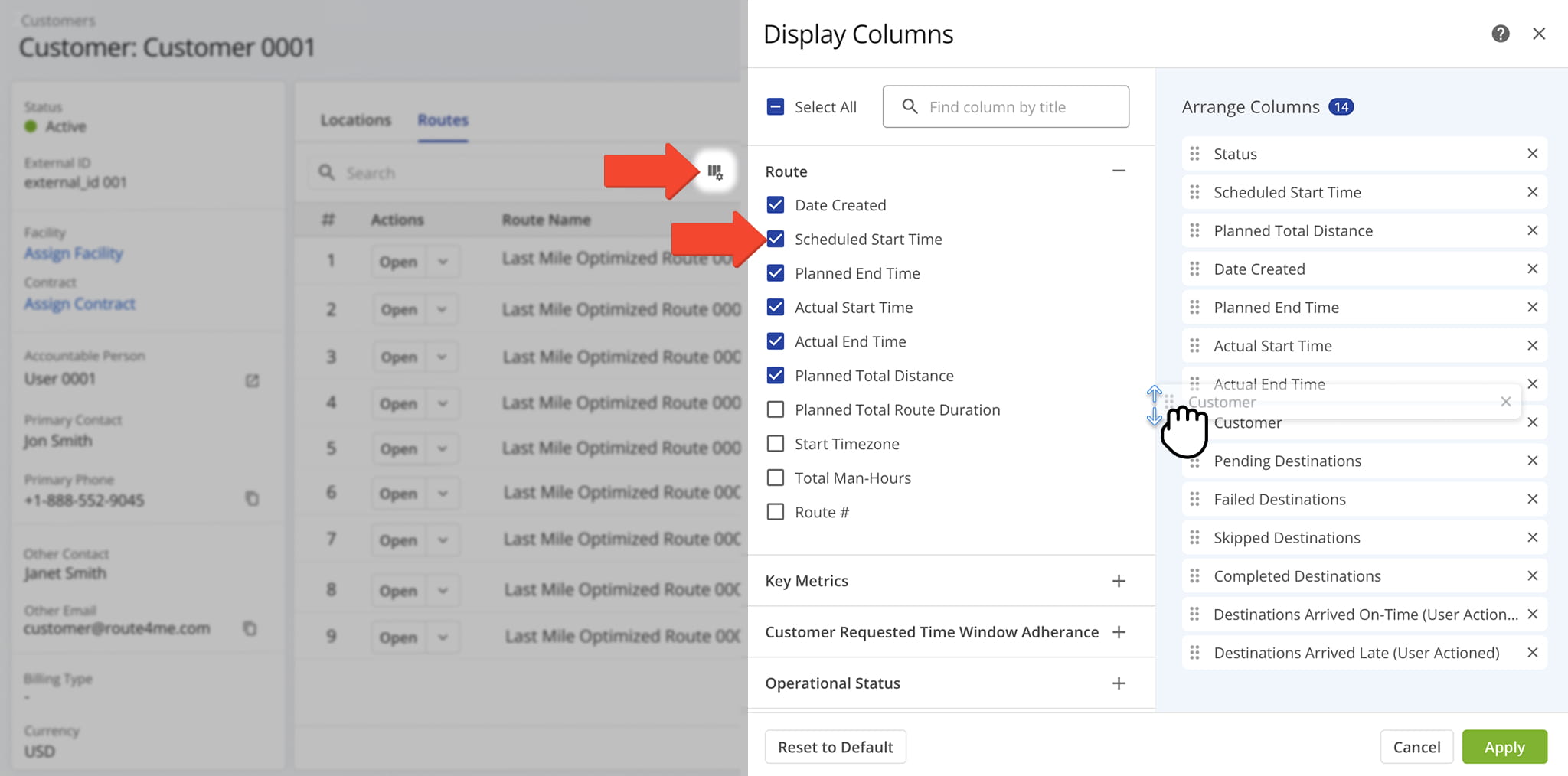
Routes Tab Data Columns
Visit Route4Me's Marketplace to Check out Associated Modules:
- Operations
Audit Logging and Activity Stream
- Operations
Custom Data Add-On
- Operations
Advanced Team Management Add-On
About author: Daniel Archer

