
Print Invoices & Receipts For Multi-Item Delivery
The Route4Me Mobile App for last mile delivery enables users to unload multiple items at customer Destinations and print delivery invoices. Field employees can select delivery quantities for different stock-keeping units (SKUs) and price list items, collect customer details and proof of delivery, and print automatically generated invoices and receipts. Keep reading to learn more.
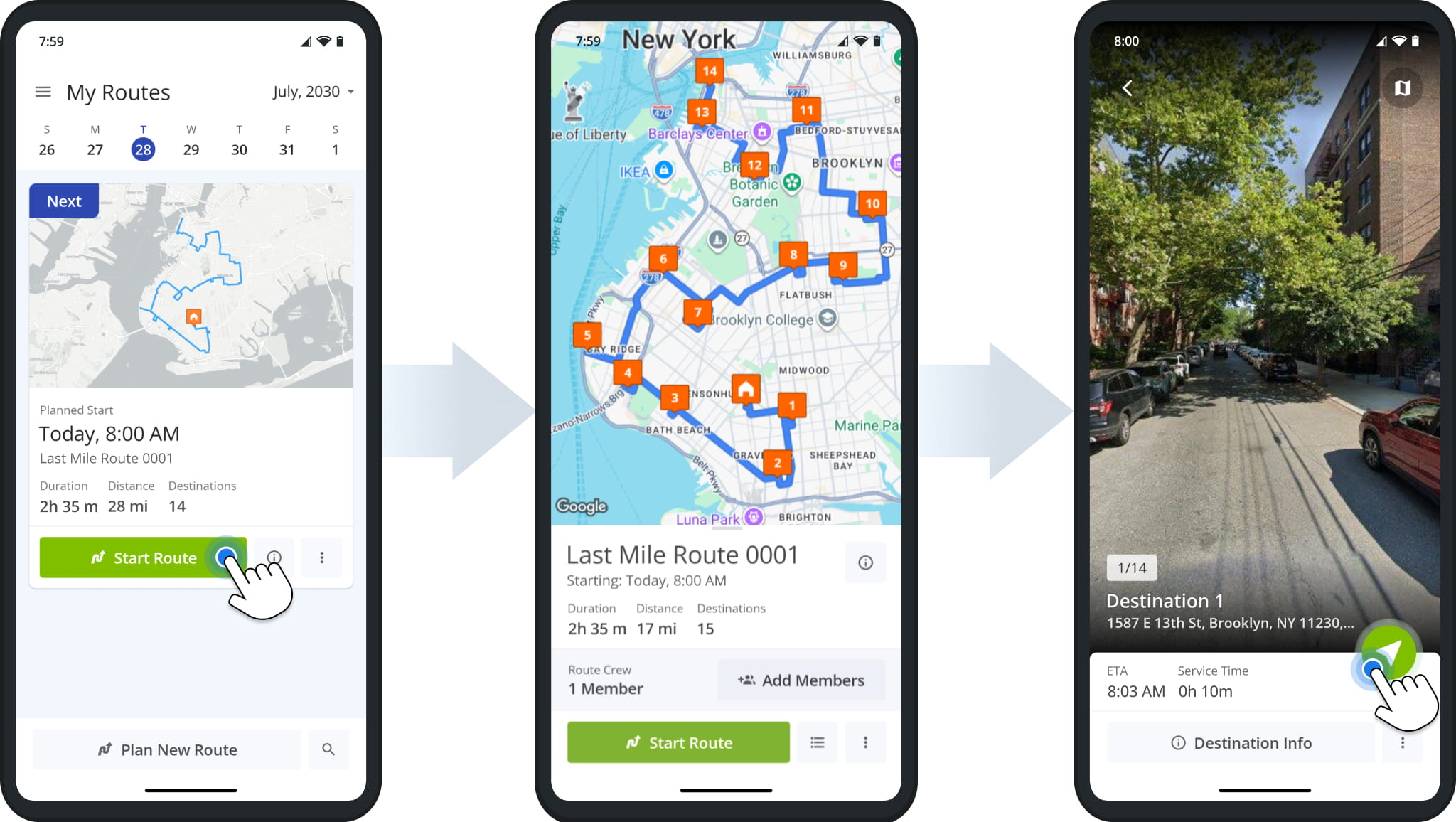
First, start a route as usual by selecting it from the Routes List and tapping “Start Route“. Then, navigate to Destinations on the route by tapping the Navigate Button and following the in-app voice-guided GPS directions.
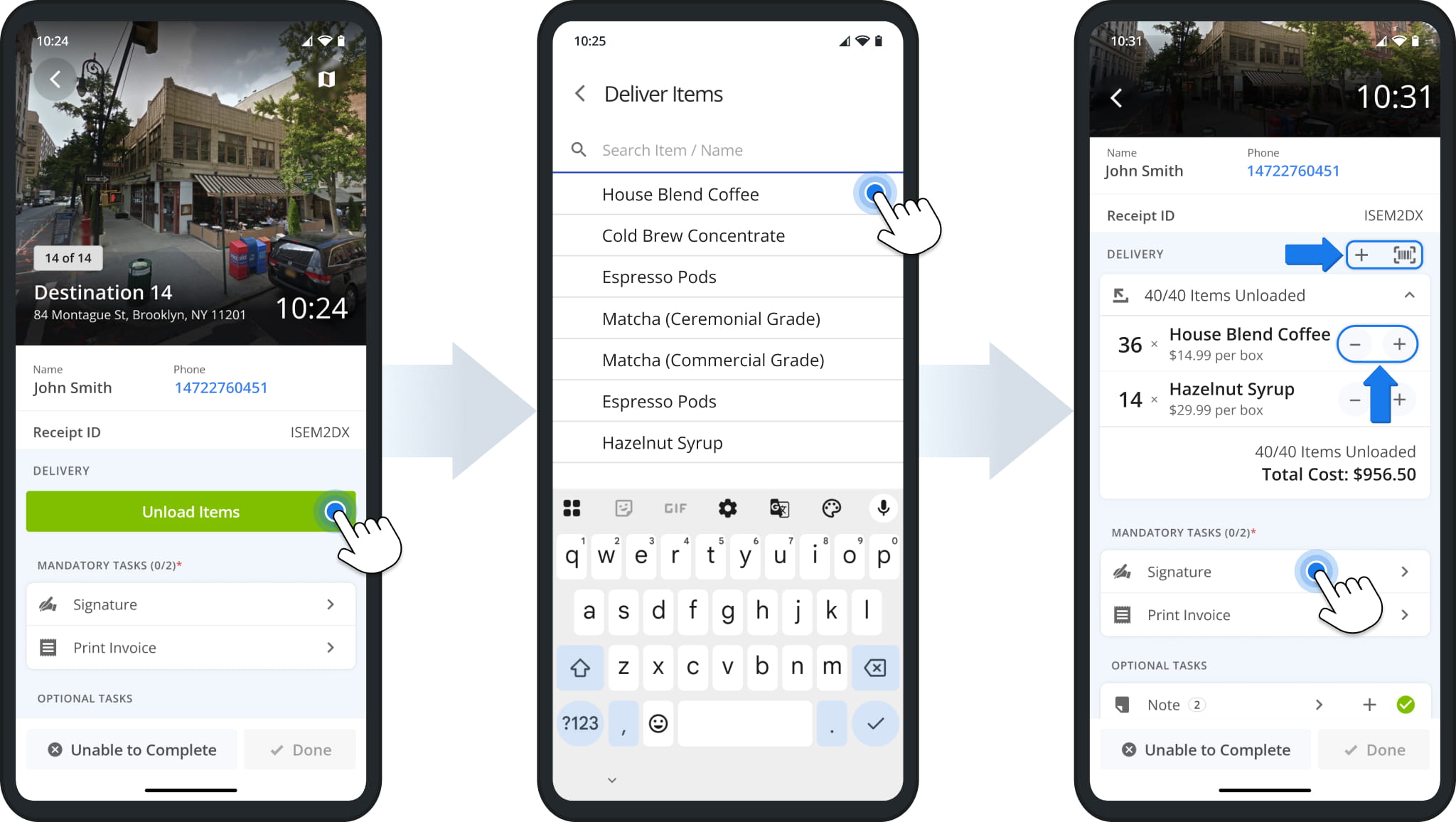
After arriving at a Destination, tap “Unload Items” to start a delivery. Select items or SKUs to unload from the list. You can search for items by name 0r other identifiers. Then, you can adjust item quantities using the buttons in the “Delivery” section.
Before printing a delivery invoice, you may have to collect proof of delivery (POD) and customer details that will be automatically added to the invoice. You’ll find required steps in the “Mandatory Tasks” section. Tap a task such as “Signature” to continue.
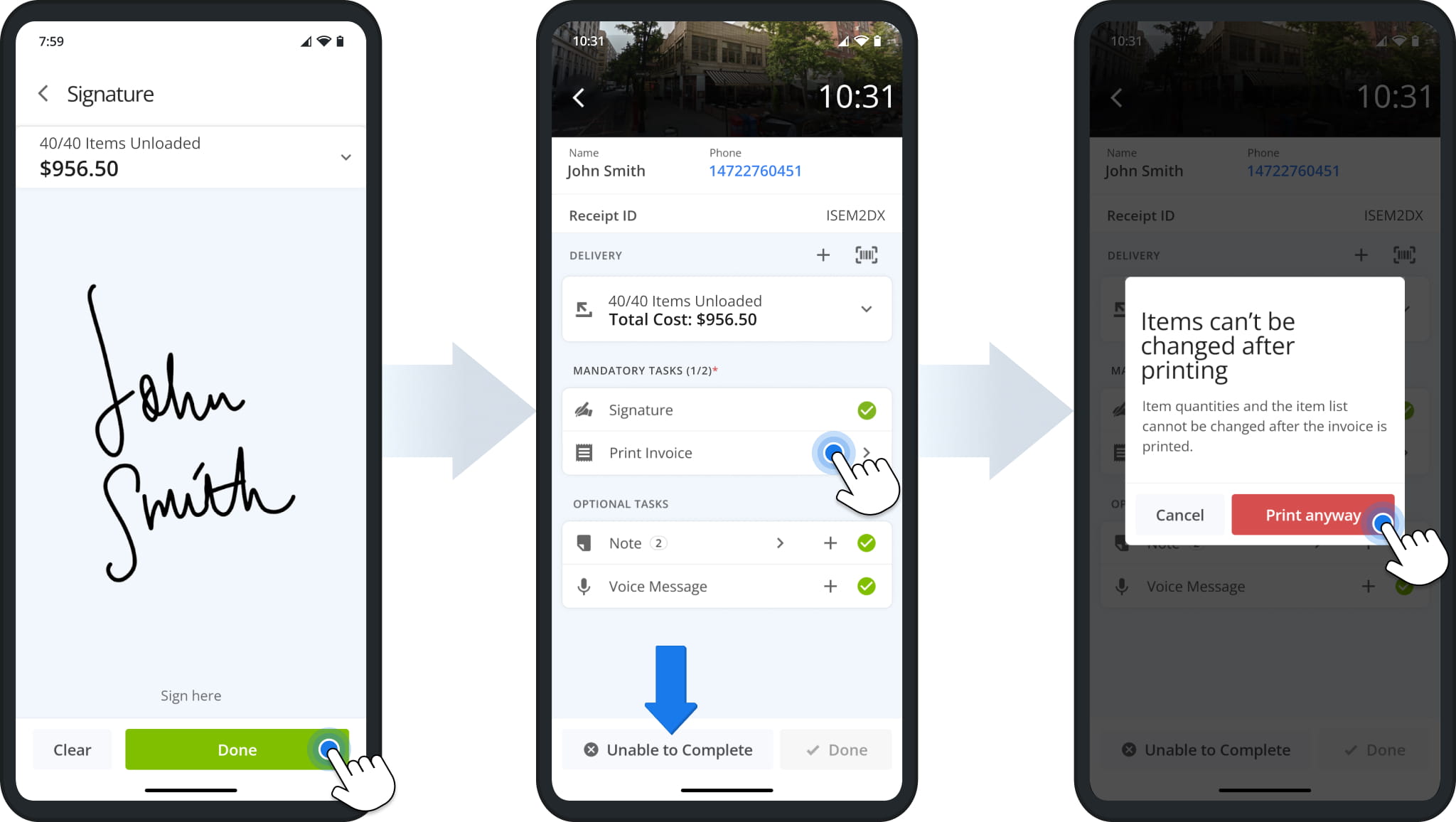
When collecting a customer signature for delivery, the app shows the total number of items and total delivery cost. Tap “Done” to finalize a task. After completing all mandatory tasks, you can tap “Print Invoice“.
Items can’t be changed after printing an invoice, and the app will show a corresponding warning. Tap “Print Anyway” to continue. NOTE: Printing an invoice will remove the “Unable to Complete” button for that Destination.
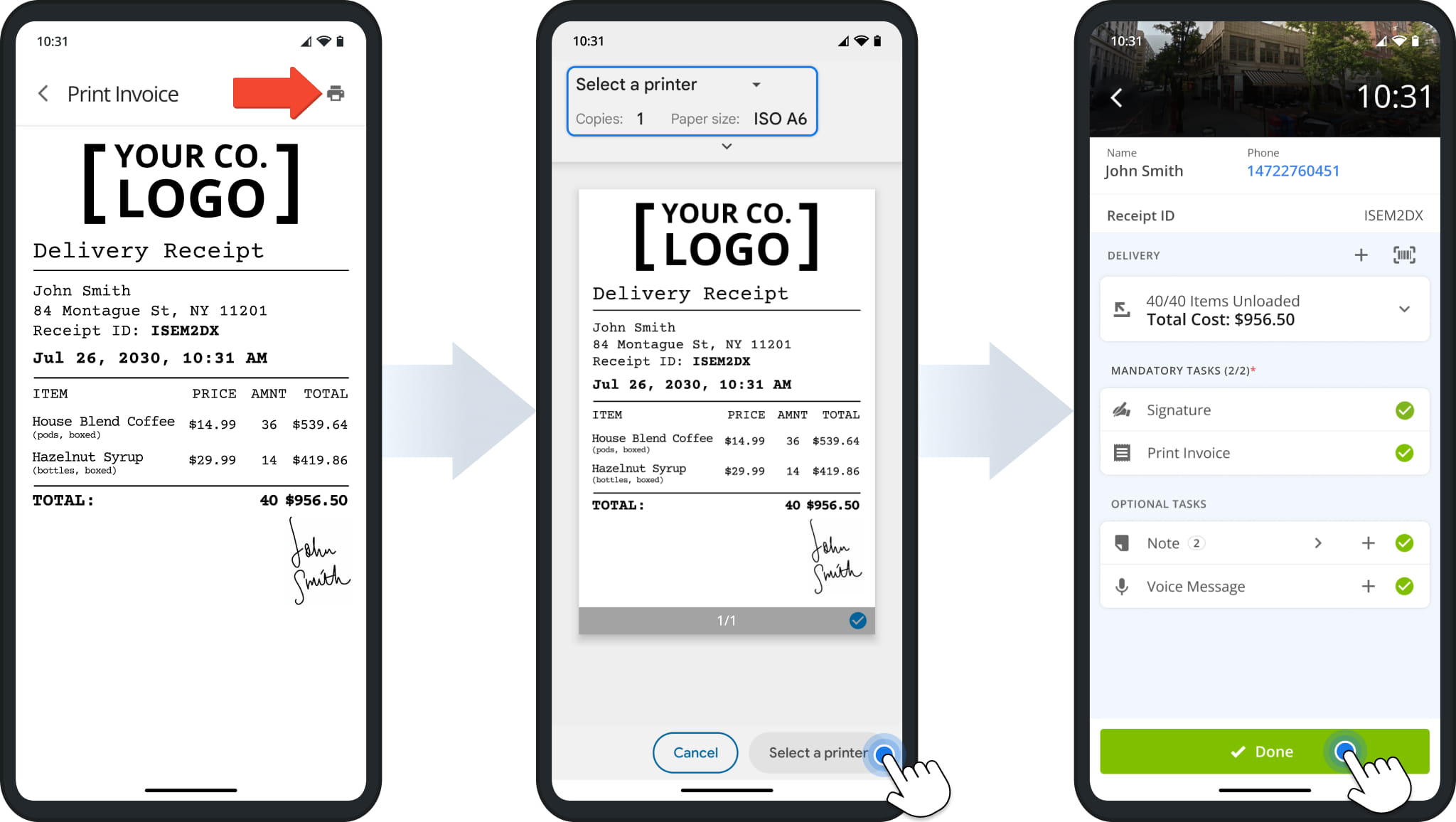
You’ll see a preview of the invoice showing the unloaded items, their associated costs, totals, and any relevant customer details collected as part of mandatory POD tasks. Tap the Printer Icon to continue.
If necessary, you can adjust the default print settings using the options at the top of the screen. Tap “Select a printer” and proceed to print the invoice. Finally, tap “Done” to complete the delivery at that Destination.
Visit Route4Me's Marketplace to Check out Associated Modules:
- Operations
Custom Data Add-On
- Operations
Advanced Team Management Add-On
About author: Kristian Andreev

