
Optimization Profiles – Route Planning And Optimization Settings Templates
Route4Me’s Route Optimization Profiles let you create reusable settings that automatically apply to any route, simplifying route planning and last mile optimization. You can build profiles for specific vehicles, drivers, field services, seasonal services, or other business needs, and set rules and constraints to guide optimization. Moreover, sharing a profile with your team ensures everyone optimizes routes the same way, every time. Use this guide to help you create reusable Optimization Profiles.
Table of Contents
Create And Manage Route Optimization Profiles On Your Route4Me Account
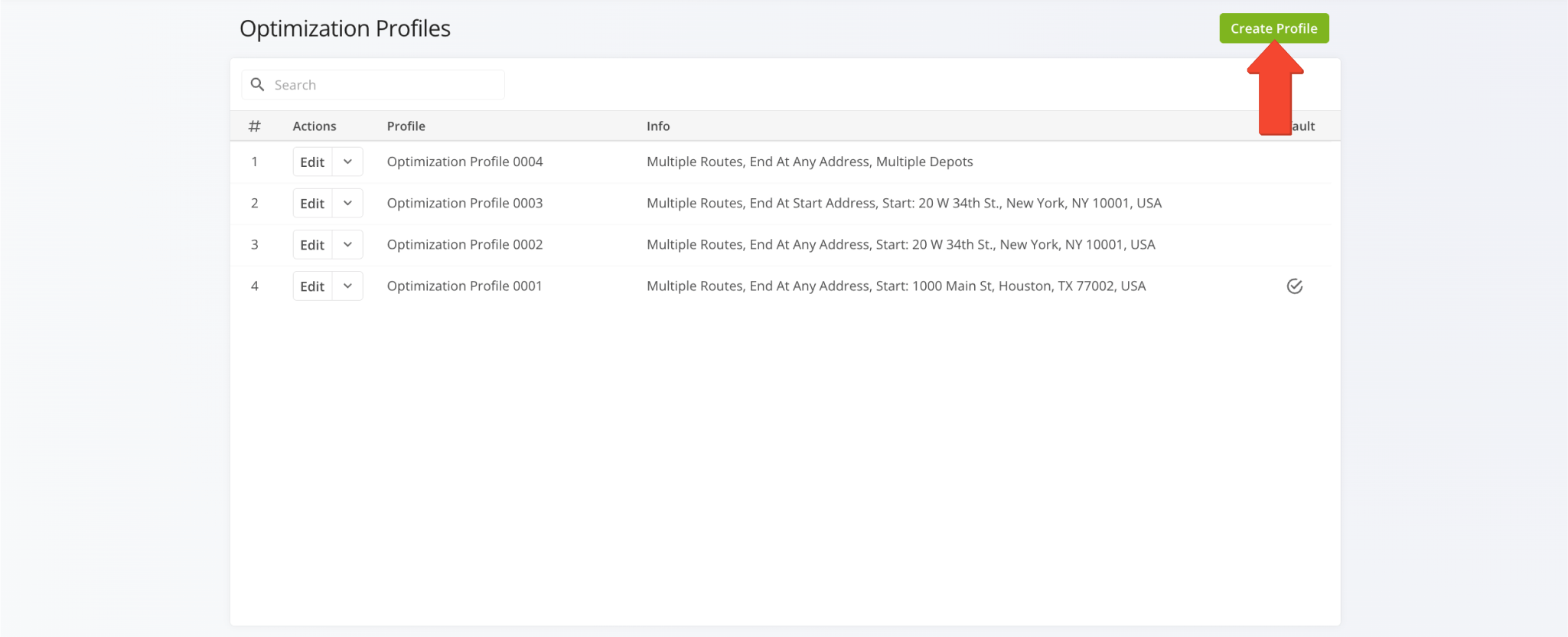
To create a new Route Optimization Profile, go to “Optimization Settings” > “Optimization Profiles” from the Navigation Menu. Then, click the “Create New Profile” button.
You’ll be redirected to the “Create Profile” editor here you can customize your new Optimization Profile’s settings.
Open Your Optimization Profiles
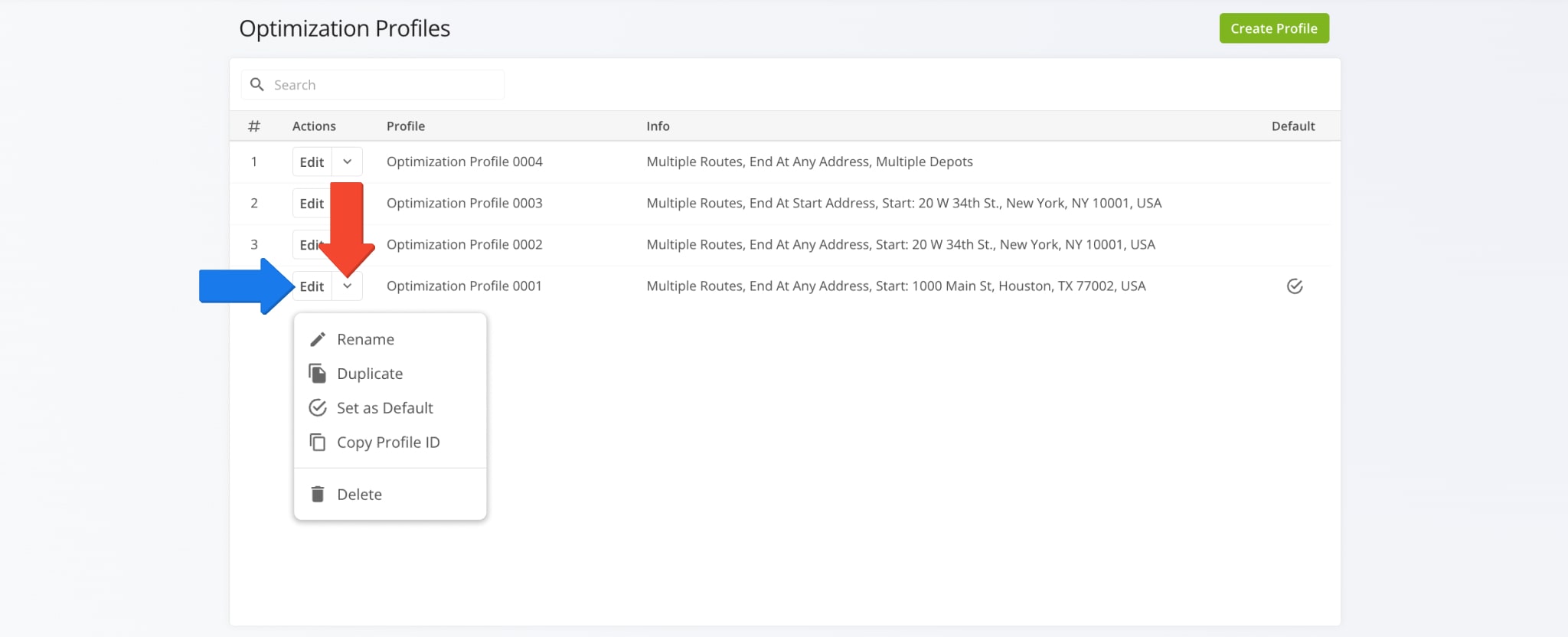
To edit an existing Optimization Profile, click the Arrow Button next to the profile, then select your preferred action. You can also click the “Edit” button to adjust any of the optimization settings described in this guide.
NOTE: Sub-users can access, edit, and use the Optimization Profiles of the users they report to, and you can likewise access the profiles created by your manager. Learn more about user permissions and Route4Me’s user types and team hierarchy.
Management Actions
General – Assign Route Name, Users, Vehicles And Facilities
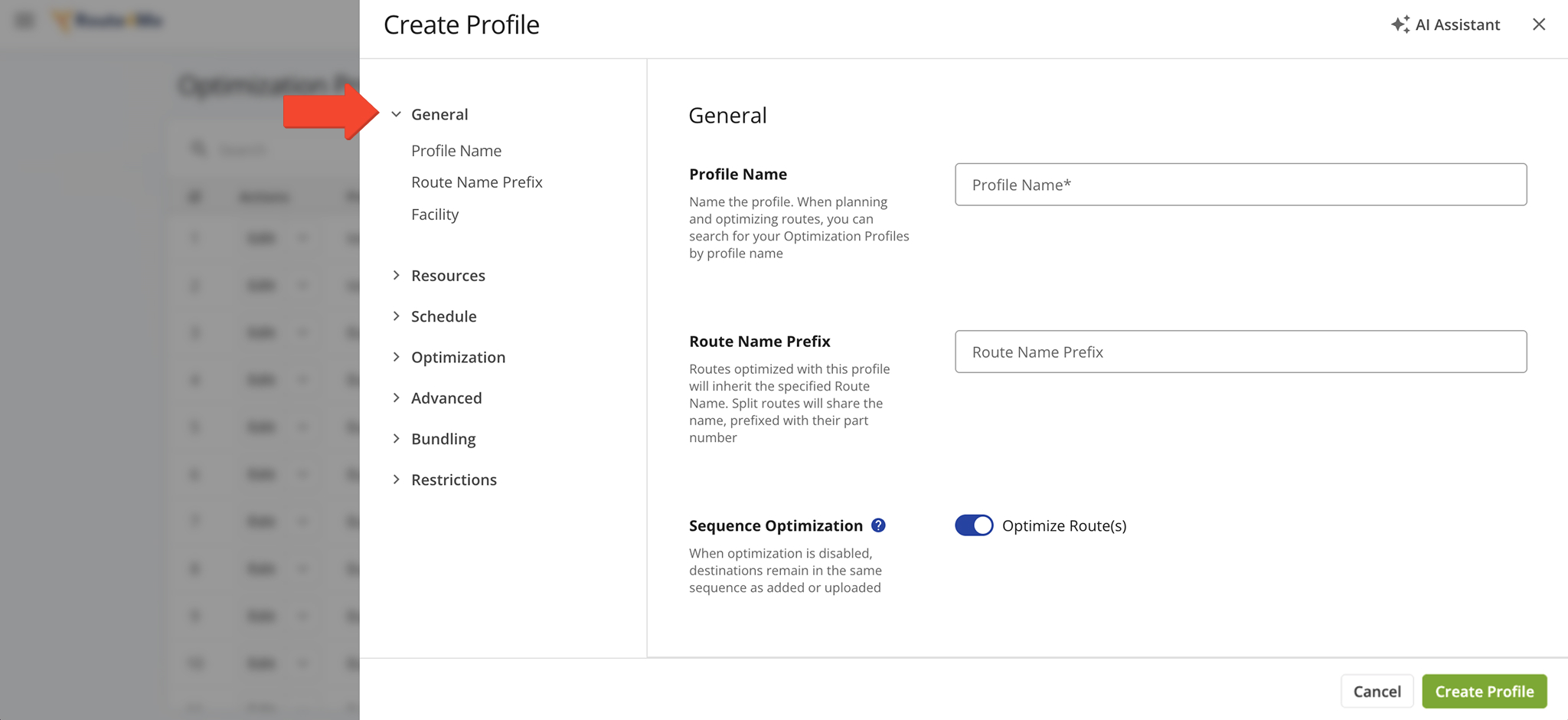
From the “General” tab, can assign a Profile name, route prefix, and Facility that will be applied to all routes optimized with the Optimization Profile. See the table below for details.
General Settings
Resources – Assign Users And Equipment To Routes
From the “Resources” tab, you can assign a user to the route and configure the vehicles or equipment used in the optimization. See the table below for details.
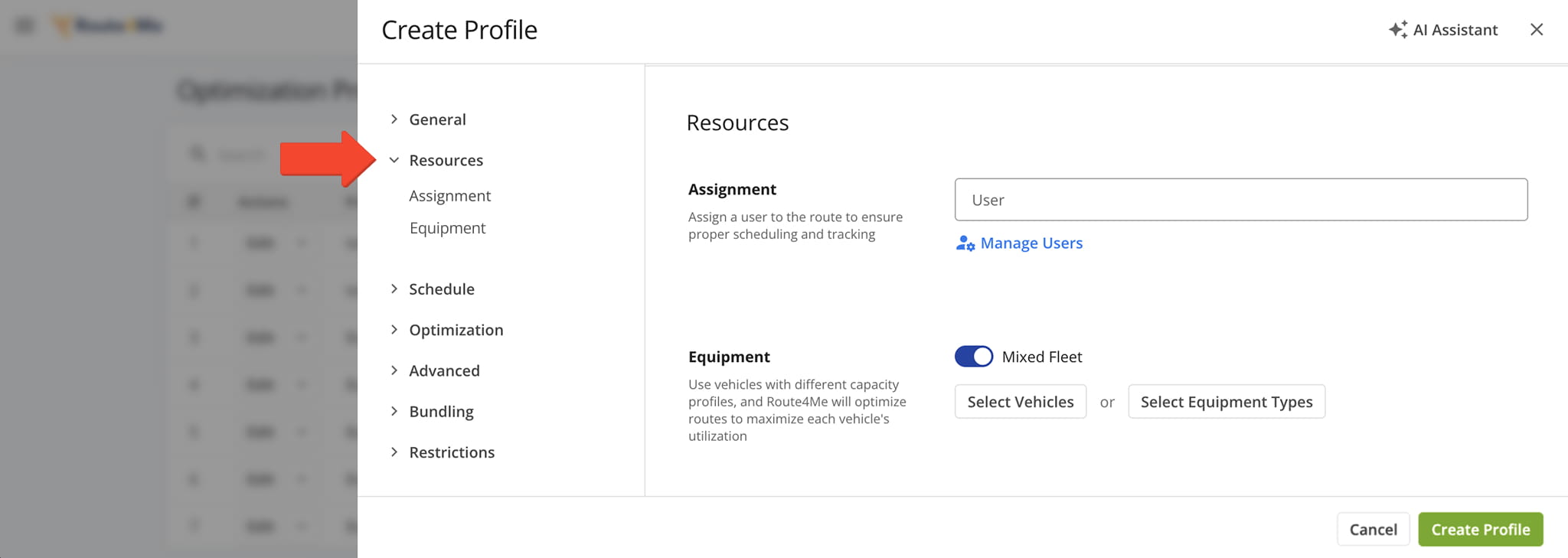
Resource Settings
If you specify one or more Equipment Types for use in Mixed Fleet routing, they’ll appear as a searchable, filterable list in the “Equipment” field.
Use the filters, described below, to locate specific Equipment Types, or hover over the Information Icon next to an Equipment Type to view its details.
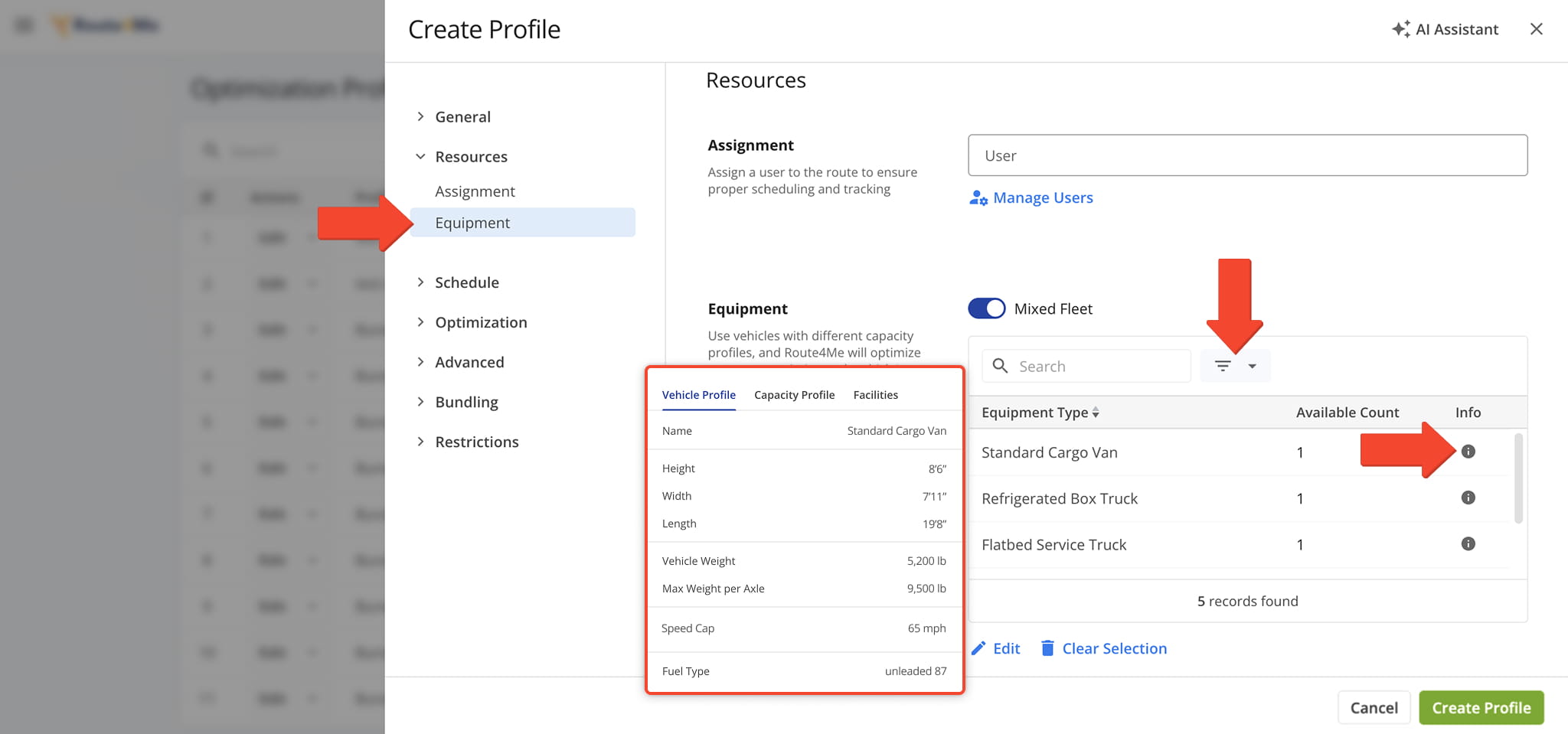
Equipment Type Filters
Schedule – Set Route Start Time And Destination Service Time
From the “Schedule” tab, you can specify the Route Start Time and Destination Service Time for routes optimized with the Optimization Profile. See the table below for details.
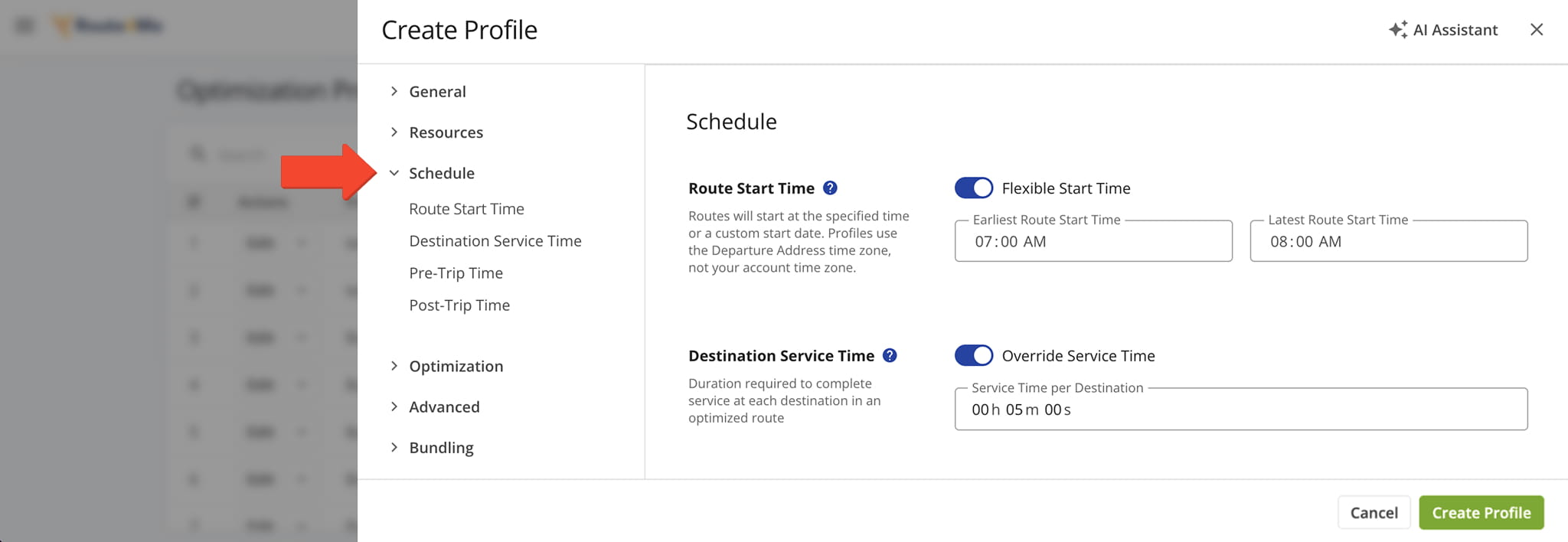
Schedule Settings
Optimization – Schedule Routes And Set Business Rules
From the “Optimization” tab, you can customize the main Optimization Profile settings. See the table below for details.
NOTE: Optimization Profiles can support multiple features and constraints enabled through add-ons and modules. To enable additional features for your Optimization Profiles, use the Feature Manager or contact Route4Me Support.
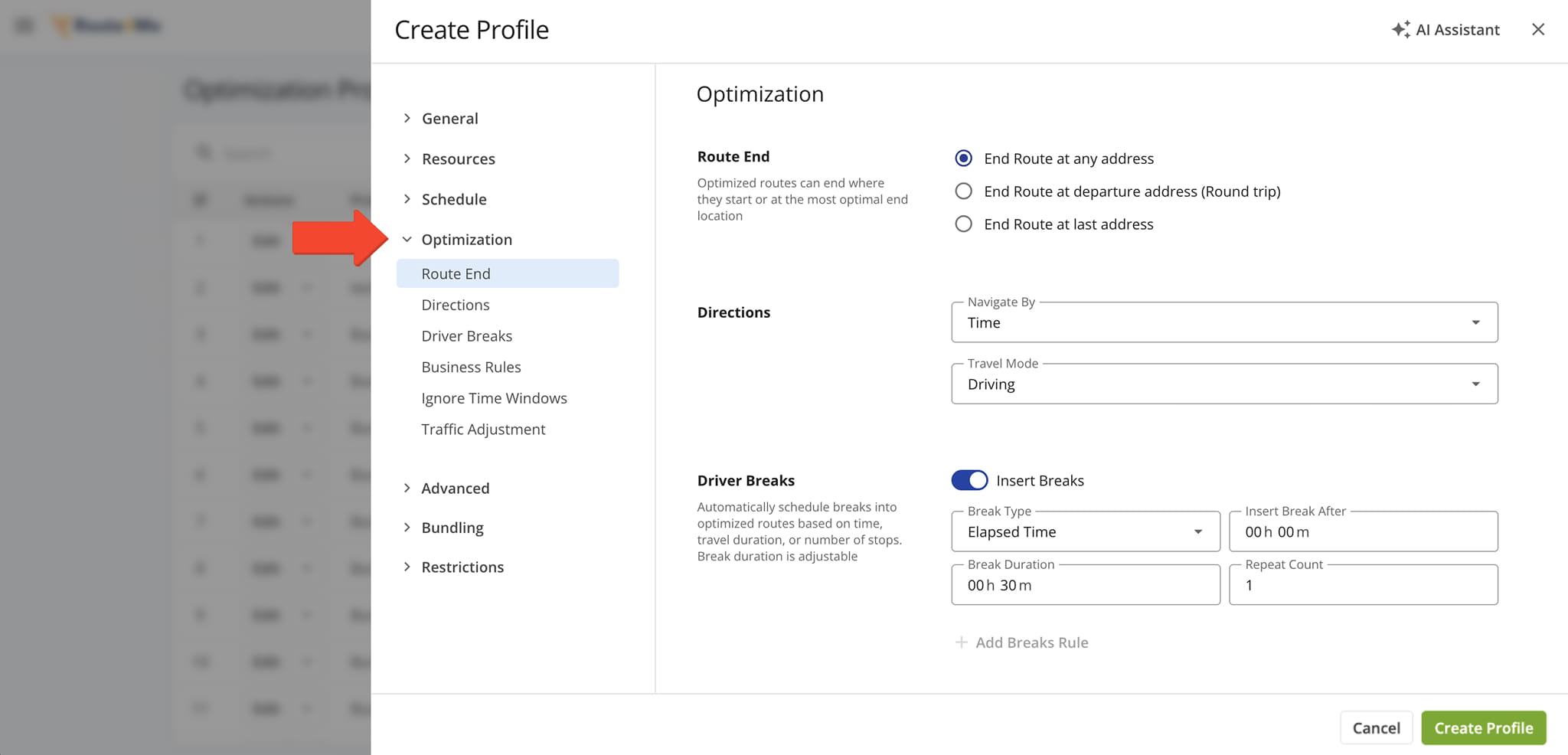
Route Optimization Settings
Advanced – Set Distance, Travel Time Or Waiting Time Priority When Optimizing Routes
From the “Advanced” tab, you can fine-tune optimization with a distance, travel time, or wait time priority. A higher percentage gives that variable more weight when calculating the optimal Destination sequence.
You can also add a date to the route name, apply Depots as an advanced constraint, and resolve Drivers by skills. See the table below for details.
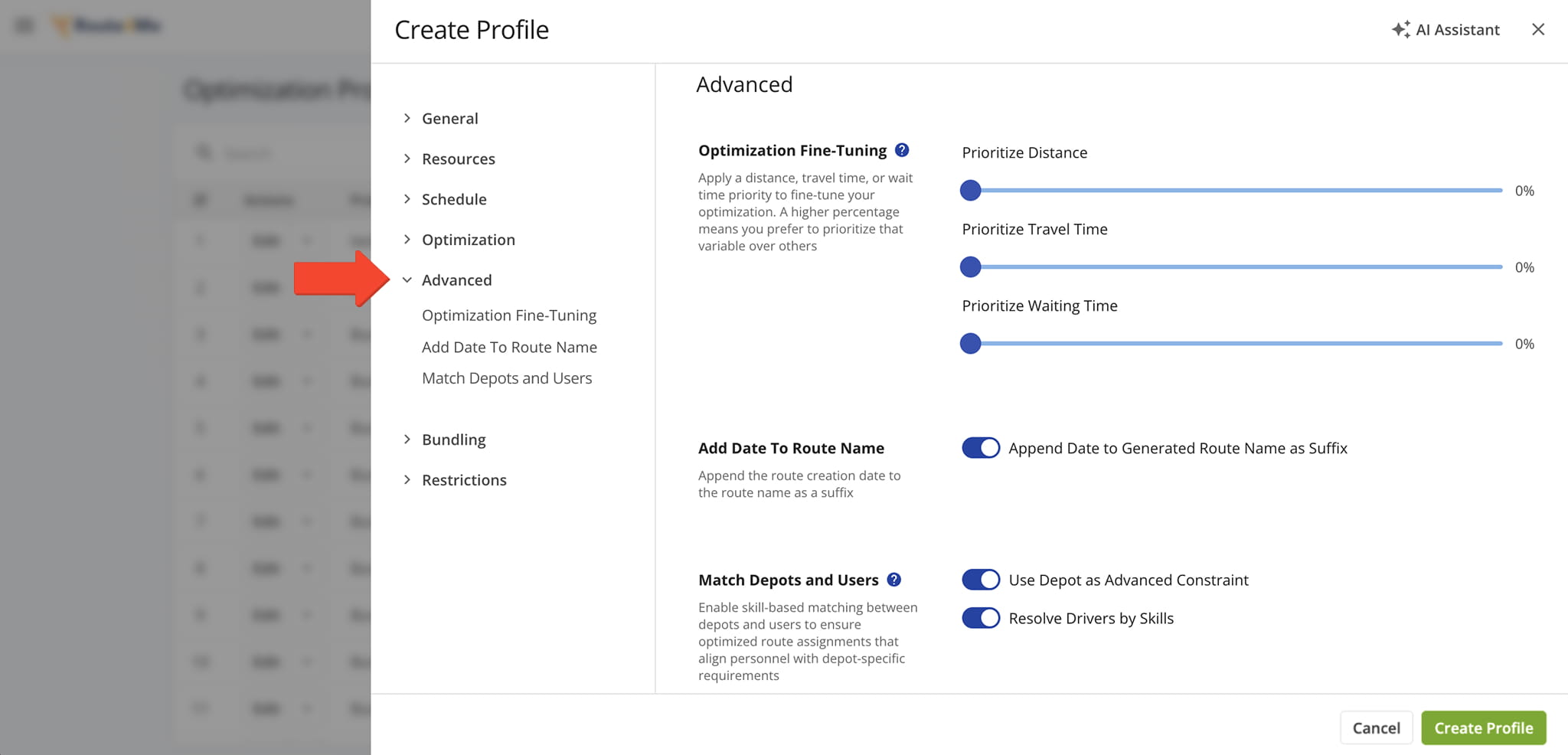
Advanced Settings
Bundling – Group Stops On Route Optimization Software
From the “Bundling” tab, you can enable and customize destination bundling. Bundling groups Destinations with the same address or coordinates so that locations in the same area can be visited and serviced together.
To use this feature, toggle “Group Nearby Destinations“, choose your preferred grouping method, and adjust the “Bundle Settings” and “Service Time Bundling” options.
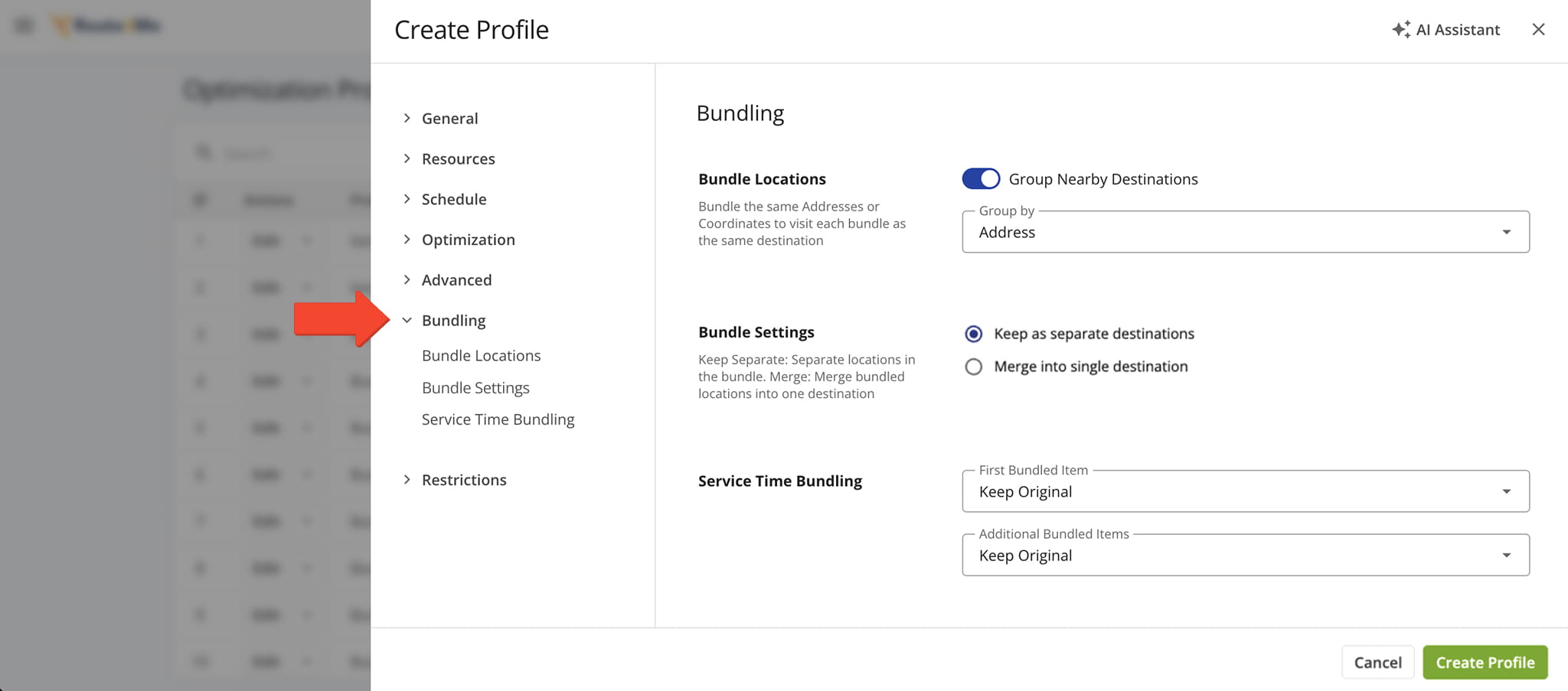
Destination Bundling Settings
Restrictions – Avoid Highways And Tolls On Last Mile Routes
From the “Restrictions” tab, you can set limits and avoidance options to plan safer, more efficient, and cost-effective routes. See the table below for details.
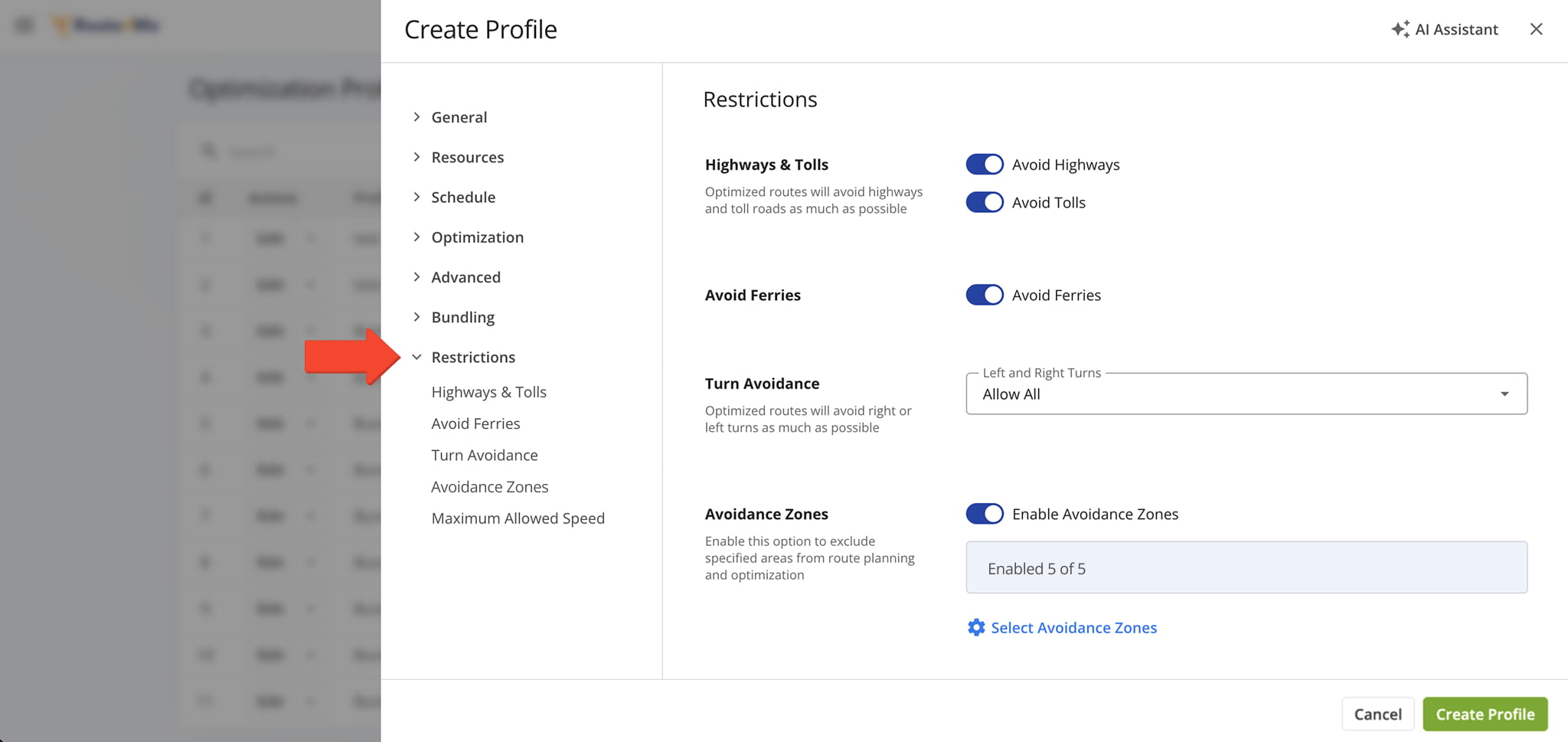
Restrictions & Avoidance Settings
Use Route Optimization Profiles To Optimize Last Mile Routes
After creating your Optimization Profiles, they instantly become available for planning and optimizing routes.
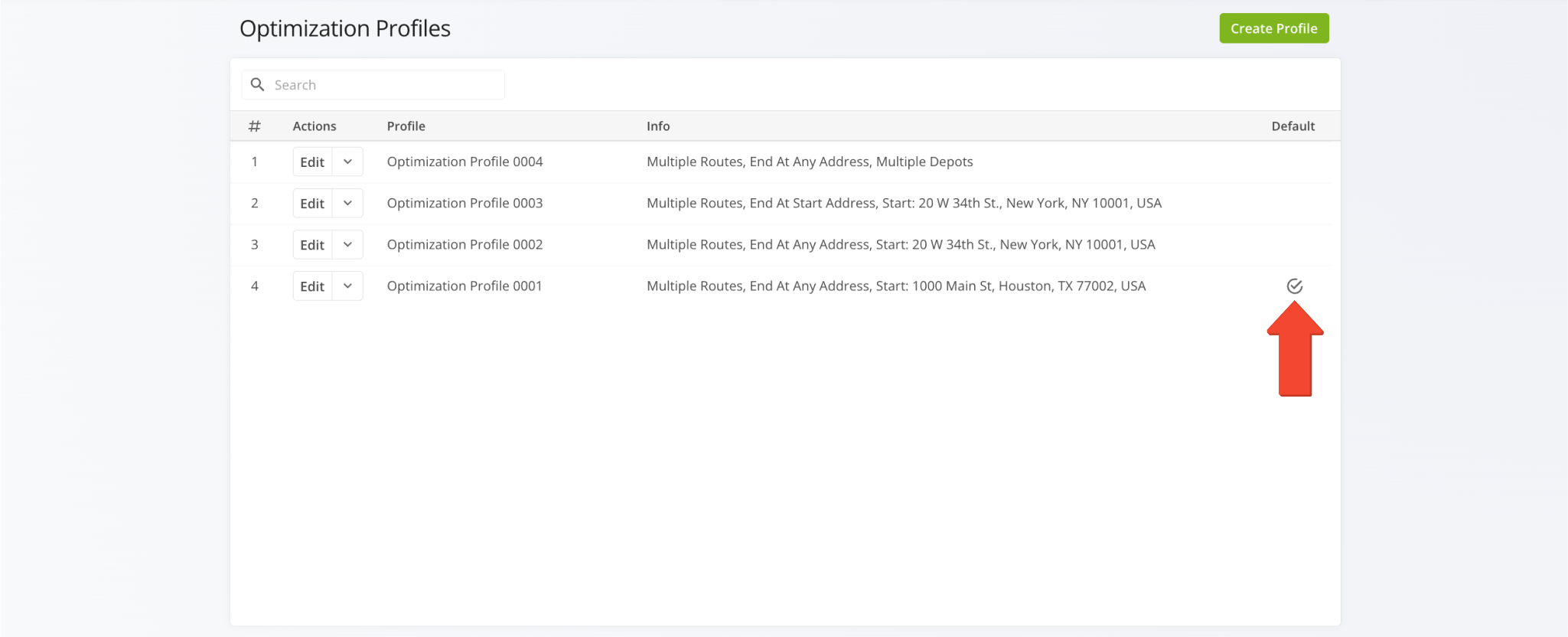
The first Optimization Profile you create automatically becomes your Default Optimization Profile. Your sub-users can also see and use your Optimization Profiles.
To begin, go to “Dynamic Routing” > “Plan New Route” from the Navigation Menu and then select the preferred method for adding or uploading addresses: Interactive Map Editor, Copy and Paste, Upload a File, or Import Data.
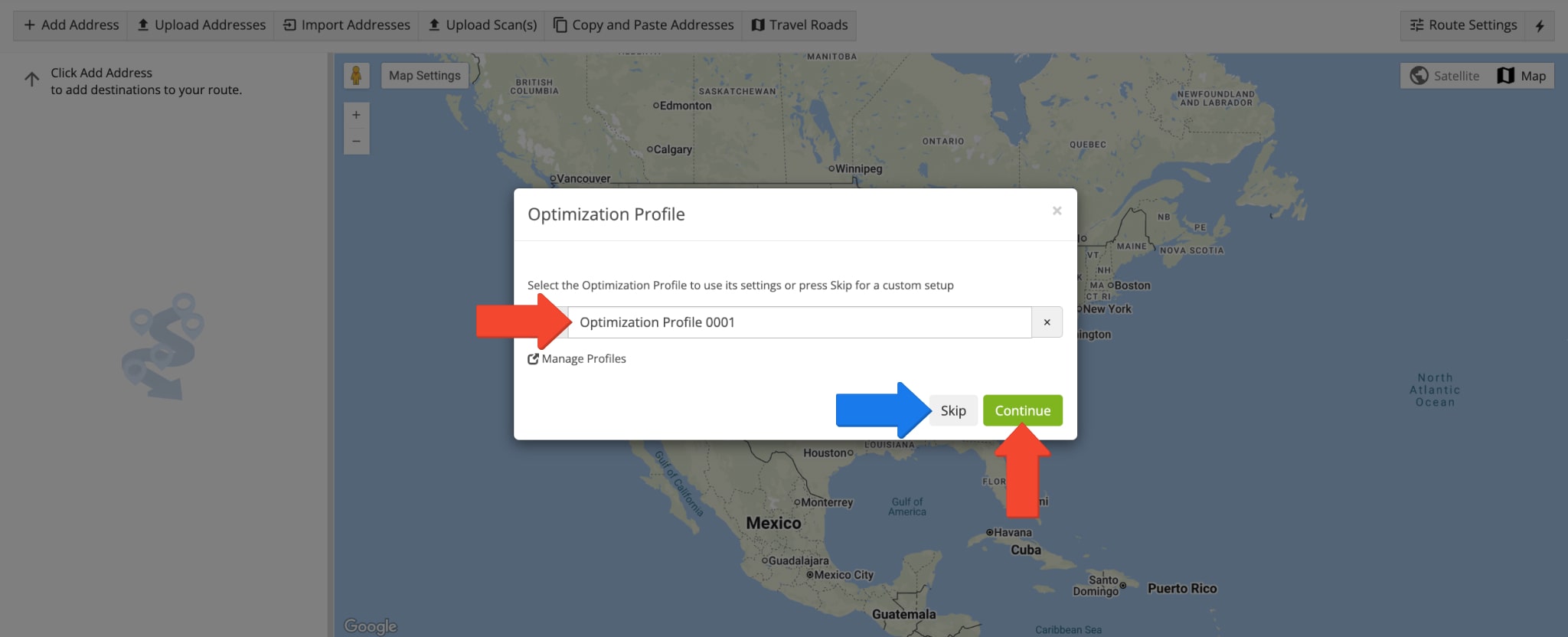
Next, you can use the pre-selected Default Optimization Profile or select another preferred Optimization Profile from the list. You can select and use only one Optimization Profile per the set of added or uploaded addresses.
If you don’t want to use Optimization Profiles, you can click the “Skip” button and manually customize your optimization settings.
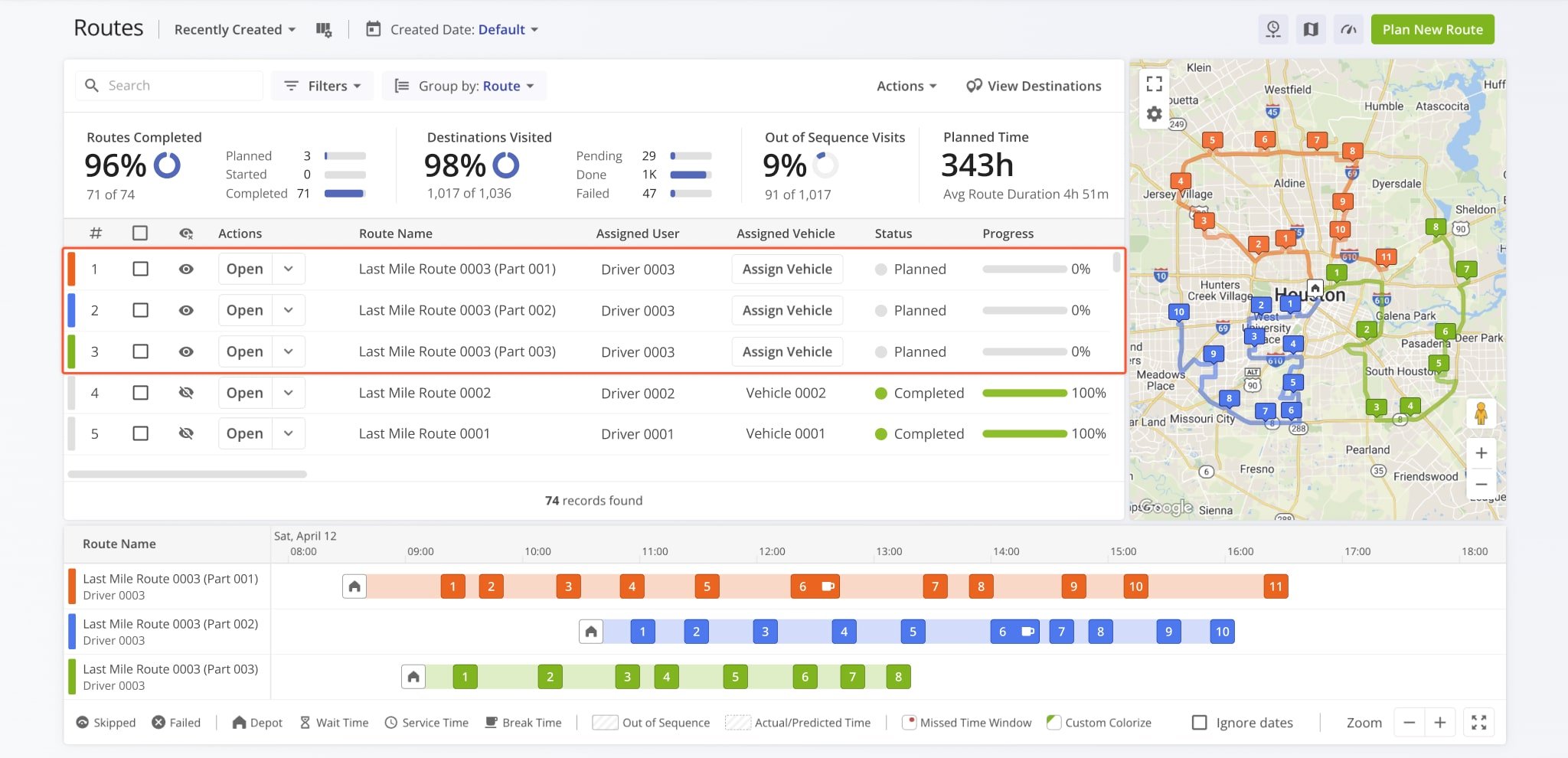
Optimized routes inherit the Route Name and are scheduled for the Start Time specified in the Optimization Profile.
Additionally, optimized routes are dispatched to the User (driver) and Vehicle specified in the Optimization Profile. You can dispatch routes to other vehicles and drivers by re-assigning them.
Visit Route4Me's Marketplace to Check out Associated Modules:
- Route Optimization
Stops Bundling
- Route Optimization
Mixed Vehicles Routing
- Route Optimization
Max Weight per Route
- Route Optimization
Max Stops Per Route
About author: Kristian Andreev

