Optimizations Management Guide – Open, Edit, And Manage Route Optimizations

Whenever you plan a route, Route4Me automatically creates an unique Optimization linked to it. Optimizations, along with their parameters, are saved in your account’s Optimizations Page where you can also open Optimization Snapshots. With an Optimization Snapshot, you can quickly review route analyticsdestination dataproof of visit, and much more. You can use Account Optimizations to re-optimize routes, optimize multiple routes at a time, restore deleted routes with the same settings, and more. Use this guide to learn how to access your Optimizations Page and Optimization Snapshots.
When you plan a route, Route4Me automatically creates an Optimization linked to it. Optimizations, along with their parameters, are saved in your account


Open Optimizations – Access Account Optimizations Database

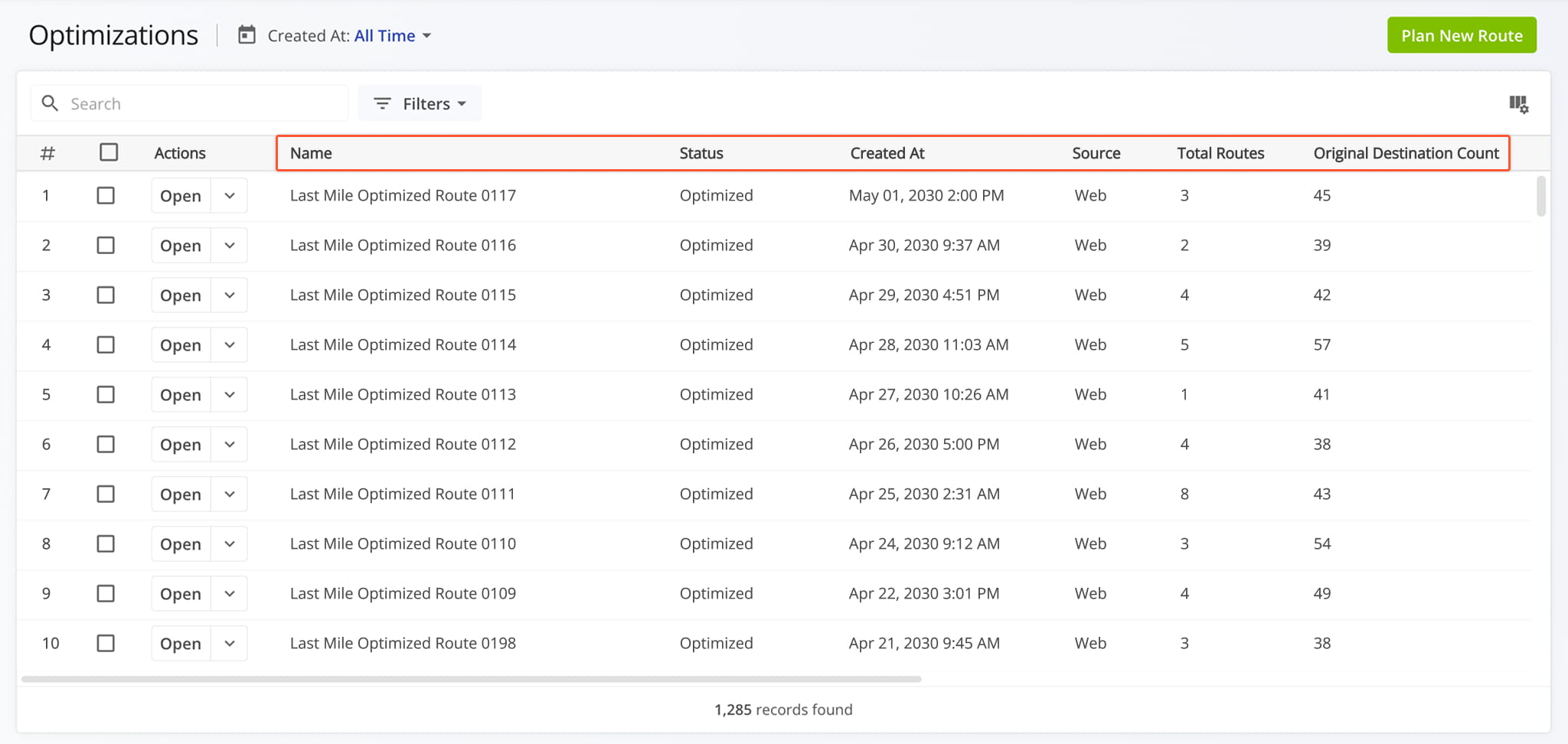
To open your Optimizations Page, go to “Dynamic Routing” > “Optimizations” from the Navigation Menu. The list shows Optimizations in chronological order, with the most recent ones at the top.

Additionally, you can click the “Plan New Route” button to start planning a route directly from the Optimizations Page.
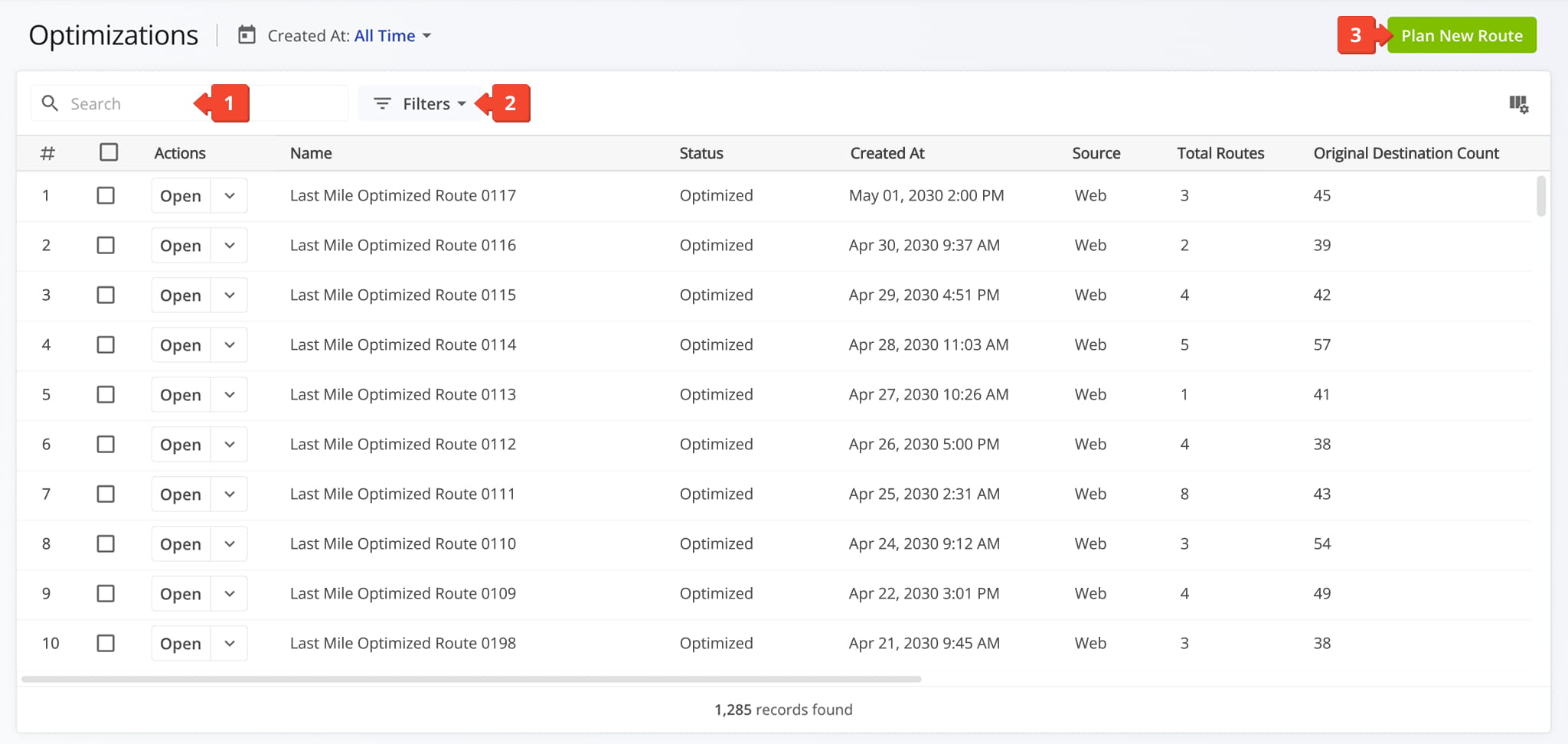
Open Your Optimizations

The Optimizations List shows Optimizations in chronological order, with the most recent ones at the top.


Optimization Data – Optimizations Page Data Table Columns

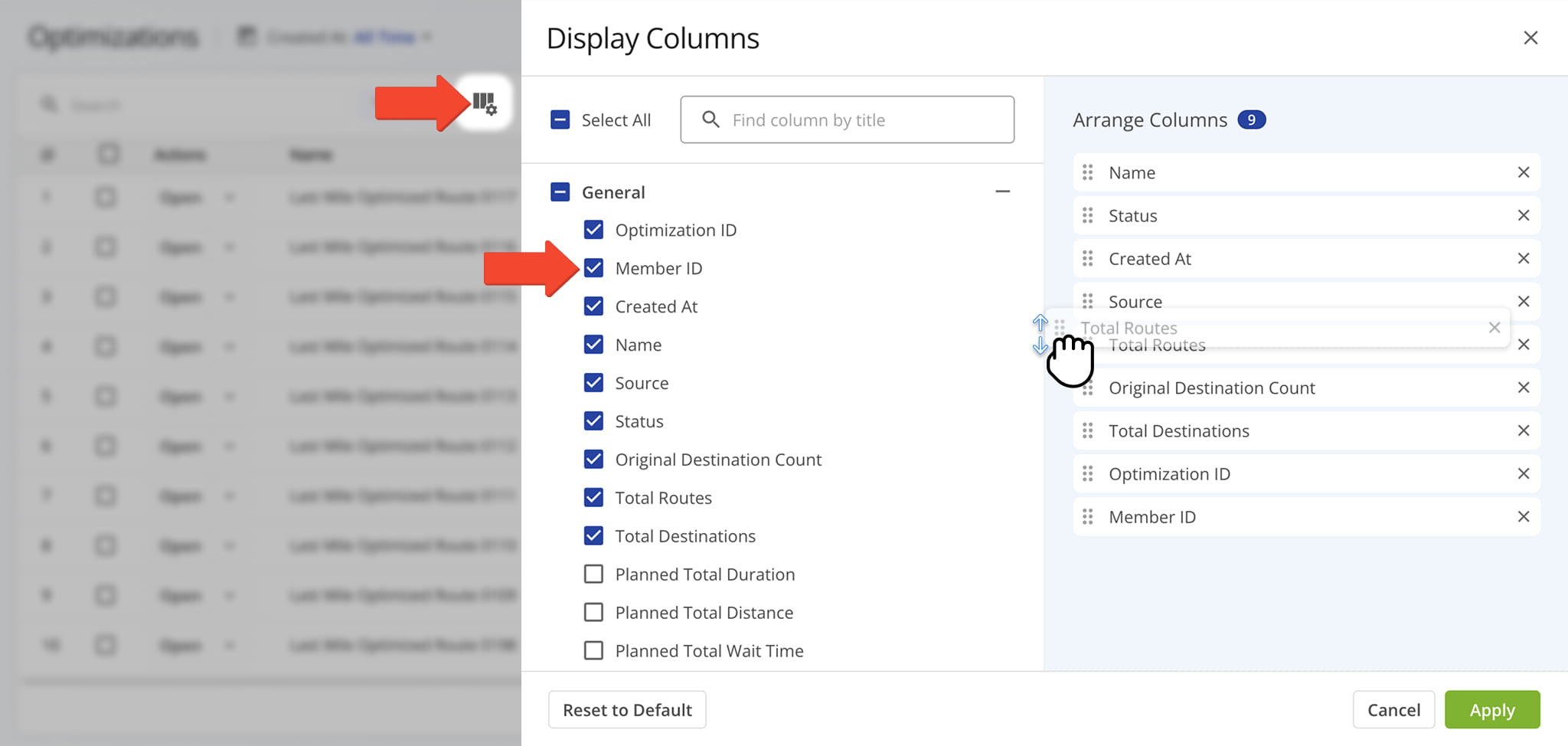
For convenience, the Optimizations List shows the most important data relating to your optimizations. Specifically, you can see the names of optimizations which match the names of their associated routes, optimization statuses, and how many destinations are associated with each Optimization. The final two columns show the time and date when Optimizations were created and when their associated routes are scheduled to begin.

For convenience, the Optimizations List shows the most important data relating to your optimizations.


Open Snapshots – Access Optimization Snapshots From Optimizations Page

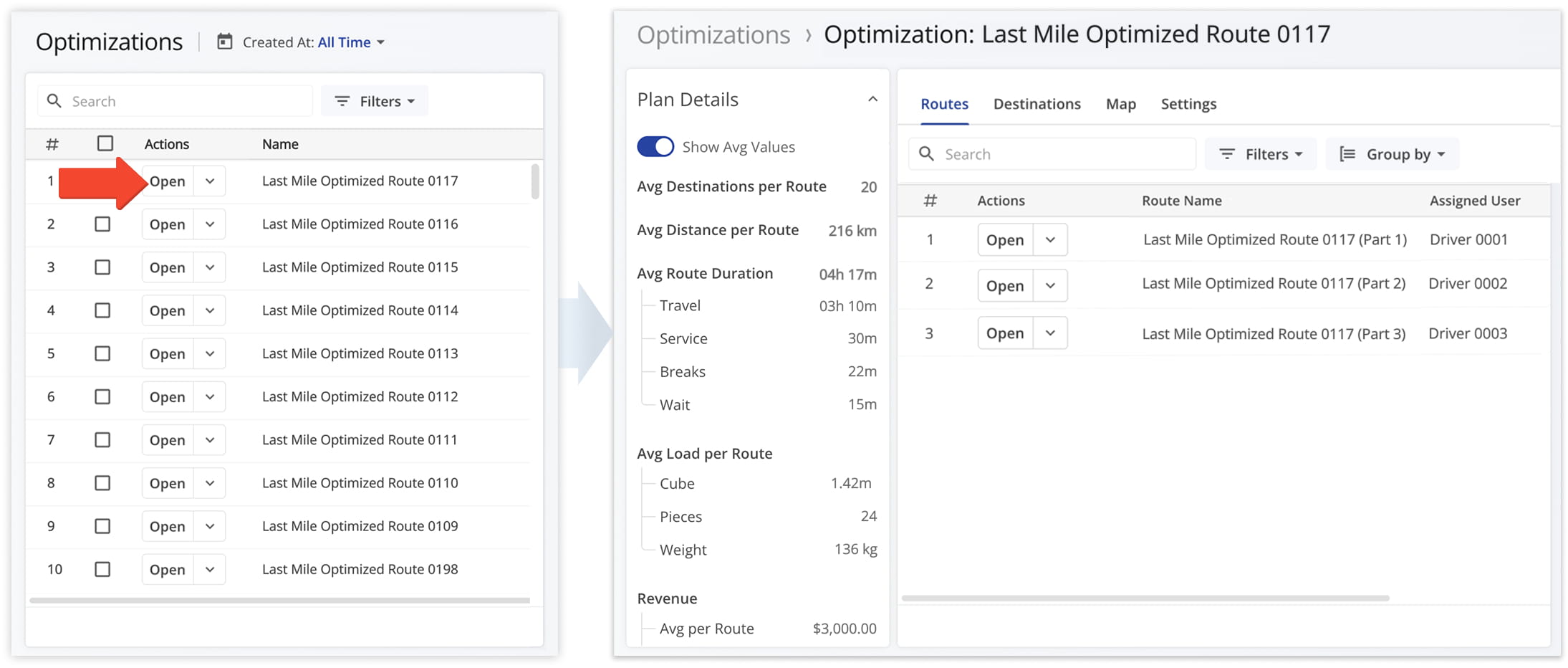
Optimization Snapshots enable you to review detailed route analyticsdestination dataproof of visit information, and much more. To open a snapshot of a specific Optimization, simply click the “Open” button next to it, and Route4Me will automatically redirect you to the respective Optimization Snapshot.

Optimization Snapshots enable you to review detailed route analytics, destination data, proof of visit information, and much more. To open a snapshot of a specific Optimization, simply click the


Manage Optimizations – Edit, Rename, Or Delete Optimizations

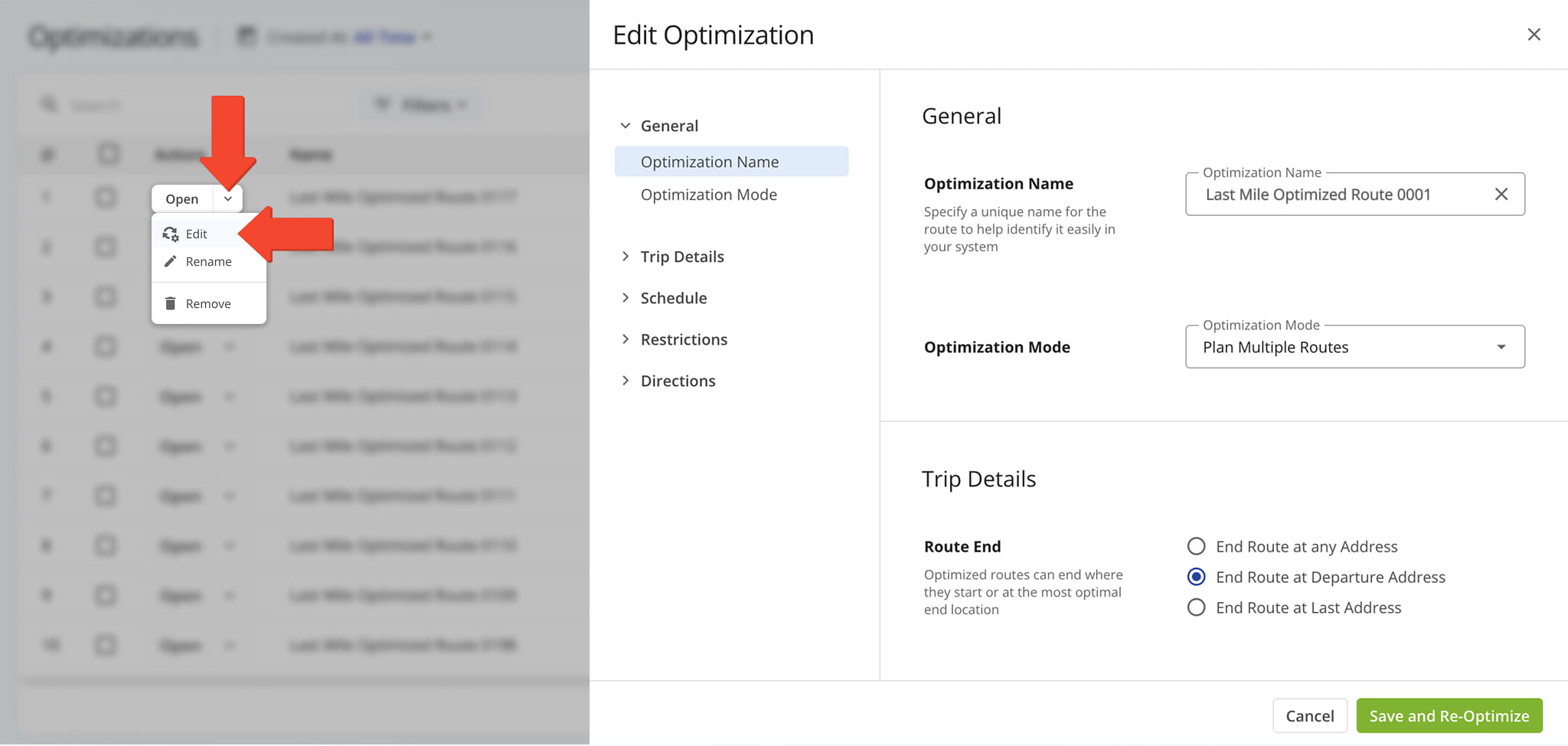
To edit, rename, or remove an optimization, click the Down Arrow next to it and select the respective option from the menu. The table below provides an overview of the various actions you can perform from the “Edit Optimization” drawer.

To rename or remove an optimization, simply click the Down Arrow next to it and select the respective option from the menu.

ActionDescription
General
Optimization NameEdit the route name to easily identify and search for the optimization in your system.
Optimization ModeChange how the optimization is generated by selecting a single route, multiple routes, or disabling optimization.
Trip Details
Route EndModify how the route ends by selecting an optimized endpoint – any address, the departure address, or the last address.
Schedule
Route Start DateUpdate the date when the route is scheduled to begin based on the user’s local time zone.
Route Start TimeAdjust the time when the route begins on the selected date using the user’s local time zone.
Destination Service TimeEdit the time required to complete each stop, with the option to override existing service times.
Dynamic Start TimeEnable or disable dynamic adjustments to the route start time.
Restrictions
Turn AvoidanceAdjust turn settings to minimize left or right turns during route optimization.
Avoidance ZonesEnable or modify zones the route should avoid, such as restricted or high-traffic areas.
Directions
Route CalculationChange how routes are optimized by selecting time or distance as the primary factor.
Travel ModeUpdate the mode of transportation used for optimization, such as driving or cycling.
Highways and TollsEnable or disable avoidance of highways and toll roads during route optimization.


To delete multiple Optimization, check the boxes next to them and click “Remove” in the Action Bar above the Optimizations List.
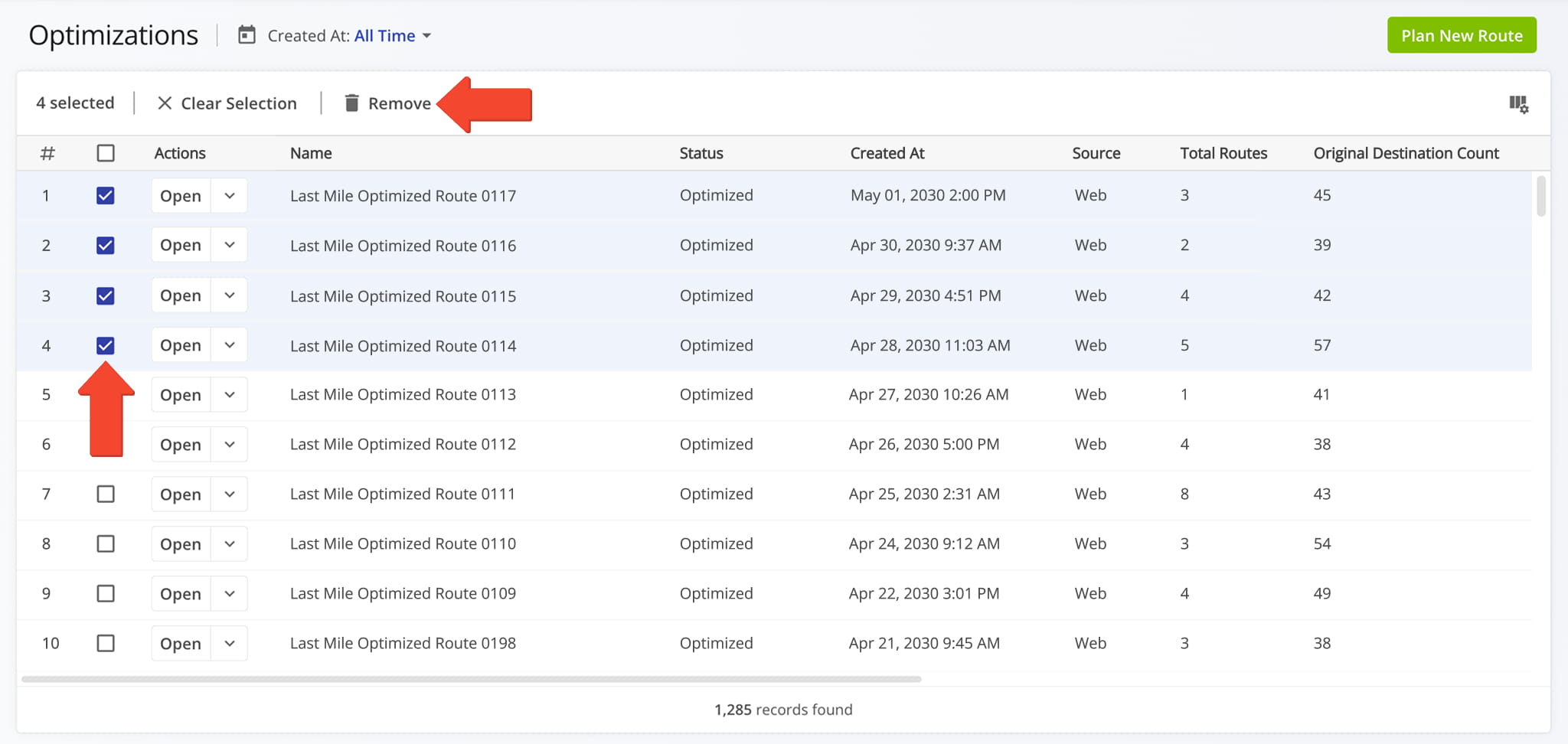
To delete multiple Optimization, check the boxes next to them and click


Visit Route4Me's Marketplace to Check Out More Add-Ons and Modules:

Last Updated:

About author: Kristian Andreev

Kristian AndreevKristian is a Technical Writer at Route4Me. With over a decade of experience in writing and localization, he's an expert at communicating complex technical data in a clear, concise, and user-friendly way. Passionate about bridging the gap between engineers and users, he specializes in creating documentation to streamline onboarding, enhance product usability, and support global teams on the path to success.

Was this article helpful?
Still can't find what you're looking for? Contact us
Route4Me

About Route4Me

Route4Me has over 40,000 customers globally. Route4Me's Android and iPhone mobile apps have been downloaded over 2 million times since 2009. Extremely easy-to-use, Route4Me's apps create optimized routes, synchronize routes to mobile devices, enable communication with drivers and customers, offer turn-by-turn directions, delivery confirmation, and more. Behind the scenes, Route4Me's operational optimization platform combines high-performance algorithms with data science, machine learning, and big data to plan, optimize, and analyze routes of almost any size in real-time.