
Dispatch Dashboard – Real-Time Order Dispatch And Schedule Management
The Dispatch Dashboard is a powerful tool that gives team members full control over order assignment and scheduling. You can dispatch orders to drivers, reassign tasks, and resolve schedule conflicts directly on the interactive timeline. Changes are synchronized in real time across all connected apps and devices, enabling fast and informed decision-making. In this guide, you’ll learn how to use the dashboard to filter key information, manage order dispatch, and help your team members minimize downtime while maximizing last mile order operations.
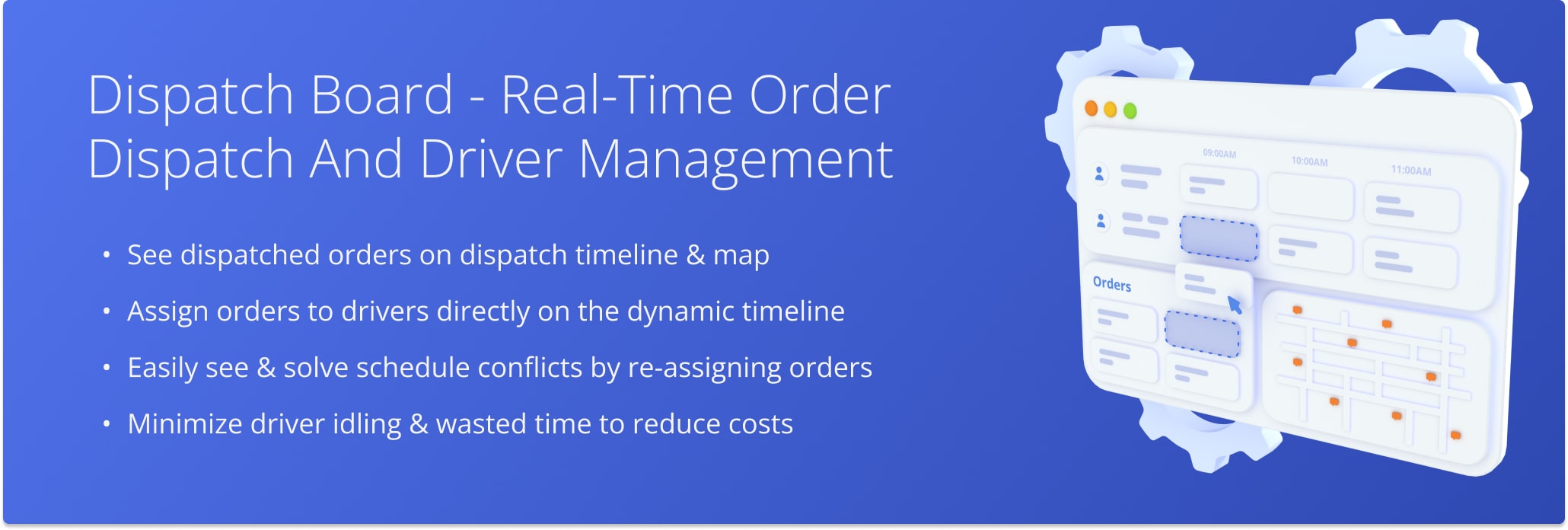
Table of Contents
Dashboard Overview – Open And Use Order Dispatch Dashboard
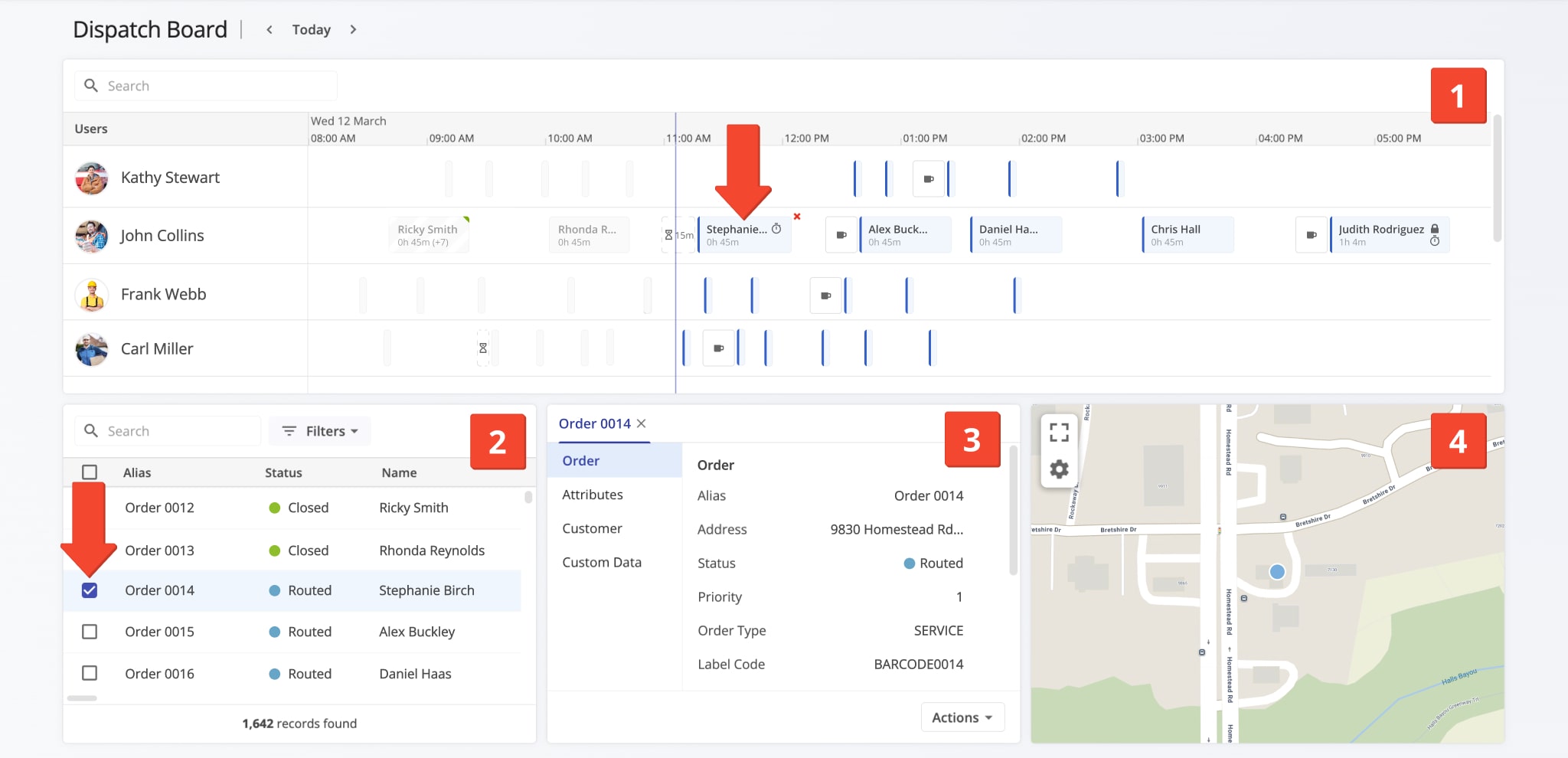
To open the Order Dispatch Dashboard, click the green button below. The dashboard makes it easy to see all the information you need and seamlessly schedule, dispatch, and re-assign Orders. Here’s a list of the main tools of the Dispatch Dashboard:
- Timeline: Interactive Order schedule sorted by User. You can see when Orders are scheduled, their Service Times, Wait Times, etc.
- Orders List: You can use the Orders List to filter and find Orders on your account and customize Order data columns.
- Order Info: When you select an Order, you can see its associated details and information in this panel.
- Order Map: When you select an Order, you can see its location directly on the map.
You can select an order by checking the box next to it in the Orders List or, if the Order is scheduled and dispatched, clicking on it in the Timeline. To deselect an Order, just click the X Icon next to it in the Timeline or the Order Info panel.
NOTE: If you can’t access the Dispatch Dashboard, or it isn’t enabled on your account, contact Route4Me support.
Filter Dispatch Dashboard – Find And Filters Drivers And Orders
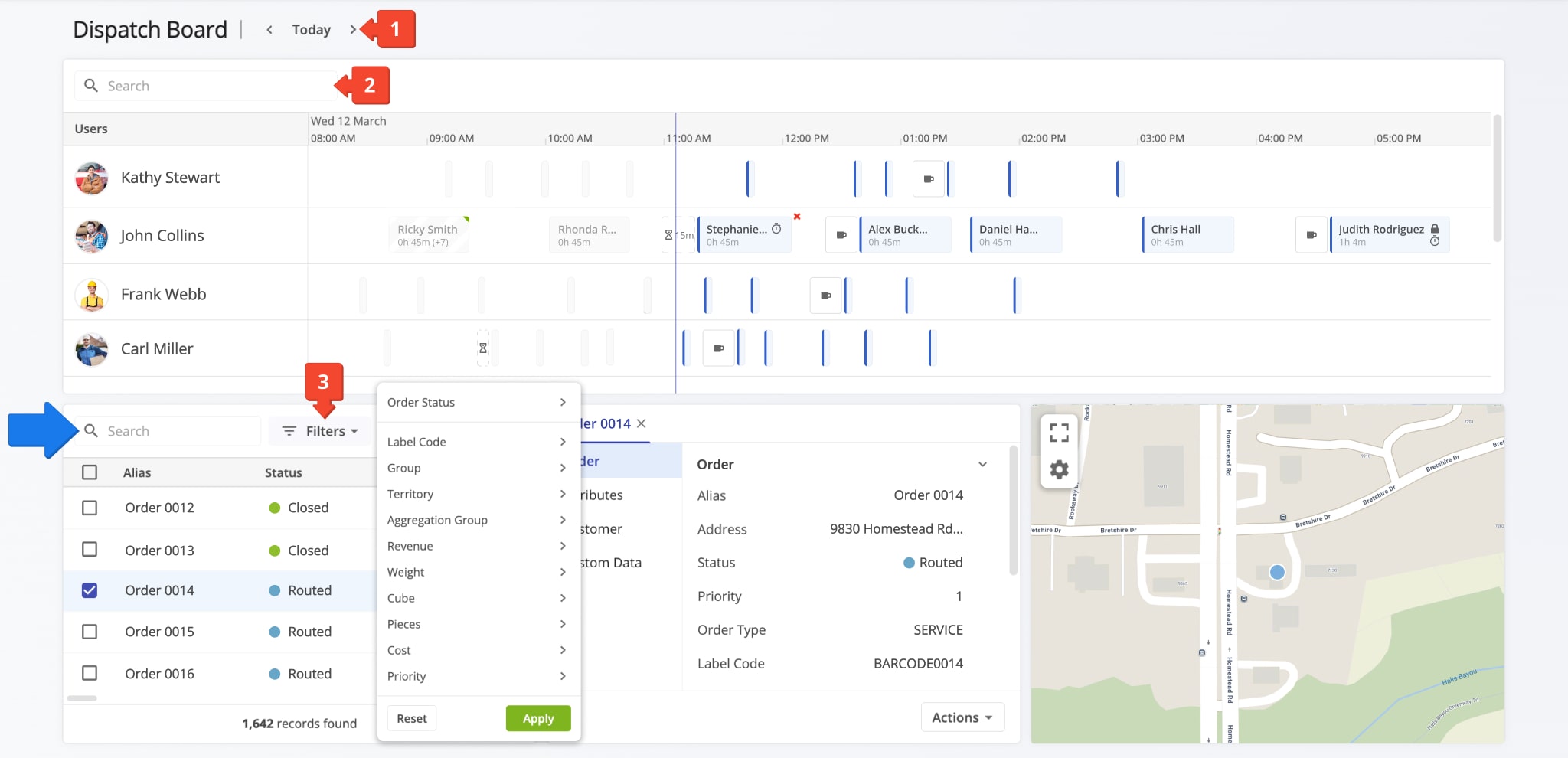
Use the following fields and buttons to filter the Dispatch Dashboard and easily find the data you need:
- Date Selection: Adjust the position of the Timeline according to the selected date. The current date is used as the default.
- Search Field: Search for Users by name, email, or other associated information with the “Search” field in the Timeline.
- Order Filters: Click the “Filters” button in the Orders List to filter only the Orders you want to see.
You can also use the “Search” field in the Orders List to quickly find Orders by entering any of their associated information. Learn more about Order Management.
Order Dispatch – Schedule Orders And Assign Orders To Drivers
Dispatching Orders is easy with the Dispatch Dashboard.
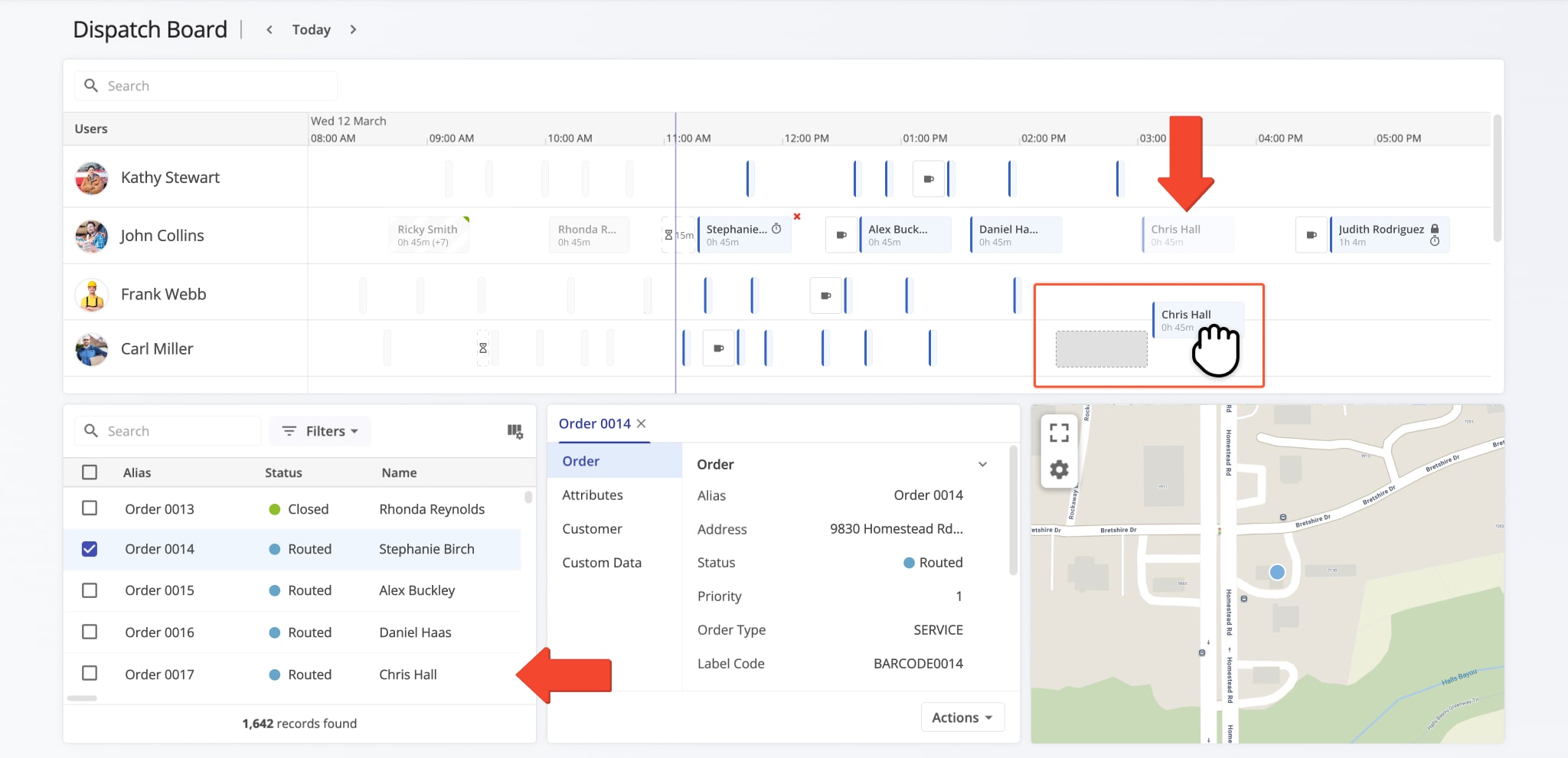
Just click and drag an Order from the Orders List to the Timeline of the User you want to assign it to. To re-assign an Order from one User to another, drag it from the current User’s Timeline to the Timeline of your preferred User. Where on the Timeline you place an Order corresponds to the time the Order will be rescheduled for on the selected date.
On the Timeline, the width of an Order corresponds to its Service Time, which you can see in hours and minutes under the name of the Order. Orders with the “DELIVERY” type may have short Service Times and only display as narrow indicators on the Timeline. You can still use all Order interactions on the Timeline regardless of an Order’s type.
Customize Orders List – Order Data Column Customization
To customize the Orders list and see the data columns relevant to your needs, click the Display Columns Icon in the top-right of the Orders List. Then, check the boxes next to the columns you want to enable in the “Display Columns” panel.
You can click and drag column names in the “Arrange columns” section to change their Orders. When you’re done customizing columns, click the “Apply” button to save your changes.
The Orders List on your Dispatch Dashboard supports the same data table functionality as your account Orders Page. If you need to see detailed Order data and analytics or manage Orders, go to “Orders” from the Navigation Menu.
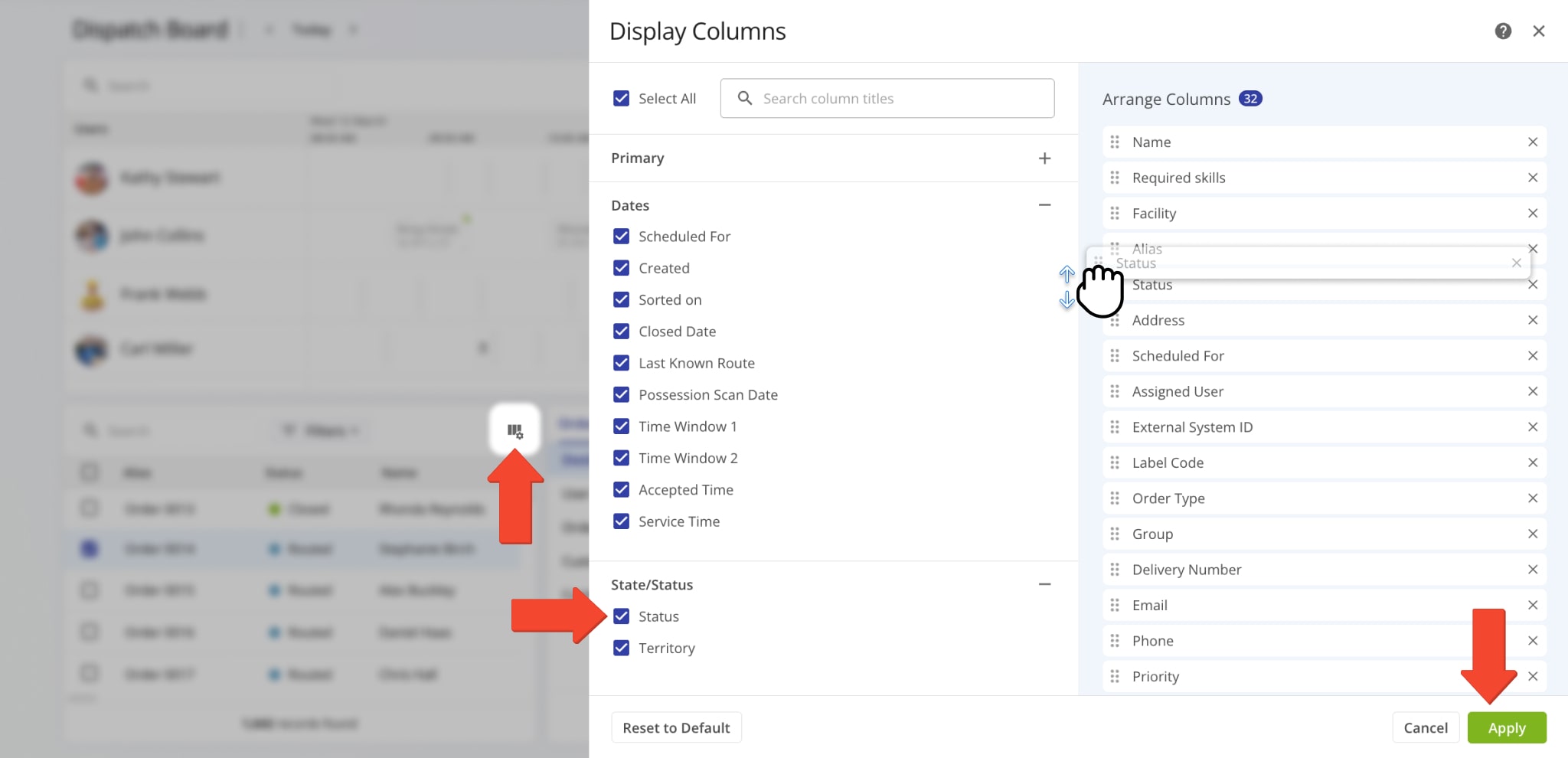
Orders List Data Columns
In addition to customizing Orders List data columns, you can customize the Orders Map on the Dispatch Board. Click the Gear Icon to open the Map Settings menu. You can find the available settings in the table below.
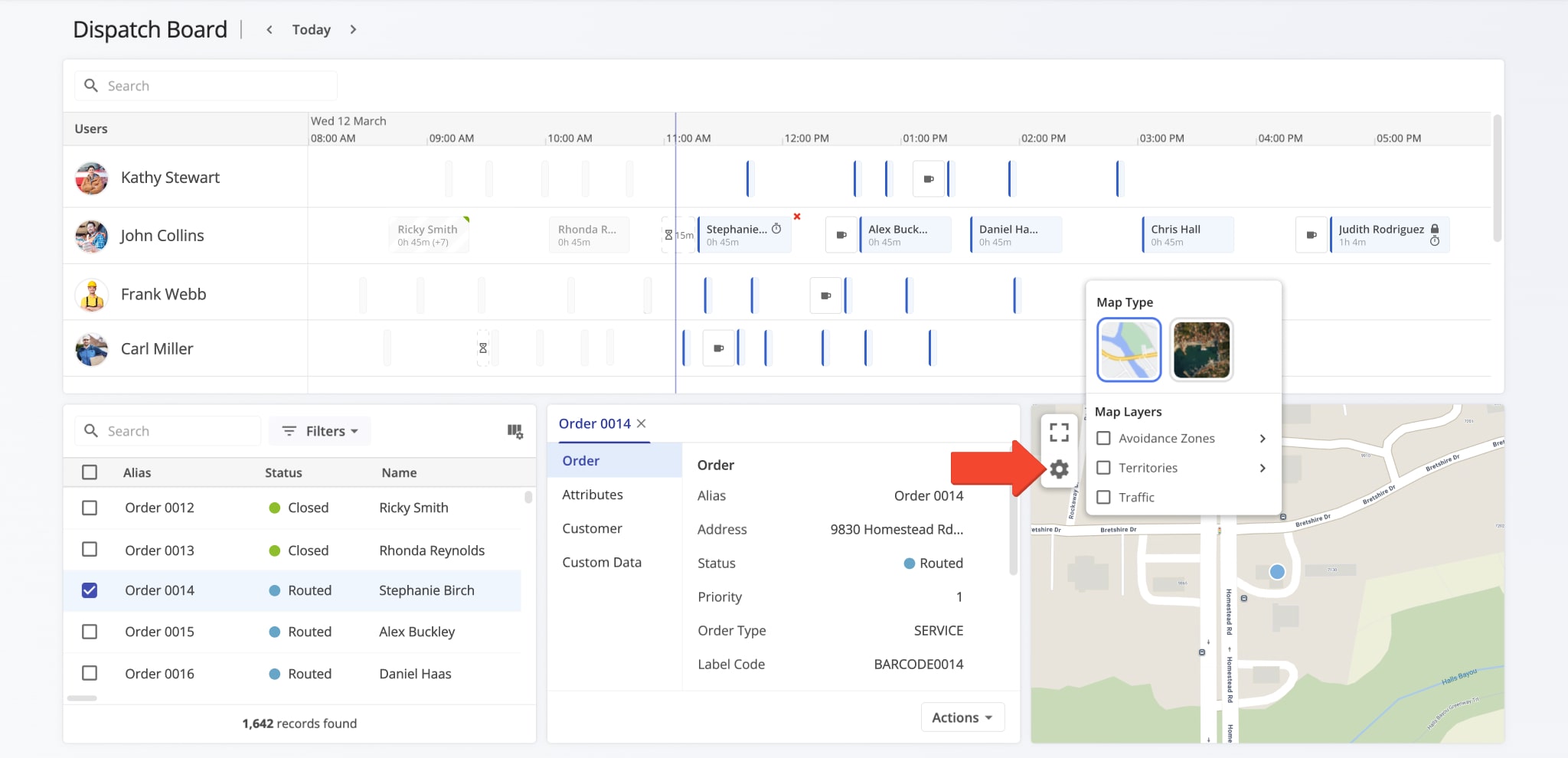
Map Settings Menu
Visit Route4Me's Marketplace to Check out Associated Modules:
- Operations
Audit Logging and Activity Stream
- Operations
Custom Data Add-On
- Operations
Advanced Team Management Add-On
About author: Kristian Andreev

