
Bulk Route Management – Edit And Manage Multiple Routes At Scale
Managing multiple routes efficiently is essential for enterprise businesses. With Route4Me’s final mile route software, bulk route management options help you edit, optimize, and monitor multiple routes at once, saving time and improving operational accuracy. From merging routes to assigning drivers and vehicles, everything can be handled in one go from your Routes List.
Table of Contents
Bulk Route Management – Manage Multiple Routes Simultaneously
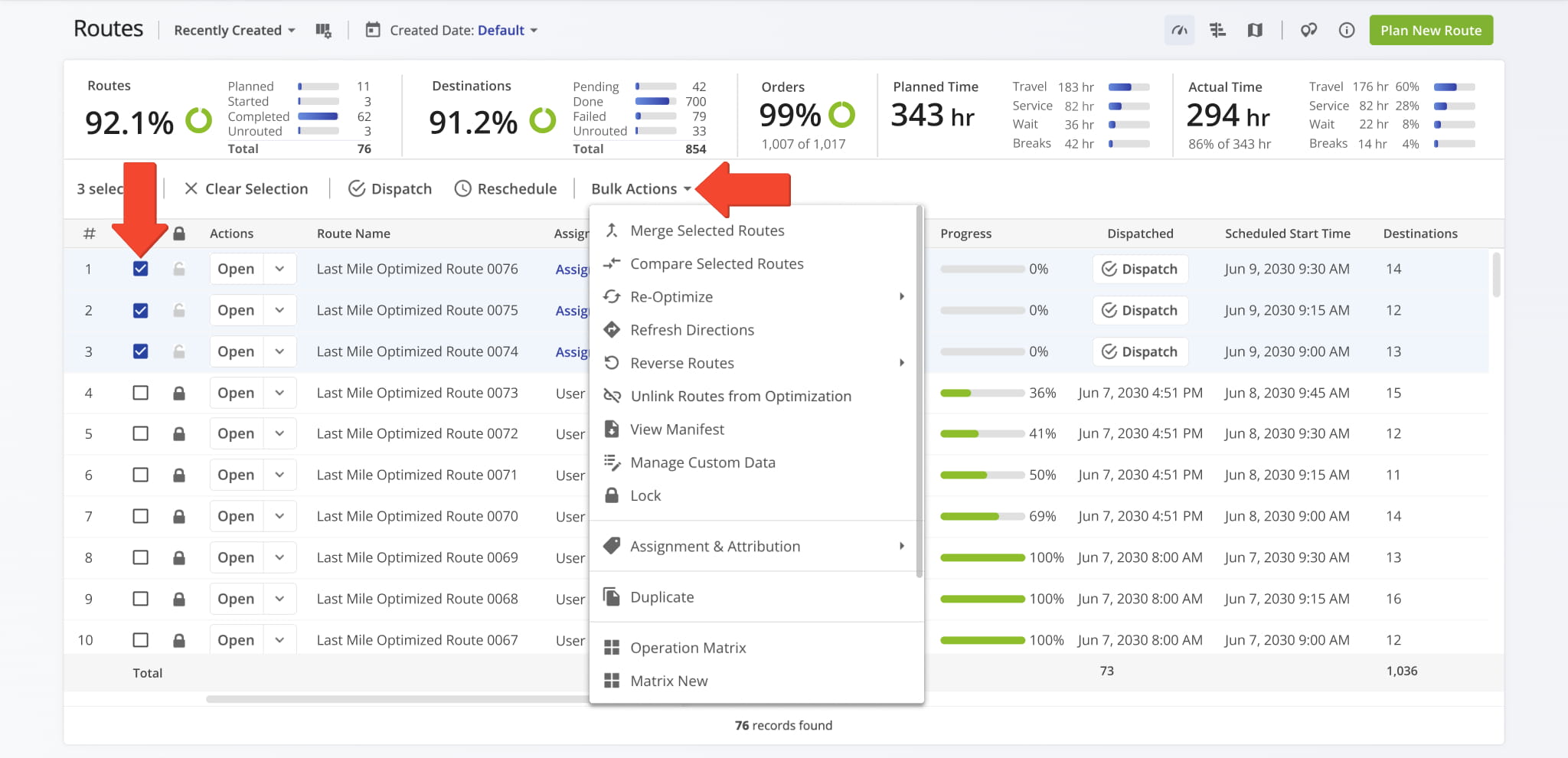
To manage multiple routes at scale, go to “Dynamic Routing” > “Routes” from the Navigation Menu. From your Routes List, select the checkboxes next to the routes you want to modify.
Then, click “Bulk Actions” in the top menu to open the full list of bulk route management options. From there, simply choose the action you want to perform. All available actions are described in this guide.
NOTE: You can apply bulk actions to up to 100 routes at a time.
Merge Selected Routes – Combine And Optimize Routes
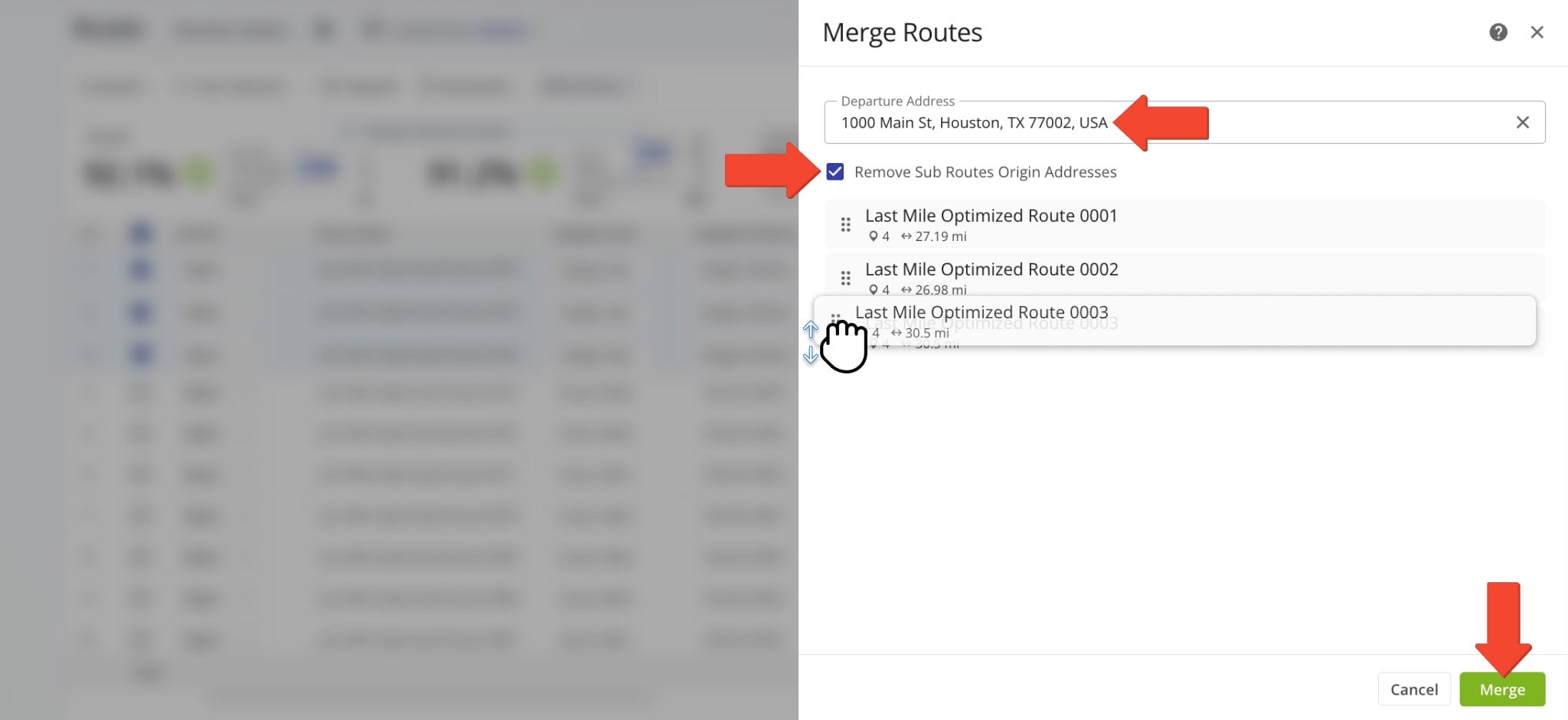
Click “Merge Selected Routes” to combine multiple routes into one without deleting the originals. By default, the user and vehicle from the first route are applied, but you can change the assignments if needed.
In the “Merge Routes” panel, you can enter a new Departure Address or drag a route to the top to use its starting point. Select “Remove Sub Routes Origin Addresses” to clear original start points, then click “Merge“.
The new route appears in your Routes List as “Merged Route” with the date and time of merging.
Compare Selected Routes – View And Monitor Routes Side By Side
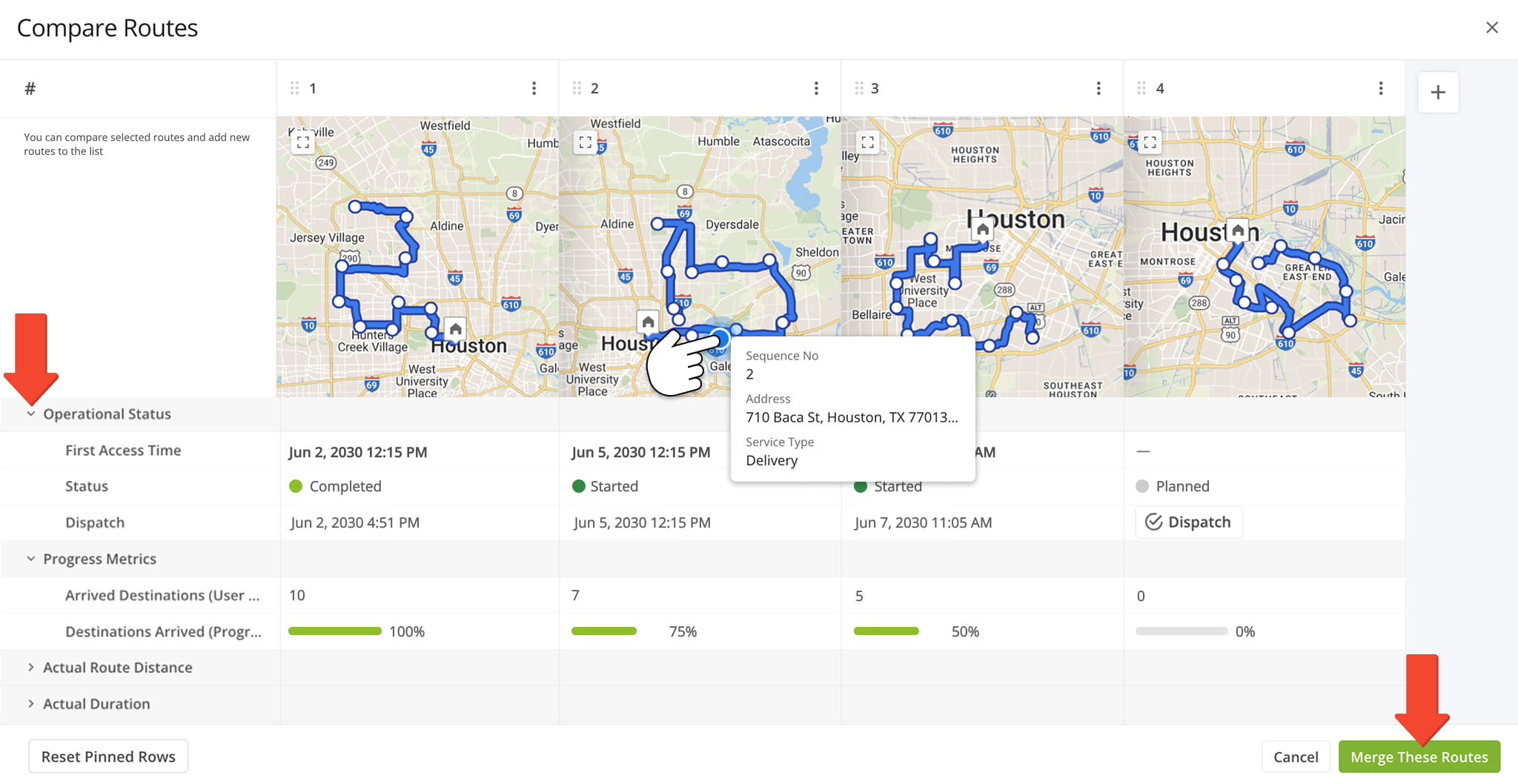
Click “Compare Selected Routes” to view multiple routes side by side, including maps, directions, schedules, travel time, distance, and real-time progress. This helps ensure routes are planned correctly and aligned with operational needs.
You can review planned routes before execution or compare started and completed routes to spot delays, missed stops, or differences from the original plan. Beneath each route’s map, key metrics are organized clearly.
You can also click “Merge These Routes” to combine selected routes into a single optimized route.
Re-Optimize Routes – Update Routes For Maximum Efficiency
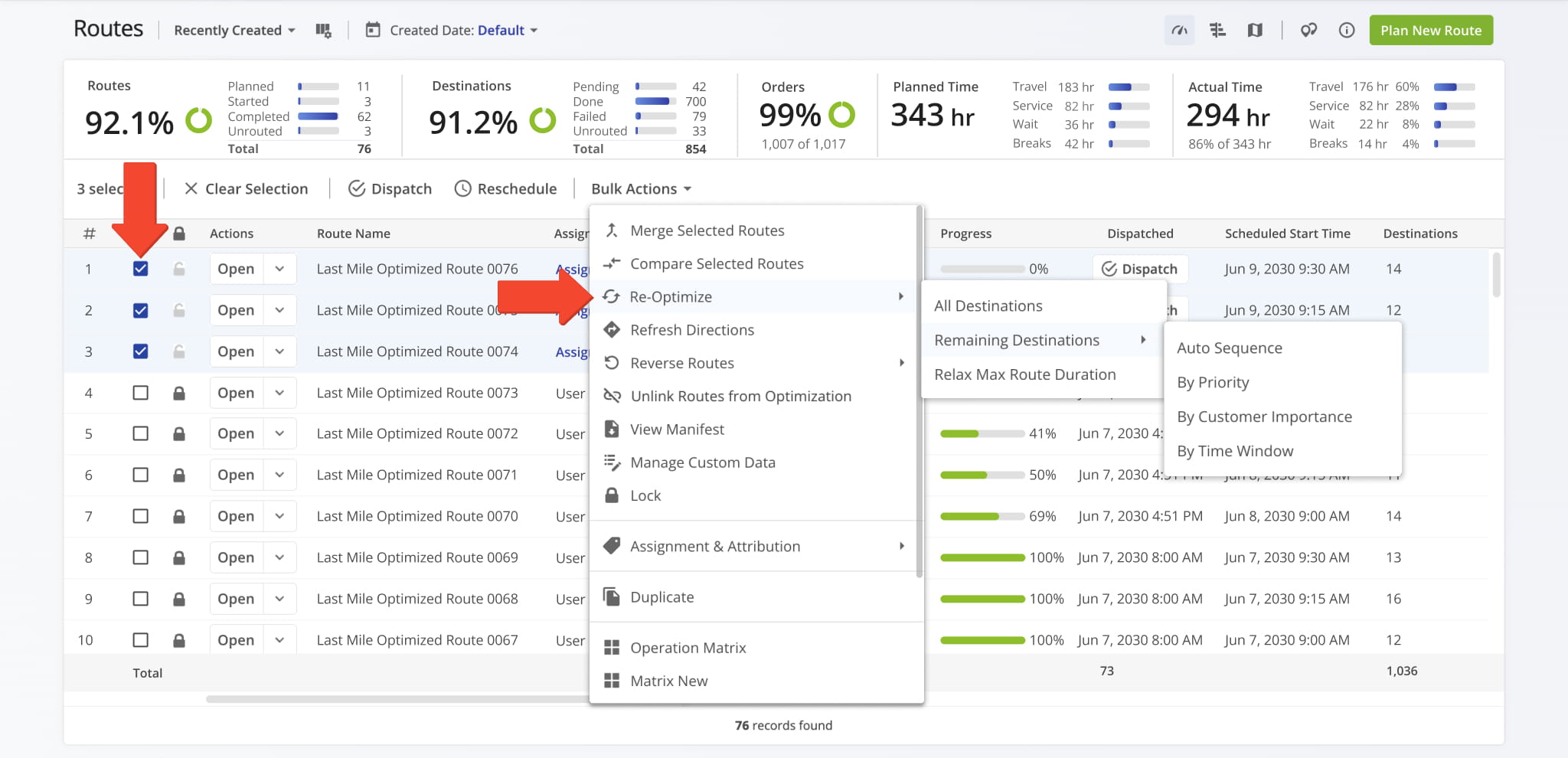
Select “Re-Optimize” to update all selected routes after making changes, such as adding or removing addresses. This ensures each route reflects the latest adjustments while maintaining optimal sequencing.
“Re-Optimize” opens a submenu with the following options:
- All Destinations: Re-optimizes every destination on the selected routes.
- Remaining Destinations: Re-optimizes only uncompleted stops, sequenced automatically or by priority, customer importance, or time window.
- Relax Max Route Duration: Re-optimizes the selected routes while loosening the maximum route duration constraint.
Refresh Directions – Recalculate Routes Without Changing Stop Order
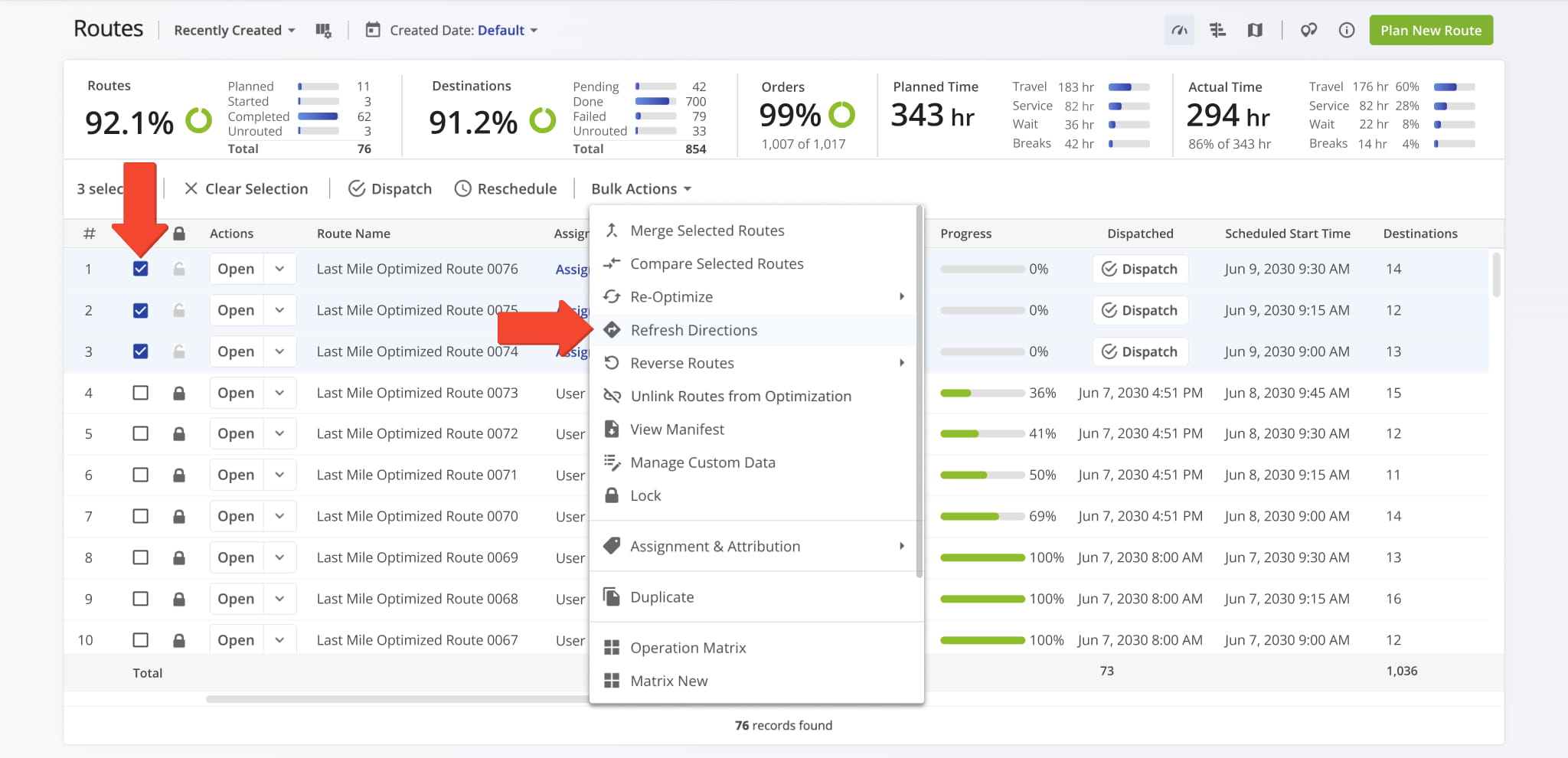
Select “Refresh Directions” to recalculate the travel directions for a route without changing the stop sequence. This ensures drivers follow the most up-to-date paths while maintaining the planned order of destinations.
Perfect for adjusting routes when conditions affecting travel change, such as traffic jams, road closures, or construction. Refreshed directions are automatically applied to the route and available in your Routes List and on the Route4Me Mobile App.
Reverse Routes – Flip Entire Route Or Destinations Only
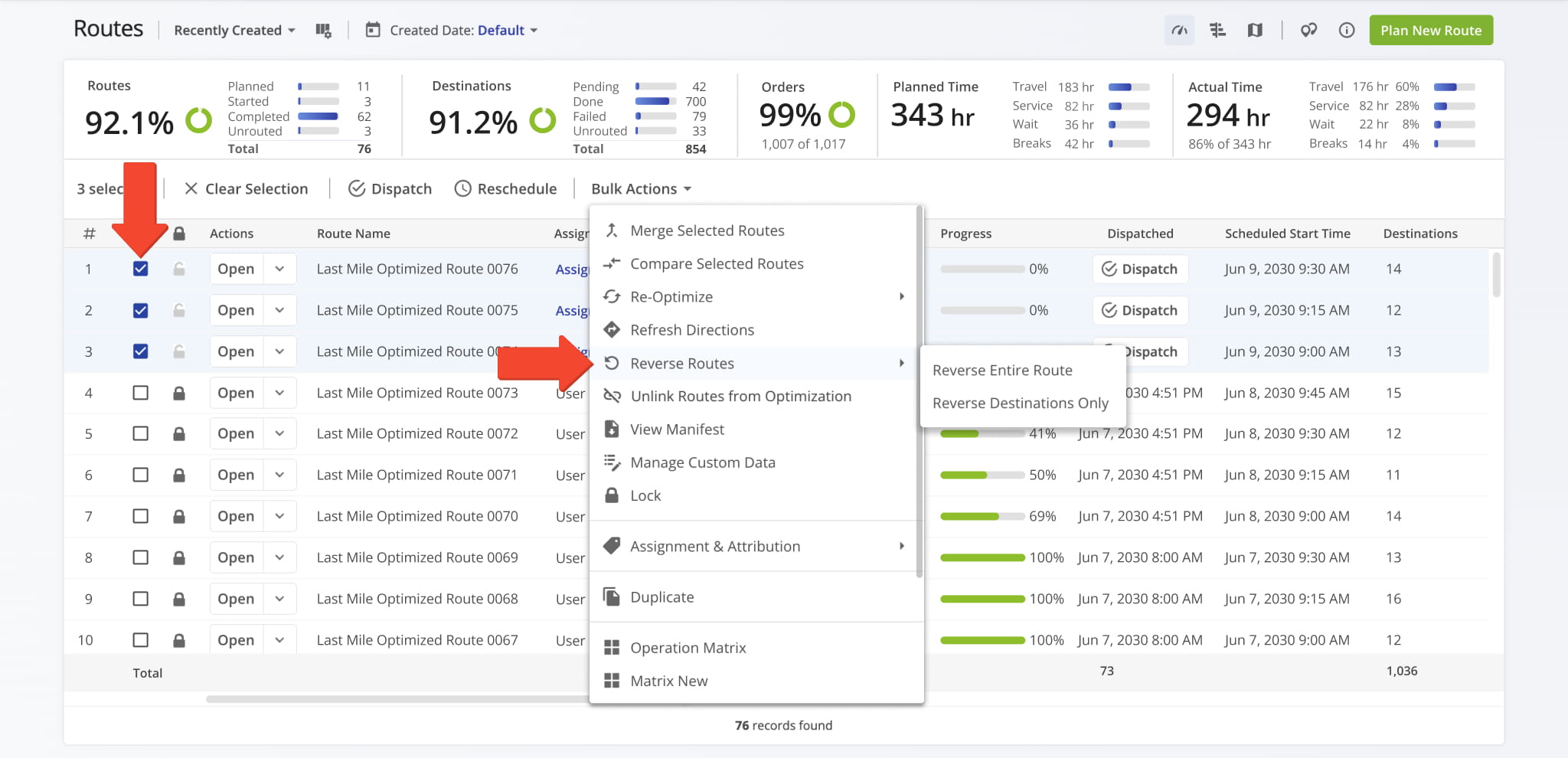
Select “Reverse Routes” to flip the order of stops and directions for a route. You can reverse the entire route, including start and end points, or just the destinations. When reversing a Round Trip route, the scheduled start and end points remain as is.
Ideal for deliveries, service calls, or round trips where changing the stop sequence saves time and simplifies scheduling. Once executed, the new route replaces the original and is automatically ready for dispatch.
Unlink Routes From Optimization – Edit Routes Without Constraints
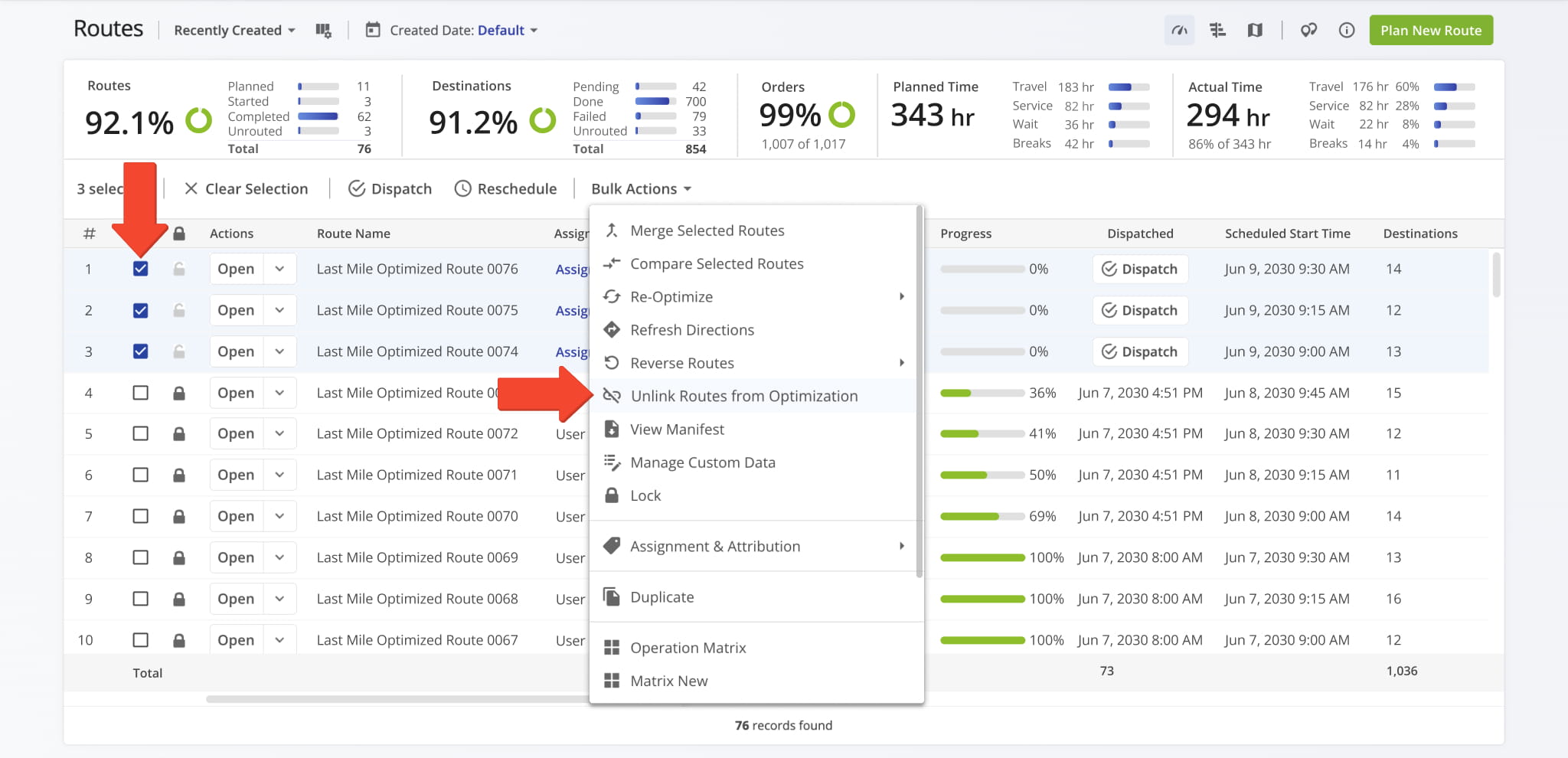
Select “Unlink Routes from Optimization” to remove selected routes from their current optimization. This lets you freely adjust stops, sequence, and assignments without being constrained by previous settings.
Recommended when you need to add high-priority stops, change schedules, or make other updates that don’t fit the original optimization. Once unlinked, routes are immediately editable and automatically reflect any changes in your Routes List.
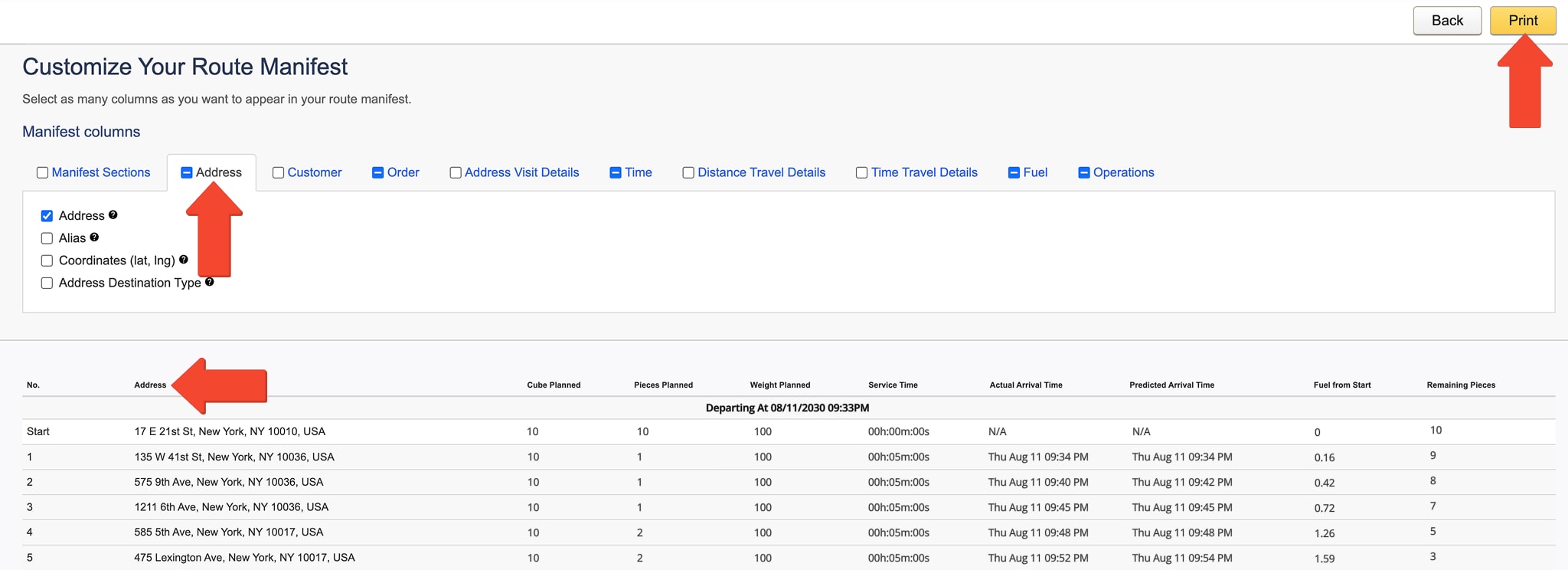
View Manifest – Access Detailed Route Information
Select “View Manifest” to download or print a detailed Route Manifest that includes all route and destination information. The Manifest provides maps, directions, metrics, customer details, and other key data in one place.
Useful for monitoring multiple deliveries, tracking progress, reviewing route notes, or sharing route information with your team. Once opened, the Manifest automatically updates with the latest route information and is ready for printing or further review.
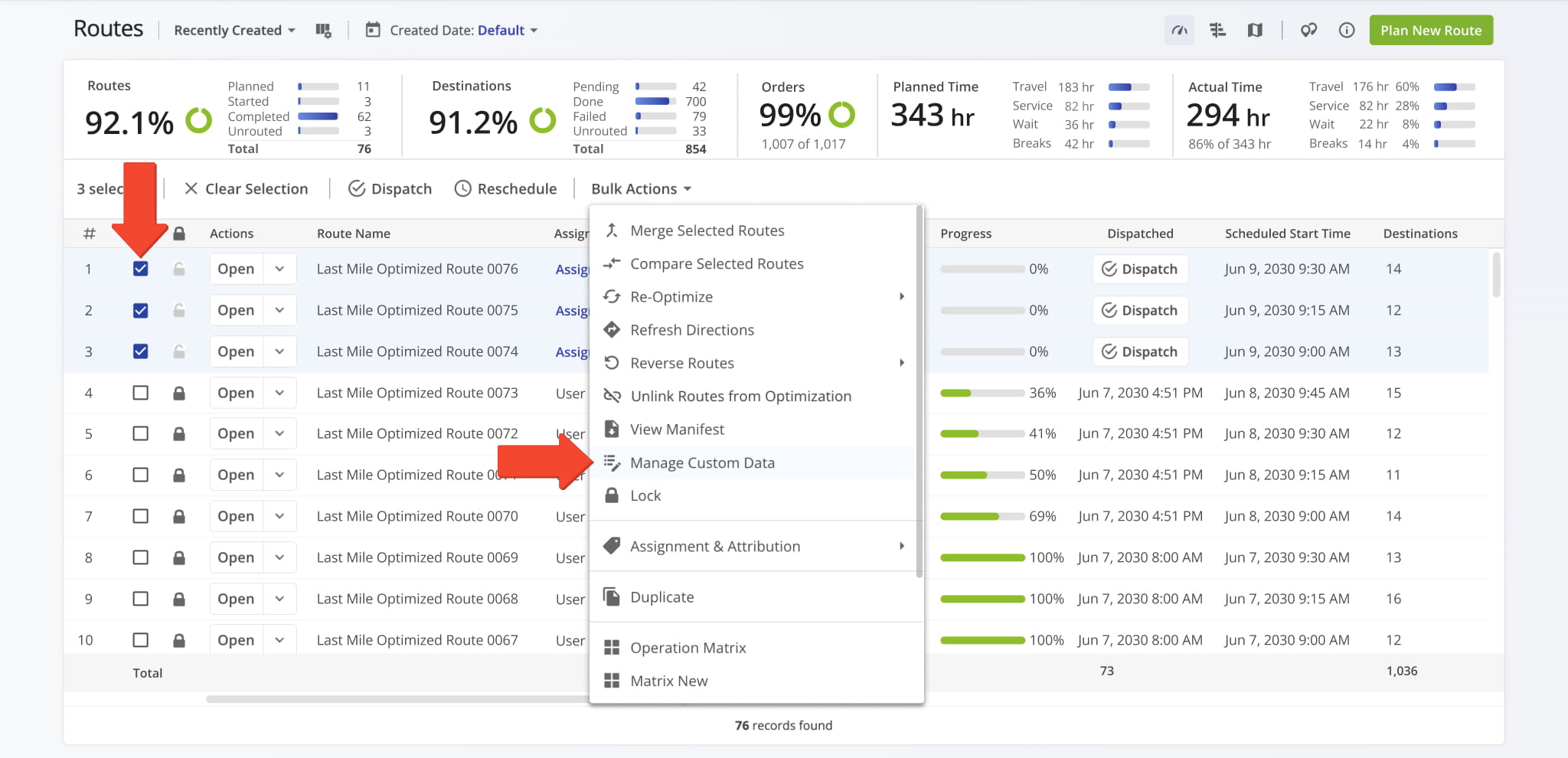
Manage Custom Data – Update Route Attributes
Select “Manage Custom Data” to view, add, or edit user-defined fields for selected routes. This allows you to attach extra operational details or notes that go beyond the standard route information.
Once applied, the information is reflected in the Routes List and can be used for reporting, filtering, or operational tracking.
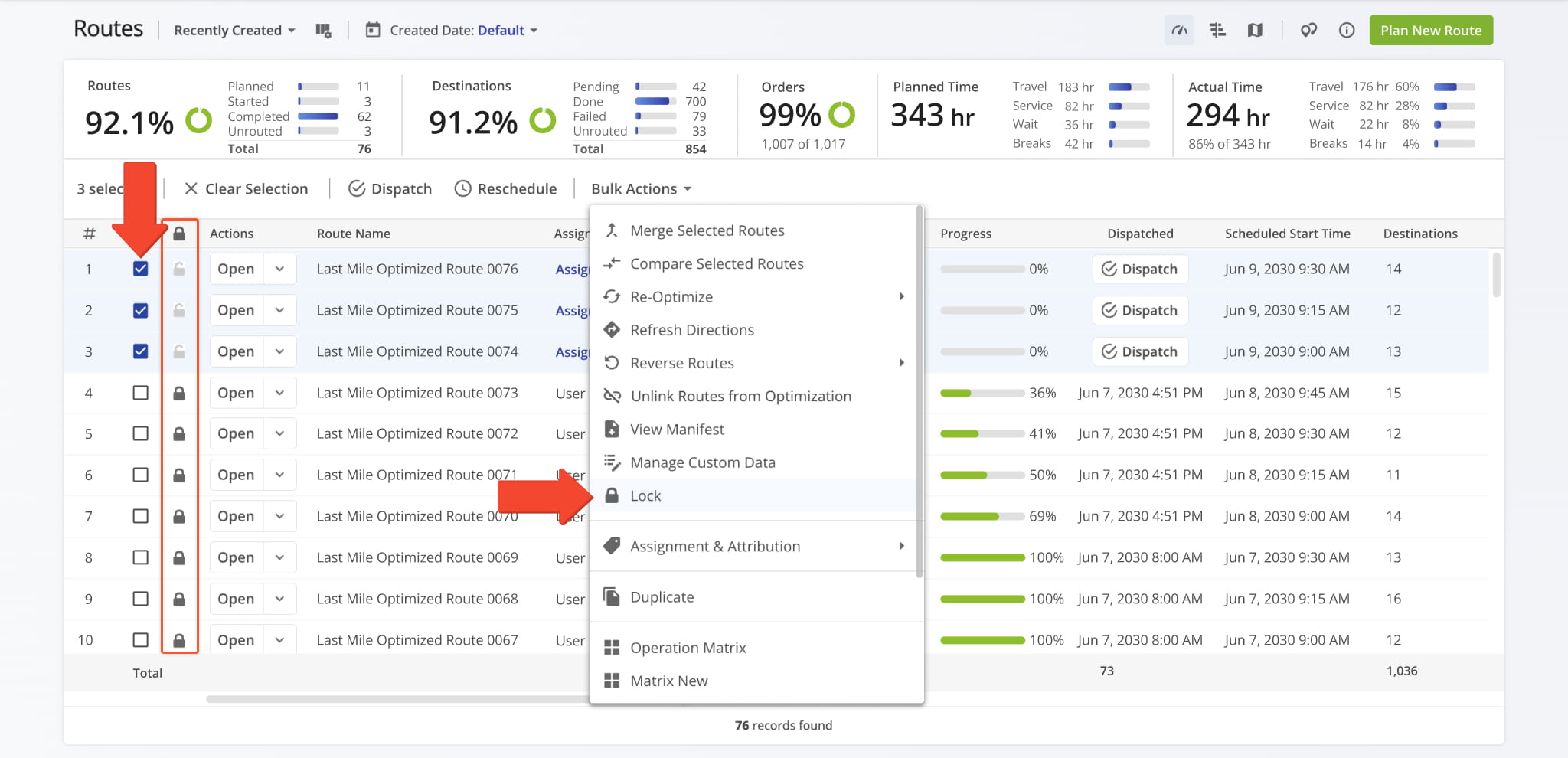
Lock Routes – Protect Finalized Routes From Changes
Select “Lock” to freeze routes so their plans can’t be changed. Locked routes block edits to destinations, sequence, schedules, settings, driver and vehicle assignments, and re-optimization. You can lock routes at any stage, including those already started or completed.
Once executed, locked routes show a Lock Icon in your Routes List. Locking doesn’t affect field activity, so drivers can still update stop statuses and collect proof of delivery as usual.
NOTE: When you apply a bulk action to a mix of locked and unlocked routes, Route4Me skips the locked ones. Re-optimizing multiple routes fails if any route in the batch is locked, so unlock it or remove it from your selection first.
Assignment And Attribution – Assign Resources To Multiple Routes
Select “Assignment & Attribution” to assign people, equipment, and other entities to all selected routes at once. “Assignment & Attribution” opens a submenu with multiple options, detailed in the table below:
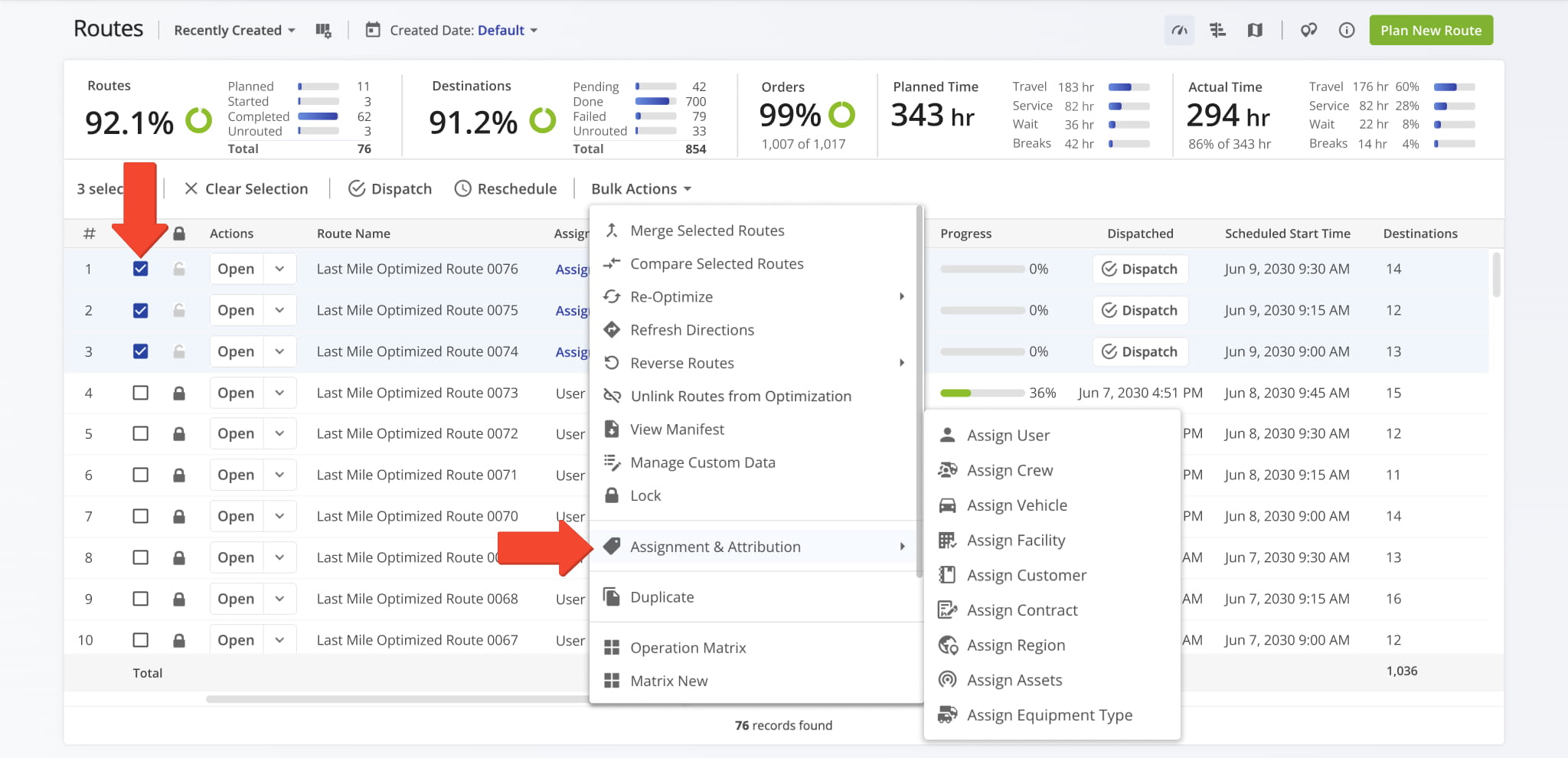
Assignment & Attribution Options
Duplicate – Create Copies Of Routes With Affecting Originals
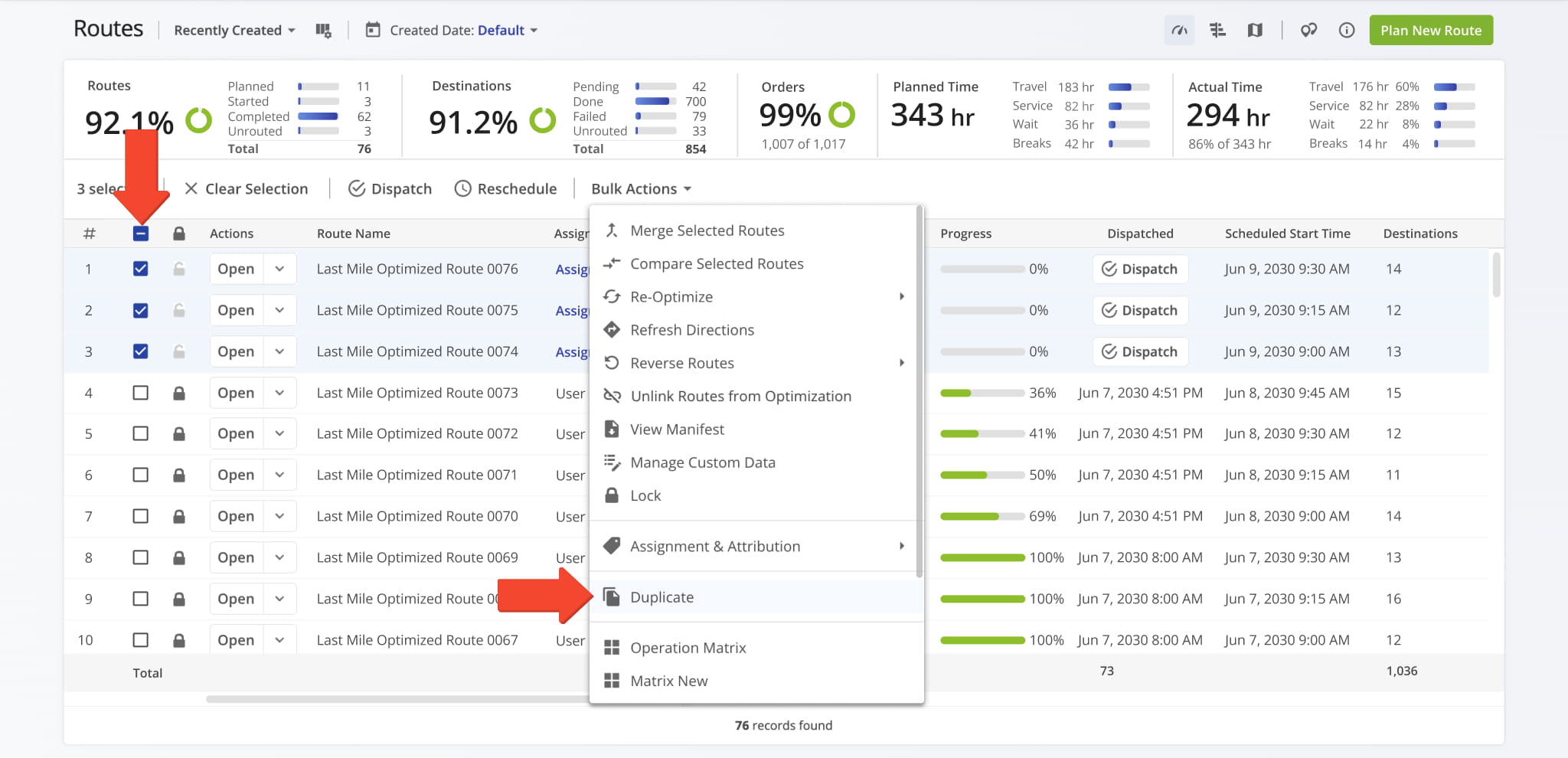
Select “Duplicate” to create copies of one or more routes, with “(Duplicate)” added to the new route names. This allows you to make changes or reassign routes without altering the originals.
Useful for recurring deliveries, service calls, or appointments, as it saves time by avoiding manual recreation. Once duplicated, the new routes automatically appear in your Routes List, ready for editing, assignment, or dispatch.
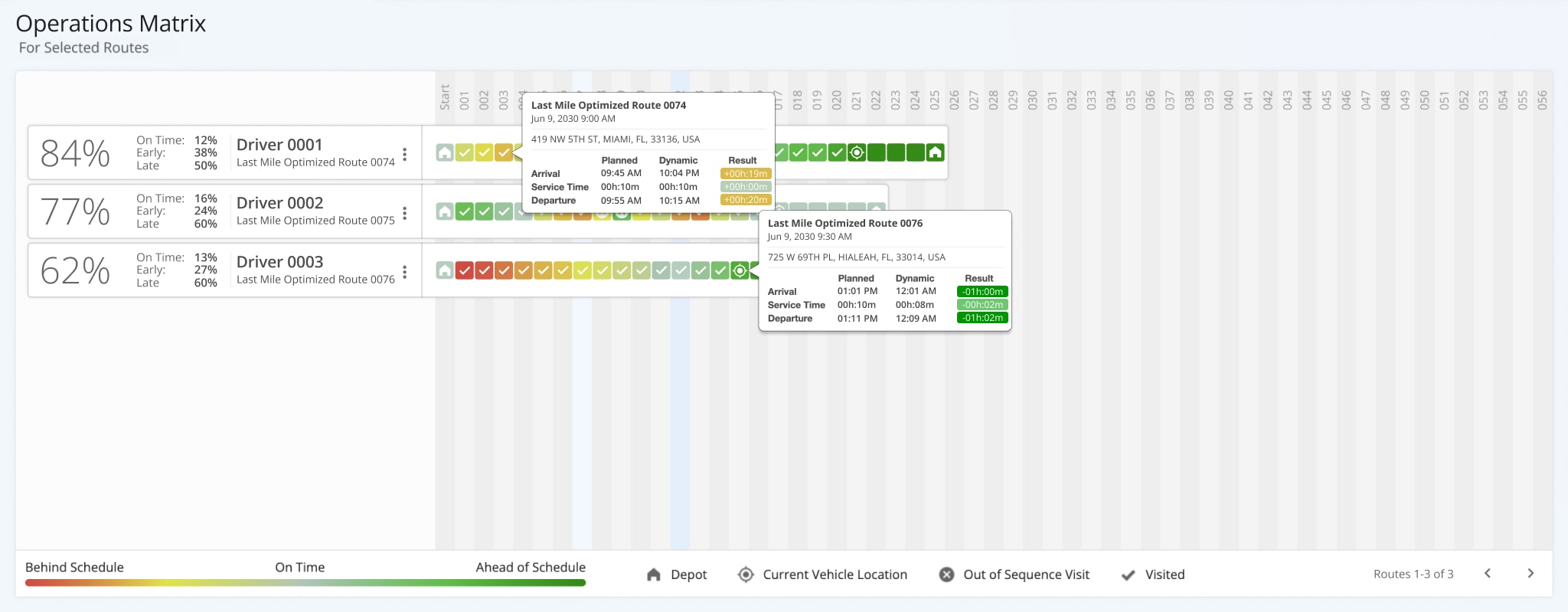
Operation Matrix – Visualize Route Progress Across Multiple Routes
Select “Operation Matrix” to open a color‑coded matrix showing visitation progress and key metrics for multiple routes. Each route’s completed stops, upcoming visits, and overall status are displayed at a glance.
Designed for supervisors and dispatchers who need to monitor multiple routes in real time. The visual format makes it easy to identify delays, workload imbalances, or routes falling behind, enabling quick adjustments and better operational decisions.
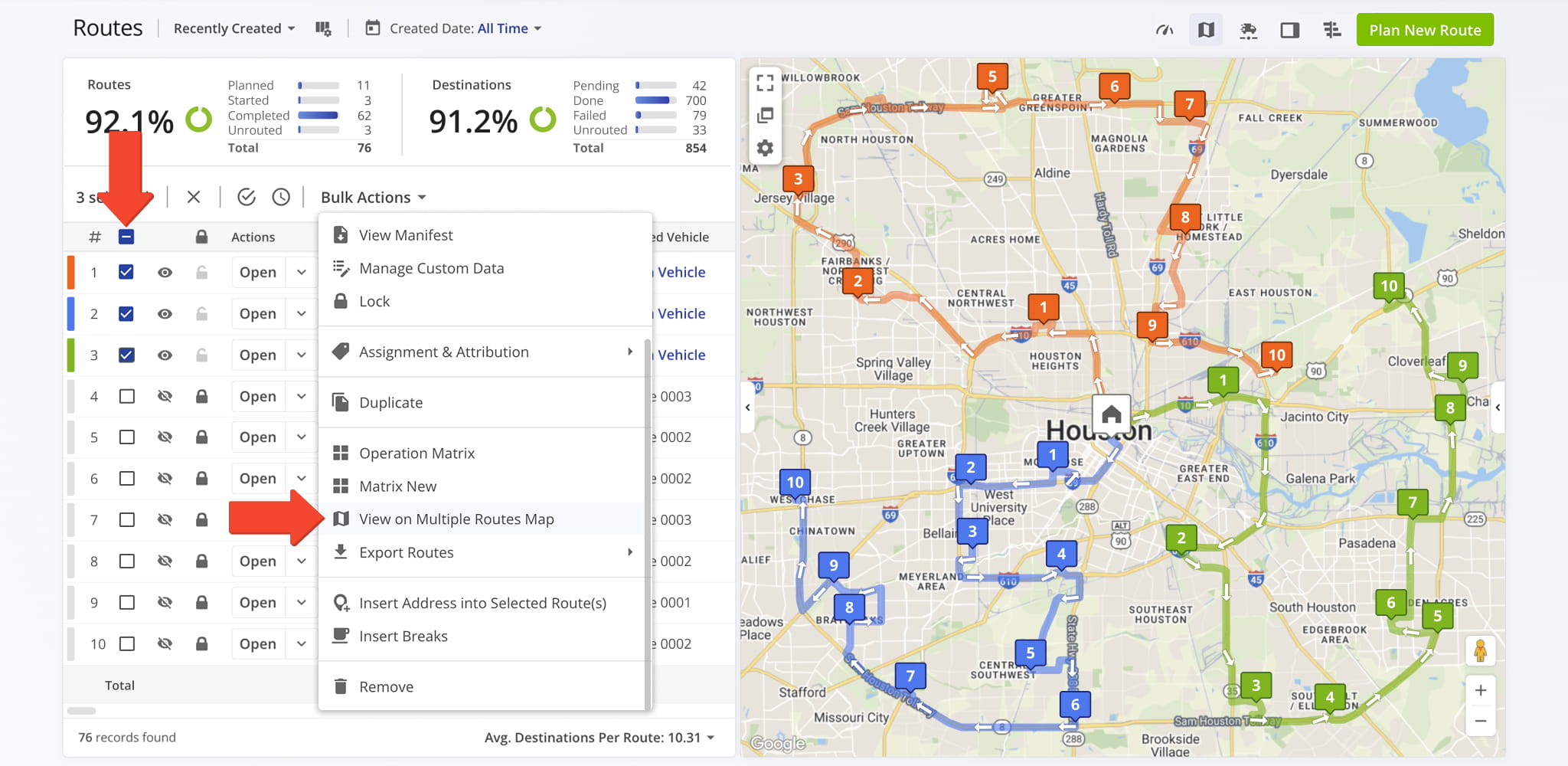
View On Multiple Routes Map – Visualize Selected Routes Together
Select “View on Multiple Routes Map” to see selected routes overlaid on the Routes List map. This provides a clear view of route paths, stop locations, and overall coverage in one integrated map.
Best suited for planners and dispatchers who need to check route distribution, spot overlaps, and monitor multiple routes at a glance. The map updates in real time as route details change, improving coordination without switching to a separate interface.
Export Routes – Save And Share Route Data
Select “Export Routes” to export route data for all selected routes. “Export Routes” opens a submenu with a number of export options, detailed in the table below.
Helpful for reporting, navigation, or integrating route data with other systems. Once exported, the files are automatically generated and ready for download, making it easy to share or use the information across your operations.
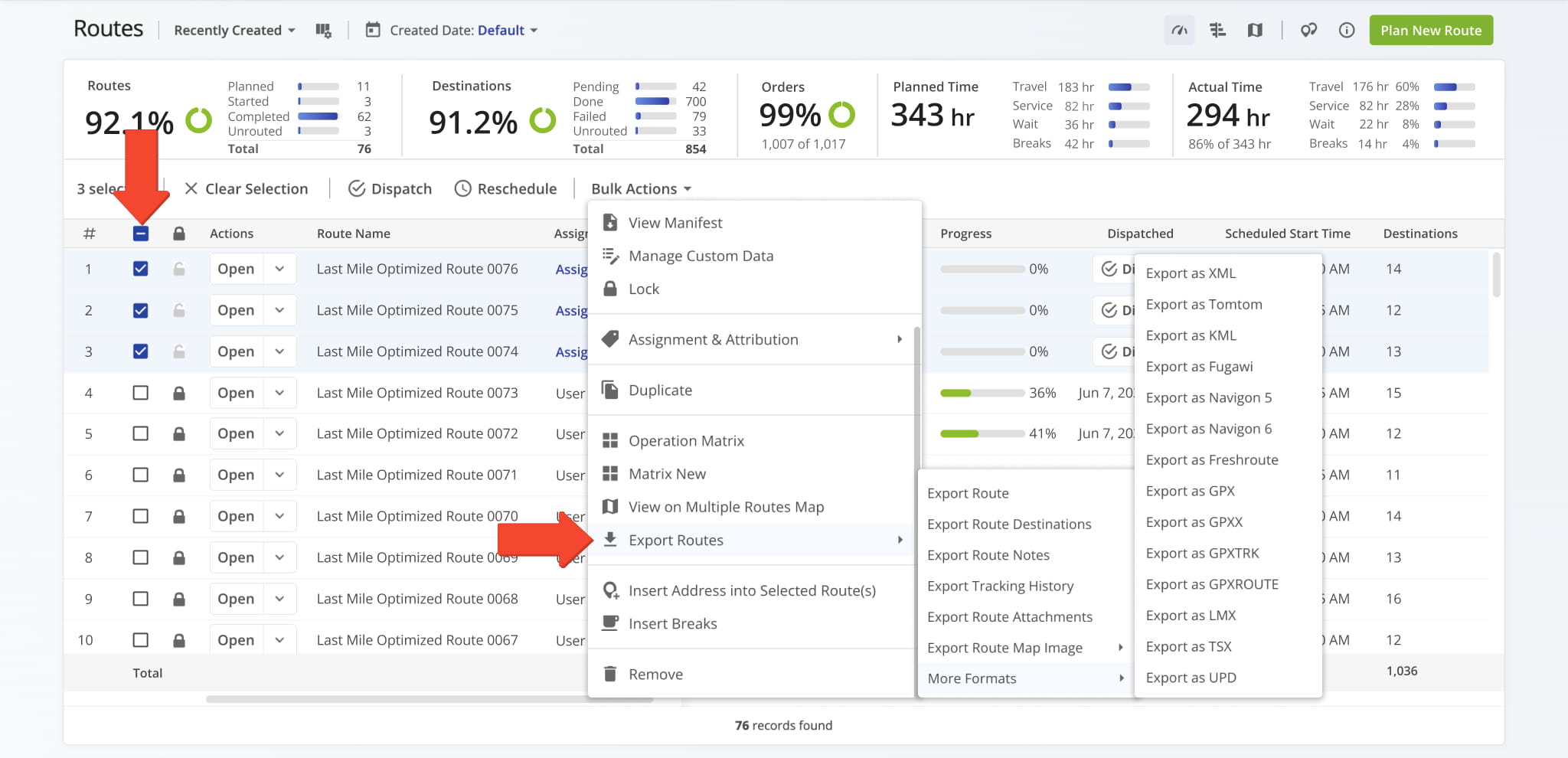
Route Export Options
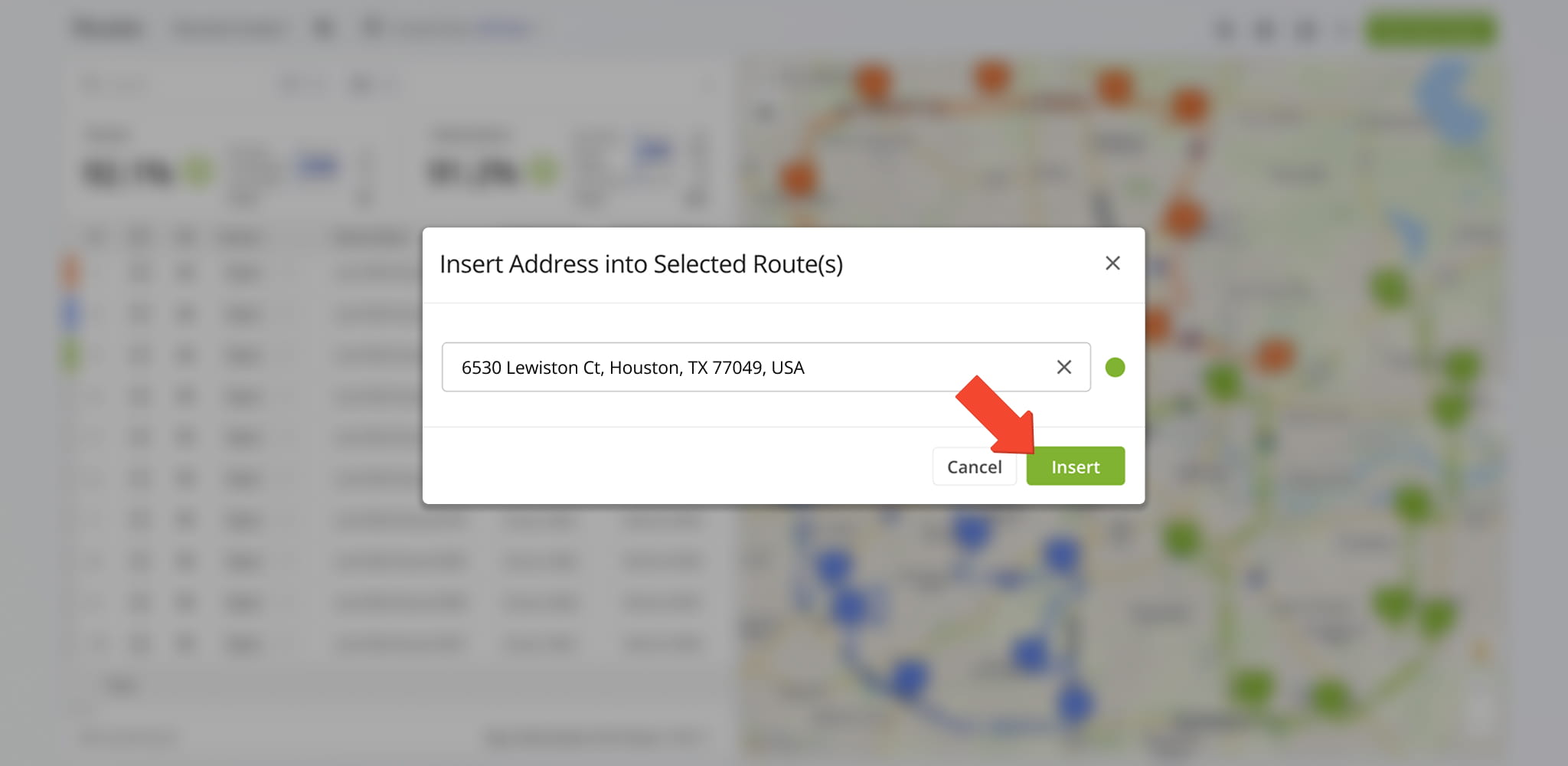
Insert Address Into Selected Route(s) – Quickly Add Stops To Routes
Select “Insert Address into Selected Route(s)” to add one or more addresses to existing routes by typing or searching in the “Address” field. This lets you update routes without recreating them.
Designed for last-minute deliveries, new service calls, or changes to planned routes. Once inserted, addresses are automatically added to the route and geocoded to ensure accuracy.
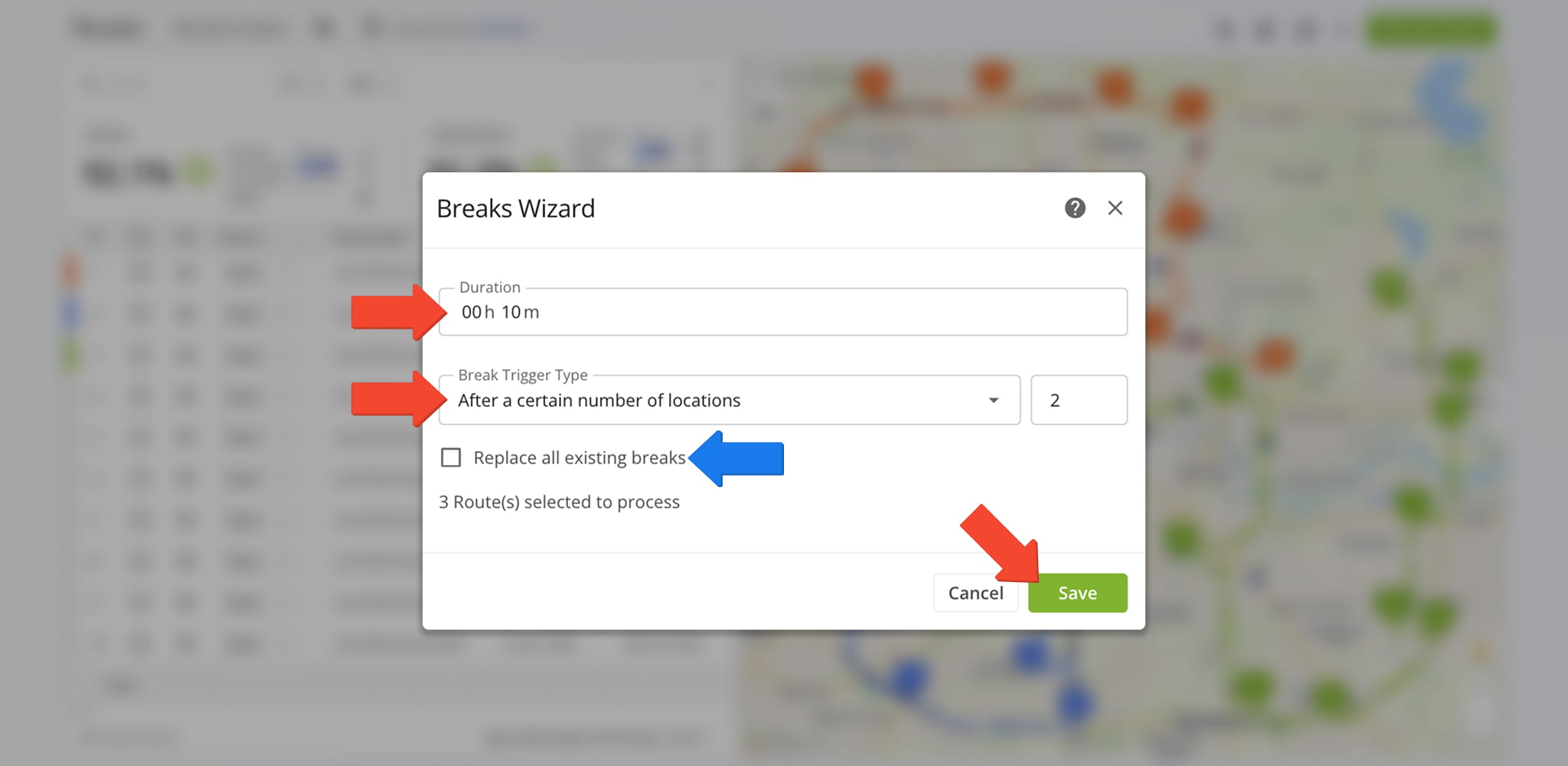
Insert Breaks – Schedule Driver Breaks On Routes
Select “Insert Breaks” to add driver breaks to selected routes, with customizable duration and break trigger types. This allows you to plan rest periods efficiently without adjusting each stop manually.
Recommended for long routes, strict Hours of Service compliance, or ensuring driver safety. Use the “Breaks Wizard” to set duration, trigger type, and interval, and choose whether to replace existing breaks or add new ones.
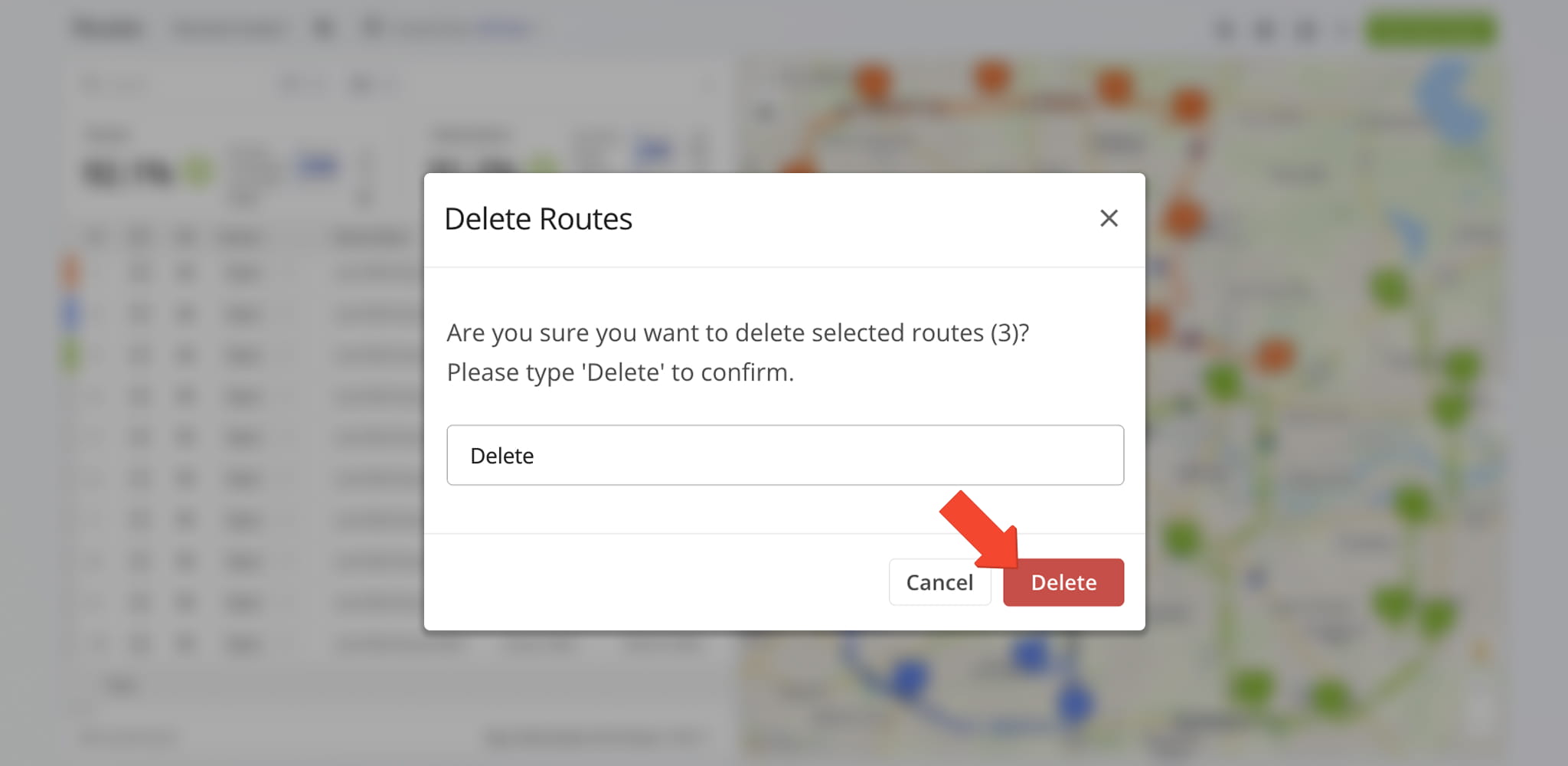
Remove – Permanently Delete Selected Routes
Select “Remove” to permanently delete one or more routes from your Routes List. This clears unneeded routes and keeps your list organized.
Helpful for maintaining a clean and accurate Routes List by removing outdated, test, or unnecessary routes. Once deleted, routes are permanently removed and immediately cleared from your Routes List.
Visit Route4Me's Marketplace to Check out Associated Modules:
- Route Optimization
Mixed Vehicles Routing
- Route Optimization
Route Optimization for Multiple Drivers Without Advanced Constraints
- Route Optimization
Commercial Vehicle Route Planning
About author: Daniel Archer

