
Crews – User Groups, Teams And Workforce Management
Crews enable you to organize your workforce by grouping Route4Me Users into delivery teams, field crews, and other groups based on their roles and responsibilities. You can create crews that reflect your real-world operations, improving coordination, accountability, and scalability as your operations grow. Keep reading to learn how to add and manage Crews.
NOTE: Crews functionality is currently only accessible by contacting Route4Me support.
Table of Contents
Create New User Groups And Delivery Teams
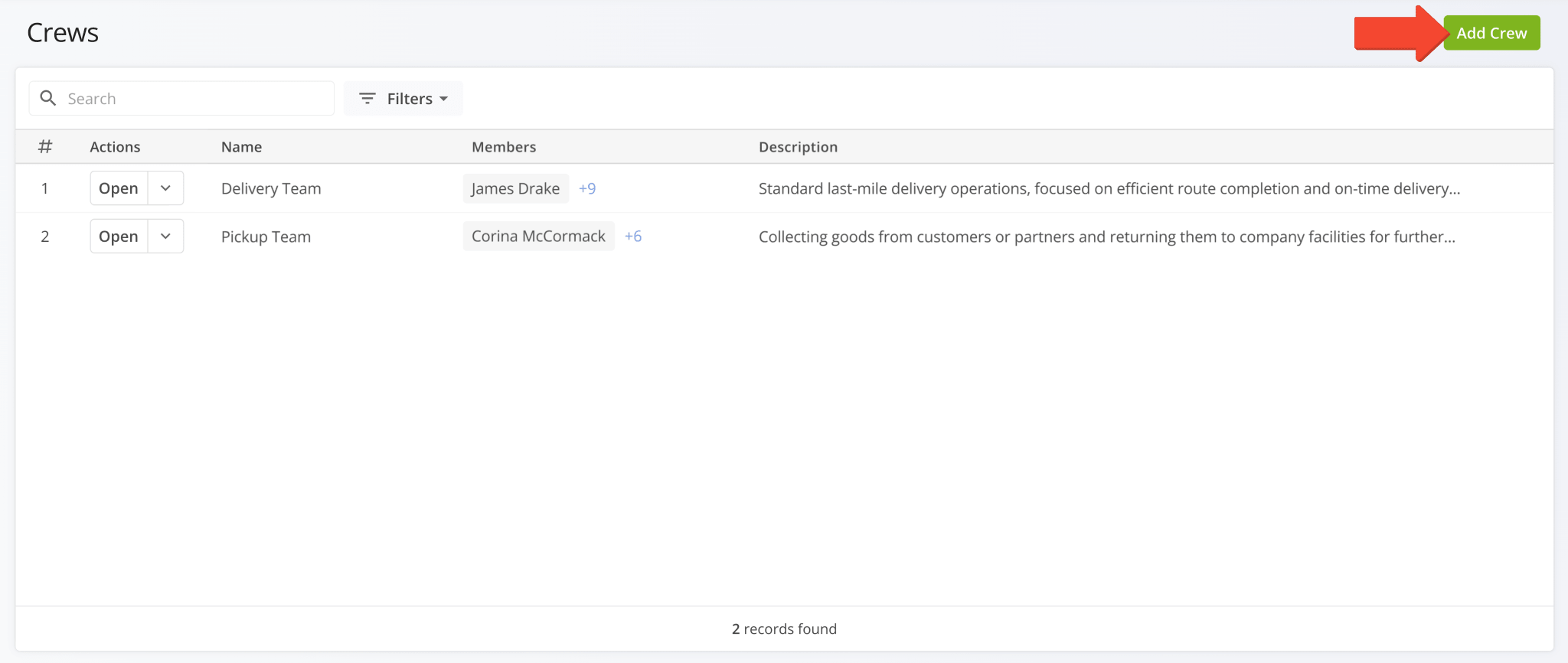
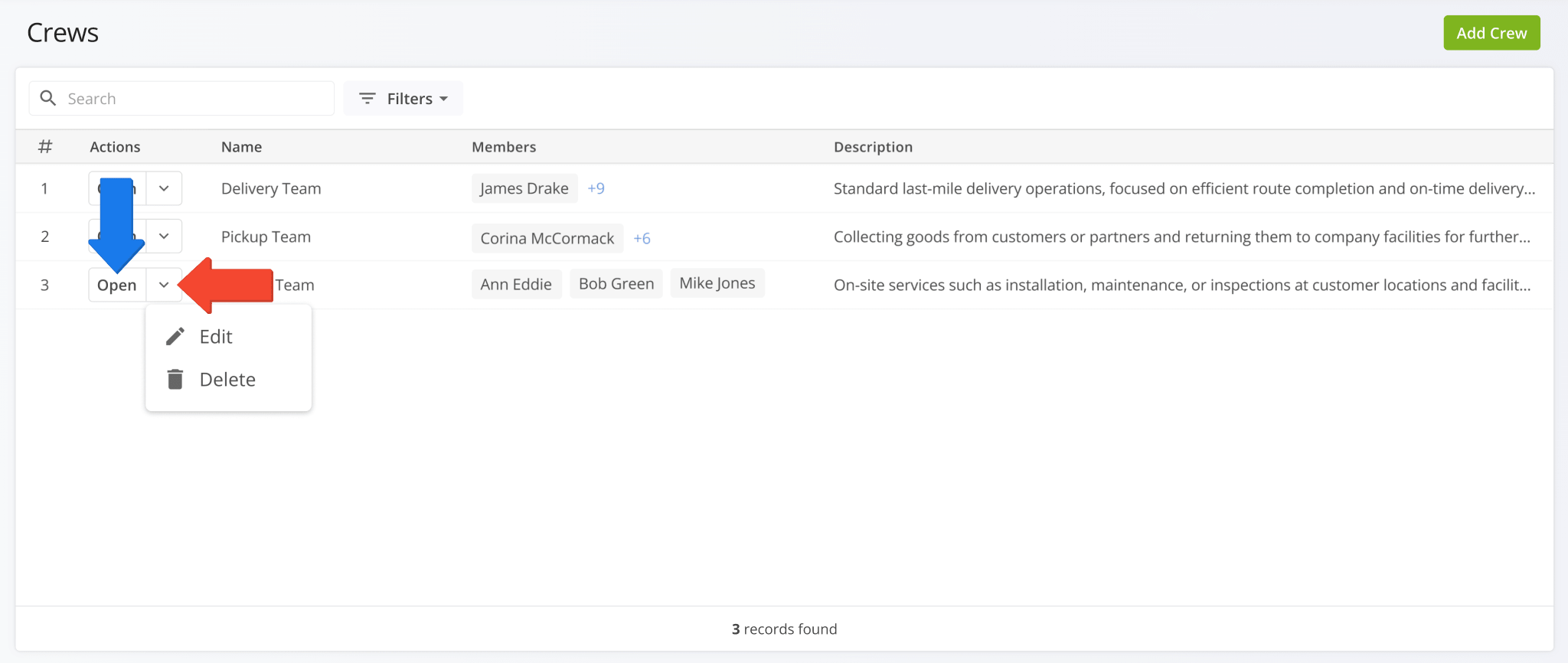
From the “Crews” page, you can see your delivery teams and user groups. To create a new Crew, click the “Add Crew” button.
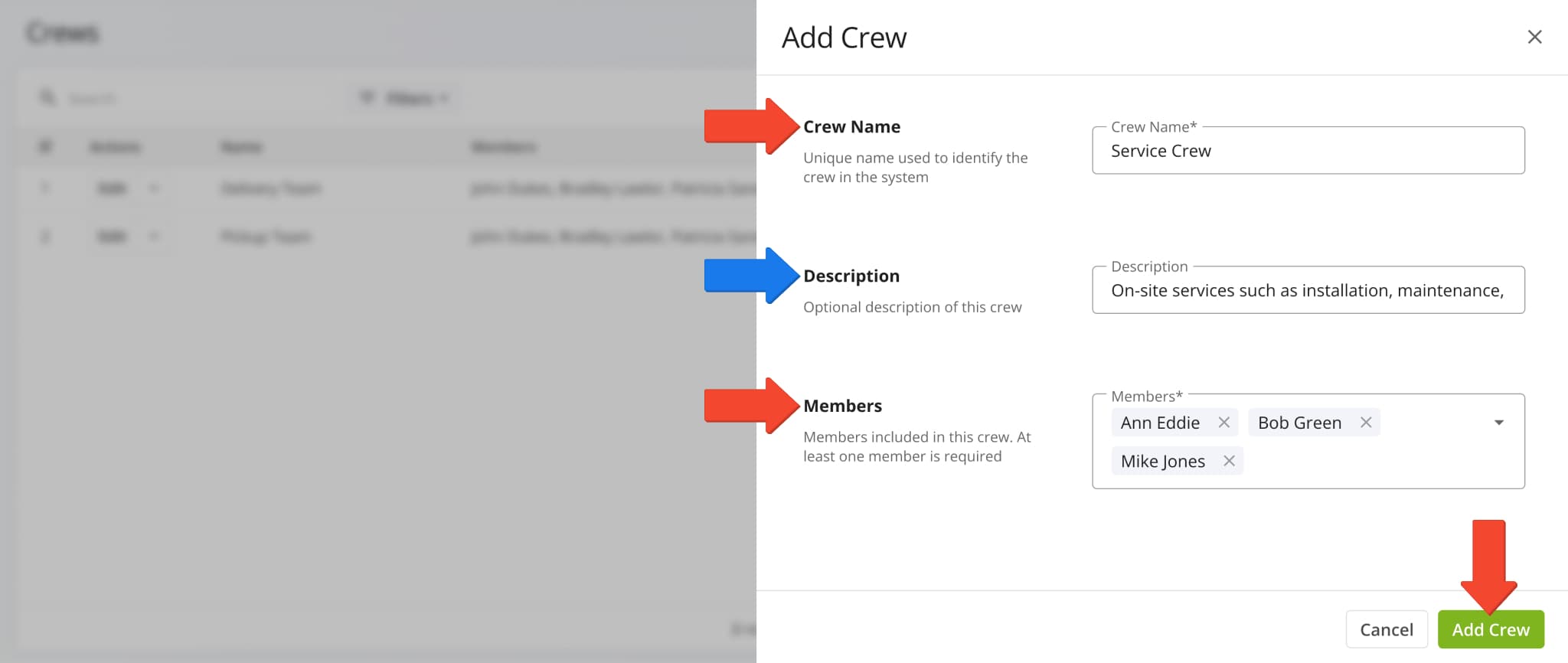
Next, enter a name in the “Crew Name” field and select users for the new Crew in the “Members” field. Optionally, you can enter a description for the Crew in the “Description” field. Click “Add Crew” to finalize.
Manage Crews – Filter, Edit And Delete Crews
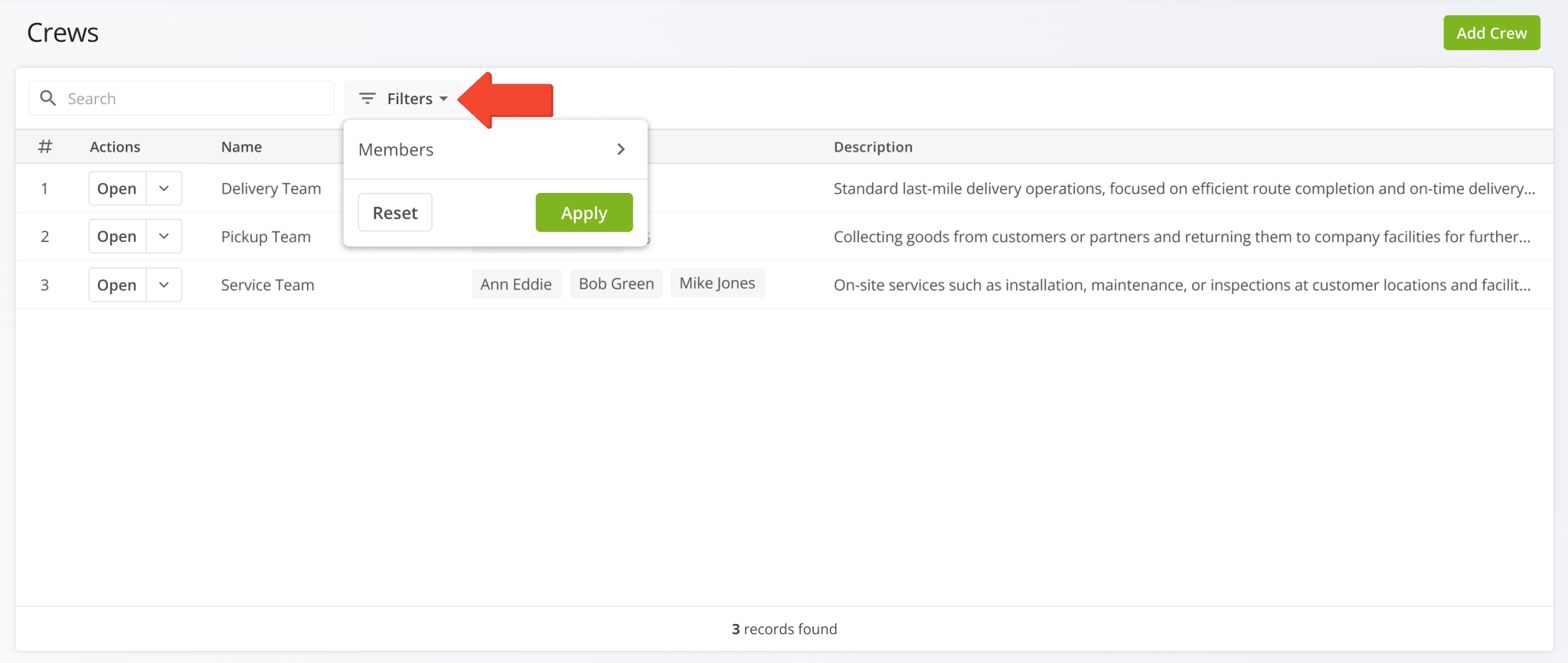
To easily find Crews with specific users associated with them, click “Filters” and select “Members“.
To edit or delete Crews, click the Down Arrow next to a Crew and select your preferred option from the action menu.
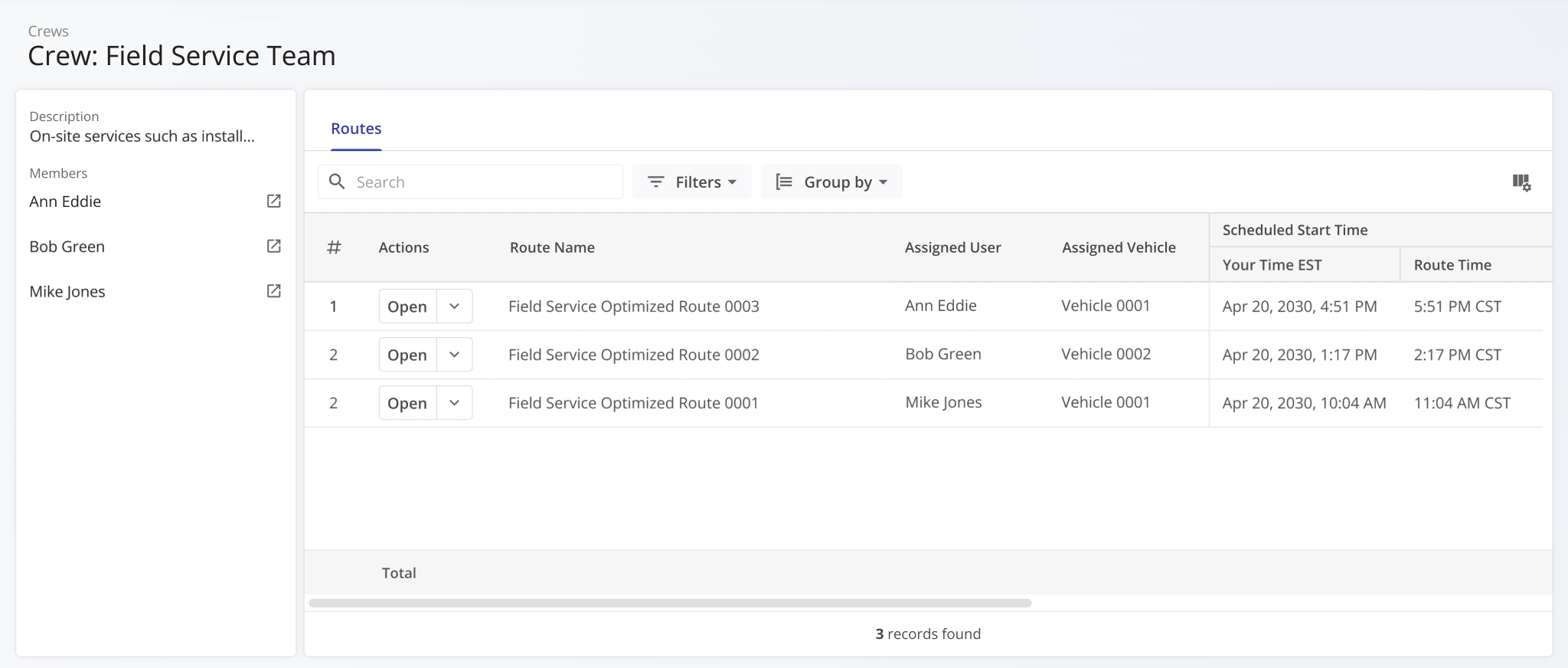
You can also click the “Open” button to instantly open a Crew’s corresponding Crew Snapshot analytics dashboard.
You can, in turn, use Crew Snapshots to access the User Snapshots of team members and Route Snapshots of routes associated with a Crew.
Additionally, the “Routes” tab offers a fully functional Route4Me data table that enables you to see the most important route information for your business needs.
Crew Attribution – Assign Crews To Planned Routes
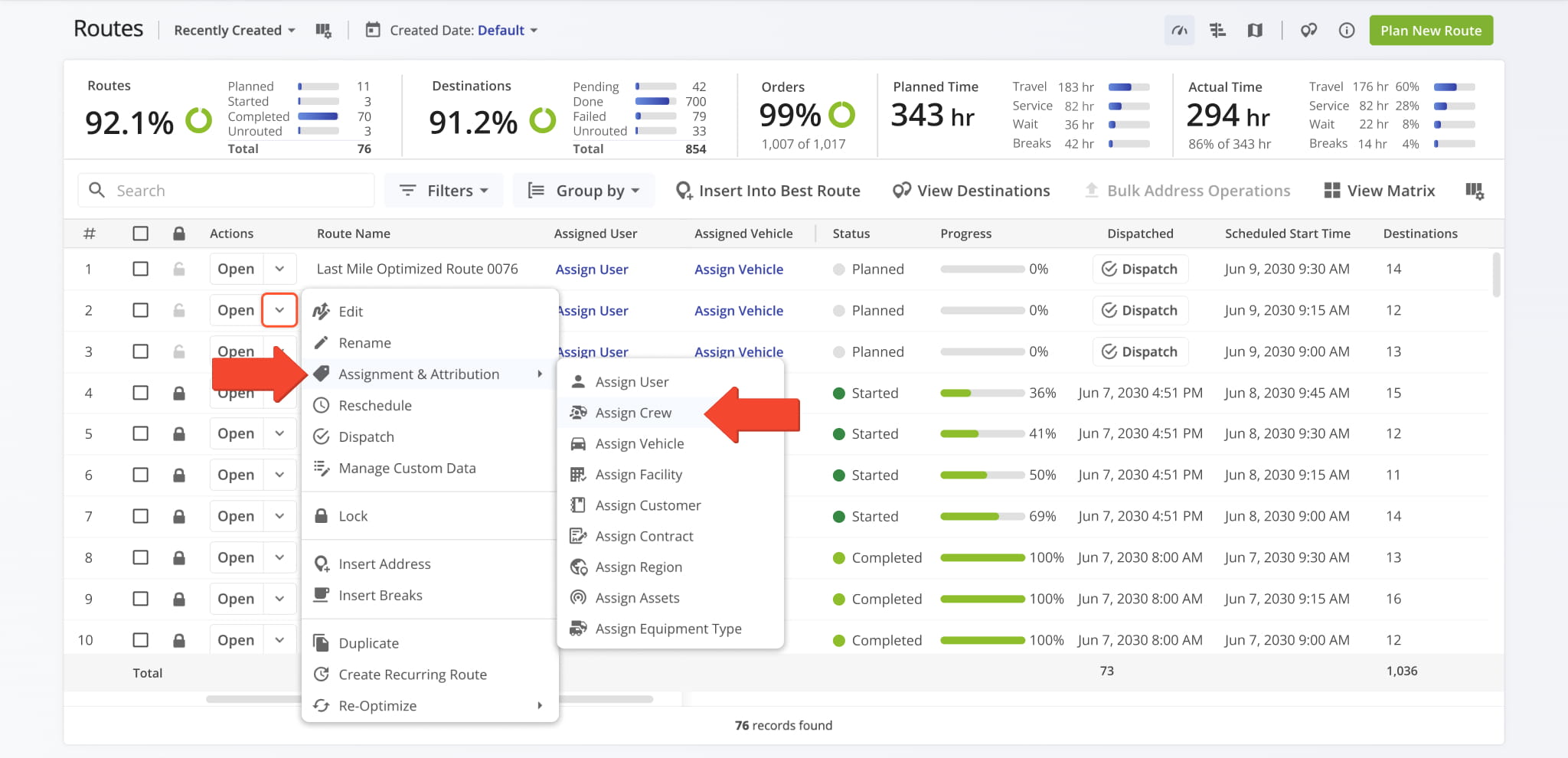
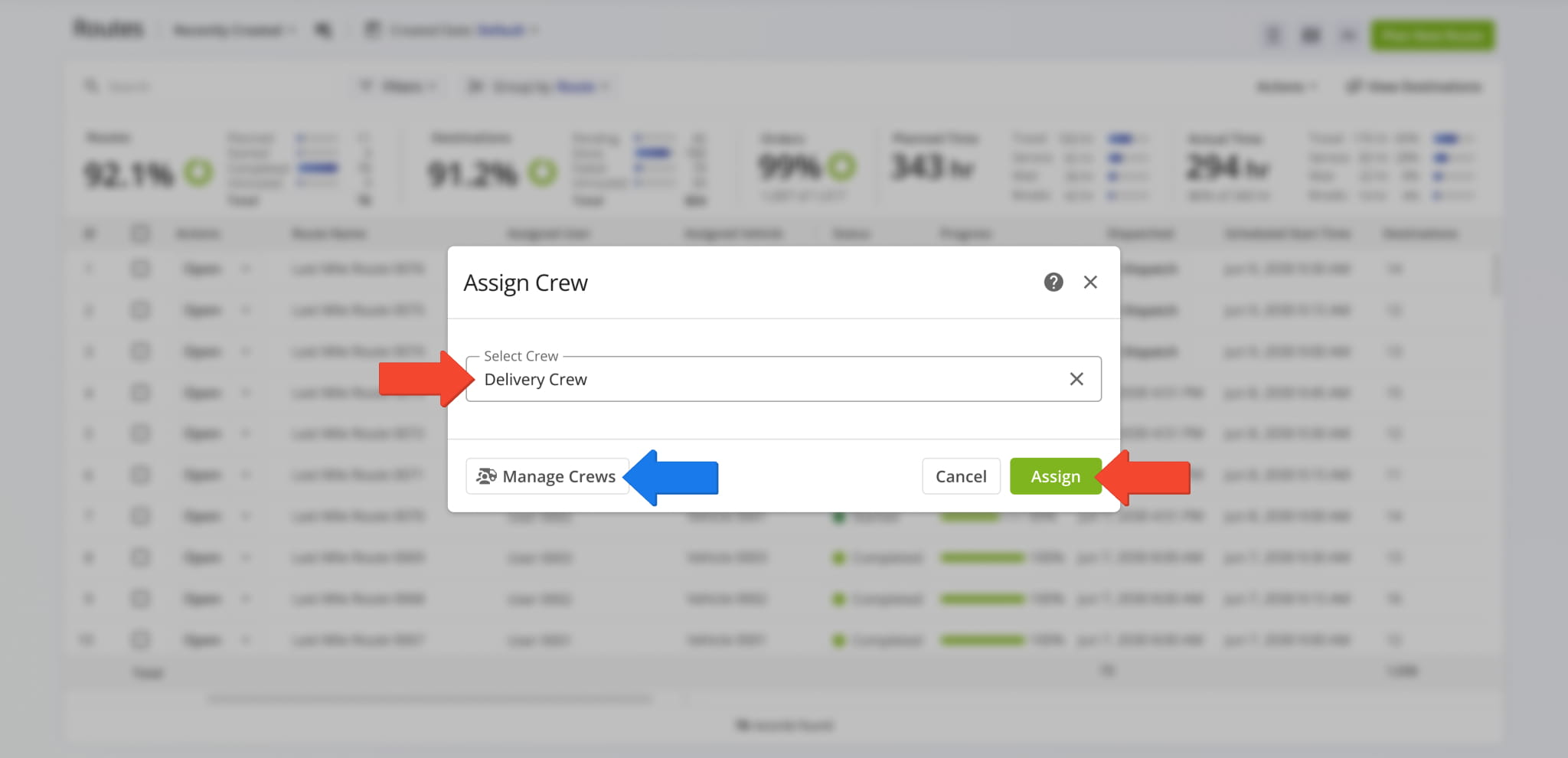
To assign a Crew to a planned route, go to the Routes Page and click the Down Arrow next to a route. Then, select “Assignment & Attribution” > “Assign Crew“.
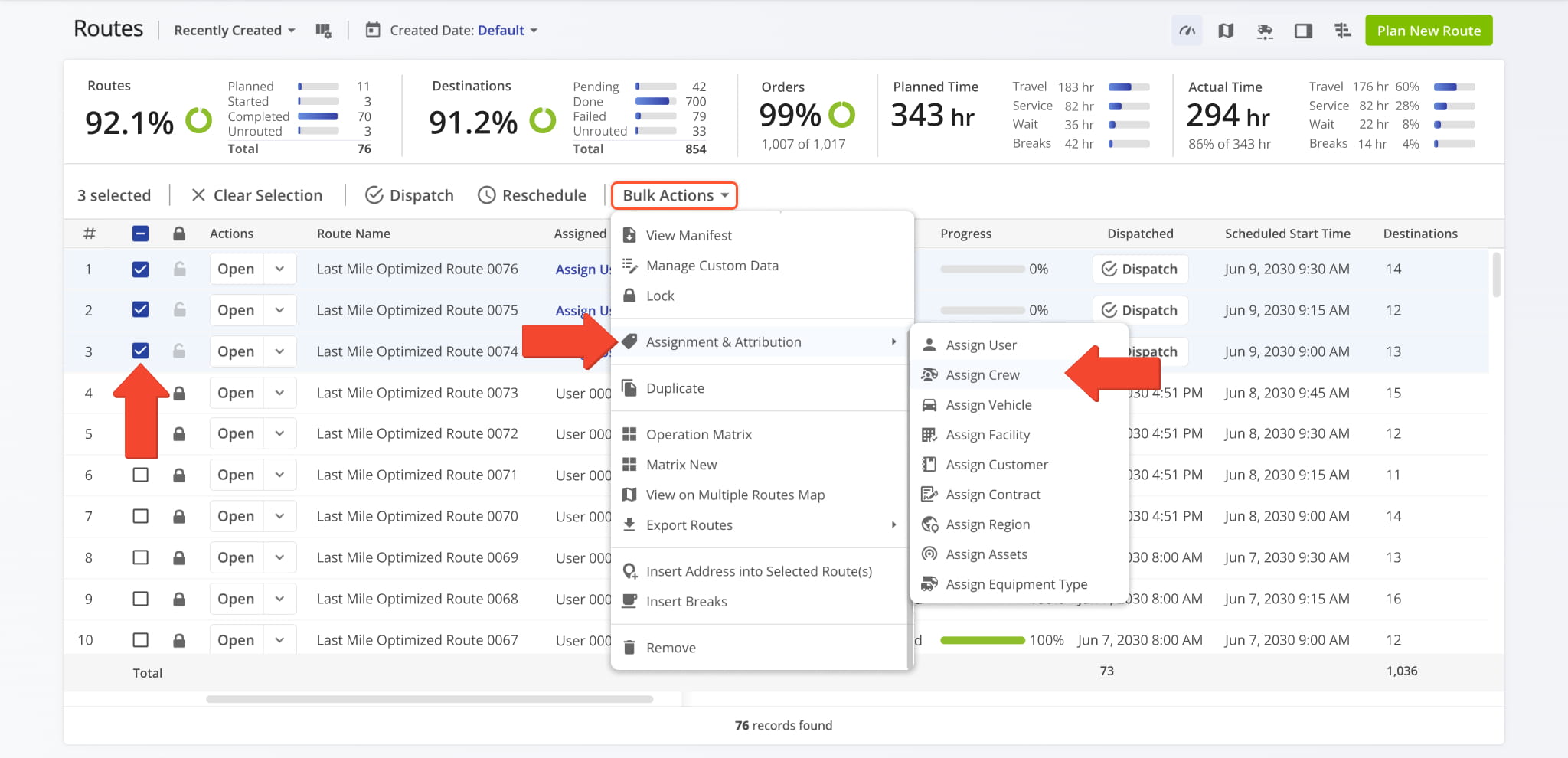
You can also assign a Crew to multiple routes at once. Check the boxes next to the routes you want, click “Bulk Actions“, then select “Assignment & Attribution” > “Assign Crew“.
Search for a Crew using the “Select Crew” field, select it, then click “Assign” to finalize. You can, in addition, click “Manage Crews” to modify Crew details from the Crews Page.
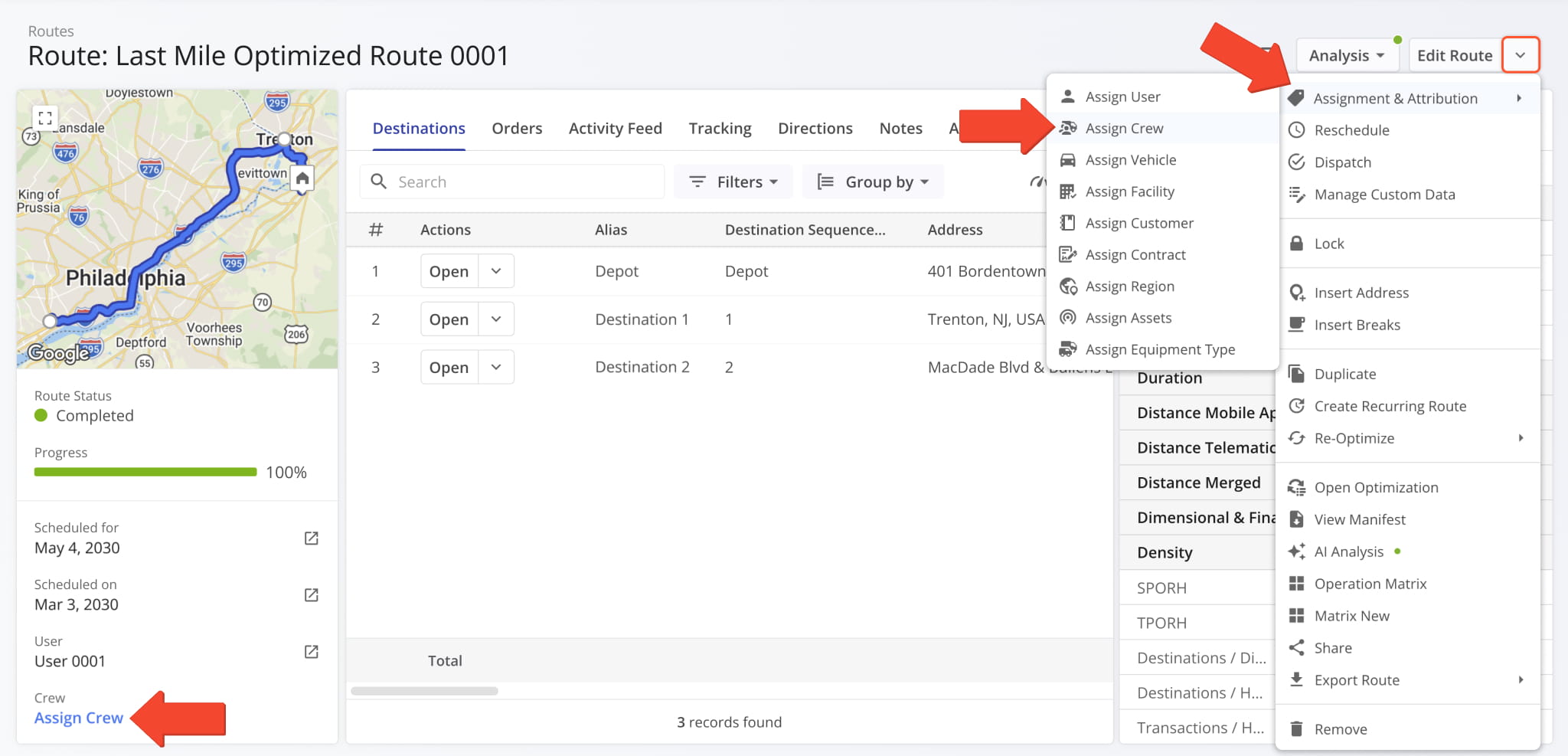
You can also assign Crews to routes from a Route Snapshot. Click the Down Arrow next to “Edit Route“, then select “Assignment & Attribution” > “Assign Crew“.
Alternatively, click the “Assign Crew” button in the left-side panel.
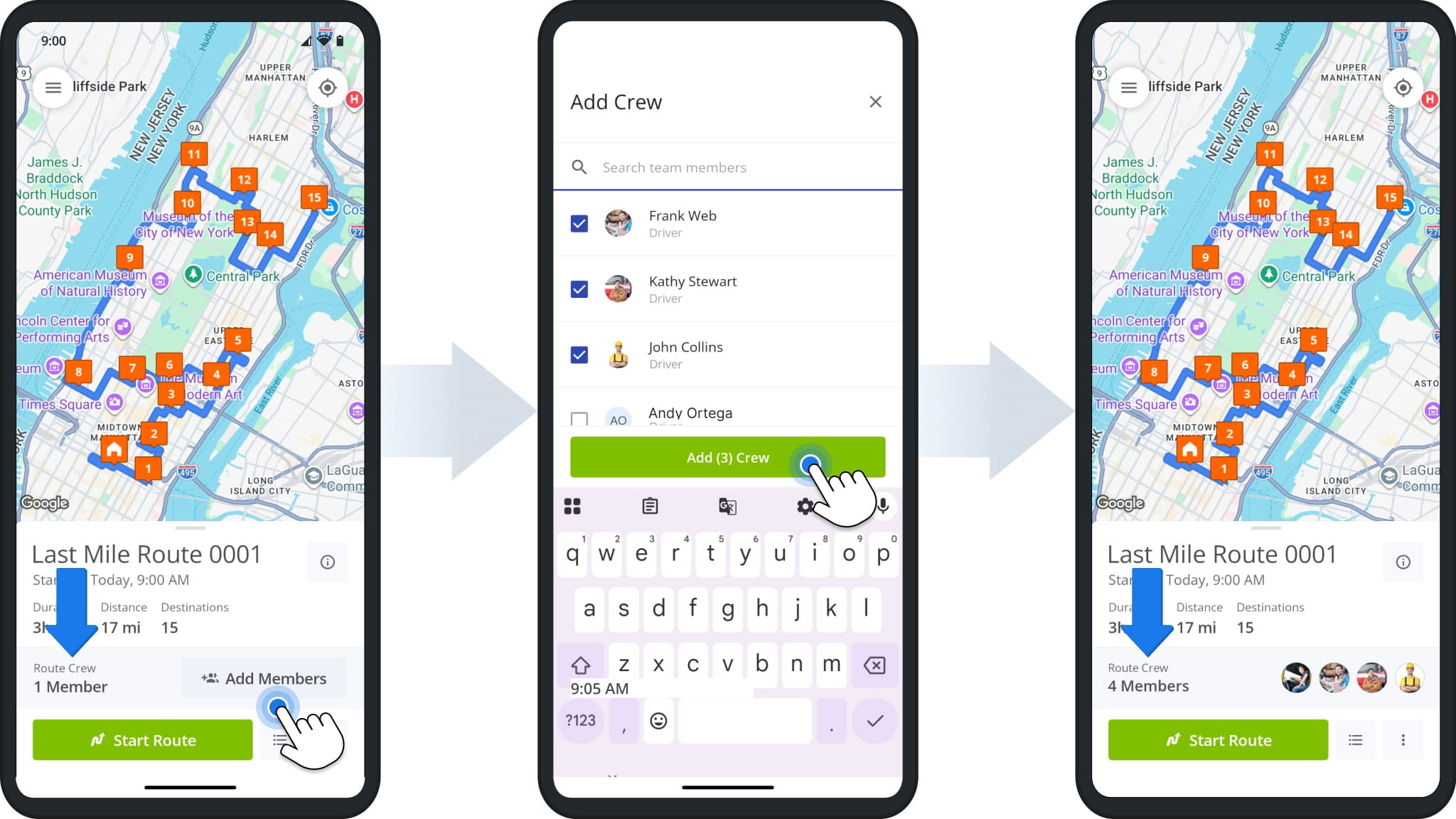
Add Crews On Mobile – Assign Team Members From Route4Me App
Drivers and field team members using the Route4Me mobile app for Android or iOS can add Crew members to a route directly from the app.
This is useful when other drivers or field team members join a route, keeping Crew details accurate and improving accountability. Learn more about adding Crews in mobile.
NOTE: Drivers and field team members need permission to access members before they can use this feature. To enable it, assign the appropriate permission to their user accounts.
Visit Route4Me's Marketplace to Check out Associated Modules:
- Operations
Advanced Team Management Add-On
- Operations
Audit Logging and Activity Stream
About author: Kristian Andreev

