Bulk Route Template Management – Update Multiple Recurring Routes
For enterprise businesses, keeping routes current is a constant task, especially when customers need to be added or removed. Route4Me’s bulk tools help you apply those changes across your Route Templates in one go, supporting smoother last mile operations. You can upload a file to add or remove addresses, or use the Bulk Actions menu to manage multiple route templates together. Both tools help keep your recurring routes accurate without your needing to edit each one individually.
Table of Contents
Bulk Address Operations – Add Or Remove Addresses In Route Templates
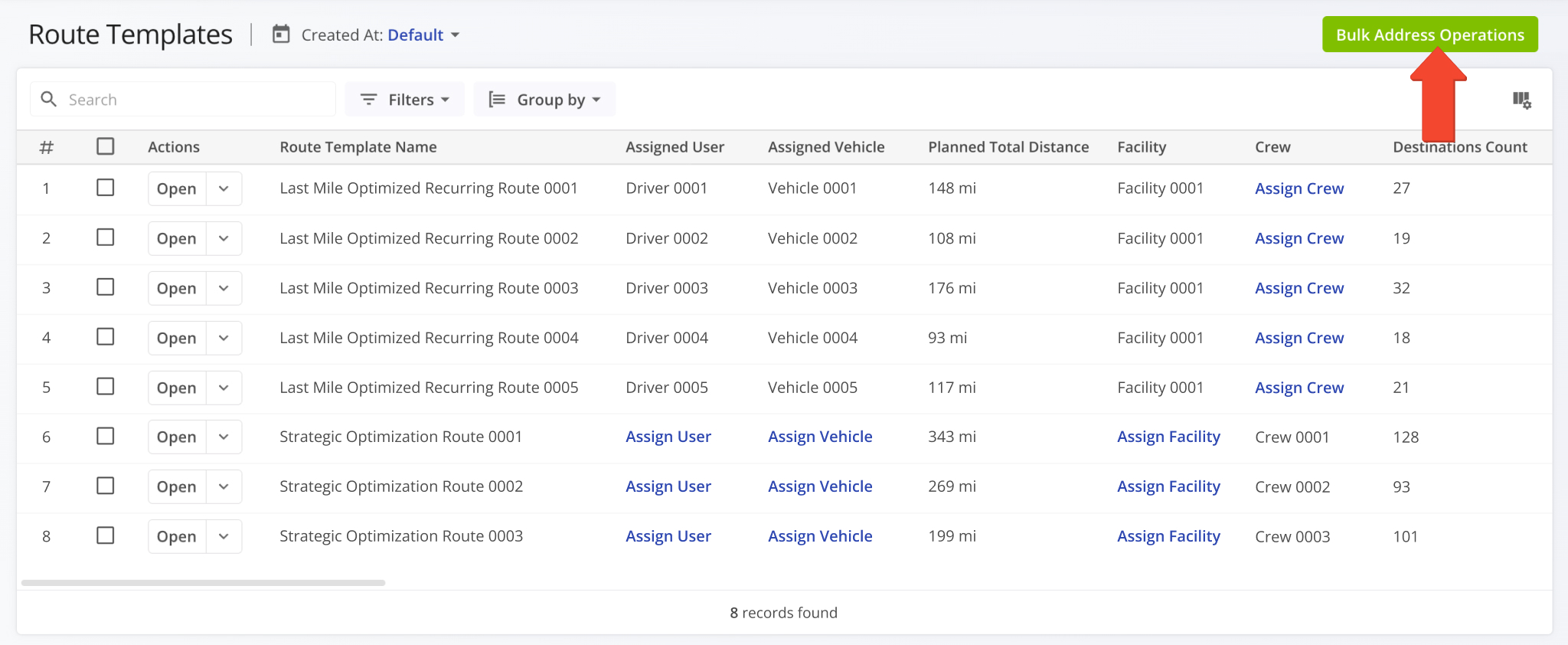
To add or remove addresses in bulk, click “Bulk Address Operations” in the upper-right corner of the Route Templates page.
Open Your Route Templates Page
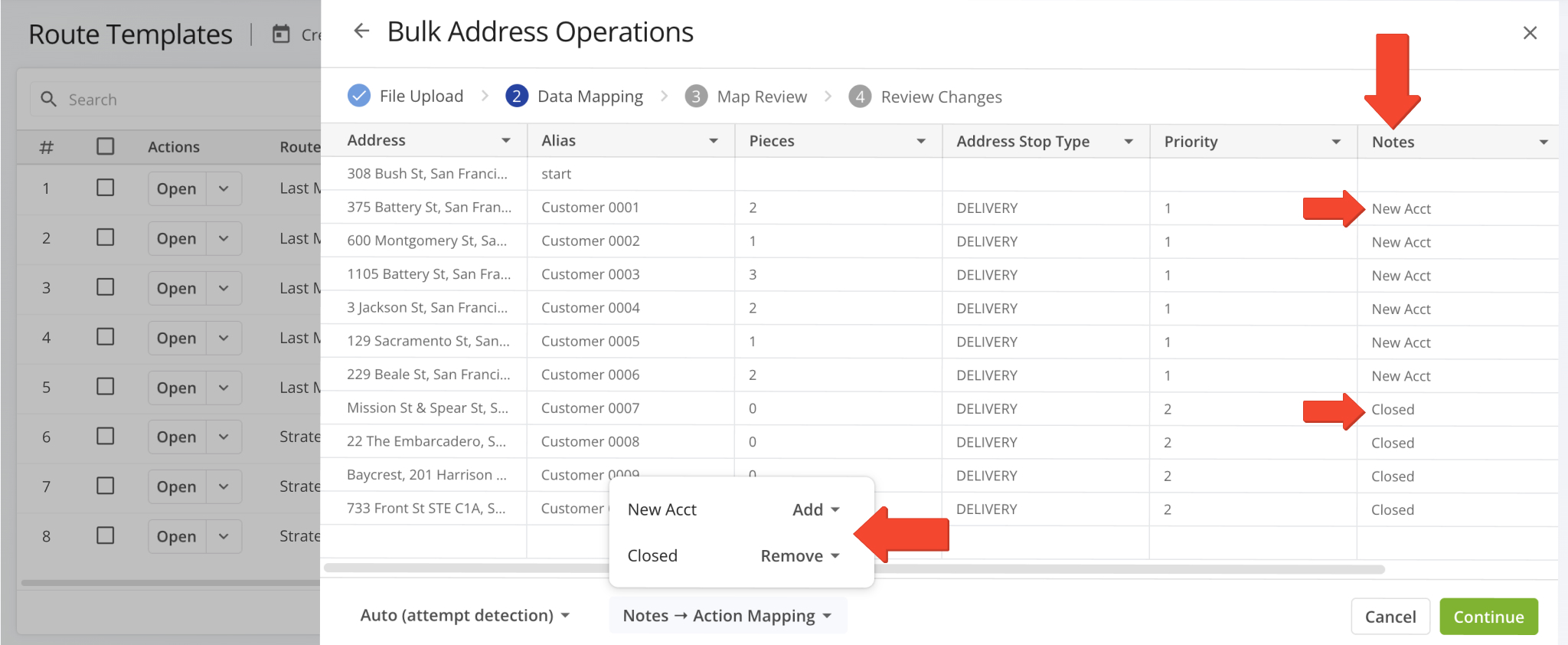
Upload an address file with a “Notes” column. Enter “New Acct” next to each new address you want to add and “Closed” next to each address you want to remove.
At the bottom of the screen, use the “Notes -> Action Mapping” menu to confirm that each note is mapped to the correct action. Then, click “Continue“.
NOTE: Learn more about Route4Me’s spreadsheet requirements.
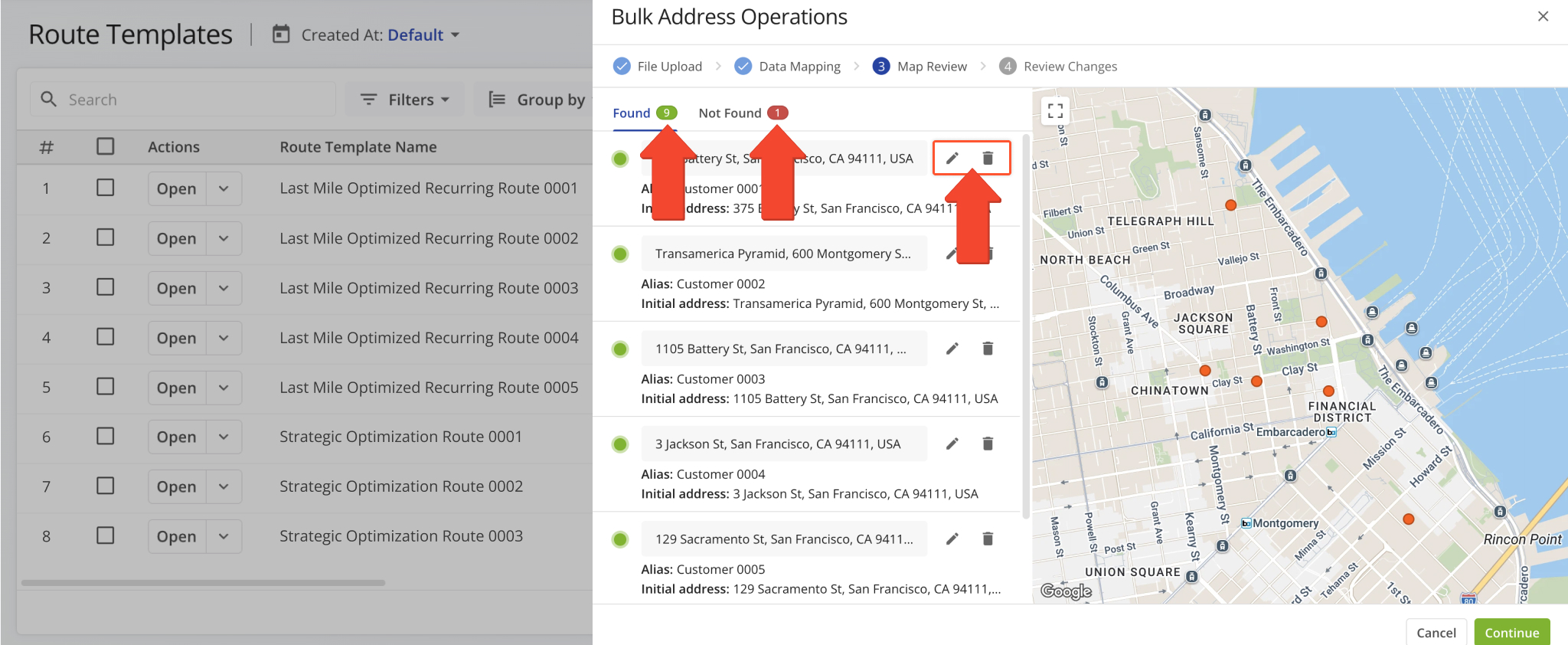
Route4Me geocodes the new addresses and assigns them to the best available Route Templates.
Verified addresses that are successfully geocoded are highlighted in green. Addresses that cannot be geocoded are highlighted in red so you can review them before continuing.
To fix an address, click the Pencil Icon to edit it, or click the Trash Icon to delete it. Then click “Continue” to proceed.
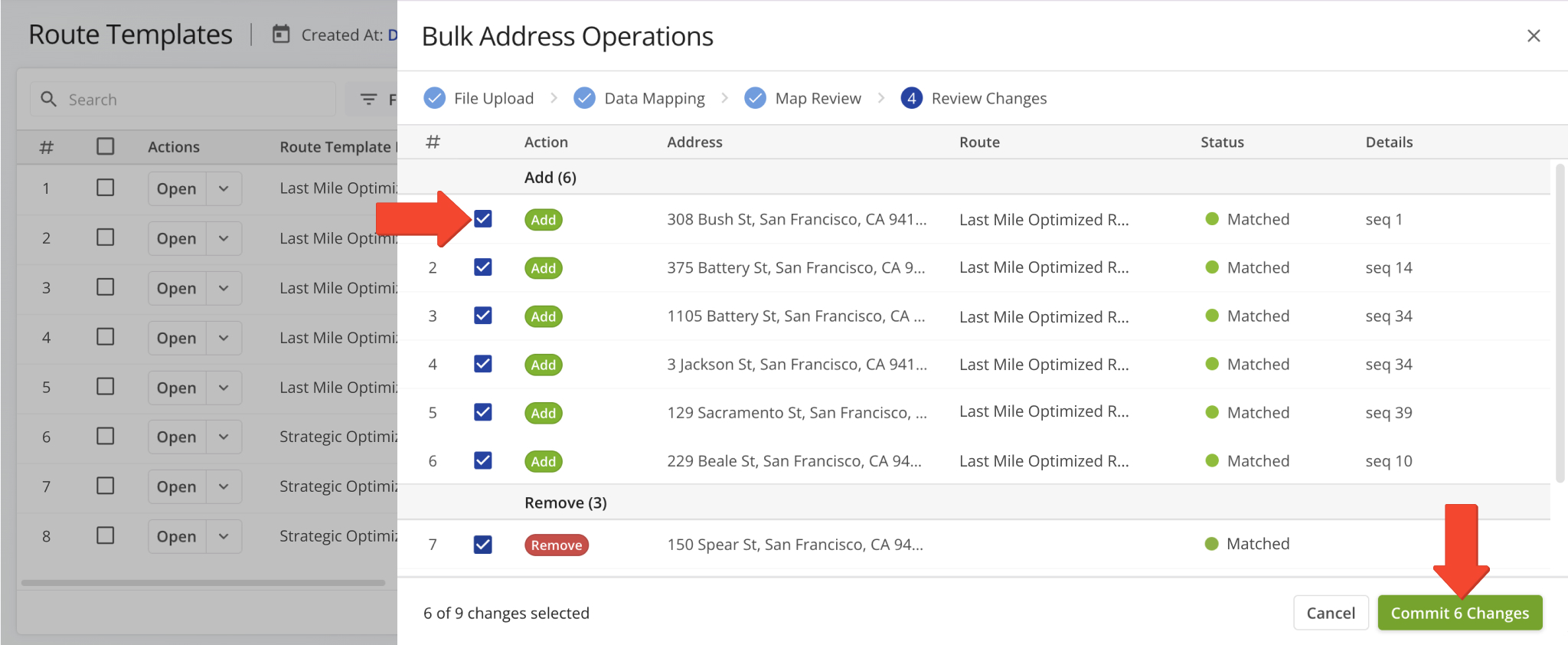
To finalize changes, select the checkbox next to each address you want to add or remove, then click “Commit Changes“. Afterward, you can view all recurring routes affected by these changes in your Routes List.
Bulk Actions Menu – Manage Multiple Recurring Routes
Bulk Actions are useful when the same change applies to many Route Templates, such as assigning a new driver or re-optimizing after destinations change. Instead of editing each template one at a time, you can apply the update to all of them at once.
To apply an action to multiple Route Templates, select the checkbox next to each template you want to change, click “Bulk Actions”, and choose an action. See the table below for all available Bulk Actions.
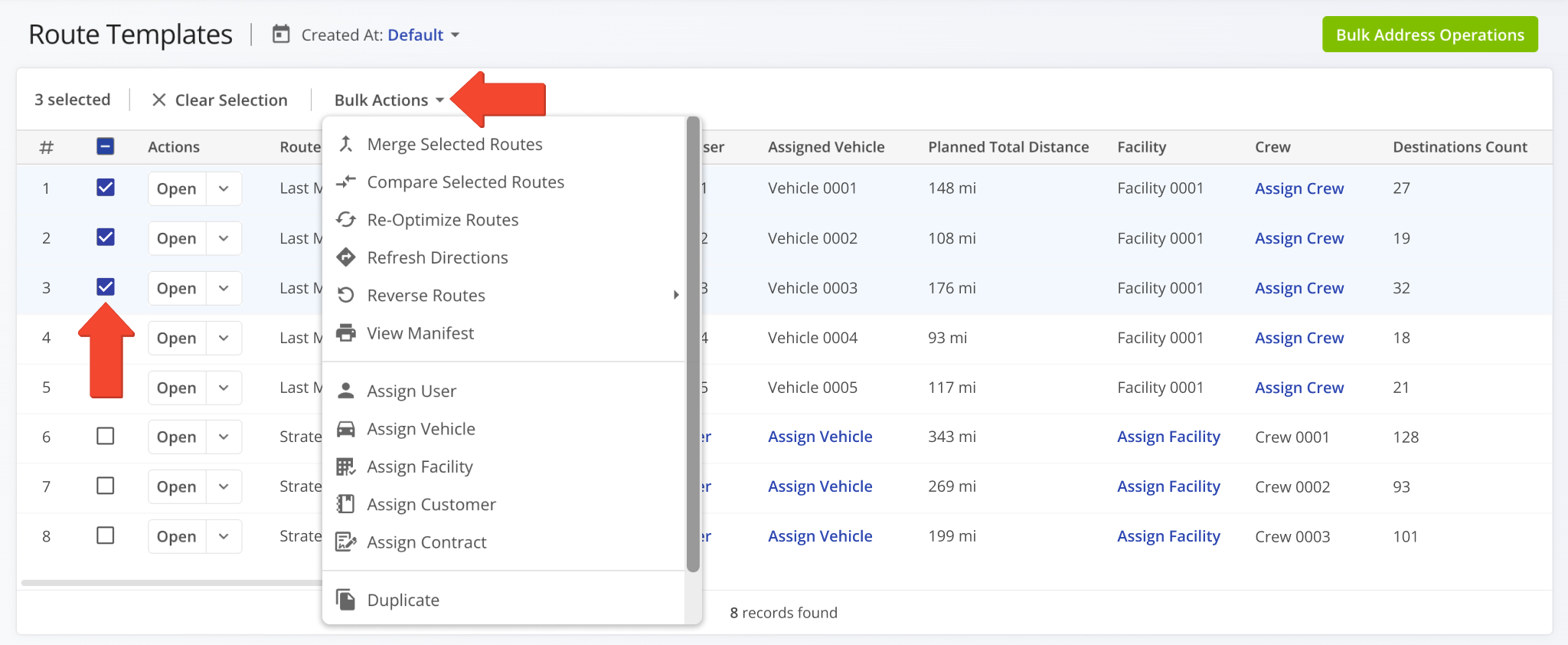
Bulk Actions Menu
Visit Route4Me's Marketplace to Check out Associated Modules:
- Operations
Audit Logging and Activity Stream
- Operations
Custom Data Add-On
- Operations
Advanced Team Management Add-On
About author: Daniel Archer