
Strategic Optimizations – Strategic Cycle Planning With Recurring Routing
Strategic Routing simplifies recurring route planning with complex schedules over long planning periods. You add locations and schedules, configure optimization settings, and Route4Me’s enterprise routing engine automatically plans and optimizes Strategic Scenarios and routes according to your schedules, rules, and preferences. In this guide, you’ll learn how Strategic Optimizations, Strategic Scenarios, and Recurring Routes work together to help you solve the most complex routing tasks.
NOTE: Strategic Optimization Routes are draft routes that can’t be assigned, started, and completed until they’ve been synced.
Table of Contents
Route4Me Strategic Route Optimizations For Multi-Frequency Recurring Routes
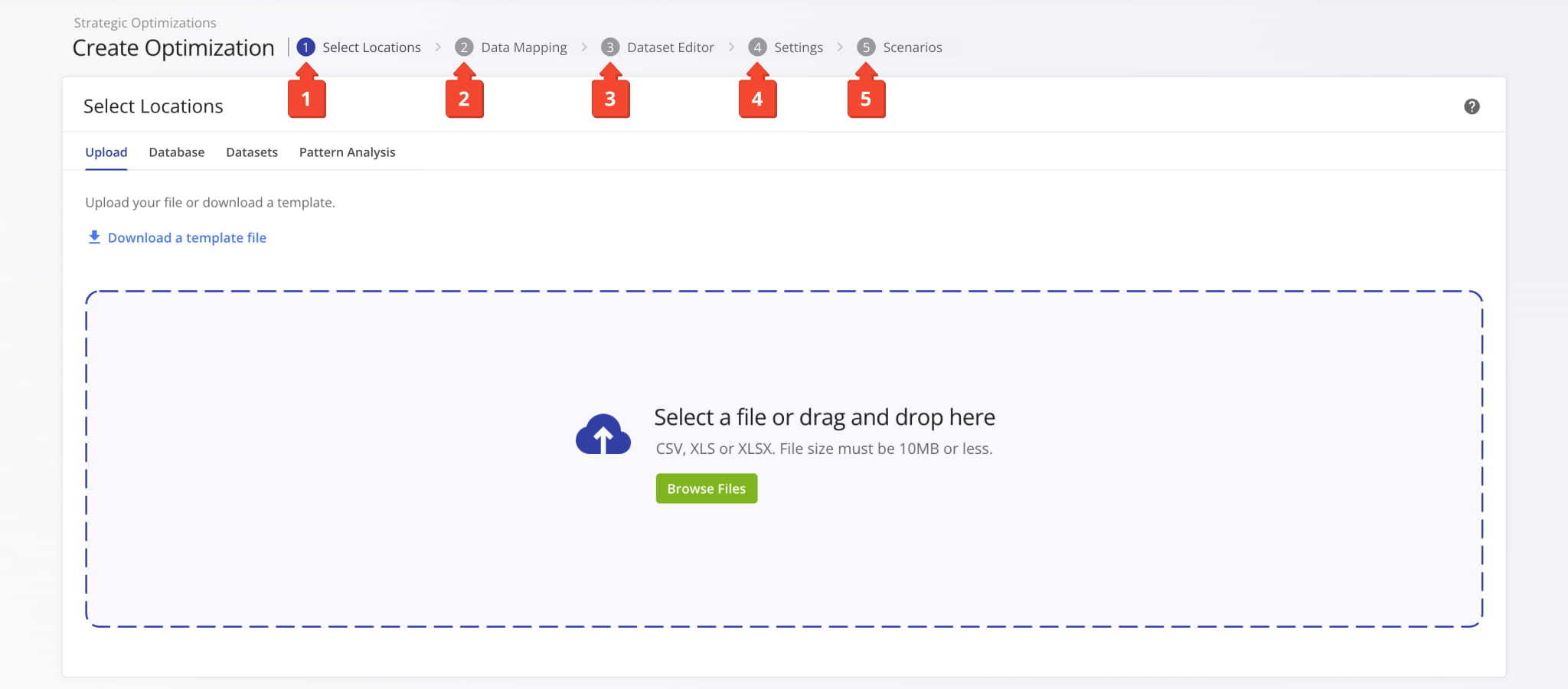
To make full use of Strategic Routing, it’s important to understand the planning process and hierarchy. Open the Navigation Menu and select “Strategic Routing” > “Plan New Scenarios” to start creating Strategic Optimizations. The process follows these steps:
- Select Locations: Add Locations to your Strategic Routing dataset using one of the supported methods.
- Data Mapping: Route4Me will automatically validate uploaded data and map it to internal variables for optimization.
- Dataset Editor: Refine the schedule and visitation rules for the Locations in your dataset.
- Settings: Set a name for your Strategic Optimization and select route start Locations (depots).
- Scenarios: Configure Strategic Scenarios with route optimization and schedule settings for planning routes.
Create New Strategic Optimization
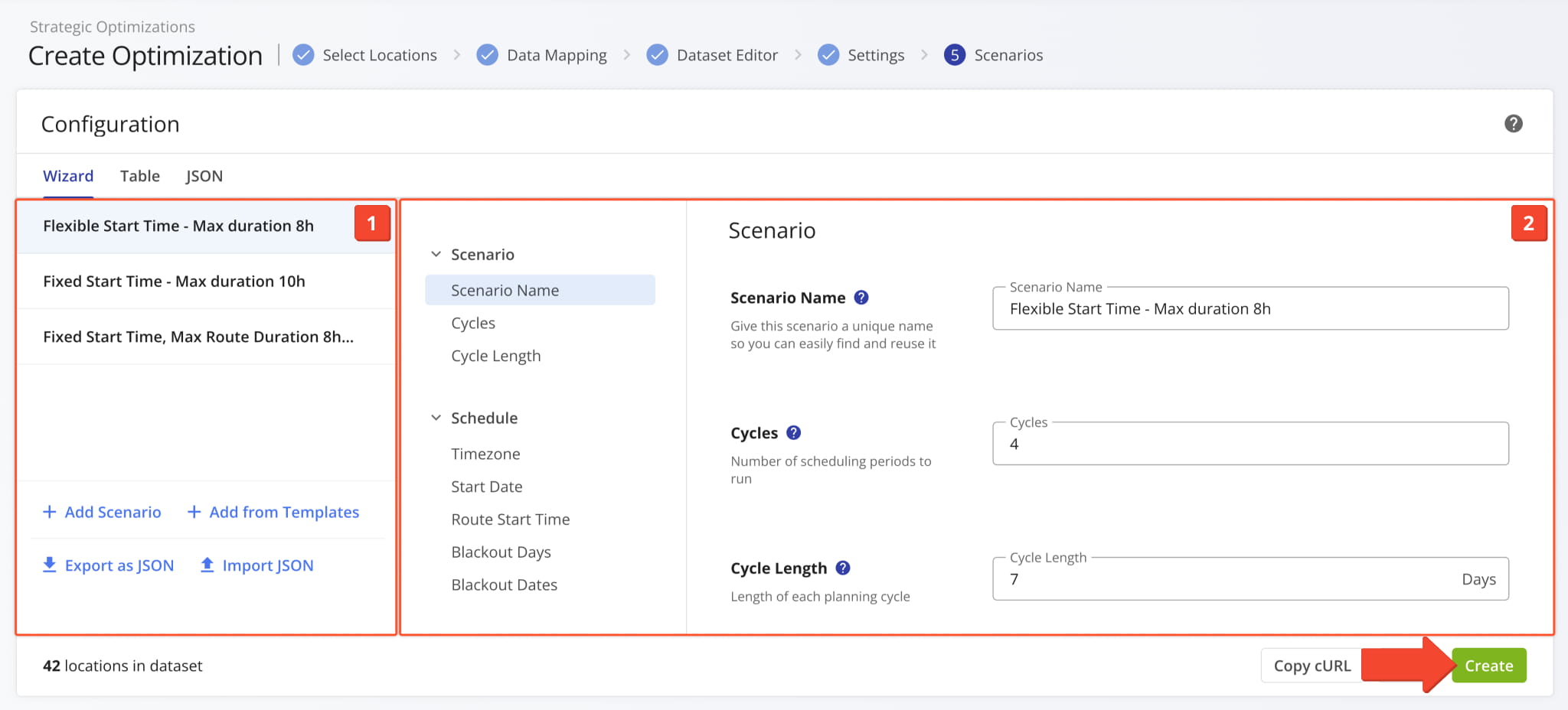
Strategic Scenarios represent distinct collections of route optimization and scheduling settings. The interface where you configure Scenarios is divided into the following sections:
- Scenarios List: Select a Scenario to modify, add new Scenarios to the Strategic Optimization, manage Scenarios, etc.
- Scenario Settings: Define the route optimization settings and parameters of the selected Scenario.
When you’re done adjusting settings, simply click “Create” to finalize. The system will use each Scenario’s settings to optimize routes with the Locations and schedules from your dataset.
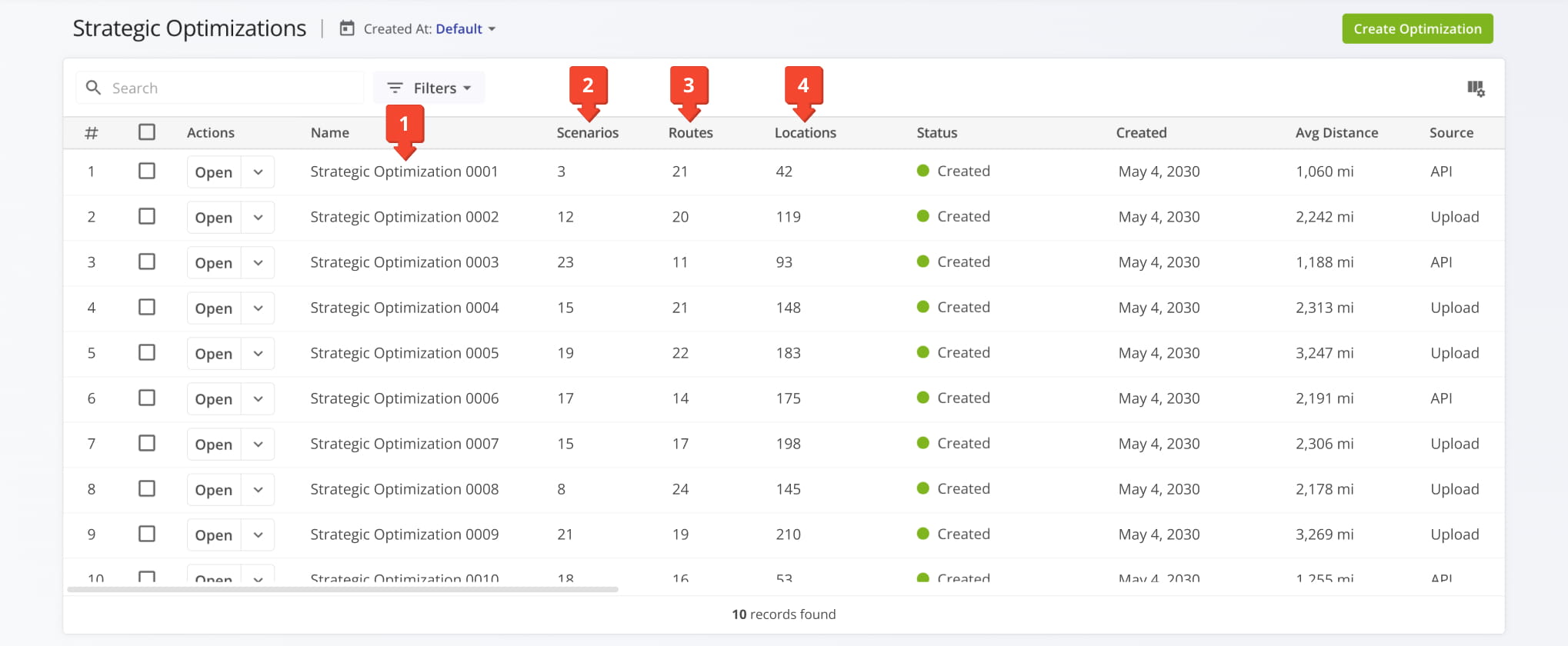
Route4Me will automatically generate a new Strategic Optimization using your Locations, schedule data, and Scenario settings with the following hierarchy levels:
- 1. Strategic Optimization: Contains Strategic Scenarios. One dataset produces one Strategic Optimization with one or more Scenarios.
- 2. Strategic Scenarios: Contain Strategic Routes. Scenarios are optimization templates applied to the dataset to optimize draft routes.
- 3. Strategic Routes: Draft routes with optimized Destination sequences according to Location schedule rules and Scenario settings.
-
- 4. Strategic Locations: Dataset Locations, including schedule rules, used as Strategic Route destinations.
-
- 3. Strategic Routes: Draft routes with optimized Destination sequences according to Location schedule rules and Scenario settings.
- 2. Strategic Scenarios: Contain Strategic Routes. Scenarios are optimization templates applied to the dataset to optimize draft routes.
Your account’s Strategic Optimizations page is where you can view, filter, and manage Strategic Optimizations.
Open Your Strategic Optimizations
Strategic Optimizations – Manage Optimizations And Scenarios
Click “Open” next to a Strategic Optimization, and you’ll see the following sections:
- AI Summary: Automatically generated executive summary of the Strategic Optimization.
- Summary: Customizable graphs you can use to compare Strategic Scenario metrics.
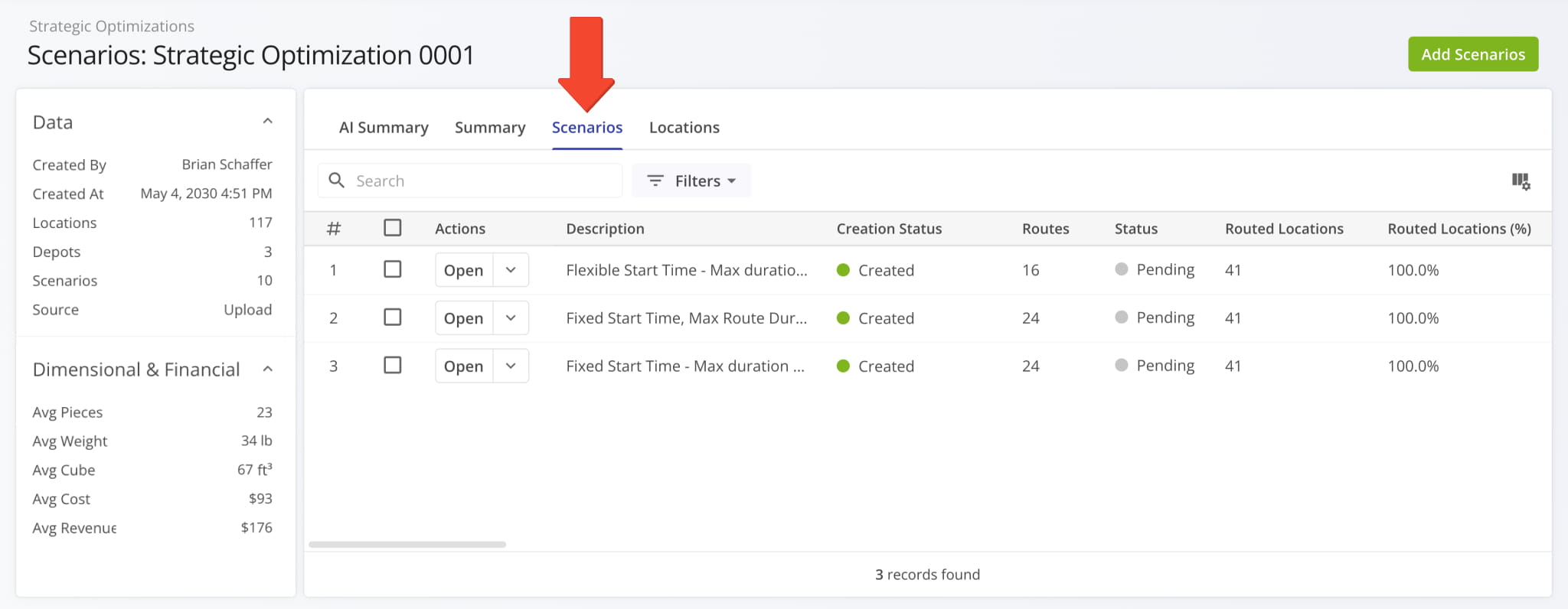
- Scenarios: Strategic Scenarios list and customizable data table.
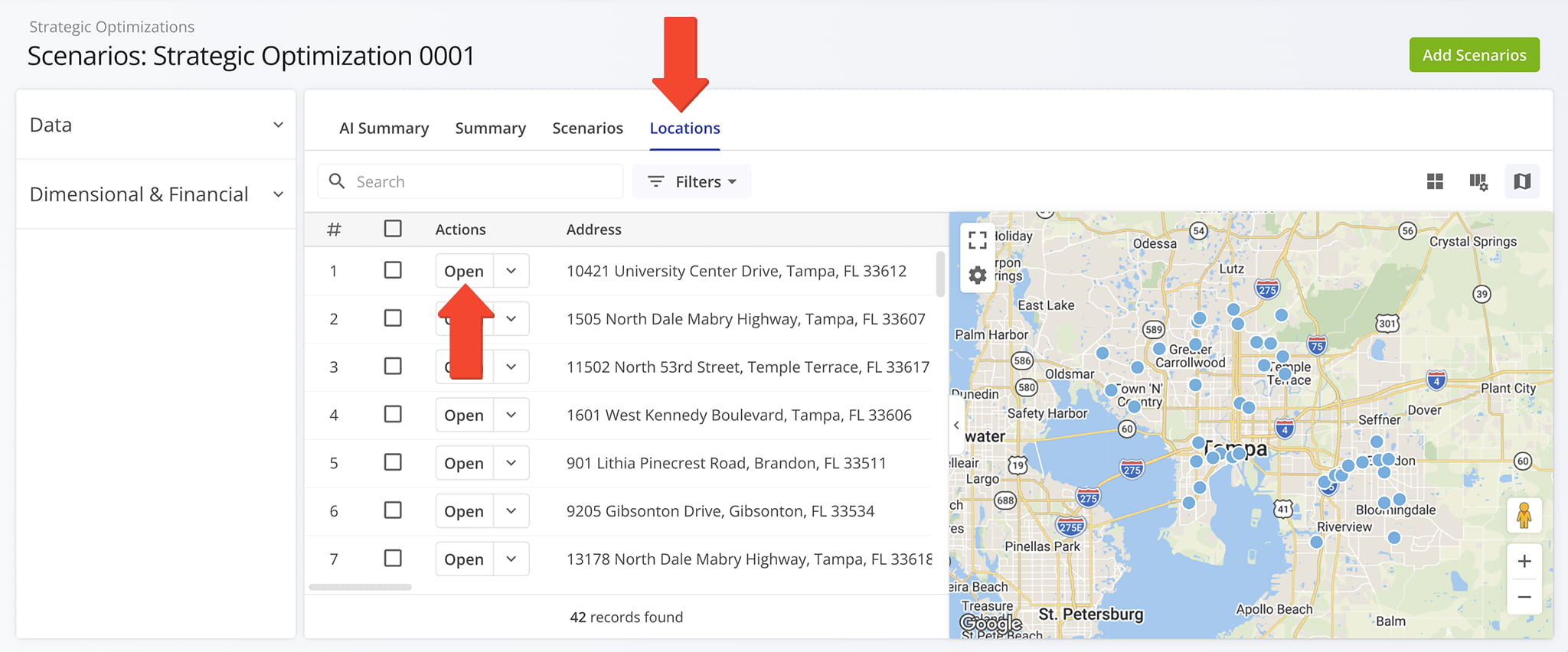
- Locations: Dataset Locations list, customizable data table, and dynamic map.
Learn more about Strategic Optimization Management.
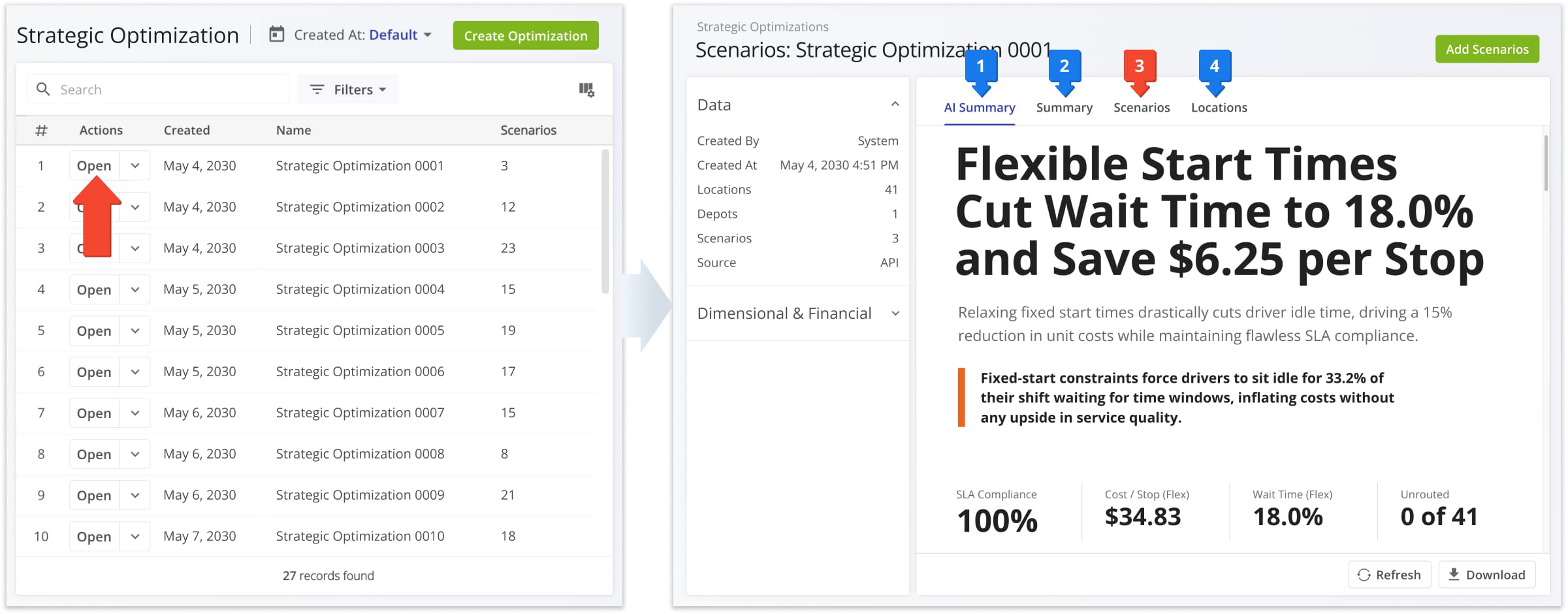
The “Scenarios” section is where you can open and manage Strategic Scenarios while the other sections are mainly used for analyzing and evaluating the Strategic Optimization.
Open Strategic Location Snapshots To View Route And Visit Metrics
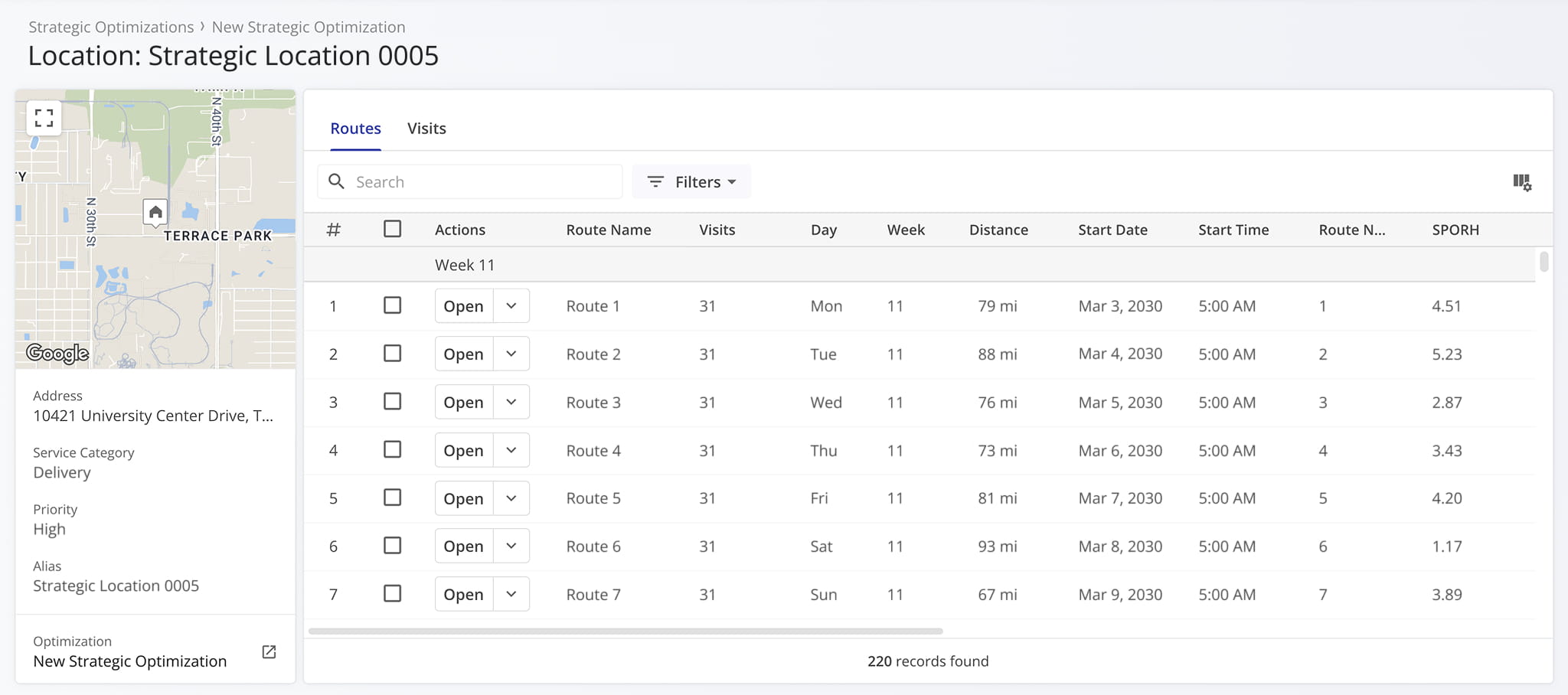
Alongside Scenarios and their data, you can go to the “Locations” tab to manage dataset Locations and see them on the Locations Map. From here, you can open Strategic Location Snapshots, which show route data, visit details, and more.
Strategic Location Snapshots provide a detailed overview of Locations used in your Strategic Optimization Scenarios. This enables you to find all route-critical information and metrics in one place.
Manage Scenarios – Strategic Scenarios, Routes And Schedules
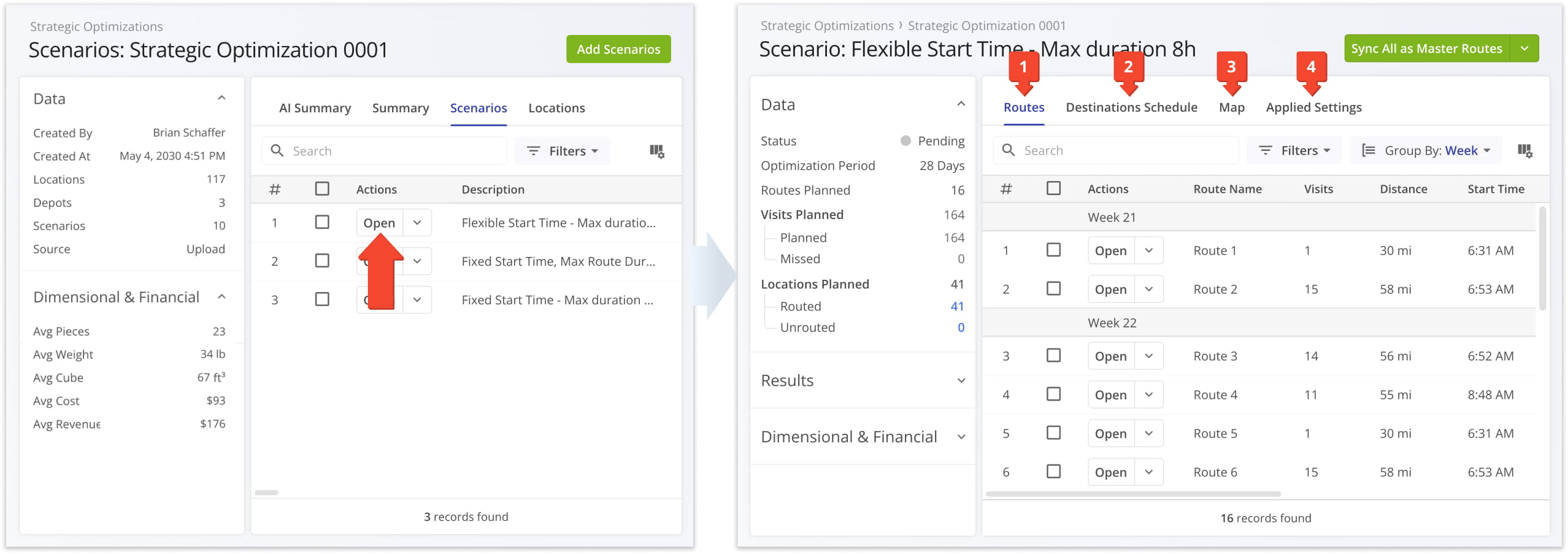
After opening a Strategic Optimization, you can click the “Open” button next to a Scenario. You’ll see the following sections:
- Routes: The Scenario’s Routes List, where you can view, open, and manage draft routes.
- Destinations Schedule: In-depth recurring visitation schedules and data with visualized weekly calendars.
- Map: Scenario Routes Map, where you can get a visual overview of routes for specific days and date ranges.
- Applied Settings: The Scenario’s optimization settings and schedule rules used for optimizing draft routes.
Learn more about Strategic Scenario Management.
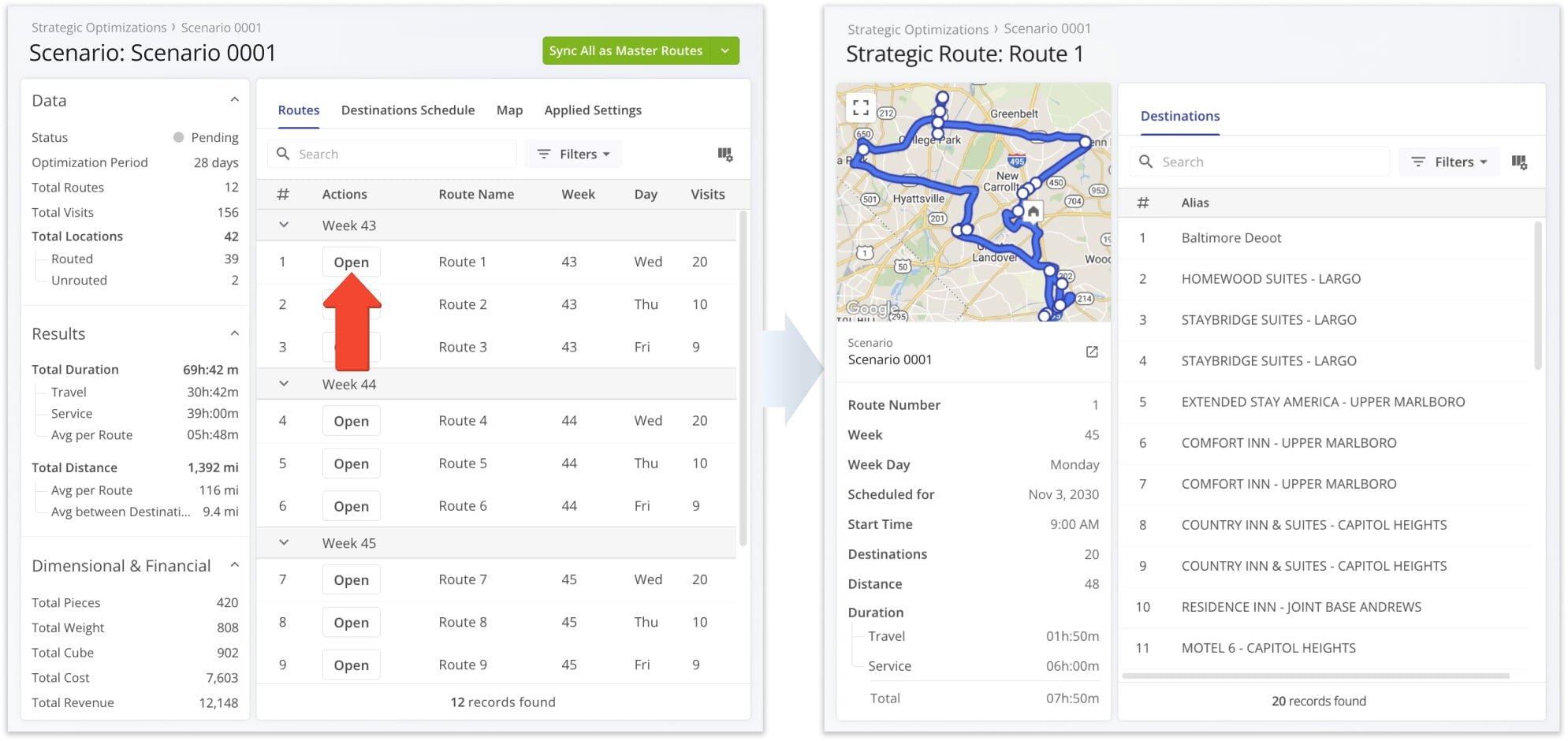
Open Strategic Route Snapshots To View Route Metrics
To get a detailed look at the data and metrics of individual draft routes, simply click “Open” next to a route. You’ll see its Strategic Route Snapshot, which enables you to find all route-critical information and metrics in one place. Snapshots provide route summaries, map overviews, destination data, and more.
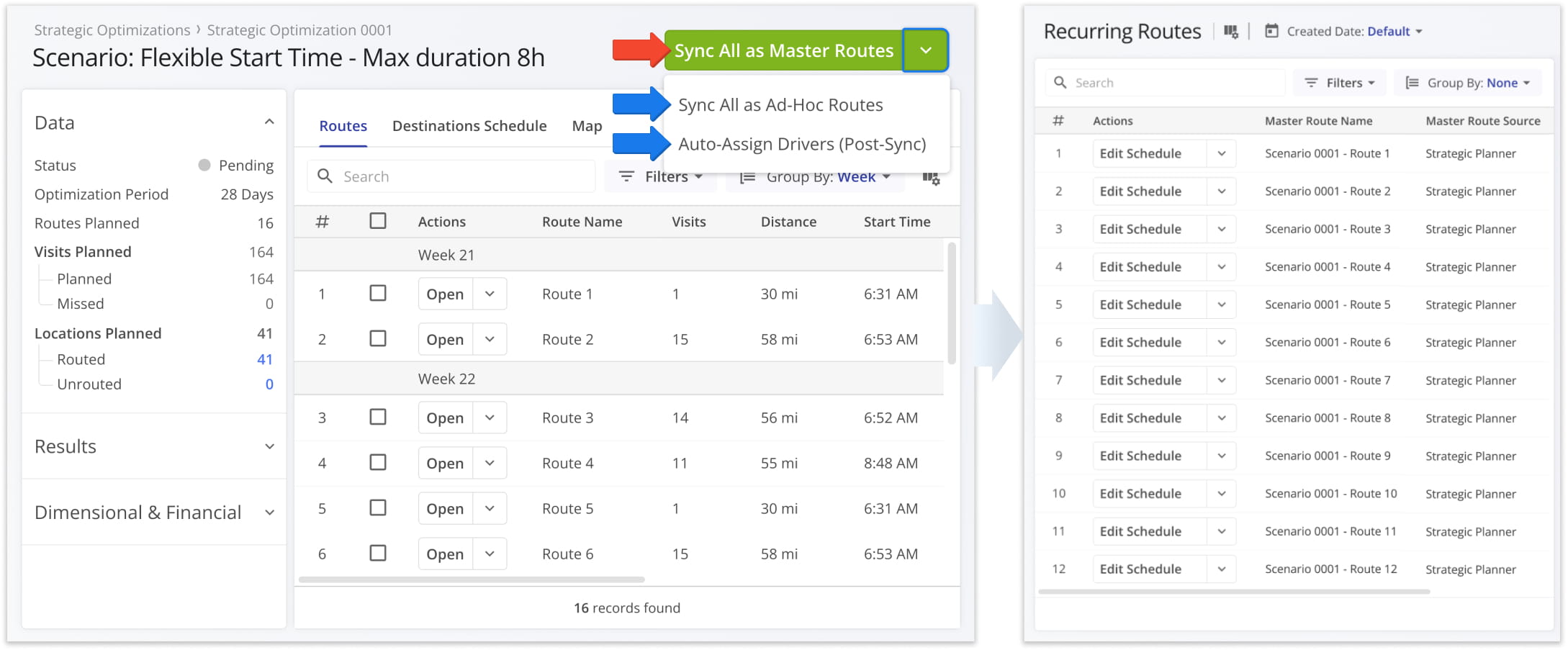
Sync Strategic Routes – Import Routes With Recurring Schedules
Finally, after evaluating Strategic Scenarios and routes, you can open a Scenario and use the “Sync All as Master Routes” button to import all of that Scenario’s routes into your Recurring Routes.
Alternatively, click the Down Arrow and select “Sync All as Ad-Hoc Routes” to import routes as one-time non-recurring routes into your Routes List. You can also use the “Auto-Assign Drivers” option if you’ve added User Skills to your Scenario Settings.
Visit Route4Me's Marketplace to Check out Associated Modules:
- Operations
Audit Logging and Activity Stream
- Operations
Custom Data Add-On
- Operations
Advanced Team Management Add-On
About author: Kristian Andreev

