
Configure Strategic Scenarios – Strategic Routing Scenario Optimization Settings
Route4Me’s Strategic Routing simplifies route planning with complex schedules over long planning periods. You add locations and schedules, configure Strategic Scenarios, and Route4Me automatically plans and optimizes strategic routes according to your preferences. In this guide, you’ll learn how to configure Scenarios when creating Strategic Optimizations using the intuitive configuration wizard or JSON code for in-depth manual settings, compare Scenarios, and more.
NOTE: Please refer to the main Strategic Route Planning guide to learn more about the Strategic Routing process.
Table of Contents
Strategic Scenario Configuration Overview
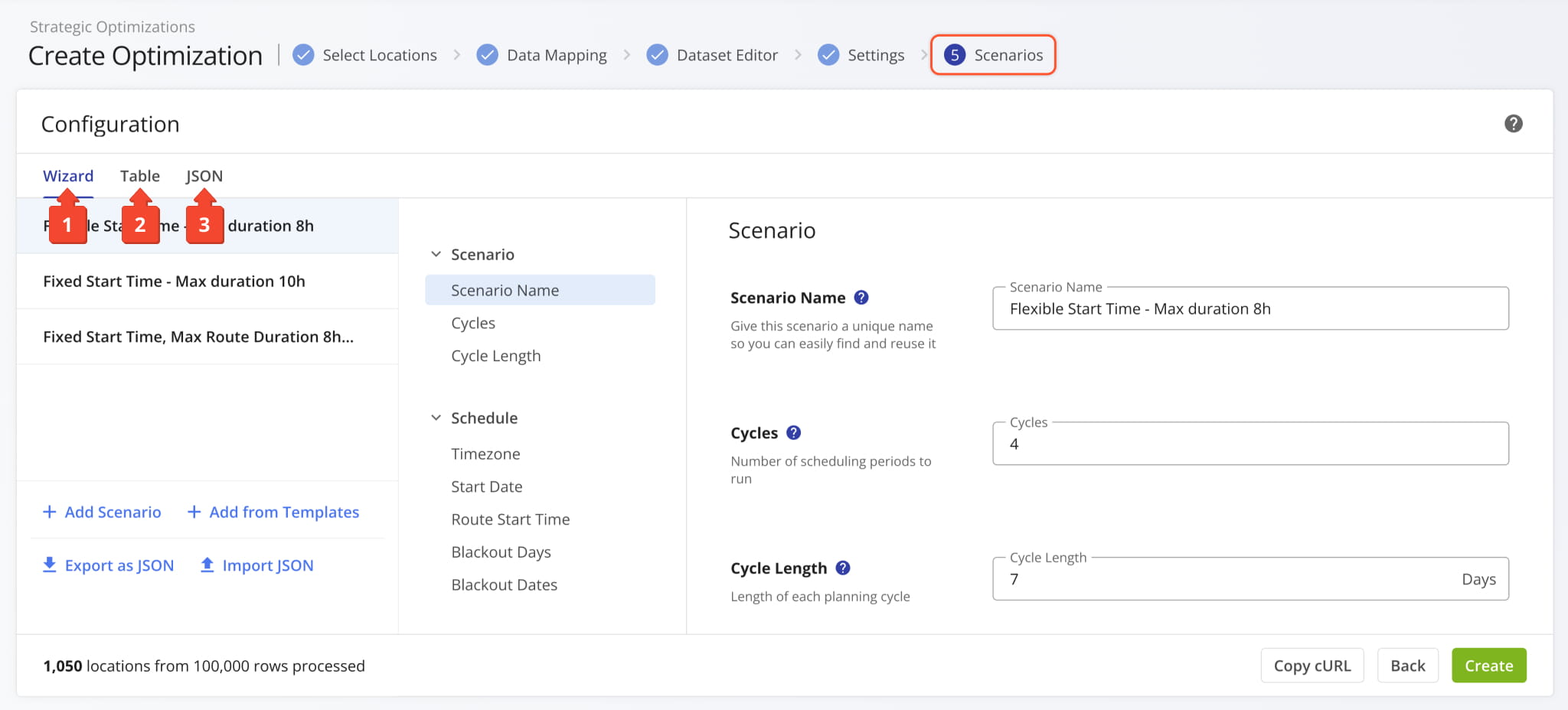
After importing data and setting departure addresses, you can configure Scenario. The page is divided into three sections:
- Wizard: Configure Scenarios using an intuitive interface.
- Table: Compare and adjust Scenario settings in a table.
- JSON: Manually configure Scenarios using structured JSON code.
Further in this guide, you’ll learn how to pick Scenario settings and use each of the above interface sections.
Strategic Routing Scenario Configuration Wizard
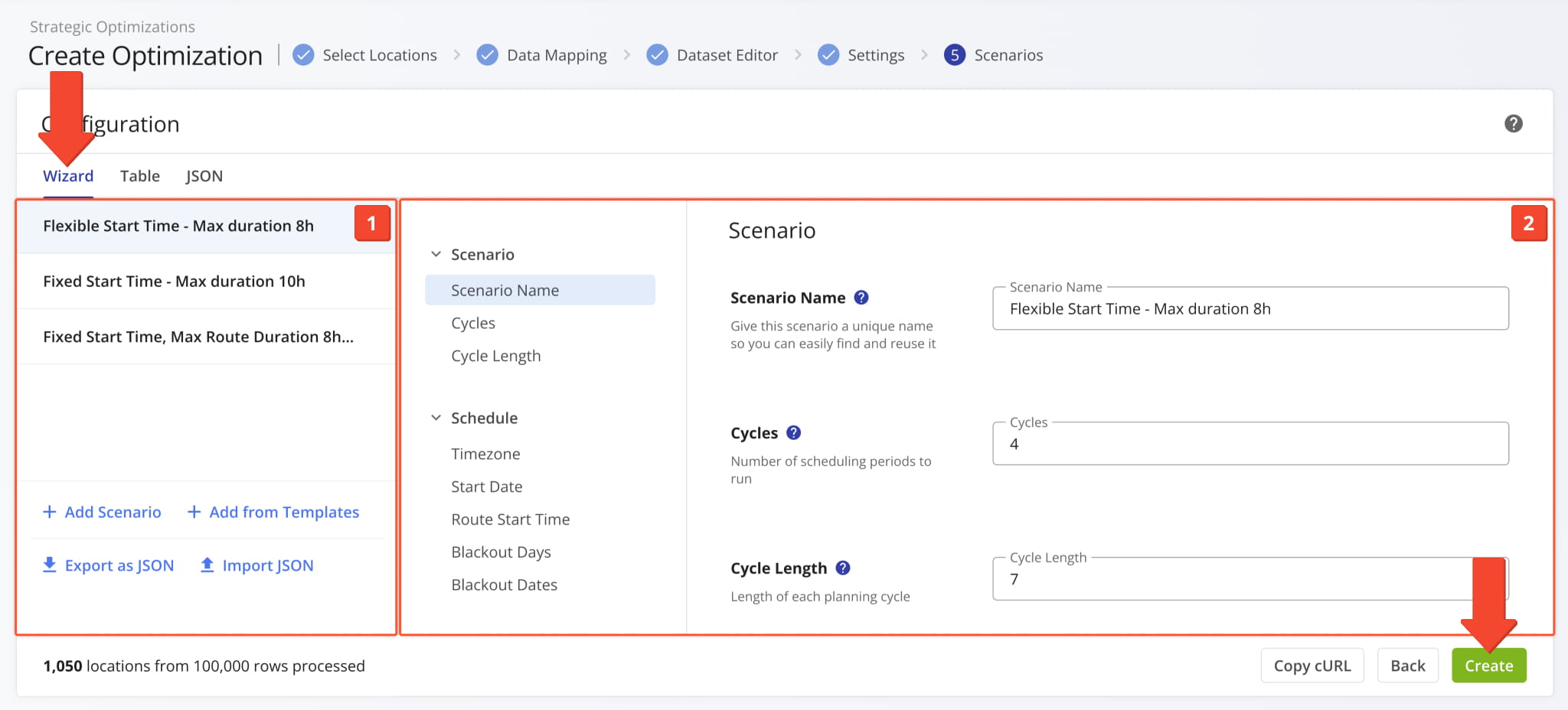
The “Configuration” window will automatically open with the “Wizard” tab selected and is divided into the following sections:
- Scenarios List: The Scenarios included in the Strategic Optimization.
You can select Scenarios, add or remove them, and export and import them as JSON code. - Scenario Settings: Scheduling and optimization settings for the selected Scenario.
Each Scenario represents a distinct collection of settings you can learn more about in the table below.
Strategic Scenario Configuration Settings
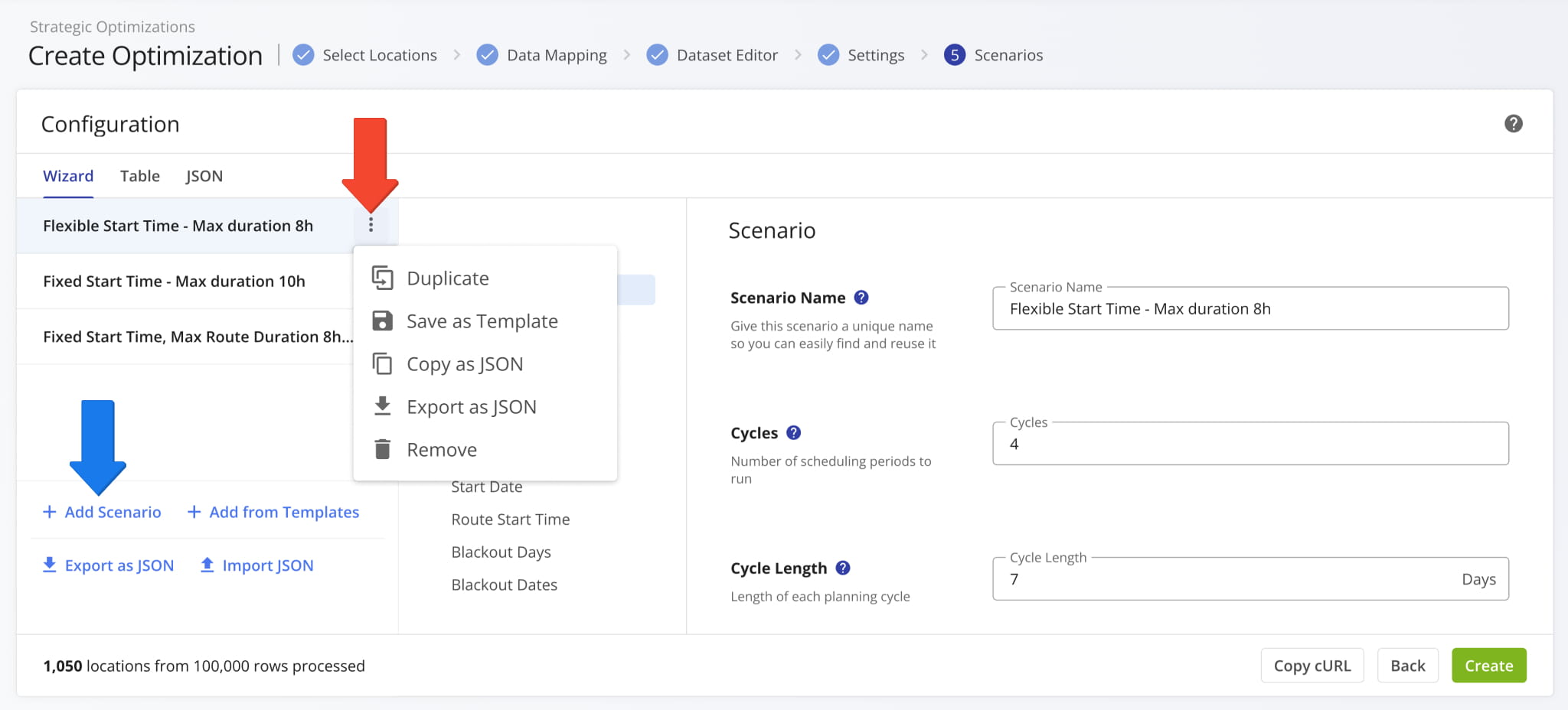
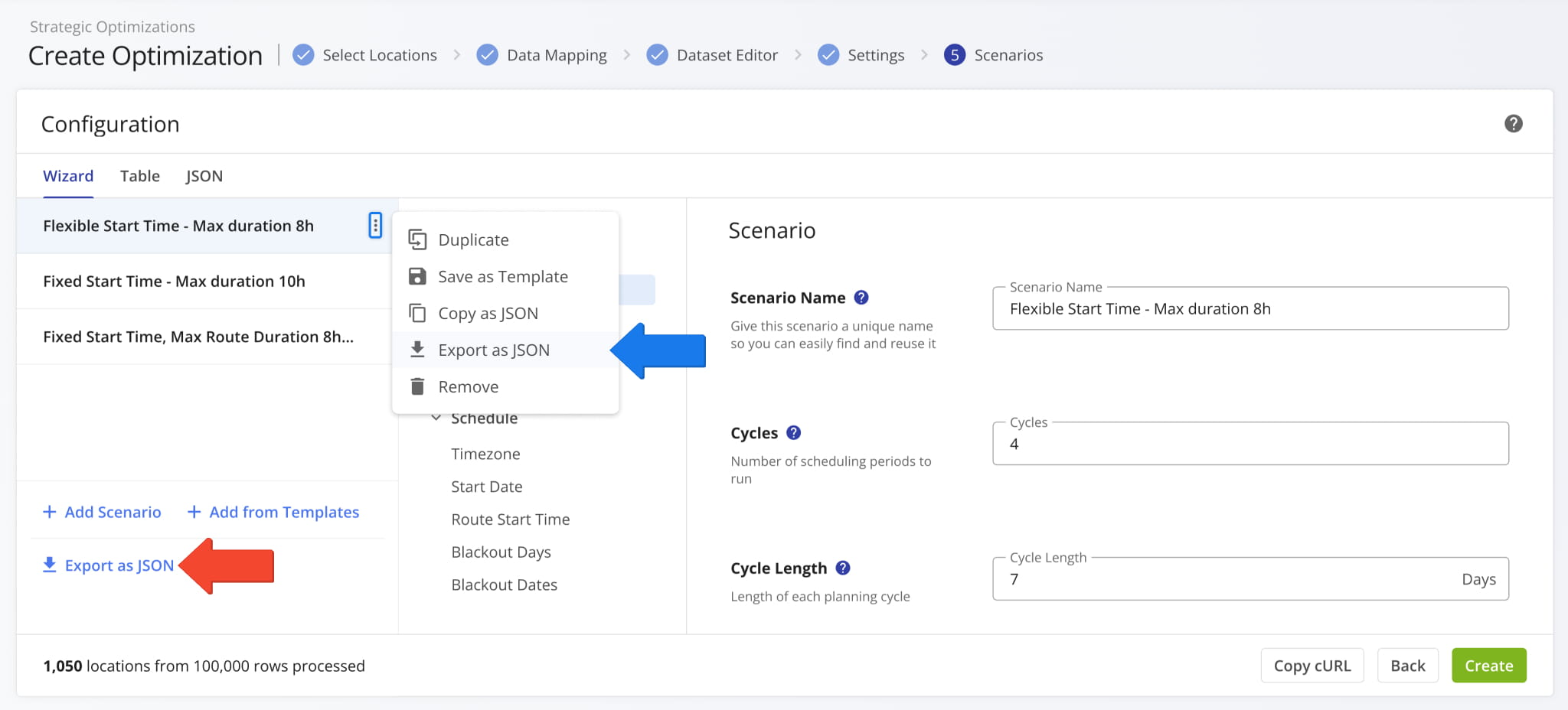
Use the Scenarios List to select and manage Scenarios during configuration. You can click the Three-Dot Icon to:
- Duplicate: Create a copy of a Scenario with the same settings and schedule rules.
- Save as Template: Save a Scenario as a template, which can be added as a new Scenario using the “Add from Templates” button.
- Copy as JSON: Copy a Scenario’s settings and schedule rules to your clipboard as JSON code.
- Export as JSON: Save a Scenario’s settings and schedule rules as a JSON file.
- Remove: Delete a Scenario from the list.
The “Add Scenario” button at the bottom of the list enables you to add more Strategic Scenarios to the list.
Optionally Export And Import Strategic Scenario Templates
Route4Me enables you to export and import Scenario Settings as JSON templates that can easily be reused as needed. Simply click the “Export as JSON” button in the Scenarios List to download a JSON file with your configured Scenarios.
To export a single Scenario, click the Three-Dot Icon and select “Export as JSON“.
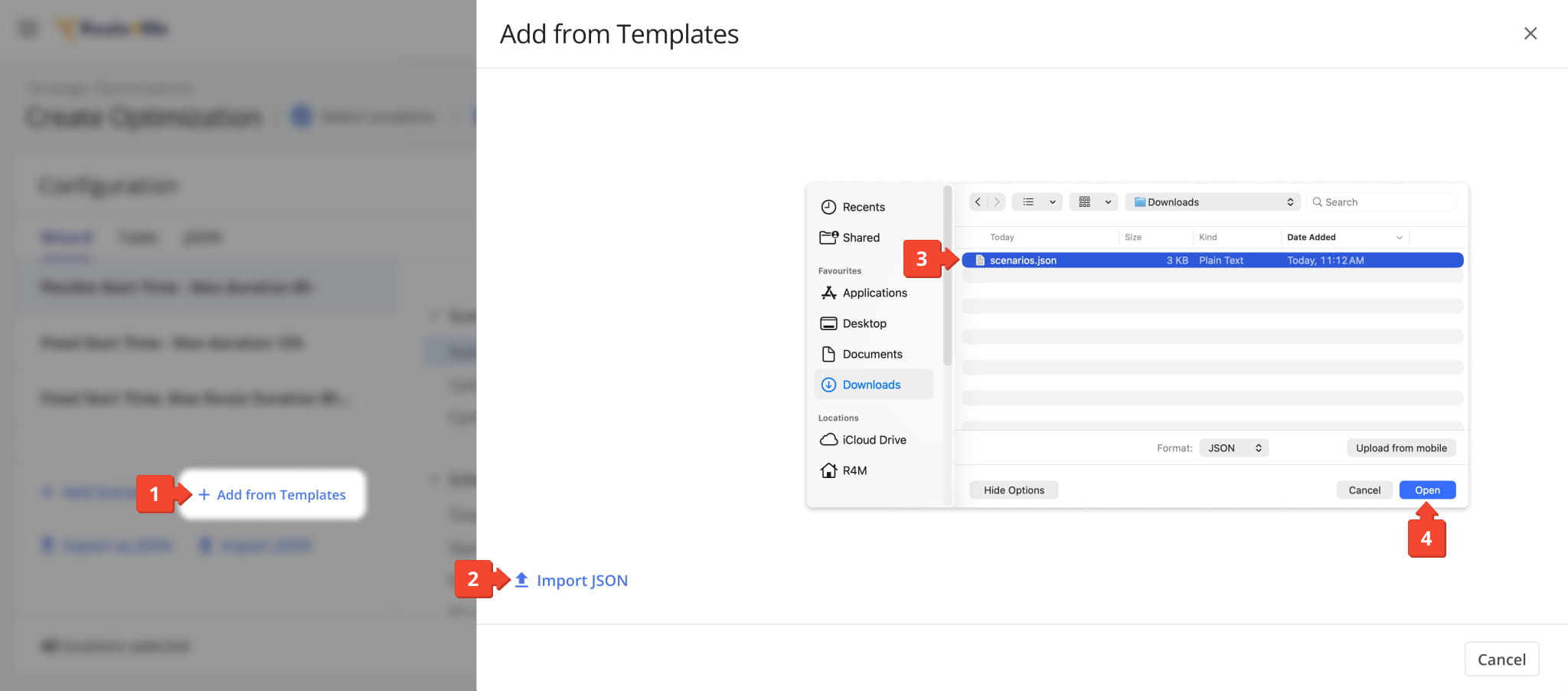
Once you’ve saved or exported a template, you can add its Scenarios to your configuration by following these steps:
- Click “Add from Templates” in the Scenarios List.
- Click “Import JSON“.
NOTE: If you’ve used the “Save as Template” option, the saved Scenario will automatically be added. - Find and select your previously exported JSON template with the file browser.
- Click “Open” to add the Scenarios from the template.
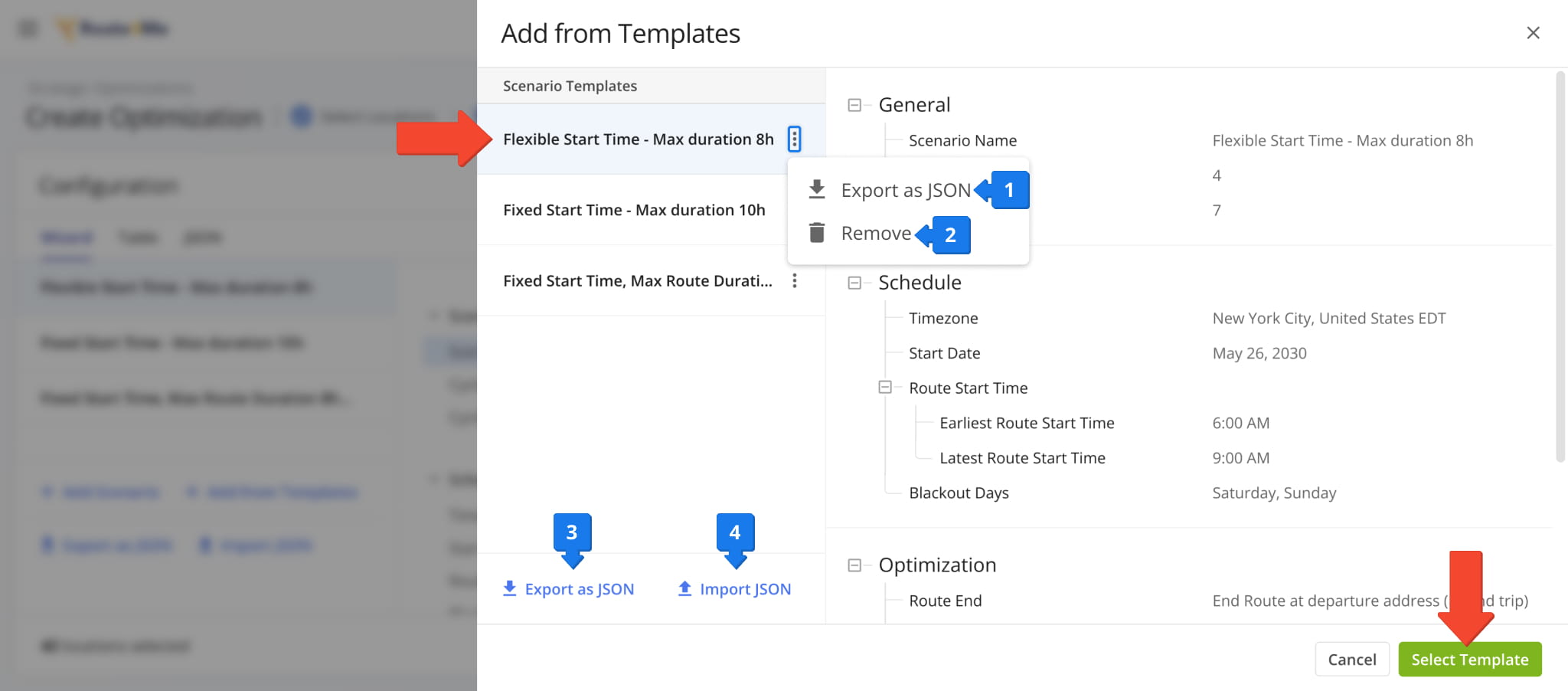
Next, you’ll see your “Scenario Templates” in the panel, along with their settings and schedule rules. Click a Scenario to check its settings and click “Select Template” to add the Scenario Templates to the Scenarios List.
The “Add from Templates” panel offers the following options to manage templates:
- Three Dot Icon > Export as JSON: Download a JSON file only with the selected Scenario from the template.
- Three Dot Icon > Remove: Remove the selected Scenario from the template.
- Export as JSON: Export the template as a new JSON file.
- Import JSON: Import a template with one or more Scenarios, as described above.
Compare Scenarios In The Configurator’s Table View Mode
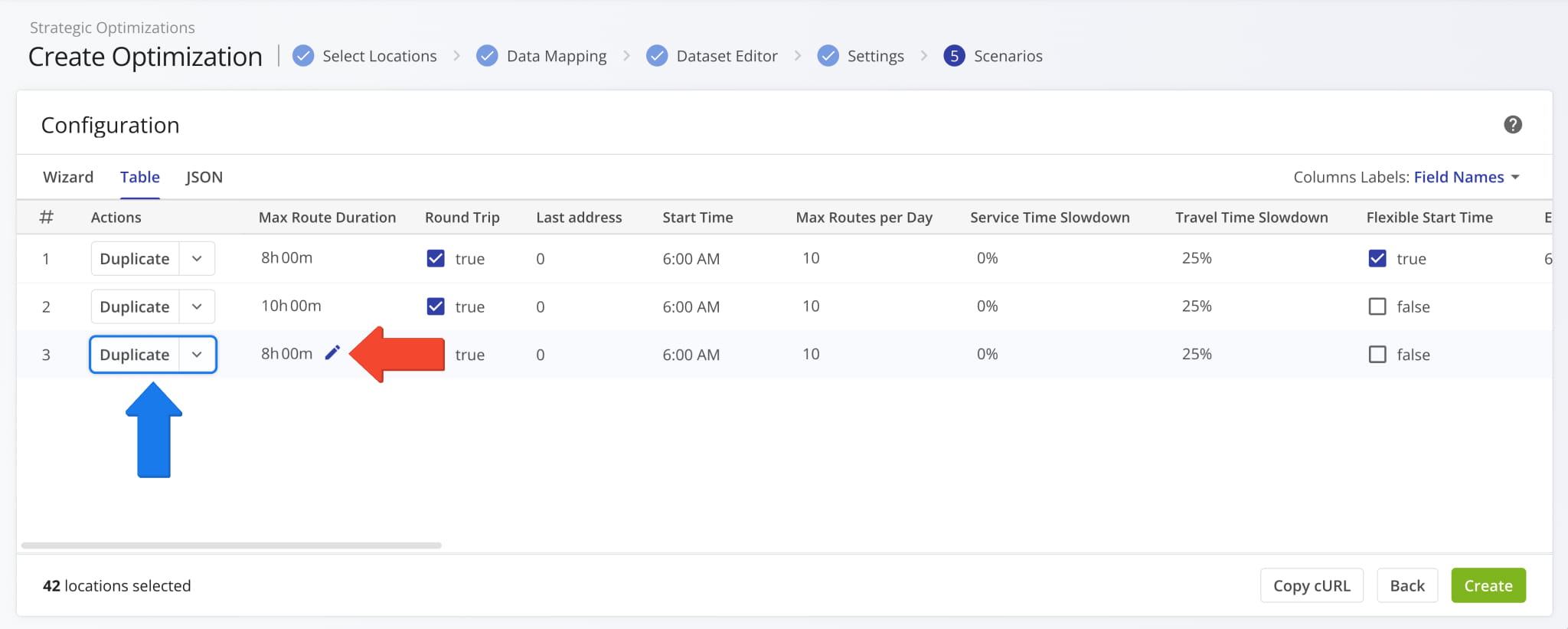
To easily compare the optimization settings across your Scenarios, click the “Table” tab. The table view maps Scenario settings as data columns, and you can use the “Column Labels” field to swap between field names and internal JSON identifiers.
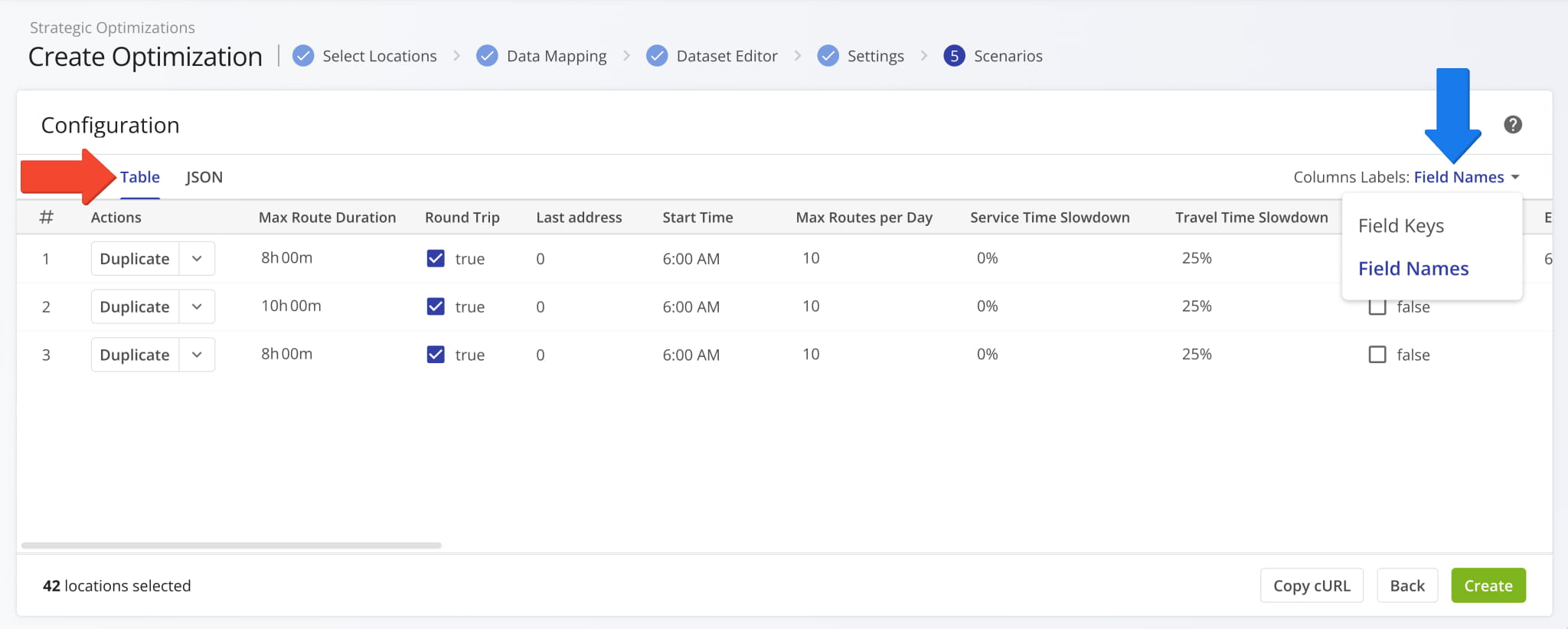
From the “Table” tab, you can adjust individual Scenario settings by clicking the Pencil Icon in the table. You can also click the “Duplicate” button to copy Scenarios or click the Down Arrow to remove Scenarios from the configurator.
Manually Input Strategic Scenario Settings In JSON Editor
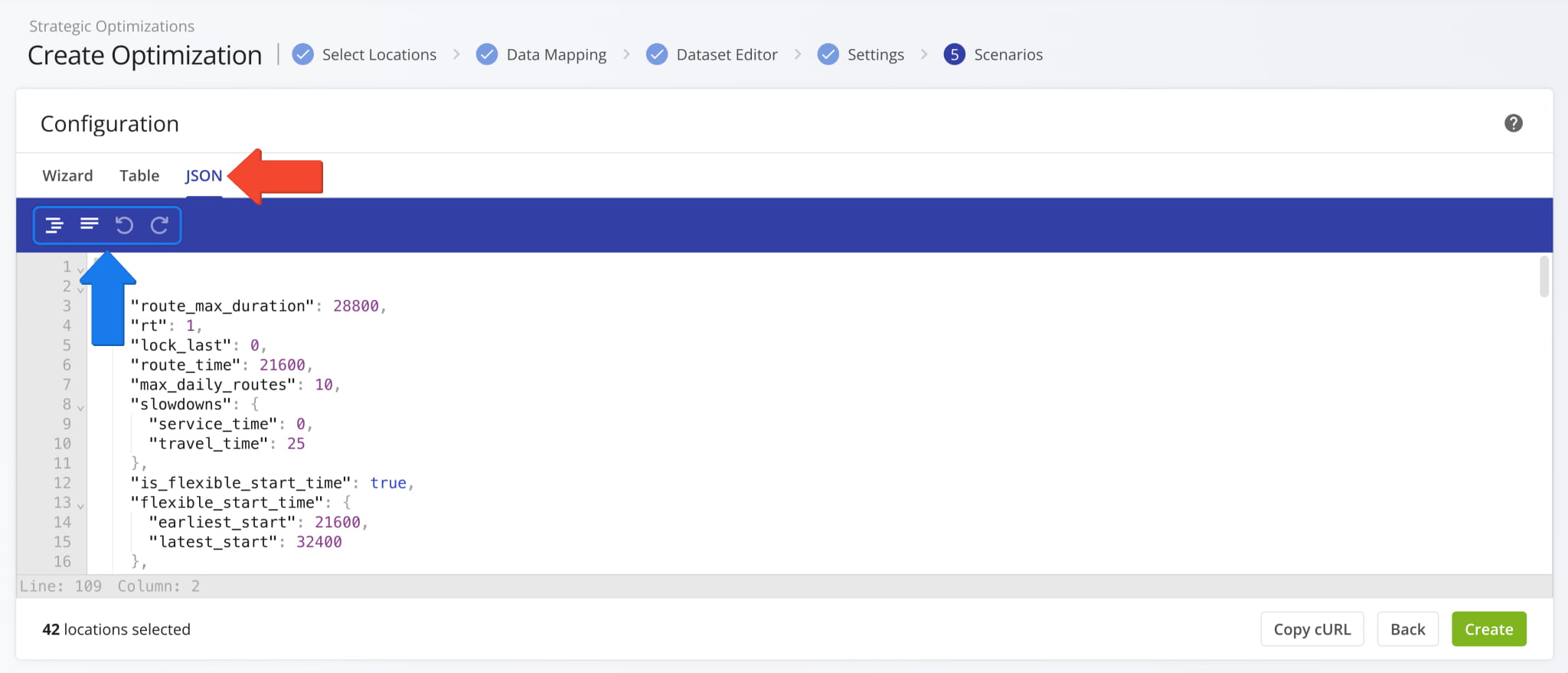
You can also configure Scenarios in a JSON editor, which you can open by clicking the “JSON” tab. Use the blue bar above the editor for formatting.
The table below shows a list of configuration parameters for recurring strategic cycle optimization, and you can find a JSON code snippet with the minimal necessary settings under the table.
Strategic Scenario JSON Settings
[
 {
  "route_max_duration": 28800,
  "rt": 1,
  "route_time": 43200,
  "parts": 99,
  "slowdowns": {
   "service_time": 10,
   "travel_time": 10
  },
  "is_flexible_start_time": false,
  "timezone": "America/New_York",
  "scheduler": {
   "start_date": "2030-01-01",
   "cycles": 4,
   "blackout_days": [],
   "blackout_dates": []
  },
  "scheduler_name": "Strategic Cycle Planning Configuration",
 }
]
Run Strategic Route Optimization With Your Scenario Settings
When you’re done setting up Scenarios, click “Create” to run the optimization and proceed to syncing strategic routes.
You can also copy a pre-formatted, executable request string with your Strategic Optimization setup, including all schedules, scenario settings, and address data by clicking the “Copy cURL” button.
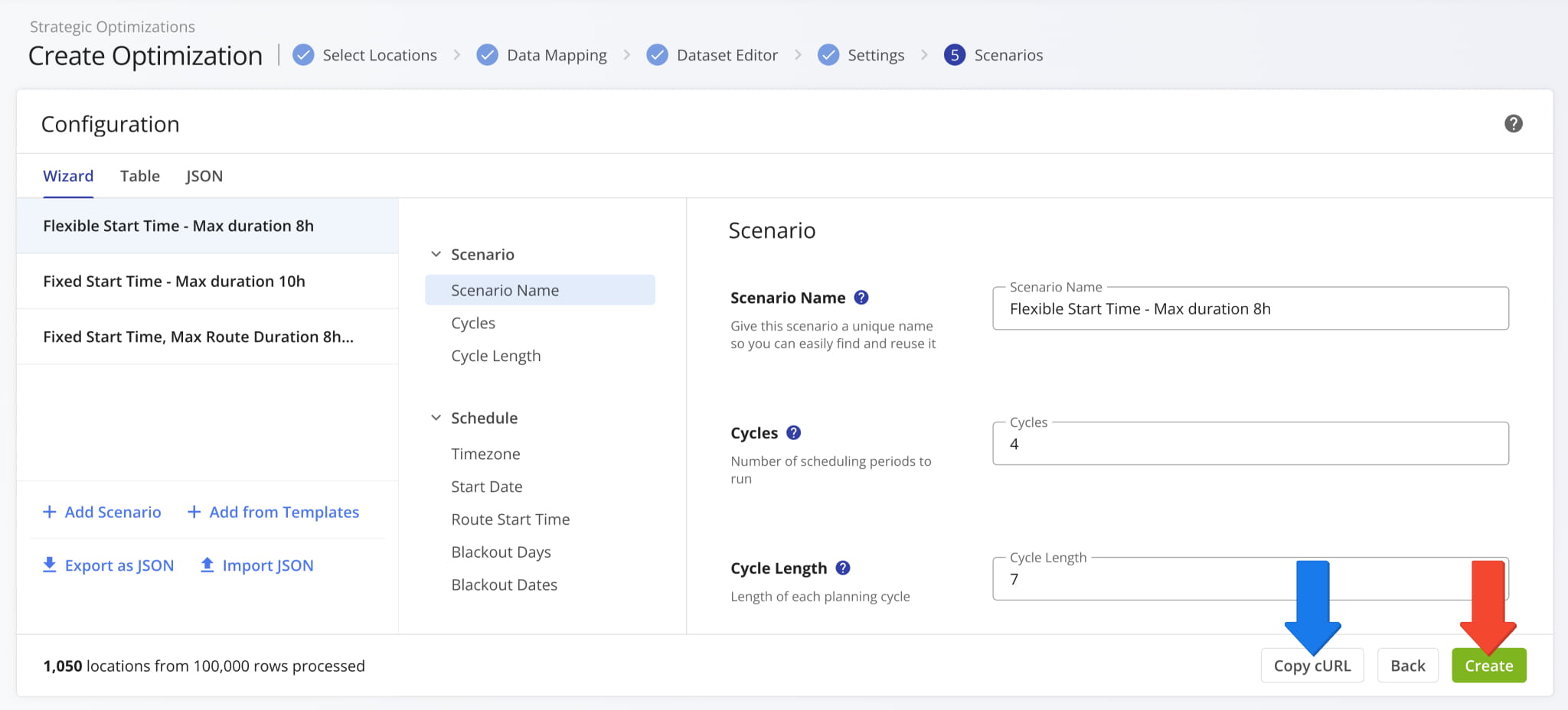
Route4Me will automatically use your data and Scenario Settings to create the most optimal draft routes according to your preferences. The Strategic Scenarios and their respective routes will be grouped into a new Strategic Optimization.

The new Strategic Optimization will open with the “AI Summary” tab selected. You’ll see an automatically generated high-level overview and performance report. It compares draft routes to evaluate Scenario performance and provide suggestions.
From an open Strategic Optimization, you can review its AI Summary, check routing trends, manage Strategic Scenarios and Locations, etc. Learn more about Strategic Optimization Management.

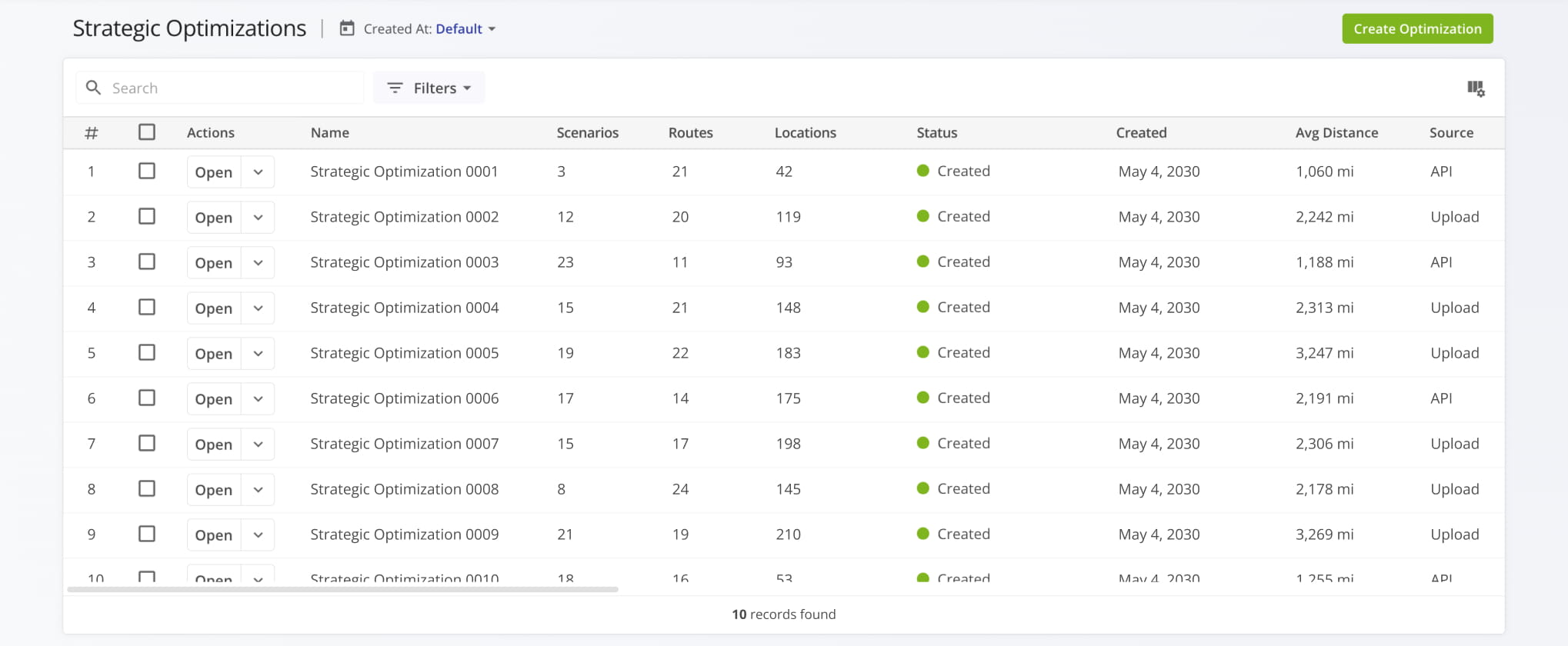
To access and manage your Strategic Optimizations, go to “Strategic Routing” > “Scenarios” in the Navigation Menu. Your “Strategic Optimization” page is where you can find Strategic Scenarios grouped into Strategic Optimizations.
Open Your Strategic Optimizations
Visit Route4Me's Marketplace to Check out Associated Modules:
- Operations
Audit Logging and Activity Stream
- Operations
Custom Data Add-On
- Operations
Advanced Team Management Add-On
About author: Kristian Andreev

