
Plan New Route Settings – Configure Route Optimization Settings & Parameters
With Route4Me, you can easily plan and optimize the most efficient last mile routes. In this guide, you’ll learn about the manual route settings available when planning routes. These settings are the values Route4Me applies when optimizing routes such as where routes start and end, which Business Rules apply to them, etc. If you want to use the same settings more than once, Optimization Profiles can store them as reusable presets, so you configure them once instead of on every optimization.

Table of Contents
Route Optimization Settings Overview – Open And Adjust Route Parameters
To open the “Route Settings” panel, start planning a new route and skip selecting an Optimization Profile. Settings are grouped into categories, listed down the left side. You can expand each category to see and configure its settings on the right.
The table below is the full reference list of every Route Settings category and the options available in them. The following sections of this guide will walk you through the Route Settings categories in more detail.
NOTE: The “Optimization” and “Advanced” categories are not available in the “Single Driver” Optimization Mode.

Route Settings Reference Table
General – Name Your Route And Choose An Optimization Mode
The “General” category defines the shape of your optimization. Your selected Optimization Mode determines whether Route4Me plans a single route or distributes your Destinations across multiple routes, and the Facility, Departure, and Route End settings fix the geographic start and end points those routes run between.
Because every other category adjusts routes whose scope is already set here, it’s recommended to configure General Settings first. Your Optimization Mode in particular determines which settings categories are available.

General Route Settings Reference Table
Resources – Assign Users, Routing Profiles And Vehicles
The “Resources” category assigns and associates the people and equipment that will run the planned route(s). Assignment names the User responsible for the route and the Crew they belong to, Equipment sets the assigned Vehicles or Equipment Types, and Routing Profile shows the recommended routing values for the categories further down the panel.
The Capacity Profile on each Vehicle you select becomes a constraint the Optimization works within, so what you assign here changes how Route4Me distributes your Destinations across the planned routes.

Resources Route Settings Reference Table
Optimization – Distribute Destinations And Apply Business Rules
The “Optimization” category controls how Route4Me splits a set of Destinations into routes. Destination Distribution sets the goal it optimizes toward, and Business Rules set operational limits on each planned route.
These are the settings that decide how many routes you end up with and how full each one is. When your Destinations can’t all fit within the set limits, Route4Me leaves the remainder as Unrouted Destinations rather than exceeding a constraint.
NOTE: The “Optimization” settings category is not available in Single Driver Mode.

Optimization Route Settings Reference Table
Schedule – Set Dates, Times, Service Time And Driver Breaks
The “Schedule” category defines Route Start Date and Route Start Time, whether Time Windows will be used, Service Time rules for Destinations, and Driver Breaks rules.
NOTE: “Breaks” is only available in Multiple Drivers Mode.
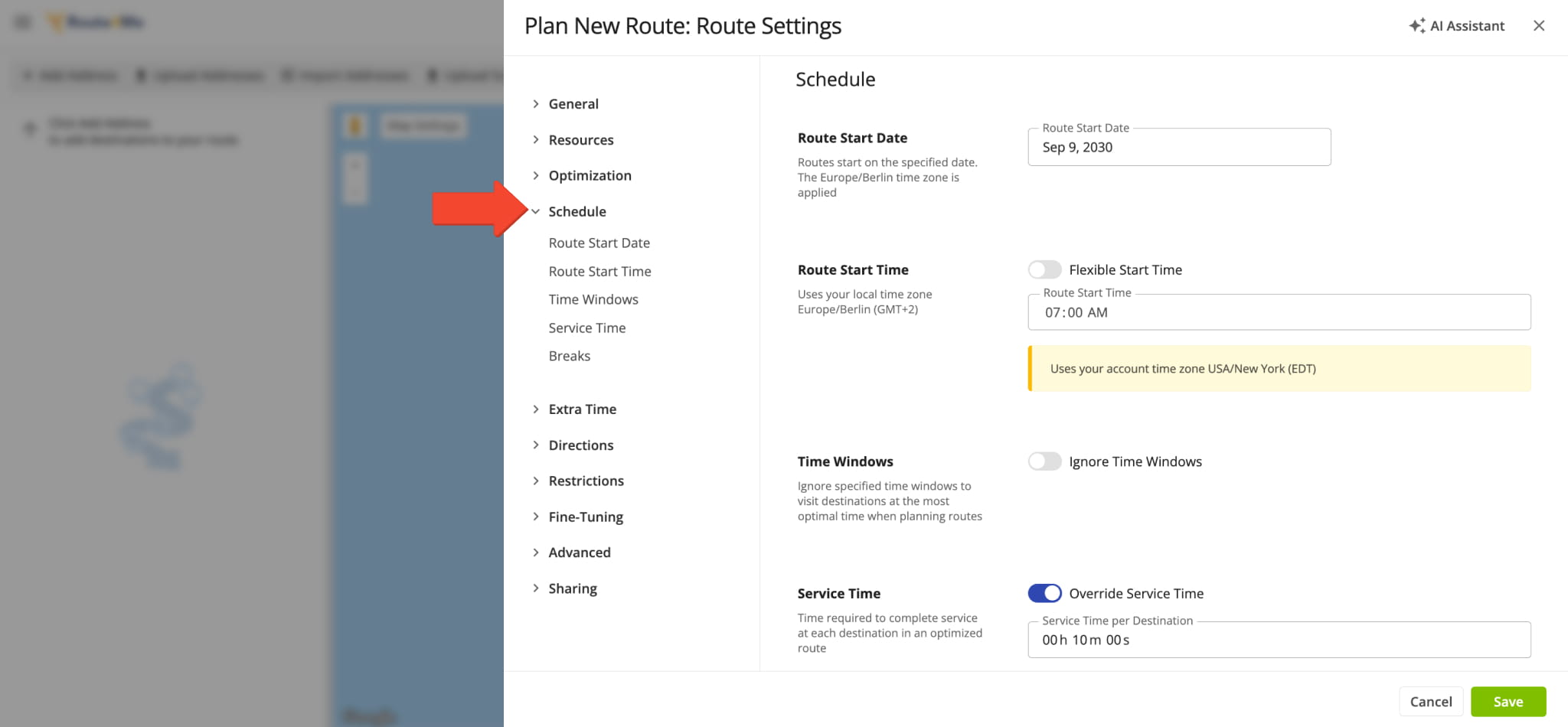
Schedule Route Settings Reference Table
Extra Time – Add Pre-Trip And Post-Trip Time
The “Extra Time” category adds time to the start and end of your planned route(s) for tasks like inspections, loading, paperwork, and vehicle checks. Route4Me adds this time to the route’s first and last Destinations instead of inserting separate stops.
Selected Equipment Types provide default values for these fields, and you can adjust them as you like.

Extra Time Route Settings Reference Table
Directions – Choose How Routes Are Calculated
The “Directions” category sets whether Route4Me prioritizes distance or travel time and how assigned Users travel routes.

Directions Route Settings Reference Table
Restrictions – Avoid Highways, Borders, Turns And Zones
The “Restrictions” category limits where and how Route4Me can plan routes. You can avoid road types like highways, tolls, ferries, and tunnels, restrict turns, configure cross-border routing, and route around the Avoidance Zones defined on your account.

Restrictions Route Settings Reference Table
Fine-Tuning – Adjust For Traffic And Optimization Priority
The “Fine-Tuning” category adjusts how Route4Me weighs the optimization. The Slowdown settings increase service and travel times to reflect conditions the map data doesn’t account for, and Optimization Priority shifts the balance between the shortest route, the fastest route, and the least driver idling.

Fine-Tuning Route Settings Reference Table
Advanced – Match Depots, Driver Skills And Vehicles
The “Advanced” category matches resources to requirements. Route4Me compares the Driver Skills of your Users and the Vehicle Attributes of your Vehicles against what your Destinations and Facilities require and assigns routes accordingly.
NOTE: The “Advanced” category is not available in “Single Driver” mode.

NOTE: Matching options are disabled (grayed out) unless “Use Depot as Advanced Constraint” is enabled.
Advanced Route Settings Reference Table
Sharing – Email Planned Routes Automatically
The “Sharing” category sends the planned route(s) to people who need to see them. Emailing a route gives recipients view-only access without a Route4Me account, which is separate from assigning a User to run it.
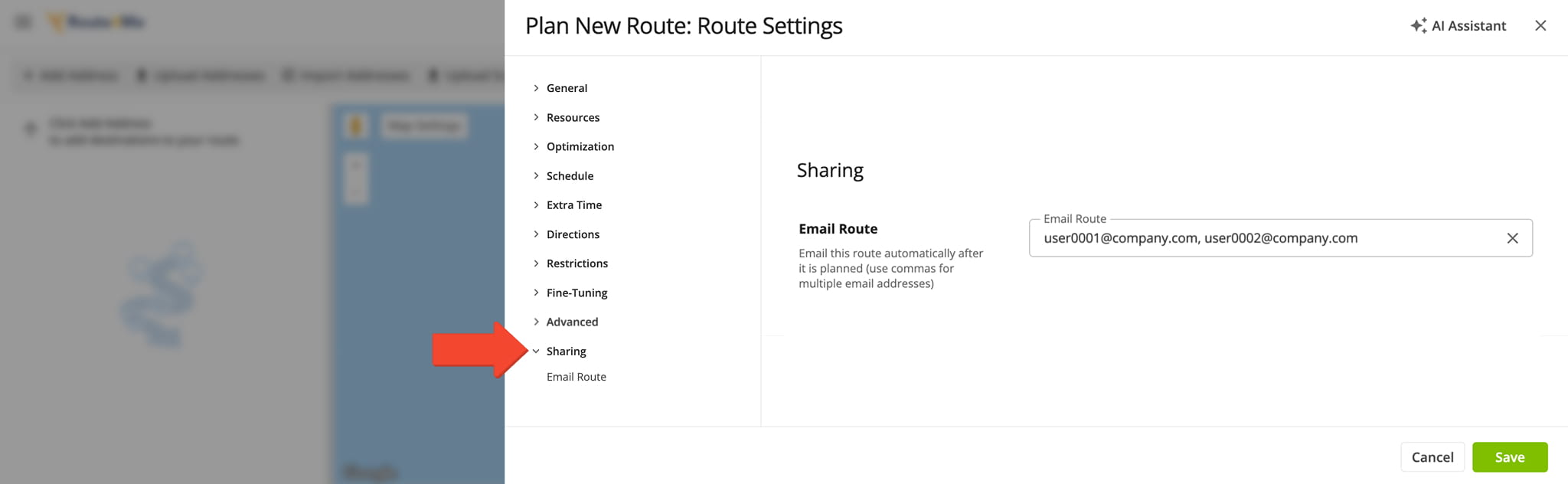
Sharing Route Settings Reference Table
Visit Route4Me's Marketplace to Check out Associated Modules:
- Operations
Custom Data Add-On
- Operations
Advanced Team Management Add-On
About author: Kristian Andreev

