
Traffic Adjustment – Service Time Slowdown & Travel Time Slowdown
Heavy traffic is one of the most common reasons routes run long, and one of the hardest to predict. With Route4Me’s Service Time and Travel Time Slowdown Business Rules, you can build traffic-based adjustments directly into your routes before they start, accounting for conditions like rush hour, congested corridors, or peak delivery windows. This guide walks you through how to configure and apply Slowdown settings to keep your routes realistic and your team on schedule.
Table of Contents
Optimization Profiles – Traffic-Based Route Planning
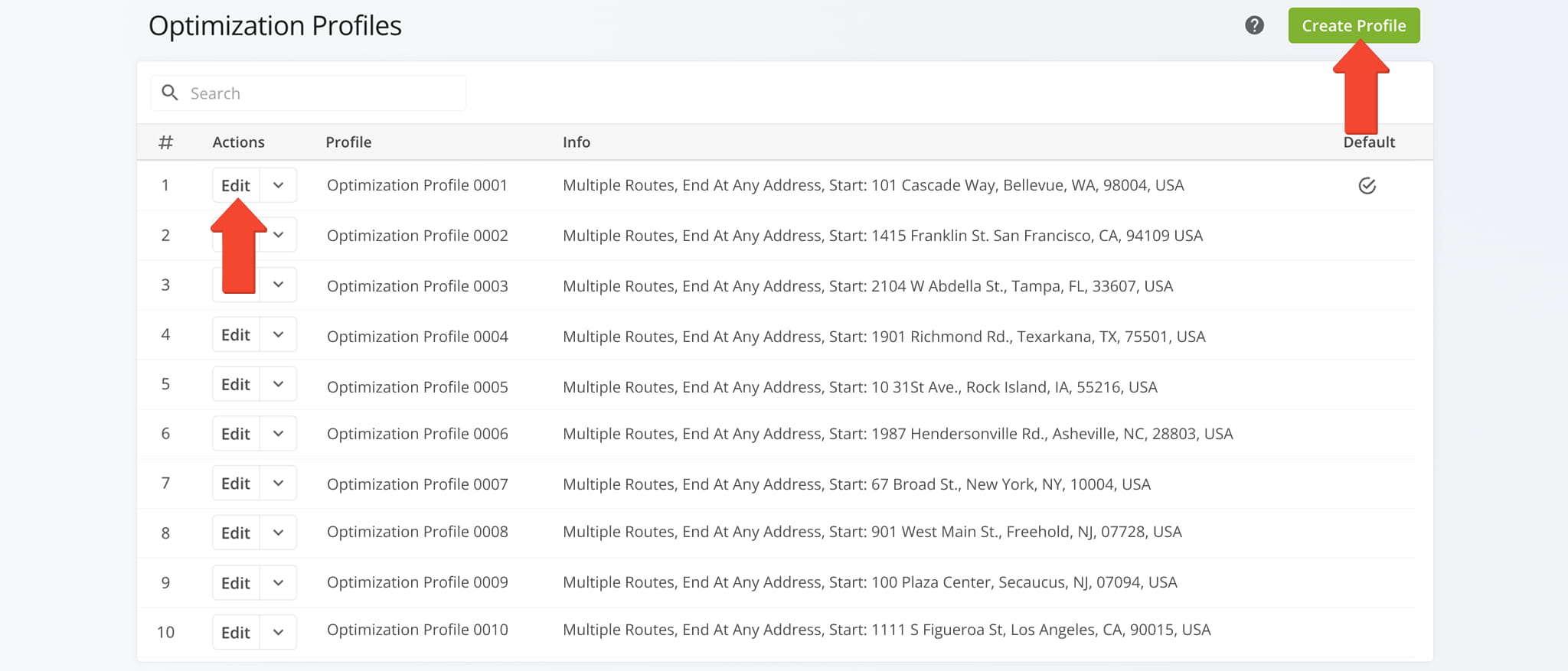
You can account for traffic delays by adjusting your Optimization Profiles. From the Navigation Menu, go to “Optimization Settings” > “Optimization Profiles“. To create a new Profile, click “Create Profile“. To edit an existing one, click “Edit Profile“.
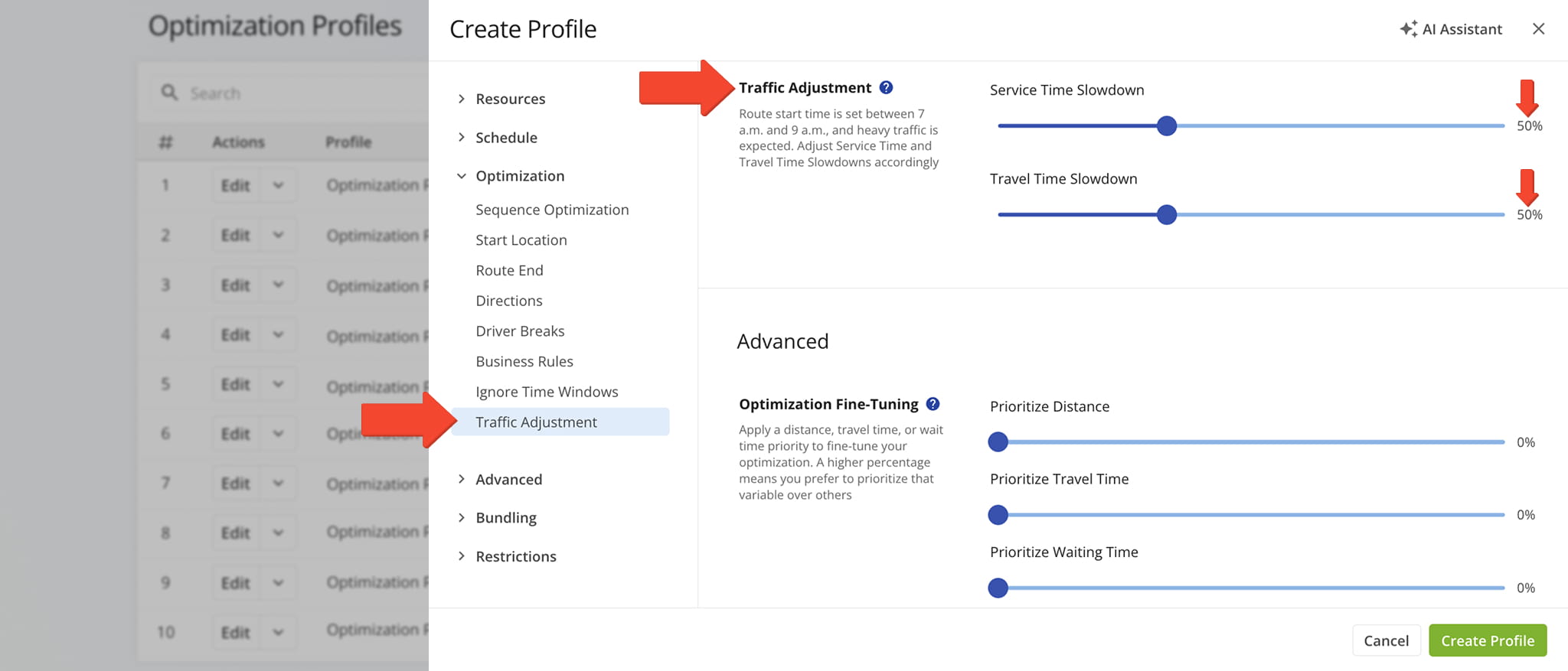
Under the “Optimization” tab, select “Traffic Adjustment” and use the sliders to set Service Time and Travel Time Slowdowns as a percentage.
For example, a 50% Service Time Slowdown turns a 10-minute stop into 15 minutes, while a 50% Travel Time Slowdown turns a 60-minute leg into 90 minutes.
Setting these values before dispatch ensures your schedule accounts for real-world conditions from the start.
Open Your Optimization Profiles
Manual Optimization Settings – Fine-Tune Travel Times For Traffic
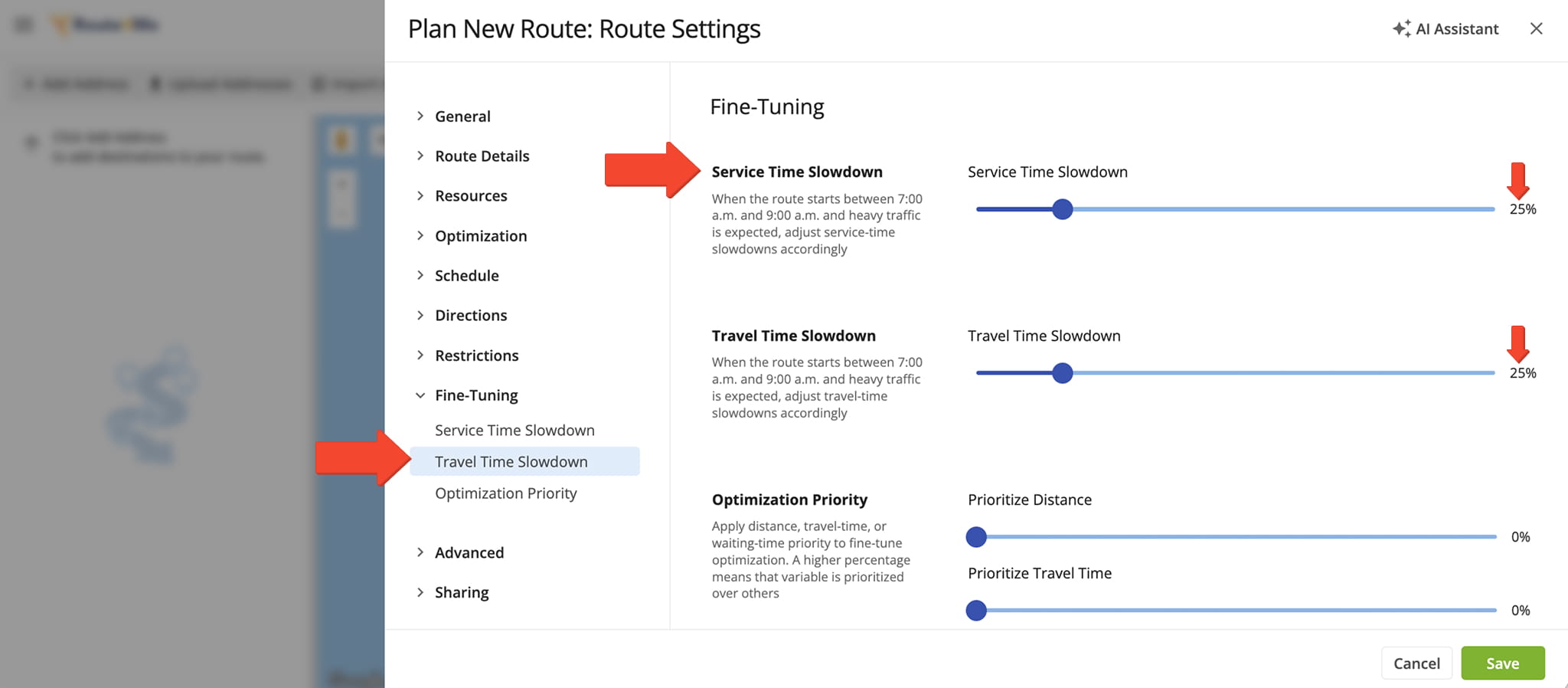
You can also account for traffic delays through manual optimization settings when planning a new route. From the Navigation Menu, select “Plan New Route” and choose your route planning method.
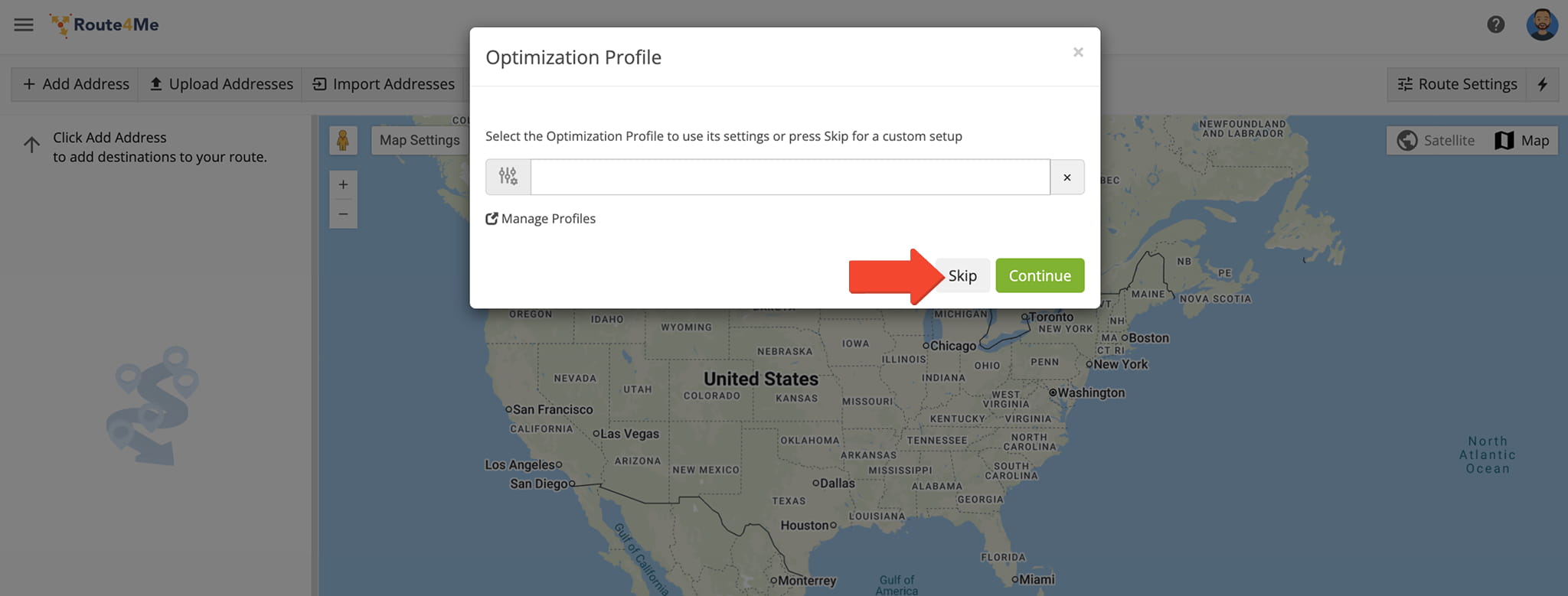
When prompted to select an Optimization Profile, click “Skip” to access manual settings.
Under “Fine-Tuning“, use the sliders to set your Service and Travel Time Slowdowns as a percentage, then click “Save“.
For example, a 25% Travel Time Slowdown adds 15 minutes to a 60-minute drive, and the same percentage adds 2.5 minutes to a 10-minute service stop.
Accurate slowdown values mean fewer missed windows, less driver stress, and a schedule that holds up throughout the day.
Slowdown Setting Comparison – Before And After Slowdown
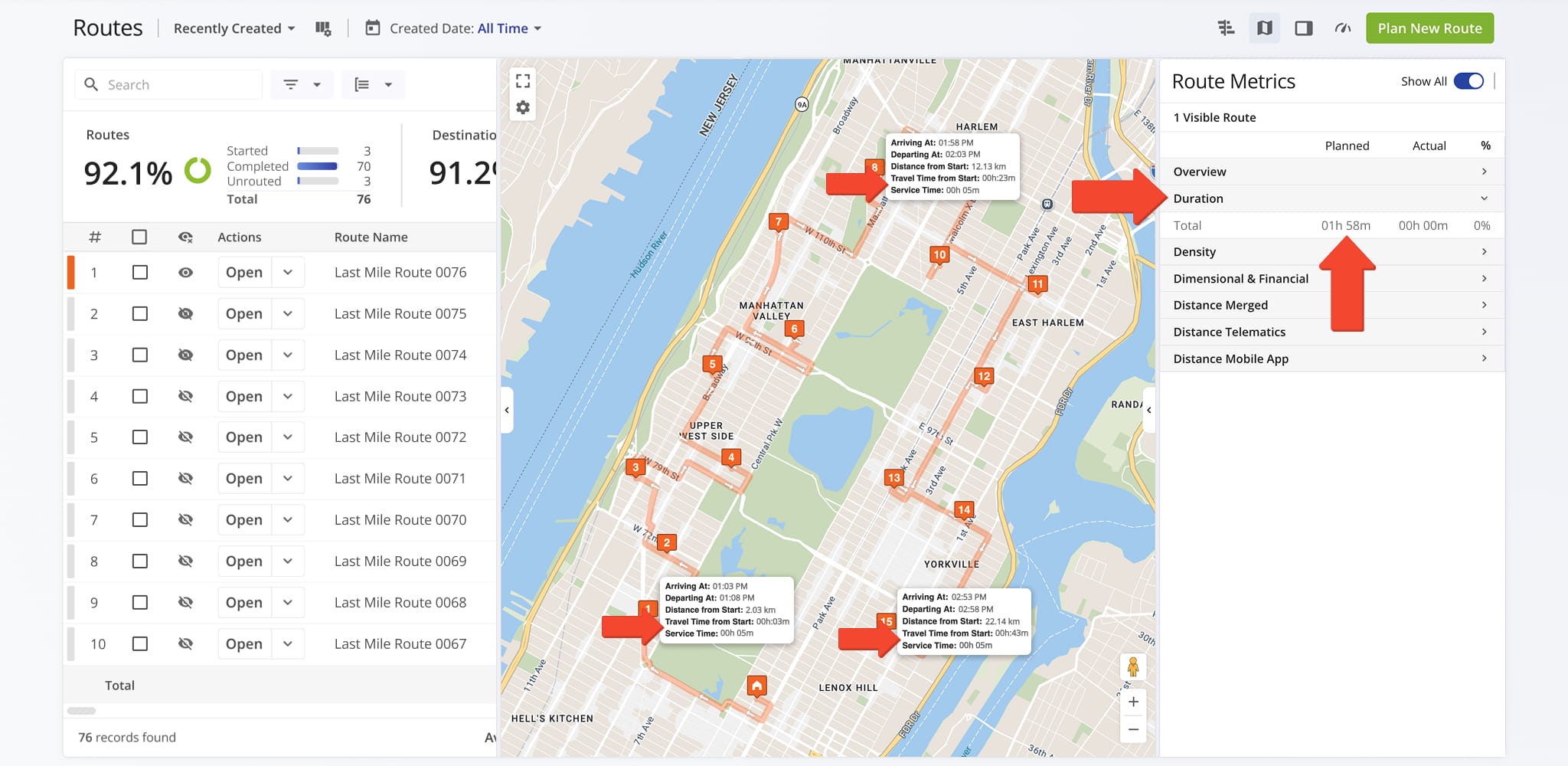
Before – No Slowdown Applied
With no Slowdown set, the Route Metrics panel displays the route’s unmodified duration. Destination-level details on the map show standard “Travel Time from Start” and “Service Time” for each stop.
NOTE: Learn more about the Route Metrics Panel and configuring the Route Map’s ETA Display.
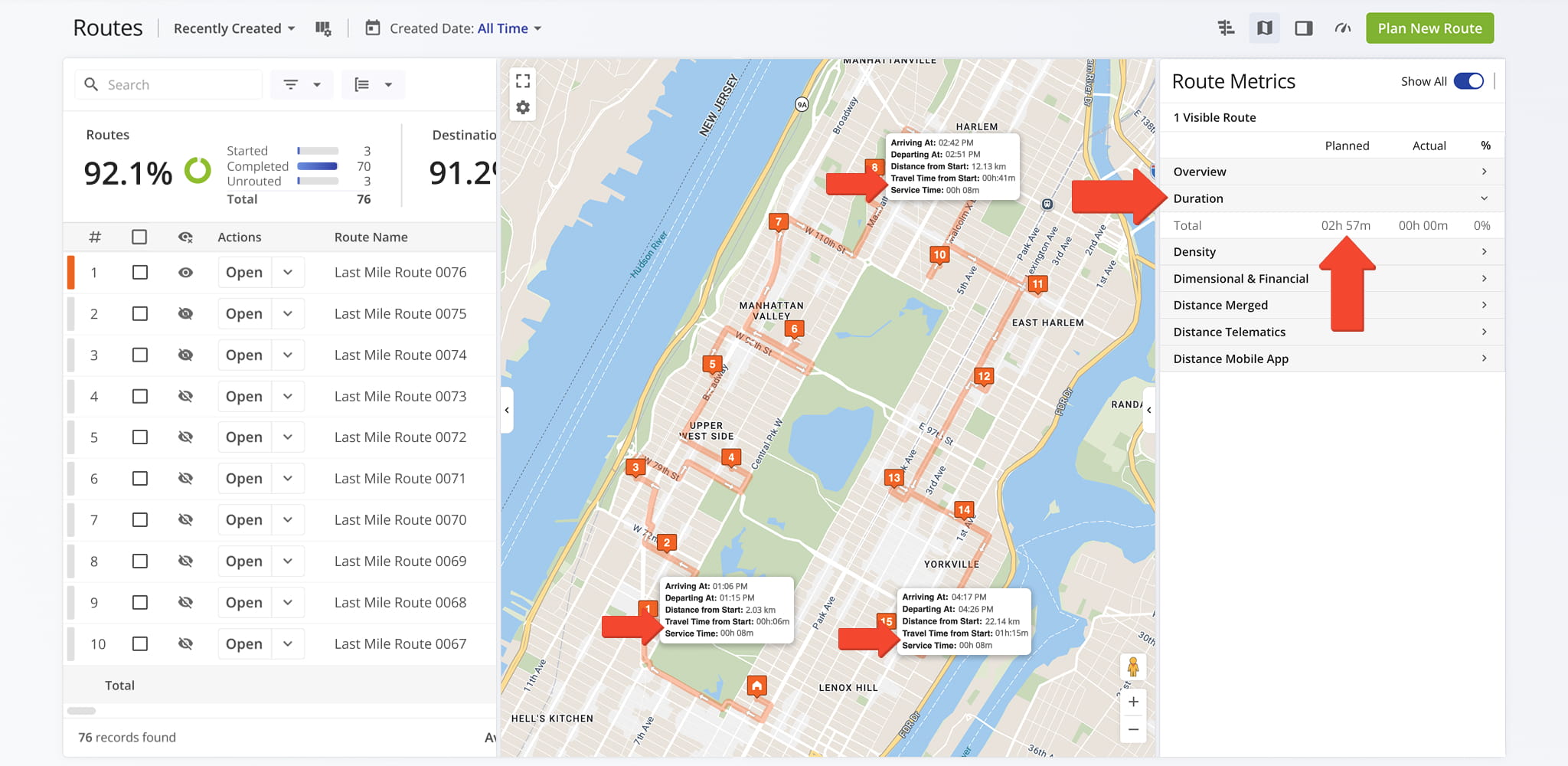
After – 75% Slowdown Applied
With a 75% Slowdown applied to both Service Time and Travel Time, the Route Metrics panel reflects a longer overall route duration.
Destination-level details on the map show increased “Travel Time from Start” and “Service Time” values across all stops, giving you a a realistic picture of how Slowdowns affects overall route duration and stop timing.
Visit Route4Me's Marketplace to Check out Associated Modules:
- Operations
Custom Data Add-On
- Operations
Advanced Team Management Add-On
About author: Daniel Archer

