
Route Metrics – Track Route Progress And Performance

The Route Metrics sidebar on the Routes Page provides quick insight into route progress and operational efficiency with planned vs. actual values for route duration, distance, asset utilization, and more. Enterprise teams can use this actionable intelligence to evaluate performance and identify trends across operations. This guide explains how to open, navigate, and customize the sidebar, review key metrics, and compare planned and actual values across multiple routes. Keep reading to learn more.
The Route Metrics panel on the Routes Page provides quick insight into route progress and operational efficiency with planned vs. actual values for route duration, distance, asset utilization, and more.


Open The Route Metrics Panel On The Routes Page

First, go to “Dynamic Routing” > “Routes” from the Navigation Menu to open your Routes Page. Then, click the Sidebar Button to open the Route Metrics interface. You can click the button again to close it.

The sidebar automatically shows planned and actual metrics for the currently visible routes, updating automatically when you adjust filters and view modes. You can collapse or expand data categories by clicking the Down Arrow in category headers.
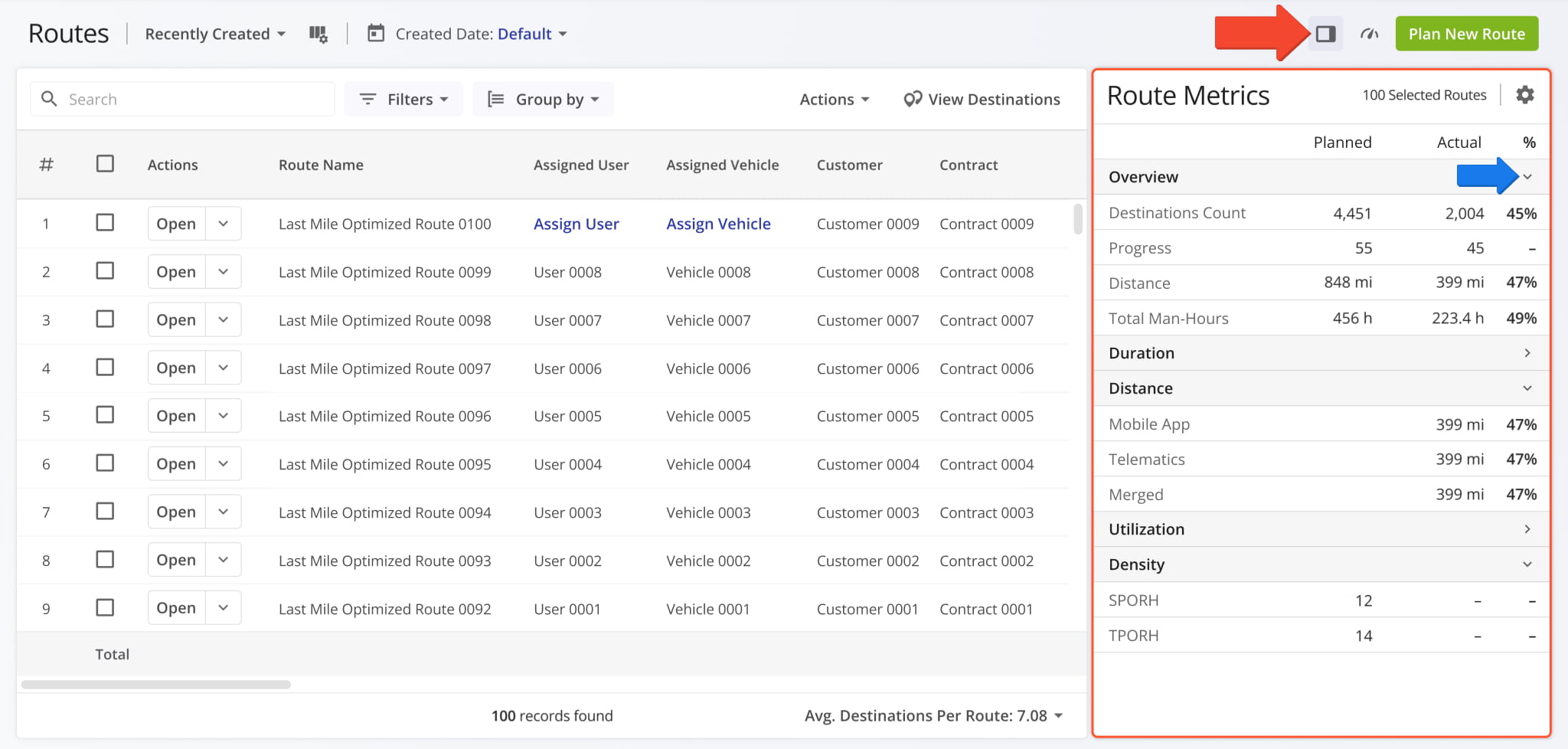
Open Your Routes Page

Click the Sidebar Button to open the Route Metrics interface. You can click the button again to close it.


Customize Route Metrics Data Fields And Categories

Just like other Route4Me tools, you can customize the data fields in the Route Metrics sidebar. To do so, simply click the Gear Icon.

NOTE: Data shown in Route Metrics is available for individual routes as Route Data Columns. The sidebar enables you to always see aggregate performance metrics without having to navigate the main data table or calculate values across multiple routes.
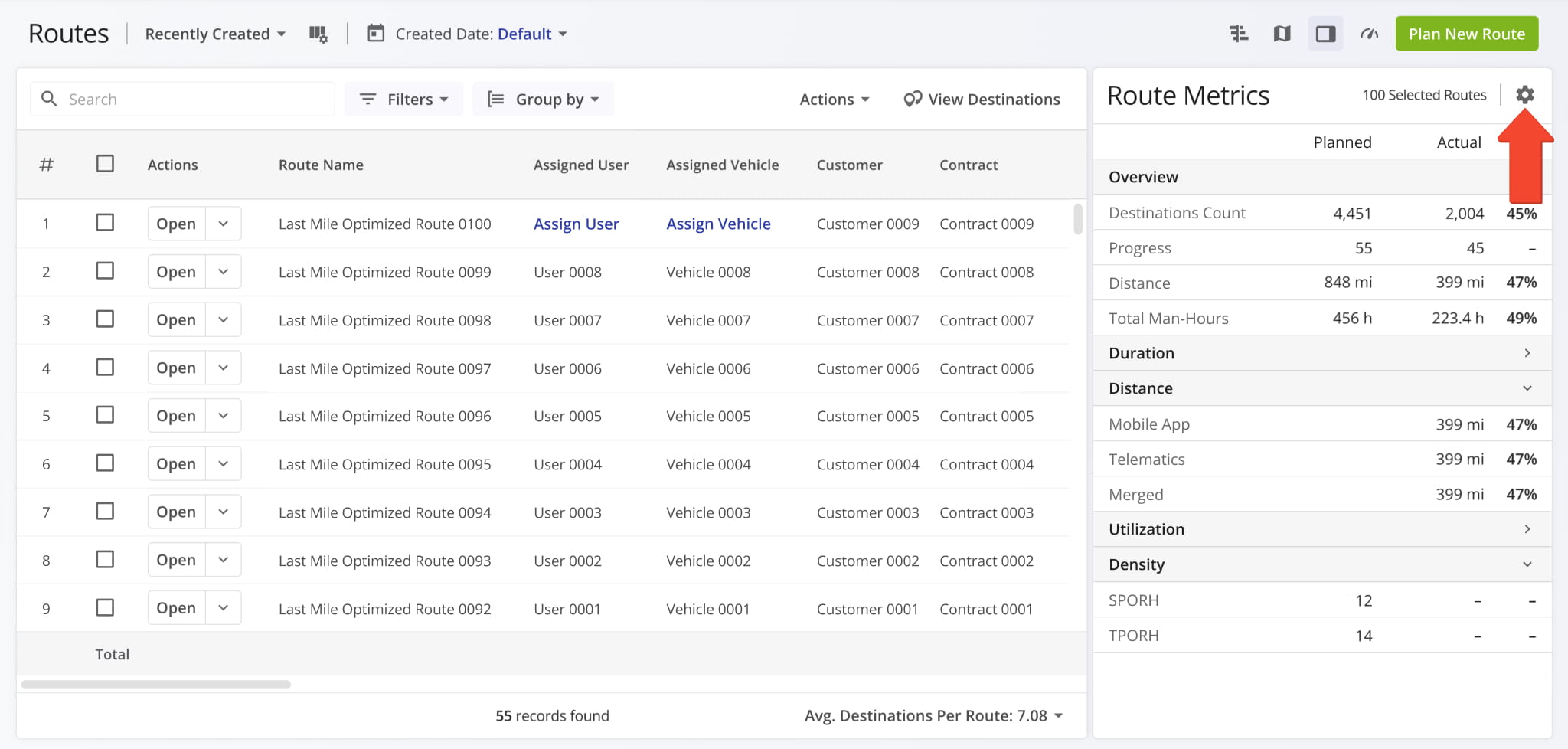
Just like other Route4Me tools, you can customize the data fields in the Route Metrics sidebar. To do so, simply click the Gear Icon.


You’ll see the “Display Columns” panel where you can enable Route Metrics data fields by checking boxes. In the “Arrange Columns” section on the right, you can change the order of data fields by clicking and dragging. You can also arrange data categories in the same way; simply click and drag the category header.

The following section of this guide outlines the data fields available in your Route Metrics.
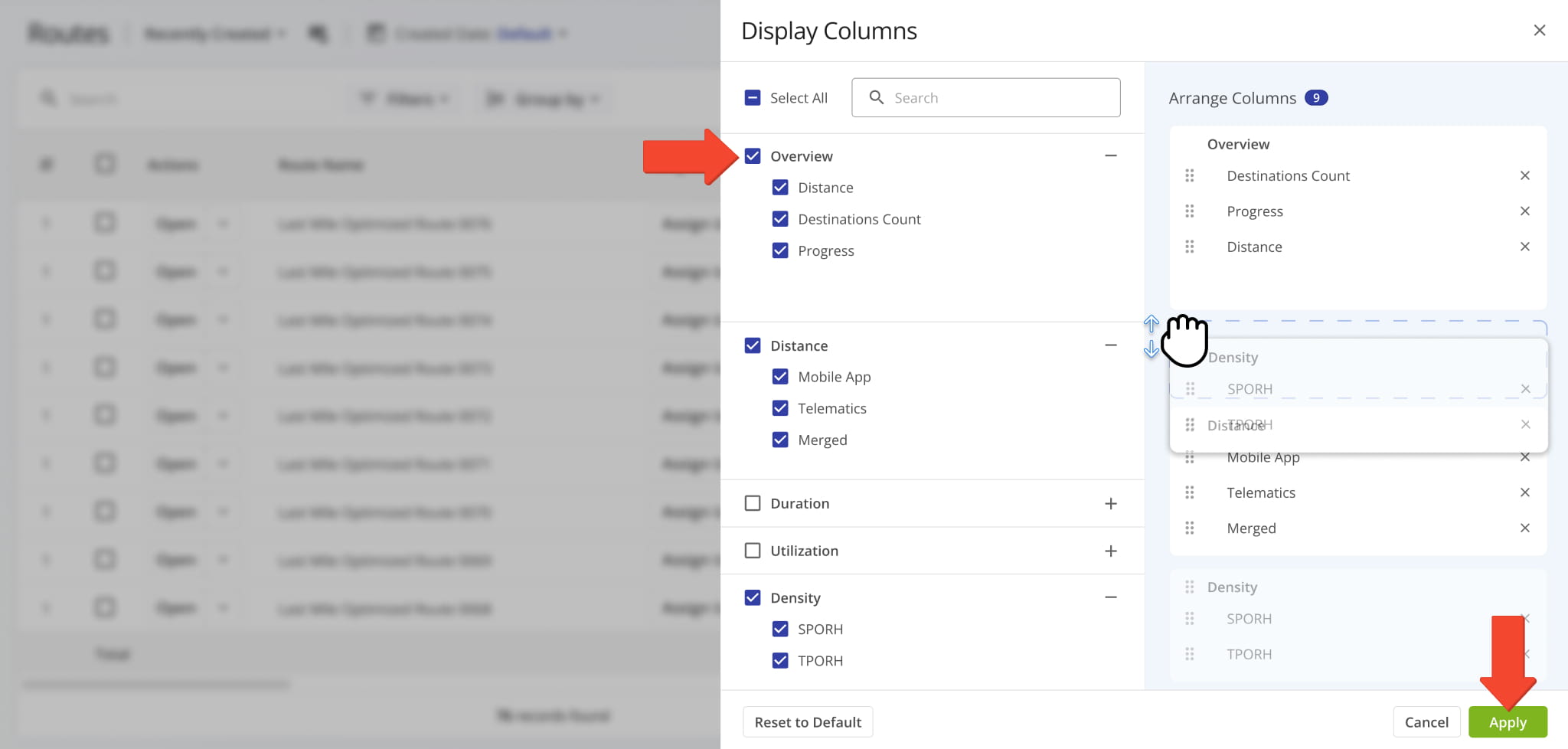
You can change the order of data fields by clicking and dragging. You can also arrange data categories in the same way; simply click and drag the category header.


Route Metrics Supported Performance Data Fields

MetricDescription
Overview
DistanceTotal route distance for selected routes.
Destinations CountTotal number of destinations for selected routes.
ProgressPercentage value of route destinations that have assigned statuses.
Total Man-HoursTotal value of man hours for selected routes.
Distance
Mobile AppTotal distance traveled, recorded by the mobile app.
TelematicsTotal distance traveled, recorded by telematics.
MergedCombined average distance from mobile app and telematics data.
Duration
TotalTotal duration of selected routes, combining all individual sub-durations for driving, service, wait, and breaks.
TravelTotal travel time between destiantions for all selected routes.
ServiceTotal Service Time at destinations for all selected routes.
WaitTotal Wait Time before Time Windows for all selected routes. Wait time
BreakTotal Driver Break time for all selected routes.
UnattributedTotal route duration of selected route that couldn’t be associated with another duration value.
Detected UnattributedTotal detected route duration of selected route that couldn’t be associated with another duration value.
Stem InTotal time duration from route start locations to the first stop for selected routes.
Stem OutTotal time duration from the final destination to the route end location for selected routes.
Utilization
PiecesPlanned and actual (delivered) order units for selected routes.
WeightPlanned and actual (delivered) weight of orders for selected routes.
CubePlanned and actual (delivered) cubic v0lume of orders for selected routes.
RevenuePlanned and actual (generated) revenue associated with orders for selected routes.
CostPlanned and actual (generated) cost associated with orders for selected routes.
Density
SPORHStops per operational route hour, showing efficiency relative to active route time for selected routes.
TPORHTotal points or destinations per operational route hour for selected routes.


Visit Route4Me's Marketplace to Check out Various Modules and Add-Ons:

Last Updated:

About author: Kristian Andreev

Kristian AndreevKristian is a Technical Writer at Route4Me. With over a decade of experience in writing and localization, he's an expert at communicating complex technical data in a clear, concise, and user-friendly way. Passionate about bridging the gap between engineers and users, he specializes in creating documentation to streamline onboarding, enhance product usability, and support global teams on the path to success.

Was this article helpful?
Still can't find what you're looking for? Contact us
Route4Me

About Route4Me

Route4Me has over 40,000 customers globally. Route4Me's Android and iPhone mobile apps have been downloaded over 2 million times since 2009. Extremely easy-to-use, Route4Me's apps create optimized routes, synchronize routes to mobile devices, enable communication with drivers and customers, offer turn-by-turn directions, delivery confirmation, and more. Behind the scenes, Route4Me's operational optimization platform combines high-performance algorithms with data science, machine learning, and big data to plan, optimize, and analyze routes of almost any size in real-time.
