
Configure Pre-Trip And Post-Trip Time – Add Depot Time To Routes
Route optimizers plan the drive between stops, but a driver’s workday doesn’t begin at the first departure or end at the last delivery. Pre-trip and post-trip time lets you account for the depot work that happens before a route starts and after it finishes, such as inspections, loading, unloading, and paperwork. This guide explains how to configure these settings, either manually or within an Optimization Profile, so your routes reflect the full length of the shift
Table of Contents
Route Buffer Time – Why Add Time Before And After A Route
By default, route optimizers assume a driver leaves the depot the minute their shift starts and clocks out the second they return.
Real workdays don’t run that way. Adding bookend time, a buffer at each end of the route, closes the gap between the planned schedule and what actually happens at the depot.
- At the start: Time for vehicle inspections, loading, manifest checks, and syncing the day’s route before the first departure.
- At the end: Time for unloading, returns, defect reporting, paperwork, and securing the vehicle after the last stop.
Accounting for this time keeps ETAs realistic, helps routes stay within working-hour and overtime limits, and supports drivers by making standard procedures part of the route plan.
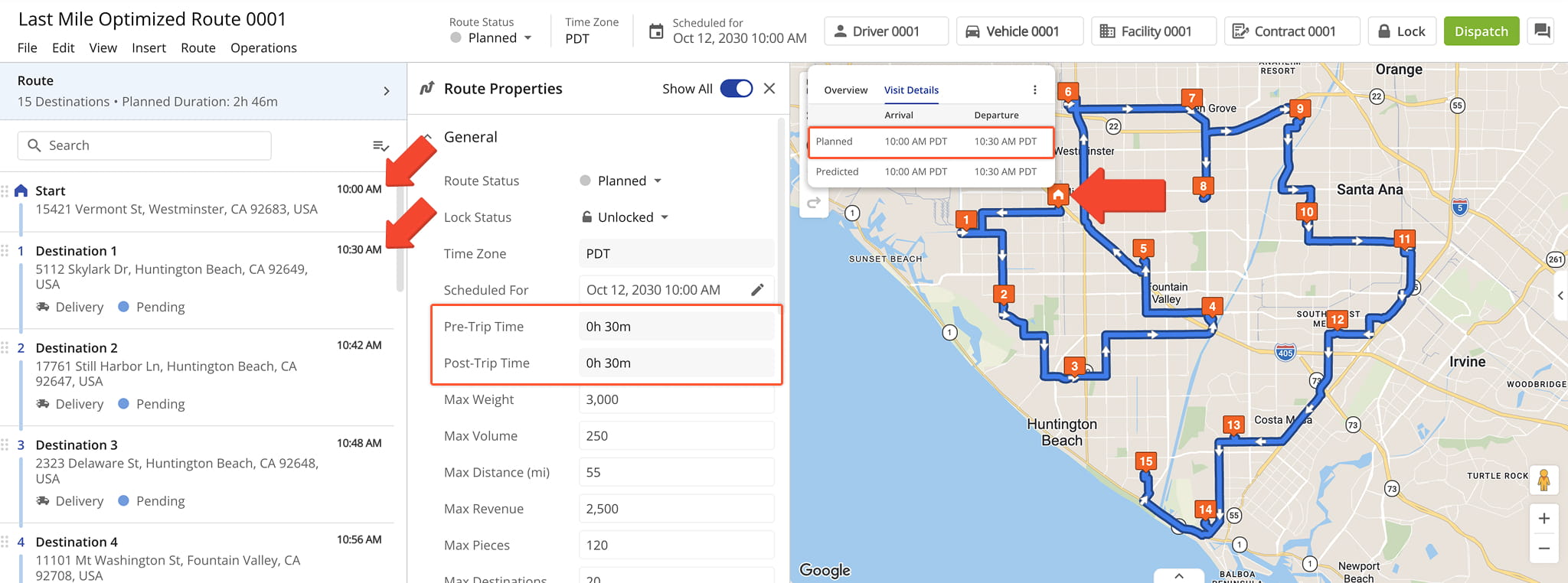
Manual Route Settings – Add Pre- And Post-Trip Time To A Single Route
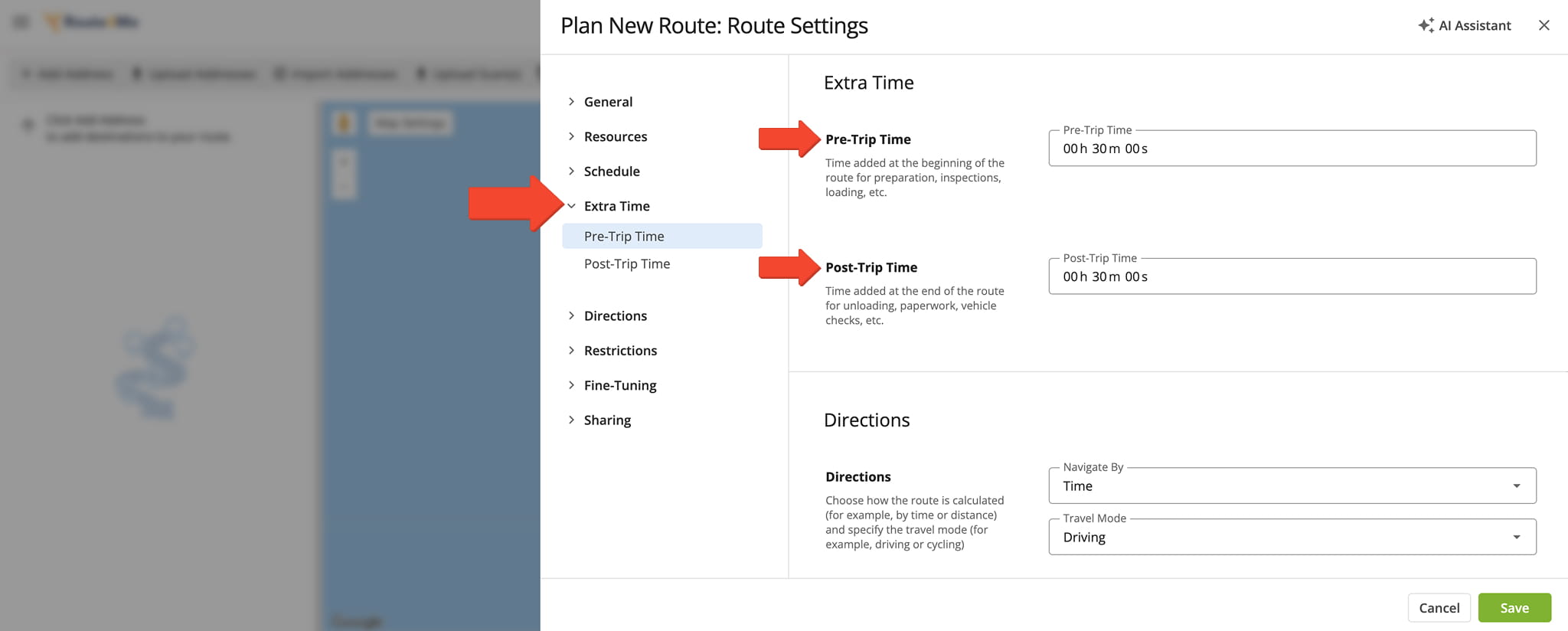
When planning a new route, you can set pre-trip and post-trip time directly in the route settings. Under “Extra Time“, enter the time you wish to reserve at the start and end of the route.
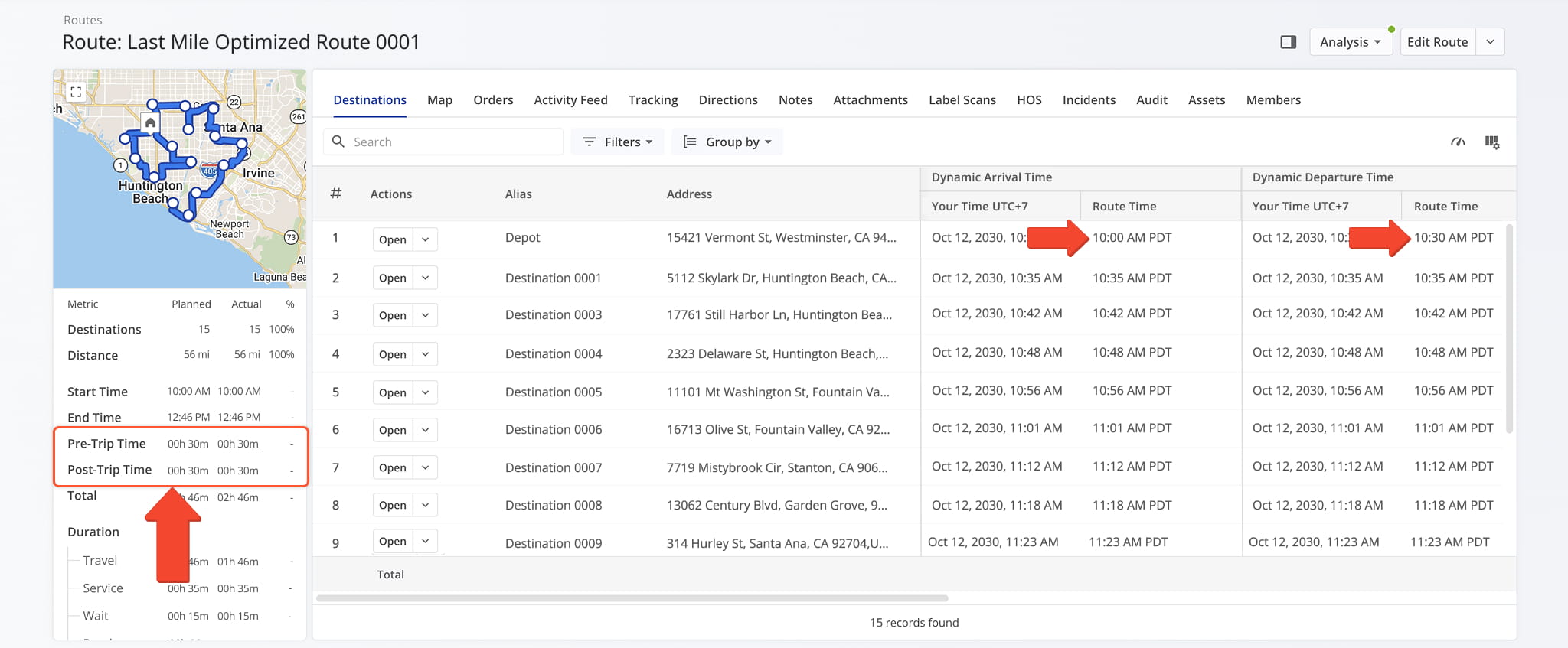
Route4Me applies this time automatically. If a route is scheduled for 10:00 AM and you add 30 minutes of pre-trip time, the first stop is estimated for 10:30 AM instead of 10:00 AM, leaving room for depot tasks before the vehicle departs.
Post-trip time works the same way at the end of the route, reserving time after the last stop for end-of-day tasks.
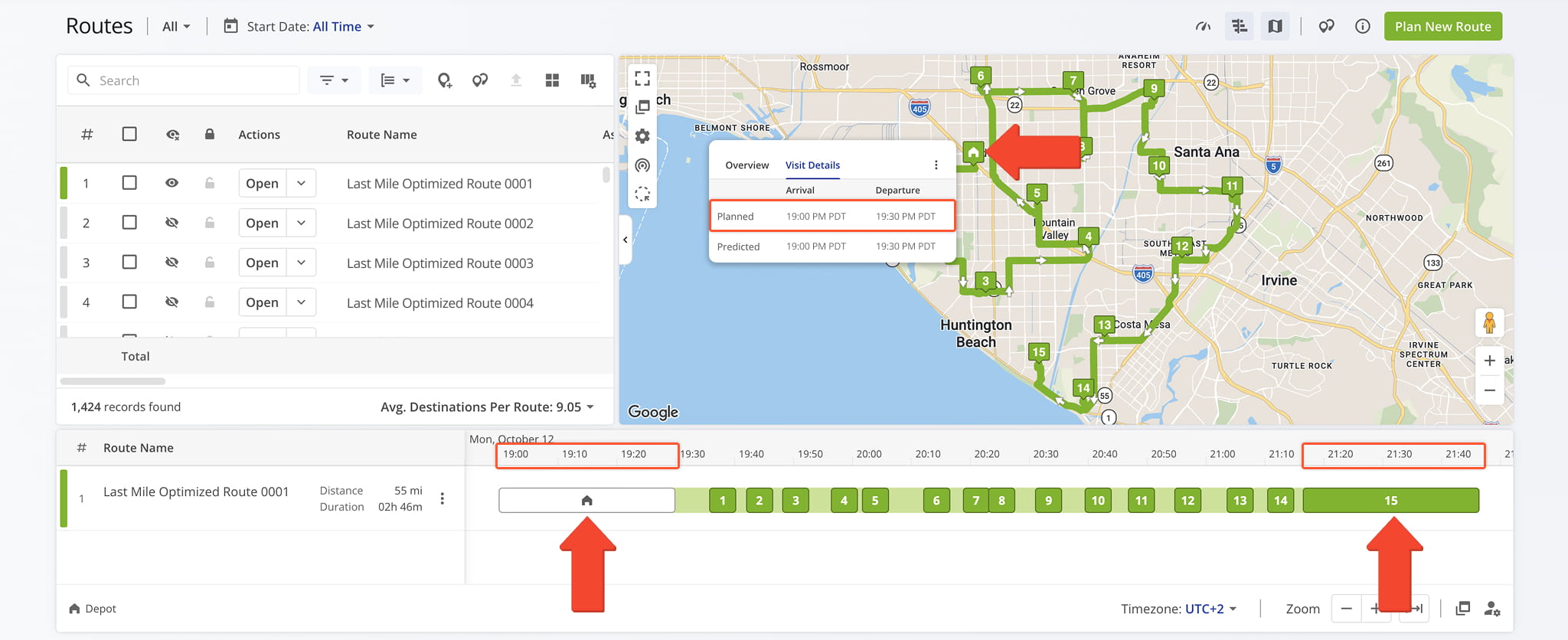
Optimization Profiles – Add Pre- And Post-Trip Time To Multiple Routes
You can also set pre-route and post-route time in a reusable Optimization Profile. Under “Extra Time“, enter the time you want to reserve at the start and end of the route. Every route built with that profile will include these times automatically.
Open Your Optimization Profiles
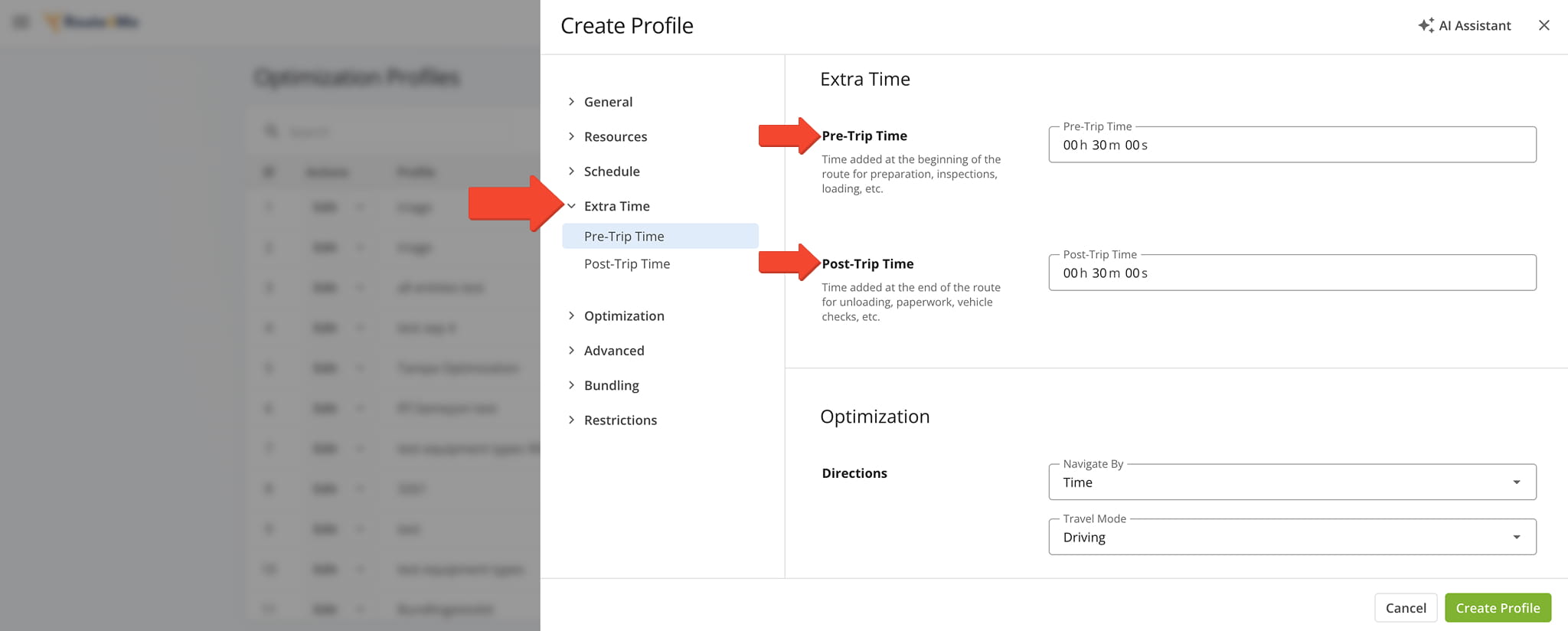
Setting pre-trip and post-trip times only once via an Optimization Profile keeps time allowances consistent across multiple routes.
Visit Route4Me's Marketplace to Check out Associated Modules:
- Operations
Custom Data Add-On
- Operations
Advanced Team Management Add-On
About author: Daniel Archer

