
Two-Factor Authentication – Set Up 2FA With Email And Authenticator Apps
Two-factor authentication (2FA) adds a second step when you sign in to Route4Me. After you enter your password, you also need to enter a secure verification code. Codes are sent to your email or shown in your authenticator app, depending on your settings. This protects your account even if someone else gets your password. In this guide, you’ll learn how to enable 2FA, save recovery codes, choose your preferred 2FA method, and skip verification codes on trusted devices.
Table of Contents
Two-Factor Authentication Overview
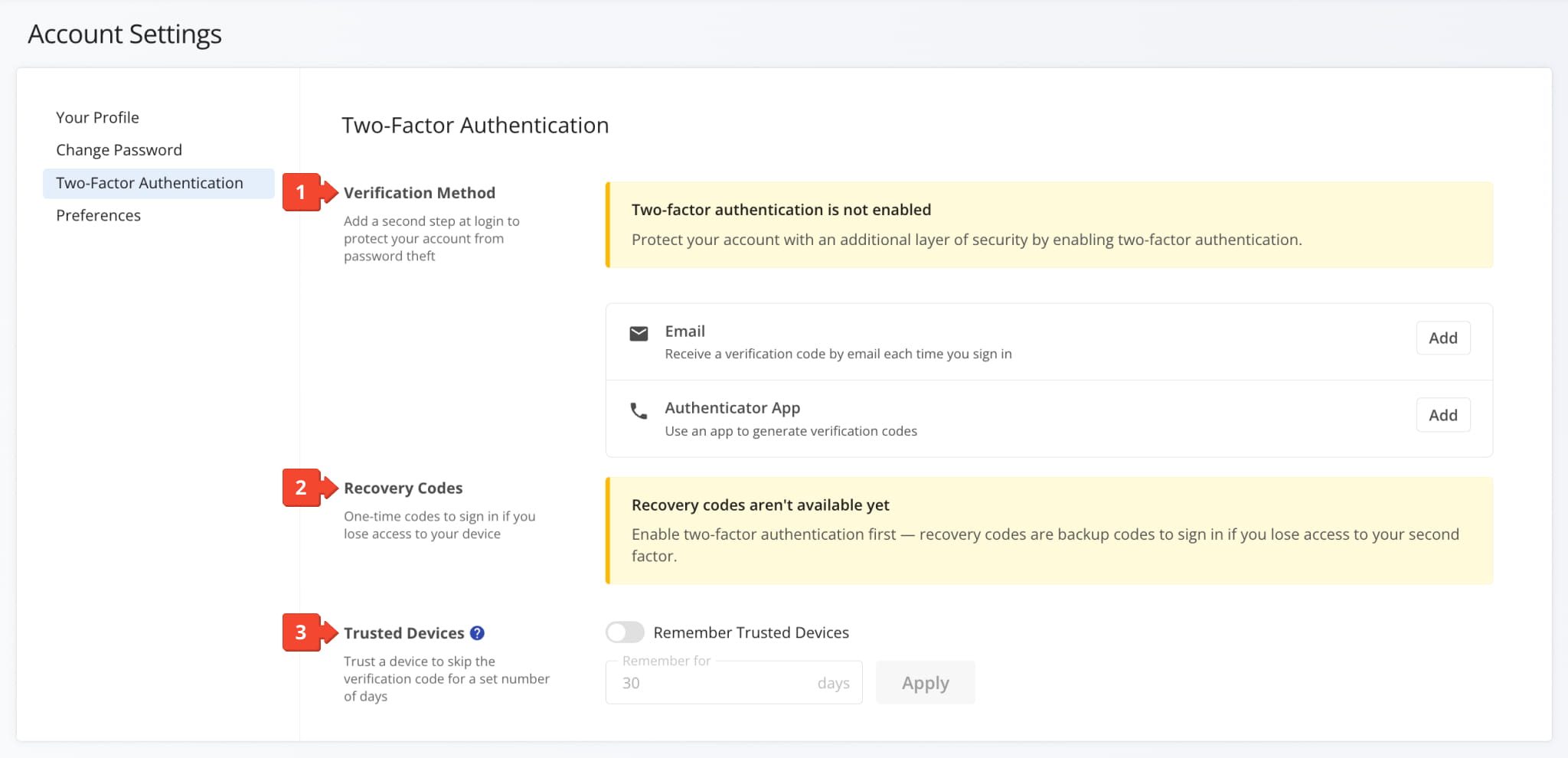
To open your 2FA settings, go to “Settings” > “Account Settings” from the Navigation Menu. Then, select “Two-Factor Authentication”. The 2FA settings have three sections:
- Verification Method: Add and remove 2FA methods and select your preferred 2FA method.
- Recovery Codes: Save one-time codes that let you sign in if you lose access to your 2FA methods.
- Trusted Devices: Skip the verification code on trusted devices for a set number of days.
Enable Two-Factor Authentication
To enable 2FA, you need to add at least one Verification Method. When you add your first method, Route4Me enables 2FA and automatically generates your first set of recovery codes. If you add multiple methods, you can specify a preferred one.
Add Email Verification For 2FA
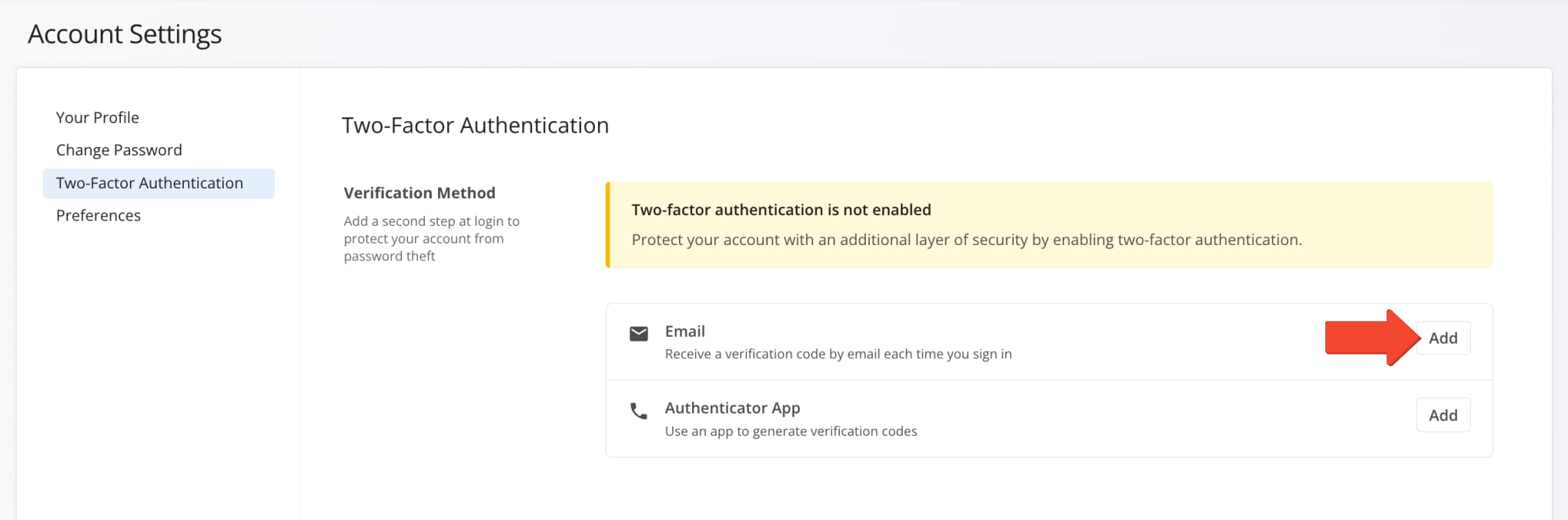
To add two-factor email verification, click “Add” next to “Email”. With email verification, Route4Me sends a one-time verification code to your account email each time you sign in. Codes are sent to the email address specified in your Account Settings.
NOTE: Route4Me asks for your account password when adding 2FA methods.
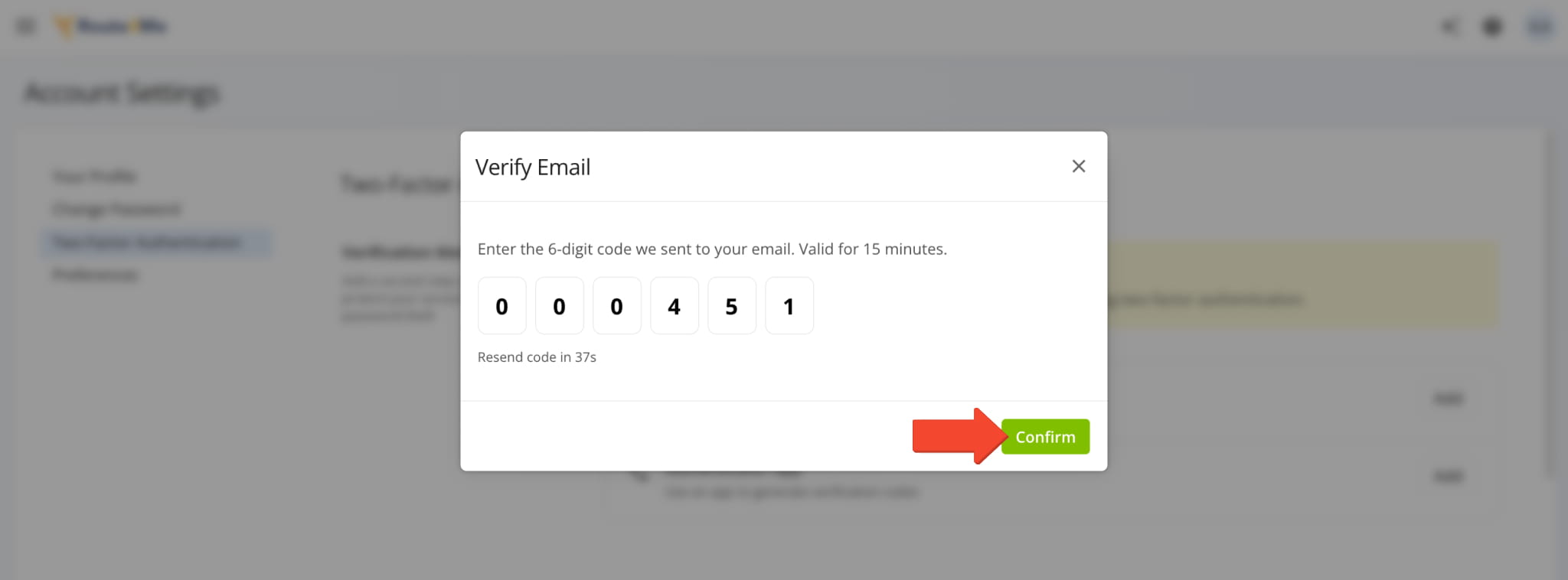
Enter your password, and you’ll receive a 6-digit code sent to your email. The code is valid for 15 minutes. Enter the code when prompted and click “Confirm” to finalize. If you don’t get the code, you can resend it when the timer runs out.
If this is your first 2FA method, Route4Me generates recovery codes next. Learn more about saving your recovery codes.
Add Authenticator App For 2FA
You can add an authenticator app, such as Google Authenticator or Microsoft Authenticator, to get Route4Me 2FA verification codes on your phone. To add an authenticator app, click “Add” next to “Authenticator App”.
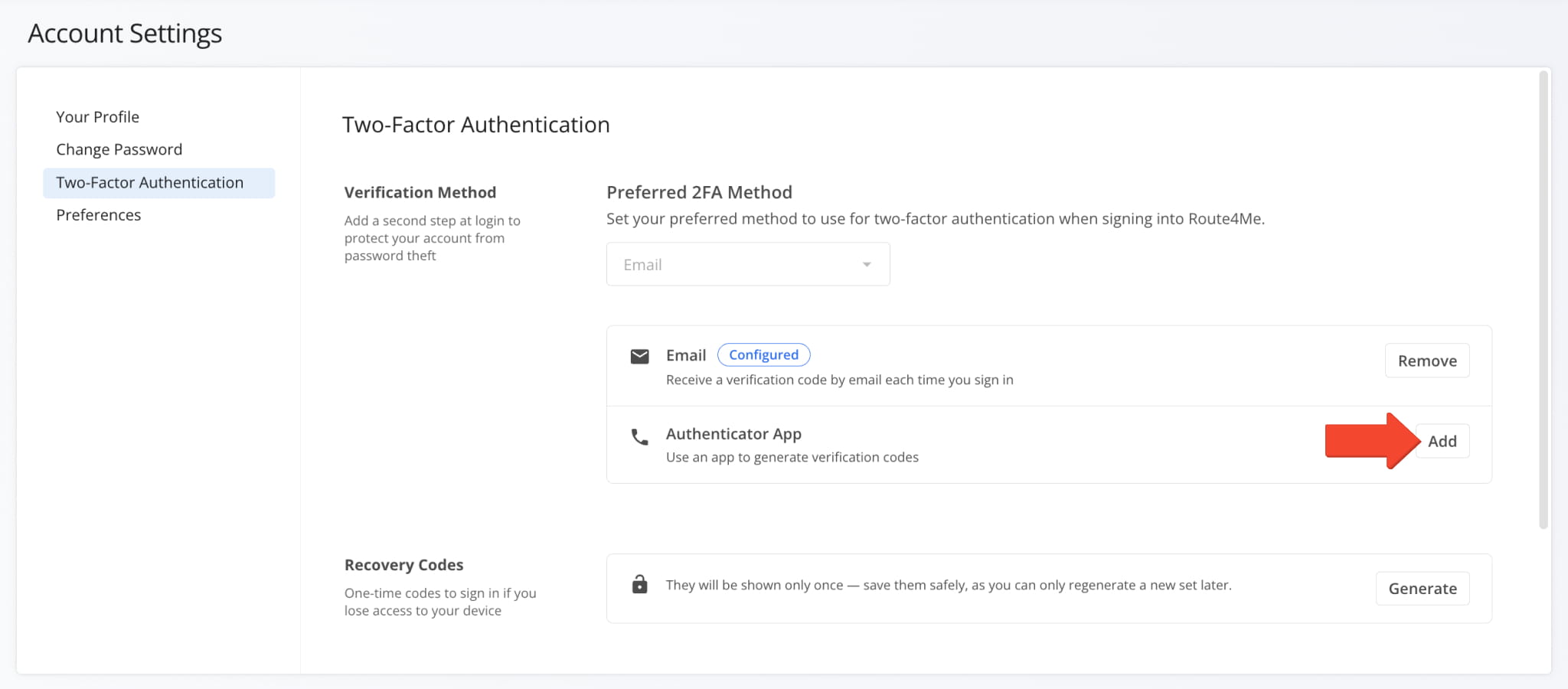
NOTE: Route4Me asks for your account password when adding 2FA methods.
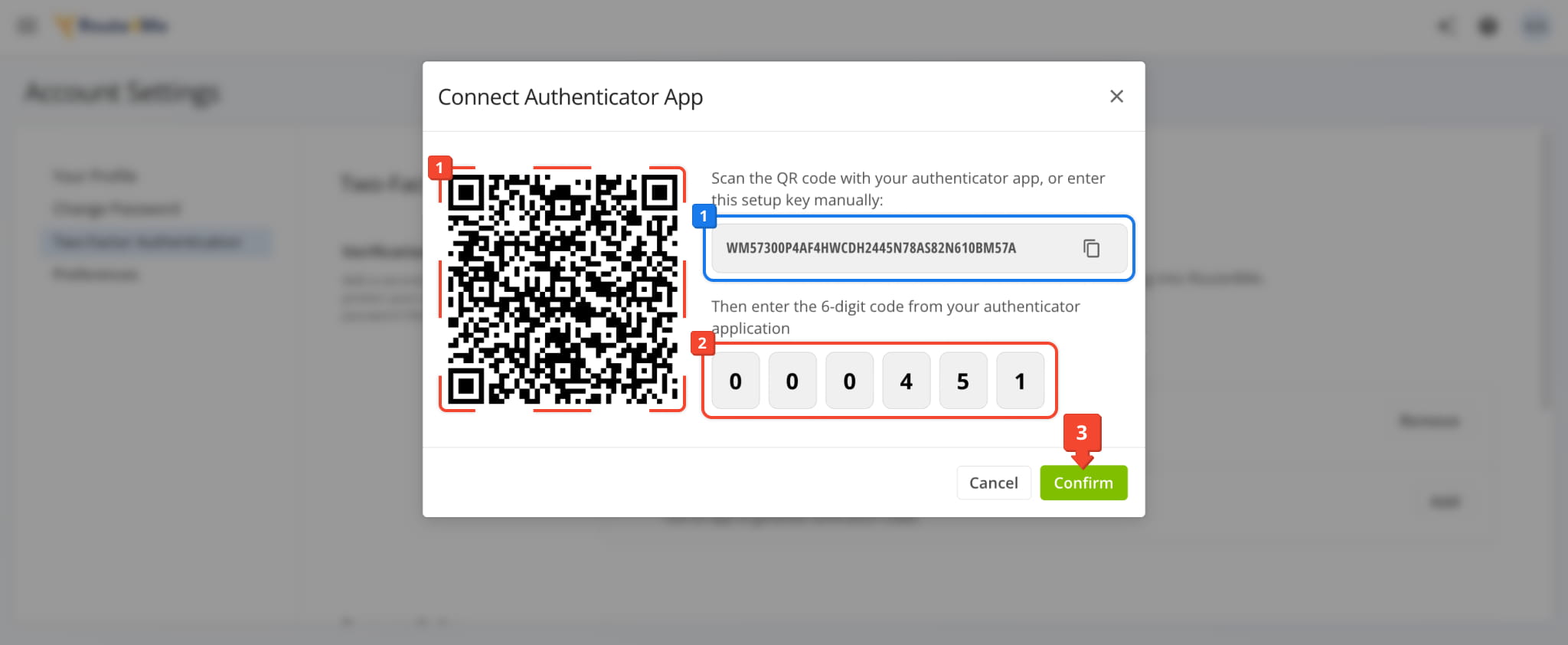
Then, in the “Connect Authenticator App” window:
- Scan the QR code with your authenticator app or copy the setup key and enter it in the app manually.
- Enter the 6-digit code from your authenticator app.
- Click “Confirm” to finalize.
If this is your first 2FA method, Route4Me generates recovery codes next. Learn more about saving your recovery codes.
Generate Account Recovery Codes
When you add your first 2FA method, Route4Me automatically generates 10 recovery codes. Recovery codes are used to sign in to your account if you’ve lost access to your verification method. Each code works only once.
Route4Me shows them in the “Download Your Recovery Codes” window. Click “Download” to save the codes as a file or “Copy” to copy them. Then, click the “I’ve Saved Recovery Codes” button, which only becomes available after you’ve saved your codes.
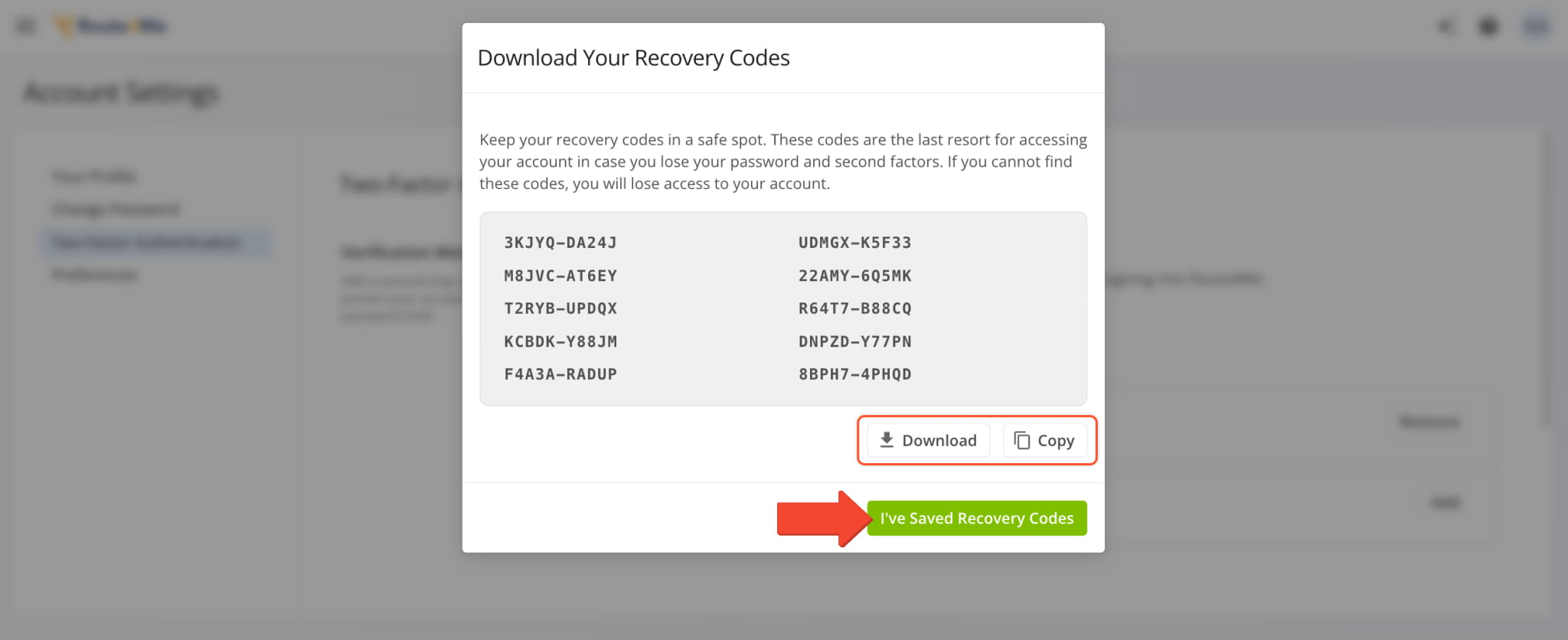
NOTE: Route4Me shows recovery codes only once, so save them right away and keep them in a safe place.
After you save your codes, the “Recovery Codes” section shows how many you have left. If you lose your codes or use most of them, click “Regenerate” to create a new set. Generating new recovery codes deactivates all previously generated codes.
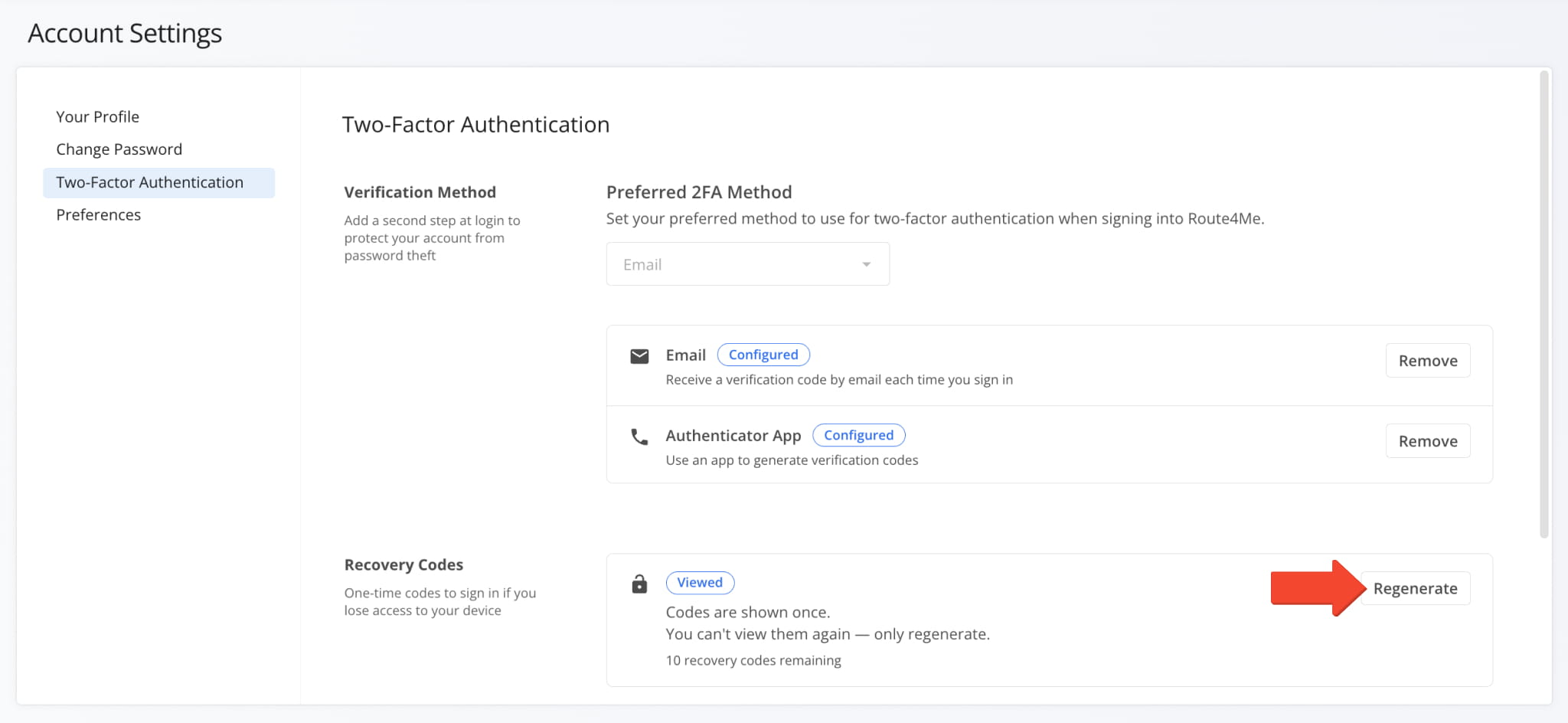
NOTE: Route4Me asks for your account password before generating new recovery codes.
Select Preferred 2FA Method
When you have more than one enabled 2FA verification method, you can choose which one Route4Me uses by default when you sign in. To do so, select a method from the “Preferred 2FA Method” dropdown menu.
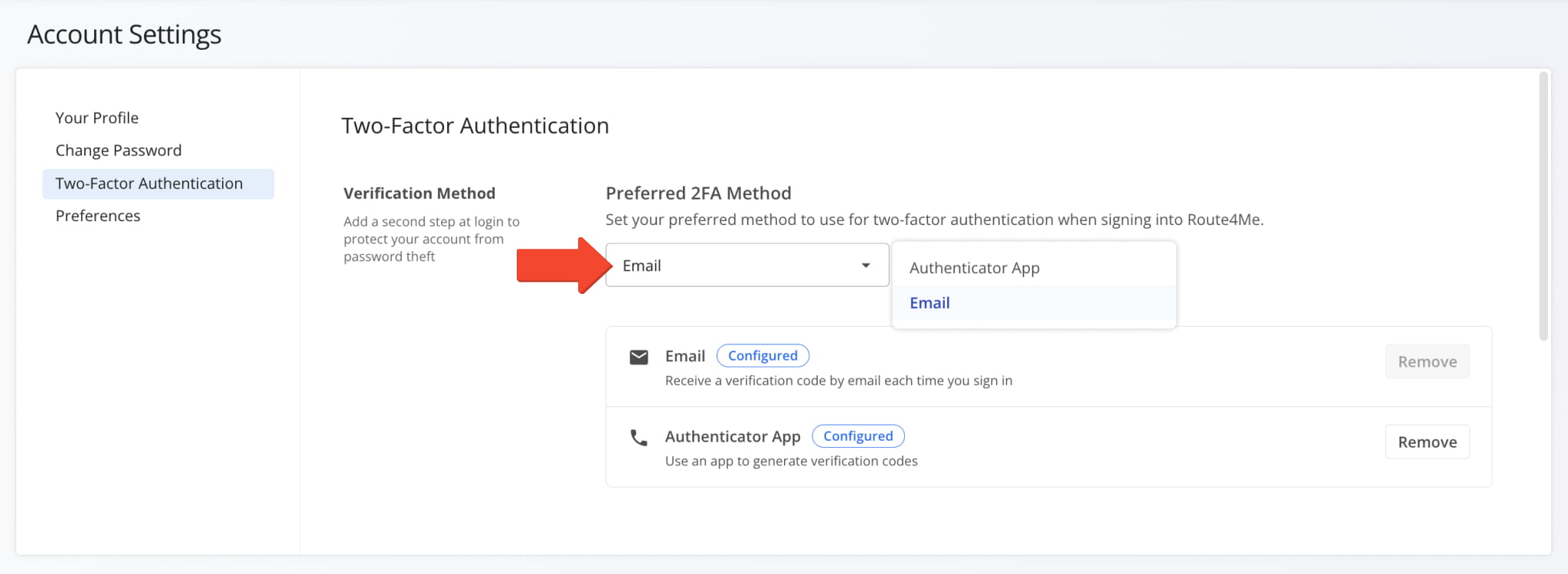
Remove 2FA Methods
To remove a verification method, simply click the “Remove” button next to it. For security, you can’t remove your preferred method. If you need to remove it, first select your other method in the “Preferred 2FA Method” dropdown menu.
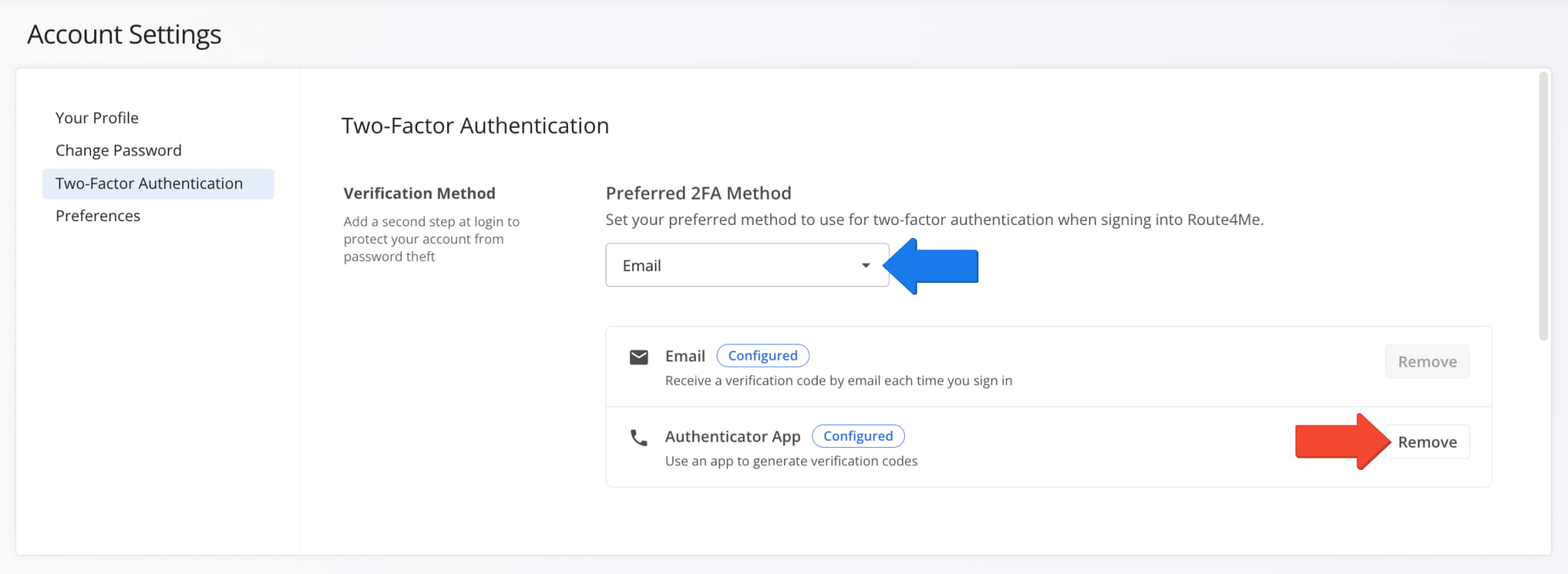
NOTE: Removing all 2FA methods disables 2FA. Route4Me asks for your account password before removing the final method. When 2FA is off, your recovery codes are no longer available.
Set Up Trusted Devices
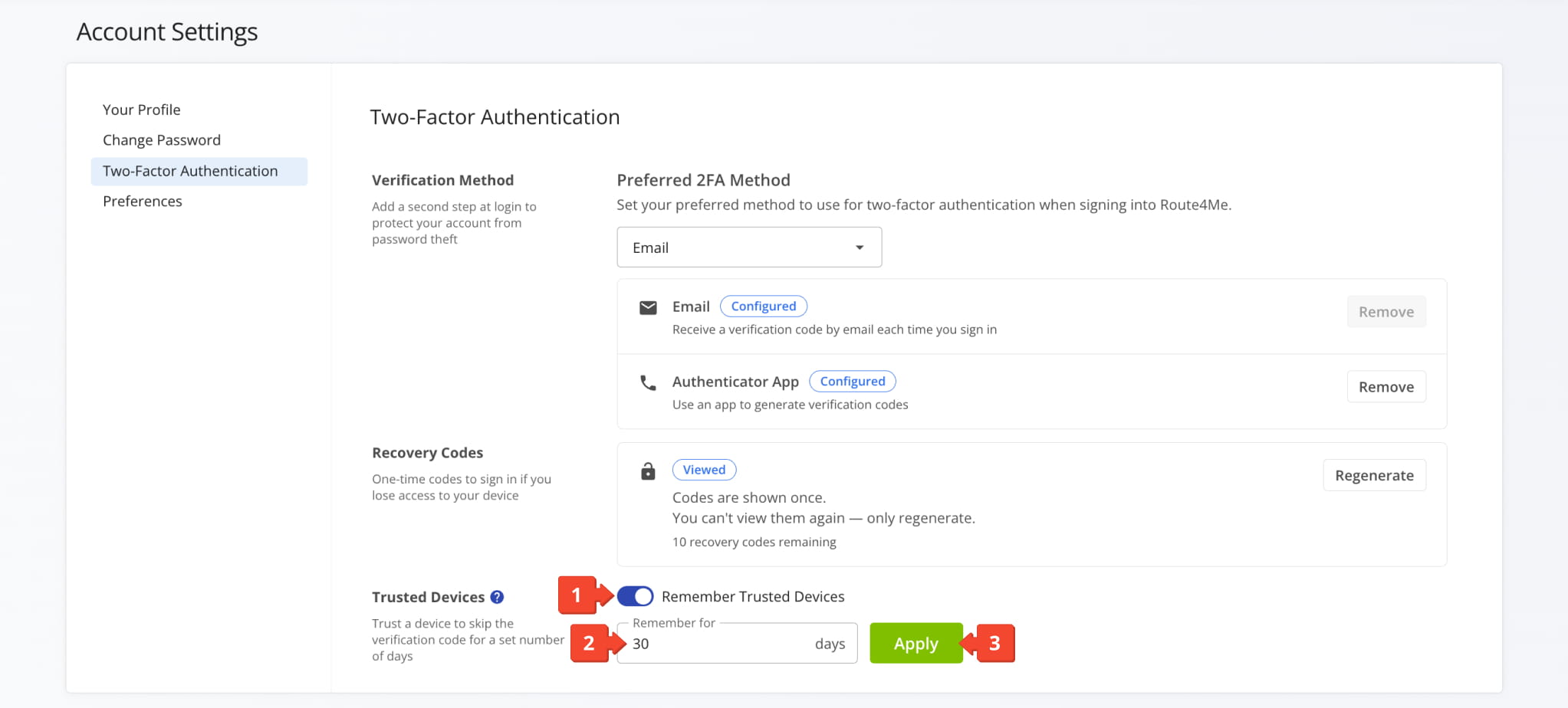
Trusted devices let you skip the verification code when signing in from devices you use often. When you sign in on a trusted device, Route4Me doesn’t ask for a code for the number of days you specify in the settings. To set up trusted devices:
- Click the “Remember Trusted Devices” toggle.
- Set how many days Route4Me should remember trusted devices.
- Click “Apply” to finalize.
After you turn on trusted devices, you can mark a device as trusted when you sign in.
NOTE: Route4Me asks for your account password when you toggle Trusted Devices.
Sign In With 2FA
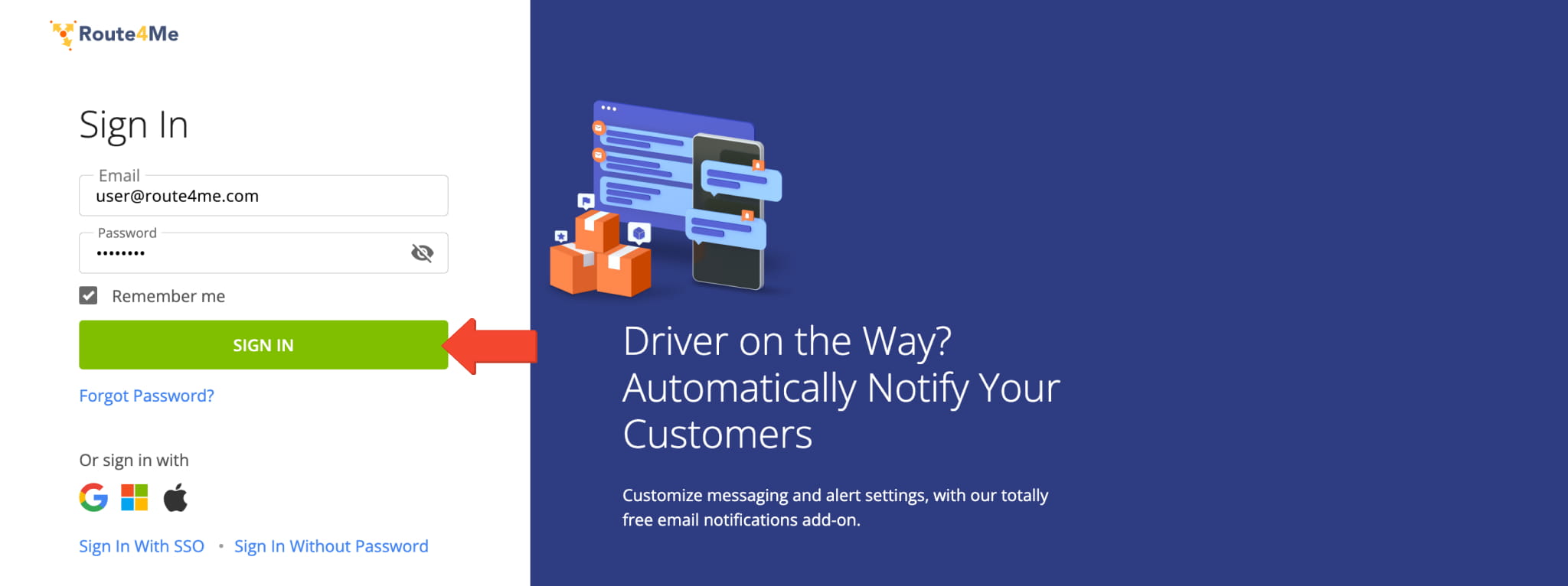
When 2FA is on, you sign in to Route4Me in two steps. First, enter your email and password and click “Sign In”.
Sign In To Your Route4Me Account
Next, enter the verification code sent to your email or shown in your authenticator app. To skip verification codes on this device, check “Remember this device”. This option appears only when “Trusted Devices” is enabled. Finally, click “Verify”.
If you didn’t get the email code, click “Resend code”.
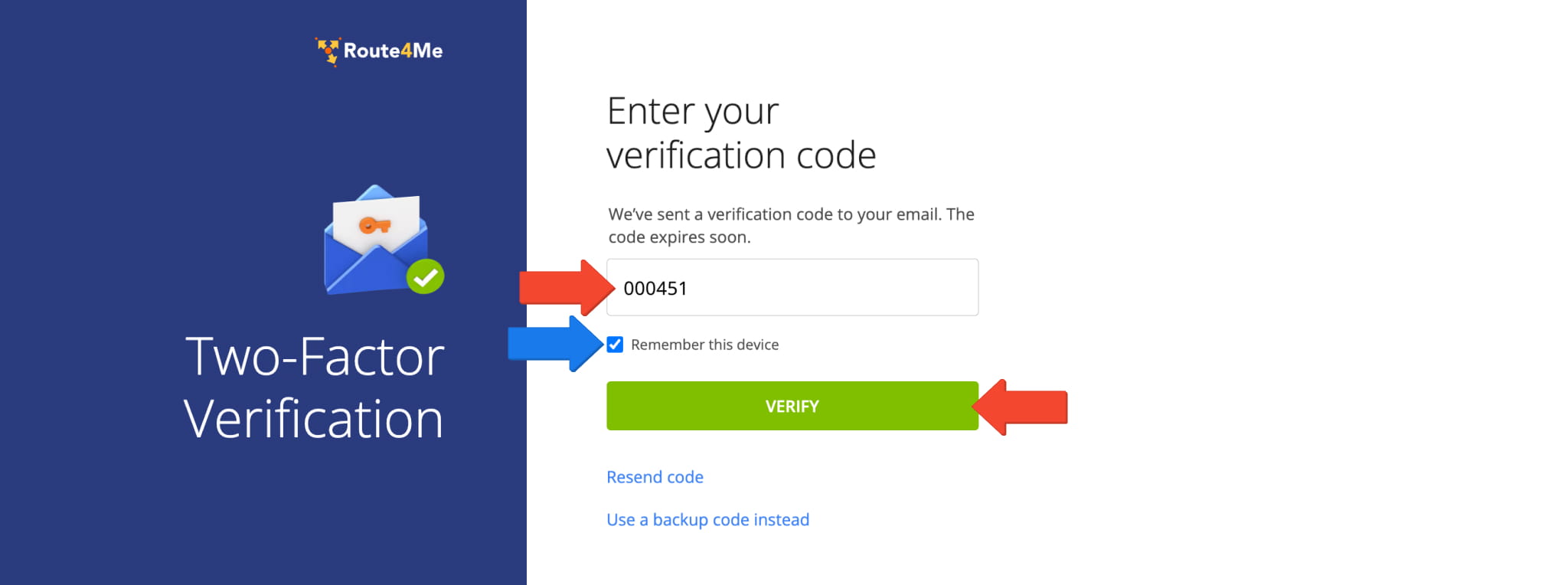
NOTE: If you can’t access your 2FA methods, click “Use a backup code instead” and enter one of your recovery codes.
Visit Route4Me's Marketplace to Check out Associated Modules:
- Operations
Custom Data Add-On
- Operations
Advanced Team Management Add-On
About author: Kristian Andreev

