
Platform Navigation – Route4Me TMS Menu Overview
Route4Me’s Transportation Management System (TMS) Navigation Menu gives you quick access to all key tools in your account, including your dynamic Route Database, Order Management System, GPS Tracking tools, Route Analytics Dashboard, and more. By grouping menu items by function and using a collapsible layout, the TMS menu makes navigation faster and keeps your workspace uncluttered. This guide explains each menu item and shows you how to access the tools you need.
Table of Contents
Route4Me TMS Navigation Menu Overview
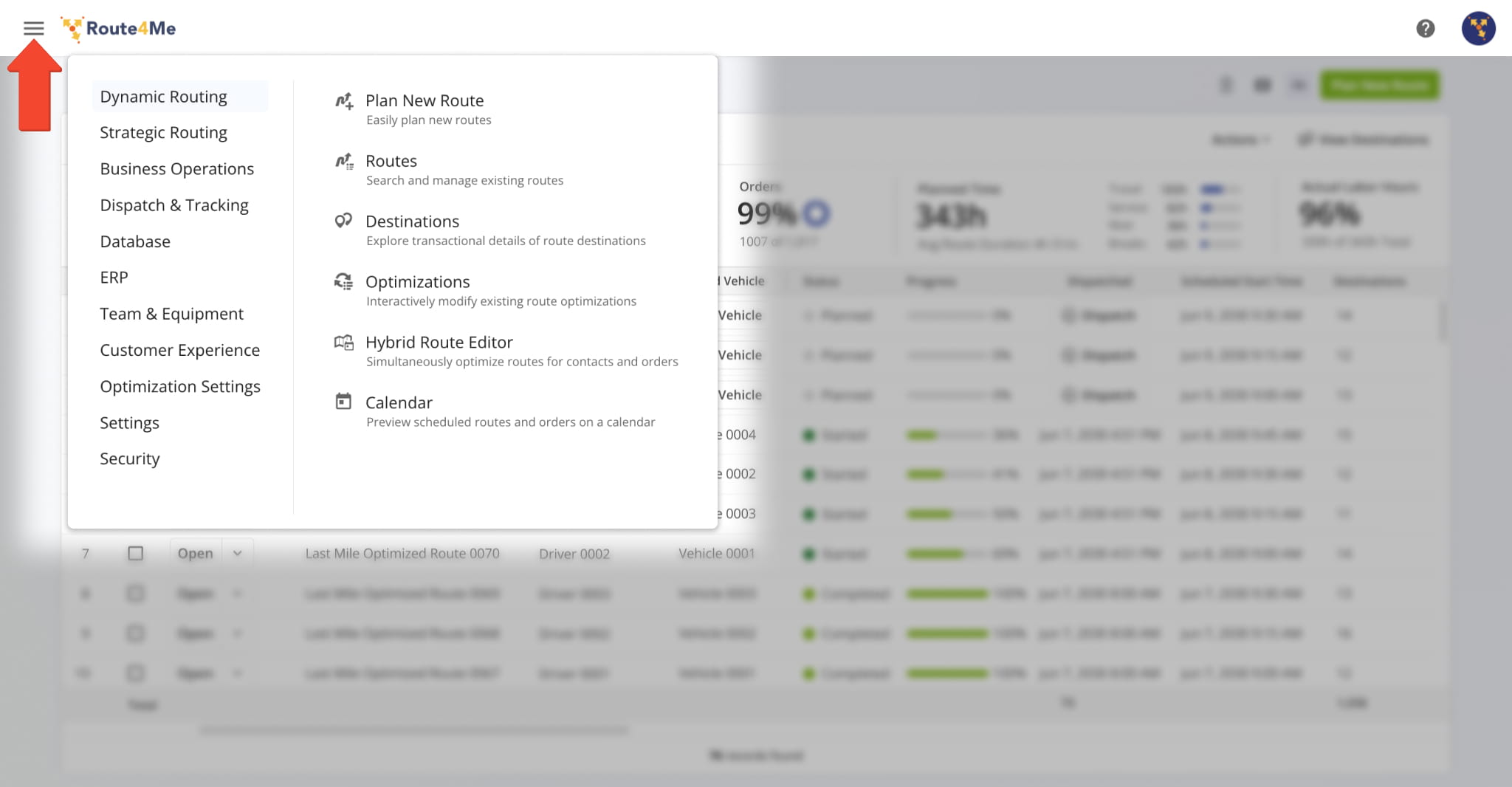
Route4Me’s TMS Navigation Menu organizes tools into categories, with each category displayed in its own section of the menu. For example, from “Dynamic Routing“, you can access the Routes List, Route Optimizations, and other route management tools.
Click the Menu Button in the top-left to open the menu. The table below describes each section and which tools you can access.
Navigation Menu Categories
Dynamic Routing – Plan New Routes And Manage Existing Routes And Optimizations
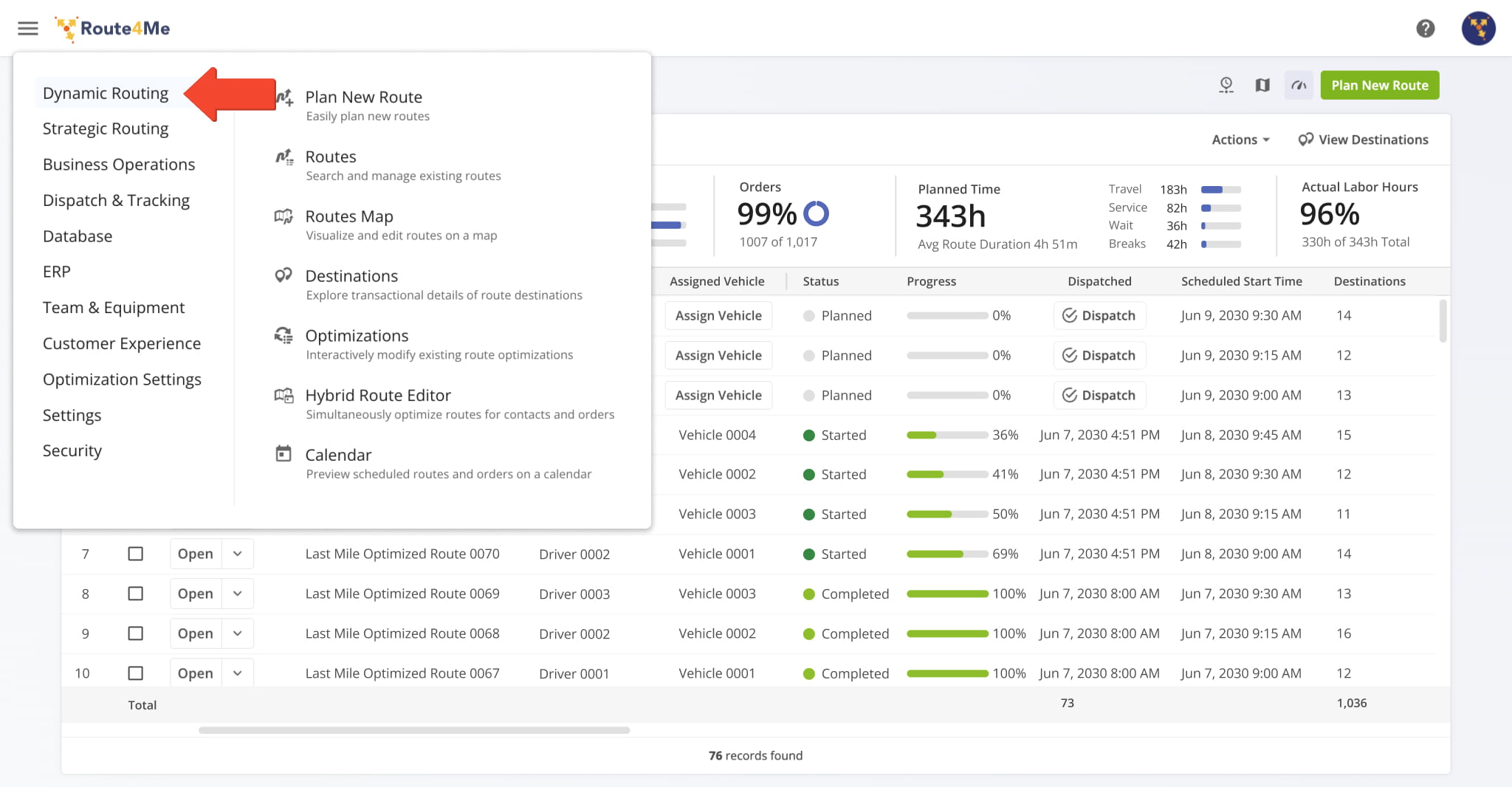
In the “Dynamic Routing” category, you can plan new routes and access key tools for managing routes and destinations in your Route4Me account. Click the Menu Button and select “Dynamic Routing“. See the table below to learn more.
Dynamic Routing Menu Options
Strategic Routing – Strategic Cycle Planning With Strategic Optimizations And Recurring Schedules
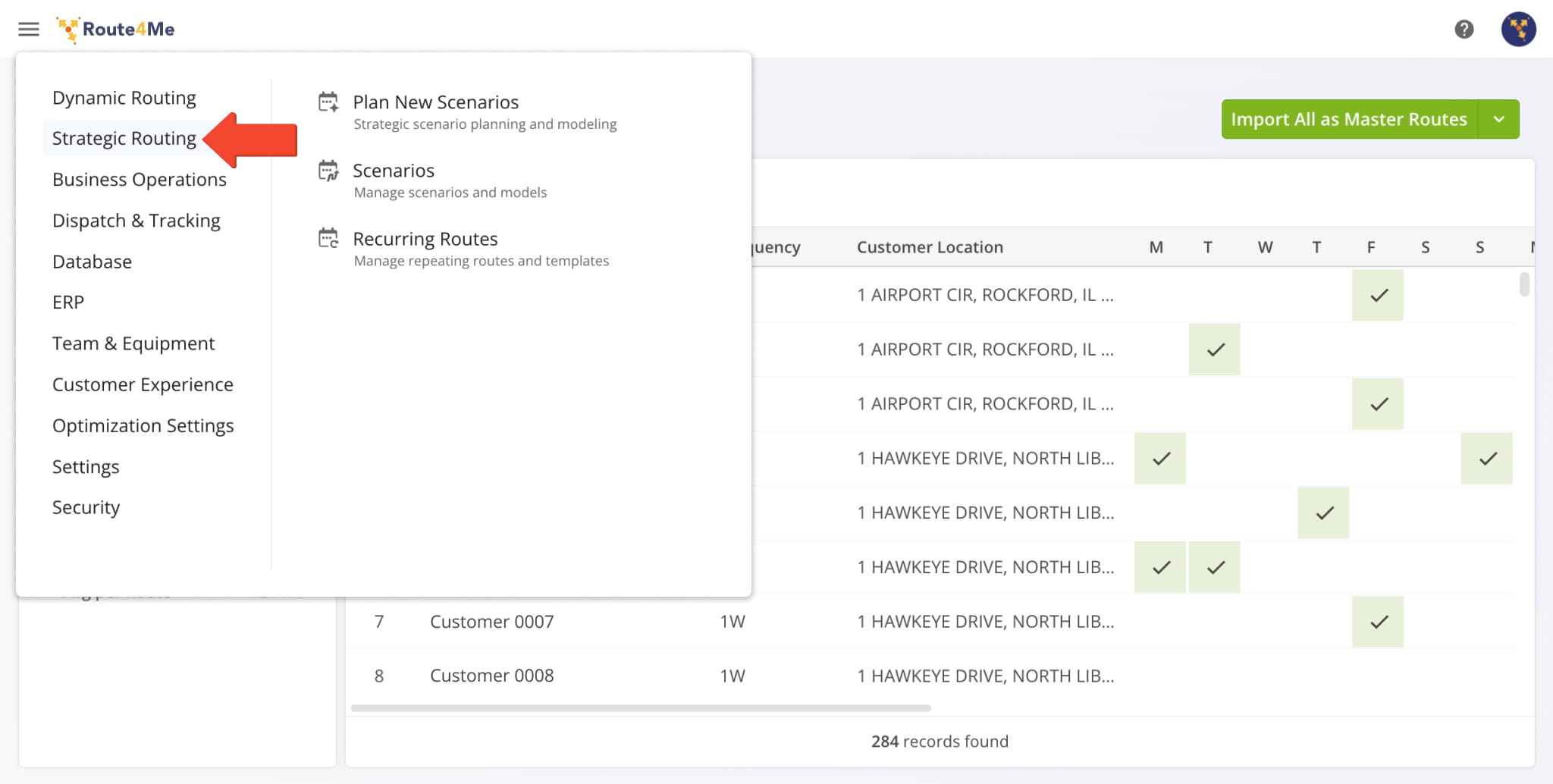
From “Strategic Routing“, you can plan repeating routes with Strategic Optimizations and Recurring Routing using Customer Locations. Click the Menu Button and select “Strategic Routing“. See the table below to learn more.
Strategic Routing Menu Options
Business Operations – Manage And Route Orders, Get Business Insights, Define POD Workflows
From “Business Operations“, you can manage Orders, access Business Insights, and oversee operational workflows and records. Click the Menu Button and select “Business Operations“. See the table below to learn more.
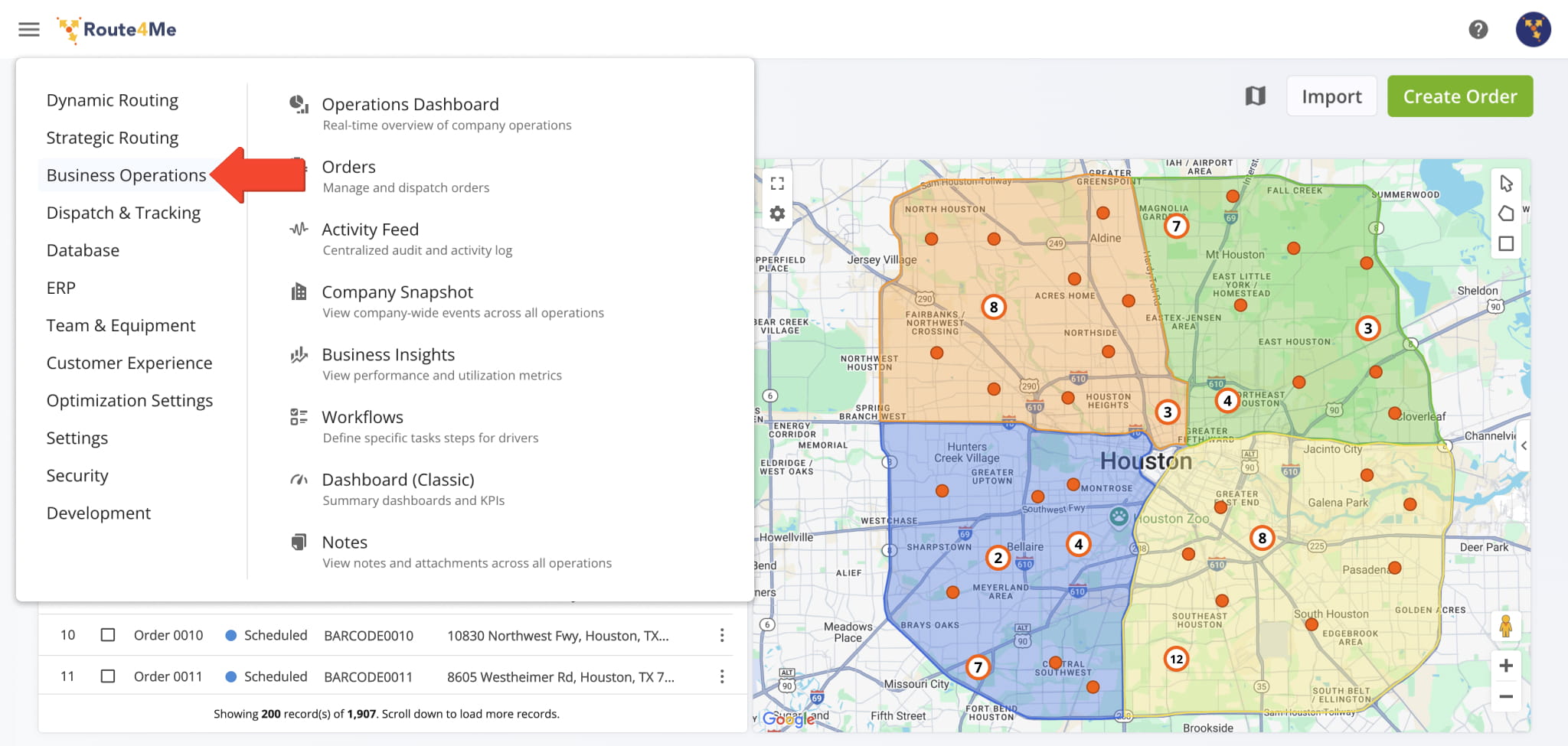
Business Operations Menu Options
Dispatch And Tracking – Streamline Route Assignment And Order Dispatch With Dynamic Dashboard
In the “Dispatch & Tracking” category, you can assign routes with the Assignment Board and dispatch orders using the Dispatch Board. Click the Menu Button and select “Dispatch & Tracking“. See the table below to learn more.
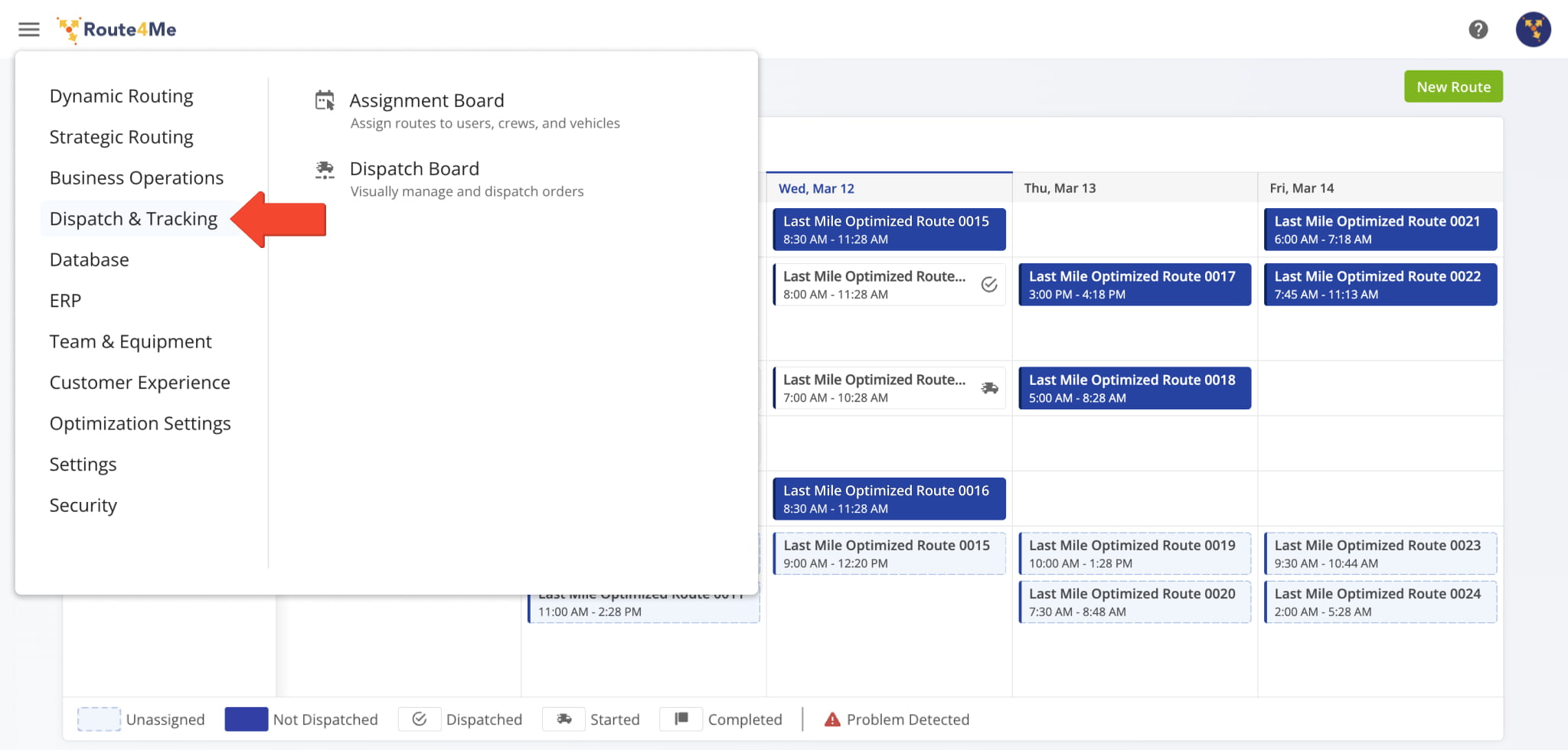
Dispatch & Tracking Menu Options
Database – Customers, Locations, Facilities And Address Book Map
From the “Database” category, you can open your Customers, Locations, and Facilities pages and access the Address Book Map. Click the Menu Button and select “Database“. See the table below to learn more.
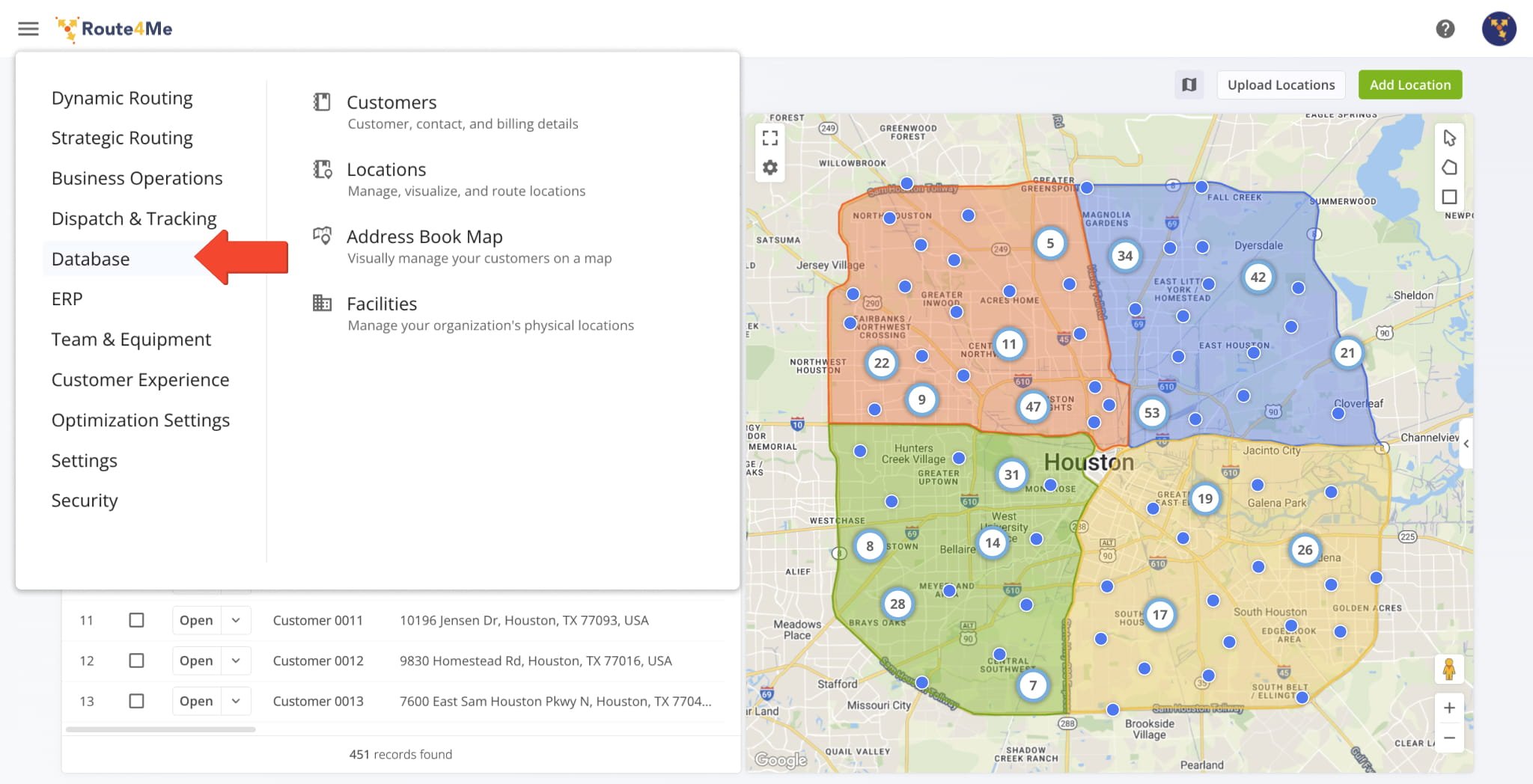
Company Database Menu Options
ERP – Manage Invoices, Items, and Pricing
From “ERP“, access tools for managing invoices, products and services, pricing, contracts, and service-related configurations. Click the Menu Button and select “ERP“. See the table below to learn more.
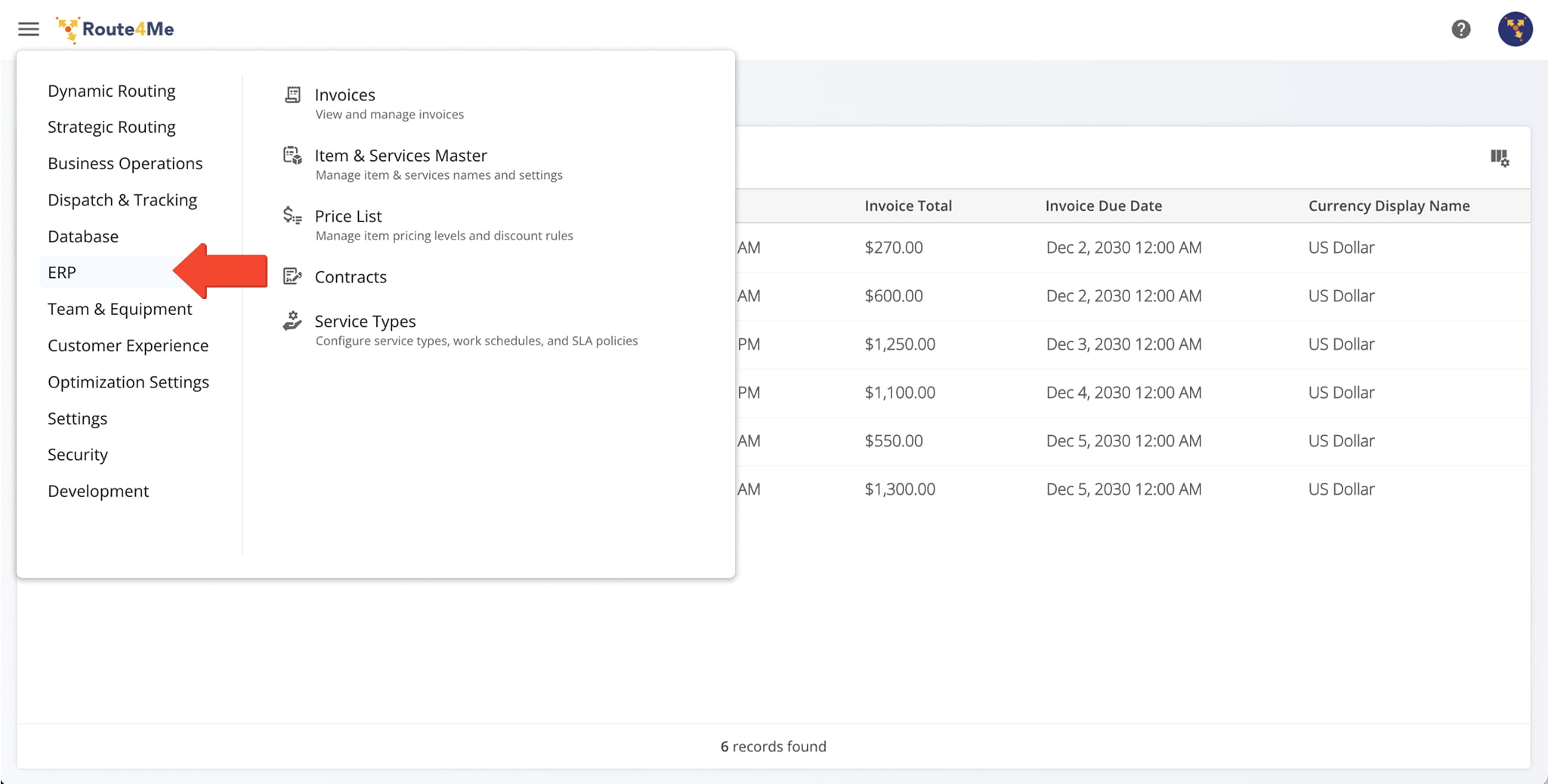
ERP Menu Options
Team And Equipment – Add And Manage Users, Crews, Vehicles, Equipment And Assets
In the “Team & Equipment” category, you can manage users, build a User Hierarchy that accounts for all of your team members, and oversee your vehicles and asset. Click the Menu Button and select “Team & Equipment“. See the table below to learn more.
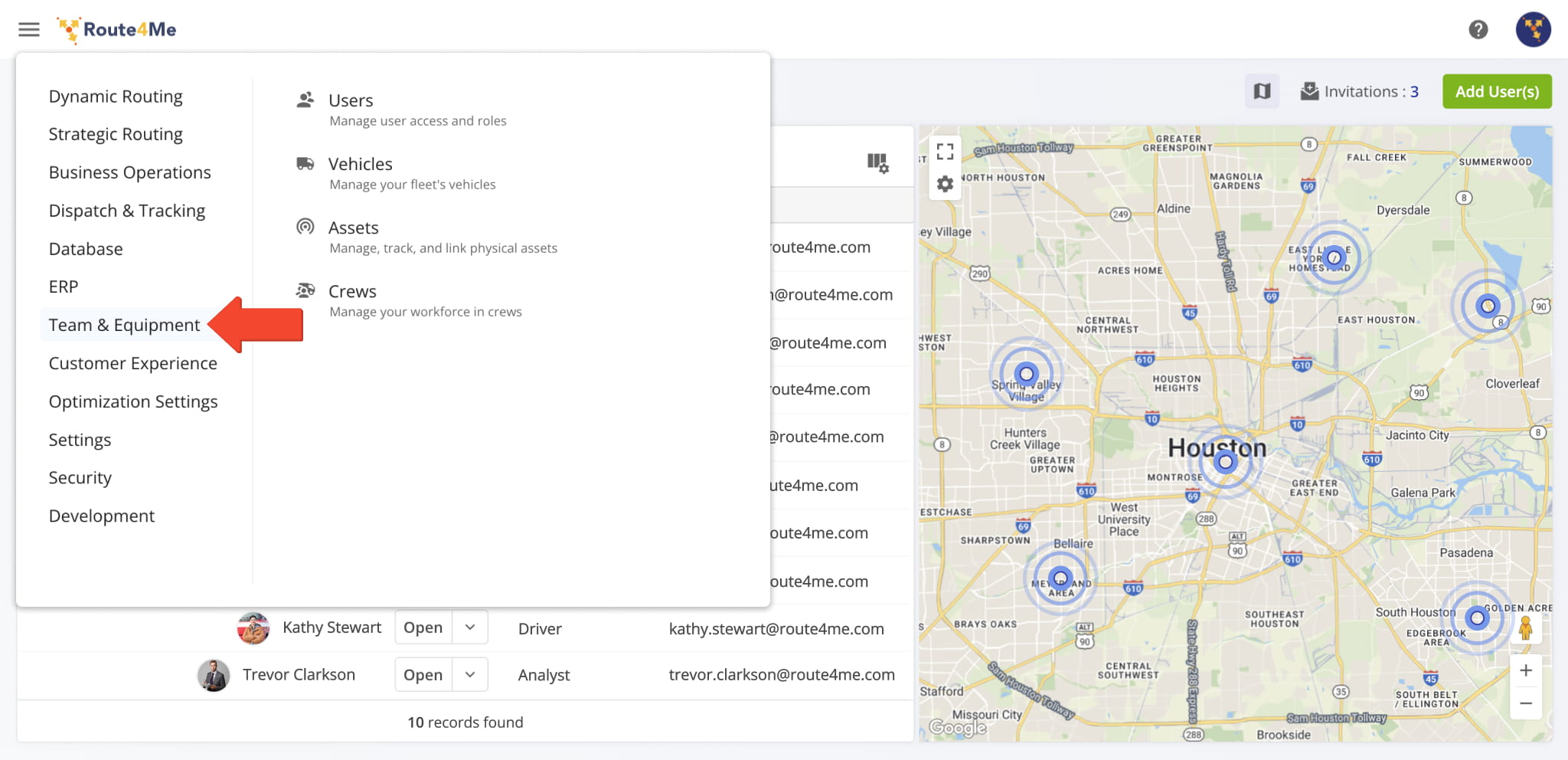
Team & Equipment Menu Options
Customer Experience – Set Up Automatic Customer Notifications And Satisfaction Surveys
From “Customer Experience“, you can create automated notification templates and satisfaction surveys, and view a detailed notification history with filters. Click the Menu Button and select “Customer Experience“. See the table below to learn more.
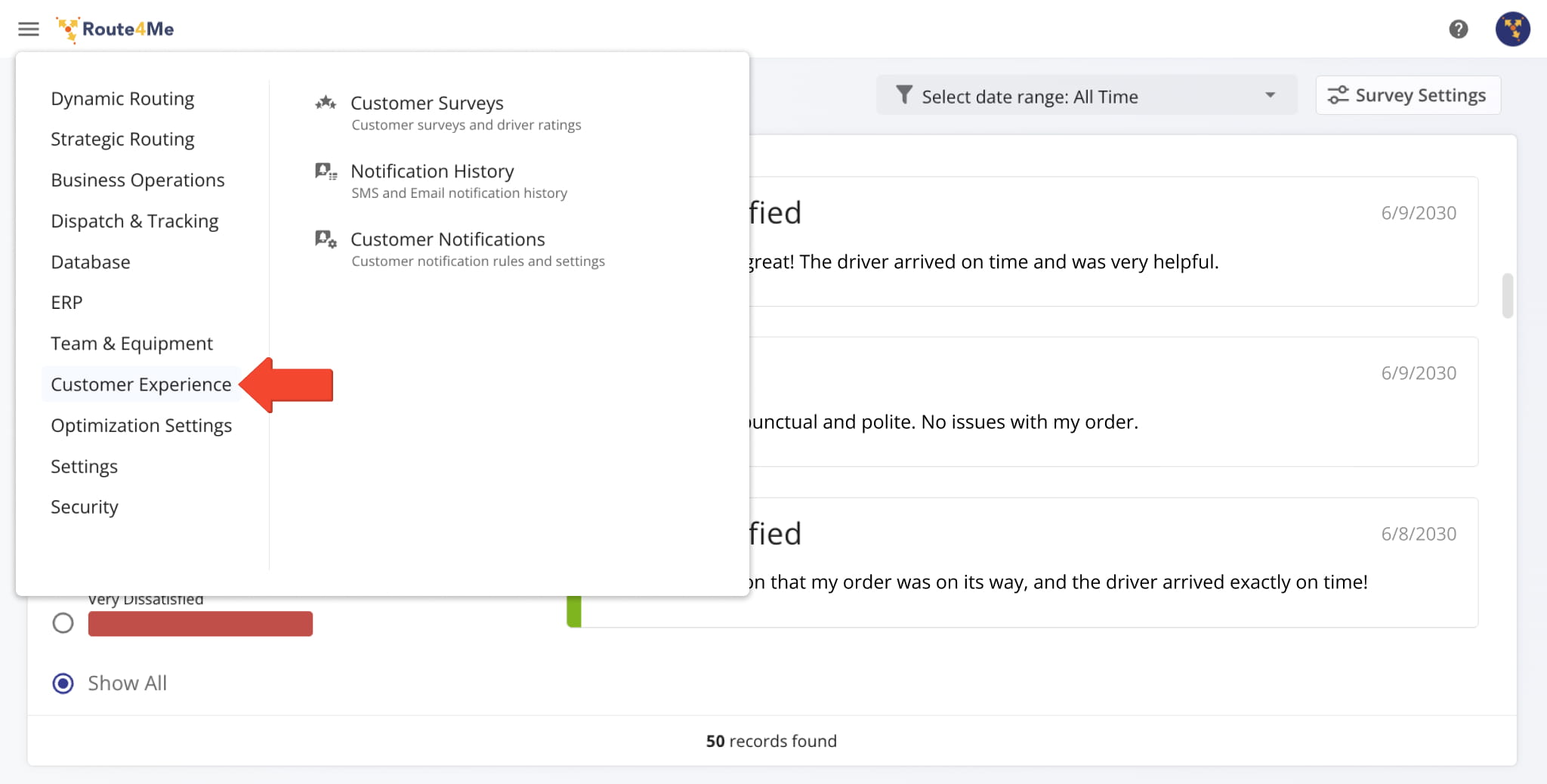
Customer Experience Menu Options
Optimization Settings – Route And Vehicle Optimization Settings And Profiles
The “Optimization Settings” category is where you can access your account’s Optimization Profiles, Vehicle Profiles, and Capacity Profiles. Click the Menu Button and select “Optimization Settings“. See the table below to learn more.
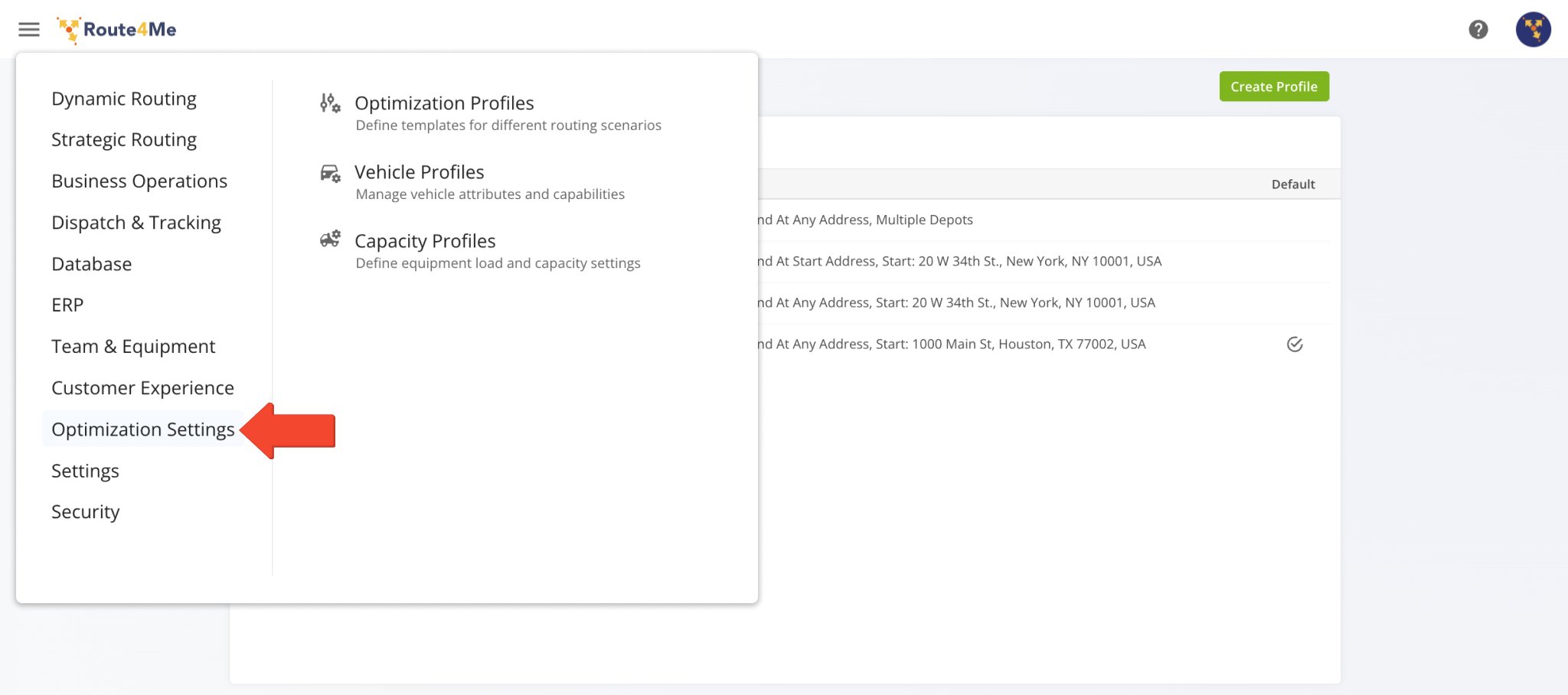
Optimization Settings Menu Options
Settings – Adjust Organization And Account Settings And Manage Your Subscription Plan
In “Settings“, you can adjust your company profile and account preferences, enable features and add-ons, and manage your subscription, billing, and payment details. Click the Menu Button and select “Settings“. See the table below to learn more.
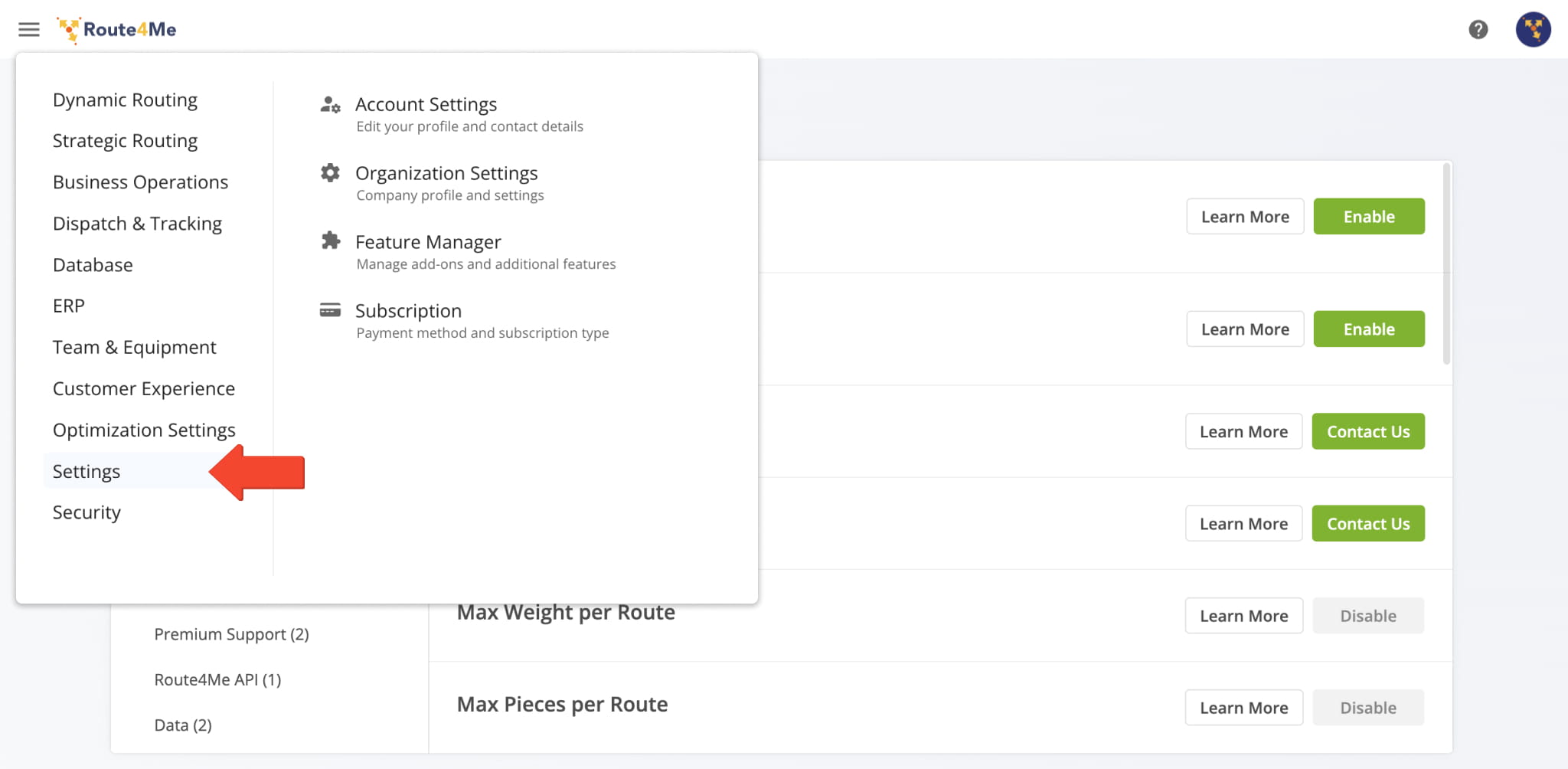
Account & Organization Settings Menu Options
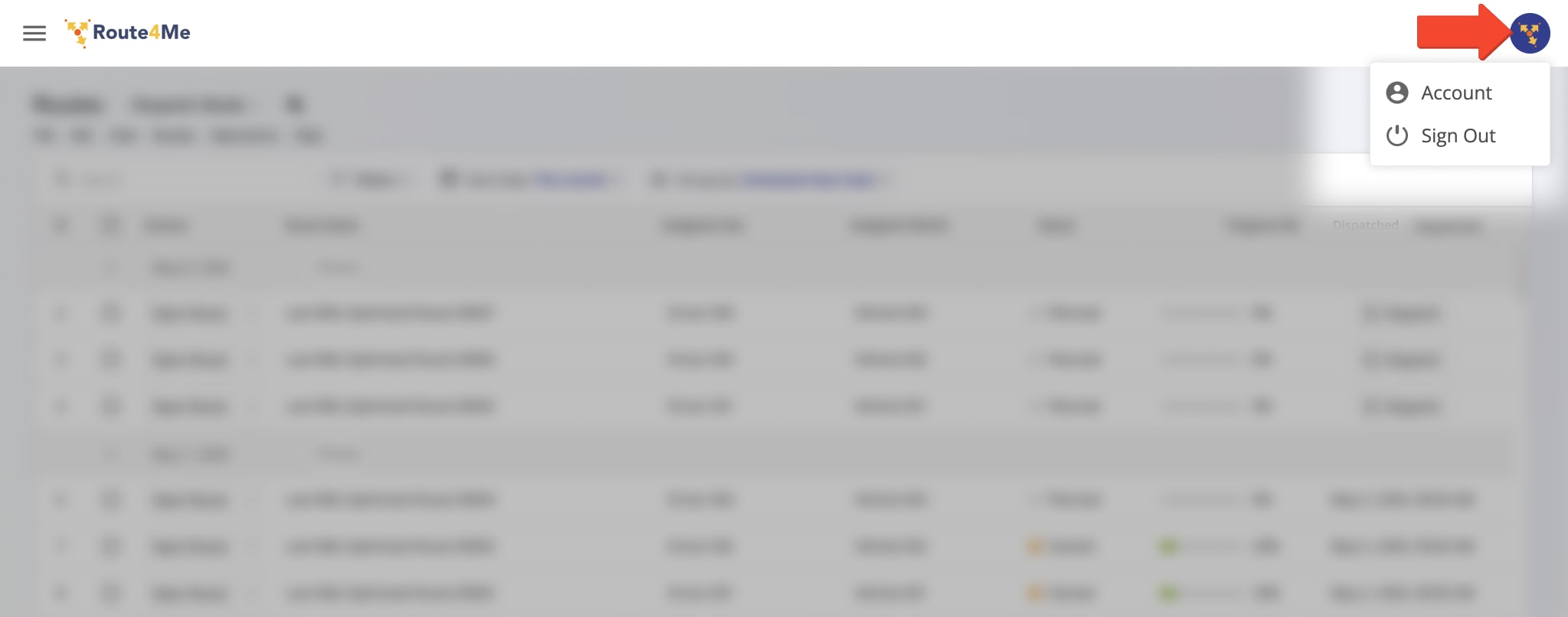
You can also easily sign out or access your Account Settings from the header Click your Account Avatar in the top-right, then select “Account” or “Sign Out” to log out.
Security – Open Account Activity And File Upload And Export History
From “Security“, you can access detailed records of account activity, including user sign-in timestamps, device usage, file uploads and exports, and more. Click the Menu Button, then select “Security“. For more details, see the table below.
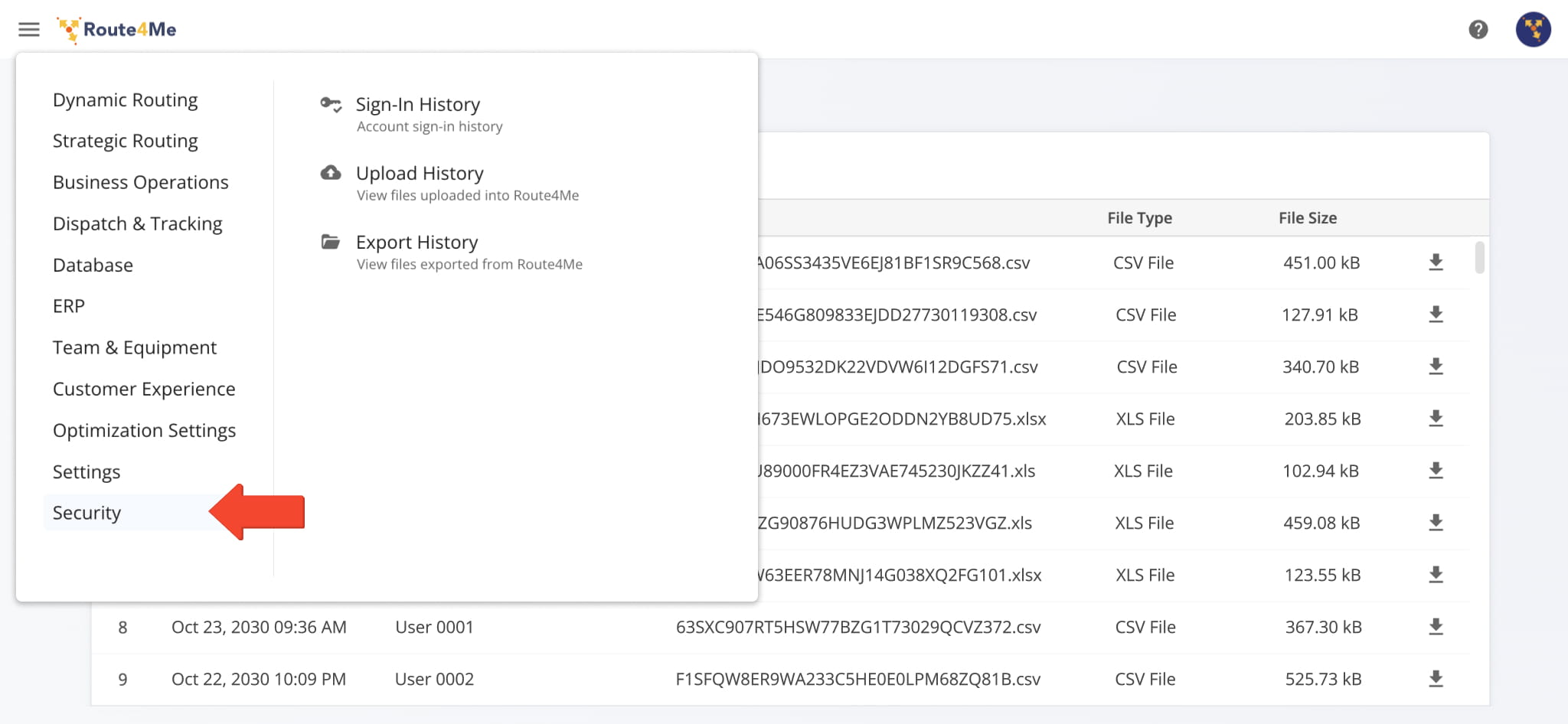
Security Menu Options
Get Support – Contact Route4Me, Get Support Documentation And More
Route4Me subscriptions offer 24/7 live chat, email and phone support, developer API and SDK documentation, the Route4Me Support Portal, and more to ensure you get the most from your route optimization software.
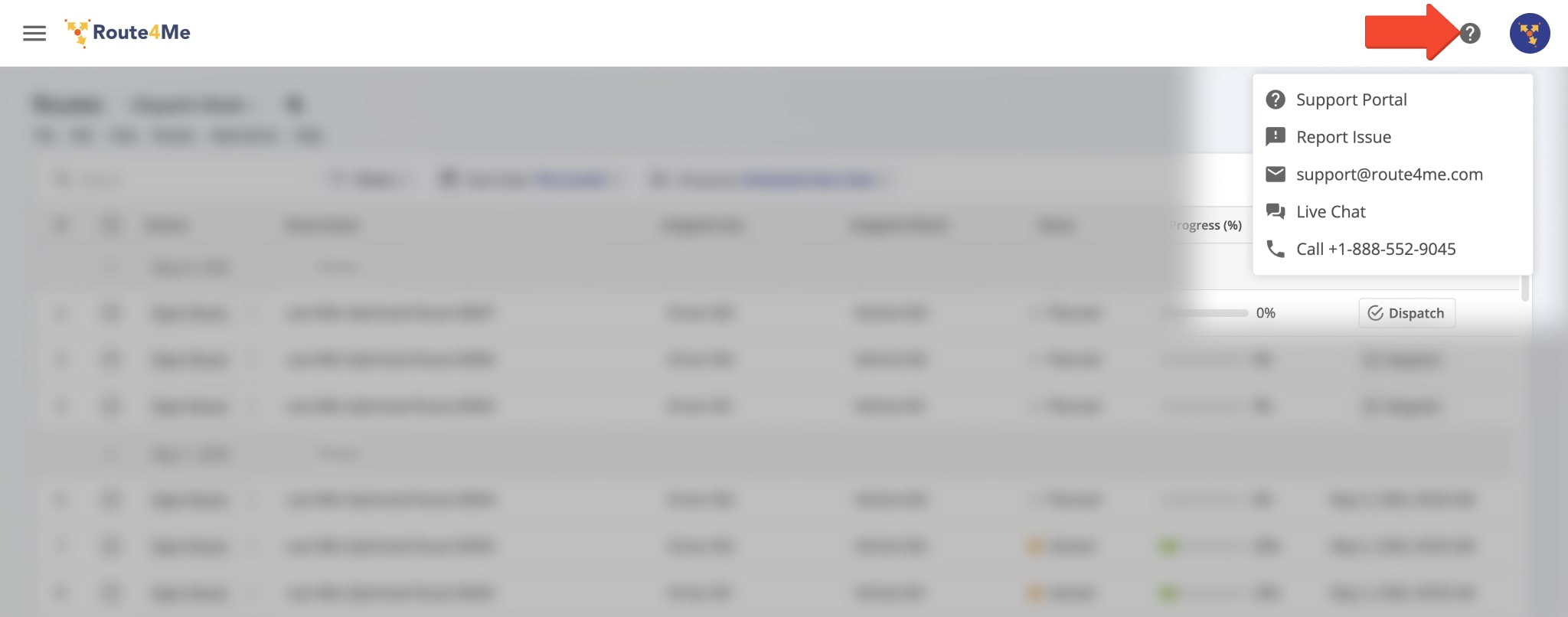
To access these options, click the Question Mark Icon in the top-right of the header. You can then select “Support Portal” to access helpful documentation, report an issue, or contact support via email, live chat, or phone.
Visit Route4Me's Marketplace to Check out Associated Modules:
- Operations
Custom Data Add-On
- Operations
Advanced Team Management Add-On
About author: Kristian Andreev

