
Invoices – ERP Invoice Management And Reporting
The Invoices page gives enterprise business users a centralized view of all customer invoices within their last mile route software. You can quickly review invoice details, track statuses, and organize records efficiently. Filters, grouping, and customizable columns help streamline invoice management and ensure easy access to relevant data. Learn more in this guide.
Table of Contents
Filter And Group Invoice Data – Search Invoices By Parameters
To access your Invoice page, click “ERP” > “Invoices” from the Navigation Menu.
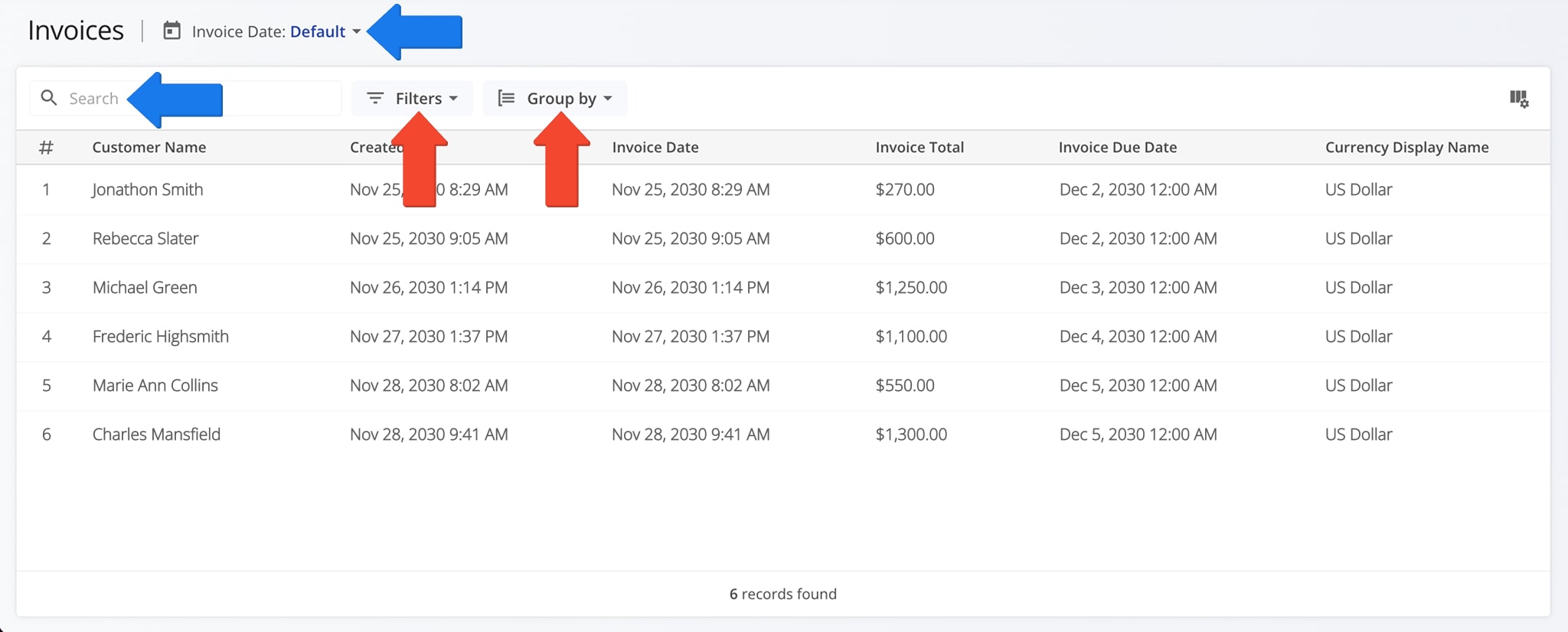
You can filter and group invoice data to quickly find specific invoices or organize records for analysis. These tools ensure accurate financial review and streamlined invoice management. The table below provides an overview of all filter and grouping options.
NOTE: You can also use the Search Field to locate specific Invoice data or search by Invoice date.
Customer
Filter invoices by customer name.
Customer Location
Filter invoices by the specific customer address or location associated with the invoice.
Status
Filter invoices by current status (e.g., Draft, Approved, Sent).
Invoice Total
Filter invoices by total billed amount.
Discount
Show invoices with or without discounts applied.
Discount Basis Type
Filter invoices by the method used to calculate discounts.
Payable Terms Days
Filter invoices based on the number of days between invoice creation and due date.
External System Originated
Show only invoices created in an external system.
Currency
Filter invoices based on the invoice currency.
Exchange Rate vs. Primary
Filter invoices based on the currency exchange rate used.
Customer
Group invoices by customer to see all invoices associated with each account.
None
Display invoices without grouping, showing all records in a single list.
View And Customize Invoice Columns – Manage Data Fields
The Invoices page displays multiple Invoice data columns, customizable to show just the information relevant to your needs.
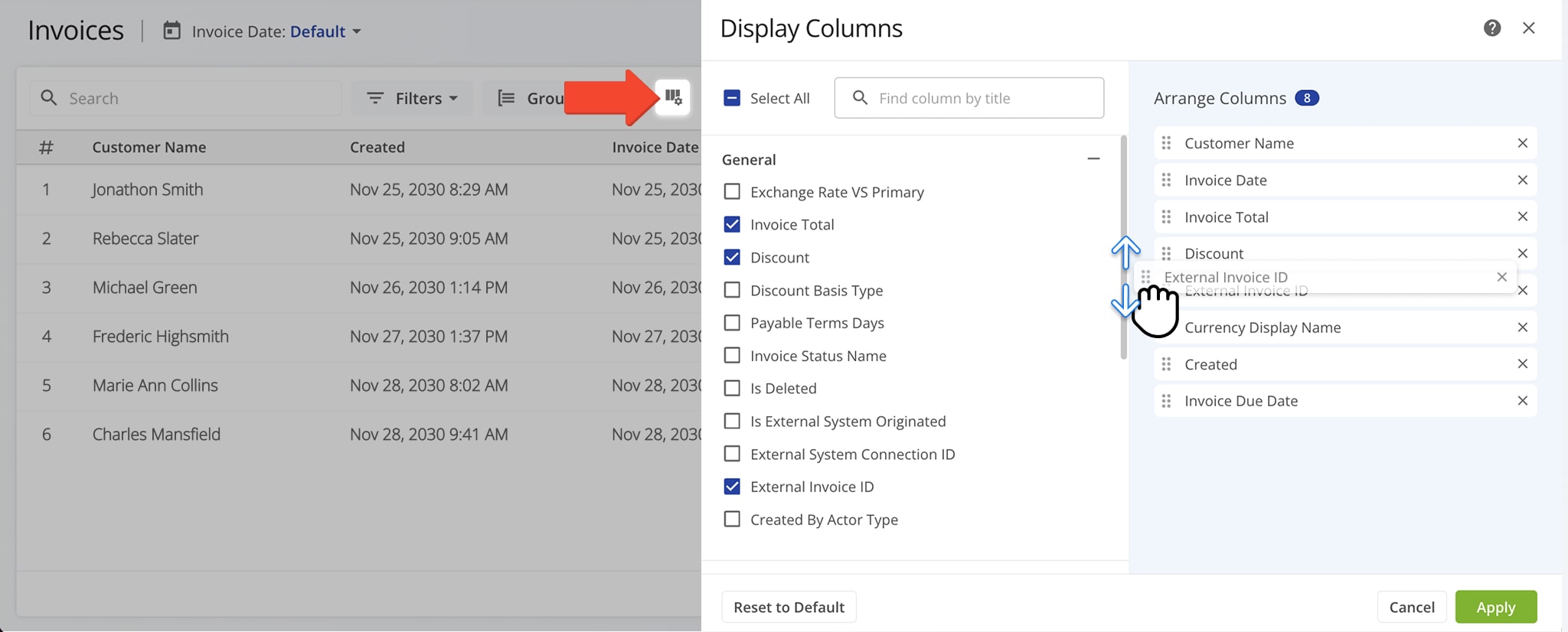
To customize the data that appears on your page, click the Column Icon. Then, check the boxes next to the columns you wish to see. You can also sequence the order in which columns appear by dragging them up or down the “Arrange Columns” list.
The table below provides a complete overview of available data columns.
Exchange Rate vs. Primary
Shows the exchange rate used compared to your primary currency.
Invoice Total
The total amount billed on the invoice.
Discount
Any discount applied to the invoice.
Discount Basis Type
How the discount was calculated (percentage or fixed amount).
Payable Terms Days
Number of days between the invoice date and the due date.
Invoice Status Name
Current status of the invoice (e.g., Draft, Approved, Sent).
Is Deleted
Indicates if the invoice was deleted.
Is External System Originated
Marks invoices created in an external system.
External System Connection ID
Identifier for the connection with the external system.
External System Connection Name
The descriptive name of the external system or integration used to create or sync the invoice.
External Invoice ID
Invoice ID in an external system.
Created by Actor Type
Type of user or system that created the invoice.
Customer Name
Name of the customer associated with the invoice.
Customer Location
The physical address, city, or site associated with the customer for this invoice.
Customer Reference Number
A unique identifier or reference code assigned by the customer for tracking or reconciliation purposes.
Currency Code ISO
ISO code of the invoice currency (e.g., USD).
Currency Display Name
Full name of the invoice currency.
Invoice Date
Date the invoice was created.
Invoice Due Date
Payment due date.
Created
Timestamp when the invoice record was created.
Updated
Timestamp of the last update to the invoice.
Utilized Pricing Strategy ID
Identifies the pricing strategy applied to the invoice.
Visit Route4Me Marketplace to Check Out More Add-Ons:
- Optimization
Address Book and Territories Planning
- Route Optimization
Commercial Vehicle & Truck Routing
- Operations
Audit Logging and Activity Stream


