
Team Hierarchy – User Types And Account-Level Permissions
Route4Me helps medium and large businesses build a structured team of managers, planners, dispatchers, drivers, and other roles. Each user can be assigned default or custom permissions for routes, vehicles, visibility, and more based on your last mile operation needs. For instance, a dispatcher can view assigned drivers and send routes in real time, while a driver only sees their own schedule. This guide covers user types, permission settings, and more.
NOTE: To check or increase your account’s user limit, contact Route4Me Support.
Table of Contents
Route4Me Team Hierarchy And Supported User Types
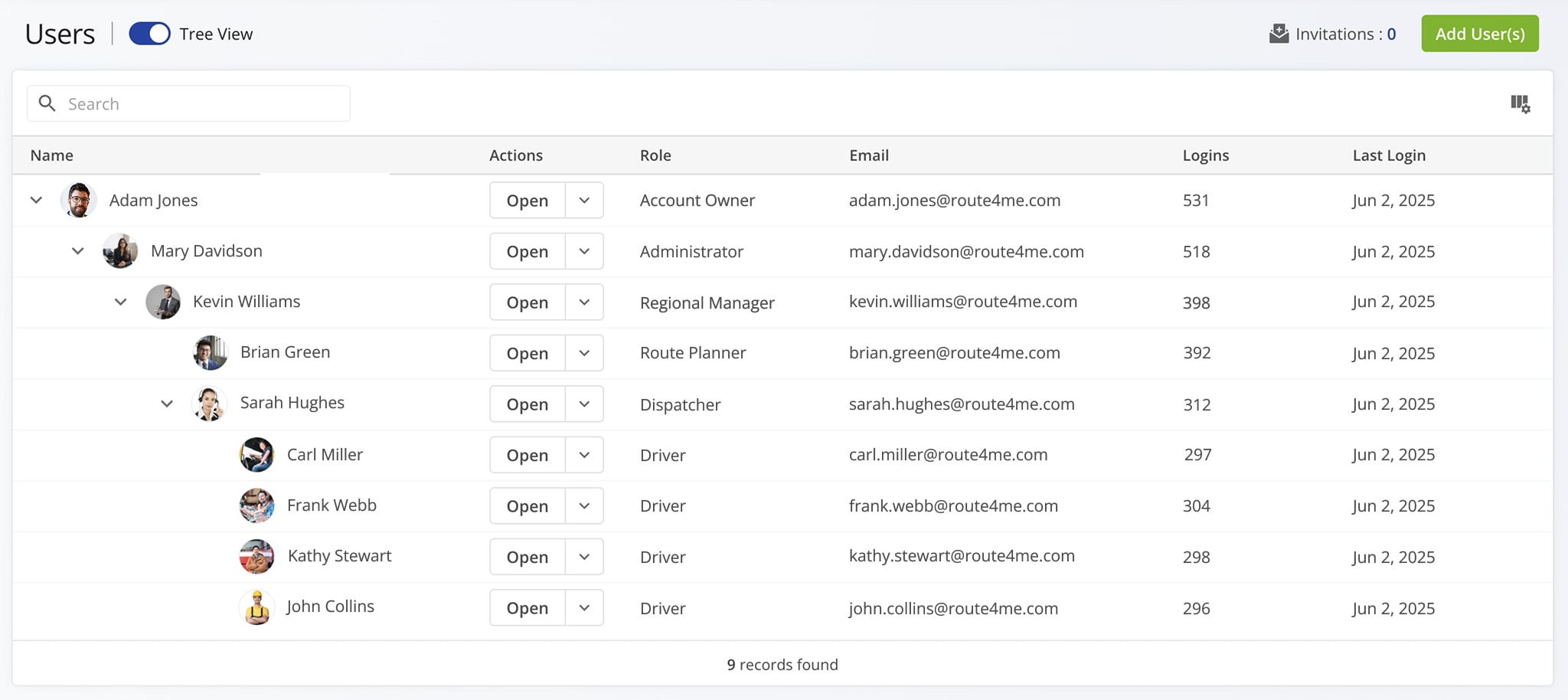
Route4Me supports the following default user types: Account Owner, Administrator, Regional Manager, Route Planner, Dispatcher, Driver, and Analyst. Use these to build a custom team hierarchy based on your specific last mile optimization needs.
Assign user types according to each team member’s role. Each user type has default permissions that allow them to perform specific tasks, which you can customize as needed. See the table below for more on user types.
Supported User Types
Route4Me Mobile Apps Team And User Management
Route4Me’s Android Route Planning App and iPhone Route Planning App let you manage your entire team directly from your mobile device. You can create and edit users, assign them to routes, and perform other key tasks from anywhere.
Real-time data sync keeps all connected devices up to date. For example, when one team member adds Drivers, another can immediately see them and assign routes from their own device. 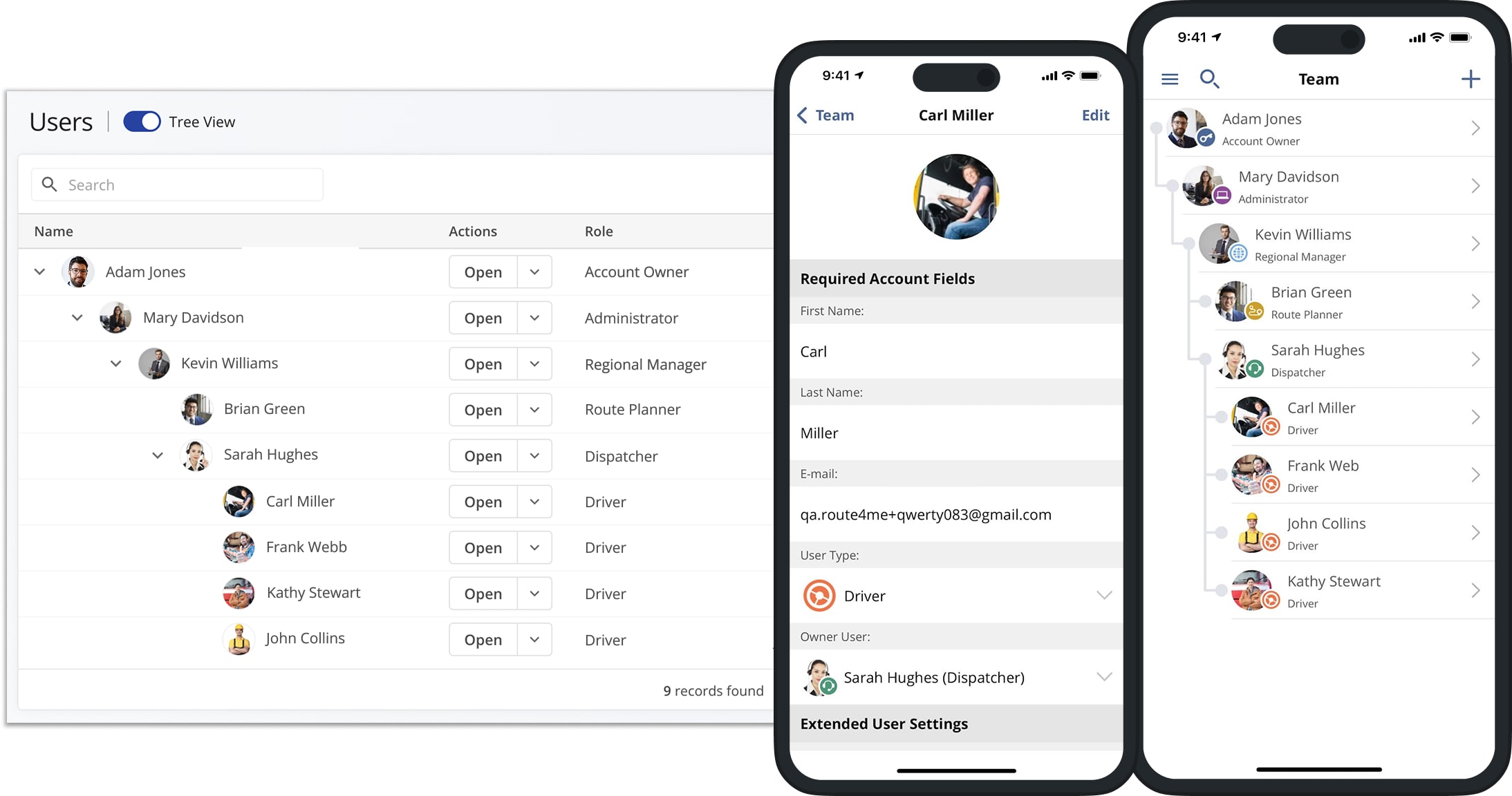
User Type Settings – Assign And Change User Types
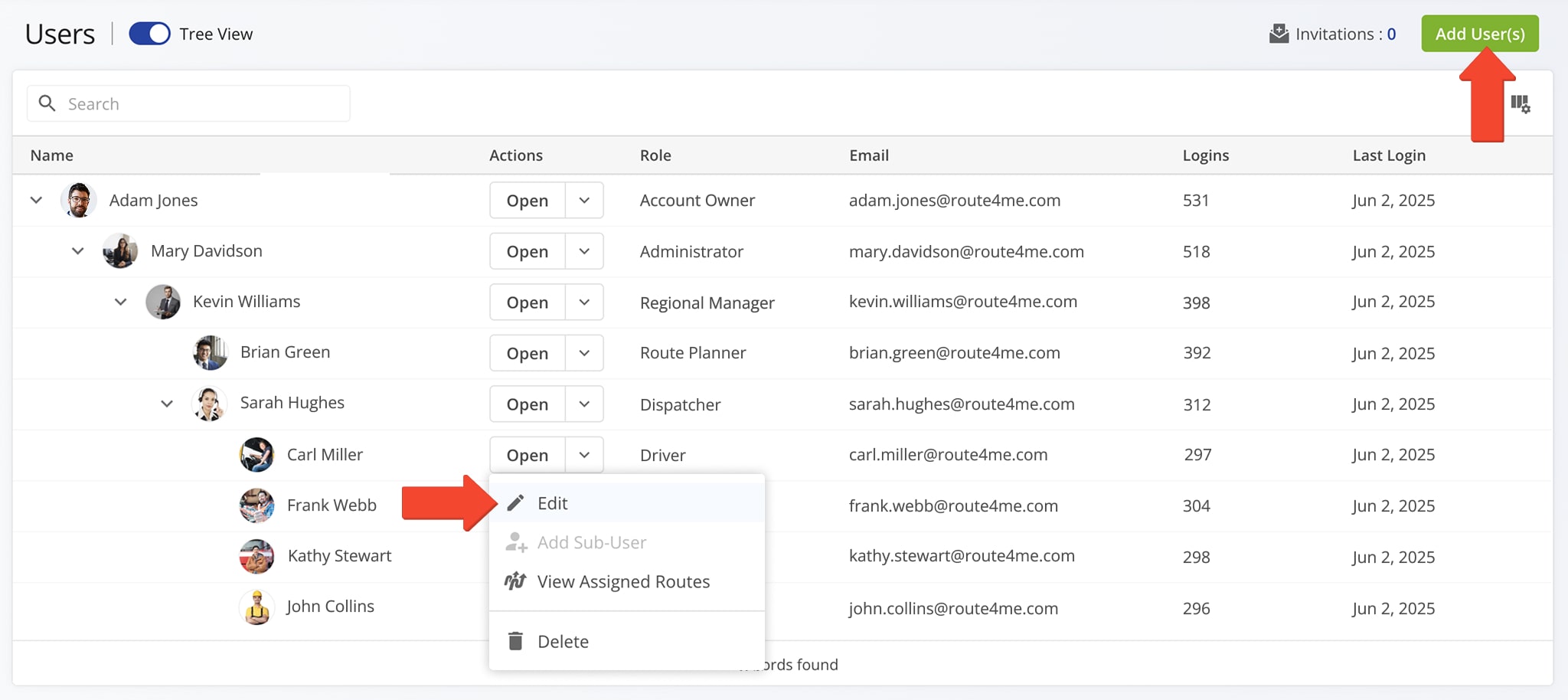
To create a new user, go to “Team & Equipment” > “Users” in the Navigation Menu. Then, click the “Add Users” button and complete all fields. NOTE: You can also import users with predefined user types via spreadsheet. Learn more about creating new users manually and uploading new users via spreadsheet.
To make edits to an existing user – including their user type – click the Down Arrow button next to a user and select “Edit“. NOTE: Changing the user’s user type may affect their place in your team’s user hierarchy. Learn more about editing user profiles.
User Permissions – Default Account-Level Permissions By User Type
Each user type comes with a pre-defined set of account-level permissions, described below. In addition to these parameters, users can also view and manage routes, addresses, users, vehicles, and other data associated with their sub-users.
NOTE: You can adjust “Travel-Only” mode and “Company Visibility” settings to override default account-level permissions. More information about these settings appears further in this guide.
Permissions Matrix
User Permissions Settings – Read-Only, Route And Company Visibility
Each user type has a default set of account-level permissions, which you can customize based on your team management needs. Below is a list of all available user permission settings.
NOTE: Adjusting permissions settings allows you to override default permissions. But, to do this, the Account Owner must enable the Advanced Team Management Add-On on the primary Route4Me account. Learn more about Customizing User Permissions, Company Visibility Settings, and Read-Only Mode.
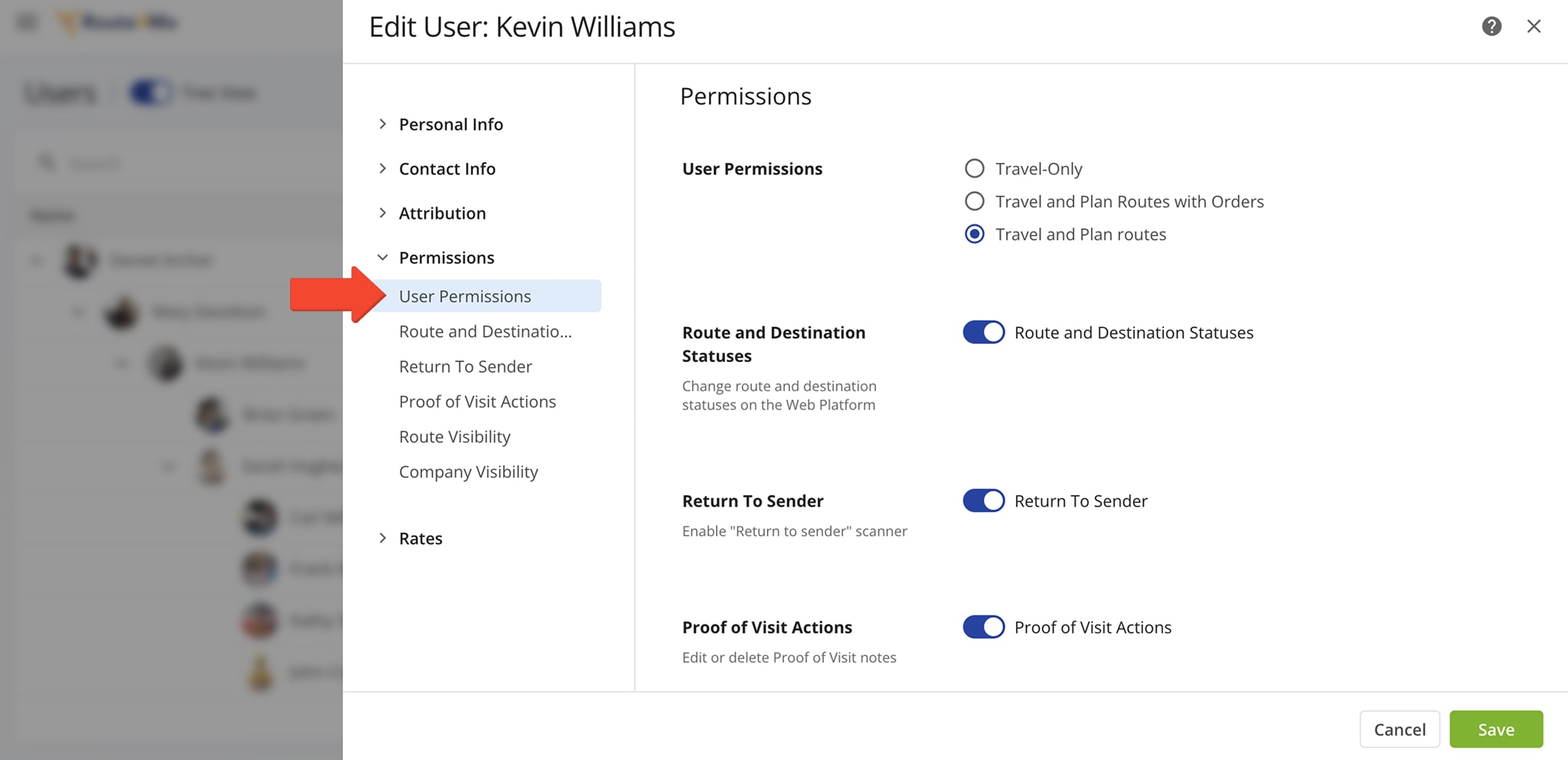
User Permission Settings
Visit Route4Me's Marketplace to Check out Associated Modules:
- Operations
Advanced Team Management Add-On
- Operations
Audit Logging and Activity Stream
About author: Alex Yasko

