
Regions Guide – Add & Manage Regional Hierarchies
Regions allow you to define and organize your service territories into a structured hierarchy, giving your team a clear framework for managing coverage areas at every level, from broad top-level markets down to specific neighborhoods or districts. This is especially useful for route planning and optimization, as well as assigning the right resources to the right areas. This guide walks you through everything you need to configure, manage, and visualize your Regions on a map.
Table of Contents
Add Regions – Configure Regional Hierarchies
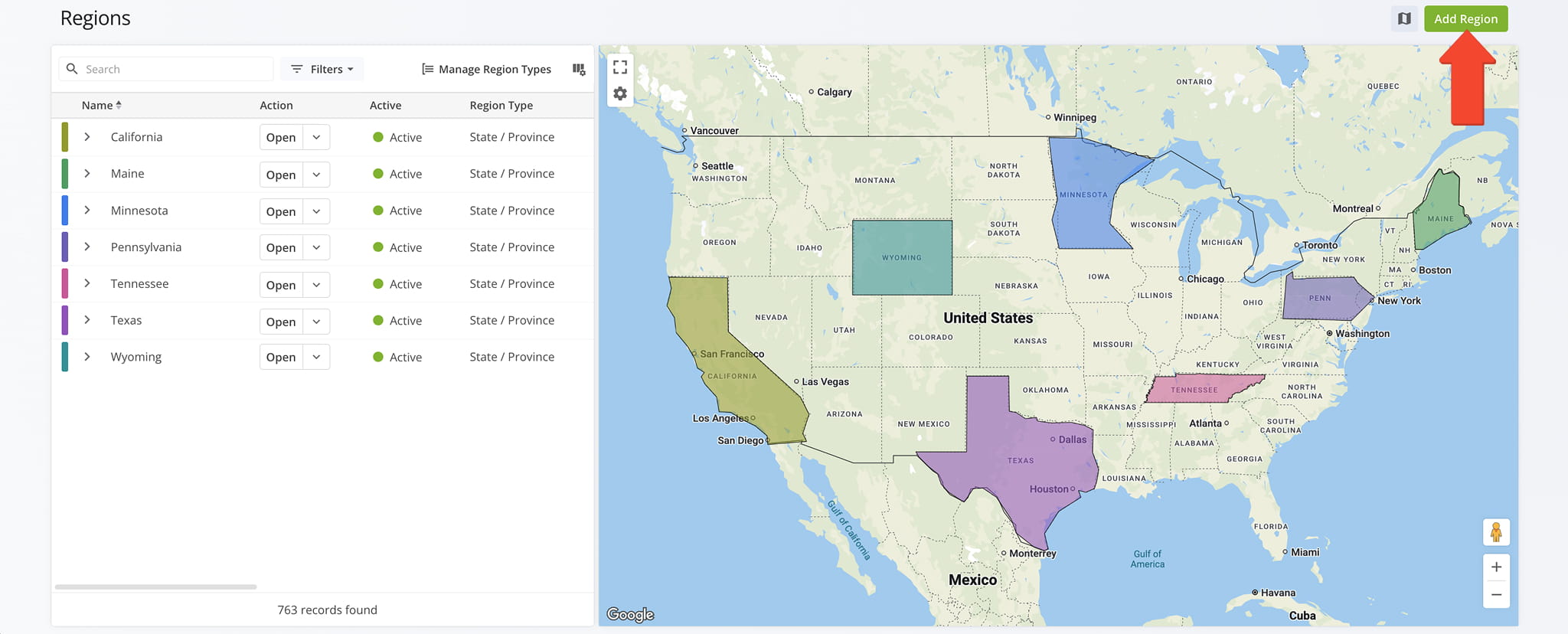
To create a new Regions, go to “Database” > “Regions” from the Navigation Menu and click the “Add Regions” button, then follow the steps described below.
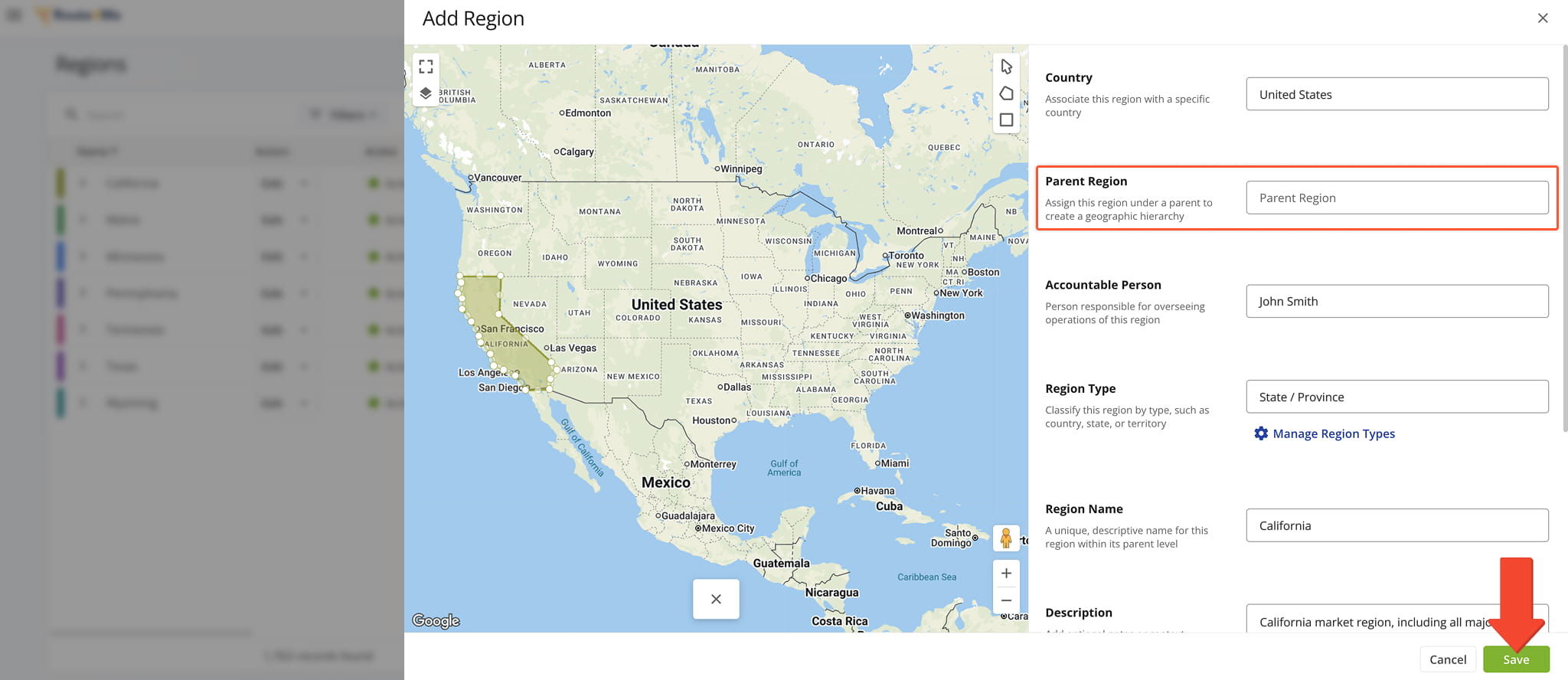
Add A Top-Level Region – Create Level One Master Regions
Start by creating a Top-Level Region. Complete all fields, detailed in the next section of this guide. NOTE: Since this is a Level One Region, don’t assign it a Parent Region. It will instead become the Parent Region for associated Level Two Regions.
After completing all fields, click “Save” to finalize.
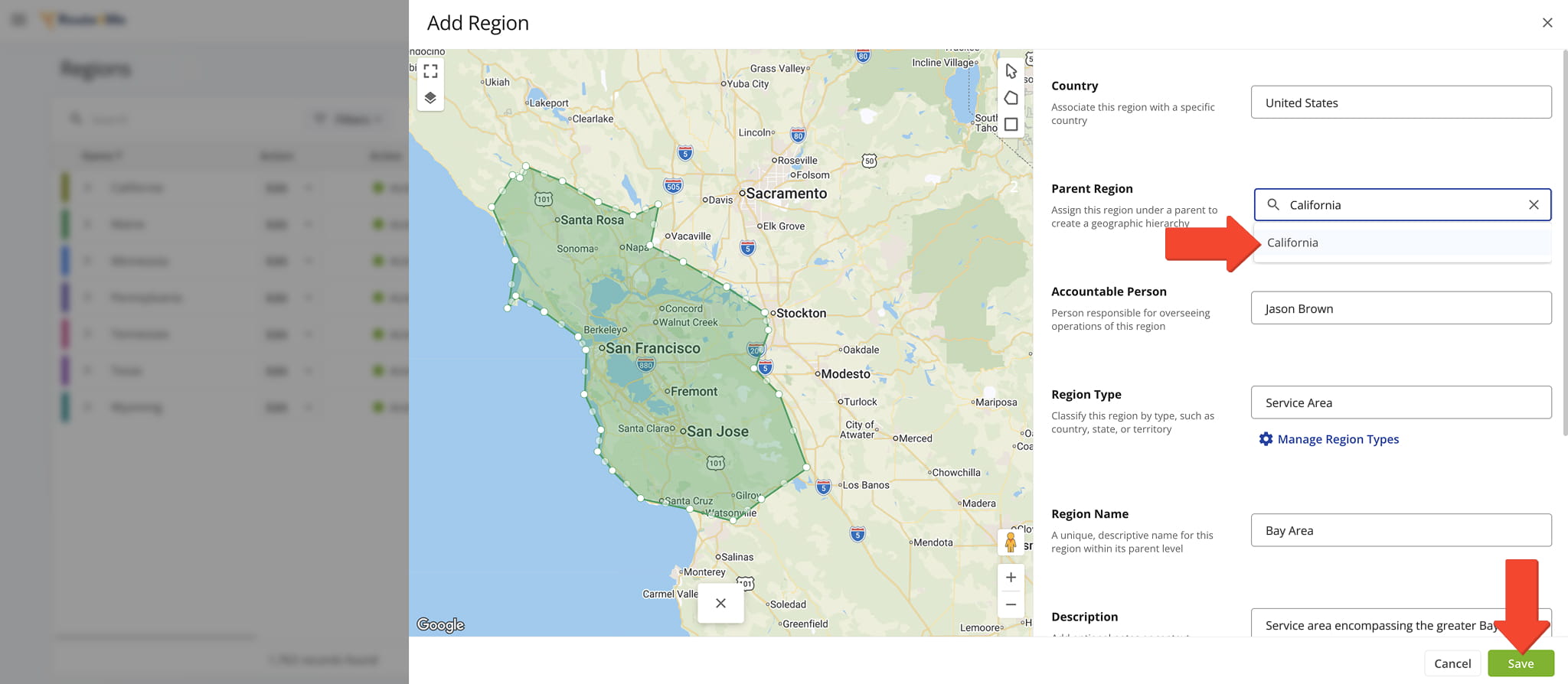
Level Two Sub-Regions – Create Level Two Sub-Level Regions
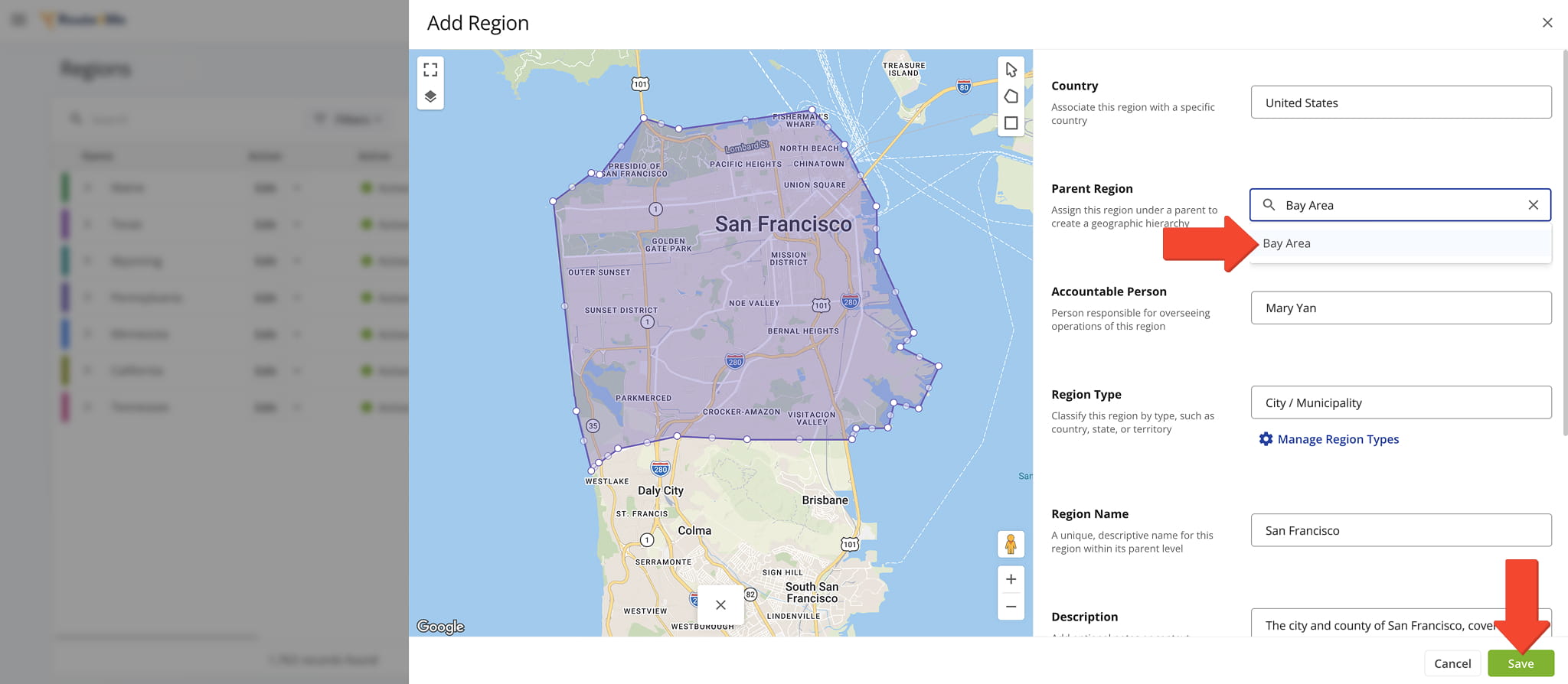
Next, create one or more Sub-Regions for the Top-Level Region. Complete the same fields you used when creating the Level One Region but, this time, select the Parent Region you want this Sub-Region to belong to.
When typing the name of the Parent Region in the “Parent Region” field, Route4Me will suggest matching Regions as you type.
Level Three Sub-Regions – Create Level Three Sub-Level Region
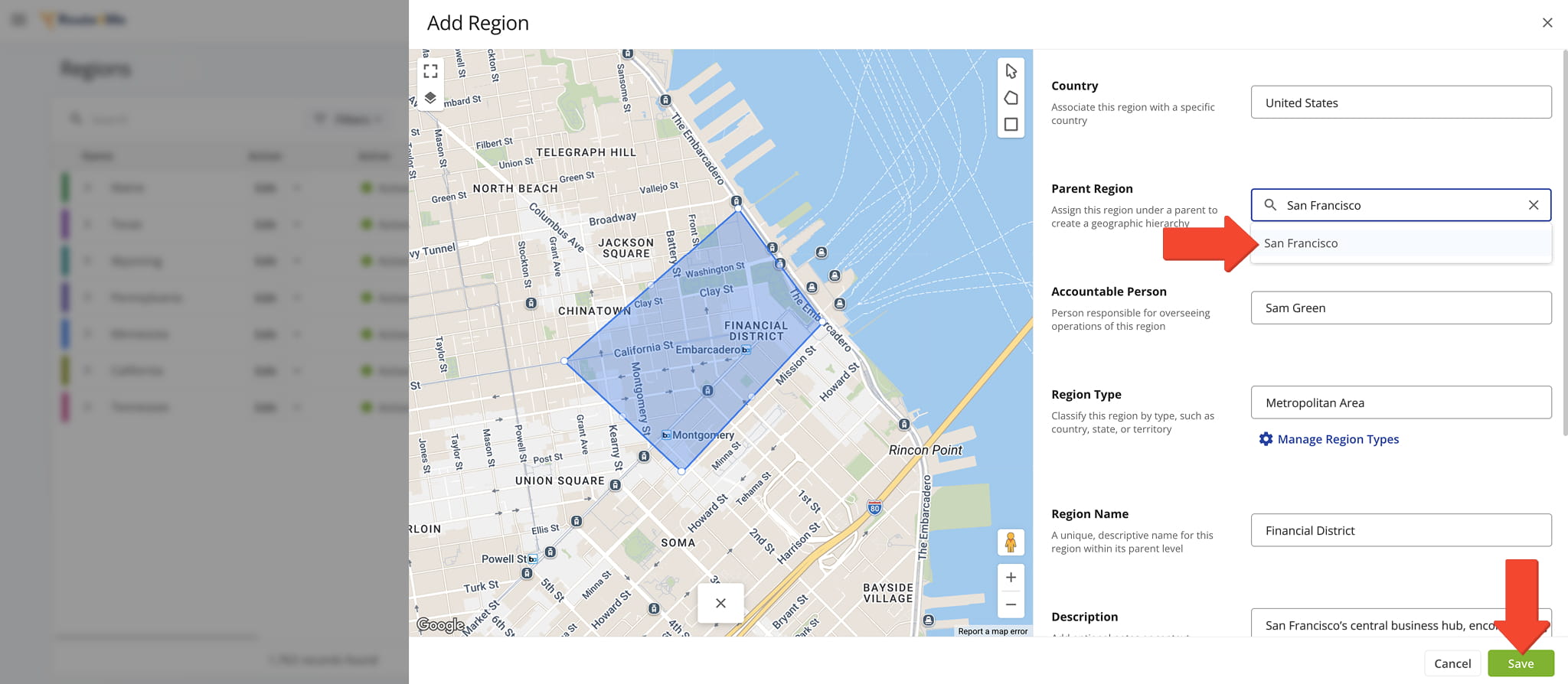
Repeat the same process to create Level Three Regions, this time selecting a Level Two Region as the Parent Region.
Level Four Sub-Regions – Create Level Four Sub-Level Regions
Continue this process to create Level Four Regions. At this level, select a Level Three Region as the Parent Region.
Region Configuration – Editor Fields Reference Table
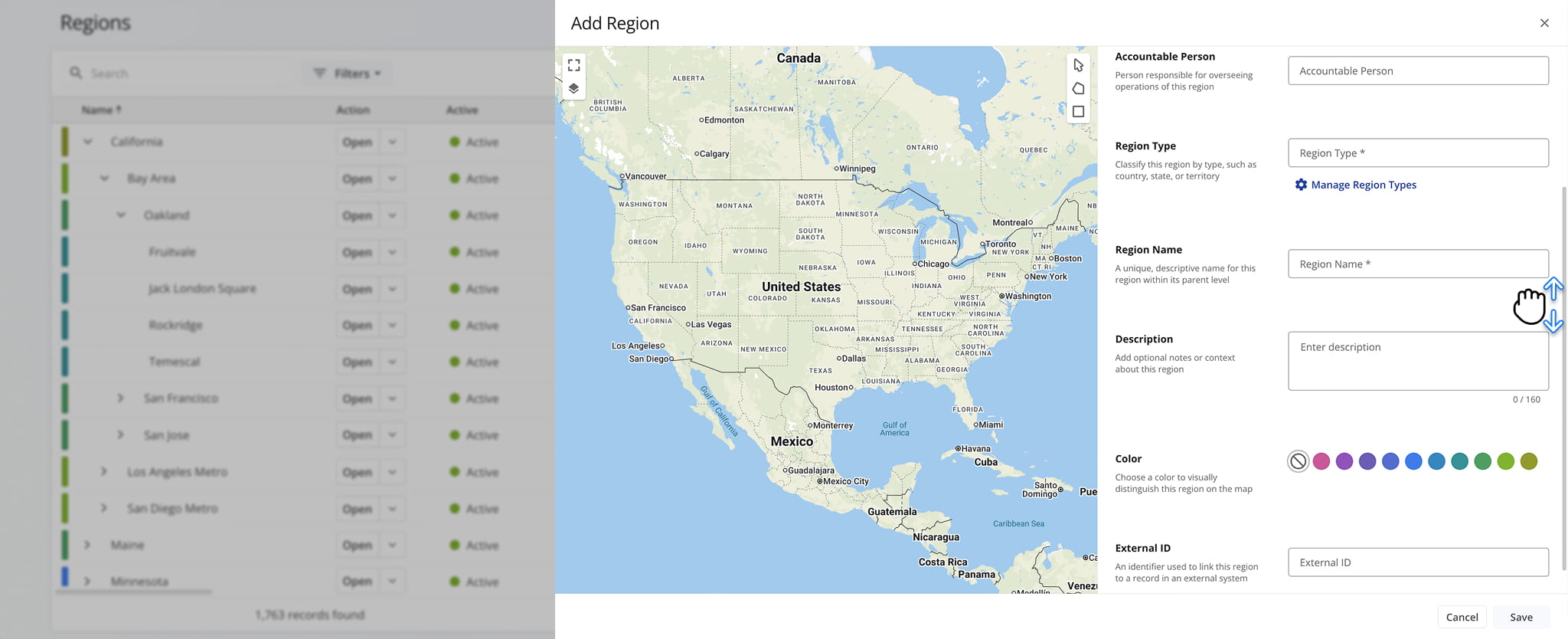
The editor includes several mandatory and optional fields. Scroll up and down within the editor to access all available fields. The table below describes each field and its purpose.
Region Settings & Details
Manage Regions – Organize And Maintain Regional Data
Once your Regions are set up, you can search for and update their details, configure how data is displayed, and visualize territories directly on the map.
View And Edit Regions – Search, Filter, And Edit Region Details
To view and edit Region details and data:
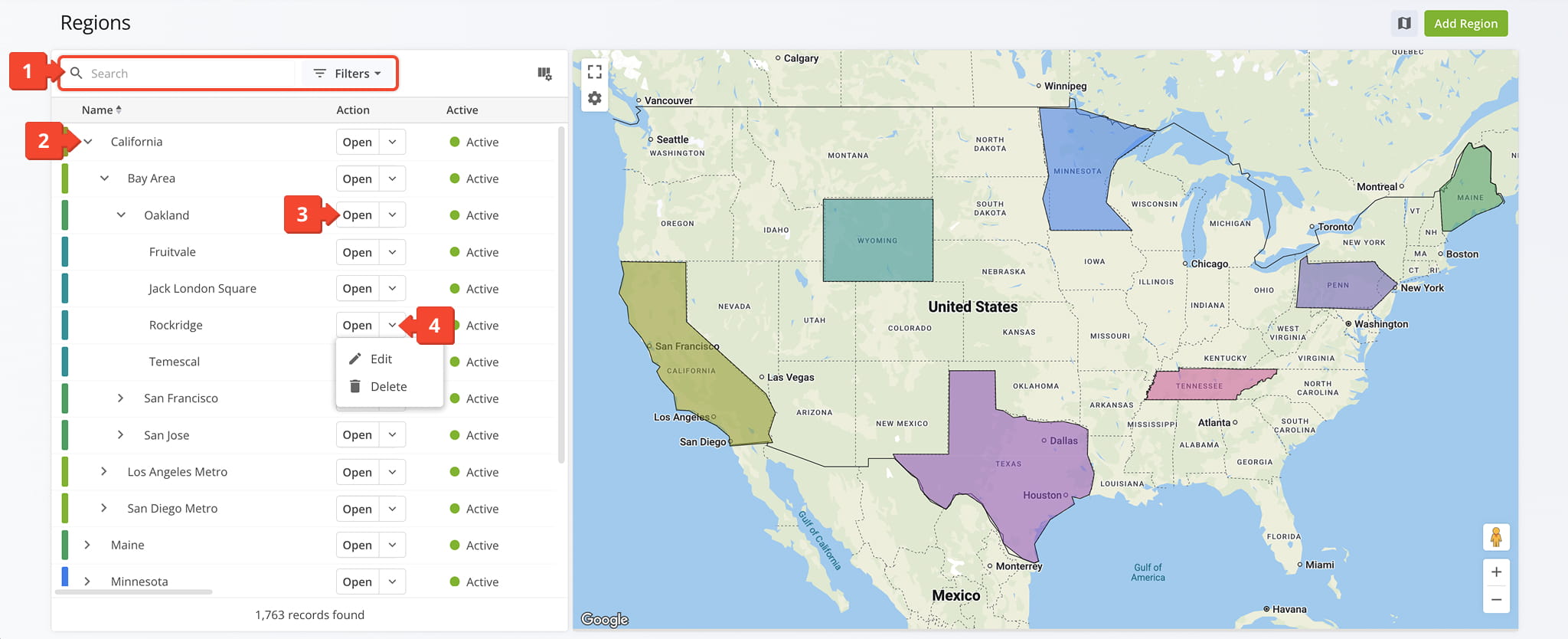
- Use the “Search” field and Filters options, described in the table below, to locate specific Regions.
- Click the Arrow next to a Top-Level Region to view all of its associated Sub-Regions.
- Click “Open” to access a Regions’s Region Snapshot.
- Click the Down Arrow to edit or delete an entry.
Region Filter Options
Customize Region Data Columns – Manage Data Table Layout
To view Regions data and customize the Data Table:
- Click the Columns Icon in the upper-right corner.
- Check the boxes next to the Data Columns you wish to view. Data Columns are described in the table below.
- Drag the Data Columns into your preferred order
- Click “Apply” to save.
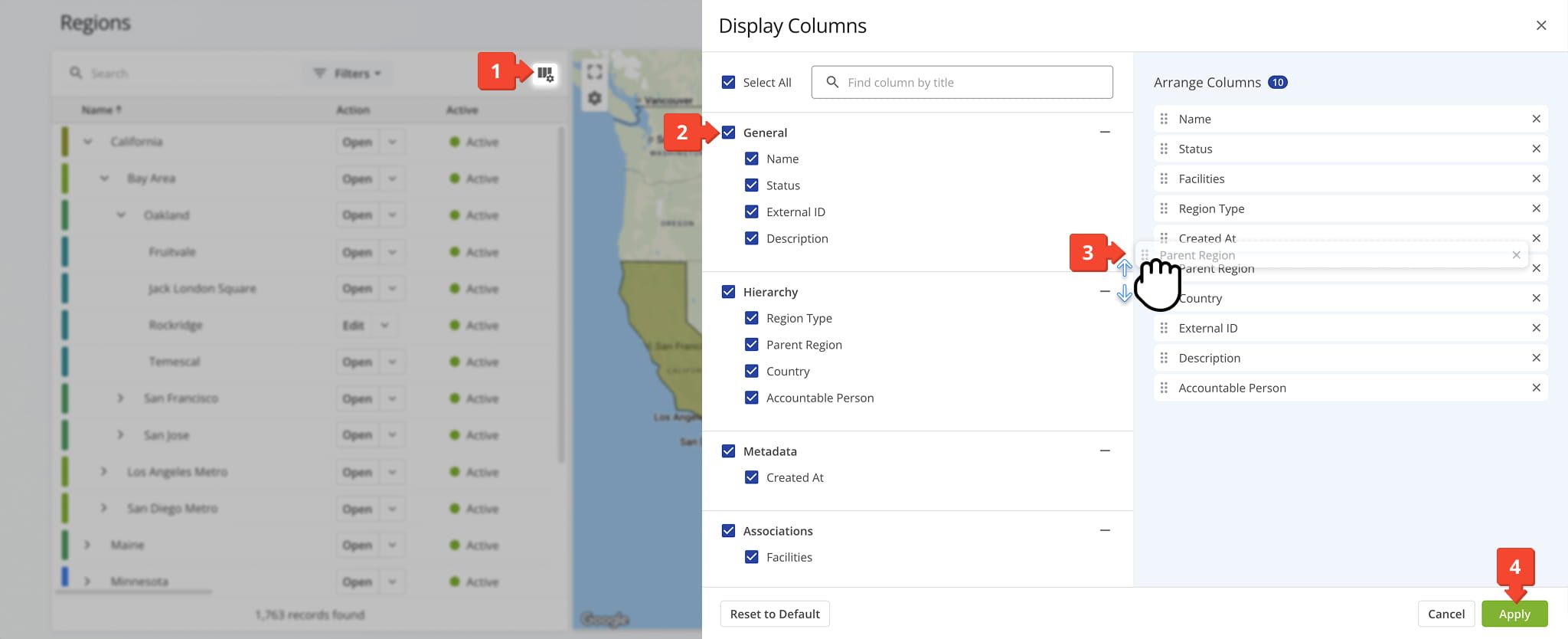
Regions Data Columns
Visualize Regions On A Map – Explore Territories With The Regions Map
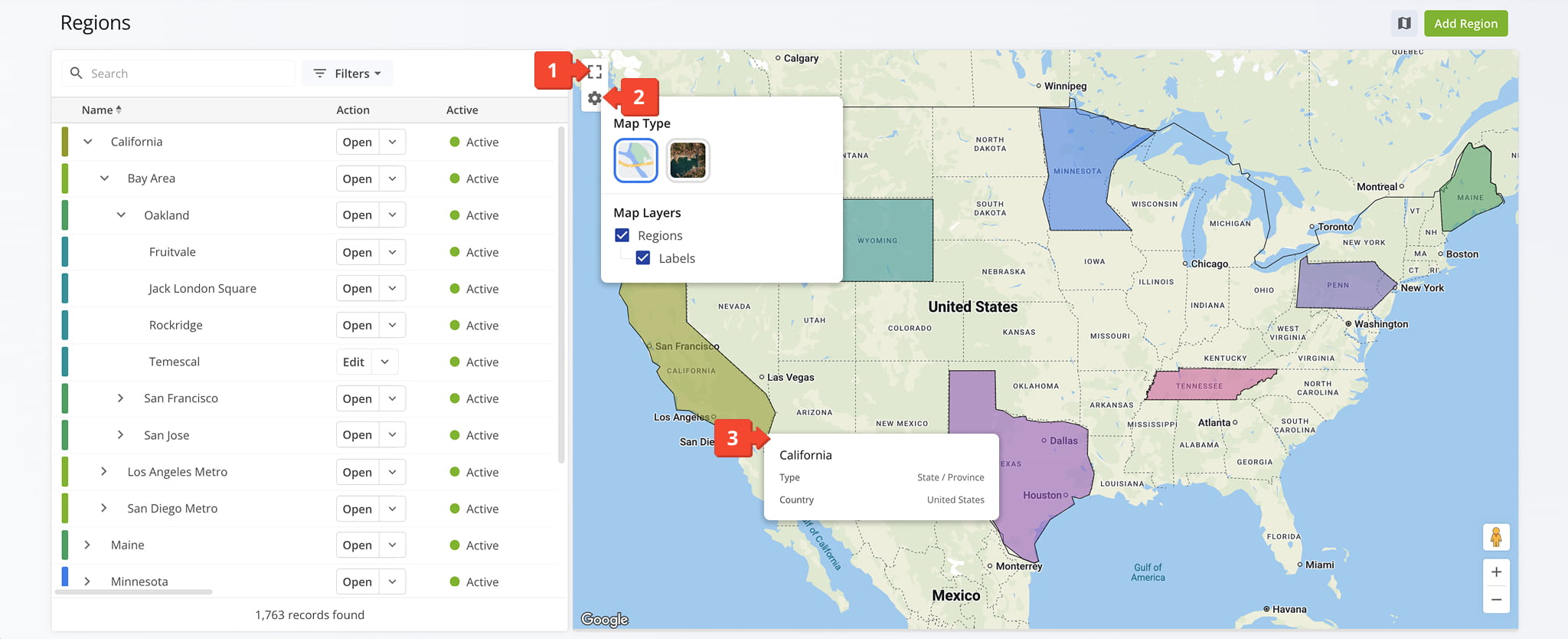
Click the Map Icon to open the Regions Map, from which you can:
- Click the Full Screen Icon to enlarge the Map View
- Click the Gear Icon to select the Map Type and Map Layers you wish to see.
– Select “Regions” to view color-coded territories. Top-Level Regions are shown by default. Click on a Sub-Region to display it instead.
– Select “Labels” to view details about the Top-Level Region (i.e., its associated Sub-Regions, ZIP codes, Regions Types, and more). - Right click on a Region to view additional details about it.
Visit Route4Me's Marketplace to Check out Associated Modules:
- Operations
Custom Data Add-On
- Operations
Advanced Team Management Add-On
About author: Daniel Archer

