User Snapshot – Customizable Team Member Data And Analytics Overview
Route4Me’s User Snapshot is an intuitive analytics tool that provides a detailed overview of any last-mile field team member. It combines route analytics, destinations data, orders, and proof of visit collection in one place, giving you visibility into key metrics and individual performance. With a User Snapshot, you can track route performance, analyze completed activities, and monitor execution trends to make informed decisions, optimize your field operations, and exceed customer expectations.
Table of Contents
Open User Snapshot – Access User Data And Analytics Overview Page
To open the User Snapshot for a final mile field team member, select “Team & Equipment” > “Users” from the Navigation Menu. This opens the Users page. Next to a user, click “Open” to access their User Snapshot.
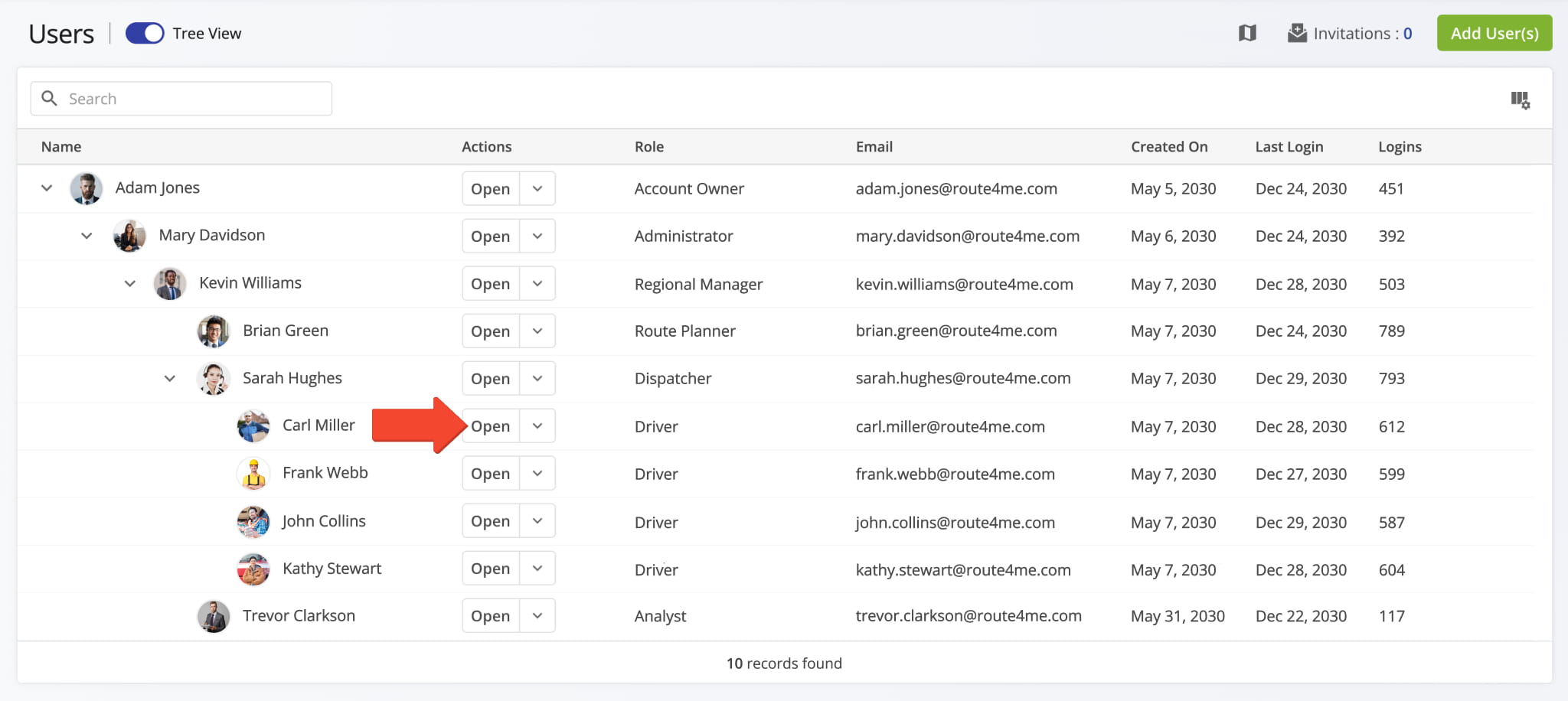
User Profile Overview – Location, Assignments, Performance Metrics
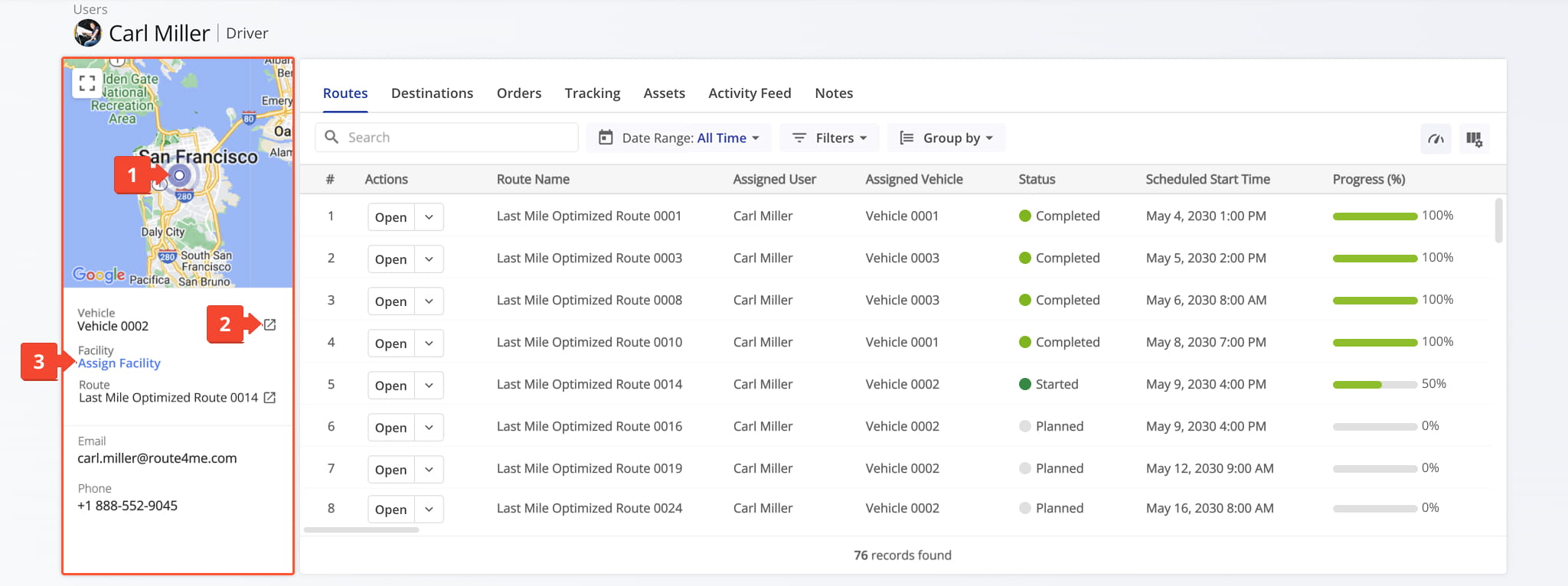
User Details Summary – Dynamic Map And User Information Panel
The User Summary panel displays key details about the user, including their assigned route, vehicle, and account contact information, alongside a map of their last synchronized location. From this panel, you can perform the following actions:
- View the map to see the user’s last synchronized location and track users and assets in real time using GPS.
- Click the Go-to Icon next to any field to open the corresponding Route4Me interface.
- Click “Assign Facility” to assign the user to a last mile facility. NOTE: Users can be assigned to multiple facilities.
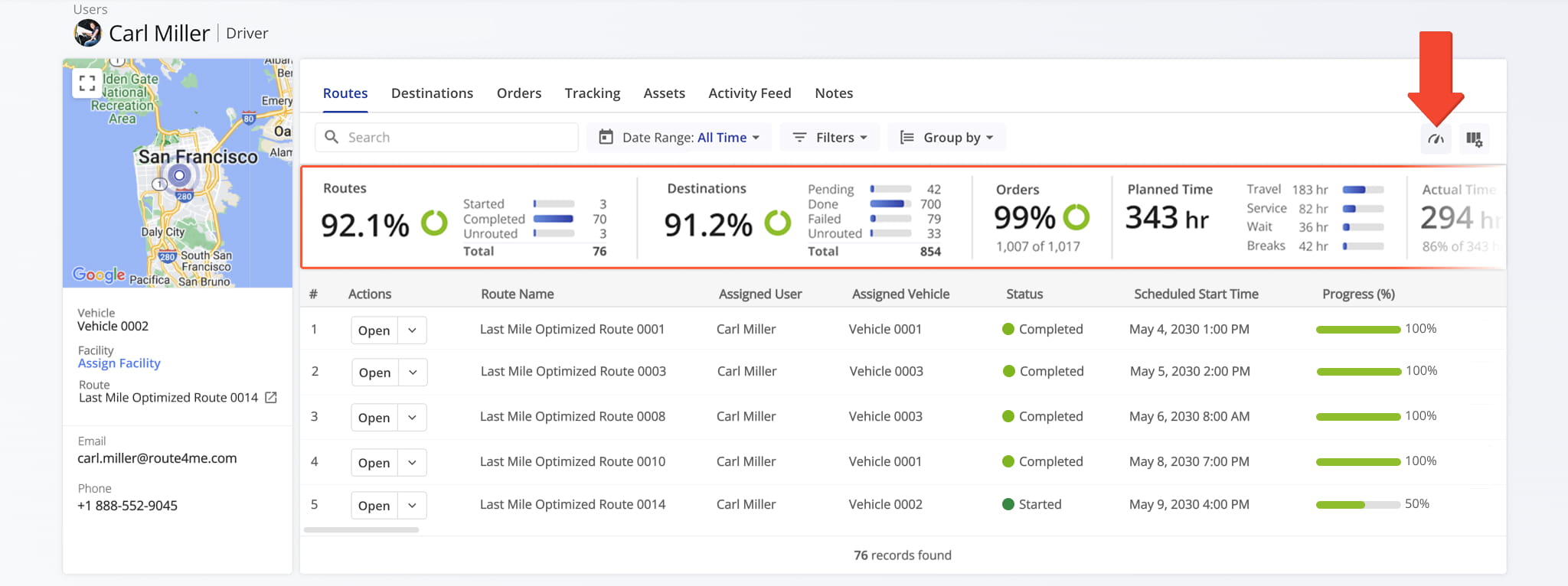
Route Performance Metrics Panel – User Route And Time Performance Overview
Click the Metrics Icon in the upper-right corner to open the user’s Route Performance Metrics panel. This panel provides a summary of the user’s planned and completed routes, destinations, orders, and time distribution.
It also enables you to monitor progress, track efficiency, and evaluate the user’s operational performance across routes using real-time data visualizations. NOTE: This panel is only accessible from the Routes and Destinations tabs.
User Snapshot Categories – User Data Tabs On Analytics Overview Page
The User Snapshot is organized into multiple tabs, each corresponding to a specific category of associated data. Each tab is described in detail below.
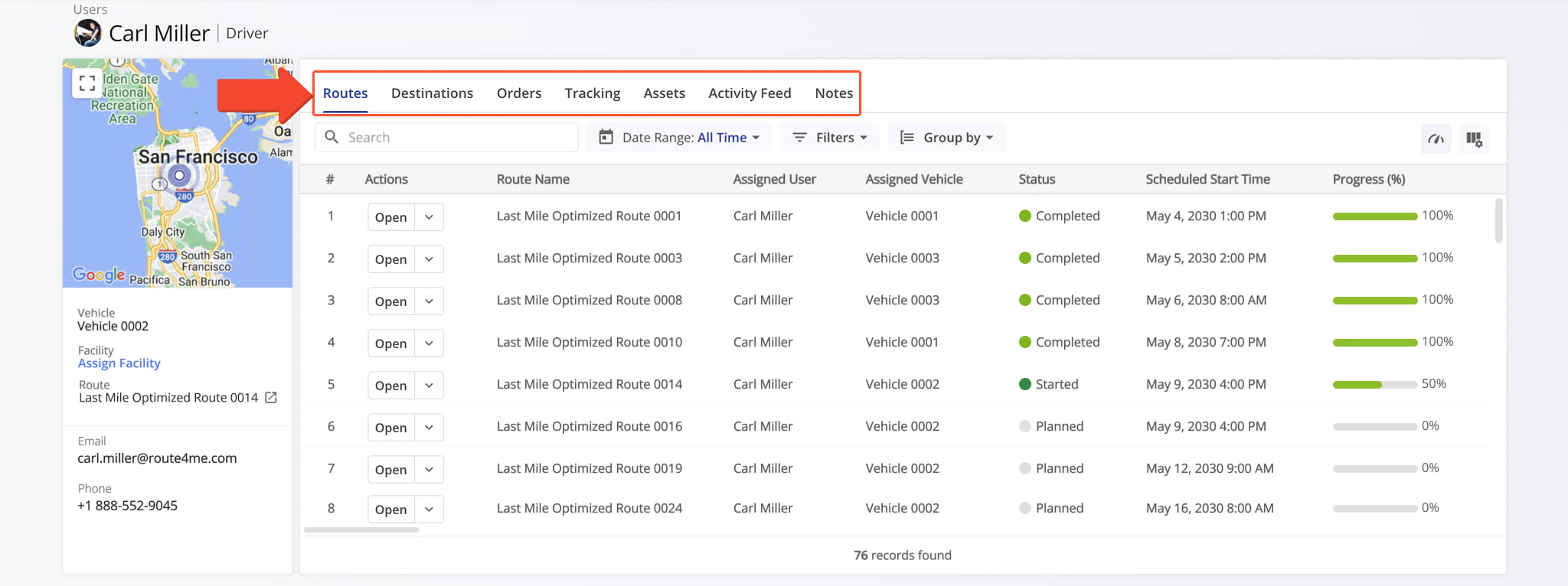
Routes Tab – Assigned Routes And Route Data Overview
By default, the “Routes” tab opens when you access a User Snapshot, displaying all routes assigned to the user in a customizable data table. The route data is consistent with what appears on the Routes Page.
From the Routes tab, you can perform the following actions for each route associated with the user:
- Use the Search field to locate routes associated with the user.
- Filter routes by Date Range, Filters, or Group By options, as described in the table below.
- Click “Open” next to a route to access its Route Snapshot.
- Click the Down Arrow button to modify the route in the Route Editor or assign the route to a facility.
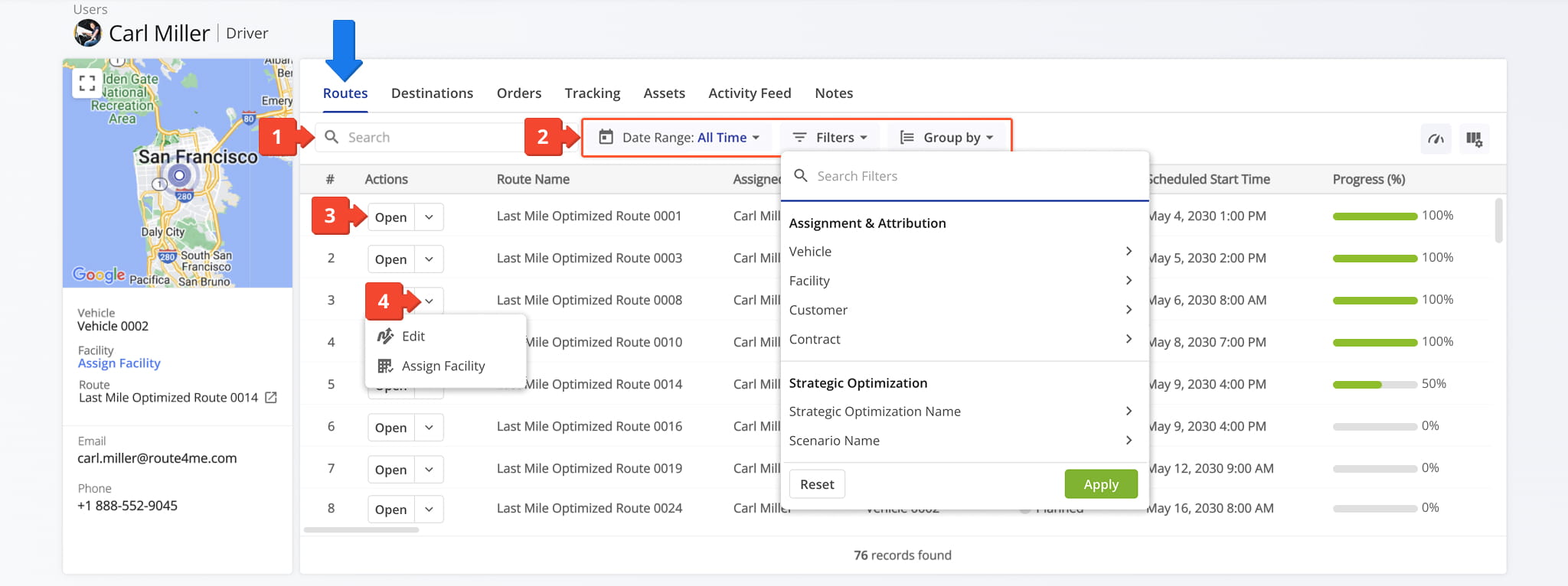
Routes Tab Filters
You can also customize the data displayed in the table. Click the Column Icon to select which route data fields appear and adjust their order to suit your operational needs.
The table below provides an overview of all available data columns, which you can reorder by dragging them into place.
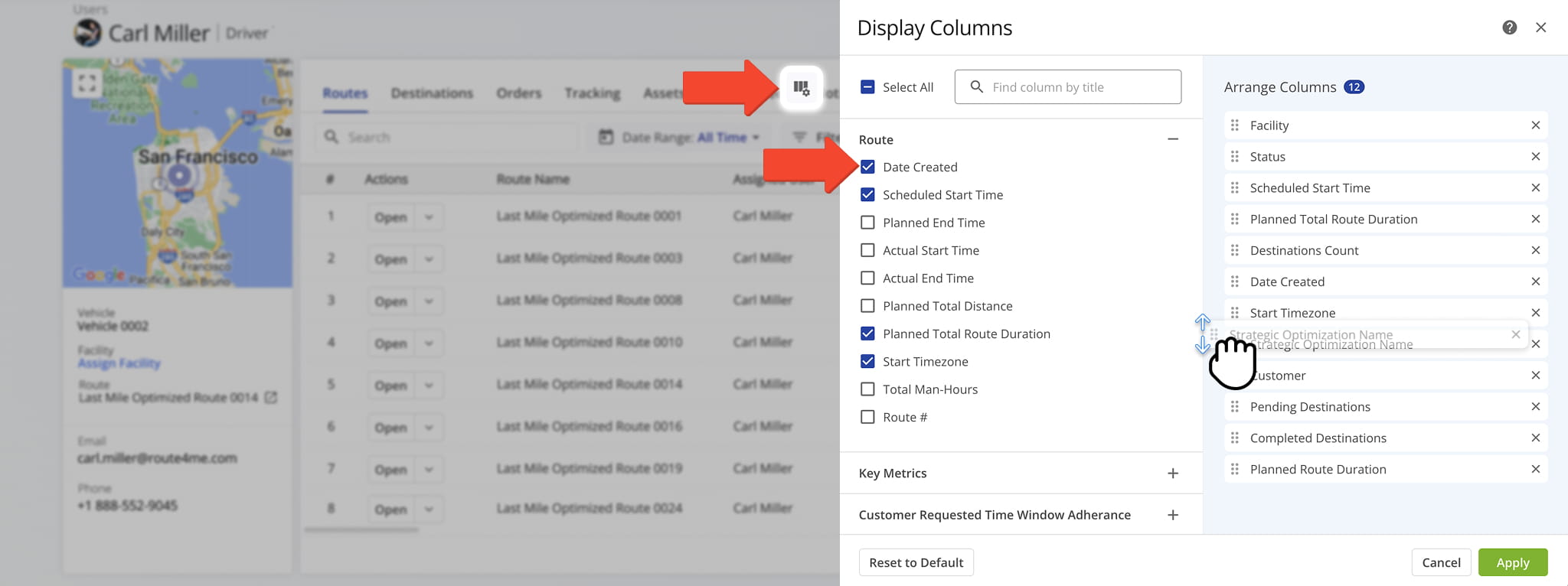
Routes Tab Data Columns
Destinations Tab – Assigned Destinations And Destination Data Overview
The “Destinations” tab displays all destinations associated with the user in a customizable data table. The available destination data matches what is shown in Destination View Mode on the Routes Page on the Routes page.
From the Destinations tab, you can perform the following actions for each destination associated with the user:
- Use the Search field to locate destinations assigned to the user.
- Filter destinations by Date Range, Filters, or Group By options, as described in the table below.
- Click “Open” next to a destination to access its Destinations Snapshot.
- Click the Down Arrow to open the associated Route Snapshot or edit the route in the Route Editor.
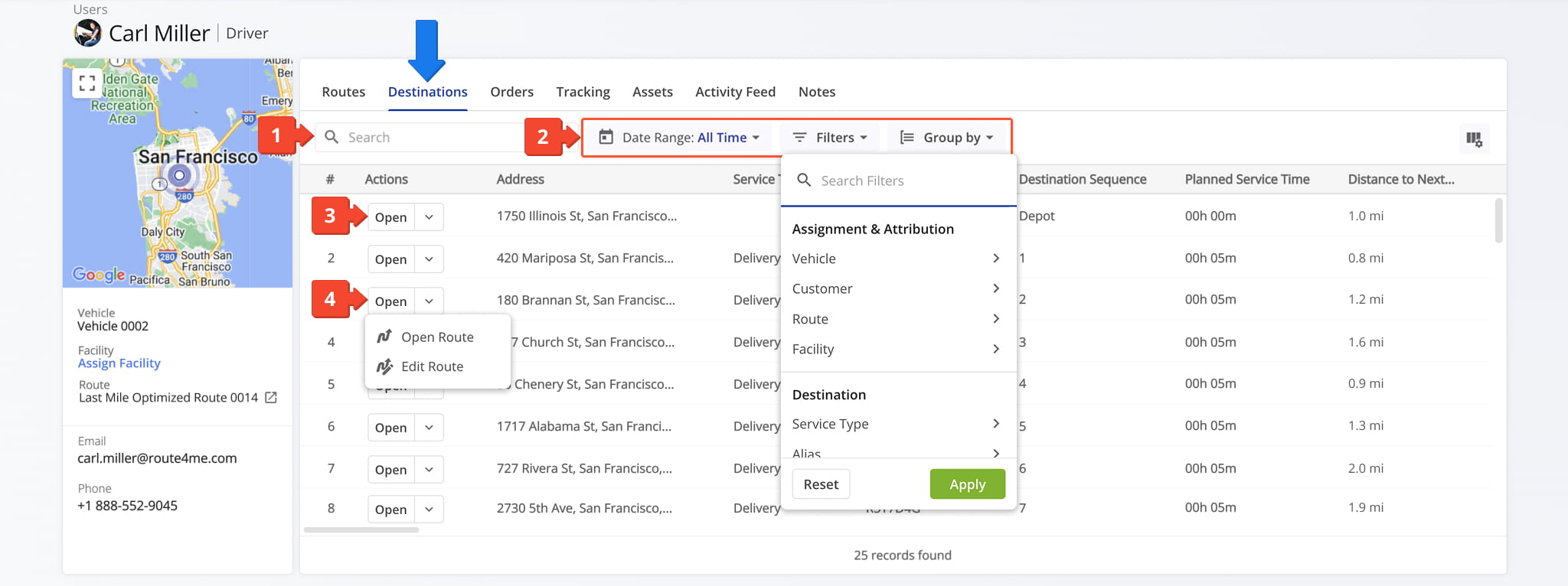
Destinations Tab Filters
You can also customize which columns appear in the table. Click the Column Icon to select which data fields are displayed and adjust their order to fit your needs. The table below provides an overview of all available data fields in the “Destinations” tab.
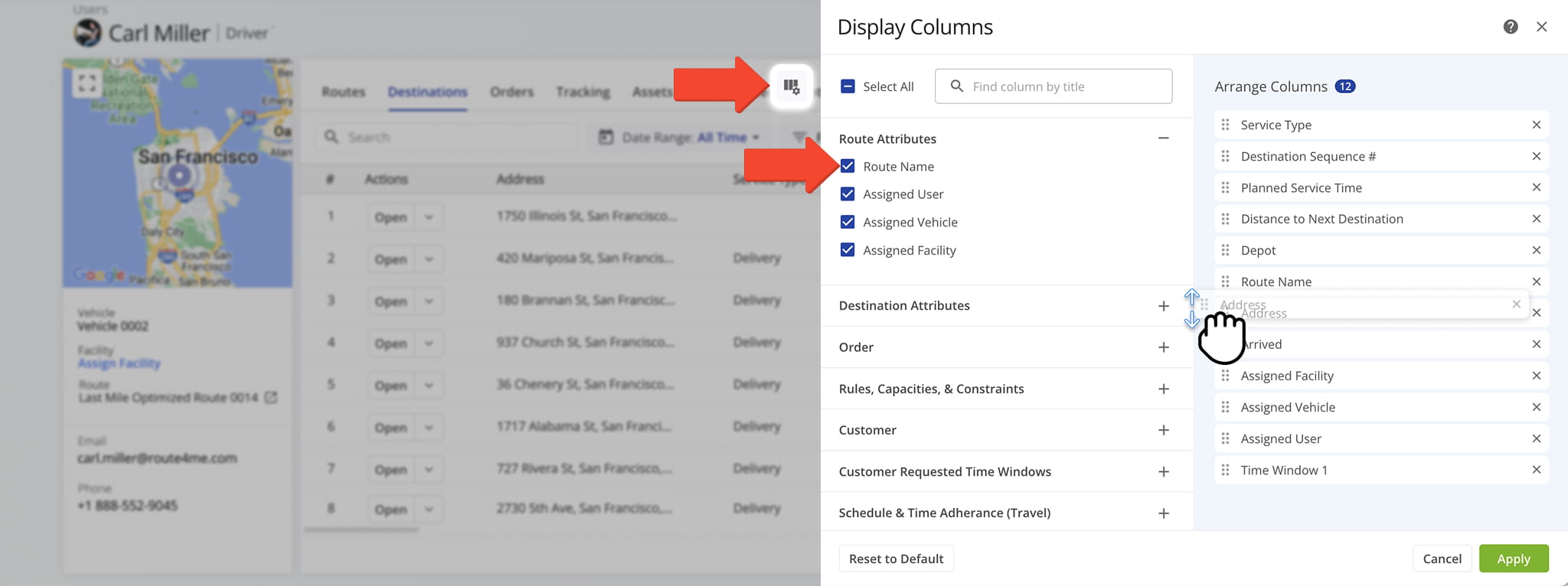
Destinations Tab Data Columns
Orders Tab – Assigned Orders And Order Data Overview
The Orders tab displays all orders associated with the user in a customizable data table. The available order data matches what is shown on the Orders Page, ensuring consistency across views.
From this tab, you can perform the following actions for each order associated with the user:
- Use the Search field to locate specific orders.
- Filter orders by Date Range or Filters, as described in the table below.
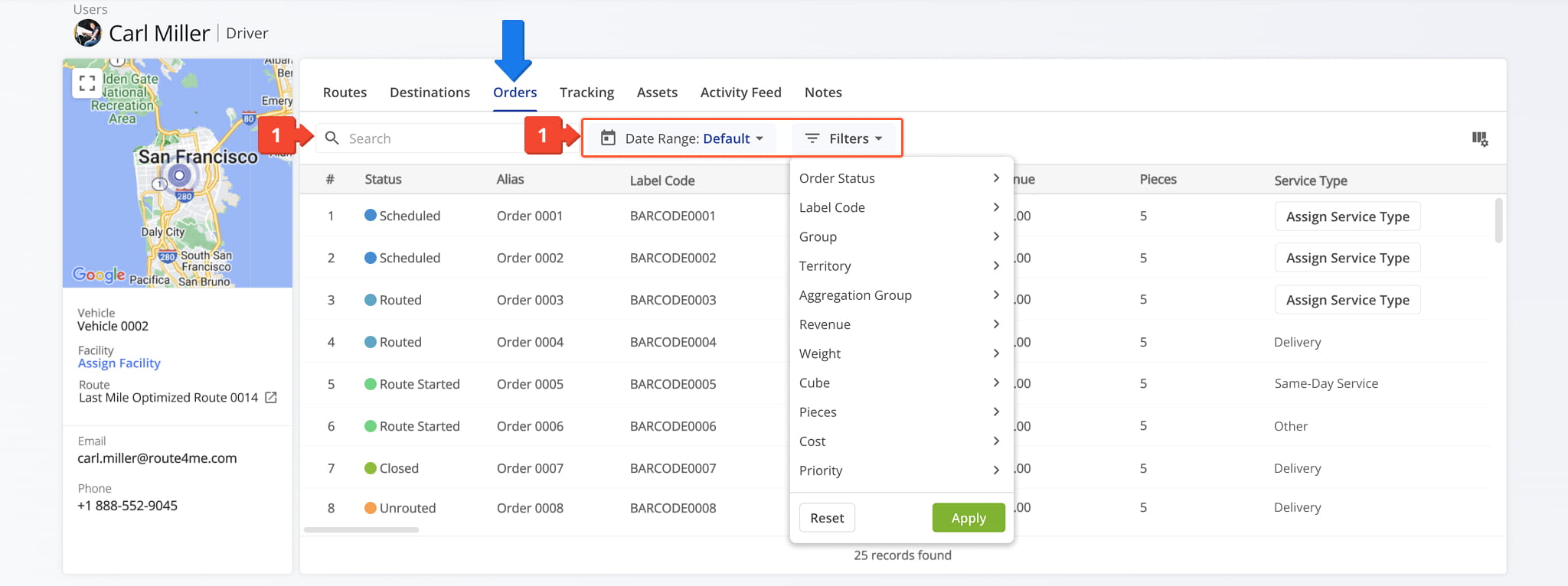
Orders Tab Filters
You can also customize which columns appear in the table. Click the Column Icon to select which data fields are displayed and adjust their order to fit your needs. The table below provides an overview of all available data fields in the “Orders” tab.
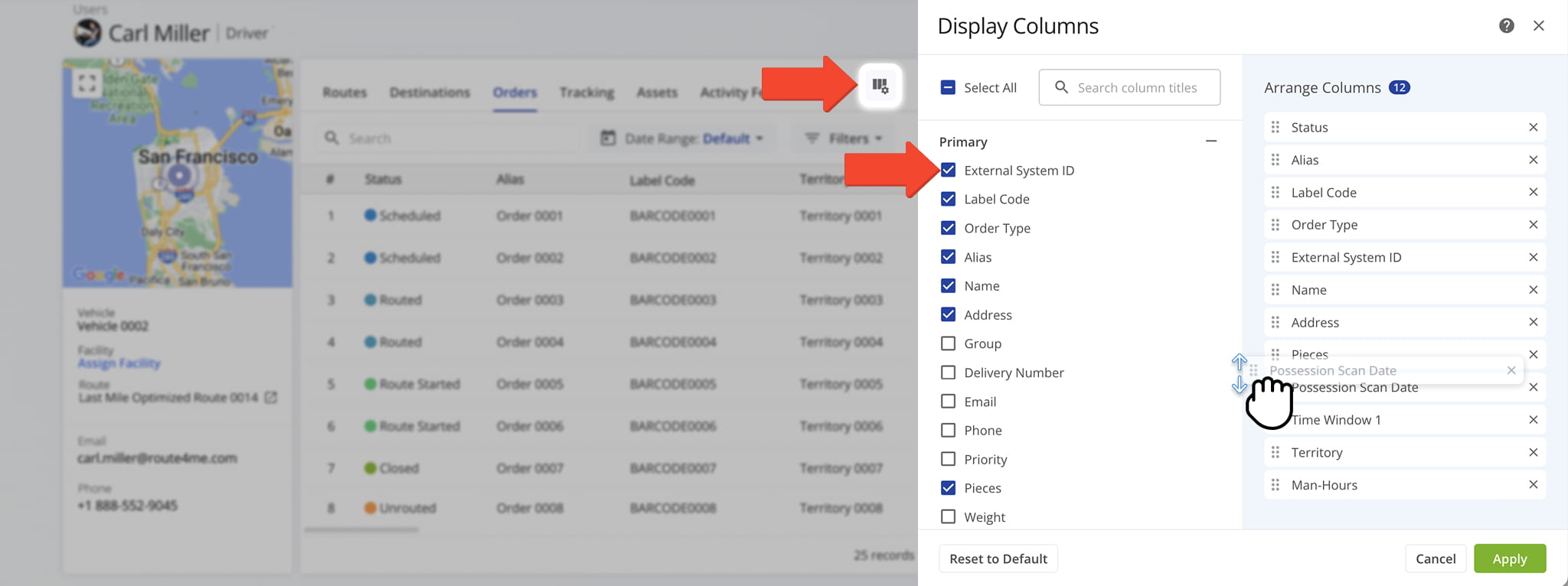
Orders Tab Data Columns
Tracking Tab – User Location Updates Overview
The Tracking tab displays all location updates associated with a user, including telemetry data when available via Telematics Integration.
Click the Info Icon to view the user’s tracked location on a map, with key details such as latitude, longitude, speed, and timestamp. Refer to the table below for a detailed overview of all data available from the Tracking tab.
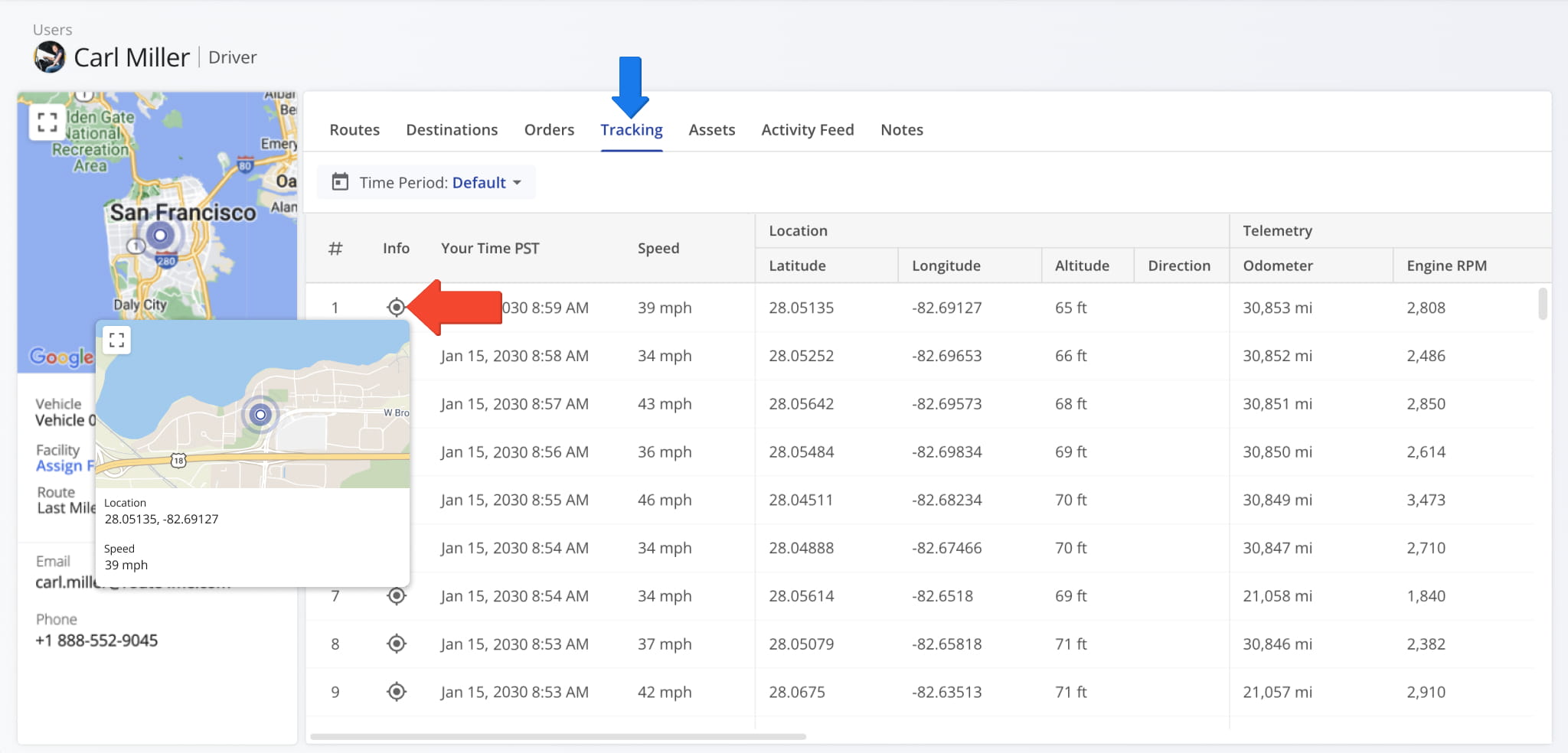
Tracking Tab Data Columns
Assets Tab – User-Assigned Assets Overview
The Assets tab displays all assets associated with the user. From this tab, you can:
- Use the Search field to locate specific assets by name or identifier.
- Apply Filters to narrow down the asset list. See the table below for a full list of available filters.
- Use the Group By option to organize assets by asset type or whether they were externally originated.
- Click “Open” next to an asset to access its Asset Snapshot.
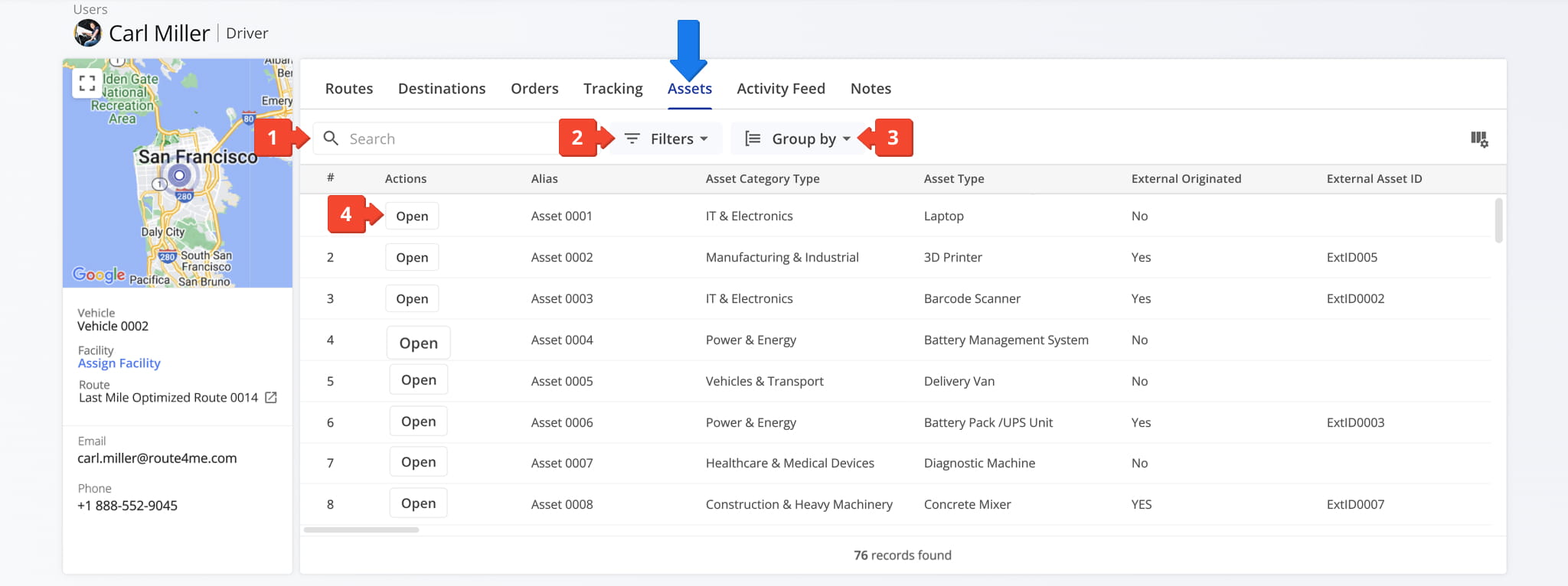
Assets Filters
You can also customize the data displayed in the table. Click the Column Icon in the upper right corner to select which route data fields appear and adjust their order to suit your operational needs.
The table below provides an overview of all available data columns, which you can reorder by dragging them into place.
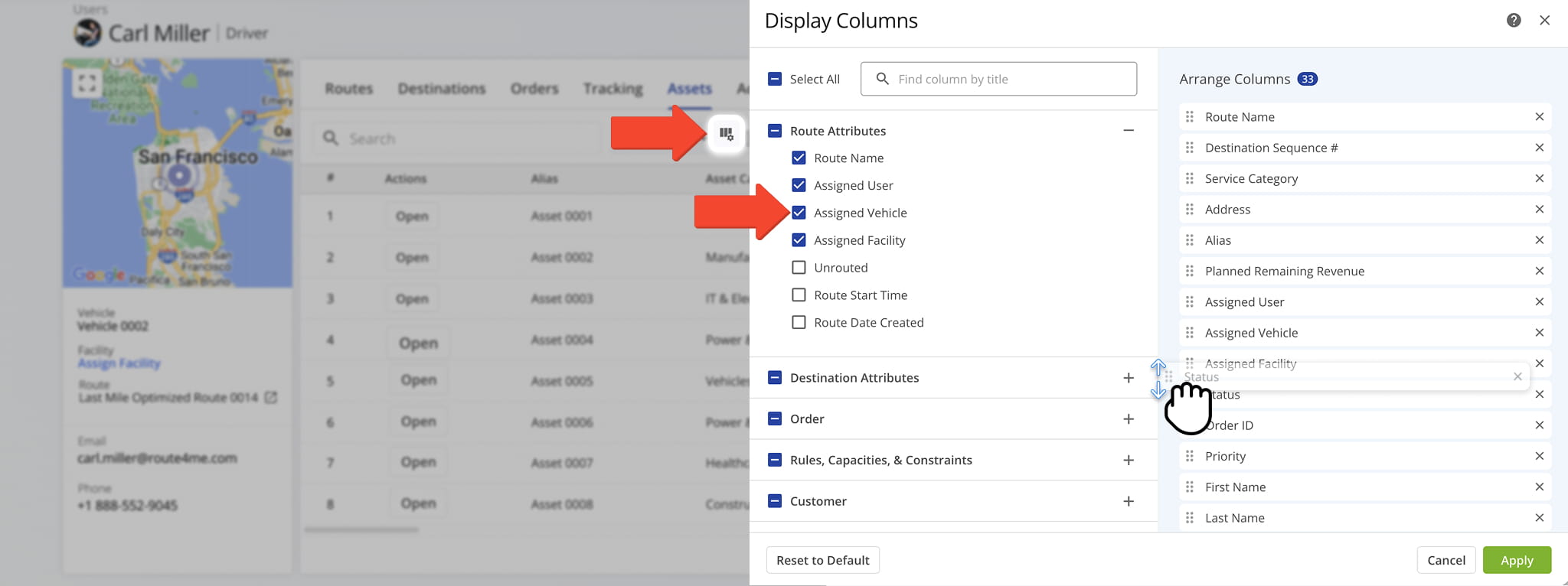
Assets Data Columns
Activity Feed Tab – Route Activity And Event History Overview
The Activity Feed tab displays a chronological list of route activity events associated with the user. The available activity entries match what is shown in the standard Activity Feed, ensuring consistency across views.
From the Activity Feed tab, you can perform the following actions:
- Filter activity entries by Date Range or Filters, as described in the table below.
- Click the Arrow next to a specific date to expand or collapse the list of activities for that day.
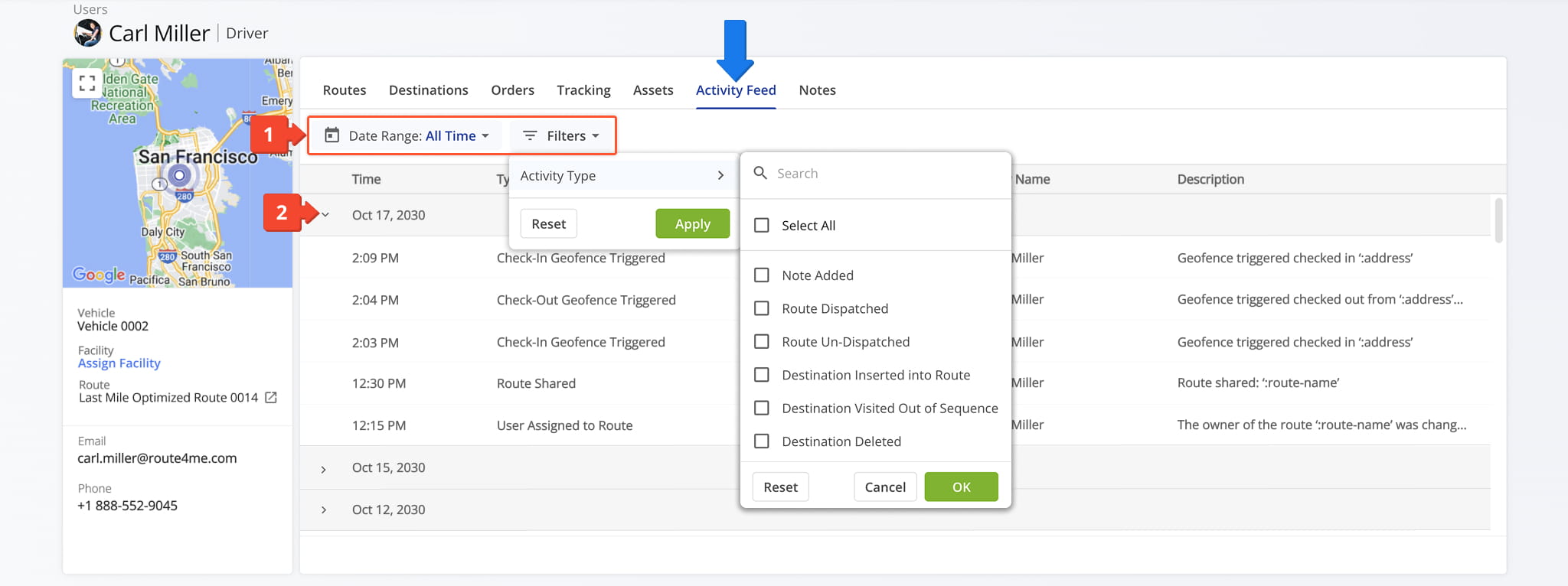
Activity Feed Tab Filters
Notes Tab – User Route Activity And Destination Notes
The Notes tab provides a list of Destination Status Notes added to each destination by the assigned user. From here, you can:
- Use the search field, calendar, or filters, detailed below, to quickly find specific notes.
- Click any image, such as a signature or photograph, to view an enlarged, downloadable version.
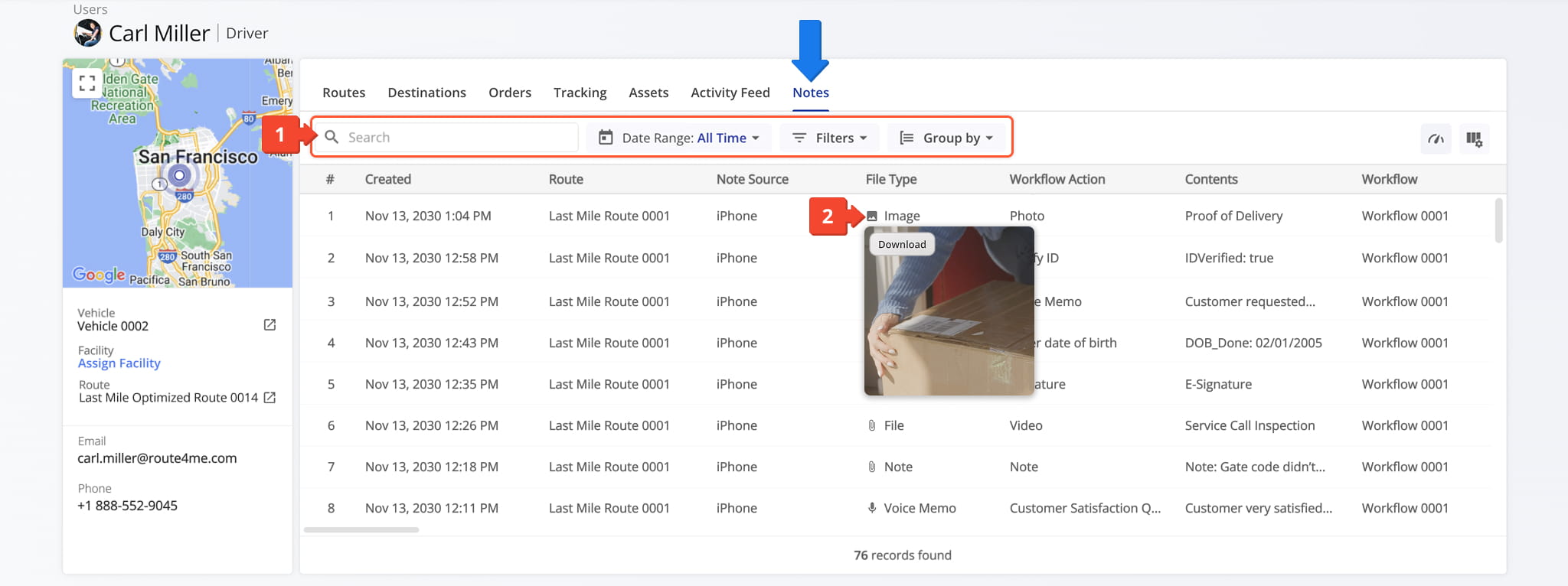
Notes Filters
You can also customize the data displayed in the table. Click the Column Icon in the upper right corner to select which route data fields appear and adjust their order to suit your operational needs.
The table below provides an overview of all available data columns, which you can reorder by dragging them into place.
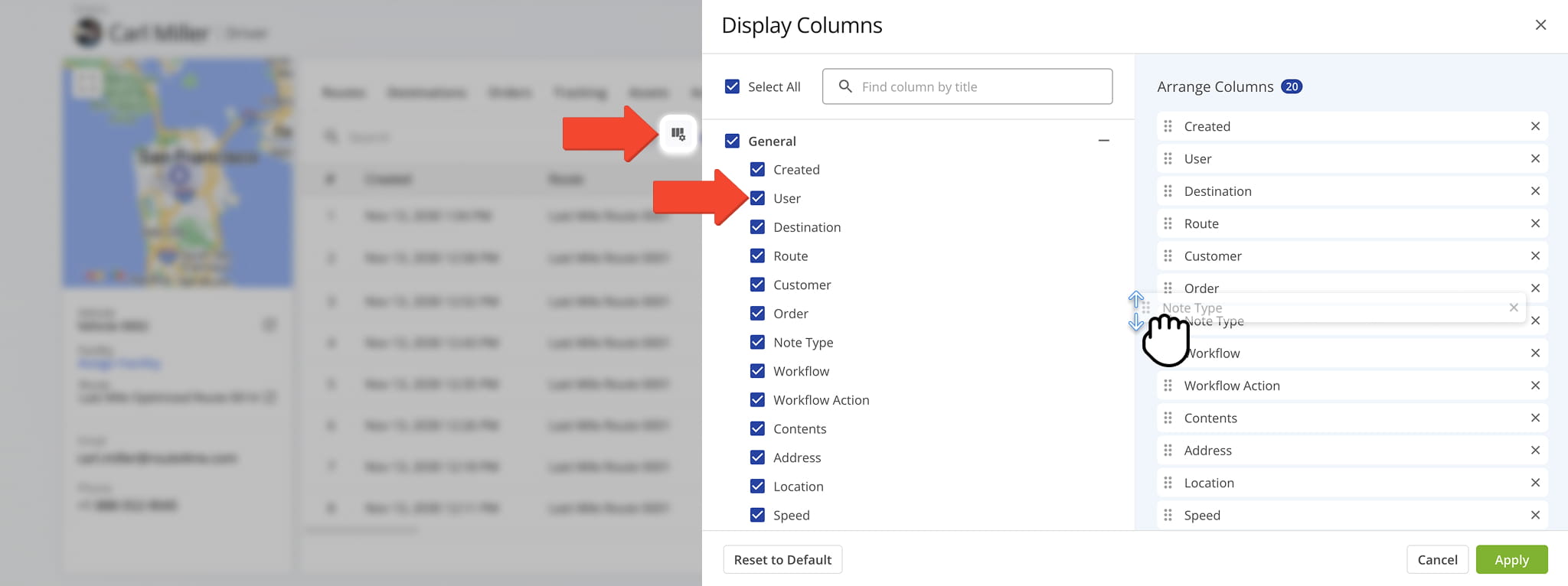
Notes Data Table
Visit Route4Me's Marketplace to Check out Associated Modules:
- Operations
Audit Logging and Activity Stream
- Operations
Custom Data Add-On
- Operations
Advanced Team Management Add-On
About author: Daniel Archer